

Page 1
HD29564 Internet Access Gateway Product Setup
Quick Start Guide 1
The Internet access gateway products have Ethernet LAN ports that can be used to connect wireless access
points, Internet café kiosk computers, wired hotel rooms and business center computers. The Internet (WAN)
port must be connected to the DSL or cable modem
First Time Product Configuration
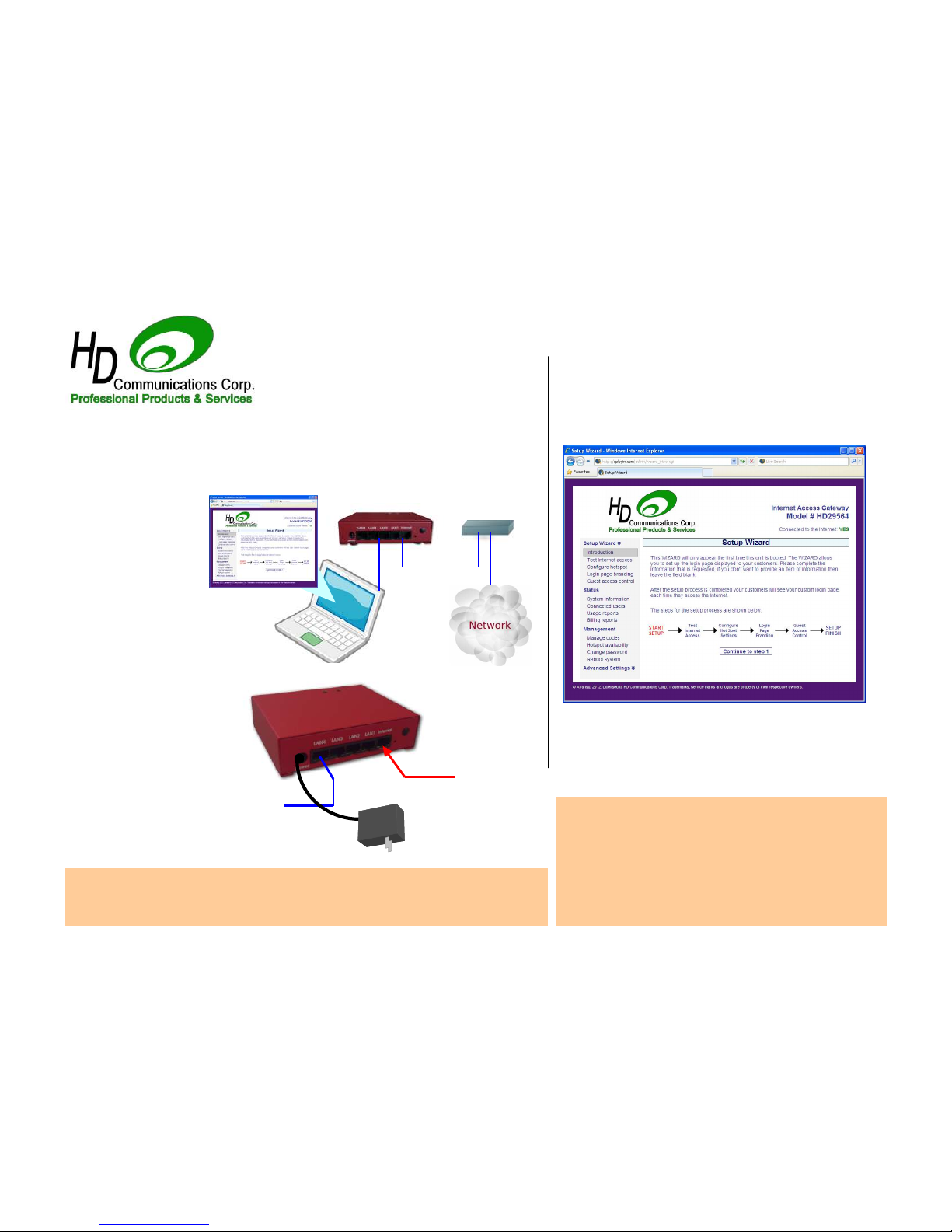
Connect your laptop computer to one of the LAN ports of the gateway.
Connect the Internet port to you DSL router.
Open your computer browser. Instead of your login page you will see the
page shown below. This page is the SETUP WIZARD.
The setup process has four steps. Follow the instructions to type in the
information requested on each page. Then click on the button to go to the
next page. When the setup process is completed your personalized
wireless Internet service will be ready for your guests to start using. The
setup process is shown overleaf: flip this page over to start the setup
process.
Connect your computer
Ethernet connector to the
LAN1 connector of the
gateway. Your computer
Ethernet connector should
be configured for dynamic
IP or as a DHCP client. It
cannot be used with a fixed
IP.
Login to the Admin pages at any time. Connect your computer to the
gateway via an Ethernet cable of wireless. Then open your browser and
type in the URL:
http://aplogin.com/admin
The username is
admin
, and the password is
the one
that you entered
with the wizard.
When the page opens select the option you need in the menu. See the
manual for more information about configuration.
For operation the WiFi
Hotspot users will use the
wireless network or kiosk
computers. Connect wireless
access points and kiosk
computers to the gateway
LAN ports.
Reset to Factory Defaults
: With the gateway powered up, use a paperclip to press the HD29564
reset button through the hole. Hold the reset button down for 10 seconds the release. All parameters will be
reset.
First connect the gateway as shown in the diagram to configure it using the setup wizard.
Connect the Internet
connector of the gateway
to the DSL or cable
modem LAN Ethernet
connector. The DSL of
cable modem should have
the LAN network
connector configured as a
DNCP server. Check with
the equipment manual to
verify the LAN connector
configuration.
If you wish to connect more
devices then connect an Ethernet
switch to one of the LAN ports.
DSL
Internet
Configura tion
computer
Interne t port
LAN port
12volt power supply
For 110/220volts
DSL/Cable
router
HD29564
connections
Wireless
access
points
Page 2
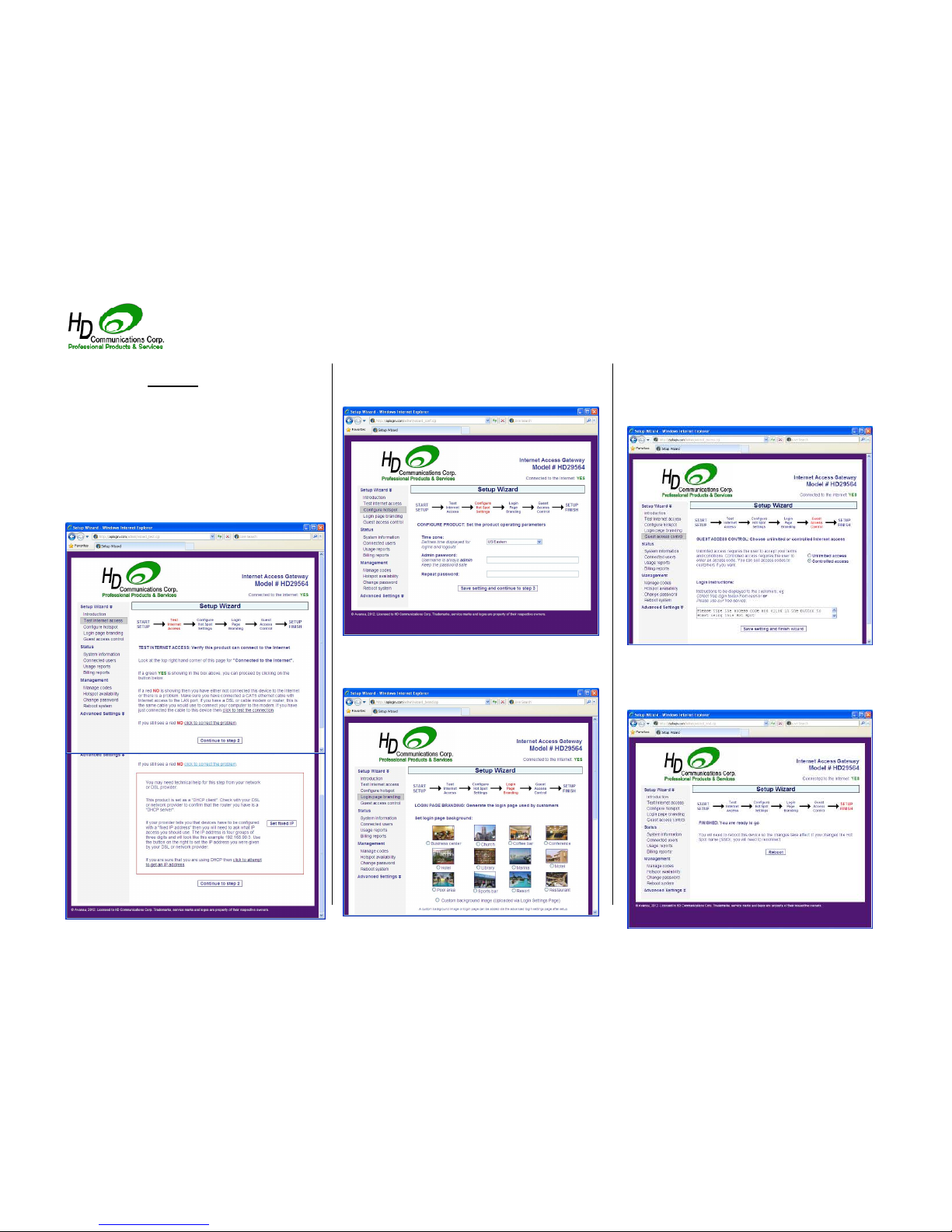
Your gateway unit must have a connection to the
Internet for the configuration process to be completed. If
you see a green YES then proceed to step 2. If a red NO
then click on the link to diagnose the problem.
You may have to set a ‘fixed IP’. If you are not familiar
with setting a fixed IP then ask a network technician to
provide help with this.
Some DSL and Cable routers have a firewall setting that
prevents the gateway connecting to the Internet. You
may have to change a setting on the router firewall.
Step 2: configure hotspot settings
Finished, click on reboot to start your hotspot
Select your time zone and set your password. Note your
password and keep in a safe place.
If you select unlimited access then your guests will click
on a disclaimer to access the Internet. If you select
controlled access then you will have to generate access
codes for your guests.
Your guests will see this information on the login page
Step 1: test the Internet access
After reboot wait two minutes then open your browser
to see your login page. If you want to make changes
then login again and click on the setup wizard.
Step 3: login page branding
Step 4: select guest access
HD29564 Internet Access Gateway Product Setup
Quick Start Guide 2
 Loading...