

Page 1
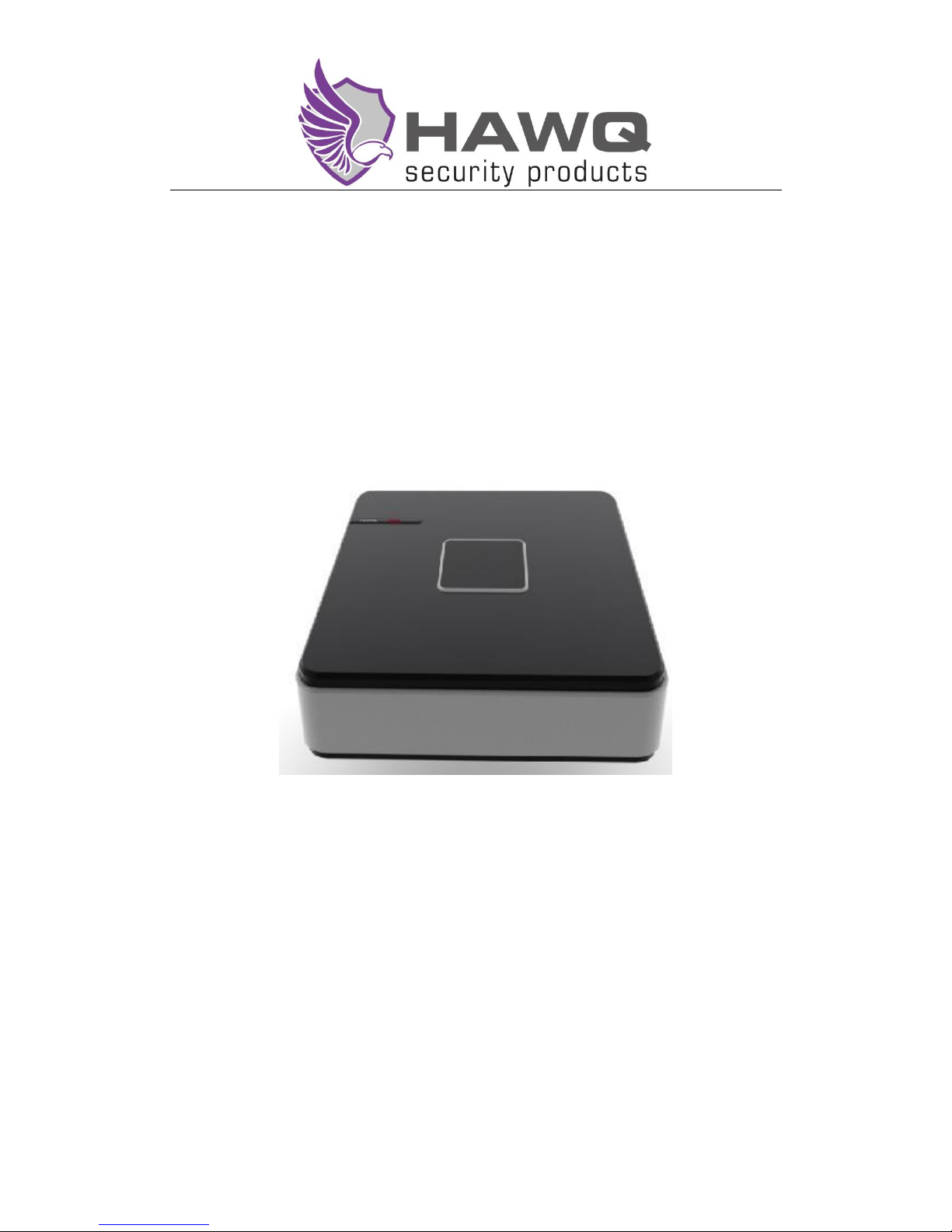
Digital Video Recorder Quick Operation Guide
M2BOXDVR4 | M2BOXDVR8
Page 2

Directory
1 Packing List........................................................................................................ 3
2 Precautions ......................................................................................................... 3
3 Access Guide ...................................................................................................... 3
4 HDD Guide ........................................................................................................ 4
5 Rear Panel and External Devices ....................................................................... 5
6 Quick Operation Guide ...................................................................................... 5
Page 3
This manual may contain technical inaccuracies, operation inaccuracies and printing errors. Based
on changes in product functions, we will update contents of this manual and the corresponding
hardware and software products.
This manual provides reference to users. Please prevail in kind.
Parts, components and accessories mentioned in this manual don’t represent configuration of the
product you purchased. Please refer to packing list about detailed configuration.
1 Packing List
Packing List
No.
Name
Quantity
1
Digital Video Recorder
1
2
Power Adapter
1
3
Mouse Power Adapter
1
4
Certificate
1 5 Quick Operation Guide
1
2 Precautions
The following is about usage of devices, the prevention of danger as well as preventing property
from loss. Please be sure to comply.
1、Please place DVRs within the permissible range of temperature and humidity.
2、Place the product horizontally and pay attention to prevent it from falling.
3、Install it in a well-ventilated place and don’t block the vent.
4、Don’t place liquid containers on the device.
3 Access Guide
Please access www.vssweb.net for more helps and detailed product manuals.
Page 4
VSSWEB
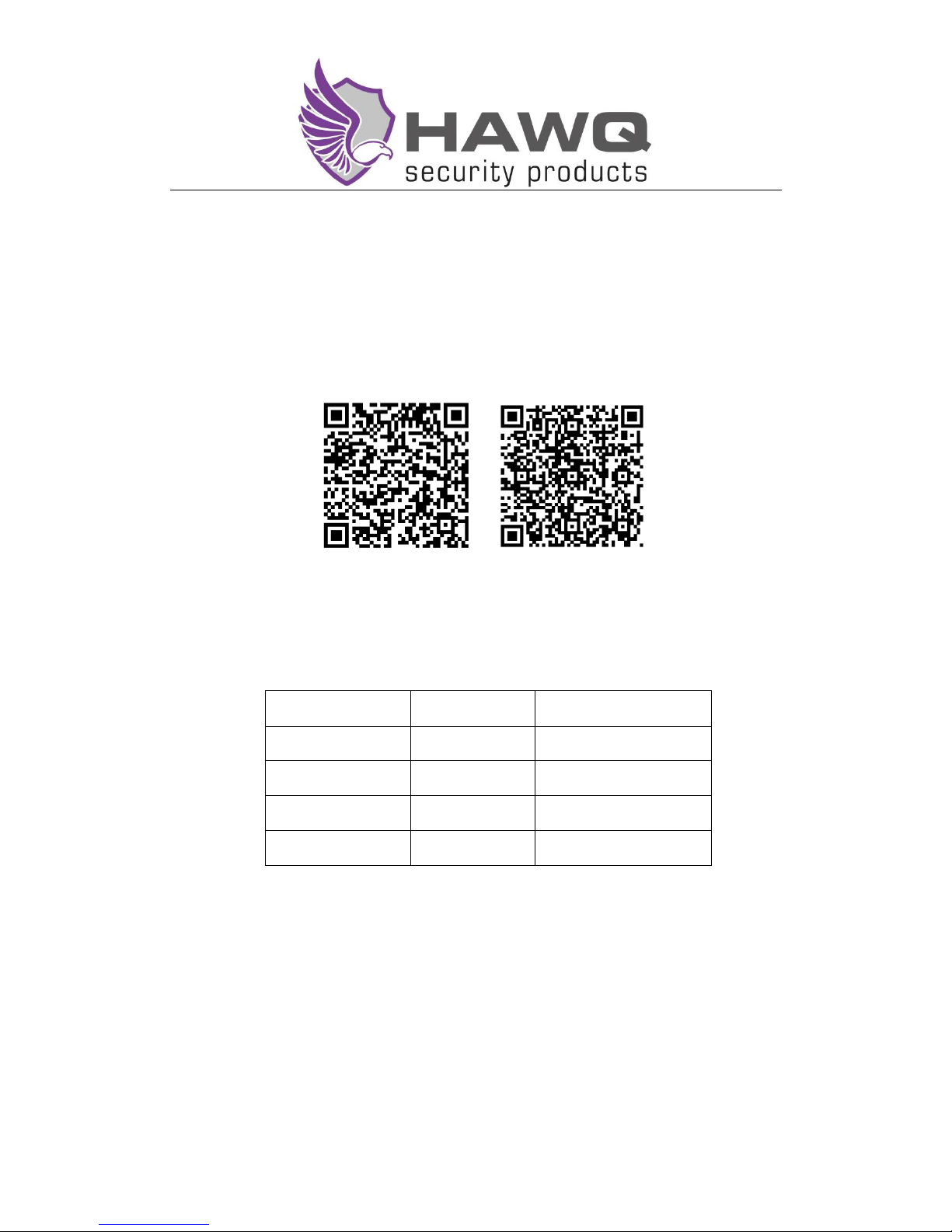
Mobile client (IMSeye) supports Android 2.1 and later versions,IOS 4.3 and later versions.
Android IMSeye App iPhone IMSeye App
4 HDD Guide
When the device records for 24 hours,please refer to the following form about available time of
different HDDs.
Number of cameras
HDD Capacity
Available Time of HDD
4
1 TB
19 Days
4
2 TB
38 Days
8
1 TB
12 Days
8
2 TB
25 Days
This form is for reference. The data in the form may be biased with the actual value.
HDD Installation Steps
1. Unpack the whole device.
2. Turn the device, unscrew screws of HDD cover and remove HDD cover.
3. Fix HDD and HDD cover with screws.
4. Connect the HDD data cable and power cable.
5. Fix device and HDD cover with screws.
Note: Select HDD recommended by manufacturers and suitable for devices.
HDD will be automatically formatted when the device power is on.
Page 5
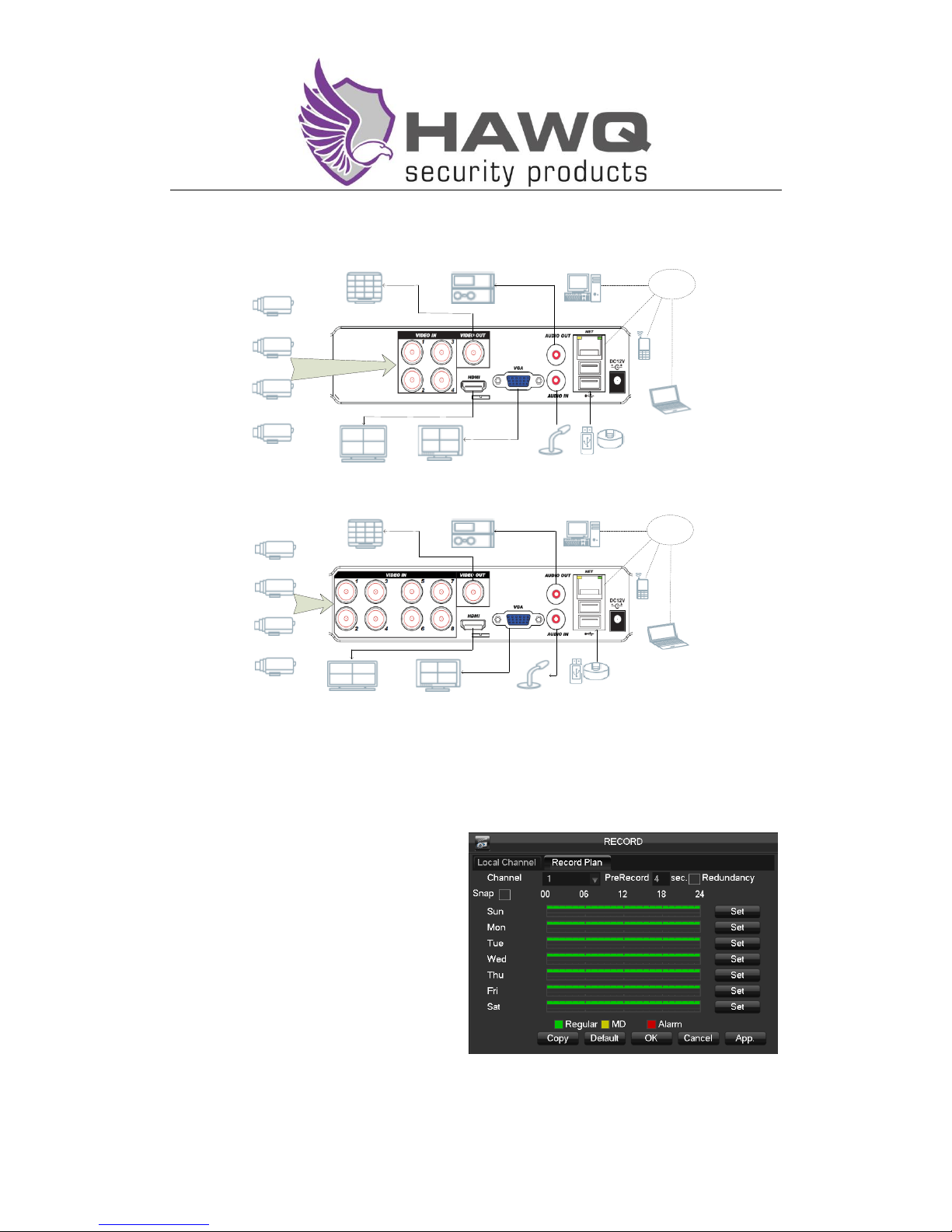
5 The Rear Panel and External Devices
USB
NETWORK
CMS
HDMI VGA
TV
Camera
A/I
A/O
Camera
Camera
Camera
V/I
M
WEB
4 Channels device’s rear panel and external devices
USB
NETWORK
CMS
HDMI
VGA
TV
Camera
A/I
A/O
Camera
Camera
Camera
V/I
M
WEB
8 Channels device’s rear panel and external devices
6 Quick Operation Guide
Record Configuration
Support 24 hours continuous recording, six
periods editable recording and motion
detection recording. Please set recording time
according to the actual need.
Support pre-recording and redundancy.
Note: Only in automatic recording mode,
dynamic detections and alarms can be
recorded.
Page 6

Playback
Right click screen and select [Search].
Select the date and channels, and double
click time bar to play videos. Time bar
visually shows if there is video for the date
and the channels.
Support playback control bar and videos’
backup.
Note: Green, red, yellow time bar respectively denote ordinary recording, alarm recording and
dynamic detection recording.
Network Settings
Support access devices in LAN. Please set
IP, subnet mask and gateway for devices.
Plug the Internet cable in the device.
Access devices with IP in browsers.
Support access devices in extranet by
P2P(Refer to operation manual about more
details).
Support PPPOE,3G,IP Filter,Email,FTP,DDNS and Push.
Internet access
Access devices in extranet by P2P and
dynamic domain name. Input dynamic
domain name or www.vsswen.net in
browsers.
Page 7
Mobile Client Access
Mobile clients support P2P.Enter devices with ID and password, or by
scanning two-dimensional code directly.
Note: When access by IE browser, if it shows "ActiveX is not registered",
please modify the browser's security settings (refer to operation manual)
or add control file as trusted in anti-virus software or exit anti-virus
software.
Please install and activate Quicktime if access devices by Chrome, Firefox, safari browser and so
on.
 Loading...