

Page 1
Quick Start Guide
1
3
4
5
6
7
8
9
10
HAVEN CONNECT
High-strength, Bluetooth enabled smart lock.
Safety, Warnings, Regulations
Warranty
Getting Started
Preparing Your HAVEN
Mobile Application Setup
Key Fob Pairing
Installation
Notes
Troubleshooting
HAVEN Lock, Inc - 10x stronger than the deadbolt
v 1.0
Page 2
1 HAVEN CONNECT
Important Safety Instructions
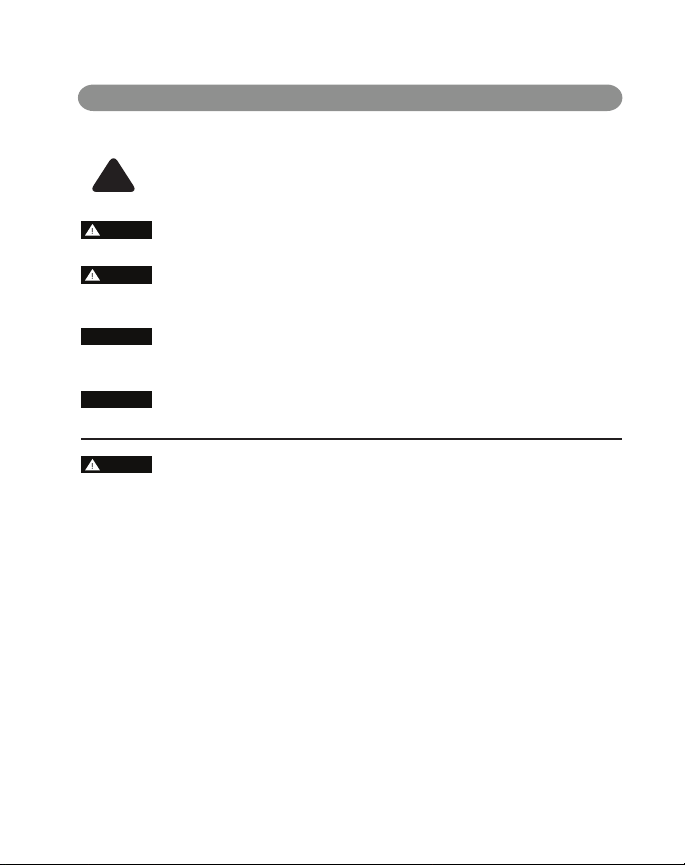
Explanation of Attention Words and Symbols used in this guide
This is the safety alert symbol. It is used to alert you to potential personal injury
hazards. Obey all safety messages that follow this symbol to avoid possible injury
!
or death.
WARNING
CAUTION
CAUTION
WARNING indicates a hazardous situation which, if not avoided, could result in
death or serious injury.
CAUTION, used with the safety alert symbol, indicates a hazardous situation which,
if not avoided, could result in minor or moderate injury.
CAUTION, used without the safety alert symbol, indicates a hazardous situation
which, if not avoided, could result in harm to yourself and others.
NOTICE is used to address safe-use practices not related to personal injury.
NOTICE
WARNING
HAVEN will not prevent someone from accessing your home via other means.
HAVEN will not prevent someone from getting through your door if they use special tools.
HAVEN is designed as barrier to prevent a closed door from being forced inward into a dwelling when blunt forced is
used against the middle section of the door near the outside door handle. Any other entry attempt does not fall under
the product denition or purpose of HAVEN Lock. For instance, a person who uses a special tool to remove the door or
any elements of the door or attempts to cross the barrier of the door through an opening does not fall under the
dened use of HAVEN Lock.
If you experienced a break in attempt with HAVEN installed we recommend that you replace your HAVEN.
Do not attempt to disassemble unit or remove components that are not explicitly stated in the installation manual.
Do not press down on the pedal and locking gate at the same time.
Owner is responsible for providing alternative access to the building in the event of re, potential smoke inhalation,
carbon dioxide event, or other home emergency not listed explicitly here.
Owner is responsible to ensure proper t and correct installation.
Owner is responsible for safety of themselves and others. If you are unsure if this product is right for you, please
consult our Help Team at support@havenlock.com or other security professional.
Need help? Contact us at support@havenlock.com
Page 3

QUICK START GUIDE 2
CAUTION
CAUTION
NOTICE
Use caution when placing HAVEN in doorway during installation and use.
Owner is responsible for reading and following the operating and safety instructions as well as proper use of unit. Wear
appropriate protective items during installation to avoid injury.
Do not install near live electrical cords. Ensure installation area is free of wires, cables, pipes, and other objects that may
cause hazards.
Use only the tools referenced in the installation guide. Use of other tools or not following installation instructions may
result in improper installation and decreased functionality.
Owner is responsible for proper use and avoidance of HAVEN as a trip hazard.
Do not place HAVEN on unapproved surfaces to avoid additional trip hazards.
Owner is responsible for ensuring the unit is clean for full functionality and capabilities.
Owner is responsible for providing access to your own home. Owner is responsible for ensuring alternate access into
your home when needed.
Owners are responsible for whoever has access or use to engage or disengage the unit.
The unit is designed to act as a deterrent, but should still be used in conjunction with other safety measures. The
unit is intended as supplementary security for use in conjunction with current lock hardware.
HAVEN LOCK INC is not liable for any personal injuries, property damage, economic loss or any consequential
damages sustained as a result of any individual in contact with the unit.
Do not consume any area of the unit.
Do not put the unit near sensitive bodily areas.
To avoid damage to the unit, do not use on wet surfaces or damp locations. The product is designed for indoor use only.
Do not expose to weather elements as this may aect functionality.
To avoid potential damage to your unit, do not simulate a break in. Damage to the unit may aect later functionality.
Owner is responsible for ensuring unit is operating properly. HAVEN LOCK INC expressly disclaims all guarantees,
whether implied or expressed, to include but not limited to tness or merchantability for a particular purpose.
FCC INFORMATION
Class B Equipment - This equipment has been tested and found to comply with the limits for a Class B digital device, pursuant to Part 15 of
the FCC Rules. These limits are designed to provide reasonable protection against harmful interference in a residential installation.
This equipment generates, uses, and can radiate radio frequency energy and if not installed and used in accordance with these
instructions may cause harmful interference to radio communications.
However, there is no guarantee that interference will not occur in a particular installation. If this equipment does cause harmful
interference to radio or television reception, which can be determined by turning the equipment o and on, the user is encouraged to try
to correct the interference by one or more of the following measures: A) Reorient or relocate the receiving antenna. B) Increase the
separation between the equipment and receiver. C) Connect the equipment into an outlet on a circuit dierent from that to which the
receiver is connected. D) Consult the dealer or an experienced radio/broadcast technician for help.
Need help? Contact us at support@havenlock.com
Page 4
3 HAVEN CONNECT
LIMITED WARRANTY
Any major malfunction of HAVEN Connect caused by a defective part or construction of the unit will be xed by
HAVEN LOCK INC up to one year from the date of receiving the unit. This warranty only covers the original
purchaser of HAVEN Connect and does not cover any commercial or business use of HAVEN Connect. Only
private use by the original purchaser is covered by this warranty. If HAVEN Connect is installed improperly, used
in any way not in accordance with our guidelines, or altered in any way, this warranty is void. Damage caused
by misuse, neglect, or battery malfunction are not covered by this warranty.
If a HAVEN Connect unit is claimed defective by the original purchaser under this warranty, HAVEN LOCK INC
may require the unit to be shipped back to their headquarters or fulllment center for investigation. The costs
associated with this shipment may or may not be incurred by the original purchaser.
This warranty only covers HAVEN Connect and no other equipment. Any other device used with HAVEN
Connect in any way is not covered by this warranty.
BATTERY INFORMATION & DISPOSAL
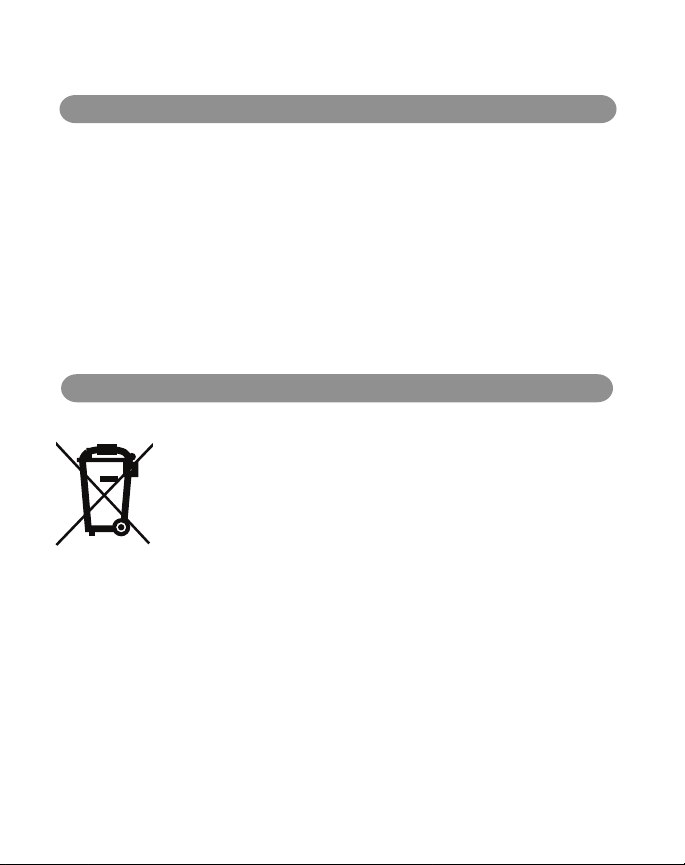
Correct disposal of this product: This symbol indicates that this product must not be
disposed of with household waste, according to the WEEE Directive (2012/19/EU) and your
national law. This product should be taken to a collection center licensed for the recycling
of waste electrical and electrical equipment (EEE). The mishandling of this type of waste
could have possible negative impact on the environment and human health due to
potentially hazardous substances that are generally associated with EEE. At the same time,
your cooperation in the correct disposal of this product will contribute to the ecient use
of natural resources. For more information about where you can take your waste
equipment for recycling, please contact your local city oce, or your household waste
collection service
Need help? Contact us at support@havenlock.com
Page 5

GETTING STARTED
Upon opening your HAVEN Connect, you should nd the following items inside:
QUICK START GUIDE 4
HAVEN Connect
Your lock which will be mounted at the base
Power Adapter
120v AC USB Adapter for use with
included charging cable
of your door.
Door Spacer
Plastic spacer used during installation to
measure the proper distance from the base of
If you are missing any of the items above, please email us
Installation Spacer
Optional spacer used for thresholds that are
higher than 0.8” and as a template marker for
alignment and drilling of holes
Charging Cable
USB Charging cable used to charge
your HAVEN Connect
Installation Screws (6)
Six Phillips head screws used for
door.
attaching your HAVEN Connect to your
at support@havenlock.com and let us know!
OPTIONAL ACCESSORIES
Key Fob
If you purchased a HAVEN Connect Key Fob
you should nd it included in your box.
May be ordered and shipped separately.
E90 E90 E90
Backup Batteries (3)
Three E90 Backup batteries.
oor.
Need help? Contact us at support@havenlock.com
Page 6

+
_
+
1
+
2
+
3
+
4
5 HAVEN CONNECT
PREPARING YOUR HAVEN CONNECT
Status Indicator LED
A
C
Control Panel Cover
E
Locking Gate
Manual Foot Locking Pedal
Control Panel (with cover lifted)
D
Charging Port
R
B
Admin Button
Factory Reset (using pin)
Charging
1
Plug the included charging cable (USB end) into the included power adapter. Open the HAVEN Control Panel cover (C)
and plug the charging cable into the Charging Port (D). Allow HAVEN to fully charge 6-8 hours before use. This is a
good time to set up your account at www.myhavenlock.com or on the mobile app.
Install Backup Batteries
2
Using the 3 include E90 Batteries, place them according to the battery placement indicator in the backup battery slot
(G).
Remove Locking Gate Cover (E)
3
If you are ready to mount and install the HAVEN Connect, remove the HAVEN locking gate cover by removing the 4
small screws (Phillips head screwdriver) on the back of the locking gate, as seen below:
Need help? Contact us at support@havenlock.com
F
G
Backup Battery Slot
Page 7

SETTING UP MOBILE APP
Get prepped
1
Download the HAVEN Lock App from the App Store or Google Play Store on your mobile device. Go
through the steps to setup an account within the HAVEN App. Make sure Bluetooth is activated on your
smart device.
Visit the link below to download the appropriate app, or scan the QR code to be directed automatically:
QUICK START GUIDE 6
Android Devices
www.havenlock.com/android
Launch app and setup account
2
Launch the HAVEN app and follow the steps on screen to set up your HAVEN account. You will receive a
conrmation email to complete the setup. Note: be sure to check your spam folder in your email if you do
not receive the email within 5-10 minutes.
Prepare to pair your device
3
Once your account is set up, log in to the app and click the icon to expand the menu. Select “Pair A
Device” and follow the on-screen instructions.
Make your HAVEN discoverable
4
Open the control panel (C) of your HAVEN and press and release (do not hold) the admin button (B) . Once
the LED begins to ash, touch your phone to the lock and the app should complete the pairing process.
Name your lock
5
Once your lock is nished communicating with your smart device, you will be prompted to name the lock
you are setting up. After you named your lock (e.g. Front Door) click on the blue "Complete Setup" button
on the bottom of your screen.
+
Apple Devices
www.havenlock.com/apple
Having issues? See the troubleshooting
section at the end of this manual or go to
www.havenlock.com/faq
Page 8

7 HAVEN CONNECT
KEY FOB PAIRING (purchased separately)
H
I
LED Status Indicator
Unlock Button
Touch the key fob against the HAVEN Connect
1
Status Indicator LED ( A ) and press and hold the
key fob lock button ( J ) for 5 seconds until the
Key Fob LED Status Indicator ( H ) illuminates
and blinks white. Continue holding button ( J ).
J
Both lights should blink together and you will hear a beep to signify that the pairing was successful.
3
If you do not hear the beep and your key fob does not function or ashes red, you will need to hold the
4
HAVEN Admin Button ( B ) for about 10 seconds to reset (LED will ash green) and then start the process
over again. (Note: resetting the HAVEN through manual reset also disconnects any synced phone
applications that will need to be re-keyed via the mobile application).
Lock Button
2
While still holding the key fob lock
button, press and release the HAVEN Admin
Button
( B ) and when it starts blinking white, release
the lock button ( J ) on the key fob.
KEY FOB RESET
When a HAVEN Key Fob needs to be cleared of its paired connection to HAVEN Connect, it must go through a
reset process.
Hold Lock Button for 4 Seconds - On the enrolled key fob, hold down the lock button ( J ) for
1
approximately 5 seconds.
Wait for Flashes - A short series of ashes will appear, momentarily stop and then reappear.
2
Fob Restarts - The fob will then automatically restart. Upon powering back up, an alternating series of
green, red, blue and white ashes indicate that the fob is powered on.
3
Ready for New Enrollment - The key fob has been successfully reset and the preexisting enrollment has
4
been cleared.
Need help? Contact us at support@havenlock.com
Page 9

INSTALLING YOUR HAVEN CONNECT
QUICK START GUIDE 8
Tools Required For Install
Power Drill
Installation Screws (6)
Pencil
Phillips
Screwdriver
Measuring Tape
Phillips Drill Bit1/8” Drill Bit
Installation Overview
Measure
1
A. Center lock on door
B. Conrm height
We decided to save some trees and created a pretty cool install guide you can access online. It will walk you through the
Where is the rest of the guide?
many dierent install scenarios you might encounter.
Drill
2
A. Drill pilot holes
B. Clean surface
3
Secure
A. Place unit
B. Drill in screws
install.havenlock.com
DISCLAIMER
Use of this guide at your own risk. HAVEN LOCK INC and its parent or partner companies are not liable for any damages to property or
bodily injuries that occur during or after installation. HAVEN LOCK INC assumes no responsibility in providing the correct tools and
accessories needed for installation unless otherwise noted. Use proper protective gear when completing the steps detailed in this
guide. This guide is simply suggestive and not in any way authoritative. Always use your own best judgment. Incorrect installation or
lack of safety precautions can lead to serious injury or death for you or anyone around the installation area. If you are not comfortable
installing HAVEN Lock, we advise you to seek out a professional skilled worker with home construction experience to assist you.
Page 10

9 HAVEN CONNECT
GENERAL NOTES ON HAVEN CONNECT
Bluetooth Range
HAVEN Connect uses Bluetooth to communicate to its control devices like the Key Fob, Smartphone App, and
HAVEN Hub. Bluetooth has a theoretical range of 100m (328 ft), but that is all dependent on the environment. If
any object is between the controller and the lock, the eective range of Bluetooth will drop. When you use
Bluetooth, you should assume the eective range is 50 meters (160 ft.)
Layered Security
The HAVEN Lock is a layered security device. We advise customers to use HAVEN as a supplemental layer in their
home security. Relying on a single device or component will lessen the security of your home. HAVEN Lock should
be part of a larger home security system. It is not a total solution. We suggest using video cameras, motion sensors,
alarm monitoring, and vibration sensors.
Personal Security
HAVEN Connect only works as well as its user. Taking personal responsibility for your own safety is very important
to make HAVEN Connect work for you. Our product can’t prevent you from sending a guest pass (eKey) to the
wrong person. HAVEN Connect can’t prevent your phone from being stolen and cannot keep your password
secure. Being proactive and responsible is the best way to protect you and your home.
IMPORTANT SAFEGUARDS
Replace low batteries immediately. HAVEN Connect’s main battery lasts for about 3 months on a single
charge. The backup batteries serve as a power source to unlock your HAVEN in the event that the
primary source is depleted. Do not rely on them for long periods of time. Please charge your unit and
replace the backup batteries every three months.
Protect your password. You are responsible for your own security. HAVEN Connect is not a replacement
for personal responsibility. Do not share your password with anyone you do not trust or know well. To
be safe, do not share it with anyone.
Who is getting access? You can give access to your HAVEN Connect to other people using the eKey
feature in the application. You are the admin and if you give access to the wrong person, they will be
able to access your home.
Your smartphone is the key and the access control panel for your HAVEN Connect. If someone has
access to your smartphone, they could control your HAVEN and gain access to your home. Your
smartphone security should be regarded the same as your home security; make sure to password
protect your phone.
If your smartphone is stolen or lost, deactivate your phone at the HAVEN Lock Web Portal
(www.myhavenlock.com). If your key fob is lost or stolen, reset your lock by pressing and holding the
Admin Button (B) for 10 seconds (or until it ashes green) or send an email to support@havenlock.com.
Make sure to turn on notications in your HAVEN Lock app as well as your smartphone settings. This
will help you keep track of any changes that occur to your HAVEN Lock. You can receive alerts when
someone is coming and going, but most importantly you will be notied of any admin actions that
occur.
Page 11

QUICK START GUIDE 10
TROUBLESHOOTING
Below are some common issues you might encounter while installing or operating your HAVEN Connect. If you do not see your issue
below, contact us at support@havenlock.com.
HAVEN Connect Issues
HAVEN will not turn on or no indication of power.
HAVEN will not t under my door or does not reach
the base of my door.
How do I turn HAVEN o?
I can’t get the foot pedal to work.
Make sure you have fully charged the unit and inserted
the backup batteries. Press the Admin Button under the
control panel hood and the LED should illuminate. If
not, please contact us at support@havenlock.com and
we will help you out.
Be sure to visit our detailed installation guide at
https://install.havenlock.com that will walk you through
various scenarios involving uncommon door and
threshold sizes. In most cases this xes the situation, but
if you still need help, contact us!
HAVEN is designed to be “always on” so that it is ready to
receive commands from bluetooth devices. After several
minutes it will go into a power saving mode but will
always be on.
The foot pedal is designed to be pressed at a certain
angle to prevent false locking by children or pets. Try
pressing close to the top of the pedal, inward with your
toes rst. This can take some practice to get it right.
I need to reset my HAVEN. Can I perform a factory
reset?
Key Fob / Mobile App
I can’t pair my key fob or app / is not working
My Key Fob no longer works and the LED does not
illuminate.
Need help? Contact us at support@havenlock.com
To factory reset your HAVEN (restore original rmware
and disconnect all devices) you have to hold down both
the admin (B) and reset button (R) and release the reset
button while still holding the admin button for 10
seconds. This process will take about a minute or so to
complete.
If the pairing process fails, you may need to reset
everything to try again. On HAVEN, hold the Admin
Button for 10 seconds until the LED ashes green. On
the Key Fob, hold the Lock button for 10 seconds, and
on the App edit the settings for your paired lock and
delete it from your list. Try the pairing process again and
repeat as necessary.
If the LED on your Fob is not lighting when you press
either button, you could have a dead battery. Contact us
at support@havenlock.com and we can help you out.
Page 12

HAVEN Lock, Inc.
Nashville, TN
www.havenlock.com
 Loading...