

Page 1

Page 2

␊ Copyright ¤ˇ1998-2003 by HAURI Inc.
The Second Edition April 2003
All rights reserved worldwide. No part of this publication or software may be reproduced,
transmitted, transcribed, stored in an archival system or translated into any languages,
human or machine, in any form or by any means, electronic, mechanical, magnetic,
chemical, manual, or otherwise, without the express written permission of Hauri, Inc., 8th
Fl., Yuhan Yanghang Bldg., 49-6, Daebang-dong, Dongjak-gu, Seoul, Korea, Tel: +82 2
828 0820 (Rep.) Fax: +82 2 828 0840
Page 3

␊ Technical Support/Customer Support
USA: Global HAURI Inc.
Address : 3003 North First Street, San Jose, CA 95134
Homepage : http://www.globalhauri.com
E-mail : [email protected], [email protected]
Tel : +1 408 232 5463 (1-866-GO HAURI)ừ Fax : +1 408 232 5464
Singapore : HAURI ASIA Pte. Ltd
Address : Block 750C, Chai Chee Road, #02-12 Technopark@Chai Chee, Singapore 469003
Homepage : http://www.hauriasia.com ừ E-mail : [email protected], [email protected]
Tel : +65 6243 7913/24 (Sales), +65 6243 7914/15 (Technical support)ừ Fax : +65 6442 0223
Japan : HAURI JAPAN Inc.
Address : 4thFl., MS Bldg., #11-5, Shiba 4-Chome, Minato-ku, Tokyo 108-0014, Japan
Homepage : http://www.haurijapan.com ừ E-mail : [email protected]
Tel : +81 3 5444 7916 ừ Fax : +81 3 5444 7980
China : China Blue Star Hauri Technology
Address : 15thFl., Blue Star Bldg., No.17 Bei San Huan East Street, Chao Yang District, Beijing
100029, P.R.C. ừ E-mail : [email protected]
Tel : +86 10 6444 5900(Rep.), +86 10 6444 5911(Technical support) ừ Fax : +86 10 6444 5922
Korea : HAURI Inc.
Postal Code : 156-754
Address : 8th Fl., Yuhan Yanghang Bldg., 49-6, Daebang-dong, Dongjak-gu, Seoul, Korea
Homepage : http://www.hauri.co.kr/ ừ E-mail : [email protected], [email protected]
Tel : +82 2 828 0820 (Rep.) ừ Fax : +82 2 828 0840
Page 4

For the Readers
This Manual is for Hauri customers who have purchased ViRobot Expert. It is strongly
recommended that the user reads this manual before using ViRobot Expert to ensure effective
use of V iRobot Expert.
This ViRobot Expert Manual may be slightly different from your program due to an ongoing
functional improvement.
␊ Read and get the help
This V iRobot Expert manual is divided into seven chapters.
Chapter 1: Customer Service Information
Chapter 2: Introduction to V iRobot Expert
Chapter 3: Get Started with V iRobot Expert
Chapter 4: Using V iRobot Expert in MS Outlook
Chapter 5: Using V iRobot Expert from Windows Explorer
Chapter 6: Advanced User in V iRobot Expert
Chapter 7: Appendix
␊ Conventions
Hereinafter, the term ViRobot will indicate V iRobot Expert.
Page 5

Page 6

REGISTERING YOUR COPY OF ViRobot ¡¡¡¡¡¡¡¡¡¡¡¡¡¡¡¡¡¡¡¡¡¡¡¡¡¡¡¡¡¡¡¡¡¡¡¡¡¡¡¡¡¡¡¡¡ 12
HOW TO CONTACT US ¡¡¡¡¡¡¡¡¡¡¡¡¡¡¡¡¡¡¡¡¡¡¡¡¡¡¡¡¡¡¡¡¡¡¡¡¡¡¡¡¡¡¡¡¡¡¡¡¡¡¡¡¡¡¡¡¡¡¡¡¡¡ 13
HOW TO UPDATE YOUR COPY OF ViRobot ¡¡¡¡¡¡¡¡¡¡¡¡¡¡¡¡¡¡¡¡¡¡¡¡¡¡¡¡¡¡¡¡¡¡¡¡¡¡¡¡¡ 15
WHAT TO DO WHEN A NEW VIRUS IS DISCOVERED¡¡¡¡¡¡¡¡¡¡¡¡¡¡¡¡¡¡¡¡¡¡¡¡¡¡¡¡¡¡¡ 16
ABOUT ViRobot EXPERT¡¡¡¡¡¡¡¡¡¡¡¡¡¡¡¡¡¡¡¡¡¡¡¡¡¡¡¡¡¡¡¡¡¡¡¡¡¡¡¡¡¡¡¡¡¡¡¡¡¡¡¡¡¡¡¡¡¡¡¡¡ 20
SYSTEM REQUIREMENTS¡¡¡¡¡¡¡¡¡¡¡¡¡¡¡¡¡¡¡¡¡¡¡¡¡¡¡¡¡¡¡¡¡¡¡¡¡¡¡¡¡¡¡¡¡¡¡¡¡¡¡¡¡¡¡¡¡¡¡ 23
INSTALLING ViRobot EXPER ¡¡¡¡¡¡¡¡¡¡¡¡¡¡¡¡¡¡¡¡¡¡¡¡¡¡¡¡¡¡¡¡¡¡¡¡¡¡¡¡¡¡¡¡¡¡¡¡¡¡¡¡¡¡¡¡ 25
UNINSTALLING ViRobot EXPERT¡¡¡¡¡¡¡¡¡¡¡¡¡¡¡¡¡¡¡¡¡¡¡¡¡¡¡¡¡¡¡¡¡¡¡¡¡¡¡¡¡¡¡¡¡¡¡¡¡¡¡¡ 32
GET STARTED WITH ViRobot EXPERT ¡¡¡¡¡¡¡¡¡¡¡¡¡¡¡¡¡¡¡¡¡¡¡¡¡¡¡¡¡¡¡¡¡¡¡¡¡¡¡¡¡¡¡¡¡¡ 36
MAIN WINDOW IN ViRobot EXPERT¡¡¡¡¡¡¡¡¡¡¡¡¡¡¡¡¡¡¡¡¡¡¡¡¡¡¡¡¡¡¡¡¡¡¡¡¡¡¡¡¡¡¡¡¡¡¡¡¡ 38
HOW TO SCAN AND REPAIR MY COMPUTER ¡¡¡¡¡¡¡¡¡¡¡¡¡¡¡¡¡¡¡¡¡¡¡¡¡¡¡¡¡¡¡¡¡¡¡¡¡¡ 46
HOW TO DISINFECT VIRUSES IN YOUR MAILBOX¡¡¡¡¡¡¡¡¡¡¡¡¡¡¡¡¡¡¡¡¡¡¡¡¡¡¡¡¡¡¡¡¡ 52
Chapter 1. Customer Service Information
Chapter 2. Introduction to ViRobot Expert
Table of Contents
Chapter 3. Using ViRobot Expert
Page 7

BASIC CONFIGURATIONS¡¡¡¡¡¡¡¡¡¡¡¡¡¡¡¡¡¡¡¡¡¡¡¡¡¡¡¡¡¡¡¡¡¡¡¡¡¡¡¡¡¡¡¡¡¡¡¡¡¡¡¡¡¡¡¡¡¡¡ 57
ADVANCED CONFIGURATIONS ¡¡¡¡¡¡¡¡¡¡¡¡¡¡¡¡¡¡¡¡¡¡¡¡¡¡¡¡¡¡¡¡¡¡¡¡¡¡¡¡¡¡¡¡¡¡¡¡¡¡¡¡ 60
MONITORING¡¡¡¡¡¡¡¡¡¡¡¡¡¡¡¡¡¡¡¡¡¡¡¡¡¡¡¡¡¡¡¡¡¡¡¡¡¡¡¡¡¡¡¡¡¡¡¡¡¡¡¡¡¡¡¡¡¡¡¡¡¡¡¡¡¡¡¡¡¡¡¡ 70
UPDATE¡¡¡¡¡¡¡¡¡¡¡¡¡¡¡¡¡¡¡¡¡¡¡¡¡¡¡¡¡¡¡¡¡¡¡¡¡¡¡¡¡¡¡¡¡¡¡¡¡¡¡¡¡¡¡¡¡¡¡¡¡¡¡¡¡¡¡¡¡¡¡¡¡¡¡¡¡¡ 73
ViRobot SCHEDULE WIZARD ¡¡¡¡¡¡¡¡¡¡¡¡¡¡¡¡¡¡¡¡¡¡¡¡¡¡¡¡¡¡¡¡¡¡¡¡¡¡¡¡¡¡¡¡¡¡¡¡¡¡¡¡¡¡¡¡ 83
CREATING AN EMERGENCY DISK¡¡¡¡¡¡¡¡¡¡¡¡¡¡¡¡¡¡¡¡¡¡¡¡¡¡¡¡¡¡¡¡¡¡¡¡¡¡¡¡¡¡¡¡¡¡¡¡¡¡ 90
CREATE ViRobot FOR DOS¡¡¡¡¡¡¡¡¡¡¡¡¡¡¡¡¡¡¡¡¡¡¡¡¡¡¡¡¡¡¡¡¡¡¡¡¡¡¡¡¡¡¡¡¡¡¡¡¡¡¡¡¡¡¡¡¡¡¡ 94
HAURI NEWS ¡¡¡¡¡¡¡¡¡¡¡¡¡¡¡¡¡¡¡¡¡¡¡¡¡¡¡¡¡¡¡¡¡¡¡¡¡¡¡¡¡¡¡¡¡¡¡¡¡¡¡¡¡¡¡¡¡¡¡¡¡¡¡¡¡¡¡¡¡¡¡¡ 97
ViRobot EXPERT IN MS-OUTLOOK ¡¡¡¡¡¡¡¡¡¡¡¡¡¡¡¡¡¡¡¡¡¡¡¡¡¡¡¡¡¡¡¡¡¡¡¡¡¡¡¡¡¡¡¡¡¡¡¡¡ 102
CONFIGURATION IN MS-OUTLOOK ¡¡¡¡¡¡¡¡¡¡¡¡¡¡¡¡¡¡¡¡¡¡¡¡¡¡¡¡¡¡¡¡¡¡¡¡¡¡¡¡¡¡¡¡¡¡¡ 104
ViRobot EXPERT FROM WINDOWS EXPLORER ¡¡¡¡¡¡¡¡¡¡¡¡¡¡¡¡¡¡¡¡¡¡¡¡¡¡¡¡¡¡¡¡¡¡¡¡ 112
ViRobot EXPERT CONFIGURATION IN WINDOWS EXPLORER ¡¡¡¡¡¡¡¡¡¡¡¡¡¡¡¡¡¡¡¡ 117
DETECTING AND REPAIRING INFECTED FILES ¡¡¡¡¡¡¡¡¡¡¡¡¡¡¡¡¡¡¡¡¡¡¡¡¡¡¡¡¡¡¡¡¡¡¡ 118
REAL TIME MONITOR IN ViRobot EXPERT¡¡¡¡¡¡¡¡¡¡¡¡¡¡¡¡¡¡¡¡¡¡¡¡¡¡¡¡¡¡¡¡¡¡¡¡¡¡¡¡¡ 122
Chapter 4. Using ViRobot Expert in MS Outlook
Chapter 5. Using ViRobot Expert from Windows Explorer
Chapter 6. Advanced User in ViRobot Expert
Page 8

BACKUP BIN¡¡¡¡¡¡¡¡¡¡¡¡¡¡¡¡¡¡¡¡¡¡¡¡¡¡¡¡¡¡¡¡¡¡¡¡¡¡¡¡¡¡¡¡¡¡¡¡¡¡¡¡¡¡¡¡¡¡¡¡¡¡¡¡¡¡¡¡¡¡¡¡ 126
VIRUS SCAN REPORT ¡¡¡¡¡¡¡¡¡¡¡¡¡¡¡¡¡¡¡¡¡¡¡¡¡¡¡¡¡¡¡¡¡¡¡¡¡¡¡¡¡¡¡¡¡¡¡¡¡¡¡¡¡¡¡¡¡¡¡¡¡¡ 130
VIRUS LIBRARY¡¡¡¡¡¡¡¡¡¡¡¡¡¡¡¡¡¡¡¡¡¡¡¡¡¡¡¡¡¡¡¡¡¡¡¡¡¡¡¡¡¡¡¡¡¡¡¡¡¡¡¡¡¡¡¡¡¡¡¡¡¡¡¡¡¡¡¡ 133
VIRUS CALENDAR ¡¡¡¡¡¡¡¡¡¡¡¡¡¡¡¡¡¡¡¡¡¡¡¡¡¡¡¡¡¡¡¡¡¡¡¡¡¡¡¡¡¡¡¡¡¡¡¡¡¡¡¡¡¡¡¡¡¡¡¡¡¡¡¡¡ 136
UPDATE INFORMATION ¡¡¡¡¡¡¡¡¡¡¡¡¡¡¡¡¡¡¡¡¡¡¡¡¡¡¡¡¡¡¡¡¡¡¡¡¡¡¡¡¡¡¡¡¡¡¡¡¡¡¡¡¡¡¡¡¡¡¡ 138
SELECTING LANGUAGE ¡¡¡¡¡¡¡¡¡¡¡¡¡¡¡¡¡¡¡¡¡¡¡¡¡¡¡¡¡¡¡¡¡¡¡¡¡¡¡¡¡¡¡¡¡¡¡¡¡¡¡¡¡¡¡¡¡¡¡ 139
ViRobot FOR DOS ¡¡¡¡¡¡¡¡¡¡¡¡¡¡¡¡¡¡¡¡¡¡¡¡¡¡¡¡¡¡¡¡¡¡¡¡¡¡¡¡¡¡¡¡¡¡¡¡¡¡¡¡¡¡¡¡¡¡¡¡¡¡¡¡¡¡¡ 140
FILE PROPERTIES¡¡¡¡¡¡¡¡¡¡¡¡¡¡¡¡¡¡¡¡¡¡¡¡¡¡¡¡¡¡¡¡¡¡¡¡¡¡¡¡¡¡¡¡¡¡¡¡¡¡¡¡¡¡¡¡¡¡¡¡¡¡¡¡¡¡¡ 142
SYMBOLS AND TERMINOLOGY ¡¡¡¡¡¡¡¡¡¡¡¡¡¡¡¡¡¡¡¡¡¡¡¡¡¡¡¡¡¡¡¡¡¡¡¡¡¡¡¡¡¡¡¡¡¡¡¡¡¡¡ 146
DEFINITION AND TYPES OF VIRUS¡¡¡¡¡¡¡¡¡¡¡¡¡¡¡¡¡¡¡¡¡¡¡¡¡¡¡¡¡¡¡¡¡¡¡¡¡¡¡¡¡¡¡¡¡¡¡¡ 149
HOW TO PROTECT YOUR SYSTEM AGAINST VIRUSES ¡¡¡¡¡¡¡¡¡¡¡¡¡¡¡¡¡¡¡¡¡¡¡¡¡¡¡ 151
FAQ ¡¡¡¡¡¡¡¡¡¡¡¡¡¡¡¡¡¡¡¡¡¡¡¡¡¡¡¡¡¡¡¡¡¡¡¡¡¡¡¡¡¡¡¡¡¡¡¡¡¡¡¡¡¡¡¡¡¡¡¡¡¡¡¡¡¡¡¡¡¡¡¡¡¡¡¡¡¡¡¡¡ 152
Chapter 7. Appendix
Page 9

Page 10
Page 11
Chapter 1.
Customer Service Information
Registering Your Copy of ViRobot
How to Contact Us
How to Update Your Copy of ViRobot
What to Do When a New Virus Is Discovered
Page 12

ViRobot Expert
12
CHAPTER 1. CUSTOMER SERVICE INFORMATION
Registering Your Copy of ViRobot Expert
All registered customers will receive Hauri newsletters via email and priority in getting its
various services such as customer and technical support, product updates, and virus security
information.
␊
Customer Service
Customer service period expires one year after the date of registration.
␊
Benefits of being a registered customer
⍥Priority technical & customer support via Email/Telephone/On-line/Fax
⍥Qualification for special promotional discounts and offers
⍥Weekly latest-version virus definition updates and emergency updates against new virus attacks
⍥Free engine updates
⍥Free security information & user tips via email
␊
How to Register
Register online at our website www.globalhauri.com or www.hauri.net
␊
Renew your registration when your customer support period expires
Regular engine updates are crucial to protect your system against new viruses. Customer service
and engine update period expires one year after the registration date. You will need to renew your
registration to continue receiving services from Hauri by paying only half of the original price.
Page 13

ViRobot Expert
13
CHAPTER 1. CUSTOMER SERVICE INFORMATION
How to Contact Us
␊
USA : Global HAURI Inc.
Address : 3003 North First Street, San Jose, CA 95134
Homepage : http://www.globalhauri.com
Email : [email protected], [email protected]
Tel : +1 408 232 5463
Fax : +1 408 232 5464
␊
Singapore : HAURI ASIA Pte. Ltd
Address : Block 750C, Chai Chee Road, #02-12 Technopark@Chai Chee, Singapore 469003
Homepage : http://www.hauriasia.com
Email : [email protected], [email protected]
Tel : +65 6243 7913/24 (Sales), +65 6243 7914/15 (Technical support)
Fax : +65 6442 0223
␊
Japan : HAURI JAPAN Inc.
Address : 4th Fl., MS Bldg., #11-5, Shiba 4-Chome, Minato-ku, Tokyo 108-0014, Japan
Homepage : http://www.haurijapan.com
Email : [email protected]
Tel : +81 3 5444 7916
Fax : +81 3 5444 7980
Page 14

ViRobot Expert
14
CHAPTER 1. CUSTOMER SERVICE INFORMATION
␊
China : China Blue Star Hauri Technology
Address : 15th Fl., Blue Star Bldg., No.17 Bei San Huan East Street, Chao Yang District, Beijing
100029, P.R.C.
Email : [email protected]
Tel : +86 10 6444 5900(Rep.), +86 10 6444 5911(Technical support)
Fax : +86 10 6444 5922
␊
Korea : HAURI Inc.
Postal Code : 156-754
Address : 8th Fl., Yuhan Yanghang Bldg., 49-6, Daebang-dong, Dongjak-gu, Seoul, Korea
Homepage : http://www.hauri.co.kr/
Email : [email protected], [email protected]
Tel : +82 2 828 0820 (Rep.)
Fax : +82 2 828 0840
Page 15

ViRobot Expert
15
CHAPTER 1. CUSTOMER SERVICE INFORMATION
How to Update Your Copy of ViRobot
We offer various convenient ways to update your ViRobot. Please choose from the following
options:
␊
Using Update Wizard
You may use Update Wizard in ViRobot to update. For more information, see Update in Chapter 3.
␊
Downloading Update Files from HAURI NEWS on the Web
Download update files from HAURI NEWS, plus other latest additional ViRobot Expert features
from our Homepage.
␊
Downloading the Updates File from Our Homepage
⍥Go to http://www.globalhauri.com or http://www.hauri.net
⍥Go to Download > Update Wizard
⍥Select Update ViRobot.
⍥Click Start to begin downloading
⍥Run ViRobot Expert to verify that the engine is updated successfully
Page 16

ViRobot Expert
16
CHAPTER 1. CUSTOMER SERVICE INFORMATION
What to Do When a New Virus Is Discovered
If you notice a virus alert, please send it to us for analysis. We will finish analyzing the virus
within 24 hours and do our best to minimize data loss or damage. We will accept unknown
viruses that are detected by third party anti-virus software for analysis.
␊
Symptoms of a Virus Infection
(1) When typical viruses infect your system
⍥The system shutdowns frequently
⍥The size of infected executable files increase
⍥The system becomes sluggish, especially if the system resident memory program is infected
⍥Unidentifiable errors occur when you run executable files
⍥Your system logos or application icons may be changed
(2) When macro viruses infect your system
⍥A document does not open or is locked by a password.
⍥Unrecognizable characters or funny texts appear in a document
⍥Macro will not run in Tools menu
⍥An error occurs when you use VB editor to view macrocodes
⍥An illegible message appears while you work on a document
⍥VB editor starts in debug mode while you work with Excel or Word
␊
How to Report and Transmit Your Infected File
(1) By File or Macro virus
If a macro or file virus infects your file, zip the infected file with a password, and send it to us for
analysis. In case the infected file contains important information, please follow the steps shown
Page 17
ViRobot Expert
17
CHAPTER 1. CUSTOMER SERVICE INFORMATION
below:
⍥Open the file infected by the macro virus
⍥Click File on the menu bar and select New to create a new document
⍥Save the new document under a different name
⍥Send the newly created document to our Customer Support Team
(2) Boot Virus
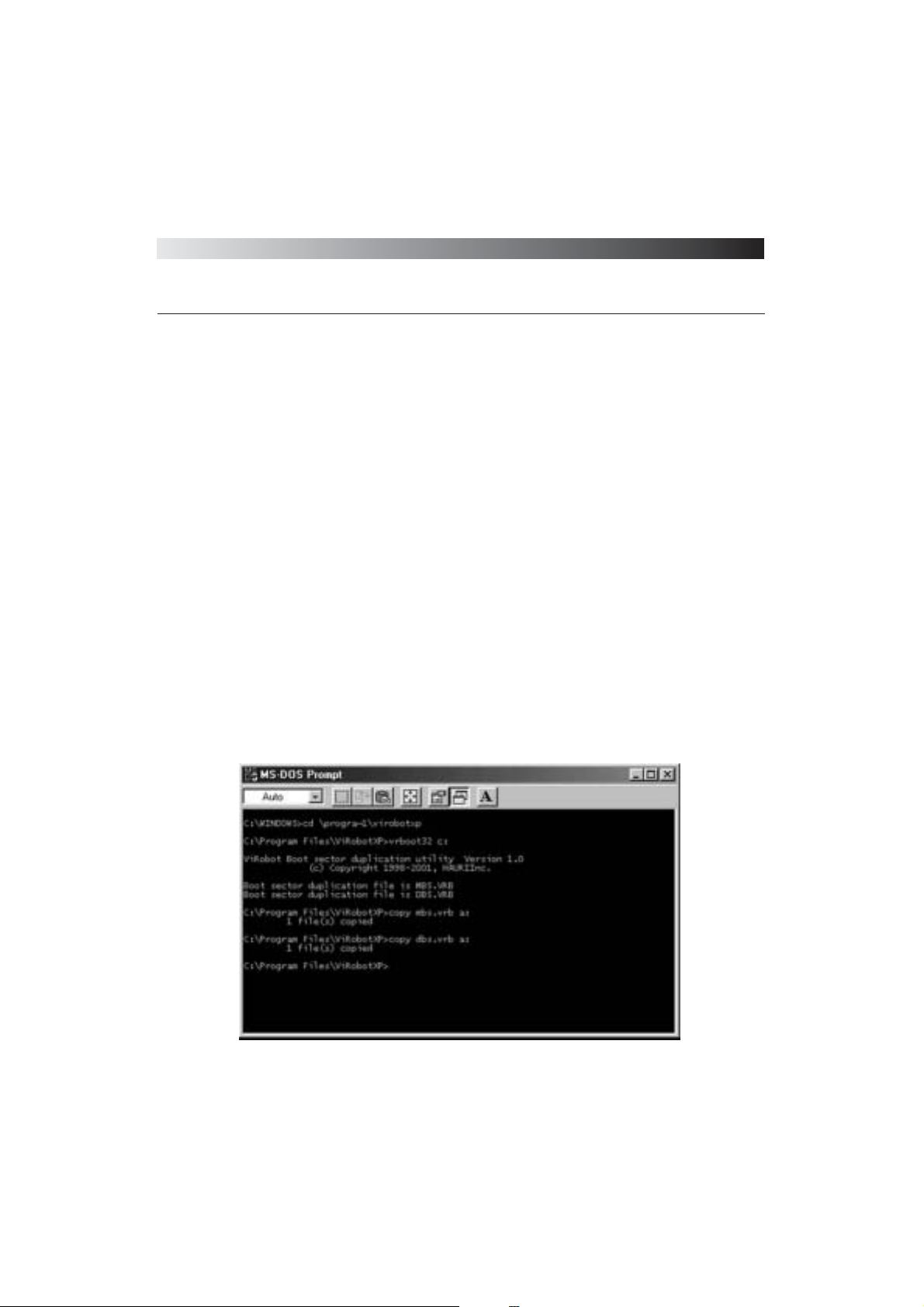
Use the boot sector utility named VRBOOT32.EXE under ViRobot folder to extract the boot
virus and send it to us. Follow the procedure below:
⍥Go to Start > Run > Type ‘cmd’, and hit the Enter key
⍥Use the ‘cd’ command in DOS to browse to your ViRobot installation directory
⍥At the command line, type ‘VRBOOT32.EXE’ to create MBS.VRB, and DBS.VRB files.
⍥Send these two files to our Customer Support Team according to Contact Information.
[ Figure 1-1 Boot Sector Duplication Utility ]
Page 18
Page 19
Chapter 2.
Introduction to ViRobot Expert
About ViRobot Expert
System Requirements
Installing ViRobot Expert
Uninstalling ViRobot Expert
ViRobot Expert
Page 20

ViRobot Expert
20
CHAPTER 2. INTRODUCTION TO ViRobot EXPERT
About ViRobot Expert
Incorporated with our unique technology, ViRobot Expert employs a specialized scan scheme
to offer high-speed scanning and excellent protection performance against viruses.
ViRobot Expert can detect and repair virus from all over the world including new and
unknown viruses.
␊
More Powerful ViRobot Engine
ViRobot Expert is equipped with powerful tri-engine technology to offer high speed scanning
engines, plus reliable detections and repairs. ViRobot keeps you updated and armed for any new
viruses via advanced functions that detect unknown viruses on all platforms (DOS, Windows,
Macro, Java Applets etc.). Furthermore, ViRobot engines have been loaded on many other
information security products.
␊
Embedded in Windows Explorer
You can choose to use ViRobot Expert from Windows Explorer, one of the most accustomed
features for users.
␊
Supports Various Operating Systems and Multiple Languages
ViRobot Expert supports all Windows platforms ranging from Windows 95/98/Me/NT
Workstation/2000 Professional/XP. By default, an English or Korean version will be installed
automatically, when ViRobot Expert detects an English or Korean Operating System.
␊
Enhanced Update Function
Anti-virus software characteristics make it essential for you to update your engine periodically.
You can update your engine even if you use a firewall or proxy server, since ViRobot Expert
supports FTP and HTTP protocols. ViRobot Expert supports updates through leased Internet line,
LAN, or modem. It offers an alternative server detecting function when the userᴗs assigned update
server is busy. Also available are strengthened update functions including automatic update notices,
Page 21

ViRobot Expert
21
CHAPTER 2.INTRODUCTION TO ViRobot EXPERT
scheduled updates, and one-click updates using recent update pattern analysis.
␊
Virus Transmission and On-line Customer Support Service
ViRobot Expert detects and moves unknown viruses to a virtual directory in Windows
95/98/Me/NT Workstation/2000/XP to prevent further infection. At your request, the infected files
will be automatically sent to HAURI Virus Customer Support Team for analysis. You will receive
an analysis report within 24 hours.
All infected files are automatically encrypted before being sent to us for security. You can also
check to see if your infected files are successfully transmitted.
␊
Powerful E-Mail Real Time Monitoring and Mailbox Manual Scan Features
ViRobot Expert will scan your mailbox and monitor your incoming and outgoing email in real-time
for viruses. It will let you decide between automatically deleting an infected file and following
prompt directions or using another solution that you choose.
ViRobot Expert supports both POP3 and Exchange server.
It is embedded in Microsoft Outlook for easy access should you decide to scan your mailbox
manually. The mailbox option in ViRobot Expert displays userᴗs mailbox information on the left
pane for easy access.
␊
Perfect Internet Monitor
ViRobot monitors all paths that make an Internet user vulnerable to infection. It detects and
removes any viruses or malicious codes while you are downloading a file from the Internet. In other
words, ViRobot Expert safeguards your system when you surf the Internet.
␊
MacRobot for Office 2000/IE 5
MacRobot, an exclusive macro virus monitoring module, automatically detects and removes macro
viruses whenever you open an MS Office 2000 document or Internet Explorer 5.0 and higher. With
an enhanced MacRobot engine, ViRobot Expert can block any macro viruses stemming from the
Internet or any other sources.
Page 22

ViRobot Expert
22
CHAPTER 2. INTRODUCTION TO ViRobot EXPERT
␊
Scanning Compressed Files
ViRobot Expert supports various compressed file formats including ZIP, ARJ (JAR), LHA, RAR,
CAB, ACE, and ZOO. It can detect and repair viruses up to 5 zipped levels. Since ViRobot Expert
supports UUENCODE and MIME which email utilizes, it can block any viruses in emailcompressed files.
␊
Hauri News
When you run ViRobot Expert, it will access Hauri homepage automatically to bring you security
alerts, notices, and news. You can get Hauriᴗs latest news, trial versions, new virus definitions, and
engine updates from the Hauri News window.
␊
Powerful Emergency Disk Support
If your system cannot boot because of boot viruses, ViRobot Expert provides an emergency disk to
recover your boot sector, and automatically scans for viruses. It supports both FAT and NTFS file
systems.
Page 23

ViRobot Expert
23
CHAPTER 2.INTRODUCTION TO ViRobot EXPERT
System Requirements
␊
Operating Environment
ViRobot Expert is an anti-virus program supporting Windows based operating systems. The
minimum system requirements are shown below.
For Windows 95/98/Me:
⍥CPU: Intel 80486DX/66 or higher (Windows 95/98)
⍥Intel Pentium 150 MHz or higher (Windows ME)
⍥Memory: 16 MB or higher (32 MB or higher recommended)
⍥Hard Disk: 20 MB or more of free hard disk space (50 MB or higher recommended)
⍥Others: CD-ROM Drive, IE 4.0 or higher
For Windows 2000 Professional:
⍥CPU: Intel Pentium 150 MHz or higher
⍥Memory: 64 MB or higher
⍥Hard Disk: 20 MB or more of free hard disk space
⍥Others: CD-ROM Drive, IE 5.0 or higher
For Windows NT Workstation:
⍥CPU: Intel Pentium
⍥Memory: 16 MB or higher (32 MB or higher recommended)
⍥Hard Disk: 20 MB or more of free hard disk space
⍥Others: Service Pack 4 or above, CD-ROM Drive, IE 4.0 or higher
Page 24

ViRobot Expert
24
CHAPTER 2. INTRODUCTION TO ViRobot EXPERT
For Windows XP:
⍥CPU: Intel Pentium 300 MHz or higher
⍥Memory: 64 MB or higher (128 MB or higher recommended)
⍥Hard Disk: 20 MB or more of free hard disk space
⍥Others: CD-ROM Drive, IE 5.0 or higher
␊
CD-ROM
ViRobot Expert CD contains an installation program.
␊
Shipping Package
Your ViRobot Expert package includes a ViRobot Expert CD plus hard copy of the ViRobot
Expert manual.
Page 25
ViRobot Expert
25
CHAPTER 2.INTRODUCTION TO ViRobot EXPERT
Installing ViRobot Expert
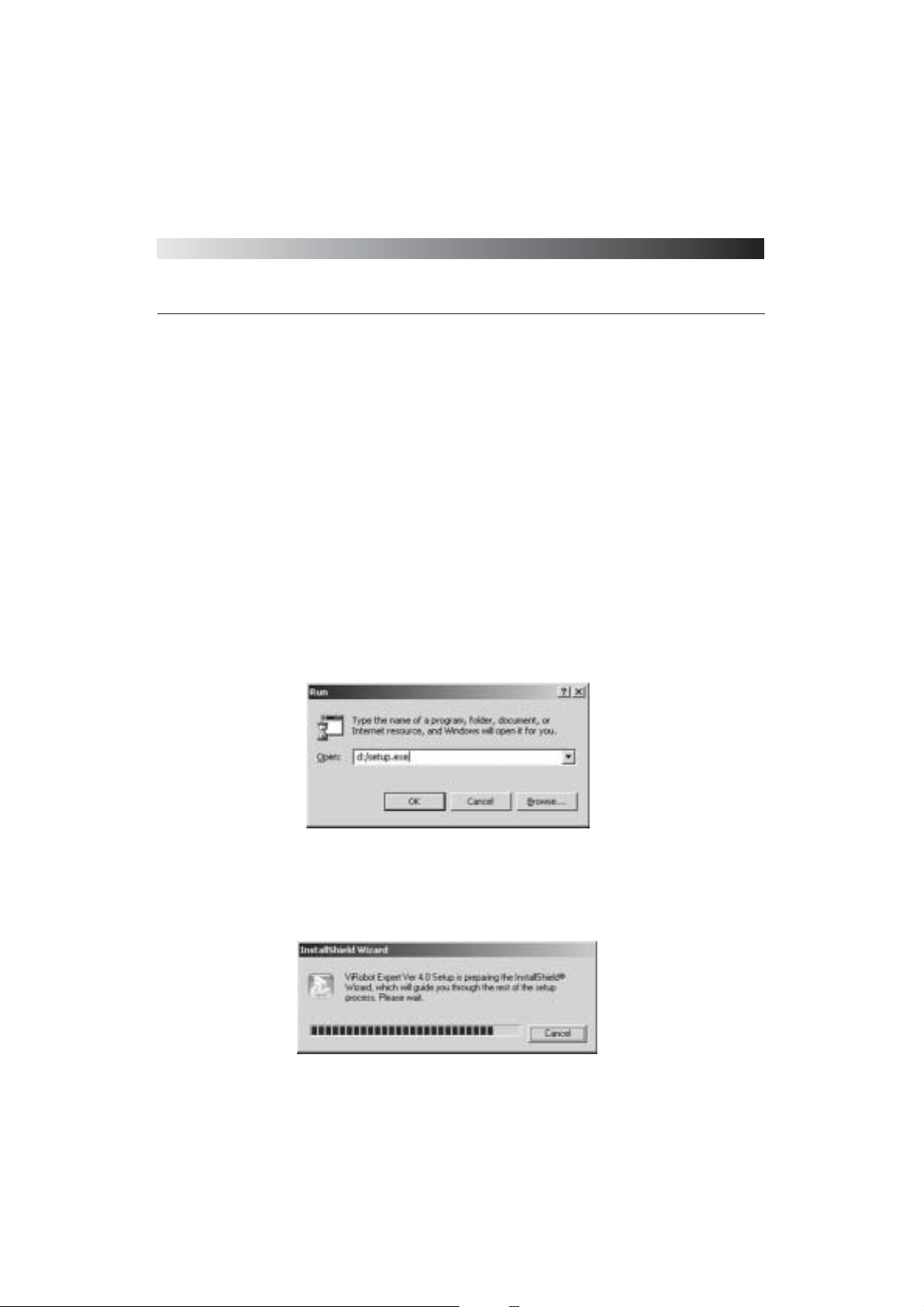
To install ViRobot Expert, insert ViRobot CD into the CD-Rom drive. ViRobot Expert setup
program will start automatically. Please take the following steps when the auto set up program
fails to run.
(1) Go to Start > Run in Windows 95/98/2000 Professional/XP/NT Workstation
(2) Enter your CD-Rom drive label and type ‘setup.exe’ < enter > (For example, if your CD-
ROM drive is D, type ‘D:\SETUP.EXE’ <enter>)
You will see the following message on the screen.
[ Figure 2-1 The Name of CD-ROM Drive ]
[ Figure 2-2 InstallShield Wizard ]
Page 26
ViRobot Expert
26
CHAPTER 2. INTRODUCTION TO ViRobot EXPERT
⍥
Installation Procedure
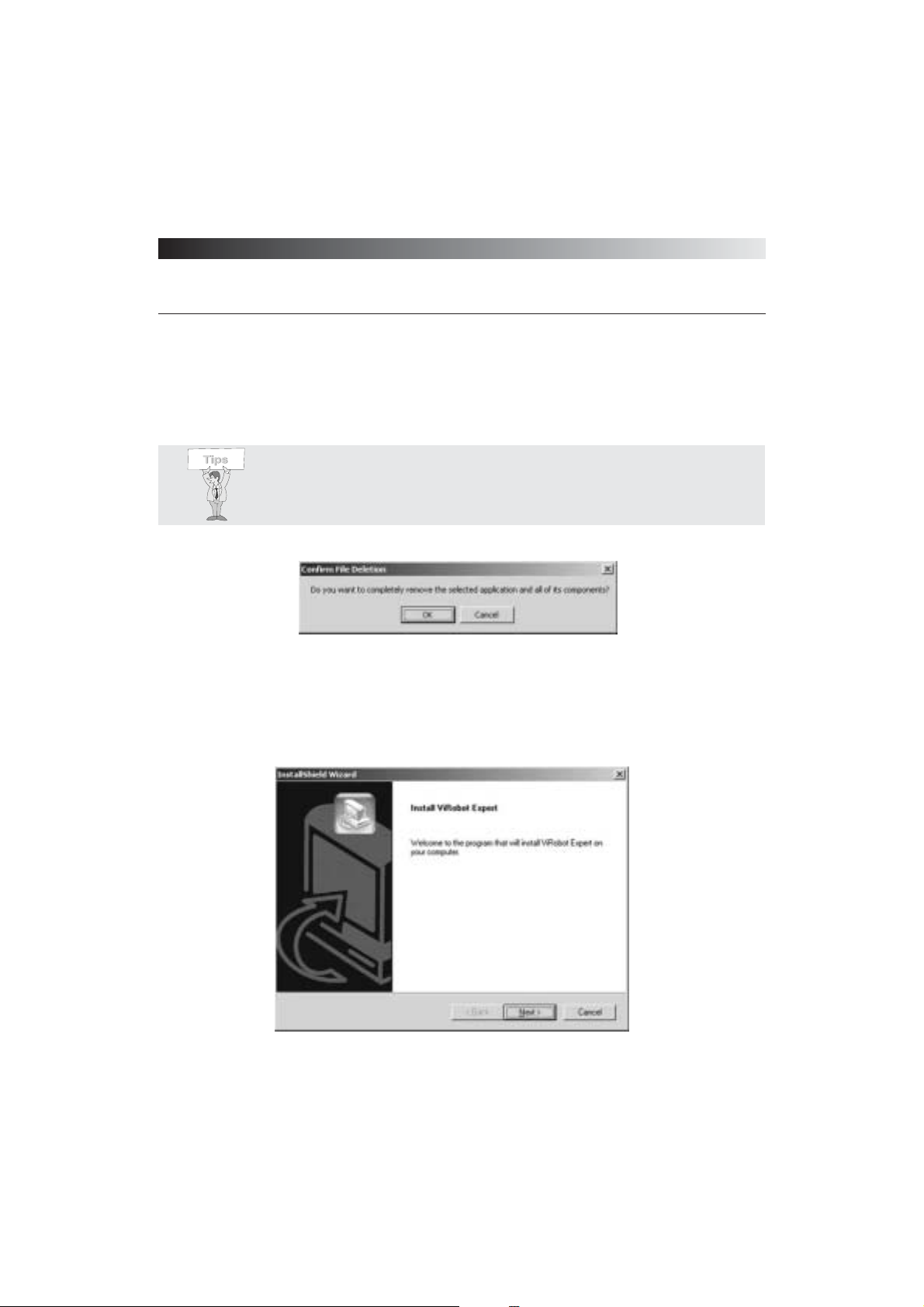
(1) The initial installation window of ViRobot Expert appears on the screen. Click Next to
install.
[ Figure 2-3 Confirmation of File Deletion ]
[ Figure 2-4 Installing ViRobot Expert ]
Tips : The following message will appear if you have previously installed antivirus software in your computer. Click yes to replace the previously installed antivirus software with ViRobot Expert.
Page 27
ViRobot Expert
27
CHAPTER 2.INTRODUCTION TO ViRobot EXPERT
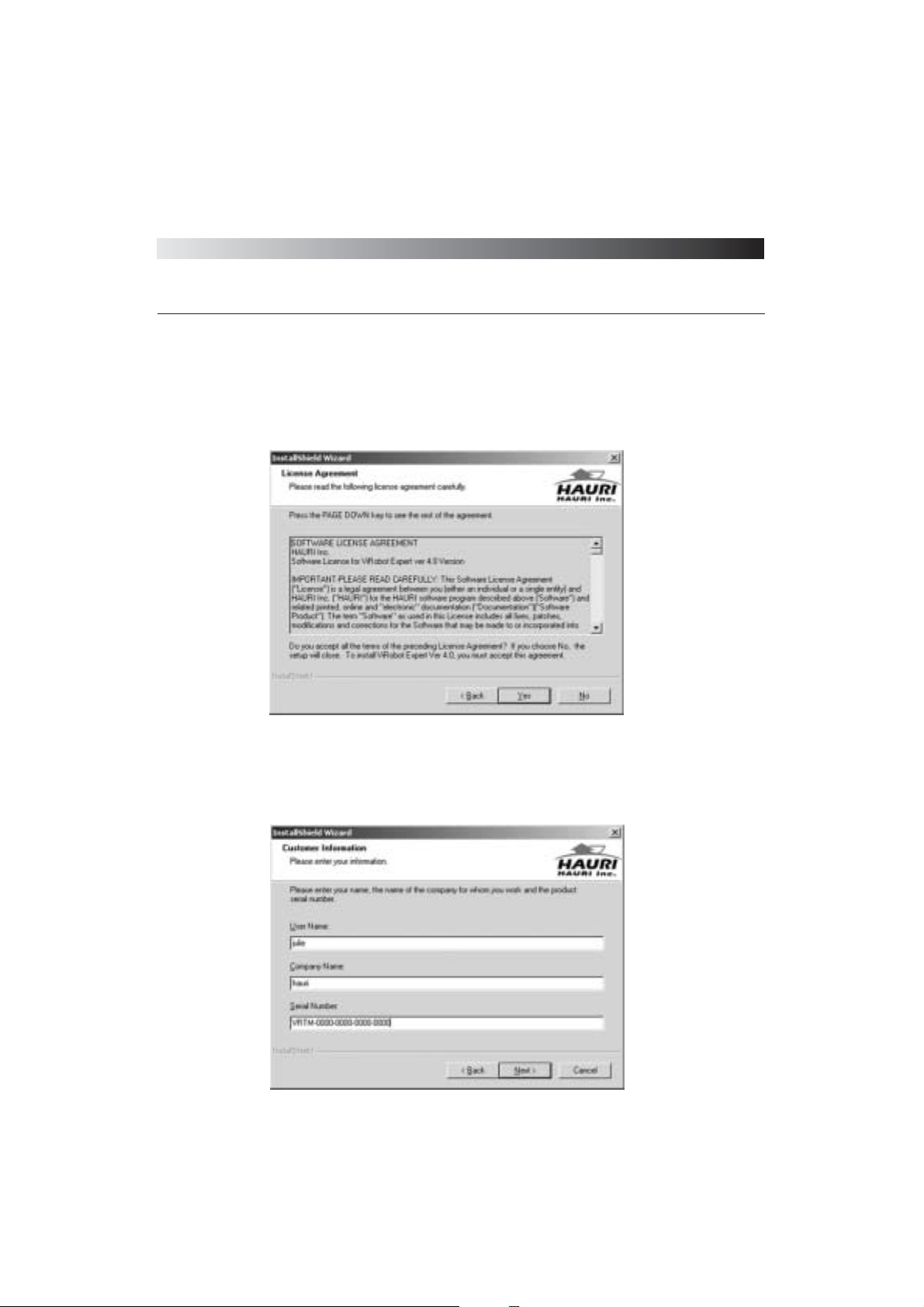
(2) The ViRobot Expert software license agreement will appear on the screen. Click Yes if you
agree and go on with the installation.
(3) Enter username, company or organization, and serial number. Click Next to continue.
[ Figure 2-5 License Agreement ]
[ Figure 2-6 Customer Information ]
Page 28
ViRobot Expert
28
CHAPTER 2. INTRODUCTION TO ViRobot EXPERT
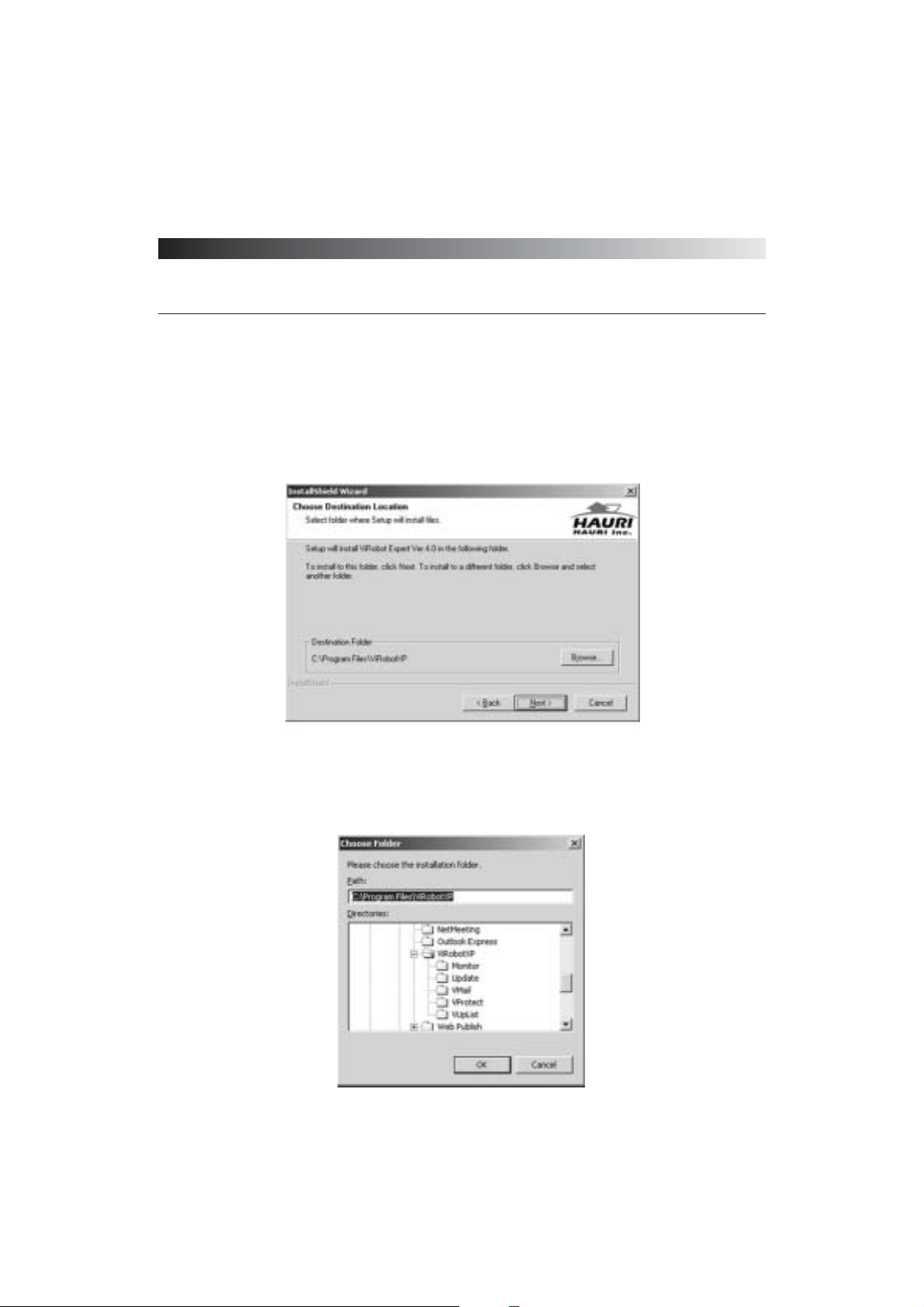
(4) Browse to a location where you want to install ViRobot Expert program. The default
installation directory is C:\Program Files\ ViRobotXP. Click Next to continue. Click
ᴖBrowseᴗto select a different installation directory.
To Change the folder, click Browse.
[ Figure 2-7 Destination Folder ]
[ Figure 2-8 Choose Folder ]
Page 29
ViRobot Expert
29
CHAPTER 2.INTRODUCTION TO ViRobot EXPERT
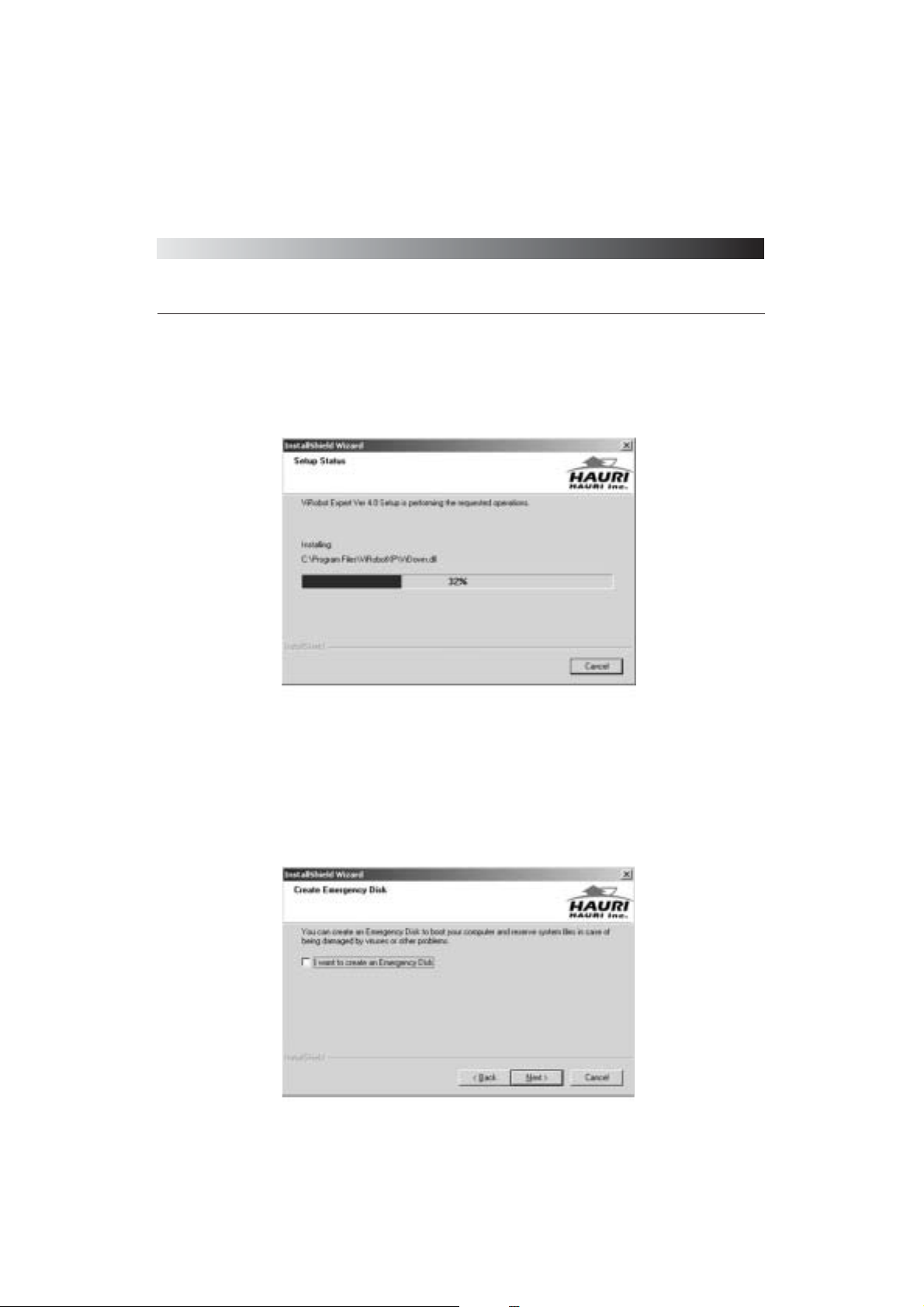
(5) ViRobot Expert begins installation on your computer.
(6) The program asks if you want to create an Emergency Disk after the installation process is
completed.
To create an Emergency disk, select the checkbox and click Next. Otherwise, just click Next.
Note: you can create an Emergency Disk anytime after installation.
[ Figure 2-9 Setup Status ]
[ Figure 2-10 Create Emergency Disk ]
Page 30
ViRobot Expert
30
CHAPTER 2. INTRODUCTION TO ViRobot EXPERT
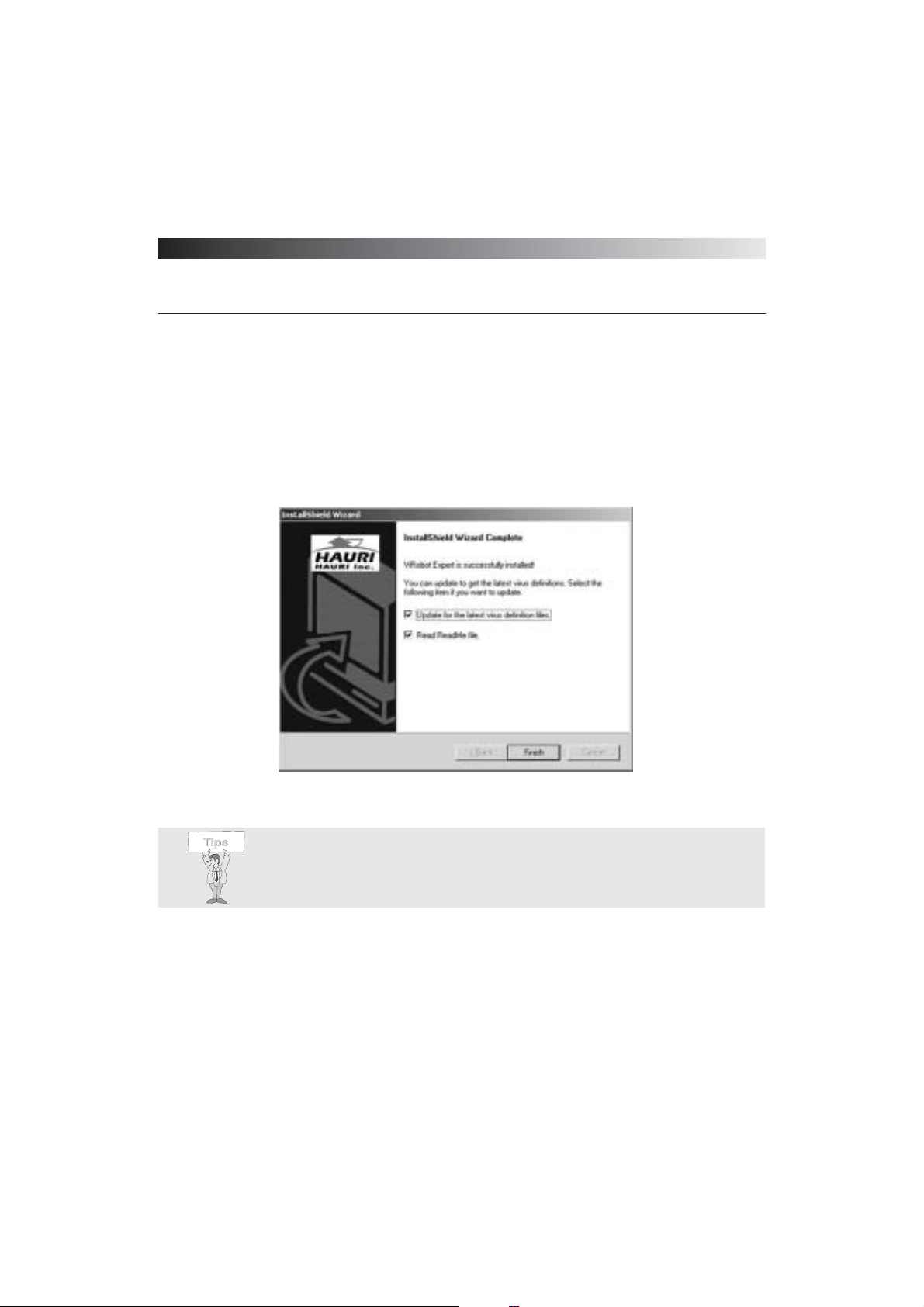
(7) ViRobot Expert is now successfully installed. Click Finish to update your ViRobot Expert
now. To update later, uncheck the update box, and click Finish
(8) The ViRobot Expert will be launched automatically after installation
[ Figure 2-11 Final Step of Installation ]
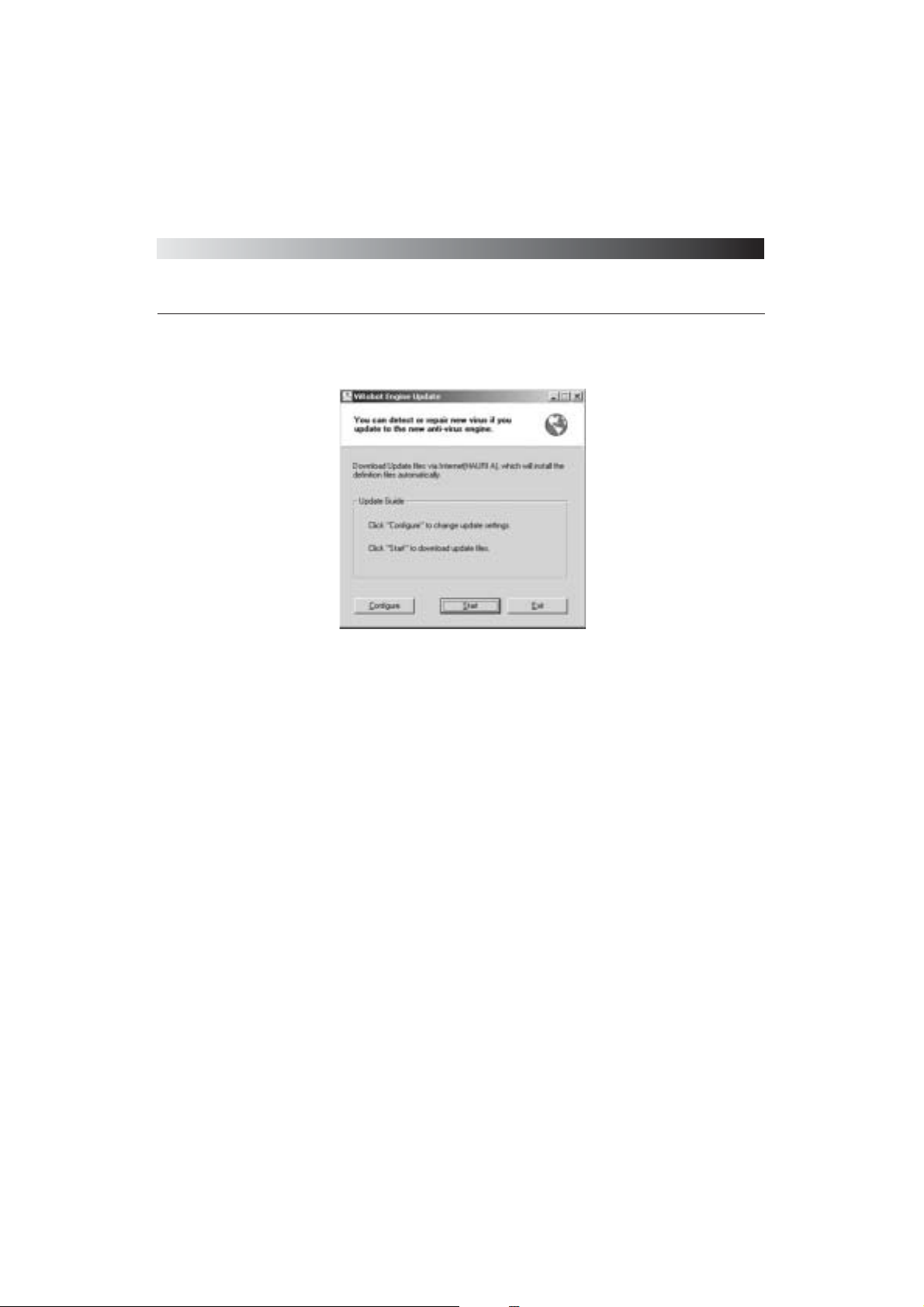
Tips : Every time your ViRobot Expert starts, it checks for the latest definitions
and lets you know if you need to update ViRobot Expert. To update now, click
Start
Update. Otherwise, click Finish to start ViRobot Expert.
Page 31
ViRobot Expert
31
CHAPTER 2.INTRODUCTION TO ViRobot EXPERT
[ Figure 2-12 Update function]
Page 32
ViRobot Expert
32
CHAPTER 2. INTRODUCTION TO ViRobot EXPERT
Uninstalling ViRobot Expert
Use the V iRobot Expert uninstalling utility to remove your ViRobot Expert program.
␊
Uninstallation Procedure
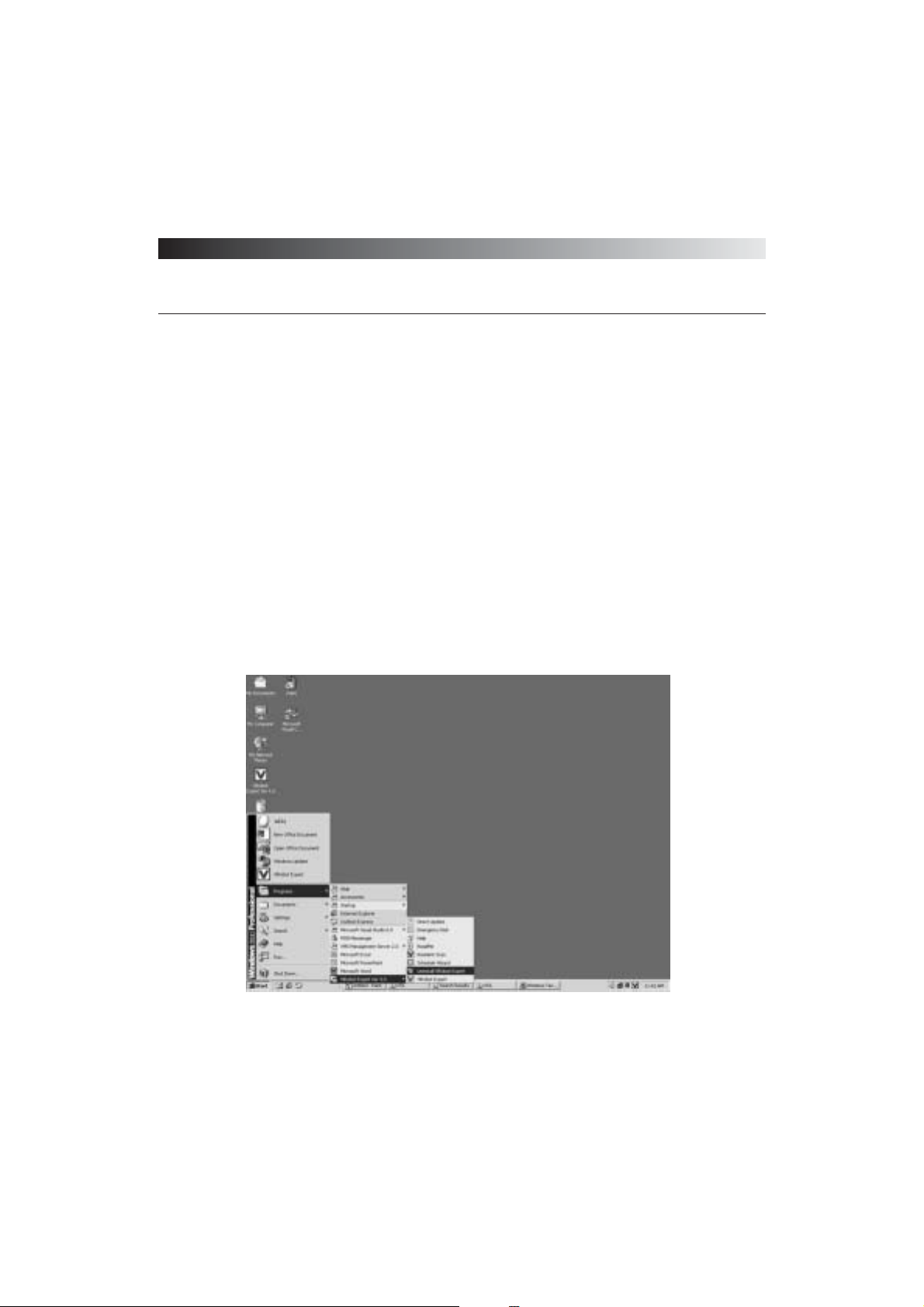
(1) Move to your ViRobot Expert program folder.
M Go to Start > Programs > ViRobot Expert Ver 4 > Uninstall ViRobot Expert
M Select Yes to start the uninstalling process
[ Figure 2-13 Uninstalling ViRobot Expert ]
Page 33
ViRobot Expert
33
CHAPTER 2.INTRODUCTION TO ViRobot EXPERT
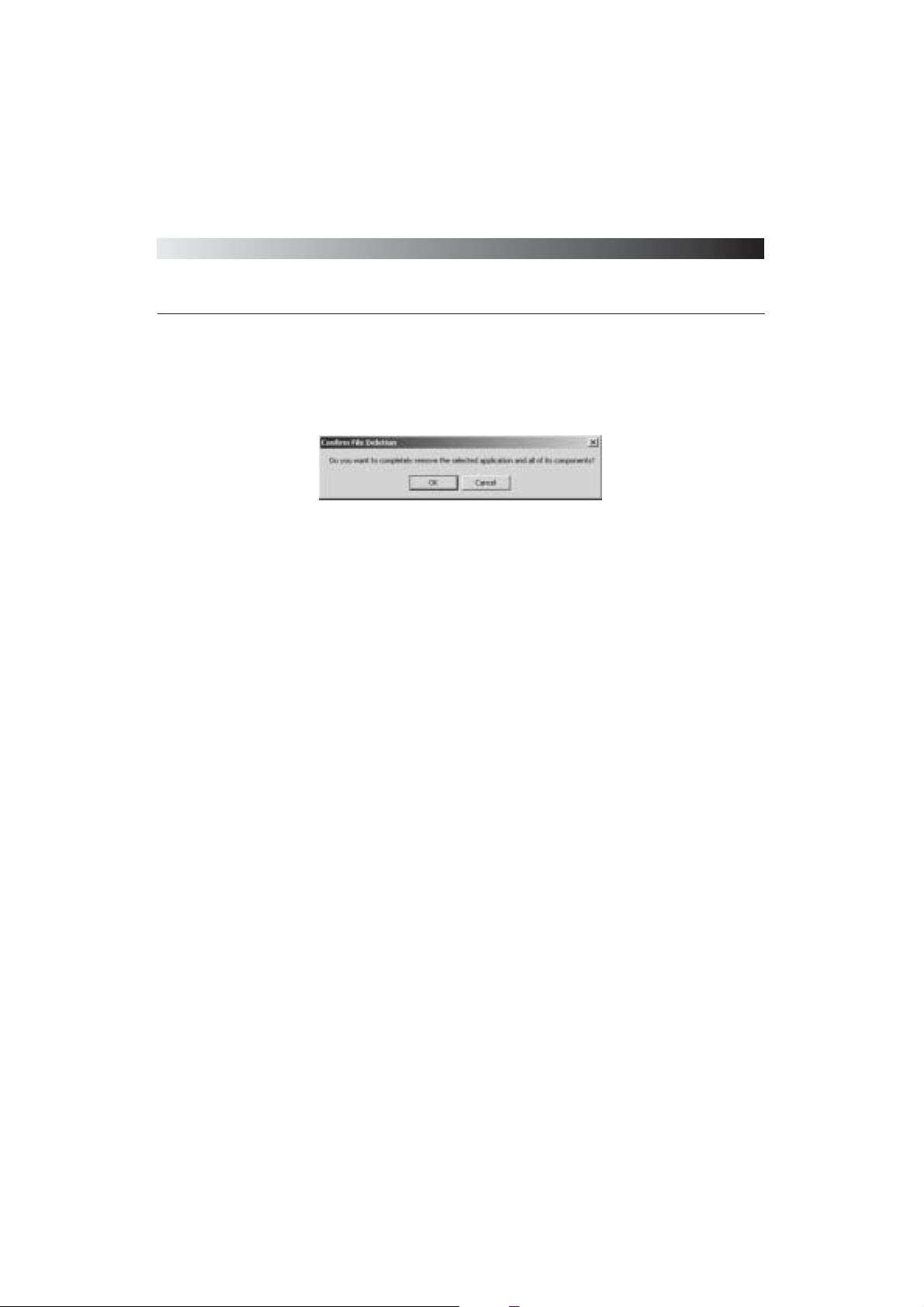
(2) Select Yes to start uninstalling your ViRobot Expert
[ Figure 2-14 Confirmation of File Deletion ]
Page 34
Page 35
Chapter 3.
Using ViRobot Expert
Starting your ViRobot Expert
Main Window in ViRobot Expert
Scan and Repair Viruses from My Computer
Scanning and Repairing My Mailbox
Basic ViRobot Configurations
Advanced ViRobot Configurations
Real Time Monitor Setup
Configure Update Function
Setup Scheduler in ViRobot Expert
Creating an Emergency Disk
Creating a ViRobot for DOS
HAURI News
Page 36
ViRobot Expert
36
CHAPTER 3. USING ViRobot Expert
Get Started with ViRobot Expert
T o run ViRobot Expert after installation, you may choose one of the following methods:
⍥Go to Start > ViRobot Expert Ver 4 from the Start Shortcut Menu
⍥Go to Start > Programs > ViRobot Expert > ViRobot Expert
⍥Double-click the ViRobot Expert icon on the bottom tray
␊
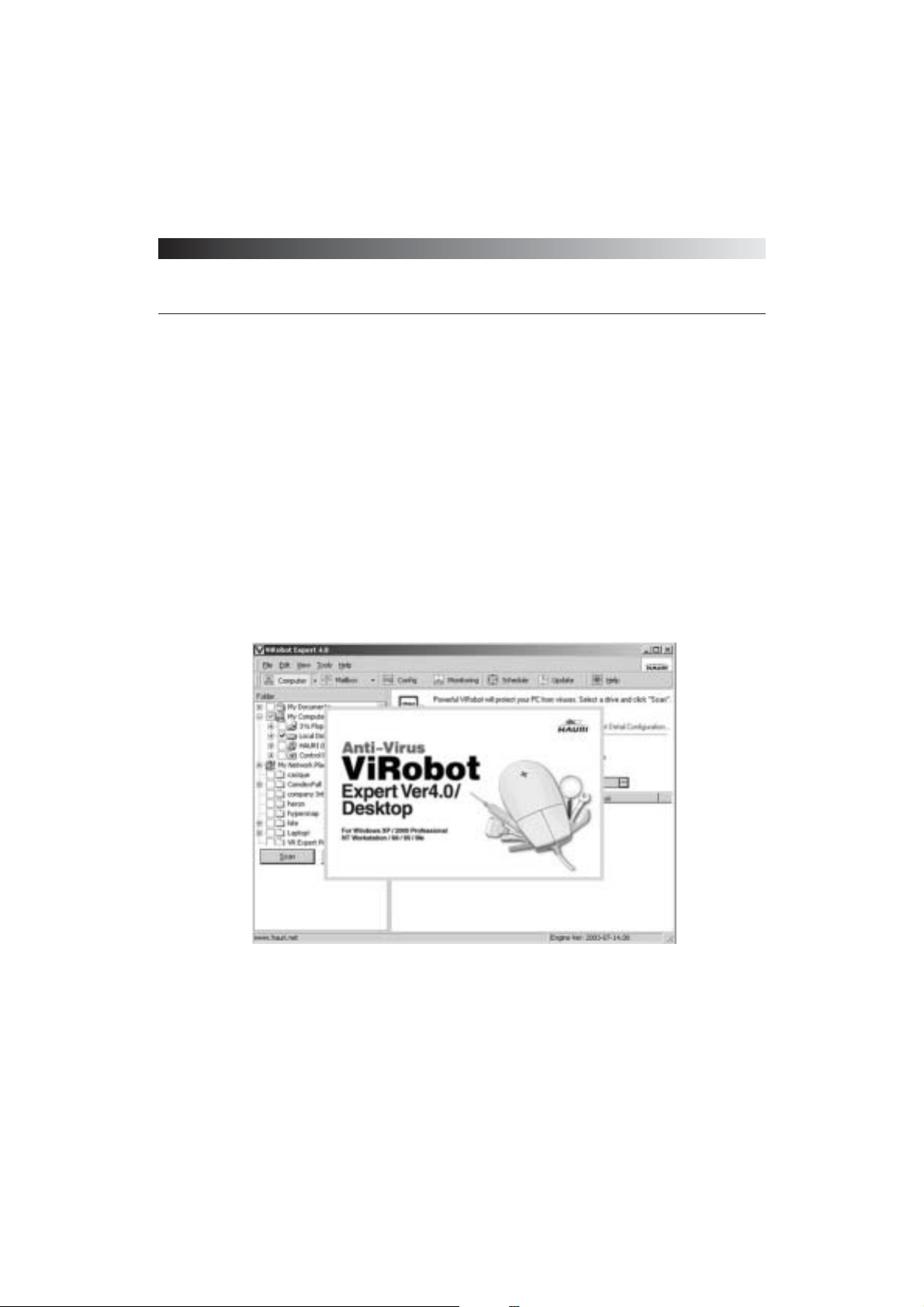
When ViRobot Expert starts, it will display the ViRobot Expert logo.
␊
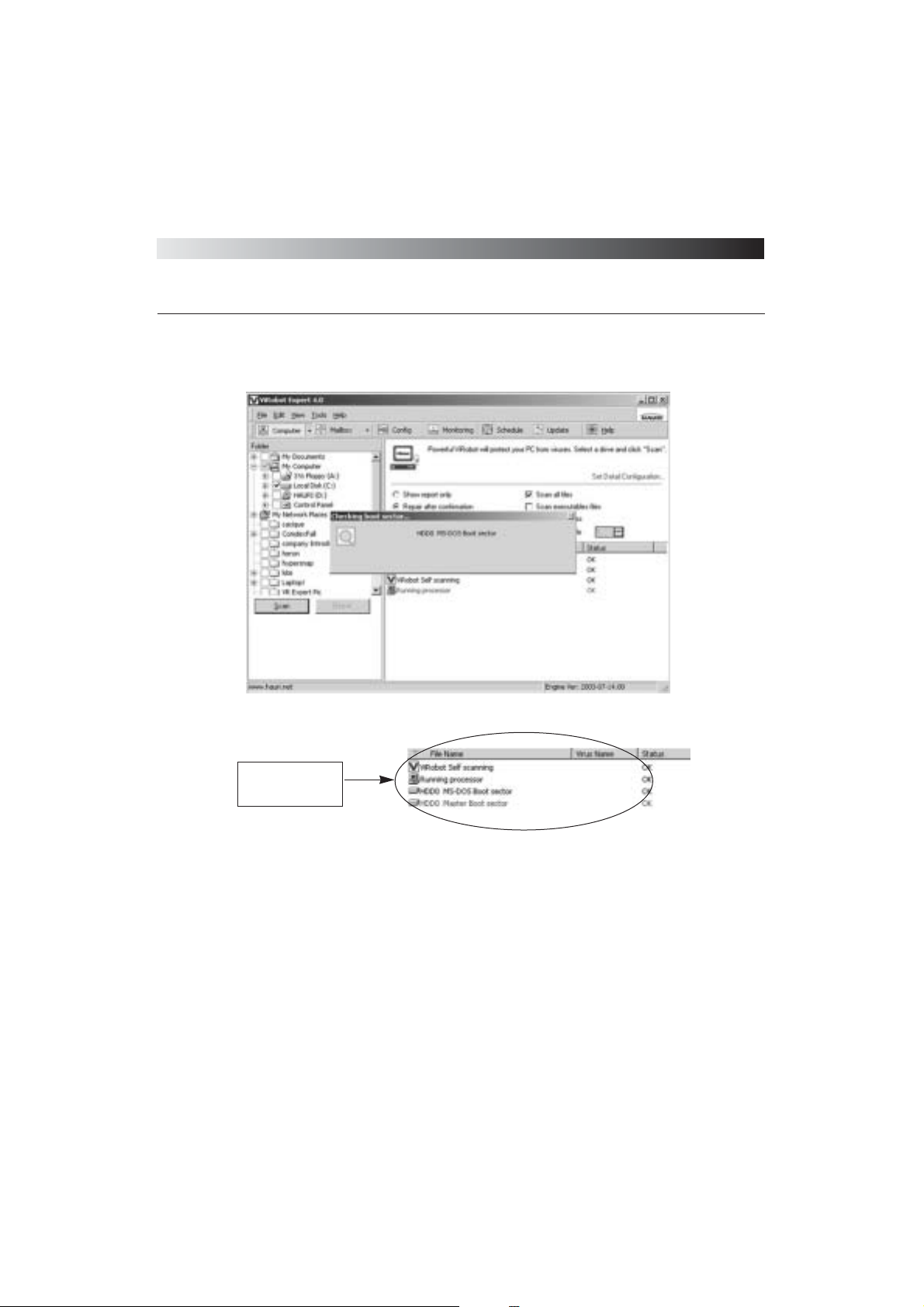
ViRobot Self-test
When you start ViRobot Expert, it will first scan itself to ensure it is virus free. It will then detect
and repair viruses in the current processes, memory areas, and the boot sector.
[ Figure 3-1 Start ViRobot Expert ]
Page 37
ViRobot Expert
37
CHAPTER 3. USING ViRobot Expert
[ Figure 3-2 ViRobot Self-test ]
[ Figure 3-3 Self-test Results ]
Shows virus scan
results of the current
process and others
Page 38
ViRobot Expert
38
CHAPTER 3. USING ViRobot Expert
Main Window in ViRobot Expert
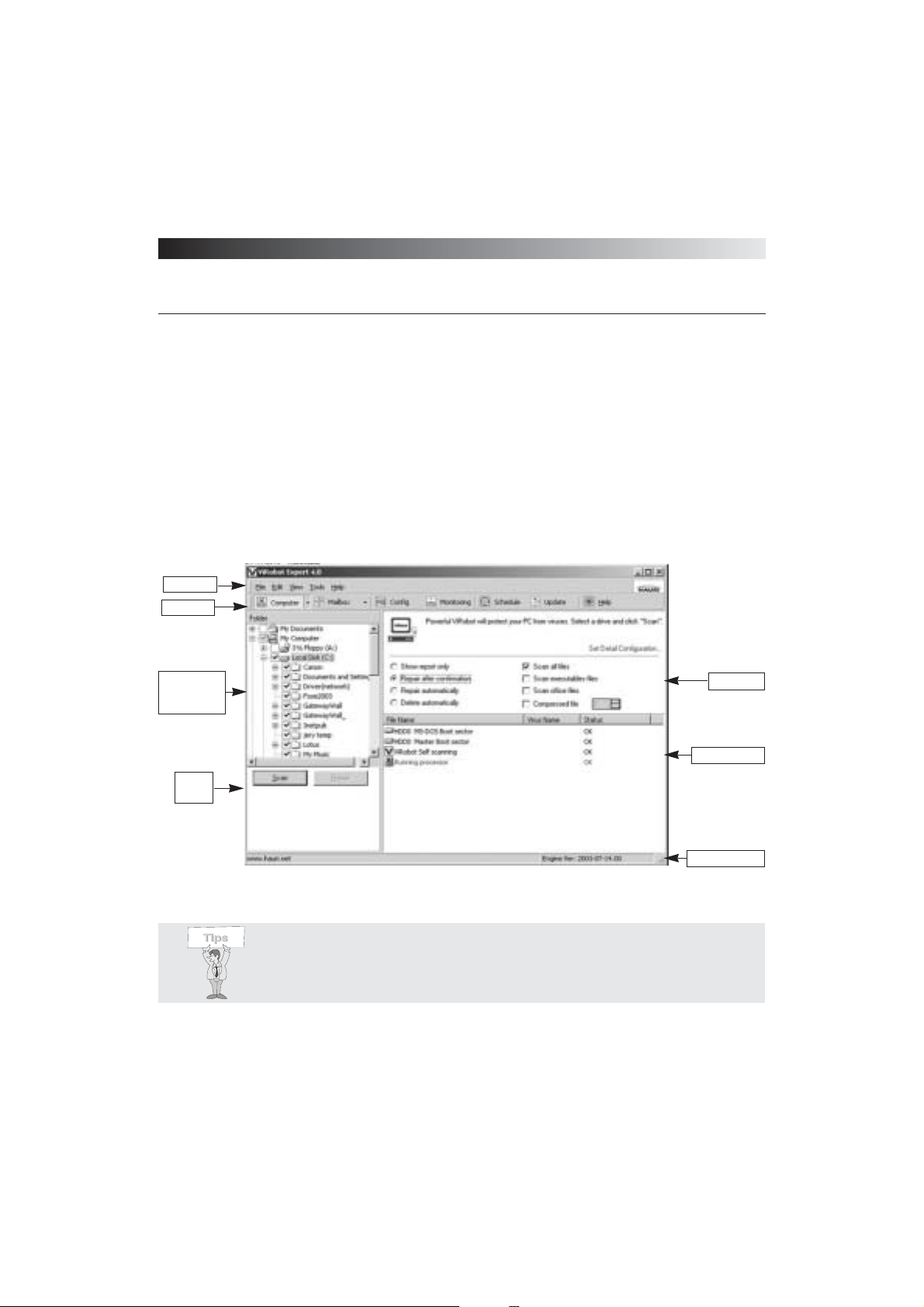
ViRobot Expert contains the following basic components: a Menu Bar, Tool Bar, Folder/Mail/
Configuration Frame, Scan/Stop button, Scan Options Frame, List Frame, Repair Frame, and
Engine Version.
[ Figure 3-4 ViRobot Screen Configuration ]
List Frame
Repair Frame
Engine Version
Tool Bar
Menu Bar
Folder/Mail/
Configuration
Frame
Scan
Button
Tips : Click on HAURI logo on the right top of the ViRobot main window to
connect to HAURI’s Home page.
Page 39

ViRobot Expert
39
CHAPTER 3. USING ViRobot Expert
<Function Descriptions>
⍥Menu Bar
The Menu bar holds all functions included in ViRobot Expert
⍥Tool Bar
The Tool Bar displays frequently used features in ViRobot Expert
⍥Folder/Mail/Configuration Frame
Lets the user choose a certain directory, folders, or mailbox for virus scanning.
⍥Scan/Stop Button
Allows the user to start and stop virus scan on the selected drive, folder or mailbox.
⍥Scan options Frame
Helps access configuration options faster
⍥List Frame
Contains quick configuration options when you click Computer, Mailbox, Monitoring, or
Configuration on the Tool bar. Additionally, you may set advanced configurations in this
frame.
⍥Repair Frame
Displays virus-scanning results.
⍥Engine Version
Shows the last updated version of ViRobot Expert engine. It is recommended that you update
your engine version if it is more than a week older than the currently available version.
Page 40
ViRobot Expert
40
CHAPTER 3. USING ViRobot Expert
␊
Menu Bar
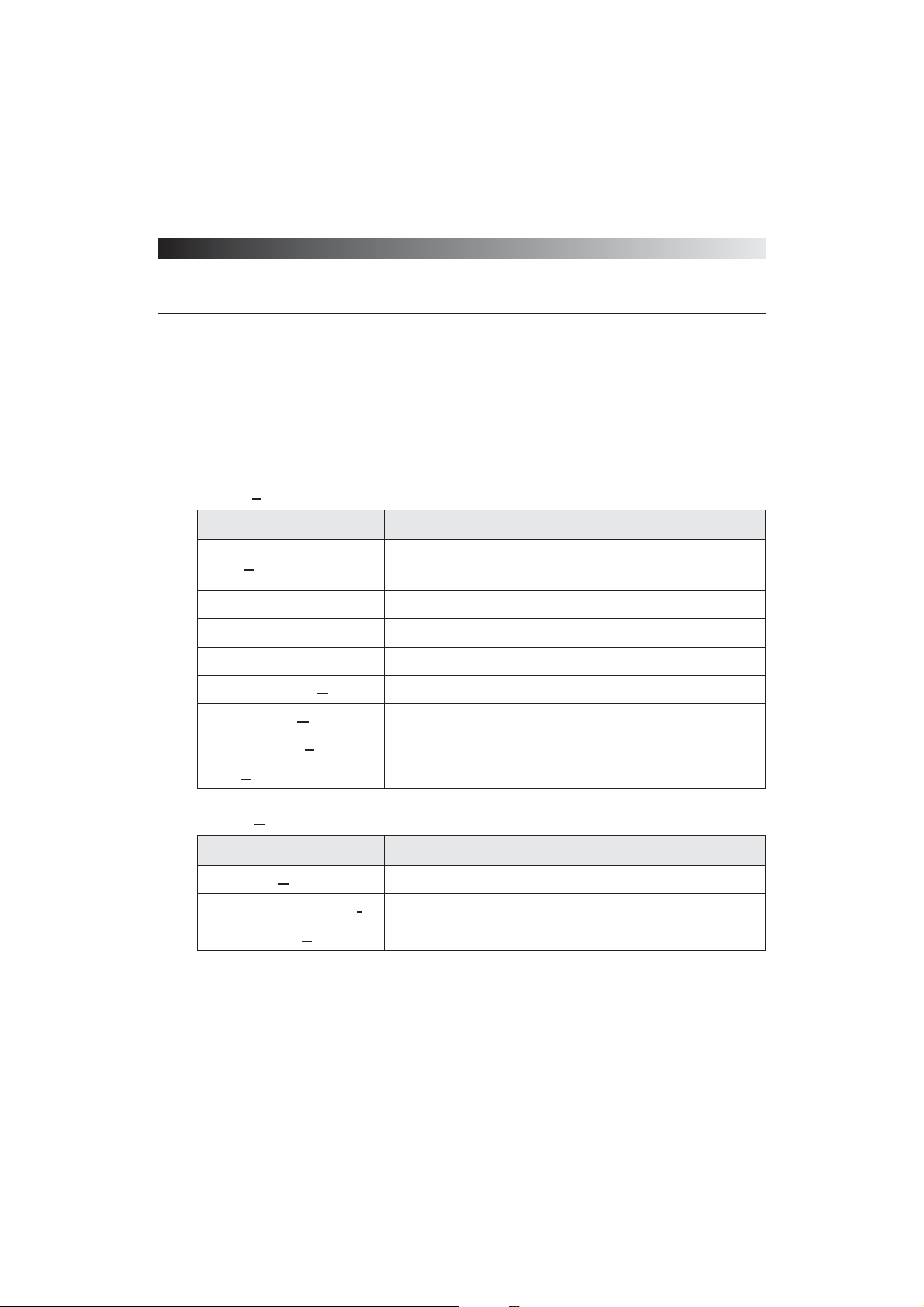
The Menu bar contains all functions included in ViRobot Expert, namely File, Edit, View, Tools,
and Help menu.
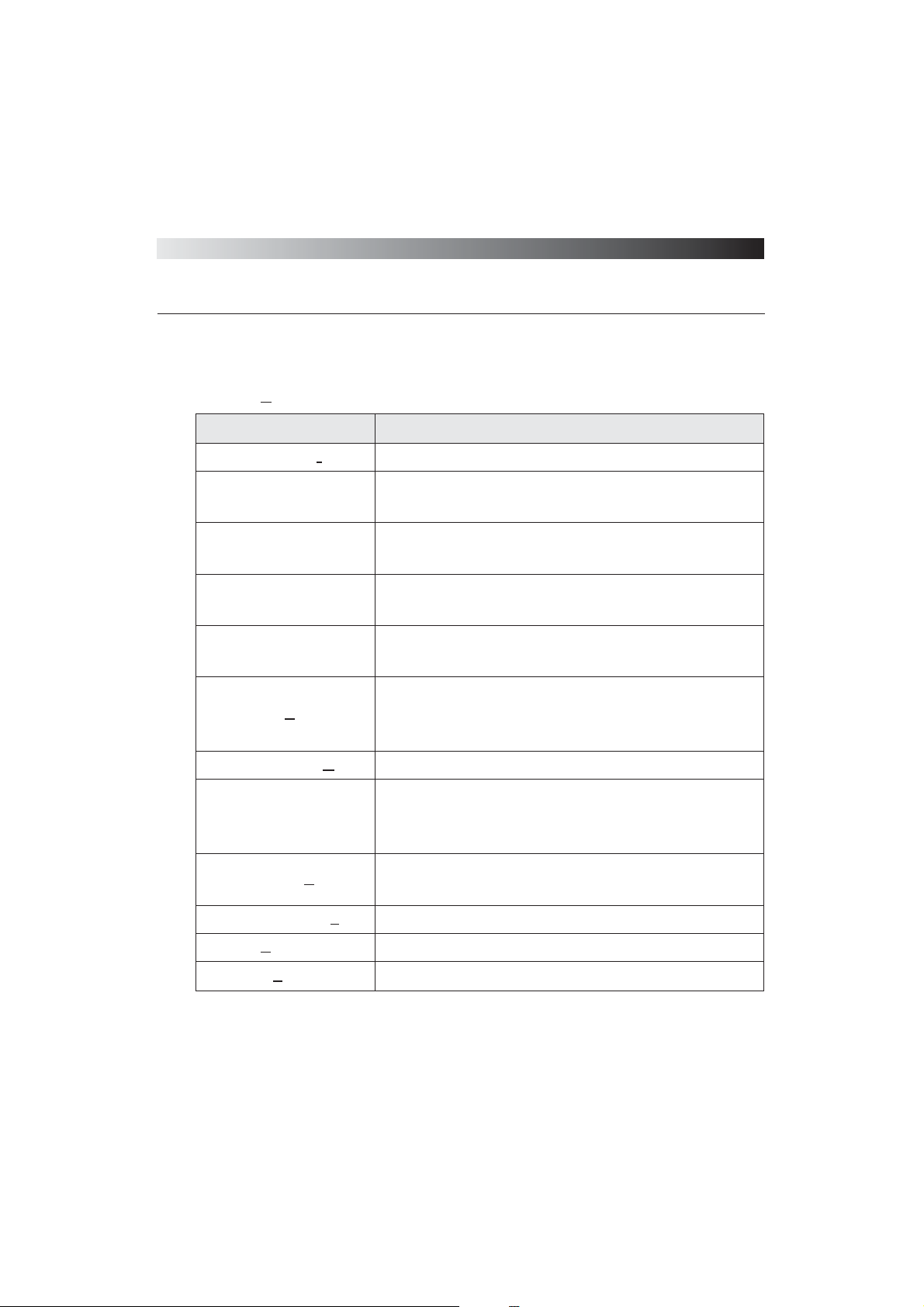
(1) File ( F )
(2) Edit ( E )
Menu Descriptions
Scan( S ) - F9
Start scanning the selected item(s) under
Folder/Mail/Configuration Frame
Stop( P ) - F2 Terminate the manual scanning process
Scan Running Process - ( R ) Start scanning the currently running processes in the memory
Repair Start to repair the selected infected files
Scan Boot Sector( B ) Start scanning the boot sector for viruses.
View Catalog( V ) Displays Virus Information from Repair Frame in Notepad.
Export Catalog( E ) Save Virus Information from Repair Frame to a text file.
Exit( X ) Exits ViRobot Expert.
Menu Descriptions
Select All ( A ) Ctrl +A Selects all items in the Repair Frame
Inverted Selected Items ( I ) Selects all other items
Configuration ( C ) - F8 Opens the Detailed Configuration window
Page 41
ViRobot Expert
41
CHAPTER 3. USING ViRobot Expert
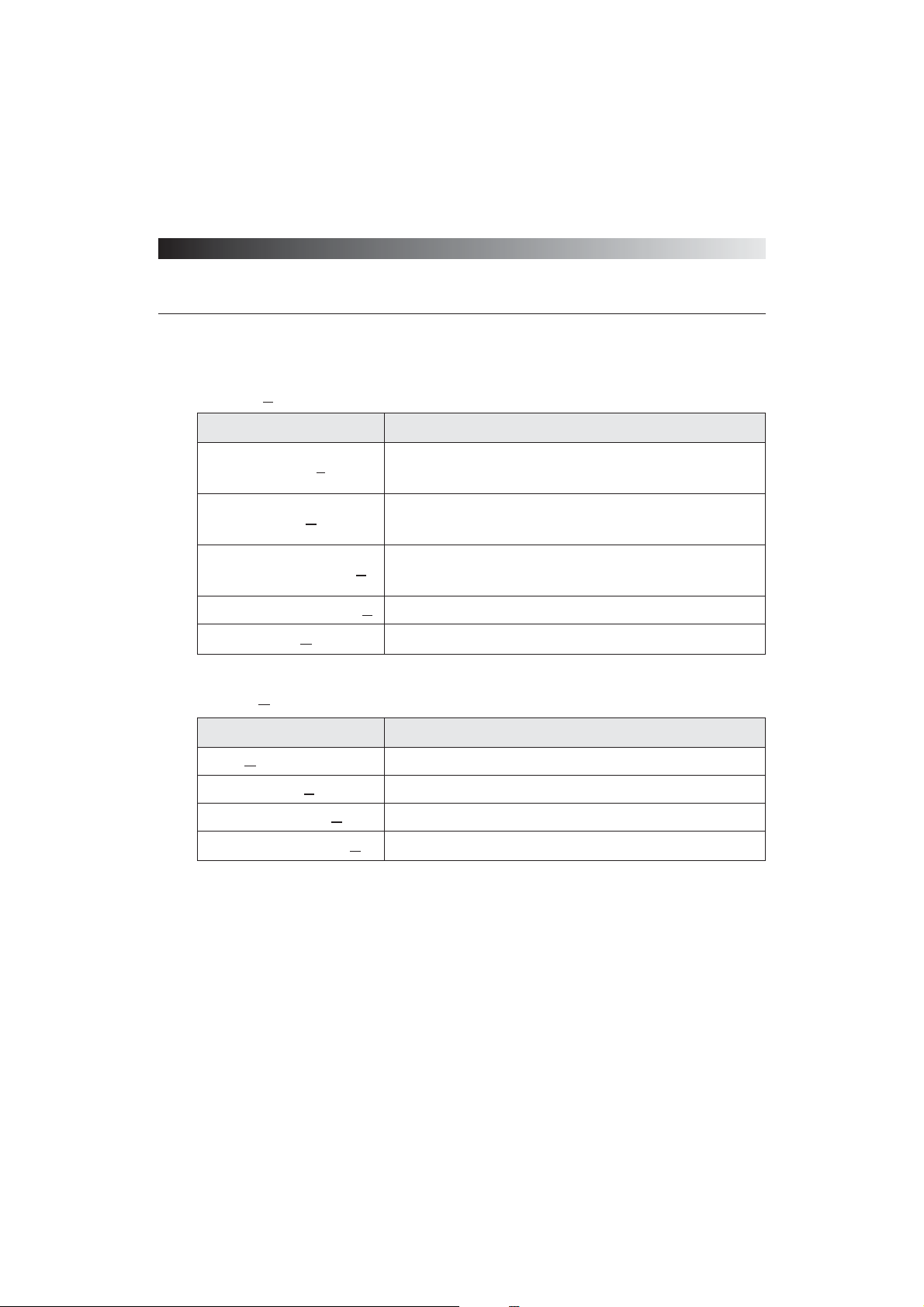
(3) View ( V )
Menu Descriptions
Scan Information( I ) Displays virus-scan results in details.
Computer
Displays the ‘Computer’ screen as if you had clicked on the
‘Computer’ icon in ViRobot Expert main window
MailBox
Displays the ‘Mailbox’ screen as if you had clicked on the
‘Mailbox’ icon in ViRobot Expert main window.
Configuration
Displays the ‘Configuration’ screen as if you had clicked on
the ‘Config’ icon in ViRobot Expert main window.
Monitoring
Displays the ‘Monitoring’ screen as if you had clicked on the
‘Monitoring’ icon in ViRobot Expert main window.
Backup Bin( B )
Stores the infected files. You may restore or empty the Backup bin. Files suspected of infection could be sent to HAURI
for further analysis.
Virus Scan Report( V ) Displays virus-scan results including dates of infection.
Virus Library
A list of viruses that ViRobot can detect and repair. Enter the
virus name to learn about discovery date, virus type, payload,
and technical description of that particular virus.
Virus Calendar( C )
Shows virus information and activating dates. Internet access
is required to use this calendar.
Update Information( P ) Displays anti-virus information and updated virus list.
Refresh( R ) - F5 Refreshes the Folder/Mail/Configuration Frame.
Language( L ) Lets you select the available language from the list.
Page 42
ViRobot Expert
42
CHAPTER 3. USING ViRobot Expert
(4) Tools ( T )
(5) Help ( H )
Menu Descriptions
Schedule Wizard( S )
Provides Setup window for configuring scheduled scan and
updates.
Update Wizard( U )
Leads you through an engine and virus definition update
process.
Create Emergency Disk( C )
Creates an Emergency Disk to boot your system in case
viruses cause it to fail.
Create ViRobot for DOS( R ) Creates ViRobot for DOS to repair DOS viruses.
HAURI News( H ) Gets notices, news, and virus information from HAURI
Menu Descriptions
Help( H ) - F1 Gets online help on how to use ViRobot Expert.
Report Viruses( R ) Sends virus infected files to HAURI.
HAURI Homepage( U ) Goes to HAURI’s homepage
About ViRobot Expert( A ) Displays user information and product version.
Page 43

ViRobot Expert
43
CHAPTER 3. USING ViRobot Expert
␊
Tool Bar
(1) My Computer ( )
Detects and removes viruses in your computer. You can select local drives, floppy drives, or
running processes to start scanning.
(2) Mailbox ( )
Detects and removes viruses in your mailbox. You may choose to scan Inbox, Sent Items, or
the entire mailbox.
(3) Configurations ( )
Sets or changes your ViRobot Expert configurations.
(4) Monitoring ( )
Lets you configure real time monitor for MS-Office documents, mailbox, and other files in
your system.
(5) Schedule ( )
Lets you schedule virus scan and updates.
(6) Update ( )
Updates your engines with the latest definitions from HAURI server through the Internet.
(7) Help ( )
Provides helps on how to use ViRobot Expert.
Page 44
ViRobot Expert
44
CHAPTER 3. USING ViRobot Expert
␊
Folder/Mail/Configuration Frame
Switch between Computer or Mailbox view by selecting View > Computer, or View > Mailbox
(1) Folder Frame
To get to Folder Frame, you can either click the Computer icon on the Tool bar or go to
View > Computer. Check off the drives or folders you wish to scan and click ᴖScanᴗbutton.
(2) Mail Frame
To scan email attachments, you need to setup your email client program in ViRobot Expert.
Example 1: For MS Outlook, ViRobot will scan and detect viruses in all mail folders.
Example 2: For MS Outlook Express, ViRobot will scan and detect email in the Inbox only.
Warning : Virus scan is available for the selected mailbox in the Mail Frame.
For infected mail, save the attached file under a different file name to repair it.
Tips : ViRobot Expert has a new security feature in the MS Outlook Exchange
Client to monitor all incoming and outgoing email. It adds ViRobot Expert to MS
Outlook each time it scans to create a safer environment for email processes.
Refer to Chapter 4 for more information on how to use ViRobot Expert in MS
Outlook.
Page 45

ViRobot Expert
45
CHAPTER 3. USING ViRobot Expert
(3) Configuration Frame
You can modify the settings for Basic Scanning, Mailbox Scanning, Exclude Folders, Set
schedule, and Others. Click ᴖReset configᴗor ᴖLanguagesᴗto restore default settings or
language.
␊
List Frame
List Frame is reserved for advanced configuration settings in ViRobot Expert. It varies
according to the option you choose from the Tool bar.
Computer: List Frame displays file scanning options including Show Report Only, Repair
After Confirmation, Repair Automatically, Scan All Files, Scan Executables Files, Scan Office
Files, and Compressed File options.
Mailbox: List Frame displays mailbox scanning options including All Email Attachments, and
Only Scan Unread Email option.
Configuration: List Frame displays file scanning options
Monitoring: List Frame displays option for Enable/Disable ViRobot real time monitor.
␊
Scan/Stop button
Starts scanning the selected items, or stop virus scanning process.
␊
Repair Frame
Displays virus-scan results including infected file names, virus names, and scanning status.
␊
Engine Version
Displays last updated version of ViRobot Expert engine.
Page 46
ViRobot Expert
46
CHAPTER 3. USING ViRobot Expert
How to Scan and Repair My Computer
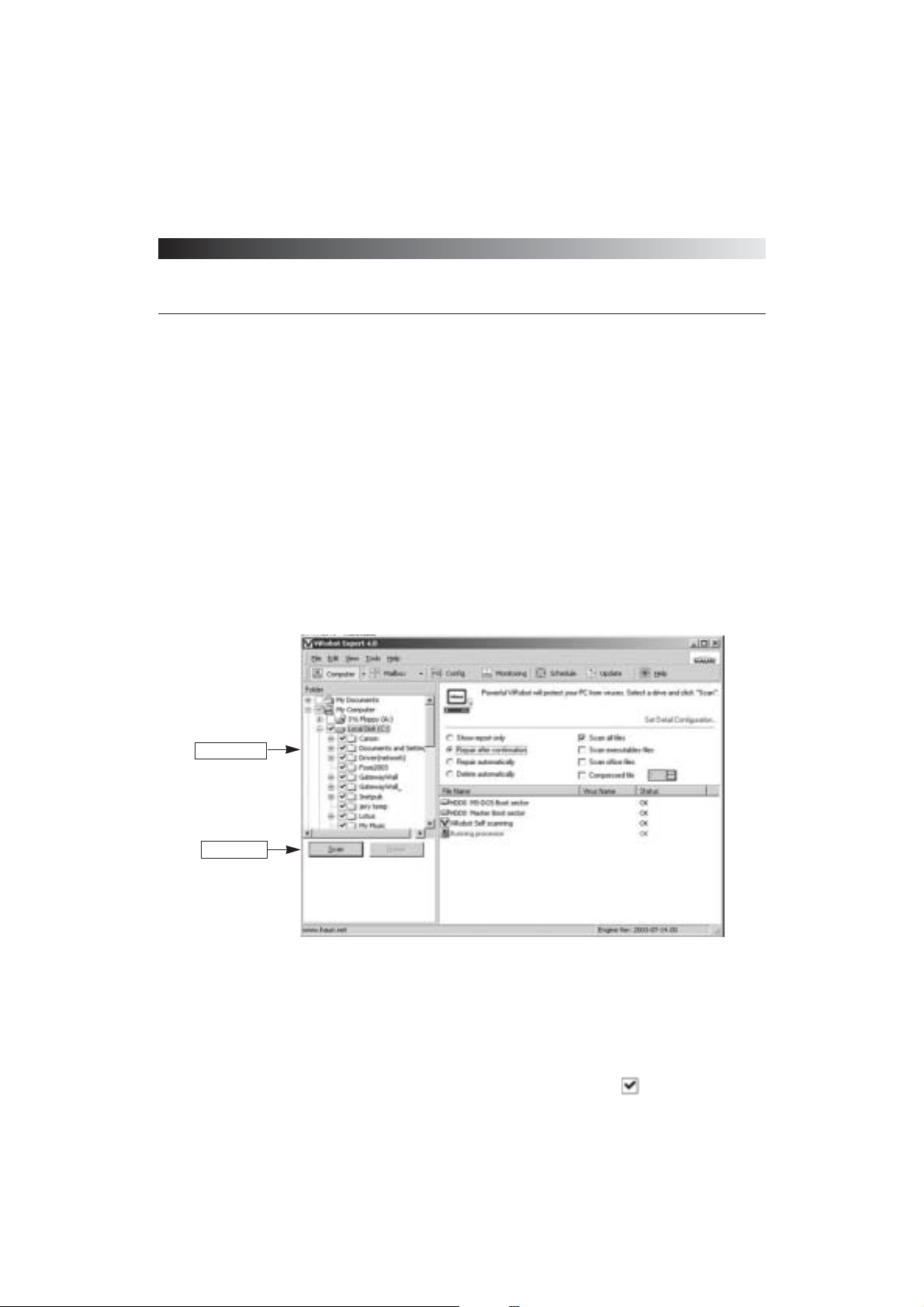
When you run ViRobot Expert, it displays the Folder List window. You can select any folders
or local drives to scan for viruses. To return to this window, simply click the ‘Computer’ icon
on the Tool bar. You can scan for viruses while working on other ViRobot Expert feature
tasks.
␊
Scanning My Computer
(1) Select folders or drives to scan in the Folder Frame
To do this, check the box next to the drive or folder to be scanned.
You will see a check mark in front of the selected drives or folders ( ).
[ Figure 3-5 Scan My Computer ]
Folder Frame
Scan Button
Page 47
ViRobot Expert
47
CHAPTER 3. USING ViRobot Expert
When subfolders are selected, the parent folder is grayed out ( ). Click ( ) in front of the
parent folder to display its extended subfolder list.
(2) Click Scan or go to File > Scan on the Menu bar to start virus scan.
(3) When scanning begins, a pop up window appears, displaying the names of files being
scanned.
(4) To stop the file scanning in progress, click the Stop button or go to File > Stop.
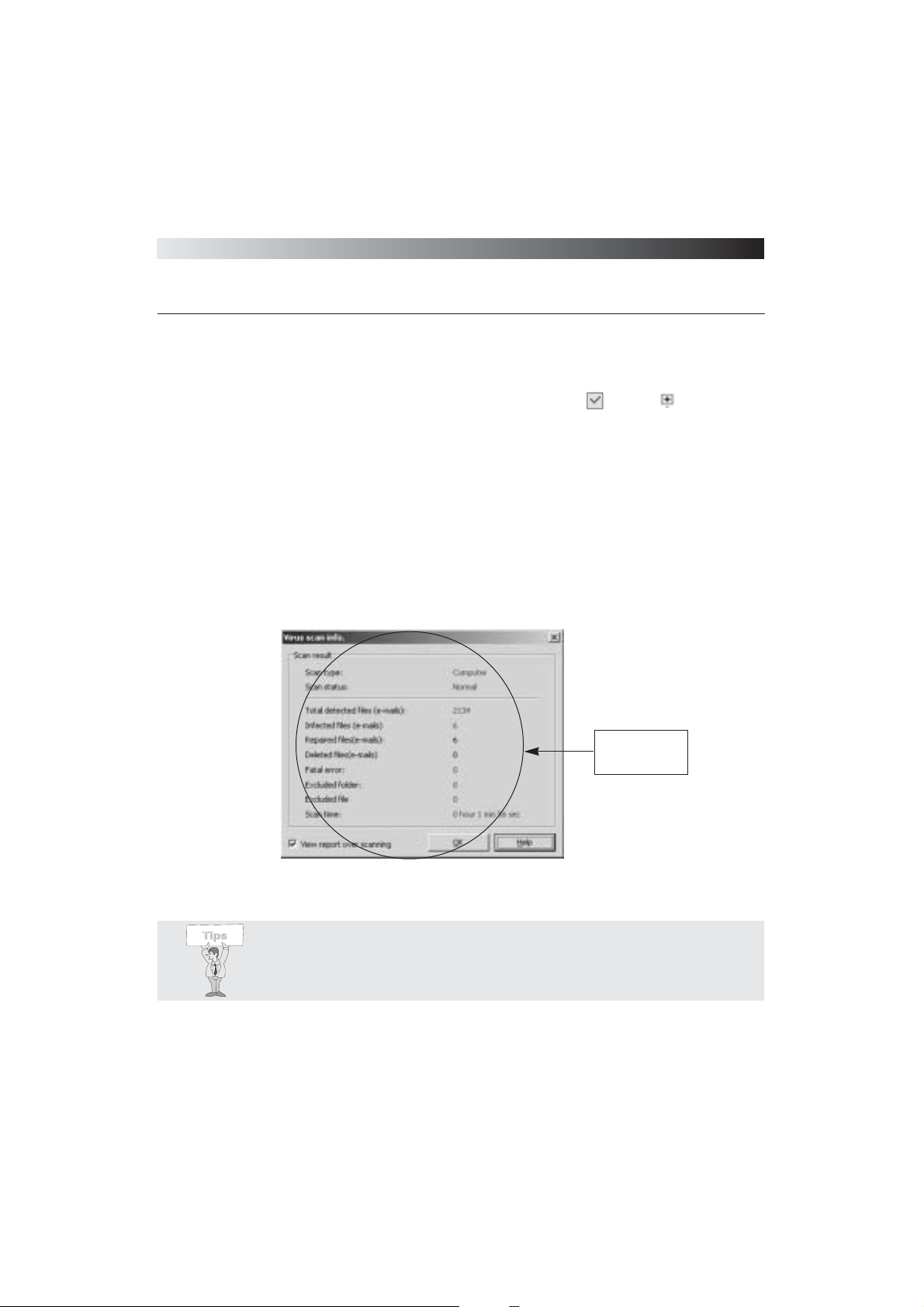
(5) Figu re 3-6 displays scanning results, which includes the total number of scanned files,
number of infected files, repaired files, and more.
[Figure 3-6 Scan result for My Computer ]
Scan information is
available in Scan
Result window.
Tips : The number of scanned files depends on scan-configuration settings.
Refer to the Configuration section for more information.
Page 48
ViRobot Expert
48
CHAPTER 3. USING ViRobot Expert
␊
Repairing Infected Files
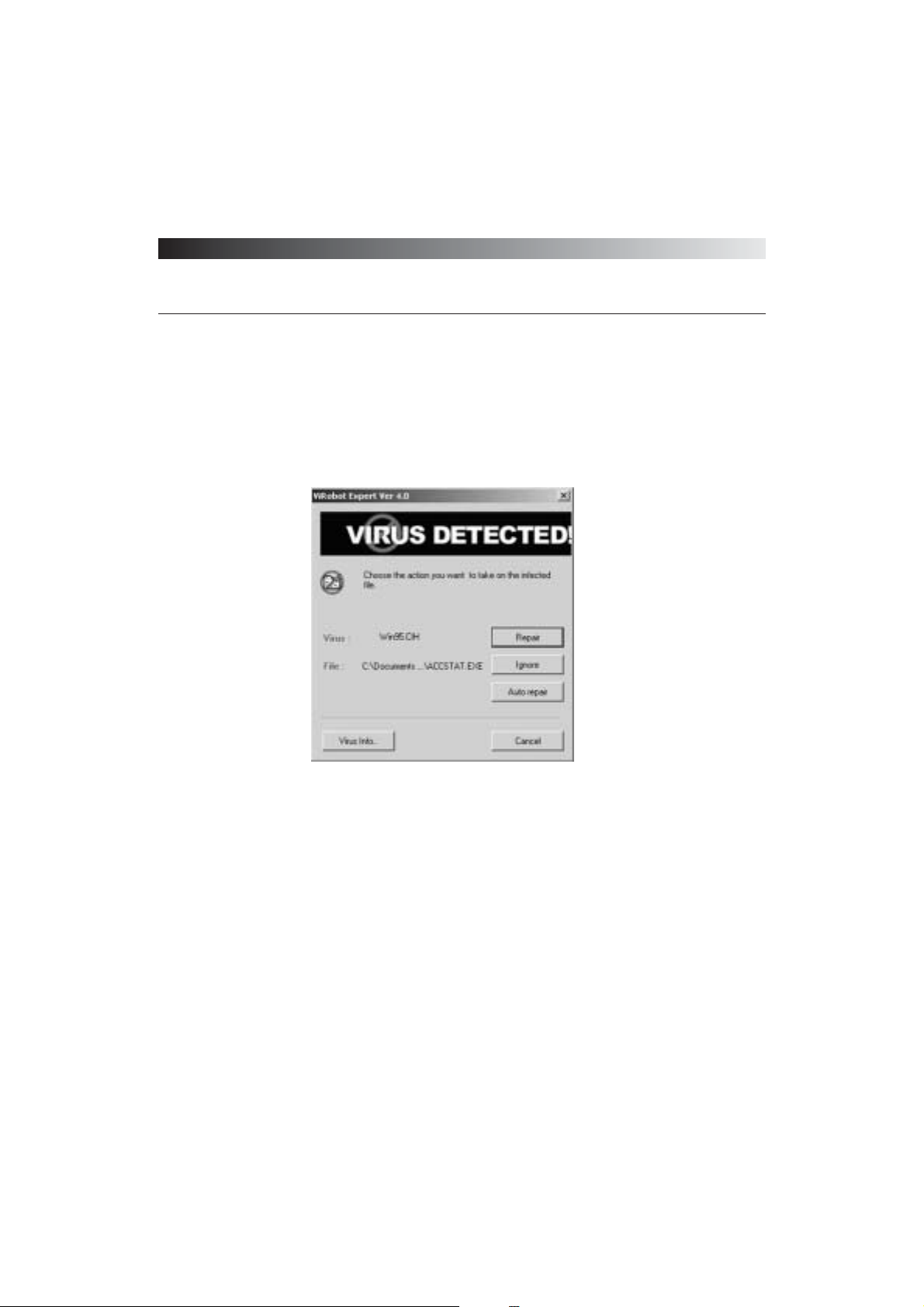
If any virus is detected during virus scan, you will see the dialog box shown below. The default
setting is Ask what action to take for detected viruses. You can easily change the default options.
(1) You can choose one of the following options once a virus is found.
Repair: Repairs the detected infected file, or deletes the overwriting or backdoor virus type.
Beware that deleting an overwriting infected file may affect your system.
Ignore: Only detects viruses without repairing. The virus list will be saved in case you may
need to review it later.
Auto repair: Repair all infected files without asking what action to take.
Cancel: Cancels the scanning process.
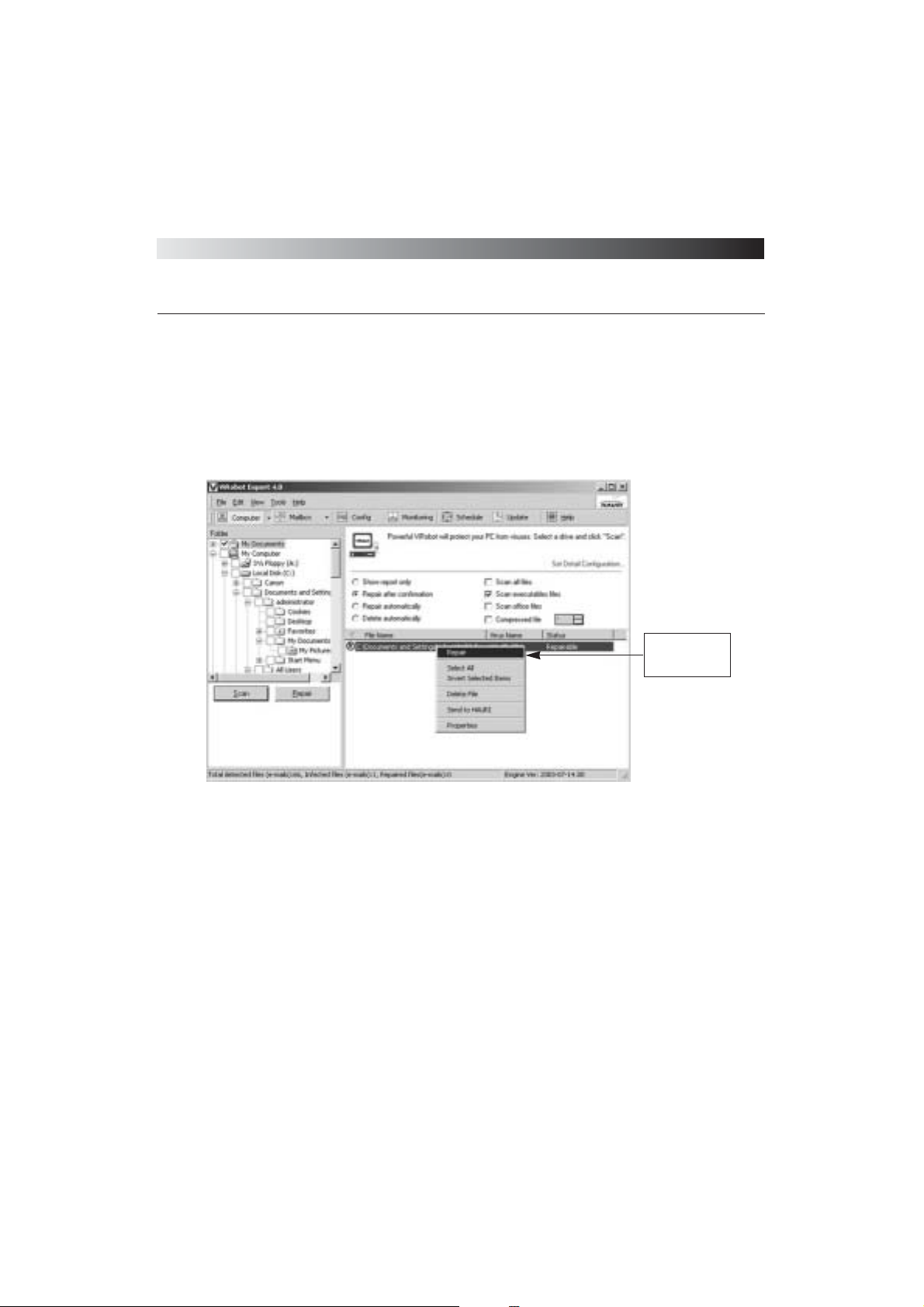
(2) Right click on the infected file, the select options such as Repair, or Send to Hauri.
Repair : Repairs selected infected files.
Send to HAURI: Sends the selected infected file to Hauri Customer Support Team in case
the repairing status is Failed to Repair, Suspected, or New Virus.
[ Figure 3-7 Virus Check window ]
Page 49
ViRobot Expert
49
CHAPTER 3. USING ViRobot Expert
Customer Support Team will send you a detailed analysis on the infected
file within 24 hours.
Properties: Shows information about the infected file.
[ Figure 3-8 Right mouse menu activated when a virus is found ]
Use your right
mouse menu for
easy tasking
Page 50
ViRobot Expert
50
CHAPTER 3. USING ViRobot Expert
␊
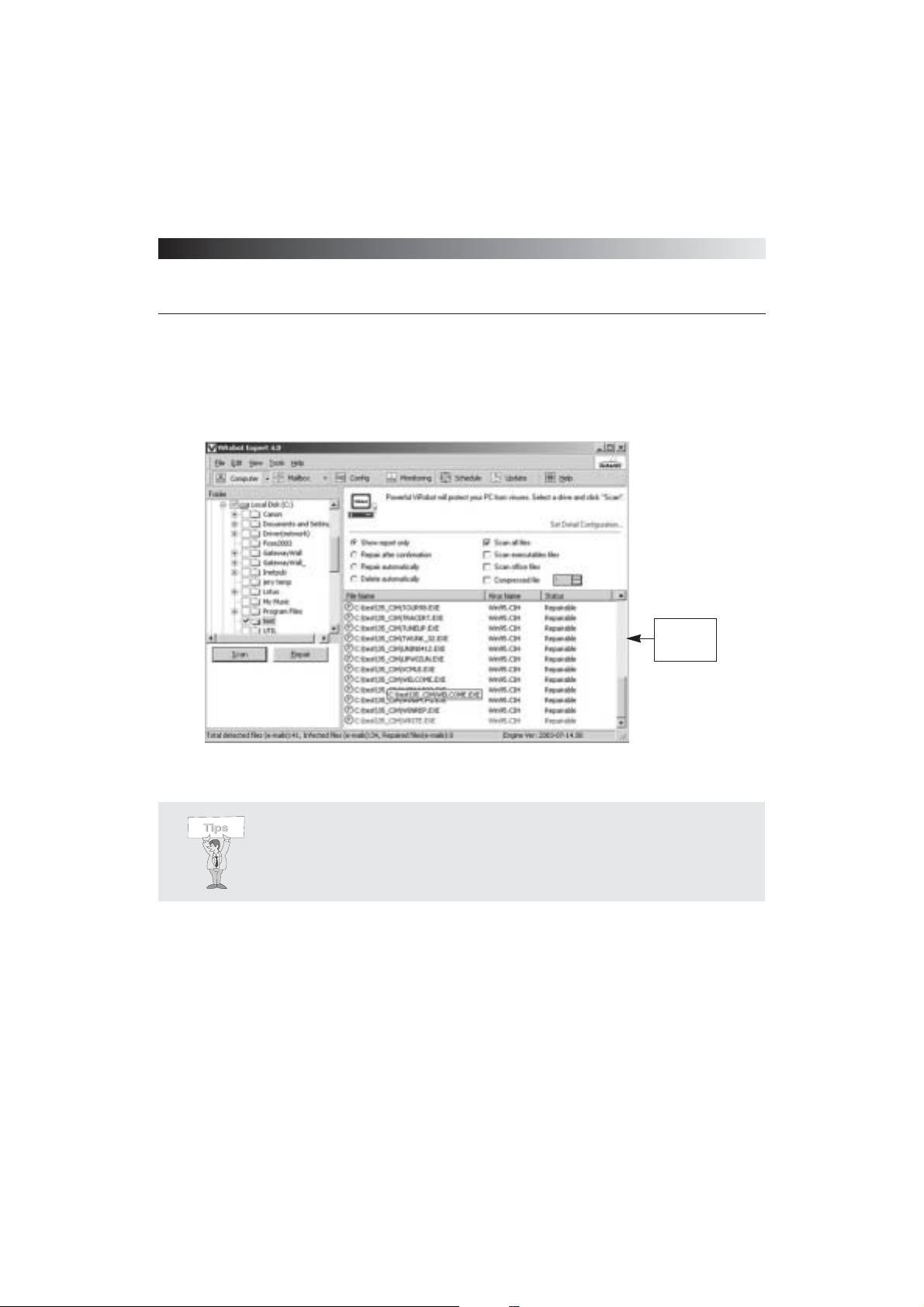
Check the repair results in the Repair frame.
⍥
Status Messages on the Repair Frame
Repaired
ViRobot Expert has repaired the infected files.
Failed to Repair
ViRobot Expert has failed to repair infected files. Please send the infected files to the HAURI
[ Figure 3-9 Virus repair results ]
Virus repair
results are
shown
Tips : The Virus Check window will not be displayed if you set virus-scan option
to ‘Show report only.’ It will only show the infected file properties. To repair a
‘Repairable’ infected file, double click on the infected file shown in the Repair
Frame
Page 51

ViRobot Expert
51
CHAPTER 3. USING ViRobot Expert
Customer Support Team, and we will return a detailed analysis of the infected files within 24 hours.
Deleted
A file infected with an overwriting or backdoor virus was deleted. Beware that deleting an
overwriting infected file may affect your system.
Overlapped
This message will appear if you stop in the middle of the repairing process. It indicates the
infected file is not completely repaired. Select this infected file and repair it again.
Access denied
The file is often inaccessible in case of Windows viruses. Use a clean boot disk, and ViRobot for
DOS to repair. Please go to Chapter 6 to see how to create a ViRobot for DOS.
Repair after decompression
This message will appear when the infected file is in a compressed file format. The infected
compressed file is detected but not repaired. Decompress the infected file in a temporary folder
and scan it again with ViRobot Expert to repair it.
Repair after decryption
ViRobot cannot repair a macro virus infected file that is locked with a password. You will need
to unlock the document and scan it with ViRobot Expert again.
New Virus
This message will appear when a new virus is detected. Please send the infected file to the
HAURI Customer Support Team. We will send you our vaccine for that particular virus.
Suspected
This message will appear when ViRobot detects a virus through an unknown virus detection
function. Please send the file to the HAURI Customer Support Team. We will send you our
analysis results.
Page 52
ViRobot Expert
52
CHAPTER 3. USING ViRobot Expert
How to Disinfect Viruses in Your Mailbox
You can select Mailbox icon in the T oolbar to scan for email attachments.
␊
Scanning Viruses
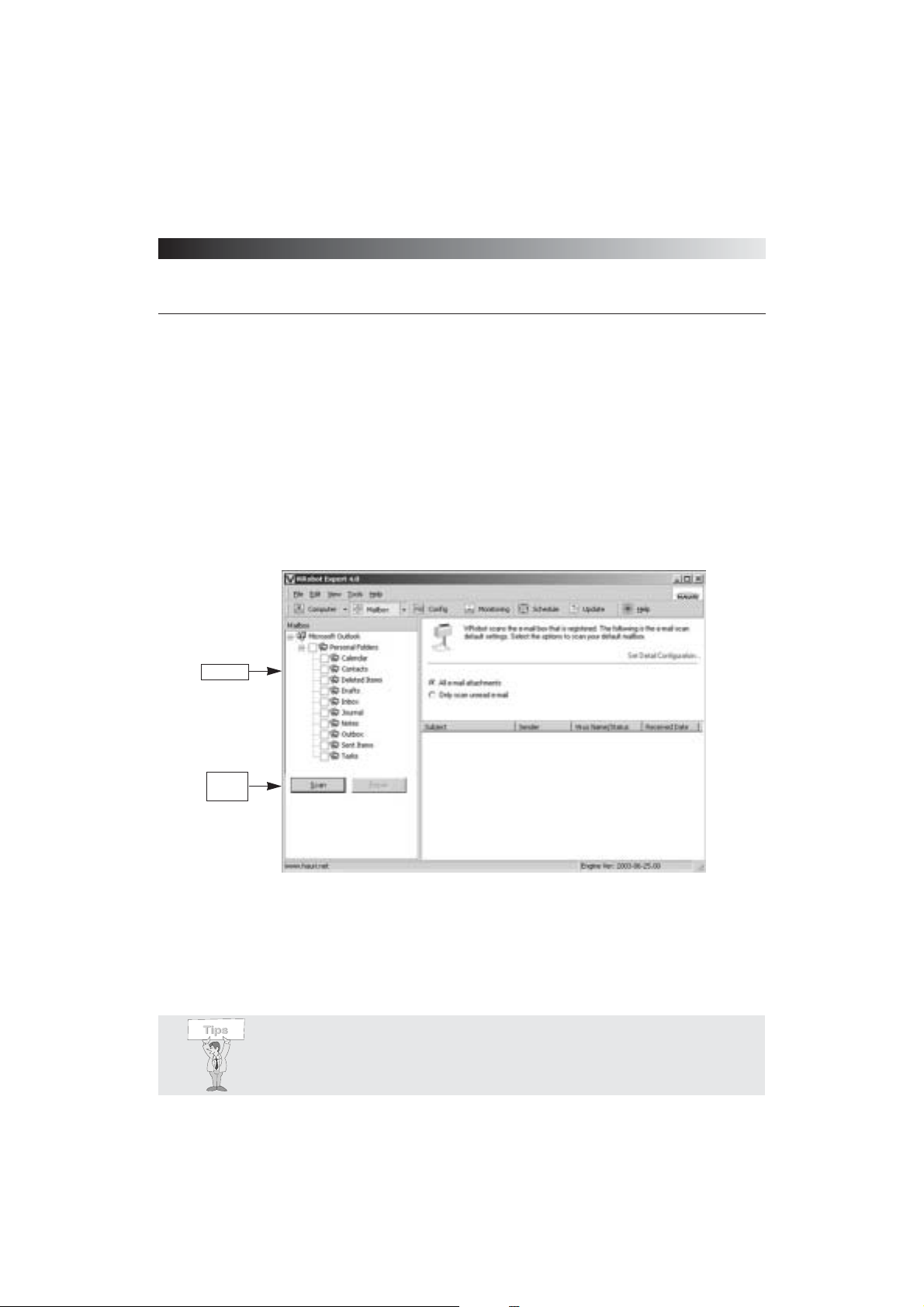
(1) Select the mailbox you want to scan in the Mail Frame.
If you cannot see the mailbox, click View > Refresh on Menu bar.
[ Figure 3-10 Mailbox Virus scan ]
Mailbox
Scan
button
Tips : ViRobot Expert can scan the entire MS Outlook mailbox while it could
scan only the Inbox for MS Outlook Express.
Page 53
ViRobot Expert
53
CHAPTER 3. USING ViRobot Expert
(2) Click Scan to start virus scan.
(3) You will see scanning progress information in the Scan Frame, which includes the Subjects and
Sender names of emails being scanned
(4) Click Stop to terminate the scanning
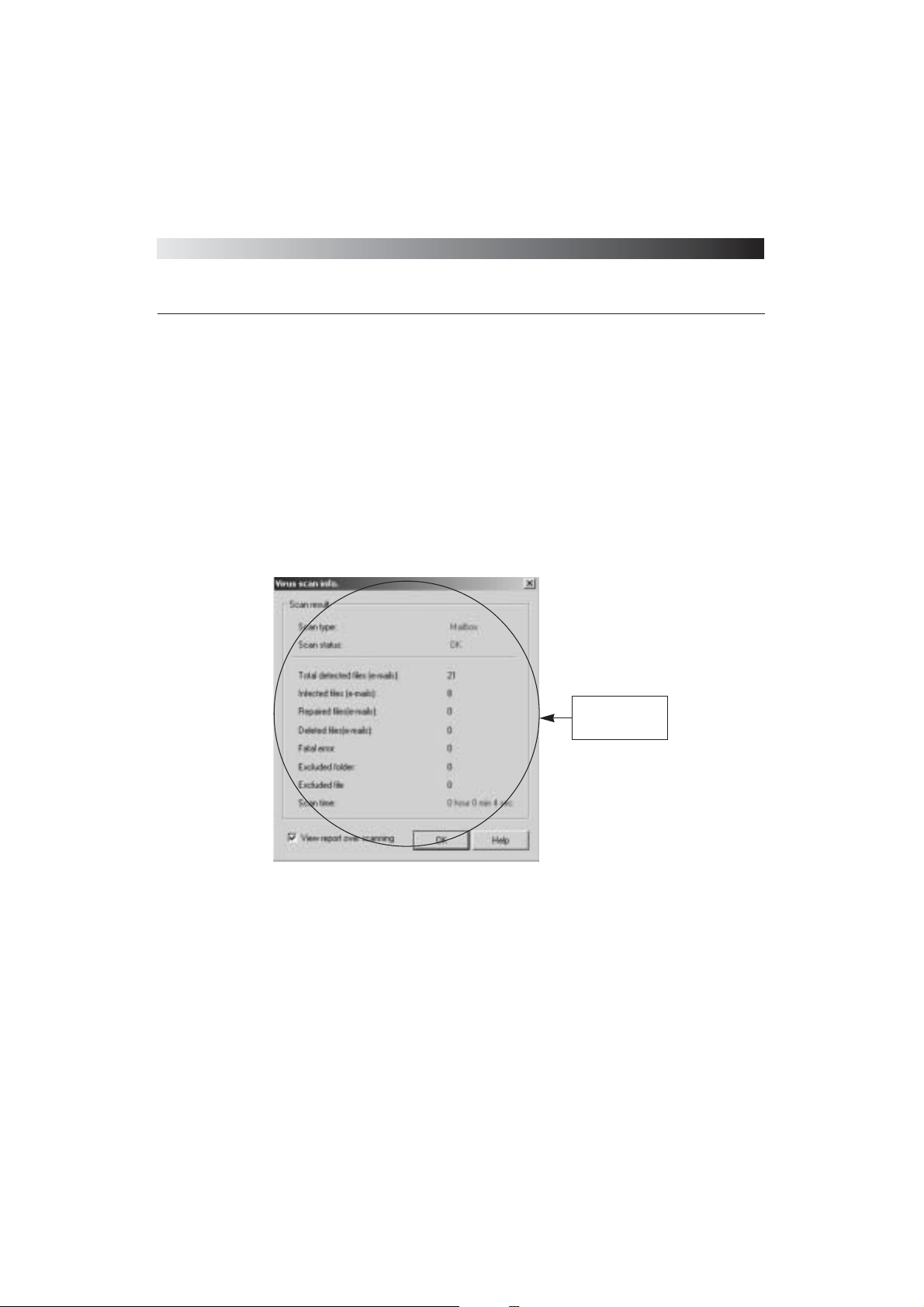
(5) The Virus Scan Info window appears when virus scanning is complete. Scanning information
includes total number of scanned files, number of infected files, and number of files that have
been repaired.
␊
Repairing Infected Files
In case any virus is detected, ViRobot Expert displays the infected e-mailᴗs subject, sender name,
and receiving date in the Virus Scan Info window. Double click a selected item to see more detailed
information. You cannot repair the infected email attachment directly from the mailbox. To repair
the infected email attachment, save it under another name, and then scan it again with ViRobot
Expert.
[ Figure 3-11 The Scan Result ]
The Scan Result
Window shows the
scan information
Page 54
ViRobot Expert
54
CHAPTER 3. USING ViRobot Expert
(1) When MS Outlook is set as an email client program:
ViRobot Expert supports MS Outlook Add-on (Exchange Client). It enables ViRobot Expert to
scan and repair email attachments automatically. Go to Chapter 4 to learn more about using
ViRobot Expert in MS Outlook.
(2) When MS Outlook Express 5.X or higher is set as an email client program:
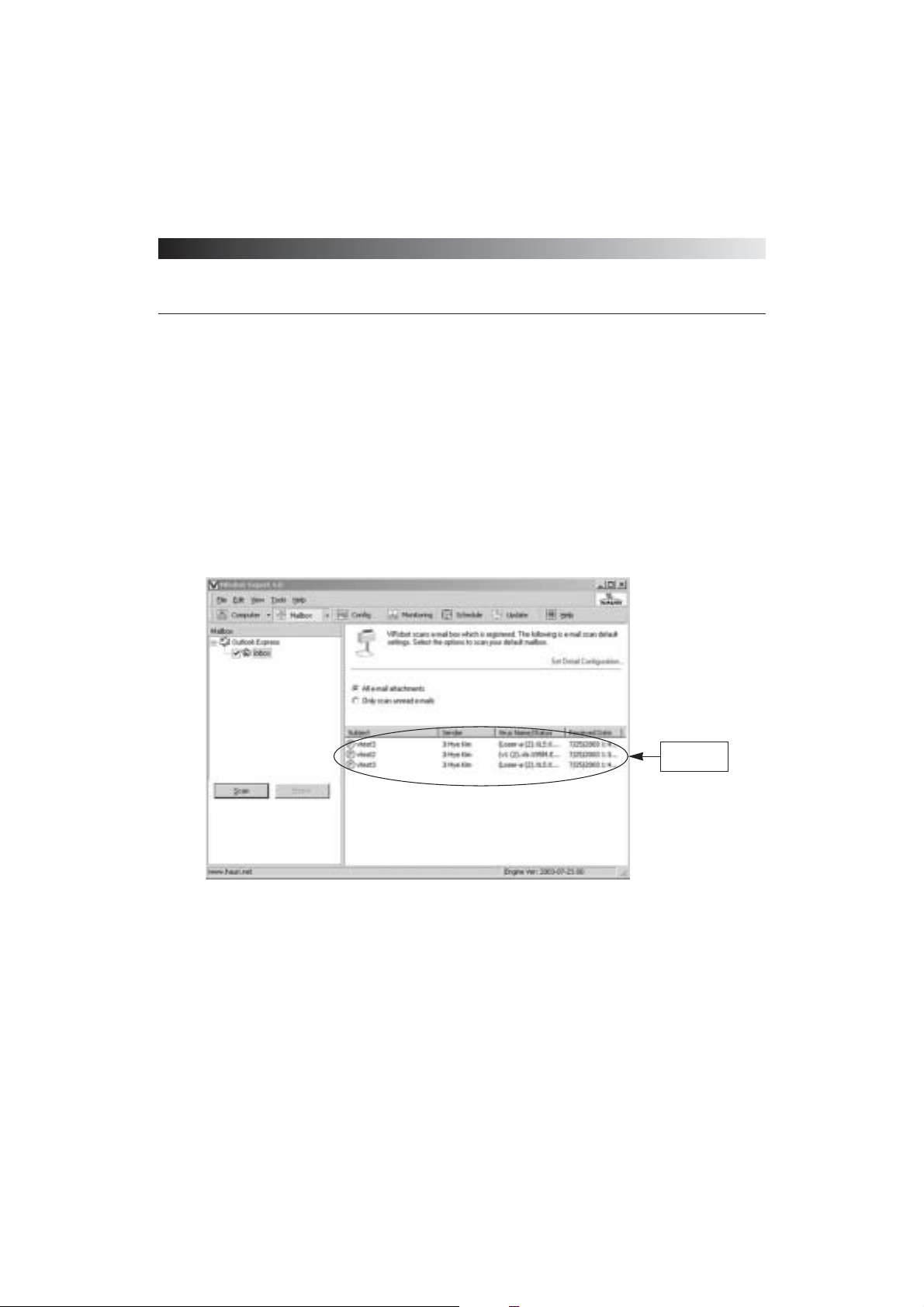
Check the infected mail in the Repair frame
[ Figure 3-12 Infected mail list ]
Infected mail
list is shown
Page 55
ViRobot Expert
55
CHAPTER 3. USING ViRobot Expert
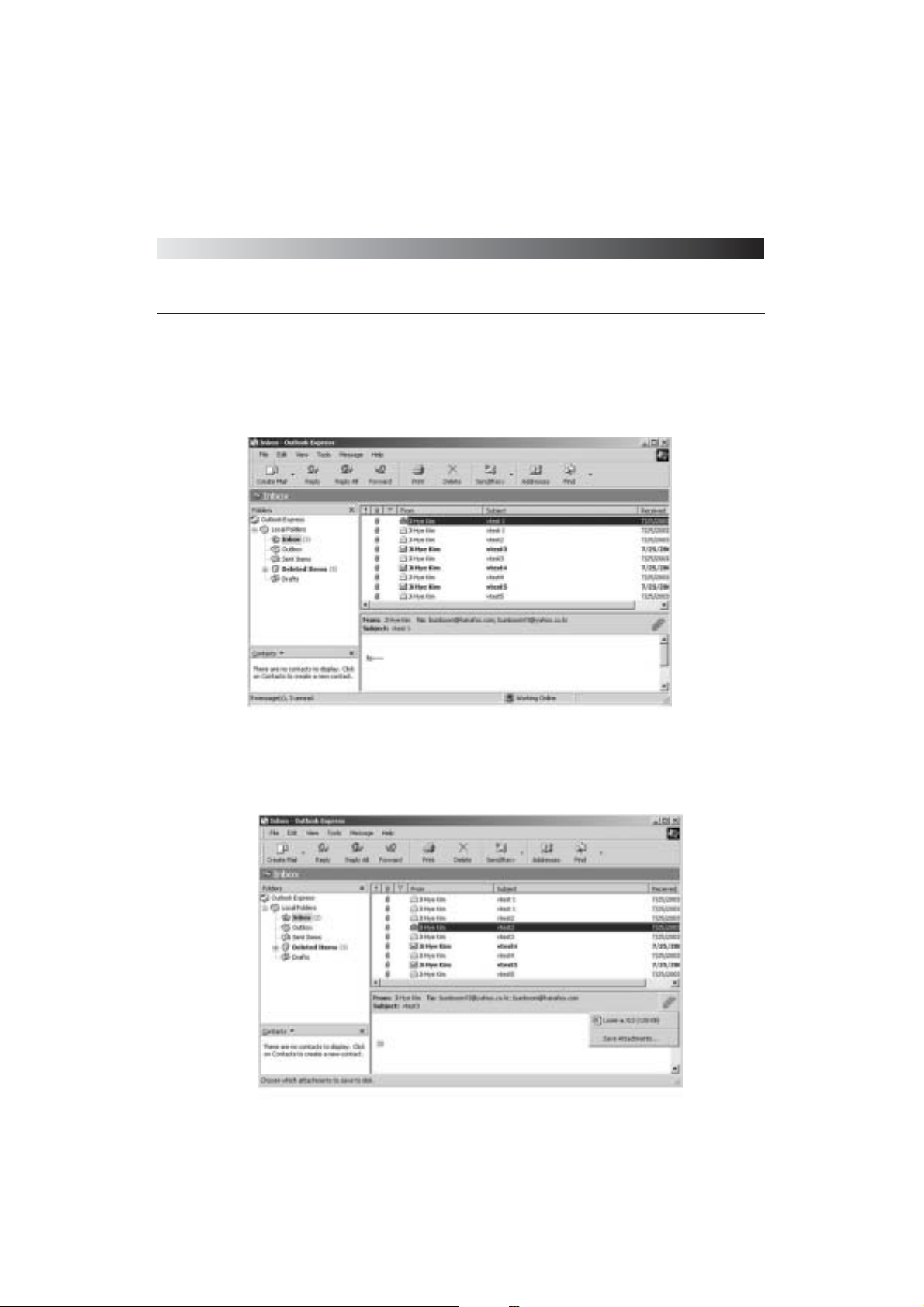
Run your MS Outlook Express
Save the infected email attachments with a new name.
[ Figure 3-13 Run MS Outlook Express ]
[ Figure 3-14 Save the infected file ]
Page 56
ViRobot Expert
56
CHAPTER 3. USING ViRobot Expert
Take note of the saving location.
Use ViRobot Expert to scan and repair the newly saved attachment file.
Tips : ViRobot Expert only shows the Inbox in the Folder frame for MS Outlook
Express while it shows all folders in the mailbox for MS Outlook 97/2000.
Warning : Enabling real time monitor for incoming and outgoing mail is highly
recommended to prevent infected email attachments. Chapter 6 describes how
to turn on real time monitor in more detail.
Page 57
ViRobot Expert
57
CHAPTER 3. USING ViRobot Expert
Basic Configurations
Select Configuration on the Tool bar to perform basic configuration for ViRobot Expert. You
can find quick configuration options for Basic Scanning, Mailbox Scanning, Exclude Folders,
Set Schedule, and Others on the left of the application window. All setting configurations will
be applied when you perform virus scan on My Computer and Mailbox.
␊
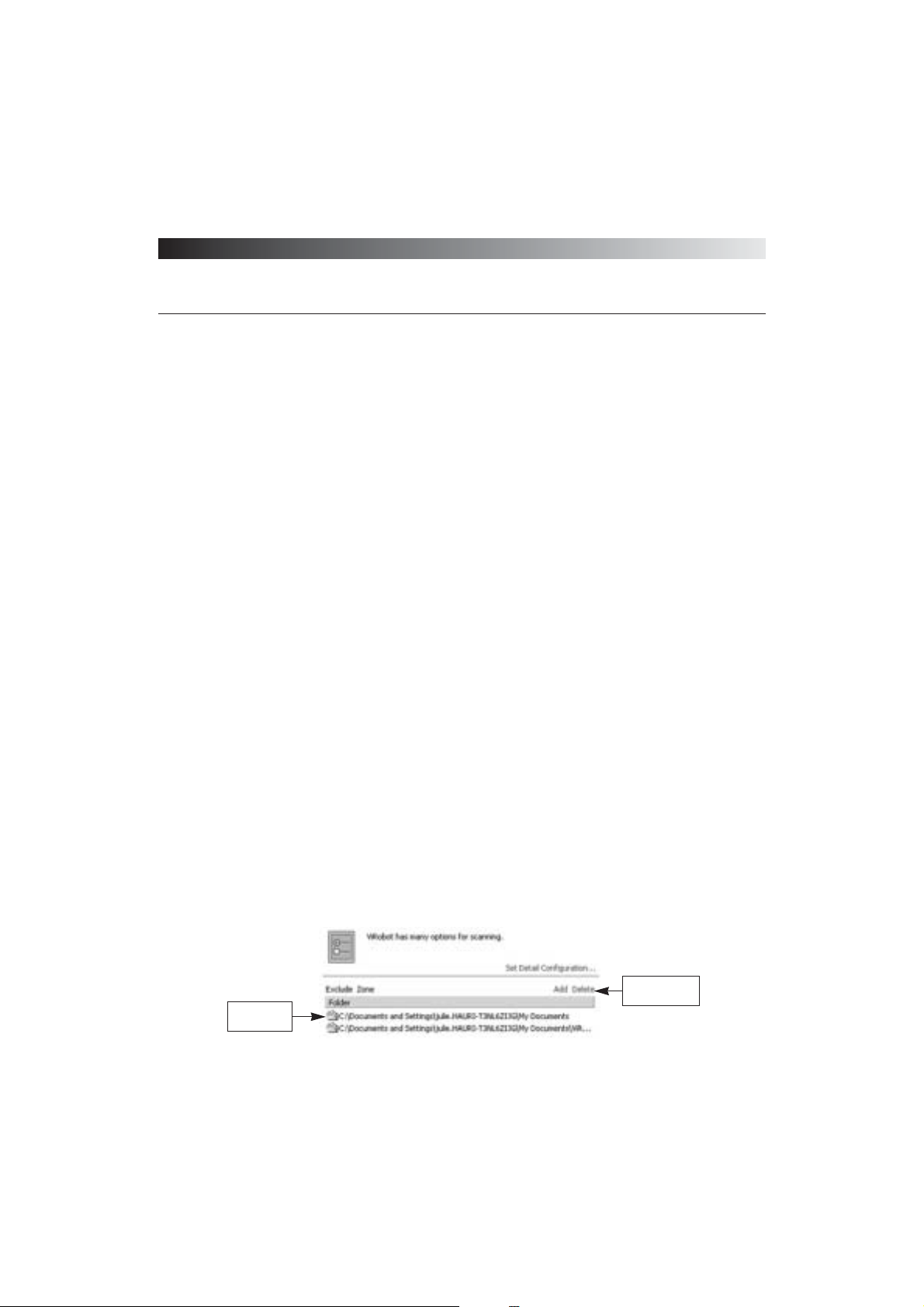
Basic Scanning
(1) When a virus is detected:
⍥Show report only: displays information on infected files in the Repair frame
⍥Repair after confirmation: lets you choose Repair, Ignore, Auto repair option when a virus is
detected
⍥Repair automatically: automatically repairs detected viruses without asking for what action to
take
[ Figure 3-15 Configuration ]
Page 58
ViRobot Expert
58
CHAPTER 3. USING ViRobot Expert
(2) File scanning options:
⍥Scan All Files: scans all files with any file extensions
⍥Scan Executable Files: only scans files with executable extensions such as .exe, .com, and .dll
⍥Scan Office Files: only scans document files such as .xls, .doc, and .ppt
⍥Compressed File: lets you scan compressed files. ViRobot Expert can detect and repair viruses
under up to five compressed levels. You can enter the desired compressed level with the up
and down arrows
␊
Mailbox Scanning
You want to scan:
(1) All email attachments: scans all email attachments in the mailbox
(2) Only unread email attachments: only scans unread email attachments to reduce scanning time.
␊
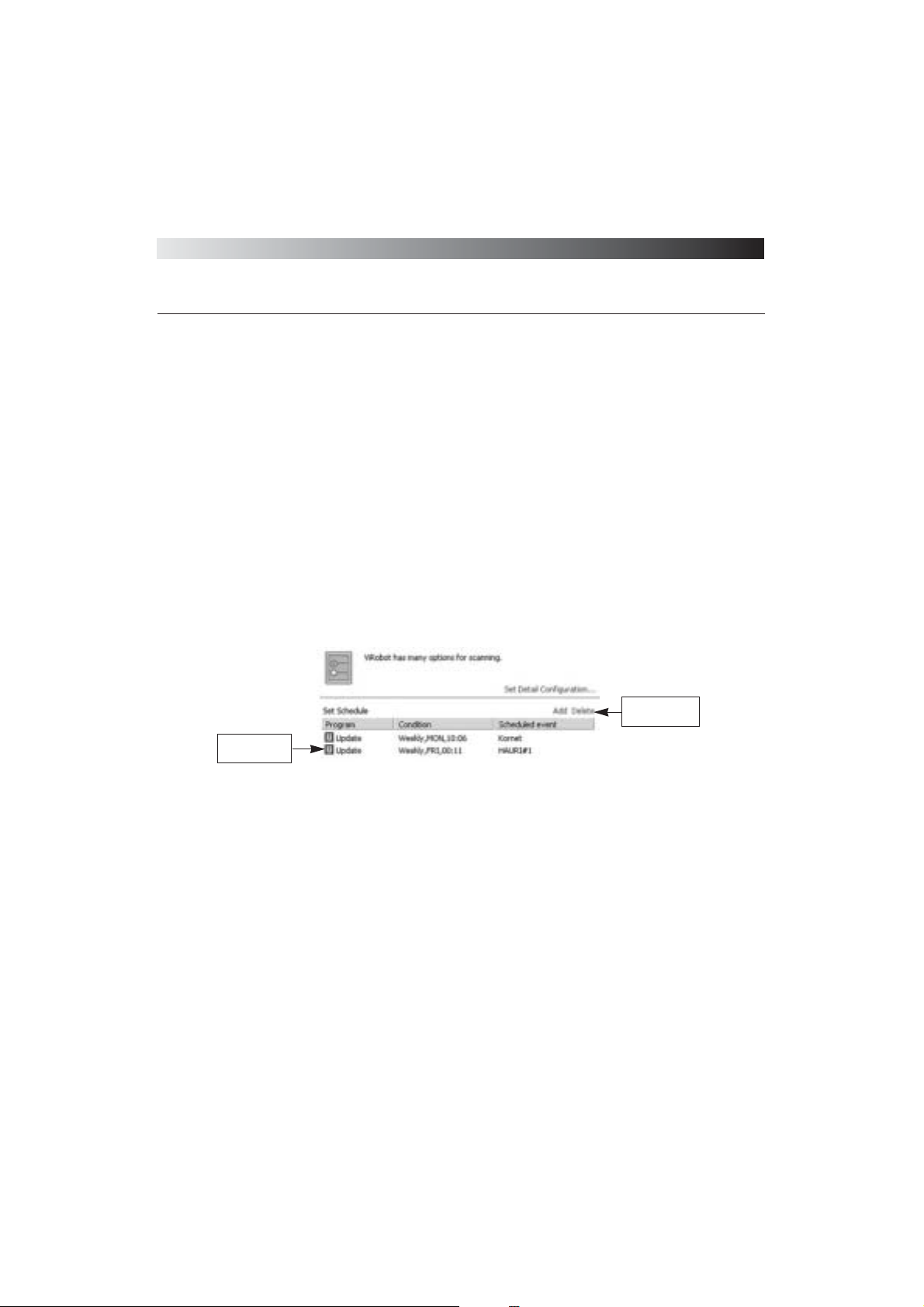
Exclude Folders
Folders listed in Exclude Zone will not be scanned.
(1) Highlight the ᴖExclude Foldersᴗoption on the left of the ViRobot Expert application window
(2) Click Add under Exclude Zone
(3) Browse to a specific folder you wish to exclude from virus scan
(4) Click OK under Browse in the Folder window
(5) The newly added excluded folder should be listed in the Folder section
(6) To remove an excluded folder from the list, highlight it, and click Delete
[ Figure 3-16 Set Exclude Folders ]
Check the
Excluded list
Add/Delete the
excluded files
Page 59
ViRobot Expert
59
CHAPTER 3. USING ViRobot Expert
(7) To remove a particular item, select the item and click Delete.
␊
Set Schedule
You may schedule definition updates and virus scan. Please refer to the ViRobot Schedule Wizard
section for more detailed information.
(1) Highlight the ᴖSet Scheduleᴗoption on the left of the ViRobot Expert application window
(2) Follow the steps in ViRobot Schedule Wizard to schedule definition updates or virus scan. Click
Finish to complete the schedule setup task
(3) Verify the newly created schedule information in the List Frame
(4) To remove a schedule from the list, highlight it, and click Delete
␊
Others
There are three other configurations when you select ᴖOthersᴗon the left of the ViRobot Expert
application window.
(1) Check HAURI News: Enabling ᴖCheck HAURI Newsᴗallows you to receive Hauri News
while using ViRobot Expert. Disable this option if you do not have Internet access.
(2) Enable R-mouse Scan: Lets you start scanning a particular folder by choosing the ViRobot Scan
option from the R-mouse menu.
(3) Add ViRobot in Windows Explorer: You can embed ViRobot Expert in your Windows
Explorer by checking off this option. Chapter 5 will explain more on how to use ViRobot Expert
from Windows Explorer.
[ Figure 3-17 Scheduler ]
Check if your
schedule is set
Add/Delete the
excluded files
Page 60
ViRobot Expert
60
CHAPTER 3. USING ViRobot Expert
Advanced Configurations
You may set the operating environment of V iRobot Expert in detail.
Select Configuration on the Toolbar and click the ᴖSet Detail Configurationᴗlink on the right
of the ViRobot Expert application window, or go to Edit > Configuration on the Menu bar to
setup advanced V iRobot Expert configurations.
␊
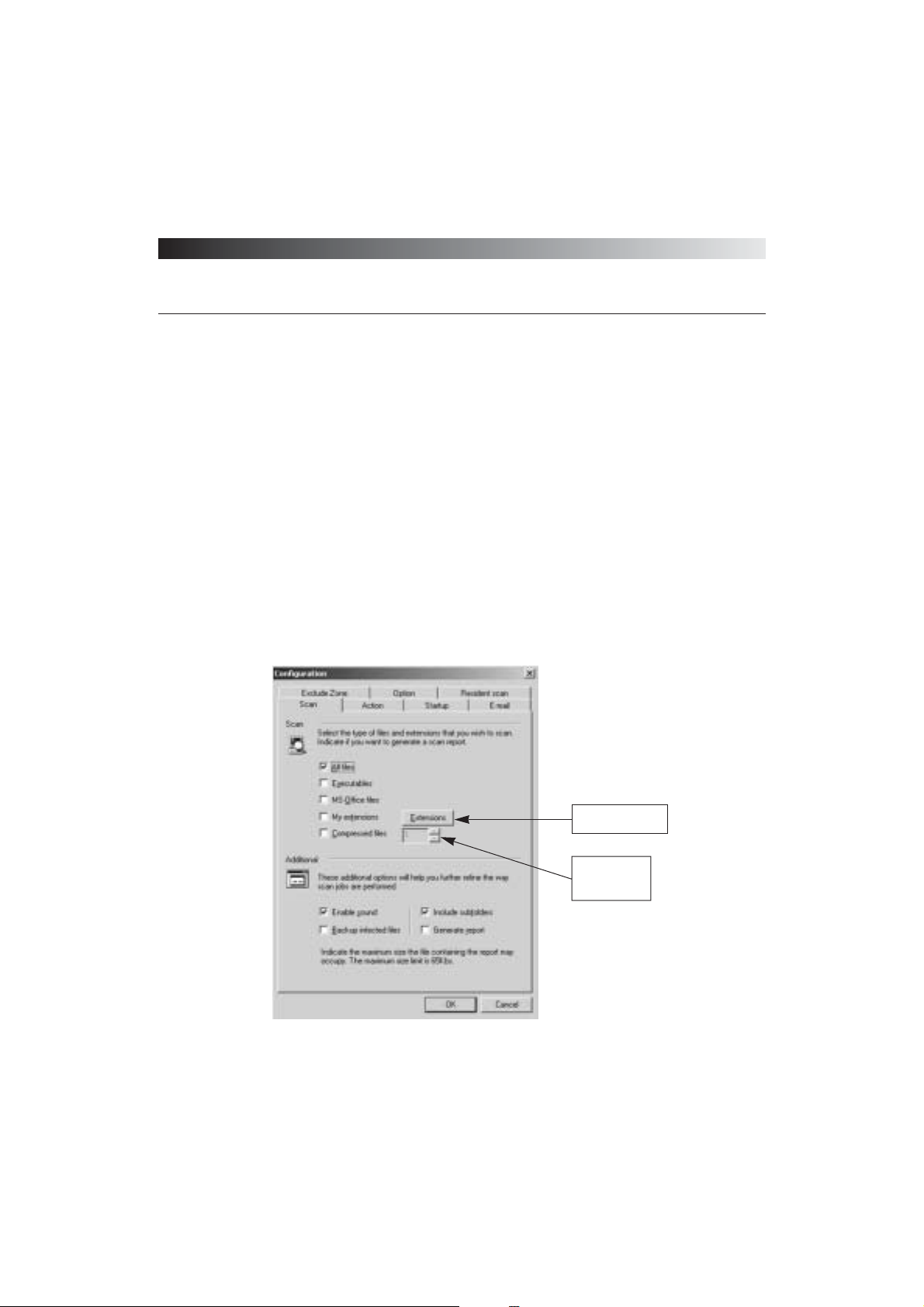
Configuration - Scan
[ Figure 3-18 Virus scan configuration ]
Define file extension
to scan viruses
Set the
decompression
level up to five
Page 61
ViRobot Expert
61
CHAPTER 3. USING ViRobot Expert
(1) Scan
⍥All Files: scans all files with any file extensions
⍥Executables: only scans files with executable extensions such as .exe, .com, and .dll
⍥MS-Office Files: only scans document files such as .xls, .doc, and .ppt
⍥My Extensions: only scans user-defined file types
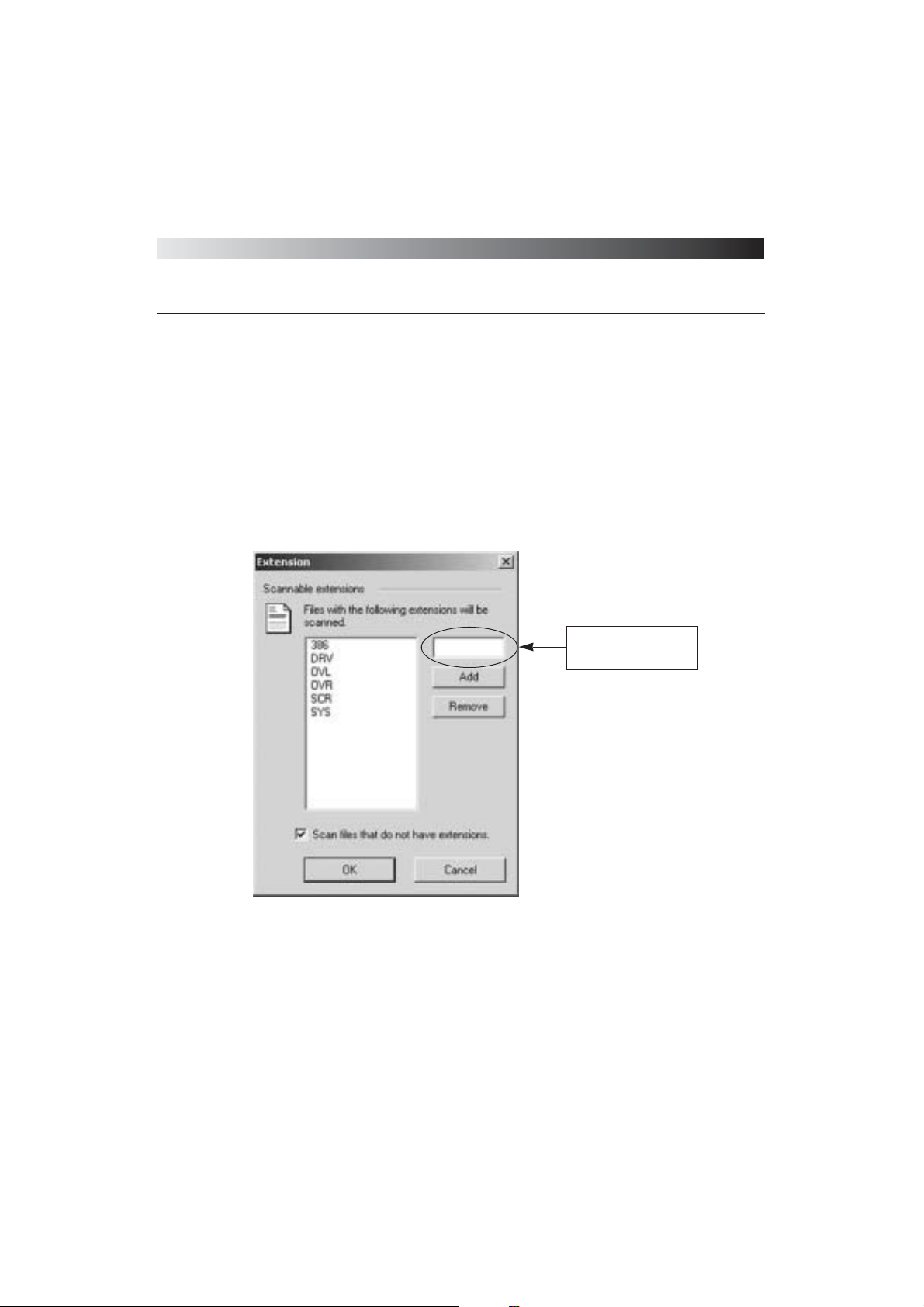
M Click ᴖExtensionsᴗto enter user-defined file types
M@Type in a file extension and click Add
M@Verify the newly added extension on the left column
⍥Compressed Files: lets you scan and detect viruses in a compressed file. ViRobot Expert can
detect and repair viruses under up to five compressed levels. You can enter the desired
compressed level with the up and down arrows.
[ Figure 3-19 Define User Extensions ]
Type extensions of files you
wish to scan and click add
to register the extensions
Page 62

ViRobot Expert
62
CHAPTER 3. USING ViRobot Expert
(2) Additional
You can set additional preferences for virus scan
⍥Enable Sound: plays a sound when a virus is detected
⍥Include Subfolders: scans for viruses in subfolders
⍥Backup infected files: stores infected files in the Backup Bin. Refer to Backup Bin in Chapter
6 for more information on how to recover, delete, or send infected files to Hauri for analysis.
⍥Generate Report: enables you to save information in the Repair Frame to a file. Click View >
Activity Log on the Menu bar to view a log file. Log file cannot be larger than 65 KB.
␊
Configuration - Action
(1) When a virus is detected
⍥Ignore and continue scanning: shows information on infected files in the Repair Frame
⍥Ask what action to take: lets you choose different options such as Repair, Ignore, Auto repair.
⍥Repair automatically: automatically repairs any detected viruses
(2) Failed to repair
Delete File: ViRobot will delete an infected file that has been overwritten by a virus
Page 63
ViRobot Expert
63
CHAPTER 3. USING ViRobot Expert
␊
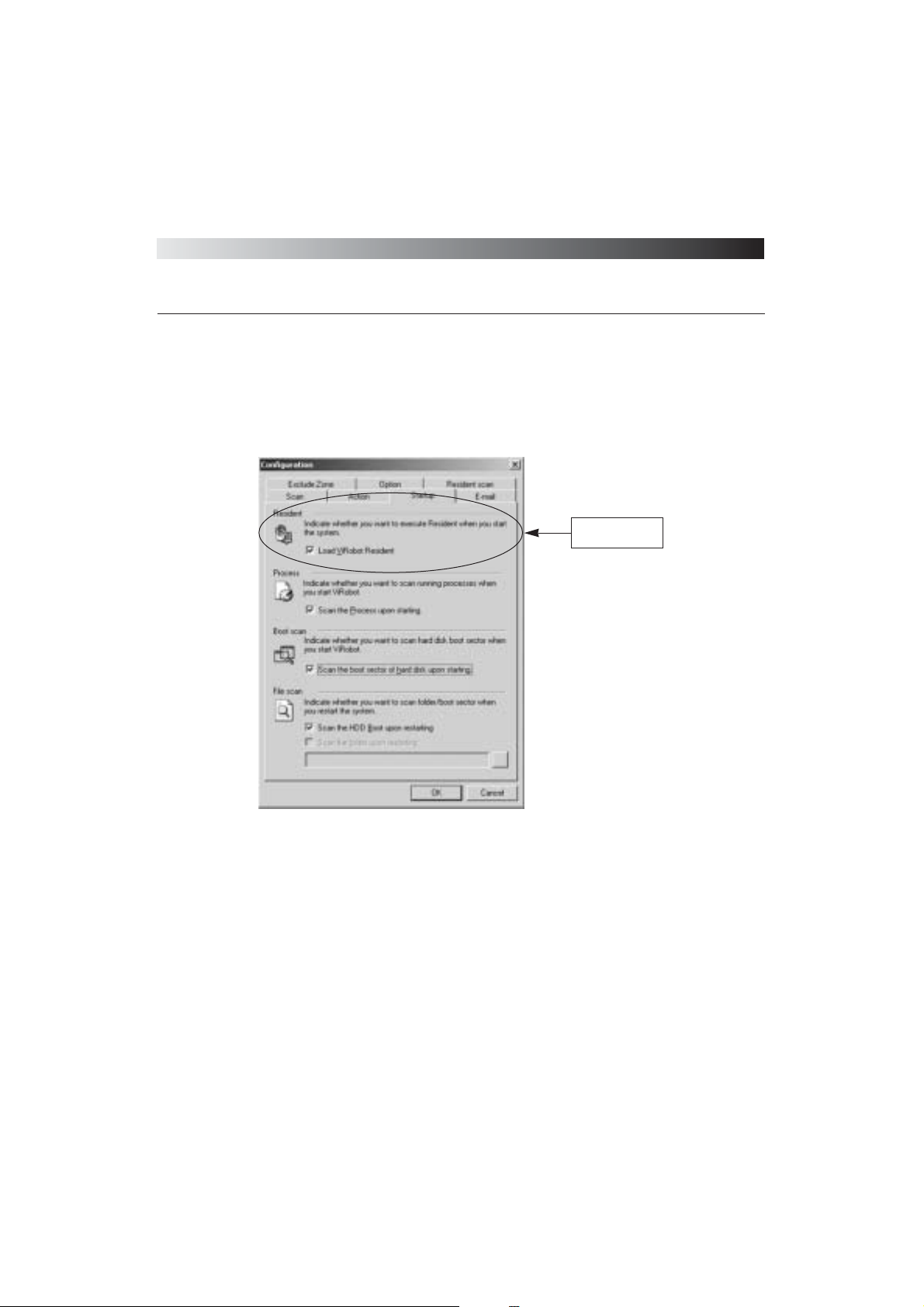
Configuration - Startup
Use Startup Tab to configure ViRobot Expertᴗs startup environments.
(1) ViRobot Resident
ViRobot Expert will scan for viruses in every file as you start Windows. Refer to the ViRobot
resident section in Chapter 6 for more detailed information.
(2) Process
Scans current running processes when you start your ViRobot Expert program
(3) Boot scan
Scans boot sector first when you start your ViRobot Expert program
(4) File scan
ViRobot Expert will run virus scan in DOS mode when Windows starts
⍥Scan the HDD Boot upon restarting: scans the hard disk drive in which Windows is installed
[ Figure 3-20 ViRobot startup setting ]
Scan virus on
starting Windows
Page 64
ViRobot Expert
64
CHAPTER 3. USING ViRobot Expert
⍥Scan the folder upon restarting: performs virus scan on selected folders when you start
Windows. This feature only supports Windows 9X.
␊
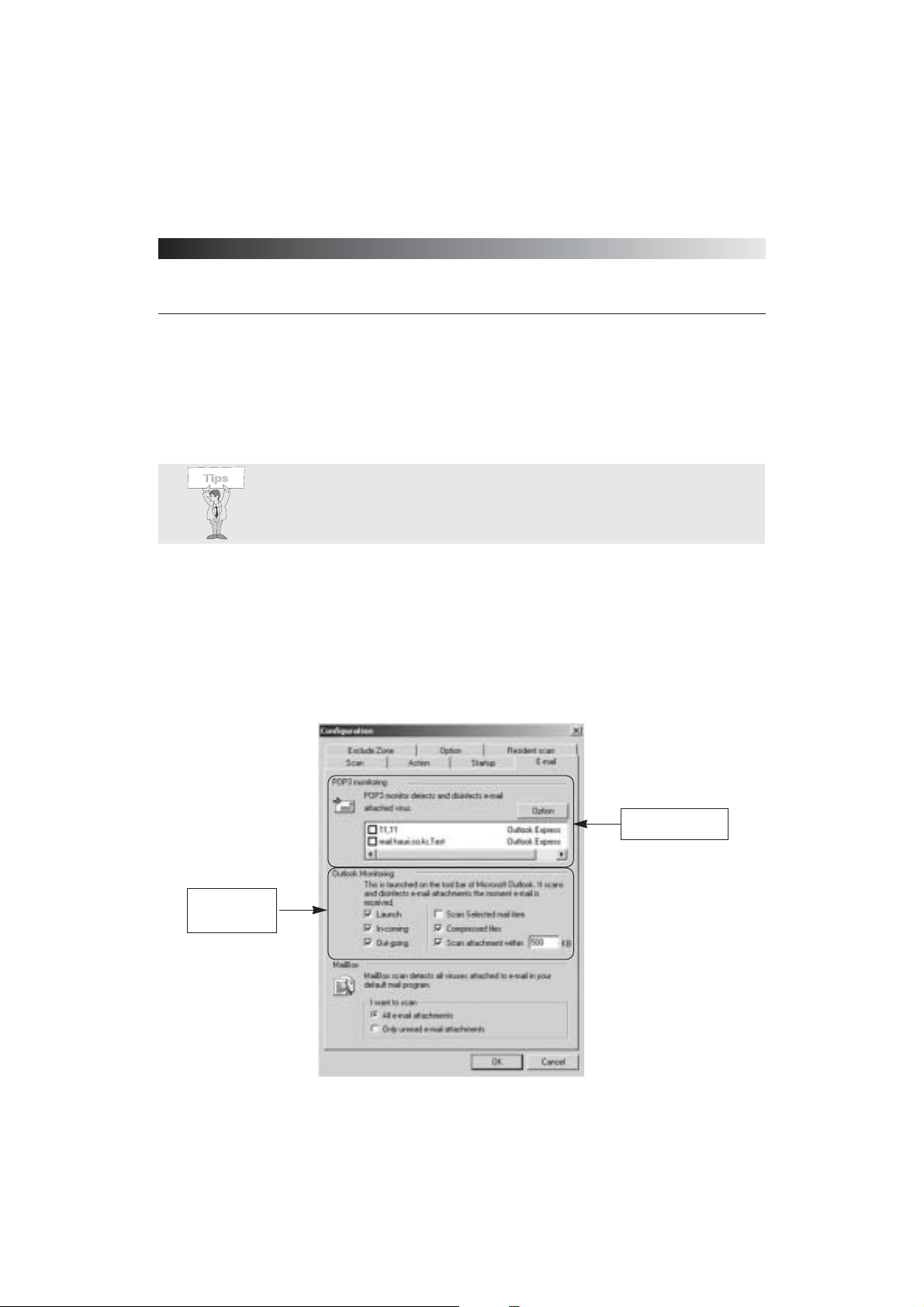
Configuration - E-mail
Set configuration options for mailbox virus scan. The selected configuration will be applied to
mailbox and Internet Monitor.
[ Figure 3-21 Select e-mail account ]
Tips : ViRobot Expert supports both memory and boot sector scanning.
Select e-mail account
for monitoring
You can set the
same functions as
in MS Outlook
Page 65
ViRobot Expert
65
CHAPTER 3. USING ViRobot Expert
(1) POP3 Monitoring
Select email accounts to be monitored
(2) Outlook Monitoring
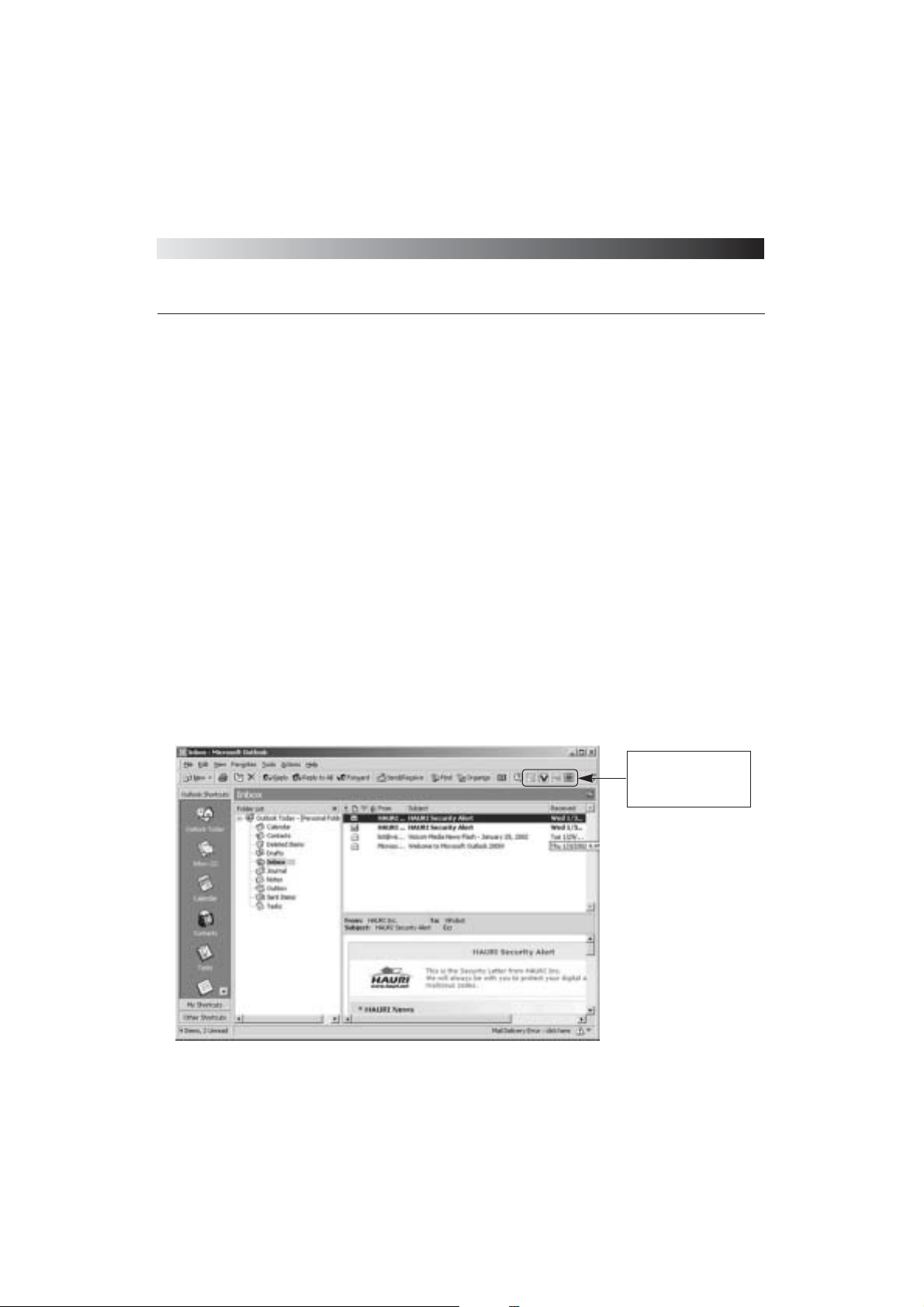
Embeds the ViRobot Expert icon in MS Outlook Toolbar for real-time scan and repair of
infected email
⍥Launch: adds the ViRobot Expert menu to MS Outlook Toolbar and ᴖToolsᴗlist
⍥In-coming: scans arriving email
⍥Out-going: scans email to be sent
⍥Scan selected mail item: ViRobot Expert checks for virus in selected email attachment before
opening Preview pane. It supports MS Outlook.
⍥Compressed files: scans compressed email attachments
⍥Scan attachment within: scans email whose size is less than the size you enter for file size
value
[ Figure 3-22 ViRobot registered in MS-Outlook ]
ViRobot icons registered
in MS Oulook(Scan
Mailbox, Mail Monitor,
Configuration, and Help)
Page 66
ViRobot Expert
66
CHAPTER 3. USING ViRobot Expert
(3) Mailbox
⍥All email attachments: scans all email with attachments
⍥Only unread email attachments: scans only unread email with attachments
␊
Configuration - Exclude Zone
ViRobot Expert will not scan folders, files, or extensions that are set in an excluded zone.
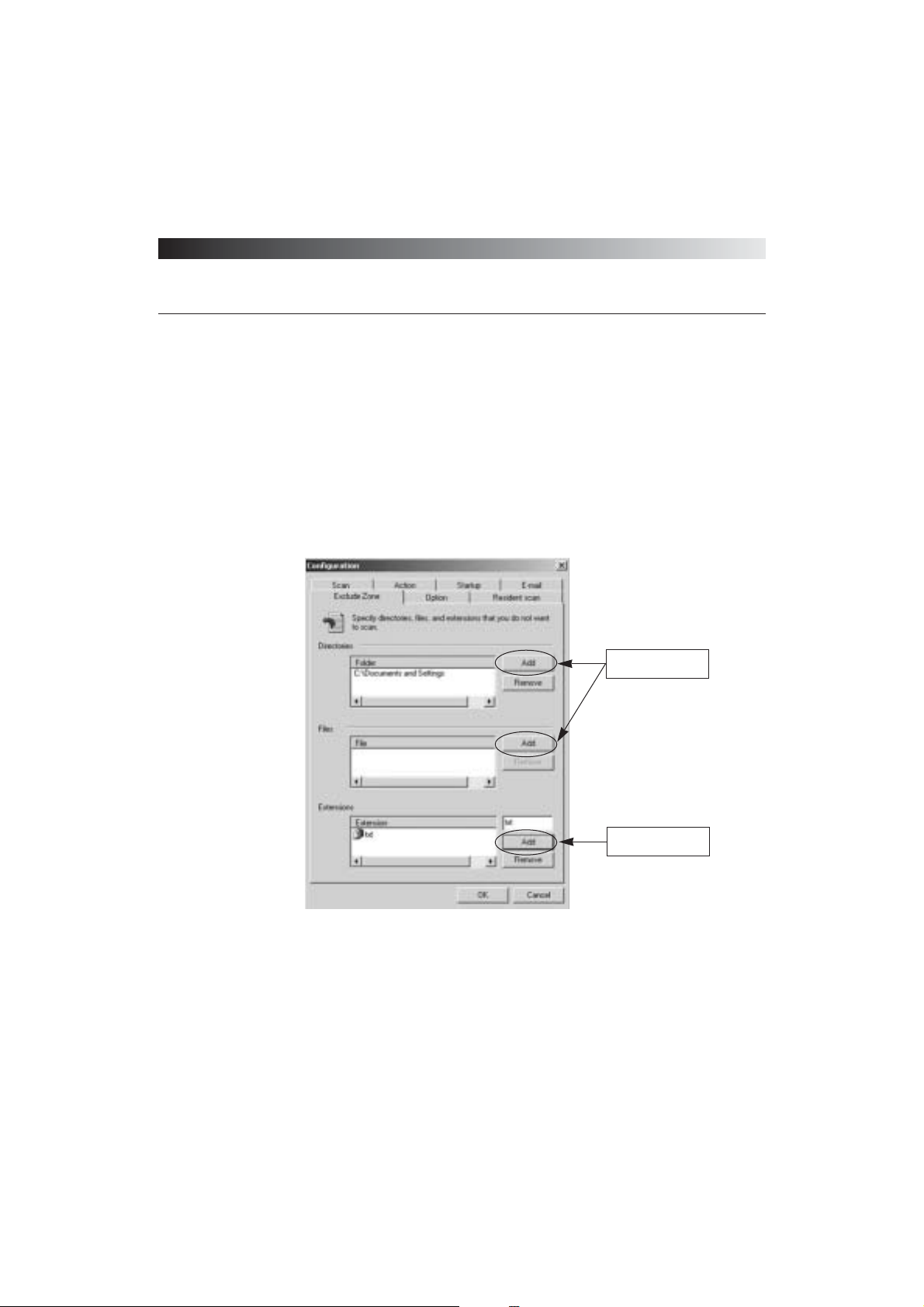
(1) Directories: Select folders to be excluded from virus scan
⍥Click Add from the Folder section
⍥Browse to a specific folder you wish to be excluded from virus scan
⍥Click OK in the Browse for Folder window
⍥The newly added folder should be listed in the Folder section
[ Figure 3-23 Set Excluded Zonee ]
Click Add and select
the folder and file
Type extension and
click Add to register
Page 67

ViRobot Expert
67
CHAPTER 3. USING ViRobot Expert
⍥To remove a particular folder, select the item and click Delete
(2) Files: Select the files to be excluded from virus scanning
⍥Click Add from the File section
⍥Browse to a specific file you wish to be excluded from virus scan
⍥Click Open after highlighting the selected file
⍥The newly added file should be listed in the ᴖFilesᴗsection
⍥To remove a particular file, select the item, and click Delete
(3) Extensions: Select any extensions to be excluded from virus scan
⍥Type in a file extension
⍥Click Add button
⍥The newly added extension should be listed in the ᴖExtensionᴗsection
⍥To remove a particular extension, select the item and click Delete
␊
Configuration - Option
(1) HAURI News
Connects to HAURI news while running ViRobot Expert
(2) R-Mouse
Creates a ViRobot Scan short cut from the right-click mouse menu
(3) MacRobot
Enables MacRobot Engine to detect and automatically remove macro viruses whenever you
open a document file in MS-Office or Internet Explorer 5.X or higher.
Page 68
ViRobot Expert
68
CHAPTER 3. USING ViRobot Expert
⍥For MS Office 2000:
M MacRobot scans for virus whenever you open a document file with .doc, .xls, or .ppt
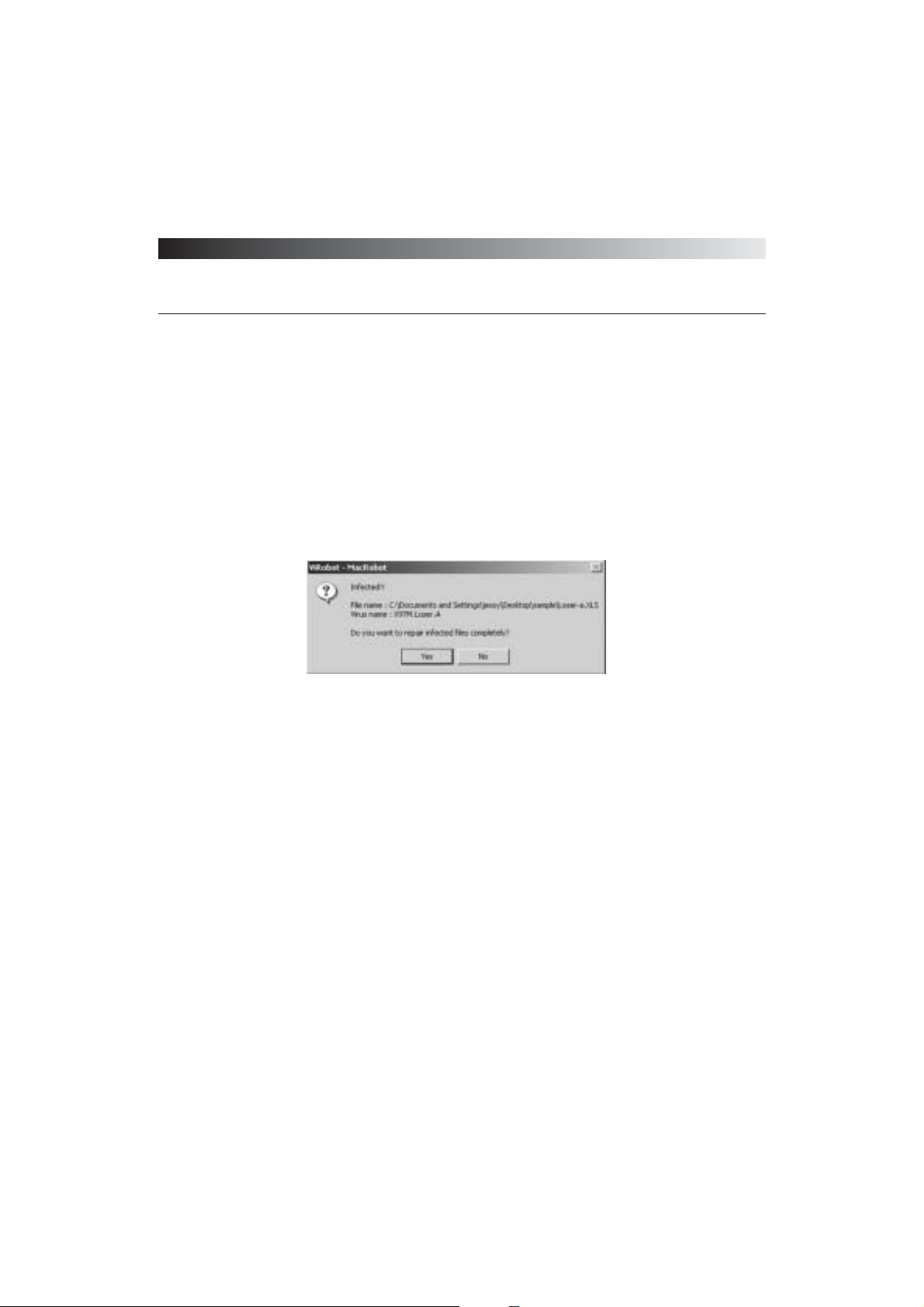
extensions in MS Office 2000. If an infected file is found, a ViRobot-MacRobot window
appears and displays a message as shown in Figure 3.24.
M Select Yes to repair the infected file
M Select No to ignore virus warning and open the infected document
⍥For Internet Explorer 5.X or higher:
M MacRobot Engine scans for virus whenever you open a document file in Internet Explorer
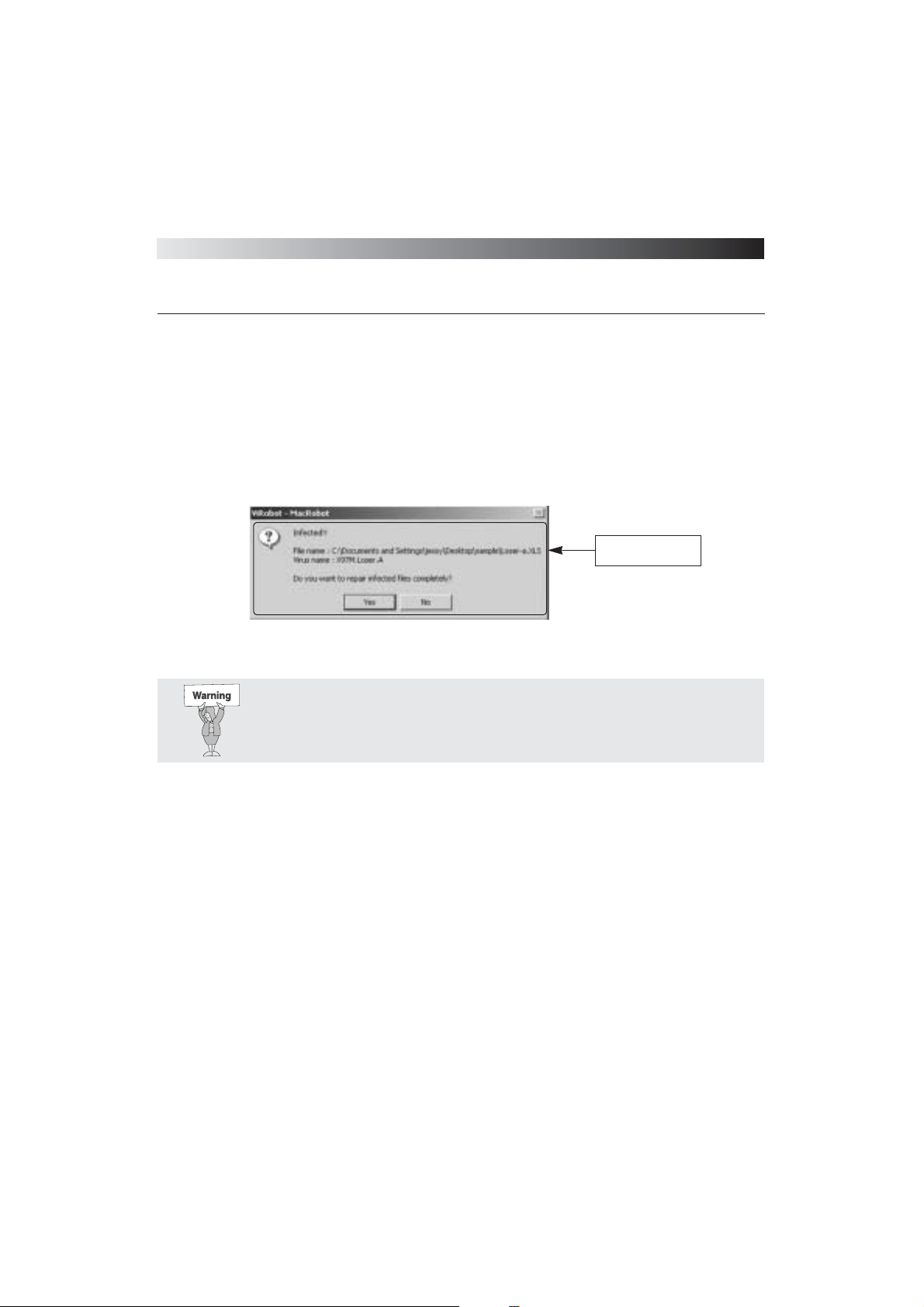
5.X or higher. If an infected file is found, a ViRobot -MacRobot window appears and
displays a message as shown in Figure 3.25.
M Select Yes to repair the infected file
M Select No to ignore virus warning and open the infected document
[ Figure 3-24 Repair macro virus ]
Page 69
ViRobot Expert
69
CHAPTER 3. USING ViRobot Expert
(4) Connect Server
Check off this option when you want ViRobot Expert to connect to ViRobot Advanced Server
as a client for downloading update files when ViRobot starts. Contact your administrator for
more information.
[ Figure 3-25 Repair virus in Explorer ]
Shows detected virus
information
Warning : To open the document without repairing the virus, select No.
Page 70
ViRobot Expert
70
CHAPTER 3. USING ViRobot Expert
Monitoring
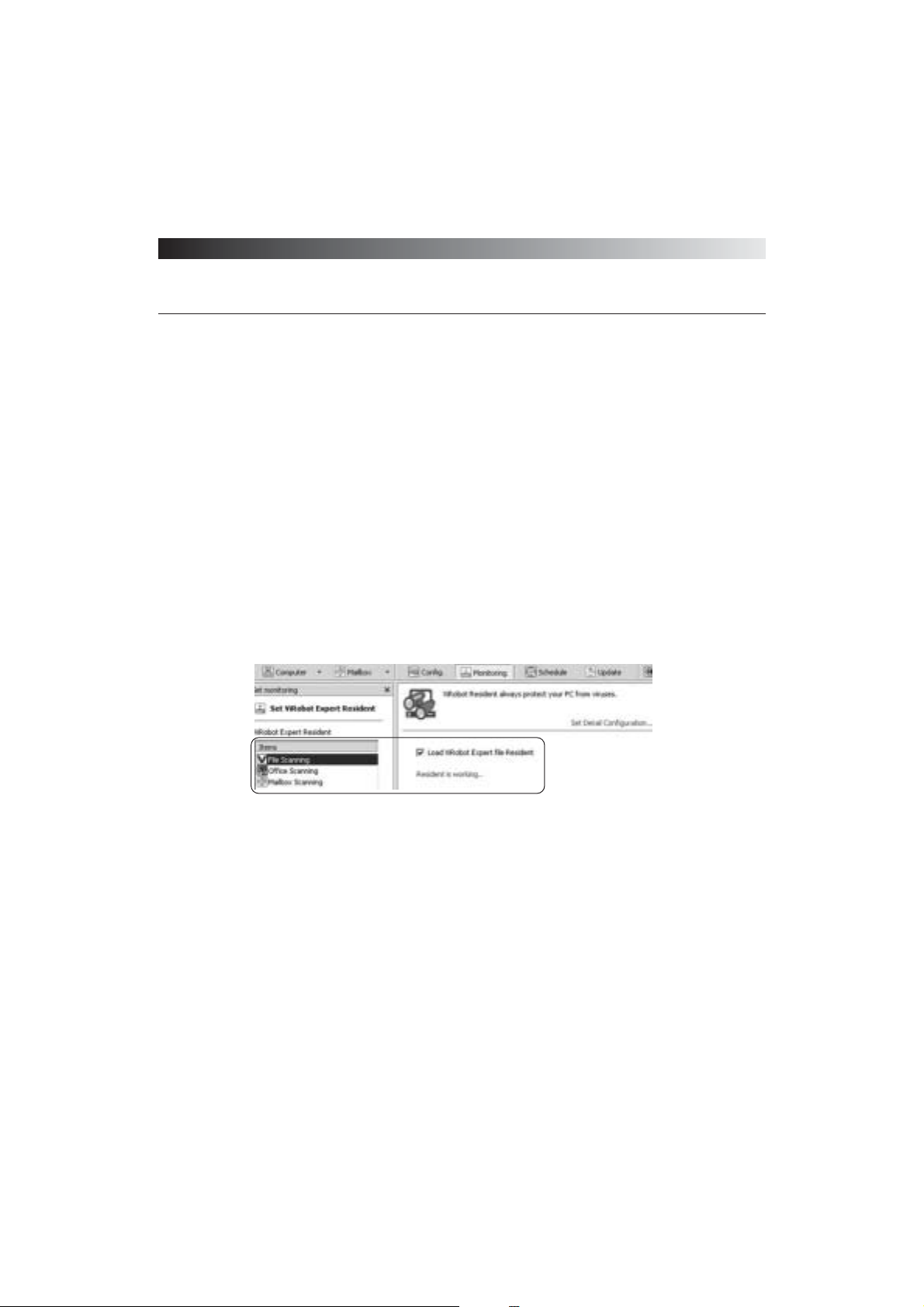
Click Monitoring on the ViRobot Expert Tool bar to configure ViRobot Resident. It is
important to have a superior real-time monitoring program for protecting your PC against
virus infection.
␊
File Monitoring
Check or uncheck the ᴖLoad ViRobot Expert file Residentᴗoption to enable or disable ViRobot
Expert real-time monitoring program.
␊
Office Scanning
ViRobot Expert will scan document files completely for viruses before they are opened from
Internet Explorer or MS Office.
[ Figure 3-26 File Monitor ]
Page 71
ViRobot Expert
71
CHAPTER 3. USING ViRobot Expert
␊
Mailbox Scanning
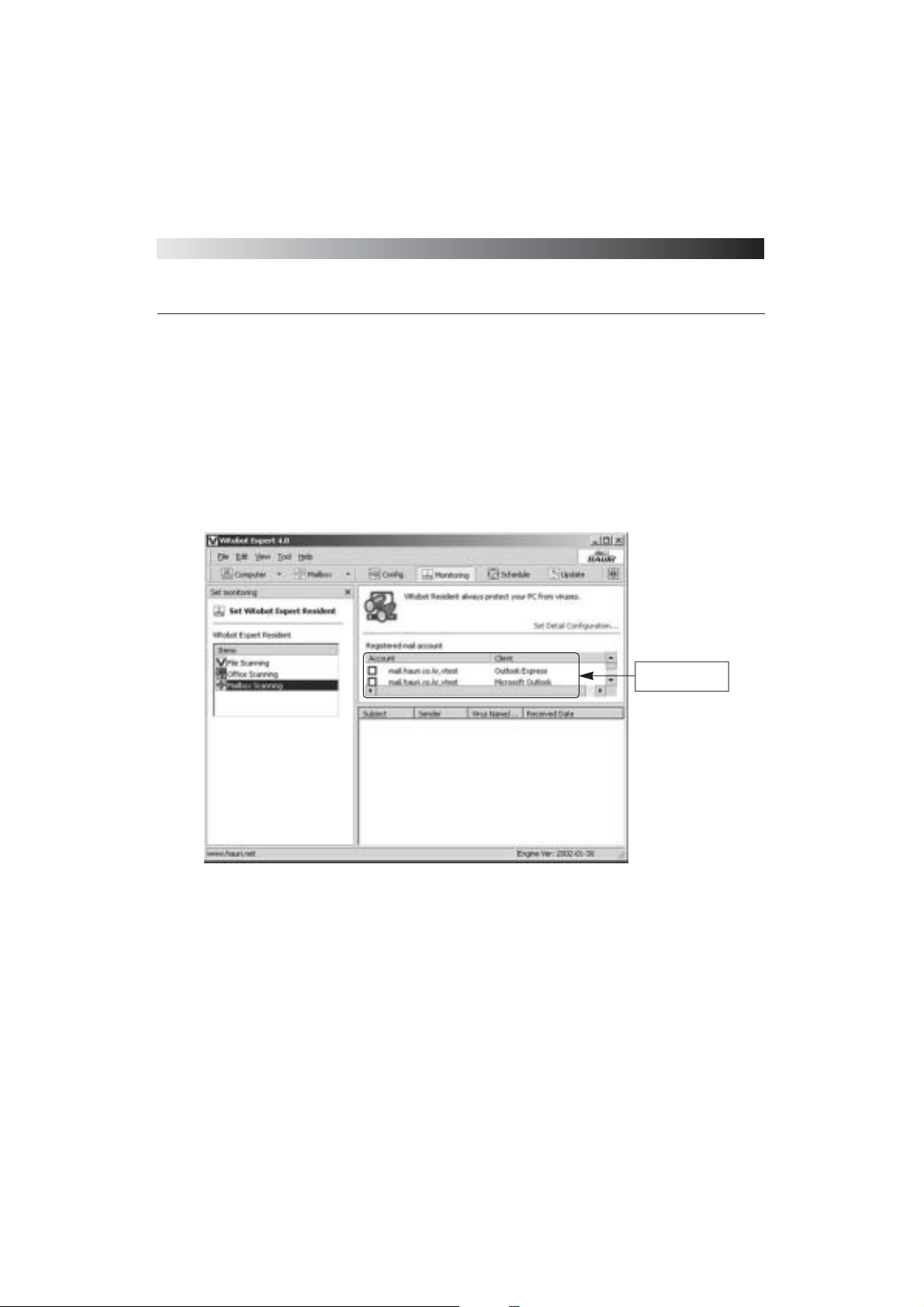
Select email accounts to be included in Mail Monitor. Mail Monitor uses VP (ViRobot Proxy)
technology to scan email attachments from MS Outlook Express, MS Outlook 97/2000, and other
email programs such as Netscape Messenger, and Eudora. VP has superior methods to detect and
repair worms and backdoor viruses.
(1) A list of registered email accounts in the selected email program such as MS Outlook Express,
and MS Outlook 97/2000 is displayed in List Frame.
(2) Check off the email accounts you want ViRobot Expert to scan. Configuration will be
inactivated if the selected email program is running. In this case, temporarily close the running
email program, check off the email account from ViRobot Expert, and then re-run the email
program.
[ Figure 3-27 Mail Monitor ]
Shows the current
e-mail accounts
Page 72
ViRobot Expert
72
CHAPTER 3. USING ViRobot Expert
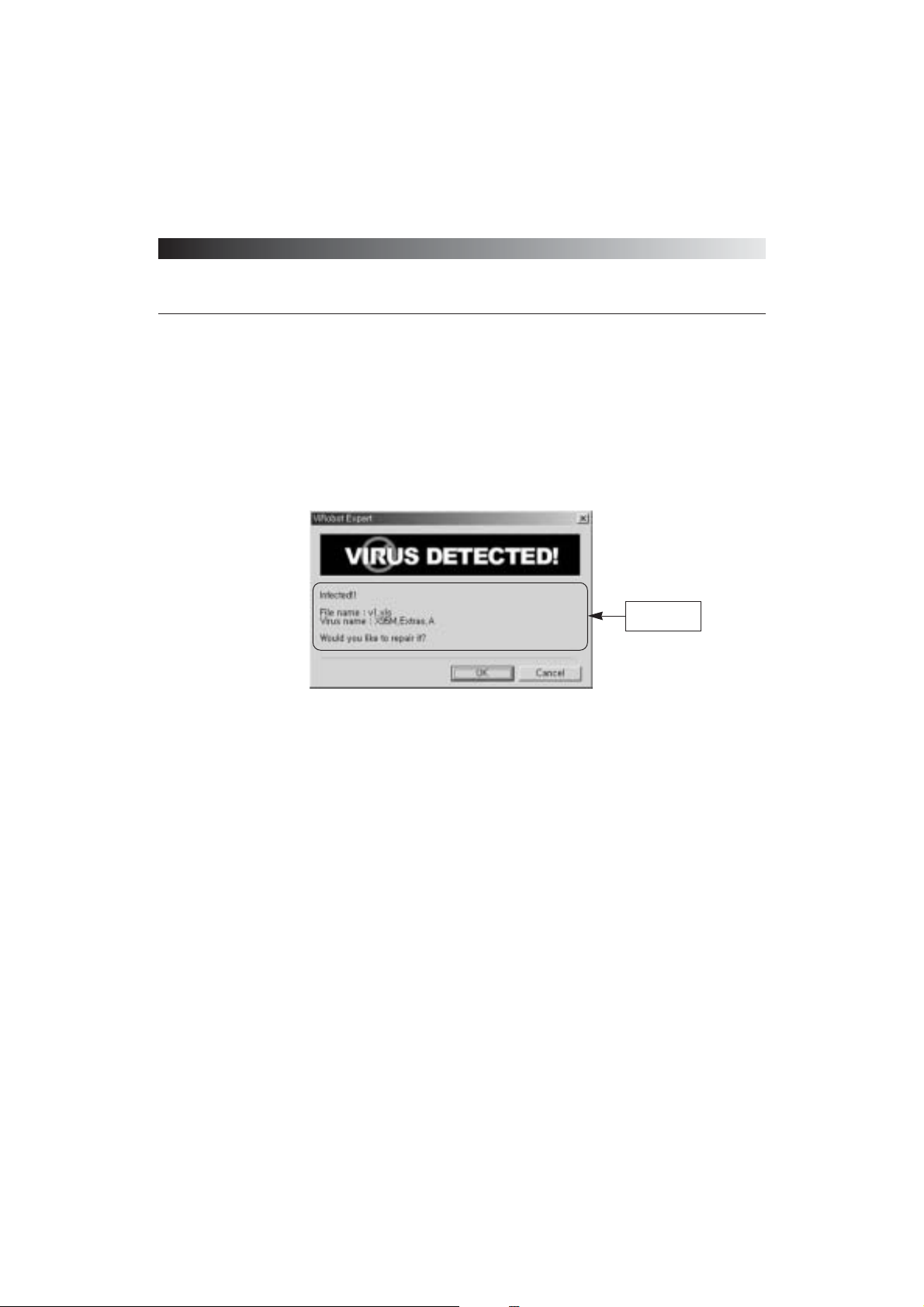
(3) ViRobot Expert displays a ᴖVirus Detectedᴗmessage when it detects an infected incoming
email.
⍥Click OK to repair infected email attachments and leave them in your mailbox.
⍥Click Cancel to leave infected email attachments in your mailbox without repairing.
[ Figure 3-28 Mailbox virus repair frame ]
Detected virus
information
Page 73
ViRobot Expert
73
CHAPTER 3. USING ViRobot Expert
Update
Click the Update icon on the ViRobot Expert Tool bar, or go to Tools > Update Wizard to
update ViRobot Engine with the latest virus definition files. Updating ViRobot with new
definition files will protect your system against new viruses.
ViRobot Expert supports updating via both FTP and HTTP protocols. ViRobot users can
easily get updates even if they are using firewall or proxy server protection. ViRobot Expert
also provides updates through floppy disks, shared folders, internal servers, modems, and
leased lines.
␊
Engine update
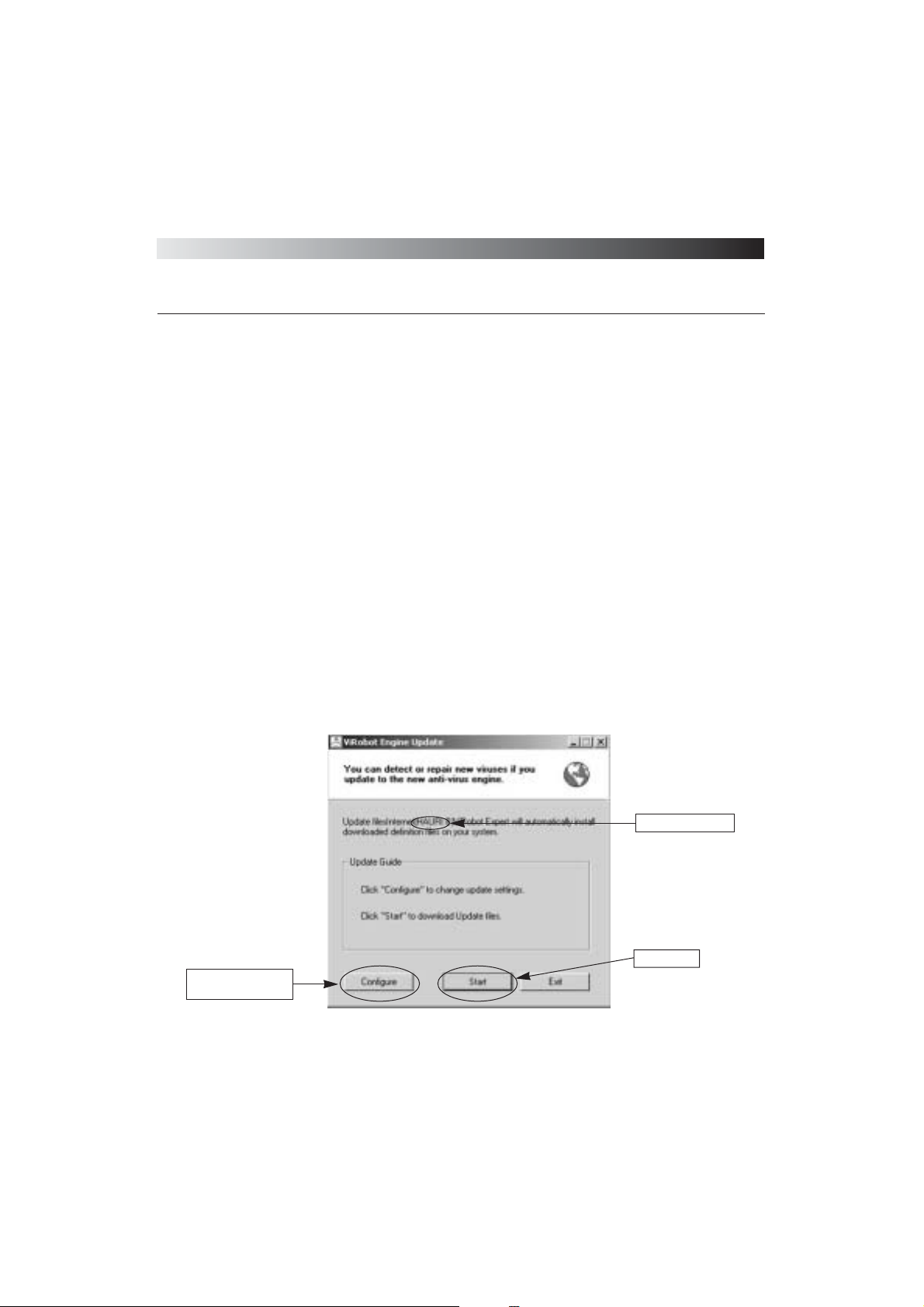
(1) Click the Start button in the ViRobot Engine Update window to begin downloading update files.
[ Figure 3-29 Start update ]
Current update path
Modify the setting
including update path
Start update
Page 74
ViRobot Expert
74
CHAPTER 3. USING ViRobot Expert
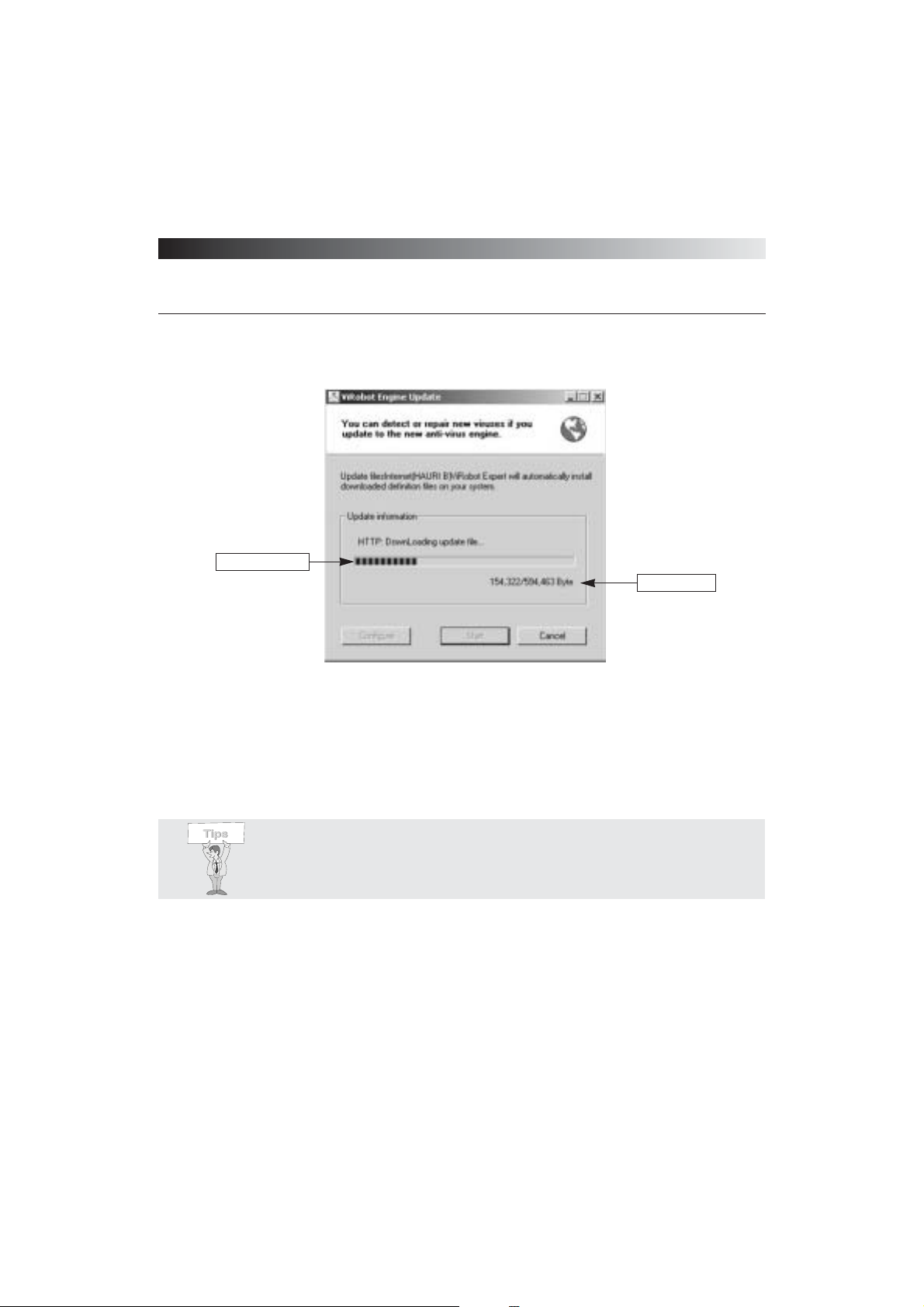
(2) ViRobot Expert will be automatically updated once all update files have been downloaded.
(3) The Default update path is set to ᴖInternetᴗfor the convenience of most ViRobot Expert users.
(4) Click the Configuration button to setup your preference update settings.
[ Figure 3-30 Update progress ]
Overall file size
Update progress
Tips : ViRobot Expert keeps your last update configuration. So you can start
updating with just one click.
Page 75
ViRobot Expert
75
CHAPTER 3. USING ViRobot Expert
␊
Configuration
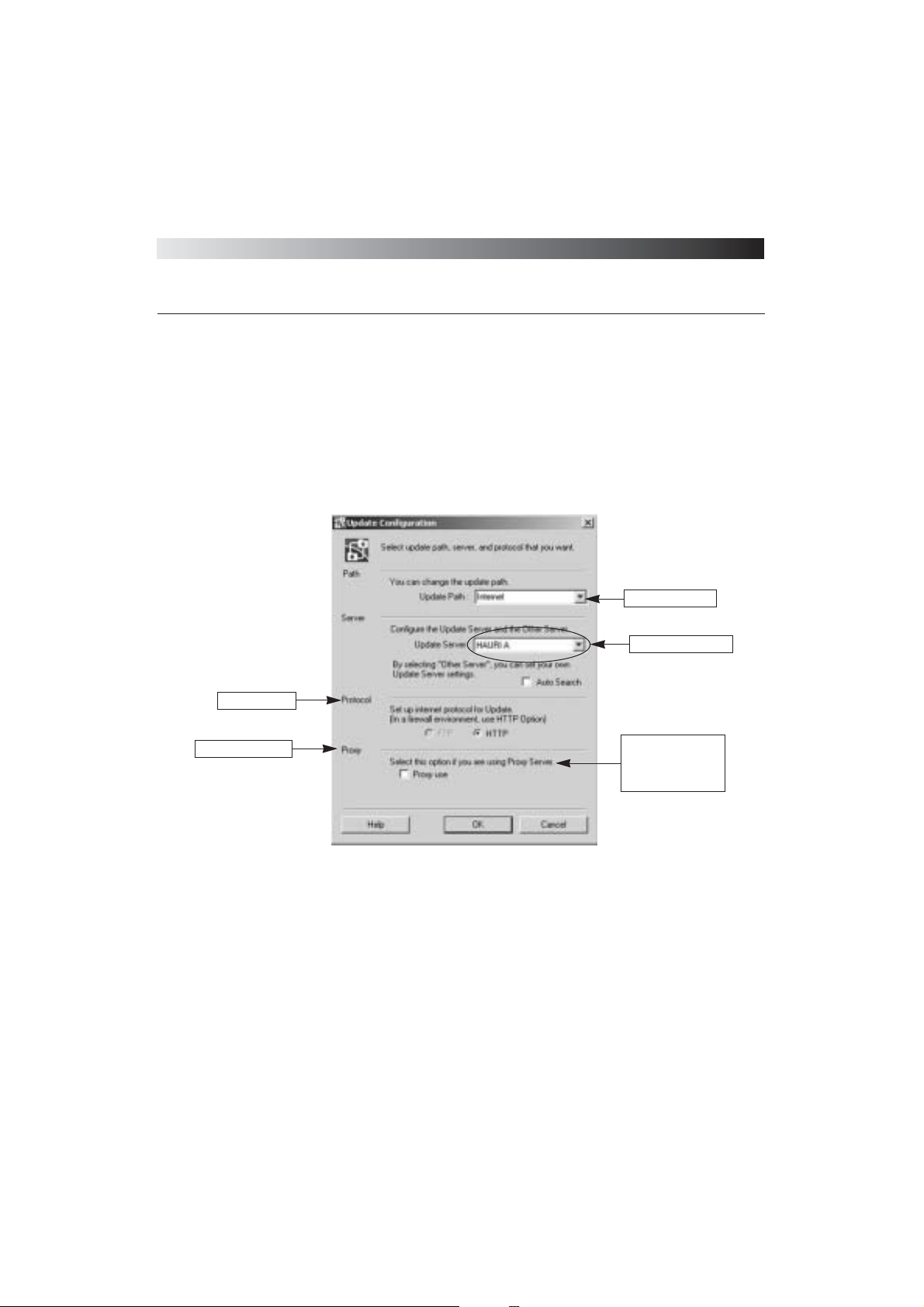
You can setup update configurations in the Update Configuration window.
(1) Update via Internet
⍥Select one of Hauri update servers. You may choose the Other Server option to select another
update server of your choice.
M Specify serverᴗs IP Address or its URL when you choose the Other Server option
M Enter a port number to be used
M Enter User ID and Password if applicable
⍥Choose protocol (HTTP is recommended)
M The update files are the same for both FTP and HTTP
[ Figure 3-31 Update Configuration ]
Search for another
server automatically
if errors occur during
update
Select update path
Select update server
Select protocol
Select proxy server
Page 76
ViRobot Expert
76
CHAPTER 3. USING ViRobot Expert
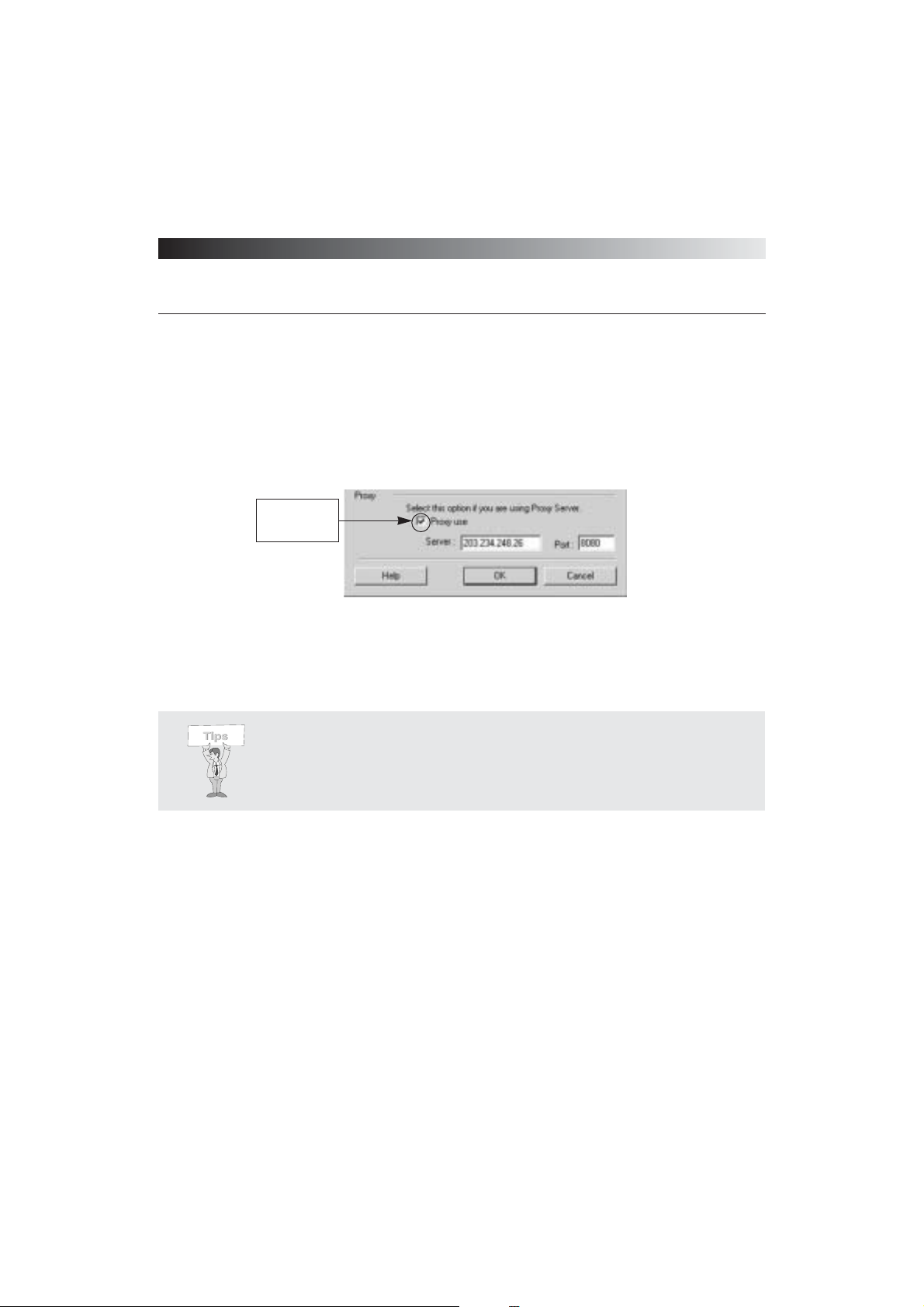
⍥Check off the ᴖProxy useᴗoption if you use a proxy server. You have to enter the correct
proxy server IP Address and port number. Contact your system administrator for more
information.
⍥Click OK when update configuration is complete.
[ Figure 3-32 Proxy setting ]
Check the box if
you use a proxy
server
Tips : The Auto Search option allows ViRobot Expert to switch to another
protocol when server access fails. ViRobot can also automatically search for
another update server when the server to which it is trying to connect is
unavailable.
Page 77
ViRobot Expert
77
CHAPTER 3. USING ViRobot Expert
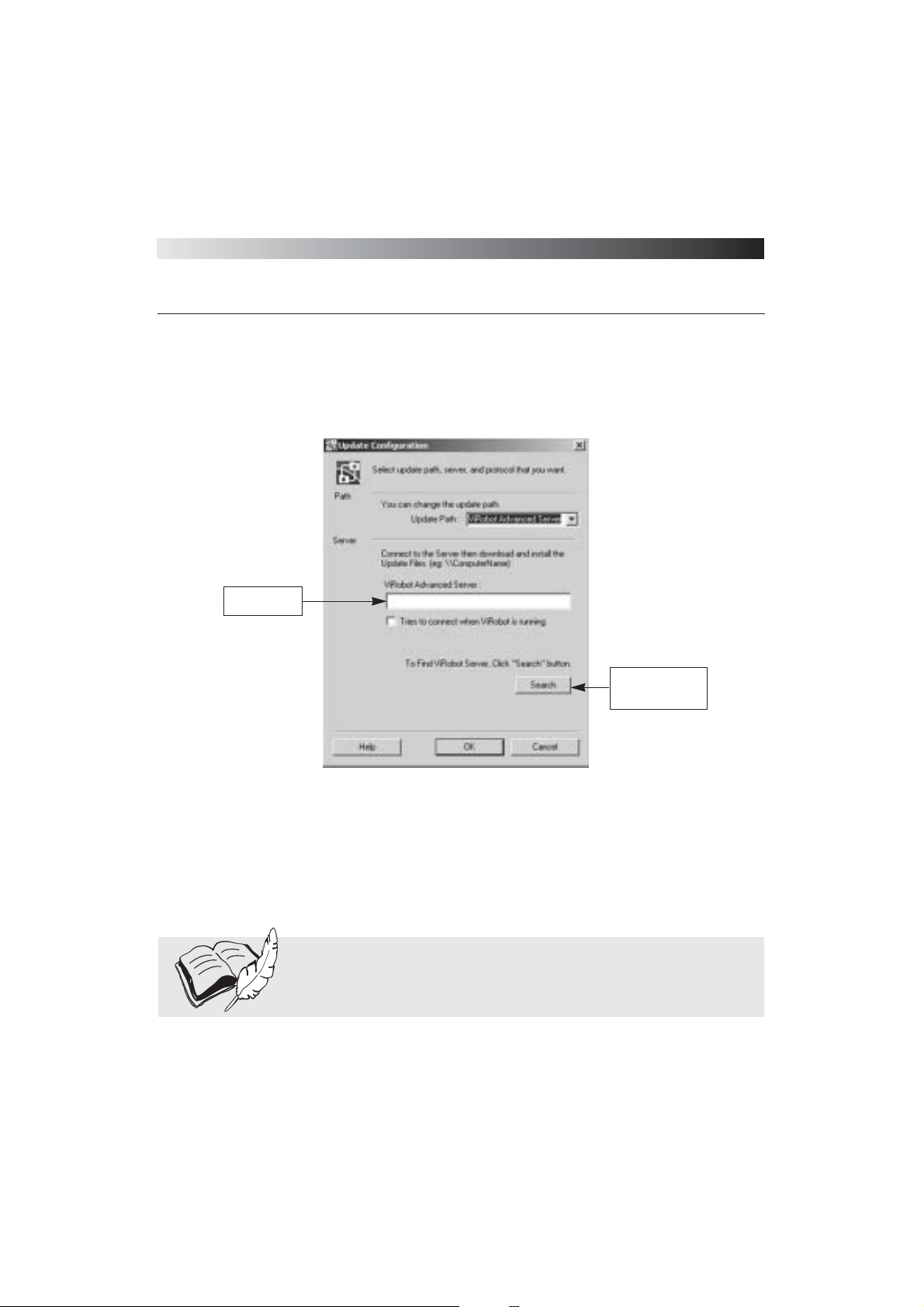
(2) Update via ViRobot Advanced Server
Users in a corporate environment have an option to perform updates through ViRobot
Advanced Server if they donᴗt have Internet access or for easy access to update files. ViRobot
Advanced Server needs to have the latest virus definitions and engine updates ready for
deployment.
[ igure 3-33 Update via ViRobot NT Server ]
Find update server
info including
address and name
Type the server
address
Note : Home users can ignore this updating option
Page 78
ViRobot Expert
78
CHAPTER 3. USING ViRobot Expert
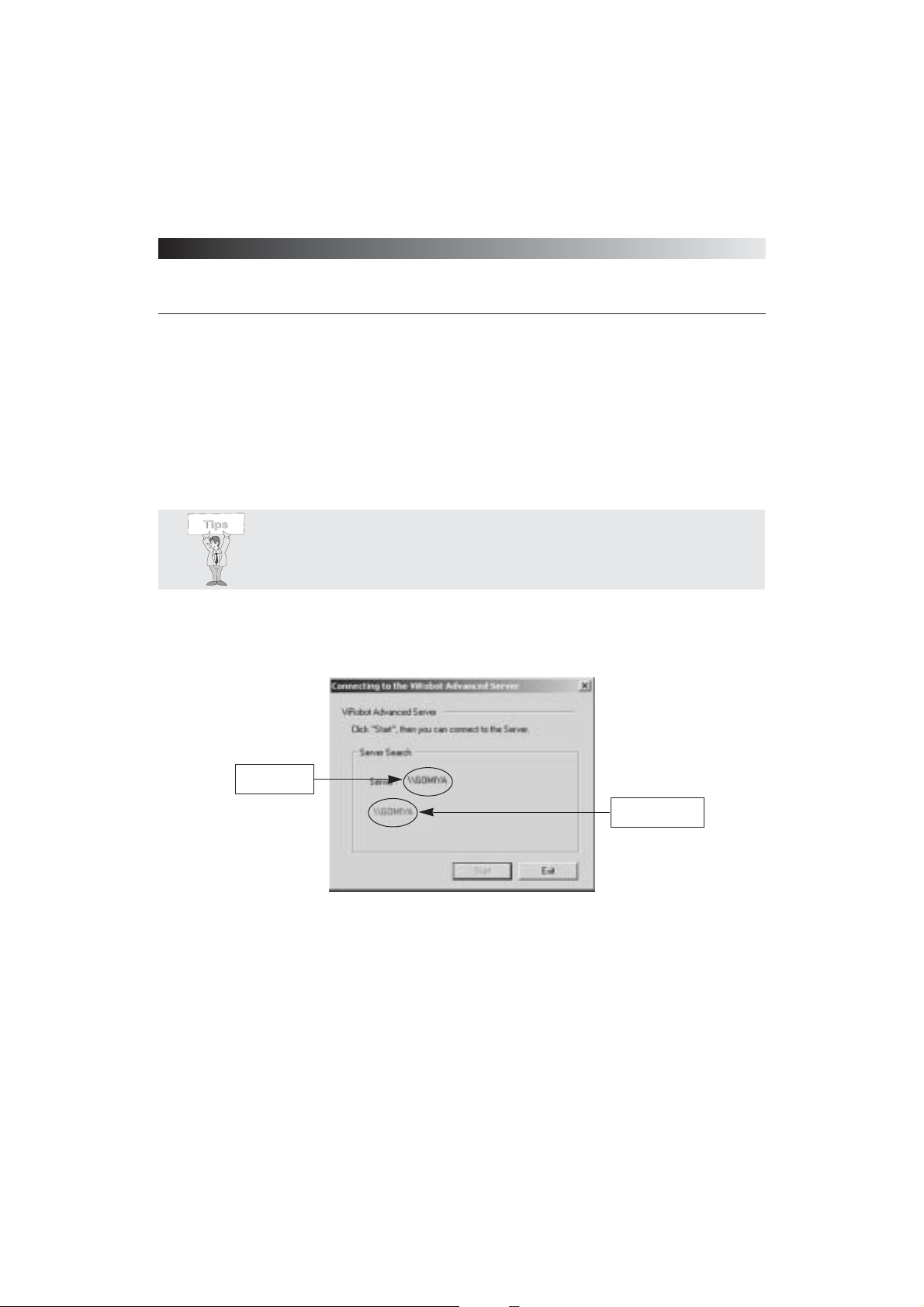
⍥Type in IP Address or name of the server that has the latest update files.
Example:\\x.x.x.x or\\gomiya
⍥Click the Search button to find the update server in your network if you are unsure which
update serverᴗs IP Address to enter
⍥A dialog box displays the searching results.
[ Figure 3-34 Search for ViRobot Advanced Server ]
Tips : Access to ViRobot server when starting ViRobot will help your engine
update and secure management of network against virus attack.
Detected ViRobot
server
PC on the same
network
Page 79
ViRobot Expert
79
CHAPTER 3. USING ViRobot Expert
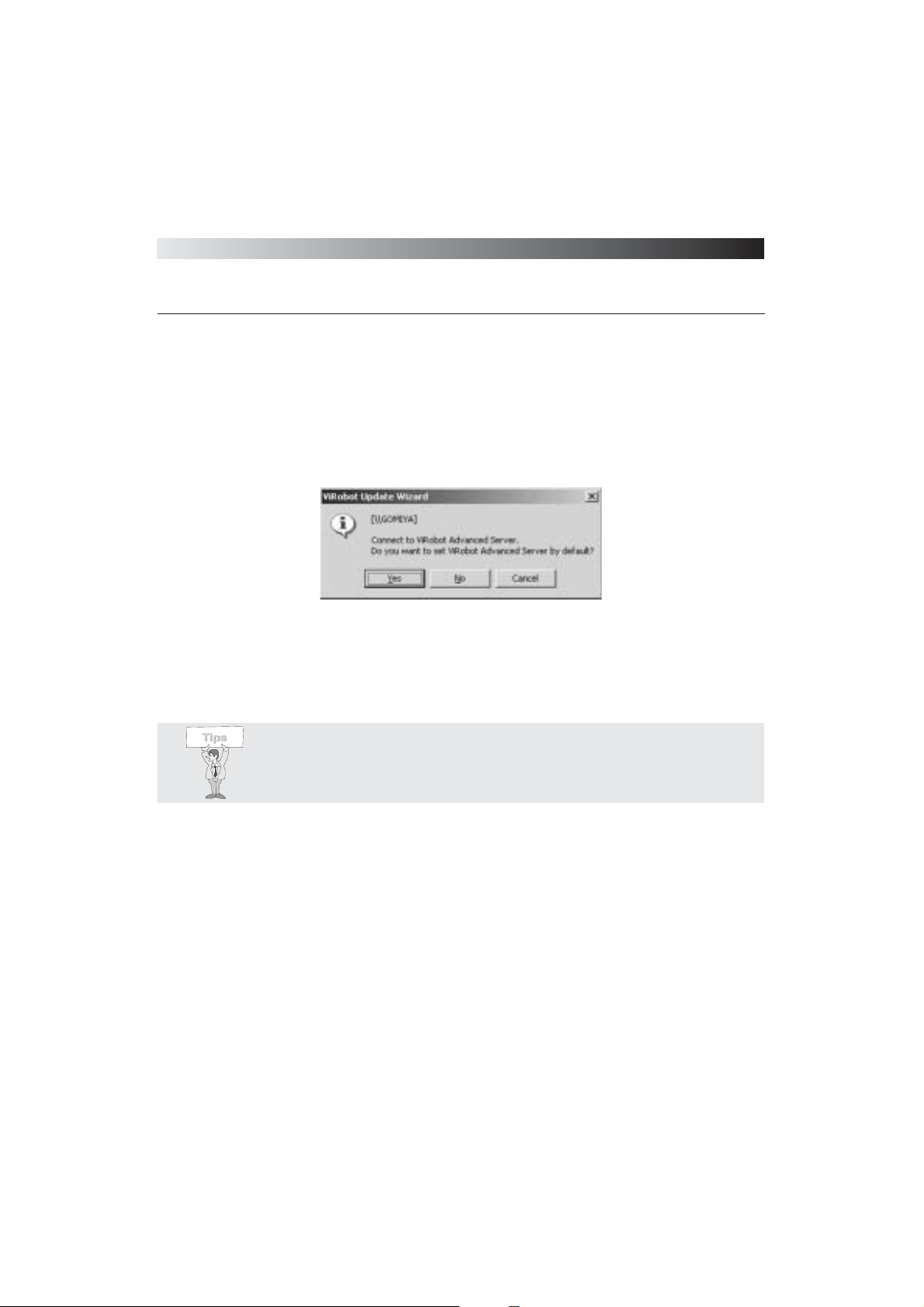
⍥Click Yes to choose an update server
⍥Click No to go on with the search
⍥Click Cancel to quit
⍥You will have to find another updating method when no update server is found.
[ Figure 3-35 ViRobot Advanced Server Configuration ]
Tips : For the update server that uses different IP bandwidth, you can adjust the
setting by clicking Update Via Internet >Other Server. Click OK when the
configuration is completed.
Page 80
ViRobot Expert
80
CHAPTER 3. USING ViRobot Expert
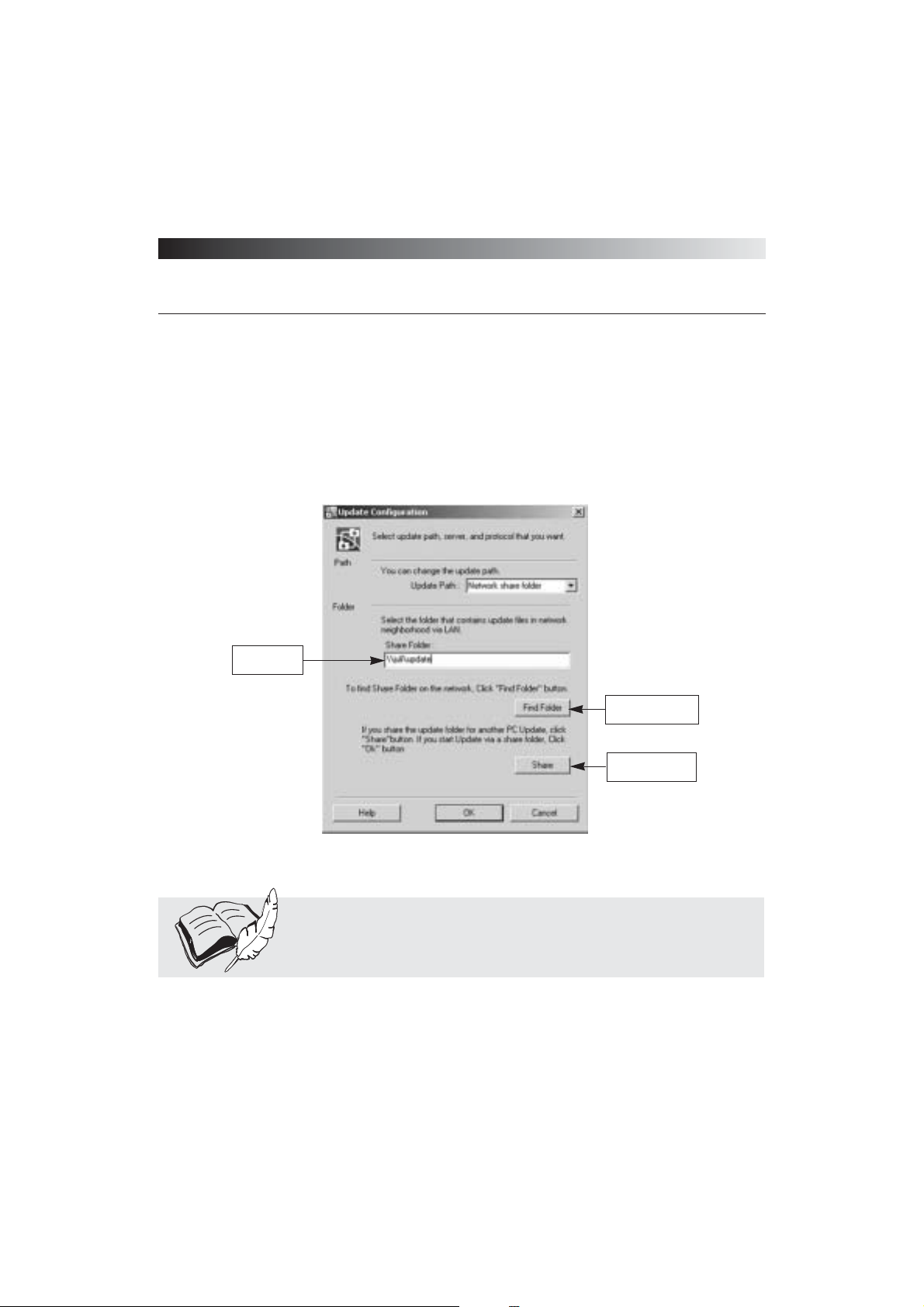
(3) Update via network shared folder
When access to external network is unavailable, you can use the network shared folder option to
keep ViRobot engine up to date. To use this option, you must have a shared folder in a PC with
the latest update files.
⍥Type in the IP Address or name of the PC with a shared update folder.
Example: \\x.x.x.x , \\ibbihi, or \\ibbihi\VIROBOT
⍥Click Find Folder if you do not have shared PC information available.
⍥Select update shared folder in your network.
⍥Click OK when you are done with update configurations.
[ Figure 3-36 Update via network shared folders ]
Browse the Shared
update folder
Share the update
folder
Enter the
shared folder
Note : Updating through network shared folder option is only useful for
users in a corporate environment. Home users can ignore this option.
Page 81
ViRobot Expert
81
CHAPTER 3. USING ViRobot Expert
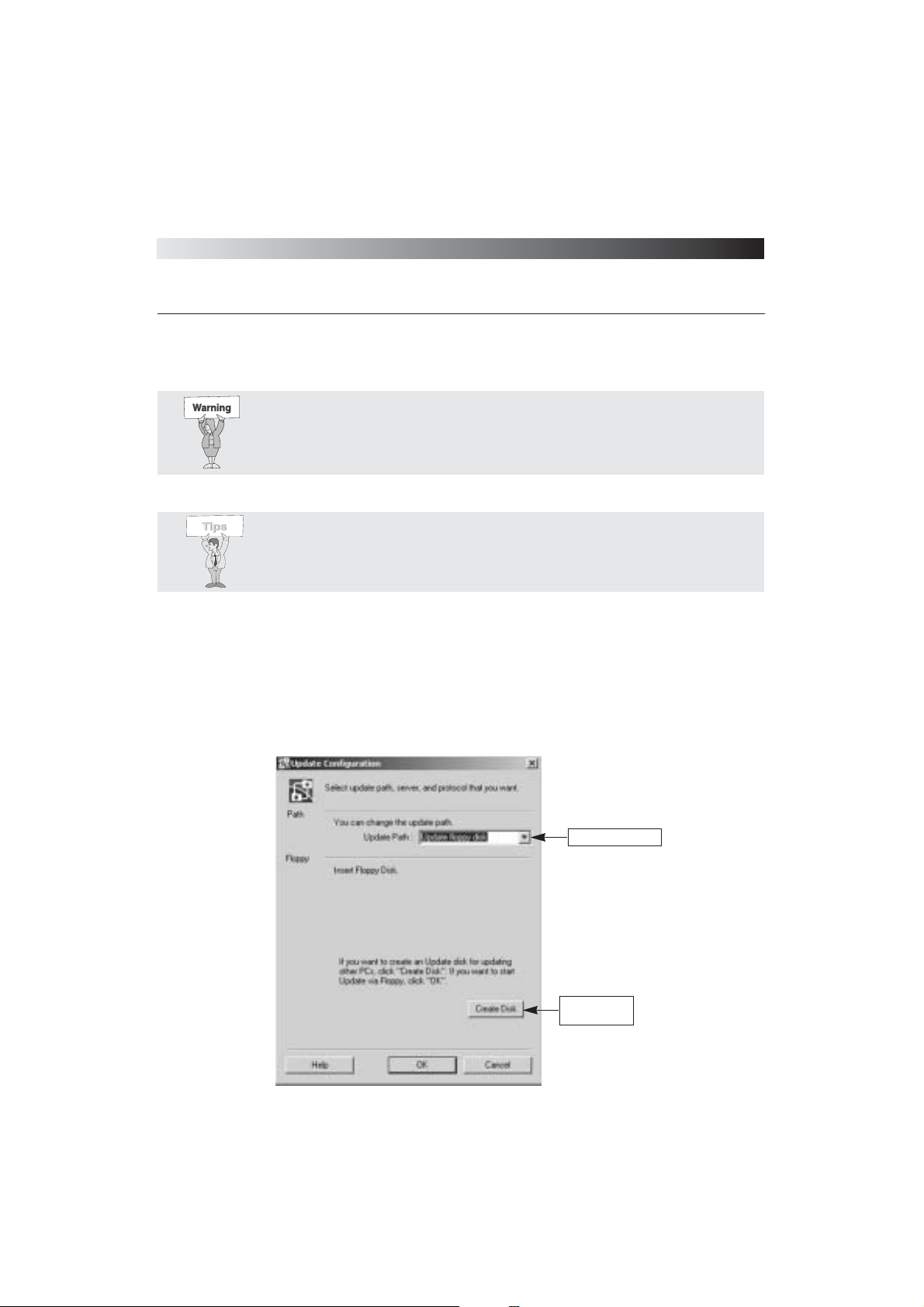
(4) Update using Floppy Disk
If you do not have any means to connect to an external system, but you can get help from
another system that has LAN or modem connection, use a 1.44 MB floppy disk to update your
engine.
Warning : Make sure the shared PC has the latest update files before sharing
the update folder. You should keep sharing the folder until all the updates are
completed.
Tips : You may share your update folder with others by clicking Share.
Otherwise, click Release to return it to the unshare status.
[ Figure 3-37 Update using Floppy Disk ]
Select update path
Create update
disk
Page 82
ViRobot Expert
82
CHAPTER 3. USING ViRobot Expert
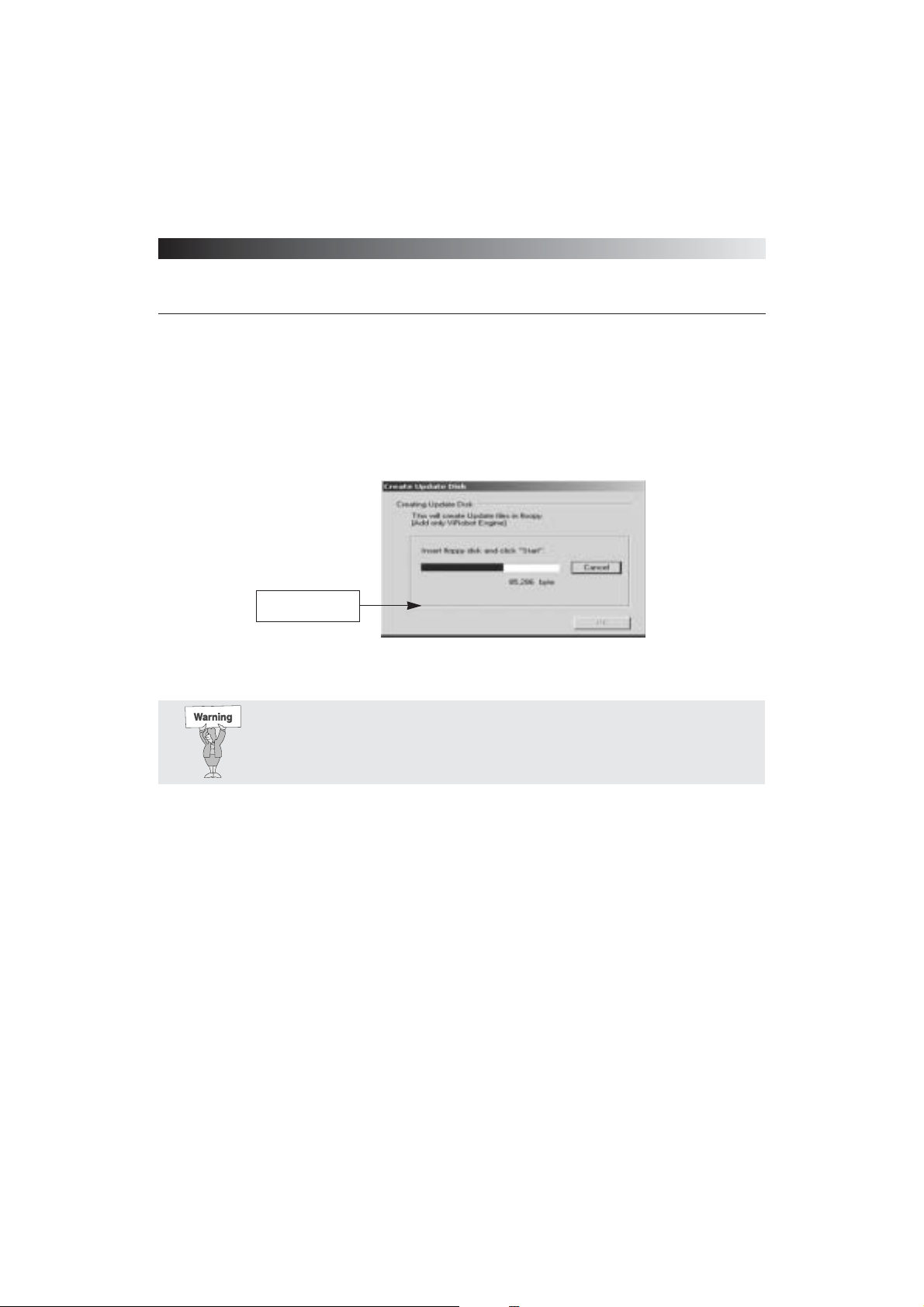
⍥Click the Create button.
⍥Click Start to begin.
⍥Click OK when copying update files is complete.
[ Figure 3-38 Create update disk ]
Download update file
to the floppy disk
Warning : You need to update ViRobot engine before creating an update
floppy disk from it.
Page 83
ViRobot Expert
83
CHAPTER 3. USING ViRobot Expert
ViRobot Schedule Wizard
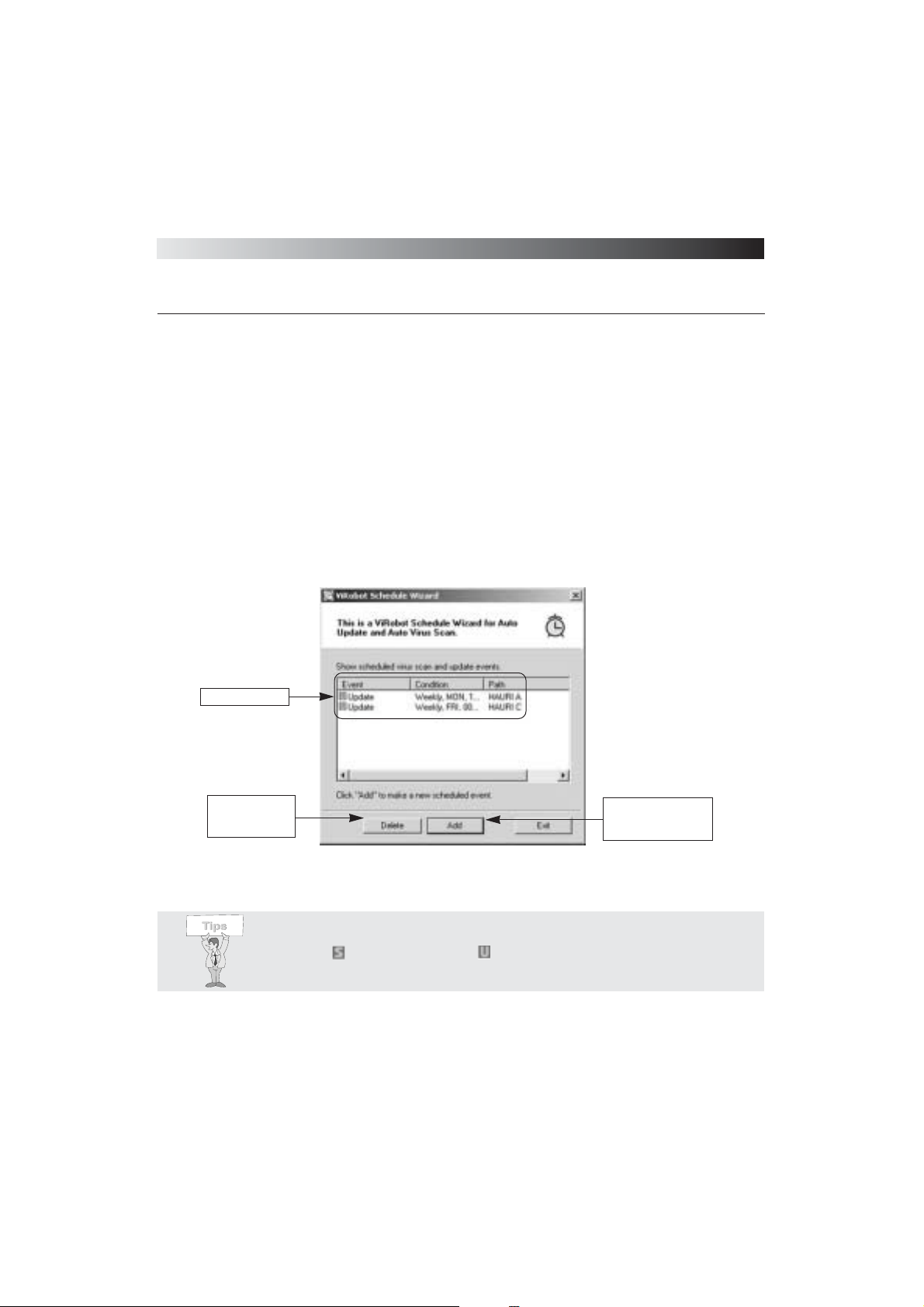
Select Schedule on the ViRobot toolbar, or go to Tools > Schedule Wizard on the Menu bar to
schedule either updates or virus scans. Event, Condition, Path information is displayed on the
first screen of Schedule Wizard. To add or remove a schedule, click Add or Delete,
respectively .
[ Figure 3-40 Schedule Wizard ]
Clik Add to add
scheduled virus scan
and scheduled update
Select an item
and Click Delete
to remove it
Scheduled items
Tips : S( )indicates scan and U( )indicates update in the list.
Page 84
ViRobot Expert
84
CHAPTER 3. USING ViRobot Expert
␊
Scheduled Virus Scan
ViRobot Expert scans your computer at a specific date and time you have previously scheduled. It
is recommended to set up a virus scan schedule at off-peak hours to avoid affecting your system
capacity.
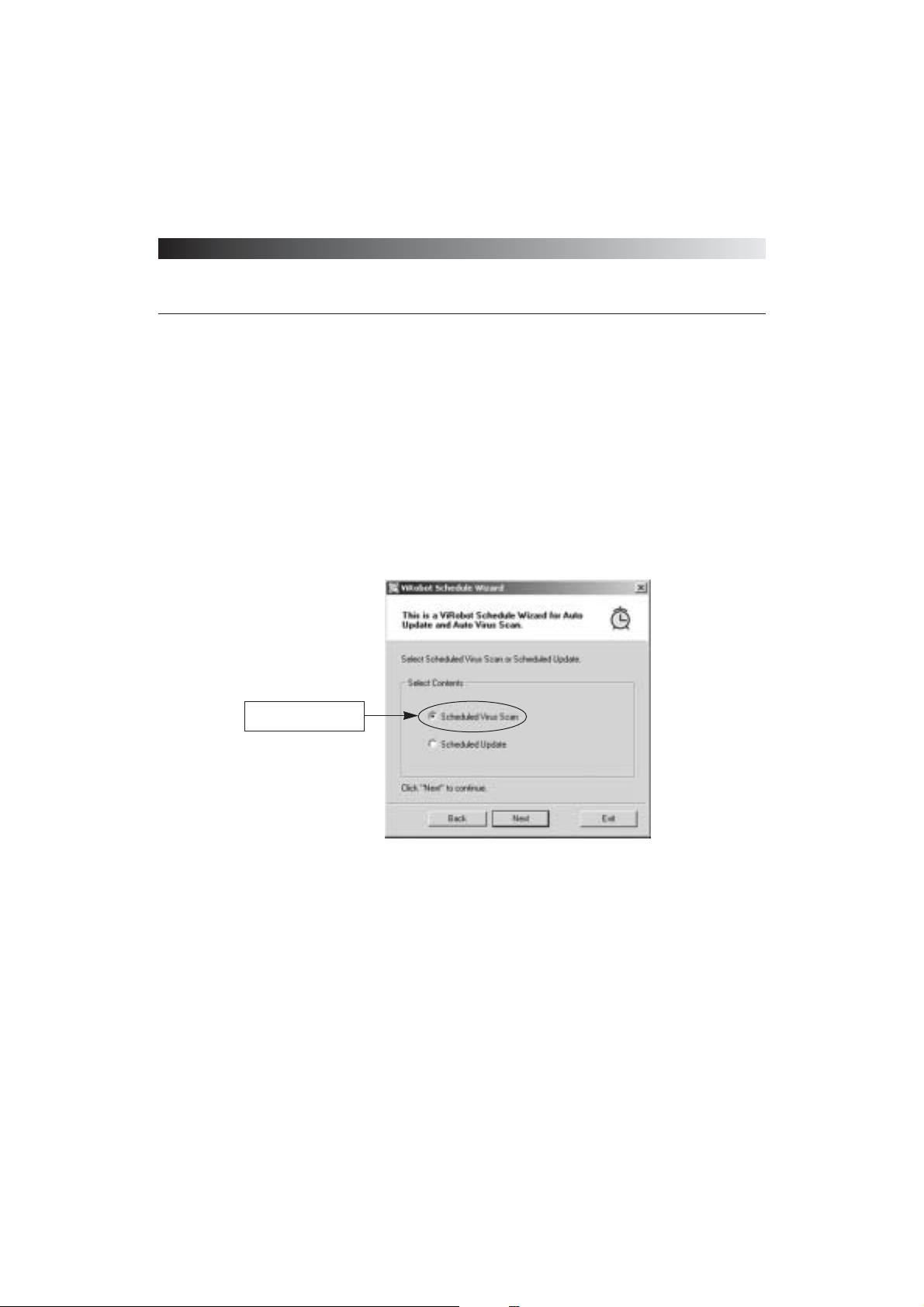
(1) Click the Add button on the ViRobot Schedule Wizardᴗs first page, and select the Schedule
Virus Scan option.
[ Figure 3-41 Scheduled scan ]
Click Next after selecting
scheduled virus scan
Page 85
ViRobot Expert
85
CHAPTER 3. USING ViRobot Expert
(2) Set Date and Time
⍥Daily: Select a specific time of the day to scan for viruses. It is recommended to choose a time
when you employ low system resource.
⍥Weekly: Select a specific day and time of the week to scan for viruses. To scan more than
once per week, make another weekly schedule for a different day of the week.
⍥Monthly: Select a specific day of the month to scan for viruses. It is recommended to scan
more than once a month. To scan more than once a month, make another scheduled scan for a
different day of the month.
⍥Screen Saver: Virus scan starts when your screen saver is activated. Selecting this option lets
you scan for viruses when your computer is in Screen Saver mode.
[ igure 3-42 Set date and time ]
Page 86
ViRobot Expert
86
CHAPTER 3. USING ViRobot Expert
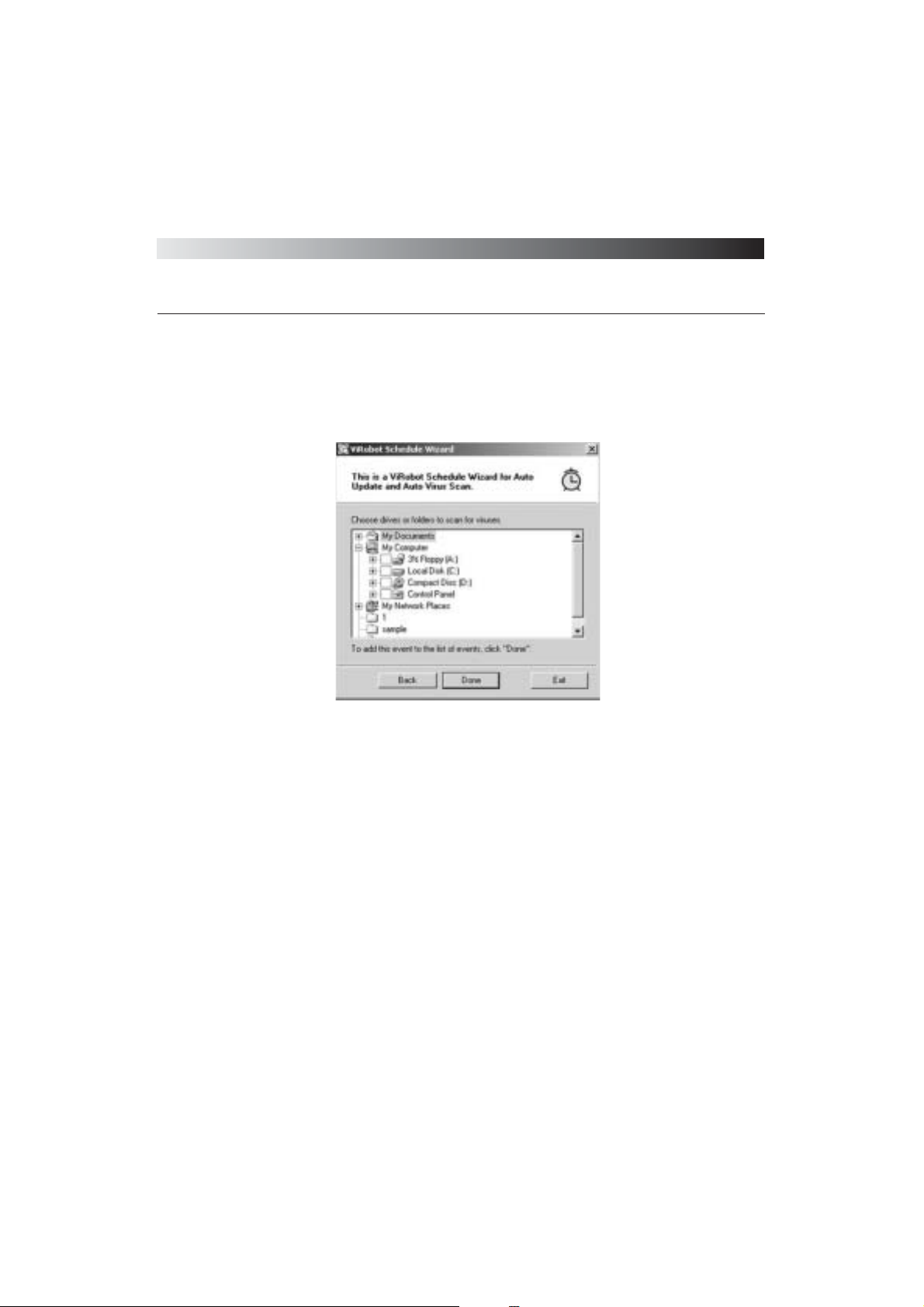
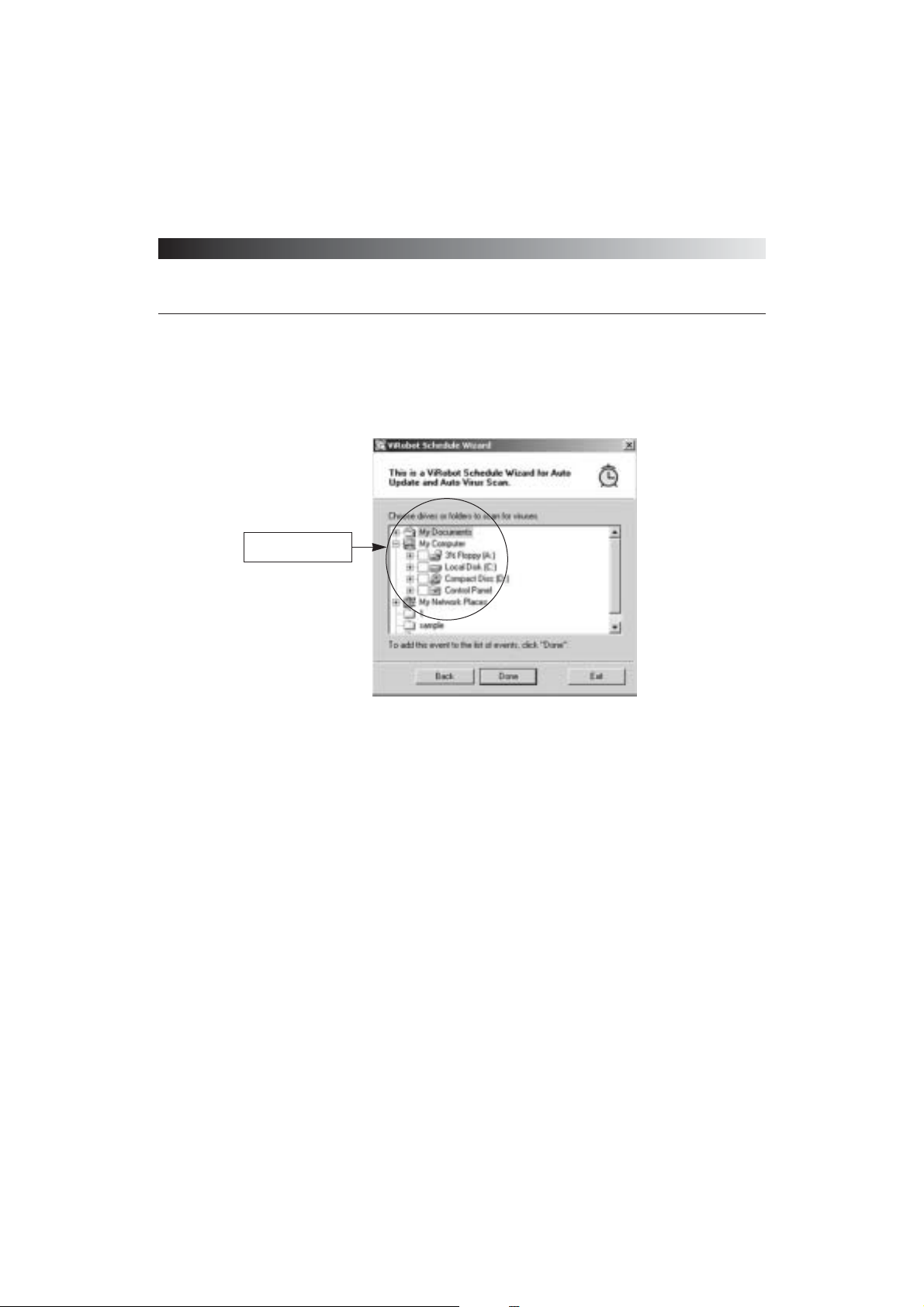
(3) Select directories and folders to be scanned, then click Done to complete the setup.
(4) The newly added virus scan schedule is shown in the ViRobot Schedule Wizardᴗs first page.
[ Figure 3-43 Select drives and folders to be scanned ]
Select drives and
folders to be scanned
Page 87
ViRobot Expert
87
CHAPTER 3. USING ViRobot Expert
␊
Scheduled Update
Scheduled Update allows you to automatically update your engine by connecting to a specific
server at the time and date you have previously set. HAURI Inc. provides virus definitions and
engine updates weekly. It is recommended that you schedule your engine to get updates at least
once a week.
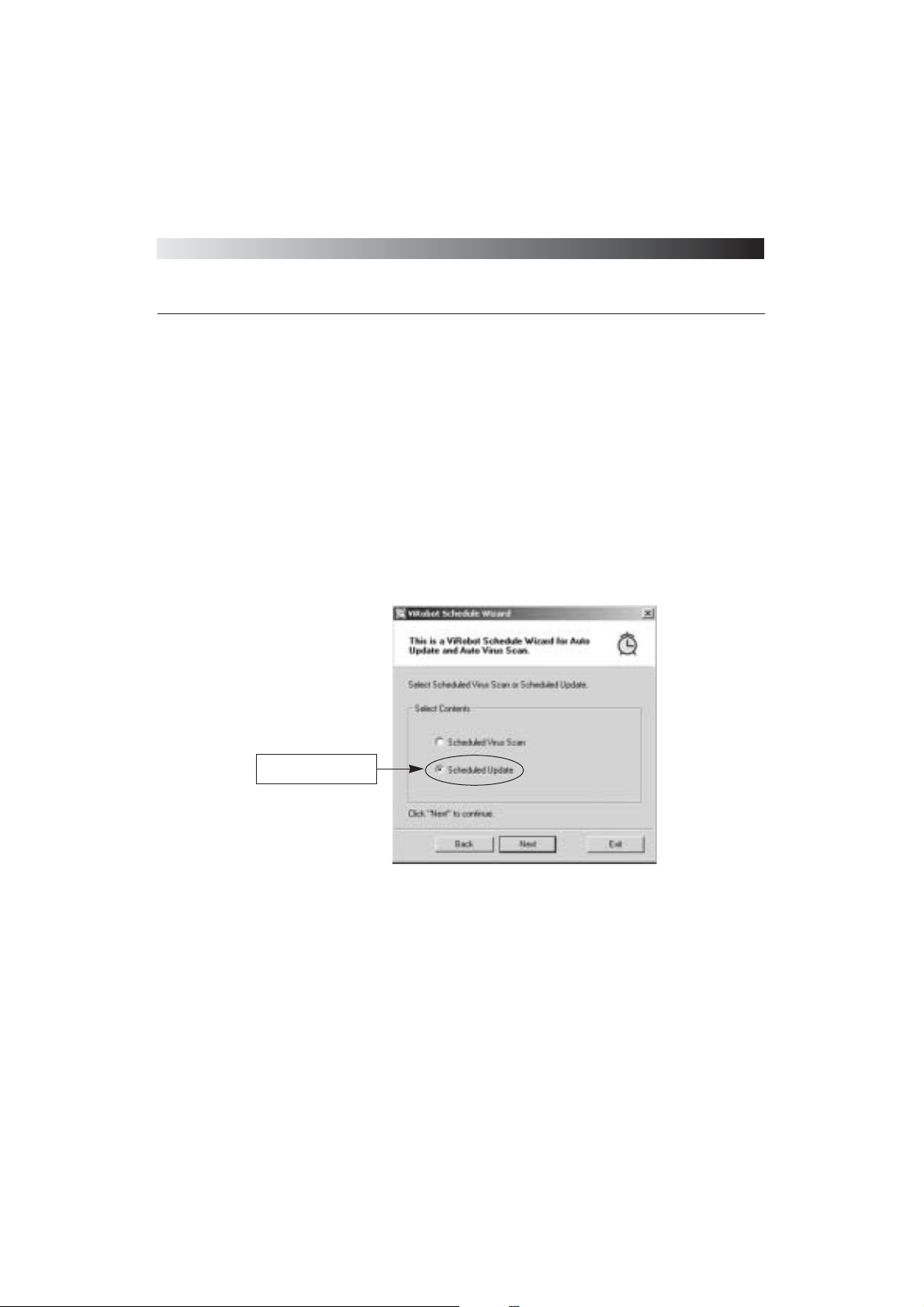
(1) Click the Add button on the ViRobot Schedule Wizardᴗs first page, and select the ᴖScheduled
Updateᴗoption.
[ Figure 3-44 Scheduled update ]
Click Next after choosing
scheduled update
Page 88
ViRobot Expert
88
CHAPTER 3. USING ViRobot Expert
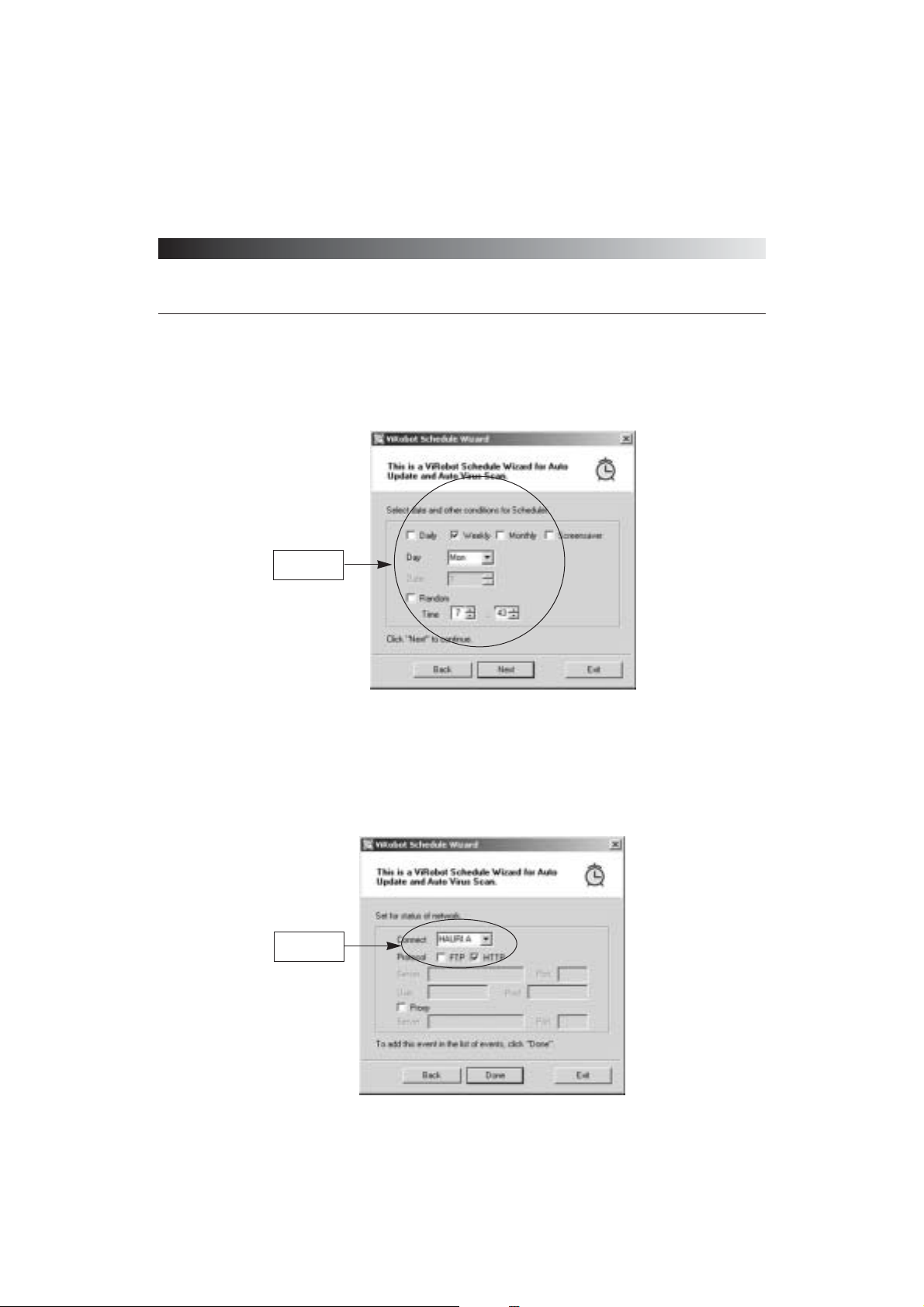
(2) Select Date and Time
(3) Select update server and network configuration
ViRobot Expert only supports scheduled update via the Internet. Refer to the Update section for
more information.
[ Figure 3-45 Set update time ]
Update at the
desired time
[ Figure 3-46 Configuration of update server and networking ]
Select update
server
Page 89
ViRobot Expert
89
CHAPTER 3. USING ViRobot Expert
⍥Connect
Select a Hauri update server to download update files.
⍥Protocol
ViRobot Expert supports both FTP and HTTP protocols. However, HTTP protocol is
recommended when networking connection is reliable.
⍥Proxy
Check the Proxy option if you use a proxy server. Note that the proxy server settings from
Internet Explorer will be changed when proxy server settings from ViRobot Expert are
changed. Therefore, you cannot connect to the Internet if you enter a wrong proxy server IP
Address and port number in ViRobot Expert. Contact your Administrator for proxy server IP
address and port number. Home users need not set up proxy server information.
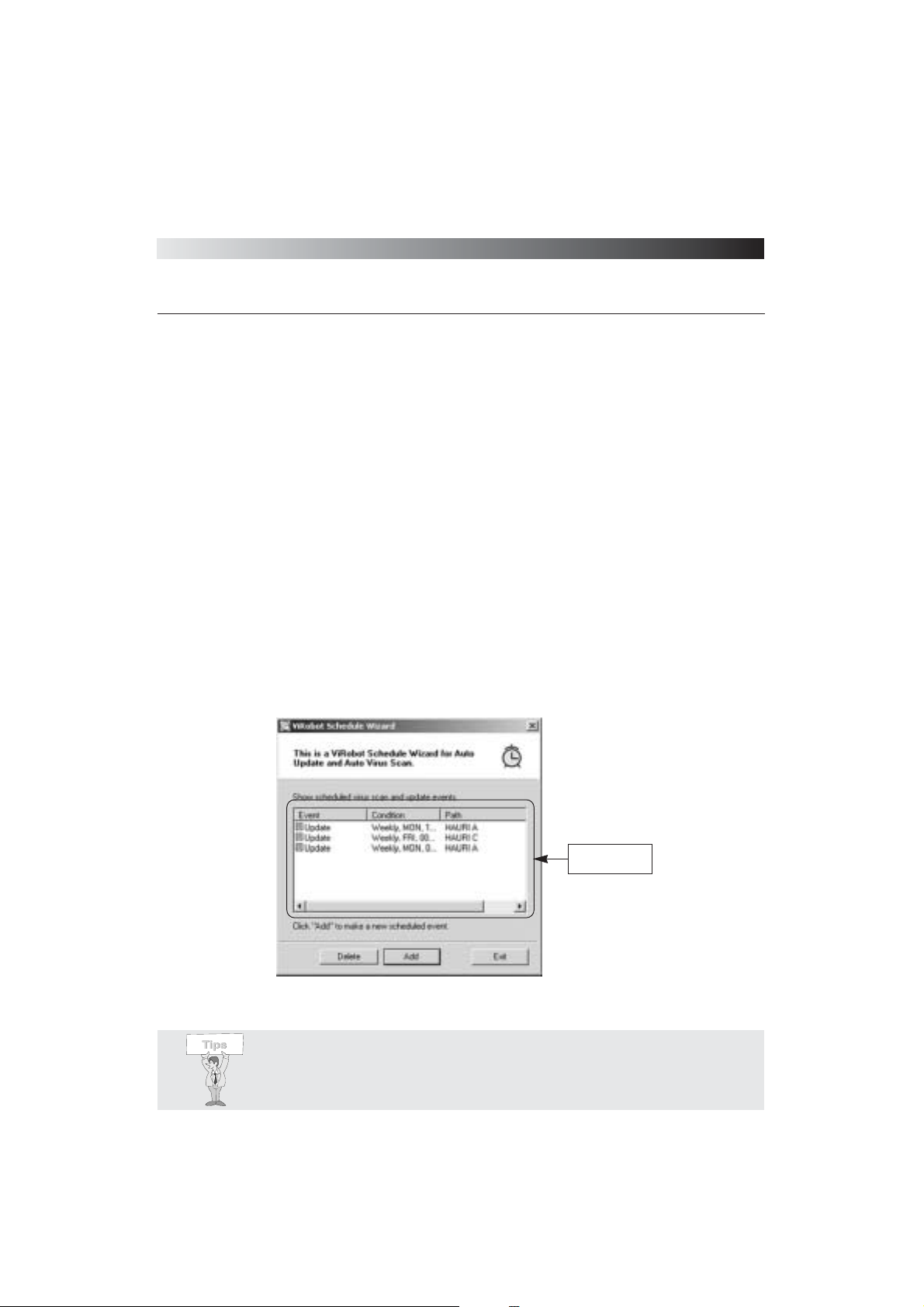
(4) The newly added virus scan schedule is shown on the ViRobot Schedule Wizardᴗs first page
[ Figure 3-47 Check scheduled items ]
Scheduled items
will be added
Tips : The scheduled event information on the ViRobot Schedule Wizard’s first
page can also be found under Configuration > Set Schedule.
Page 90
ViRobot Expert
90
CHAPTER 3. USING ViRobot Expert
Creating an Emergency Disk
Your system cannot boot up when a boot virus has infected it. You can use ViRobot
emergency disk to restore the infected boot sector. ViRobot emergency disk supports both
FAT and NTFS file systems.Also, you can create a Virobot for DOS disk when creating
emergency disk so that you may scan for viruses in DOS mode.
␊
Creating an Emergency Disk
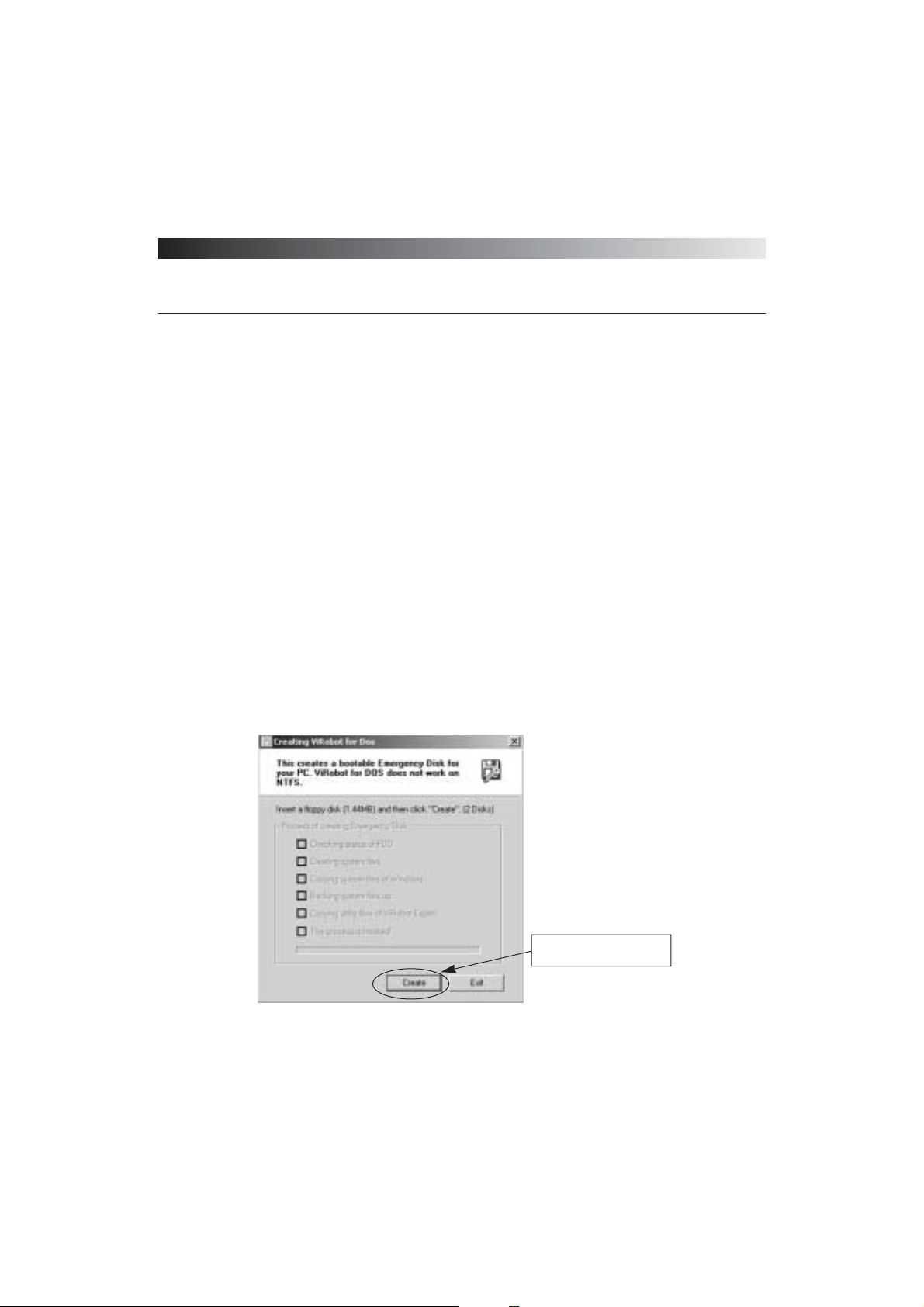
To create a Virobot emergency disk, go to Tools > Create Emergency Disk on the ViRobot Expert
Menu bar.
(1) A Creating Emergency Disk window is displayed as shown in Figure 3.48
[ Figure 3-48 Create Emergency Disk ]
Click the Create button when
a floppy disk is inserted
Page 91
ViRobot Expert
91
CHAPTER 3. USING ViRobot Expert
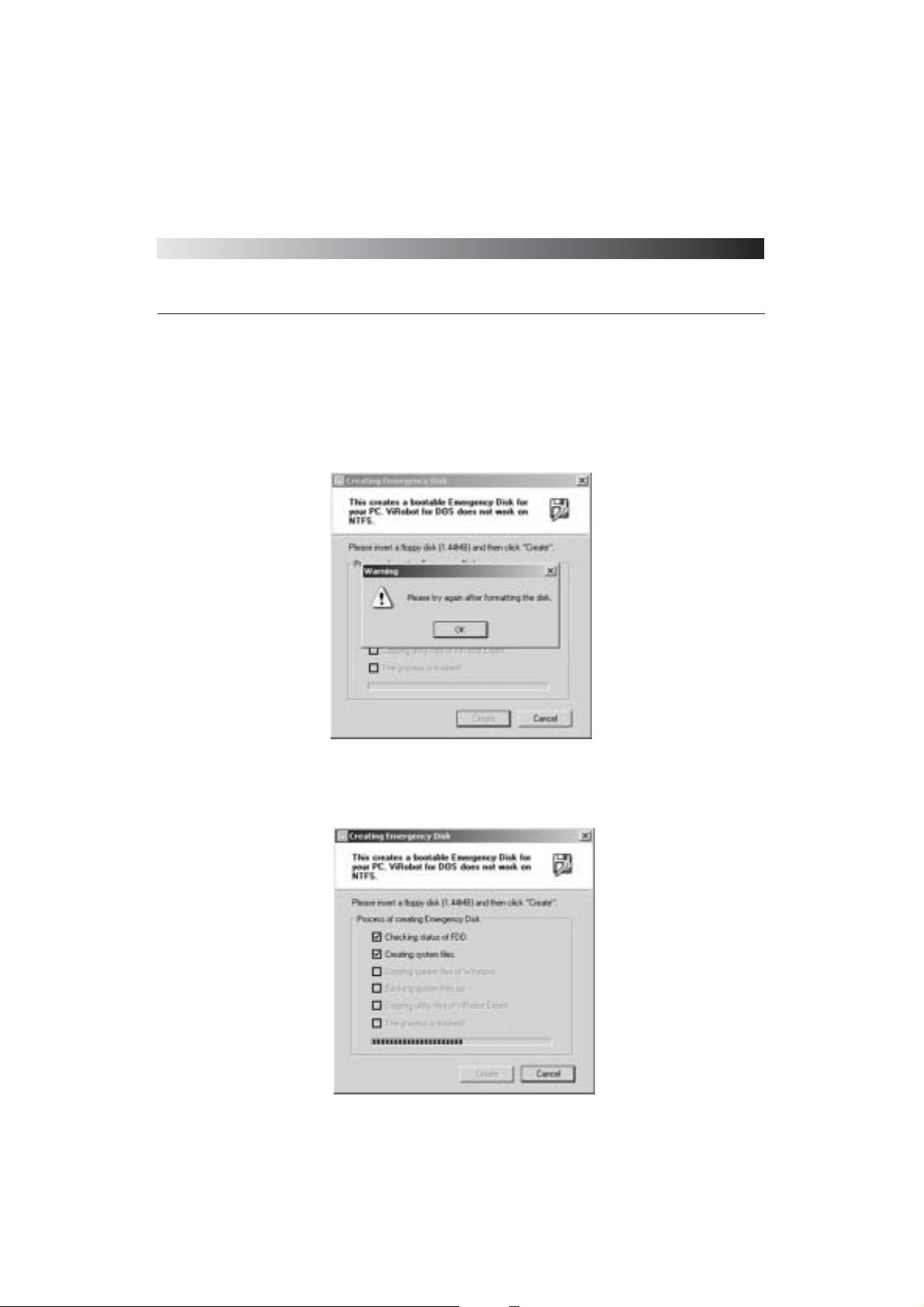
(2) Insert an empty 1.44 MB floppy disk into your floppy drive, and click the Create button. A
message asking if you want to format the floppy will appear if free space is less than 1.44MB.
Click OK to format the floppy disk.
(3) An emergency disk is created.
[ Figure 3-49 Format Message ]
[ Figure 3-50 Creating progress ]
Page 92
ViRobot Expert
92
CHAPTER 3. USING ViRobot Expert
⍥Create Windows system files
⍥Create a boot disk
⍥Backup systemᴗs boot sector information
⍥Create ViRobot for DOS
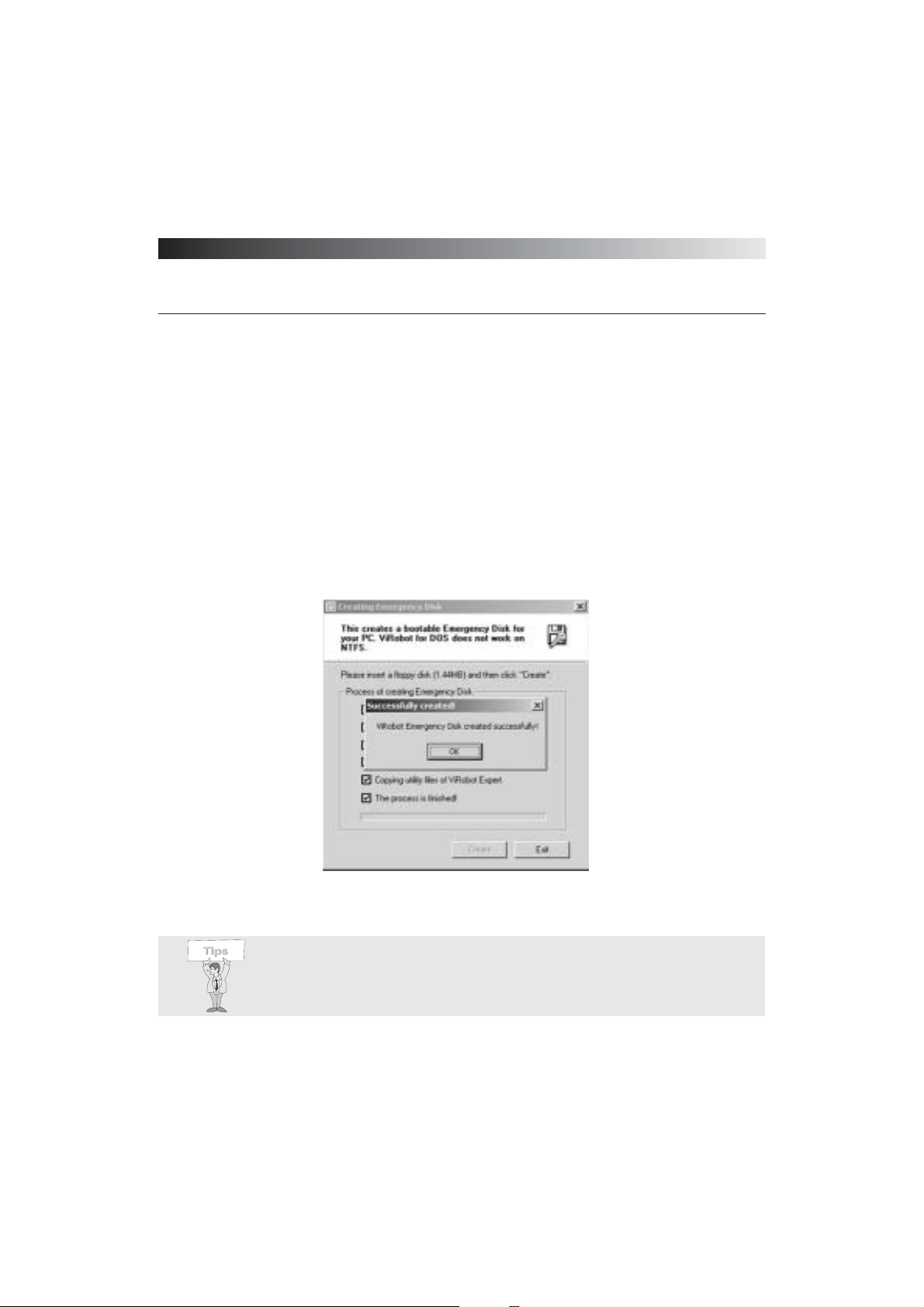
(4) Click OK when ViRobot Emergency Disk is successfully created as shown in Figure 3.51.
Your system will be in DOS mode when you start it with ViRobot emergency disk. You can
refer to ViRobot for DOS in Chapter 6 for more information.
[ Figure 3-51 Emergency Disk created ]
Tips : Virobot emergency recovery disk includes a ViRobot for DOS
(VRD>EXE) and a recovery utility (REBUILD.EXE).
Page 93
ViRobot Expert
93
CHAPTER 3. USING ViRobot Expert
␊
How to Use Boot Sector Recovery Utility (Rebuild.exe)
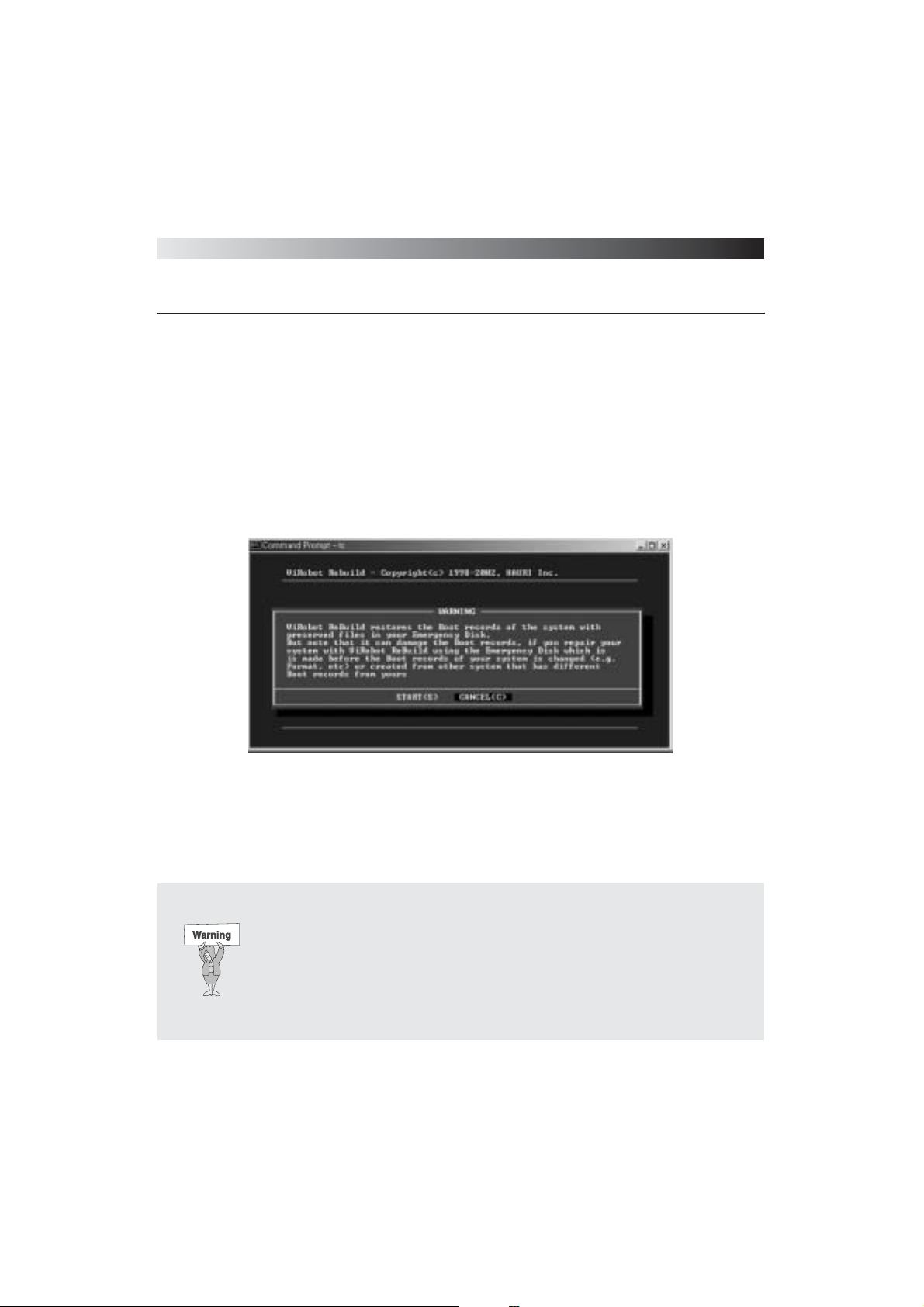
(1) Start your system in DOS mode after inserting a ViRobot emergency disk in the floppy drive.
(2) Type ᴖrebuildᴗand hit Enter.
A:\>rebuild
(3) Read the warning message shown in Figure 3.52 carefully before starting the recovery process.
(4) Click Start to restore your boot sector.
(5) Remove Virobot emergency disk and restart your system.
[ igure 3-52 Boot sector recovery ]
Warning : If operations such as disk reformatting have changed your system
boot sector after you created the emergency disk, or you have created the
emergency disk on a different system with different data structures than the
infected system, you must create a new emergency disk. Running
REBUILD.EXE while ignoring the data mismatch may cause errors in your
system. The emergency disk will not be able to recover the boot sector when it is
severely damage by a boot virus.
Page 94
ViRobot Expert
94
CHAPTER 3. USING ViRobot Expert
Create ViRobot for DOS
You may create ViRobot for DOS to scan and remove viruses. Boot sector recovery is not
possible if a boot virus has severely damaged your system. You need to prepare an emergency
disk in advance to restore your boot sector in case a boot virus attacks it at a later time.
␊
Create ViRobot for DOS
Go to Tools > Create ViRobot for DOS on the ViRobot Expert Menu bar.
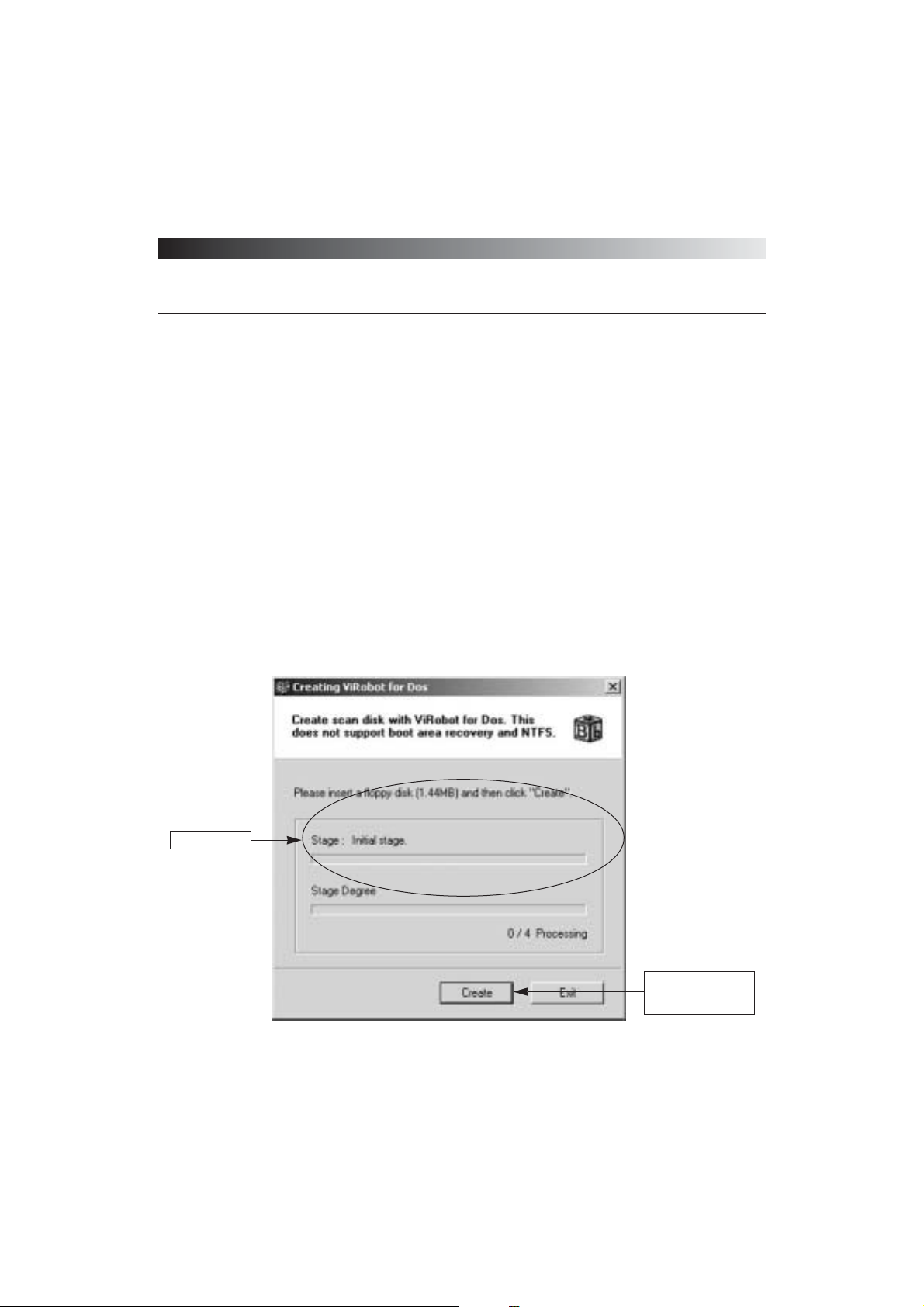
(1) A Creating ViRobot for DOS window is displayed as shown in Figure 3.53
[ Figure 3-53 Create ViRobot for DOS ]
Click the Create button
after inserting a floppy
disk in the A drive
Progress status
Page 95
ViRobot Expert
95
CHAPTER 3. USING ViRobot Expert
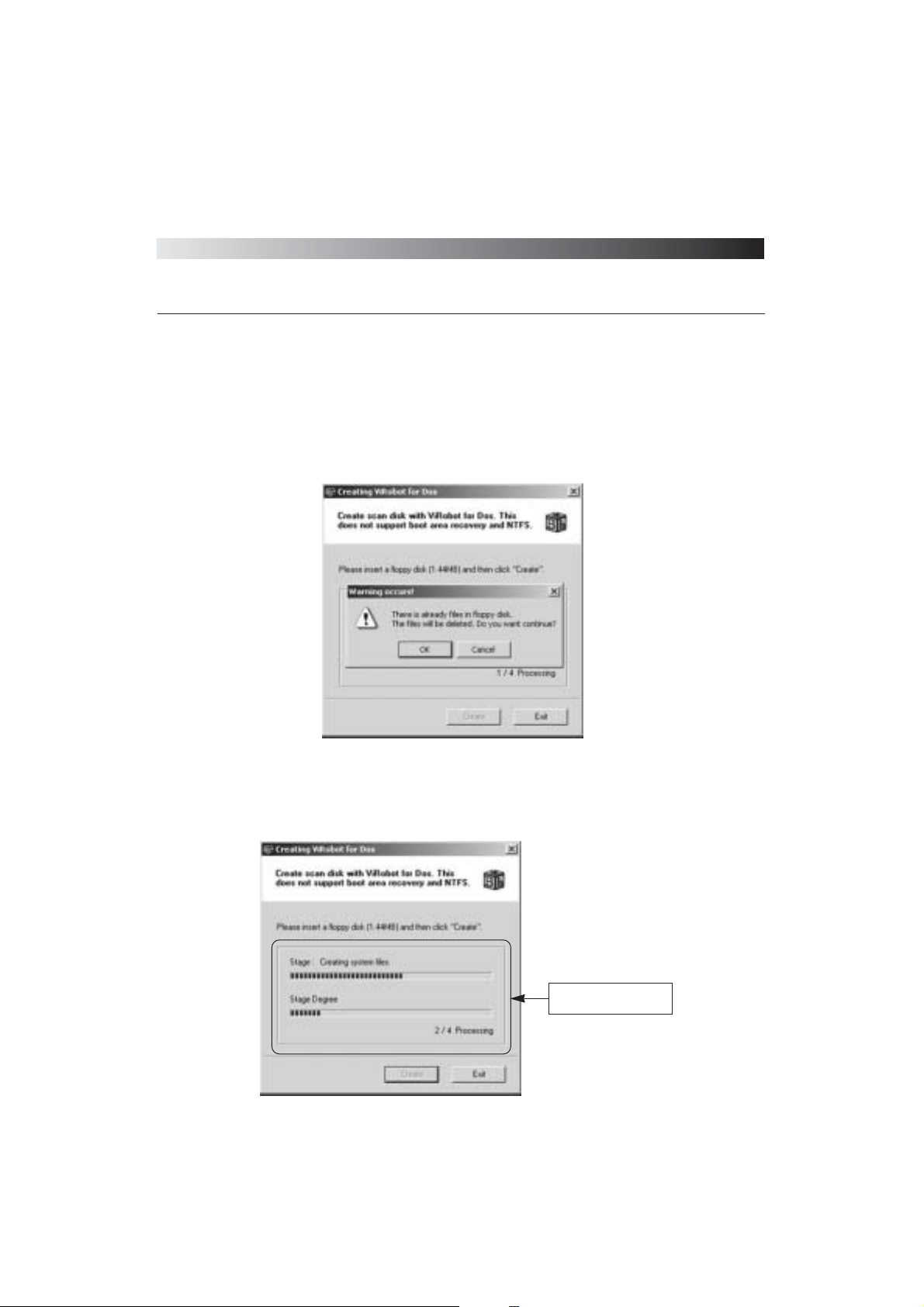
(2) Insert an empty 1.44 MB floppy disk into your floppy drive, and click the Create button. A
message asking if you want to format the floppy will appear if free space is less than 1.44MB, as
shown in Figure 3.54. Click OK to continue creating ViRobot for DOS.
(3) Create ViRobot for DOS
[ Figure 3-54 Warning message regarding free space in a floppy disk ]
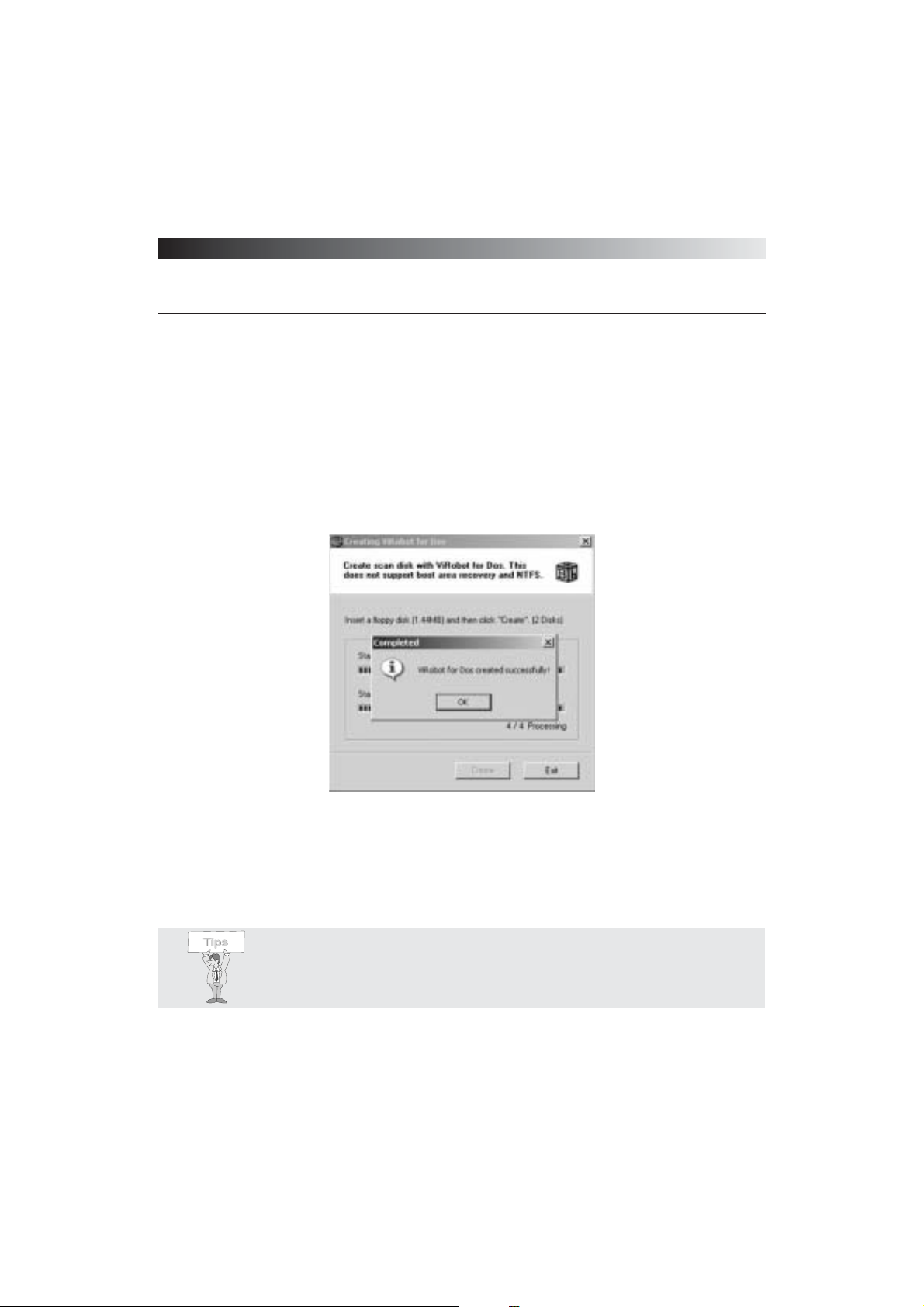
[ Figure 3-55 Progress of Creating ViRobot for DOS ]
Display progress while
creating ViRobot for DOS
Page 96
ViRobot Expert
96
CHAPTER 3. USING ViRobot Expert
⍥Create Windows system files
⍥Create a boot disk
⍥Create ViRobot utility for DOS
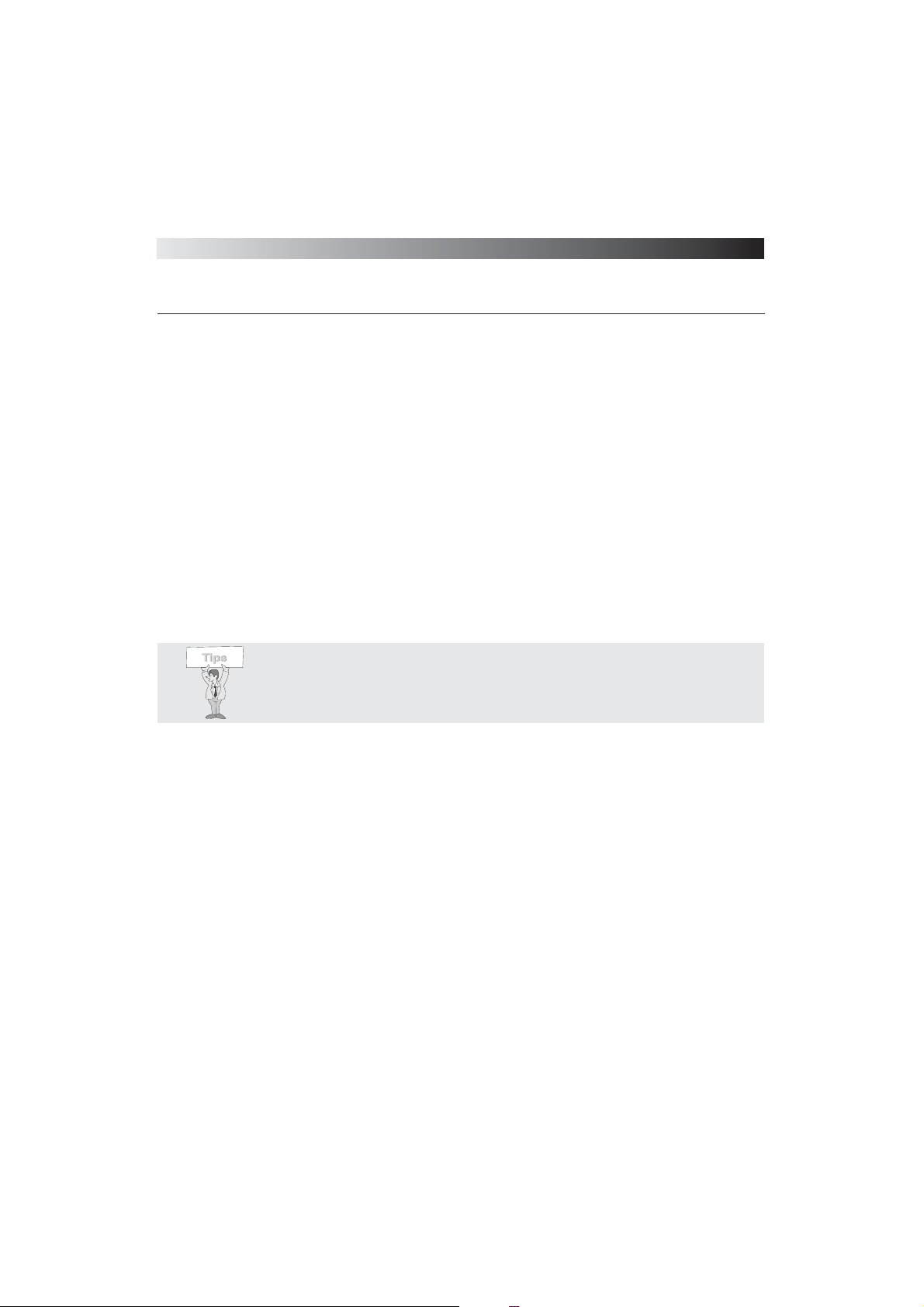
(4) Click OK when ViRobot for DOS is successfully created as shown in Figure 3.56.
(5) ViRobot for DOS will start your system in DOS mode, it then automatically scans and repairs
files in your system
[ Figure 3-56 ViRobot for DOS created ]
Tips : Since ViRobot for DOS does not include REBUILD.EXE file, you will
need an emergency disk to restore your boot sector.
Page 97
ViRobot Expert
97
CHAPTER 3. USING ViRobot Expert
HAURI News
ViRobot Expert provides easy access to the latest virus information, or Hauri news, without
having to connect the Hauriᴗs Homepage. The Hauri News window provided by ViRobot
Expert lets you download the latest engine updates, virus definition files, and trial software.
␊
Run HAURI News
Go to Tools > HAURI News on the ViRobot Expert Menu bar to view Hauriᴗs new information.
␊
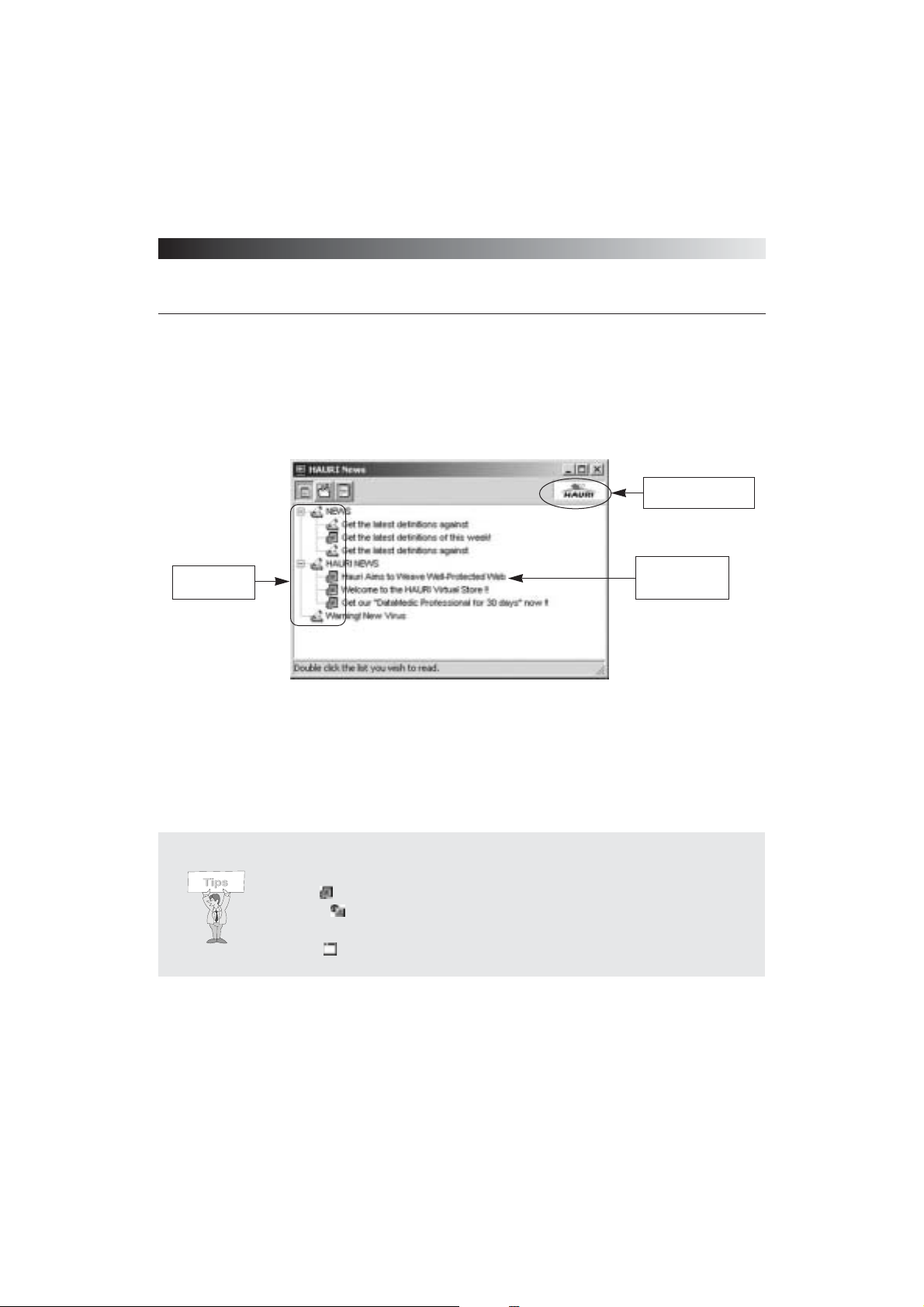
Using HAURI News
HAURI News includes Notice, Downloads, and New Update List sections.
You can double click the ᴖHAURIᴗlogo access Hauriᴗs Homepage.
Tips : When running ViRobot Expert or Hauri News, the latest information will
be automatically downloaded if your system is connected to the Internet.
Page 98
ViRobot Expert
98
CHAPTER 3. USING ViRobot Expert
(1) Notice
The HAURI News window provides the latest virus news
⍥You can also go to Hauriᴗs Homepage (http://www.globalhauri.com or http://www.hauri.net)
to check for virus definitions, industry roadmaps, and other notices.
⍥Double click the selected notice to view it.
[ Figure 3-58 HAURI News items ]
Double-click to move to
HAURI’s homepage
Double-click the list
in the tree to move
to the web site
Icons represent
the content type
Tips : The icons shown below describe the content types in the HAURI News
window
- Html ( ): Refers to a link from Hauri’s homepage
- Down ( ): Refers to a link that contains a downloadable file from Hauri’s
Homepage
- Exec ( ): Refers to a file you can download without connecting to the website
Page 99
ViRobot Expert
99
CHAPTER 3. USING ViRobot Expert
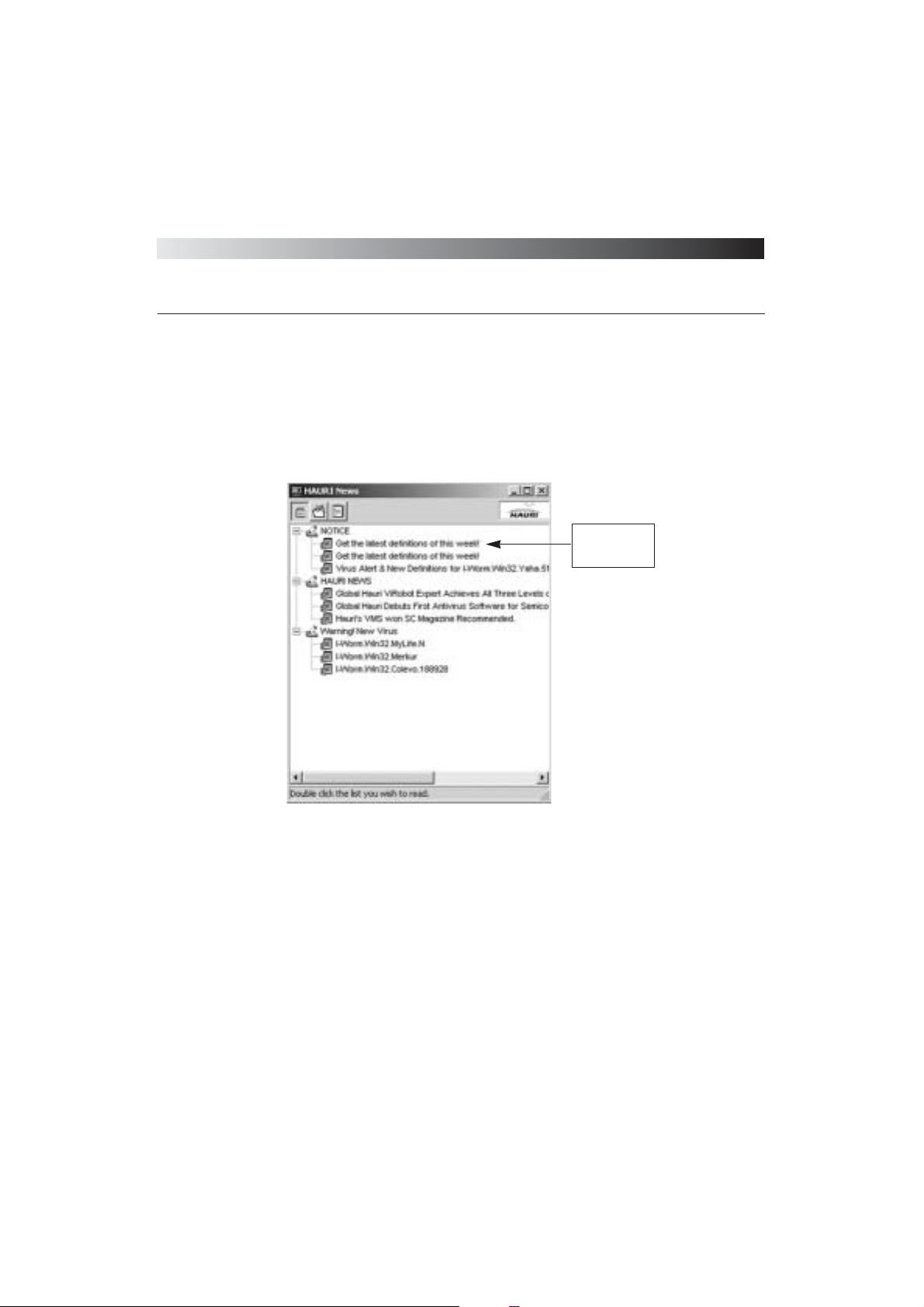
(2) Downloads
The Hauri News window provides a list of available downloads for your convenience. You can
just double click selected trial software to download it.
(3) You can check virus updated list once a week or from time to time.
[ Figure 3-59 Download session ]
Double-click the
list to go to the
referred page
Page 100
 Loading...