

Page 1

H A N M A C R A N G E
U s e r ' s M a n u a l
Page 2

Page 3

4.6.3
Music Player
4.6.4
Sound Recorder
4.7
Internet
4.8
Measuring Tool
4.8.1
Thermometer
4.8.2
Hygrometer
4.8.3
Altimeter
4.8.4
Barometer
4.8.5
Compass
5.
Maintenance and Warranty Period
5.1
Maintenance and Repair
5.1.1
Ceramic and Sapphire
5.1.2
Metal
5.1.3
Rubber
5.2
Warranty Period
6.
Techn ica l P ara meters and
En vir onm ent al Pro tec tio n
6.1
Specications
6.2
Technical Parameters
6.3
Environmental Protection
Contents
1.
Health and Safety Precautions
1.1
Precautions for Using Your Device
1.2
Precautions for Using the Battery
1.3
Precautions for Using the Battery Charger
1.4
Precautions for Using the Headset
2.
Appearance and Keys Description
3. Getting Started
3.1
HANMAC Included Accessories
3.2
Getting Your Device Ready
3.2.1
Install the SIM Card
3.2.2
Install the Battery
3.3
Turning Your Device On and Off
3.3.1
Turn On Your Device
3.3.2
Turn On Your Device
3.3.3
Lock the Keypad
3.4
User Interface
3.4.1
Status Icon Area
3.4.2
Clock and Notication Area
3.4.3
Selection Area
3.5
Charge Your Device
3.6
Making Your Device More Secure
3.7
Connecting Your Device to PC
4.
Main Functions
4.1
Make a Call
4.1.1
Make a Call from the Keypad
4.1.2
Make a Call from the Contacts
4.1.3
Make a Call from the Recents
4.2
Answer a Call
4.3
End a Call
4.4
Messages
4.4.1
Open a Message
4.4.2
Reply to a Message
4.4.3
Send a Message
4.4.4
Forward a Message
4.5
Contacts
4.6
Multimedia
4.6.1
Video Recorder
4.6.2
Video Player
02
Page 4

HANMAC RANGE
1.1
Precautions for Using Your Device
Please read this user guide carefully before using your device.
Please do not turn on your device whenever prohibited; otherwise,
it might cause signal interference or danger.
Please do not use your device in particular areas, such as, on
airplane or in hospital, otherwise, it might interfere with other
electronic devices and medical equipments. Please comply with
all regulations that restrict the use of a mobile device.
Please do not put your device into microwave oven or any highvolt age equipment , otherwis e, it might cause damage to the
circuit or other accidents, e.g. re.
Please pay attention to fire preven tio n. Please turn off your
device at the places w ith inflamm able artic les, such as gas
station or fuel storage.
Please do not hold your device in hand while driving or place the
device close to air bag, otherwise the device might hurt you due
to the ination of the air bag.
Please use accessories and battery designated by our company and
avoid connecting your device to incompatible products. Using other
batteries or charger that are not designated may cause liquid leaking of
the battery, overheating, explosion and re.
Please do not use your device at places with weak signals or highprecision electronic equipment.
1.
Health and Safety Precautions
The interference of the radio wave may cause the wrong operation
and other problems of the electric equipment. Special attention
shall be paid when your device is close to the following equipment:
hearing aid, pacemaker and other medical electronic equipment,
re detector, automatic gates and other automatic control devices.
For the details over the affection on pacemaker and other medical
electronic equipment, please make inquiries from the equipment’s
manufacturer or the local distributor.
Please do not apply force on the LCD or use it to strike on other
things. Otherwise, the LCD plate may be damaged or its liquid may
be leaked. The liquid of the LCD goes into the eyes, it may cause
ablepsia. In this case, you shall wash the eyes with clean water
immediately and go to the hospital for medical help.
Please do not disassemble or ret your device unless with the help
of technicians. Otherwise, it may cause the damage, electricleakage
and circuit failure of your device.
Please use soft cloth to clean your device instead of benzene,
dilution agent, alcohol or other solution. Please keep your device
away from corrosive chemicals like cleaning agent.
Please do not place your device in the sunlight or at the place swith
plenty of smoke or dust.
Please keep yo ur device from humidity as the water or other
liquid will cause short circuit, electricity leakage or other fault of
your device.
Please put your device at the places beyond the reach of the
children to avoid any physical injury or danger.
03
User 's Manual
Page 5

HANMAC RANGE
04
1.2
Precautions for Using the Battery
Please read carefully the instructions and information on the surface of
the battery before using.
Please charge the battery inside the room with normal temperature
and good ventilation. Otherwise, it may cause overheating, smoking,
burning, deformation of the battery or even explosion.
Please don’t disassemble or refit the battery. Otherwise, it may
cause the liquid leakage, overheating, cracking by explosion and
fire. If the liquid of the battery goes into the eyes, it may cause
ablepsia. In this case, you shall wash the eyes with clean water
immediately and go to the hospital for medical help.
Please do not use the electric wire, pin and other metal articles to
give the battery short circuit, nor put the battery together with keys
and other metal articles. Otherwise, it may cause the liquid leakage,
overheating, cracking by explosion and re.
The battery has a limited service life, which shall decrease due to
frequent charging and discharging. In case the battery still has no
power after being charged for several times, please replace it with a
new one of the same model.
Please do not place the battery in the sunlight or at the places with
plenty of smoke or dust. As the battery is not waterproof, please
do not use it at the places with high humidity like in the bathroom,
otherwise, it would be wetted by water.
Please do not place the battery at the places with the temperature
higher than 50ºC or lower than -10ºC, otherwise, it might deteriorate its
performance.
Please do not put the battery into the re. Otherwise, the battery will
get burned or explode.
During the use, charging or storing of the battery, if any abnormal
phenomena, such as temperature rise, color change, deforming and
so on, you shall suspend the use of the battery and replace it with a
new battery.
Please do not put the battery into water to avoid the short circuit.
Othe rwi se. it may cause overheating, smo king, deformation,
damage of the battery or even explosion.
Please follow the related regulations which are stipulated for the
treatment of waste batteries. For the avoidance of explosion or
pollution, please do not throw the battery into household garbage.
Please use the designated charger for battery charging, and it is
not allowed to charge the battery for more than 12 consecutive
hours at a time.
Please put the battery at the places beyond the reach of the children
to avoid any physical injury or danger.
User 's Manual
Page 6

HANMAC RANGE
05
1.3
Precautions for Using Battery Charger
Please read carefully the instructions and information on the surface
of the battery charger before using.
Please do not disassemble or refit the battery charger. Otherwise, it
may cause the personal injury, electric shock, re and damage of
the battery charger.
Please do not use the battery charger when its cable is broken.
Otherwise, it may cause electric shock, fire or damage to the
battery charger.
Please use power with 220V AC. If other voltages are used, it
may cause electricity leakage, re as well as the damage to your
device and battery charger.
Please do not use wet hands to contact the battery charger. In
case water or other liquid spatters on the battery charger, please
switch off the power at once.
Please do not put any container with water ne ar the battery
charger so as to avoid short circuit, electricity leakage or failure
of the battery charger caused by the spilt water.
The short cir cuit of the battery charge r is prohibited. As the
battery charger is not waterproof, please do not use it at the
places with high humidity like in the bathroom, otherwise, it would
be wetted by water.
Please do not charge the battery at the places close to electric
appliances, such as TV sets and radios.
Please hold the battery charger when pulling out the plug. If
pulling the power cable, it may cause damage to the electric wire.
Please put the battery charger at the places beyond the reach of
the children to avoid any physical injury or danger.
1.4
Precautions for Using the Headset
Please adjust the volume when using the headset to avoid highpitched sound impairing your hearing.
Please do not drag the headset cable, otherwise, it might cause
damage to the headset.
Please do not use the headset for a long time at the places with
high temperature or humidity, otherwise, it might deteriorate the
performance and shorten the service life of the headset.
For the avoidance of any traffi c accident , please do n ot use
the headset when driving, riding a bicycle, or walking along the
street.
Please put the headset at the places beyond the reach of the
children to avoid any physical injury or danger.
User 's Manual
Page 7
HANMAC RANGE
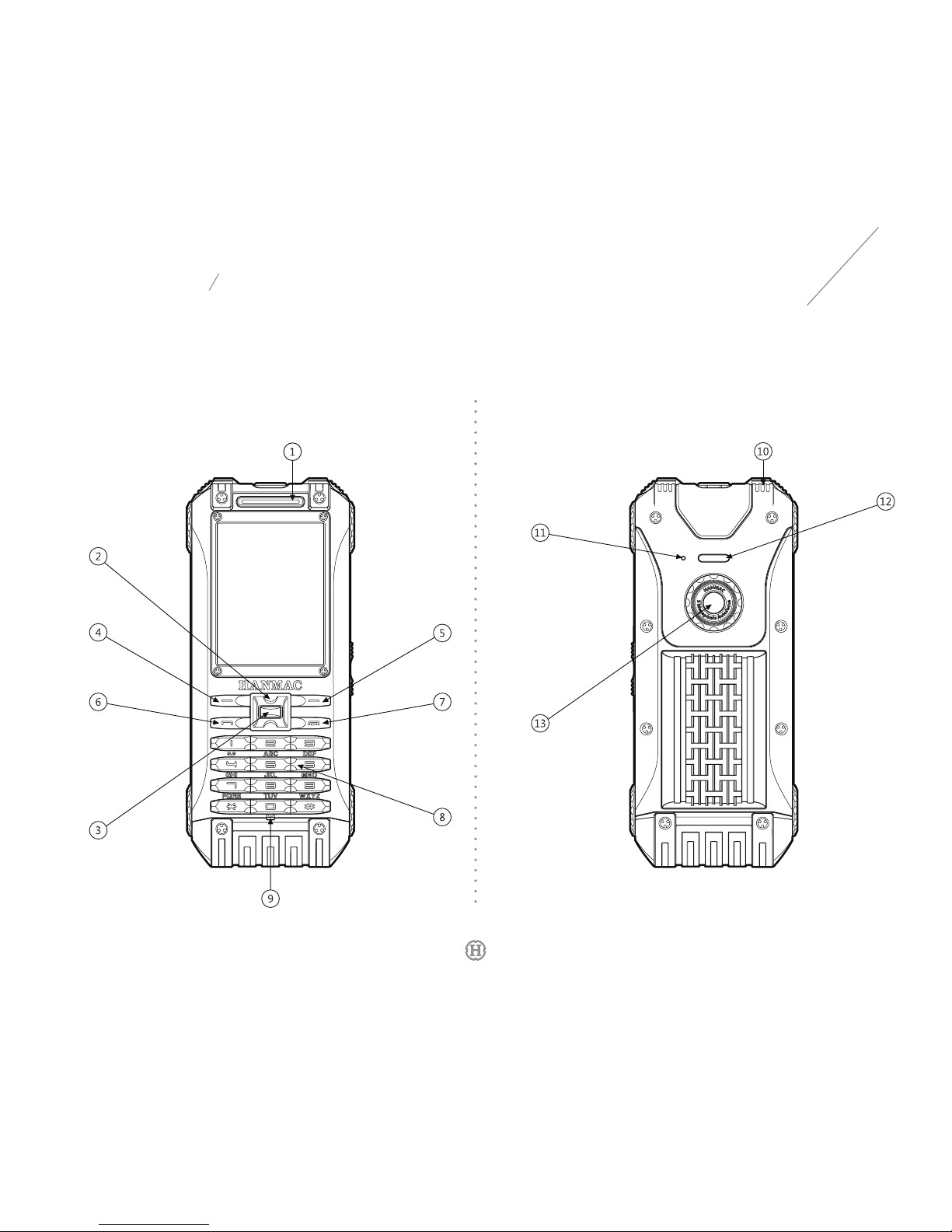
2.
Appearance and Keys Description
Front View Back View
06
User 's Manual
Page 8
HANMAC RANGE
07
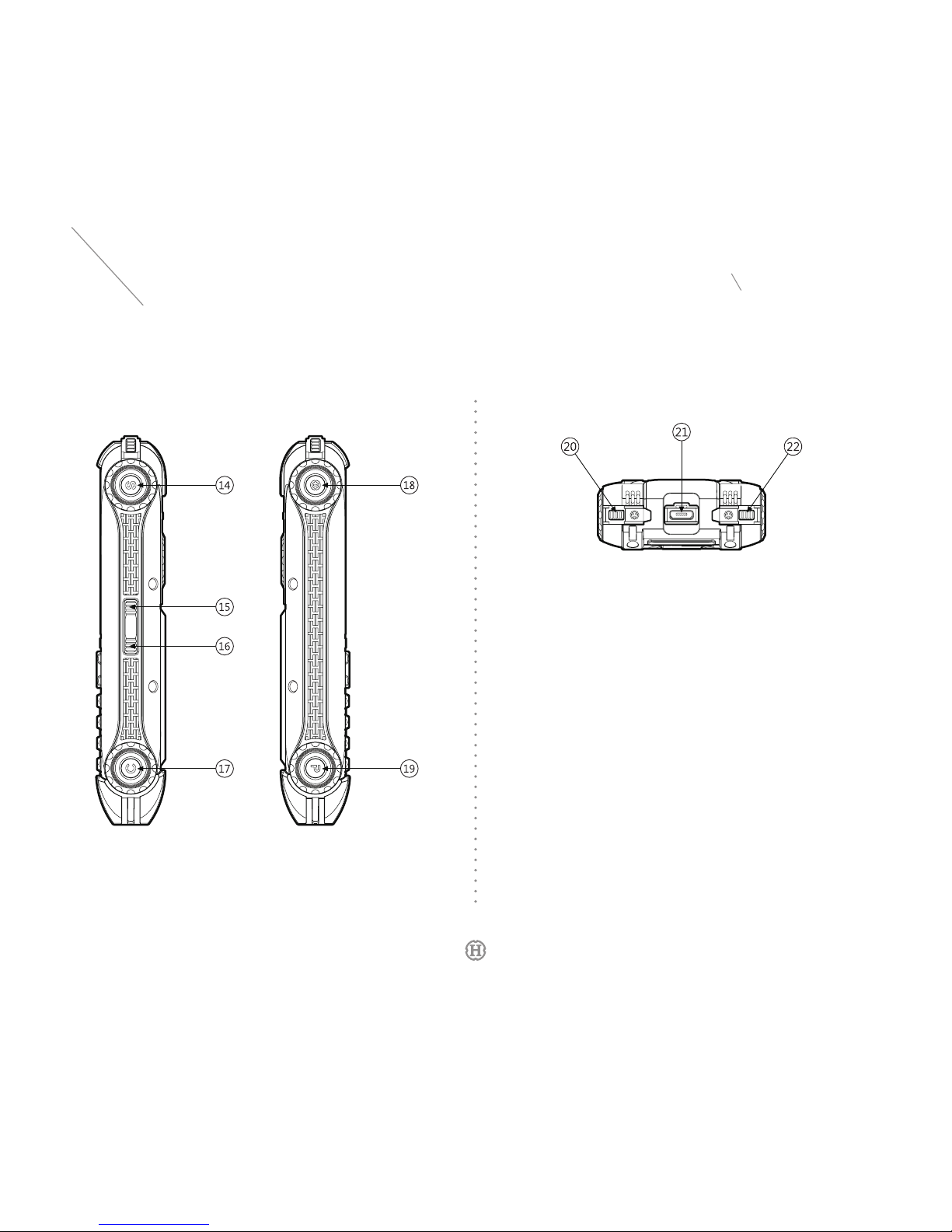
Left & Right View Top View
1
Telephone Receiver
2
Navigation Key
(Four Directions)
3
OK Key
4
Left Softkey
5
Right Softkey
6
Talk Key
7
End Key
8
Numeric Keys
9
Microphone
10
Speaker
11
Noise Reduction Hole
12
Flashlight
13 Camera
14
Shooting Mode Button
15
Vol+
16
Vol-
17
Snapshot Button
18
Keypad Lock / Power Button
19
Battery Cover Eject Button
20
Shortcut
21
USB Port
22
Measurement Button
No. Keys
Keys
No. Keys
User 's Manual
Page 9
HANMAC RANGE
3.1
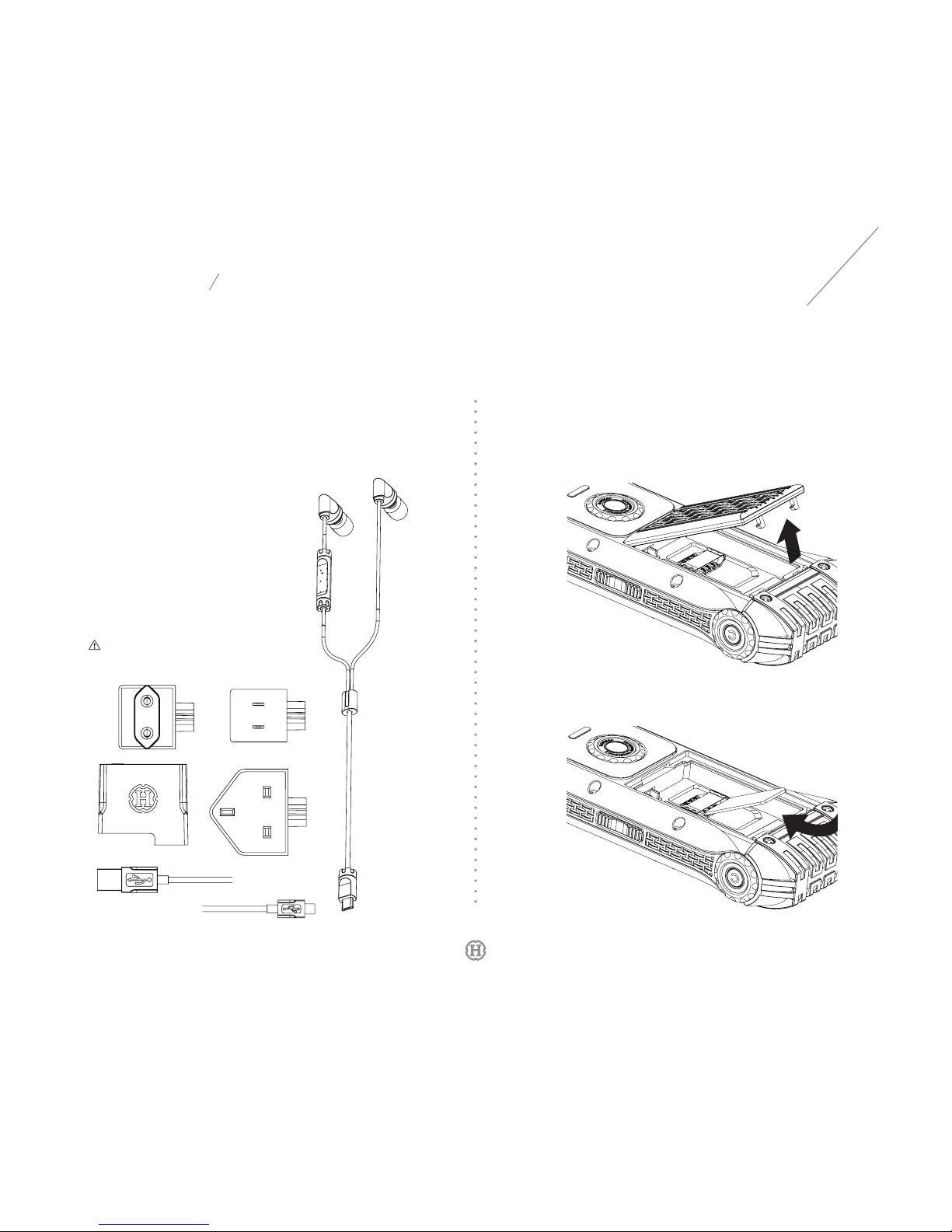
Range Included Accessories
Hanmac range series has the following items:
Hanmac range mobile phone
1
Batteries 2
Micro USB charger
1
(applicable in many countries)
Stereo headset 1
Cleaning cloth 1
Gloves 1
User document file 1
Warranty card 1
3.
Getting Started
3.2
Getting Your Device Ready
3.2.1 Install the SIM Card
1.
Turn over your device to let the back side face you. Press
Battery Cover Eject Button and remove the back cover.
2.
Insert the SIM card into the SIM card slot with the gold-colored
contacts facing down and cut-off corner on the bottom right.
Note:
• The accessories might be different depending on your region.
08
User 's Manual
Page 10
HANMAC RANGE
09
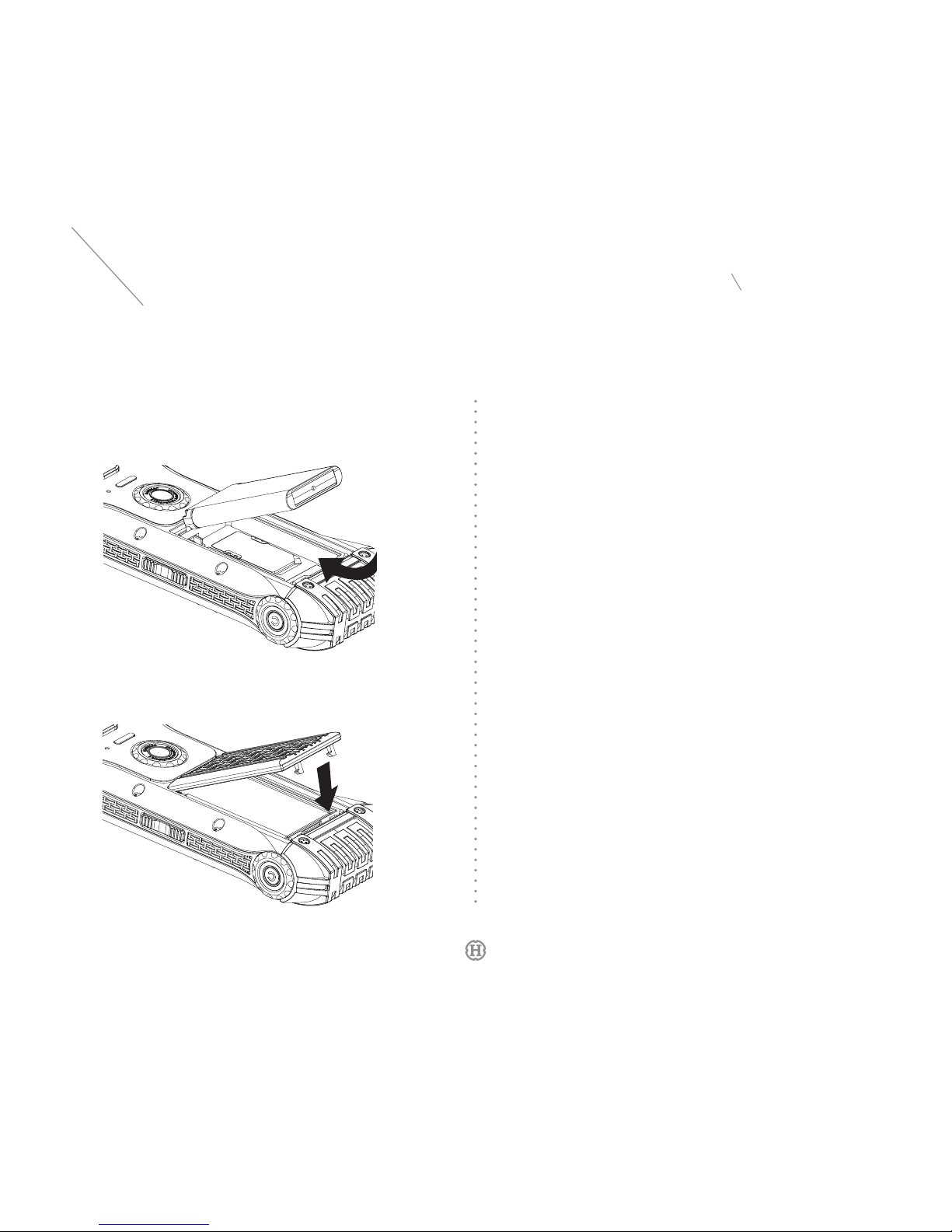
2.
Please push in the protruding tip of the back cover first and then
gent ly press the back cover down until you hear it fastens with
your device.
3.3 Turning Your Device On and Off
3.3.1 Turn On Your Device
1.
Before turning on your device, please make sure the battery is
installed. Turn over your device to let the front side face you.
2.
Long press Keypad Lock / Power Button on the top left of your
device, and your d ev ic e is p owered on when you see startup
interface on the screen.
3.3.2
Turn Off Your Device
In standby status, long press Keypad Lock / Power Button on the top
left of your device, and your device is powered off when you see the
turnoff interface on the screen.
3.3.3
Lock the Keypad
You can lock the keypad of your device to prevent unintended
operation.Press Keypad Lock/ Power Button on the top left of
your device to lock the keypad. In order to unlock the keypad,
please press Keypad Lock/ Power Button again and then within 2
seconds press the Left Softkey. The keypad will be automatically
unlocked when you answer an incoming call and will resume locked
up when you end the call.
3.2.2 Install the Battery
1.
Insert the battery by aligning the exposed copper part of the
battery with the protruding contacts, then push the battery into
battery tank and make sure the battery and SIM card are in place.
User 's Manual
Page 11
HANMAC RANGE
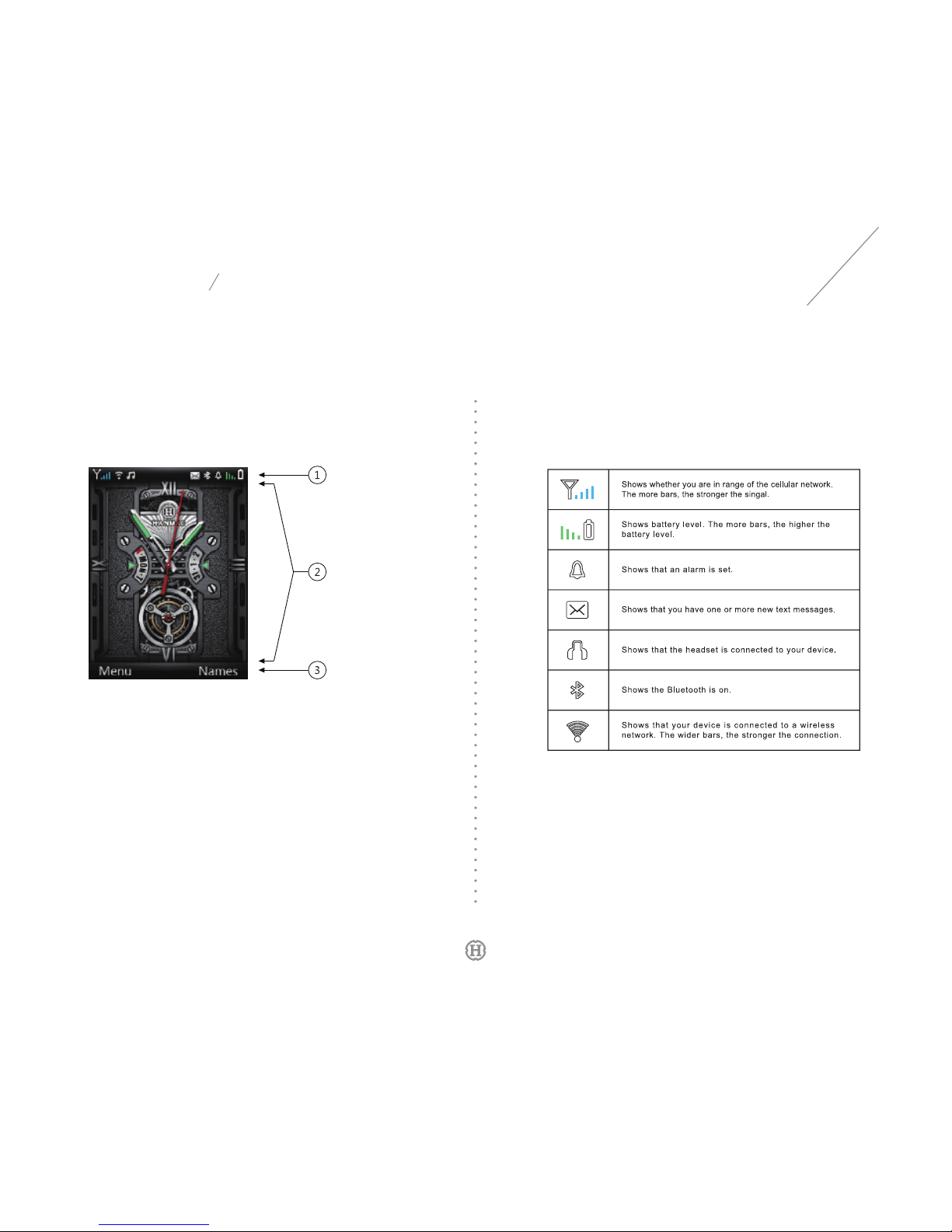
3.4.1
Status Icon Area
The status icon area at the top of the screen shows signal strength,
data connecting status, battery level, etc.
10
3.4
User Interface
You can see a clock in the center of the home screen and icons at
the top showing the current staus of your device.
1.
Status icon area
2.
Clock and notication area
3.
Selection area
User 's Manual
Page 12
HANMAC RANGE
11
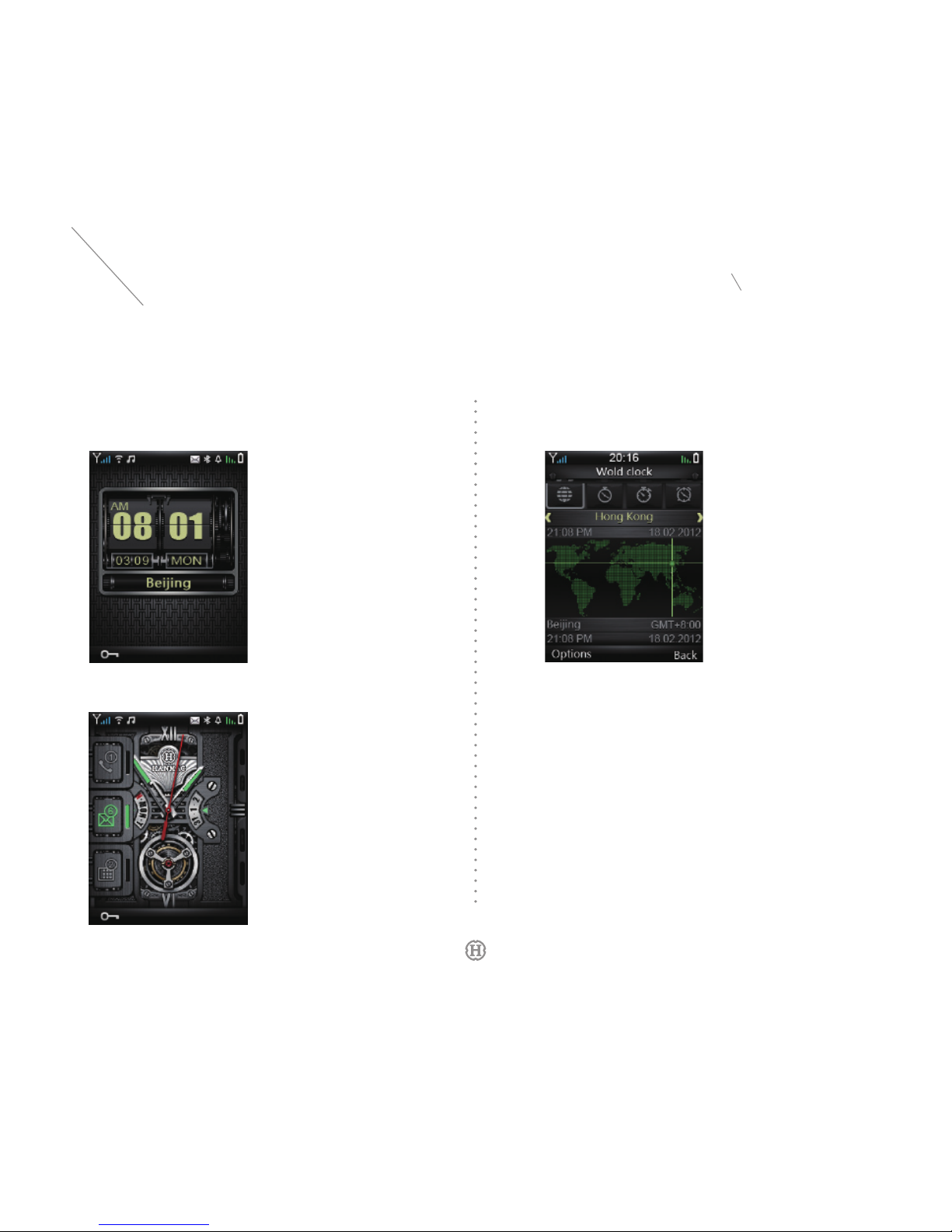
3.4.2
Clock and Notication Area
The clock shows the current time and date, and you can choose hands or
digits showing on the home screen.
You can read new messages, check missed calls or view pending work
in notication area.
3.4.3
Selection Area
You can press Left Softkey, Right Softkey or OK Key to carry out one
of the operations showing at the bottom of the screen.
User 's Manual
Page 13
HANMAC RANGE
12
3.5
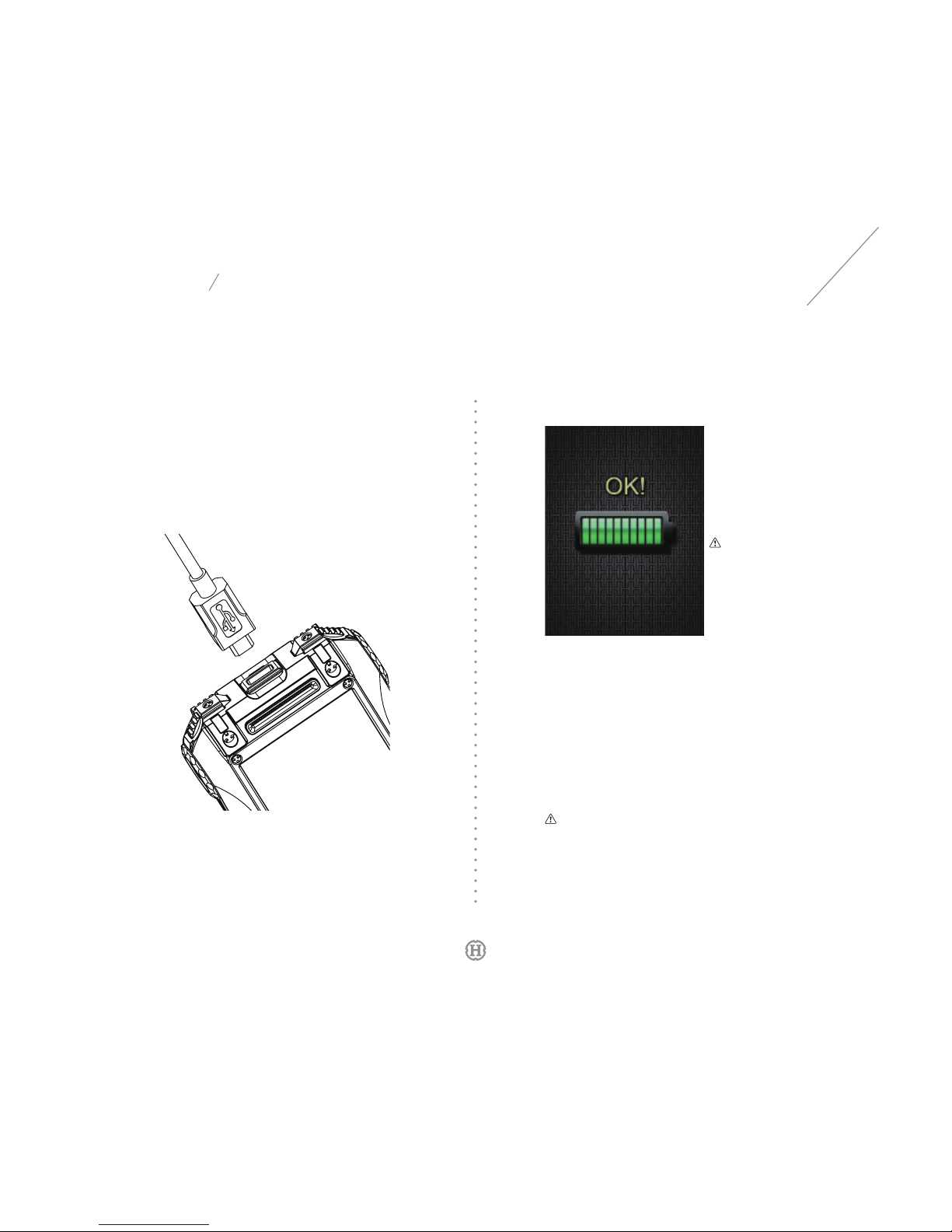
Charge Your Device
Hanmac mobile phone has a rechargeable battery which needs to be
charged after a period of time. In case the battery is new or has not
been used for a long time, you might need wait for a few minutes before
you see the charging indicator ashes on the screen or make a phone
call. Please charge the battery as per the following steps:
1.
Connect Micro USB charger to your device, and make sure the
mark of the connector faces upward.
Note:
• Please do not take out the battery
or SI M c ard when ch arging the
battery.
• You devi ce, bat tery an d charg er
ma y h av e hi gh te mp er at ur e,
which is norma l durin g charg ing
the batt ery.
3.6 Making Your Device More Secure
You can protect your device from unauthorized use with the PIN
(personal identification number), and the PIN number is provided
together with your SIM card.Once you lock your SIM card, you must
enter the PIN number each time you turn your device off and turn it
back on again. The PIN number remains the same even if you use
the same SIM card but a different mobile phone.The default PIN
number is 1234, and please reset the number if necessary.
Note:
• If you ent er the PIN i ncorre ctly th ree tim es, yo ur SIM card wil l be disena bled.
• I n t hi s ca se , yo u ne ed t o co nt ac t y ou r ca rr ie r fo r a PU K (p er so na l
unloc king ke y) and enter t he PUK num ber to unlock your SI M card.
• PU K nu mbe r ca nno t b e re set . In ca se y ou en te r t he P UK inc or re ctl y
10 t imes , you r SI M c ard wi ll be p er man entl y d isen ab led .
3.
When the charging icon stops ashing, it means the battery has
been fully charged.
2.
Plug the charger into AC outlet. After a few seconds, you can
see the charging icon ashes on the screen if your device is in
powered off status, or you can see the battery level icon at the up
right corner ashes if your device is in powered on status.
User 's Manual
Page 14
HANMAC RANGE
13
4.1
Make a Call
4.1.1
Make a Call from the Keypad
Before dialing a phone number, please switch to home screen and
check the signal strength (the signal bars at the up left corner of the
screen shows the signal strength) and the battery level (battery level
icon at the up right corner of the screen shows the battery level).
1.
Use the keypad to enter the phone number. You can press Right
Softkey to Clear the input numbers one by one.
4.
Main Functions
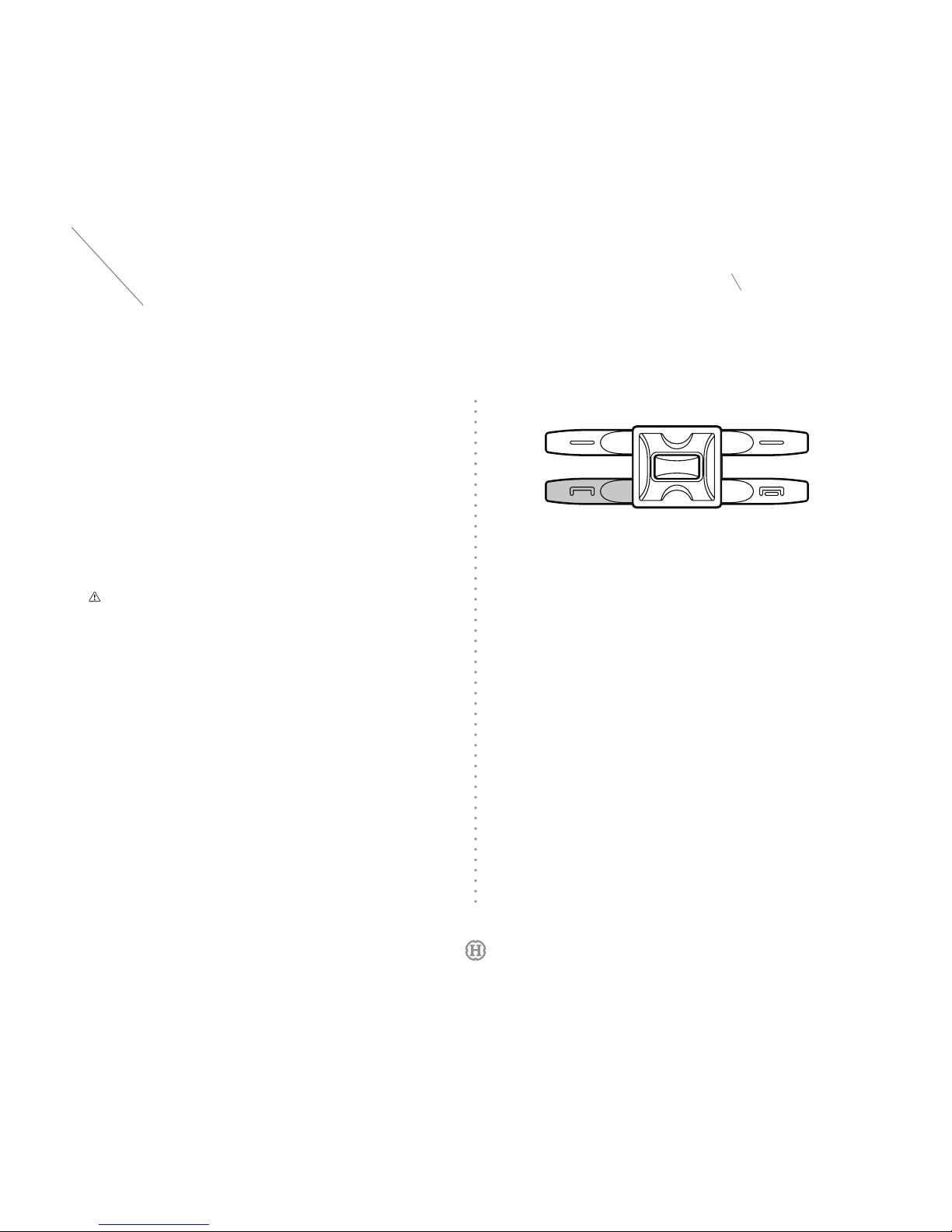
3.7
Connecting Your Device to a PC
You can use a USB data cable to connect your device to your computer
as long as they are compatible. You can charge your device by PC
connection. Meanwhile, there are two modes as follows for your
selection. Please press Navigation Key to select one of them and
press OK Key to conrm.
1.
Storing Device. You can check your device as the removable drive
in the PC, and transfer les and photos to and from your device directly.
2.
Webcam. You can use the camera of your device as video equipment,
for example, you can use it to activate network video service.
Note:
•
Even though your device has an interna l storage with 8G capacity, the avail able
space should be less than 8G due to the size of system software.
4.1.3
Make a Call from the Recents
You can use the Recents to call someone as per the following steps:
1.
Select Menu on the home screen > Recents.
2.
Press Navigation Key to move the cursor and view dialed call,
missed call and answered call.
3.
Press Navigation Key to move the cursor to highlight the desired
name or phone number and then select Call.
4.1.2
Make a Call from the Contacts
You can use the Contacts to call someone as per the following steps:
1.
Select Contacts or Menu on the home screen > Contacts > Names.
2.
Press Navigation Key to move the cursor and highlight the desired
name, and select View.
3.
Select Call to make a call.
2.
Press Talk Key to dial.
User 's Manual
Page 15
HANMAC RANGE
14
4.4.3
Send a Message
1.
Select message > compose a message.
2.
Press OK Key and then select the contact that you want to send
the message.
3.
Type your message in the message eld.
4.
Select Send.
4.4.2
Reply to a Message
You can reply to a message as per the following steps after you
open it:
1.
Press OK key.
2.
Type your return message.
3.
Select Send.
4.4.1
Open a Message
1.
Select Message > Inbox.
2.
Press Navigation Key to move the cursor to highlight the message
you want to view, and then press OK Key to read it.
4.4
Message
You can send or receive SMS, voice message or MMS with your
device.
4.4.4 Forward a Message
You can forward a message as per the following steps after you open it:
1.
Select Option > Forward.
2.
Press OK Key and then select the contact that you want to send the
message.
3.
You can edit the message if necessary.
4.
Select Send.
4.3
End a Call
Please press End Key if you would like to end a call or decline
an incoming call.
4.2
Answer a Call
When a call comes in, you will hear the ringtone and see who is
calling you on the screen. Your device will vibrate if the vibrating alert
is activated. Press Talk Key if you would like to answer it. While you
are on a call, the screen shows following options:
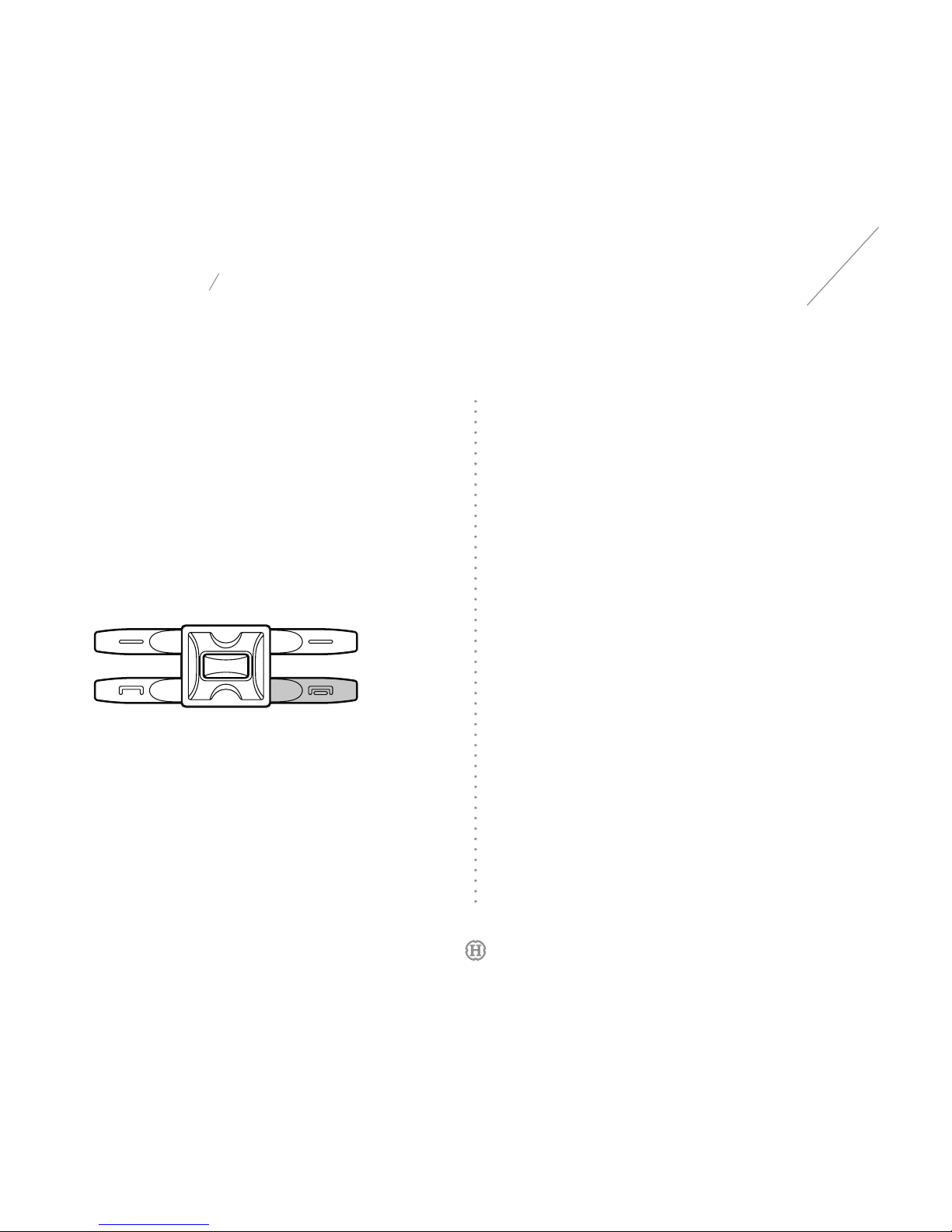
1. Use the speaker: press OK key to turn on the speaker.
2. Adjust the volume: press the Volume+ or Volume- on the side of
your device to turn up or turn down the volume.
User 's Manual
Page 16
HANMAC RANGE
15
Note:
• Your dev ice is able to save 1,000 c ontacts at mo st.
4.6
Multimedia
With this function, you can save or control multimedia information in
your device, such as photos, videos, sound records or songs.
4.6.1
Video Recorder
You are able to take photos or shoot videos with the 5.0 mega pixels
and 4x digital camera built in your device. You can press Navigation
Key (left or right directions) to switch between photo or video mode.
When taking a photo, please press Navigation Key (up or down
directions) to zoom in or out. Press OK Key to capture a photo.You can
select your favorite shooting mode or adjust the size and resolution of
photo by changing the Camera Settings.
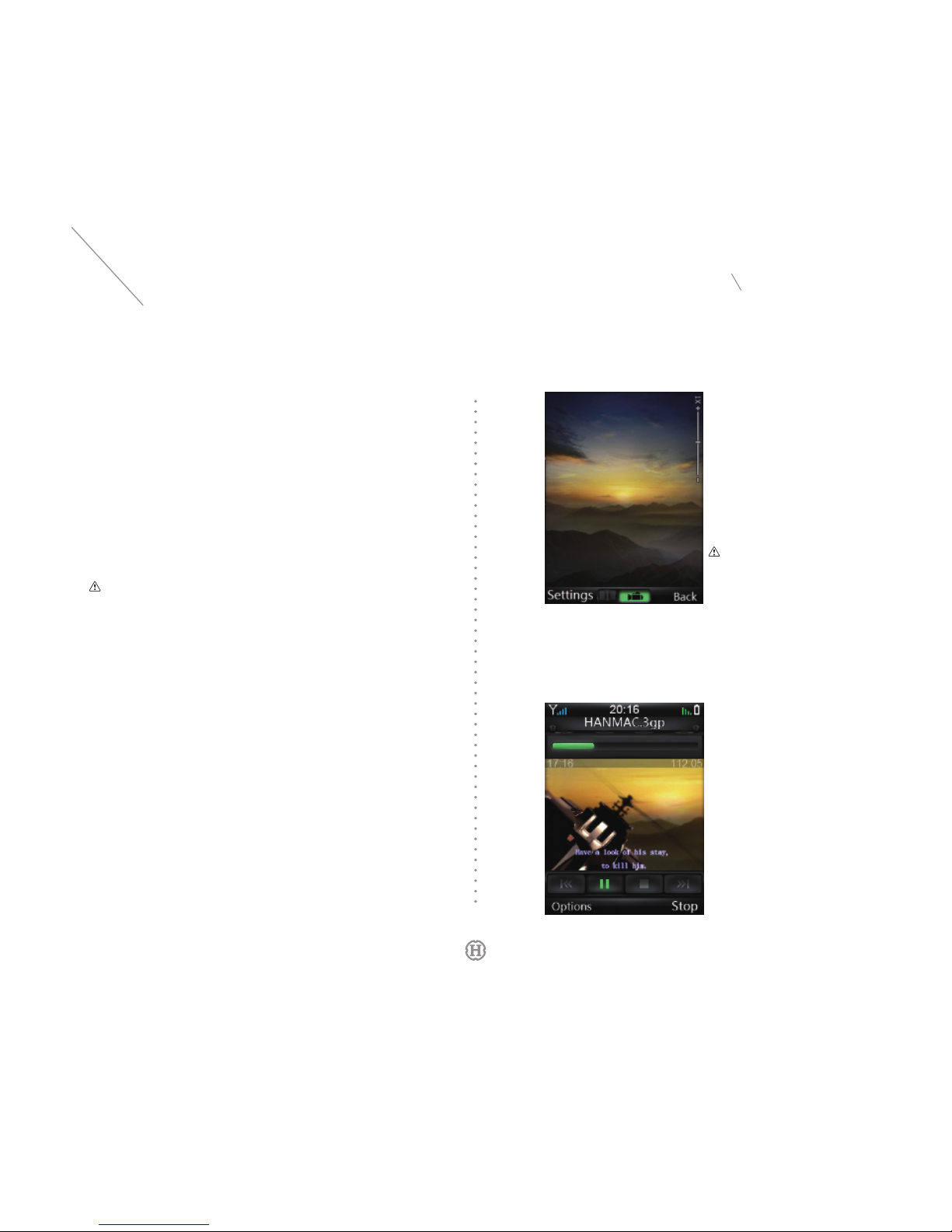
4.6.2
Video Player
With this function, you can view the videos in your device.You can
download videos in 3gp format from your computer or shoot videos
directly by using Video Recorder function of your device.
Note:
• Due t o aut o foc us fu nct ion of your
de vice, it take s a li ttle bit longer to
captur e a pho to.
1.
Select Contacts on the home screen or select Menu > Contacts >
Create a Contact.
2.
Enter contact information.
3.
Select Save to add the contact to memory.
4.5
Contacts
You can create a list of your contacts to save a lot of information
for them, such as names, mobile phone numbers, home phone
numbers, ofce phone numbers, fax numbers, ofce names, e-mail
addresses, ringtones, etc. Also, you are able to create new contacts,
edit or delete contacts from the list.Please create a contact as per
the following steps:
User 's Manual
Page 17
HANMAC RANGE
16
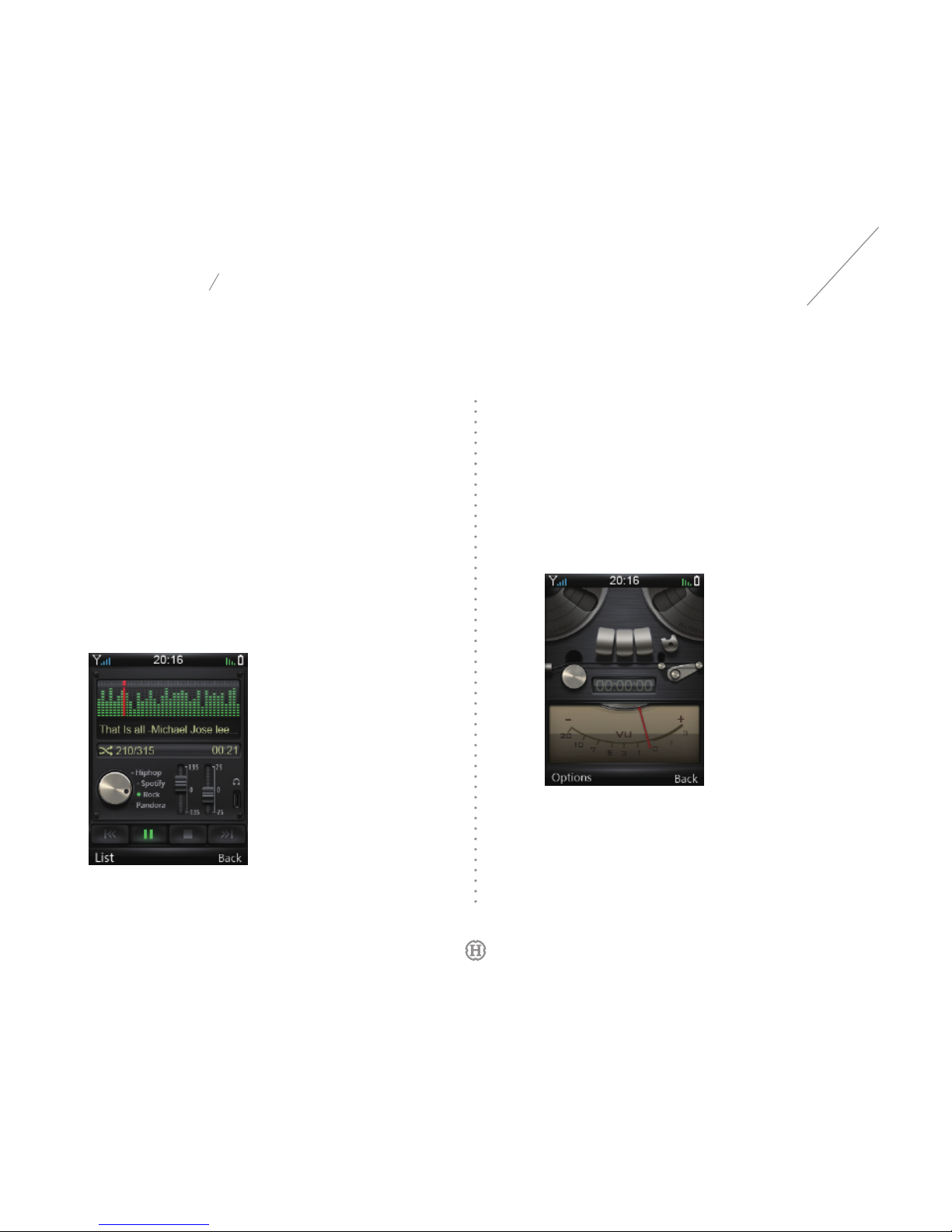
4.6.4
Sound Recorder
You can record the sound and playback as per the following steps:
1.
Enter sound record interface, Option > New Record.
2.
You can press Left Softkey to pause in recording (press Left
Softkey again to resume).
3.
Press Right Softkey when you finish recording, and you can
select to save the record or not to save it.
4.
All sound records are saved under Favorite > Record Filefolder.
You can open the filefolder and select option to Play, Send or
Delete the record.
4.6.3
Music Player
With this function, you can listen to music and songs in your device.
You can download music files and songs from your computer or
Internet directly. All music les and songs are saved under Favorite
> Music Filefolder. You can open the lefolder and select to play,
send or delete th e music fi le. When play the music, you can
press Navigation Key (up and down directions) to switch among
four sound effects, i.e. Hiphop, Spotify, Rock & Pandora; press
Navigation Key (left and right directions) to move to the previous or
next track; press OK Key to play or pause a song.
All videos are saved under Favorite > Video Filefolder.After
opening the lefolder, please select option to Play, Send or Delete
a video.Please press Navigation Key (left and right directions)
to fast reverse or fast forward; please press OK Key to play or
pause a video.
User 's Manual
Page 18
HANMAC RANGE
17
4.8
Measuring Tool
You can check the temperature, humidity, altitude and air pressure with
your device.
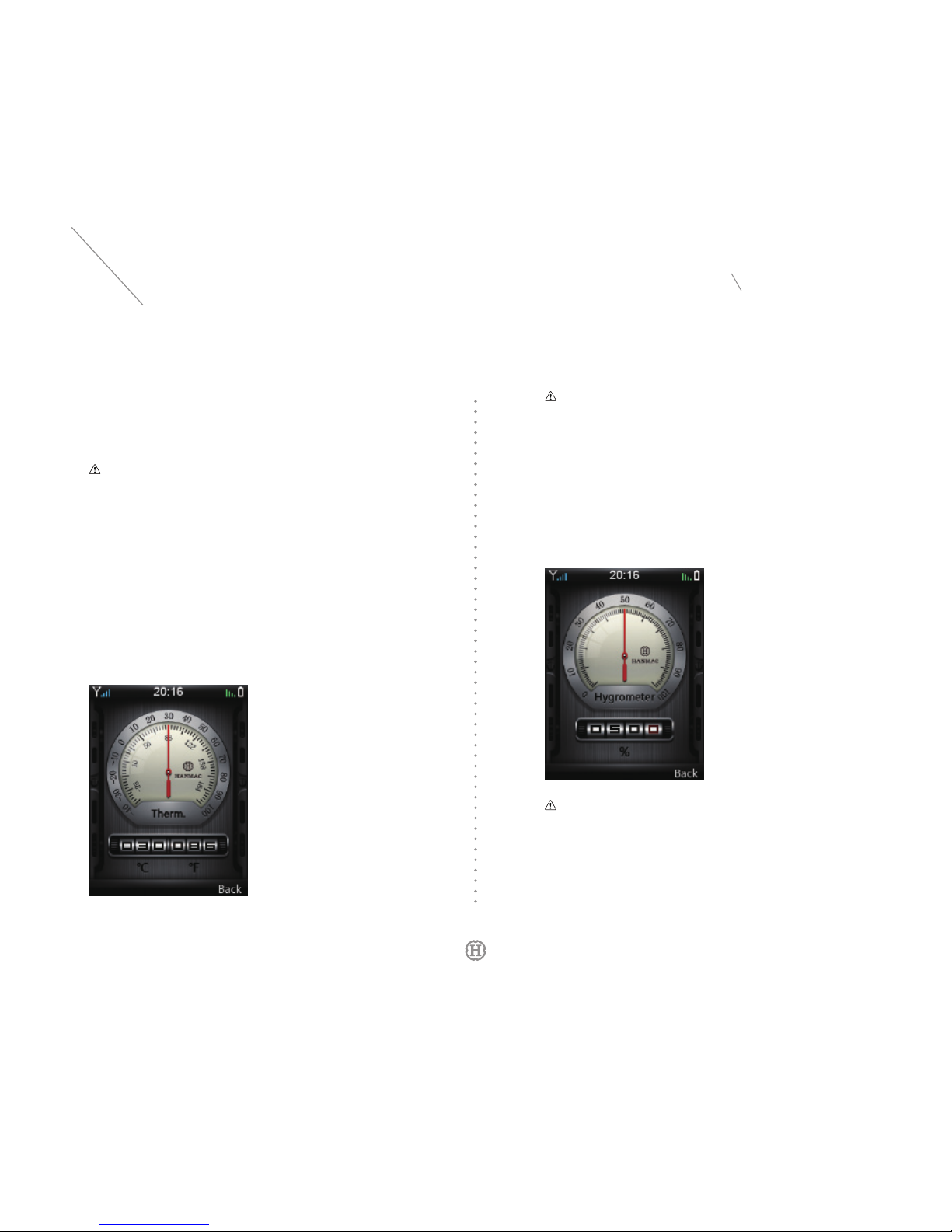
4.8.1
Thermometer
With this function, you are able to determine the temperature of your
local environment on Celsius and Fahrenheit scale.
Note:
• Sin ce th e th er mom eter is bui lt in you r dev ice, th e me as ure ment m ay be
a f fe ct ed du e to m an y fa cto rs , suc h as t he t em per at ur e of h an ds,
su nl ig ht ,b att er y ch ar gin g or h ea t e mi ss io n whe n us in g the d ev ic e.
4.8.2
Hygrometer
With thi s function, you are able to d etermin e th e humidity of
your local environment, which shall be between 0~100%.
Note:
• Since the h umi dity se nsor i s n ot a ir tig ht, in orde r to ensu re th e ac cur acy
an d st abi lit y of m eas urem ent , pl eas e k ee p aw ay from ac id, alk ali ne ,
or ga ni c sol ve nt , an d t he p la ce s w it h pl en ty of d us t. In o rd er t o g et
acc ura te re su lt, ple ase do not u se t his fun cti on w hen yo u are clo se t o
th e wal l or in a r oo m w ith poo r ve nt ila tion .
4.7
Internet
With this function, you can browse web pages, search network
information and play games on line.
Note:
• This functi on may be unav ailabl e depen ding on your SIM car d or lo cal se rvice
prov ider.
User 's Manual
Page 19
HANMAC RANGE
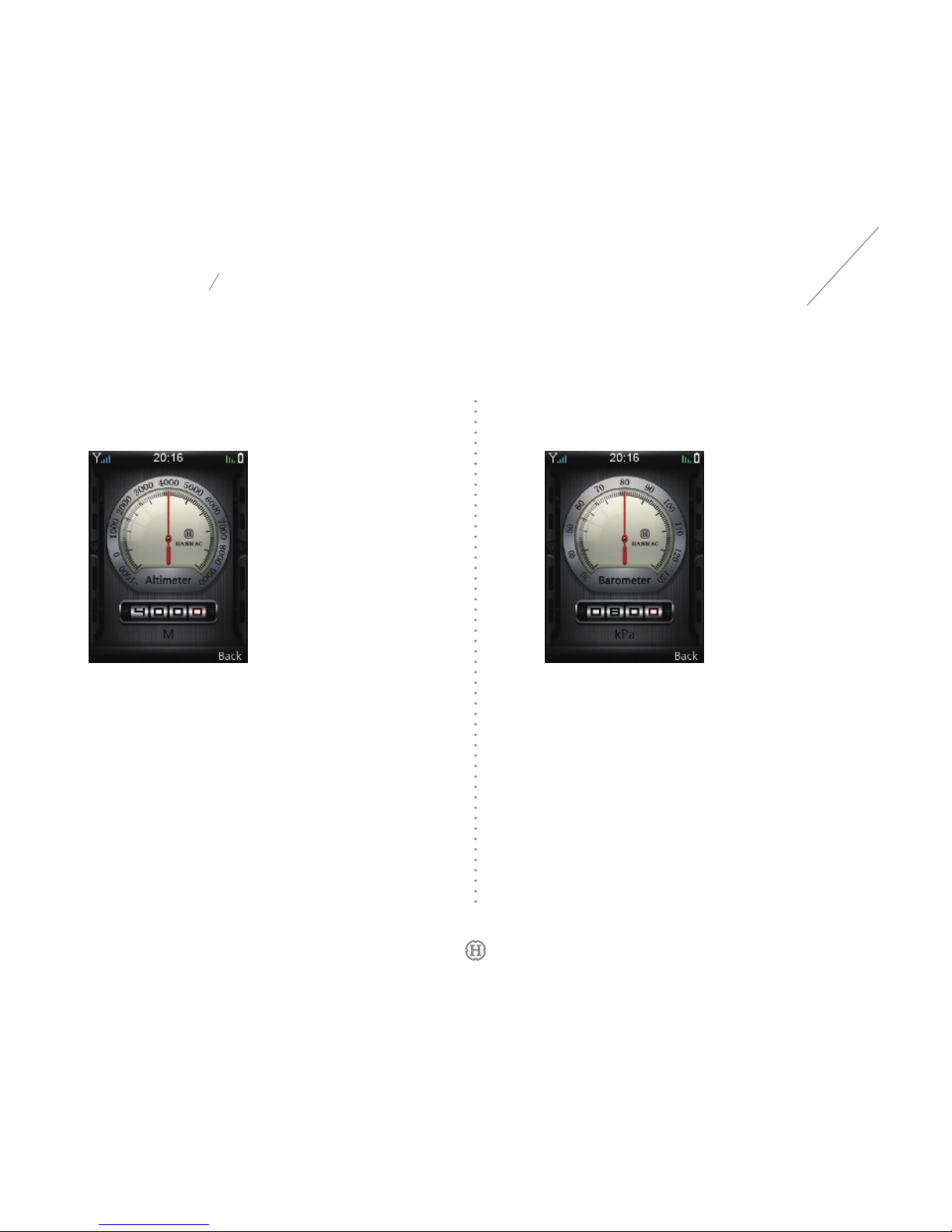
4.8.4 Barometer
With this function, you are able to determine the air pressure of
your local environment.
4.8.3
Altimeter
With this function, you are able to determine the elevation of
your position.
18
User 's Manual
Page 20
HANMAC RANGE
19
5.
Maintenance and Warranty Period
5.1
Maintenance and Repair
Your device adopts special materials that are currently applied in
automobile, watch and aerospace industry. Please take good care to
keep it in good condition.
5.1.1
Ceramic and Sapphire
Ceramic and sapphire have high solidity, but they are easy to damage
or scratch by other hard objects. Please do not drop your device,
otherwise, it might cause damage to the ceramic and sapphire parts.
Please protect your device from the following circumstances:
1.
Touch with hard objects, such as jewelery, diamond, nail clipper,
grinding tool and mineral crystal.
2.
Drop your device or let it hit against solid surface.
3.
Rub with other solid surface.
5.1.2
Metal
The metal part of Hanmac mobile device reaches high technical
standards, therefore, in ordr to maintain the original appearance, please
wipe your device with Hanmac cleaning cloth. Please protect your
device from the following circumstances:
1.
Touch with chemicals, such as solvent, alkaline or acid solution,
carbonated beverage and salt water. Please use a clean soft cloth to
wipe the metal part of your device immediately in case it happens.
2.
Drop your device or let it hit against solid surface.
3.
Touch with objects with sharp edges.
4.
Polish the metal part of your device.
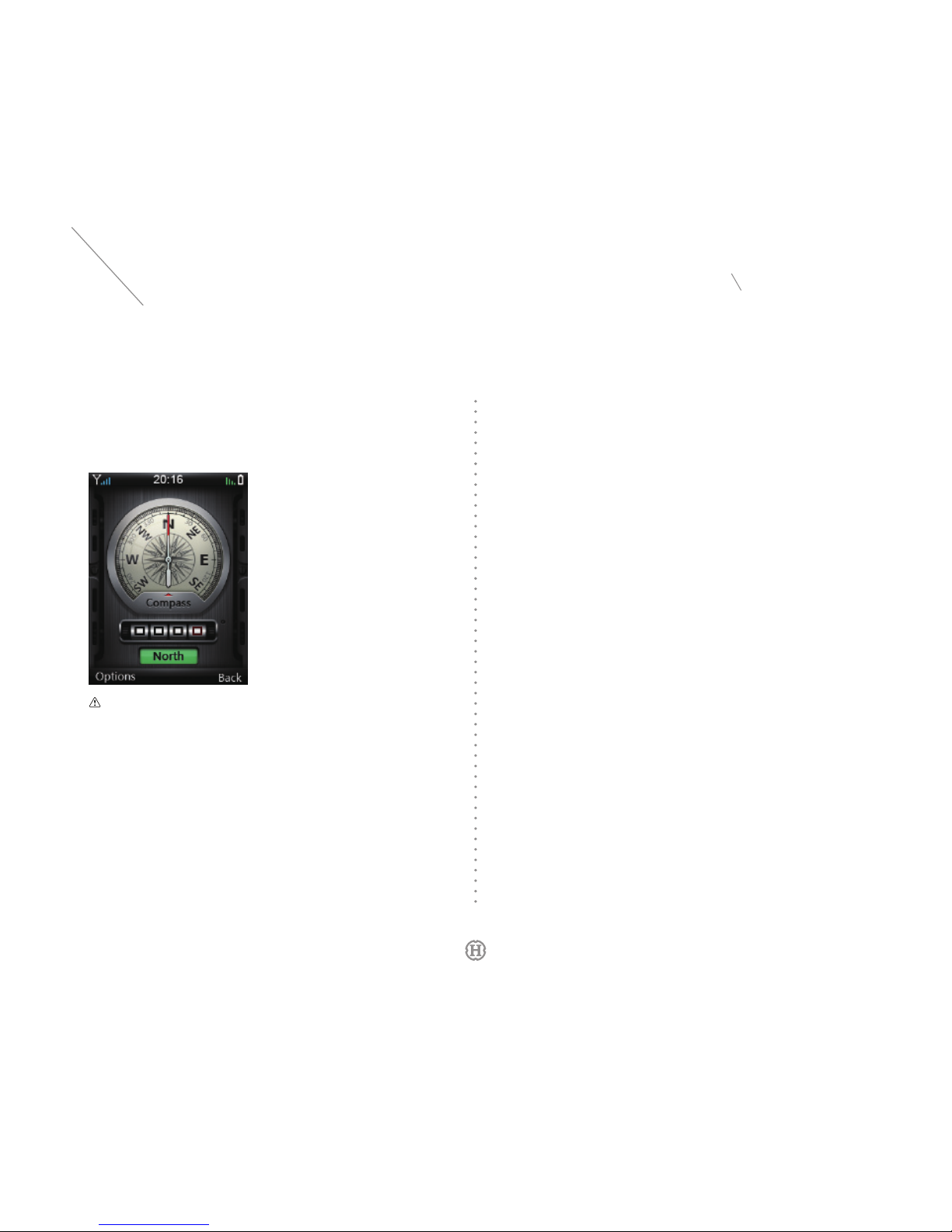
4.8.5 Compass
With this function, you are able to nd your bearings and know your
position.Before using the compass, please calibrate it by horizontally
move your device.
Note:
• The b uilt -i n c ompa ss may be in terf er ed by t he shel l of your d evi ce,
t here fo re, it may tak e a l ittl e lon g ti me to c al ibr ate th e c ompa ss.
User 's Manual
Page 21

HANMAC RANGE
5.1.3
Rubber
The rubber part of Hanmac mobile device is qualified for medical
use, therefore, it does no harm to human body. Moreover, it helps
you to hold your device more comfortably. If the rubber part gets
dirty, please use a soft and light-colored wet cloth to clean it. Please
protect your device from the following circumstances:
1.
Touch with dark-colored or dyed materials (e.g. PVC, PET or
cotton), otherwise, it will color the rubber part of your device.
2.
Let your device exposed to blazing light, high temperature or high
humidty.
6.
Technical Parameters and
Environmental Protection
6.1
Specications
Model:
H-R02
Length:
123mm
Width:
53mm
Thickness:
19mm
Volume:
123cm³
Weight:
249g (including the battery)
6.2
Technical Parameters
Description: GSM dual-band GPRS digital mobile phone
Supported network: GSM
850/900/1800/1900
Talk time:
220
minutes at least
*
Standby time:
280
hours at least
*
Battery capacity:
880
mAh
Duration of charging: less than
4
hours
Note:
• * means the actual time depends on the signal strength and local cellular network.
5.2
Warranty Period
We offer you a warranty period starting from the date of purchase of
the mobile device. The device may have accessories attached, of
which the warranty period is also provided as follows:
1.
The warranty period of mobile device is 24 months.
2.
The warranty period of accessories (whether sold separately or
together with the mobile device) is 12 months.
On the premise of no conict with applicable rules and regulations
in China, the warranty period will not be extended without regard
to the resale, repair and replacement of the device as authorized
by Hanmac. However, the original warranty period of parts and
components is good before the expiry even if they are repaired
during such period, or the parts and components can be guaranteed
for 90 days since the maintenance, whichever is the longer.
20
User 's Manual
Page 22
HANMAC RANGE
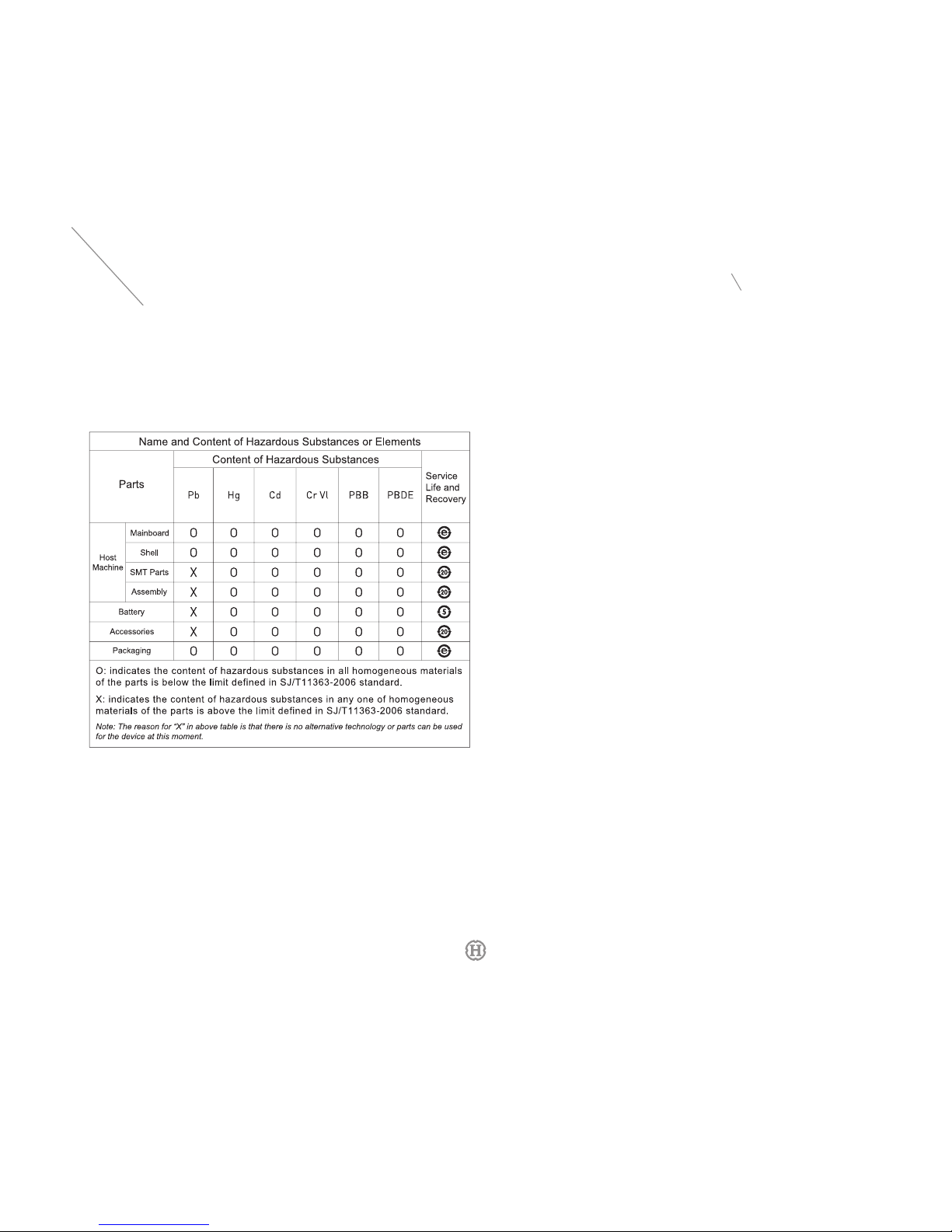
6.3
Environmental Protection
21
User 's Manual
Page 23

 Loading...