

Page 1
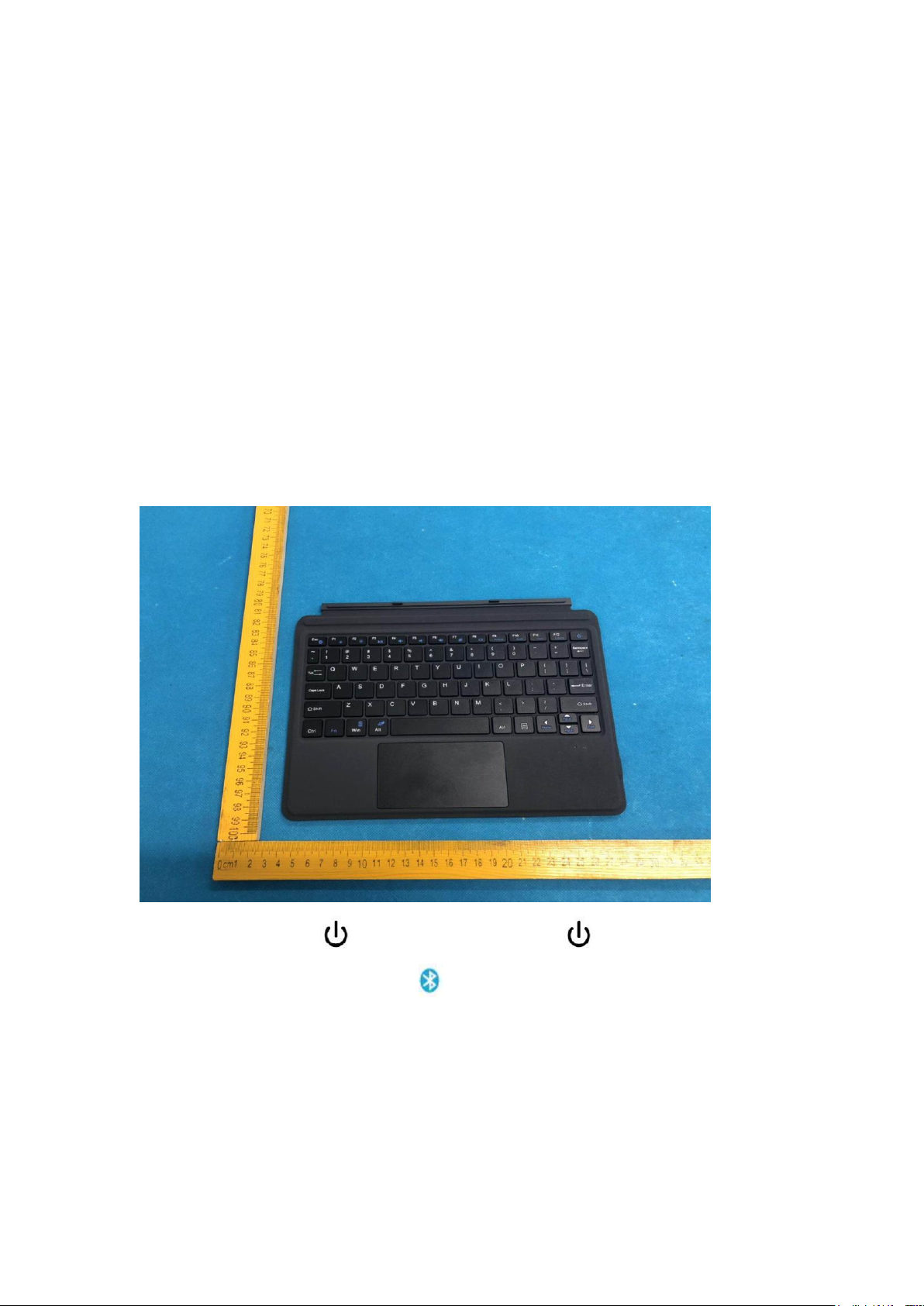
Multi-Function Keyboard with Touchpad
for Surface go
User Manual
Package Contents
1. Bluetooth Keyboard with touchpad
2. Micro-USB charging cable
3. User Manual
Product Overview
①Power on/off: Press 1.5s to turn on; Re-press 3s to turn off.
②Bluetooth pairing: Press “ Fn + ” keys together for connecting.
Page 2
Bluetooth Specification
Bluetooth 3.0
Touchpad
PixArt chip, with left and right click
control keyboard
Operating Range
< 10 m (33ft)
Lithium Battery Capacity
750 mAh
Stand-by Time
90 days
Charge Time
< 4 hours
Uninterrupted Work Time without backlit
187 hours
Uninterrupted Work Time with backlit
5 hours
Lithium Battery Life
3 years
OS Supported
Windows
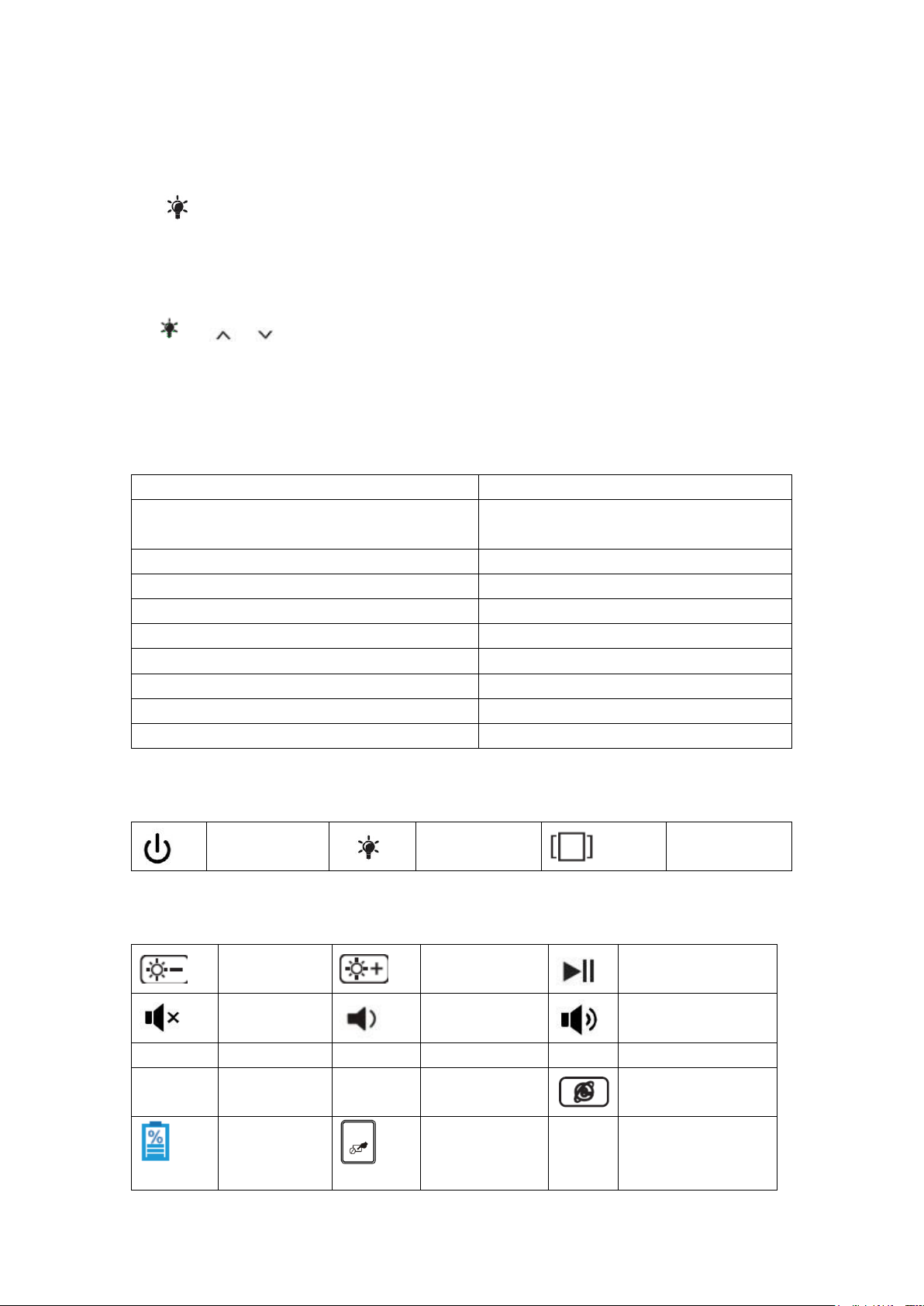
Power on/off
Backlit on/off
Switch
windows
Brightness
down
Brightness
up
Play/pause
Mute
Volume -
Volume +
Prt Scn
Screenshot
Home
Line front
End
Line End
PgUp
Page front
PgDn
Page End
Web browser
Battery
Power
Display
Touchpad
on/off
Backlit of keyboard guide
1. Lighting ON/OFF Key.
Press first time is turning on the light.
Press second time is increasing brightness.
Press third time is lighting off.
2. + / to change the backlit colors. ( 7-color backlit )
3. When the battery is less than 20%, the backlit will be turnt off.
4. The backlit won’t work until the keyboard paired with your tablet.
Specifications
Keys and Functions
Note: Press Fn key and hot key together to activate action.
Page 3

Pairing Instruction
1. Press 1.5 seconds, the keyboard turns on, green light will be on for 3
seconds.
2. Press the “Fn + ” keys together to enter pairing mode.
The blue Bluetooth indicator will start to rapidly flash.
3. Go to your “Settings” screen on your tablet with Bluetooth –enabled device,
activate its Bluetooth function and search for the keyboard device.
4. “Bluetooth 3.0 Keyboard” should appear.
5. Select “Bluetooth 3.0 Keyboard” on your tablet and the keyboard will now be
paired. The Bluetooth indicator will be off.
SPECIAL NOTE:
1. Please get it charged before first usage.
2. Only one device can be actively paired at one time.
3. After pairing for the first time, your tablet will connect to the keyboard
automatically when opening the keyboard.
4. In case of connect failure, delete the pairing record from your tablet, and try
the above procedures again.
Power Saving Mode
The keyboard will enter sleep mode when idle for 30 minutes. To re-activate it,
press any key and wait for 3 seconds.
Charge it
1. Use the included USB cable for charging. Connect one end to a USB
charger, and the other to the keyboard. (USB charger is not included)
2. In charging, the power indicator will turn red. Generally, it takes
approximately 4 hours for a full charge.
Troubleshooting
If you are unable to connect the keyboard to your tablet, please try the
following:
1. Starting with a full charge on both devices ensures that process won’t be
interrupted by a low battery.
2. Make sure your tablet’s Bluetooth is on.
3. Make sure that the keyboard is within the effective operation distance of 33
feet (10m).
Page 4

FCC Warnning:
This equipment has been tested and found to comply with the limits for a Class B
digital device, pursuant to part 15 of the FCC Rules. These limits are designed to
provide reasonable protection against harmful interference in a residential installation.
This equipment generates, uses and can radiate radio frequency energy and, if not
installed and used in accordance with the instructions, may cause harmful interference
to radio communications. However, there is no guarantee that interference will not
occur in a particular installation. If this equipment does cause harmful interference to
radio or television reception, which can be determined by turning the equipment off
and on, the user is encouraged to try to correct the
interference by one or more of the following measures:
• Reorient or relocate the receiving antenna.
• Increase the separation between the equipment and receiver.
• Connect the equipment into an outlet on a circuit different from that to which the
receiver is connected.
• Consult the dealer or an experienced radio/TV technician for help.
Caution: Any changes or modifications to this device not explicitly approved by
manufacturer could void your authority to operate this equipment.
This device complies with part 15 of the FCC Rules. Operation is subject to the
following two conditions: (1)This device may not cause harmful interference, and (2)
this device must accept any interference received, including interference that may
cause undesired operation.
The device has been evaluated to meet general RF exposure requirement. The device
can be used in portable condition without restriction.
 Loading...