

Page 1
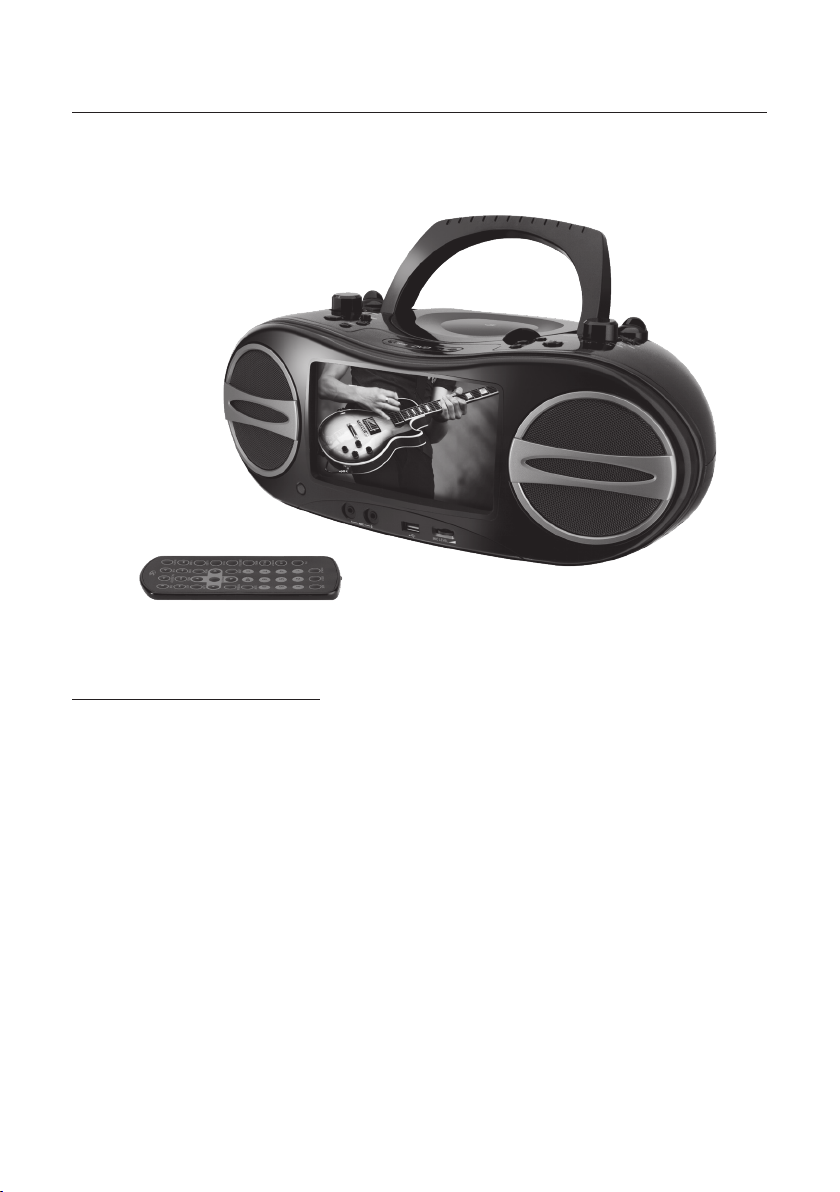
Hamilton Electronics MV8920
Portable Movie & Music System
CONTENTS
Warnings and Precautions ........................2
Important Safety Instructions
Video Output ..............................................4
Playing a DVD or CD
Playing the AM or FM Radio
Locations of Controls & Denitions.........6-9
Setup Menu
Service & Warranty Information
........................................ 10-11
.................................5
.....................3
......................5
...............12
Page 2

Warnings and Precautions
TO PREVENT FIRE OR SHOCK HAZARDS, DO NOT EXPOSE THIS UNIT TO RAIN OR MOISTURE.
This symbol, located on back or
bottom of the unit, is intended to alert
the user to the presence of uninsulated
“dangerous voltage” within the
product’s enclosure that may be of
sufcient magnitude to constitute a
risk of electric shock to persons.
CAUTION: TO PREVENT ELECTRIC SHOCK, MATCH WIDE
BLADE OF PLUG TO WIDE SLOT, FULLY INSERT.
To reduce the risk of electric shock, do not remove cover (or back).
There are no user-serviceable parts inside. Please refer any servicing
This symbol, located on back or
bottom of the unit, is intended to alert
the user to the presence of important
operating and maintenance (servicing)
instructions in the literature
accompanying the appliance.
This product utilizes a Class 1 laser
to read Compact Discs. This laser
Compact Disc Player is equipped with
safety switches to avoid exposure
when the CD door is open and
the safety interlocks are defeated.
Invisible laser radiation is present
when the CD Player’s lid is open and
the system’s interlock has failed or
been defeated. It is very important
that you avoid direct exposure to the
laser beam at all times. Please do not
attempt to defeat or bypass the safety
switches.
to qualied service personnel.
WARNING: Changes or modications to this unit not expressly approved by the party responsible for
compliance could void the user’s authority to operate the equipment.
WARNING: Danger of explosion if the remote control’s batteries are incorrectly installed. Replace only
with the same or equivalent battery.
WARNING: The remote control’s button cell battery contains mercury. Do not put in the trash, instead
recycle or dispose of as hazardous waste
WARNING: Use of this unit near uorescent lighting may cause interference regarding use of the remote.
If the unit is displaying erratic behavior move away from any uorescent lighting, as it may be the cause.
Do not mix old and new batteries.
Do not mix alkaline, standard (carbon-zinc), or rechargeable (ni-cad, ni-mh, etc) batteries.
NOTE: This equipment has been tested and found to comply with the limits for a Class B digital device, pursuant to Part 15
of the FCC Rules. These limits are designed to provide reasonable protection against harmful interference in a residential
installation. This equipment generates, uses, and can radiate radio frequency energy and, if not installed and used in
accordance with the instructions, may cause harmful interference to radio communications. However, there is no guarantee
that interference will not occur in a particular installation. If this equipment does cause harmful interference to radio or
television reception, which can be determined by turning the equipment off and on, the user is encouraged to try to correct
the interference by one or more of the following measures:
• Reorient or relocate the receiving antenna.
• Increase the separation between the equipment and receiver.
• Connect the equipment into an outlet on a circuit different from that to which the receiver is connected.
• Consult the dealer or an experienced radio/TV technician for help.
2
Page 3
Important Safety Instructions
1. Read Instructions - All the safety and operating instruction should be read
before the product is operated.
2. Retain Instructions - The safety and operating instruction should be retained
for future reference.
3. Heed Warnings - All warning on the product and in the operating instructions
should be adhered to.
4. Follow instructions - All operating and use instructions should be followed.
5. Cleaning - Unplug this product from the wall outlet before cleaning. Do not
use liquid cleaners or aerosol cleaners. Clean only with a dry cloth.
6. Attachments - Do not use attachments not recommended by the product
manufacturer as they may cause hazards.
7. Water and Moisture - Do not use this product near water - for example, near
a bath tub, wash bowl, kitchen sink, or laundry tub; in a wet basement, or near
a swimming pool, and the like. The apparatus shall not be exposed to dripping
or splashing and that no objects lled with liquids, such as vases, shall be
placed on apparatus.
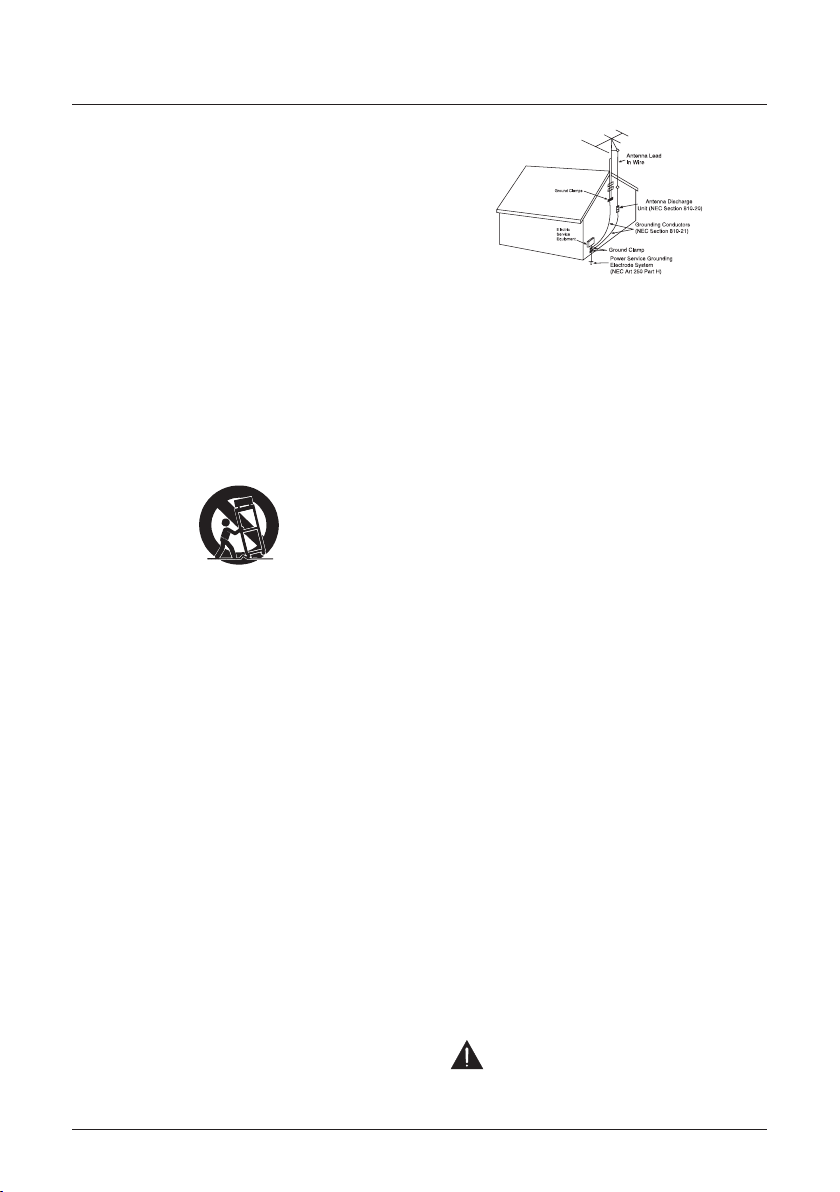
8. Accessories - Do not place this product on an unstable cart, stand tripod,
bracket, or table. The product may fall, causing serious injury to a child or
adult, and serious damage to the product. Use only with a cart, stand, tripod,
bracket, or table recommended by the manufacturer, or sold with the product.
Any mounting of the product should follow the manufacturer’s instructions,
and should use a mounting accessory recommended by the manufacturer.
9. Use only with the cart, stand, tripod, bracket, or table specied by the
manufacturer, or sold with the apparatus. When a cart is used, use caution
when moving the cart/apparatus combination to avoid injury from tip-over.
See gure:
10. Ventilation - Slots and openings in the cabinet are provided for ventilation and
to ensure reliable operation of the product and to protect it from overheating,
and these openings must not be blocked or covered. The openings should never
be blocked by placing the product on a bed, sofa, rug, or other similar surface.
This product should not be placed in a built-in installation such as a bookcase
or rack unless proper ventilation is provided or the manufacturer’s instruction
have been adhered to.
11. Power Sources - This product should be operated only from the type of power
source indicated on the marking label. If you are not sure of the type of power
supply to your home, consult your product dealer or local power company. For
products intended to operate from battery power, or other sources, refer to the
operating instruction.
12. Grounding or Polarization - This product may be equipped with a polarized
alternating-current line plug (a plug having one blade wider than the other).
This plug will t into the power outlet only one way. This is a safety feature. If
you are unable to insert the plug fully into the outlet, try reversing the plug. If
the plug should still fail to t, contact your electrician to replace your obsolete
outlet. Do not defeat the safety purpose of the polarizes plug.
Alternate Warnings - This product is equipped with a three-wire grounding-
type plug, a plug having a third (grounding) pin. This plug will only t into
a grounding-type power outlet. This is a safety feature. If you are unable to
insert the plug into the outlet, contact your electrician to replace your obsolete
outlet. Do not defeat the safety purpose of the grounding-type plug.
13. Power-Cord Protection - Power supply cords should be routed so that they
are not likely to be walked on or pinched by items placed upon or against
them, paying particular attention to cords at plugs, convenience receptacles,
and point where they exit from the product.
14. Protective Attachment Plug - The product is equipped with an attachment
plug having overload protection. This is a safety feature. See Instruction
Manual for replacement or resetting of protective device. If replacement of the
plug is required, be sure the service technician has used a replacement plug
specied by the manufacturer that has the same overload protection as the
original plug.
15. Outdoor Antenna Grounding - If an outside antenna is connected to the
receiver, be sure the antenna system is grounded so as to provide some
protection against voltage surges and built-up static charges. Article 810 of the
National Electrical Code, ANSI/NFPA 70, provides information with regard
to proper grounding of the mast and supporting structure, grounding of the
mast and supporting structure, grounding of the lead-in wire to an antennadischarge unit, size of grounding conductors, location of antenna-discharge
unit, connection to grounding electrodes, and requirements for the grounding
electrode.
See gure:
16. Lightning - For added protection for this product during a lightning storm, or
when it is left unattended and unused for long periods of time, unplug it from
the wall outlet and disconnect the antenna or cable system. This will prevent
damage to the product due to lightning and power-line surges.
17. Power Lines - An outside antenna system should not be located in the vicinity
of overhead power lines or other electric light or power circuits, or where it
can fall into such power lines or circuits. When installing an outside antenna
system, extreme care should be taken to keep from touching such power lines
or circuits as contact with them might be fatal.
18. Overloading - Do not overload wall outlets, extension cords, or integral
convenience receptacles as this can result in a risk of re or electric shock.
19. Object and Liquid Entry - Never push objects of any kind into this product
through openings as they may touch dangerous voltage points or short-out
parts that could result in a re or electric shock. Never spill liquid of any kind
on the product.
20. Servicing - Do not attempt to service this product yourself as opening or
removing covers may expose you to dangerous voltage or other hazards. Refer
all servicing to qualied service personnel.
21. Damage Requiring Service - Unplug this product from the wall outlet and
refer servicing to qualied service personnel under the following conditions:
a) When the power-supply cord or plug is damaged,
b) If liquid has been spilled, or objects have fallen into the product,
c) If the product has been exposed to rain, water or moisture.
d) If the product does not operate normally by following the operating
instructions. Adjust only those controls that are covered by the operating
instructions as an improper adjustment of other controls may result in damage
and will often require extensive work by a qualied technician to restore the
product to its normal operation.
e) If the product has been dropped or damaged in any way, and
f) When the product exhibits a distinct change in performance - this indicates
a need for service.
22. Replacement Parts - When replacement parts are required, be sure the service
technician has used replacement parts specied by the manufacturer or have
the same characteristics as the original part. Unauthorized substitutions may
result in re, electric shock, or other hazards.
23. Safety Check - Upon completion of any service or repairs to this product, ask
the service technician to perform safety checks to determine that the product is
in proper operating condition.
24. Wall or Ceiling Mounting - The product should be mounted to a wall or
ceiling only as recommended by the manufacturer.
25. Heat - The product should be situated away from heat sources such as
radiators, heat registers, stoves, or other products (including ampliers) that
produce heat. Battery shall not be exposed to excessive heat such as sunshine,
re, or the like.
26. Main plug is used as disconnect device and it should remain readily operable
during intended use. In order to disconnect the apparatus from the mains
completely, the mains plug should be disconnected from the mains socket
outlet completely.
27. Excessive sound pressure from earphones and headphones can cause hearing
loss.
28. To prevent re or shock hazard, do not use this plug with an extension cord,
receptacle or other outlet unless the blades can be fully inserted to prevent
blade exposure.
29. Symbol is used to indicate that a specic component shall be
replaced only by the component specied in that documentation for
safety reasons.
30. Rating label and “CAUTION MARKING” are located at bottom of enclosure.
3
Page 4
4
Video Output
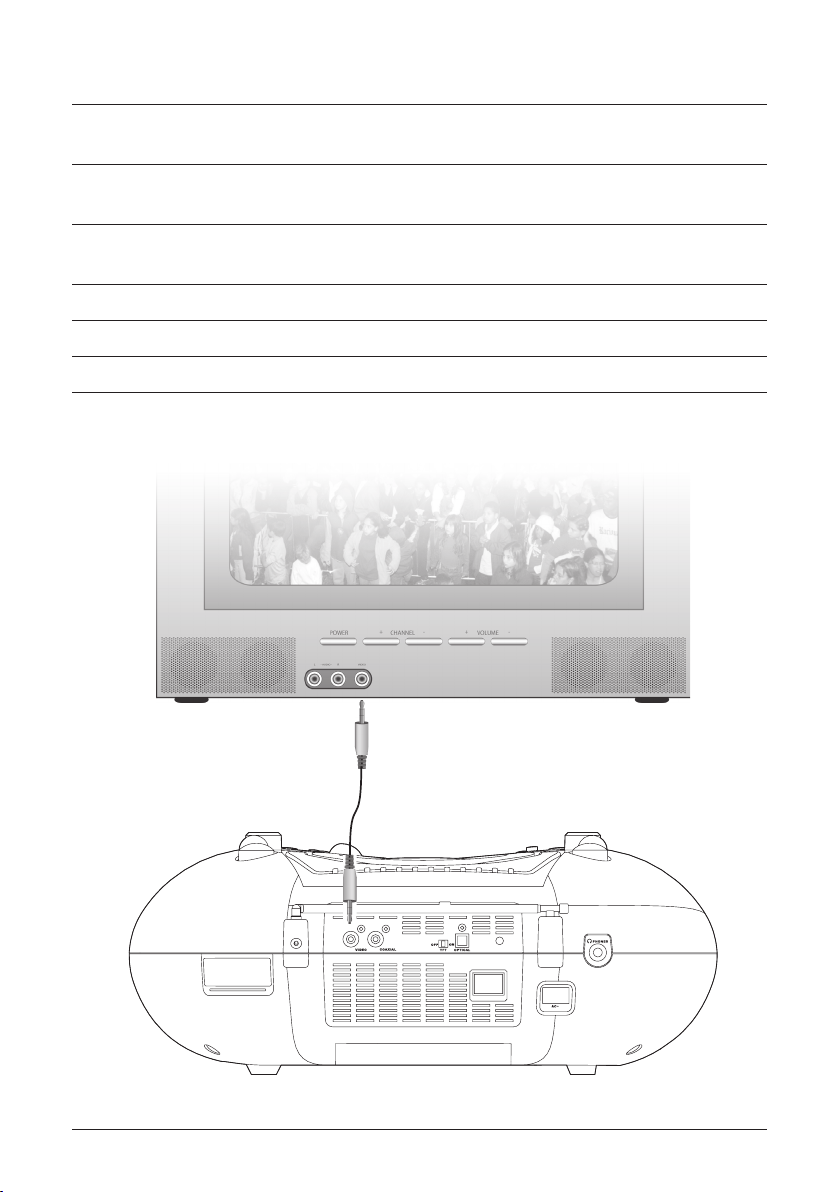
Step 1. When connecting two products using an RCA Cable, match the colored ports
with the same colored connection. (Yellow to Yellow)
Step 2. Plug one end of the RCA Video Cable (not included) into the Video Output
on the unit.
Step 3. Plug the other end of the RCA Video Cable (not included) into a video input
on a television.
Step 4. Set the television to the appropriate video input.
Step 5. Press the Power Button to turn the unit on.
Step 6. Video played through the unit will now appear on the connected television.
Page 5

5
Playing a DVD or CD
Step 1. Turn the DVD/OFF/RADIO Dial to the DVD position.
Step 2. Open the DVD/CD door, and insert the DVD or CD to be played.
Step 3. Press the Play Button to begin playing the loaded disc.
Playing the AM or FM Radio
Step 1. Turn the DVD/OFF/RADIO Dial to the Radio position.
Step 2. Turn the AM/FM/FM St. Dial to the desired position.
Extend and adjust the FM antenna to improve FM radio reception.
An AM antenna is built into the unit. To improve AM reception, adjust the
position of the unit.
Step 3. Turn the Tuning Dial to adjust the AM or FM radio station.
Step 4. Turn the Volume Dial to adjust the volume of audio output from the unit.
Page 6

6
Locations of Controls
1
15
16
17
2
3
4
5
6
7
8
9
10
11
12
13
14
18
19
20
21
22
23
24
25
26
27
28
Page 7

7
Controls Dened
1 DVD/OFF/RADIO Switch the player between DVD, Off, and Radio mode.
2 VOLUME Turn clockwise to increase the volume and counter-clockwise to decrease the volume.
3 DBBS Press the DBBS button to activate the Dynamic Bass Boost System.
4 MENU Press the MENU button to Adjust the color, brightness, and contrast on the TFT-LCD Display.
5 NEXT/PREV Press NEXT or PREV button to skip forward or backward through chapters of a movie or
through images on a JPEG disc.
6 Power Indicator This indicator illuminates when the power is on.
7 FM ST. Indicator This indicator illuminates when the radio is in FM Stereo mode.
8 TFT-LCD Display View DVDs, photos, menu and setup information on this 7” TFT-LCD Display.
9 Infrared Receiver The Infrared Receiver receives signals from the remote.
10 Mic 1/Mic 2 Connect one or two microphones (not included) and use this unit as a karaoke machine.
11 USB Port MP4 (video), MP3 (music), and JPEG (photos) compatible.
12 FM Antenna The extendable FM antenna provides exibility and range when adjusting the FM reception. An
AM Antenna is built into the player.
13 VIDEO Output Plug the yellow connector of an AV Cord (not included) in the Video Output to send a video
signal from the unit to a source (TV) with a Video Input.
14 COAXIAL Digital Audio Output The Digital Audio Output is an advanced audio output which allows the
digital audio signal to be separated and sent out independently to different speakers.
15 Carry Handle The sturdy Carry Handle allows for easy portability
16 CD Door Securely holds your CDs and DVDs in the unit.
17 AM/FM/FM ST. Switch the player between AM, FM, and FM STEREO radio modes.
18 TUNING Use the TUNING dial to adjust the AM and FM radio frequency.
19 PLAY/PAUSE Press the PLAY/PAUSE button to play or pause a DVD or CD.
20 STOP Press the STOP button to stop a DVD or CD.
21 REVERSE/FORWARD Press the REVERSE button to scan backwards at 2, 4, 8, and 20 X speed. Press the
FORWARD button to scan forwards at 2, 4, 8, and 20 X speed.
22 Foldable Feet Adjusts the angle of the sound projection as well as the angle of the TFT-LCD screen.
23 MIC LEVEL Use the MIC LEVEL dial to adjust the volume level of the microphones (not included).
24 Headphones Use the Headphone Jack to connect standard headphones to the unit.
25 Optical Digital Output The Digital Audio Output is an advanced audio output which allows the digital audio
signal to be separated and sent out independently to different speakers.
26 AC Cord (120V / 60 Hz) The detachable AC (Alternating Current) Cord provides power to the player.
27 TFT ON/OFF Use this toggle switch to turn the display on or off.
28 Battery Compartment (8 “C” Size Batteries)
Page 8

8
Locations of Controls
29
30
31
32
39
40
41
33
34
35
36
37
38
42
43
44
Page 9

9
Controls Dened
29 USB/DVD Press the USB/DVD to switch between USB and DVD modes.
30 A-B Press the A-B button once to mark a starting point during a DVD. Press the button a second time
to mark an ending point. After doing so the DVD will loop that section of video. Press the button a
third time to cancel this function.
31 REPEAT 1/ALL Press the REPEAT button once to repeat a single song, chapter, or jpeg photograph.
Press the Repeat button a second time to repeat an entire album, title, or folder of jpeg photographs.
32 MENU Press the MENU button to go to the DVDs title menu.
33 SUBTITLE Press the SUBTITLE button to toggle through the different subtitle languages.
34 ZOOM Press the ZOOM button to zoom in up to four times and to zoom out up to four times.
35 TITLE Press the TITLE button to see the Title Menu.
36 AUDIO Press the AUDIO button to adjust the audio language during a DVD.
37 ANGLE/WIDE The ANGLE feature works with special DVDs to adjust to alternate angles while
watching. Press the WIDE button to switch the LCD mode between 4:3 and 16:9 aspect ratio.
38 SEARCH Press the search button and use the on-screen display to navigate to specic titles, chapters,
tracks, or jpeg photographs.
39 DISPLAY The on-screen-display shows the Time, Title, Chapter, Audio Language, Subtitle Setting,
and Angle.
40 SETUP Press the SETUP button to see the DVD Player’s setup menu.
41 MUTE Press the MUTE button to decrease the Volume entirely.
42 PROGRAM Press the PROGRAM button to set a play order for CD tracks or DVD chapters.
43 Navigation Controls/ Select Use the Navigation Controls and Select button to navigate through the
DVD menu systems and Setup menu systems.
44 SLOW Press the SLOW button to activate the slow motion feature.
Page 10

10
Setup Menu
To enter the setup menu, press the Setup Button on the remote control.
SYSTEM SETUP
LCD MODE
4:3 The 4:3 ratio shows the DVD movie in a converted format. In this for
mat you will see less of the DVD movie than in 16:9 ratio.
16:9 The 16:9 ratio shows the DVD movie in its original format. Use this
setting when viewing a movie on a widescreen TV.
TV TYPE
4:3 Pan Scan
4:3 Letter Box
16:9 Wide Screen
DEFAULT
Use the restore option to reset the unit to the original default settings.
LANGUAGE SETUP
Use the Language Section of the Setup Menu to change the language of the unit’s
interfaces as well as the DVD movie’s subtitles, audio, and menu. Subtitle, Audio
and DVD Menu Languages are dependent on the DVD that is in the player.
OSD LANGUAGE English, Spanish, or French
AUDIO LANG This option is dependent on the DVD in the player.
SUBTITLE LANG This option is dependent on the DVD in the player.
MENU LANG This option is dependent on the DVD in the player.
Page 11

11
Setup Menu
AUDIO SETUP
AUDIO OUT SPDIF/OFF, SPDIF/RAW, or SPDIF/PCM. Select “SPDIF/OFF”
unless connecting to a receiver via the digital coaxial or digital optical audio output.
VIDEO SETUP Adjust the Brightness, Contrast, Hue, and Saturation of the TFT-
LCD Display.
SPEAKER SETUP
DOWNMIX LT/RT or Stereo. Use “Stereo” for most applications.
Page 12

Warranty Information
The Hamilton MV8920 is warranted to be free of defects for a period of 1 year
from date of purchase. Defective systems will be either repaired or replaced at
the discretion of Hamilton Electronics. Free technical support is available via email.
(support@hamiltonelectronics.com)All questions will be answered promptly
during normal business hours. (9AM-5PM Monday through Friday, EST)
Service & Support
Address: 55 Ruta Court, South Hackensack NJ 07606
Phone: 1-800-631-0868
Email: support@hamiltonelectronics.com
Website: www.hamiltonelectronics.com
 Loading...