

Page 1

Table of Contents
1 Features and Specifications ........................................ 2
1.1 Functions ....................................................................................... 2
1.2 Technical Specifications ................................................................ 3
2 Appearance and Accessories ...................................... 4
2.1 Appearance ................................................................................... 4
2.2 Accessories ................................................................................... 6
3 Preparations before Use ............................................. 7
3.1 Battery Installation ......................................................................... 7
3.2 Use external power supply ............................................................ 7
3.3 Install SD Card .............................................................................. 8
3.4 Install hand strap ........................................................................... 8
3.5 Switch on/off the Video Camera .................................................... 9
3.6 Install the PC Camera Driver ....................................................... 10
3.6.1 Automatic installation of Camera drivers .............................. 10
3.6.2 Manual installation of PC camera driver .............................. 10
3.6.3 Install the removable driver .................................................. 11
4 Operation of the Video Camera ................................ 13
4.1 Display Icons ............................................................................... 13
4.2 Modes of operations .................................................................... 15
4.2.1 Video recording mode .......................................................... 16
4.2.2 Camera mode ...................................................................... 17
4.2.3 MP4 playback mode ............................................................. 19
4.2.4 Playback mode ..................................................................... 20
4.2.5 Photo playback ..................................................................... 20
4.2.6 MP3 Playback Mode ............................................................ 22
4.2.7 Audio recording .................................................................... 23
4.2.8 System setup ....................................................................... 24
4.2.9 Removable drive mode ........................................................ 25
4.2.10 PC Camera mode ............................................................. 26
5 File Management ...................................................... 27
5.1 Delete Files ................................................................................. 27
5.2 File Protection ............................................................................. 28
6 Connection to TV ....................................................... 29
7 Additional Information ............................................... 30
7.1 Keep the video Camera clean ..................................................... 30
7.2 Precautions for Use of Video Camera ......................................... 30
7.3 Precautions for Use of Power Supply .......................................... 30
7.4 Troubleshooting ........................................................................... 31
1
Page 2

1 Features and Specifications
1.1 Functions
It digital video camera is designed with highly integrated digital video
processor and sophisticated processing algorithm. With advanced CMOS
image sensor and high-resolution TFT LCD display, it has many functions
and very high cost performance. It is small, fashionable and low power
consumption. Accessories and optional parts are bundled.
Features:
MPEG4, HD video recording, 30 frames of images per second, with
synchronized sound recording
Still picture photographing, with 5 mega pixels image size.
Still pictures and video clip playback
Digital sound recording, voice annotation to the photos or continuous
sound recording
PC camera for internet communication.
MP4 files playback
MP3 play
Audio and video outputs to TV and headphones,
Portable USB mass storage.
2.4” TFT LCD display.
270 degrees rotational display.
2
Page 3
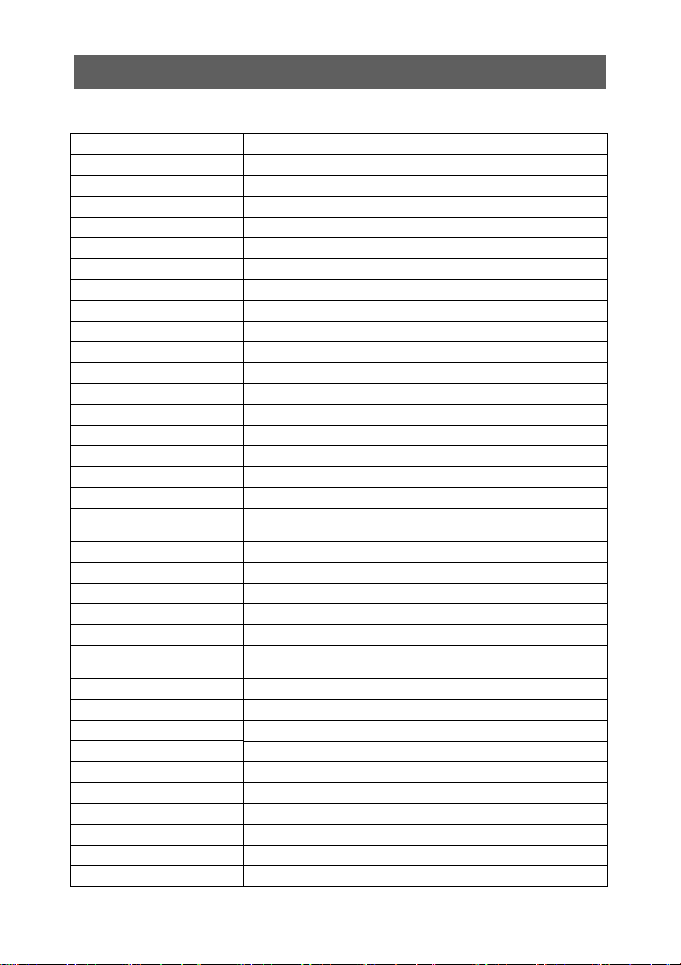
1.2 Technical Specifications
Image sensor 5.17 mega pixels CMOS
Image size 2560x1920,2048×1536,1600×1200,800×600
Interpolated image size 4640×3480,4000×3000,3264x2448,
Image quality Fine/ Normal/ Basic
Color Depth 24-bit true colors (RGB)
Display 2.4” TFT LCD
Lens F2.8, fixed focus
Zoom Digital zoom, 4X at image capture, 16X at playback
Shooting distance 1m ~ infinity
Shutter speed 1/2-1/1000 second
Exposure Automatic
Exposure compensation -2 to +2EV value, at 1/2EV step.
White balance Auto, Sunny, Cloudy, fluorescent, tungsten
Shooting interval <3 sec
Continuous shooting 4 photos
Playback delay <3 sec
Timer 10 sec delay
Built-in Flash Auto/ On/ off
Recharge time of Flash
Effective range of flash 1-2 m
On-board memory 32MB flash memory
Removable memory SD / MMC card
File format JPEG+Exif2.2
PC camera 30 fps @ CIF image
Video recording
Music player MP3 play
Video play MP4 play
Voice function Voice recording and playback
ISO sensitivity Auto
Operating system Windows 98/Me/2000/XP/Vista, above Mac OS 8.0
Menu language English, French, German, Spanish, Dutch, and Italian
External interface USB2.0 High Speed, AV output
Power supply Rechargeable Lithium Ion battery
Dimensions 102x57x23mm
Weight 105 grams (excluding battery)
<8 sec (when full-recharged battery is used at normal
temperature)
MPEG-4, HD(1280X720), D1(720X480),
QVGA or VGA @ 30fps
3
Page 4
2 Appearance and Accessories
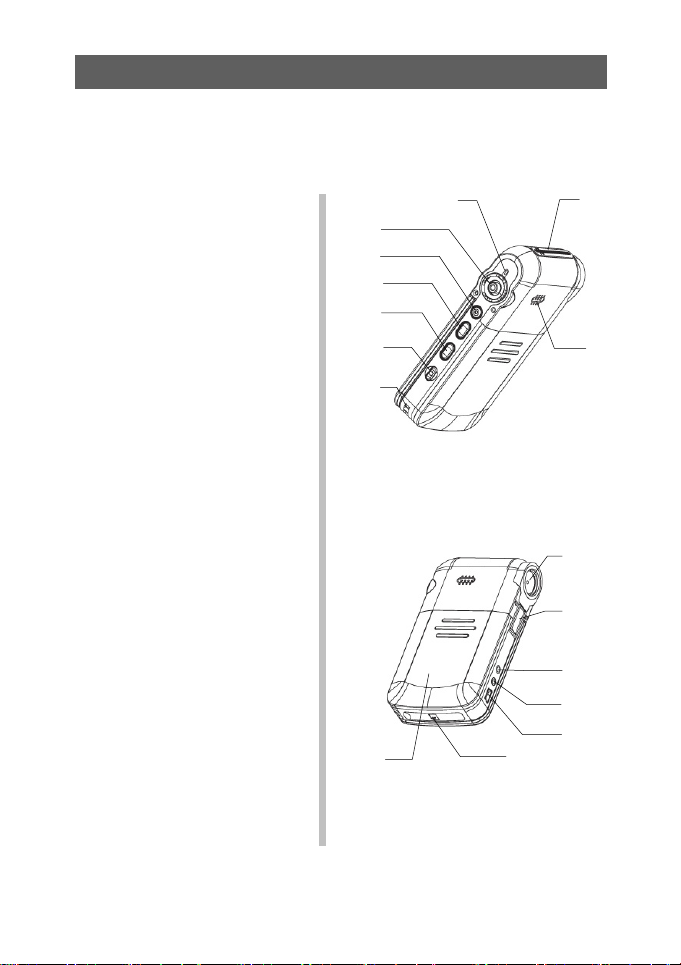
2.1 Appearance
1.Joystick and OK button
2.Shutter
3.Mode
4.Menu
5.Power
6.Strap holder
7.Microphone
8.Speaker
9.Power/ Battery charge LED
10.Flashlight
11.Lens
12.Audio output jack
13.Video output jack
14.USB connector
15.SD Card slot
16. Battery door
16
9
7
1
2
3
4
5
8
6
Fig. 2-1
11
10
12
13
14
15
Fig. 2-2
4
Page 5

Shutter:
In capture mode, take a photo or start/stop capturing a movie.
In playback mode, voice recording and playback.
In MP4 mode, play/stop a movie file.
Microphone:
Convert sound wave to electrical signal for voice recording.
Flashlight:
Illumination objects in dark environment for photo taking.
See flash mode setting for operations.
Lens:
Allow the CMOS sensor picking up image of the object.
USB connector:
When connected to the power adapter, the video camera operates with
external power supply and the battery is charging.
When connected to the computer, the video camera battery is charging and
the camera operates in mass storage or PC camera mode.
Audio output interface:
Connect to audio input of TV set with the audio cable.
Connect to earphones for audio or MP3 playback.
Video output interface:
Connect to video input of TV set with the video cable. The camera can
display pictures or play videos on TV.
Speaker:
Play operation prompt sounds, or voice playback
Power/ Battery charging LED:
Turn off when the video camera is switched off.
Red LED turns on when the video camera is switched on.
Red LED flashes while the flash is recharging.
Green LED turns on when the camera is charging.
When the camera is power on and charging at the same time, the LED turns
orange.
Mode key:
Enter mode selection.
Joystick:
It is multi-functional. It is used in menu selection, digital zoom, panning, file
lock/unlock, and volume control. Use your thumb to push it up, down, left or
right.
Ok button:
Press down the joystick to go to the submenu or selection confirmation.
Strap holder:
Use for fixing the strap.
Battery door:
5
Page 6
Slide the battery door downwards to open the compartment for battery
replacement.
SD Card slot:
Remove the SD card slot cover. Insert a card. Push the card for ejection.
Menu button:
Enter/ Exit the menu.
Power button:
Switch on/off the video camera
LCD:
Liquid crystal display which displays video images, still pictures, status
icons, menu and list of music or video files.
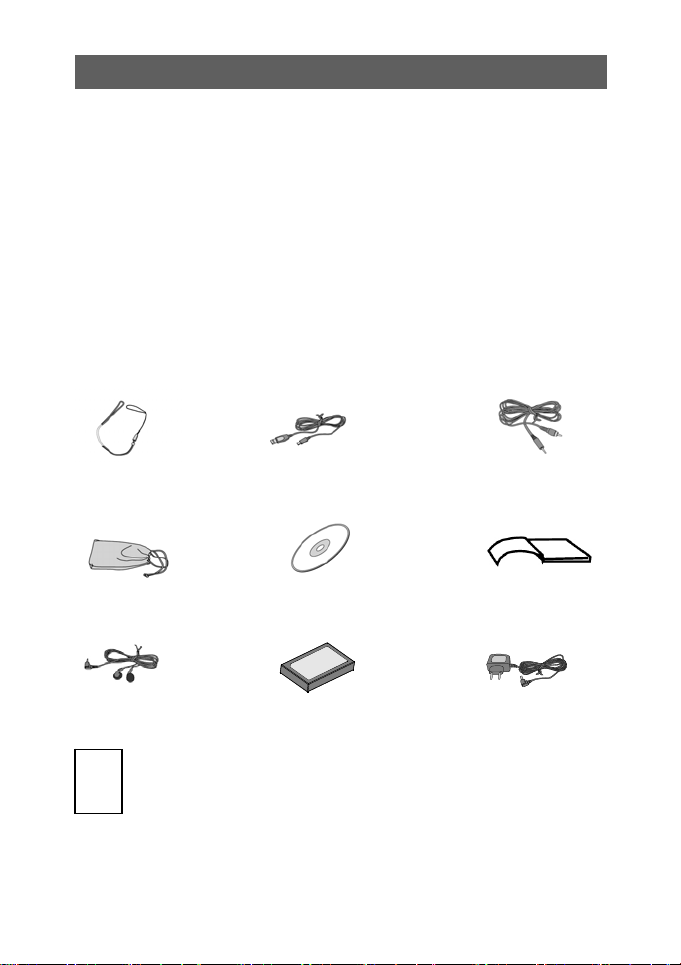
2.2 Accessories
Strap USB cable TV cable
Video camera pouch Driver disc User’s Manual
Earphone lithium battery AC adapter
warranty card
6
Page 7
3 Preparations before Use
3.1 Battery Installation
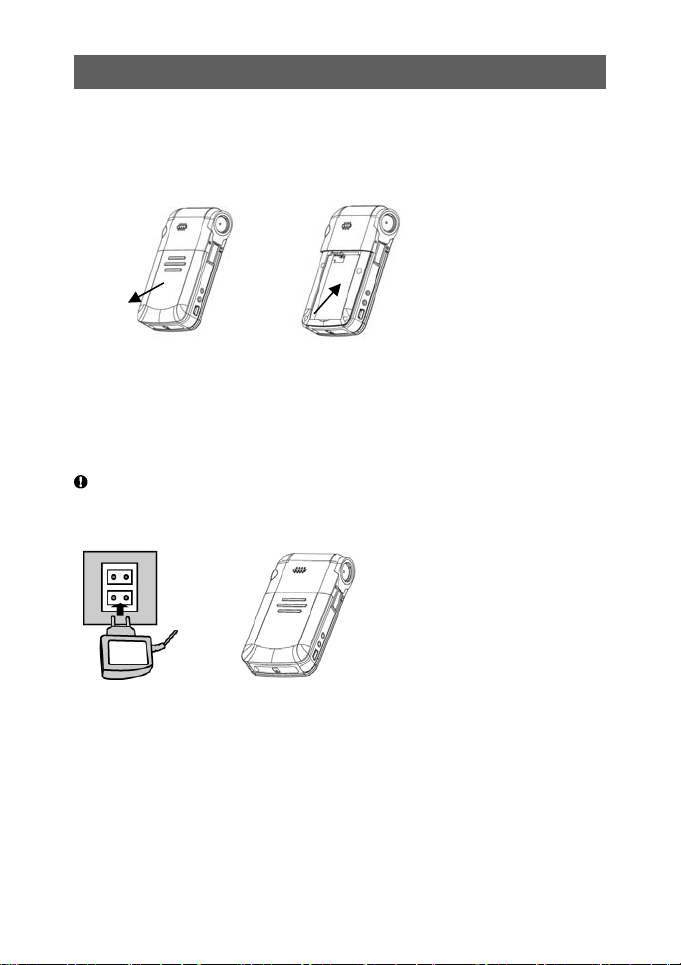
Install the battery by following the steps:
Fig.3-1
Open the battery cover by sliding it downwards.
Place the battery into the compartment.
Ensure the metal contacts of the battery are in the same orientation as
the battery contacts in the battery compartment.
Charge the battery before use. (See “ Charge Battery” section for details)
Do not remove the battery when the video camera is in use.
3.2 Use external power supply
Fig.3-2
Fig.3-3
Connect the connector of the AC adapter to the USB connector on the
camera.
Press the Power switch to turn on the camera, and it will work as it does
with a battery.
Battery charging: place the battery to be recharged into the camera.
Connect USB port of the camera to the AC adapter or to the USB port of
a PC. The charge green LED lights. It takes about 4 hours for charging,
the LED goes out when charging completed.
7
Page 8
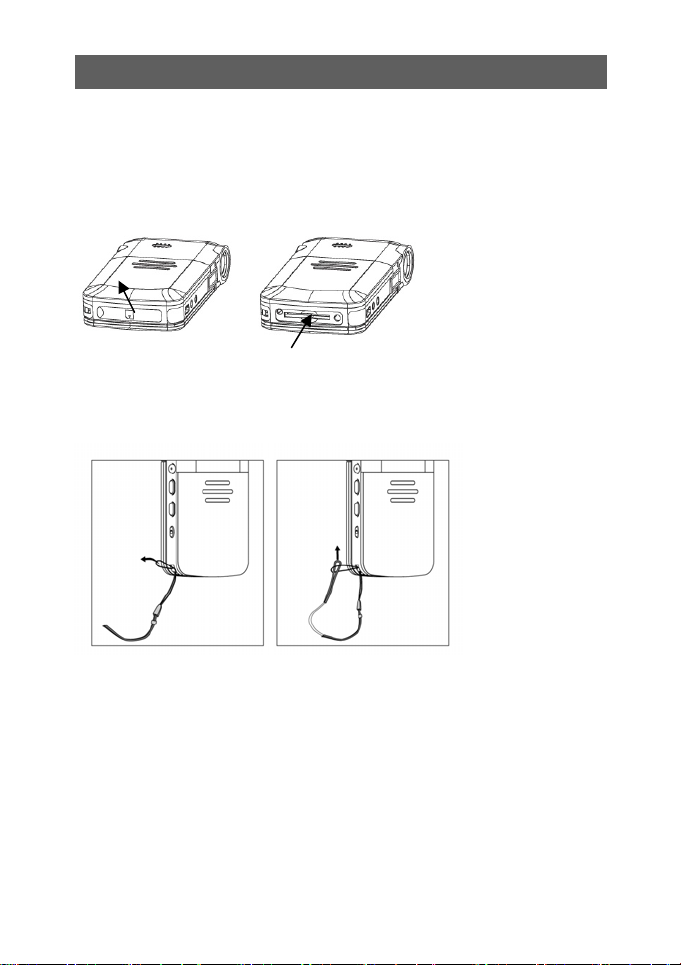
3.3 Install SD Card
Open the rubber cover
Insert SD card as shown into the SD card slot
To remove the SD card, press it with a finger and the card will be ejected.
Fig.3-4
3.4 Install hand strap
Fig.3-5 Fig.3-6
Run the ring at one end of the strap around the strap fixing pin as shown
in Fig. 3-5
Run the strap through the ring, and then tighten it by pulling as shown in
Fig. 3-6.
8
Page 9
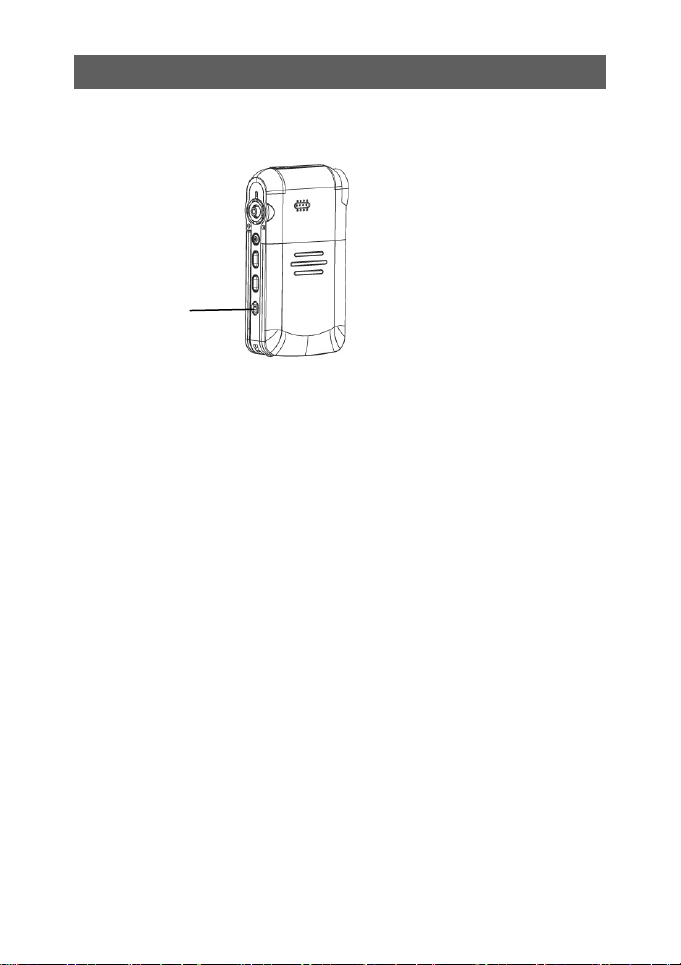
3.5 Switch on/off the Video Camera
Power button
Fig.3-7
【Switch on the video camera】
Press the Power button to turn the camera on. A splash video will be
displayed on the LCD. Then, the mode video recording will appear.
【Switch off the video camera】
Press the Power button to turn the camera off while the video camera is
turned on. In order to reduce power consumption, the video camera will
automatically switch off if no operation occurs within the preset time. See
automatic power-off function in the Setup menu.
【Solution to system hang up】
If camera hangs up and the Power button does not function, open the
battery door, take out the battery and put it back. Power on the camera
again.
9
Page 10
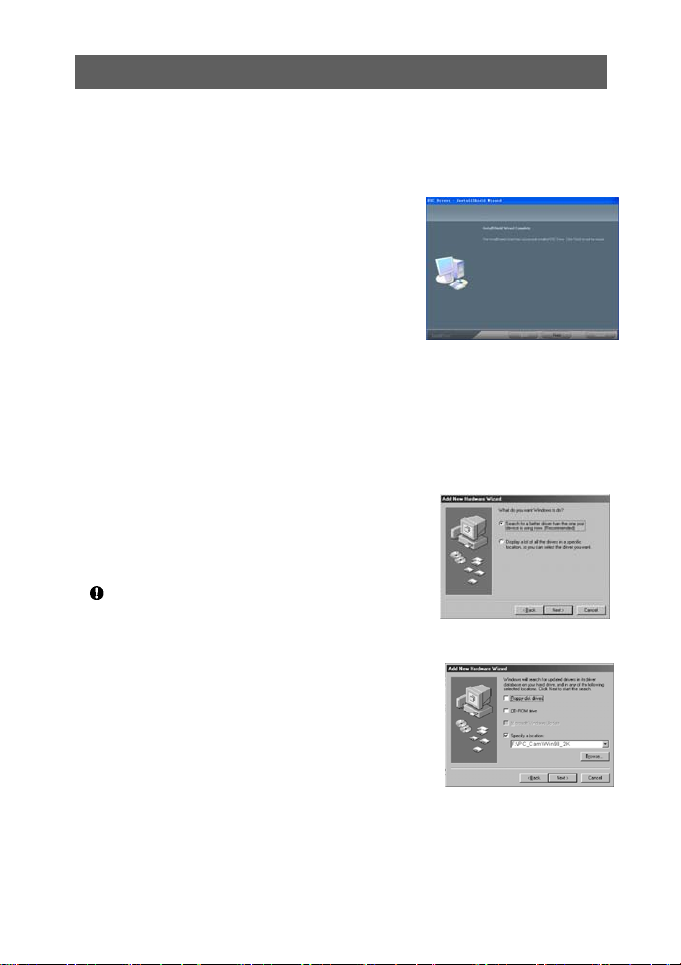
3.6 Install the PC Camera Driver
3.6.1 Automatic installation of Camera drivers
Before connecting the digital video camera
with a computer, the device driver has to
be installed.
Insert the installation CD into the CD drive
of your PC. Assuming the CD drive is
located at X:\Driver,
Open the ‘Driver’ folder in F drive and
execute the ‘setup.exe’ program by double
clicking the file.
The installation process will start and after
couple of seconds, the dialog as shown in
Fig.3-8 will appear.
Click“Finish”to complete the installation.
3.6.2 Manual installation of PC camera driver
Set the video camera to PC camera mode.
Insert the installation CD into the CD drive of
your PC. Connect the camera with the USB
cable to the PC. A dialog box shown in Fig. 3-9
will appear.
For details of setting the PC camera, please
see Section 4.2.9 “Internet video Camera”.
Select “Search for Latest Driver for the
Device” and click “Next”.
Dialog box as shown in Fig.3-10 appears, click
“View” and Select the folder,
“X:\PC_Cam\Win98_2K” or “X:\
PC_Cam\winme_xp_Vista32” or “X:\
PC_Cam\win_xp_Vista64” for different
systems.
10
Fig. 3-8
Fig. 3-9
Fig.3-10
Page 11

Click “Next”. After a window as shown in Fig.
3-11 appears, click “Finish” to complete the
installation.
3.6.3 Install the removable driver
Fig. 3-11
WIN2000/XP have built in removable drive driver, no driver installation is
required.
Installation of removable drive driver
for Win98 operating system
Set the camera to still picture or playback mode,
and connect it with the USB cable to the PC. A
dialog box as shown in Fig. 3-12 will appear.
Click“Next”, an dialog box shown in Fig. 3-13
will appear.
Fig. 3-12
Select “Search for Latest Driver for the Device”
and click “Next”.
Fig.3-13
Dialog box as shown in Fig.3-14 appears, click
“View” to view CD disk and locate the folder at
“X: \ Mass”
(Assuming CD drive is located at X:).
Fig. 3-14
11
Page 12

Click “Next” accordingly
When installation finishes, the dialog box as
shown in Fig. 3-16 appears.
Fig. 3-15
Fig. 3-16
12
Page 13

4 Operation of the Video Camera
4.1 Display Icons
Before reading the basic operation instructions, you should understand the
icons on the LCD screen as shown below.
Max. number of
Memory
indicator
photos
Flash mode
Battery level
Video format
Resolution
Memory
indication
Battery level
Camera mode
indicator
Video mode
indicator
Camera mode display
Video recording display
White balance
White balance
PC Camera
Resolution
Image quality
Date and Time
Digital zoom
Mode
Image quality
Date and Time
Digital zoom
13
Page 14

File type
Voice
annotation
Memory
indication
File count
/ total file count
Battery level
File protection
Playback mode display
Playback mode
indicator
Resolution
14
Page 15

p
4.2 Modes of operat io ns
The video camera operates in seven modes as shown below:
1. Camera
2. Video recording
3. Playback
4. System setup
5. Audio recording
6. MP3 playback
7. MP4 playback
Video Camera Playback
Setu
Audio
MP3
MP4
15
Page 16

Mode selection:
The camera enters the last mode you have selected when power on.
Press Mode key for mode selection.
Push the joystick left or right for mode selection.
Press down the joystick (OK key) to enter the selected mode.
Press mode key to access
the mode selection
interface
4.2.1 Video recording mode
Fig. 4-1
Press the Shutter to start / stop video recording.
The recording process will stop when memory is full.
In order to obtain good image quality, hold the video camera steadily and
pan slowly during video recording.
Setting of video recording menu:
Press the MENU key for video
mode options setup.
The menu as shown in Fig.4-2
will be displayed. Push the
joystick to select the menu item
and press the joystick (OK key)
to enter the selected item.
Fig. 4-2
The following table lists the options for each video menu item:
Video format
Resolution
ASF,AVI,WMV
1280X720,720X480,640X480,320X240
Video quality Fine, Normal, Basic
White balance Auto, Sunny, Cloudy, Fluorescent, Tungsten
EV compensation -2 ~ +2EV, at 1/2EV step
Photo effect Normal, Sepia, B/W, Soft and Vivid
Anti-vibration On/ Off
16
Page 17

4.2.2 Camera mode
【Taking single photo】
Aim the camera to your object and press the shutter to take a picture.
Image can be zoomed digitally by pressing or key (pushing the
joystick up/down)
The camera is set to Single Shot whenever the Camera mode is activated.
If the camera has been switched to Continuous shots or self timer modes,
Single Shot can be selected by the menu function as described below
Press MENU key, and menu screen appears,
Select “
” option as shown in Fig. 4-3.
Press OK key for confirmation, the option screen as shown in Fig. 4-4
appears.
Select “Single Shot”, press OK key for confirmation.
Fig. 4-3 Fig. 4-4
【Continuous shots of multiple photos】
In continuous shots mode, the camera will take 4 photos continuously by
pressing the shutter button.
The video camera should be kept still when multiple photos are shot
continuously,
Use the Menu function to set continuous shots mode.
Press MENU key, and menu screen appears,
Select “
” option as shown in Fig. 4-5.
Press OK key for confirmation, the option screen as shown in Fig. 4-6
17
Page 18

appears.
Select “Continuous Shots” option and press OK key for confirmation
Fig. 4-5 Fig. 4-6
【Self-Timer】
In self-timer mode, picture will be taken at 10 seconds after pressing the
Shutter button.
Use the Menu function to set self-timer mode, similar single shot and
continuous shots.
Fig. 4-7 Fig.4-8
The following table lists the options for each camera menu item.
Capture Options Single shot, Continuous shots, Self-Timer
White balance Auto, Sunny, Cloudy, Fluorescent, Tungsten
EV compensation -2 ~ +2EV, at 1/2EV step
Resolution
Image quality Fine, Normal, Basic
Photo effect Normal, Sepia, B/W, Soft and Vivid
Flash mode Auto, off, On
4640×3480,4000×3000,3264x2448,2560x1920,
2048×1536,1600×1200,800×600
18
Page 19

4.2.3 MP4 playback mode
A movie play list will be displayed when this mode is activated.
Fig. 4-9 Fig. 4-10 Fig. 4-11
Use the joystick and shutter button to control the movie playback.
The following table shows the key functions:
MP4 playback Play list
FR (fast reverse) the movie;
return to the play list when
the movie is stop
FF (fast forward)
Increase audio volume Select previous file
Reduce audio volume Select next file
MENU Enter and exit the delete
menu
OK Play the selected movie
Shutter Start/Stopping playing a
movie
【Download MP4 files】
If an empty list is displayed after the video camera is switched over to MP4
mode, MP4 file should be downloaded first.
The process is as follows:
Connect the video camera to a PC in Mass Storage mode.
Open the removable storage device and create a folder named “MPEG”
under the root directory. If this folder already exists, this step can be
skipped.
Convert the movie stored in the computer to AVI format and then copy it to
“MPEG” folder.
19
Page 20

4.2.4 Playback mode
When the playback mode is activated, the last picture, video, or voice file is
displayed. The Icon on the top left corner of the display shows the file type.
4.2.5 Photo playback
Use
Use
key to view previous photo; use key to view next photo.
keys to zoom in/out the current photo.
【Display thumbnails】
Display thumbnails of photos with the following procedures.
Press MENU key and the menu screen appear. Select
with the
joystick and press OK key for confirmation.
Select “DISPLAY FORMAT” with
or key: 2x2, 3x3, 4x4, and press
OK key for confirmation. If 3x3 is selected, the display is as shown in Fig.
4-14.
Use the joystick to select a photo or scroll the thumbnail pages.
Press OK key to display the selected photo.
Fig.4-12 Fig.4-13 Fig.4-14
4.2.5.1 Video Playback
The picture marked with
represents a video file.
Press Shutter key to start to playback the video file.
Pause the playback, press Shutter key once again.
Adjust audio volume by pushing the joystick
or .
20
Page 21

4.2.5.2 Voice file Playback
The display with ‘
message on the top left corner represents a voice file.
Fig.4-15
Press Shutter key to start/stop voice playback.
Adjust audio volume by pushing the joystick
4.2.5.3 Voice annotation to a photo
【Record a voice annotation】
Select the picture to which voice
annotation will be attached.
The message “Voice recording” as
shown in Fig. 4-16 appears on the
screen during voice recording,.
To stop the voice annotation, press
Shutter key once again.
【Play the voice annotation】
A picture file an
of the display as shown in Fig. 4-17 indicates
this photo includes a voice annotation.
Press Shutter key to playback voice
annotation. To pause, press Shutter key
once again.
Voice annotation play can be repeated.
【Delete voice annotations】
Please see “Delete Files”.
icon on left upper corner
or .
Fig. 4-16
Fig. 4-17
21
Page 22

4.2.6 MP3 Playback Mode
MP3 play list as shown in Fig.4-18 is displayed when MP3 playback mode
is activated. Fig 4-18 shows the screen during playback.
Fig.4-18
Fig.4-19
Fig.4-20
Key Operations:
: Select a MP3 file in play list.
Adjust the volume level during playback.
: Switch play modes in the following sequence:
Play sequentially
playing in sequence
, repeat single track , repeat
, random play
: Pause and continue the playing during playback.
Return to play list when playing is stop.
OK: Start and stop playing.
MENU: Go to MP3 file deletion menu while no MP3 file is playing.
Download MP3 files
If an empty list is displayed after the video camera is switched over to MP3
mode, MP3 file should be downloaded first. The process is as follows:
1. Set the video camera to Portable Hard disk mode and connect it with a
computer.
2. Open the portable hard disk and create a folder named “MP3” under the
root directory. If this folder already exists, this step can be skipped over.
3. Copy the MP3 songs stored in the computer to this MP3 folder.
22
Page 23

4.2.7 Audio recording
Filename
Recording time
Fig.4-21
Press Shutter key to start recording; press again to stop recording.
Recorded voice file is in WAV format, and recording duration depends on
storage capacity.
23
Page 24

4.2.8 System setup
Fig.4-22
The following table shows the menu items and options:
Date settings Year/Month/Day Hour/Minute am(pm)
Date/Time
Display
Year/Month/Day/Hour/Minute Year/Month/Day
Time stamp On / Off
TV system NTSC / PAL
Key tones On /Off
Format Internally / SD card
Select Memory Internally / SD card
LCD Self-Off 15s / 30s / Never
Camera
Self-Off
60s / 120s / Never
Language English, French, German, Spanish, Dutch, and Italian
Factory Reset Reset / Cancel
System Version
Model / HW VER / FW VER /
ZCHFIX
24
Page 25

4.2.9 Removable drive mode
Set the camera in any mode except video mode.
Connect the camera to your PC with the USB cable.
The camera will be connected as a removable mass storage device.
Fig.4-23 will be displayed on the LCD.
Fig.4-23
Click “My Computer” icon on your PC, you will see a new Removable Disk
as shown in Fig. 4-24. You can manipulate files on the drive same as that
on other drives.
Fig.4-24
25
Page 26

4.2.10 PC Camera mode
The video camera can act as a PC camera when connected to your
personal computer (PC) via USB. Compressed video images can be
displayed at real time on the PC screen and transmitted over the Internet.
Switch the video camera on. Chang the mode to Video mode.
Connect the video camera to your PC; it acts as PC camera.
Fig. 4-25
Fig.4-26
Refer to “Install PC camera driver” to install the device driver on your PC
before using the camera as a PC camera.
If the camera is in video camera mode, pressing Mode key will change over
to Portable Hard disk mode.
26
Page 27

5 File Management
Select playback mode and press MENU button to go to the Playback menu
for file management functions.
5.1 Delete Files
Select “Delete Current”, “Delete All” or “Delete Voice”, and press OK key to
execute corresponding operation.
【Delete Current】:
Delete currently selected photo, video or voice file.
Select “Yes” to confirm to delete; Select “No” to do nothing.
Fig.5-1
Fig.5-2
【Delete All】:
Delete all the unprotected photo, video and voice files on the camera.
【Delete Voice】:
Delete the voice annotation of the current photo.
【Format】:
Format the memory system; all information and data stored in the memory
will be deleted. In some cases, new cards or cards used in other system
may need formatting before using.
27
Page 28

5.2 File Protection
File protection means protecting specified photos or images from being
deleted or voice annotations being added to or deleted.
Fig.5-3
Enter the Playback menu and select
Fig.5-4
, then press OK key for confirmation.
Select LOCK or UNLOCK item, and then press OK key for confirmation.
【Lock】 :
Enable protection function. When locked
photo is displayed, a
icon will appear
on the left upper corner of the photo, as
shown in Fig.5-5.
【Unlock】:
Used to disable the protection function.
An unprotected photo will not have the
icon displayed on the left upper
Fig.5-5
corner of the photo.
28
Page 29

6 Connection to TV
Connect video and audio jack of the video camera to the video and audio
input terminals of your TV with the AV cable as shown in Fig. 6-1.
Fig. 6-1
After connection, LCD will be turned off, images and sound will be played
on the TV set.
“TV System” in the system setup menu should match your TV system.
Select PAL or NTSC correspondingly.
Fig.6-2
Fig.6-3
29
Page 30

7 Additional Information
7.1 Keep the video Camera clean
Always keep the video camera clean, especially the lens and LCD. Do not
touch the lens or you will leave fingerprint on it.
Follow the instructions to clean the camera:
Camera body:
Clean the camera body with a piece of soft cloth moistened with water,
then wipe the body with a dry cloth. No chemical detergent can be used in
order to avoid any damage to the finish or casing.
LCD:
Refer to video camera body cleaning procedures. Take care not to put
much pressure on the LCD.
Lens:
Wipe the lens with soft cloth to remove fingerprints, dust, etc.
7.2 Precautions for Use of Video Camera
Do not shoot towards strong light for a long time.
Do not use or store the video camera in a place of high humidity, high
temperature or high dust content.
Keep the video camera far away from strong electromagnetic fields.
Avoid strong impact and vibrations.
Remove the battery from the video camera if it is not in use for a long
period.
Never use any batteries or AC adapters that are not compatible with the
video camera.
Do not try to open the video camera enclosure. The camera must be
serviced by qualified persons only.
Keep the video camera clean.
7.3 Precautions for Use of Power Supply
When carrying or using the batteries, avoid short circuit of the two
polarities of the battery.
Do not dismantle the batteries or AC adapter.
Never throw batteries into fire or chemical solvent.
Only rechargeable lithium battery or AC adapter supplied with the video
camera can be used for the camera
Recharge lithium batteries strictly according to the provided instructions.
Battery heating is normal during recharging process, but if it is
30
Page 31

overheated, recharging must be stopped.
If the video camera is not in use for a long period, the battery should be
removed.
If AC adapter is overheated during its use, it should not be used any
longer.
Avoid shock or impact on the battery or AC adapter
Avoid unexpected accidents, the battery and AC adapter should be
placed out of children’s reach,
Aged batteries should be recycled according to related regulations of the
State to protect environment.
7.4 Troubleshooting
Symptoms Possible Causes Solutions
No response when
power button is
pressed.
The video camera
suddenly stops
during operation
after operating for
some time.
The video camera
suddenly stops
during operation
after having not
operated for some
time.
The battery is used
up very soon
The video camera
gives an error
message after SD
card is inserted.
Flash does not work. z The battery has low
z The battery has low
voltage.
z The AC adapter does
not supply the voltage
normally.
z The battery has low
voltage.
z No battery is inside the
video camera or AC
adapter is powered off.
z It has been in standby
state for a long period
and automatically
switches off.
z It is not fully recharged
z It is aged.
z The card is not
formatted
z Bad contact
voltage
z It is set to flash off
mode.
z Replace it with a new one.
z Check if AC adapter and
supply socket are normal.
z Replace or recharge the
battery
z Check if AC adapter works
normally.
z Restart the video camera.
z Disable automatic switch-
off.
z Correctly recharge the
battery to full capacity
z Replace it
z Format it
z Clean card contact and
reinsert it.
z Correctly recharge the
battery to full capacity
z Change Flash mode
31
Page 32

Sound
recording time
Pictures are not
clear.
There are speckles
on images or
pictures.
No beep tones. z Sound effect is OFF. z Turn on touch tone on the
z The lens is dirty
z Digital Video Camera
shakes during capture
z Insufficient
illumination.
z Strong
electromagnetic
interference around the
camera.
z Clean the lens according to
above-mentioned
requirements.
z Take correct posture.
z Increase illumination or use
the flash.
z Keep it far away from
interference source.
menu bar
No pictures are
saved after shutter
key is pressed.
Pictures or videos
cannot be deleted.
Photo is very bright
or dark
Color deviation. z White balance is
Removable disk is
not available
No PC camera
function
z The SD card is
damaged.
z Memory is full.
z The SD is write
protected.
z Wrong SD card format.
z They are locked. z Unlock them before
z Viewing center is too
bright or dark.
z Improper exposure
compensation.
inconsistent with actual
illumination.
z The operating system
running on the PC is
the version prior to Win
2000 and no correct
driver is installed.
z It is in PC camera
mode.
z PC camera driver is
not installed in the PC.
z It is in Removable
mass storage mode.
32
z Replace it.
z Remove some files on it.
z Disable write protect
z Format the card.
deleting.
z Move the bright or dark
object away from viewing
center.
z Adjust exposure
compensation setting
z Select proper white balance
or use automatic white
balance.
z Install the driver correctly.
z Set to removable mass
storage mode.
z Install the driver correctly.
z Set the video camera to PC
camera mode.
 Loading...