

Page 1
00062875/00062876/06.07
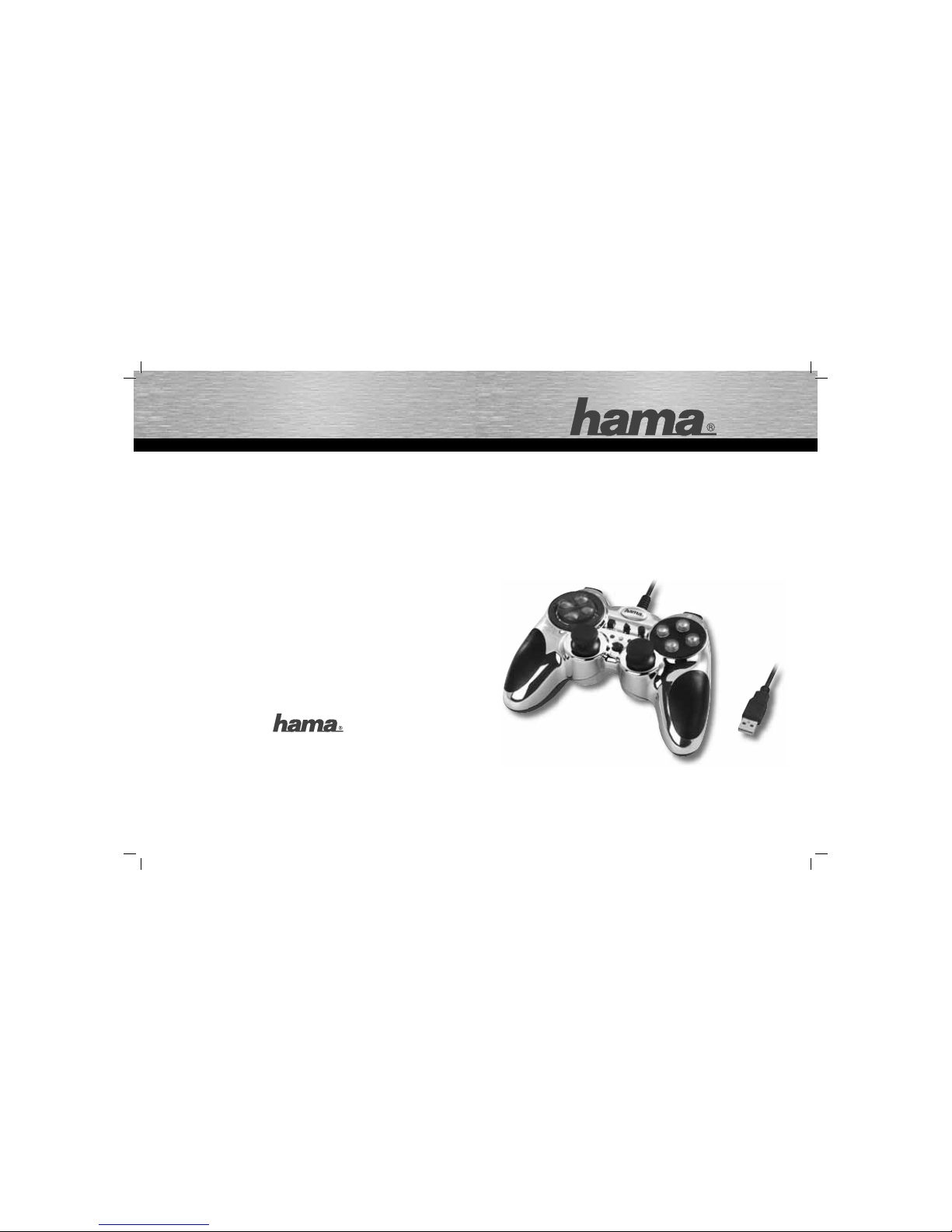
PC-Gamepad
»Cromo«
PC-GAME
All listed br ands are trade marks of the cor responding co mpanies. Errors and omissions excepted,
and subject to technical changes. Our general terms of delivery and payment are applied.
PO Box 80 · 86651 Monheim/Germany
Phone: +49 9091 502-0
Fax: +49 9091 502-458
http://www.hama.com
00062875/00062876
00062875bda.indd Abs1:2-Abs2:100062875bda.indd Abs1:2-Abs2:1 14.06.2007 8:45:09 Uhr14.06.2007 8:45:09 Uhr
Page 2
2
3
햲
햸
햳
햶
햵
햷
햴
햷
d
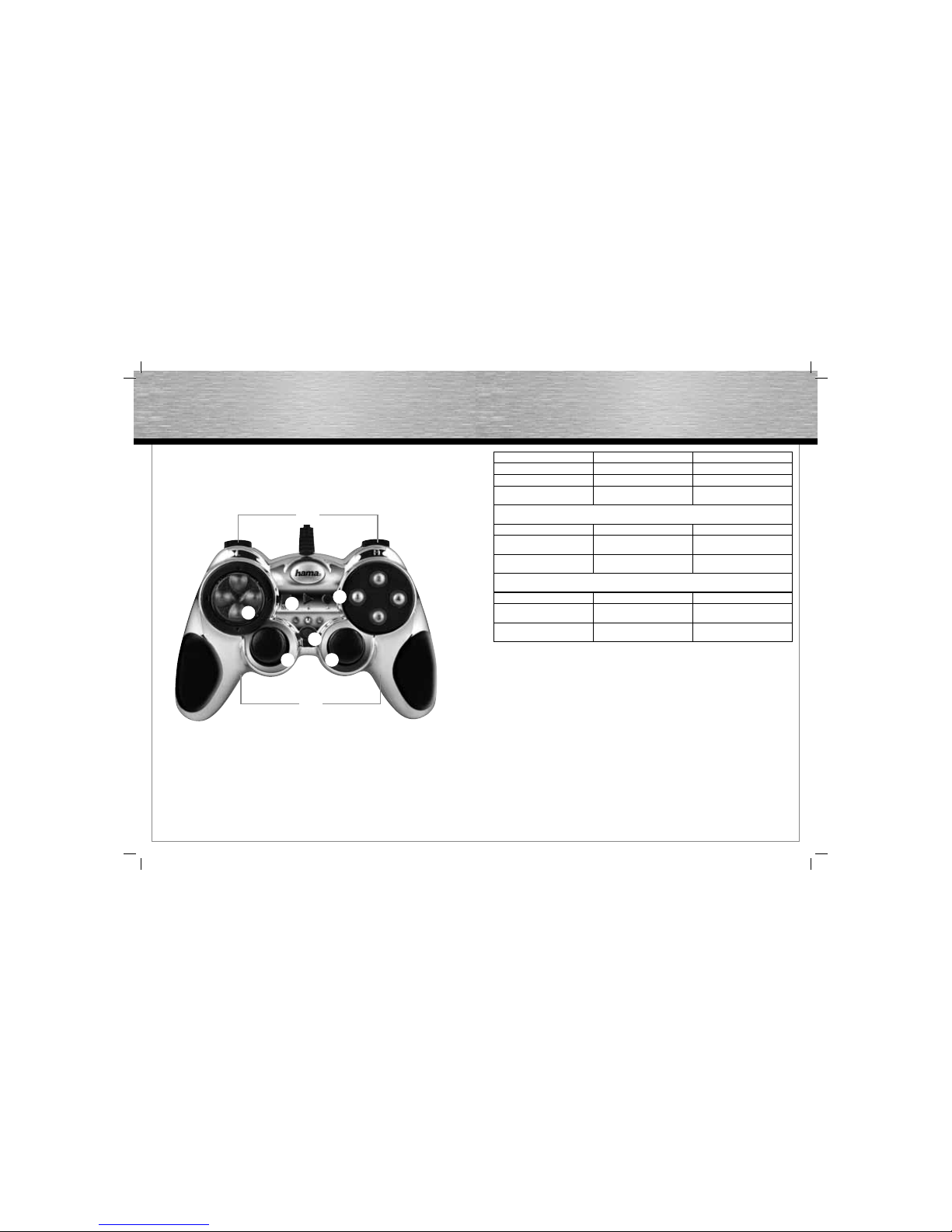
1. 4 Schultertasten 2. 8 Wege-Steuerpad 3. Macro-Taste
4. 6 Aktionstasten 5. Umschalttaste: Analog/Digital 6. 2 Analog-Sticks mit Tastenfunktion
7. eingebaute Motoren für Dual
Vibration
g
1. 4 shoulder buttons 2. 8-way controller 3. Macro button
4. 6 action buttons 5. Toggle button: (analogue/digital) 6. 2 analogue sticks with a button
function
7. Integrated motors for dual
vibration effect
f
1. 4 gâchettes 2. Croix octodirectionnelle 3. Touche Macro
4. 6 boutons d´action 5. Touche de commutation: analogi
que/numérique
6. 2 sticks analogiques avec fonction
de touche
7. Moteurs intégrés pour une
vibration binaire
00062875bda.indd Abs2:2-Abs2:300062875bda.indd Abs2:2-Abs2:3 14.06.2007 8:45:11 Uhr14.06.2007 8:45:11 Uhr
Page 3
4
5
d
Bedienungsanleitung
I. Vorstellung
Wir freuen uns, dass Sie die das Hama Cromo
Gamepad gewählt haben und gratulieren Ihnen zu
dieser Entscheidung.
Wir sind überzeugt, dass Ihnen unser Produkt in den
nächsten Jahren eine Menge Spaß beim Spielen
bereiten wird.
Diese Kurzanleitung enthält wertvolle Hinweise zur
Bedienung und Konfi guration des Gamepads. Bitte
bewahren Sie diese Anleitung zum Nachschlagen an
einem sicheren Ort auf.
II. Produkt-Eigenschaften
• 12 programmierbare Tasten
• 2 Analog-Sticks 360° mit Tastenfunktion
• Gummierte Luftpolster zur Entlastung der
Handmuskulatur
• zusätzliche Luftkissen mit Lichteffekten an den
primären Feuertasten und am Steuerkreuz
• Analog-/Digitalfunktion umschaltbar
• 2 eingebaute Motoren für Vibration
• Macro-Funktion zum Speichern von Abläufen
(nicht von allen Spielen unterstützt)
III. Systemvoraussetzungen
• für Windows 98SE/ME/2000/XP/Vista
• USB-Port
Hinweis:
Bitte beachten Sie, dass USB-Betrieb nicht von
Windows 95 / NT unterstützt wird.
IV. Installation
Software Installation
1. Legen Sie die mitgelieferte Treiber-CD in ihr
Laufwerk ein.
2. Das Installationsprogramm wird automatisch
gestartet.
3. Sollte dies nicht der Fall sein, so führen Sie
folgende Aktion durch:
START > Ausführen > Durchsuchen
Und wählen Sie ihr CD-Laufwerk aus.
4. Doppelklicken Sie dann auf die Datei autorun.exe.
5. Folgen Sie dann den Schritten des
Installationsprogramm.
6. Starten Sie Ihren PC neu.
Hardware Installation
1. Verbinden Sie das USB-Kabel Ihres Gamepads
nach der Softwareinstallation mit dem
USB-Anschluss Ihres Computers. Unter
Umständen wird ihr Betriebssystem Sie
auffordern ihre Windows-CD einzulegen, um die
neue Hardware-Komponente zu installieren.
2. Zur Konfi guration klicken Sie auf:
START > Einstellungen > Systemsteuerung >
Gamecontroller
(Windows XP in der Standard-Ansicht: Start >
Systemsteuerung > Drucker und andere
Hardware > Gamecontroller)
Bitte beachten Sie, dass die Anwendung
Gamecontroller bei Windows ME als
Spieleoptionen bezeichnet wird.
3. Wählen Sie das Hama Cromo Pad.
4. Klicken Sie nun auf Eigenschaften, um im Menü
alle Funktionen inklusive Vibration zu testen und
zu kalibrieren.
V. Funktionen
Makro-Funktion
Mit dem Cromo Pad haben Sie die Möglichkeit
bestimmte Bewegungs- und Tastenfolgen zu
speichern.
Dazu müssen Sie folgendermaßen vorgehen:
1. Drücken Sie die Macro-Taste.
2. Betätigen Sie nun eine der vier Tasten, die Sie
belegen wollen (Taste 5, Taste 6, Taste 11 oder
Taste 12 – siehe Tastenbeschreibung zur
Systemsteuerung)
3. Nun können Sie die Tastenfolge über die anderen
Tasten und die Richtungen über das Acht-Wege Steuerkreuz festlegen.
4. Drücken Sie wieder die Macro-Taste.
5. Betätigen Sie nun die Taste die Sie belegt haben,
um ihre Folge auszuführen.
Zur Aufl ösung der Kombination drücken Sie
Macro, danach die Taste, die belegt wurde und
dann wieder Macro.
Hinweis:
Nicht alle Spiele unterstützen die Macro-Funktion,
so dass dann das Betätigen der Tasten nicht ihren
gespeicherten Ablauf wiedergeben
Vibrations-Funktion
Das Cromo Pad verfügt über zwei interne Motoren,
die nur in Spielen funktionieren, die auch Force
Feedback unterstützen und wenn alle beiliegenden
Treiber installiert sind.
Informationen ob das Spiel Vibration unterstützt,
sollten Sie im Handbuch des Spieles fi nden.
Sollten weiterhin Probleme auftreten, kontrollieren
sie in den Spieloptionen, ob die VibrationsUnterstützung aktiviert wurde.
Mode-Funktionen
Das Hama Cromo Pad lässt Ihnen die Wahl zwischen
zwei Modi:
1. Digital
Hier können Sie speziell über das 8-WegeSteuerkreuz die Aktionsrichtungen bestimmen –
die Sticks sind zumeist deaktiviert
2. Analog
Im Analog-Modus sind die Sticks die perfekte
Unterstützung für 3D-Spiele. Neben dem linken
Stick, der für die Bewegungen zuständig ist, können
weitere Funktionen über den rechten Stick, wie z.B.
Drehen ausgeführt werden. Das Steuerkreuz kommt
dabei für schnelle Rundumsicht zur Hilfe.
Anmerkungen
1. Vergewissern Sie sich, dass Ihre Spielesoftware
Gamecontroller unterstützt.
2. Zur Nutzung der Vibrations-Funktion muss Ihre
Spielesoftware Force Vibration / Force Feedback
unterstützen.
3. Sollten einige Tasten im Spiel nicht funktionieren
prüfen Sie im Optionsmenü die Tastenbelegung,
zumeist kann diese dort auch konfi guriert werden.
Lesen Sie dazu auch im zugehörigen Handbuch
des jeweiligen Spiels.
Sicherheitshinweise
1. Versuchen Sie nicht, das Gerät selbst zu warten
oder zu reparieren. Überlassen Sie jegliche
Wartungsarbeit dem zuständigen Fachpersonal.
2. Nehmen Sie keine Veränderungen am Gerät vor.
Dadurch verlieren sie jegliche
Gewährleistungsansprüche.
VI. Support- und Kontaktinformationen
Bei defekten Produkten:
Bitte wenden Sie sich bei Produktreklamationen an
Ihren Händler oder an die Hama Produktberatung.
Internet/World Wide Web
Produktunterstützung, neue Treiber oder
Produktinformationen bekommen
Sie unter www.hama.com
Support Hotline – Hama Produktberatung:
Tel. +49 (0) 9091 / 502-115
Fax +49 (0) 9091 / 502-272
e-mail: [email protected]
00062875bda.indd Abs2:4-Abs2:500062875bda.indd Abs2:4-Abs2:5 14.06.2007 8:45:12 Uhr14.06.2007 8:45:12 Uhr
Page 4
6
7
Vibration function
The Cromo Pad has two internal motors, which only
function in games that support Force Feedback and
when all supplied drivers have been installed.
Refer to the manual of your game to fi nd out if it
supports the vibration function.
If problems persist, check whether vibration support
was activated in the game options.
Mode functions
The Hama Cromo Pad lets you choose between two
modes:
1. Digital
This mode lets you control the direction of action
using the 8-way directional pad – the sticks usually
remain deactivated.
2. Analogue
In analogue mode, the sticks assist perfectly for 3D
games. In addition to the left stick, which controls
movement, you can perform other functions using
the right stick, such as rotation. The directional pad
can help you by providing a quick all-around view.
Notes
1. Ensure that your game software supports game
controllers.
2. In order to use the vibration function, your game
software must support Force Vibration/Force
Feedback.
3. If some buttons do not function in the game, check
the button settings in the option menu. They can
generally be confi gured there as well. Also refer
to the manual of the game in question.
Safety instructions
1. Do not attempt to service or repair the device
yourself.
Leave any service work to qualifi ed experts.
2. Do not modify the device in any way. Doing so
voids the warranty.
VI. Support and contact information
If products are defective:
Please contact your dealer or Hama Product Consulting if you have any product claims.
Internet / World Wide Web:
Product support, new drivers or product information
can be found at www.hama.com
Support Hotline – Hama Product Consulting:
Tel. +49 (0) 9091 / 502-115
Fax +49 (0) 9091 / 502-272
E-mail: [email protected]
I. Introduction
Thank you for choosing the Hama Cromo Gamepad
and congratulations on your decision.
We are certain that our product will provide you with
a great deal of gaming pleasure for years to come.
This quick guide contains valuable information on
operating and confi guring the gamepad. Please
keep these instructions in a safe location for future
reference.
II. Product Features
• 12 programmable buttons
• 2 360° analogue sticks including button function
• Rubberised air pad to relieve strain on hand
muscles
• Additional air cushions with light effects on the
primary fi re buttons and directional pad
• Switchable analogue/digital function
• 2 integrated motors for vibration
• Macro function for saving sequences (not sup
ported by all games)
III. System Requirements
• Windows 98SE/ME/2000/XP/Vista
• USB port
Note:
Please note that USB operation is not supported by
Windows 95/NT.
IV. Installation
Software installation
1. Insert the enclosed driver CD into your
CD-ROM drive.
2. The installation program starts automatically.
3. If it does not start, proceed as follows:
START > Run > Browse
Select your CD-ROM drive.
4. Double-click the autorun.exe fi le.
5. Follow the steps in the installation program.
6. Restart your PC.
Hardware installation
1. After installing the software, plug the USB cable
of your gamepad into a USB port on your
computer. Your operating system may prompt
you to insert your Windows CD to install the new
hardware components.
2. To confi gure the device, click:
START > Settings > Control Panel > Game
Controllers
(Windows XP in standard view: Start > Control
Panel > Printers and Other Hardware > Game
Controllers)
Note that the Game Controllers control panel is
called Gaming Options in Windows ME.
3. Select the Hama Cromo pad.
4. Now click Properties to test and calibrate all
functions in the menu, including vibration.
V. Functions
Macro function
The Cromo Pad allows you to save certain movement
and button sequences.
To do so, proceed as follows:
1. Press the Macro button.
2. Now press one of the four buttons you wish to
set (button 5, button 6, button 11 or button 12 –
see button description)
3. You can now set the button sequence via the
other buttons and the directions via the eight-way
directional pad
4. Press the Macro button again.
5. Now press the button you set to perform the
sequence
To clear the combination, press Macro, then the
button which was set and then press Macro
again.
Note:
Not all games support the macro function, which
means that the buttons do not play back the sequence saved when pressed.
Operating Instruction
g
00062875bda.indd Abs2:6-Abs2:700062875bda.indd Abs2:6-Abs2:7 14.06.2007 8:45:13 Uhr14.06.2007 8:45:13 Uhr
Page 5
8
9
5. Actionnez à présent la touche à laquelle vous
avez attribuée une commande pour exécuter la
succession
Pour supprimer la combinaison appuyez sur
Macro, puis sur la touche à laquelle vous avez
attribuée une commande, enfi n de nouveau sur
Macro.
Remarque :
Tous les jeux ne sont pas compatibles avec la
fonction Macro ce qui a pour conséquence que
l´actionnement des touches ne reproduit pas votre
démarche mémorisée.
Fonction de vibration
Le Cromo Pad dispose de deux moteurs intégrés
qui fonctionnent uniquement avec les jeux qui
supportent aussi Force Feedback et quand tous les
pilotes fournis sont installés.
Pour savoir si le jeu supporte la fonction de
vibration, consultez le manuel du jeu. Si vous
rencontrez d´autres problèmes vérifi ez dans les
options du jeu si le support de vibration a été activé.
Fonctions Mode
Le Cromo Pad de Hama vous laisse le choix entre
deux modes :
1. Numérique
Dans ce mode, vous pouvez décider des
mouvements d´action avec la croix
octodirectionnelle– la plupart des sticks sont
désactivés
2. Analogique
Dans le mode analogique, les sticks sont le support
parfait des jeux en 3D. Le stick gauche sert pour
les déplacements, avec le stick droit vous pouvez
exécuter d´autres fonctions, comme par ex. tourner.
La croix octodirectionnelle vient juste en aide pour
un rapide tour d´horizon.
Remarques
1. Assurez-vous que votre logiciel de jeux supporte
le contrôleur de jeu.
2. Pour l´utilisation de la fonction de vibration, votre
logiciel de jeux doit supporter les fonctions Force
Vibration / Force Feedback.
3. Si certaines touches ne fonctionnent pas pendant
le jeu, vérifi ez dans le menu d´options l´attribution
des touches; la plupart du temps, celle-cie peut
également y être confi gurée. Pour cela, lisez le
manuel d´utilisation du jeu concerné.
Mesures de sécurité
1. N´essayez pas d´entretenir ou de réparer
vous-même cet appareil. Adressez-vous à du
personnel spécialisé.
2. Ne procédez à aucune modifi cation de l´appareil,
auquel cas aucune garantie ne vous sera
octroyée.
VI. Support technique et contact
En cas d’appareil défectueux :
En cas de réclamation concernant le produit, veuillez
vous adresser à votre revendeur ou au département
conseil produits de Hama.
Internet / World Wide Web
Notre support technique, les nouveaux pilotes et les
informations produits sont disponibles sous :
www.hama.com
Ligne téléphonique directe d’assistance – Conseil
produits Hama :
Tél. +49 (0) 9091 / 502-115
Fax +49 (0) 9091 / 502-272
E-mail : [email protected]
I. Présentation
Nous vous remercions et félicitons d´avoir choisi
la manette de jeux Cromo de Hama. Nous sommes
convaincus que notre produit vous procurera
beaucoup de joie lors de vos sessions de jeux
pendant les années à venir. Ce petit manuel
d´utilisation contient des informations importantes
pour l´utilisation et la confi guration de la manette
de jeux. Veuillez le conserver s´il vous plaît dans un
lieu sûr pour pouvoir vous y référer lorsque vous en
aurez besoin.
II. Propriétés du produit
• 12 touches programmables
• 2 sticks analogiques 360° avec fonction de touche
• Coussins d´air caoutchoutés pour soulager la
musculature des mains
• Coussins d´air supplémentaires avec effets
lumineux aux touches feu primaires et à la croix
octodirectionnelle
• Fonction analogique/numérique commutable
• 2 moteurs de vibration intégrés
• Fonction Macro pour mémoriser le déroulement
(non supporté par tous les jeux)
III. Systèmes requis
• Pour Windows 98SE/ME/2000/XP/Vista
• Port USB
Remarque :
Veuillez noter que Windows 95 / NT ne supporte pas
le fonctionnement USB.
IV. Installation
Installation du logiciel
1. Insérez le pilote CD fourni dans votre lecteur.
2. Le programme d´installation va démarrer
automatiquement.
3. Si ce n´est pas le cas, procédez comme suit et
cliquez sur :
DÉMARRER > Exécuter > Rechercher
Puis sélectionnez votre lecteur CD.
4. Double-cliquez alors sur le fi chier autorun.exe.
5. Suivez les instructions du programme
d´installation.
6. Redémarrez votre PC.
Installation du matériel
1. Après l´installation du logiciel, reliez le
cordon USB de votre manette de jeux au port
USB de votre ordinateur. Il se peut que votre
système d´exploitation vous demande d´insérer
votre CD-Windows pour installer les nouveaux
composants du matériel.
2. Pour procéder à la confi guration cliquez sur :
DEMARRER > Paramètres > Panneau de
confi guration > Contrôleur de jeux
(Windows XP : Démarrer >Panneau de
confi guration > Imprimante et autres matériels >
Contrôleur de jeux)
Veuillez observer que l´utilisation Contrôleur de
jeux dans Windows ME est caractérisée comme
Option de jeux.
3. Sélectionnez l´appareil souhaité.
4. Cliquez à présent sur Propriétés afi n de tester
et de calibrer dans le menu toutes les fonctions,
fonction de vibration y comprise.
V. Fonctions
Fonction Macro
Avec le Cromo Pad vous avez la possibilité
d´enregistrer certaines successions de touches et
de déplacements.
Pour cela, procédez comme suit :
1. Appuyez sur la touche Macro.
2. A présent, actionnez une des 4 touches à laquelle
vous souhaitez attribuer une commande
(touche 5, touche 6, touche 11 ou touche 12 – cf.
description des touches).
3. Vous pouvez maintenant déterminer la succession
des touches avec les autres touches et les
déplacements avec la croix octodirectionnelle.
4. Réappuyez sur la touche Macro.
Mode d‘emploi
f
00062875bda.indd Abs2:8-Abs2:900062875bda.indd Abs2:8-Abs2:9 14.06.2007 8:45:14 Uhr14.06.2007 8:45:14 Uhr
 Loading...