

Page 1

1
Thank you for choosing X76 color screen GSM/GPRS digital phone.
This is a GSM/GPRS phone. In addi on to common call func ons, it also provides you with a variety of
prac cal func ons including bluetooth, camera, MP3 player, Video player, U Disk, memory card (T-Flash
card), recorder, calculator, GPRS, MMS (Mul media Message Service), handsfree call. With this manual,
you can acquire a full understanding of the usage of this phone. Our company reserves the right to revise
contents in this manual without any prior no ce.
Page 2

2
Table of Contents
A en on and Precau ons ....................................................................................................................... 4
1 Safety Precau ons ............................................................................................................................4
2 Precau ons When Using Phone .......................................................................................................4
3 Precau ons When Using Ba eries ...................................................................................................5
4 Precau ons for children ....................................................................................................................5
Descrip on of keypad keys ........................................................................................6
Ge ng Started ..........................................................................................................9
1 Ba ery ............................................................................................................................................9
2 Connec ng to Network ...................................................................................................................11
Basic Func ons .......................................................................................................... 14
1 Making a call ....................................................................................................................................... 14
2 Emergency calls ...............................................................................................................................16
3 Answering a call ..............................................................................................................................16
4 Call records .....................................................................................................................................16
5 Call op ons .....................................................................................................................................16
Usage of func on menu ............................................................................................18
1 Scrolling search and select func on ................................................................................................18
2 Exit menu ........................................................................................................................................18
Instruc ons of Func on menu ...................................................................................18
1 Applica on ........................................................................................................................................18
2 Contact .............................................................................................................................................20
Page 3

3
3 Relaxa on .........................................................................................................................................21
4 My Files .............................................................................................................................................21
5 Messages ..........................................................................................................................................21
6 Mul media .......................................................................................................................................24
7 Wireless Connec on .........................................................................................................................26
8 Camera ..............................................................................................................................................27
9 Network Services ..............................................................................................................................28
10 Call history ......................................................................................................................................29
11 Se ngs ...........................................................................................................................................29
12 User Profi les ....................................................................................................................................33
Input method ............................................................................................................ 34
Guide to Fast Usage ...................................................................................................35
Page 4

4
Contents
A en on and Precau ons
Please read these brief rules. Viola on of these rules might cause danger or break laws.
1.Safety Precau ons
1.1 Road safety comes fi rst
When driving, care must be taken for using phone; if driving condi ons are poor, please pull up at road
side to use the phone.
1.2 Sw ch off your phone in hospitals
Please abide by relevant regula ons or rules. Please switch off when close to medical equipment.
1.3 Switch off your phone in aircra s
Wireless phones can cause interference. Using phones in aircra is both dangerous and illegal.
1.4 Sw ch off your phone when refuelling
Do not use the phone at a refuelling sta on or near fuels or chemicals.
1.5 Sw ch off your phone when close to blas ng area
To avoid interfering with blas ng opera ons, turn your phone OFF when in a “blas ng area” or in areas
posted: “turn off twoway radio”. Obey all signs and instruc ons.
2.Precau ons When Using Phone
2.1 Interference
All phones are subject to interference, which will aff ect their performance.
2.2 Use sensibly
Page 5

5
Use phone only in its normal posi on. Please do not touch antenna area unless necessary.
2.3 Use qualifi ed servicing
Only qualifi ed maintenance staff can assemble or repair the equipment.
2.4 Waterproof
Your phone is not waterproof, please keep it dry.
2.5 Emergency calls
Make sure the phone is sw ched on and in service. Input emergency service number and press Dial key,
give your loca on and do not end the call un l told to do so.
3.Precau ons When Using Ba eries
3.1 Keep the ba eries away from fi re; do not dispose of ba eries in a fi re lest there should
be danger.
3.2 Do not dispose of used ba eries in rubbish, and they should be sent to designated
recycling center.
4.Precau ons for children
Keep the phone out of the reach of children, lest children treat it as toy and cause personal injury.
Page 6
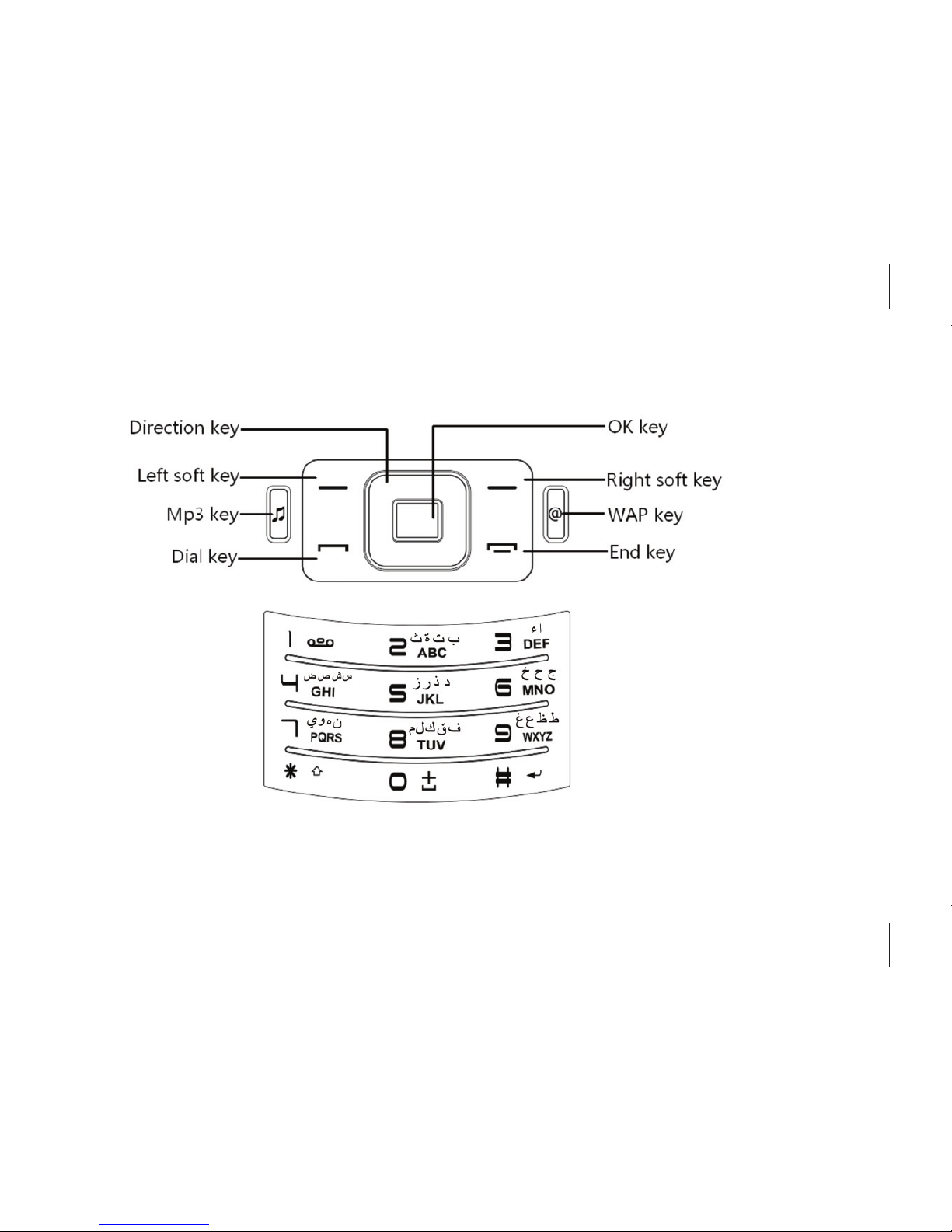
6
Descrip on of keypad keys
Page 7
7
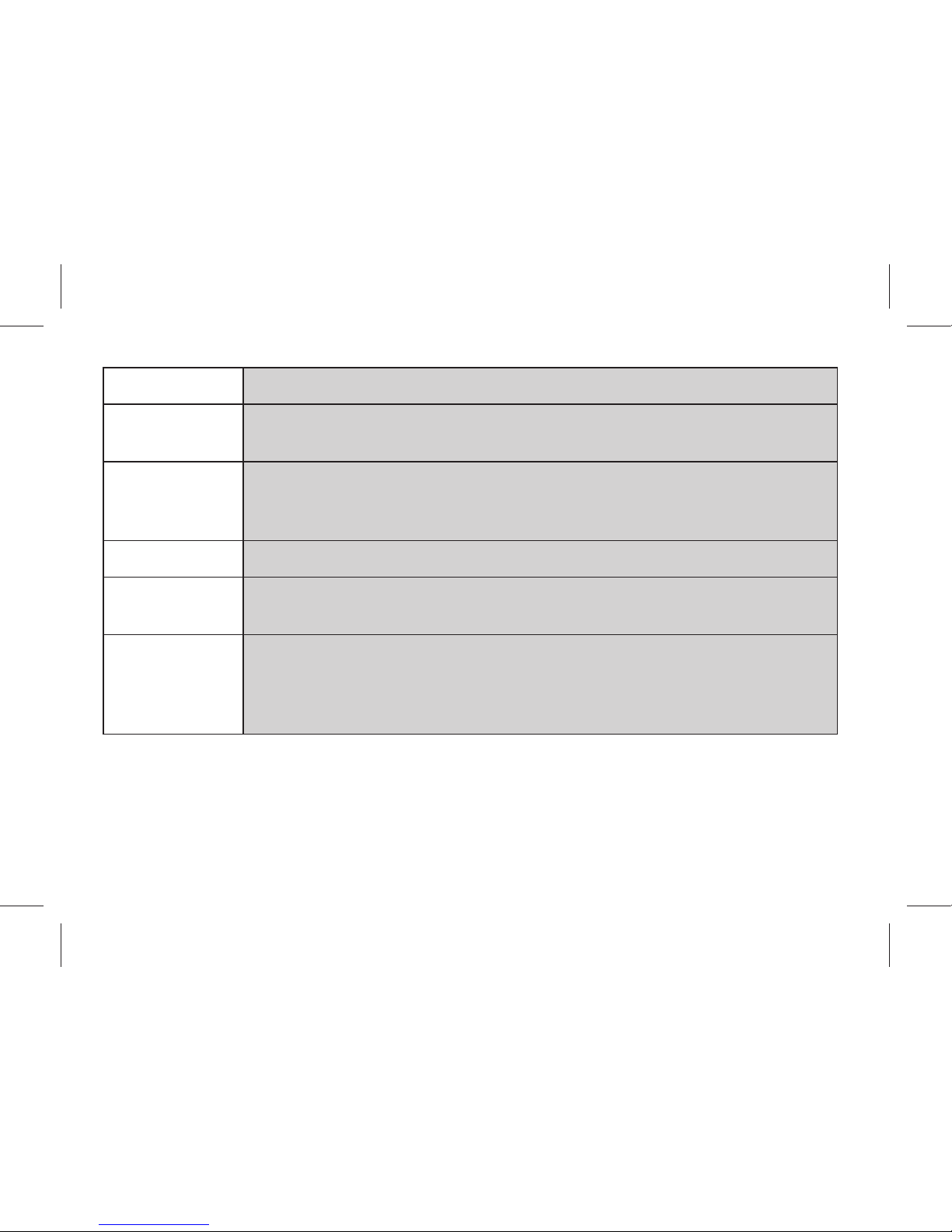
Keys Descrip on
[Dial key]
Dial a phone number or answer an incoming call. In standby state, press this key
to show the SIM 1/SIM 2 call history .
[End key]
End a call.
Long press this key to turn on/off your mobile phone.
In other cases, pressing this key will make the phone return to standby state.
[OK Key] Enter the menu that has been selected.
[Le so key]
Performs the func on of the prompt displayed at lower le corner of the
screen.
[Right so key]
Performs the func on of the prompt displayed at right corner of the screen.
In edit mode, tap this bu on to delete the character in front of the cursor. Long
press of this key will delete all the characters in the edi ng window.
In idle screen, press the RSK to access Contact.
Page 8
8
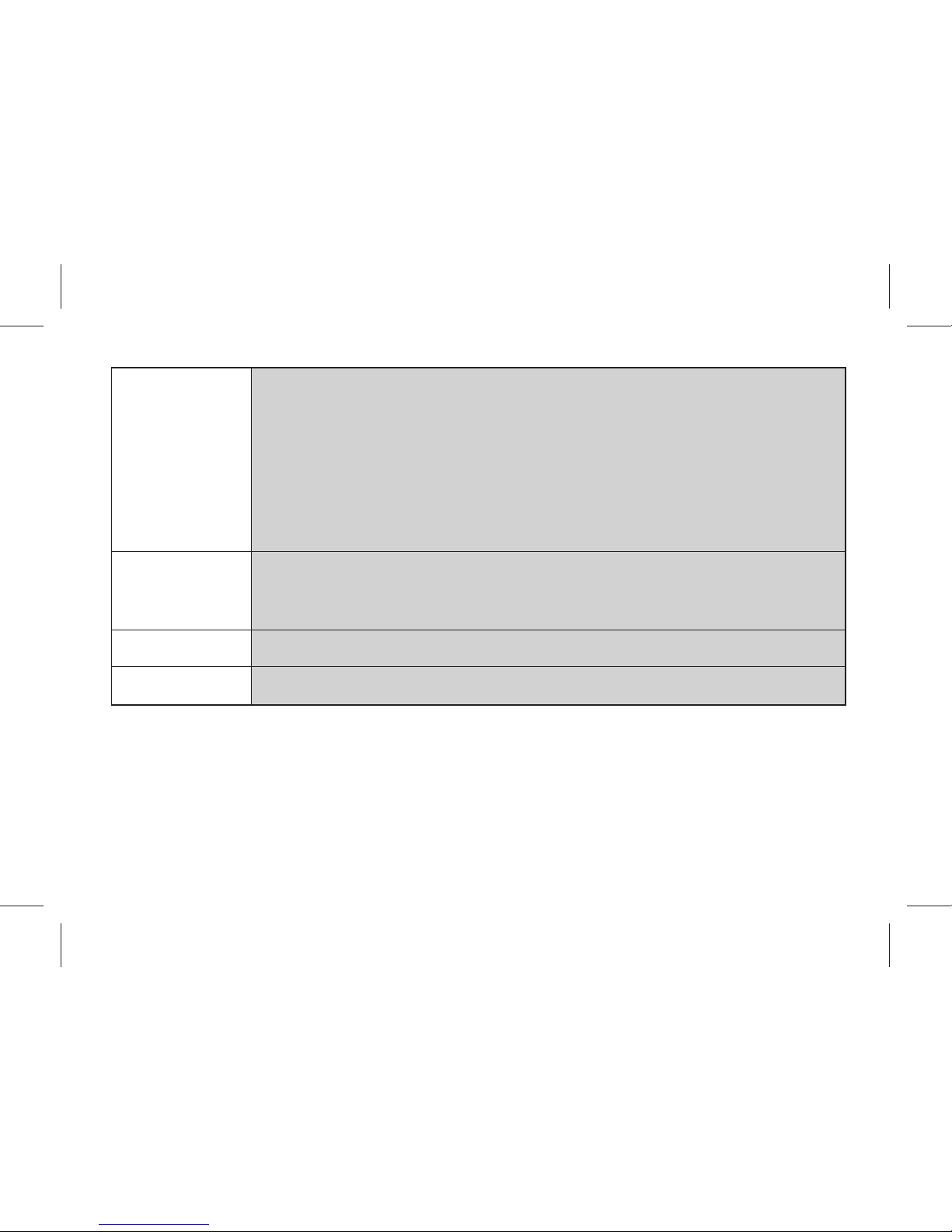
[Naviga on key]
The key is split into 4 direc onal keys: up, down, le and right. Move the cursor
up, down, le and right in edit mode.
Press the direc onal key in idle interface to enter the corresponding func on
interface.
Up Key: to access Camera.
Down Key: to access Alarm.
Le Key: to access Write Message.
Right Key: to access User profi les.
[Number Keys]
Number keys are used to input numbers, le ers and special characters.
They can also be used as shortcut keys to quickly access the op ons within a
menu.
[WAP key] In idle screen, press this key can access Internet service.
[Mp3 key]
In idle screen, press this key can access audio player.
Page 9
9
Getting Started
1 Ba ery
The ba ery at its ini al condi on is charged to 50% full, and can be used a er unwrapping. For the fi rst
three mes of charging, do not recharge un l the ba ery is totally exhausted, so that the ba ery can
reach its best usage performance.
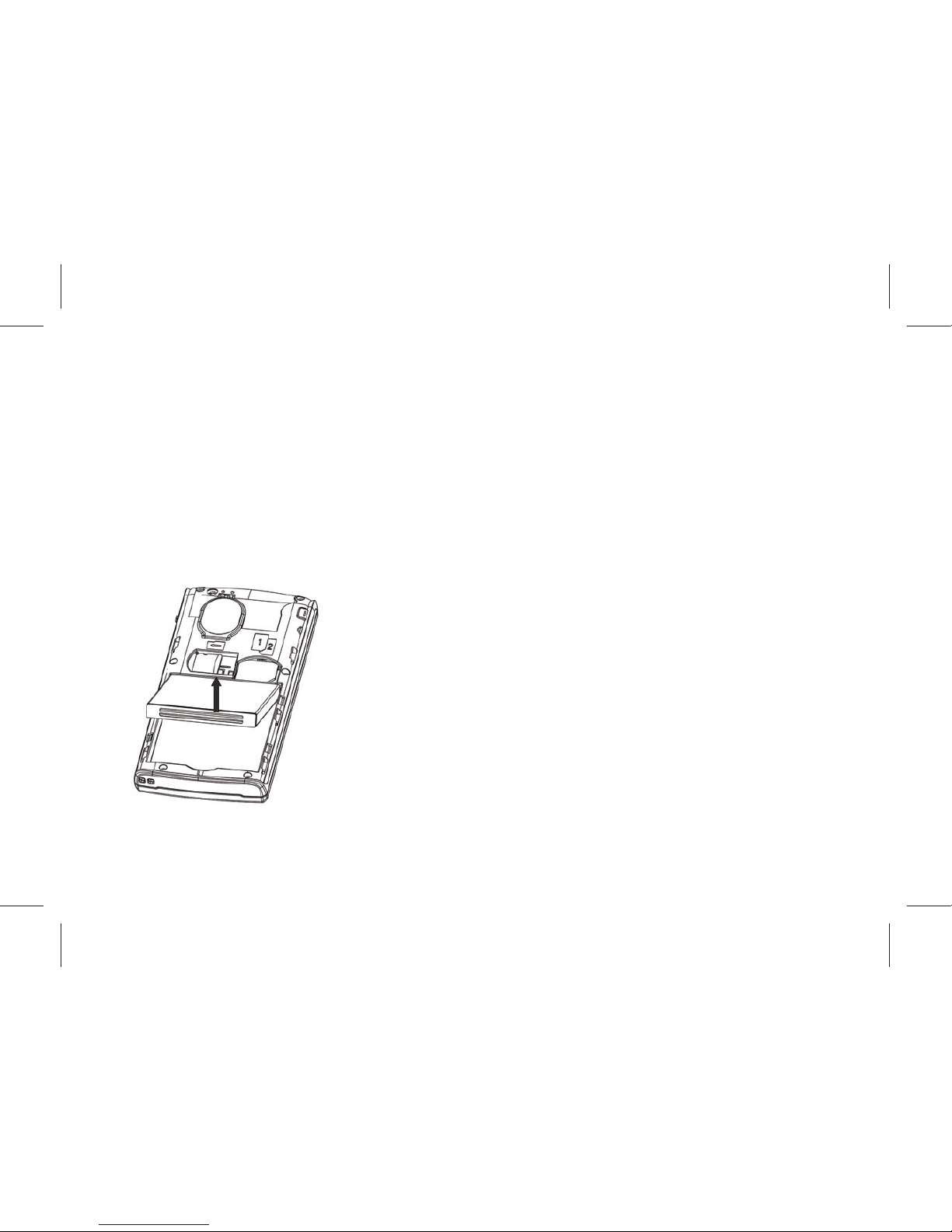
1.1 Removing and installing ba ery
For removing:
A. Push the ba ery back cover in the arrow direc on;
B.Li the ba ery up as indicated by the arrow;
C.Take the ba ery out.
Warning: Make sure to switch off the phone before taking out SIM card, otherwise your SIM card might
be damaged.
Page 10
10
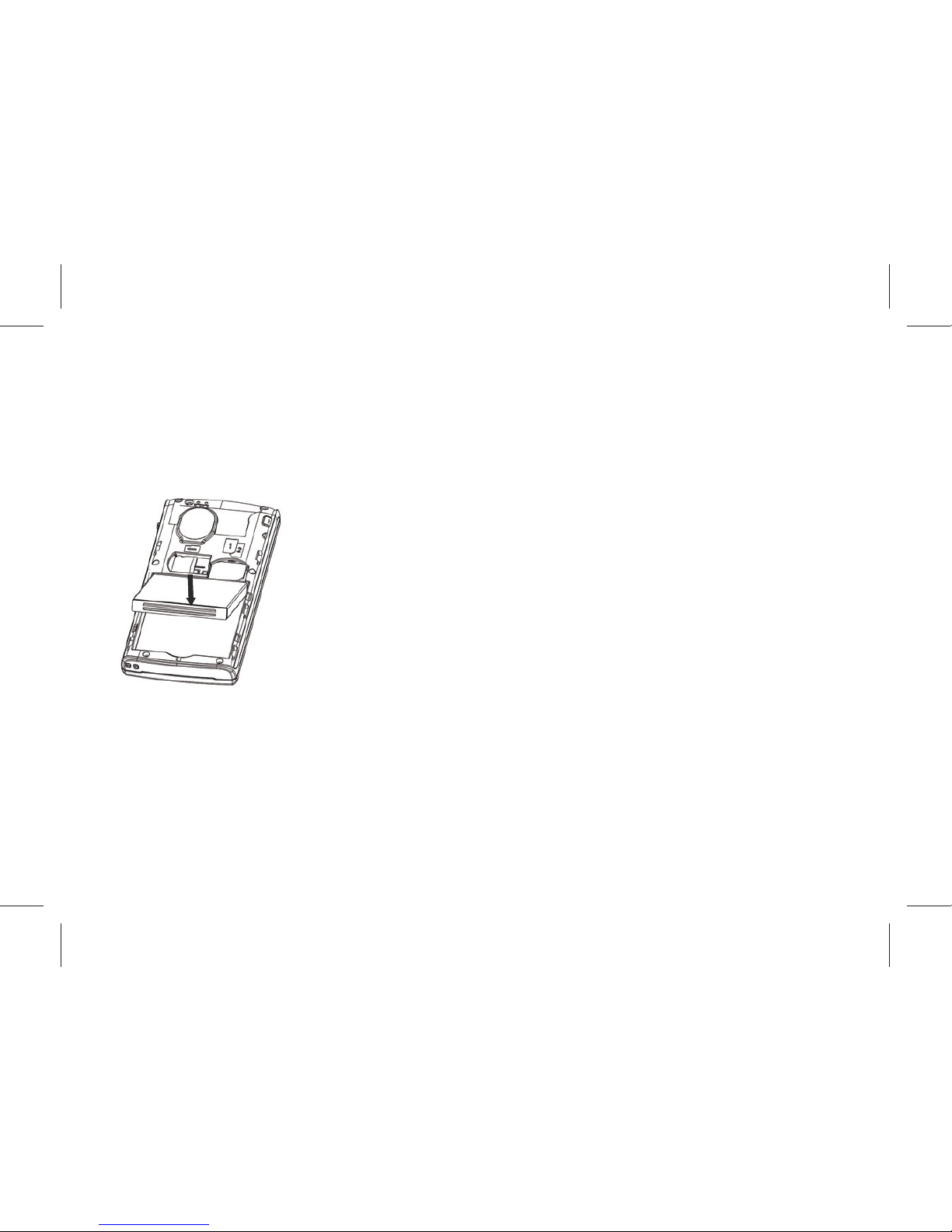
For installing:
A.Follow the arrow direc on, place the metal contact points of the ba ery upward and fl ush with metal
contact points in the ba ery bay, then insert the bo om of ba ery into ba ery bay;
B.Place the back cover of the ba ery onto the phone squarely, and push in the direc on of the arrow
ll it clicks into place.
1.2 Charging Ba ery
While charging, the power supply indicator at phone’s screen icon zone will fl ash in a rota on manner, if
the phone is off while charging, a charging screen will s ll appear, indica ng that the phone is recharging.
If the phone is s ll being overused while the power supply is insuffi cient, the recharging indicator will
appear on the screen a er the recharging has started for a while.
When the power supply indicator at the screen’s icon zone shows full and stops fl ashing, it means
charging has completed. If it takes place when the phone is off , the screen will display charging-fi nished
Page 11

11
icon. The process generally takes about 2.5 hours. It is normal that the ba ery, the phone and the charger
will become hot during the charging process.
Charging comple ng, disconnect the phone and the charger from the AC power supply.
Note: Ba ery must be charged in a well ven lated place with surrounding temperature at -10℃ ~+
55℃, and it is impera ve that a charger provided by manufacturer is used. Using unauthorized charger
might cause danger, which also violates warranty terms prescribed by the manufacturer. If the charging
temperature is too high or too low, the phone will automa cally give warning and stop charging, so as to
prevent damages to ba ery or dangers.
2 Connec ng to Network
2.1 SIM card
A valid SIM (Subscriber Iden ty Module) card must be inserted in the phone before using it.
All informa on related to making connec on to the network are recorded in the chips of SIM card,
including the names, phone numbers and short messages you have stored in the SIM card Phone book.
In order to prevent loss or damage of the info in the SIM card, it is necessary to avoid touching metal
contact surface, and keep SIM card far from electricity current and magnet.
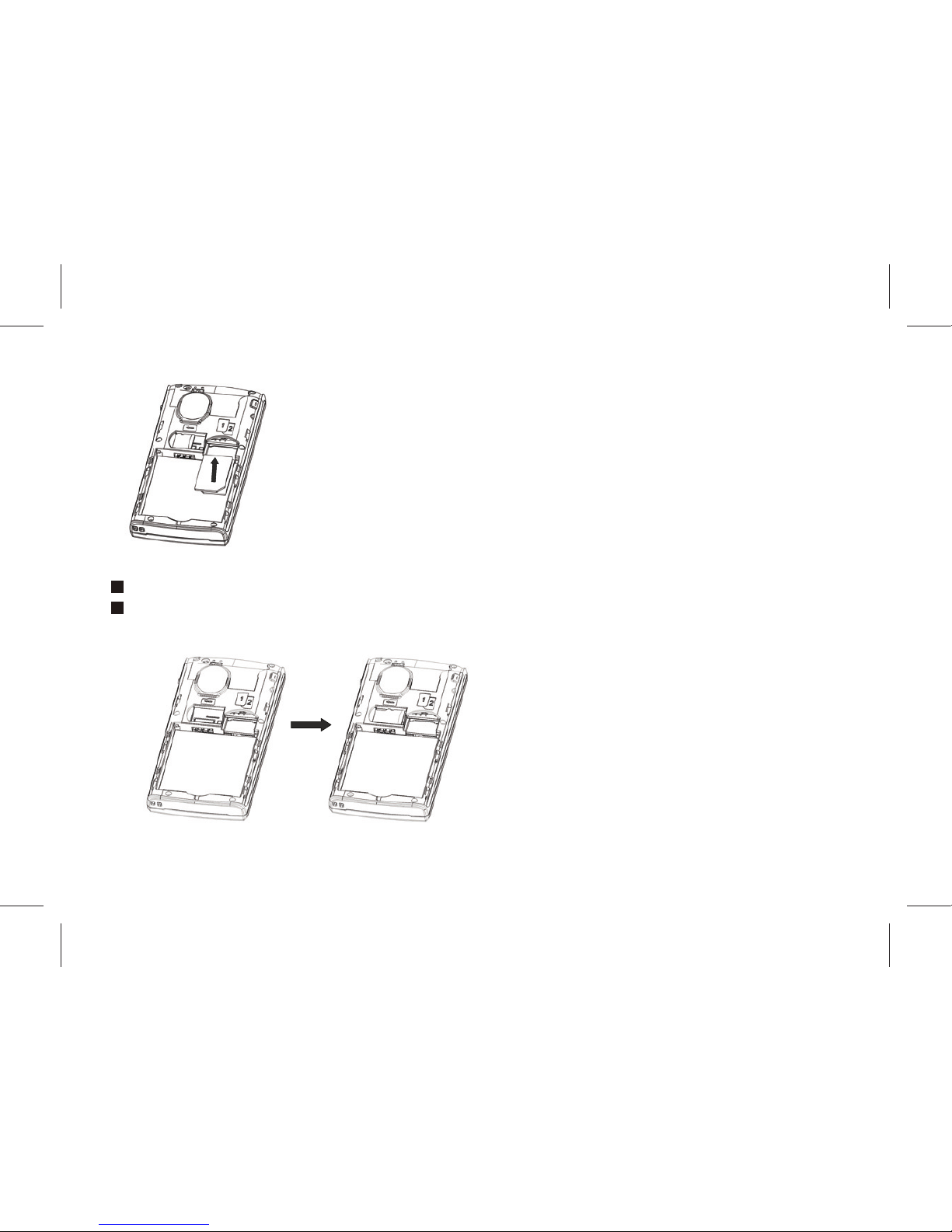
2.2 Inser ng and removing SIM card
Switch off the phone; remove ba ery and other external power connec on, as shown in the image.
Insert SIM card into SIM card socket.
When you need to remove SIM card, please switch off the phone fi rst, remove ba ery, then remove
the card.
Page 12
12
2.3 Inser ng and removing memory card
Switch off the phone; remove ba ery and other external power connec on.
Insert memory card into card slot as shown in the image.
Page 13

13
2.4 Switch on/off phone
To switch on or switch off phone, please press and hold the End key. If you have switched on phone
without inser ng SIM card in the fi rst place, the phone will prompt “Insert SIM card”.
Then the screen will display the following prompts in sequen al order:
Enter phone password – if you have set up phone lock password.
Enter PIN – if you have set up SIM card password.
Search – the phone will search ll fi nding appropriate network connec on.
2.5 Unlocking SIM card
To prevent illegal usage, PIN (Personal Iden fi ca on Number) code is adopted to encrypt for protec on
of your SIM card. Selec ng this op on and if having set up PIN code protec on, you have to enter PIN
code each me you start it, unlocking SIM card to use the mobile phone.
Users can erase SIM card password; however, in this case SIM card cannot prevent illegal usage.
Press and hold the End key to switch on the phone;
Enter PIN1 code. For instance, if PIN1 se ng is 1234, then enter the following input: 1 2 3 4 “OK”
If there are three consecu ve input errors, your SIM card will be locked up by the network, the phone
will inquire PUK1 code.
Note: Your service provider will set up a standard PIN (4 to 8 digits) number for your SIM card, you should
change it into your private password as soon as possible.
2.6 Unlocking phone
To prevent phone from being illegally used, you can set up mobile phone lock Password for protec on.
Selec ng this op on, you must input mobile phone lock password to unlocking it and make it normal.
Users can switch off mobile phone lock, but illegal usage cannot be prevented for mobile phone in this
case.
Page 14

14
Pressing the End key con nuously to start up mobile phone.
Input mobile phone lock Password.
For instance, if mobile phone Password is set up as 0000, then input the following: 0 0 0 0 “OK”.
If you forget mobile phone Password, you have to contact local authorized repair center, so as to unlock
your mobile phone’s Password.
2.7 Connec ng to network
A er SIM card is successfully unlocked, the phone will automa cally search available network (with
searching showing on the screen). Once the connec on is made, the name of the service provider will
be displayed on the top central part of the text and graphic area. At this me your phone has been
connected to the service network.
Note: If the screen prompts “Emergency “, this means you have moved out of the normal network
coverage (service range) or your card has not passed authen ca on, but you can s ll transmit emergency
calls based on signal strength.
Basic Functions
1 Making a call
When the logo of service provider appears on the display screen, you can dial or receive calls. The info
bar at the upper le corner of the display screen shows network signal strength (when there are 5 info
bars the signal is at its strongest).
The call quality is very likely to be aff ected by obstruc ons; therefore movement in a small area can
eff ec vely improve call performance.
1.1 Making domes c calls
Enter phone number, then press Dial Key to make the call. If the user needs to change phone number,
Page 15

15
press “Clear” back and delete numbers. Dialing anima on will be displayed on the screen during dialing.
Call state info will be shown on the screen a er the called party ends the call
You can enter and dial domes c call following the order:
Area code Phone number Dial
1.2 Dialing extension number of fi xed-line telephone
Some extension numbers of fi xed-line telephone cannot be connected directly, you must dial the
switchboard phone number, then press * key to switch con nually un l the screen displays “P”, then
dial extension number.
You can dial extension numbers of fi xed-line telephone in the following order:
Area code Switchboard number P Extension number Dial Key
1.3 Dialing interna onal calls
To make an interna onal call, you may press * key to switch con nually ll the screen displays the pre-
digit symbol “+” for interna onal long distance call, which will enable you to make a call from any country
without knowing the local interna onal access code (for instance, in China it is 86).
You can enter numbers in the following sequence to make an interna onal call: + country code complete
phone number Dial Key
A er inpu ng prefi x number, input the code and the complete phone number of the wanted country.
The country code follows usual prac ce, such as Germany 49, UK 44, Sweden 46, etc.
Like making an interna onal call, the “0” before city code number should be dropped.
For instance, if making a call to a service hotline from other countries to Shanghai, you should dial: +86
21 114
1.4 Dialing phone numbers in the call records
Every phone number you have dialed or received will be stored in the list of phone call records. The latest
Page 16

16
dialed, received and missed numbers will be listed, according to their types, in the respec ve menu of
dialed calls, received calls and missed calls. When call record list is full, the old numbers will automa cally
be deleted. To view the list, do the followings:
In standby state press Dial key to view the record for all calls.
All phone numbers in the list can be dialed directly by pressing the Dial key.
When the list is displayed, press “OK” to read the details, then “op ons” to Save or Delete the
number.
2 Emergency calls
As long as in the network service range (which can be confi rmed by checking the signal strength bars on
the top le corner of the screen), you can always call emergency service. If your network supplier does
not provide roaming service in your area, the screen will display “Emergency”, to inform you that only
emergency call is permi ed. If you are within the network service range, you can also make emergency
calls even without the SIM card.
3 Answering a call
Simply press dialing key can answer an incoming call. If an earphone has been connected, use the bu on
on the earphone to answer a call, and if it is not convenient for you to press it, set automa c answer
as on, assuring that the earphone is plugged on, so as to make calls automa cally answered while the
phone rings or vibrates. If Any Key answer func on is chosen, pressing any key, other than End key, can
answer an incoming call.
4 Call records
Your phone can also store call records of the latest missed calls, received calls, dialed calls, the me of last
call as well as total amount of received calls and total dialed calls for you.
5 Call op ons
Page 17

17
In connected state, pressing “Op ons” can enter call op on, or pressing “H-free” to ac vate speaker,
Under ac vated-handsfree condi on, press “ Normal” to switch off speaker. Opera on methods of call
op ons are the same with that of Func on menu.
This call op ons can only be viewed during call process, moreover, the func ons of call wai ng, call
holding, and conference calls need service support, please contact your service provider for details.
In the call op ons, you can make the following opera ons:
Hold Single call:Make the current call hold.
End Single call:End the current call.
New call:Enter new dialing interface.
Phone book:Enter Phone book menu.
Messages:Enter message menu. Owing to restric on of network engagement, MMS func on is barred
during call process.
Sound Recorder:Record the current call.
Voice changer :Setup voice changer for the current calling.
Mute:Se ng of switches, which disables transmission of local call when Mute func on is on.
DTMF:Opera ons of DTMF switching on and off
Conference*
Enter mul ple party conference call state. By following the prompts, you can have the following func ons:
receive wai ng calls, add them into mul ple party call, maintain the mul ple party call, talk privately with
one party of the conference while maintaining all other callers, connect one party in the call conference
with another party while exi ng the mul ple party call oneself, maintain one party of the mul ple party
call and end current call and all other maintained calls.
Note: The menu marked * items will only appear in special circumstances. For conference func on, it is
Page 18

18
necessary to apply for service supply to corresponding service operator.
Usage of function menu
1 Scrolling search and select func on
In standby state, press le so key “menu” to enter func on menu, or during the call, press ”Op ons”
to enter call op on menu.
At all main menu or sub-menu interface, it is possible to press up, down, right and le keys of keypad
(under menu of page scrolling, press up or down keys to realize scrolling up or down) to scroll to the
func on you need, then press le so key, or OK key, to enter that func on op on.
2 Exit menu
In func on menu, generally you can exit a menu by right sofe key, or press End key to return to standby
state.
Instructions of Function menu
1.Applica on
1.1 T-Card Backup
Phone book backup
Can Backup or restore the numbers in Phonebook.
SMS backup
Can export the SMS in Inbox, Outbox, Dra s and Archive.
1.2 Calendar
Page 19

19
A er entering calendar sub-menu, the screen will display the current month’s calendar, with the current
date marked with special color background box. The user may directly use direc on keys to click and
select digits in the calendar, calendar informa on on the screen will also be updated.
1.3 Tasks
It displays all schedules for today and the future days, under the op on menu, it is possible to View, Add,
Edit , Delete, Delete overdue, Delete All, Jump to date, Send vCalendar, Save as fi le..
1.4 Alarm
The mobile phone can set up at most fi ve alarms, and supports shutdown alarm. In the alarm list of the
alarm menu display, select an alarm to edit and set up switching on or off , set me and select ringing
alert type. Wherein repeat can be selected as: once, everyday, custom (for default alarm from Monday to
Friday, the user may also set up certain days in a week based one’s own needs).
1.5 World Clock
Use the direc on keys to browse the current me.
1.6 Calculator
The mobile phone provides you with a calculator with simple func ons, you can use the direc on keys to
make addi on, subtrac on, mul plica on and division, and carry out corresponding memory opera ons
when selec ng M+, M-, MR, MC.
Note: This calculator is limited in accuracy, rounding off errors might occur.
1.7 Ebook reader
The phone supports reading fi les in the *.txt format, which is ideal for reading an e-Book.
Store the *.txt fi les in the Ebook folder, and then you can read them in E-Book reader.
Page 20

20
2.Contact
You can store info such as names, phone numbers, and mobile phone numbers.
Phone numbers can be stored in your mobile phone or SIM card. The amount of phone numbers that SIM
card can store vary with its capacity.
Add New contact
Add a new number record to SIM card or mobile phone in Phone book.
Mark several
You can mark several contacts one me, then send SMS and delete opera ons. You can also mark all or
unmark all.
Batch Opera ons
You can do the opera on such as copy contacts, move contacts ,delete all contacts.
Phonebook Se ngs
The op ons such as memory status, or preferred storage are available .
Preferred Storage des na on: can choose SIM card/Cell Phone as a preferred storage.
My card:edit my number,or send my number.
Name Card version: Can choose to use version 2.1 or 3.0 version of the card version.
Note: When phone number records are stored in SIM card, only record the info of name and phone
number.
Other numbers: Can set owner number.
Check Memory Status: can inquiry a local or the SIM card for the phone book of records as well as
storage space has been occupied.
Page 21

21
3.Relaxa on
3.1 Games
The phone provide games for entertainment.
3.2 MSN
3.3 Paradise
3.4 Yahoo!
4.My Files
You can use File Manager to organize your fi les in folders in the Memory Card or Cell Phone.
If a memory card is inserted,the fi les stored on it are organized separately.
Select Memory card and select Op ons to Open, New folder, Rename,Delete ,sort by.
5.Messages
A er entering this menu, the following func on op ons can be viewed: SMS ,MMS, Broadcast
message.
5.1 SMS
5.1.1 Write Message
Create a new short message.
1.Enter text
2.Press the le func on key (Op ons) and select the required items,including Send to, Insert template ,
Insert vcard, Insert Call log, Insert bookmark, Save to Dra s and Input method.
3.Press the le func on key (Op ons) and select Send from SIM1, Send from SIM2,Edit recipient, Remove
recipient, Remove all recipient.
Page 22

22
Note: Short message center in some ci es and areas do not support long short messages with over 140
English le ers.
5.1.2 Inbox
View received Short message in Inbox sub-menu.
5.1.3 Sent
Enter sent list to view short messages you saved in Outbox (including SIM1 card and SIM 2 card).
5.1.4 Dra s
Dra s stores SMS unprepared for sending for future revision and sending.
5.1.5 Archive
Can save the received SMS to Archive.
5.1.6 Scheduled SMS
With this func on you can write an SMS and schedule for later delivery at a specifi ed me.
5.1.7 SMS Se ngs
Before using Short message func on, you need to make corresponding setup. Enter message se ngs,
and select the following se ngs:
Profi le Se ngs: Please contact your local service provider, so as to receive short message service
center number. Entering this sub-menu will display the current info mode setup list, the number of lists
will vary subject to service provider and SIM card types. A er selec ng mode selec on, press “Edit” to
set up fi le name, short message center number, expira on me of an undelivered message as well as
sending format in sequen al order.
Note: Realiza on of message, valid period, fax, paging, e-mail need service provider support.
Voicemail server: Set voicemail serve.
Common Se ngs: will ac vate/deac vate delivery report and reply path.
Page 23

23
Check memory status: Short message memory status condi ons in SIM card and the phone will be
displayed.
Preferred Storage des na on: It is possible to select to use default saving for incoming short messages
on cell phone or SIM.
5. 2 MMS
MMS stands for Mul media Message Service, whose largest feature is its support for mul media
func on, capable of transmi ng mul media format info such as texts, images, voice.
MMS service needs service provider support, before use please confi rm your SIM card supports this
service or consult relevant service provider.
Your phone supports MMS func on, you only need to make some necessary MMS setup before you can
receive and send mul media info.
5.2.1 Write Message
Create a new Mul media Message.
1.Enter recipients in to by pressing the le func on key (Edit) .Confi rm with Done.
2.Enter a subject in Subject by selec ng Edit.Press the le func on key (Op ons) and select Done.
3.Enter text in Edit content by selec ng Edit.
4.Press the le func on key (Op ons) and select the items you want to send ,including images (add
picture),audio (add audio),add video fi les in other formats(Add a achment) and slide (add slide before/
a er),add bookmark text,preview and so on.
5.Confi rm the contents by selec ng Op ons and Done.
6.Press the right func on key(Done) for send, Save and send, Save, send op ons or Exit..
5.2.2 Inbox
Page 24

24
Inbox will store up all received MMS.
5.2.3 Outbox
Outbox stores MMS selected for storage during message sending.
5.2.4 Dra s
Dra s stores MMS unprepared for sending for future revision and sending.
5.2.5 MMS Se ngs
If the user needs to use MMS service, necessary setup must be done fi rst. Enter to make the following
setup.
Proxy se ng: Add new or edit current account.
Common se ngs :You can do Edit se ng, Send,Retrieve,Filter,and Memory status.
Note: 1. Cases of delivery report and anonymous transmission are related to the service provided by your
service provider, for more info please contact your service provider.
2. Your phone has specially reserved a certain available spaces for storing MMS. Saving a large amount
of MMS might totally occupy this available storage capacity, therefore your phone might prompt your
storage capacity is full. At this me you must fi rst delete redundant info in all MMS mail directories, so as
to ensure there is suffi cient space for keep saving new MMS .
5.3 Broadcast Message
Broadcast message refers to the public message sent by service provider. Using broadcas ng of short
message service, you can receive info on various topics from the service provider, such as weather, taxis,
hospital, etc. For detailed info of relevant topics available, please contact your local service provider.
6.Mul media
6.1 Audio player
Page 25

25
Audio player allows you to play audio fi les.
The phone supports T-Flash memory card. You need to save downloaded music fi les to directory My
Music, so that they can be played normally.
6.2 Image Viewer
Entry the sub-menu of Image Viewer, you can conveniently view images that saved in photos shot by
camera, and can View,Browse Style, Send, Use as, Rename, Delete, Sort by,Delete All Files , Storage.
6.3 Video Recorder
In Preview, press le or right keys to adjust camera exposure compensa on parameter; press up or down
keys to adjust Camera focus.Press OK key to fi lm a video.In the course of fi lming,press right so key
to stop fi lming.A er fi lming,it will inquire wheahter need to save .If choose YES,then will save to the
appropriate folder, choose “No”, then give up the fi lming of video.
Press le so key to make the following opera ons:
To player:to video player list.
Camcorder Se ngs: Including adjus ng EV,Night mode ,An -fl icker.
Video Se ngs: Include adjus ng Video Quality.
White balance:choose white balance style.
Eff ect Se ngs: Set up special eff ects for video.
Storage: Set up saving path for the movie, phone or memory card.
Restore Default: Press “OK”, the parameters of video recorder will be restored to default se ng.
6.4 Video Player
Select Video player sub-menu, and enter movie list, use up or down keys to select fi les to be played, press
OK key to preview; press “Op ons” to perform opera ons such as Play, send, Rename, Delete, Delete all
fi les, Sort by, Storage.
Page 26

26
At the playing interface, press OK key to play current media fi les.(It support MP4 video and 3gp video).
6.5 FM Radio
To use of radios, it is necessary to connect compa ble cell phone headset fi rst. Headphone cable as the
antenna used at the same me. In order to guarantee the eff ect, do not pull out the headphones or the
headphone cable bending.
FM radio interface, press le so key ( op ons ) and can enter the following features:
Channel list: Storage channel, the channel can be carried out manually edit. Or from ‘Preset Auto
Search’ automa c genera on func on.
Manual input: can automa cally jump to manually imput channel.
Auto Search: Automa cally search available channels to store to the channel list.
Se ngs: Set up background play, cell phone speakers, and so on
Record: Can record the checked channel.
Append: Add to the former recorder fi les .
File list: Enter to MY Documents to look over the fi les.
6.6 Sound Recorder
Your phone supports sound recorder.Select a format from se ngs in Op ons.A call may also be recorded
and saved to the phone or the memory card.
7.Wireless Connec on
7.1 Bluetooth
Ac vate Bluetooth:on/off Bluetooth func on.when the Bluetooth is on, main LCD interface status bar
will display the Bluetooth icon.
Inquiry audio device: open ,the search Bluetooth hands-free devices.
Search for Bluetooth device: Inquiry devices and choose for match.
Page 27

27
Connec ng Device: show devices conec on with my deviced.
Se ngs: Include the following
This device is visible: wheather the device can be searcher
Name fo this device :change device name
Set audio path: set up voice to transfer path for Bluetooth headset or remain in the machine.
Storage: set up the storage,such as phone, memory card,or always ask.
My Bluetooth: Service records.
7.2 Data Account
GPRS
This sub-menu will give a list of GPRS access account data of the current WAP se ng fi le, by selec ng
one certain setup fi le, you can edit the following contents of the GPRS access account data in the se ng
fi le:
Proxy Name: This enables edi ng and setup the name of account data fi le.
Access point of GPRS: Enter APN,
User Name: User iden ty of APN server
Password: Password necessary for APN server to recognize your iden ty
Auth. Type: Selec ng Normal or Secure by pressing right and le keys ,you can fi nish se ng, thus
se ng up the authen ca on method adopted in the WAP iden ty authen ca on.
Primary DNS: setup primary DNS.
Secondary DNS: setup secondary DNS.
8.Camera
In standby interface, press right and le keys to adjust camera exposure compensa on parameter; press
Page 28

28
up and down keys to adjust camera focus; press the number key of 1 to set up photo size ; press the
number key of 2 to select photo quality; press the number key of 4 to set up white balance; press the
number key of 6 to set up delayed me of taking photo; press the number key of 7 to setup cont. shot;
press OK key to take photos.
9.Network Services
9.1 STK
In addi on to the func ons available in the phone, your SIM card may provide addi onal services that
you can access in this menu.
This menu is shown only if it is supported by your SIM card. The name and contents of this menu depend
on the services available.
9.2 Intertnet service
Your mobile phone supports service based on Wireless Applica on Protocol (WAP). You can access a
variety of WAP services.
WAP service needs network supported, regarding the availability, price and taxa on of WAP service,
please consult your network operator and / or the service provider that provide you with the service you
need. Service provider will also provide explana ons on how to use its services.
Under internet network service menu, you can use value-added service that the network operator
provides you. This menu mainly includes the following menu op on: Homepage, Bookmarks , input
Address, recent pages, Se ng, Service Inbox.
Homepage: Homepage is the WAP site you have set up in [Se ng]. If you haven’t set it up, the default
is null.
Bookmarks: Select “bookmarks”, display each exis ng bookmark of bookmark list. Select one needed
bookmark, you can perform opera ons on the bookmark such as Go to, Edit, Send, Delete, Delete all,
Page 29

29
Add bookmark.
Note: Before use, please confi rm your mobile phone’s bookmark list is not empty..
Recent Pages: Under this sub-menu, the web records you recently visited are listed, so as to facilitate
you to directly select ‘Go to’ to visit that webpage when history record has been selected.
Input address: Under this sub-menu, enter the URL address to be visited for WAP service, then press
“OK” to complete, which will enable you to be connected to the WAP site you wish to access. So as
to provide you with a fl exible channel to visit the network in addi on to bookmark informa on and
webpage history record.
Service Inbox: “Service Inbox “, through which received service informa on can be viewed. Your
mobile phone can receive service informa on (also called PUSH info) sent by your service provider. For
instance: service informa on can be a no ce on relevant news summary, which can contain a piece of
text informa on or a kind of WAP service address. For service informa on, there are three processing
methods: Read, Delete ,Delete All, Add bookmark/Add to trust list.
Se ngs: Under browser setup sub-menu, it includes setup menus of Select SIM, profi les, Browser
op ons, Service Message Se ngs, Clear Cache, Clear Cookies, for you to set up relevant contents of
WAP service.
10.Call history
You can view info related to call records, including: Missed Calls, Dialled calls, Received calls. If you only
have been inserted a SIM card, you can only see one of the SIM card phone records.
11.Se ngs
11.1 Display se ngs
You can set Themes, 3D eff ects main menu,Wallpaper,Screen saver,Power on display,Power off display,
Show date and me,Show owner number, Screen switch eff ect,show operator name.
Page 30

30
11.2 Call Se ngs
For a general se ng,such as,SIM1/SIM2 call se ngs(including call wai ng,call divert,call barring),Connect
no ce,Low ba ery protect ,Voice changer, Reply by SMS,,Advance se ngs.
11.3 Phone Se ngs
Dual SIM se ngs
Dual SIM open: SIM1 and SIM2 are all power on.
Only SIM1 open: SIM1 is power on, but SIM2 is power off .
Only SIM2 open: SIM1 is power off , but SIM2 is power on.
Time and Date: Including set home city, me/date and format.
Shedule Power On/Off : There are four diff erent mes to set for the phone to auto power on/off
according to the se ng type.
Note: If the se ng mes are the same,it will cause failure, please set diff erent mes.
Language: You can set a desired language to be displayed on your phone.
Pref. Input Methods: There are a number of input methods for you to select.
Dedicated key: You can select specifi c func ons for the up/down/le /right naviga on keys to quick
access in the idle screen.
Auto update of date and me: you can setup on/off .
LCD backlight: LCD backligh ng me, LCD backligh ng brightness se ng.
11.4 Network Se ngs
Network Selec on
The Network Selec on feature enables you to:select a network automa c or manually.
Preferences
Support selec on preferred networks.
Page 31

31
11.5 Security Se ngs
11.5.1 SIM1(SIM2) Security Se ng
SIM Lock
When the PIN Check feature is enabled, you must enter your PIN each me you switch the phone on.
Any person who does not have your PIN cannot, therefore, use your phone without your approval.
Referring to the current status provided by status bar fl oa ng close to the item, you can make the
following setup:
If SIM card lock is off , you can select “on” ,then enter the pin code to set the sim lock on, then you must
enter the PIN each me the phone is switched on;; if PIN check is ”on” now, selec ng “off ” to turn off
the pin check.
Note: If PIN code is wrongly inpu ed for three mes, SIM card will be locked, then you’ll be asked to
enter PUK code to unlock SIM card.
PIN code and PUK code may be supplied to you together with SIM card,else, please contact your network
operator. Please replace it with your own password as soon as possible.
Fixed Dial
The FDN(Fixed Dial Number) mode, if supported by your SIM card, allows you to restrict your outgoing
calls to a limited set of phone numbers.The following op ons are available.
Mode: enter your PIN2 code, to switch fi xed dialing mode on/off .
Fixed Dial List: you can add,edit ,delete your fi xed dialing numbers here
Note: For switch on/off this mode, you need to enter PIN2 code, please contact your network operator
to acquire PIN2 code. A er switching on fi xed dialing mode, there wiil be mark by the side of the phone
number in the phonebook to tell you the number is also the one in the fi xed dial list
Barred Dial
Page 32

32
If your SIM card supports this func on, you can bar dialing selected phone numbers. When this op on is
on, the numbers can’t be dialed in the current barred dialing list.
Note: you need to enter PIN2 code to switch on this func on, please contact your network operator to
acquire PIN2 code. A er switching on Barred Dial op on, the barred number will not be displayed in
the phone book.
Change Password
The change password feature allows you to change your current PIN2 PIN1 password to a new one. You
must enter the current password before you can specify a new one.
Note: To successfully change password, the above entered password must be digits between 4 digits
(including 4 digits) and 8 digits (including 8 digits) then press ”OK”, or enter any digits no more than 8
digits (including 8 digits) then add # at the end.
11.5.2 Phone Lock
Mobile phone lock can prevent your mobile phone being illegally used.
to change your current phone password to a new one. You must enter the current password before you
can specify a new one.
Note: The password is factory set to 0000, please replace it with your own password as soon as
possible.
11.5.3 Auto Keypad Lock
In standby mode, unlock your phone according to the interface prompt.
By the way, if keypad lock me has been set up in the “Keypad lock” op on, then, when a corresponding
period of me passes and the phone receivies none opera on instruc ons, keypad will be automa cally
lock up.
11.5.4 Change Password
Page 33

33
You can change phone password and private protect pwd.The default phone password is 0000.
11.5.5 Private Protec on
In this menu, you can set password-protected on the need of menu.
For the menu open the private protec on, need to input a phone password when you entered.
Enter the other module which has opened the func on, do not input the password again un l return to
idle to give up opera on of authority.
11.6 Restore Factory Se ngs
In this menu, enter mobile phone lock Password, then confi rm to restore relevant parameters of the
mobile phone to its factory se ngs values.
12.User Profi les
Your mobile phone provides a variety of Profi les, so as to facilitate you to confi gure individualized se ngs
of the ring tone such as volume, ring tone mode, ring tone type, prompt sound and receiving method
for diff erent events and surroundings. Selectable Profi les include General, Mee ng, Outdoor, Indoor ,
Silent,Headset, Bluetooth mode.
Pressing “Ac vate” can start using the selected Profi les.
Note: six modes have been set up at factory confi gura on, with the General mode ac vated as default
mode.
Page 34

34
Input method
The indicator of the current text input mode is displayed on the upper le corner of the screen. You can
press # key to change the text input mode.This mobile phone support English, French, Arabic, Digit …
etc input methods.
Page 35

35
Guide to Fast Usage
Special func ons
Beside basic func ons of a mobile phone, your mobile phone also supports plenty of, prac cal, and
convenient special mul media func ons, which are briefl y introduced as follows:
Two SIM Cards:This mobile phone support two SIM cards.You can enter to “Se ngs” to change the
two cards.
SMS: it can insert preset short messages on templates while wri ng a short message; you can view
message storage capacity of SIM card and mobile phone ; you can extract phone number from short
message
MMS: receive and send message in various format including text, image, and voice; you can send
photos taken with camera to your friends and colleagues through MMS.
MP3 playing: Your mobile phone can play music fi les as well as the music format of *.wav, *.amr,
*.mp3,etc. If you downloaded lyrics fi le carrying the same name as the song, and srored in the same
folder, when music plays you can also view lyrics synchronized with the music on the screen.
U fl ash disk: This mobile phone has mobile memory (i.e. U card) func on. When the mobile phone is
power off , connect to PC with the usb cable, the mobile phone become a U fl ash disk that supports the
mobile saving of data; under power on status, connect USB data cable with the PC, you can select as a
storage devices
Applica on: Your mobile phone has supports alarms, calculator, and tasks func ons;
Se ng: You can set up mobile phone to make individualized se ngs as required, including items
of mobile phone setup, call setup, network setup as well as security setup, under each item there are
various fl exible func ons for you to custom-tailor based on diff erent preferences, such as me and
date, scheduled startup and shutdown, rapid dialing, call restric on, mobile phone lock, etc.
Page 36

36
Network Service: Your mobile phone supports WAP service. You can use WAP browser to access and
indulge yourself in wireless network to obtain a variety of informa on.
Page 37

1
ﻲﻤﻗﺮﻟا ﻒﺗﺎﻬﻠﻟ ﻢآرﺎﻴﺘﺧا ﻰﻠﻋ ﻢآﺮﻜﺸﻧX76ﺔﻧﻮﻠﻤﻟا ﺔﺷﺎﺸﻟﺎﺑ .
ﻒﺋﺎﻇﻮﺑ دوﺰﻣ ﻒﺗﺎﻬﻟا اﺬهGSM/ GPRS ﻞﻐﺸﻣ ،ﻰﻘﻴﺳﻮﻤﻟا ﻞﻐﺸﻣ ،اﺮﻴﻣﺎﻜﻟا ،ثﻮﺗﻮﻠﺒﻟا ﻦﻣ ةﺪﻴﻔﻤﻟا ﻒﺋﺎﻇﻮﻟا مﺪﻘﻳو ،
صﺮﻗ ،ﻮﻳﺪﻴﻔﻟاU ةﺮآاﺬﻟا ﺔﻗﺎﻄﺑ ، ) ﺔﻗﺎﻄﺑT-Flash( ﺔﻔﻴﻇو ،ﺔﺒﺳﺎﺤﻟا ،ﻞﺠﺴﻤﻟا ،GPRS ﺔﻔﻴﻇو ،MMS ) ﺔﻣﺪﺧ
ﻟﺎﺳﺮﻟا ةدﺪﻌﺘﻤﻟا ﻂﺋﺎﺳﻮﻟا ﻖﻳﺮﻃ ﻦﻋ ﺔ(ﺔﻣﺎﻌﻟا ﺔﻤﻟﺎﻜﻤﻟا ﻒﺋﺎﻇو ﻰﻟإ
ﺔﻓﺎﺿﻹﺎﺑ ،ﺪﻴﻟا ﺔﻴﻟﺎﺨﻟا ﺔﻤﻟﺎﻜﻤﻟا ، . اﺬه ﻊﻣ ﻚﻨﻜﻤﻳ
ﻒﺗﺎﻬﻟا اﺬه ماﺪﺨﺘﺳا ﺔﻴﻔﻴآ ﻞﻣﺎآ ﻞﻜﺸﺑ ﻢﻬﻔﺗ نأ ﺐﻴﺘﻜﻟا .ًﺎ ﻣ ﺪ ﻘ ﻣ ﻢآرﺎﺒﺧا نود ﺐﻴﺘﻜﻟا ﻦﻴﻣﺎﻀﻣ دﺪﺠﻧ نأ ﺎﻬﺘآﺮﺸﻟ ﻖﺤﻳو.
Page 38

2
سﺮﻬﻔﻟا
4 ........................................................................................................ ﺔﻈﺣﻼﻤﻟاو ﻩﺎﺒﺘﻧﻻا
4 .................................................................................................. 1 .ﺔﻨﻣﻵا ﺔﻈﺣﻼﻤﻟا
4 ................................................................................. 2 .ﻒﺗﺎﻬﻟا ماﺪﺨﺘﺳا لﻼﺧ ﺔﻈﺣﻼﻤﻟا
5 ............................................................................... 3 .ﺔﻳرﺎﻄﺒﻟا ماﺪﺨﺘﺳا لﻼﺧ ﺔﻈﺣﻼﻤﻟا
5 ................................................................................................ 4 .لﺎﻔﻃﻸﻟ ﺔﻈﺣﻼﻤﻟا
6 ...................................................................................... ﻟ ﻒﺻﻮﻟاحﺎﺘﻔﻤﻟا ﺔﺣﻮﻟ ﻰﻠﻋ ﺢﻴﺗﺎﻔﻤﻠ
9 ..............................................................................................................ماﺪﺨﺘﺳﻻا أﺪﺑ
9 .......................................................................................................... 1 .ﺔﻳرﺎﻄﺒﻟا
11................................................................................................. 2 .ﻻاﺔﻜﺒﺸﻟﺎﺑ لﺎﺼﺗ
14 ......................................................................................................ﺔﻴﺳﺎﺳﻷا ﻒﺋﺎﻇﻮﻟا
14 ................................................................................................... 1 .ﺔﻤﻟﺎﻜﻤﻟا ﺐﻠﻃ
16 .............................................................................................. 2 .ﺎﻤﻟﺎﻜﻣئراﻮﻄﻟا ت
16 ............................................................................................. 3 .لﺎﺼﺗﻻا ﻰﻠﻋ دﺮﻟا
16 ................................................................................................ 4 .تﺎﻤﻟﺎﻜﻤﻟا ﺦﻳرﺎﺗ
17 ............................................................................................... 5 .ﺎﻴﺧ
لﺎﺼﺗﻻا تار
18 .................................................................................................ﻒﺋﺎﻇﻮﻟا ﺔﻤﺋﺎﻗ ماﺪﺨﺘﺳا
18 ....................................................... 1 .ﻒﺋﺎﻇﻮﻟا ةرﺎﻴﺘﺧاو ﺔﻤﺋﺎﻘﻟا ﻰﻠﻋ جرﺪﺘﻟا ةرﻮﺼﺑ ﺚﺤﺒﻟا
18 ............................................................................................. 2 .ﺔﻤﺋﺎﻘﻟا ﻦﻣ جوﺮﺨﻟا
18 ................................................................................................ﺔﻔﻴﻇﻮﻟا ﺔﻤﺋﺎﻘﻟ تﺎﻤﻴﻠﻌﺘﻟا
Page 39

3
18 ....................................................................................................... 1 .ﺕﺎﻘﻴﺒﻄﺘﻟﺍ
20 ............................................................................................ 2 .ﻪﺑ ﻞﺼﺘﻤﻟﺍ ﺺﺨﺸﻟﺍ
21 .......................................................................................................... 3 .ﻪﻴﻓﺮﺘﻟﺍ
21 .......................................................................................................... 4 .ﺕﺎﻔﻠﻤﻟﺍ
21 ......................................................................................................... 5 .ﻞﺋﺎﺳﺮﻟﺍ
25 ................................................................................................ 6.ﺓﺩﺪﻌﺘﻤﻟﺍ ﻂﺋﺎﺳﻮﻟﺍ
27 ............................................................................................ 7.ﺔﻴﻜﻠﺳﻼﻟﺍ ﺕﻻﺎﺼﺗﻻﺍ
29 .......................................................................................................... 8.ﺍﺮﻴﻣﺎﻜﻟﺍ
29 .................................................................................................. 9 .ﺔﻜﺒﺸﻟﺍ ﺕﺎﻣﺪﺧ
31 ................................................................................................ 10 .ﺔﻤﻟﺎﻜﻤﻟﺍ ﺦﻳﺭﺎﺗ
31 ...................................................................................................... 11.ﺕﺍﺩﺍﺪﻋﻹﺍ
35 ............................................................................................ 12 .ﻡﺪﺨﺘﺴﻤﻠﻟ ﺢﻣﻼﻤﻟﺍ
36 ................ ......................................................................................... ﻝﺎﺧﺩﻹﺍ ﺏﻮﻠﺳﺃ
ﻊﻳﺮﺴﻟﺍ ﻡﺍﺪﺨﺘﺳﻻﺍ ﻲﻠﻋ ﻞﻴﻟﺪﻟﺍ
36 ................ ..........................................................................
Page 40

4
ﻤﻟاتﺎﻳﻮﺘﺤ
و ﻩﺎﺒﺘﻧﻻاﺔﻈﺣﻼﻤﻟا
ﻚﻠﻀﻓ ﻦﻣ ﺔﻄﻴﺴﺒﻟا ﺪﻋاﻮﻘﻟا ﻩﺬه أﺮﻗا .ﻦﻴﻧاﻮﻘﻟا ﺔﻔﻟﺎﺨﻣ وأ راﺮﺿﻷا ﻰﻟإ ﻦﻴﻧاﻮﻘﻟﺎﺑ ماﺰﺘﻟﻻا مﺪﻋ يأ يدﺆﻳ ﺪﻗ.
1. ﺔﻈﺣﻼﻤﻟاﺔﻨﻣﻵا
1.1لوﻷا نﺎﻜﻤﻟا ﻲﻓ ﻖﻳﺮﻄﻟا ﻰﻠﻋ ﻦﻣﻷا
ﻼﺧ ﻒﺗﺎﻬﻟا ماﺪﺨﺘﺳﺎﺑ ﻢﺘﻬﺗ نأ مزﻼﻟا ﻦﻣ ﻖﻳﺮﻄﻟا فوﺮﻇ ﺖﺤﺗ ﻚﻠﻀﻓ ﻦﻣ ﻖﻳﺮﻄﻟا ﺐﻧﺎﺠﺑ ةرﺎﻴﺴﻟا ﻒﻗوأ ؛ةرﺎﻴﺴﻟا ةدﺎﻴﻗ ل
ﺔﺌﻴﺴﻟا.
1.2ﻰﻔﺸﺘﺴﻤﻟا ﻲﻓ ﻚﻔﺗﺎه ﻖﻠﻏا
ﻚﻠﻀﻓ ﻦﻣ ﺔﻘﻠﻌﺘﻤﻟا ﺪﻋاﻮﻘﻟا وأ ﺢﺋاﻮﻠﻟﺎﺑ مﺰﺘﻟا .ﺔﻴﺒﻄﻟا ةﺰﻬﺟﻷا ﻦﻣ بﺮﻘﻟﺎﺑ ﺖﻧأو ﻚﻠﻀﻓ ﻦﻣ ﻚﻔﺗﺎه ﻖﻠﻏا.
1.3ةﺮﺋﺎﻄﻟا ﻦﺘﻣ ﻰﻠﻋ ﻚﻔﺗﺎه ﻖﻠﻏا
نأ ﻞﻤﺘﺤﻤﻟا ﻦﻣﺗا ﻒﺗاﻮﻬﻟا ﺐﺒﺴﺘ ﺔﻴﻜﻠﺳﻼﻟﺑﺶﻳﻮﺸﺘﻟﺎ .ةﺮﺋﺎﻄﻟا ﻦﺘﻣ ﻰﻠﻋ ﻒﺗﺎﻬﻟا ماﺪﺨﺘﺳا ﻲﻧﻮﻧﺎﻘﻟا ﺮﻴﻏو ﺮﻄﺨﻟا ﻦﻣ.
1.4ةرﺎﻴﺴﻠﻟ دﻮﻗﻮﻟا ﻸﻣ لﻼﺧ ﻚﻔﺗﺎه
ﻖﻠﻏا
ﺔﻳوﺎﻤﻴﻜﻟا داﻮﻤﻟا ﻦﻣ وأ ﺎﻬﻨﻣ بﺮﻘﻟﺎﺑ وأ ﻦﻳﺰﻨﺒﻟا ﺔﻄﺤﻣ ﻲﻓ ﺖﻧأو ﻲﻜﻠﺳﻼﻟا ﻒﺗﺎﻬﻟا مﺪﺨﺘﺴﺗ ﻻ.
1.5رﺎﺠﻔﻧﻻا ﺔﻘﻄﻨﻣ ﻦﻣ بﺮﻘﻟﺎﺑ ﻚﻔﺗﺎه ﻖﻠﻏا
ﻞﺟأ ﻦﻣ ﻚﻔﺗﺎه ﻖﻠﻏا ﻖﻃﺎﻨﻤﻟا ﻲﻓ وأ رﺎﺠﻔﻧﻻا ﺔﻘﻄﻨﻣ ﻲﻓ ﺖﻧأو فﺎﻌﺳﻻا ﺔﻴﻠﻤﻋ ﺶﻳﻮﺸﺗ ﺐﻨﺠﺗ ﺮﻳﺬﺤﺗ ﺎﻬﺑ ﺪﺟﻮﻳ ﻲﺘﻟا
ﻪﻴﻠﻋ بﻮﺘﻜﻣ " ﻩﺎﺠﺗﻻا ﺔﻴﺋﺎﻨﺜﻟا ةرﺎﺷﻻا وذا
ﻮﻳداﺮﻟا ﻖﻠﻏا" .تﺎﻤﻴﻠﻌﺘﻟاو تﺎﻣﻼﻌﻟا ﻊﻴﻤﺠﺑ مﺰﺘﻟا.
2. ﺔﻈﺣﻼﻤﻟاﻒﺗﺎﻬﻟا ماﺪﺨﺘﺳا لﻼﺧ
2.1ﺶﻳﻮﺸﺘﻟا
Page 41

5
ﺆﻳ ﺪﻗ يﺬﻟا شﻮﺸﺘﻠﻟ ﺔﻌﺿﺎﺧ ﻒﺗاﻮﻬﻟا ﺔﻓﺎآ ﺮﺛﺎﻬﻠﻤﻋ ﻰﻠﻋ.
2.2ﺔﻟﻮﻘﻌﻣ ةرﻮﺼﺑ ماﺪﺨﺘﺳﻻا
ﻒﺗﺎﻬﻟا مﺪﺨﺘﺳاﺔﻳدﺎﻴﺘﻋﻻا ةرﻮﺼﻟﺎﺑ .ﺔﻳروﺮﻀﻟا لاﻮﺣﻷا ﻲﻓ ﻻإ لﺎﻳرﻷا ﺔﻘﻄﻨﻣ ﺲﻤﻠﺗ ﻻ.
2.3ﺔﻠهﺆﻤﻟا تﺎﻣﺪﺨﻟا لﻮﺒﻗ
نأ ﻞهﺆﻤﻟا ﺔﻧﺎﻴﺼﻟا ﻒﻇﻮﻣ ﺮﻴﻏ ﻊﻴﻄﺘﺴﻳ ﻻءاﺰﺟا ﻊﻤﺠﻳ وا ﻚﻔﻳﻪﺤﻠﺼﻳ وأ ﻒﺗﺎﻬﻟا .
2.4 ﻟاﻣوﺎﻘﻤﺔءﺎﻤﻠﻟ
ًﺎ ﻣ و ﺎ ﻘ ﻣ
ﻚﻔﺗﺎه ﺲﻴﻟءﺎﻤﻠﻟ . ﻪﺑ ﻆﻓﺎﺣﺔﻓﺎﺟ ةرﻮﺼﺑ.
2.5ئراﻮﻄﻟا ﺔﻤﻟﺎﻜﻣ
ﺔﻣﺪﺨﻟا ﺖﺤﺗو حﻮﺘﻔﻣ ﻚﻔﺗﺎه نأ ﻦﻣ ﺪآﺄﺗ . حﺎﺘﻔﻣ ﻰﻠﻋ ﻂﻐﻀﻟا ﻞﺒﻗ ئراﻮﻄﻟا ﺔﻣﺪﺧ ﻢﻗر ﻞﺧداو " لﺎﺼﺗﻻا ." ﻰﻄﻋاو
ﻰﺘﺣ ﺔﻤﻟﺎﻜﻤﻟا ﻰﻬﻨﺗ ﻻو ﻚﻧﺎﻜﻣ ﺎﻬﺋﺎﻬﻧا ﻚﻨﻣ ﺐﻠﻄﻳ.
3. ﺔﻈﺣﻼﻤﻟاﺔﻳرﺎﻄﺒﻟا ماﺪﺨﺘﺳا لﻼﺧ
3.1رﺎﻨﻟا ﻦﻋ ﺔﻳرﺎﻄﺒﻟا ﺪﻌﺑا .ﻻﺔﻤﻴﺧو ﺮﻃﺎﺨﻣ ثوﺪﺣ
ﺔﻴﺸﺧ رﺎﻨﻟا ﻲﻓ ﺔﻳرﺎﻄﺒﻟا ﻲﻣﺮﺑ ﻢﻘﺗ .
3.2 ﻦﻣ ﺺﻠﺨﺘﻟﺎﺑ ﻢﻘﺗ ﻻ ةدﺎﻋإ ﺰآﺮﻣ ﻰﻟإ ﺎﻬﻠﺳﺮﺗ نأ ﻚﻴﻠﻋو تﺎﻣﺎﻤﻘﻟا ﻲﻓ ﺎﻬﻴﻣر ﻖﻳﺮﻃ ﻦﻋ ﺔﻠﻤﻌﺘﺴﻤﻟا ﺔﻳرﺎﻄﺒﻟا
ماﺪﺨﺘﺳﻻا.
4. ﺔﻈﺣﻼﻤﻟالﺎﻔﻃﻸﻟ
ﺐﺒﺴﺘﻳ ﺎﻤﻣ ﺔﺒﻌﻠﻟﺎآ ﻪﻧوﺮﺒﺘﻌﻳ لﺎﻔﻃﻷا نأ ﺔﻴﺸﺧ لﺎﻔﻃﻷا لوﺎﻨﺘﻣ ﻲﻓ ﻒﺗﺎﻬﻟا ﻊﻀﺗ ﻻﺮﻃﺎﺨﻤﻟا ﻲﻓ.
Page 42

6
حﺎﺘﻔﻤﻟا ﺔﺣﻮﻟ ﻰﻠﻋ ﺢﻴﺗﺎﻔﻤﻠﻟ ﻒﺻﻮﻟا
حﺎﺘﻔﻣOK تﺎهﺎﺠﺗﻻا حﺎﺘﻔﻣ
رﺎﺴﻴﻟا ﻲﻔﻴﻇﻮﻟا حﺎﺘﻔﻤﻟا ﻦﻴﻤﻴﻟا ﻲﻔﻴﻇﻮﻟا حﺎﺘﻔﻤﻟا
حﺎﺘﻔﻣWAP ﻰﻘﻴﺳﻮﻤﻟا ﻞﻐﺸﻣ حﺎﺘﻔﻣ
ءﺎﻬﻧﻻا حﺎﺘﻔﻣ
ﺔﻤﻟﺎﻜﻤﻟا حﺎﺘﻔﻣ
ث ة ت ب
ء ا
ض ص س
ز ر ذ د
خ ح ج
ي و ﻩ ن
م ل ك ق ف
غ ع ظ ط
Page 43

7
ﺢﻴﺗﺎﻔﻤﻟا
ﻒﺻﻮﻟا
ﺔﻤﻟﺎﻜﻤﻟا حﺎﺘﻔﻣ ﻋ دﺮﺗ وأ ﺔﻤﻟﺎﻜﻤﻟﺎﺑ مﻮﻘﺗﻩﺮﺒﻋ لﺎﺼﺗﻻا ﻰﻠ . اﺬه ﻰﻠﻋ ﻂﻐﺿا ،داﺪﻌﺘﺳﻻا ﻊﺿو ﻲﻓ
ل ﺔﻤﻟﺎﻜﻤﻟا ﺦﻳرﺎﺗ ﻞﺟأ ﻦﻣ حﺎﺘﻔﻤﻟاSIM1/SIM2
ءﺎﻬﻧﻻا حﺎﺘﻔﻣ ﺔﻤﻟﺎﻜﻤﻟا ءﺎﻬﻧﻻ.
حﺎﺘﻔﻤﻟا اﺬه ﻰﻠﻋ ﻂﻐﺿاًﺎﻴﺒﺴﻧ ﺔﻠﻳﻮﻃ ةﺪﻤﻟﻪﻗﻼﻏإ وأ ﻒﺗﺎﻬﻟا ﺢﺘﻔﻟ .
لاﻮﺣﻷا ﻲﻓةدﺎﻋا ﻚﻧﺎﻜﻣﺎﺑ ىﺮﺧﻻا ﻖﻳﺮﻃ ﻦﻋ داﺪﻌﺘﺳﻻا ﻊﺿو ﻰﻟإ ﻒﺗﺎﻬﻟا
ﻠﻋ ﻂﻐﻀﻟاحﺎﺘﻔﻤﻟا اﺬه ﻰ.
حﺎﺘﻔﻣOK لﻮﺧﺪﻠﻟةرﺎﺘﺨﻤﻟا ﺔﻤﺋﺎﻘﻟا
رﺎﺴﻴﻟا ﻲﻔﻴﻇﻮﻟا حﺎﺘﻔﻤﻟا ﺔﻔﻴﻇﻮﻠﻟ ًﺎ ﻌ ﺒ ﺗ ﻞﻤﻌﻳﺔﺷﺎﺸﻟا ﻦﻣ ﻞﻔﺳﻷا رﺎﺴﻴﻟا ءﺰﺠﻟا ﻲﻓ ةدﻮﺟﻮﻤﻟا
ﻦﻴﻤﻴﻟا ﻲﻔﻴﻇﻮﻟا حﺎﺘﻔﻤﻟا ﺔﺷﺎﺸﻟا ﻦﻣ ﻞﻔﺳﻷا ﻦﻴﻤﻴﻟا ءﺰﺠﻟا ﻲﻓ ةدﻮﺟﻮﻤﻟا ةرﺎﺷﻹﺎآ ﻞﻐﺘﺸﻳ.
ﺬﺤﻟ حﺎﺘﻔﻤﻟا اﺬه ﻰﻠﻋ ﻂﻐﺿا ،ﺮﻳﺮﺤﺘﻟا ﻊﺿو ﻲﻓ فﺮﺤﻟا ف مﺎﻣا ﺪﺟاﻮﺘﻤﻟا
ﺮﺷﺆﻤﻟا .فﺮﺣﻻا ﻊﻴﻤﺟ فﺬﺤﺑ مﻮﻘﻴﺳ ﺮﻳﺮﺤﺘﻟا ﺔﺷﺎﺷ ﻰﻠﻋ ةﺪﺟاﻮﺘﻤﻟا ﻖﻳﺮﻃ ﻦﻋ
ﻞﻳﻮﻄﻟا ىﺪﻤﻟا ﻰﻠﻋ حﺎﺘﻔﻤﻟا اﺬه ﻰﻠﻋ ﻂﻐﻀﻟا.
حﺎﺘﻔﻣ ﻰﻠﻋ ﻂﻐﺿا ،ﺔﻠﻣﺎﺨﻟا ﺔﺷﺎﺸﻟا ﻲﻓRSKتﻻﺎﺼﺗﻻا ﺔﻤﺋﺎﻗ لﻮﺧﺪﻟ .
Page 44

8
ﺔﺣﻼﻤﻟا حﺎﺘﻔﻣ
ﻰﻟإ حﺎﺘﻔﻤﻟا اﺬه ﻢﺴﻘﻨﻳ4تﺎهﺎﺠﺗا ﺢﻴﺗﺎﻔﻣ :ﻰﻠﻋﻷاﻦﻴﻤﻴﻟا ،رﺎﺴﻴﻟا ،ﻰﻧدﻷا ، . كّﺮﺣ
ﺮﻳﺮﺤﺘﻟا ﻊﺿو ﻲﻓ ﻦﻴﻤﻴﻟا ،رﺎﺴﻴﻟا ،ﻰﻧدﻷا ،ﻰﻠﻋﻷا ﻰﻟإ ﺮﺷﺆﻤﻟا.
ﺔﻘﺑﺎﻄﺘﻤﻟا ﺔﻬﺟاﻮﻟا لﻮﺧﺪﻟ ﺔﻠﻣﺎﺨﻟا ﺔﻬﺟاﻮﻟا ﻲﻓ تﺎهﺎﺠﺗﻻا حﺎﺘﻔﻣ ﻰﻠﻋ ﻂﻐﺿا
ﺔﻔﻴﻇﻮﻠﻟ.
ﻰﻠﻋﻷا حﺎﺘﻔﻣ : لﻮﺧﺪﻟ"اﺮﻴﻣﺎﻜﻟا"
ﻰﻧدﻷا حﺎﺘﻔﻣ : لﻮﺧﺪﻟ"ﺔﻬﺒﻨﻤﻟا ﺔﻋﺎﺴﻟا"
رﺎﺴﻴﻟا حﺎﺘﻔﻣ : لﻮﺧﺪﻟ"ﺔﻟﺎﺳﺮﻟا ﺔﺑﺎﺘآ"
ﻦﻴﻤﻴﻟا حﺎﺘﻔﻣ : لﻮﺧﺪﻟ"مﺪﺨﺘﺴﻤﻠﻟ ﺢﻣﻼﻤﻟا"
ﻢﻗﺮﻟا حﺎﺘﻔﻣ ﺔﺻﺎﺨﻟا زﻮﻣﺮﻟاو فوﺮﺤﻟاو مﺎﻗرﻷا لﺎﺧدﻹ ﻢﻗﺮﻟا ﺢﻴﺗﺎﻔﻣ مﺪﺨﺘﺴُﺗ.
ﺔﻤﺋﺎﻘﻟا ﻞﺧاد ًﺎ ﻌ ﻳ ﺮ ﺳ تارﺎﻴﺨﻟا لﻮﺧﺪﻟ ﺮﺼﺘﺨﻤﻟا ﻖﻳﺮﻄﻟﺎآ مﺪﺨﺘﺴﺗ نأ ﻦﻴﺣ ﻲﻓ.
حﺎﺘﻔﻣWAP ﻣﺪﺧ لﻮﺧﺪﻟ حﺎﺘﻔﻤﻟا اﺬه ﻰﻠﻋ ﻂﻐﺿا ،ﺔﻠﻣﺎﺨﻟا ﺔﺷﺎﺸﻟا ﻲﻓﺖﻧﺮﺘﻧﻻا ﺔ.
ﻰﻘﻴﺳﻮﻤﻟا ﻞﻐﺸﻣ حﺎﺘﻔﻣ تﻮﺼﻟا ﻞﻐﺸﻣ لﻮﺧﺪﻟ حﺎﺘﻔﻤﻟا اﺬه ﻰﻠﻋ ﻂﻐﺿا ،ﺔﻠﻣﺎﺨﻟا ﺔﺷﺎﺸﻟا ﻲﻓ.
Page 45

9
ماﺪﺨﺘﺳﻻا أﺪﺑ
1. ﺔﻳرﺎﻄﺒﻟا
راﺪﻘﻤﺑ ﺔﻧﻮﺤﺸﻣ ةدﺎﻌﻟﺎﺑ نﻮﻜﺗ ﺔﻳرﺎﻄﺒﻠﻟ لوﻻا ماﺪﺨﺘﺳﻻا ﺪﻨﻋ50 % ﺔﺒﻠﻌﻟا ﺢﺘﻓ ﺪﻌﺑ ةﺮﺷﺎﺒﻣ ﺎﻬﻣاﺪﺨﺘﺳا ﻚﻧﺎﻜﻣﺎﺑ ﺚﻴﺣ ، .
ثﻼﺜﻟا تاﺮﻤﻠﻟ ﺔﺒﺴﻨﻟﺎﺑ ﺎﻣا ﻦﻤﻀﻳ ﺎﻤﻣ ، ًﺎﻣﺎﻤﺗ ﻚﻠﻬﺘﺴﺗ ﻰﺘﺣ ﺔﻳرﺎﻄﺒﻟا ﻦﺤﺷ ةدﺎﻋا مﺪﻋ ﻦﻣ ﺪآﺄﺗ ماﺪﺨﺘﺳﻻا ﻦﻣ ﻰﻟوﻻا
ﺔﻴﻌﻴﺒﻃ ةرﻮﺼﺑ ﺎﻬﻠﻤﻋ.
1.1ﺎﻬﺒﻴآﺮﺗو ﺔﻳرﺎﻄﺒﻟا ﺔﻟازإ
ا ﻲﻟإ
ﺔﺒﺴﻨﻟﺎﺑﻹﺔﻟاز:
أ.؛ﻢﻬﺴﻟا ﻩﺎﺠﺗا داﺪﺘﻣا ﻰﻠﻋ ﺔﻳرﺎﻄﺒﻟا ءﺎﻄﻏ ﻊﻓدا
ب.؛ﻢﻬﺴﻟا ﺮﻴﺸﻳ ﺎﻤآ ﺔﻳرﺎﻄﺒﻟا ﻊﻓرا
ت.ﺔﻳرﺎﻄﺒﻟا جﺮﺧا
ﺮﻳﺬﺤﺘﻟا: ﺔﻗﺎﻄﺑ جاﺮﺧإ ﻞﺒﻗ ﻒﺗﺎﻬﻟا قﻼﻏإ ﻦﻣ ﺪآﺄﺗSIM . ﺔﻗﺎﻄﺑ ﻊﻀﺨﺘﻓ ﻻاSIMراﺮﺿﻷ .
Page 46

10
ﺐﻴآﺮﺘﻟا ﻰﻟإ ﺔﺒﺴﻨﻟﺎﺑ:
أ . ﻢﻬﺴﻟا ﻩﺎﺠﺗا ﻊﺒﺗاﻊﺿﻮﺑ ﻢﻗو ﻰﻠﻋﻷا ﻰﻟإ ﺔﻳرﺎﻄﺒﻠﻟ ﺔﻴﻧﺪﻌﻤﻟا ﺲﻤﻠﻟا ﻂﻘﻧ طﺎﻘﻨﻟ ﻪﺟاﻮﻣ ﻊﺿو ﻰﻠﻋ ﺔﻴﻧﺪﻌﻤﻟا ﺲﻤﻠﻟا
ﺔﻳرﺎﻄﺒﻟا ﺰﻴﺣ ﻲﻓ .ﺔﻳرﺎﻄﺒﻟا ﺰﻴﺣ ﻲﻓ ﺔﻳرﺎﻄﺒﻟا ﻞﺧداو.
ب . رﺎﻄﺒﻟا ءﺎﻄﻏ ﻊﺿ ﻢﻬﺴﻟا ﻩﺎﺠﺗا ﻲﻠﻋ ﻪﻌﻓداو ،ﺎﻌﺑﺮﻣ ﻒﺗﺎﻬﻟا ﻲﻓ ﻲﻔﻠﺨﻟا ﺔﻳﺔﻌﻗﺮﻗ تﻮﺻ ﻊﻤﺴﺗ ﻰﺘﺣﻪﻧﺎﻜﻣ ﻲﻓ .
1.2ﺔﻳرﺎﻄﺒﻟا ﻦﺤﺷ
ﻟا ﺮﺷﺆﻣ ﺢﻤﻠﻴﺳﺔﻗﺎﻄﻦﺤﺸﻟا لﻼﺧ ناروﺪﻟا بﻮﻠﺳﺄﺑ ﺔﺷﺎﺸﻟا ﻦﻣ ﺰﻣﺮﻟا ﺔﻘﻄﻨﻣ ﻲﻓ . ﻦﺤﺸﻟا لﻼﺧ ﻦﺤﺸﻟا ﺔﺷﺎﺷ ﺮﻬﻈﺘﺳ
ﻦﺤﺸﻟا ﺔﻠﻴﻤﻋ ﻰﻟإ ًا ﺮ ﻴ ﺸ ﻣ ،ﻞﻔﻘﻣ ﻒﺗﺎﻬﻟاو .ﻣ ﻒﺗﺎﻬﻟا ماﺪﺨﺘﺳا ﺪﻨﻋﺔﻴﻓﺎآ ﺮﻴﻏ ﺔﻗﺎﻄﻟا نﻮآ ﻊ ﻦﺤﺸﻟا ةدﺎﻋإ ﺮﺷﺆﻣ ﺮﻬﻈﻴﺳ ،
ةﺪﻤﻟا ﺪﻌﺑ ﻦﺤﺸﻟا ةدﺎﻋإ أﺪﺑ ﺪﻌﺑ ﺔﺷﺎﺸﻟا ﻰﻠﻋ.
ﻟا ﺮﺷﺆﻣ
ﺮﻬﻈﻳ ﺎﻣﺪﻨﻋﺔﻗﺎﻄ ﺔﻠﻣﺎآ ﺔﻳرﺎﻄﺒﻟا نأ ﺰﻣﺮﻟا ﺔﻘﻄﻨﻣ ﻲﻓ ﺔآﺮﺤﻟا ﻦﻋ ﻒﻗﻮﺘﻳوﻦﺤﺸﻟا ﺔﻴﻠﻤﻋ ءﺎﻬﺘﻧا ﻰﻨﻌﻳ اﺬﻜه ، .
ﻋ ﻦﺤﺸﻟا ءﺎﻬﺘﻧا ﺰﻣر ﺮﻬﻈﻴﺳ ،ﻞﻔﻘﻣ ﻒﺗﺎﻬﻟاو ﻦﺤﺸﻟا ﺔﻴﻠﻤﻋ ﻰﻬﺘﻨﺗ ﺎﻣﺪﻨﻋوﺔﺷﺎﺸﻟا ﻰﻠ.
Page 47

11
ًﺎ ﺒ ﻳ ﺮ ﻘ ﺗ ﻒﺼﻧو ﻦﻴﺘﻋﺎﺳ ﺔﻴﻠﻤﻌﻟا قﺮﻐﺘﺴﺗ ،مﻮﻤﻌﻟا ﻪﺟو ﻰﻠﻋ . ًا ر ﺎ ﺣ ﻦﺤﺸﻟا زﺎﻬﺟو ﺔﻳرﺎﻄﺒﻟاو ﻒﺗﺎﻬﻟاﺮﻴﺼﻳ نأ ﻰﻌﻴﺒﻄﻟا ﻦﻣ
ﺔﻴﻠﻤﻌﻟا ءﺎﻨﺛا.
زﺎﻬﺟو ﻒﺗﺎﻬﻟا ﻞﺼﻓاﻦﺤﺸﻟا ﻦﺤﺸﻟا ﺔﻴﻠﻤﻋ ءﺎﻬﺘﻧا ﺪﻌﺑ ﺔﻴﺋﺎﺑﺮﻬﻜﻟا ةﻮﻘﻟا رﺪﺼﻣ ﻦﻣ .
ﺔﻈﺣﻼﻤﻟا : ﻲﻓ ﺔﻳرﺎﻄﺒﻟا ﻦﺤﺸﺗ نأ مزﻼﻟا ﻦﻣﻌﺘﻣ نﺎﻜﻣ ﻲﻓ ﻦﻴﺑ ةراﺮﺣ ﺔﺟرد ﺖﺤﺗ ﺔﺋﻮﺤﺘﻠﻟ ضﺮ-10 ℃ ﻰﻟإ 55
+℃ .
ﻊﻧﺎﺼﻟا ﻦﻣ مﺪﻘﻤﻟا ﻦﺤﺸﻟا زﺎﻬﺠﺑ ﻦﺤﺸﺗ نأ يروﺮﻀﻟا ﻦﻣو . ﻦﺤﺸﻟا زﺎﻬﺟ ماﺪﺨﺘﺳا ىدﺆﻳ ﺪﻗوﻢﺋﻼﻣ ﺮﻴﻏ ﺐﻴﺒﺴﺗ ﻰﻟإ
ﻊﻧﺎﺼﻟا ﻞﺒﻗ ﻦﻣ ﺔﺻﻮﺼﻨﻤﻟا نﺎﻤﻀﻟا طوﺮﺸﻟ ًﺔ ﻔ ﻟ ﺎ ﺨ ﻣ ﺮﺒﺘﻌﻳو ،ﺮﻃﺎﺨﻤﻟا . ﺔﻟﺎﺣ ﻲﻓنﻮآ وأ ﺔﻌﻔﺗﺮﻣ ﺎﻬﻴﻓ ةراﺮﺤﻟا ﺔﺟرد
ﺎﻐﻠﻟ ﺔﻀﻔﺨﻨﻣﺮﻃﺎﺨﻤﻟا وأ راﺮﺿﻷا ﻦﻣ ﺔﻳرﺎﻄﺒﻟا ﺔﻳﺎﻤﺣ ضﺮﻐﺑ ﻦﺤﺸﻟا ءﺎﻬﺘﻧا ﻞﺒﻗ ﺔﺷﺎﺸﻟا ﻰﻠﻋ ﺮﻳﺬﺤﺘﻟا
ﺮﻬﻈﻴﺳ ،ﺔﻳ.
2. ﺔﻜﺒﺸﻟﺎﺑ لﺎﺼﺗﻻا
2.1 ﺔﻗﺎﻄﺑ SIM
ﺔﻗﺎﻄﺑ ﻞﺧﺪﺗ نأ يروﺮﻀﻟا ﻦﻣSIMﻪﻣاﺪﺨﺘﺳا ﻞﺒﻗ ﻒﺗﺎﻬﻟا ﻲﻓ لﻮﻌﻔﻤﻟا ﺔﻳرﺎﺴﻟا .
ﺔﻗﺎﻄﺑ ﻰﻠﻋ ﺔﻜﺒﺸﻟﺎﺑ لﺎﺼﺗﻻﺎﺑ ﺔﻘﻠﻌﺘﻤﻟا تﺎﻣﻮﻠﻌﻤﻟا ﻊﻴﻤﺟ ﻞﻴﺠﺴﺗ ﻢﺘﻳSIMﻪﺴﻔﻧ ﻒﺗﺎﻬﻟا مﺎﻗرأو ءﺎﻤﺳﻷا ﺎﻬﻴﻓ ﺎﻤﺑ ،
ﻢﺗ ﻰﺘﻟا ةﺮﻴﺼﻘﻟا ﻞﺋﺎﺳﺮﻟاوﺗﺰﺨﻳﻨﺎﻬ ﻲﻓ " ﺔﻗﺎﻄﺑ ﻦﻣ ﻒﺗﺎﻬﻟا
بﺎﺘآSIM."
ﺔﻗﺎﻄﺑ ﻲﻓ ﺎهراﺮﺿأ وأ تﺎﻣﻮﻠﻌﻤﻟا ناﺪﻘﻓ ﺐﻨﺠﺗ ﻞﺟأ ﻦﻣ ﻰﻧﺪﻌﻤﻟا ﺲﻤﻠﻟا ﺢﻄﺳ ﺲﻤﻠﺗ نأ عﻮﻨﻤﻤﻟا ﻦﻣSIM . ﺔﻗﺎﻄﺑ ﺪﻌﺑاو
SIMو ﻲﺋﺎﺑﺮﻬﻜﻟا رﺎﻴﺘﻟا ﻦﻋ ﺲﻴﻃﺎﻨﻐﻤﻟا.
2.2 ﺔﻗﺎﻄﺑ لﺎﺧدإ SIMﺎﻬﺘﻟازإو
■ ﺔﻳرﺎﻄﺒﻟا ﺔﻟازا ﻞﺒﻗ ﻒﺗﺎﻬﻟا ﻖﻠﻏاﻞﺼﻔﺑ ﻢﻗوةرﻮﺼﻟا ﻲﻓ رﺎﺸﻳ ﺎﻤآ ىﺮﺧﻷا ﺔﻴﻠﺧاﺪﻟا ﺔﻴﺋﺎﺑﺮﻬﻜﻟا تﻼﺻﻮﻟا .
■
ﺔﻗﺎﻄﺑ ﻞﺧداSIM ﺔﻗﺎﻄﺑ ﺰﻴﺣ ﻲﻓ SIM.
■ ﺔﻗﺎﻄﺑ ﺔﻟازا ﻰﻟإ جﺎﺘﺤﺗ ﺎﻣﺪﻨﻋSIMﺔﻗﺎﻄﺒﻟا ﺔﻟازإو ﺔﻳرﺎﻄﺒﻟا ﺔﻟازإ ﻞﺒﻗ ًﻻ و أ ﻒﺗﺎﻬﻟا ﻖﻠﻐﺗ نأ ﻞﻀﻓﻷا ﻦﻣ ،.
Page 48

12
2.3دإ ﺎﻬﺘﻟازإو ةﺮآاﺬﻟا ﺔﻗﺎﻄﺑ لﺎﺧ
■ ىﺮﺧﻷا ﺔﻴﻠﺧاﺪﻟا ﺔﻴﺋﺎﺑﺮﻬﻜﻟا تﻼﺻﻮﻟاو ﺔﻳرﺎﻄﺒﻟا ﺔﻟازإ ﻞﺒﻗ ﻒﺗﺎﻬﻟا ﻖﻠﻏا.
■ ﺔﻗﺎﻄﺒﻟا ﺰﻴﺣ ﻲﻓ ةﺮآاﺬﻟا ﺔﻗﺎﻄﺑ ﻞﺧدا.
Page 49

13
2.4ﻪﻗﻼﻏإو ﻒﺗﺎﻬﻟا ﺢﺘﻓ
ءﺎﻬﺘﻧﻻا حﺎﺘﻔﻣ ﻰﻠﻋ ﻂﻐﺿا ًﺎﻴﺒﺴﻧ ﺔﻠﻳﻮﻃ ةﺪﻤﻟﻪﻗﻼﻏإو ﻒﺗﺎﻬﻟا ﺢﺘﻔﻟ . نوﺪﺑ ﻒﺗﺎﻬﻟا ﺢﺘﻓ ﺔﻟﺎﺣ ﻲﻓﺑ لﺎﺧداﺔﻗﺎﻄ SIM
ﺔﻗﺎﻄﺑ لﺎﺧدا ةرﺎﺷإ ﺮﻬﻈﺘﺳ ،ًﺎﻣﺪﻘﻣSIMﻒﺗﺎﻬﻟا ﻰﻠﻋ .
ﺐﺗﺮﻣ ﻞﻜﺸﺑ ﺔﻴﻟﺎﺘﻟا تارﺎﺷﻹا ﺔﺷﺎﺸﻟا ﻰﻠﻋ ﺮﻬﻈﺘﺳ ﻢﺛو:
ﻒﺗﺎﻬﻠﻟ ﺮﺴﻟا ﺔﻤﻠآ لﺎﺧدا ةرﺎﺷإ-ﻒﺗﺎﻬﻟا لﺎﻔﻗﻹ ةدﺪﺤﻤﻟا ﺮﺴﻟا ﺔﻤﻠآ دﻮﺟو
ﺔﻟﺎﺣ ﻲﻓ .
لﺎﺧدإ ةرﺎﺷإPIN- ﺔﻗﺎﻄﺒﻟ ةدﺪﺤﻤﻟا ﺮﺴﻟا ﺔﻤﻠآ دﻮﺟو ﺔﻟﺎﺣ ﻲﻓ SIM.
ﺚﺤﺒﻟا ةرﺎﺷإ-ﺳ ﺔﺒﺳﺎﻨﻤﻟا ﺔﻜﺒﺸﻟا فﺎﺸﺘآا ﻲﻓ ﻪﺣﺎﺠﻧ ﻰﺘﺣ ﺚﺤﺒﻟا ﻒﺗﺎﻬﻟا ﻞﺻاﻮﻴ.
2.5 ﺔﻗﺎﻄﺒﻟ ﻞﻔﻘﻟا ﺢﺘﻓ SIM
مﺪﺨﺘﺴُﻳPIN ﺔﻗﺎﻄﺑ ﺔﻳﺎﻤﺣو ﻲﻧﻮﻧﺎﻘﻟا ﺮﻴﻏ ماﺪﺨﺘﺳﻻا ﺐﻨﺠﺗ ﻞﺟأ ﻦﻣ ﺮﻴﻔﺸﺘﻠﻟ SIM . ﻢﻗر ﻞﺧﺪﺗ نأ يروﺮﻀﻟا ﻦﻣPIN
رﺎﻴﺧ تﺮﺘﺧا ﻮﻟ ﻒﺗﺎﻬﻟا ﺢﺘﻔﺗ ﺎﻤﻠآPIN ﻢﻗر تدﺪﺣو PIN ﺔﻗﺎﻄﺒﻟ ﻞﻔﻘﻟا ًﺎ ﺤ ﺗ ﺎ ﻓ ،SIMﻻ ﻒﺗﺎﻬﻟا ماﺪﺨﺘﺳ.
ﺔﻗﺎﻄﺒﻟ ﺮﺴﻟا ﺔﻤﻠآ فﺬﺤﻳ نأ مﺪﺨﺘﺴﻤﻠﻟ ﻦﻜﻤﻳSIM . ﺔﻗﺎﻄﺑ ﻊﺘﻤﺘﺴﺗ ﻻ ﺔﻟﺎﺤﻟا ﻩﺬه ﻲﻓ ﻪﻧا ﻢﻠﻌﻟا ﻊﻣSIM ﻦﻣ ﺔﻳﺎﻤﺤﻟﺎﺑ
ماﺪﺨﺘﺳﻻااﺔﻟﺎﺤﻟا ﻩﺬه ﻲﻓ ﻲﻧﻮﻧﺎﻘﻟا ﺮﻴﻏ .
■ ءﺎﻬﺘﻧﻻا حﺎﺘﻔﻣ ﻰﻠﻋ ﻂﻐﺿاًﺎﻴﺒﺴﻧ
ﺔﻠﻳﻮﻃ ةﺪﻟﻒﺗﺎﻬﻟا ﺢﺘﻔﻟ
■ ﻢﻗر ﻞﺧداPIN1 . ﻢﻗر نﺎآ ،لﺎﺜﻤﻟا ﻞﻴﺒﺳ ﻰﻠﻋPIN1 دﺪﺤﻤﻟا "1234"ﻲﻟﺎﺘﻟا ﺢﻴﺗﺎﻔﻤﻟا ﻞﺧدا ﻢﺛ ،" :1" "2" "3 "
"4" "OK."
ﺔﺌﻃﺎﺧ ةرﻮﺼﺑ ﻢﻗﺮﻟا لﺎﺧدا لﺎﺣ ﻲﻓ3ﺔﺒﻗﺎﻌﺘﻣ تاﺮﻣ ﺔﻗﺎﻄﺑ ﻞﻔﻘﺘﺳ ،SIMﺔﻜﺒﺸﻟا ﻞﺒﻗ ﻦﻣ . ﻢﻗر ﻰﻟإ ﻒﺗﺎﻬﻟا جﺎﺘﺤﻳو
PUK1ﺔﻟﺎﺤﻟا ﻩﺬه ﻲﻓ
.
ﺔﻈﺣﻼﻤﻟا: ﻢﻗر ﺔﻣﺪﺨﻟا مﺪﻘﻣ دﺪﺤﻴﺳ PIN ﻲﺟذﻮﻤﻨﻟا )4 ﻰﻟإ 8 داﺪﻋأ ( ﺔﻗﺎﻄﺒﻟSIM . ﺔﻤﻠآ ﻰﻟإ ﻩﺮﻴﻐﺗ نأ ﻚﻴﻠﻋ ﺐﺠﻳ
عﺮﺳأ ﻲﻓ ﺔﻴﺼﺨﺸﻟا ﺮﺴﻟاﻦﻜﻤﻣ ﺖﻗو.
2.6ﻒﺗﺎﻬﻠﻟ ﻞﻔﻘﻟا ﺢﺘﻓ
ﻲﻧﻮﻧﺎﻘﻟا ﺮﻴﻏ ماﺪﺨﺘﺳﻻا ﺐﻨﺠﺗو ﺔﻳﺎﻤﺤﻟا ضﺮﻐﺑ ﻚﻔﺗﺎﻬﻟ ﺮﺴﻟا ﺔﻤﻠآ دﺪﺤﺗ نأ ﻚﻨﻜﻤﻳ.
Page 50

14
ﻪﺤﺘﻔﻟ ﻒﺗﺎﻬﻠﻟ ﺮﺴﻟا ﺔﻤﻠآ ﻞﺧﺪﺗ نأ مزﻼﻟا ﻦﻣﺪﻌﺑ ةﺮﻣ ﻞآرﺎﻴﺨﻟا اﺬﻬﻟ كرﺎﻴﺘﺧا .
ﻞﻔﻗ ﻖﻠﻐﻳ نأ مﺪﺨﺘﺴﻤﻠﻟ ﻦﻜﻤﻳﺔﻟﺎﺤﻟا ﻩﺬه ﻲﻓ ﻲﻧﻮﻧﺎﻘﻟا ﺮﻴﻏ ماﺪﺨﺘﺳﻻا ﺐﻨﺠﺗ ﻊﻴﻄﺘﺴﻳ ﻻ ﻒﺗﺎﻬﻟا نأ ﺮﻴﻏ ،ﻒﺗﺎﻬﻟا .
■ ءﺎﻬﺘﻧﻻا حﺎﺘﻔﻣ ﻰﻠﻋ ﻂﻐﺿاًﺎﻴﺒﺴﻧ ﺔﻠﻳﻮﻃ ةﺪﻤﻟﻒﺗﺎﻬﻟا قﻼﻏﻹ
■ ﻒﺗﺎﻬﻠﻟ ﺮﺴﻟا ﺔﻤﻠآ ﻞﺧدا
،لﺎﺜﻤﻟا ﻞﻴﺒﺳ
ﻰﻠﻋﺖﻧﺎآ نا ﻒﺗﺎﻬﻠﻟ ةدﺪﺤﻤﻟا ﺮﺴﻟا ﺔﻤﻠآ "0000" ،ﻲﻟﺎﺘﻟا بﻮﻠﺳﻻﺎﺑ مﺎﻗرﻻا لﺎﺧدﺎﺑ ﻢﻗ" :0" "0" "0 "
"0" "OK."
حﻼﺻﻹا ﺰآﺮﻤﺑ ﻞﺼﺘﺗ نأ يروﺮﻀﻟا ﻦﻣ ،ﻒﺗﺎﻬﻠﻟ ﺮﺴﻟا ﺔﻤﻠآ ﺖﻴﺴﻧ ﻮﻟﺪﻤﺘﻌﻤﻟا ﺮﺴﻟا ﺔﻤﻠﻜﻟ ﻞﻔﻘﻟا ﺢﺘﻓ ﻞﺟأ ﻦﻣ ﻲﻠﺤﻤﻟا
ﻒﺗﺎﻬﻠﻟ.
2.7 ﺔﻜﺒﺸﻟﺎﺑ لﺎﺼﺗﻻا
ةﺮﻓﻮﺘﻤﻟا ﺔﻜﺒﺸﻟا ﻲﻓ ًﺎﻴﻜﻴﺗﺎﻣﻮﺗوأ ﻒﺗﺎﻬﻟا ﺚﺤﺒﻴﺳ )
ةرﺎﺷإ رﻮﻬﻇ ﻊﻣ " ﺚﺤﺒﻟا " ﺔﺷﺎﺸﻟا ﻰﻠﻋ ( ﺔﻗﺎﻄﺒﻟ ﻞﻔﻘﻟا ﺢﺘﻓ ﺪﻌﺑSIM
حﺎﺠﻨﻟﺎﺑ.
ﺮﻬﻈﻴﺳوﺔﻜﺒﺸﻟﺎﺑ لﺎﺼﺗﻻا ﻲﻓ ﻪﺣﺎﺠﻧ ﺪﻌﺑ ةرﻮﺼﻟاو ﺔﺑﺎﺘﻜﻟا ﺔﻘﻄﻨﻣ ﻦﻣ ﻰﻠﻋﻷا ﻂﺳﻮﻟا ءﺰﺠﻟا ﻲﻓ ﺔﻣﺪﺨﻟا مﺪﻘﻣ ﻢﺳا . ﻲﻓ
ﺔﻣﺪﺨﻟا ﺔﻜﺒﺸﺑ ﻚﻔﺗﺎه لﺎﺼﺗا ﻢﺗ ﺪﻗ ،ﺖﻗﻮﻟا اﺬه.
ﺔﻈﺣﻼﻤﻟا : ةرﺎﺷإ تﺮﻬﻇ ﻮﻟ " ئراﻮﻄﻟا " ﻚﺘﻗﺎﻄﺑ ىﺪﻟ ﺲﻴﻟ نأ
وأ ﺔﻜﺒﺸﻟا ﺔﻴﻄﻐﺗ جرﺎﺧ ﻚﻧأ ﻰﻨﻌﻳ ،ﺔﺷﺎﺸﻟا ﻰﻠﻋ
ﺼﻟاﺔﻴﺣﻼ .ةرﺎﺷﻹا ﺔﻴﻄﻐﺗ ةﻮﻗ ﺐﺴﺣ ئراﻮﻄﻟا تﺎﻤﻟﺎﻜﻤﺑ مﻮﻘﺗ نأ ﻚﻨﻜﻤﻳ ﻦﻜﻟو.
ﺔﻴﺳﺎﺳﻷا ﻒﺋﺎﻇﻮﻟا
1. ﺐﻠﻃﺔﻤﻟﺎﻜﻤﻟا
لﺎﺼﺗﻻا ﻰﻠﻋ دﺮﺗ وأ ﺔﻤﻟﺎﻜﻤﻟﺎﺑ مﻮﻘﺗ نأ ﻚﻨﻜﻤﻳ ،ﺔﺷﺎﺸﻟا ﻰﻠﻋ ﺔﻣﺪﺨﻟا مﺪﻘﻣ رﺎﻌﺷ ﺮﻬﻈﻳ ﺎﻣﺪﻨﻋ . تﺎﻣﻮﻠﻌﻤﻟا ﻂﻳﺮﺷ ﺮﻴﺸﻳ
ا ةﻮﻗ ﻰﻟإ ﺔﺷﺎﺸﻟا ﻦﻣ ﻰﻠﻋﻷا رﺎﺴﻴﻟا ﺔﻳواﺰﻟا ﻲﻓ دﻮﺟﻮﻤﻟا ةرﺎﺷﻹ ) ﻰﻨﻌﻳ5ةرﺎﺷإ ىﻮﻗأ ﺔﻃﺮﺷأ .(
تﺎﻗﺎﻋﻹﺎﺑ ﺔﻤﻟﺎﻜﻤﻟا ةدﻮﺟ ﺮﺛﺄﺘﺗ نأ ﻞﻤﺘﺤﻤﻟا ﻦﻣ . ﺔﻘﻄﻨﻤﻟا ﻲﻓ كﺮﺤﺘﺗ
نأ ﻚﻨﻜﻤﻳ اﺬﻟ ﻢﺘﻳ ﻰﺘﺣ ًﺎ ﻴ ﺒ ﺴ ﻧ ةﺮﻴﺼﻗ ﺔﻓﺎﺴﻣ ﻰﻠﻋ
Page 51

15
لﺎﺼﺗﻻا ةدﻮﺟ ﻦﻴﺴﺤﺗ.
1.1 ﻲﻠﺤﻤﻟا ﻢﻗﺮﻟا ﺐﻠﻃ
ﺔﻤﻟﺎﻜﻤﻟا حﺎﺘﻔﻣ ﻰﻠﻋ ﻂﻐﺿا ﻢﺛ ،ﻒﺗﺎﻬﻟا ﻢﻗر ﻞﺧدا .ﺮﻴﻴﻐﺗ ﻰﻟإ مﺪﺨﺘﺴﻤﻟا جﺎﺘﺤﻳ اذإ،ﻒﺗﺎﻬﻟا ﻢﻗر
فﺬﺤﻟا حﺎﺘﻔﻣ ﻰﻠﻋ ﻂﻐﺿا .مﺎﻗرﻷا ﺢﻴﺗﺎﻔﻣ ﻰﻠﻋ ﻂﻐﻀﻟا ءﺎﻨﺛا ﺔﺷﺎﺸﻟا ﻰﻠﻋ ﺔآﺮﺤﺘﻤﻟا مﻮﺳﺮﻟا ﺮﻬﻈﺘﺳ.
ﺪﻌﺑ لﺎﺼﺗﻻا ﻊﺿﻮﺑ ﺔﻘﻠﻌﺘﻤﻟا تﺎﻣﻮﻠﻌﻤﻟا ﺮﻬﻈﺗ ﺎﻤآﺔﻤﻟﺎﻜﻤﻟا ءﺎﻬﻧا.
ﻲﻟﺎﺘﻟا ﺐﻴﺗﺮﺘﻟا ﺐﺴﺣ ﺔﻴﻠﺤﻤﻟا
ﺔﻤﻟﺎﻜﻤﻠﻟ مﺎﻗرﻷا ﻞﺧﺪﺗ نأ ﻚﻨﻜﻤﻳ:
ﺔﻤﻟﺎﻜﻤﻟا ﻒﺗﺎﻬﻟا ﻢﻗر ﺔﻘﻄﻨﻤﻟا حﺎﺘﻔﻣ
1.2 تﻼﻳﻮﺤﺘﻟا تاذ وا ﺔﺘﺑﺎﺜﻟا مﺎﻗرﻼﻟ تﺎﻤﻟﺎﻜﻤﻟا ءاﺮﺟا
مﺎﻗرﻷا ﺾﻌﺒﺑ ﻞﺼﺘﺗ نأ ﻚﻨﻜﻤﻳ ﻻتﻼﻳﻮﺤﺘﻟا تاذ ﺔﺣﻮﻟ ﻦﻣ مﺎﻗرﻷا ﺢﻴﺗﺎﻔﻣ ﻰﻠﻋ ﻂﻐﻀﺗ نأ ﻚﻴﻠﻋ اﺬﻟ ،ًةﺮﺷﺎﺒﻣ مﺎﻗرﻻا ،
حﺎﺘﻔﻣ ﻰﻠﻋ ﻂﻐﻀﺗ ﻢﺛ * ﺮﻬﻈﻳ ﻰﺘﺣ "P " ﻞﺒﻗ ﺔﺷﺎﺸﻟا ﻰﻠﻋﺔﻠﻳﻮﺤﺘﻟا وذ
ﻢﻗﺮﻟا ﻰﻠﻋ لﺎﺼﺗﻻا.
نأ ﻚﻨﻜﻤﻳﺔﺑﺎﺘآ ﺔﻠﻳﻮﺤﺘﻟا وذ وا ﺖﺑﺎﺜﻟا ﻢﻗﺮﻠﻟﻲﻟﺎﺘﻟا ﺐﻴﺗﺮﺘﻟا ﺐﺴﺣ :
ﺮﻴﻴﻐﺘﻟا ﺔﺣﻮﻟ ﻢﻗر ﺔﻘﻄﻨﻤﻟا حﺎﺘﻔﻣPﺔﻤﻟﺎﻜﻤﻟا حﺎﺘﻔﻣ ﻖﺤﻠﻤﻟا ﻢﻗﺮﻟا
1.3ﻲﻟوﺪﻟا ﻢﻗﺮﻟا ﺐﻠﻃ
حﺎﺘﻔﻣ ﻰﻠﻋ ﻂﻐﻀﺗ نأ ﻚﻨﻜﻤﻳ * ﺔﻣﻼﻌﻟا ﺮﻬﻈﺗ ﻰﺘﺣ " + " ﻦﻣ ﻚﻨﻜﻤﺗ ﻰﺘﻟا ،ﺔﻴﻟوﺪﻟا ﺔﻤﻟﺎﻜﻤﻠﻟتﺎﻤﻟﺎﻜﻤﻟا ءاﺮﺟا يأ ﻦﻣ
ﻔﺘﻣ فﺮﻌﺗ نأ
نوﺪﺑ ﺔﻟود ﺔﻘﻄﻨﻤﻟا حﺎ ) ﻮه ،لﺎﺜﻤﻟا ﻞﻴﺒﺳ ﻰﻠﻋ86 ﻦﻴﺼﻟا ﻲﻓ .(
ﺔﻴﻟوﺪﻟا ﺔﻤﻟﺎﻜﻤﻟﺎﺑ مﺎﻴﻘﻟا ﻞﺟأ ﻦﻣ ﻲﻟﺎﺘﻟا ﺐﻴﺗﺮﺘﻟا ﺐﺴﺤﺑ مﺎﻗرﻷا ﻞﺧﺪﺗ نأ ﻚﻨﻜﻤﻳ "+" : ﻞﻣﺎﻜﻟا ﻢﻗﺮﻟا ﺔﻟوﺪﻟا حﺎﺘﻔﻣ
ﺔﻤﻟﺎﻜﻤﻟا حﺎﺘﻔﻣ
ﻢﻗﺮﻟا ﺔﺋدﺎﺑ لﺎﺧدا ﺪﻌﺑ ﻞﻣﺎﻜﻟا ﻢﻗﺮﻟاو ﺔﻘﻄﻨﻤﻟا حﺎﺘﻔﻣ ﻞﺧدا.
ﻋاﻮﻘﻟﺎﺑ لوﺪﻟا ﺢﻴﺗﺎﻔﻣ مﺰﺘﻠﺗ ،لﺎﺜﻤﻟا ﻞﻴﺒﺳ ﻰﻠﻋ ،ﻰﻟﺎﺘﻟا ﺪ49 ،ﺎﻴﻧﺎﻤﻟﻷ 44
،ﺎﻴﻧﺎﻄﻳﺮﺒﻟ 46ﺦﻟا ﺪﻳﻮﺴﻠﻟ
ﻰﻠﻋ ﻂﻐﺿا " 0 " ﺔﻴﻟوﺪﻟا ﺔﻤﻟﺎﻜﻤﻟا ب مﺎﻴﻘﻟا ﻞﺜﻣ ﺔﻨﻳﺪﻤﻟا حﺎﺘﻔﻣ ﻞﺒﻗ.
ﻂﻐﻀﺗ نأ ﻚﻴﻠﻋ ،يﺮﺧﻷا لوﺪﻟا ﻦﻣ يﺎﻬﻐﻧﺎﺷ ﻲﻓ تﺎﻣﺪﺨﻠﻟ ﻦﺧﺎﺴﻟا ﻂﺨﻟﺎﺑ ﻞﺼﺘﺗ ﺎﻣﺪﻨﻋ ،لﺎﺜﻤﻟا ﻞﻴﺒﺳ ﻰﻠﻋ :
Page 52

16
8621114+
1.4 ﺐﻠﻃ ﻒﺗﺎﻬﻟا مﺎﻗرأ ﻦﻣتﺎﻤﻟﺎﻜﻤﻟا ﺦﻳرﺎﺗ ﻞﺠﺳ
ﻢﺘﻳ ﻲﻓ ﺎﻬﻴﻠﻋ تددرو ﺎﻬﺘﺒﻠﻃ ﻰﺘﻟا ﻒﺗﺎﻬﻟا مﺎﻗرأ ﻞﻴﺠﺴﺗ تﺎﻤﻟﺎﻜﻤﻟا ﺦﻳرﺎﺗ ﺔﻤﺋﺎﻗ.
و ﺔﻤﻠﺘﺴﻤﻟا تﺎﻤﻟﺎﻜﻤﻟاو ﺎﻬﺒﻠﻃ ﻢﺗ مﺎﻗرأ جرﺪﺗوﻟا ﺔﺻﺎﺨﻟا ﺔﻤﺋﺎﻘﻟا ﻲﻓ ﺎﻬﻋاﻮﻧأ ﺐﺟﻮﻤﺑ ﺎﻬﻴﻠﻋ دﺮﻳ ﻢﻟ تﺎﻤﻟﺎﻜﻤمﺎﻗرﻼﻟ ﻢﺗ
ﺎﻬﻴﻠﻋ دﺮﻳ ﻢﻟ تﺎﻤﻟﺎﻜﻣو ﺔﻤﻠﺘﺴﻤﻟا تﺎﻤﻟﺎﻜﻤﻟاو ﺎﻬﺒﻠﻃ .ﺎﻣﺪﻨﻋﺼﺗ ﺢﺒ ﺔﻤﻟﺎﻜﻤﻟا
ﺦﻳرﺎﺗ ﺔﻤﺋﺎﻗ ﺔﻴﺌﻠﻣ ﺔﻤﻳﺪﻘﻟا مﺎﻗرﻷا فﺬﺤﺘﺳ ،
ًﺎﻴﻜﻴﺗﺎﻣﻮﺗوأ.
ﺔﻤﺋﺎﻘﻟا ﻰﻟإ ﺮﻈﻨﻠﻟ ﺔﻴﻟﺎﺘﻟا تاءاﺮﺟﻻا ﻊﺒﺗا:
■ ﻰﻟإ ﺮﻈﻨﻠﻟ ﺔﻤﻟﺎﻜﻤﻟا حﺎﺘﻔﻣ ﻰﻠﻋ ﻂﻐﺿا ،داﺪﻌﺘﺳﻻا ﻊﺿو ﻲﻓتﺎﻤﻟﺎﻜﻤﻟا ﻊﻴﻤﺟ ﻞﺠﺳ ﺦﻳرﺎﺗ ﺔﻤﺋﺎﻗ.
■ ﻒﺗﺎﻬﻟا مﺎﻗرأ ﻊﻴﻤﺟ ﺐﻠﻄﺗ نأ ﻚﻨﻜﻤﻳ ﻂﻐﻀﻟا ﻖﻳﺮﻃ ﻦﻋ ﺔﻤﺋﺎﻘﻟا ﻲﻓ حﺎﺘﻔﻣ ﻰﻠﻋ " ﺔﻤﻟﺎﻜﻤﻟا."
■ ﻰﻠﻋ ﻂﻐﺿا
،ﺔﺷﺎﺸﻟا ﻰﻠﻋ ﺔﻤﺋﺎﻘﻟا ﺮﻬﻈﺗ ﺎﻣﺪﻨﻋ "OK " ﻞﻴﺻﺎﻔﺘﻟا ةءاﺮﻘﻟلﻼﺧ ﻦﻣ " تارﺎﻴﺨﻟا "ﻆﻔﺤﻟﻪﻓﺬﺣ وأ ﻢﻗﺮﻟا .
2.ئراﻮﻄﻟا تﺎﻤﻟﺎﻜﻣ
ئراﻮﻄﻟا تﺎﻤﻟﺎﻜﻤﺑ مﻮﻘﺗ نأ ﻚﻨﻜﻤﻳ ﺎﻣ ًﺎ ﻤ ﺋ ا دًاﺪﺟاﻮﺘﻣ ﺖﻣد ﺎﻣ ﺺﺤﻓ لﻼﺧ ﻦﻣ ﻪﻨﻣ ﺪآﺄﺘﻟا ﻚﻨﻜﻤﻳ يﺬﻟا ﺔﻴﻄﻐﺘﻟا قﺎﻄﻧ ﻲﻓ
ءﺰﺠﻟا ﻲﻓ ةرﺎﺷﻹا ةﻮﻗﺮﺴﻳﻻاﺔﺷﺎﺸﻟا ﻦﻣ ﻰﻠﻋﻷا .ﻢﻳﺪﻘﺗ مﺪﻋ لﺎﺣ ﻲﻓ
،ﻚﺘﻘﻄﻨﻣ ﻲﻓ لﻮﺠﺘﻟا ﺔﻣﺪﺧ ﺔﻜﺒﺸﻟا ﺔﻣﺪﺧ مﺪﻘﻣ
ﺔﺷﺎﺸﻟا ﻰﻠﻋ ﺮﻬﻈﺘﺳ ةرﺎﺒﻋ " ئراﻮﻄﻟا"ﺔﺣﻮﻤﺴﻣ ئراﻮﻄﻟا ﺔﻤﻟﺎﻜﻣ دﺮﺠﻣ نﺄﺑ كرﺎﻌﺷﻹ .ﺪﺟاﻮﺘﻟا لﺎﺣ ﻲﻓ قﺎﻄﻧ ﻞﺧاد
ﺎﻄﺑ نود ئراﻮﻄﻟا تﺎﻤﻟﺎﻜﻤﺑ مﻮﻘﺗ نأ ًﺎﻀﻳأ ﻚﻨﻜﻤﻳ ،ﺔﻴﻄﻐﺘﻟا ﺔﻗSIM.
3.لﺎﺼﺗﻻا ﻰﻠﻋ دﺮﻟا
ﺔﻤﻟﺎﻜﻤﻟا حﺎﺘﻔﻣ ﻰﻠﻋ ﻂﻐﻀﻟا لﻼﺧ ﻦﻣ لﺎﺼﺗﻻا ﻰﻠﻋ دﺮﺗ نأ ﻚﻨﻜﻤﻳ
. دﻮﺟو ﺔﻟﺎﺣ ﻲﻓتﺎﻋﺎﻤﺴﻟا دﺮﻠﻟ رﺰﻟا ﻰﻠﻋ ﻂﻐﺿا ،
لﺎﺼﺗﻻا ﻰﻠﻋ .ًﺎ ﺒ ﺳ ﺎ ﻨ ﻣ ﺮﻴﻏ ﺔﻋﺎﻤﺴﻟا ﻰﻠﻋ ﻂﻐﻀﻟا نﻮآ لﺎﺣ ﻲﻓ دﺮﻟا ﻞﺟأ ﻦﻣ ﻲﻜﻴﺗﺎﻣﻮﺗوﻷا دﺮﻟا ﺔﻔﻴﻇو ﻞﻐﺸﺗ نأ ﻚﻴﻠﻋ ،
ﺎﺼﺗﻻا ﻰﻠﻋ ًﺎﻴﻜﻴﺗﺎﻣﻮﺗوأﻒﺗﺎﻬﻟا ﺰﺘﻬﻳ وأ نﺮﻳ ﺎﻣﺪﻨﻋ ﺔﻋﺎﻤﺴﻟا دﻮﺟو ﺔﻟﺎﺣ ﻲﻓ ل . يأ لﻼﺧ ﻦﻣ دﺮﻟا ﺔﻔﻴﻇو ﺖﻠﻐﺷ ﻮﻟ
حﺎﺘﻔﻣ يأ
ﻰﻠﻋ ﻂﻐﻀﺗ نأ ﻚﻨﻜﻤﻴﻓ ،حﺎﺘﻔﻣاﺪﻋ ﺎﻣيرﺎﺠﻟا لﺎﺼﺗﻻا ﻰﻠﻋ دﺮﻠﻟ ءﺎﻬﻧﻻا حﺎﺘﻔﻣ .
4.تﺎﻤﻟﺎﻜﻤﻟا ﺦﻳرﺎﺗ
Page 53

17
ﻟ تﺎﻤﻟﺎﻜﻤﻟا ﺦﻳرﺎﺗ نﺰﺨﻳ نأ ﻚﻔﺗﺎه ﻊﻴﻄﺘﺴﻳﻠﻠﺘﺴﻤﻟا تﺎﻤﻟﺎﻜﻤﻟاو ﺎﻬﻴﻠﻋ دﺮﻳ ﻢﻟ تﺎﻤﻟﺎﻜﻤو ﺔﻤﻷا مﺎﻗر ﻲﺘﻟا ﺖﻗﻮﻟا ،ﺎﻬﺒﻠﻃ ﻢﺗ
و ﺔﻤﻠﺘﺴﻤﻟا تﺎﻤﻟﺎﻜﻤﻠﻟ ﻰﻟﺎﻤﺟﻹا دﺪﻌﻟا ﻰﻟإ ﺔﻓﺎﺿﻹﺎﺑ ﺮﻴﺧﻷا ﺐﻠﻄﻠﻟﻟا تﺎﻤﻟﺎﻜﻤ ﻲﺘﻟاﺎﻬﺒﻠﻃ ﻢﺗ.
5.لﺎﺼﺗﻻا تارﺎﻴﺧ
ﻊﺿو ﻲﻓﺔﻜﺒﺸﻟﺎﺑ لﺎﺼﺗﻻا ﻰﻠﻋ ﻂﻐﻀﻟا لﻼﺧ ﻦﻣ لﺎﺼﺗﻻا رﺎﻴﺧ ﻞﺧﺪﺗ نأ ﻚﻨﻜﻤﻳ ، "
تارﺎﻴﺨﻟا " تﻮﺼﻟا ﺮﺒﻜﻣ ﻞﻌﻔﺗ وأ
ﻂﻐﻀﻟا لﻼﺧ ﻦﻣ ﻰﻠﻋ رﺎﻴﺧ " تﺎﻋﺎﻤﺴﻟا ماﺪﺨﺘﺳا" . ﻰﻠﻋ ﻂﻐﺿا " ﻲﻌﻴﺒﻃ" ﺮﺒﻜﻣ ﻞﻴﻐﺸﺗ ﺪﻌﺑ تﻮﺼﻟا ﺮﺒﻜﻣ فﺎﻘﻳﻹ
تﻮﺼﻟا . ﻒﺋﺎﻇﻮﻟا ﺔﻤﺋﺎﻘﻟ ﺔﻠﺛﺎﻤﻣ ﺔﻤﺋﺎﻘﻟا ﻩﺬه ﻞﻴﻐﺸﺗ ﺔﻘﻳﺮﻃ نﺎﺑ ﻢﻠﻌﻟا ﻊﻣ.
ىﺮﺗ نأ ﻚﻨﻜﻤﻳ ﻻﻩﺬه لﺎﺼﺗﻻا تارﺎﻴﺧلﺎﺼﺗﻻا ﺔﻴﻠﻤﻋ ءﺎﻨﺛا ﻻإ . جﺎﺘﺤﺗ ،ﻚﻟذ ﻰﻟإ
ةوﻼﻋ رﺎﻈﺘﻧا ﻞﺜﻣ ﻒﺋﺎﻇﻮﻟا ﻦﻣ ةﺪﻋ
ﻻاﺔﻣﺪﺨﻠﻟ ﺔﻣﺪﻘﻤﻟا ﺔﻜﺒﺸﻟا ﻦﻣ ﻢﻋﺪﻟا ﻰﻟا ﺔﻴﻋﺎﻤﺠﻟا ﺖﻤﻟﺎﻜﻤﻟاو لﺎﺼﺗﻞﻴﺻﺎﻔﺘﻟا ﻞﺟأ ﻦﻣ ﺔﻣﺪﺨﻟا مﺪﻘﻤﺑ ﻞﺼﺗا ،.
ﺔﻴﻟﺎﺘﻟا تاءاﺮﺟﻻا ﻊﺒﺘﺗ نأ ﻚﻨﻜﻤﻳ ،لﺎﺼﺗﻻا تارﺎﻴﺧ ﻲﻓ:
■ دﺮﻔﻤﻟا لﺎﺼﺗﻻا رﺎﻈﺘﻧا :ﺮﻈﺘﻨﻳ يرﺎﺠﻟا لﺎﺼﺗﻻا ﻞﻌﺟ.
■ دﺮﻔﻤﻟا لﺎﺼﺗﻻا ءﺎﻬﻧا :يرﺎﺠﻟا لﺎﺼﺗﻻا ءﺎﻬﻧا
■ ﻟا لﺎﺼﺗﻻاﺪﻳﺪﺠ :ﺪﻳﺪﺠﻟا
ﺐﻠﻄﻟا ﺔﻬﺟاو لﺎﺧدا
■ ﻞﺠﺳﻒﺗﺎﻬﻟا :ﻒﺗﺎﻬﻟا بﺎﺘآ ﺔﻤﺋﺎﻗ لﺎﺧدا.
■ ﻞﺋﺎﺳﺮﻟا :ﺔﻟﺎﺳﺮﻟا ﺔﻤﺋﺎﻗ لﺎﺧدا . ﺔﻔﻴﻇو ﻊﻨﻤﺗMMSﺔﻜﺒﺸﻠﻟ ﺪﻴﻴﻘﺘﻟا ﺐﺒﺴﺑ لﺎﺼﺗﻻا ﺔﻴﻠﻤﻋ ءﺎﻨﺛا .
■ تﻮﺼﻟا ﻞﺠﺴﻣ :يرﺎﺠﻟا لﺎﺼﺗﻻا ﻞﻴﺠﺴﺗ
■ تﻮﺼﻟا ﺮﻴﻐﻣ :يرﺎﺠﻟا لﺎﺼﺗﻼﻟ تﻮﺼﻟا ﺮﻴﻐﻣ ﻞﻴﻐﺸﺗ
■ ﺖﻣﺎﺼﻟا :ﻟ ﻂﺒﻀﻟاﺔﻔﻴﻇﻮﻟا ﻩﺬه ﻞﻴﻐﺸﺗ ﺪﻌﺑ ﻰﻠﺤﻤﻟا لﺎﺼﺗﻻا لﺎﺳرإ ﺰﺠﻌﻳ
يﺬﻟا ﺮﻴﻴﻐﺘﻠ
■ DTMF : ﻞﻴﻐﺸﺘﻟ تاءاﺮﺟﻻاDTMFﺎﻬﻓﺎﻘﻳاو
■ عﺎﻤﺘﺟﻻا*
ﻊﺿو ﻞﺧدافاﺮﻃﻻا ةدﺪﻌﺘﻤﻟا ﺔﻴﻋﺎﻤﺠﻟا تﺎﻤﻟﺎﻜﻤﻟا . لﻼﺧ ﻦﻣ ﺔﻴﻟﺎﺘﻟا تاءاﺮﺟﻻﺎﺑ ﻊﺘﻤﺘﺗ نأ ﻚﻨﻜﻤﻳﻊﺒﺘﺗتارﺎﺷﻹا :
،ةﺮﻈﺘﻨﻤﻟا تﻻﺎﺼﺗﻻا مﻼﺘﺳاﺎﻬﺘﻓﺎﺿاو ﻰﻟإ ،فاﺮﻃﻷا دﺪﻌﺘﻤﻟا لﺎﺼﺗﻻا ﻰﻠﻋ ﺔﻈﻓﺎﺤﻤﻟا ،فاﺮﻃﻷا دﺪﻌﺘﻤﻟا لﺎﺼﺗﻻا
Page 54

18
عﺎﻤﺘﺟا ﻦﻣ فﺮﻄﻟﺎﺑ ﻂﺑﺮﻟا ،ﻦﻴﻠﺼﺘﻤﻟا ﻲﻗﺎﺑ ﻰﻠﻋ ﺔﻈﻓﺎﺤﻤﻟا ءﺎﻨﺛا عﺎﻤﺘﺟﻻا ﻦﻣ فﺮﻄﻟا ﻊﻣ ﺔﻴﺻﻮﺼﺧ ةرﻮﺼﺑ ﺔﻤﻟﺎﻜﻤﻟا
ﻃﻷا دﺪﻌﺘﻤﻟا عﺎﻤﺘﺟﻻا ﻦﻣ فﺮﻄﻟا ﻰﻠﻋ ﺔﻈﻓﺎﺤﻤﻟا ،عﺎﻤﺘﺟﻻا ﻦﻣ جوﺮﺨﻟا ءﺎﻨﺛا ﺮﺧﻵا فﺮﻄﻟا ﻊﻣ لﺎﺼﺗﻻا ءﺎﻬﻧاو فاﺮ
ﺎﻬﻴﻠﻋ ﻆﻓﺎﺤﻤﻟا تﻻﺎﺼﺗﻻا ﺔﻓﺎآو يرﺎﺠﻟا لﺎﺼﺗﻻا.
ﺔﻈﺣﻼﻤﻟا:ب ﺔﻤﺋﺎﻘﻟا ﺮﻬﻈﺘﺳ *ﺔﺻﺎﺨﻟا لاﻮﺣﻷا دﺮﺠﻣ ﻲﻓ .
ﻖﺑﺎﻄﺘﻤﻟا ﺔﻣﺪﺨﻟا مﺪﻘﻣ
ﻦﻣ ﺔﻣﺪﺨﻟا ﻢﻋﺪﺑ ﺐﻠﻄﻟا يروﺮﻀﻟا ﻦﻤﻓ ،عﺎﻤﺘﺟﻻا ﺔﻔﻴﻇو ﺎﻣأ.
ﻒﺋﺎﻇﻮﻟا ﺔﻤﺋﺎﻗ ماﺪﺨﺘﺳا
1. ﺋﺎﻇﻮﻟا ةرﺎﻴﺘﺧاو ﺔﻤﺋﺎﻘﻟا ﻰﻠﻋ جرﺪﺘﻟا ةرﻮﺼﺑ ﺚﺤﺒﻟاﻒ
ﻰﻠﻋ ﻂﻐﺿا ،داﺪﻌﺘﺳﻻا ﻊﺿو ﻲﻓ " ﺔﻤﺋﺎﻘﻟا " ﻰﻠﻋ ﻂﻐﻀﻟا لﻼﺧ ﻦﻣﺮﺴﻳﻻا رﺎﻴﺘﺧﻻا حﺎﺘﻔﻣﺔﻔﻴﻇﻮﻟا ﺔﻤﺋﺎﻗ لﻮﺧﺪﻟ . وأ
ﻰﻠﻋ ﻂﻐﺿا " تارﺎﻴﺨﻟا "لﺎﺼﺗﻻا رﺎﻴﺧ ﺔﻤﺋﺎﻗ لﻮﺧﺪﻟ لﺎﺼﺗﻻا ءﺎﻨﺛا.
نأ ﻚﻨﻜﻤﻳ ،ﺔﻴﻋﺮﻔﻟا ﺔﻤﺋﺎﻘﻟا وأ ﺔﻴﺴﻴﺋﺮﻟا ﺔﻤﺋﺎﻘﻟا ﺔﻬﺟاو ﻲﻓجرﺪﺘﻟاﻳﺮﻃ
ﻦﻋ ﺔﺑﻮﻠﻄﻤﻟا ﺔﻔﻴﻇﻮﻟا ﻰﻟإ ﺢﻴﺗﺎﻔﻣ ﻖ " ﻰﻠﻋﻷا " و
" ﻰﻧدﻷا "و " رﺎﺴﻴﻟا "و " ﻦﻴﻤﻴﻟا " حﺎﺘﻔﻤﻟا ﺔﺣﻮﻟ ﻦﻣ ) ﻲﺤﺗﺎﻔﻣ ﻰﻠﻋ ﻂﻐﺿا ،ﺔﺤﻔﺼﻟا جرد ﺔﻤﺋﺎﻗ ﻲﻓ " ﻰﻠﻋﻷا " و "
ﻲﻧدﻷا "جرﺪﺘﻟا ﻰﻧدﻷا وأ ﻰﻠﻋﻷا ﻰﻟإ .( ﻰﻠﻋ ﻂﻐﺿا ﻢﺛﺮﺴﻳﻻا رﺎﻴﺘﺧﻻا حﺎﺘﻔﻣ حﺎﺘﻔﻣ وأ "OK " رﺎﻴﺧ لﻮﺧﺪﻟ
ﺔﻔﻴﻇﻮﻟا.
2. ﻤﺋﺎﻘﻟا ﻦﻣ جوﺮﺨﻟاﺔ
ﻚﻨﻜﻤﻳ ،مﻮﻤﻌﻟا ﻪﺟو ﻰﻠﻋ ،ﺔﻔﻴﻇﻮﻟا ﺔﻤﺋﺎﻗ ﻲﻓﺔﻤﺋﺎﻘﻟا ﻦﻣ جوﺮﺨﻟا لﻼﺧ ﻦﻣ ﻦﻤﻳﻻا رﺎﻴﺘﺧﻻا حﺎﺘﻔﻣ ءﺎﻬﻧﻻا حﺎﺘﻔﻣ وأ
داﺪﻌﺘﺳﻻا ﻊﺿو ﻰﻟإ عﻮﺟﺮﻠﻟ.
تﺎﻤﻴﻠﻌﺘﻟاﻒﺋﺎﻇﻮﻟا ﺔﻤﺋﺎﻘﺑ ﺔﺻﺎﺨﻟا
1.تﺎﻘﻴﺒﻄﺘﻟا
1.1 ﺔﻗﺎﻄﺒﻟ طﺎﻴﺘﺣﻻا ءﺎﺸﻧا T
Page 55

19
ﻒﺗﺎﻬﻟا ﻞﺠﺴﻟ طﺎﻴﺘﺣﻻا ءﺎﺸﻧا
رﻼﻟ طﺎﻴﺘﺣا ءﺎﺸﻧا ﻦﻜﻤﻳﻲﻓ ةﺪﺟاﻮﺘﻤﻟا مﺎﻗﺎﻬﻨﻳﺰﺨﺗ وأ ﻒﺗﺎﻬﻟا بﺎﺘآ
ﻞﺋﺎﺳﺮﻟ طﺎﻴﺘﺣا ءﺎﺸﻧاSMS
جاﺮﺧا ﻦﻜﻤﻳSMSتﺎﻈﻓﺎﺤﻟاو تادﻮﺴﻤﻟاو لﺎﺳرﻻا قوﺪﻨﺻو دراﻮﻟا قوﺪﻨﺻ ﻦﻣ
1.2ﻢﻳﻮﻘﺘﻟا
ﻢﻳﻮﻘﺘﻠﻟ ﺔﻴﻋﺮﻔﻟا ﺔﻤﺋﺎﻘﻟا لﻮﺧد ﺪﻌﺑ ﺔﻧﻮﻠﻤﻟا ﺔﻴﻔﻠﺨﻟﺎﺑ ﻊﺑﺮﻤﻟا ﻲﻓ ﻰﻟﺎﺤﻟا ﺦﻳرﺎﺘﻟا ﻊﻣ ﺔﺷﺎﺸﻟا ﻰﻠﻋ ﻲﻟﺎﺤﻟا ﻢﻳﻮﻘﺘﻟا ﺮﻬﻈﻴﺳ .
ﻜﻤﻳ رﺎﺘﺨﻳو ﺮﻘﻨﻳ
نأ مﺪﺨﺘﺴﻤﻠﻟ ﻦﺦﻳرﺎﺘﻟاةﺮﺷﺎﺒﻣ تﺎهﺎﺠﺗﻻا ﺢﻴﺗﺎﻔﻣ لﻼﺧ ﻦﻣ ﻢﻳﻮﻘﺘﻟا ﻦﻣ . تﺎﻣﻮﻠﻌﻤﻟ ﺪﻳﺪﺠﺘﻟا ﻢﺘﻴﺳ ﺎﻤآ
ﺔﺷﺎﺸﻟا ﻰﻠﻋ ﻢﻳﻮﻘﺘﻟا.
1.3تﺎﻤﻬﻤﻟا
مﺎﻳﻷاو مﻮﻴﻠﻟ تﺎﻤﻬﻤﻟا ﺪﻴﻋاﻮﻣ ﺮﻬﻈﺗﺔﻣدﺎﻘﻟارﺎﻴﺨﻟا ﺔﻤﺋﺎﻗ ﺖﺤﺗ .ﺮﻳﺮﺤﺘﻟاو ﺔﻓﺎﺿا و ةﺪهﺎﺸﻣ ﻚﻧﺎﻜﻣﺎﺑ ﺎﻣ فﺬﺣو فﺬﺤﻟاو
و مﻮﻴﻟا ﻞﺒﻗﺬﺣﻞﻜﻟا فو ﻢﻳﻮﻘﺘﻟا ﺮﺒﻋ لﺎﺳرﻻاو دﺪﺤﻤﻟا ﺦﻳرﺎﺘﻟا ﻰﻟإ ﺰﻔﻘﻟاو ﻒﻠﻤآ
ﻆﻔﺤﻟا.
1.4ﺔﻬﺒﻨﻤﻟا ﺔﻋﺎﺴﻟا
ﻂﺒﻀﻳ نأ ﻒﺗﺎﻬﻟا ﻊﻴﻄﺘﺴﻳ5ﻞﻔﻘﻣ ﻒﺗﺎﻬﻟاو ﺔﻬﺒﻨﻤﻟا ﺔﻋﺎﺴﻟا ﺔﻔﻴﻇو ﻢﻋﺪﻳو ﺮﺜآﻷا ﻰﻠﻋ ﺔﻬﺒﻨﻣ تﺎﻋﺎﺳ . رﺎﺘﺨﺗ نا ﻚﻴﻠﻋ
ﺔﻧﺮﻟا عﻮﻧ رﺎﻴﺘﺧاو ﺖﻗﻮﻟا ﺪﻳﺪﺤﺗو فﺎﻘﻳﻹا وأ ﻞﻴﻐﺸﺘﻟا ﺪﻳﺪﺤﺗو ﻂﺒﻀﻠﻟ ﺔﻋﺎﺳﺔﻬﺒﻨﻤﻟا ﺔﻋﺎﺴﻟا ﺔﻤﺋﺎﻗ ﻦﻣ ﺔﻬﺒﻨﻤﻟا ﺔﻋﺎﺴﻠﻟ .
ﺮﻳﺮﻜﺘﻟا ﻊﺿو رﺎﺘﺨﺗ نأ ﻚﻴﻠﻋ : دﺎﺘﻌﻤﻟا ،مﻮﻳ ﻞآ ،ةﺪﺣاو ةﺮﻣ )
ضاﺮﺘﻓﻻا : مﻮﻳ ﻰﻟإ ﻦﻴﻨﺛﻹا مﻮﻳ ﻦﻣ ﺔﻬﺒﻨﻤﻟا ﺔﻋﺎﺴﻟا
ﺔﻌﻤﺠﻟا .تﺎﺟﺎﺤﻟا ﺐﺴﺤﺑ عﻮﺒﺳﻷا ﻦﻣ ﺔﻨﻴﻌﻤﻟا مﺎﻳﻷا ﻂﺒﻀﻳ نأ مﺪﺨﺘﺴﻤﻠﻟ ﻦﻜﻤﻳ(.
1.5ﻢﻟﺎﻌﻟا ﺔﻋﺎﺳ
تﺎهﺎﺠﺗﻻا ﺢﻴﺗﺎﻔﻣ مﺪﺨﺘﺳاﻰﻟﺎﺤﻟا ﺖﻗﻮﻟا ﻰﻟإ ﺮﻈﻨﻠﻟ.
1.6ﺔﺒﺳﺎﺤﻟا
Page 56

20
ﻚﻟ مﺪﻘﻳﺔﻄﻴﺴﺒﻟا ﻒﺋﺎﻇﻮﻟا ﻊﻣ ﺔﺒﺳﺎﺣ ﻒﺗﺎﻬﻟا . ﺢﻴﺗﺎﻔﻣ لﻼﺧ ﻦﻣ ﻢﻴﺴﻘﺘﻟاو بﺮﻀﻟاو ﺺﻘﻨﻟاو ةدﺎﻳﺰﻟﺎﺑ مﻮﻘﺗ نأ ﻚﻨﻜﻤﻳ
تﺎهﺎﺠﺗﻻاﻖﻴﺒﻄﺗ ﺎﻀﻳا ﻚﻨﻜﻤﻳو لﻼﺧ ﻦﻣ ﺔﻘﺑﺎﻄﺘﻤﻟا ةﺮآاﺬﻟا تاءاﺮﺟا M+ ,M- ,MR ,MC.
ﺔﻈﺣﻼﻤﻟا:ﺣ ﻦﻣ ةرﺪﻘﻟا ةدﺪﺤﻣ ﺔﺒﺳﺎﺤﻟا ﻩﺬه ﺔﻗﺪﻟا ﺚﻴ .ءﺎﻄﺧﻷا ﻞﺼﺤﺗ نأ ﻞﻤﺘﺤﻤﻟا ﻦﻣ.
1.7ﻲﻧوﺮﺘﻜﻟﻷا بﺎﺘﻜﻟا ةءاﺮﻗ ﺞﻣﺎﻧﺮﺑ
تﺎﻔﻠﻣ ﻒﺗﺎﻬﻟا ﻢﻋﺪﻳﺔﻴﻧوﺮﺘﻜﻟﻻا ﺐﺘﻜﻟا ﻞﻜﺸﺑ .txt *ﻲﻧوﺮﺘﻜﻟﻷا بﺎﺘﻜﻠﻟ ًﺎ ﻴ ﻟ ﺎ ﺜ ﻣ ﺮﺒﺘﻌﻳ يﺬﻟا.
ﻞﻜﺸﺑ تﺎﻔﻠﻤﻟا نﺰﺧا.txt * بﺎﺘﻜﻟا ةءاﺮﻗ ﺞﻣﺎﻧﺮﺑ لﻼﺧ ﻦﻣ ﺎهأﺮﻘﺗ نأ ﻚﻨﻜﻤﻳ ﻢﺛ ،ﻲﻧوﺮﺘﻜﻟﻷا بﺎﺘﻜﻟا ﻒﻠﻣ ﻲﻓ
اﻲﻧوﺮﺘﻜﻟﻷ.
2.ﻪﺑ ﻞﺼﺘﻤﻟا ﺺﺨﺸﻟا
لﻮﻤﺤﻤﻟا ﻒﺗﺎﻬﻟا مﺎﻗرأو ﻒﺗﺎﻬﻟا مﺎﻗرأو ءﺎﻤﺳﻷا ﺎﻬﻴﻓ ﺎﻤﺑ تﺎﻣﻮﻠﻌﻤﻟا نﺰﺨﺗ نأ ﻚﻨﻜﻤﻳ.
ﺎﻄﺑ ﻲﻓ وأ
ﻒﺗﺎﻬﻟا زﺎﻬﺟ ﻲﻓ ﻒﺗﺎﻬﻟا مﺎﻗرأ نﺰﺨُﺗﻗ ﺔSIM . ﺔﻗﺎﻄﺑ ﻊﻴﻄﺘﺴﺗ يﺬﻟا ﻒﺗﺎﻬﻟا مﺎﻗرأ دﺪﻋ ﻒﻠﺘﺨﻳSIM ﻪﺑﺎﻌﻴﺘﺳا
ﺎﻬﺘﻌﺳ ﺐﺴﺣ.
ﺔﻓﺎﺿاﺪﻳﺪﺠﻟا ﻪﺑ ﻞﺼﺘﻤﻟا ﺺﺨﺸﻟا
ﻢﻗﺔﻓﺎﺿﺎﺑ ﺔﻗﺎﻄﺑ ﻲﻓ ﺪﻳﺪﺠﻟا ﻢﻗﺮﻟا SIMلﻮﻤﺤﻤﻟا ﻒﺗﺎﻬﻟا ﻦﻣ ﻒﺗﺎﻬﻟا بﺎﺘآ ﻲﻓ وأ .
نأ ﻚﻨﻜﻤﻳةﺪﺣاو ةﺮﻣ صﺎﺨﺷا ةﺪﻋ دﺪﺤﺗ نا ﻞﺳﺮﺗ ﻢﺛ ،SMS
. ءﺎﻐﻟا وا صﺎﺨﺷﻻا ﻊﻴﻤﺟ ﺪﻳﺪﺤﺗ وا ﻢﻬﻓﺬﺣ ﻚﻨﻜﻤﻳ ﺎﻤآ
ﺪﻳﺪﺤﺘﻟا.
ﺔﻌﻓﺪﻟﺎﺑ تاءاﺮﺟﻻا
صﺎﺨﺷﻷا ﻊﻴﻤﺟ فﺬﺣو ﻢﻬﻠﻘﻧو صﺎﺨﺷﻷا ﺦﺴﻨﺑ مﻮﻘﺗ نأ ﻚﻨﻜﻤﻳ.
ﻞﺠﺳ ﻂﺒﺿﻒﺗﺎﻬﻟا
ﻞﻀﻔﻤﻟا ﻦﻳﺰﺨﺘﻟا بﻮﻠﺳا وا ةﺮآاﺬﻟا ﻊﺿو ﻞﺜﻣ ﺮﻴﺜآ تارﺎﻴﺧ ﺮﻓﻮﺘﺗ.
ﻦﻳﺰﺨﺘﻟا ﻊﺿﻮﻣﻞﻀﻔﻤﻟا : ﺔﻗﺎﻄﺑ رﺎﺘﺨﺗ نأ ﻚﻨﻜﻤﻳSIM لﻮﻤﺤﻤﻟا ﻒﺗﺎﻬﻟا وأ ﻞﻀﻔﻤﻟا ﻦﻳﺰﺨﺘﻟا ﻊﺿﻮﻣ.
Page 57

21
ﻰﺘﻗﺎﻄﺑ :ﻪﻠﺳﺮﺗ وأ ﻚﻤﻗر رﺮﺤﺗ نأ ﻚﻨﻜﻤﻳ
ﻢﺳﻻا ﺔﻗﺎﻄﺑ ﺔﻐﻴﺻ : ﺔﻐﻴﺻ رﺎﺘﺨﺗ نأ ﻚﻨﻜﻤﻳ2.1 ﺔﻐﻴﺻ وأ 3.0ﺔﻗﺎﻄﺒﻟا ﻦﻣ .
ﻟاﺔﻈﺣﻼﻤ:ﻟ ﻲﻓ ﻒﺗﺎﻬﻟا ﻢﻗر ﻆﻔﺣ ﺪﻨﻌ ﺔﻗﺎﻄﺑ SIMﻒﺗﺎﻬﻟا ﻢﻗرو ﻢﺳﻻا دﺮﺠﻣ نﺰﺧا ،.
ىﺮﺧﻷا مﺎﻗرﻷا : ﻢﻗر ﻂﺒﻀﺗ نأ ﻚﻨﻜﻤﻳمﺪﺨﺘﺴﻤﻟا.
ةﺮآاﺬﻟا ﻊﺿو ﺺﺤﻓ : ﺔﻗﺎﻄﺑ ﻦﻣ ﻒﺗﺎﻬﻟا بﺎﺘﻜﻟ
ﻞﻴﺠﺴﺘﻟا ﺺﺤﻔﺗ نأ ﻚﻨﻜﻤﻳSIMﺔﺌﻴﻠﻣ ةﺮآاﺬﻟا ﺖﻧﺎآ اذإ ﺎﻣ .
3 .ﻪﻴﻓﺮﺘﻟا
3.1بﺎﻌﻟﻷا
ﺔﻴﻠﺴﺘﻟا بﺎﻌﻟأ ﻒﺗﺎﻬﻟا ﺮﻓﻮﻳ.
3.2 MSN
3.3 Paradise
3.4 Yahoo!
4 .تﺎﻔﻠﻤﻟا
لﺎﻘﻨﻟا ﻒﺗﺎﻬﻟا وأ ةﺮآاﺬﻟا ﺔﻗﺎﻄﺑ ﻲﻓ تاﺪﻠﺠﻤﻟا ﻲﻓ تﺎﻔﻠﻤﻟا ﻢﻴﻈﻨﺘﻟ تﺎﻔﻠﻤﻟا ةرادإ ماﺪﺨﺘﺳا ﻚﻨﻜﻤﻳ . ﺔﻗﺎﻄﺑ لﺎﺧدإ ﻢﺗ اذإ
ﻞﺼﻔﻨﻣ ﻞﻜﺸﺑ ﺎﻬﻴﻠﻋ ﺔﻧﺰﺨﻤﻟا تﺎﻔﻠﻤﻟا
ﻢﻴﻈﻨﺗ ﻢﺘﻴﺳو ،ةﺮآاﺬﻟا.
،ﺔﻴﻤﺴﺘﻟا ،ﺪﻳﺪﺠﻟا ﺪﻠﺠﻤﻟا ،ﺢﺘﻔﻟا تارﺎﻴﺧ ﺮﺘﺧاو ةﺮآاﺬﻟا ﺔﻗﺎﻄﺑ ﺮﺘﺧافﺬﺤﻟاﻒﻴﻨﺼﺘﻟا ، .
5 .ﻞﺋﺎﺳﺮﻟا
ﻦﻜﻤﻳ ،ﺔﻤﺋﺎﻘﻟا ﻩﺬه لﻮﺧد ﺪﻌﺑﺔﻴﻟﺎﺘﻟا تارﺎﻴﺨﻟا ضاﺮﻌﺘﺳا : ةﺮﻴﺼﻘﻟا ﻞﺋﺎﺳﺮﻟا)SMS( ﻂﺋﺎﺳﻮﻟا ﻞﺋﺎﺳر ،
ةدﺪﻌﺘﻤﻟا)MMS (ﺚﺒﻟا ﻞﺋﺎﺳرو ،.
Page 58

22
5.1ةﺮﻴﺼﻘﻟا ﻞﺋﺎﺳﺮﻟا ) SMS(
5.1.1ﺔﻟﺎﺳﺮﻟا ﺔﺑﺎﺘآ
ةﺮﻴﺼﻗ ةﺪﻳﺪﺟ ﺔﻟﺎﺳر ءﺎﺸﻧإ.
1 .ﺺﻨﻟا ﻞﺧدا
2. ﺮﺴﻳﻷا ﺔﻔﻴﻇﻮﻟا حﺎﺘﻔﻣ ﻰﻠﻋ ﻂﻐﺿا)تارﺎﻴﺧ ( جاردإ ،ﺐﻟﺎﻘﻟا جاردإ ،ﻰﻟإ لﺎﺳرإ ﻚﻟذ ﻲﻓ ﺎﻤﺑ ،ﺔﺑﻮﻠﻄﻤﻟا دﻮﻨﺒﻟا ﺮﺘﺧاو
ﻲﻟإ ﻆﻔﺤﻟا ،ﺔﻴﻌﺟﺮﻤﻟا ةرﺎﺷﻹا جاردإ ،تﺎﻤﻟﺎﻜﻤﻟا ﻞﺠﺳ جاردإ ،ﺔﻴﻧوﺮﺘﻜﻟﻹا ﺔﻗﺎﻄﺒﻟا جاردإ ،ةﺮﻴﺼﻘﻟا ﺔﻟﺎﺳﺮﻟا ىﻮﺘﺤﻣ
دﻮﺴﻤﻟاﺺﻨﻟا لﺎﺧدإ ﺔﻘﻳﺮﻃو
تا.
3. ﺮﺴﻳﻷا ﺔﻔﻴﻇﻮﻟا حﺎﺘﻔﻣ ﻰﻠﻋ ﻂﻐﺿا)تارﺎﻴﺧ ( ﻦﻣ لﺎﺳرإ ﺮﺘﺧاوSIM1. ﻦﻣ لﺎﺳرإ SIM2. ،ﻪﻴﻟإ ﻞﺳﺮﻤﻟا ﺮﻳﺮﺤﺗ
ﻢﻬﻴﻟإ ﻦﻴﻠﺳﺮﻤﻟا ﻊﻴﻤﺟ ﺔﻟازإو ،ﻪﻴﻟإ ﻞﺳﺮﻤﻟا ﺔﻟازإو .
ﺔﻈﺣﻼﻤﻟا: ﻖﻃﺎﻨﻤﻟاو نﺪﻤﻟا ﺾﻌﺑ ﻲﻓ ةﺮﻴﺼﻘﻟا ﻞﺋﺎﺳﺮﻟا ﺰآﺮﻣ ﻢﻋﺪﺗ ﻻﻦﻣ ﺮﺜآأ ﻊﻣ ﺔﻠﻳﻮﻃ ةﺮﻴﺼﻗ ﻞﺋﺎﺳر 140
ﺔﻳﺰﻴﻠﺠﻧﻹا فﺮﺣﻷا.
5.1.2 قوﺪﻨﺻةدراﻮﻟا
ﻞﺋﺎﺳﺮﻟا
ضاﺮﻌﺘﺳا ﻦﻜﻤﻳﻟ ﺔﻴﻋﺮﻓ ﺔﻤﺋﺎﻗ ﻲﻓ ﺔﻤﻠﺘﺴﻤﻟا ةﺮﻴﺼﻘﻟا ﺔﻟﺎﺳﺮﻟا ﻞﺋﺎﺳﺮﻟا قوﺪﻨﺼةدراﻮﻟا .
5.1.3 ﻞﺋﺎﺳﺮﻟا قوﺪﻨﺻﺔﻠﺳﺮﻤﻟا
ﻲﻓ ﺎﻬﻈﻔﺤﺑ ﺖﻤﻗ ﻲﺘﻟا ةﺮﻴﺼﻘﻟا ﻞﺋﺎﺳﺮﻟا ضﺮﻌﻟ ﺔﻠﺳﺮﻤﻟا ﻞﺋﺎﺳﺮﻟا ﺔﻤﺋﺎﻗ ﻞﺧدأﻞﺋﺎﺳﺮﻟا قوﺪﻨﺻ ﺔﻠﺳﺮﻤﻟا )ﻟذ ﻲﻓ ﺎﻤﺑ ﻚ
ﺔﻗﺎﻄﺑSIM1 ﺔﻗﺎﻄﺑو 2SIM.(
5.1.4تادﻮﺴﻤﻟا
لﺎﺳرﻹاو ﻞﺒﻘﺘﺴﻤﻟا ﻲﻓ ﺔﻌﺟاﺮﻤﻠﻟ لﺎﺳرﻺﻟ ةﺪﻌﺘﺴﻣ ﺮﻴﻏ ةﺮﻴﺼﻗ
ﻞﺋﺎﺳر تادﻮﺴﻤﻟا نﺰﺨﺗ.
5.1.5ﻒﻴﺷرﻷا
ﻒﻴﺷرﻷا ﻰﻟإ ةدراﻮﻟا ةﺮﻴﺼﻘﻟا ﻞﺋﺎﺳﺮﻟا ﻆﻔﺣ ﻦﻜﻤﻳ.
5.1.6ﺔﻟوﺪﺠﻤﻟا ةﺮﻴﺼﻘﻟا ﻞﺋﺎﺳﺮﻟا
Page 59

23
و ةﺮﻴﺼﻘﻟا ﻞﺋﺎﺳﺮﻟا ﺔﺑﺎﺘآ ﻚﻨﻜﻤﻳ ﺔﻔﻴﻇﻮﻟا ﻩﺬه ﻊﻣﺪﺟﺎﻬﺘﻟو دﺪﺤﻣ ﺖﻗو ﻲﻓ ﻢﻴﻠﺴﺘﻠﻟ ﻖﺣﻻ .
5.1.7ةﺮﻴﺼﻘﻟا ﻞﺋﺎﺳﺮﻟا تاداﺪﻋإ
داﺪﻋﻹا ءاﺮﺟإ ﻰﻟإ جﺎﺘﺤﺗ ،ةﺮﻴﺼﻘﻟا ﻞﺋﺎﺳﺮﻟا ﺔﻔﻴﻇو ماﺪﺨﺘﺳا ﻞﺒﻗﺔﻣزﻼﻟا . تاداﺪﻋﻹا دﺪﺣو ،ﻞﺋﺎﺳﺮﻟا تاداﺪﻋإ ﻞﺧدأ
ﺔﻴﻟﺎﺘﻟا:
■ﻲﺼﺨﺸﻟا ﻒﻠﻤﻟا تاداﺪﻋإ : ﺰآﺮﻣ ﻢﻗر ﻲﻘﻠﺘﻟ ﻚﻟذو ،ﻲﻠﺤﻤﻟا ﺔﻣﺪﺨﻟا مﺪﻘﻤﺑ لﺎﺼﺗﻻا ﻰﺟﺮﻳةﺮﻴﺼﻘﻟا ﻞﺋﺎﺳﺮﻟا
ﺔﻣﺪﺧ . ﻦﻣ
ﺔﻔﻠﺘﺨﻣ نﻮﻜﺘﺳ ﻢﺋاﻮﻘﻟا دﺪﻋ نﺈﻓ ،ﻲﻟﺎﺤﻟا تﺎﻣﻮﻠﻌﻤﻟا ﻊﺿﻮﻟ داﺪﻋﻹا ﺔﻤﺋﺎﻗ ضﺮﻋ ﻢﺘﻴﺳ ﺔﻴﻋﺮﻔﻟا ﺔﻤﺋﺎﻘﻟا ﻩﺬه لﻮﺧد لﻼﺧ
ﺔﻌﺿﺎﺧ ﻲهو ﺔﻗﺎﻄﺑ عاﻮﻧأو ﺔﻣﺪﺨﻟا مﺪﻘﻤﻟ SIM . ﻰﻠﻋ ﻂﻐﺿا ،ﻊﺿﻮﻟا رﺎﻴﺘﺧا ﺪﻳﺪﺤﺗ ﺪﻌﺑ"ﺮﻳﺮﺤﺗ " ،ﻒﻠﻤﻟا ﻢﺳا ءﺎﺸﻧﻹ
،ةﺮﻴﺼﻘﻟا ﻞﺋﺎﺳﺮﻟا ﺰآﺮﻣ ﻢﻗر ﺔﻴﺣﻼﺼﻟا ءﺎﻬﺘﻧا ﺖﻗوﺔﻠﺳﺮﻣ ﺮﻴﻐﻟا ﻞﺋﺎﺳﺮﻠﻟﻞﺴﻠﺴﺘﻣ ﺐﻴﺗﺮﺗ ﻲﻓ لﺎﺳرﻻا ﺔﻐﻴﺻ
ﻚﻟﺬآو .
ﺔﻈﺣﻼﻤﻟا: نإ لﺎﺳرﻻا ، ﺲآﺎﻔﻟا ، ﺔﻴﺣﻼﺼﻟا ةﺮﺘﻓ ، ﺔﻟﺎﺳﺮﻟا ﻦﻣ ﻖﻘﺤﺘﻟا ﻒﺋﺎﻇو ﻢﻋد ﻲﻟإ جﺎﺘﺤﺗ ﻲﻧوﺮﺘﻜﻟﻹا ﺪﻳﺮﺒﻟاو ،
ﺔﻣﺪﺨﻟا مﺪﻘﻣ ﻦﻣ .
■ﻲﺗﻮﺼﻟا ﺪﻳﺮﺒﻟا ﺮﻓﺮﻴﺳ :ﻲﺗﻮﺼﻟا ﺪﻳﺮﺒﻟا ﺔﻣﺪﺧ ﻦﻴﻴﻌﺗ.
■اﺪﻋﻹا ﺔآﺮﺘﺸﻤﻟا تاد :ﻢﺘﻳ ﻞﻴﻌﻔﺗ /دﺮﻟا رﺎﺴﻣو ﺮﻳﺮﻘﺘﻟا ﻢﻴﻠﺴﺗ ﻞﻴﻄﻌﺗ.
■ةﺮآاﺬﻟا ﺔﻟﺎﺣ ﻦﻣ ﻖﻘﺤﺗ :
ﺔﻗﺎﻄﺑ ﻲﻓ ةﺮﻴﺼﻘﻟا ﻞﺋﺎﺳﺮﻠﻟ ةﺮآاﺬﻟا ﺔﻟﺎﺣ فوﺮﻇ ضﺮﻋ ﻢﺘﻴﺳSIMﻒﺗﺎﻬﻟاو .
■ﺔﻠﻀﻔﻤﻟا ﻦﻳﺰﺨﺘﻟا ﻊﺿاﻮﻣ :ﻟا ماﺪﺨﺘﺳا ﺪﻳﺪﺤﺘﻟ ﻦﻜﻤﻤﻟا ﻦﻣوﻆﻔﺤ ﻒﺗﺎﻬﻟا ﻰﻠﻋ ةدراﻮﻟا ةﺮﻴﺼﻘﻟا ﻞﺋﺎﺳﺮﻠﻟ ﻲﺿاﺮﺘﻓﻻا
لﺎﻘﻨﻟا ﺔﻗﺎﻄﺑوأ SIM.
2 .5 ةدﺪﻌﺘﻤﻟا ﻂﺋﺎﺳﻮﻟا ﻞﺋﺎﺳر )MMS (
ةدﺪﻌﺘﻤﻟا ﻂﺋﺎﺳﻮﻟا ﻞﺋﺎﺳرةدﺪﻌﺘﻤﻟا ﻂﺋﺎﺳﻮﻟا ﻞﺋﺎﺳر ﺔﻣﺪﺨﺑ ﻞﺜﻤﺘﺗ ﺔﻔﻴﻇﻮﻟ ﺎﻬﻤﻋد ﻲه ﺎﻬﻟ ةﺰﻴﻣ
ﺮﺒآأو ،ةدﺪﻌﺘﻤﻟا ﻂﺋﺎﺳﻮﻟا ،
تﻮﺼﻟاو رﻮﺼﻟاو صﻮﺼﻨﻟا ﻞﺜﻣ ةدﺪﻌﺘﻤﻟا ﻂﺋﺎﺳﻮﻟا تﺎﻣﻮﻠﻌﻣ ﻞﻘﻧ ﻰﻠﻋ ةردﺎﻘﻟاو.
ﺗ ةدﺪﻌﺘﻤﻟا ﻂﺋﺎﺳﻮﻟا ﻞﺋﺎﺳر ﺔﻣﺪﺧ ﻢﻋد ﻲﻟإ جﺎﺘﺤ ﻦﻣ ﺔﻗﺎﻄﺑ ﻢﻋد ﻦﻣ ﺪآﺄﺘﻟا ﻰﺟﺮﻳ ،ﺔﻣﺪﺨﻟا مﺪﻘﻣSIM ﺔﻣﺪﺨﻟا ﻩﺬﻬﻟ وأ
ﻪﻣاﺪﺨﺘﺳا ﻞﺒﻗ ﺔﻣﺪﺨﻟا مﺪﻘﻣ ةرﺎﺸﺘﺳا.
Page 60

24
نأ ىﻮﺳ ﻚﻴﻠﻋ ﺎﻣ ،ةدﺪﻌﺘﻤﻟا ﻂﺋﺎﺳﻮﻟا ﻞﺋﺎﺳر ﺔﻔﻴﻇو ﻒﺗﺎﻬﻟا ﻢﻋﺪﻳتاداﺪﻋا ﺾﻌﺑ ءاﺮﺟا ةدﺪﻌﺘﻤﻟا ﻂﺋﺎﺳﻮﻟا ﻞﺋﺎﺳر
ﻌﺘﻣ تﺎﻣﻮﻠﻌﻣ لﺎﺳرإو لﺎﺒﻘﺘﺳا ﻦﻣ ﻦﻜﻤﺘﺗ نأ ﻞﺒﻗ ﺔﻣزﻼﻟاﻂﺋﺎﺳﻮﻟا ةدﺪ.
5.2.1ﺔﻟﺎﺳر ﺔﺑﺎﺘآ
ةﺪﻳﺪﺟ ةدﺪﻌﺘﻣ ﻂﺋﺎﺳو ﺔﻟﺎﺳر ءﺎﺸﻧإ.
1 . ﺮﺴﻳﻷا ﺔﻔﻴﻇﻮﻟا حﺎﺘﻔﻣ ﻰﻠﻋ ﻂﻐﻀﻟا ﻖﻳﺮﻃ ﻦﻋ ﻲﻓ ﻦﻴﻤﻠﺘﺴﻤﻟا ﻞﺧدأ)ﺮﻳﺮﺤﺘﻟا(و ،ﻖﻓاﻮﻣ
رﺎﻴﺘﺧﺎﺑ ﺪﻴآﺄﺘﻟاو.
2.ﺮﻳﺮﺤﺘﻟا ﺪﻳﺪﺤﺗ لﻼﺧ ﻦﻣ عﻮﺿﻮﻤﻟا ﻲﻓ ﺎﻋﻮﺿﻮﻣ ﻞﺧدأ . ﺮﺴﻳﻷا ﺔﻔﻴﻇﻮﻟا حﺎﺘﻔﻣ ﻰﻠﻋ ﻂﻐﺿا)تارﺎﻴﺨﻟا ( ﺮﺘﺧاو
ﻮﻣﻖﻓا.
3 .ﺮﻳﺮﺤﺘﻟا ﺪﻳﺪﺤﺗ لﻼﺧ ﻦﻣ ﺮﻳﺮﺤﺘﻟا يﻮﺘﺤﻣ ﻲﻓ ﺺﻨﻟا ﻞﺧدأ.
4. ﺮﺴﻳﻷا ﺔﻔﻴﻇﻮﻟا حﺎﺘﻔﻣ ﻰﻠﻋ ﻂﻐﺿا)تارﺎﻴﺨﻟا (رﺎﻴﺘﺧاو رﻮﺼﻟا ﻚﻟذ ﻲﻓ ﺎﻤﺑ ،ﺎﻬﻟﺎﺳرإ ﺪﻳﺮﺗ ﻲﺘﻟا دﻮﻨﺒﻟا ) ﺔﻓﺎﺿإ
ةرﻮﺻ(
تﻮﺼﻟا ،)تﻮﺼﻟا ﺔﻓﺎﺿإ( ىﺮﺧأ تﺎﻐﻴﺻ ﻲﻓ ﻮﻳﺪﻴﻔﻟا تﺎﻔﻠﻣ ﺔﻓﺎﺿإ ،)ﻖﻓﺮﻤﻟا ﺔﻓﺎﺿإ ( ﺔﺤﻳﺮﺸﻟاو) ﺔﻓﺎﺿإ
ﺮﺸﻟا ﻞﺒﻗ ﺔﺤﻳ /ﺪﻌﺑ(ﺦﻟا ﺔﻨﻳﺎﻌﻣ ،ﺔﻴﻌﺟﺮﻤﻟا ةرﺎﺷﻹا ﺺﻧ ﺔﻓﺎﺿإ ، .
5.و تارﺎﻴﺨﻟا ﺪﻳﺪﺤﺗ ﻖﻳﺮﻃ ﻦﻋ تﺎﻳﻮﺘﺤﻤﻟا ﻦﻣ ﺪآﺄﺘﻟاﻖﻓاﻮﻣ ﺮﺘﺧا ﻢﺛ.
6 . ﻦﻴﻤﻴﻟا ﺔﻔﻴﻇو حﺎﺘﻔﻣ ﻰﻠﻋ ﻂﻐﺿا)ﻢﺘﻟا (جوﺮﺨﻟا وأ لﺎﺳرﻹا
تارﺎﻴﺧ ،ﻆﻔﺣ ،لﺎﺳرإو ﻆﻔﺣ ،لﺎﺳرﻹ..
5.2.2 ﻞﺋﺎﺳﺮﻟا قوﺪﻨﺻةدراﻮﻟا
ﻞﺋﺎﺳﺮﻟا قوﺪﻨﺻةدراﻮﻟا ﻦﻳﺰﺨﺘﺑ مﻮﻘﻳةدراﻮﻟا ةدﺪﻌﺘﻤﻟا ﻂﺋﺎﺳﻮﻟا ﻞﺋﺎﺳر ﻊﻴﻤﺟ .
5.2.3 ﻞﺋﺎﺳﺮﻟا قوﺪﻨﺻﺔﻠﺳﺮﻤﻟا
ﻞﺋﺎﺳﺮﻟا قوﺪﻨﺻ ﺔﻠﺳﺮﻤﻟا ةدﺪﻌﺘﻤﻟا ﻞﺋﺎﺳﺮﻟا ﻦﻳﺰﺨﺘﺑ مﻮﻘﺗﺔﻟﺎﺳﺮﻟا لﺎﺳرا لﻼﺧ ﻆﻔﺤﻠﻟ ةرﺎﺘﺨﻤﻟا .
5.2.4تادﻮﺴﻤﻟا
او ﻞﺒﻘﺘﺴﻤﻟا ﻲﻓ ﺔﻌﺟاﺮﻤﻠﻟ لﺎﺳرﻺﻟ ةﺪﻌﺘﺴﻣ ﺮﻴﻏ ﻂﺋﺎﺳﻮﻟا ةدﺪﻌﺘﻣ ﻞﺋﺎﺳر نﺰﺨﺗ تادﻮﺴﻤﻟالﺎﺳرﻹ
.
5.2.5ةدﺪﻌﺘﻤﻟا ﻂﺋﺎﺳﻮﻟا ﻞﺋﺎﺳر تاداﺪﻋإ
Page 61

25
ﻻوأ ﺔﻳروﺮﺿ تاداﺪﻋإ ﻢﺘﻳ نأ ﺐﺠﻳ ،ةدﺪﻌﺘﻤﻟا ﻂﺋﺎﺳﻮﻟا ﻞﺋﺎﺳر ﺔﻣﺪﺧ ماﺪﺨﺘﺳا ﻰﻟإ جﺎﺘﺤﻳ مﺪﺨﺘﺴﻤﻟا نﺎآ اذإ . ﻞﺧدأ
ﺔﻴﻟﺎﺘﻟا داﺪﻋﻹا ءاﺮﺟﻹ.
■ ﻞﻴآﻮﻟا تاداﺪﻋا ) ﻲﺴآوﺮﺒﻟا( :يرﺎﺠﻟا بﺎﺴﺤﻟا ﻞﻳﺪﻌﺗ وأ ﺪﻳﺪﺠﻟا بﺎﺴﺤﻟا ﺔﻓﺎﺿإ.
■تاداﺪﻋﻹاﺔآﺮﺘﺸﻤﻟا : ،دادﺮﺘﺳﻻا ،لﺎﺳرﻹا ،ﺮﻳﺮﺤﺘﻟا داﺪﻋإ ﻞﻌﻔﺗ نا ﻚﻨﻜﻤﻳفﺬﺤﻟاةﺮآاﺬﻟا ﺔﻟﺎﺣو ،.
ﺔﻈﺣﻼﻤﻟا :1 . ﻦﻣ
ﺪﻳﺰﻤﻟ ،ﺔﻣﺪﺨﻟا مﺪﻘﻣ ﻞﺒﻗ ﻦﻣ ﺔﻣﺪﻘﻤﻟا ﺔﻣﺪﺨﻟﺎﺑ ﺔﻄﺒﺗﺮﻣ لﻮﻬﺠﻤﻟا ﻞﻘﻨﻟاو ﻢﻴﻠﺴﺘﻟا ﺮﻳﺮﻘﺘﻟ تﻻﺎﺣ نﻮﻜﺗ
ﺔﻣﺪﺨﻟا مﺪﻘﻤﺑ لﺎﺼﺗﻻا ﻰﺟﺮﻳ تﺎﻣﻮﻠﻌﻤﻟا.
2 .ﻟا ﻲﻓ ﺔﻨﻴﻌﻣ تﺎﺣﺎﺴﻣ ﺺﻴﺼﺨﺗ ﻢﺘﻳةﺮآاﺬ ﻟا ﺔﻨﻴﻌﻤﻟاةدﺪﻌﺘﻤﻟا ﻂﺋﺎﺳﻮﻟا ﻞﺋﺎﺳر ﻦﻳﺰﺨﺘﻟ ﺔﺣﺎﺘﻤ .ﺔﻴﻤآ ﻆﻔﺣ ﻦﻣ ةﺮﻴﺒآ
،ﺔﺣﺎﺘﻤﻟا ﺔﻴﻨﻳﺰﺨﺘﻟا ﺔﻌﺴﻟا ﻩﺬه ﺎﻣﺎﻤﺗ ﻻﻼﺘﺣا ﻞﺘﺤﻳ ﺪﻗ ةدﺪﻌﺘﻤﻟا ﻂﺋﺎﺳﻮﻟا ﻞﺋﺎﺳر ﻦﻳﺰﺨﺗ
ةﺮآاذ ءﻼﺘﻣا ﻰﻟا يدﺆﻳ ﺪﻗ ﺎﻤﻣ
ﻚﻔﺗﺎه . فﺬﺣ ﻻوأ ﻚﻴﻠﻋ ﺐﺠﻳ ﺖﻗﻮﻟا اﺬه ﻲﻓﺔﻣزﻻ ﺮﻴﻐﻟا تﺎﻣﻮﻠﻌﻤﻟاﻓﺎآ ﻲﻓ ﺔﺟﺎﺤﻟا ﻦﻋ ﻂﺋﺎﺳﻮﻟا ﻞﺋﺎﺳﺮﻟ ﺪﻳﺮﺒﻟا ﻞﺋﻻد ﺔ
ﻰﻠﻋ ظﺎﻔﺤﻠﻟ ﺔﻴﻓﺎآ ﺔﺣﺎﺴﻣ دﻮﺟو نﺎﻤﻀﻟ ﻚﻟذو ،ةدﺪﻌﺘﻤﻟامﻼﺘﺳا ةرﺪﻗةﺪﻳﺪﺠﻟا ةدﺪﻌﺘﻤﻟا ﻂﺋﺎﺳﻮﻟا .
5.3 ﺚﺒﻟا ﺔﻟﺎﺳر
ﺔﻣﺎﻌﻟا ﺔﻟﺎﺳﺮﻟا ﻰﻟإ ﺮﻴﺸﺗ ﺚﺒﻟا ﺔﻟﺎﺳرﺔﻠﺳﺮﻤﻟاﺔﻣﺪﺨﻟا مﺪﻘﻣ
ﻞﺒﻗ ﻦﻣ . ،،ةﺮﻴﺼﻘﻟا ﻞﺋﺎﺳﺮﻟا ﺚﺑ ﺔﻣﺪﺧ ماﺪﺨﺘﺳا لﻼﺧ ﻦﻣ
ﻣ ﻰﻠﻋ لﻮﺼﺤﻟا ﻚﻨﻜﻤﻳ ،ةﺮﺟﻷا تارﺎﻴﺳو ،ﺲﻘﻄﻟا ﻞﺜﻣ ،ﺔﻣﺪﺨﻟا مﺪﻘﻣ ﻦﻣ ةدﺪﻌﺘﻣ تﺎﻋﻮﺿﻮﻣ لﻮﺣ تﺎﻣﻮﻠﻌ
ﻚﻟذ ﻰﻟإ ﺎﻣو ،تﺎﻴﻔﺸﺘﺴﻤﻟاو . ﺔﻣﺪﺨﻟا مﺪﻘﻤﺑ لﺎﺼﺗﻻا ﻰﺟﺮﻳ ،ﺔﻠﺼﻟا تاذ ﻊﻴﺿاﻮﻤﻟا ﻦﻣ ﺔﻠﺼﻔﻣ تﺎﻣﻮﻠﻌﻣ ﻰﻠﻋ لﻮﺼﺤﻠﻟ
ﻲﻠﺤﻤﻟا.
6.ةدﺪﻌﺘﻤﻟا ﻂﺋﺎﺳﻮﻟا
6.1تﻮﺼﻟا ﺐﻋﻻ
ﻚﻟ ﺢﻤﺴﻳ
تﻮﺼﻟا ﺐﻋﻻﻞﻴﻐﺸﺘﺑﺔﻴﺗﻮﺼﻟا تﺎﻔﻠﻤﻟا .
ةﺮآاﺬﻟا ﺔﻗﺎﻄﺑ ﻒﺗﺎﻬﻟا ﻢﻋﺪﻳT-Flash . ﻰﻘﻴﺳﻮﻤﻟا تﺎﻔﻠﻣ ﻆﻔﺣ ﻰﻟإ جﺎﺘﺤﺗةﺪﻳﺪﺠﻟا نا ﻦﻜﻤﻳ ﺚﻴﺤﺑ ،ﻰﻘﻴﺳﻮﻤﻟا ﻞﻴﻟﺪﻟا ﻰﻟإ
مﻮﻘﺗﺎﻬﻠﻴﻐﺸﺘﺑﻲﻌﻴﺒﻃ ﻞﻜﺸﺑ .
Page 62

26
6.2رﻮﺼﻟا ضرﺎﻋ
لﻼﺧ ﻦﻣﺔﻴﻋﺮﻔﻟا ﺔﻤﺋﺎﻘﻟا ﻰﻟا لﻮﺧﺪﻟا ﻚﻨﻜﻤﻳ ،رﻮﺼﻟا ضرﺎﻋ ﻦﻣ اﺮﻴﻣﺎﻜﻟا ﺮﺒﻋ ﺎﻬﻃﺎﻘﺘﻟا ﻢﺗ ﻲﺘﻟا رﻮﺼﻟا ضاﺮﻌﺘﺳا
ﺮﻣ ةرﻮﺼﺑﺔﺤﻳ ،ك مﺪﺨﺘﺳﻻا ،لﺎﺳرﻹا ،ﻞﻳﺎﺘﺴﻟا ﺢﻔﺼﺗ ،ةﺪهﺎﺸﻤﻟا ﻚﻨﻜﻤﻳو ، ﺔﻴﻤﺴﺘﻟا ةدﺎﻋا فﺬﺣ ،ﻒﻴﻨﺼﺘﻟا ،فﺬﺤﻟا ،
ﻦﻳﺰﺨﺘﻟاو تﺎﻔﻠﻤﻟا ﺔﻓﺎآ.
6.3ﻮﻳﺪﻴﻓ ﻞﺠﺴﻣ
ﺢﻴﺗﺎﻔﻤﻟا ﻂﻐﺿا ،ﺔﻨﻳﺎﻌﻤﻟا ﻲﻓﻦﻤﻳﻻا وا ﺮﺴﻳﻻا
ﻂﺒﻀﻟ اﺮﻴﻣﺎﻜﻟا ضﺮﻋ صاﻮﺧ وأ ﻰﻠﻋﻷ ﺢﻴﺗﺎﻔﻤﻟا ﻲﻠﻋ ﻂﻐﺿا ؛اﺮﻴﻣﺎﻜﻟا
ﻟا ﺰﻴآﺮﺗ ﻂﺒﻀﻟ ﻞﻔﺳﻷاﺮﻴﻣﺎﻜ . حﺎﺘﻔﻣ ﻰﻠﻋ ﻂﻐﺿا"ﻖﻓاﻮﻣ "ﻮﻳﺪﻴﻔﻟا ﻢﻠﻴﻓ ﺮﻳﻮﺼﺘﻟ . حﺎﺘﻔﻤﻟا ﻰﻠﻋ ﻂﻐﺿا ،ﺮﻳﻮﺼﺘﻟا ءﺎﻨﺛأ ﻲﻓ
ﺮﻳﻮﺼﺘﻟا ﻒﻗﻮﻟ ﻦﻤﻳﻷا ﻲﻔﻴﻇﻮﻟا . تﺮﺘﺧا اذإو ،ﻆﻔﺤﻟا ﻰﻟإ جﺎﺘﺤﺗ اذإ ﺎﻤﻋ ﺮﺴﻔﺘﺴﻴﺳ ﻪﻧﺈﻓ ،ﺮﻳﻮﺼﺘﻟا ﺪﻌﺑ"ﻢﻌﻧ" ﻆﻔﺤﻴﺳ ﻢﺛ ،
ﺮﺘﺧاو ،ﺐﺳﺎﻨﻤﻟا ﺪﻠﺠﻤﻟا
ﻰﻟإ"ﻻ " ﻢﺛ ،ﻢﻗﻮﻳﺪﻴﻔﻟا ﺮﻳﻮﺼﺘﺑ .
ﻠﻋ ﻂﻐﺿا ﻲﻔﻴﻇﻮﻟا حﺎﺘﻔﻤﻟا ﻰﺮﺴﻳﻻا ﺔﻴﻟﺎﺘﻟا تﺎﻴﻠﻤﻌﻟا ءاﺮﺟﻹ :
■ ﻞﻴﻐﺸﺘﻟا :ﻮﻳﺪﻴﻔﻟا ﺔﻤﺋﺎﻗ ﻞﻴﻐﺸﺗ.
■ﻮﻳﺪﻴﻔﻟا اﺮﻴﻣﺎآ تاداﺪﻋإ : ﻂﺒﺿ ﻚﻟذ ﻲﻓ ﺎﻤﺑEVﺾﻣﻮﺗ ﺔﺤﻓﺎﻜﻣو ،ﺔﻠﻴﻟ ﻊﺿو ،.
■ﻮﻳﺪﻴﻔﻟا تاداﺪﻋإ :ﻮﻳﺪﻴﻔﻟا ةدﻮﺟ ﻂﺒﺿ ﻦﻤﻀﺗ.
■ﺾﻴﺑﻷا نﻮﻠﻟا نزاﻮﺗ :ﺾﻴﺑﻷا نﻮﻠﻟا
نزاﻮﺗ ﻂﻤﻧ ﺮﺘﺧا.
■ﻟا تاداﺪﻋاتاﺮﻴﺛﺄﺘ :ﻮﻳﺪﻴﻔﻠﻟ ﺔﺻﺎﺧ تاﺮﺛﺆﻣ داﺪﻋإ.
■ﻦﻳﺰﺨﺘﻟا :ةﺮآاﺬﻟا ﺔﻗﺎﻄﺑ وأ ﻢﻠﻴﻔﻟا ،ﻒﺗﺎﻬﻠﻟ ﻆﻔﺤﻟا رﺎﺴﻣ داﺪﻋإ.
■ﺔﻴﺿاﺮﺘﻓﻻا ةدﺎﻌﺘﺳﻻا : ﻰﻠﻋ ﻂﻐﺿا"ﻖﻓاﻮﻣ"ﻲﺿاﺮﺘﻓﻻا داﺪﻋﻹا ﻰﻟإ ﻮﻳﺪﻴﻔﻟا ﻞﺠﺴﻤﻟ ﻢﻟﺎﻌﻤﻟا ةدﺎﻌﺘﺳا ﻢﺘﺘﺳ ، .
6.4ﻮﻳﺪﻴﻔﻟا ﻞﻐﺸﻣ
ﺮﺘﺧاﻮﻳﺪﻴﻔﻟا ﻞﻐﺸﻤﻟ ﺔﻴﻋﺮﻔﻟا ﺔﻤﺋﺎﻘﻟاﻞﺧدأو ، تﺎﻔﻠﻤﻟا ﺪﻳﺪﺤﺘﻟ ﻞﻔﺳﻷا وأ
ﻰﻠﻋﻷا ﺢﻴﺗﺎﻔﻣ مﺪﺨﺘﺳاو ،ﻢﻠﻴﻔﻟا ﺔﻤﺋﺎﻗ داﺮﻤﻟا
ﺎﻬﻠﻴﻐﺸﺗ حﺎﺘﻔﻣ ﻰﻠﻋ ﻂﻐﺿا ،"ﻖﻓاﻮﻣ " ﻰﻠﻋ ﻂﻐﺿا ؛ﺔﻨﻳﺎﻌﻤﻠﻟ"تارﺎﻴﺨﻟا " ةدﺎﻋإ ،لﺎﺳرﻹاو ،ﺐﻌﻠﻟا ﻞﺜﻣ تﺎﻴﻠﻤﻋ ﺬﻴﻔﻨﺘﻟ
ﻦﻳﺰﺨﺘﻟاو ﻒﻴﻨﺼﺘﻟا ،تﺎﻔﻠﻤﻟا ﺔﻓﺎآ فﺬﺣ ،فﺬﺤﻟا ،ﺔﻴﻤﺴﺘﻟا.
Page 63

27
حﺎﺘﻔﻣ ﻂﻐﺿا ،ﺐﻌﻠﻟا ﺔﻬﺟاو ﻲﻓ"ﻮﻤﻟاﻖﻓا "ﺔﻴﻟﺎﺤﻟا ﻂﺋﺎﺳﻮﻟا تﺎﻔﻠﻣ ﺐﻌﻠﻟ) . ﻮﻳﺪﻴﻔﻟا ﻢﻋﺪﻳMP4 ﻮﻳﺪﻴﻔﻟاو 3gp .(
6.5ﻮﻳداﺮﻟا
FM
ماﺪﺨﺘﺳﻻﻮﻳداﺮﻟا ﺔﻣﺪﺧ ﻟ يروﺮﻀﻟا ﻦﻤﻓ ،ﻞﻴﺻﻮﺘﻠ ﻞﺑﺎآ مﺪﺨﺘﺳا ﻪﺴﻔﻧ ﺖﻗﻮﻟا ﻲﻓو ﻻوأ ﻖﻓاﻮﺘﻤﻟا لﺎﻘﻨﻟا ﻒﺗﺎﻬﻟا ﺔﻋﺎﻤﺴﺑ
ﻲﺋاﻮﻬﻟﺎآ سأﺮﻟا ﺔﻋﺎﻤﺳ . ﻻ ،ﺮﻴﺛﺄﺘﻟا نﺎﻤﺿ ﻞﺟأ ﻦﻣﻞﺒآ ﺐﺤﺴﺑ ﻢﻘﺗ ا تﺎﻋﺎﻤﺳ سأﺮﻟا
ﺔﻋﺎﻤﺳ وأ.
ﻮﻳداﺮﻟا ﺔﻬﺟاوFM رﺎﺴﻴﻟا ﻲﻔﻴﻇﻮﻟا حﺎﺘﻔﻤﻟا ﻰﻠﻋ ﻂﻐﺿا ،)تارﺎﻴﺨﻟا ( ﺔﻴﻟﺎﺘﻟا تاﺰﻴﻤﻟا ﻞﺧﺪﺗ نأ ﻦﻜﻤﻳو:
■تاﻮﻨﻘﻟا ﺔﻤﺋﺎﻗ :تاﻮﻨﻘﻟا ﻦﻳﺰﺨﺗ ﻦﻜﻤﻳ ،ﺮﻳﺮﺤﺘﻟﺎﺑ مﺎﻴﻘﻠﻟ ﺎﻬﻴﻠﻋ عﻼﻄﺿﻻاﺪﻴﻟا ﻟ ﻲﺋﺎﻘﻠﺘﻟا ﻞﻴﺠﻟا ﺔﻔﻴﻇو ﻦﻣ وأ يو ﻂﺒﻀ
ﺎﻣﺪﻘﻣ ﻲﺋﺎﻘﻠﺘﻟا ﺚﺤﺒﻟا'.
■يوﺪﻴﻟا لﺎﺧدﻹا:ﻰﻟإ ﺎﻴﺋﺎﻘﻠﺗ لﺎﻘﺘﻧﻻا ﻦﻜﻤﻳ يوﺪﻴﻟا ةﺎﻨﻘﻟا
لﺎﺧدا .
■ﻲﺋﺎﻘﻠﺘﻟا ﺚﺤﺒﻟا : ﺔﺣﺎﺘﻤﻟا تاﻮﻨﻘﻟا ﻦﻋ ﺎﻴﺋﺎﻘﻠﺗ ﺚﺤﺒﻟاﺎﻬﻨﻳﺰﺨﺗ ﻢﺛتاﻮﻨﻘﻟا ﺔﻤﺋﺎﻗ ﻰﻟإ .
■تاداﺪﻋﻹا : داﺪﻋإﺎﻬﻨﻳﺰﺨﺗ ﻢﺛﺦﻟا لﺎﻘﻨﻟا ﻒﺗﺎﻬﻟا ﻲﻤﻠﻜﺘﻣ ،ﺔﻴﻔﻠﺨﻟا .
■ﻞﻴﺠﺴﺘﻟا : ةﺎﻨﻘﻟا ﻞﻴﺠﺴﺗ ﻦﻜﻤﻳﺔﻴﻟﺎﺤﻟا.
■قﺎﺤﻟﻹا : ﻰﻟإ ﺔﻓﺎﺿﻹاﻖﺑﺎﺴﻟا ﻞﺠﺴﻤﻟا تﺎﻔﻠﻣ.
■ﻒﻠﻤﻟا ﺔﻤﺋﺎﻗ : ﺮﻈﻨﻠﻟ تاﺪﻨﺘﺴﻤﻟا ﻰﻟإ ﻞﺧدأتﺎﻔﻠﻤﻟا ﻦﻣ دﺪﻋ ﻰﻟا
تﺎﻔﻠﻤﻟا ﻦﻣ .
6.6تﻮﺼﻟا ﻞﺠﺴﻣ
تﻮﺼﻟا ﻞﺠﺴﻣ ﻒﺗﺎﻬﻟا ﻢﻋﺪﻳ .ﻦﻣ دﺪﻋ ﺪﻳﺪﺤﺗ ﻚﻧﺎﻜﻣﺎﺑتارﺎﻴﺨﻟا ﻲﻓ تاداﺪﻋﻹا . ﺎﻬﻈﻔﺣ وأ ﺔﻤﻟﺎﻜﻣ ﻞﻴﺠﺴﺗ ﺎﻀﻳأ ﻦﻜﻤﻳو
ةﺮآاﺬﻟا ﺔﻗﺎﻄﺑ وأ ﻒﺗﺎﻬﻟا ﻲﻠﻋ.
7.ﻜﻠﺳﻼﻟا تﻻﺎﺼﺗﻻاﺔﻴ
7.1ثﻮﺗﻮﻠﺑ
ثﻮﺗﻮﻠﺑ ﻂﻴﺸﻨﺗ :ﺢﺘﻓ ﻒﺋﺎﻇو /ثﻮﺗﻮﻠﺑ قﻼﻏإ . ﺔﺷﺎﺸﻟا ﺔﻬﺟاو ﺔﻟﺎﺣ ﻂﻳﺮﺷ ضﺮﻌﻴﺳ ،ﺎﺣﻮﺘﻔﻣ ثﻮﺗﻮﻠﺑ نﻮﻜﻳ ﺎﻣﺪﻨﻋ ﺔﺷﺎﺸﻟا
ثﻮﺗﻮﻠﺒﻟا
ﺰﻣر ﺔﻴﺴﻴﺋﺮﻟا.
زﺎﻬﺟ ﺔﻴﺗﻮﺼﻟا ةﺰﻬﺟﻻا ﻦﻋ ﺚﺤﺒﻟا :ﻦﻋ ﺚﺤﺒﻟا رﺎﻴﺧ ﺢﺘﻓﻦﻳﺪﻴﻟا ﺮﺣ ثﻮﺗﻮﻠﺑ ةﺰﻬﺟأ .
Page 64

28
ثﻮﺗﻮﻠﺑ زﺎﻬﺟ ﻦﻋ ﺚﺤﺒﻟا : رﺎﻴﺘﺧﻻاو ﺚﺤﺒﻟا ةﺰﻬﺟأﺔﻘﻓاﻮﻤﻠﻟ.
ﻞﻴﺻﻮﺘﻟا زﺎﻬﺟ : زﺎﻬﺠﺑ ةﺰﻬﺟﻷا ﻞﻴﺻﻮﺗ ضﺮﻋمﺪﺨﺘﺴﻤﻟا.
تاداﺪﻋﻹا :ﻦﻤﻀﺘﺗﻲﻠﻳ ﺎﻣ
■ﺎﻴﺋﺮﻣ زﺎﻬﺠﻟا اﺬه نﻮﻜﻳ :ﺎﺜﺣﺎﺑ زﺎﻬﺠﻟا اﺬه نﻮﻜﻳ نأ ﻦﻜﻤﻳ نﺎآ اذإ ﺎﻣ.
■زﺎﻬﺠﻟا اﺬﻬﻟ ﻢﺳا :زﺎﻬﺠﻟا ﻢﺳا ﺮﻴﻴﻐﺗ
■تﻮﺼﻟا رﺎﺴﻣ داﺪﻋإ :ﻟا ﻲﻓ ءﺎﻘﺒﻟا وأ ثﻮﺗﻮﻠﺑ
ﺔﻋﺎﻤﺳ رﺎﺴﻣ ﻞﻘﻨﻟ تﻮﺼﻟا داﺪﻋإزﺎﻬﺠ
■ﻦﻳﺰﺨﺘﻟا :لﺄﺳا ﺎﻤﺋاد وأ ،ةﺮآاﺬﻟا ﺔﻗﺎﻄﺑو ،ﻒﺗﺎﻬﻟا ﻞﺜﻣ ،ﻦﻳﺰﺨﺘﻟا داﺪﻋإ.
مﺪﺨﺘﺴﻤﻟا ثﻮﺗﻮﻠﺑ :ﺔﻣﺪﺨﻟا تﻼﺠﺳ.
7.2بﺎﺴﺤﻟا تﺎﻧﺎﻴﺑ
GPRS
لﻮﺻﻮﻟ بﺎﺴﺤﻟا تﺎﻧﺎﻴﺑ ﻦﻣ ﺔﻤﺋﺎﻗ ﻲﻄﻌﺘﺳ ﺔﻴﻋﺮﻔﻟا ﺔﻤﺋﺎﻘﻟا ﻩﺬهGPRS داﺪﻋإ ﻒﻠﻤﻟ WAP ﺪﻳﺪﺤﺗ لﻼﺧ ﻦﻣ ،ﻲﻟﺎﺤﻟا
ﻳﺮﺤﺗ ﻚﻨﻜﻤﻳ ،ﻦﻴﻌﻤﻟا داﺪﻋﻹا ﻒﻠﻣ لﻮﺻﻮﻟ بﺎﺴﺤﻟا تﺎﻧﺎﻴﺒﻟ
ﺔﻴﻟﺎﺘﻟا تﺎﻳﻮﺘﺤﻤﻟا ﺮGPRS داﺪﻋﻹا ﻒﻠﻣ ﻲﻓ :
■ﻞﻴآﻮﻟا ﻢﺳا :بﺎﺴﺤﻟا تﺎﻧﺎﻴﺑ ﻒﻠﻣ ﻢﺳا داﺪﻋإو ﺮﻳﺮﺤﺗ ﺢﻴﺘﻳ اﺬهو.
■ل لﻮﺻﻮﻟا ﺔﻄﻘﻧGPRS : ﻞﺧدأAPN
■مﺪﺨﺘﺴﻤﻟا ﻢﺳا : مدﺎﺧ ﻦﻣ مﺪﺨﺘﺴﻤﻟا ﺔﻳﻮهAPN
■روﺮﻤﻟا ﺔﻤﻠآ : مدﺎﺨﻟ ﺔﻣزﻼﻟا روﺮﻤﻟا ﺔﻤﻠآAPN ﻚﺘﻳﻮه ﻦﻣ ﺪآﺄﺘﻠﻟ.
■ﺔﻗدﺎﺼﻤﻟا .عﻮﻧ : ءﺎﻬﺘﻧﻻا ﻚﻨﻜﻤﻳو
،رﺎﺴﻴﻟاو ﻦﻴﻤﻴﻟا ﺢﻴﺗﺎﻔﻣ ﻰﻠﻋ ﻂﻐﻀﻟا ﻖﻳﺮﻃ ﻦﻋ يدﺎﻌﻟا وأ ﻦﻣﻵا رﺎﻴﺘﺧا لﻼﺧ ﻦﻣ
،داﺪﻋﻹا ﻦﻣﻢﺛ ﺔﻳﻮه ﺔﻗدﺎﺼﻣ ﻲﻓ ةﺪﻤﺘﻌﻤﻟا ﺔﻗدﺎﺼﻤﻟا بﻮﻠﺳأ داﺪﻋإ WAP.
■ DNSﻲﺋاﺪﺘﺑﻻا : داﺪﻋإDNSﻲﺋاﺪﺘﺑﻻا .
■ DNS يﻮﻧﺎﺜﻟا: داﺪﻋإDNS يﻮﻧﺎﺜﻟا .
Page 65

29
8.ﻴﻣﺎﻜﻟااﺮ
ﻂﺒﻀﻟ رﺎﺴﻴﻟاو ﻦﻴﻤﻴﻟا ﺢﻴﺗﺎﻔﻣ ﻂﻐﺿا ، داﺪﻌﺘﺳﻻا ﺔﻬﺟاو ﻲﻓاﺮﻴﻣﺎﻜﻟا ضﺮﻋ تارﺎﻴﺧ ﻂﻐﺿا ؛
اﺮﻴﻣﺎﻜﻟا ﺰﻴآﺮﺗ ﻂﺒﻀﻟ ﻞﻔﺳﻷ وأ ﻰﻠﻋﻷ ﺢﻴﺗﺎﻔﻤﻟا ﻲﻠﻋ . ﻢﻗﺮﻟا حﺎﺘﻔﻣ ﻰﻠﻋ ﻂﻐﺿا"1 " ﻰﻠﻋ ﻂﻐﺿاو ؛ةرﻮﺼﻟا ﻢﺠﺣ داﺪﻋﻹ
ﻢﻗﺮﻟا حﺎﺘﻔﻣ"2 " ﻢﻗﺮﻟا حﺎﺘﻔﻣ ﻰﻠﻋ ﻂﻐﺿاو ؛ةرﻮﺼﻟا ةدﻮﺟ ﺪﻳﺪﺤﺘﻟ"4 "داﺪﻋﻹ ﻰﻠﻋ ﻂﻐﺿاو
؛ﺾﻴﺑﻷا نﻮﻠﻟا نزاﻮﺗ
ﻢﻗﺮﻟا حﺎﺘﻔﻣ"6 " ﻢﻗﺮﻟا حﺎﺘﻔﻣ ﻰﻠﻋ ﻂﻐﺿاو ؛ةرﻮﺼﻟا ﺬﺧﻷ ﺮﺧﺄﺘﻤﻟا ﺖﻗﻮﻟا داﺪﻋﻹ"7 " داﺪﻋﻹﺮﻤﺘﺴﻤﻟا ﺮﻳﻮﺼﺘﻟا
حﺎﺘﻔﻣ ﻂﻐﺿاو"ﻖﻓاﻮﻤﻟا "رﻮﺼﻟا ﺬﺧﻷ .
9 .ﺔﻜﺒﺸﻟا تﺎﻣﺪﺧ
9.1 STK
ﺔﻗﺎﻄﺑ ﺢﻴﺘﺗ ﺪﻗ ،ﻒﺗﺎﻬﻟا ﻲﻓ ﺔﺣﺎﺘﻤﻟا ﻒﺋﺎﻇﻮﻟا ﻰﻟإ ﺔﻓﺎﺿﻹﺎﺑSIMﺎﺿإ تﺎﻣﺪﺧ ﺔﻤﺋﺎﻘﻟا ﻩﺬه ﻲﻓ ﺎﻬﻴﻟإ لﻮﺻﻮﻟا ﻚﻨﻜﻤﻳ ﺔﻴﻓ.
ﺔﻗﺎﻄﺑ ﻞﺒﻗ ﻦﻣ ﺔﻣﻮﻋﺪﻣ ﺖﻧﺎآ اذإ ﻂﻘﻓ ﺔﻤﺋﺎﻘﻟا ﻩﺬه ضﺮﻋ ﻢﺘﻳSIM . تﺎﻣﺪﺨﻟا ﻰﻠﻋ ﺪﻤﺘﻌﺗ ﺔﻤﺋﺎﻘﻟا ﻩﺬﻬﻟ تﺎﻳﻮﺘﺤﻤﻟاو ﻢﺳﻻا
ﺔﺣﺎﺘﻤﻟا .
9.2ﺖﻧﺮﺘﻧﻹا ﺔﻣﺪﺧ
ﺔﻴﻜﻠﺳﻼﻟا تﺎﻘﻴﺒﻄﺘﻟا لﻮآﻮﺗوﺮﺑ سﺎﺳأ ﻰﻠﻋ ﺔﻣﺪﺧ ﻢﻋﺪﻳ لﺎﻘﻨﻟا ﻚﻔﺗﺎه)WAP .(ﻟإ لﻮﺻﻮﻟا ﻚﻨﻜﻤﻳ ﺔﻋﻮﻨﺘﻣ ﺔﻋﻮﻤﺠﻣ ﻰ
تﺎﻣﺪﺧ ﻦﻣWAP.
ﺔﻣﺪﺧWAP ﺔﻣﺪﺧ ﻰﻠﻋ ﺔﺿوﺮﻔﻤﻟا ﺐﺋاﺮﻀﻟاو رﺎﻌﺳﻷاو ﺮﻓاﻮﺘﻟﺎﺑ
ﻖﻠﻌﺘﻳ ﺎﻤﻴﻓ ،ةﺪﻤﺘﻌﻤﻟا لﺎﺼﺗﻻا ﺔﻜﺒﺷ ﻲﻟإ جﺎﺘﺤﺗ
WAP و ﺔﻜﺒﺸﻟا ﻞﻐﺸﻣ ﻰﻟإ عﻮﺟﺮﻟا ﻰﺟﺮﻳ ، /ﺎﻬﺟﺎﺘﺤﺗ ﻲﺘﻟا ﺔﻣﺪﺨﻟا ﻚﻟ ﺮﻓﻮﻳ يﺬﻟا ﺔﻣﺪﺨﻟا مﺪﻘﻣ وأ . فﻮﺳ ﺔﻣﺪﺨﻟا مﺪﻘﻣ
ﻴﻔﻴآ لﻮﺣ تﺎﺣﺎﻀﻳإ ﺎﻀﻳأ مﺪﻘﻳﺎﻬﻣﺪﻘﻳ ﻲﺘﻟا تﺎﻣﺪﺨﻟا ماﺪﺨﺘﺳا ﺔ.
ﻚﻟ ﺔﻜﺒﺸﻟا ﻞﻐﺸﻣ ﺎﻬﻣﺪﻘﻳ ﻲﺘﻟا ﺔﻓﺎﻀﻤﻟا ﺔﻤﻴﻘﻟا تاذ ﺔﻣﺪﺨﻟا ماﺪﺨﺘﺳا ﻚﻨﻜﻤﻳ ،ﺖﻧﺮﺘﻧﻹا ﺔﻜﺒﺷ ﺔﻣﺪﺧ
ﺔﻤﺋﺎﻗ رﺎﻃإ ﻲﻓ . ﻩﺬه
ﺔﻴﻟﺎﺘﻟا ﺔﻤﺋﺎﻘﻟا رﺎﻴﺧ ﺎﺳﺎﺳأ ﻦﻤﻀﺗ ﺔﻤﺋﺎﻘﻟا : تﺎﺤﻔﺼﻟا ،ﺔﻠﺧﺪﻤﻟا ﻦﻳوﺎﻨﻌﻟا ،ﺔﻴﻌﺟﺮﻤﻟا تارﺎﺷﻹاو ،ﺔﻴﺴﻴﺋﺮﻟا ﺔﺤﻔﺼﻟا
ﺪﻋﻹاو ،ةﺮﻴﺧﻷاﺔﻣﺪﺨﻟا ﺔﺒﻠﻋو ،دا.
Page 66

30
■ﺔﻴﺴﻴﺋﺮﻟا ﺔﺤﻔﺼﻟا : ﻊﻗﻮﻣ ﻲه ﺔﻴﺴﻴﺋﺮﻟا ﺔﺤﻔﺼﻟاWAP ﻚﻠﺒﻗ ﻦﻣ دﺪﺤﻤﻟا] داﺪﻋﻹا .[ ﻢﻟ اذإﻩدﺪﺤﺗ ﻢﻟ ﻲﺿاﺮﺘﻓﻻا نﻮﻜﻳ ،
ﺎﻏرﺎﻓ.
■ﺔﻴﻌﺟﺮﻤﻟا تارﺎﺷﻹا : ﺮﺘﺧا"ﺔﻴﻌﺟﺮﻤﻟا تارﺎﺷﻹا " ﺔﻴﻌﺟﺮﻤﻟا تارﺎﺷﻹا ﺔﻤﺋﺎﻗ ﻲﻓ ةدﻮﺟﻮﻣ ﺔﻴﻌﺟﺮﻣ ةرﺎﺷإ ﻞآ ضﺮﻌﻟ
ﺗ ﻚﻨﻜﻤﻳ ،ﺎﻬﻨﻣ ةﺪﺣاو ﺮﺘﺧاو فﺬﺣو ،فﺬﺤﻟا ،لﺎﺳرﻹا ،ﺮﻳﺮﺤﺘﻟاو ،ﺎﻬﻴﻟإ بﺎهﺬﻟا ﻞﺜﻣ ﺔﻴﻌﺟﺮﻤﻟا ةرﺎﺷﻹا ﻰﻠﻋ
تﺎﻴﻠﻤﻋ ﺬﻴﻔﻨ
ﻞﻜﻟا.
ﺔﻴﻌﺟﺮﻤﻟا ةرﺎﺷﻹا ﺔﻓﺎﺿإ.
ﺔﻈﺣﻼﻤﻟا:
ﺔﻏرﺎﻓ ﺲﻴﻟ لﺎﻘﻨﻟا ﻚﻔﺗﺎه ﻲﻓ ﺔﻴﻌﺟﺮﻤﻟا تارﺎﺷﻹا ﺔﻤﺋﺎﻗ نأ ﻦﻣ ﺪآﺄﺘﻟا ﻰﺟﺮﻳ ، ماﺪﺨﺘﺳﻻا ﻞﺒﻗ ..
■ةﺮﻴﺧﻷا تﺎﺤﻔﺼﻟا :ُﺗ ،ﺔﻴﻋﺮﻔﻟا ﺔﻤﺋﺎﻘﻟا ﻩﺬه ﺐﺟﻮﻤﺑ ﺎﻬﺗرﺎﻳﺰﺑ ﺖﻤﻗ ﻲﺘﻟا ﺖﻧﺮﺘﻧﻹا ﺔﻜﺒﺷ تﻼﺠﺳ ﺔﻤﺋﺎﻘﻟا ﻲﻓ ﻞﺠﺴ
ﺮﻴﺴﻴﺘﻟ ﻚﻟذو ،اﺮﺧﺆﻣﻚﻟ رﺎﻴﺘﺧﻻا ةﺮﺷﺎﺒﻣ 'ﻰﻟإ بﺎهﺬﻟا ' ﺎهرﺎﻴﺘﺧا ﻢﺗ
ﻲﺘﻟا ﺔﻜﺒﺸﻟا ﺔﺤﻔﺻ ةرﺎﻳﺰﻟﺢﻔﺼﺘﻟا ﺦﻳرﺎﺗ ﻞﺠﺳ ﻦﻣ .
■لﺎﺧدﻹا ناﻮﻨﻋ : ناﻮﻨﻋ ﻞﺧدأ ،ﺔﻴﻋﺮﻔﻟا ﺔﻤﺋﺎﻘﻟا ﻩﺬه ﺐﺟﻮﻤﺑURL ﻪﺗرﺎﻳز داﺮﻤﻟا ﺔﻣﺪﺨﻟ WAPﻠﻋ ﻂﻐﺿا ﻢﺛ ، ﻰ
"ﻖﻓاﻮﻣ " ﻊﻗﻮﻣ ﻰﻟإ ﻼﺼﺘﻣ نﻮﻜﺘﻟ ﻦﻜﻤﻴﺳ ﺎﻤﻣ ،ﻪﻟﺎﻤآﻹWAPﻪﻴﻟإ لﻮﺻﻮﻟا ﻲﻓ ﺐﻏﺮﺗ ﺖﻨآ .و ﺔﻘﻳﺮﻃ ﻚﻟ ﺮﻓﻮﺘﻟ ﻚﻟذو
ﺔﻠﻬﺳﺔﻜﺒﺸﻟا تﺎﺤﻔﺻ ﺦﻳرﺎﺘﻟا ﻞﺠﺳو
ﺔﻴﻌﺟﺮﻤﻟا ةرﺎﺷﻹا تﺎﻣﻮﻠﻌﻣ ﻰﻟإ ﺔﻓﺎﺿﻹﺎﺑ ﺔﻜﺒﺸﻟا ةرﺎﻳﺰﻟ .
■ةدراﻮﻟا ﺔﻣﺪﺨﻟا ﺔﺒﻠﻋ" :ةدراﻮﻟا ﺔﻣﺪﺨﻟا ﺔﺒﻠﻋ "ﺪﺨﻟا تﺎﻣﻮﻠﻌﻣ ضﺮﻋ ﻦﻜﻤﻳ ﻲﺘﻟاﻪﻟﻼﺧ ﻦﻣ ﺔﻤﻠﺘﺴﻤﻟا ﺔﻣ . لﺎﻘﻨﻟا ﻚﻔﺗﺎه
ﺔﻣﺪﺨﻟا تﺎﻣﻮﻠﻌﻣ ﻰﻠﻋ لﻮﺼﺤﻟا ﻦﻜﻤﻳ) ﺔﻌﻓد تﺎﻣﻮﻠﻌﻣ ﺎﻀﻳأ ﻰﻤﺴﺗو (ﺔﻣﺪﺨﻟا مﺪﻘﻣ ﻞﺒﻗ ﻦﻣ ﺔﻠﺳﺮﻣ .لﺎﺜﻤﻟا ﻞﻴﺒﺳ ﻰﻠﻋ :
تﺎﻣﻮﻠﻌﻣ ﻦﻣ ﺔﻌﻄﻗ ﻰﻠﻋ يﻮﺘﺤﺗ نأ ﻦﻜﻤﻳ
ﻲﺘﻟا ،ﺔﻠﺼﻟا تاذ رﺎﺒﺧﻷا ﺰﺟﻮﻣ ﻲﻓ ارﺎﻌﺷإ ﺔﻣﺪﺨﻟا تﺎﻣﻮﻠﻌﻣ نﻮﻜﺗ نأ ﻦﻜﻤﻳ
ﻮﻨﻋ ﻦﻣ ﺎﻋﻮﻧ وأ ﺺﻨﻟاﺔﻜﺒﺸﻟا ﺔﻣﺪﺧ نا . قﺮﻃ ثﻼﺛ كﺎﻨهو ،ﺔﻣﺪﺨﻟا تﺎﻣﻮﻠﻌﻣ ﻰﻠﻋ لﻮﺼﺤﻠﻟﺔﺠﻟﺎﻌﻤﻠﻟ : ،ةءاﺮﻘﻟا
ﺔﻴﻌﺟﺮﻤﻟا ةرﺎﺷﻹا ﺔﻓﺎﺿإ ،ﻞﻜﻟا فﺬﺣ ،فﺬﺤﻟا /ﺔﻗﻮﺛﻮﻤﻟا ﺔﻤﺋﺎﻘﻟا ﻰﻟا ﺔﻓﺎﺿإ.
■تاداﺪﻋﻹا : ﺔﻗﺎﻄﺑ ﺮﺘﺧا ﻦﻣ داﺪﻋﻹا ﻢﺋاﻮﻗ ﻦﻤﻀﺘﻳ ،ﺢﻔﺼﺘﻤﻟا داﺪﻋﻹ ﺔﻴﻋﺮﻔﻟا
ﺔﻤﺋﺎﻘﻟا ﺐﺟﻮﻤﺑSIM ،بﺎﺴﺤﻟا ﺮﻳﺮﺤﺗ ،
ارﺎﻴﺧ ﺰﻴآﻮﻜﻟا ﺢﺴﻣو ،ﺖﻗﺆﻤﻟا ﻦﻳﺰﺨﺘﻟا ةﺮآاذ ﺢﺴﻣ ،ﺔﻣﺪﺨﻟا ﻞﺋﺎﺳر تاداﺪﻋإ ،ﺢﻔﺼﺘﻤﻟا تداﺪﻋﻻ تاذ تﺎﻳﻮﺘﺤﻤﻟا
ﺔﻜﺒﺸﻟا ﺔﻣﺪﺧ ﻦﻣ ﺔﻠﺼﻟا.
Page 67

31
10 .ﺔﻤﻟﺎﻜﻤﻟا ﺦﻳرﺎﺗ
ﺔﻠﺻ تاذ تﺎﻣﻮﻠﻌﻣ ﻲﻠﻋ عﻼﻃﻹا ﻚﻨﻜﻤﻳتﻼﺠﺴﺑﻚﻟذ ﻲﻓ ﺎﻤﺑ ،تﺎﻤﻟﺎﻜﻤﻟا :ﻲﺘﻟا تﺎﻤﻟﺎﻜﻤﻟا تﺎﻤﻟﺎﻜﻤﻟا ،ﺎﻬﻴﻠﻋ دﺮﻳ ﻢﻟ
تﺎﻤﻟﺎﻜﻤﻟا ،ةردﺎﺼﻟاﺔﻤﻠﺘﺴﻤﻟا . اذإ ﺔﻗﺎﻄﺑ لﺎﺧدﺎﺑ ﺖﻤﻗ اذاSIMةﺪﺣاو ﻒﺗﺎﻬﻟا تﻼﺠﺳ ﻦﻣ ةﺪﺣاو ىﺮﺗ نا ﻚﻨﻜﻤﻳ ،
ﺔﻗﺎﻄﺒﻟﺎﺑSIM.
11.تاداﺪﻋﻹا
11.1ضﺮﻌﻟا داﺪﻋإ
ﺔﺛﻼﺜﻟا دﺎﻌﺑﻷا رﺎﺛﻵ ﺔﻴﺴﻴﺋﺮﻟا ﺔﻤﺋﺎﻘﻟا
،تﺎﻋﻮﺿﻮﻤﻟا دﺪﺤﺗ نا ﻚﻨﻜﻤﻳ)3D( ضﺮﻋو ،ﺔﺷﺎﺸﻟا ﻆﻓﺎﺣ ،نارﺪﺠﻟا قاروأ ،
رﺎﻬﻇإ ،قﻼﻏﻹا ضﺮﻋ ،ﺢﺘﻔﻟا ﻢﻗر رﺎﻬﻇإ ،ﺦﻳرﺎﺘﻟاو ﺖﻗﻮﻟامﺪﺨﺘﺴﻤﻟاﻞﻐﺸﻤﻟا ﻢﺳا رﺎﻬﻇإو ﺔﺷﺎﺸﻟا ﻞﻳﺪﺒﺗ ﺮﻴﺛﺄﺗ ، .
11.2ﺔﻤﻟﺎﻜﻤﻟا تاداﺪﻋإ
ﺔﻤﻟﺎﻜﻤﻟا تاداﺪﻋإ ﻞﺜﻣ ،مﺎﻌﻟا داﺪﻋﻺﻟSIM1/SIM2) ﺮﻈﺣ ،ﺔﻤﻟﺎﻜﻤﻟا ﻞﻳﻮﺤﺗ ،ﺔﻤﻟﺎﻜﻤﻟا رﺎﻈﺘﻧا ﺔﻣﺪﺧ ﻚﻟذ ﻲﻓ ﺎﻤﺑ
ﺔﻤﻟﺎﻜﻤﻟا(ﺼﻟا ﺮﻴﻐﻣ ،ﺔﻠﻴﻠﻘﻟا ﺔﻳرﺎﻄﺒﻟا
ﺔﻳﺎﻤﺣ ،لﺎﺼﺗﻻا رﺎﻌﺷا ، تاداﺪﻋﻹاو ،ةﺮﻴﺼﻘﻟا ﻞﺋﺎﺳﺮﻟا ﻖﻳﺮﻃ ﻦﻋ دﺮﻟا ،تﻮ
ﺔﻣﺪﻘﺘﻤﻟا.
11.3 ﻒﺗﺎﻬﻟا تاداﺪﻋإ
تاداﺪﻋإSIM جودﺰﻤﻟا
■ ﺢﺘﻓSIM جودﺰﻤﻟا : نﻮﻜﺗSIM2 SIM1 ﺎﻤﻬﻠآ ﻞﻴﻐﺸﺘﻟا ﺪﻴﻗ.
■ ﺢﺘﻓSIM1 ﻂﻘﻓ : نﻮﻜﺗSIM1 ﻦﻜﻟو ،ﺔﻄﻠﺴﻟا ﻲﻠﻋ SIM2 جرﺎﺧ ﻲه ﻞﻴﻐﺸﺘﻟا قﺎﻄﻧ.
■ ﺢﺘﻓSIM2ﻂﻘﻓ : نﻮﻜﺗSIM2ﻠﺴﻟا
ﻲﻠﻋ ﻦﻜﻟو ،ﺔﻄSIM1 جرﺎﺧ ﻲه ﻞﻐﻴﺸﺘﻟا قﺎﻄﻧ.
ﺦﻳرﺎﺘﻟاو ﺖﻗﻮﻟا : ﻂﺒﺿ ﻦﻤﻀﻳﺔﻴﺴﻴﺋﺮﻟا ﺔﻨﻳﺪﻤﻟاﺔﻐﻴﺼﻟاو ﺦﻳرﺎﺘﻟاو ﺖﻗﻮﻟا ، .
ﻲﻨﻣﺰﻟا لوﺪﺠﻟافﺎﻘﻳﻻاو ﻞﻴﻐﺸﺘﻠﻟ : ﻲﻠﻋ ﻒﺗﺎﻬﻟا ﻂﺒﻀﻟ ﺔﻔﻠﺘﺨﻣ تﺎﻗوأ ﺔﻌﺑرأ كﺎﻨهفﺎﻘﻳﻻاو ﻞﻴﻐﺸﺘﻠﻟداﺪﻋﻹا عﻮﻨﻟ ﺎﻘﻓو .
ﺔﻈﺣﻼﻤﻟا:
نﻮآ لﺎﺣ ﻲﻓ،ﺎﻬﺴﻔﻧ ﻲه داﺪﻋﻹا تﺎﻗوأ ﺔﻔﻠﺘﺨﻣ تﺎﻗوأ ﻂﺒﺿ ﻢﻜﻠﻀﻓ ﻦﻣ ،ﻞﺸﻔﻟا ﻲﻓ ﺐﺒﺴﺘﻴﺳ
:
ﺔﻐﻠﻟا :ﻚﻔﺗﺎه ﻰﻠﻋ ﺎﻬﺿﺮﻋ ﻢﺘﻴﻟ ﺔﺑﻮﻠﻄﻤﻟا ﺔﻐﻠﻟا ﻂﺒﺿ ﻚﻨﻜﻤﻳ.
Page 68

32
ﺔﻠﻀﻔﻤﻟا لﺎﺧدﻻا ﺐﻴﻟﺎﺳا :ﺎهرﺎﺘﺨﺘﻟ لﺎﺧدﻹا ﺐﻴﻟﺎﺳأ ﻦﻣ دﺪﻋ كﺎﻨه.
ﺺﺼﺨﻤﻟا حﺎﺘﻔﻤﻟا : ﻰﻠﻋأ ﺢﻴﺗﺎﻔﻤﻟ ةدﺪﺤﻣ ﻒﺋﺎﻇو رﺎﻴﺘﺧا ﻚﻨﻜﻤﻳ / ﻞﻔﺳأ / رﺎﺴﻳ /ﺸﻟا ﻲﻓ لﻮﺻﻮﻟا ﻊﻳﺮﺴﺘﻟ ﻦﻴﻤﻳ ﺔﺷﺎ
ﺔﻠﻣﺎﺨﻟا .
ﻲﺋﺎﻘﻠﺘﻟا ﺚﻳﺪﺤﺘﻟاﺖﻗﻮﻠﻟﺦﻳرﺎﺘﻟاو : داﺪﻋإ ﻚﻨﻜﻤﻳﻞﻔﻘﻟا وا ﻞﻴﻐﺸﺘﻟا.
ﺔﻴﻟﺎﺘﺴﻳﺮﻜﻟا ﺔﺷﺎﺸﻠﻟ ﺔﻴﻔﻠﺨﻟا ءﻮﺿ : ﺔﺷﺎﺸﻠﻟ ﺔﻴﻔﻠﺨﻟا ءﻮﻀﻟ ةءﺎﺿﻹا ةﺪﺷ ﻂﺒﺿ ،ﺔﻴﻟﺎﺘﺴﻳﺮﻜﻟا ﺔﺷﺎﺸﻠﻟ ﺔﻴﻔﻠﺨﻟا
ءﻮﺿ ﻦﻣز
ﺔﻴﻟﺎﺘﺴﻳﺮﻜﻟا.
11.4 ﺔﻜﺒﺸﻟا تاداﺪﻋإ
ﺔﻜﺒﺸﻟا رﺎﻴﺘﺧا
ﻚﻟ ﺢﻴﺘﺗ ﺔﻜﺒﺸﻟا رﺎﻴﺘﺧا ةﺰﻴﻣ :ﺔﻜﺒﺸﻟا رﺎﻴﺘﺧﻻﺎﻳوﺪﻳ وأ ﺎﻴﺋﺎﻘﻠﺗ .
تﻼﻴﻀﻔﺘﻟا
تارﺎﻴﺘﺧﻻﺎﺑ ﺔﻠﻀﻔﻤﻟا تﺎﻜﺒﺸﻟا ﻢﻋد.
11.5 ﻦﻣﻷا تاداﺪﻋإ
11.5.1 ﻦﻣﻷا تاداﺪﻋإ SIM1) SIM2(
ﻞﻔﻗ
SIM
ﻲﺼﺨﺸﻟا ﻒﻳﺮﻌﺘﻟا ﻢﻗر ﻦﻣ ﻖﻘﺤﺘﻟا ةﺰﻴﻣ ﻦﻴﻜﻤﺗ ﻢﺘﻳ ﺎﻣﺪﻨﻋ)PIN( صﺎﺨﻟا ﻲﺼﺨﺸﻟا ﻒﻳﺮﻌﺘﻟا ﻢﻗر
لﺎﺧدإ ﻚﻴﻠﻋ ﺐﺠﻳ ،
ﺎﻬﻴﻓ مﻮﻘﺗ ةﺮﻣ ﻞآ ﻚﺑﻒﺗﺎﻬﻟا ﻞﻴﻐﺸﺘﺑ . ﻦﻜﻤﻳ ﻻ ﻚﺑ صﺎﺨﻟا ﻲﺼﺨﺸﻟا ﻒﻳﺮﻌﺘﻟا ﻢﻗر ﻪﻳﺪﻟ ﺲﻴﻟ يﺬﻟا ﺺﺨﺸﻟا يأ ﻚﻟﺬﻟ
ﻚﺘﻘﻓاﻮﻣ نود ﻚﺑ صﺎﺨﻟا ﻒﺗﺎﻬﻟا ماﺪﺨﺘﺳا . ﻞﺒﻗ ﻦﻣ مﺪﻘﺘﻤﻟا ﻲﻟﺎﺤﻟا ﻊﺿﻮﻟا ﻰﻟا ةرﺎﺷﻻﺎﺑيﻮﻠﻌﻟا ﺔﻟﺎﺤﻟا ﻂﻳﺮﺷ ﻦﻣ ﺎﺒﻳﺮﻗ
ءاﺮﺟإ ﻚﻨﻜﻤﻳ ،ﺪﻨﺒﻟا اﺬهﺔﻴﻟﺎﺘﻟا تاداﺪﻋﻻا:
نﻮآ لﺎﺣ
ﻲﻓ ﺔﻗﺎﻄﺑ ﻞﻔﻗ SIMﻠﻐﻣ رﺎﻴﺘﺧا ﻚﻨﻜﻤﻳ ،ﺎﻘ'حﻮﺘﻔﻣ' ﻞﻔﻗ ﻂﺒﻀﻟ يﺮﺴﻟا ﻢﻗﺮﻟا ﻞﺧدأ ﻢﺛ ،SIM ﺐﺠﻳ ﻢﺛ ،ﻰﻠﻋ
ﻲﺼﺨﺸﻟا ﻒﻳﺮﻌﺘﻟا ﻢﻗر ﻦﻣ ﻖﻘﺤﺘﻟا نﻮﻜﻳ اذإو ،ﻒﺗﺎﻬﻟا ﻞﻴﻐﺸﺗ ﻢﺘﻳ ةﺮﻣ ﻞآ ﻲﻓ ﻲﺼﺨﺸﻟا ﻒﻳﺮﻌﺘﻟا ﻢﻗر لﺎﺧدإ ﻚﻴﻠﻋ
"ﺎﺣﻮﺘﻔﻣ " ﺮﺘﺧا ،ﺎﻴﻟﺎﺣ"ﻖﻠﻐﻣ "ﻲﺼﺨﺸﻟا ﻒﻳﺮﻌﺘﻟا ﻢﻗر ﻦﻣ ﻖﻘﺤﺘﻟا قﻼﻏﻹ .
Page 69

33
ﺔﻈﺣﻼﻣ:
لﺎﺧدا ﻢﺗ اذإ يﺮﺴﻟا ﻢﻗﺮﻟاﺔﺌﻃﺎﺧ ةرﻮﺼﺑو ،تاﺮﻣ ثﻼﺛ ﻢﺘﻴﺳ ﺔﻗﺎﻄﺑ ﻦﻴﻣﺄﺗ SIM ﺐﻠﻄﻴﺳ لﺎﺤﻟا اﺬه ﻲﻓ ،
ﻞﺧﺪﺗ نأ ﻚﻨﻣﻲﻓﺎﺿﻻا ﺔﻳﺎﻤﺤﻟا ﺰﻣر) PUK (ﺔﻗﺎﻄﺒﻟا ﺢﺘﻔﻟ.
و ﻲﺼﺨﺸﻟا ﻒﻳﺮﻌﺘﻟا ﺰﻣر ﺪﻳوﺰﺗ ﻢﺘﻳ ﺪﻗﻲﻓﺎﺿﻻا ﺔﻳﺎﻤﺤﻟا ﺰﻣر ﺔﻗﺎﻄﺑ ﻊﻣ SIM ﻞﻐﺸﻤﺑ لﺎﺼﺗﻻا ﻰﺟﺮﻳ ،ﻚﻟذ اﺪﻋ ،
ﺔﻜﺒﺸﻟا .ﺑ ﺎﻬﻨﻋ
ﺔﺿﺎﻌﺘﺳﻻا ﻰﺟﺮﻳﻦﻜﻤﻣ ﺖﻗو بﺮﻗأ ﻲﻓ ﻚﺑ ﺔﺻﺎﺨﻟا روﺮﻤﻟا ﺔﻤﻠﻜ.
دﺪﺤﻤﻟا ﺐﻠﻄﻟا
ﻊﺿو نﻮﻜﻳ اذإFDN) دﺪﺤﻤﻟا ﺐﻠﻄﻟا ﻢﻗر ( ﺔﻗﺎﻄﺑ ﻦﻣ اﺪﻤﺘﻌﻣSIM ﻚﻟ ﺢﻤﺴﻴﺳ ﻮﻬﻓ ،ﻚﻟ ﺪﻴﻴﻘﺘﺑ ةردﺎﺼﻟا تﺎﻤﻟﺎﻜﻤﻟا
ﻒﺗاﻮﻬﻟا مﺎﻗرأ ﻦﻣ ةدوﺪﺤﻣ ﺔﻋﻮﻤﺠﻣ ﻰﻟإ .ﺔﻴﻟﺎﺘﻟا تارﺎﻴﺨﻟا ﺮﻓﻮﺘﺗو.
ﻊﺿﻮﻟا : ﺰﻣر ﻞﺧدأPIN2 ﺪﺤﻤﻟا ﺐﻠﻄﻟا ﻂﻤﻧ ﻞﻳﻮﺤﺗد ﺎﺣﻮﺘﻔﻣ ﺖﺑﺎﺜﻟا
ﺐﻠﻄﻟا /ﺎﻘﻠﻐﻣ.
ﺔﻤﺋﺎﻗدﺪﺤﻤﻟا ﺐﻠﻄﻟا ﺔﻤﺋﺎﻗ :ﺎﻨه ﻚﺑ ﺔﺻﺎﺨﻟا ةدﺪﺤﻤﻟا لﺎﺼﺗﻻا مﺎﻗرأ فﺬﺣو ،ﺮﻳﺮﺤﺗ ،ﺔﻓﺎﺿإ ﻚﻨﻜﻤﻳ
ﺔﻈﺣﻼﻤﻟا:
ﺢﺘﻔﻟ / ﺰﻣر لﺎﺧدإ ﻰﻟإ جﺎﺘﺤﺗ ،ﻊﺿﻮﻟا اﺬه قﻼﻏإPIN2. ﺰﻣر ﻰﻠﻋ لﻮﺼﺤﻠﻟ ﺔﻜﺒﺸﻟا ﻞﻐﺸﻤﺑ لﺎﺼﺗﻻا ﻰﺟﺮﻳ
PIN2 .،ةدﺪﺤﻣ مﺎﻗرﺄﺑ لﺎﺼﺗﻻا ﻊﺿو ﺢﺘﻓ ﺪﻌﺑ ﻒﺗﺎﻬﻟا ﻞﻴﻟد ﻲﻓ ﻒﺗﺎﻬﻟا ﻢﻗر ﺐﻧﺎﺟ ﻰﻠﻋ ﺔﻣﻼﻋ
كﺎﻨه نﻮﻜﺘﺳ ﻪﻧا كﺮﺒﺨﻴﻟ
ةدﺪﺤﻤﻟا مﺎﻗرﻷا ﺔﻤﺋﺎﻗ ﻦﻣ ﺎﻀﻳأ .
عﻮﻨﻤﻤﻟا ﺐﻠﻄﻟا
ةدﺪﺤﻣ ﻒﺗاﻮه مﺎﻗرﺄﺑ لﺎﺼﺗﻻا ﻚﻨﻜﻤﻳ ،ﺔﻔﻴﻇﻮﻟا ﻩﺬه ﻢﻋﺪﺗ ﺔﻗﺎﻄﺒﻟا ﺖﻧﺎآ اذإ . نأ ﻦﻜﻤﻳ ﻻ ،ﺎﺣﻮﺘﻔﻣ رﺎﻴﺨﻟا اﺬه نﻮﻜﻳ ﺎﻣﺪﻨﻋ
ﻲﻓ ﺎﻬﺑ لﺎﺼﺗﻻا ﻢﺗ ﻲﺘﻟا مﺎﻗرﻷا نﻮﻜﺗﺎﻴﻟﺎﺣ ةزﻮﺠﺤﻤﻟا مﺎﻗرﻷا ﺔﻤﺋﺎﻗ.
ﺔﻈﺣﻼﻤﻟا : ﺰﻣر لﺎﺧدإ ﻰﻟإ ﺔﺟﺎﺤﺑ ﺖﻧأPIN2 ﺰﻣر ﻰﻠﻋ
لﻮﺼﺤﻠﻟ ﺔﻜﺒﺸﻟا ﻞﻐﺸﻤﺑ لﺎﺼﺗﻻا ﻰﺟﺮﻳ ،ﺔﻔﻴﻇﻮﻟا ﻩﺬه ﻞﻴﻐﺸﺘﻟ
PIN2 .ﻒﺗﺎﻬﻟا ﻞﻴﻟد ﻲﻓ ﺔﻋﻮﻨﻤﻤﻟا مﺎﻗرﻸﻟ ضﺮﻋ ﻢﺘﻳ ﻦﻟ ،عﻮﻨﻤﻤﻟا ﺐﻠﻄﻟا رﺎﻴﺧ ﺢﺘﻓ ﺪﻌﺑ.
روﺮﻤﻟا ﺔﻤﻠآ ﺮﻴﻴﻐﺗ
ﻤﺴﺗ روﺮﻤﻟا ﺔﻤﻠآ ﺮﻴﻴﻐﺗ ةﺰﻴﻣ نإ روﺮﻤﻟا ﺔﻤﻠآ ﺮﻴﻴﻐﺘﺑ ﻚﻟ ﺢPIN1و PIN2 ﻰﻟإ ﺎﻴﻟﺎﺣ ﺪﻳﺪﺟ ﺮﺧا . لﺎﺧدإ ﻚﻴﻠﻋ ﺐﺠﻳ
ﺪﻳﺪﺤﺗ ﻦﻣ ﻦﻜﻤﺘﺗ نأ
ﻞﺒﻗ ﺔﻴﻟﺎﺤﻟا روﺮﻤﻟا ﺔﻤﻠآﺪﻳﺪﺟ ﺮﺧا.
Page 70

34
ﺔﻈﺣﻼﻣ:
روﺮﻤﻟا ﺔﻤﻠآ نﻮﻜﺗ نأ ﺐﺠﻳ ،حﺎﺠﻨﺑ روﺮﻤﻟا ﺔﻤﻠآ ﺮﻴﻴﻐﺘﻟ ﻦﻴﺑ ﺔﻠﺧﺪﻤﻟا 4 مﺎﻗرأ ) ﻚﻟذ ﻲﻓ ﺎﻤﺑ4مﺎﻗرأ (و8 مﺎﻗرأ
) ﻚﻟذ ﻲﻓ ﺎﻤﺑ8مﺎﻗرأ (ﺿا ﻢﺛ ﻰﻠﻋ ﻂﻐ"ﻖﻓاﻮﻣ" وأ ،لﺎﺧدﺎﺑ ﻢﻗ ﻦﻋ ﺪﻳﺰﻳ ﻻ مﺎﻗرأ يأ 8 مﺎﻗرأ ) ﻚﻟذ ﻲﻓ ﺎﻤﺑ8مﺎﻗرأ ( ﻢﺛ
ﻢﺛ
ﻰﻠﻋ ﻂﻐﺿا#ﺔﻳﺎﻬﻨﻟا ﻲﻓ .
11.5.2ﻒﺗﺎﻬﻟا ﻞﻔﻗ
نأ ﻦﻜﻤﻳ لﺎﻘﻨﻟا ﻒﺗﺎﻬﻟا ﻞﻔﻗﻊﻨﻤﻳ ﺔﻋوﺮﺸﻣ ﺮﻴﻏ ﺔﻘﻳﺮﻄﺑ مﺪﺨﺘﺴﻳ نأ ﻦﻣ لﺎﻘﻨﻟا ﻚﻔﺗﺎه .
ﻰﻟإ لﺎﻘﻨﻟا ﻚﻔﺗﺎﻬﻟ ﺔﻴﻟﺎﺤﻟا روﺮﻤﻟا ﺔﻤﻠآ ﺮﻴﻴﻐﺘﻟىﺮﺧا ةﺪﻳﺪﺟ ﻦﻣ ﻦﻜﻤﺘﺗ نأ ﻞﺒﻗ ﺔﻴﻟﺎﺤﻟا روﺮﻤﻟا ﺔﻤﻠآ لﺎﺧدإ ﻚﻴﻠﻋ ﺐﺠﻳ ،
ﺪﻳﺪﺤﺗىﺮﺧاةﺪﻳﺪﺟ .
ﺔﻈﺣﻼﻤﻟا:
روﺮﻤﻟا ﺔﻤﻠآ
ﻲه ﻊﻨﺼﻤﻟا ﻦﻣ ﺔﻴﺿاﺮﺘﻓﻻا 0000 ﻲﻓ ﻚﺑ ﺔﺻﺎﺨﻟا روﺮﻤﻟا ﺔﻤﻠﻜﺑ ﺎﻬﻨﻋ ﺔﺿﺎﻌﺘﺳﻻا ﻰﺟﺮﻳ ،
ﻦﻜﻤﻣ ﺖﻗو بﺮﻗأ.
11.5.3 ﻲﻜﻴﺗﺎﻣﻮﺗوﻻا ﻞﻔﻘﻟا ﺢﻴﺗﺎﻔﻤﻟا ﺔﺣﻮﻠﻟ
ﻒﺗﺎﻬﻟا ﺢﺘﻓا ،داﺪﻌﺘﺳﻻا ﻊﺿو ﻲﻓ ﻰﻟإ ﺎﻘﻓو ﻚﺑ صﺎﺨﻟا ﺔﻬﺟاﻮﻟا تﺎﻤﻴﻠﻌﺗ.
ﻦﻴﻴﻌﺗ ﻢﺗ اذإ ،ﺔﺒﺳﺎﻨﻤﻟﺎﺑﻞﻔﻘﻟ ﺖﻗو رﺎﻴﺧ ﻲﻓ ﺢﻴﺗﺎﻔﻤﻟا ﺔﺣﻮﻟ "ﺢﻴﺗﺎﻔﻤﻟا ﺔﺣﻮﻟ ﻞﻔﻗ" ﺖﻗﻮﻟا ﻦﻣ ﺔﻠﺑﺎﻘﻤﻟا
ةﺮﺘﻔﻟا ﻢﺘﺗ ﺎﻣﺪﻨﻋ ،
ﺎﻴﺋﺎﻘﻠﺗ ﻞﻔﻘﺘﺳ ﺢﻴﺗﺎﻔﻤﻟا ﺔﺣﻮﻟ ،ﺔﻴﻠﻤﻋ تﺎﻤﻴﻠﻌﺗ يأ ﻰﻘﻠﺘﻳ ﻢﻟ ﻒﺗﺎﻬﻟاو.
11.5.4روﺮﻤﻟا ﺔﻤﻠآ ﺮﻴﻴﻐﺗ
ﻤﻟا ﺔﻤﻠآ ﺮﻴﻴﻐﺗ ﻚﻨﻜﻤﻳﺔﺻﺎﺨﻟا ﺔﻳﺎﻤﺤﻠﻟ روﺮﻤﻟا ﺔﻤﻠآو ﻒﺗﺎﻬﻠﻟ روﺮ . ﻲﺿاﺮﺘﻓﻻا ﻒﺗﺎﻬﻠﻟ روﺮﻤﻟا ﺔﻤﻠآﻦﻋ ةرﺎﺒﻋ 0000.
11.5.5ﺔﺻﺎﺨﻟا ﺔﻳﺎﻤﺤﻟا
روﺮﻤﻟا ﺔﻤﻠآ ﻦﻴﻴﻌﺗ ﻚﻨﻜﻤﻳ ،ﺔﻤﺋﺎﻘﻟا ﻩﺬه ﻲﻓﺔﻤﺋﺎﻘﻟا ﻦﻣ ﺔﺻﺎﺨﻟا.
ﻒﺗﺎﻬﻠﻟ
روﺮﻤﻟا ﺔﻤﻠآ لﺎﺧدإ ﻰﻟإ جﺎﺘﺤﻳ ﺔﺻﺎﺧ ﺔﻳﺎﻤﺣ ﺔﻤﺋﺎﻗ ﺢﺘﻔﻟلﺎﺧدﻻا ﺪﻌﺑ.
ﻞﺧدأﻟا ىﺮﺧﻻا ﺔﻤﻠﻜﻟاﺔﻔﻴﻇﻮﻟا ﺢﺘﻔﺑ مﻮﻘﺗ ﻲﺘ ﻦﻋ ﻲﻠﺨﺘﻠﻟ لﻮﻤﺨﻟا ﻰﻟإ ةدﻮﻌﻟا ﻰﺘﺣ ىﺮﺧأ ةﺮﻣ روﺮﻤﻟا ﺔﻤﻠآ ﻞﺧﺪﺗ ﻻ ،
ﺔﻴﻠﻤﻋﻞﻴﻐﺸﺘﻟا.
11.6ﻊﻨﺼﻤﻟا تاداﺪﻋإ ةدﺎﻌﺘﺳا
Page 71

35
ﻢﺛ ،ﻝﺎﻘﻨﻟﺍ ﻒﺗﺎﻬﻟﺍ ﻞﻔﻘﻟ ﺭﻭﺮﻤﻟﺍ ﺔﻤﻠﺁ ﻞﺧﺩﺃ ، ﺔﻤﺋﺎﻘﻟﺍ ﻩﺬﻩ ﻲﻓﻖﻓﺍﻮﻣ ﺭﺎﻴﺘﺧﺍ ﻢﺛﺓﺩﺎﻌﺘﺳﻻﻒﺗﺎﻬﻟﺍ ﺓﺩﺎﻌﺘﺳﻻﻲﻟﺇ ﻝﺎﻘﻨﻟﺍ ﻒﺗﺎﻬﻟﺍ
ﺍ ﺕﺍﺩﺍﺪﻋﺇ ﻢﻴﻗﻊﻨﺼﻤﻟ.
12 .ﻡﺪﺨﺘﺴﻤﻟﺍ ﻉﺎﺿﻭﺍ
،ﻢﺠﺣ ﻞﺜﻣ ﻦﻴﻧﺮﻟﺍ ﺔﻤﻐﻧ ﻦﻣ ﺔﻳﺩﺮﻓ ﺕﺍﺩﺍﺪﻋﺇ ﻦﻳﻮﻜﺗ ﻚﻟ ﻞﻴﻬﺴﺘﻟ ﻚﻟﺫﻭ ،ﺕﺎﻔﻠﻤﻟﺍ ﻦﻣ ﺔﻋﻮﻨﺘﻣ ﺔﻋﻮﻤﺠﻣ ﺮﻓﻮﻳ ﻝﺎﻘﻨﻟﺍ ﻚﻔﺗﺎﻩ
ﺎﻬﺑ ﺔﻄﻴﺤﻤﻟﺍ ﻖﻃﺎﻨﻤﻟﺍﻭ ﺙﺍﺪﺣﻻﺍ ﻒﻠﺘﺨﻤﻟ
ﻡﻼﺘﺳﻻﺍ ﺔﻘﻳﺮﻃﻭ ﻪﺟﻮﻤﻟﺍ ﺕﻮﺼﻟﺍﻭ ،ﻦﻴﻧﺮﻟﺍ ﺔﻤﻐﻧ ﻉﻮﻧ ،ﻦﻴﻧﺮﻟﺍ ﺔﻤﻐﻧ ﻊﺿﻭ .
ﺎﻌﻟﺍ ﺔﺣﺎﺘﻤﻟﺍ ﺢﻣﻼﻤﻟﺍ ﻞﻤﺸﺗﺙﻮﺗﻮﻠﺑ ﺔﻄﺳﺍﻭﻭ ،ﺔﻋﺎﻤﺳ ،ﺖﻣﺎﺻ ،ﻞﺧﺍﺪﻟﺍ ﻲﻓ ،ﺝﺭﺎﺨﻟﺍ ﻲﻓ ،ﻉﺎﻤﺘﺟﻻﺍ ،ﺔﻣ.
ﻰﻠﻋ ﻂﻐﻀﻟﺍ"ﻞﻴﻌﻔﺘﻟﺍ "ﺓﺭﺎﺘﺨﻤﻟﺍ ﺢﻣﻼﻤﻟﺍ ﻡﺍﺪﺨﺘﺳﺎﺑ ءﺪﺒﻟﺍ ﻦﻜﻤﻳ.
ﺔﻈﺣﻼﻤﻟﺍ:
ﻲﺿﺍﺮﺘﻓﻻﺍ ﻊﺿﻮﻟﺎﺁ ﻂﺸﻨﻤﻟﺍ ﻡﺎﻌﻟﺍ ﻊﺿﻮﻟﺍ ﻊﻣ ،ﻊﻨﺼﻤﻟﺍ ﻲﻓ ﻦﻳﻮﻜﺘﻟﺍ ﻲﻓ ﻉﺎﺿﻭﺃ ﺔﺘﺳ ﺩﺍﺪﻋﺇ ﻢﺗ.
ﻝﺎﺧﺩﻹﺍ ﺏﻮﻠﺳﺃ
ﻨﻟﺍ ﻝﺎﺧﺩﺇ ﻊﺿﻭ ﺮﺷﺆﻣ ﺽﺮﻋ ﻢﺘﻳﺔﺷﺎﺸﻟﺍ ﻦﻣ ﺎﻴﻠﻌﻟﺍ ﻯﺮﺴﻴﻟﺍ ﺔﻳﻭﺍﺰﻟﺍ ﻲﻓ ﻲﻟﺎﺤﻟﺍ ﺺ .ﻰﻠﻋ ﻂﻐﻀﻟﺍ ﻚﻨﻜﻤﻳﺡﺎﺘﻔﻣ#ﺮﻴﻴﻐﺘﻟ
ﺺﻨﻟﺍ ﻝﺎﺧﺩﺇ ﻊﺿﻭ .ﻡﺎﻗﺭﻷﺍﻭ ﺔﻴﺑﺮﻌﻟﺍﻭ ﺔﻴﺴﻧﺮﻔﻟﺍﻭ ﺔﻳﺰﻴﻠﻜﻧﻻﺍ ﻢﻋﺪﻳ ﻝﺎﻘﻨﻟﺍ ﻒﺗﺎﻬﻟﺍ ﺍﺬﻩﺎﻩﺮﻴﻏﻭﻝﺎﺧﺩﻹﺍ ﺐﻴﻟﺎﺳﺃ ﻦﻣ.
Page 72

36
ﻊﻳﺮﺴﻟﺍ ﻡﺍﺪﺨﺘﺳﻻﺍ ﻞﻴﻟﺩ
ﺔﺻﺎﺨﻟﺍ ﻒﺋﺎﻇﻮﻟﺍ
،ﻝﺎﻘﻨﻟﺍ ﻒﺗﺎﻬﻠﻟ ﺔﻴﺳﺎﺳﻷﺍ ﻒﺋﺎﻇﻮﻟﺍ ﺐﻧﺎﺠﺑﺔﺤﻳﺮﻤﻟﺍﻭ ﺔﻴﻠﻤﻌﻟﺍ ﺓﺩﺪﻌﺘﻤﻟﺍ ﻂﺋﺎﺳﻮﻟﺍ ﻒﺋﺎﻇﻭ ﻦﻣ ﺮﻴﺜﻜﻟﺍ ﺎﻀﻳﺃ ﻢﻋﺪﻳ ﻝﺎﻘﻨﻟﺍ ﻚﻔﺗﺎﻩ
ﻲﻟﺎﺘﻟﺍ ﻮﺤﻨﻟﺍ ﻰﻠﻋ ﺎﻬﻤﻳﺪﻘﺗ ﻢﺘﻳ ﻲﺘﻟﺍﻭ ،ﺔﺻﺎﺨﻟﺍ:
■ﺕﺎﻗﺎﻄﺑ ﻦﻣ ﻦﻴﻨﺛﺍSIM :ﺕﺎﻗﺎﻄﺑ ﻦﻣ ﻦﻴﻨﺛﺍ ﻢﻋﺪﻳ ﻝﺎﻘﻨﻟﺍ ﻒﺗﺎﻬﻟﺍ ﺍﺬﻩSIM .ﻰﻟﺇ ﻝﻮﺧﺪﻟﺍ ﻚﻨﻜﻤﻳ"ﺕﺍﺩﺍﺪﻋﻹﺍ "ﺮﻴﻴﻐﺘﻟ
ﺕﺎﻗﺎﻄﺒﻟﺍ ﻦﻣ ﻦﻴﻨﺛﻻﺍ.
■ﻘﻟﺍ ﻞﺋﺎﺳﺮﻟﺍﺓﺮﻴﺼ :ﻚﻨﻜﻤﻳﻭ ،ﺓﺮﻴﺼﻗ ﺔﻟﺎﺳﺭ ﺔﺑﺎﺘﺁ ءﺎﻨﺛﺃ ﺐﻟﺍﻮﻘﻟﺍ ﻰﻠﻋ ﺎﻘﺒﺴﻣ ﺔﺌﺸﻨﻤﻟﺍ ﺓﺮﻴﺼﻘﻟﺍ ﻞﺋﺎﺳﺮﻟﺍ ﺝﺍﺭﺩﺇ ﻦﻜﻤﻳ ﻪﻧﺇ
ﻉﻼﻃﻹﺍﺔﻗﺎﻄﺒﻟﺍ ﻲﻓ ﻞﺋﺎﺳﺮﻠﻟ ﺔﻴﻨﻳﺰﺨﺘﻟﺍ ﺔﻌﺴﻟﺍﺓﺮﻴﺼﻘﻟﺍ ﻞﺋﺎﺳﺮﻟﺍ ﻦﻣ ﻒﺗﺎﻩ ﻢﻗﺭ ﺝﺍﺮﺨﺘﺳﺍ ﻚﻨﻜﻤﻳﻭ ،ﻝﺎﻘﻨﻟﺍ ﻒﺗﺎﻬﻟﺍﻭ .
■ﺓﺩﺪﻌﺘﻤﻟﺍ ﻂﺋﺎﺳﻮﻟﺍ ﻞﺋﺎﺳﺭ :ﻠﺘﺨﻣ ﺕﺎﻐﻴﺻ ﻲﻓ ﺔﻟﺎﺳﺭ ﻝﺎﺳﺭﺇﻭ ﻲﻘﻠﺗﻚﻨﻜﻤﻳﻭ ،ﺕﻮﺼﻟﺍﻭ ﺓﺭﻮﺼﻟﺍ ،ﺺﻨﻟﺍ ﻚﻟﺫ ﻲﻓ ﺎﻤﺑ
ﺔﻔ
ﺭﻮﺼﻟﺍ ﻝﺎﺳﺭﺇﻝﻼﺧ ﻦﻣ ﺔﻄﻘﺘﻠﻤﻟﺍﺓﺩﺪﻌﺘﻤﻟﺍ ﻂﺋﺎﺳﻮﻟﺍ ﻞﺋﺎﺳﺭ ﻝﻼﺧ ﻦﻣ ﻚﺋﻼﻣﺯﻭ ﻚﺋﺎﻗﺪﺻﻷ ﺍﺮﻴﻣﺎﻜﻟﺍ.
■ﺐﻌﻟMP3 :ﻮﻣ ﺕﺎﻐﻴﺻ ﻦﻋ ﻼﻀﻓ ﻰﻘﻴﺳﻮﻤﻟﺍ ﺕﺎﻔﻠﻣ ﻞﻴﻐﺸﺗ ﻦﻜﻤﻳ ﻝﺎﻘﻨﻟﺍ ﻒﺗﺎﻬﻟﺍﻘﻴﺳﻴﻞﺜﻣ ﺔ".wav"ﻭ".amr "
ﻭ".mp3 "ﺦﻟﺍ .ﻹﺍ ﻒﻠﻣ ﺖﻟﺰﻧﺃ ﺖﻨﺁ ﺍﺫﺇ ﺎﻣﺐﻌﻠﻳ ﺎﻣﺪﻨﻋ ،ﻒﻠﻤﻟﺍ ﺲﻔﻧ ﻲﻓ ﺎﻬﺘﻧﺰﺧﻭ ،ﺔﻴﻨﻏﻷﺍ ﻢﺳﺍ ﺲﻔﻧ ﻞﻤﺤﻳ ﻲﻧﺎﻏ
ﺔﺷﺎﺸﻟﺍ ﻰﻠﻋ ﺮﻬﻈﺗ ﻲﺘﻟﺍ ﻰﻘﻴﺳﻮﻤﻟﺍ ﻊﻣ ﺔﻨﻣﺍﺰﺘﻣ ﺕﺎﻤﻠﺁ ﺽﺮﻋ ﺎﻀﻳﺃ ﻚﻨﻜﻤﻳ ﻰﻘﻴﺳﻮﻤﻟﺍ.
■ﺵﻼﻓ ﺹﺮﻗU :ﺔﻠﻘﻨﺘﻤﻟﺍ ﺓﺮﺁﺍﺬﻟﺍ ﺔﻔﻴﻇﻭ ﻪﻳﺪﻟ ﻝﺎﻘﻨﻟﺍ ﻒﺗﺎﻬﻟﺍ ﺍﺬﻩ)ﺔﻗﺎﻄﺑ ﻱﺃU . (ﺝﺭﺎﺧ ﻝﺎﻘﻨﻟﺍ ﻒﺗﺎﻬﻟﺍ ﻥﻮﻜﻳ ﺎﻣﺪﻨﻋ
ﻊﻣ ﻪﻄﺑﺭﺍ ،ﺔﻄﻠﺴﻟﺍﻞﺑﺎﻜﺑ ﺮﺗﻮﻴﺒﻤﺁ ﺯﺎﻬﺟusbﺵﻼﻓ ﺹﺮﻗ ﻝﺎﻘﻨﻟﺍ ﻒﺗﺎﻬﻟﺍ ﺢﺒﺼﻴﺳ ،Uﺕﺎﻧﺎﻴﺒﻟﺍ ﻅﺎﻔﺣ ﻢﻋﺪﻳ ﻱﺬﻟﺍ
ﻊﺿﻭ ﺐﺟﻮﻤﺑ ،ﻞﻘﻨﺘﻤﻟﺍﻞﻴﻐﺸﺘﻟﺍﻦﻳﺰﺨﺘﻟﺍ ﺓﺪﺣﻮﺁ ﻩﺪﻳﺪﺤﺗ ﻚﻨﻜﻤﻳ ،ﺮﺗﻮﻴﺒﻤﻜﻟﺍ ﺯﺎﻬﺟ ﻊﻣ ﺕﺎﻧﺎﻴﺒﻟﺍ ﻞﺑﺎﺁ ﻂﺑﺭﺍ ، .
■ﻖﻴﺒﻄﺘﻟﺍ :؛ﻡﺎﻬﻤﻟﺍﻭ ﺔﺒﺳﺎﺤﻟﺍ ،ﻪﻴﺒﻨﺘﻟﺍ ﻒﺋﺎﻇﻭ ﻢﻋﺪﻳ ﻝﺎﻘﻨﻟﺍ ﻒﺗﺎﻬﻟﺍ
■ﺩﺍﺪﻋﻹﺍ :ﺪﻋﺇ ﻚﻨﻜﻤﻳﻒﺗﺎﻬﻟﺍ ﺩﺍﺪﻋﺇ ﻦﻣ ﺩﻮﻨﺒﻟﺍ ﻚﻟﺫ ﻲﻓ ﺎﻤﺑ ،ﺔﺑﻮﻠﻄﻣ ﻲﻩ ﺎﻤﺁ ﺔﻳﺩﺮﻓ ﺕﺍﺩﺍﺪﻋﺇ ءﺍﺮﺟﻹ ﻝﺎﻘﻨﻟﺍ ﻒﺗﺎﻬﻟﺍ ﺩﺍ
ﺔﺼﺼﺨﻣ ﺔﻔﻠﺘﺨﻣ ﺔﻧﺮﻣ ﻒﺋﺎﻇﻭ ﻙﺎﻨﻩ ﺪﻨﺑ ﻞﺁ ﺭﺎﻃﺇ ﻲﻓ ،ﻲﻨﻣﻷﺍ ﺩﺍﺪﻋﻹﺍ ﻚﻟﺬﺁﻭ ،ﺔﻜﺒﺸﻟﺍ ﺩﺍﺪﻋﺇ ،ﺔﻤﻟﺎﻜﻤﻟﺍ ﺩﺍﺪﻋﺇﻭ ،ﻝﺎﻘﻨﻟﺍ
ﻕﻼﻏﻹﺍﻭ ﺢﺘﻔﻟﺍﻭ ،ﺦﻳﺭﺎﺘﻟﺍﻭ ﺖﻗﻮﻟﺍ ﻞﺜﻣ ،ﺔﻔﻠﺘﺨﻣ ﺕﻼﻴﻀﻔﺗ ﻰﻠﻋ ءﺎﻨﺑ ﻚﻟﻞﻔﻗ ،ﺔﻤﻟﺎﻜﻤﻟﺍ ﻊﻨﻣ ،ﻊﻳﺮﺴﻟﺍ ﺐﻠﻄﻟﺍ ،ﻝﻭﺪﺠﻤﻟﺍ
ﺦﻟﺍ ﻝﺎﻘﻨﻟﺍ ﻒﺗﺎﻬﻟﺍ.
Page 73

37
■ﺔﻜﺒﺸﻟﺍ ﺔﻣﺪﺧ :ﺔﻣﺪﺧ ﻢﻋﺪﻳ ﻝﺎﻘﻨﻟﺍ ﻚﻔﺗﺎﻩWAP .ﺢﻔﺼﺘﻣ ﻡﺍﺪﺨﺘﺳﺍ ﻚﻨﻜﻤﻳWAPﻝﻮﺻﻮﻠﻟﺔﻜﺒﺷ ﻲﻓ ﺱﺎﻤﻐﻧﻻﺍﻭ ﺎﻬﻴﻟﺍ
ﺔﻴﻜﻠﺳﻼﻟﺍ ﺖﻧﺮﺘﻧﻻﺍﺕﺎﻣﻮﻠﻌﻤﻟﺍ ﻦﻣ ﺔﻋﻮﻨﺘﻣ ﺔﻋﻮﻤﺠﻣ ﻰﻠﻋ ﻝﻮﺼﺤﻠﻟ.
 Loading...