

Page 1
Technologies Co..,Ltd
Technologies
to
as the refevence
Technologies
Page 2
Safety Precautions
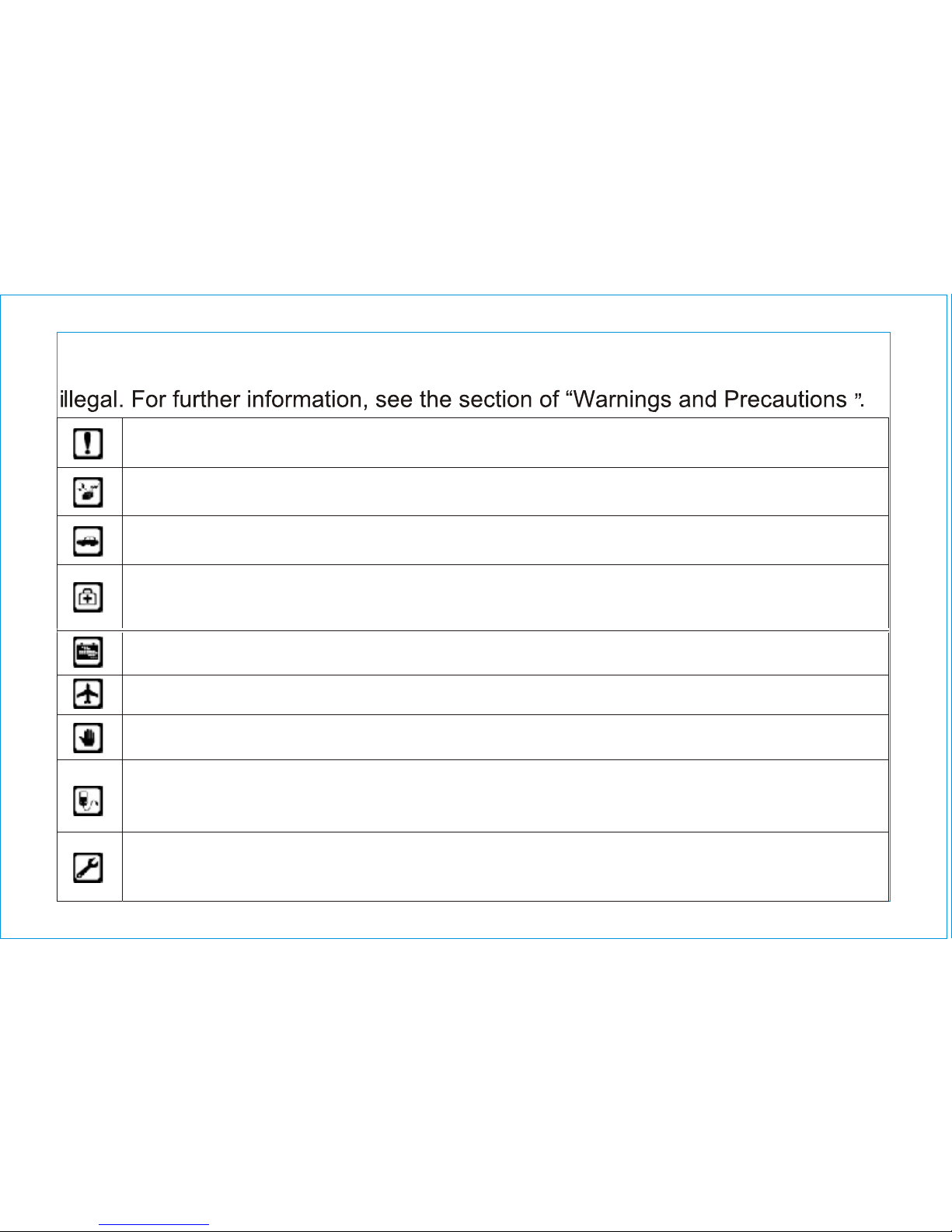
Please read these simple guidelines. Not following them may be dangerous or
Do not switch the phone on when Mobile Phone use is prohibited or
when it may cause interference or danger.
Do not place your phone and its accessories in containers with strong
electromagnetic field.
Obey all local laws. Always keep your hands free to operate the vehicle
while driving. Your first consideration while driving should be road safety.
Hospitals or health care facilities may be using equipment that could be
Sensitive to external radio frequency energy. Follow any regulations or
rules in force.
Do not use the phone at a refueling point. Do not use near fuel or
chemicals.
Follow any restrictions. Wireless devices can cause interference in aircraft.
Keep the phone and all its parts, including accessories, out of the reach
of small children.
Use only approved batteries and chargers. Disconnect the charger from
the power source when it is not in use. Do not leave the battery connected
to a charger for more than a week, since overcharging may shorten its lift.
Only qualified personnel should service the phone or install the phone
in a vehicle. Faulty installation or service may be dangerous and may
invalidate any warranty applicable to the device.
Page 3

Introduction............................................................................................................
Warnings and Precautions.....................................................................................
Management Software...........................................................................................
Main Function.........................................................................................................
CONTENTS
Page 4

Page 5

1 Introduction
1
Thank you for using this HSDPA USB Modem. To guarantee the HSDPA USB
Modem always in its best condition, please read this manual carefully and keep it
for further use.
The pictures, symbols and contents in this manual are just for your reference.
They might not be completely identical with your HSDPA USB Modem.
Your HSDPA USB Modem packing box includes:
A HSDPA USB Modem
User Manual
With the HSDPA USB Modem, you can easily:
Access the Internet
View the statistics
Send and receive message
Use the phonebook
Features
Technical Standard: GPRS/EDGE/HSDPA/WCDMAUSB Interface Standard: USB
Maximum Transmit Power: GSM 800/900: 33dBm; GSM 800/1900: 30dBm;
GPRS/EDGE: 27dBm; HSDPA/WCDMA: 24dBm
Data Rate: GPRS: DL171Kbps UL40Kbps; EDGE: DL384Kbps UL120Kbps; WC
Page 6

2
DMA: 384Kbps; HSDPA: DL3.6Mbps UL384Kbps
Frequency Band: GSM 800/1900/900/1800; WCDMA 850/1900/2100Dimensions:
89mm*28mm*10.5
Weight: TBD
Operating Temperature: 0-40
Storage Temperature: -25 -62
Operating Humidity: 10% - 85% RH
Storage Humidity: 10% - 90% RH
System requirements
To use the HSDPA USB Modem, the following requirements are recommended
for your computer:
CPU: Pentium4 1GHz or above
Memory: 256MB or above
Hard Disk: 50MB free disk space
OS: Windows 2000/XP/Vista/Macintosh Operating System (10.4 and above) or
Linux
Interface: USB1.1 or above
Note: If the configuration of your computer is inferior to the recommended
configuration, the running performance of the data modem may be affected.
Page 7

3
2 Warnings and Precautions
Read the safety precautions carefully to ensure the correct and safe use of your
HSDPA USB Modem.
Do not switch your wireless device on when the use of wireless devices is
prohibited or when the wireless device may cause interference or danger.
Observe the relevant regulation of the area or country where you are. Do not use
your wireless data card while driving to avoid traffic accident.
Follow relevant rules or regulations in hospitals and health care facilities.
Switch your wireless device off near medical devices.
Observe the rules and regulations of airline companies. Switch your wireless
device off in aircraft. The radio signal from it may cause interference to control
signals of the aircraft.
Switch your wireless device off near high-precision electronic devices. It may af
fect the performance of these devices.
Do not attempt to disassemble your wireless device or its accessories.
Only qualified personnel may service or repair the wireless device.
Do not place your wireless device and its accessories in containers with strong
electromagnetic field.
Page 8

4
3 Management Software
Installation & Uninstalling
The installation process is subject to different operating systems, such as Windows
2000, Windows XP, Windows Vista, Macintosh, Linux. During the actual installation, if
any step differs from what is described here, follow the specific installation instructions.
Do not place magnetic storage media near your wireless device.Radiation from
the wireless device may erase the information stored on them.
Do not put your wireless device in a high-temperature place or use it in a place
with flammable gas such as a gas station.
The wireless data card is not water-resistant. Keep it dry. Protect the wireless
data card from water or vapor. Do not touch the wireless data card with a wet hand.
Otherwise, short-circuit and malfunction of the product or electric shock can be
caused.
Keep your wireless device and its accessories away from children. Do not allow
children to use your wireless device without guidance.
Observe any laws or regulations on the use of wireless device. Respect others'
privacy and legal rights when using your wireless device.
Page 9
5
Installation
1.Put the HSDPA USB Modem into the USB interface;
2.The setup program starts automatically, and the HSDPA USB Modem installation
interface is displayed later.
3.Follow the instructions of the program;
4.Once the installation completes, the shortcut icon for HSDPA Manager appears
on the desktop;
5.When the system prompts you that the installation is finished, click <Finish> to
finish the installation of the HSDPA Manager.
Uninstalling
Uninstalling the HSDPA Manager through the Add / Remove in the Windows.
Accessing & Exiting
Accessing the HSDPA Manager GUI
1. To start program, double-click the shortcut icon of the HSDPA Manager on
the desktop;
2. If you are prompted to enter PIN code, enter the correct one and click <OK>;
You can try 3 times to enter your PIN code. If you failed to do that after 3 times,
your USIM card would be locked, if this happens, use the PUK code to unlock it.
You can try 10 times to enter your PUK code. If you failed to do that after 10 times,
Page 10
6
your USIM card cannot be used, if this happens, please contact your network operator.
If you failed to enter PIN or PUK code, the HSDPA Manager is not available for you.
Exiting the HSDPA Manager
Click the button on the right corner on the interface.
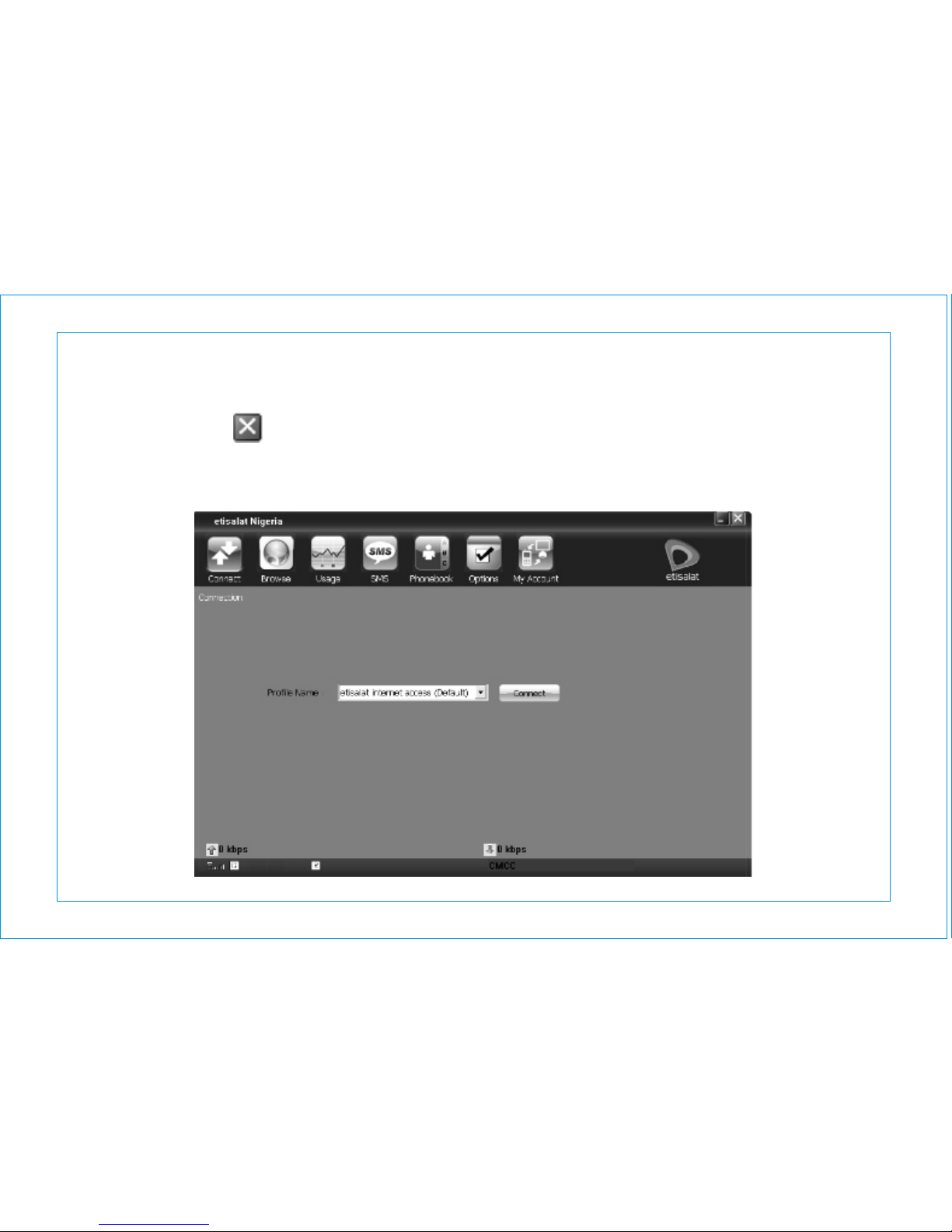
Instruction to the main interface
The initial interface after the HSDPA Manager starts is as follows.
Page 11
7
Shortcut Icon
Access the Connect interface
Start the default internet browser in your operating system
Access the Usage interface
Access the SMS interface
Access the Phonebook interface
Access the Options interface
Access the My Account interface
4 Main Function
Internet Service
Click to display the Connect interface.
1.Choose a profile and click <Connect>to set up a connection;
2.When the connection is set up, click or start the browser on your
computer, and then you can access the internet;
3.Click <Disconnect> to disconnect from the network.
Usage Service
Click and access the Usage interface. You can view the content of the statistics,
including sent and received statistic values and the duration of the connection.
You can select the operation you need. The operation options are: Expand all,
Page 12

8
Collapse all, Reset statistics, View net log.
Expand all Start all of the data
Collapse all Close all of the data
Reset statistics Clear the statistic information
View net log View the information of the network
Note: The above data of the statistic is for your reference only.
SMS
Click to display the SMS interface.
Inbox
The inbox stores messages you have received. It supports up to 500 messages.
When the inbox is full and a new message is coming, the earliest message in the
inbox is deleted automatically.
Outbox
The messages you have sent out are saved in the Outbox. Up to 500 messages
can be stored in the Outbox. When the Outbox is full and an additional message
is coming, the earliest message in the Outbox is deleted automatically.
Draft
The messages that you write on the Write SMS window, if having been saved, can
be stored in the draft. Up to 500 messages can be stored in the draft.
Archive
The message you have moved from the inbox can be stored in the archive. Up to
Page 13
9
500 messages can be stored in the Archive.
Viewing a message
You can view a message in the Inbox/Outbox/Draft/Archive directly.
1.Click Inbox/Outbox/Draft/Archive to open and browser the Inbox/Outbox/Draft/A
rchive.
2.When there is a new message, you can see the alert window. Click <View> to
view the message, Click <Cancel> to close the window.
Writing a new message
1.Click and the Write SMS interface is displayed;
2.Enter the telephone number(s) by one of the following ways:
To enter one or more number directly: In the Contacts textbox, enter
the numbers separated by semicolons
To select a number from the Contacts: Click <Contacts>. Select one or more
contact(s) and click <OK>. Select the number to send a message in the pop-up
dialog box and click <OK>.
3.Input the message. The maximum length of each message is 160 characters.
4.Click <Send> to send message.
After the message is sent successfully, it is automatically saved to the Outbox.
If the message is sent unsuccessfully, the message is saved to Outbox.
Click <Save> to save message to the Draft.
Click <Clear> to clear the message content and number.
Page 14
10
Click <Close> to close the window.
Note: The HSDPA USB Modem supports to send a message to a group of up
to 40 numbers.
When your message contains no more than 160 characters, it is sent as one
message. If this limit is exceeded, the message is divided to five messages and
sent one by one.
Replying a message
You can reply to a message directly in the inbox.
1. Select a message and click ;
2. The telephone number of the original sender appears automatically in the blank
filed behind <Contacts> and you can change it;
3. Input the content for the message to reply;
4. Click <Send> to reply a message.
Forwarding a message
In Inbox/Outbox, you can forward a message to other contacts.
1. Select a message and click ;
2. Input the telephone number to forward to, or click <Contacts> to select the
number;
3. The content of the message to forward displays automatically in the text box.
You can edit it.
4. Click <Send> to forward a message.
Page 15
11
Deleting a message
In Inbox/Outbox/Draft/Archive, you can delete a message.
1. Select one or more message(s) and click ;
2. Click <OK> to confirm.
Extracting a number
You can save the number of a message to the phonebook.
1. Select a message and click ;
2. The Select Number interface is displayed, select the number and click <OK>;
3. The Select Position interface is displayed, select the position and click <OK>;
4. Input the required information of this number;
5. Click <OK>.
Searching a message
The HSDPA USB Modem provides the function of search a message in the SMS.
1. Enter relevant searching term in text box, and click ;
2. The message that matches the condition specified will be shown on the screen.
Editing a message
In Outbox/Draft, you can edit a message.
1. Select a message and click ;
2. Change the information and click <Send>or <Save>.
Archiving a message
In Inbox, you can archive a message.
Page 16
12
1.Select a message and click ;
2.You can archive a message in the Inbox to the Archive.
Resuming a message
In Archive, you can resume a message.
1.Select a message and click
2.You can resume a message in the Archive to the Inbox.
Transferring a message among PC, USB Modem and USIM Card
You can import the messages saved in the PC, USB Modem and USIM Card from
one to another.
1.Click and the Transfer SMS interface is displayed.
2.Select the source location and target location in the drop-down box.
3.Select an operation mode:
<Copy>: The SMS in the source location is kept.
<Move>: The SMS in the source location is deleted.
4.Select a message in the source location and click the below arrows:
Click : Transfer the SMS from the above side of the arrow to the below side
of the arrow.
Click : Transfer the SMS from the below side of the arrow to the above side
of the arrow.
Phonebook Service
The HSDPA USB Modem can store up to 500 contacts.
Page 17
13
You can create, modify and delete the contacts. You can also send messages to
the contacts. The HSDPA USB Modem also supports the import/export of the contacts
for your convenience to manage the contacts.
Click to display the phonebook interface.
Creating a contact
1. Click and the Contact interface is displayed;
2. Select an image for the current entry and edit the information of the entry;
3. Click <OK> to save a new contact to the phonebook.
Modifying a contact
1. Select a contact and click ;
2. Modify the relative information;
3. Click <OK> to save.
Deleting a contact
1. Select one or more contact(s) from the phonebook and click ;
2. Click <OK> to confirm.
Grouping in the phonebook
1. Click and the Group interface is displayed;
2. Click <New> to create a new group;
Input the group name, and click <Edit Member> to add or delete the group member;
Click <OK> to save the group;
Click <Cancel> to close the window.
Page 18

14
3. Select the group name and click <Edit> to modify the information of this group;
4. Select the group name and click <Delete> to delete this group;
5. Click <Close> to close the window.
Searching a contact
The HSDPA USB Modem provides the function of searching a contact in the
phonebook.
1. Click and the Search Contact interface is displayed;
2. Enter relevant searching terms in the value text box to click <Search>;
3. Click <Ahead> or <Next> to scroll among the entries which have been found.
Sending a message
The HSDPA USB Modem allows you to select a number from the phonebook and
send a message.
1.Select a contact from the phonebook;
2.Click and the Write SMS interface is displayed;
3.The Name or number appears in the blank field behind the <Contacts>. Input
the content for the message and Click <Send>.
Transferring a contact among PC, USB Modem and USIM Card
You can import the contacts saved in the PC, USB Modem and USIM Card from
one to another.
1.Click and the Transfer Dialog is displayed;
2.Select the source location and target location in the drop-down box;
Page 19

15
3.You can do follows:
<Copy Some>: Copy the selected phonebook entries to the target location;
<Move Some>: Move the selected phonebook entries from the source location
to the target location;
<Copy All>: Copy all phonebook entries of the source location to the target location;
<Move All>: Move all phonebook entries of the source location to the target location.
Importing a contact
The HSDPA USB Modem allows you to import the contacts from a file in a specified
format to the HSDPA USB Modem contacts. The HSDPA USB Modem supports
for importing of the *.csv and *.vcf files.
1.Select Import PB option by clicking the right key of the mouse;
2.Select the importing mode;
3.Click <OK> to load the contact to the phonebook.
Exporting a contact
The HSDPA USB Modem allows you to export the contacts from the HSDPA
USB Modem contacts to a file.
1.Select Export PB option by clicking the right key of the mouse;
2.Select the desired file format (*csv / *.vcf.);
3.Click <Save> to finish.
Page 20
16
Security and settings
Click to display the Options interface.
PIN Code Management
The PIN code is used to prevent your USIM card from the invalid use. The PIN
code is provided along with the USIM card. You can change your PIN code, and
you can also enable/disable the PIN feature. If you enable the PIN feature, you
need to enter the PIN code when the HSDPA USB Modem starts up.
Enable/Disable PIN
You can enable / disable PIN feature. If the feature is enabled, you need to enter
a PIN code when the HSDPA USB Modem is started.
Enable PIN You need to enter the PIN code when the HSDPA USB Modem is
started.
Disable PIN You do not need to enter the PIN code when the HSDPA USB
Modem is started.
Modify PIN
Enter the current PIN code and the new PIN code. Enter the new PIN code again
to confirm it.
Click <OK> to modify it.
Unlock PIN
If your USIM card locks, you can use the PUK code to unlock it. You can try 10
times to enter your PUK code. If you failed to do that after 10 times, you USIM
Page 21

17
card cannot be used. If this happens, please contact your network operator.
Text Message Setting
Message Center Input the message center number (You must obtain this number
from your service provider).
Validity Period In the period of validity, the message center will repeat to deliver
a message till it is received.
Delivery Report You can enable or disable this function. If the function is enabled,
after you send a message, the network can send a message to inform you that the
receiver has got the message you have sent.
Alert Window Check the box, and an alert window is displayed whenever a new
message comes.
Click <View> to see the message
Click <Cancel> to close the window
Alert tone f a sound file is selected, it plays on the PC whenever a new message
comes.
Click <Browse> to select a sound file
Network Setting
Mode Preference
You can select a mode and click <Set> to set the selected mode as the preferred
mode.
Registration Mode
Page 22
18
Auto search and register: Select Auto search and register and click <Select>
to select the desired network automatically.
Manual search and register: Select Manual search and register and click
<Refresh> to display the available networks; Select one network and click <Select>
to activate it.
Profile Setting
Creating a profile
1. Click <New> to open the New Profile dialogue box;
2. Enter a new profile name in the Profile Name field;
3. Enter required relevant information for the settings;
4. Click <OK> to save.
Deleting a profile
1. In the Profile Name field, select a profile to delete
2. Click <Delete> to delete this profile.
Modifying a profile
1. In the Profile Name field, select a profile to modify;
2. Modify the relevant information for the settings;
3. Click <Save> to finish.
Preference Setting
Start Up Setting
You can set the HSDPA Manager to connect internet when program starts up and
Page 23

19
Start main window minimized.
Standby / Hibernate Setting
You can set HSDPA Manager to prevent or allow standby / hibernate.
Usage Limit
You need to enter the password when the feature of usage limit is used. The
default password is blank.
1. Enter required relevant information for the settings.
2. Click <OK> to save the settings.
3. Click <Modify PWD> to modify this password.
4. Click <Cancel> to close the window.
Diagnostics
The HSDPA USB Modem allows you to query information for the HSDPA USB
Modem and the USIM card.
My Account
Click to display the My Account interface.
The HSDPA USB Modem provides the functions for query account balance,
recharge and other USSD services.
Note: This service needs the network service provider to provide. If neither USIM
card nor the network service provider supports this service, this service will not
be available. For more information, please consult the network service provider.
 Loading...