

Page 1

Page 2
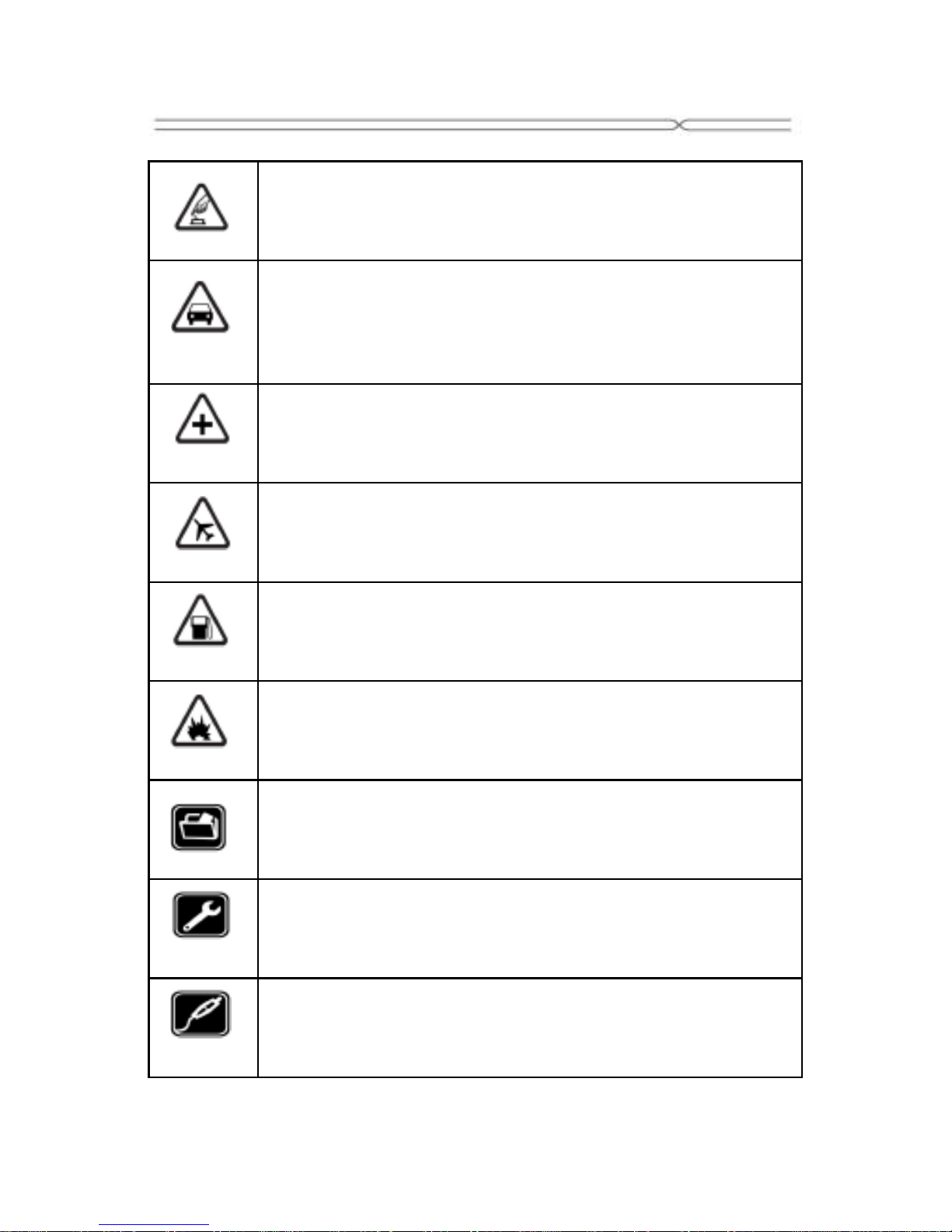
Precautions
Please carefully read and observe the terms below:
Safe power on
Do not use your mobile phone where it is forbidden to
use or you mig ht ca us e a di st urbance or dan ger .
Safe transportati on first
Please observe all related local laws and regulations.
Do not use your mobile phone while driving.
Safe transportati on should be co ns i dered first wh e n
driving.
Turn off when in the hospital
Please follow related limitations.
Please switch your mobile phone off when near a
medical instrument.
Turn o ff on an airplane
Please follow related limitations.
Do not use your mobile phone on an airplane.
Turn o ff whe n at a gas oline stati on
Do not use your mobile phone at a filling station or
around fuel s or ch em i c als .
Turn o ff aro un d ex po s ur e Are a
Please observe related limitations and do not use
your mobile phone near an area where explosions
can occ ur.
Backup
Remember to mak e a b ac kup or keep a w r i tte n r ecord
of all important information saved in your mobile
phone.
Use qualified after sales service
Only a qualified technician can install or repair your
mobile phone. Ple ase c o ntact the authorized service
center in case of phone failure.
Access or i es and batteri es
Only use th e authorize d acc essories an d batteries
and do not connect to incompatible manufacturers or
products.
Page 3
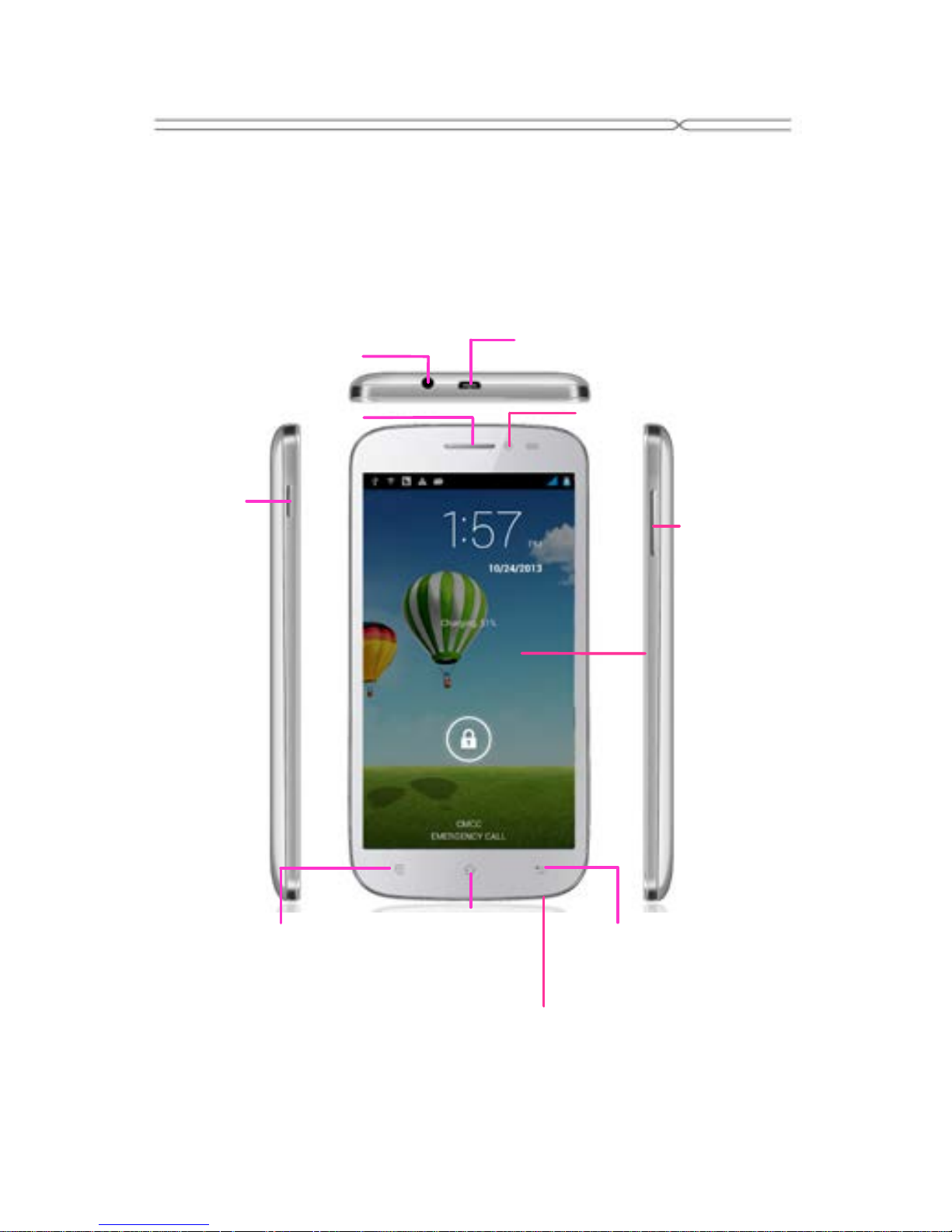
Your phone
Power Key
Long press
to switch
the phone
on and of f
Press to
lock or
wake up
the touch
Earphone
Jack
Charge/USB Connector
Connect a charger or a USB
data cable for data transfer
Touch
Screen
Menu Key
Open a list of options
available in the
current screen or
application
Home Key
Go to Home
screen
Long press to
open recent
application list
Back Key
Go back to the
previous screen
Receiver
Front Camera
Volume Key
Adjust the
volume
Microphone
Page 4
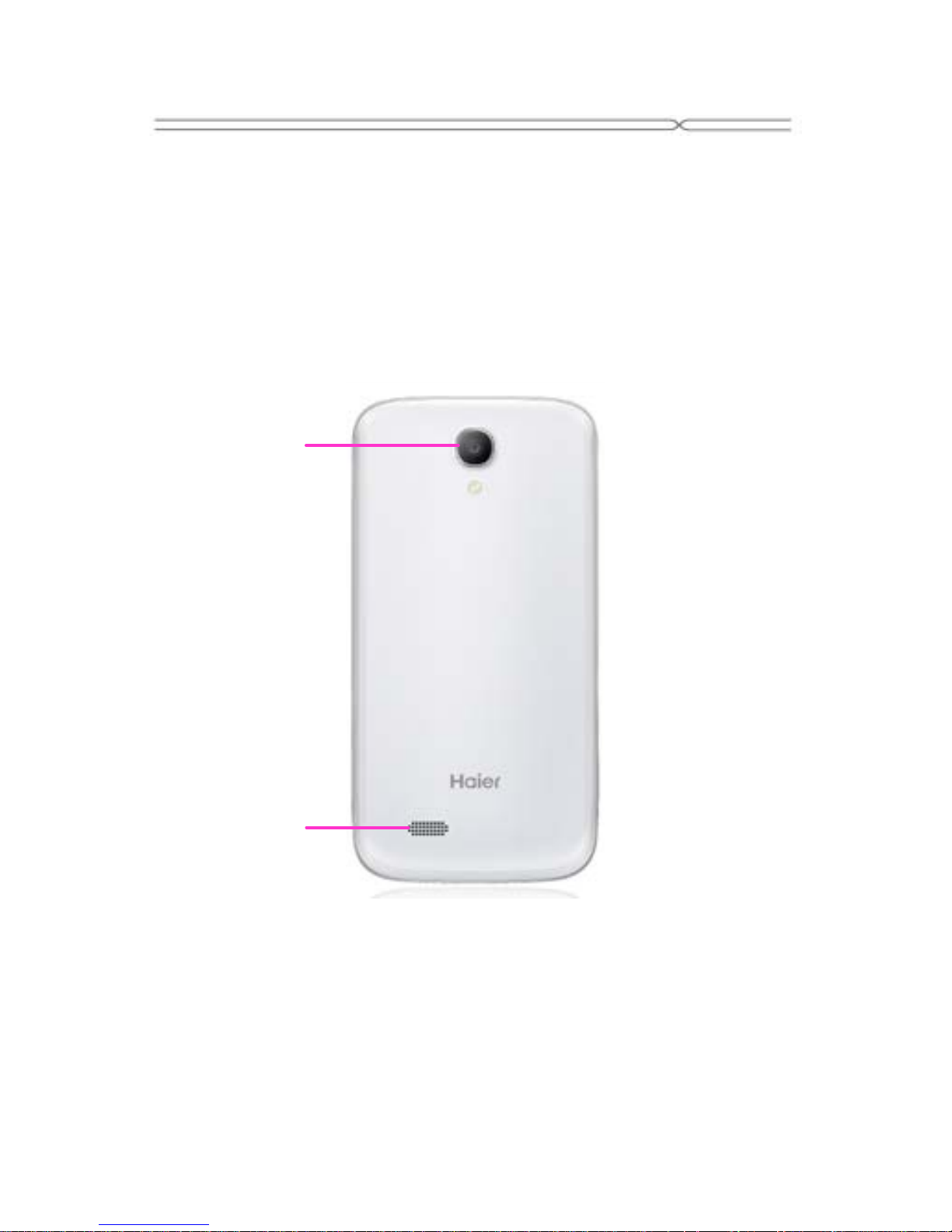
Your phone
Back Camera
Speaker
Page 5
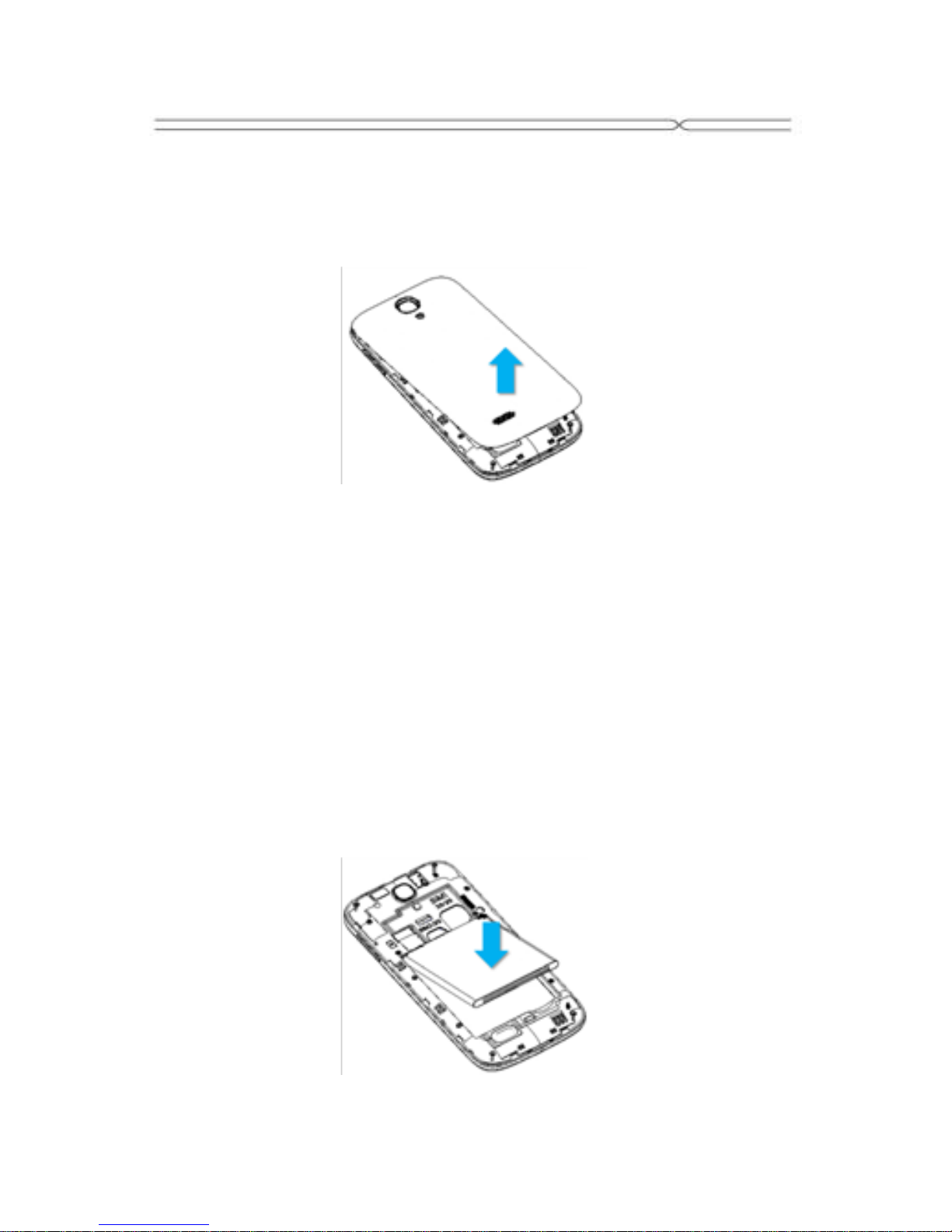
Battery Cover & Battery
Removing the Battery Cover
1. Hold the device firmly and locate the cover release latch.
2. Place yo ur fin gernail in the op eni ng and remove the cover
according to the arrow direction.
Installing the Battery
1. With the metallic contacts of the battery facing the metallic
contacts in the battery slot, press the battery down until it locks into
place
2. Ensure the ba tt er y i s insert ed in the phone. To char ge the ba tt er y ,
plug in the charger connector at your pho ne (USB inter fac e) an d
then plug th e oth er en d int o an AC pow er s ocket.
The battery symbol indicates the charging status. While charging,
the charge indicators will scroll. W hen all the scroll bars are steady,
the battery is fully charged. Disconnect the charger from the phone.
Disconnect the charger from the AC power socket.
Note: If the battery is powerless, the battery icon will reappear after
a few minut es of chargin g.
Page 6
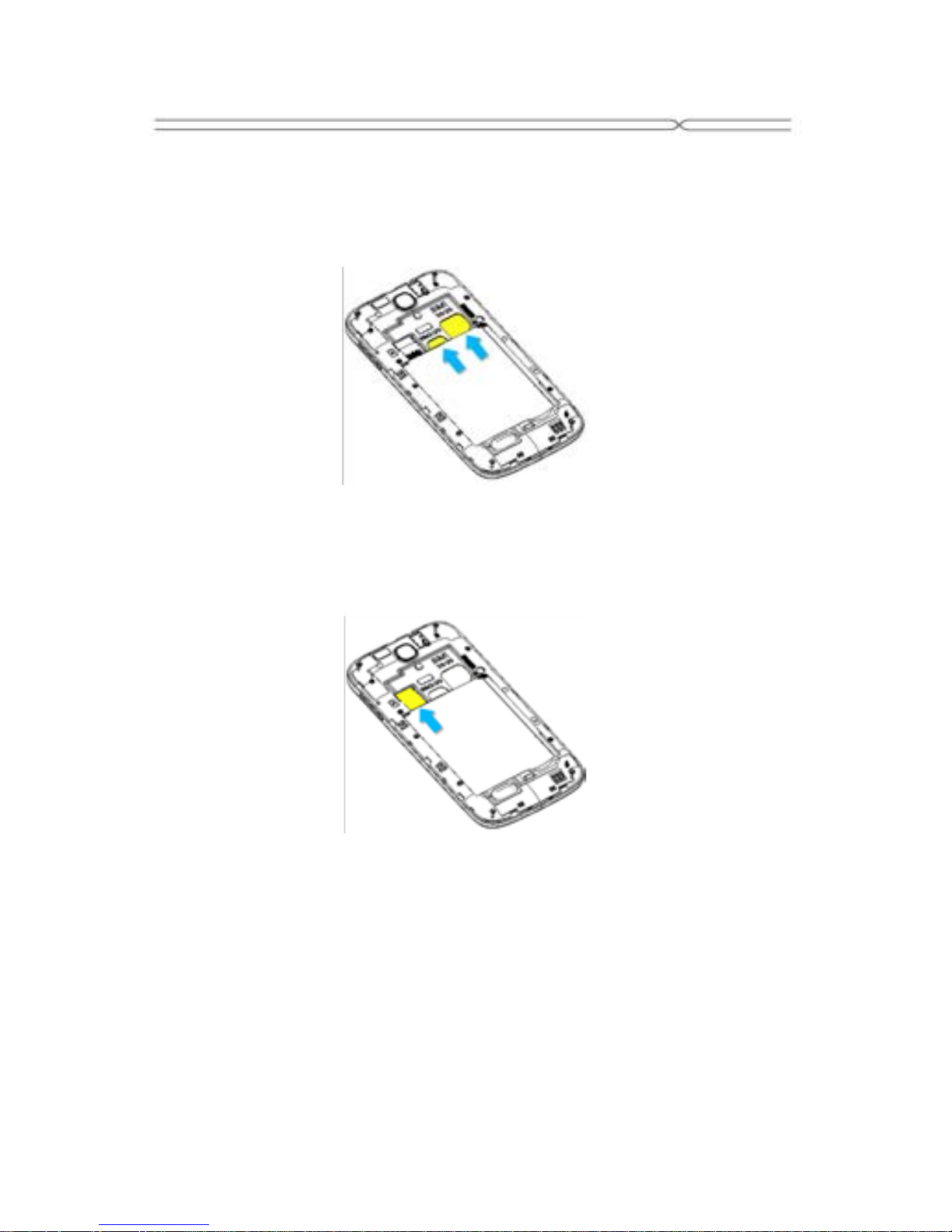
SIM Card & microSD
Installing the SIM Card
Make sure that the clipped corner of the SIM card is facing the
correct direction and the metallic contacts are facing the correct
direction. Slide the SIM card into the card slot until it stops.
Installing the microSD Memory Card
Slide microSD card i nto t h e SD card s lot with the m etallic pins facing
downwards. Push the card until it locks into place.
Page 7
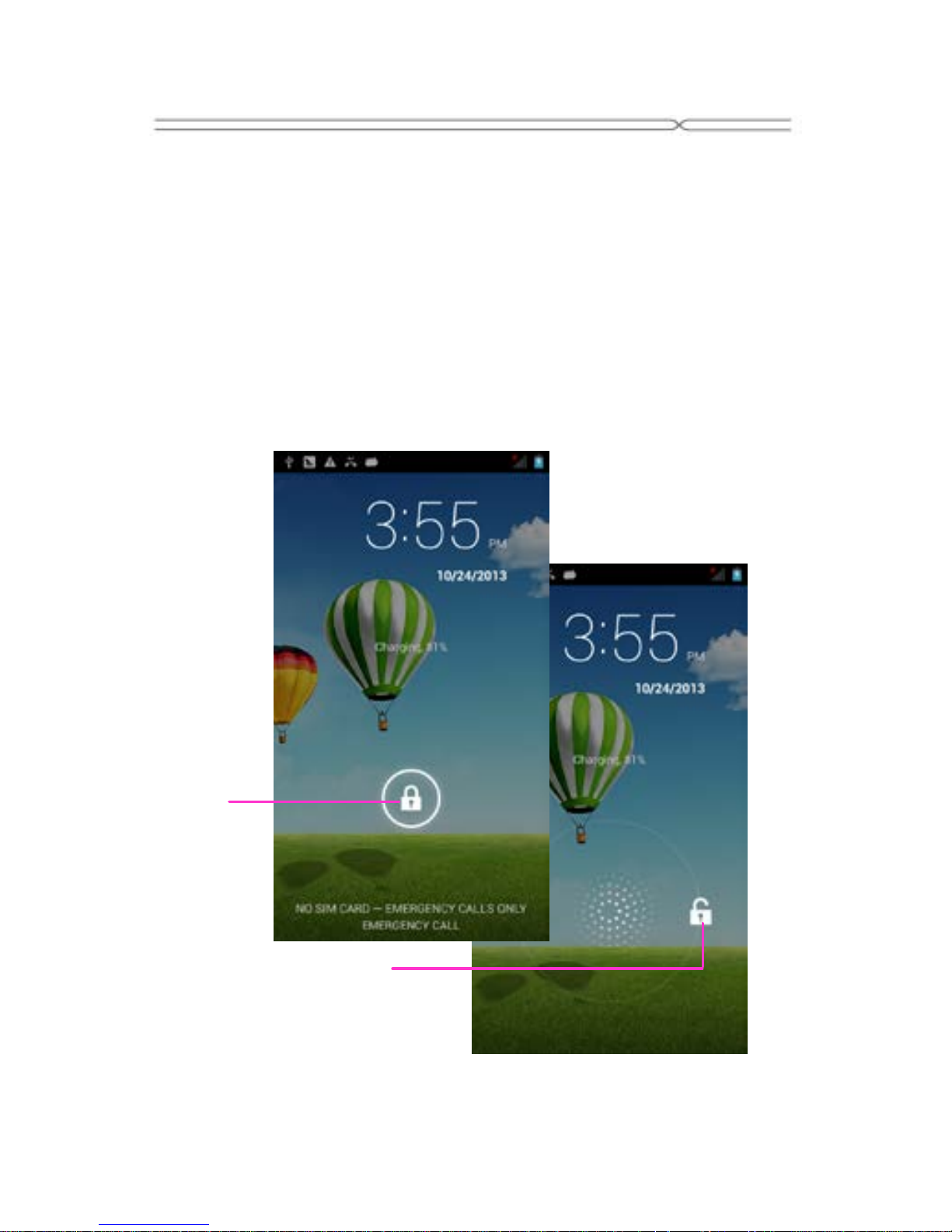
Lock & Unlock Screen
Locking the Screen
To save your battery, prevent accidental touches or when you want
to wipe smudges off you r touch screen, put the touch screen to
sleep by pressing the Power Key
Unlocking the Screen
To wake up th e touch screen, just press the Power Key again, and
then dr ag the lo ck i co n to the r i gh t o n t he screen to unl ock ac cor ding
to the clue on the screen.
Lock icon
Unlock icon
Page 8

Home Screen
Status Bar and Notifications
The stat us bar at t h e top o f th e scr e en contains icons that tell you
about messages and phone status and shows what’s going on in
your phone. You can drag down the status bar to open the
Notification panel and get more information.
Toolkits
In th e t ool k it s y o u can qui ck l y start t h e common a pplicatio ns such as
Bluetooth, WLAN and so on.
Touch to open the
toolkits panel
Touch to open the
Notification panel
Touch to open the system settings
Page 9
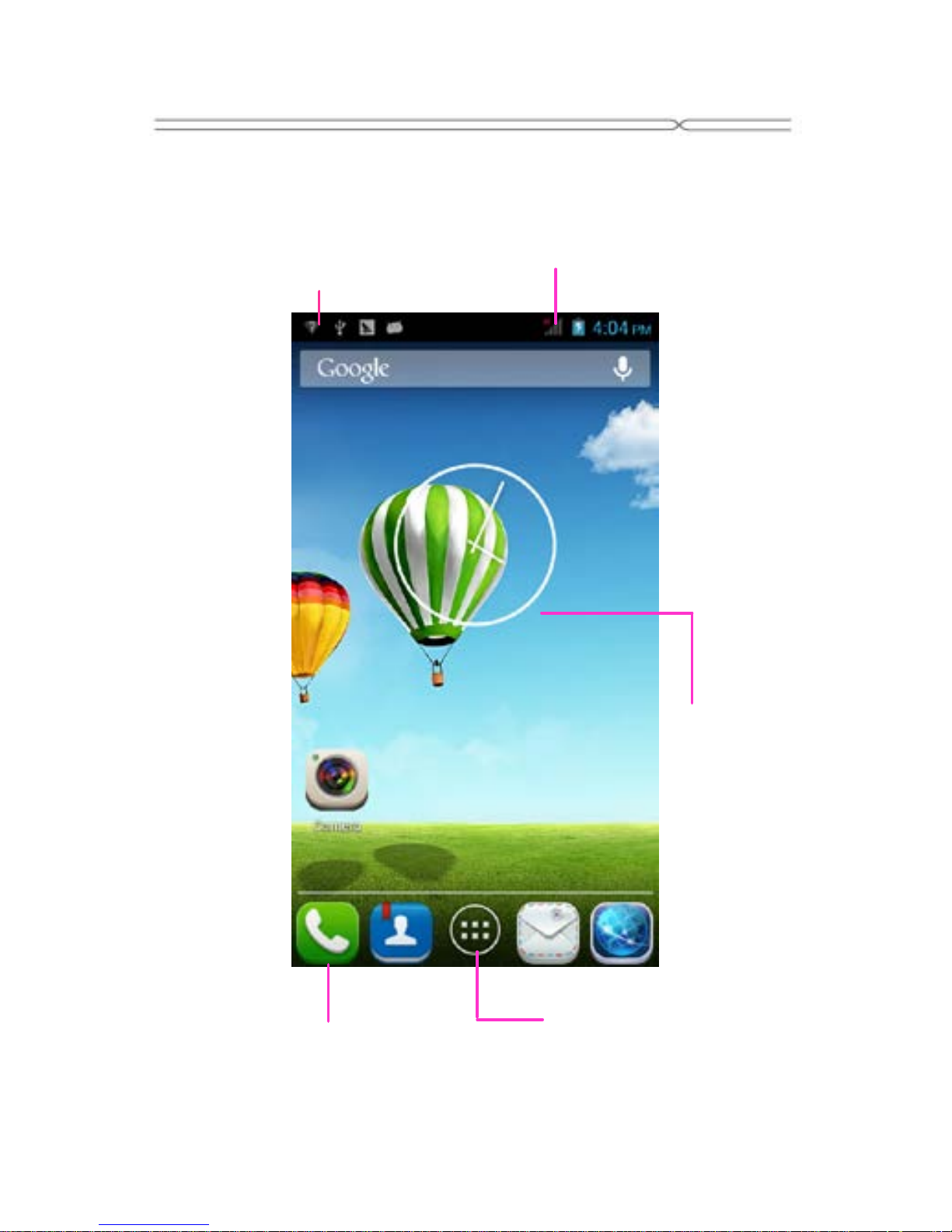
Home Screen
The Home screen is your gateway to the main
features in your phone.
Notifications
Drag down to open
the Noti fication pa nel
Status bar
Launcher
Touch to enter Main menu
Browse al l the installed
applications
The favor i te tray
Touch the applications in the tray to
enter applications
Touch and hold the applications to
drag them in or out from the tray
Slide the Home
screen left or
right to view
more content in
other panels on
the Home
screen
Page 10

Customizing
The phone provides you with Options menus.
Touch the Menu Key to enter customizing:
Touch to select
a wallpaper,
and set it as the
wallpaper of
Home screen
Touch to enter
the Settings,
and set the
system
preferences
Touch to enter the
Apps, and manage
applications
Page 11

Phone Function
Making a C all
Touch to enter the Dial pad.
The phone offers you several ways of making a call.
You can make a call through the Phone, People, Messaging and
Call log.
Delete
Make a
video call
Dial pad
Touch to close or
open the dial pad
Touch to choose the
card, and then dial
the number
Page 12

Connecting to WLAN
Connecting to WLAN
1. You can connect to the WLAN, and use it to surf the Internet at
hig h speed and do wnload.
Touch Launcher → Settings → WLAN.
2. Turn on the switch to activate WLAN.
3. Touch WLAN.
4. Choose an availabl e WLAN network to connec t
5. Sec ur e d networks ar e indi cated wit h a Lo c k icon. If the network is
secure d, y o u ar e pr om pt ed t o e nter a pas sword or other credentials
(Ask your network administrator for details)
6. Touch “Connect”.
Page 13

Accessing the Internet
Using the Browser
Touch to enter the Browser.
Touch to enter the Bookmar k s
Touch to look through the thumbnails
of all web page windo ws, and swi tc h
the web pages
Touch to go back
to the previous
page
Touch to f or war d the
browser to the next
web page
Page 14

Accessing the Internet
When you are viewing the web page, touch the
Menu Key, the following options are available to
you:
Page 15
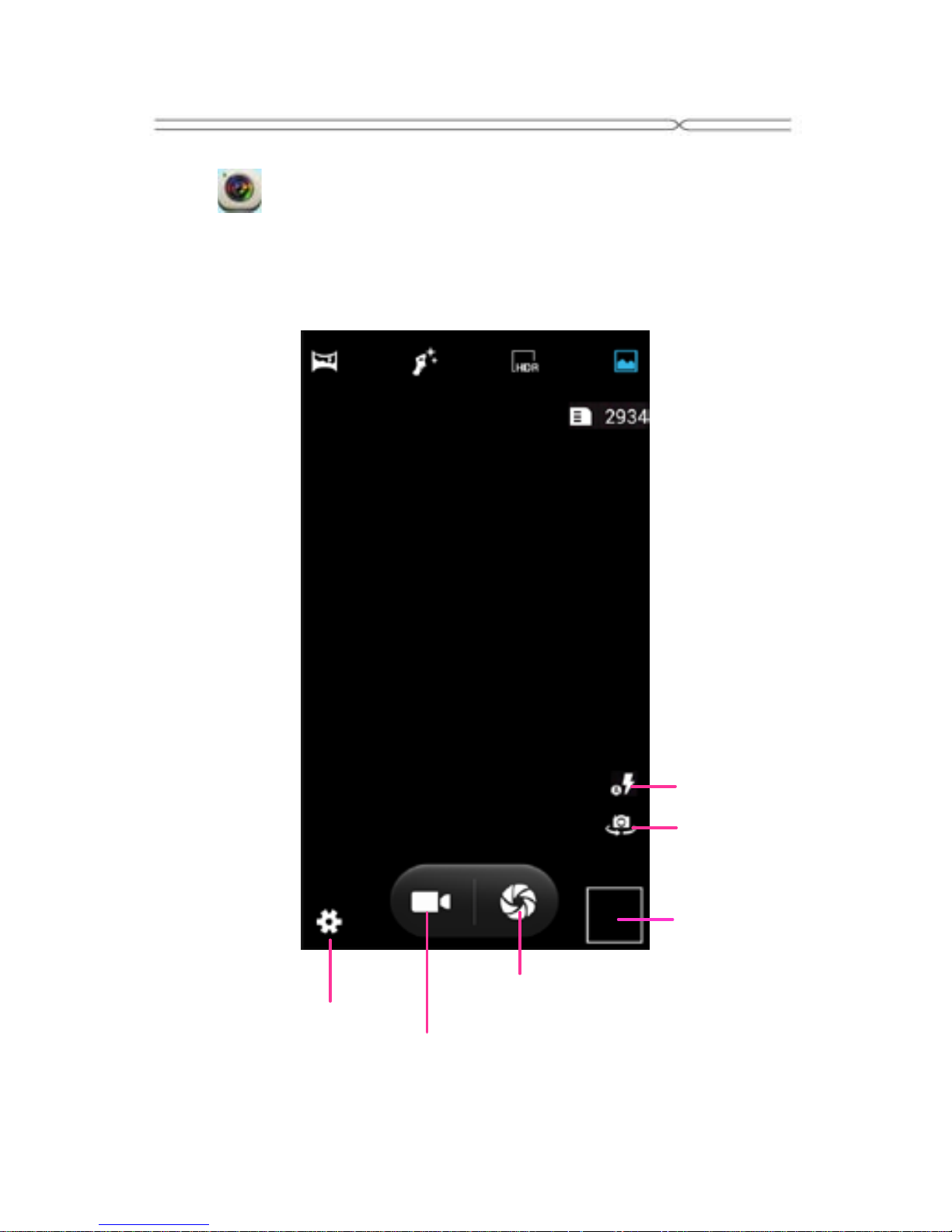
Taking Pictures/Videos
Taking pictures and vide os
Touch to enter the Camera.
View taken
photos or
videos
Take pictures
Flash
Settings
Record videos
Switch to the
front camera
Page 16

Playing Music
Music Playe r
Touch to enter Music.
Categories
Select Genres,
Artists, Albums, and
Songs
Shuffle
Rep eat: Touch to
repeat the all songs;
touch ag ai n to r ep eat
the current song
Next song
Previous song
Play/Pause
Touch to open the
album, songs or
playlist
Page 17

Troubleshooting
Frequently
Asked
Questions
Cause and Solution
Fail to turn
on
Press the Power Key for over 1 s eco nd.
Check if the battery is properly connected.
Please r emove an d i nstall it again, ret r y to turn it
on;
Check if battery is appropriately charged.
Fail to
connect
network
Weak signal. Please try and move to a location
with strong signal and try connecting to the
network again;
Please ensure that you are not beyond the
network coverage of service providers;
Please ensure you have a valid SIM card.
Please c ont ac t your network pr ovider for fur ther
information;
Poor qual i ty
of calling
Please check if the sound volume is tuned
improperly
In an area with poor receiving condition,
example: basement, the signal might be weak.
Try searching a location with stronger signal
reception and call again.
While us i n g the mobil e p ho ne in the p eak period
of communication, like commute time, you may
be unable to call because of line congestion.
SIM Card
Error
Dirt on the metal surface of an SIM card. Use
clean cloth to wipe the metal touch point on an
SIM card.
The SIM card is not installed.
The SIM card is damaged. Please contact your
network service provider.
Callers
cannot
contact you
Please check if the mobile phone is on and
connected with the net work.
Please check if the Call barring or call divert is
activated.
Please check if the SIM card is valid.
Fail to set
some
functions
Wrong operati on.
The network provider does not support the
function, or you have not applied for it.
Page 18

 Loading...