

Page 1

M307S User Guide
This document and all its contents included remain the proprietary material of Qingdao
Haier Telecom Co. Ltd. (Haier Telecom) and are protected by the Chinese laws and
applicable international conventions on copyrights. Any reproduction, transmission,
disclosure,revision, modification or use otherwise of this document or the whole or part of
its contents, in whatever form and by whatever means, is not permitted without prior
express written authorization from Haier Telecom. Offenders will be liable for any and all
damages caused by their offence hereof and will be subject to all remedies that Haier
Telecom is entitled to seek under applicable laws.
1
Page 2

M307S User Guide
Contents
1. Safety Precautions........................................................................................................4
2. Handset guide...............................................................................................................5
2.1 Idle mode screen ................................................................................................. 6
2.2 Battery .................................................................................................................6
2.3 SIM card...............................................................................................................7
2.4 Making and receiving a call .................................................................................. 7
3. Input method................................................................................................................. 8
4. File manager................................................................................................................. 9
5. Phonebook....................................................................................................................9
5.1 Quick search........................................................................................................9
5.2 Search contacts...................................................................................................9
5.3 Add new contact................................................................................................... 9
5.4 Copy contacts....................................................................................................10
5.5 Move contacts....................................................................................................10
5.6 Delete all contacts.............................................................................................. 10
5.7 Caller groups...................................................................................................... 10
5.8 Extra numbers.................................................................................................... 10
5.9 Phonebook settings ........................................................................................... 10
6. Fun & Games...............................................................................................................11
7. Call center....................................................................................................................11
7.1 Call history..........................................................................................................11
7.2 Call settings ........................................................................................................11
8. Messaging................................................................................................................... 12
8.1 Write message................................................................................................... 12
8.2 Inbox.................................................................................................................. 13
8.3 Drafts ................................................................................................................. 13
8.4 Outbox ............................................................................................................... 13
8.5 MMS .................................................................................................................. 13
8.6 Templates........................................................................................................... 13
8.7 SMS settings ...................................................................................................... 13
9. FM radio......................................................................................................................13
9.1 Channel list........................................................................................................ 14
9.2 Manual input ...................................................................................................... 14
9.3 Auto search........................................................................................................ 14
9.4 Settings..............................................................................................................14
10. Organizer.................................................................................................................. 14
10.1 Calendar .......................................................................................................... 14
10.2 Tasks................................................................................................................14
10.3 Alarm................................................................................................................ 14
11. Settings ..................................................................................................................... 15
11.1 Dual SIM settings.............................................................................................15
2
Page 3

M307S User Guide
11.2 Phone settings ................................................................................................. 15
11.3 Network settings...............................................................................................16
11.4 Security settings...............................................................................................16
11.5 Data account.................................................................................................... 17
11.6 Restore factory settings.................................................................................... 17
12. User profiles..............................................................................................................17
13. Extra.......................................................................................................................... 17
13.1 Calculator.........................................................................................................17
13.2 Currency converter .......................................................................................... 18
14. Services.................................................................................................................... 18
15. Shortcuts...................................................................................................................18
16. Care and maintenance..............................................................................................18
3
Page 4

M307S User Guide
1. Safety Precautions
Please read these simple guidelines. Not following them may be dangerous or illegal.
Do not switch the phone on where Mobile Phone use is prohibited or when it
may cause interference or danger.
Do not place your phone and its accessories in containers with strong
electromagnetic field.
Obey all traffic laws. Always keep your hands free, to operate the vehicle while
driving. Your first consideration while driving should be road safety.
Hospitals or health care facilities may be using equipment that could be
sensitive to external radio frequency energy. Follow all regulations and rules
enforced.
Do not use the phone at a refueling station. Do not use near fuel or chemicals.
Follow all instructions. Wireless devices can cause interference in aircraft.
Keep the phone and all its parts, including accessories, out of the reach of
children. Do not use the phone while connected to the charger or with wet hand
or bare feet.
Use only approved batteries and chargers. Disconnect the charger from the
power source when it is not in use. Do not leave the battery connected to a
charger for more than a week, since overcharging may shorten its life. Please
remove the battery only after the phone is switched off normally, otherwise it
could cause unpredictable damage for the phone.
Only qualified personnel should service the phone. Faulty service may be
dangerous and may invalidate any warranty applicable to the device.
4
Page 5

M307S User Guide
2. Handset guide
The illustration below displays the main components of your phone.
The appearance of the mobile phone and introduction:
Name Description
Left soft
key (LSK)
In standby mode, press left soft key to enter Menu.
Right soft
key (RSK)
In standby mode, press right soft key to enter Phonebook.
Send key In standby mode, press this key to access the Call history.
End
(Power)
key
Long press: power on, power off.
Up key In standby mode, press this key to show the Shortcuts.
Down key In standby mode, press this key to show the Alarm.
Left key In standby mode, press this key to show the User profiles.
Right key In standby mode, press this key to show the Tone settings.
5
Page 6

M307S User Guide
Number
keys
Enter numbers, letters, and some special characters.
In standby mode, long press 1 key to access the Voicemail server.
In standby mode, long press 0 key to select the symbol “0”,”+”,”p”,”w”.
* key Input the symbol “*”.
In standby mode, press LSK then * key to lock the keypad.
# key In standby mode, long press this key to enable or disable the Meeting mode. Short press
this key to input the symbol “#”.
Notice: long press means pressing the key for more than 2 seconds; short press means
pressing key for less than 2 seconds.
2.1 Idle mode screen
Icon Description
Indicates signal strength.
You have one or several missed call.
You have one or several new text messages.
You have one or several new multimedia messages.
Indicates a headset is connected to the phone.
Alarm clock has been activated.
Indicates ring alert type.
Indicates vibrate alert type.
Indicates vibrate and ring alert type.
Indicates vibrate then ring alert type.
Indicates battery power level.
2.2 Battery
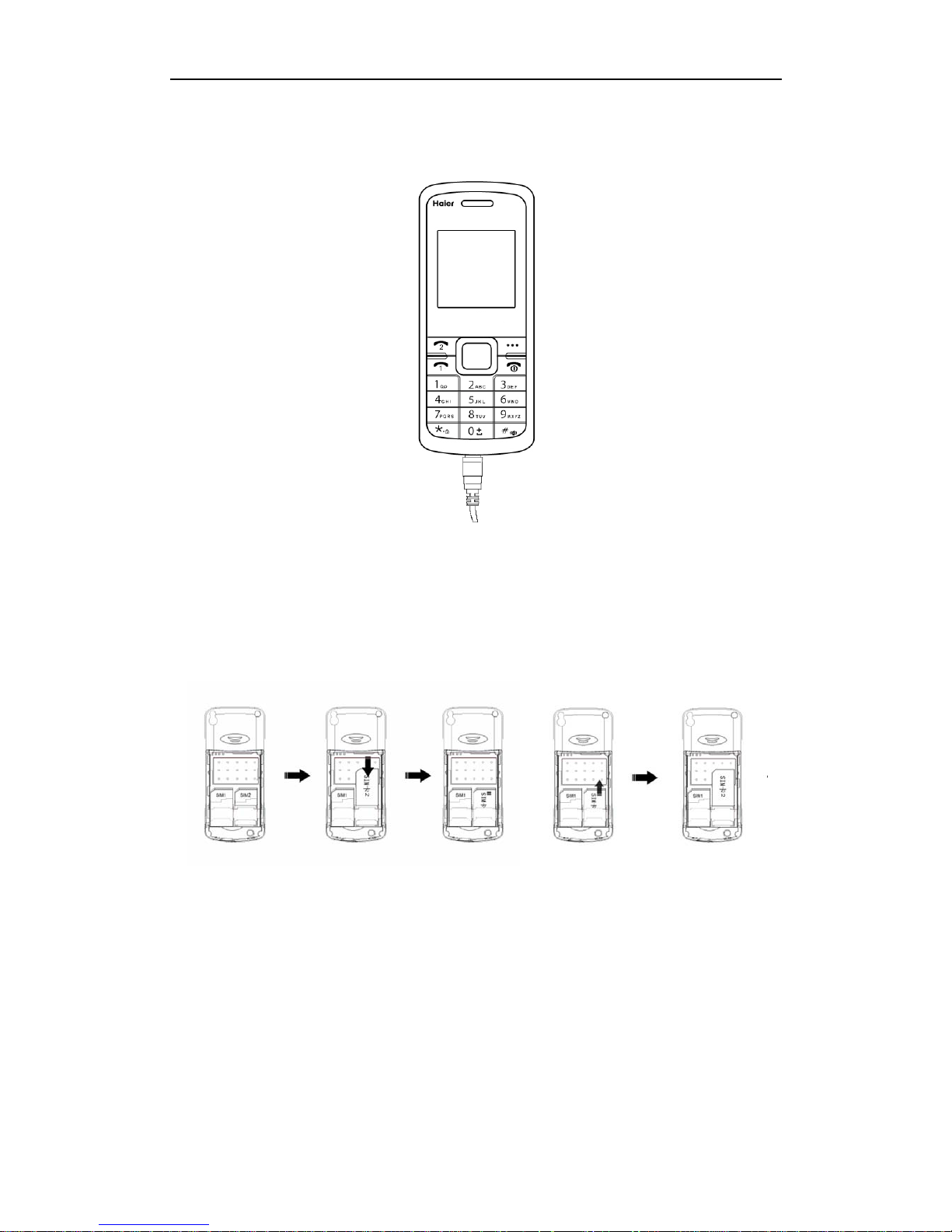
2.2.1 Installing and removing
Install the battery Remove the battery
6
Page 7
M307S User Guide
2.2.2 Charging the battery
2.3 SIM card
2.3.1 Insert and remove the SIM card
Insert the SIM card Remove the SIM card
2.4 Making and receiving a call
2.4.1 To make a call
You can use the function only after the network-prompting icon is shown on screen.
1. Making phone call using the keypad
After dual cards have been inserted into your phone, in idle mode, directly type in the
7
Page 8

M307S User Guide
phone number to dial.
Notes: press send key to dial using SIM1 card and press LSK to dial using SIM2 card.
2. Making phone call using contacts
Enter the phonebook to view the contacts list and select a desired entry to dial.
3. Making phone call using call logs
In idle mode, press send key to access the call logs, scroll to the number or name you
wish to dial.
4. Making phone call using speed dial
In idle mode, long press a number key to make phone call.
5. Ending a call
You can end a call at any time by pressing end key till the call has been terminated.
2.4.2 To receive a call
When an incoming call arrives, phone will alert you.
Press the send key to answer.
To reject the call, press the end key.
2.4.3 During a phone call
During a phone call, press up/down navigation key to increase/decrease the volume,
press RSK to activate handsfree function, press LSK to view the following options:
1. Hold single call
This is useful if you want to make a new call during a call. Put the current call on hold, but
maintain connection of the communication line.
2. End single call
End the current call.
3. New call
Enter dial-up interface, dial another phone number.
4. Phonebook
Allow you to view the phone book option.
5. Messaging
Allow you to view the message option.
6. Mute
Allow you to temporarily turn the microphone off.
7. DTMF
Dual Tone Multi Frequency.
This function allows you to set whether send out DTMF signal.
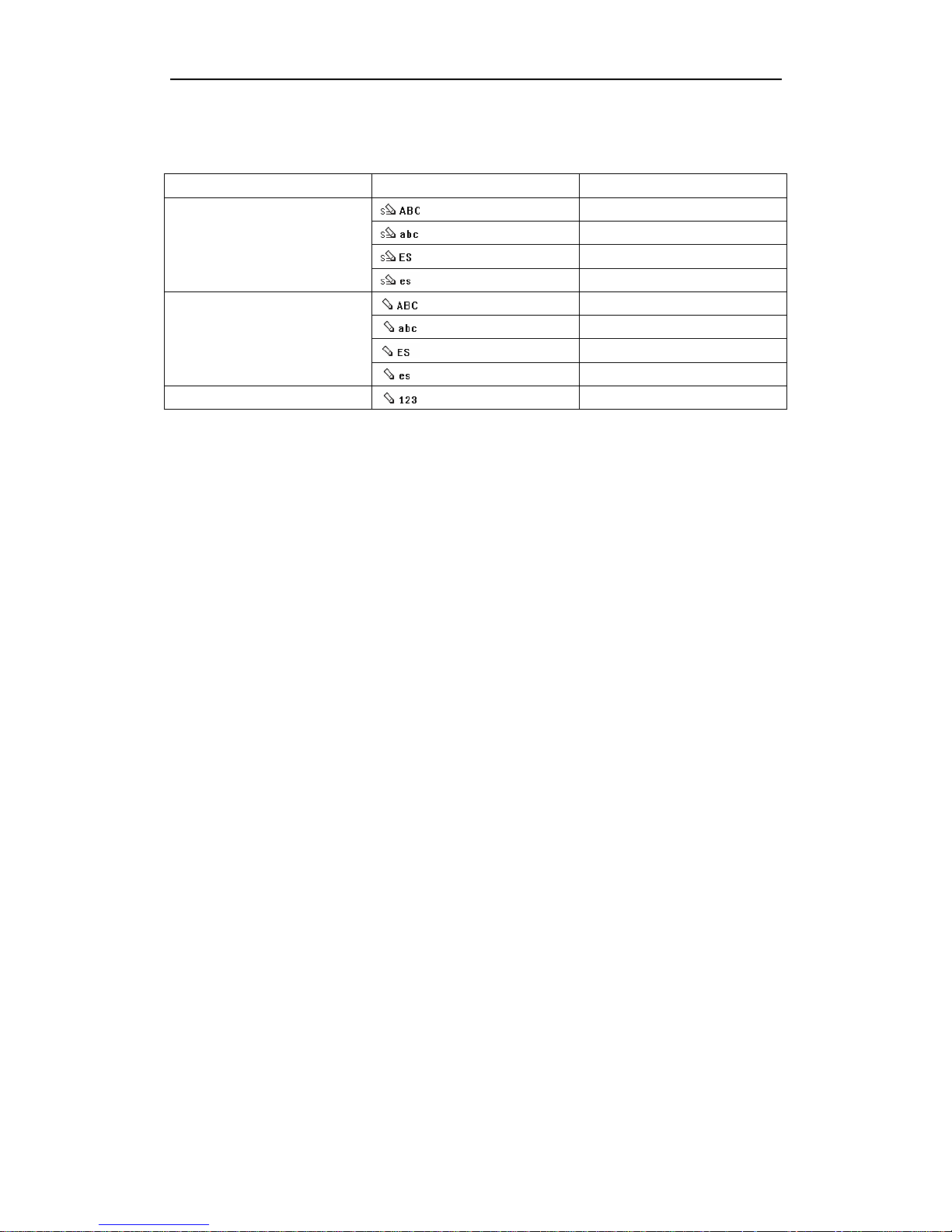
3. Input method
Your phone provides the following input methods.
8
Page 9
M307S User Guide
English input method: input English characters.
Spanish input method: input Spanish characters.
Numeric input method: input numeric characters.
Input method Icon Letter case
English upper case
English lower case
Spanish upper case
Intelligent
Spanish lower case
English upper case
English lower case
Spanish upper case
Multi-tap
Spanish lower case
Numeric
Press * key to enter the symbol list.
Press # key to switch between intelligent, Multi-tap and Numeric mode.
4. File manager
Use the menu to manager the files you saved in the phone memory.
5. Phonebook
You can store names and phone numbers as entries in names list. These entries are
stored in your phone or SIM card memory.
5.1 Quick search
This function allows you to find the desired contact quickly.
Press any key, the first contact corresponding to the first letter of the key appears. To
search further, continue to enter the letters with the keys.
5.2 Search contacts
This function allows you to find preferred contact from the names list.
5.3 Add new contact
With this function, you can choose either the SIM names or phone names to store the new
item.
9
Page 10

M307S User Guide
5.4 Copy contacts
This feature allows you to copy all entries from SIM to phone, phone to SIM and SIM to
SIM.
5.5 Move contacts
This feature allows you to move all entries from SIM to phone, phone to SIM and SIM to
SIM.
5.6 Delete all contacts
This feature allows complete erasing of all contacts either in SIM card memory or phone
memory, the information thus deleted is unrecoverable.
5.7 Caller groups
You can classify a number of contacts into one group in accordance with their relationship,
for example: Friends, Family, VIP, Business, Others.
5.8 Extra numbers
Allow you edit the SIM owner number and SIM SOS number.
5.9 Phonebook settings
5.9.1 Preferred storage
You can select the preferred storage.
5.9.2 Speed dial
Speed dial is a fast way to call one of your special numbers.
1. To assign a speed dial number
Phonebook ->Phonebook settings ->Speed dial->Set number->select a desired number
from the contact list.
2. To dial a speed dial number
When Status is enabled to on, in idle mode, long press number key and the corresponding
number will automatically be dialed.
10
Page 11

M307S User Guide
By default the 1 key is used to set voice mail number.
5.9.3 My number
Allow you edit my number.
5.9.4 Memory status
This function helps you to check the number of entries stored in the names lists.
You can check the memory status of the SIM card and phone memory.
6. Fun & Games
You can play the game provided by your phone and set the games settings.
7. Call center
7.1 Call history
Call history stores information about the missed calls, dialled calls, received calls, delete
call logs, call timers, call cost, text message counter, GPRS counter.
7.2 Call settings
7.2.1 SIM1/SIM2 call settings
1. Caller ID
This function needs to be supported by network, including the following sub-menu: Set by
network, Hide ID, Send ID.
2. Call waiting
If your mobile phone service provider supports this feature, the call waiting notifies you of
an incoming call even while you are on a call.
3. Call divert
Call divert is a network service.
This service is used to forward incoming calls to your voice mail service or to another
number depending on certain conditions in which your phone is unavailable or you don’t
want to receive any call.
4. Call barring
11
Page 12

M307S User Guide
You can set restriction for calls made from or to your phone.
5. Line switching
You can choose between Line 1 and Line 2.
6. Closed user group
This function needs support of network. For details, please consult local network operator.
7.2.2 Advance settings
1. Blacklist
When Backlist Mode is set to ‘On’, the numbers which are stored in blacklist number list
can not call your phone successfully.
This function is depended on the service provider’s network.
2. Auto redial
Allows you redial automatically when one time trial dial fails by turning on this function.
3. IP dial
Edit and activate IP dial number.
4. Call time display
Whether display your call time during the call.
5. Call time reminder
During a phone call, as your call duration nears the set time, alert will sound.
6. Auto quick end
During a phone call, as your call duration arrives the set time, your call will be ended
automatically.
7. Reject by SMS
If you select 'On' option, the default message will be automatically sent to the caller’s
phone number when you reject the incoming call by pressing ‘Options->Reject by SMS’.
8. Messaging
8.1 Write message
Allow you edit text message. Press numeric key to input corresponding characters, and
then press LSK to access the following sub-menu:
1. Sent to
Enter the recipient’s number or retrieve a number from the phonebook, then press LSK to
send.
2. Input method
Allow you switch method.
3. Insert template
Allow you to apply one of the preset message templates to the text.
4. Advanced
Allow you insert object, insert number, insert name, insert bookmark, text format.
12
Page 13

M307S User Guide
5. Save to Drafts
Allow you save the message to the draft.
8.2 Inbox
Inbox contains the received text messages.
8.3 Drafts
You can read the text messages saved in draft.
8.4 Outbox
Use the menu to view and search the messages you sent.
8.5 MMS
MMS can contain characters, voice segment and pictures, including the following
sub-menu: Write message, Inbox, Outbox, Drafts, Templates, MMS settings.
8.6 Templates
Select the template message you want to use, you can use, edit, remove etc.
8.7 SMS settings
Enter the menu to set SMS settings. Select the option you want to set to edit.
9. FM radio
Before use the FM radio, you must plug the headset into your phone.
When you playing the radio, the function of keys is as follows:
Up navigation key: enter the auto search mode, here press LSK/RSK to find the next
channel on the band
Down navigation key: play/stop the radio
Left/right navigation key: move 0.1 MHz forwards/backwards along the current FM band
LSK: enter the sub-menu
RSK: back
*key/#key: adjust the volume
13
Page 14

M307S User Guide
9.1 Channel list
Allow you to save maximum 9 channels in channel list. You can play, delete, edit.
9.2 Manual input
Allow you to input a channel manually to play.
9.3 Auto search
Allow you to auto search and save channels.
9.4 Settings
Allow you set the following functions: Background play, Loudspeaker.
10. Organizer
10.1 Calendar
Enter this menu to set the calendar and view further options i.e. Add event, Jump to date.
10.2 Tasks
Use the menu to add the task list and to set for Date, Call, Anniversary.
10.3 Alarm
This function allows you to set the alarm to ring at a specific time. Your phone provides 5
alarm clocks.
14
Page 15

M307S User Guide
11. Settings
11.1 Dual SIM settings
You can select the following options: Dual SIM open, Only SIM1 open, Only SIM2 open,
Flight mode.
11.2 Phone settings
11.2.1 Time and date
You can customize the display of times and dates throughout your phone.
11.2.2 Schedule power on/off
You can set the time that the phone is powered on/off automatically.
11.2.3 Language
This function allows you to set the displayed language.
11.2.4 Pref. input methods
Set the default input method.
11.2.5 Display
Allow you to set the following options: Wallpaper, Screen saver, Power on display, Power
off display, Show date and time, Show owner number.
11.2.6 Greeting text
Allow you to set the greetings to be displayed on main screen when power on.
11.2.7 Dedicated key
Allow you to set the shortcuts. The option includes up, down, left, right.
15
Page 16

M307S User Guide
11.2.8 Misc. settings
Allow you to adjust the LCD backlight.
11.3 Network settings
You can set the network parameters.
11.4 Security settings
11.4.1 SIM1/SIM2 security settings
1. SIM lock
This option is used to set the PIN code.
The PIN code is used to protect your SIM card from random using by others. If set to on,
access to your SIM card will be restricted each time the phone is powered on.
Note: The SIM card will be locked after entering the wrong PIN code for max retry limits. In this condition,
phone will ask for PUK (PIN unlocking key), which is available from the service provider.
2. Fixed dial
When Fixed Dial is set to ‘On’, the only numbers that can be dialed from your phone are
those stored in the Fixed Dial List.
Before activate this feature, you must enter the PIN2 code.
Availability of the Fixed Dial feature depends on the type of SIM card you have.
3. Barred dial
When Barred Dial is enabled, the numbers which are stored in barred dial list can not be
dialed from your phone.
Note: This function is depended on the service provider’s network.
4. Change password
This option is used to change PIN, PIN2 code.
11.4.2 Phone lock
This option is used to set the phone lock code.
The lock code can be set to protect your phone from unauthorized use. It can be set to
automatically lock your phone each time it is switched on.
By default the phone lock code is set at ‘0000’
11.4.3 Auto keypad lock
This function is used to lock the keypad automatically when phone is not in use.
16
Page 17

M307S User Guide
11.4.4 Change password
This option is used to change phone password.
11.5 Data account
Use the menu to set the GSM data and GPRS.
11.6 Restore factory settings
Use this menu to reset the phone’s settings to the original factory settings
12. User profiles
The profiles function provides a quick and convenient way to reset your phone setting for
a particular environment.
Your phone provides 5 profiles: General, Meeting, Outdoor, Indoor, Headset.
Each profile has a factory settings, however you can adjust each profile to suit your
requirements.
1. Tone settings
You can allocate different ringers for Incoming call, Power on, Power off, Message and
Keypad.
2. Volume
This function allows you to adjust the volume output of the Ringtone and Key tone.
3. Alert type
You can set alerts for incoming calls by using this function.
4. Ring type
Allow you to select the required ring type, including Single, Repeat and Ascending.
5. Extra tone
Allow you to select Warning, Error, Camp on and Connect.
6. Answer mode
You can answer a call by pressing Any key or Auto (only headset profile).
13. Extra
13.1 Calculator
Use this menu to perform basic arithmetic functions, such as addition, subtraction,
multiplication and division.
17
Page 18

M307S User Guide
13.2 Currency converter
Use the menu to convert the currency. Write the currency rate, press LSK to write the
amount of local currency and press LSK.
14. Services
Allow you view the contents provided by your SIM card service and internet service.
15. Shortcuts
Use this menu to set the shortcuts.
16. Care and maintenance
If your mobile phone has abnormal conditions, please check it with the following table. If
the problem still remains, please ask mobile phone after sales for help.
Common problems Check item
Cannot charge Please check if the charger is properly connected to the phone
and the power source jack.
Cannot power on Please check if the battery level is too low;
Please check if the battery is properly loaded;
Please press power key for enough time.
Insert the SIM card
but cannot read the
information in the
SIM card
Please check if the SIM card is properly inserted;
Please check if your SIM card is valid.
Cannot make phone
call
Please check if the phone number is valid.
Please check if you are in service area.
Poor voice quality Please check if the phone signal is strong enough.
If you are in a building, please move near the window.
The contact cannot
get your voice during
the phone call
Please check if your mike is blocked by fittings or other blocks.
18
 Loading...