

Page 1

Page 2

1
This document and all its contents included remain the proprietary material of Qingdao Haier
Telecom Co. Ltd. (Haier Telecom) and are protected by the Chinese laws and applicable
international conventions on copyrights. Any reproduction, transmission, disclosure,revision,
modifi cation or use otherwise of this document or the whole or part of its contents, in whatever
form and by whatever means, is not permitted without prior express written authorization from
Haier Telecom. Offenders will be liable for any and all damages caused by their offence hereof
and will be subject to all remedies that Haier Telecom is entitled to seek under applicable laws.
Page 3

2
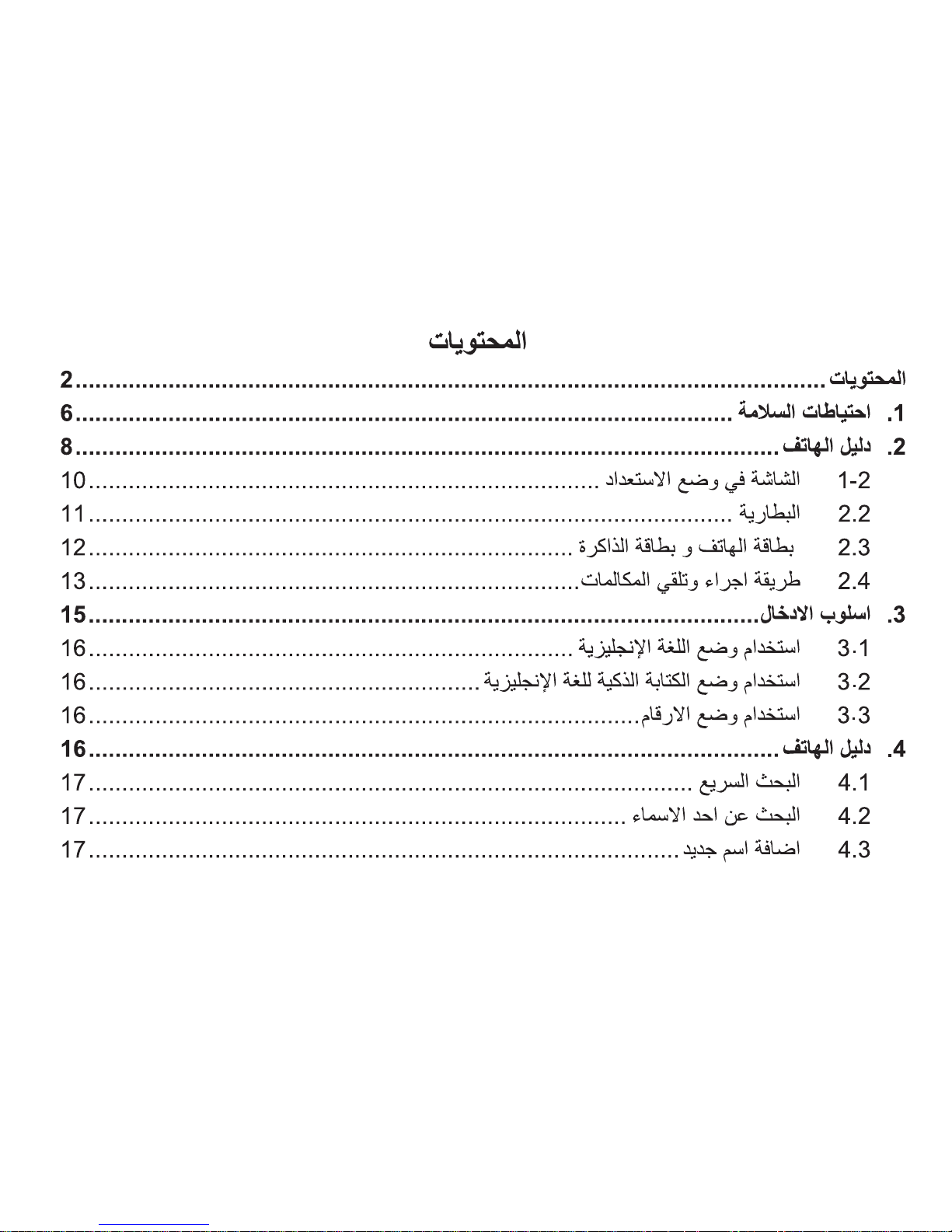
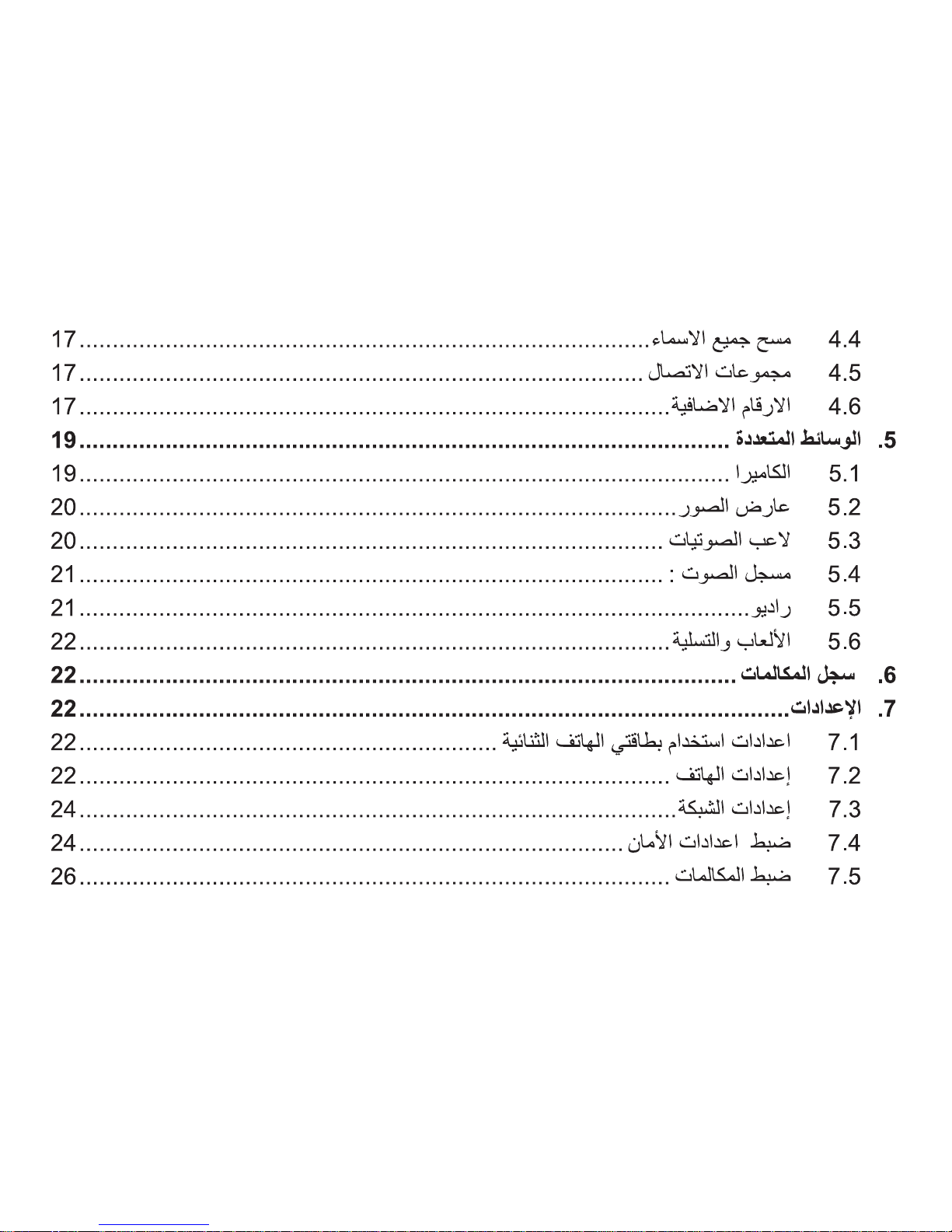
Contents
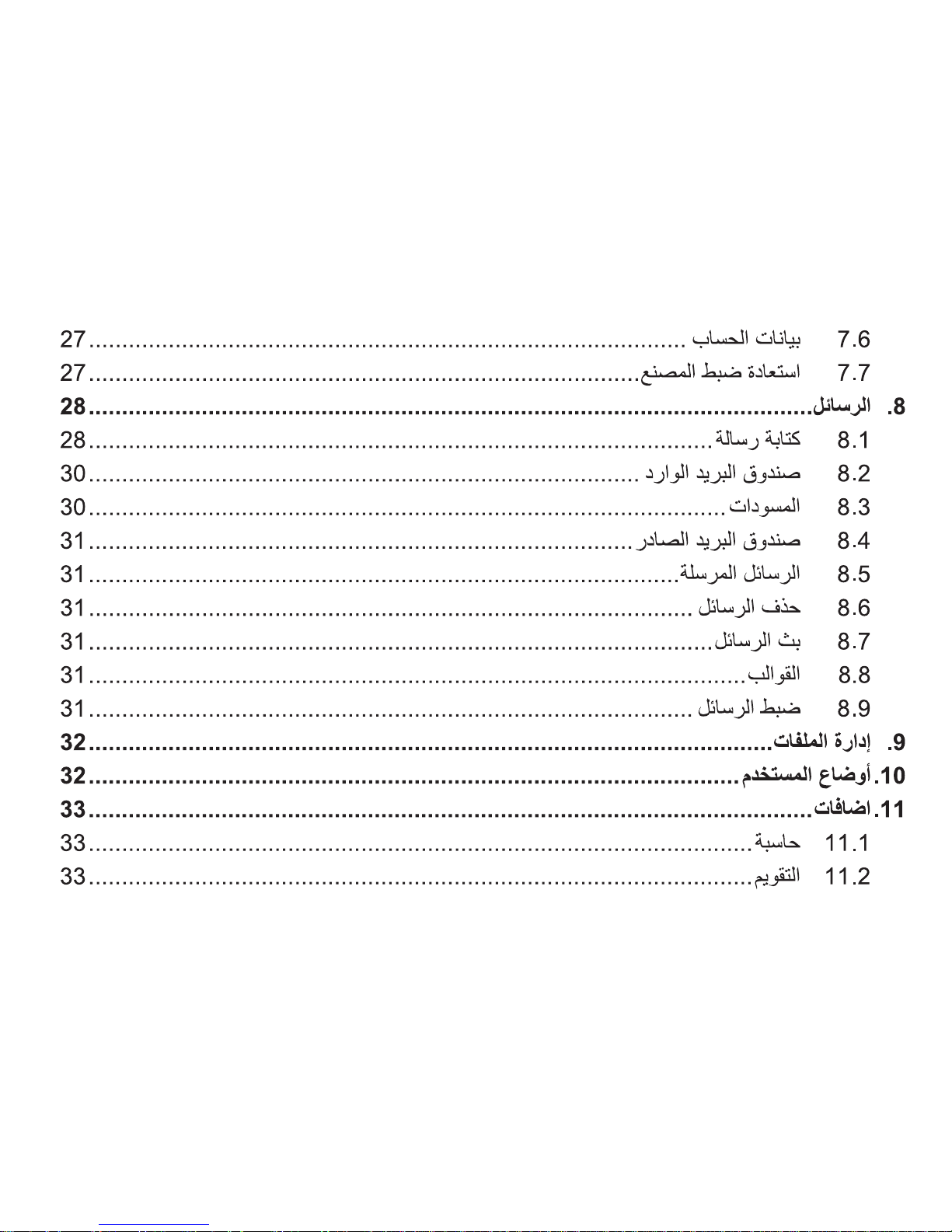
Contents ..............................................................................................................2
1. Safety Precautions .........................................................................................6
2. Handset guide .................................................................................................8
2.1 Idle mode screen ......................................................................................10
2.2 Battery ......................................................................................................11
2.3 SIM card and memory card ......................................................................12
2.4 Making and receiving a call ......................................................................13
3. Input method .................................................................................................15
3.1 Using the English Mode ...........................................................................16
3.2 Using the Smart English Mode .................................................................16
3.3 Using the Number Mode ..........................................................................16
4. Phonebook ....................................................................................................16
4.1 Quick search ............................................................................................17
4.2 Search contact .........................................................................................17
4.3 Add new contact .......................................................................................17
4.4 Delete all contacts ....................................................................................17
Page 4

3
4.5 Caller groups ............................................................................................17
4.6 Extra numbers ..........................................................................................17
4.7 Phonebook settings ..................................................................................18
5. Multimedia .....................................................................................................19
5.1 Camera ....................................................................................................19
5.2 Image viewer ............................................................................................20
5.3 Audio player .............................................................................................20
5.4 Sound recorder ........................................................................................21
5.5 FM radio ...................................................................................................21
5.6 Fun & Games ...........................................................................................22
6. Call history ....................................................................................................22
7. Settings .........................................................................................................22
7.1 Dual SIM settings .....................................................................................22
7.2 Phone settings .........................................................................................22
7.3 Network settings .......................................................................................24
7.4 Security settings .......................................................................................24
7.5 Call settings ..............................................................................................26
Page 5

4
7.6 Data account ............................................................................................27
7.7 Restore factory settings ...........................................................................27
8. Messages ......................................................................................................28
8.1 Write message .........................................................................................28
8.2 Inbox ........................................................................................................30
8.3 Drafts ........................................................................................................30
8.4 Outbox ......................................................................................................31
8.5 Sent messages ........................................................................................31
8.6 Delete messages .....................................................................................31
8.7 Broadcast message .................................................................................31
8.8 Templates .................................................................................................31
8.9 Message settings .....................................................................................31
9. File manager .................................................................................................32
10. User profi les................................................................................................32
11. Extra .............................................................................................................33
11.1 Calculator ...............................................................................................33
11.2 Calendar .................................................................................................33
Page 6

5
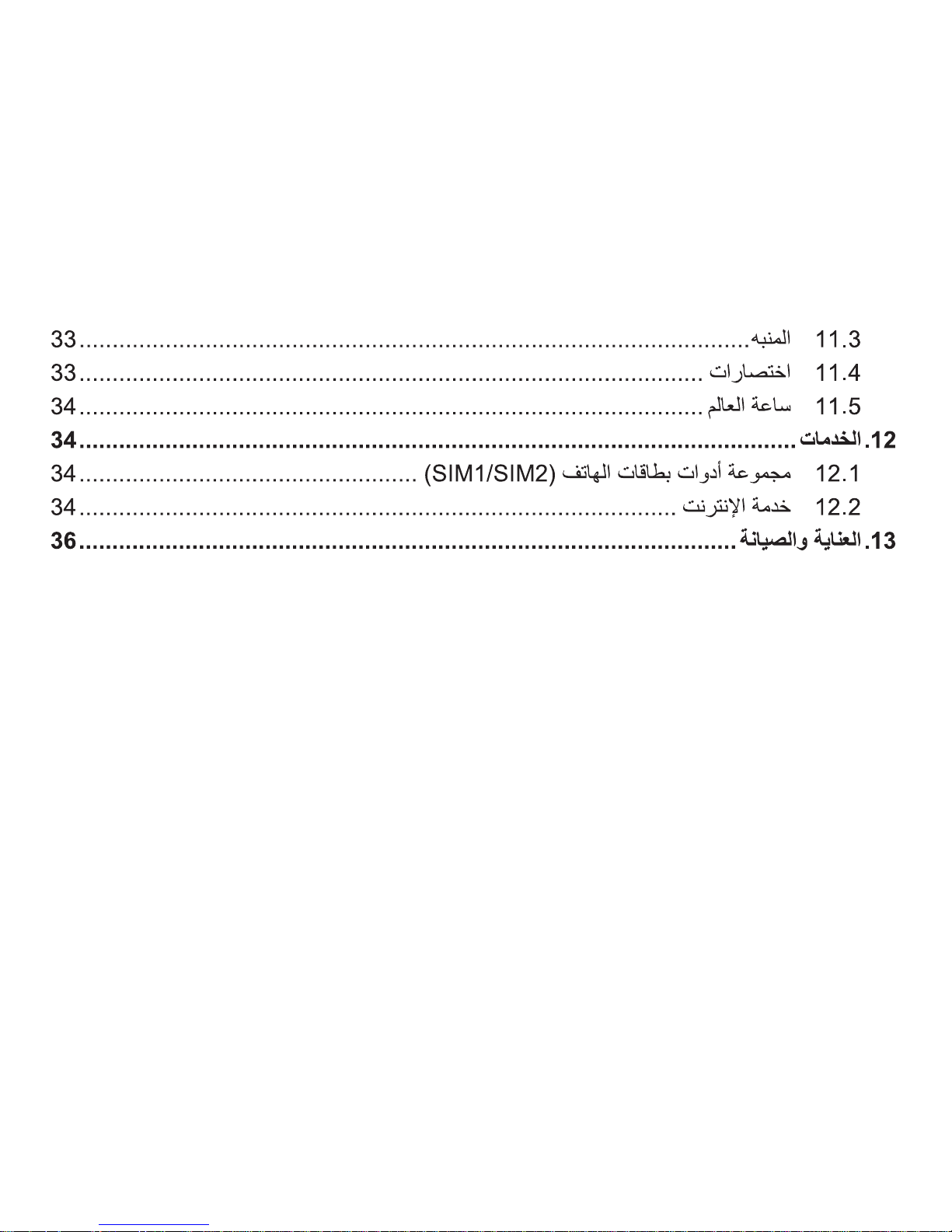
1 1.3 Alarm ......................................................................................................33
11.4 Shortcuts ................................................................................................33
11.5 World clock .............................................................................................34
12. Services .......................................................................................................34
12.1 SIM Tool Kit(SIM1/SIM2) ........................................................................34
12.2 Internet service .......................................................................................34
13. Care and maintenance ...............................................................................36
Page 7

6
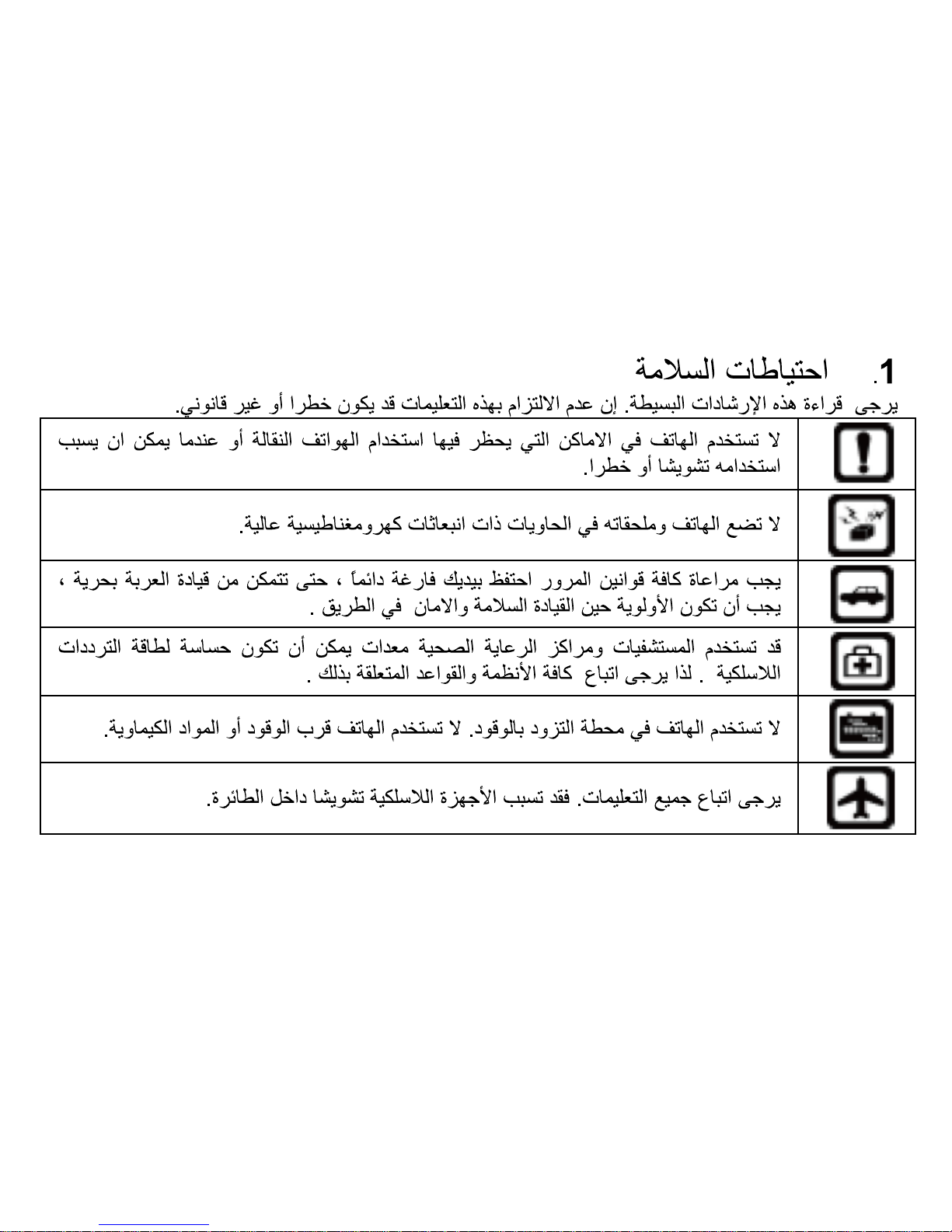
1. Safety Precautions
Please read these simple guidelines. Not following them may be dangerous or illegal.
Do not switch the phone on where Mobile Phone use is prohibited or when it may
cause interference or danger.
Do not place your phone and its accessories in containers with strong
electromagnetic fi eld.
Obey all traffi c laws. Always keep your hands free, to operate the vehicle while
driving. Your fi rst consideration while driving should be road safety.
Hospitals or health care facilities may be using equipment that could be sensitive
to external radio frequency energy. Follow all regulations and rules enforced.
Do not use the phone at a refueling station. Do not use near fuel or chemicals.
Follow all instructions. Wireless devices can cause interference in aircraft.
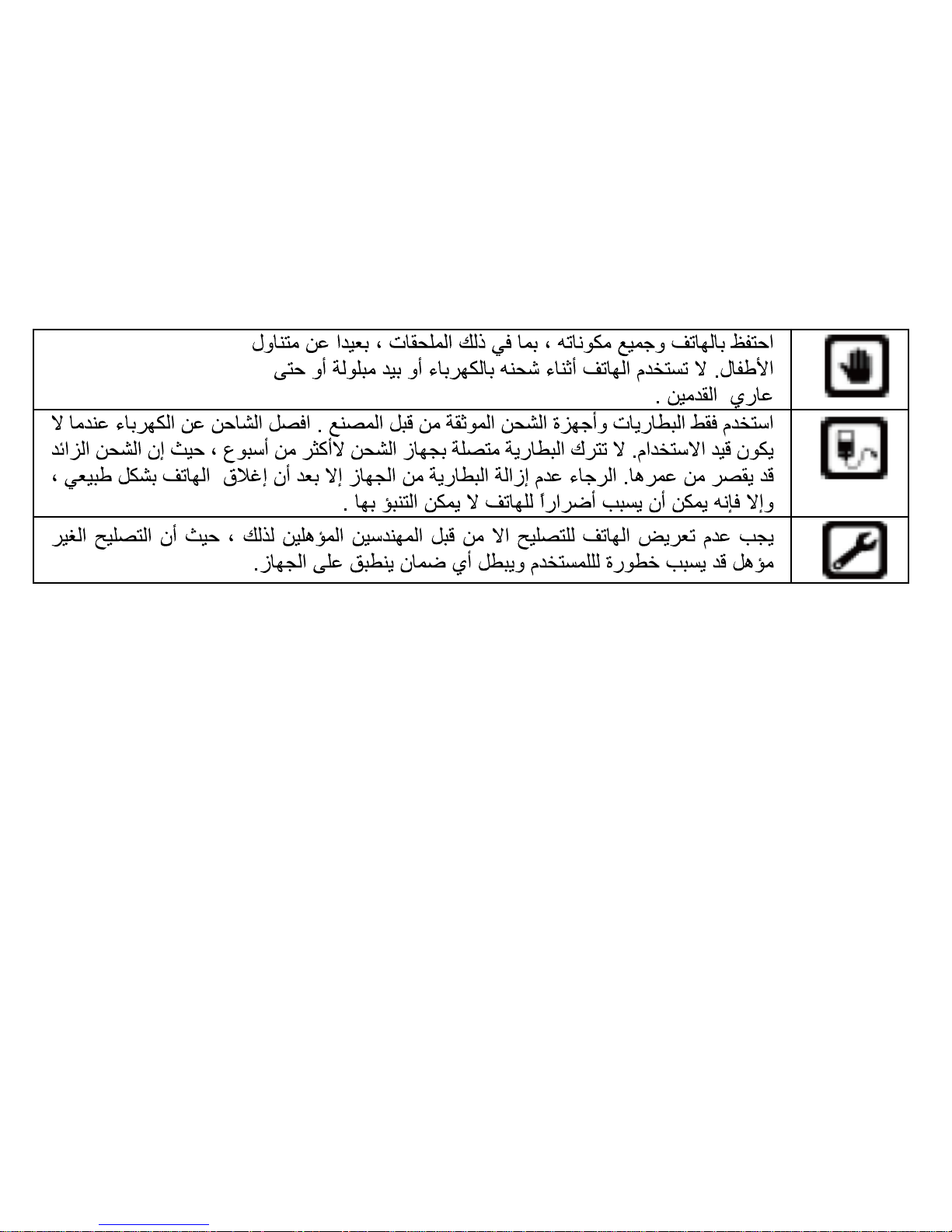
Keep the phone and all its parts, including accessories, out of the reach of
children. Do not use the phone while connected to the charger or with wet hand or
bare feet.
Page 8

7
Use only approved batteries and chargers. Disconnect the charger from the power
source when it is not in use. Do not leave the battery connected to a charger for
more than a week, since overcharging may shorten its life. Please remove the
battery only after the phone is switched off normally, otherwise it could cause
unpredictable damage for the phone.
Only qualified personnel should service the phone. Faulty service may be
dangerous and may invalidate any warranty applicable to the device.
Page 9

8
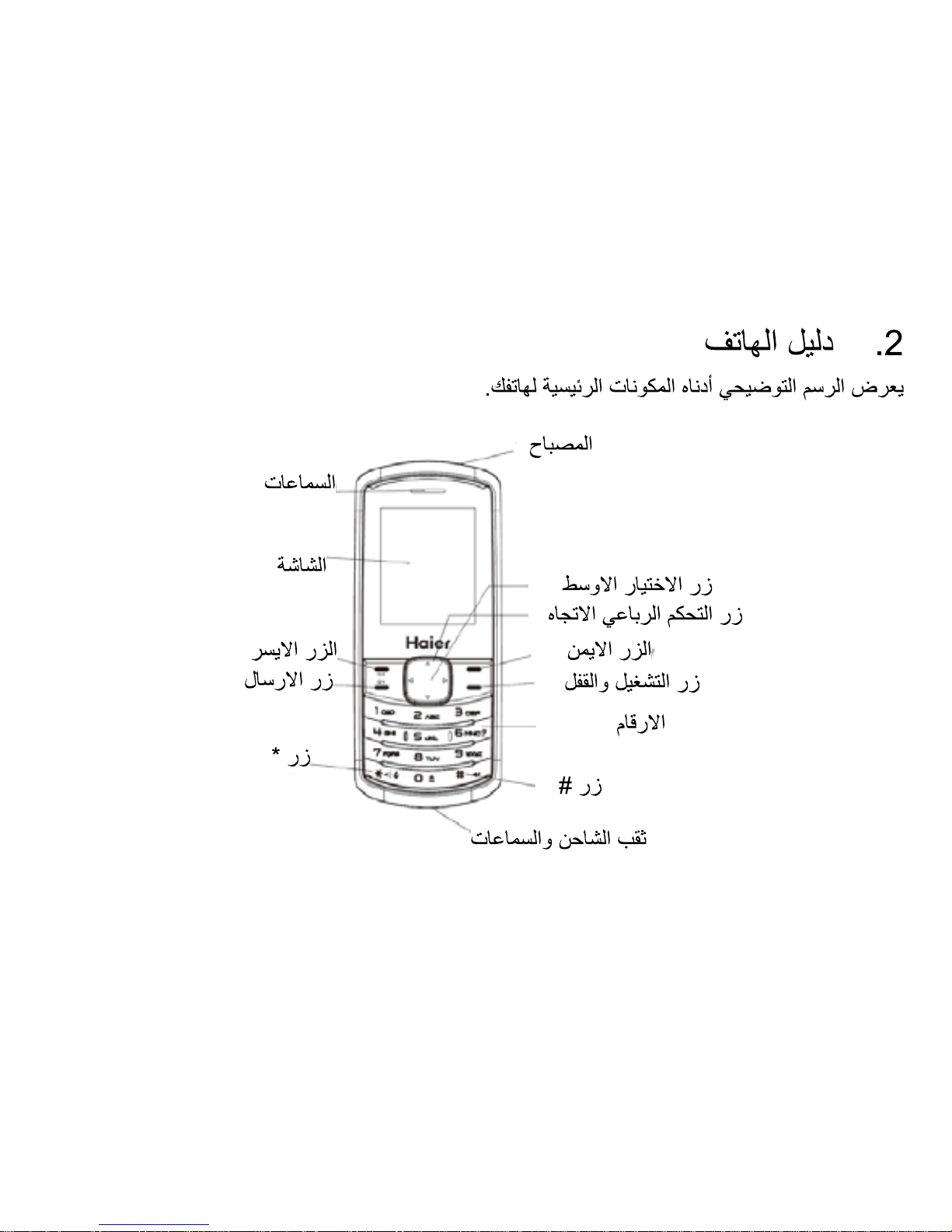
2. Handset guide
The illustration below displays the main components of your phone.
Page 10

9
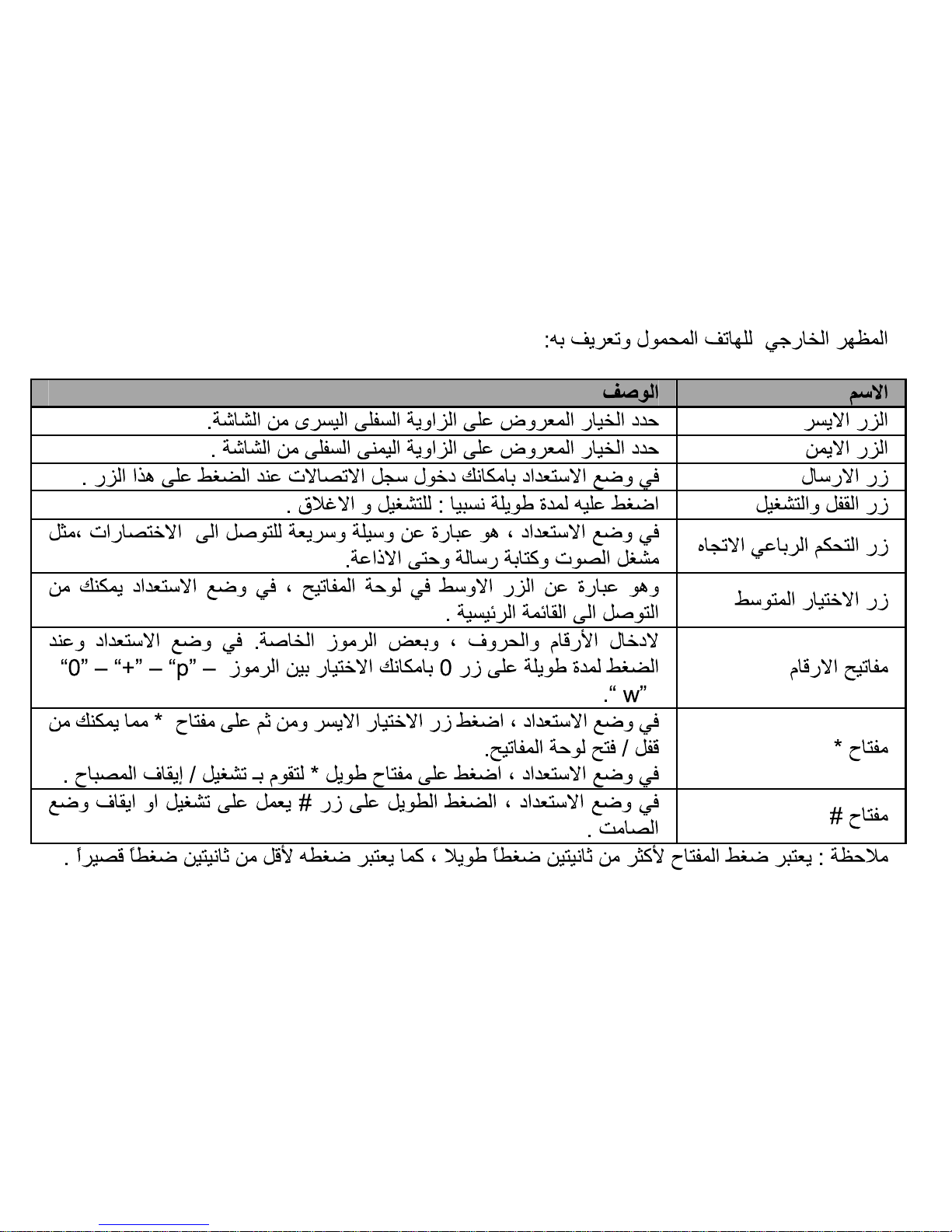
The appearance of the mobile phone and introduction:
Name Description
Left Soft Key (LSK) Select the option displayed on the lower left corner of the screen.
Right Soft Key (RSK)
Select the option displayed on the lower right corner of the
screen.
Send Key In standby mode, press this key to enter Call history.
End (Power) key Long press: power on, power off.
Four-way Navigation
key
In standby mode, quick into the Shortcuts, Audio player, Write
message and FM radio.
In menu mode and when entering text, scroll through the menu and text.
Center Select key
This is the center key in the navigation keypad.
In standby mode, use this key to enter the Main menu view.
Number keys
Enter numbers, letters, and some special characters.
In standby mode, long press 0 key to select the symbol “0”,”+”,”p”,”w”.
* Key
In standby mode, press LSK then * key to lock/unlock the keypad.
In standby mode, long press * key to turn on/off the torch.
# Key
In standby mode, long press # key to enable or disable the
Meeting mode.
Note: long press means pressing the key for more than 2 seconds; short press means pressing
key for less than 2 seconds.
Page 11

10
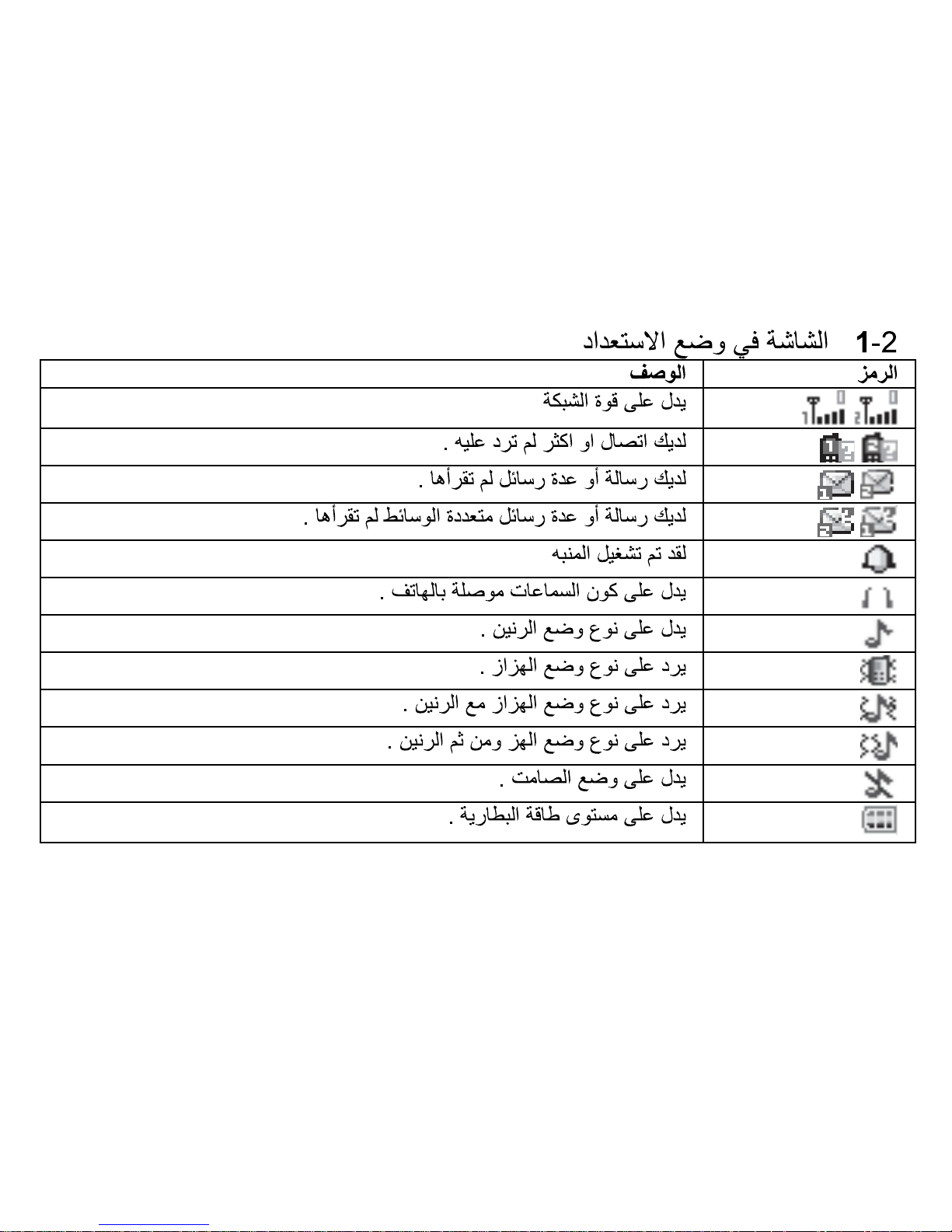
2.1 Idle mode screen
Icon Description
Indicates signal strength.
You have one or several missed calls.
You have one or several new text messages.
You have one or several new multimedia messages.
Alarm clock has been activated.
Indicates a headset is connected to the phone
Indicates ring alert type.
Indicates vibrate alert type.
Indicates vibrate and ring alert type.
Indicates vibrate then ring alert type.
Indicates Silent mode.
Indicates battery power level.
Page 12
11
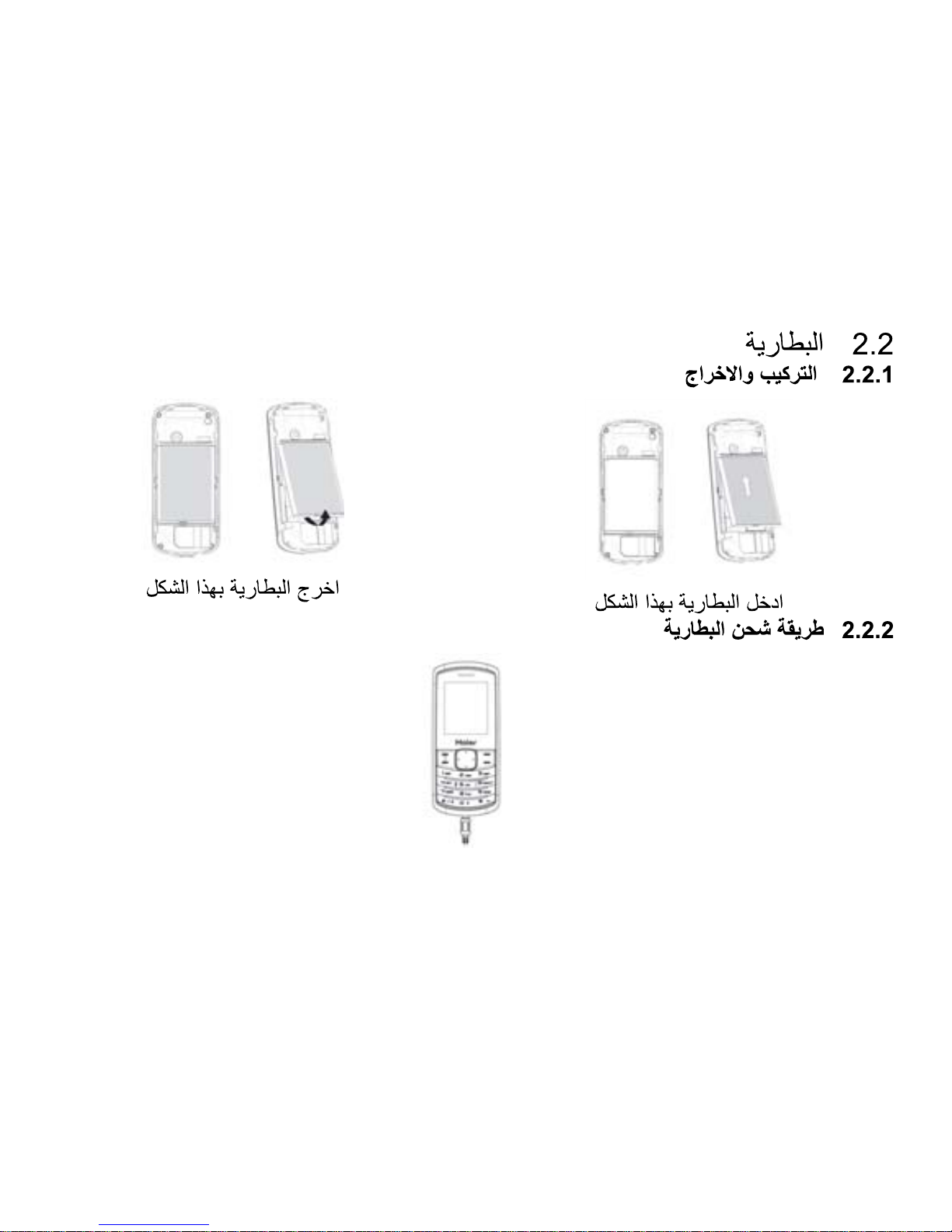
2.2 Battery
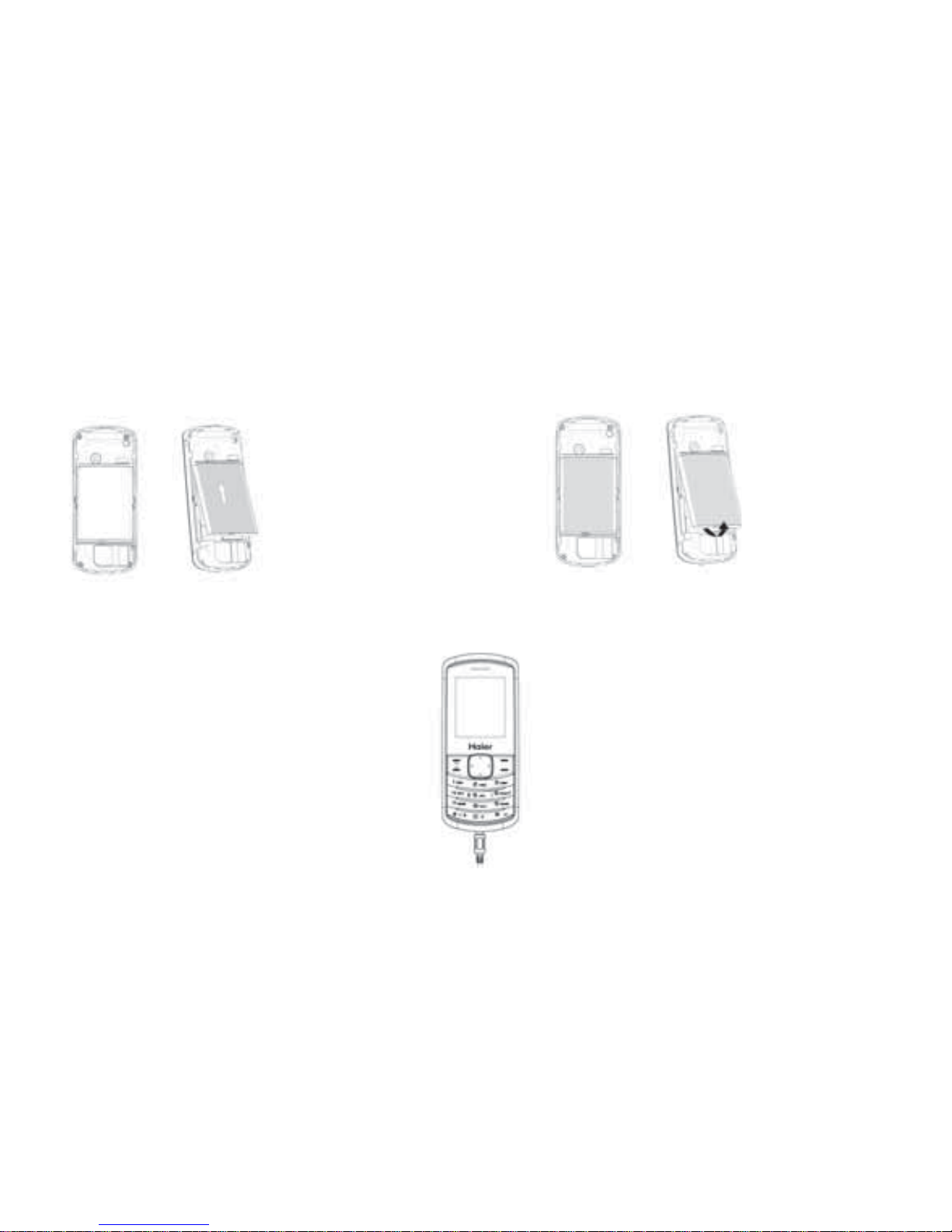
2.2.1 Installing and removing
Install the battery Remove the battery
2.2.2 Charging the battery
Page 13

12
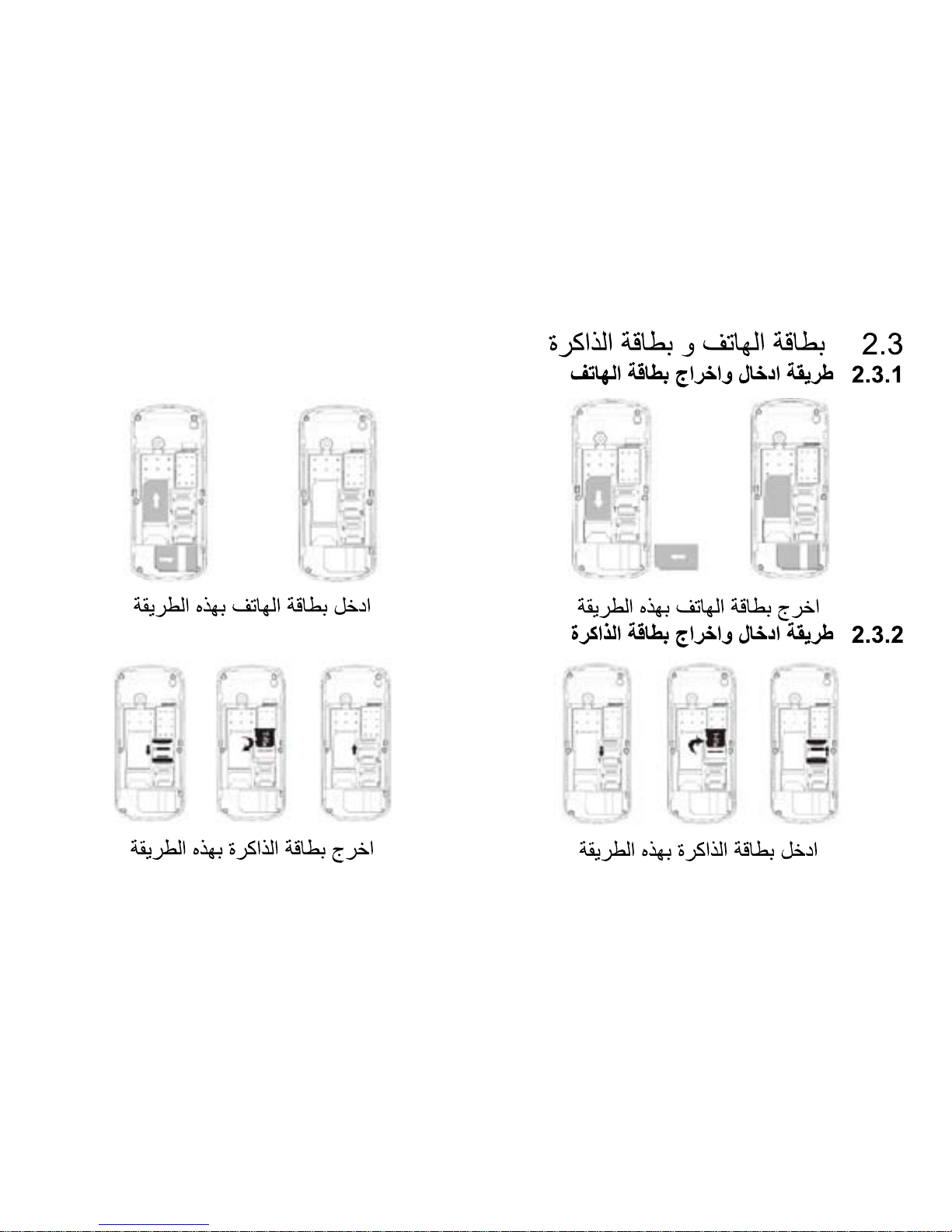
2.3 SIM card and memory card
2.3.1 Insert and remove the SIM card
Insert the SIM card Remove the SIM card
2.3.2 Insert and remove the memory card
Insert the memory card Remove the memory card
Page 14

13
2.4 Making and receiving a call
2.4.1 To make a call
You can use the function only after the network-prompting icon is shown on screen.
1. Making phone call using the keypad
After dual cards have been inserted into your phone, in idle mode, directly type in the phone
number to dial.
Notes: press send key to dial using SIM1 card and press LSK to dial using SIM2 card.
2. Making phone call using contacts
Enter the phonebook to view the contacts list and select a desired entry to dial.
3. Making phone call using call history
In idle mode, press send key to access the call history, scroll to the number or name you wish
to dial.
4. Making phone call using speed dial
In idle mode, press and hold 2-9 key to make phone call you set.
5. Ending a call
You can end a call at any time by pressing end key till the call has been terminated.
Page 15

14
2.4.2 To receive a call
When an incoming call arrives, phone will alert you.
Press the send key to answer.
Press RSK [Mute] once to close incoming ringer, press RSK [Reject] twice to reject the call.
2.4.3 During a phone call
During a phone call, press Left/Right navigation key to increase/decrease the volume, press
RSK to activate hand-free function, press LSK to view the following options:
1. Hold call
This is useful if you want to make a new call during a call. Put the current call on hold, but
maintain connection of the communication line.
2. End call
End the current call.
3. New call
Enter the digital dialing contact surface.
4. Phonebook
Allow you to view the Phonebook option.
Page 16

15
5. Messages
Allow you to view the Messages option.
6. Sound recorder
Allow you to record the call sound.
7. Mute
Allow you to temporarily turn the microphone off.
8. DTMF
Dual Tone Multi Frequency.
This function allows you to set whether send out DTMF signal.
9. Call history
Allow you to view the Call history option.
3. Input method
When you are in a display that allows characters to be entered, you will notice the text input
mode indicator on the display. You can change the Text Input Mode by pressing # Key and
insert symbols by pressing * Key. To insert a space between characters, press 0 key except in
Numeric mode.# key to switch between intelligent, Multi-tap and Numeric mode.
Page 17

16
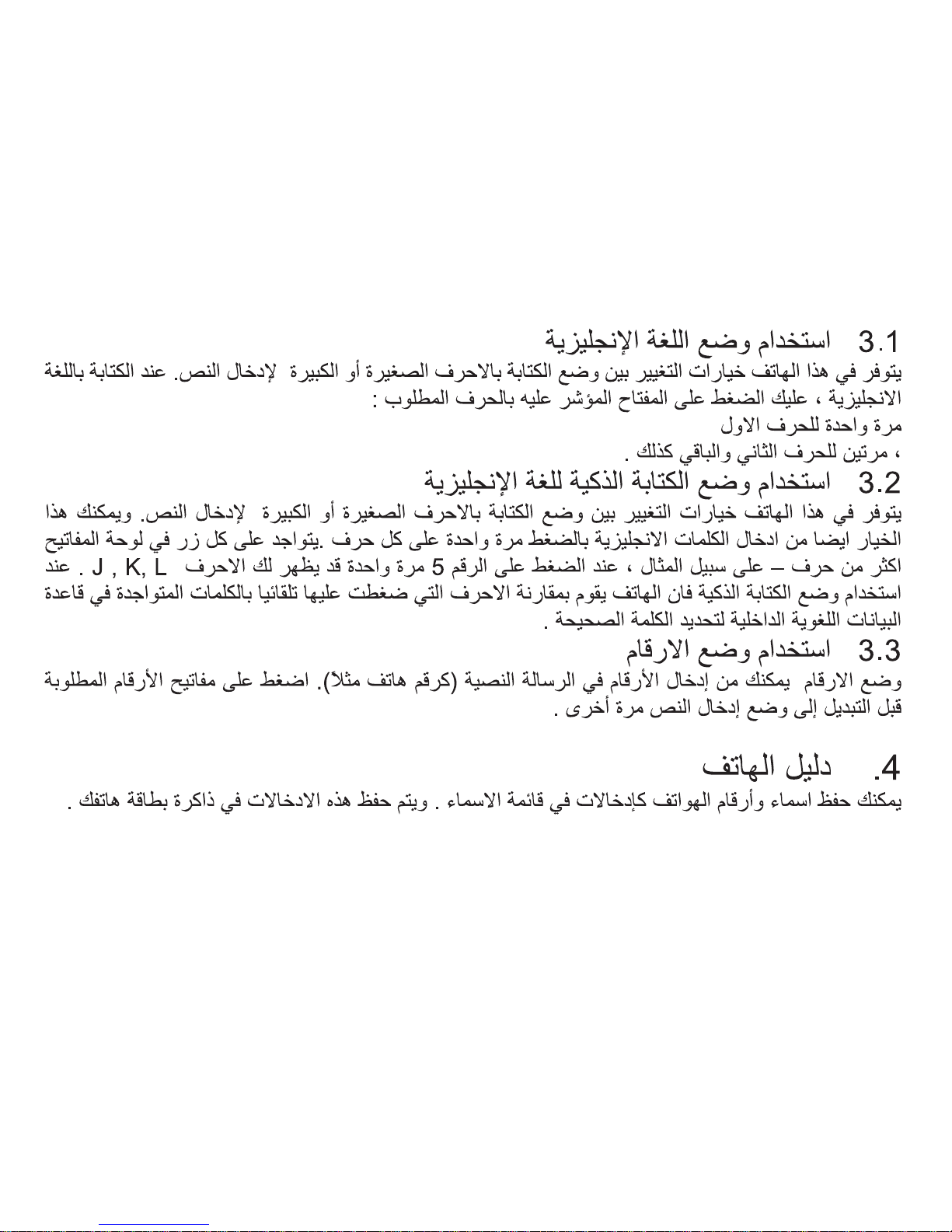
3.1 Using the English Mode
This phone provides Capital and Small mode for you to enter text. When typing in the English
mode, you should press key labeled with the required character:
-Once for the fi rst character
-Twice for the second character and so on.
3.2 Using the Smart English Mode
This phone provides Capital and Small English mode for you to enter text. This mode allows
you to enter English words with only one key press per letter. Each key on a keypad has more
than one letter - a single press on the 5 key could be J, K, or L. The Quick English mode
automatically compares your key presses to an internal linguistic database to determine the
correct word.
3.3 Using the Number Mode
The Number mode enables you to enter numbers in a text message (a telephone number for
example). Press the keys corresponding to the required digits before manually switching back
to the appropriate text input mode.
4. Phonebook
Page 18

17
You can store names and phone numbers as entries in names list. These entries are stored in
your phone or SIM card memory.
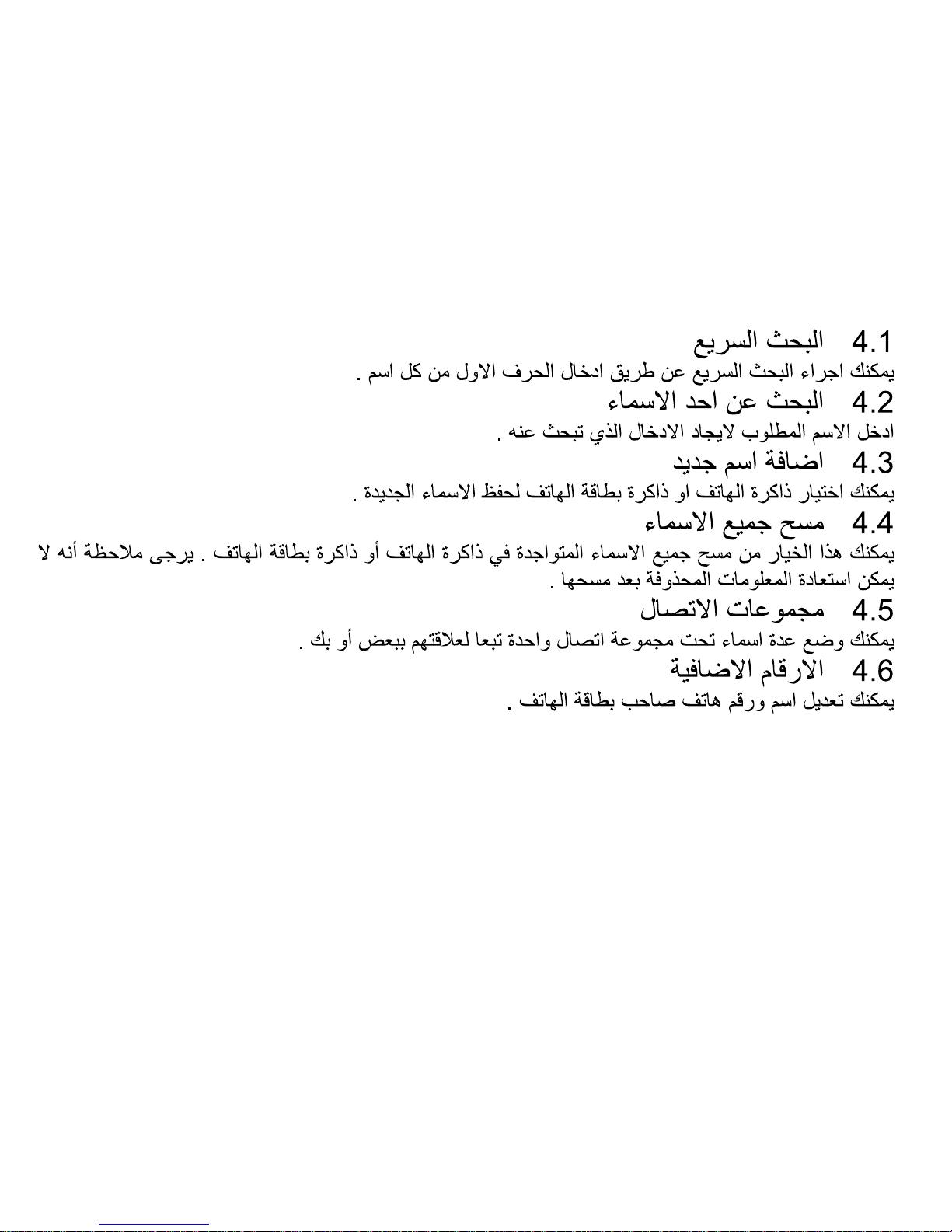
4.1 Quick search
Input the fi rst letter of the name of the name to search.
4.2 Search contact
Input the name to search the designated record.
4.3 Add new contact
Choose either the SIM names or phone names to store the new item.
4.4 Delete all contacts
This feature allows complete erasing of all contacts either in SIM card memory or phone
memory, the information thus deleted is unrecoverable.
4.5 Caller groups
Classify a number of contacts into one group in accordance with their relationship.
4.6 Extra numbers
Edit the SIM owner number and name.
Page 19

18
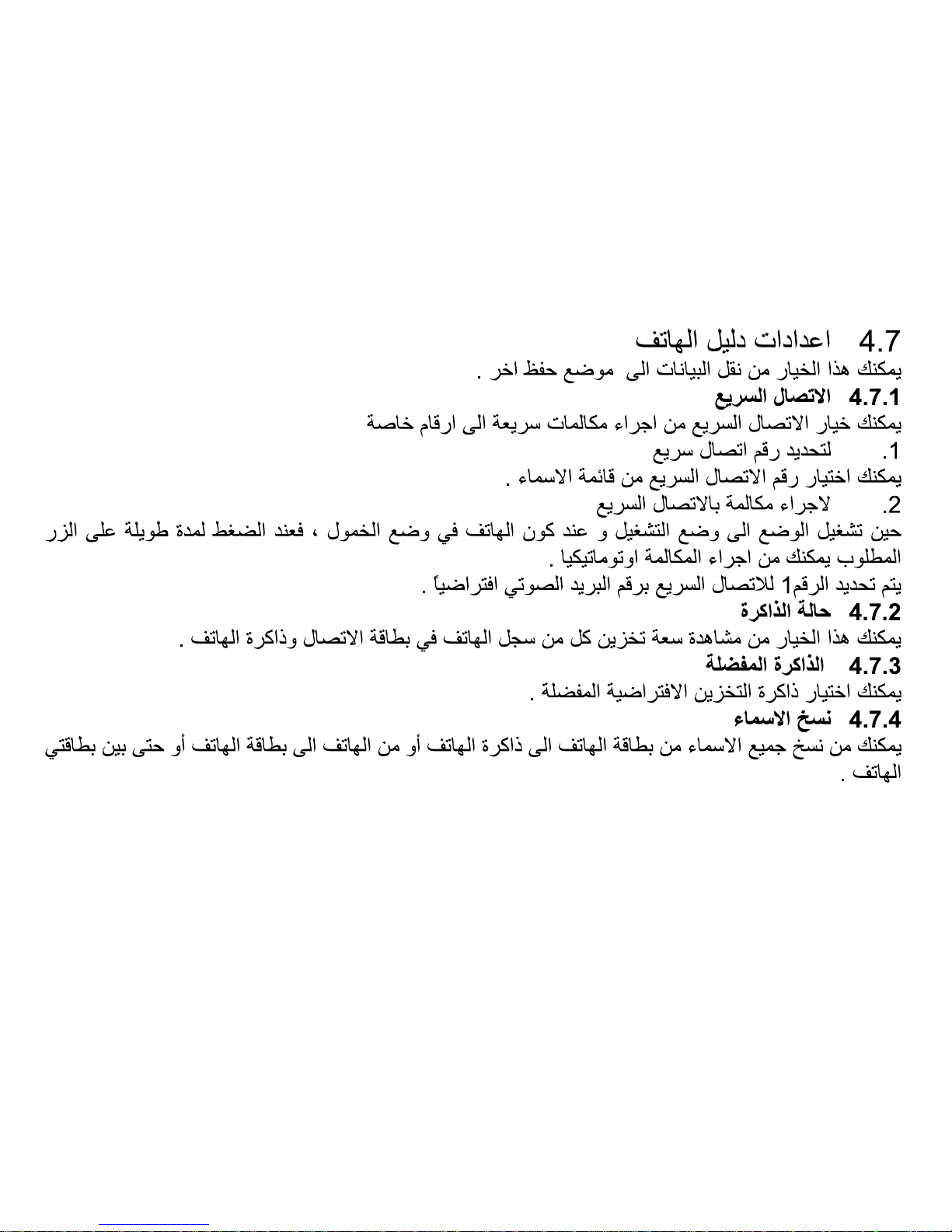
4.7 Phonebook settings
This feature allows move the entry to other storage position.
4.7.1 Speed dial
Speed dial is a fast way to call one of your special numbers.
1. To assign a speed dial number
You can select a desired number from the contact list.
2. To dial a speed dial number
When Status is enabled to on, in idle mode, long press number key and the corresponding
number will automatically be dialed.
By default the 1 key is used to set voice mail number.
4.7.2 Memory status
View the storage capacity of phonebook of SIM card and phone.
4.7.3 Preferred storage
Select the default saving position.
4.7.4 Copy contacts
Page 20

19
Copy all entries from SIM to phone, phone to SIM or SIM to SIM.
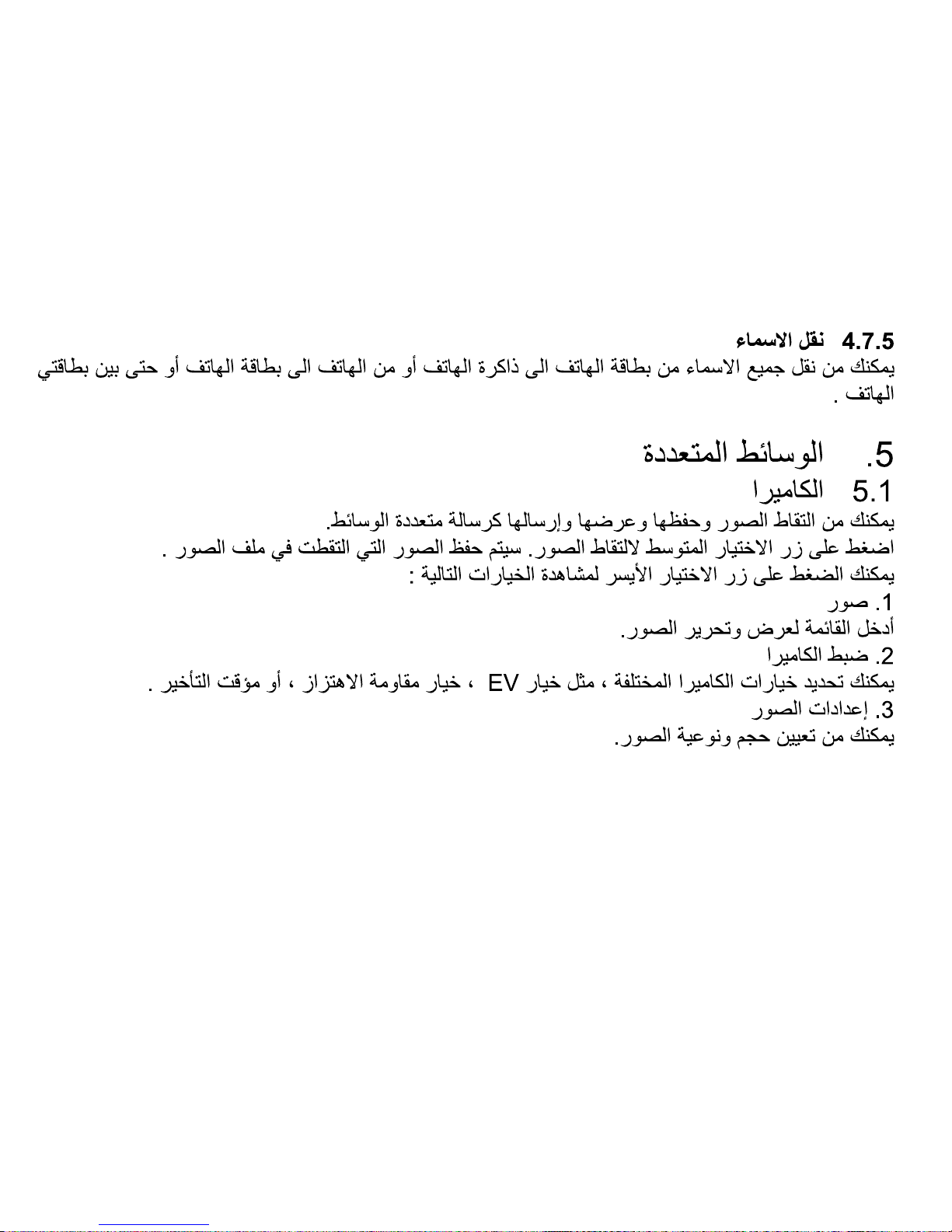
4.7.5 Move contacts
Move all entries from SIM to phone, phone to SIM or SIM to SIM.
5. Multimedia
5.1 Camera
You can take pictures, save and view them and send them as multimedia message.
Press center navigation key to capture the scene. The pictures taken will be saved under
Photos fi le.
You can press LSK to enter the following options:
1. Photos
Enter the menu to View and edit the pictures.
2. Camera settings
Set camera parameters, such as EV, Anti-fl icker, Delay timer.
3. Image settings
Set the size and quality of the image.
Page 21

20
4. White balance
Adjust the picture color to the lighting conditions.
5. Scene mode
Choose auto or night mode.
6. Storage
Select saving path for the photos.
7. Restore default
Revert to the default settings.
5.2 Image viewer
Use the menu to review the image. Image fi les should be saved under Photos fi le.
When you view the image, you can press the up/down navigation key to view the last/next
image.
5.3 Audio player
You can play audio fi les. Audio fi les should be saved under My Music fi le.
When you play the music, the function of keys is as follows:
Center select key: play or pause
Page 22

21
Up navigation key: enter settings
Down navigation key: stop
Left/right navigation key: last/next song
*key/#key: adjust the volume
5.4 Sound recorder
Use the menu to make the record of the sound.
The fi les recorded will save under Audio fi le.
5.5 FM radio
With this feature, you can listen to FM radio stations.
When you playing the radio, the function of keys is as follows:
Up navigation key: enter the auto search mode; here press Left/Right navigation key to fi nd the
next channel on the band.
Down navigation key: play/stop the radio
Left/right navigation key: move 0.1 MHz forwards/backwards along the current FM band
*key/#key: adjust the volume
0 key: switch the loudspeaker on or off (with headset connecting)
Page 23

22
Center select key: enter the sub-menu
5.6 Fun & Games
You can play the game provided by your phone and set the games settings.
6. Call history
Call history stores information about the missed calls, dialled calls, and received calls.
You can view the call timers, call cost, text msg. counter, and GPRS counter, or delete SIM1/
SIM2 call logs.
Notes: This function should only be used for reference. For details, please consult your network
operator.
7. Settings
7.1 Dual SIM settings
The menu is used to set SIM card application, including Dual SIM open, Only SIM1 open, Only
SIM2 open, and Flight mode.
7.2 Phone settings
Enter the submenu Phone Settings to operate:
Page 24

23
7.2.1 Time and date
You can customize the display of times and dates throughout your phone.
7.2.2 Schedule power on/off
You may set status and time of each one; however you may not set same time in different
items, to avoid confl ict.
7.2.3 Language
Select display language. The phone provides one language: English, Arabic, Franch.
7.2.4 Pref. input methods
Select the default initial input method.
7.2.5 Display
Allow you to set the following options: Wallpaper, Screen saver, Show date and time.
7.2.6 Dedicated key
Use the menu to set the shortcuts. It includes Up, Down, Left, Right navigation key.
7.2.7 Misc. settings
Adjust the LCD backlight.
Page 25

24
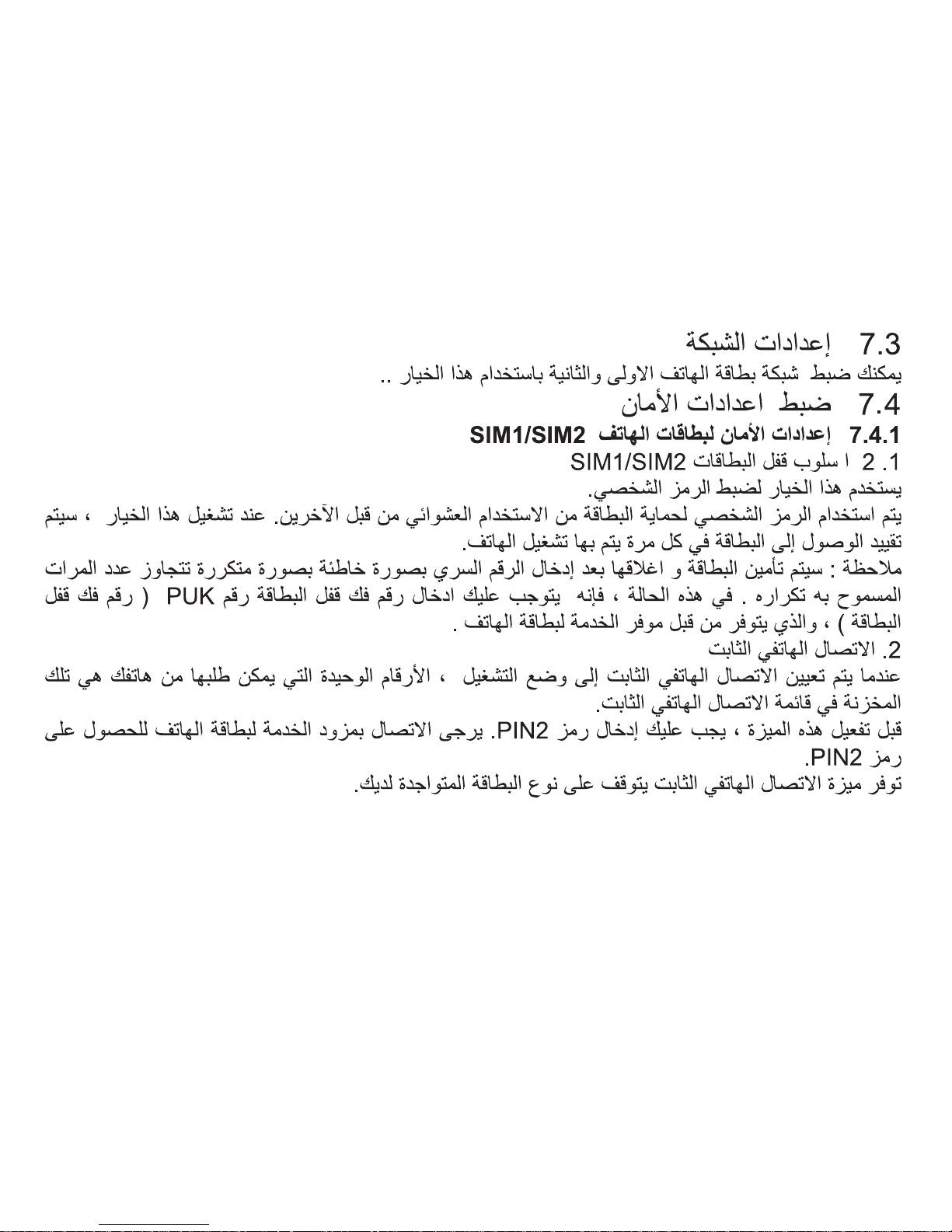
7.3 Network settings
Set network of SIM 1 & 2 with this function.
7.4 Security settings
7.4.1 SIM1/SIM2 security settings
1. SIM1/SIM2 lock
This option is used to set the PIN code.
The PIN code is used to protect your SIM card from random using by others. If set to on,
access to your SIM card will be restricted each time the phone is powered on.
Note: The SIM card will be locked after entering the wrong PIN code for max retry limits. In
this condition, phone will ask for PUK (PIN unlocking key), which is available from the service
provider.
2. Fixed dial
When Fixed Dial is set to ‘On’, the only numbers that can be dialed from your phone are those
stored in the Fixed Dial List.
Before activate this feature, you must enter the PIN2 code. Please contact the network provider
to acquire PIN2 code.
Page 26

25
Availability of the Fixed Dial feature depends on the type of SIM card you have.
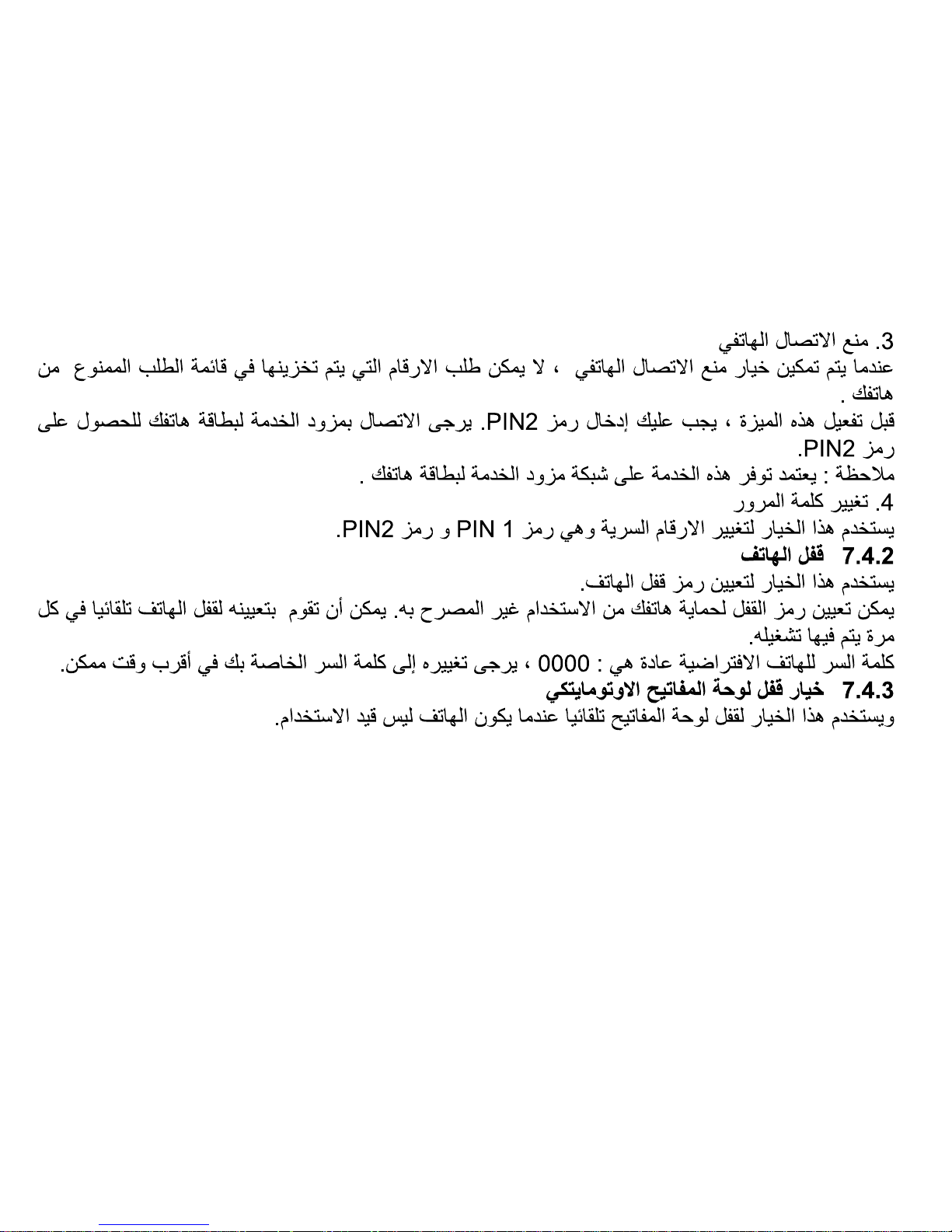
3. Barred dial
When Barred Dial is enabled, the numbers which are stored in barred dial list can not be dialed
from your phone.
Before activate this feature, you must enter the PIN2 code. Please contact the network provider
to acquire PIN2 code.
Note: This function is depended on the service provider’s network.
4. Change password
This option is used to change PIN, PIN2 code.
7.4.2 Phone lock
This option is used to set the phone lock code.
The lock code can be set to protect your phone from unauthorized use. It can be set to
automatically lock your phone each time it is switched on.
The default phone password normally is 0000; please change it to your own password as soon
as possible.
7.4.3 Auto keypad lock
Page 27

26
This function is used to lock the keypad automatically when phone is not in use.
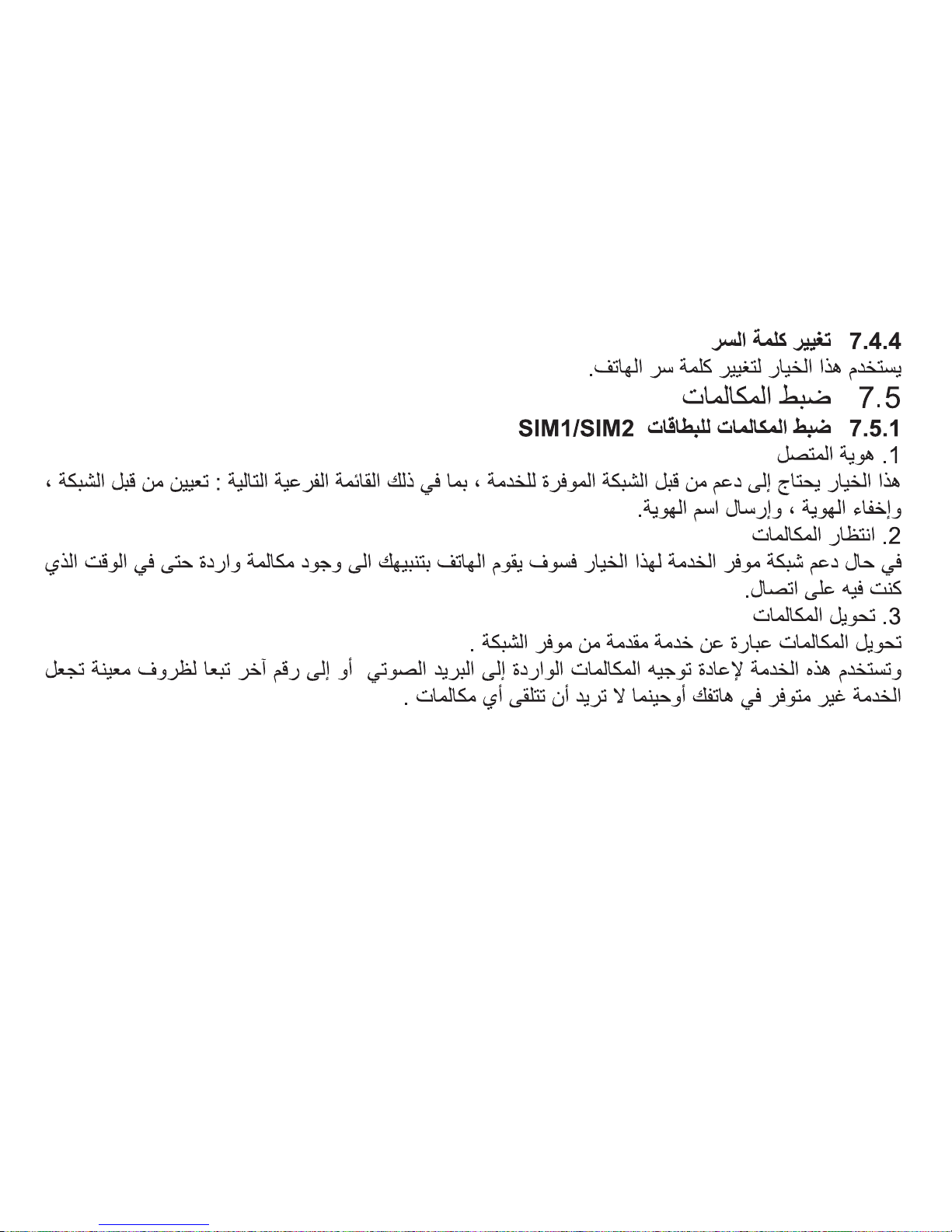
7.4.4 Change password
This option is used to change phone password.
7.5 Call settings
7.5.1 SIM1/SIM2 call settings
1. Caller ID
This function needs to be supported by network, including the following sub-menu: Set by
network, Hide ID, Send ID.
2. Call waiting
If your mobile phone service provider supports this feature, the call waiting notifi es you of an
incoming call even while you are on a call.
3. Call divert
Call divert is a network service.
This service is used to forward incoming calls to your voice mail service or to another number
depending on certain conditions in which your phone is unavailable or you don’t want to receive
any call.
Page 28

27
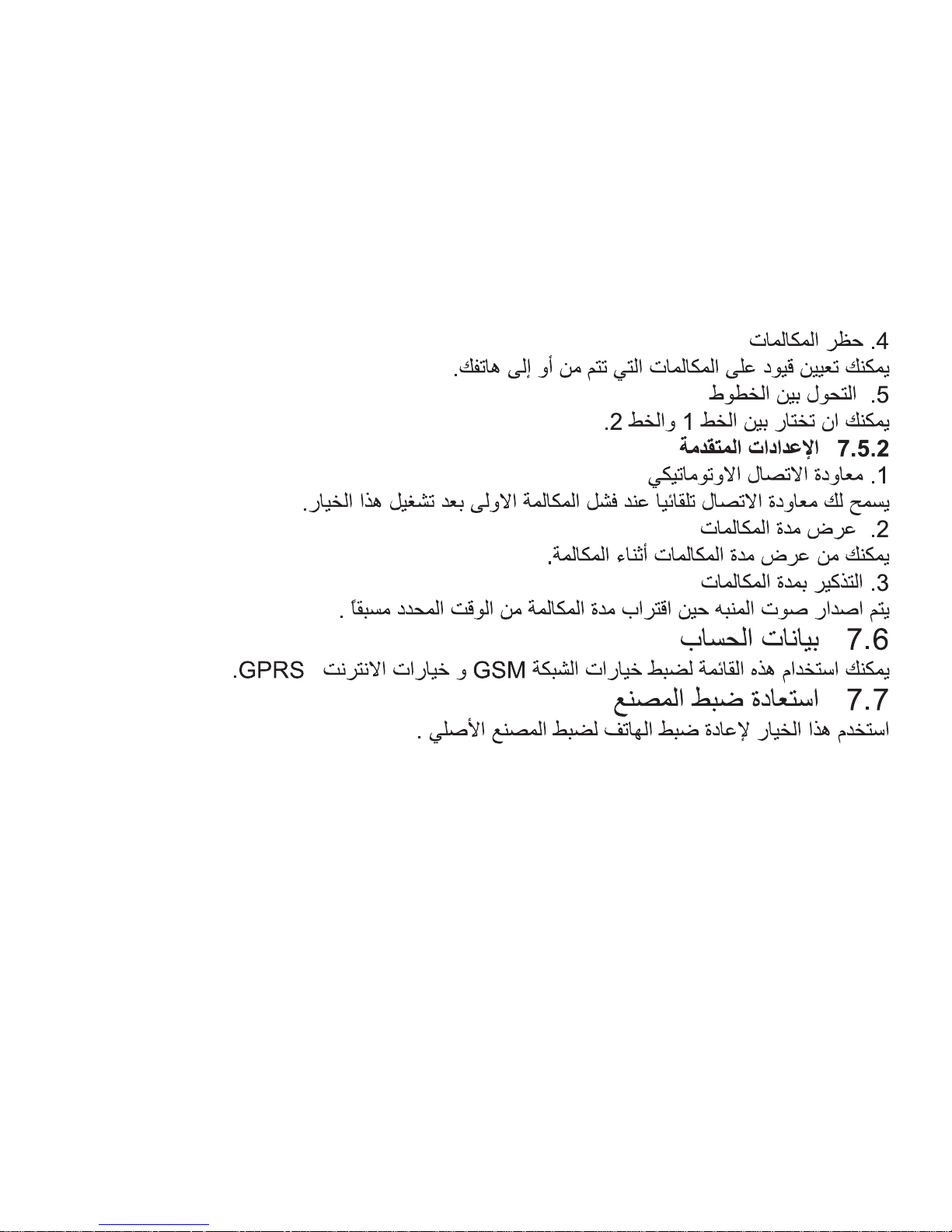
4. Call barring
You can set restriction for calls made from or to your phone.
5. Line switching
You can choose between Line 1 and Line 2.
7.5.2 Advance settings
1. Auto redial
Allows you redial automatically when one time trial dial fails by turning on this function.
2. Call time display
Whether display your call time during the call.
3. Call time reminder
During a phone call, as your call duration nears the set time, alert will sound.
7.6 Data account
Use the menu to set the GSM data and GPRS.
7.7 Restore factory settings
Use this menu to reset the phone’s settings to the original factory settings
Page 29

28
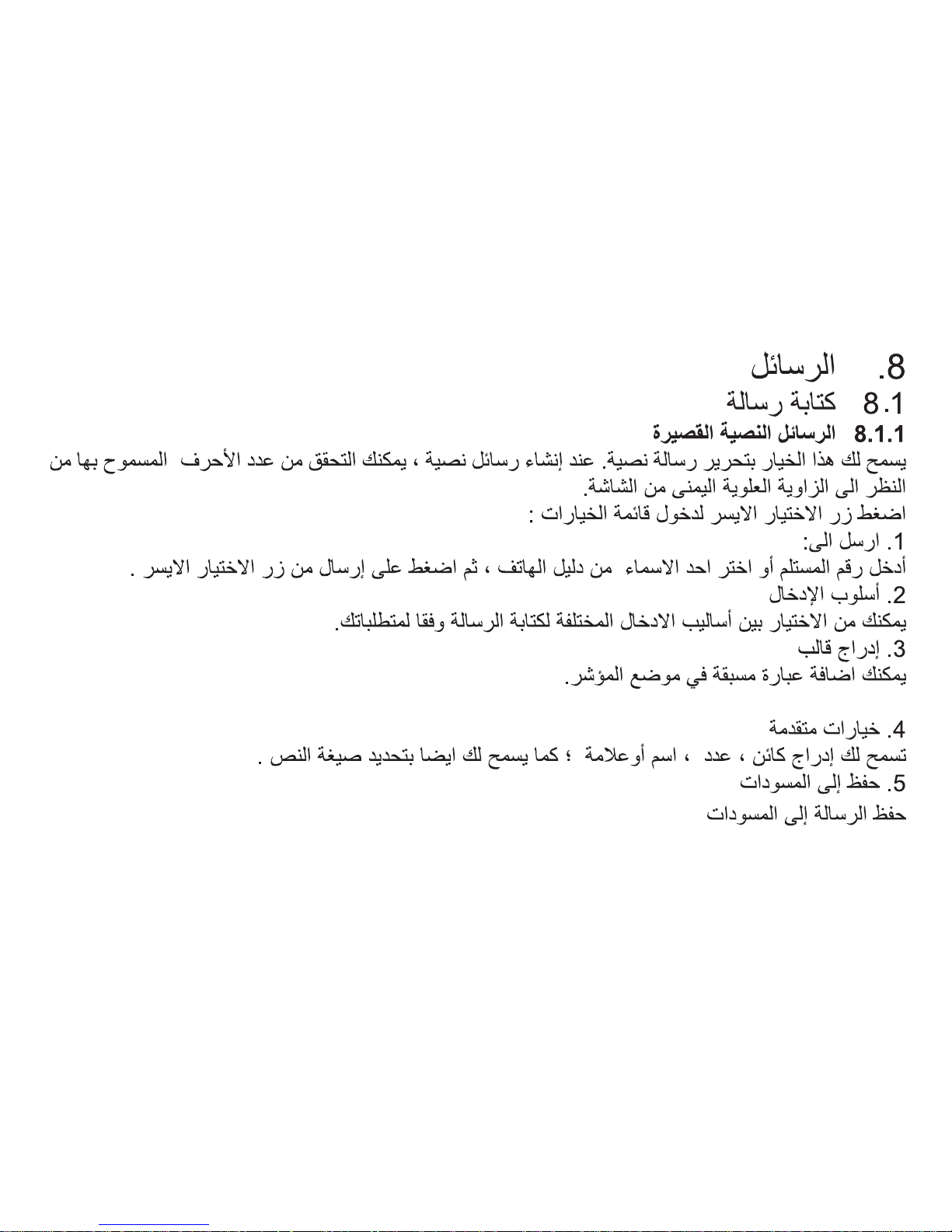
8. Messages
8.1 Write message
8.1.1 SMS
Allow you to edit text message. When composing text messages, check the number of
characters allowed in the top-right corner of the screen.
Press LSK to enter the Option menu:
1. Send to
Enter the recipient’s number or retrieve a number from the phonebook, then press LSK to send.
2. Input method
Select different input methods to write message according to requirements.
3. Insert template
Insert the preset words in the position of cursor.
4. Advanced
Allow you insert object, insert number, insert name, and insert bookmark; also allow you set
text format.
5. Save to Drafts
Page 30

29
Save the message to the draft.
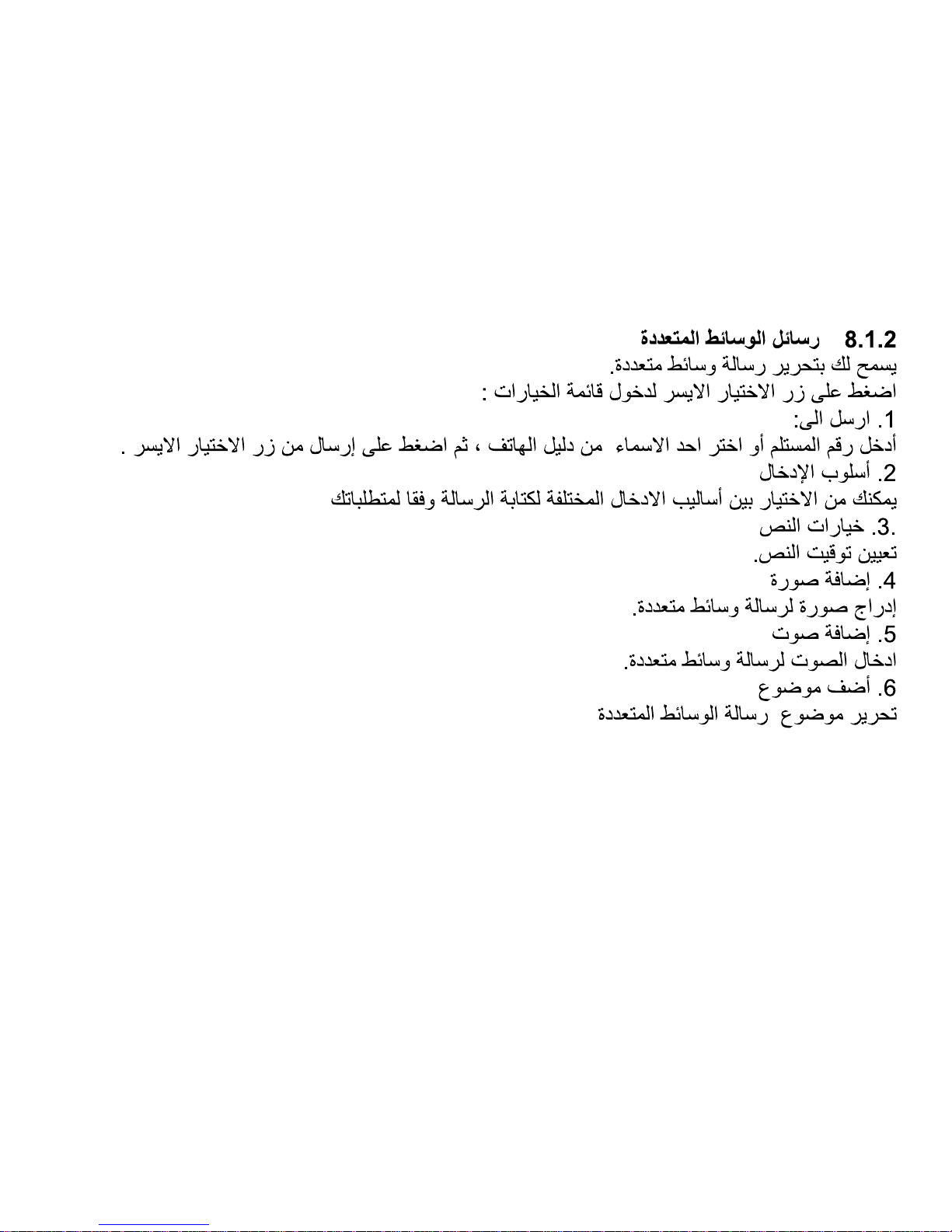
8.1.2 MMS
Allow you to edit multimedia message.
Press LSK to enter the Option menu:
1. Send to
Enter the recipient’s number or retrieve a number from the phonebook, then press LSK to send.
2. Input method
Select different input methods to write message according to requirements.
3. Text options
Set the text timing.
4. Add picture
Insert the picture to multimedia message.
5. Add sound
Insert sound to multimedia message.
6. Add subject
Edit the subject to multimedia message.
Page 31

30
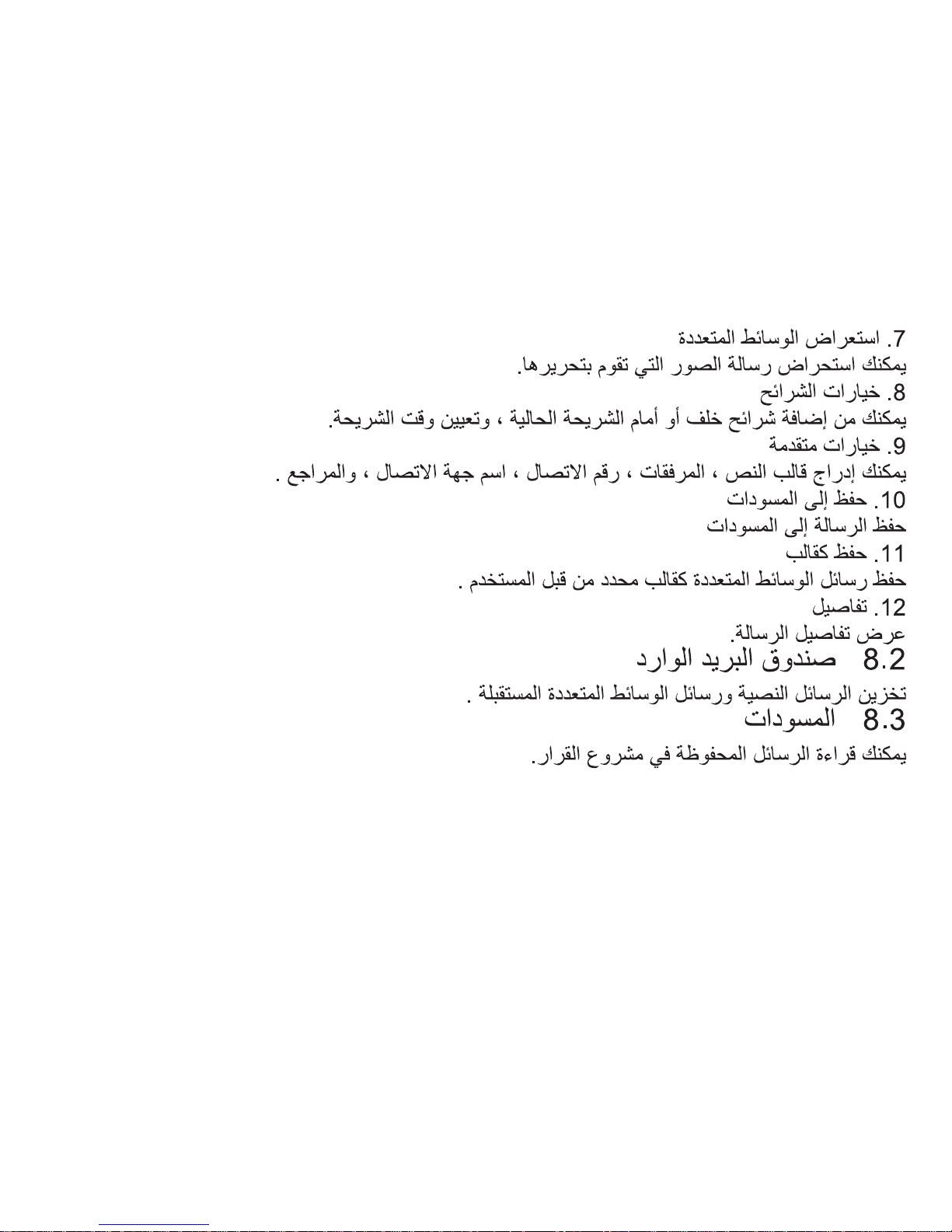
7. Preview MMS
Preview the MMS you edit.
8. Slide options
Add slide behind or before the current slide, and set the slide time.
9. Advanced
Insert text template, attachment, contact number, contact name, and bookmark.
10. Save to Drafts
Save the message to the draft.
11. Save as template
Save the edit MMS as user defi ned template.
12. Details
View the message details.
8.2 Inbox
Store the text messages and multimedia message you received.
8.3 Drafts
Page 32

31
You can read the messages saved in draft.
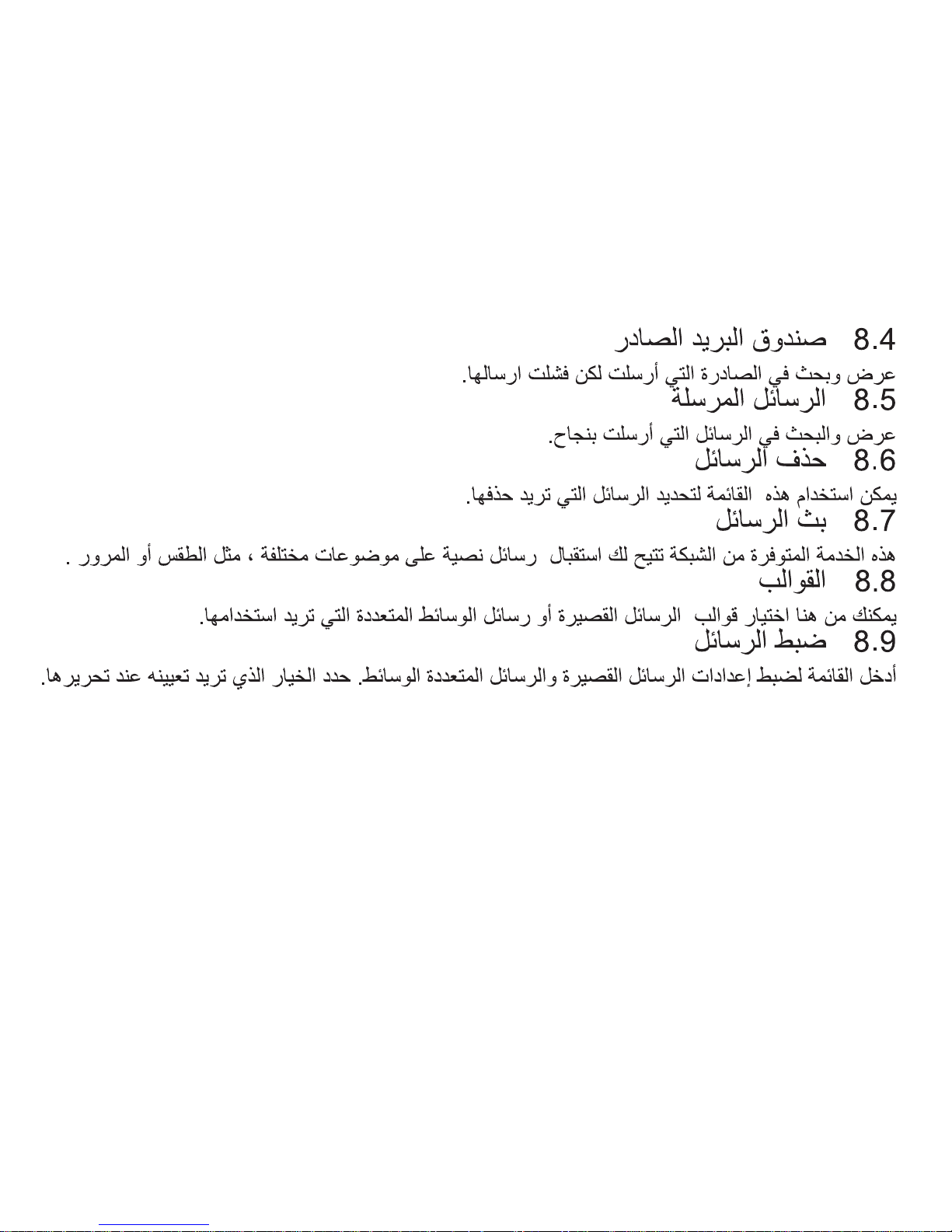
8.4 Outbox
View and search the messages you sent but failed.
8.5 Sent messages
View and search the messages you sent successfully.
8.6 Delete messages
Use the menu to specify exactly which type of message you want to delete.
8.7 Broadcast message
This network service allows you to receive text messages on various topics, such as the
weather or traffi c.
8.8 Templates
Select the SMS or MMS templates you want to use.
8.9 Message settings
Enter the menu to set SMS and MMS settings. Select the option you want to set to edit.
Page 33

32
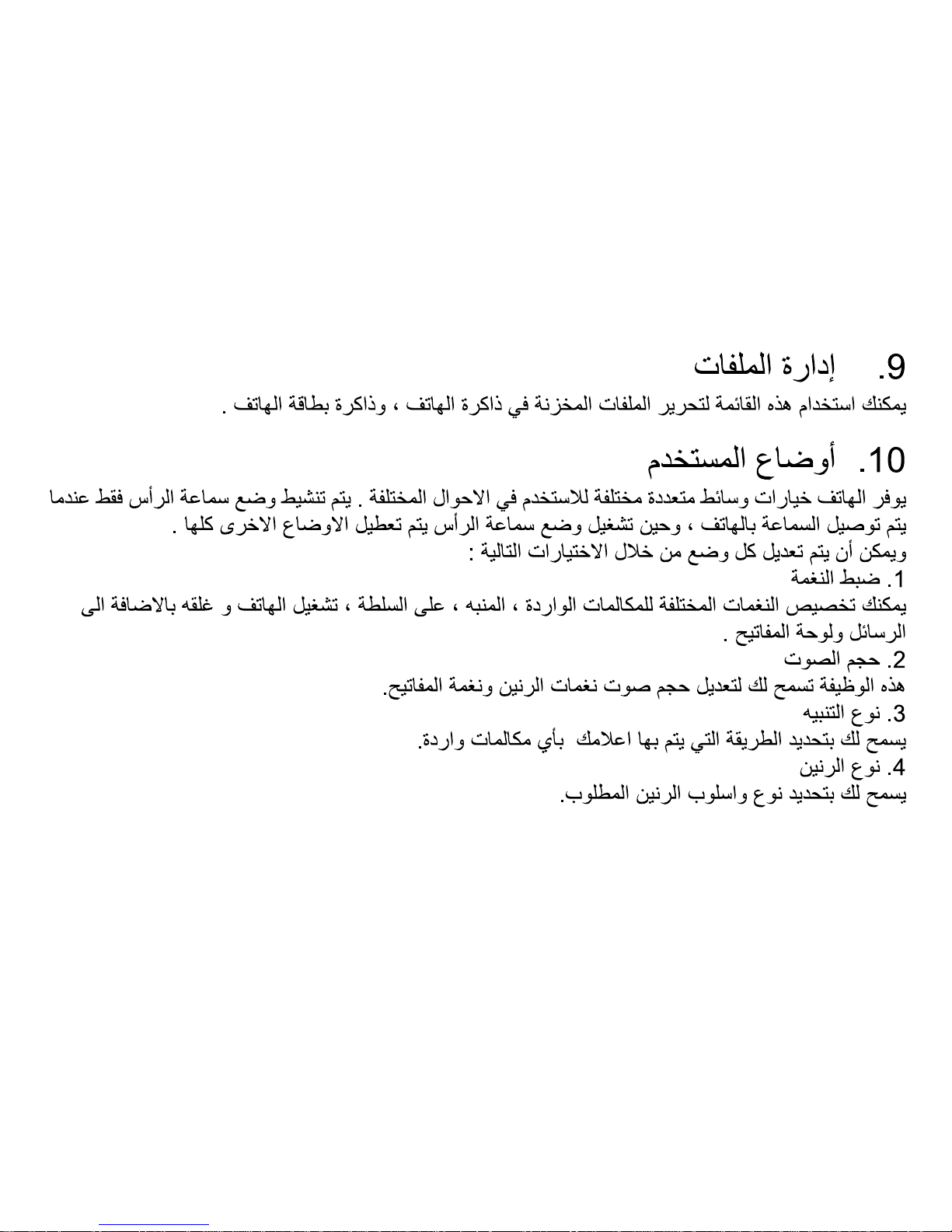
9. File manager
Use the menu to manager the fi les you stored in the phone memory, Memory card and SIM+
Card.
10. User profi les
The phone provides multiple scene modes for you to choose according to different events
and environment. The headset mode is activated only when the headset is connected; when
headset mode is on, other modes are deactivated.
Each scene mode can be edited the following contents:
1. Tone settings
You can allocate different ringers for Incoming call, Alarm, Power on, Power off, Message and
Keypad.
2. Volume
This function allows you to adjust the volume output of the Ringtone and Key tone.
3. Alert type
Allows you to specify how you are to be informed of any incoming calls.
4. Ring type
Page 34

33
Allow you to select the required ring type.
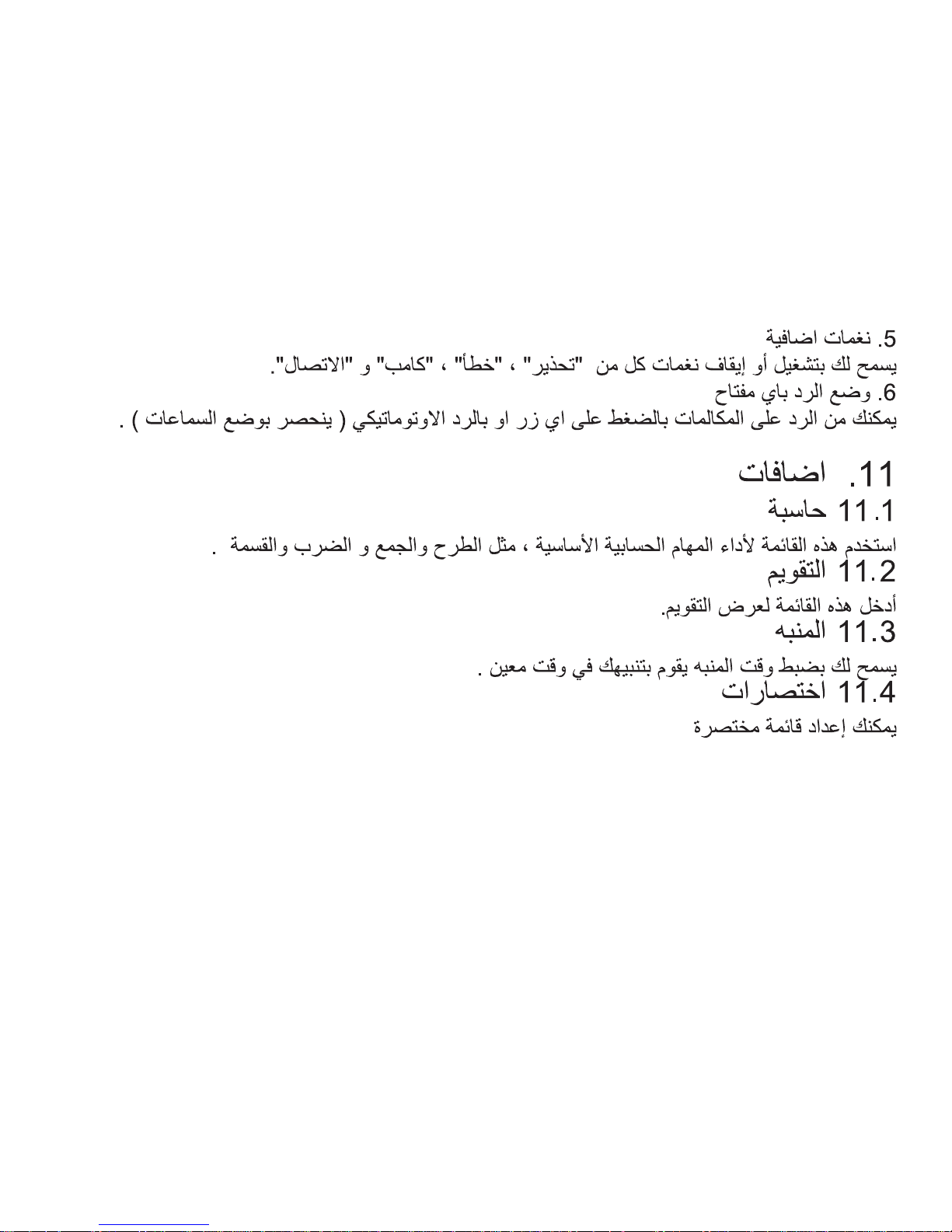
5. Extra tone
Allows you to select turning on or off for the tone of “W arning”, “Error”, “Camp on” and “Connect”.
6. Answer mode
You can answer a call by pressing Any key or Auto (only headset profi le).
11. Extra
11.1 Calculator
Use this menu to perform basic arithmetic functions, such as addition, subtraction, multiplication
and division.
11.2 Calendar
Enter this menu to view the calendar.
1 1.3 Alarm
Allow you to set the alarm to ring at a specifi c time.
11.4 Shortcuts
Setup the shortcuts list.
Page 35

34
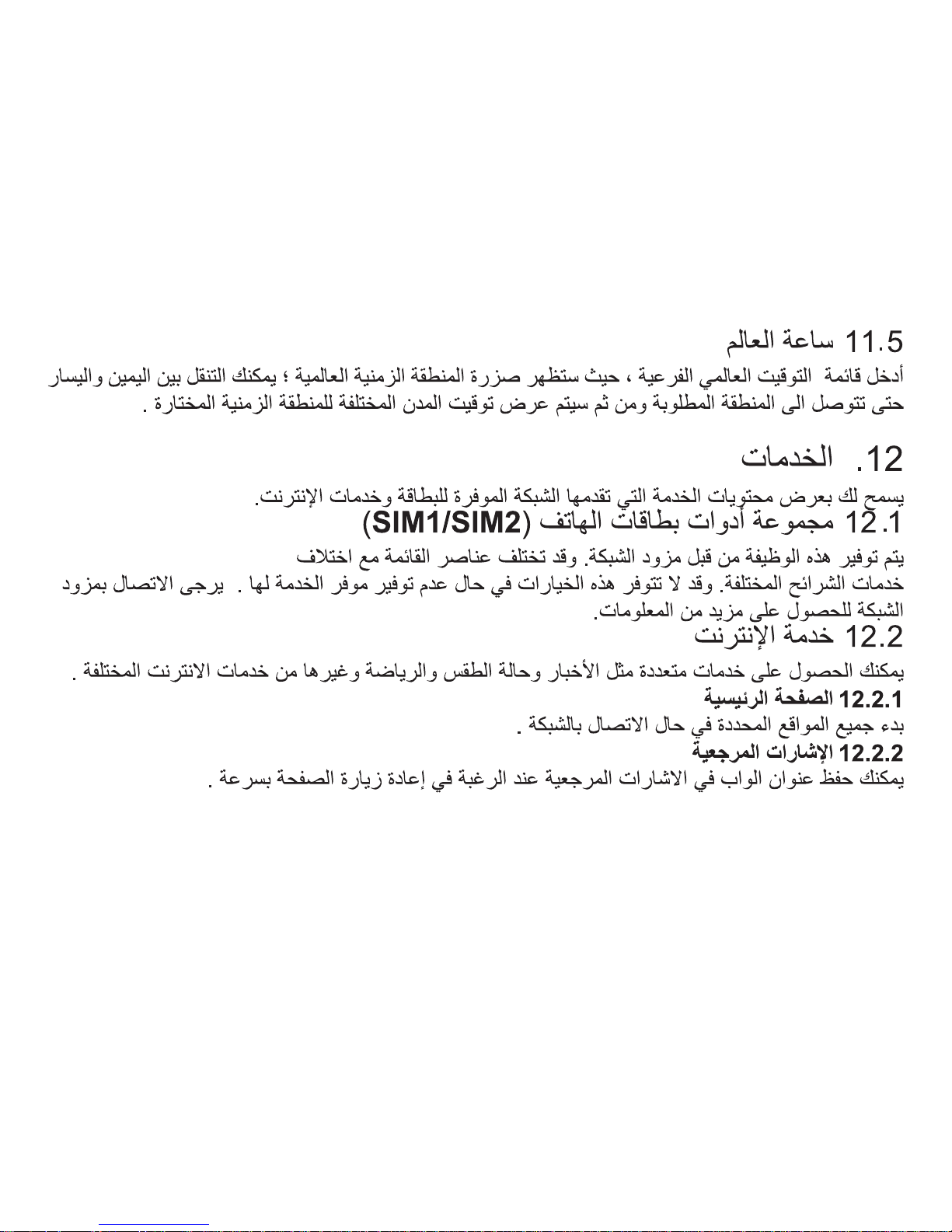
11.5 World clock
Enter submenu World Time, the world time zone image appears; move the coordinate by the
left/right navigation key, the interface will show the time of located city.
12. Services
Allow you view the contents provided by your SIM card service and internet service.
12.1 SIM Tool Kit(SIM1/SIM2)
The function is provided by the network provider. It might have different menu items with
different SIM card service. If the SIM card or network provider does not support the service, the
function is unavailable. Please contact the network provider for more information.
12.2 Internet service
You may obtain multiple services such as news, weather forecast, sports and other internet
services.
12.2.1 Homepage
Start up all the set websites in connection setup.
12.2.2 Bookmarks
Page 36

35
You may save the WAP address in the bookmark to quickly re-visit the page.
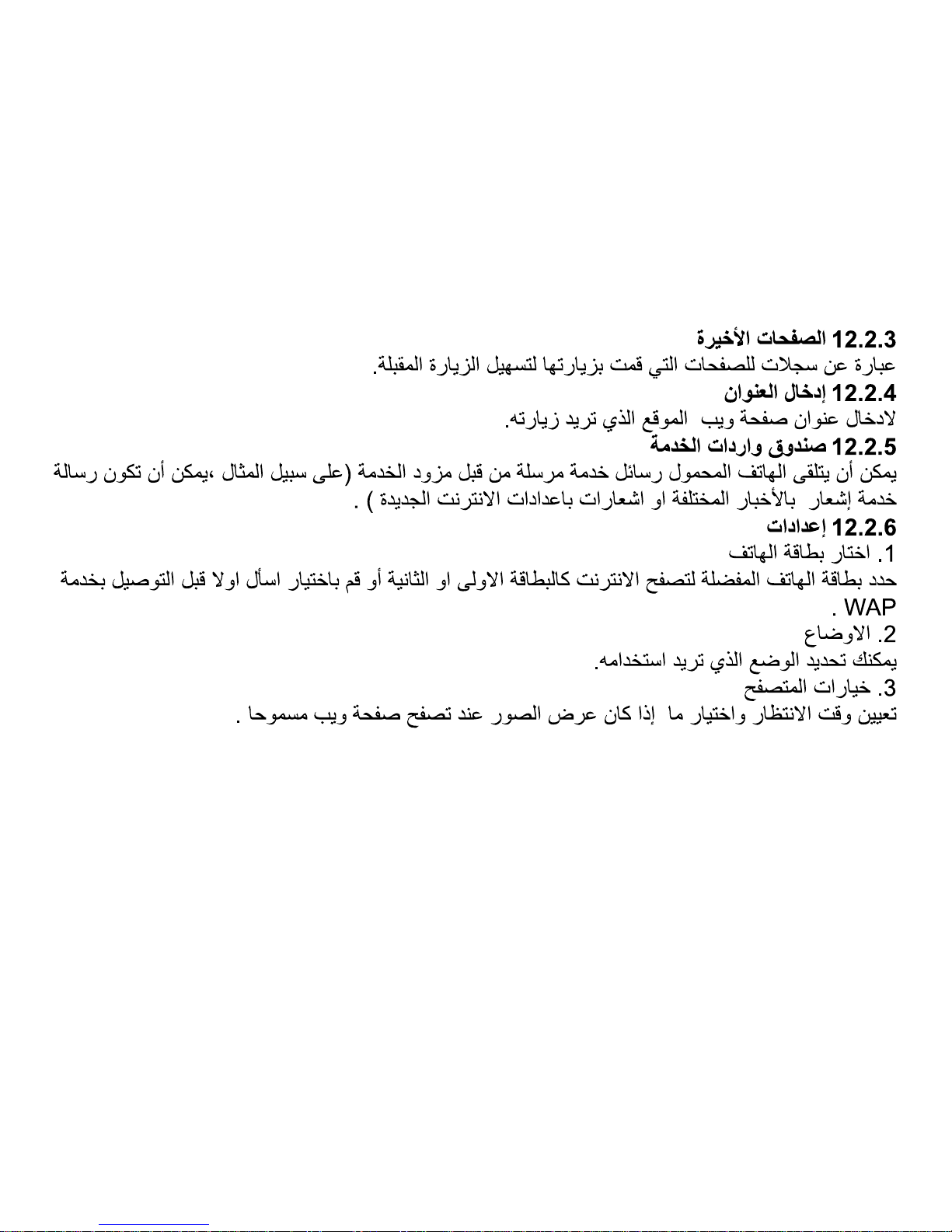
12.2.3 Recent pages
Records the page visited, for the next visit.
12.2.4 Input address
Input the Web page address of a site you want to visit.
12.2.5 Service inbox
Mobile phone can receive the service messages sent by your service provider (For example,
service message can be notice on relevant news abstract or a new web set.)
12.2.6 Settings
1. Select SIM
Select SIM 1 or SIM2 or always ask to connect to WAP.
2. Profi les
Select the profi le you want to use.
3. Browser options
Set waiting time and Whether display pictures when browse web page.
Page 37

36
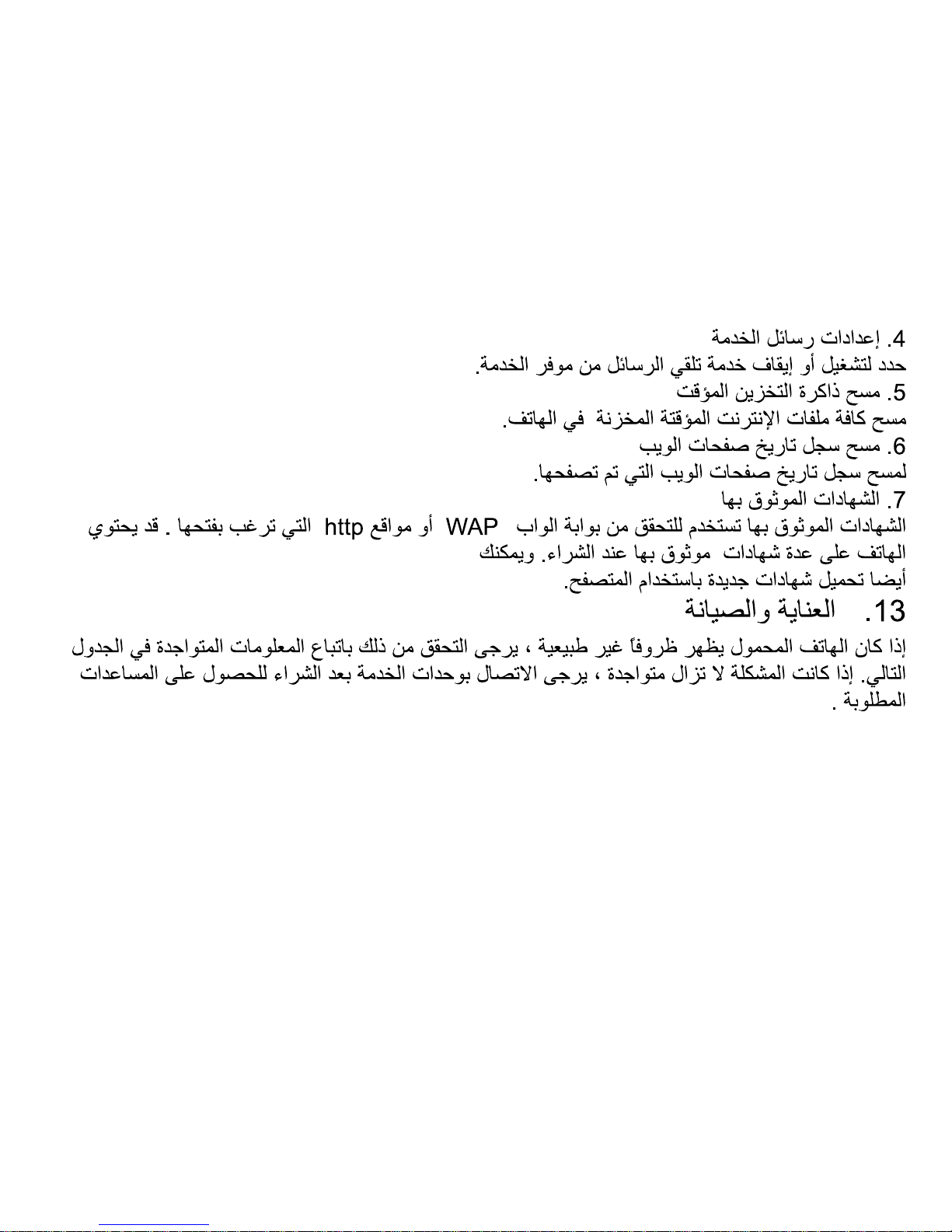
4. Service message settings
Select to turn on or off to receive messages from service desk.
5. Clear Cache
Clear all temporary stored internet fi les saved in the phone.
6. Clear Cookies
Clear the history record of browsed web pages.
7. Trusted Certifi cates
Trusted Certificates are used to verify the WAP gateway or the HTTP server that you are
connecting to. Your phone may already contain trusted certifi cates when you buy it. You can
also download new certifi cates using the browser.
13. Care and maintenance
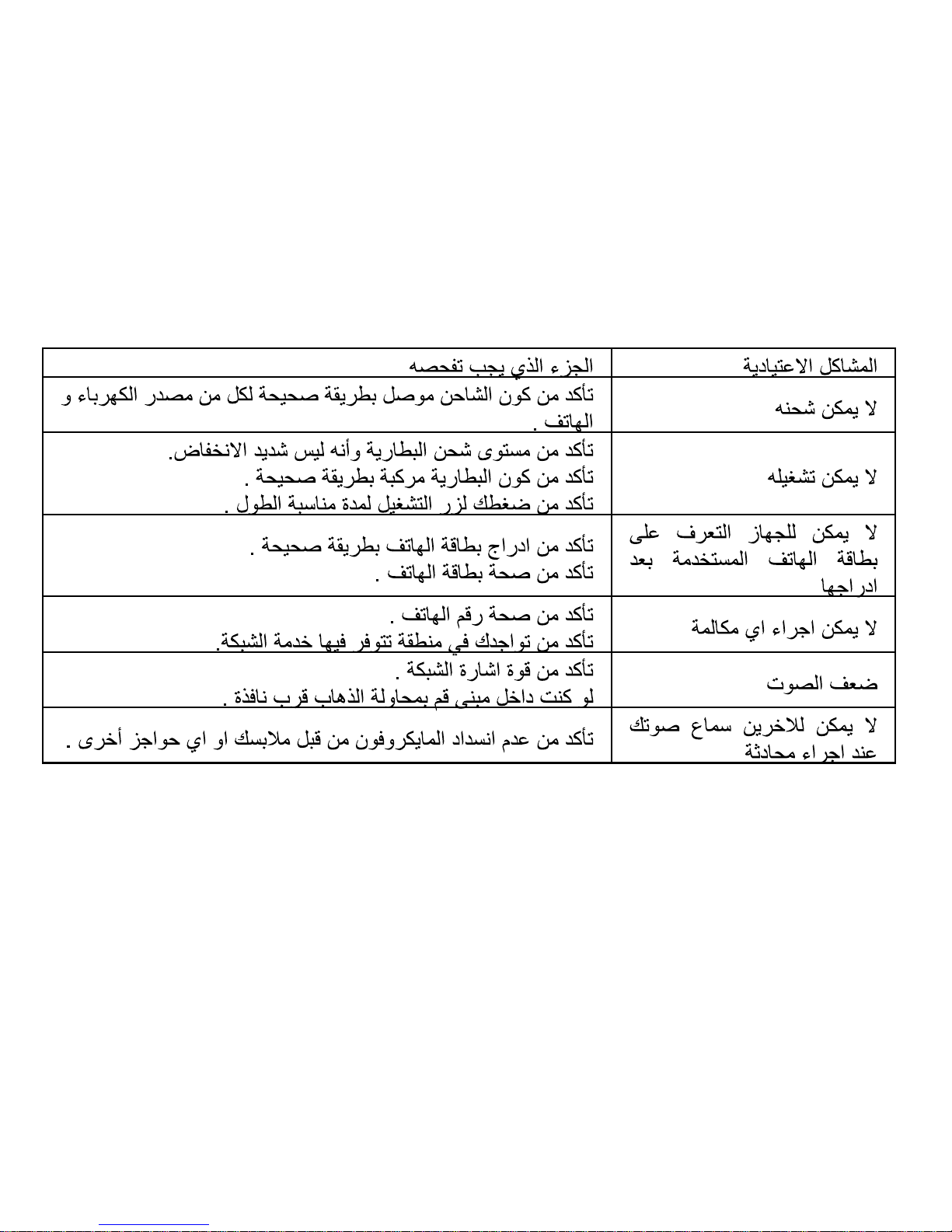
If your mobile phone has abnormal conditions, please check it with the following table. If the
problem still remains, please ask mobile phone after sales for help.
Page 38

37
Common problems Check item
Cannot charge
Please check if the charger is properly connected to the phone
and the power source jack.
Cannot power on
Please check if the battery level is too low;
Please check if the battery is properly loaded;
Please press power key for enough time.
Insert the SIM card but
cannot read the information
in the SIM card
Please check if the SIM card is properly inserted;
Please check if your SIM card is valid.
Cannot make phone call
Please check if the phone number is valid.
Please check if you are in service area.
Poor voice quality
Please check if the phone signal is strong enough.
If you are in a building, please move near the window.
The contact cannot get
your voice during the
phone call
Please check if your mike is blocked by fi ttings or other blocks.
Page 39

38
Haier Mobile Packing List (HG-M300)
No
Content
Quantity/unit
1pc
1pc
1pc
1pc
1pc
1pc
Handset
Battery
Travel Charger
User manual
Headset
Warranty Terms
1
2
3
4
5
6
Page 40
1
Page 41
2
Page 42
3
Page 43
4
Page 44
5
Page 45
6
Page 46
7
Page 47
8
Page 48
9
Page 49
10
Page 50
11
Page 51
12
Page 52
13
Page 53
14
Page 54
15
Page 55
16
Page 56
17
Page 57
18
Page 58
19
Page 59
20
Page 60
21
Page 61
22
Page 62
23
Page 63
24
Page 64
25
Page 65
26
Page 66
27
Page 67
28
Page 68
29
Page 69
30
Page 70
31
Page 71
32
Page 72
33
Page 73
34
Page 74
35
Page 75
36
Page 76
37
 Loading...