

Page 1

iOS USER MANUAL
A Complete Overview on
How to Use Your Smartwatch
guessconnect.com
Page 2

TABLE OF CONTENTS
Getting Started
What’s In The Box 1
Product Overview 2
Key Features 3-4
Setting Up The GUESS Connect Watch
Turn On And Charge 5-6
Preparation for iOS Devices 7
Pairing An iOS Device 8-10
Volume Control & Icons 11
Setting Up The GUESS Connect App
General Settings
Watch Language | Watch Menu 12
Language | App 13
Date 14
Time 15
Do Not Disturb 27
Find My Phone 28
Send & Receive Calls & Texts
Incoming Calls & Outgoing Calls 29
Incoming Texts & Outgoing Texts 30
Camera Control
Take Photos 31-32
Music Control
Voice Command | Music Mode 33
A2DP 34
Stopwatch
Stopwatch Function 35
Appointments & Reminders 36
Watch Settings
Scroll Speed 16
Alert Scroll Delay 17
Vibration Intensity 18
Activate LED 19
Activate Leash 20-21
Gesture Control 22
Custom Vibration Alerts 23
Tap the Glass 24
Setting The World Time 25
Setting The Weather 26
guessconnect.com
iOS USER MANUAL
Silent Alarms 37
Settings & Support
Disconnect Watch 38
Register Your Watch 39
Help & Support 40
Reset Your Watch 41-42
Regulatory & Safety Notices 43-47
Page 3
Getting Started
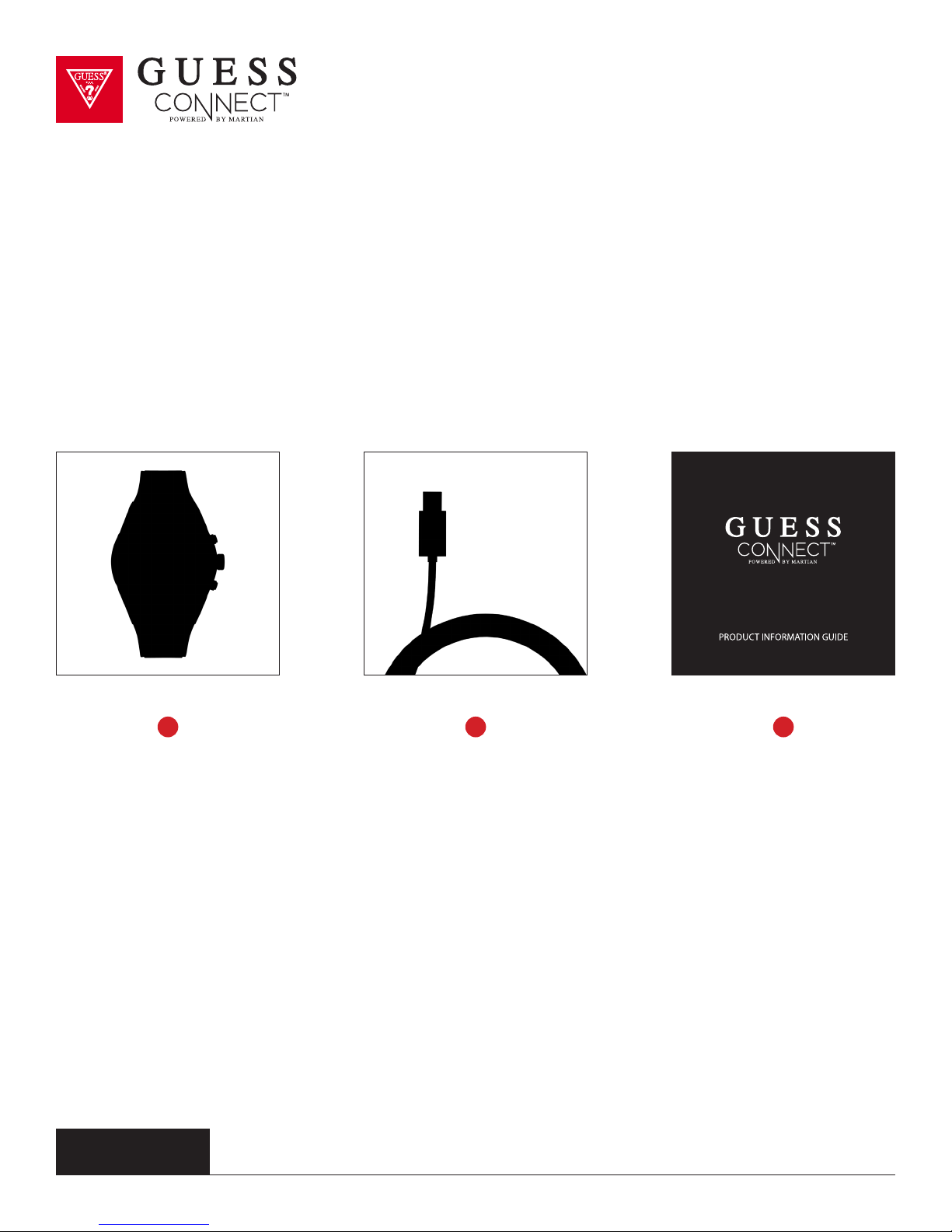
What’s In The Box:
Welcome to GUESS Connect: A fashion chic smartwatch designed for men and women.
1 32
GUESS Connect Watch USB Charging Cord Product Info Guide
guessconnect.com
iOS USER MANUAL
1
Page 4
Getting Started
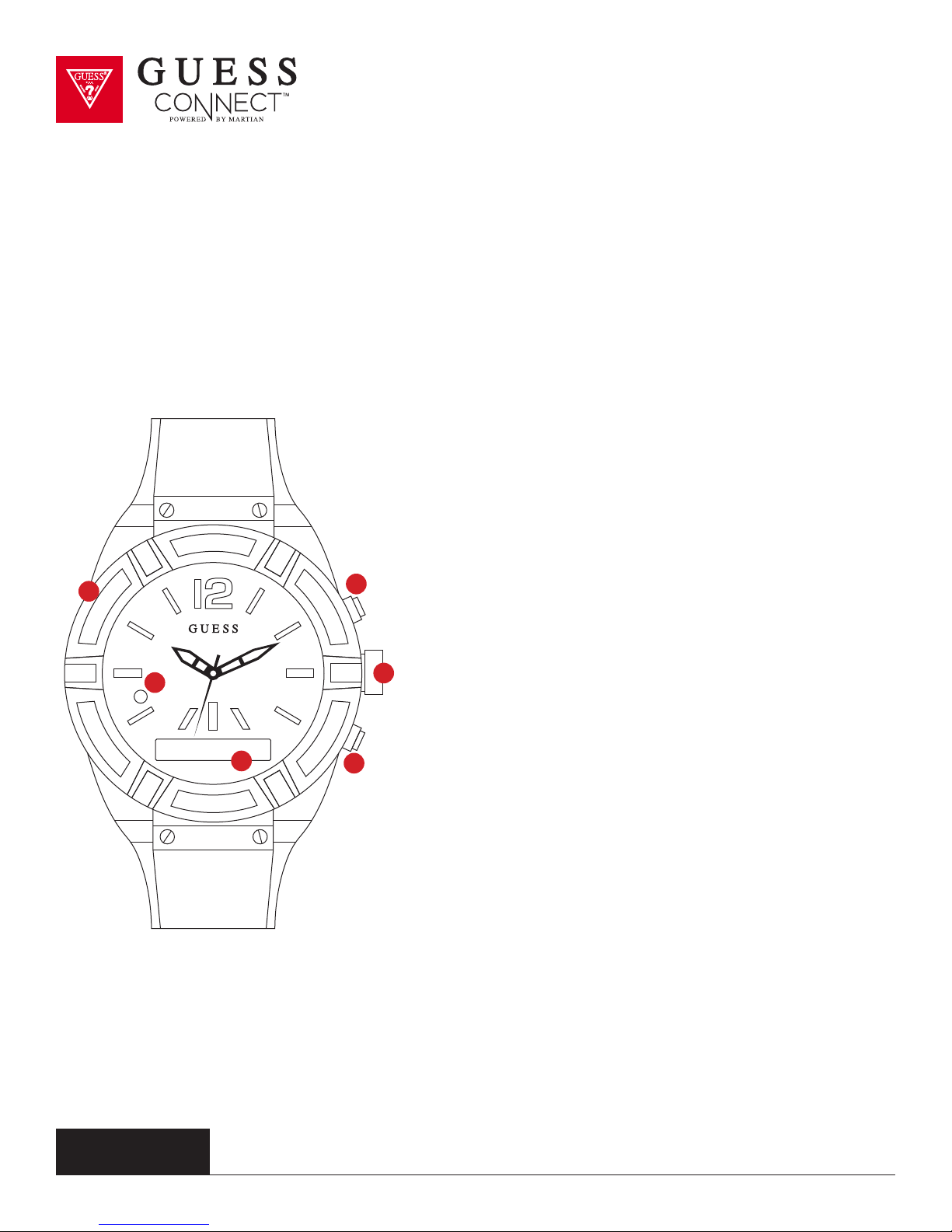
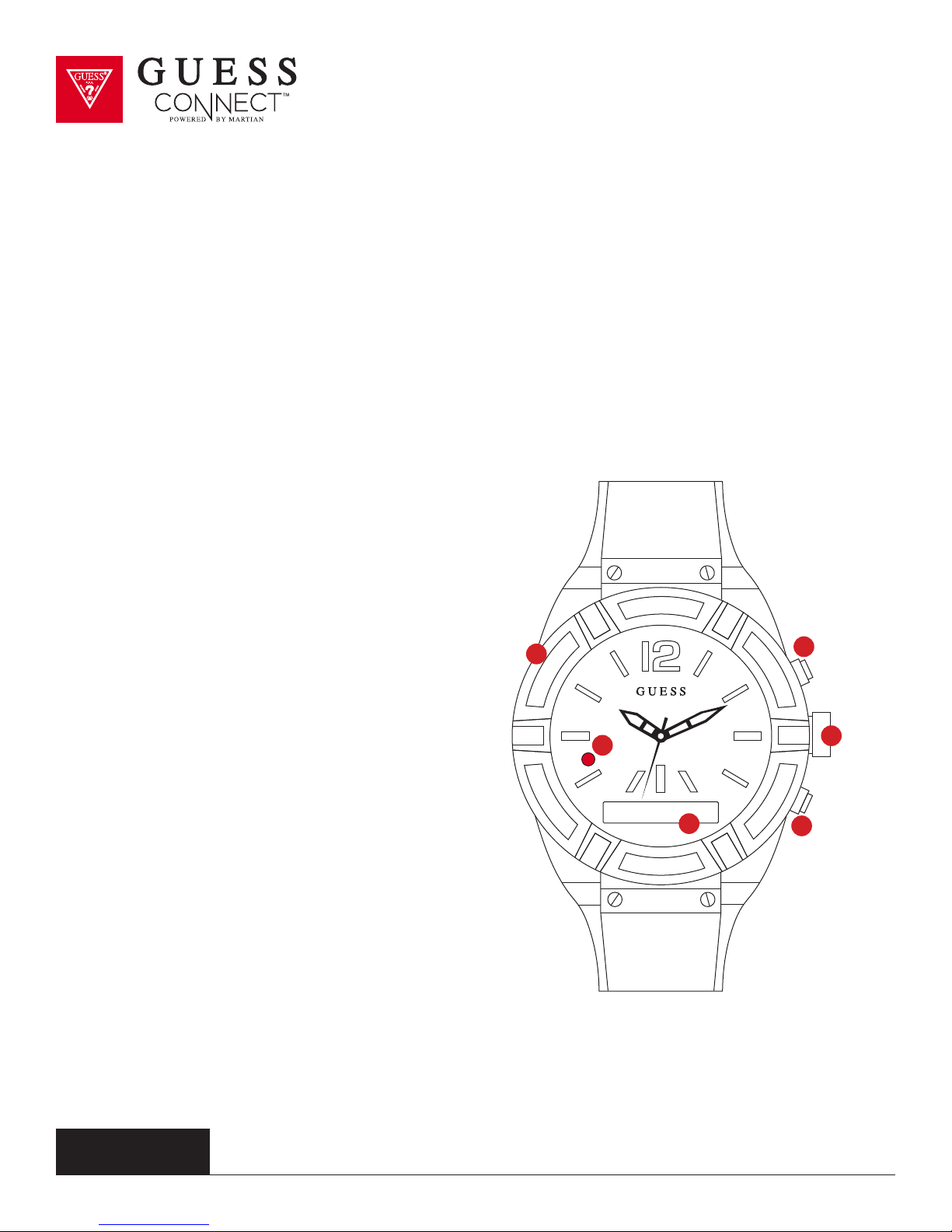
Product Overview
1
2
4
5
1 Charging Port
Micro USB Charging Port
2 LED Light
Notifies users of events
GREEN: Incoming Call
RED: Smart Movement Battery Low
or Charging
BLUE: Activating a voice command,
an incoming text or App notification
(Facebook, Twitter, email, weather,
calendar, etc.)
White: Used as a light in darkenss
3 OLED Screen
Shows incoming caller ID, texts and
notifications in a scrolling format. Also
displays battery life and menu options.
guessconnect.com
3
iOS USER MANUAL
6
Top pusher, also known as command button,
answers incoming calls, disconnects calls
when finished and initiates voice commands.
5 Set / Change Analog Time
4 Answer / End / Initiates
Pull out the crown and turn it clockwise or
counterclockwise to set the correct time for
the analog movement.
6 Rejects / Toggles Volume / Menu
Bottom button rejects incoming calls,
toggles through volume and provides
access to the menu.
2
Page 5
Getting Started
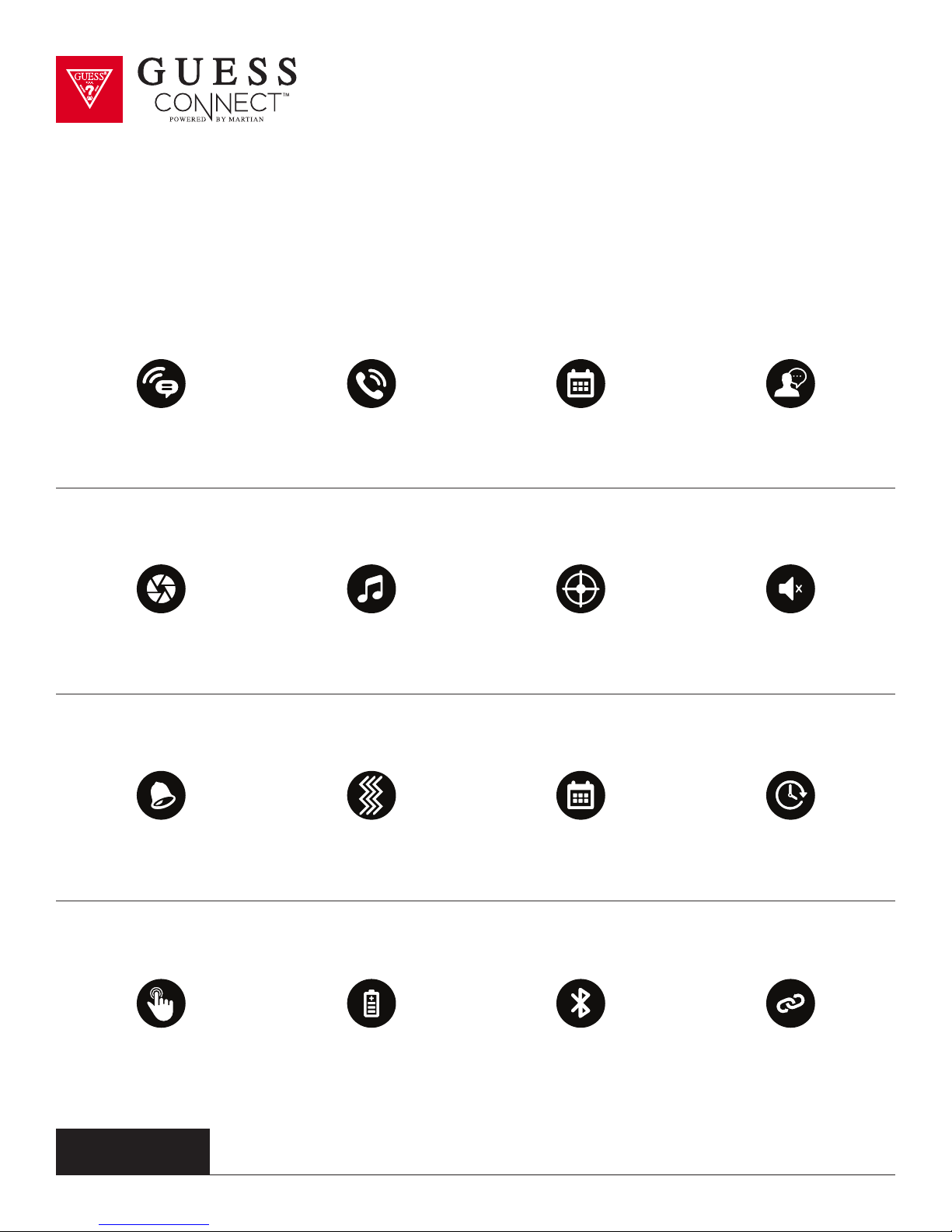
Key Features
VOICE COMMAND FEATURES
VOICE TO
TEXT MESSAGING
CAMERA
CONTROL
APP
NOTIFICATIONS
PLACE &
RECEIVE CALLS
SET APPOINTMENTS
WATCH ACTIVATED FE ATURES
MUSIC
CONTROL
WATCH ALERTS
CUSTOM
VIBRATIONS
APPOINTMENT &
REMINDER NOTIFICATIONS
& REMINDERS
FIND
PHONE
VOICE COMMAND
TO ALL APPS
DO NOT
DISTURB
DIGITAL TIME/
2ND TIMEZONE
TAP
GLASS
guessconnect.com
iOS USER MANUAL
BATT ERY LIFE
3-5 DAY
FUNCTIONALITY
BLUETOOTH
CONNECTIVIT Y
®
iOS & ANDROID
COMPATIBLE
3
Page 6

Getting Started
Key Features
TECHNICAL SPECIFICATIONS
• A designer analog quartz smartwatch
with Japanese movement
®
• Bluetooth
and Bluetooth low energy)
• Directional personal speaker
with adjustable volume
• Free iOS/Android smartphone
App for settings & features
• Noise-cancellation microphone
4.0 Chip (classic Bluetooth
• Adjustable vibrating motor
• Upper command/lower select pushers
• RGB LED light
• Charging via micro USB
• 96x16 graphic OLED display
• 3-axis accelerometer
• Anti-scratch touch glass crystal
POWER & BATTERY
• Dual power sources: 3-5 days of use time and analog watch battery for up to 2 years
• Charging via micro USB
SIZE
• Available in 2 case sizes: 45mm and 41mm
MATERIALS
• Stainless Steel Case with Silicone or Genuine Leather Band
LANGUAGE SUPPORT
• Watch Menu: English, Spanish, German, French, Japanese, Korean,
Simplified Chinese and Traditional Chinese
• Manual and App: English, Spanish, German, French, Italian, Japanese,
Korean, Simplified Chinese, Russian and Dutch
• Incoming Messaging: All languages supported by your smartphone
guessconnect.com
iOS USER MANUAL
4
Page 7
Setting Up The GUESS Connect Watch
Turn On And Charge
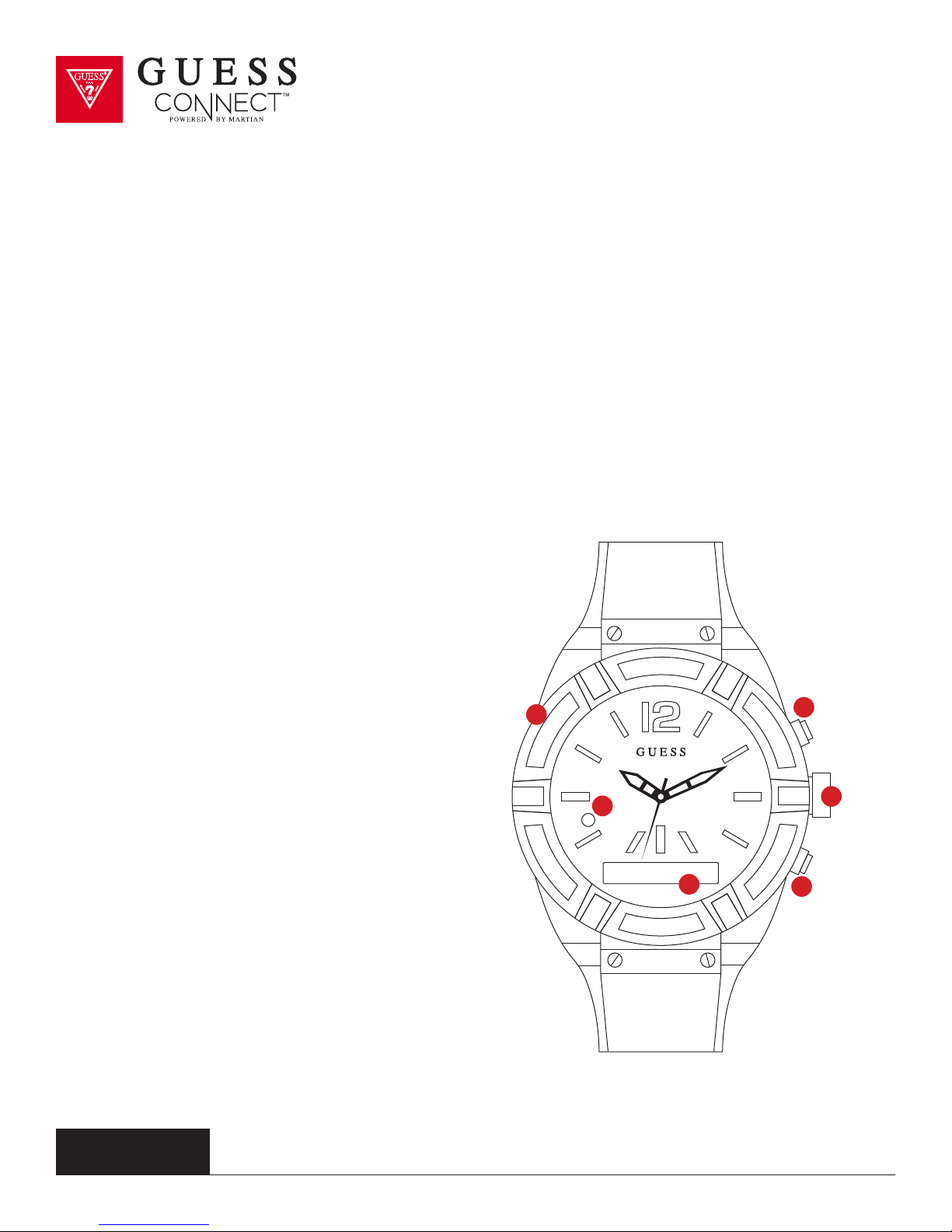
CHARGING WATCH
• Remove the USB cover (1) from the left side of the watch and insert the micro USB.
Attach the USB cable to a computer or wall outlet adapter (not included), to begin charging.
•
• When the LED light (2) on your watch is RED, the watch is charging.
When the LED light turns GREEN the watch has a full charge.
•
Full charge will take approximately 2 hours.
•
TURNING YOUR WATCH ON
• Press and hold the bottom
button (6) for 2 seconds.
When the watch comes on, you will
•
see the OLED display (3) light up.
If the watch does not turn on, it will
•
need to be charged.
SETTING ANALOG TIME
• Gently remove the battery
stopper from the crown.
Turn the crown (5) clockwise
•
to set the time.
Push the crown in
•
towards the case.
Discard the battery stopper.
•
1
2
3
4
5
6
guessconnect.com
iOS USER MANUAL
5
Page 8
Setting Up The GUESS Connect Watch
Turn On And Charge
CHECKING BATTERY LEVEL
With the watch turned on, quick-press the
bottom button (6) to view the menu on the
OLED screen (3). The battery icon is in the far left of
the display. If the battery icon shows the watch is
less than 50%, the watch will need to be charged.
TURNING THE WATCH OFF
• Press and hold the bottom button (6) for 2 seconds.
The RED LED light will flash and the
•
OLED will display Goodbye.
DEMO MODE
• When the watch is o, a long-press of
the top button (4) will activate a Demo Mode
that highlights key functionality of your
GUESS Connect watch. The demo mode is
provided by Martian, the technology partner
for GUESS Connect
This is available in English only.
•
1
2
3
4
5
6
guessconnect.com
iOS USER MANUAL
6
Page 9
Setting Up The GUESS Connect Watch
Preparation for iOS Devices
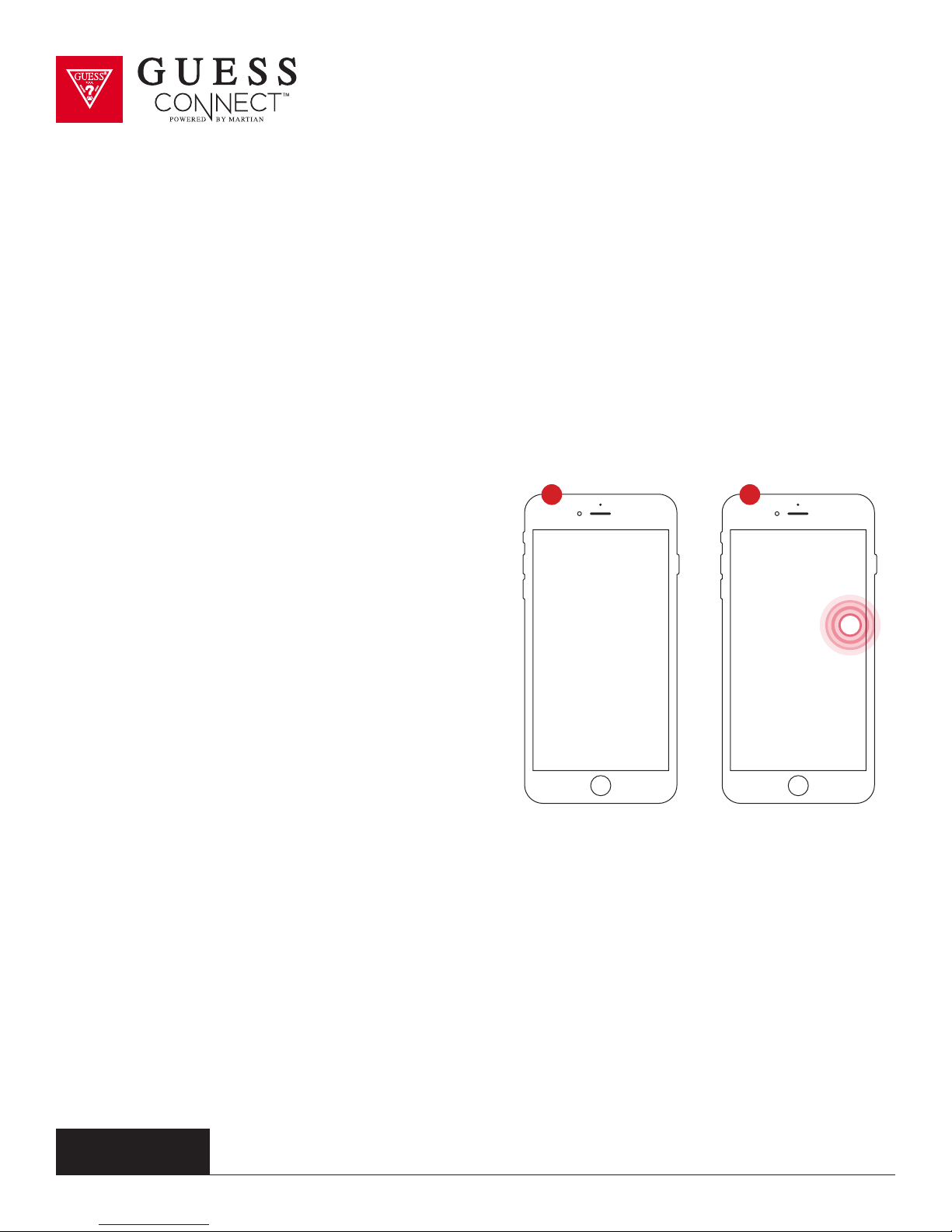
TO GET STARTED:
1 2
1
Download the GUESS Connect App:
a. Go to the Apple App Store
b. Search for GUESS Connect and install
the FREE App on your iOS device.
2 Turn on Bluetooth
a. Go to Settings > Bluetooth
b. Turn on Bluetooth
®
on your iOS device:
guessconnect.com
iOS USER MANUAL
7
Page 10
Setting Up The GUESS Connect Watch
Pairing to An iOS Device
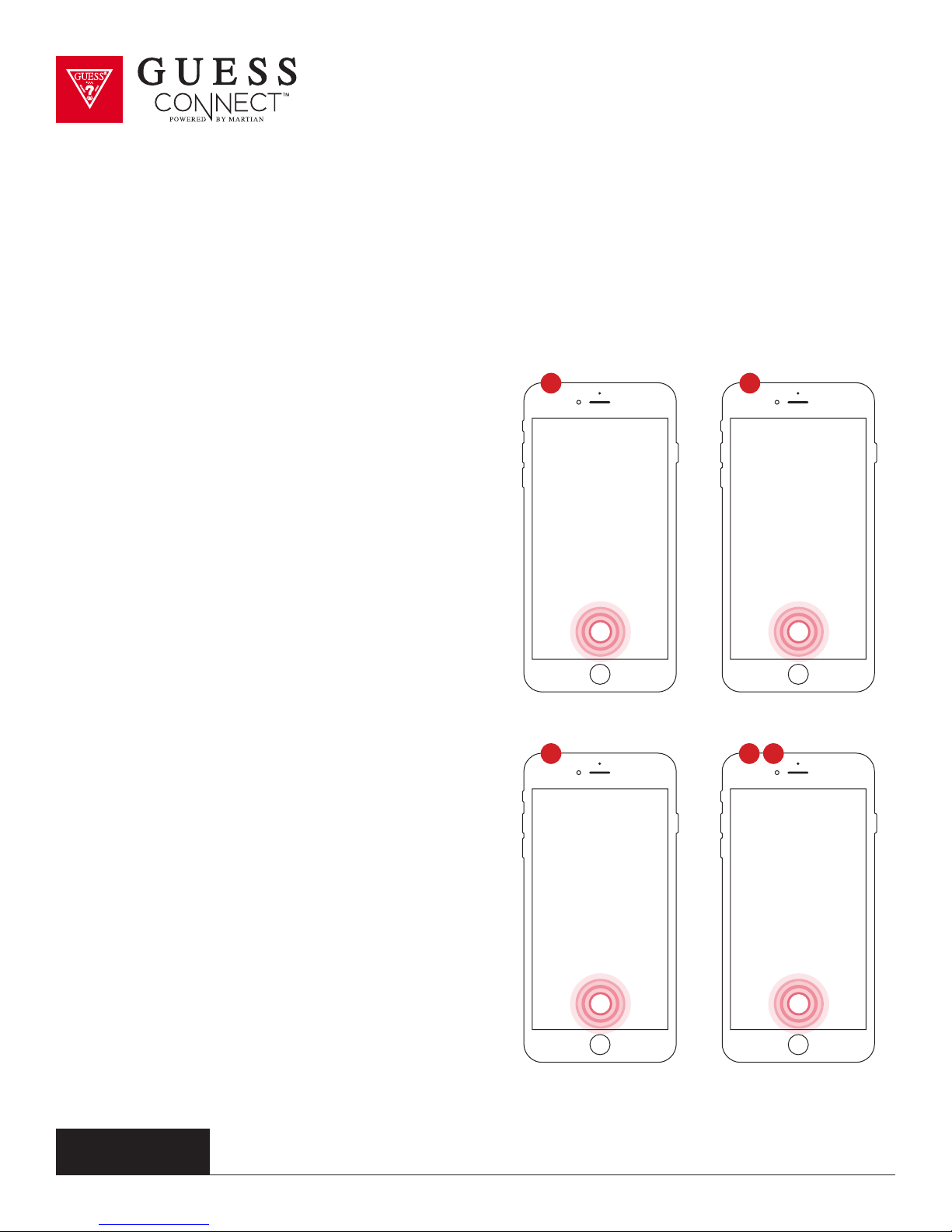
PERMISSIONS & WATCH POWER ON:
1
Open the GUESS Connect App on your Apple
iOS device and choose Connect watch.
2 For security purposes the App will ask you to
grant permission to access location services.
Choose Continue, and then, Allow.
1
3 You will also be asked to grant permissions to
allow the watch to access push notifications,
such as messages, email, and other App
specific data.
4 Press and hold the bottom right button for two
seconds to turn the watch on. The Martian
logo will appear on the OLED screen and the
LED indicator will blink GREEN.
5 Quickly press the bottom button to display the
battery level icon located on the left side of the
OLED screen. If the battery icon is less than
50%, charge the watch before pairing. Choose
Continue after this process.
3 425
guessconnect.com
iOS USER MANUAL
8
Page 11
Setting Up The GUESS Connect Watch
Pairing to An iOS Device
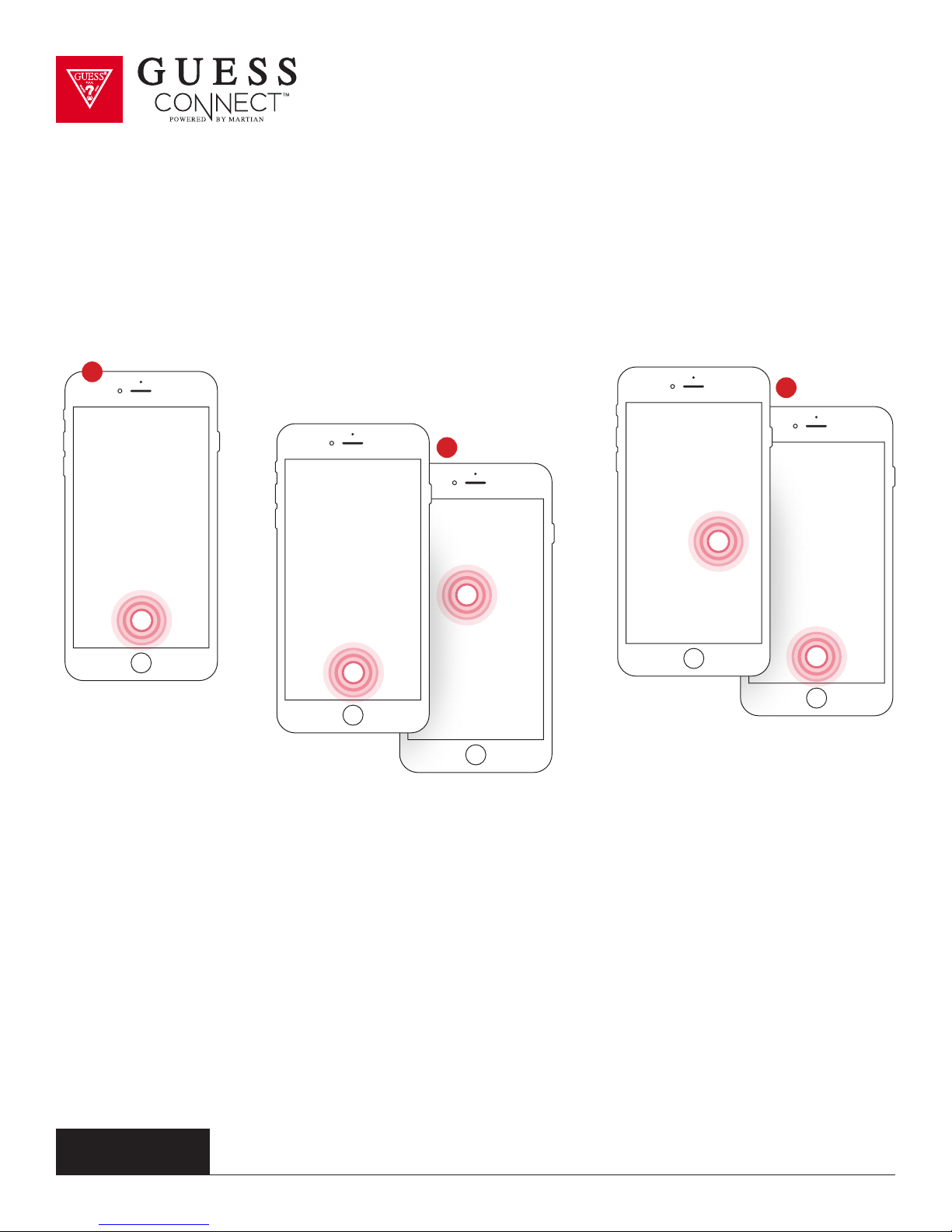
PAIRING PROCESS:
6
7
8
6 Press Continue on the App and you will be asked to pair your watch to your device.
On the watch, press and hold the top button until the BLUE light begins flashing
and the OLED display reads Pair Ready. This will take a few seconds.
7 The App will now prompt you to select an accessory to pair. GUESS Connect will appear.
Upon choosing this option, a key and number will briefly display on the watch.
8 Another pairing request will appear, choose Pair. Your watch display will also inform you that
you are “Paired”. On your iOS device, a screen will say Pairing Successful. Press Continue.
guessconnect.com
iOS USER MANUAL
9
Page 12
Setting Up The GUESS Connect Watch
Pairing to An iOS Device
PAIRING PROCESS:
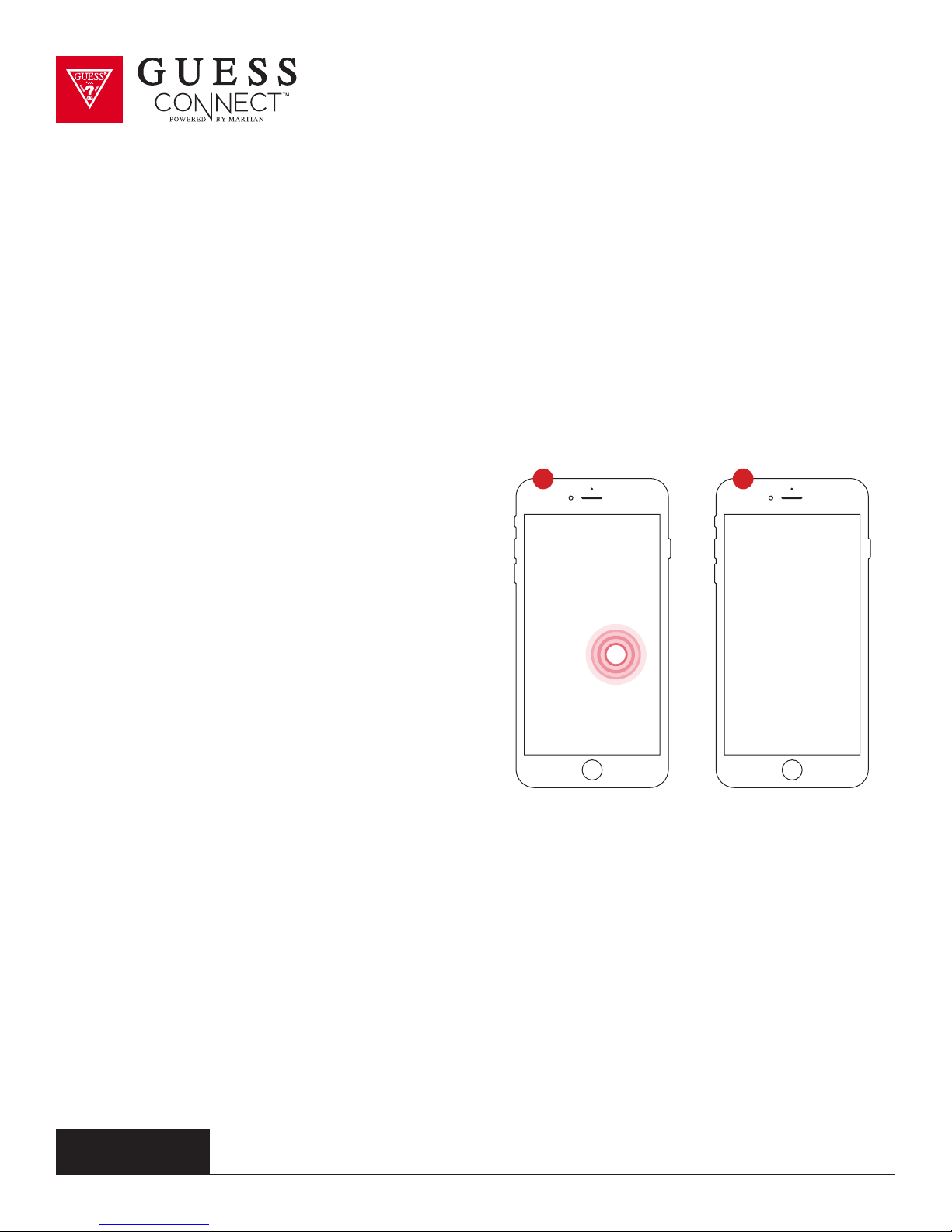
9 10
Immediately after, an additional Bluetooth
9
pairing request will appear for GUESS Smart.
Choose Pair and the watch OLED screen will
confirm that the GUESS Connect watch is
now fully connected.
10 You will now see the GUESS Connect App
home screen. The icons next to “Connected”
must be GREEN to have a functioning
connection.
guessconnect.com
iOS USER MANUAL
10
Page 13
Setting Up The GUESS Connect Watch
Volume Control & Icons
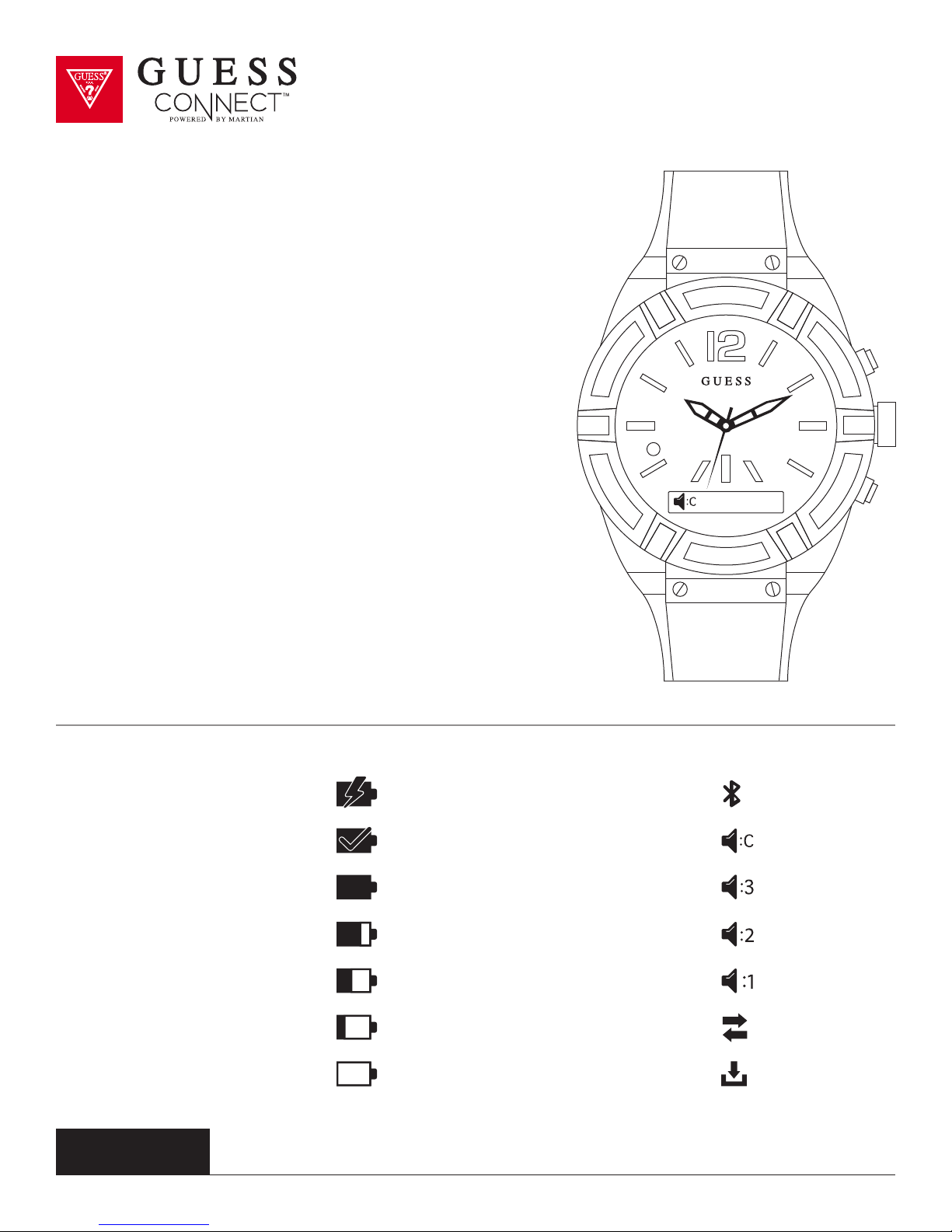
Your GUESS Connect watch has 4 volume settings.
3 - High 2 - Medium
1 - Low C - Clear Voice
The Clear Voice Volume Mode (C) is used for noisy or
crowded situations to improve the call quality heard at the
other end. This volume mode will lower the volume of the
call on the watch and improve the receiver’s call quality.
To change the watch volume, press the bottom pusher until
Volume appears on the OLED screen indicating the current
setting. To change the volume level, press the top pusher
on the watch until you reached the preferred volume level.
Once the volume is set, you can tap the bottom pusher to
go back to the main menu, or do nothing and the menu will
automatically exit after 3 seconds.
Battery Charging = Bluetooth Paired =
Battery Fully Charged = Volume Clear Voice =
Battery Level 100% = Volume High =
Battery Level 75% = Volume Medium =
Battery Level 50% = Volume Low =
Battery Level 25% = Watch Connected =
Battery Level Critical = Smart Connected =
guessconnect.com
iOS USER MANUAL
11
Page 14
Setting Up The GUESS Connect App | General Settings
Watch Language | Watch Menu
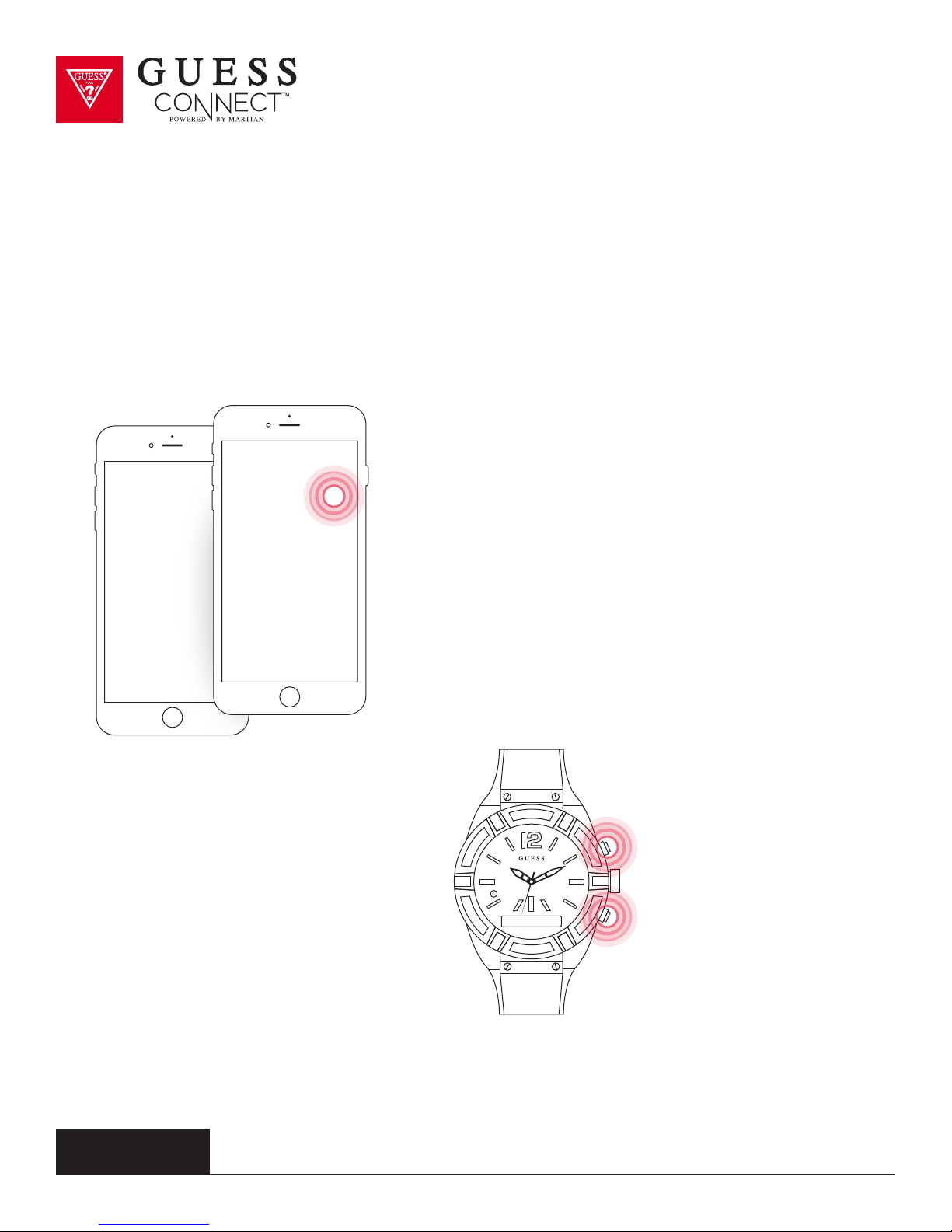
ON APP:
Tap on the Settings tab then Watch Settings to change
the language of the GUESS Connect watch menu.
Language options include:
• English
• Spanish
• French
• German
• Korean
• Japanese
• Chinese (Simplified)
• Chinese (Traditional)
ON WATCH:
1. Press the bottom pusher until Setup
appears in the OLED screen. Then
press the top pusher to select.
2. Continue to press the top pusher until
the desired language appears and then
press the bottom pusher to select.
guessconnect.com
iOS USER MANUAL
12
Page 15
Setting Up The GUESS Connect App | General Settings
Language | App
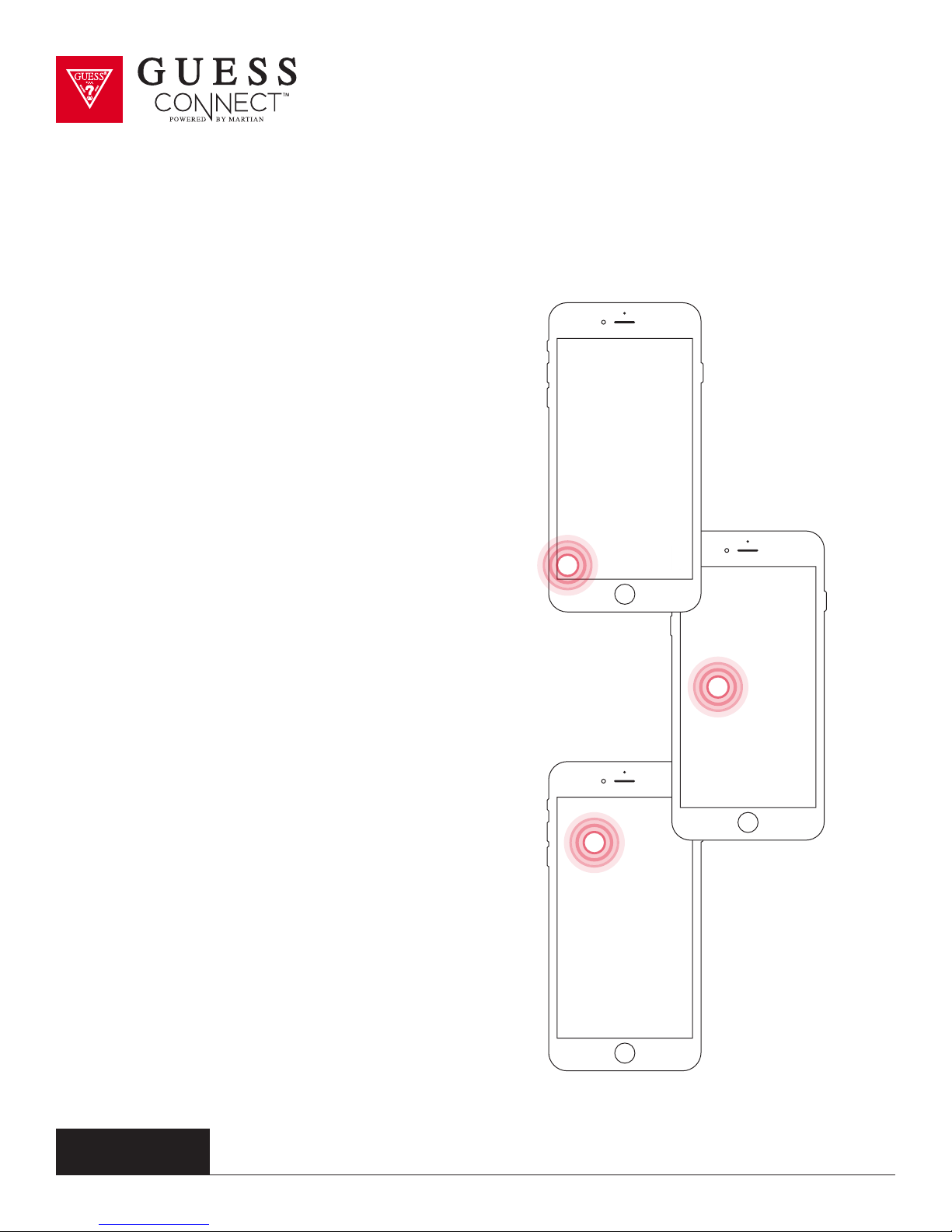
The language of the App will be determined by the
language selected in your phone’s general settings.
The App is available in the following languages:
English
•
• Spanish
• French
• German
• Italian
• Chinese
• Japanese
• Korean
• Russian
• Dutch
If the App is not available in the
language of your phone settings,
it will default to English.
guessconnect.com
iOS USER MANUAL
13
Page 16
Setting Up The GUESS Connect App | General Settings
Date
ON APP:
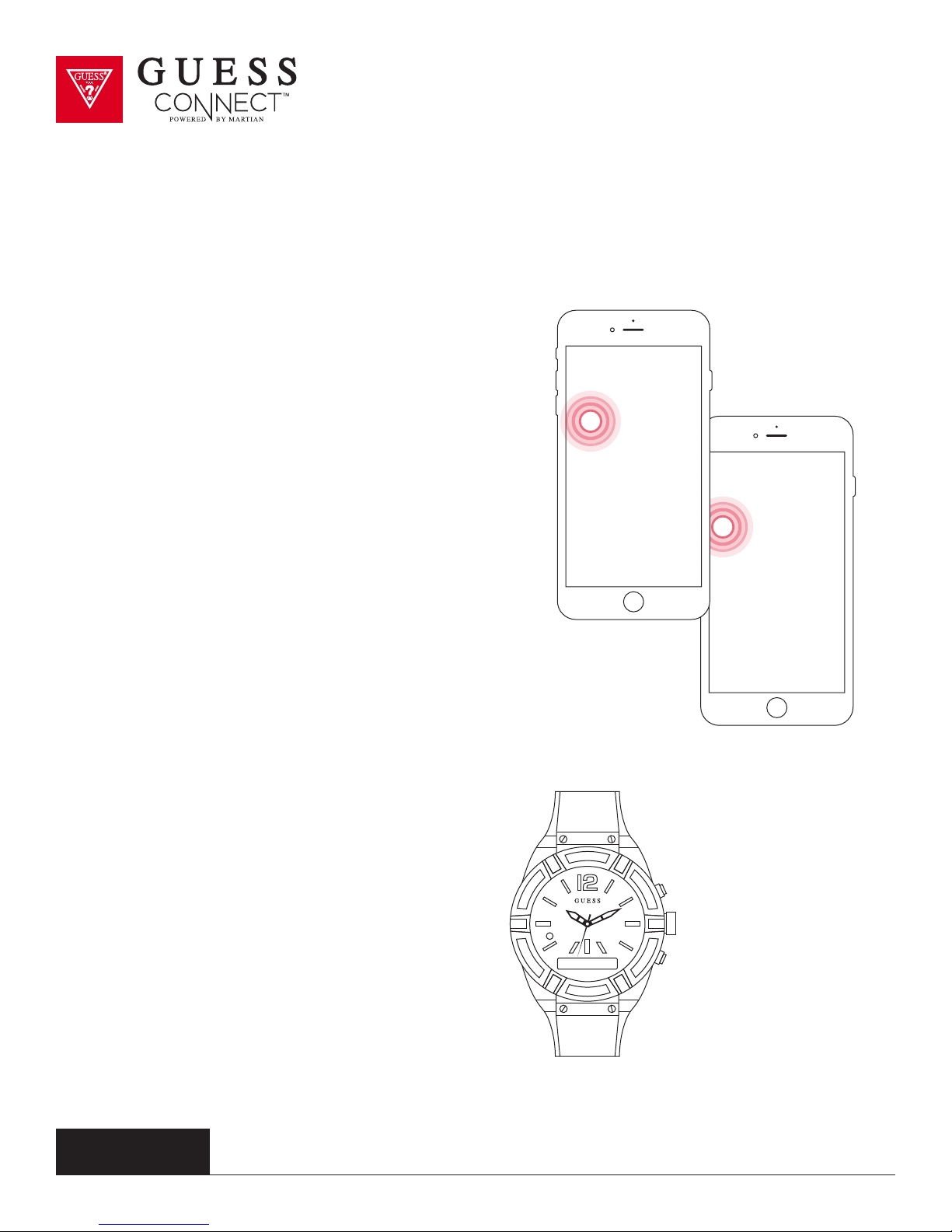
Tap on the Settings tab then Watch Settings
to change the date layout in the GUESS Connect
watch menu.
Choose from the following layout options:
mm/dd
•
• dd/mm
For example, January 10th would appear as:
01/10 mm/dd
•
• 10/01 dd/mm
ON WATCH:
Press the bottom pusher until you reach Set Up,
and select by pressing the top pusher.
Continue to scroll through the menu
using the bottom pusher until you reach
Date. Press the top pusher to select the
layout you prefer.
guessconnect.com
iOS USER MANUAL
Date mm/dd
14
Page 17
Setting Up The GUESS Connect App | General Settings
Time
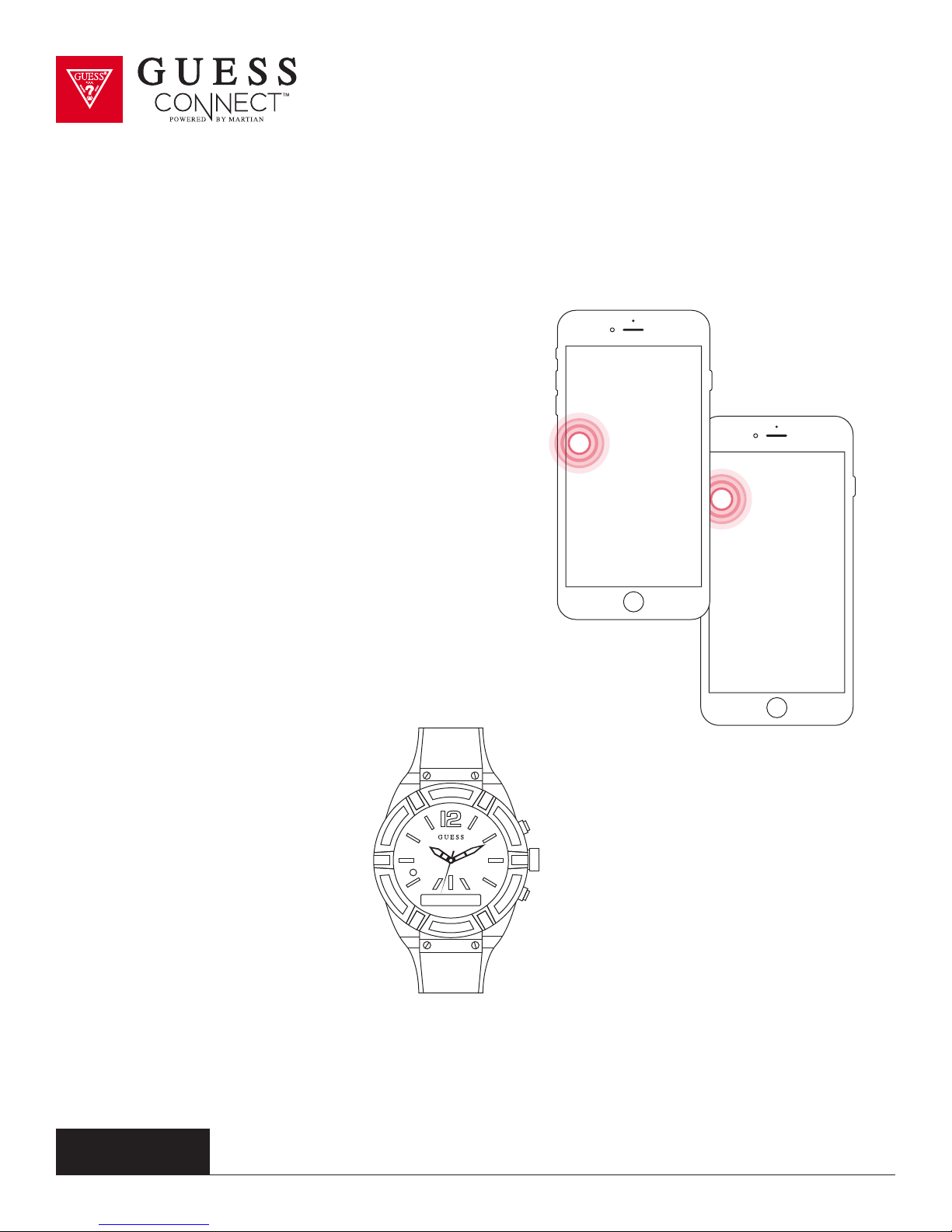
Tap on the Settings Tab then Watch Settings
to change the time format in the GUESS Connect
watch menu.
Choose from the following format options:
12H
•
• 24H
For example:
1:00PM 12H
•
• 13:00 24H
This is how the time will appear
in the watch menu on the OLED
screen when you press the
bottom pusher one time.
guessconnect.com
iOS USER MANUAL
Thu 10:22
15
Page 18
Setting Up The GUESS Connect App | Watch Settings
Scroll Speed
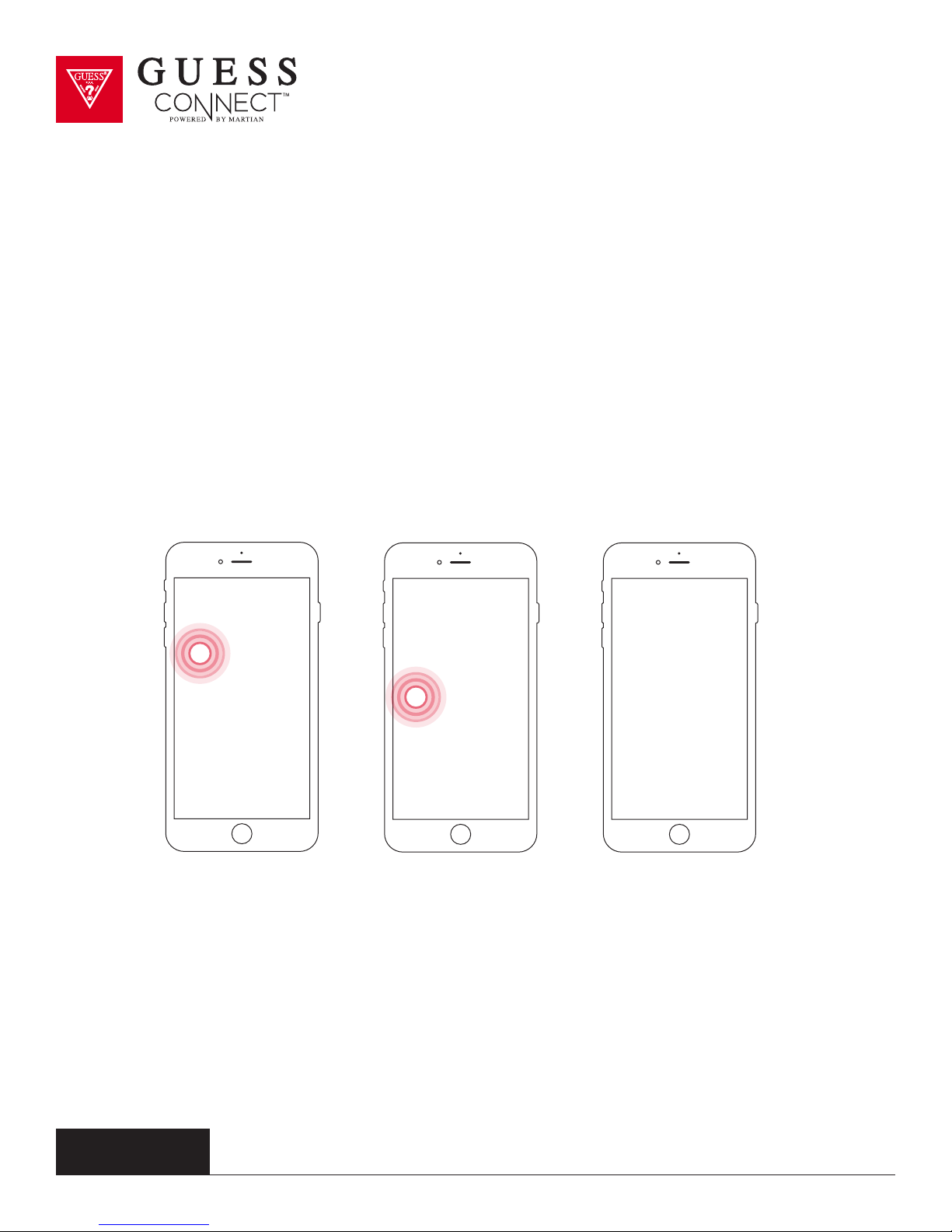
Tap on Watch Settings to change the scroll speed of text on the OLED screen.
1. Tap on the Settings tab then Watch Settings.
2. Tap on Scroll Speed to select among four dierent speed settings,
1 being the slowest speed and 4 being the fastest.
guessconnect.com
iOS USER MANUAL
16
Page 19
Setting Up The GUESS Connect App | Watch Settings
Alert Scroll Delay
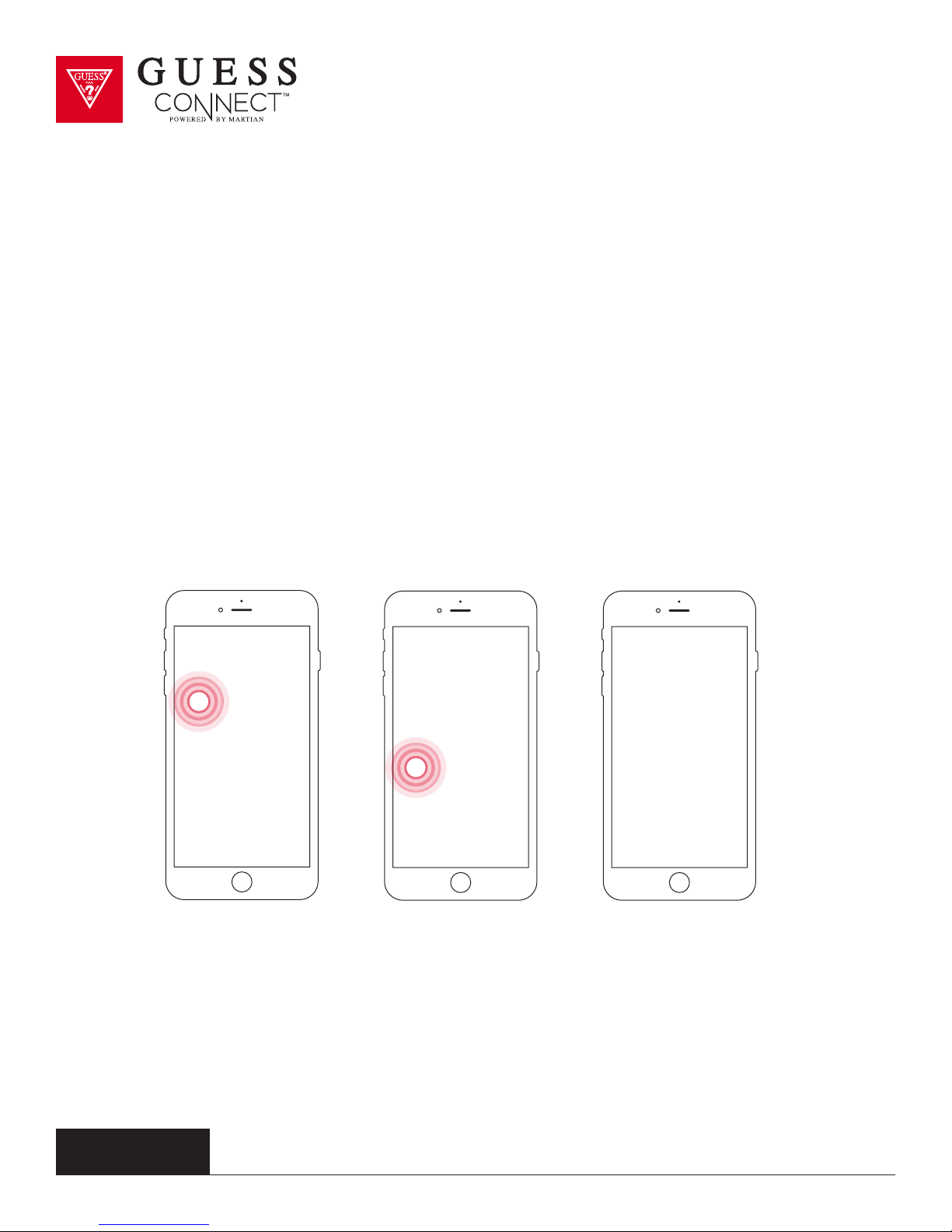
Tap on the Settings tab then Watch Settings to change the delay
of when a notification starts to scroll through your OLED screen.
Tap on Alert Scroll Delay to select among four dierent options:
•5Seconds
•4Seconds
•3Seconds
•2Seconds
guessconnect.com
iOS USER MANUAL
17
Page 20
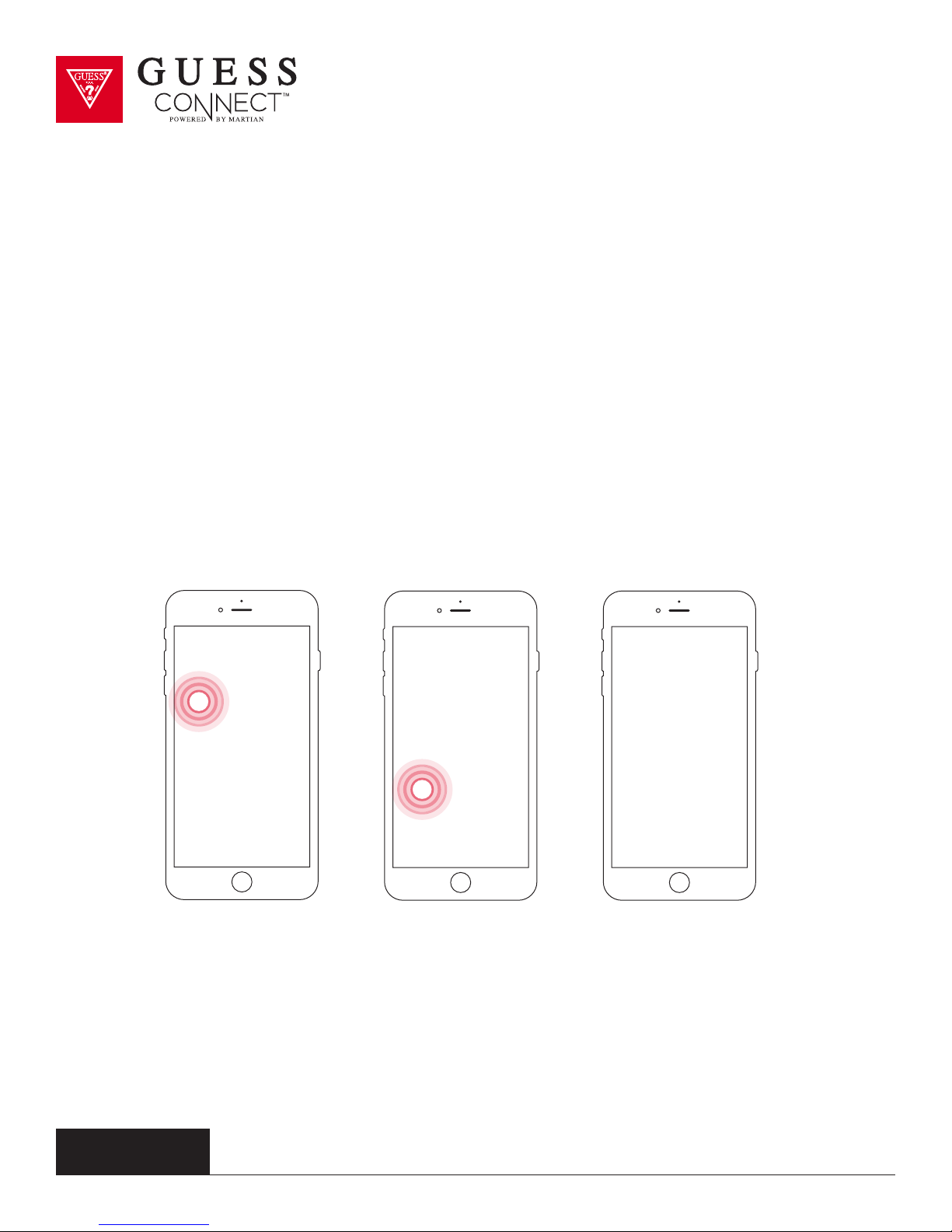
Setting Up The GUESS Connect App | Watch Settings
Vibration Intensity
Tap on the Settings tab then Watch Settings to change
the vibration intensity of alerts on your GUESS Connect.
Tap on Vibration Intensity to select among four dierent options:
0 - No Vibration
5 - Light Vibration
10 - Medium Vibration
15 - Strong Vibration
guessconnect.com
iOS USER MANUAL
18
Page 21
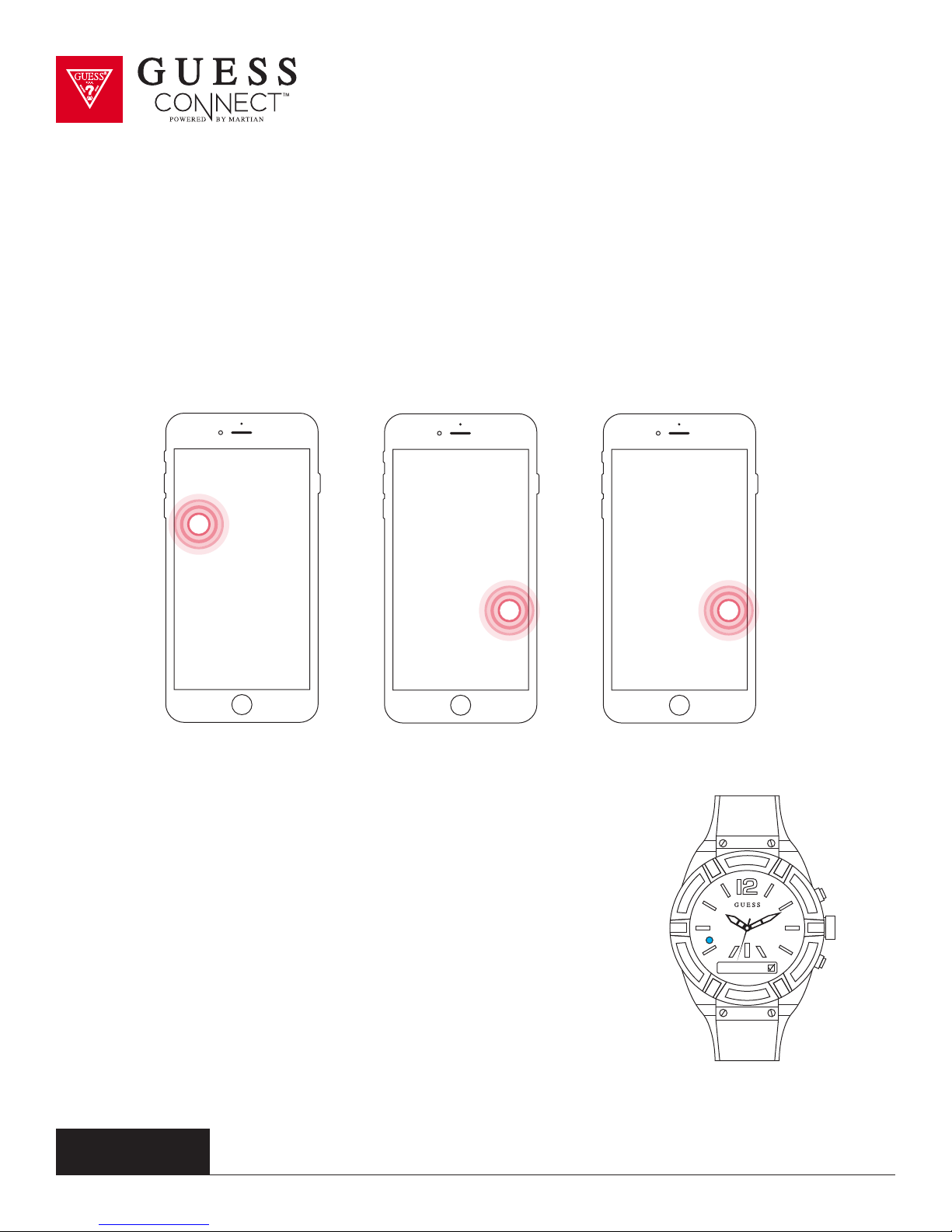
Setting Up The GUESS Connect App | Watch Settings
Activate LED
ON APP:
Tap on the Settings tab, then Watch Settings, and scroll down to Activate LED.
Slide the button from GREY to RED.
ON WATCH:
Press the bottom pusher until you reach Set Up. Select by pressing
the top pusher. Continue to scroll through the menu using the
bottom pusher until you reach LED. Press the top pusher to turn on
indicated by a check in the box.
This will activate the LED light for corresponding
notifications that include:
GREEN: Incoming Call
RED: Smart Movement Battery Low or Charging
BLUE: Incoming text/app notification or activating voice command.
guessconnect.com
iOS USER MANUAL
LED
19
Page 22
Setting Up The GUESS Connect App | Watch Settings
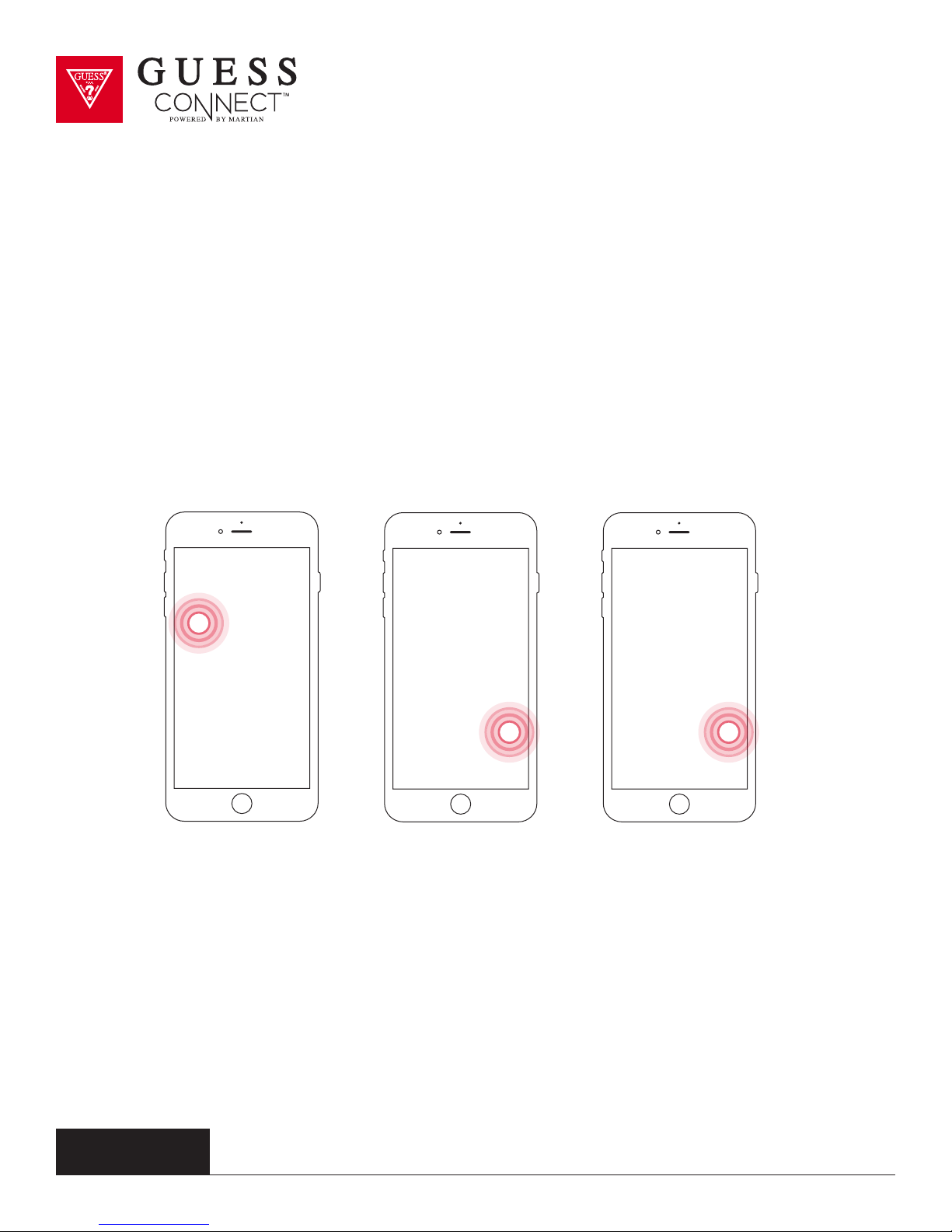
Activate Leash
Leash is a feature that notifies you that your phone may have been left behind.
ON APP:
To activate the Leash feature tap on the Settings tab of the App then Watch Settings.
Scroll down to Activate Leash. Slide the button from GREY to RED.
guessconnect.com
iOS USER MANUAL
20
Page 23
Setting Up The GUESS Connect App | Watch Settings
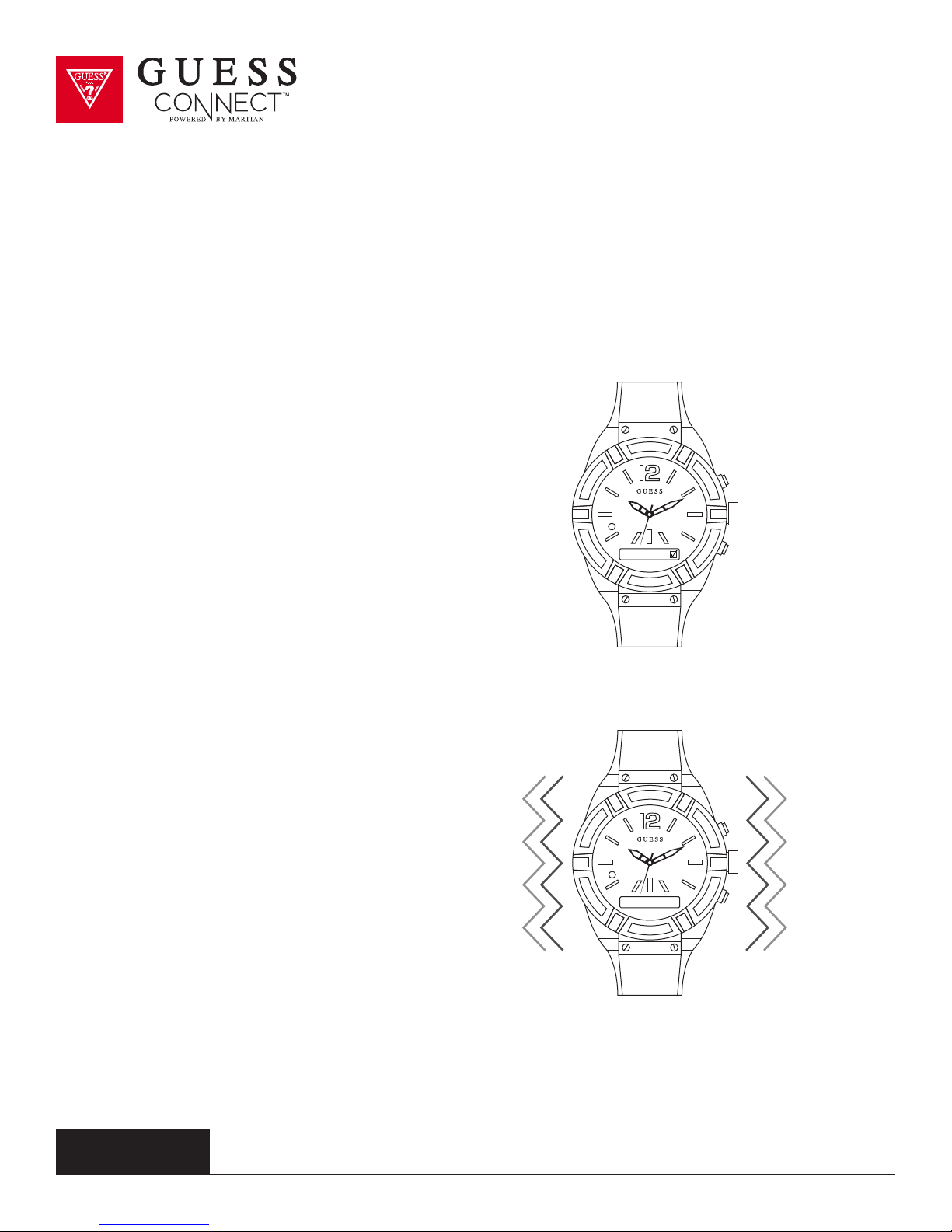
Activate Leash ( continued )
Leash is a feature that notifies you that your phone may have been left behind.
ON WATCH:
Press the bottom pusher until you reach
Set Up, and select by pressing the top pusher.
Continue to scroll through the menu using the
bottom pusher until you reach Leash. Press the
top pusher to turn on indicated by a check in the box.
Leash
Once activated, the watch will vibrate and you
will receive a notification on the OLED screen
that reads Out of Range to signal that you have
traveled more than 30 feet away from your iOS
or device, preventing you from accidentally
leaving your device behind.
guessconnect.com
iOS USER MANUAL
Out Of Ran ge
21
Page 24
Setting Up The GUESS Connect App | Watch Settings
Gesture Control
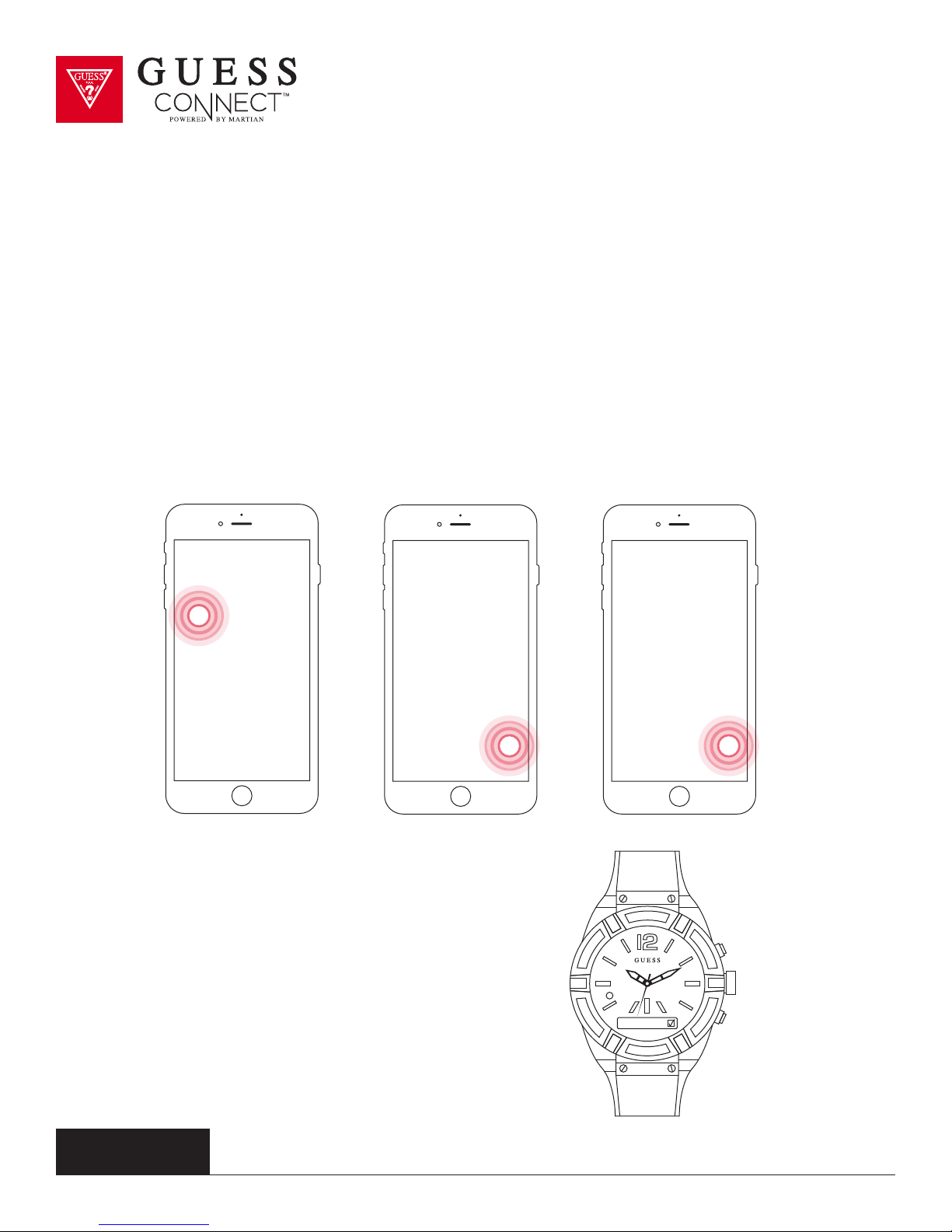
A convenient feature of the GUESS Connect watch is Gesture Control. This feature allows you to
dismiss incoming calls with a simple shake of your wrist.
TO ACTIVATE GESTURE CONTROL:
ON THE APP:
To activate Gesture Control, tap on the Settings tab then on Watch Settings and scroll down to
Gesture Control. Slide the button from GREY to RED.
ON THE WATCH:
Press the bottom pusher until you reach
Set Up, and select by pressing the top
pusher. Continue to scroll through the
menu using the bottom pusher until you
reach Gesture. Press the top pusher to
turn on, indicated by a check in the box.
guessconnect.com
iOS USER MANUAL
Gesture
22
Page 25
Setting Up The GUESS Connect App
Custom Vibration Alerts
Your GUESS Connect smartwatch and GUESS Connect App for iOS and Android devices provide
a variety of hands-free options, one of which is the ability to know what’s going on using custom
vibration alerts.
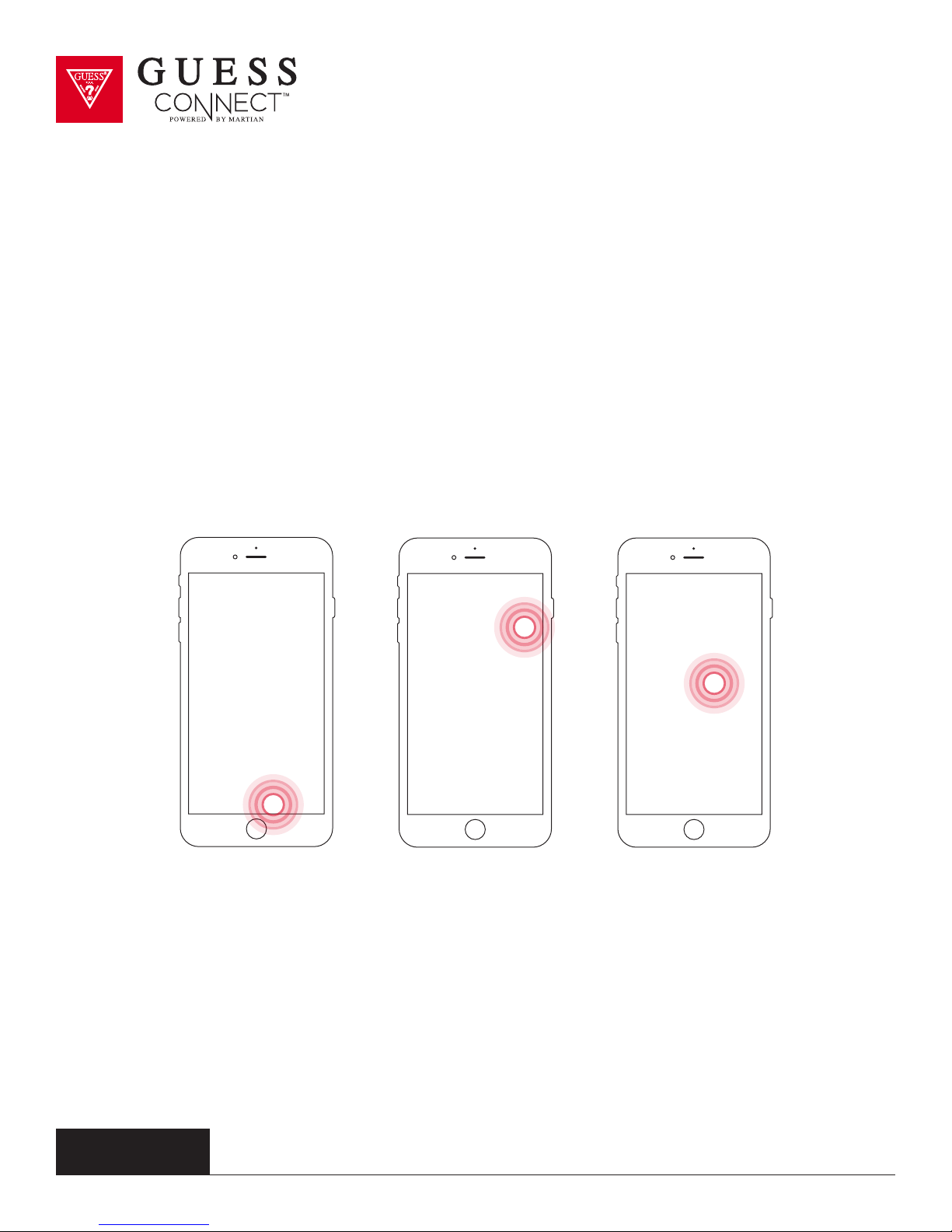
1. Navigate to the Alerts tab in your GUESS Connect App and you will see a list of
Apps that can send notifications to the watch with preset vibrations on the right.
To activate a vibration alert: Select App and slide button
from GREY to RED, then adjust sliders to desired vibration.
To change an alert
2. Tap on desired App to customize a vibration pattern. To customize the vibration adjust
the sliders up and down. By selecting a unique pattern for certain Apps, you will know
if you received a social media update, a text message, or an email without a glance.
3. Setup and test vibration alerts, and once you are satisfied, you
may return to the main menu by selecting the back arrow.
guessconnect.com
iOS USER MANUAL
23
Page 26
Setting Up The GUESS Connect App
Tap the Glass
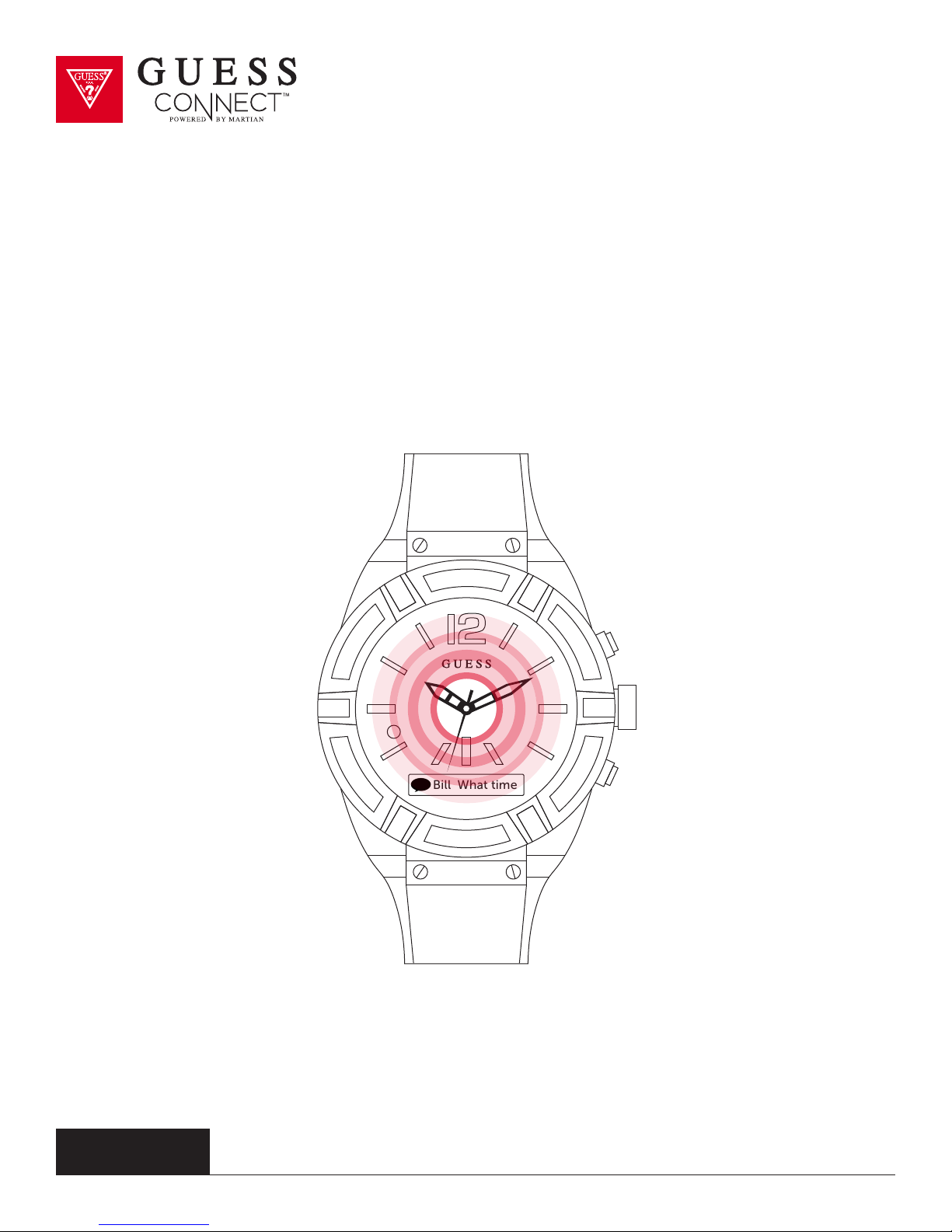
Tap the glass is a convenient feature that allows you to give the face of the watch a tap to review
your most recent notification within a 5-minute period. You can tap to see calls, text messages and
any alerts you may have missed. There is no corresponding App screen.
guessconnect.com
iOS USER MANUAL
Bill What time
24
Page 27
Setting Up The GUESS Connect App
Setting the World Time
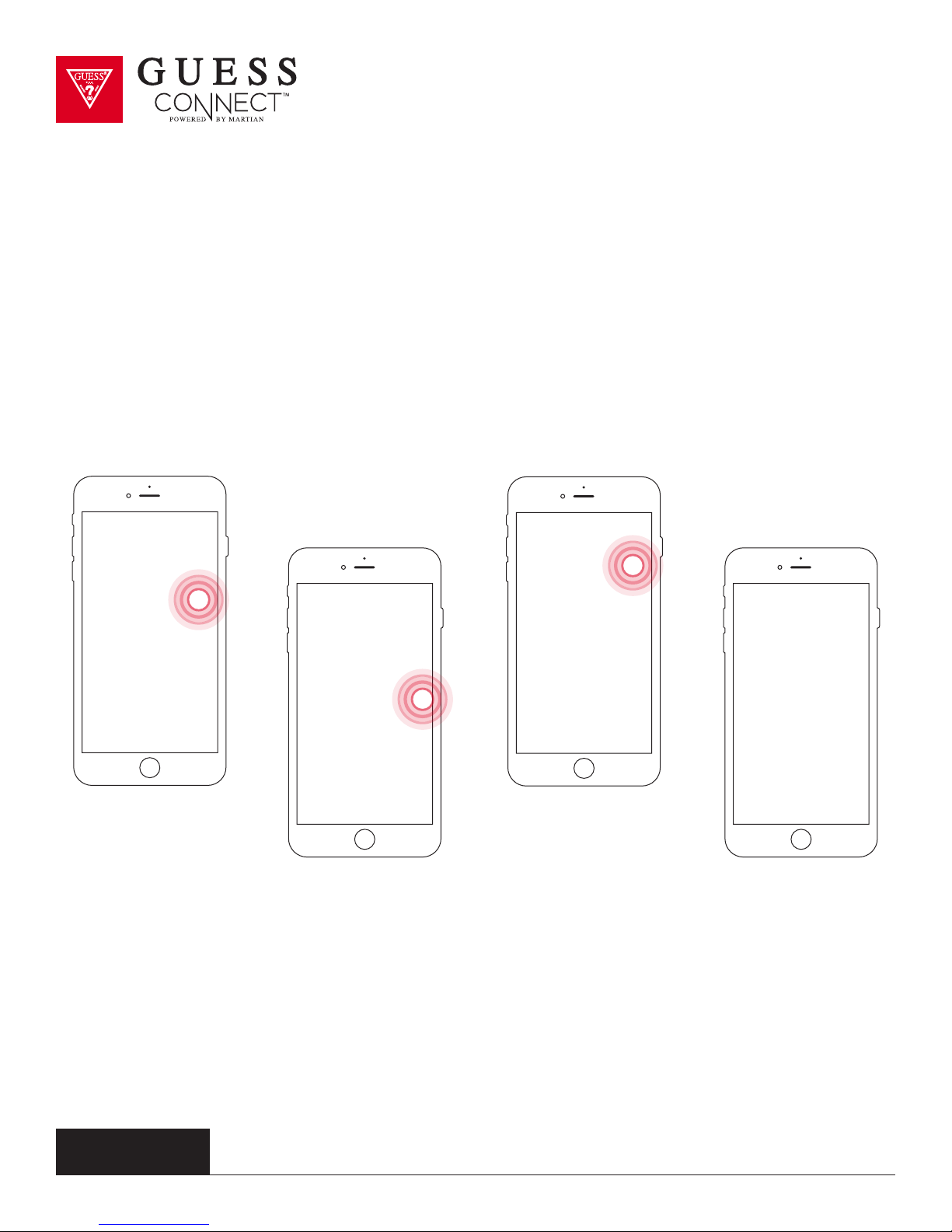
1. On the My Watch tab, slide the button from GREY to the RED to set the world time.
2. A drop down menu will populate and you can choose settings by tapping
on the closest city. Or select Use Local Time and it will automatically set
the time to match what is displayed on your iOS device.
guessconnect.com
iOS USER MANUAL
25
Page 28
Setting Up The GUESS Connect App
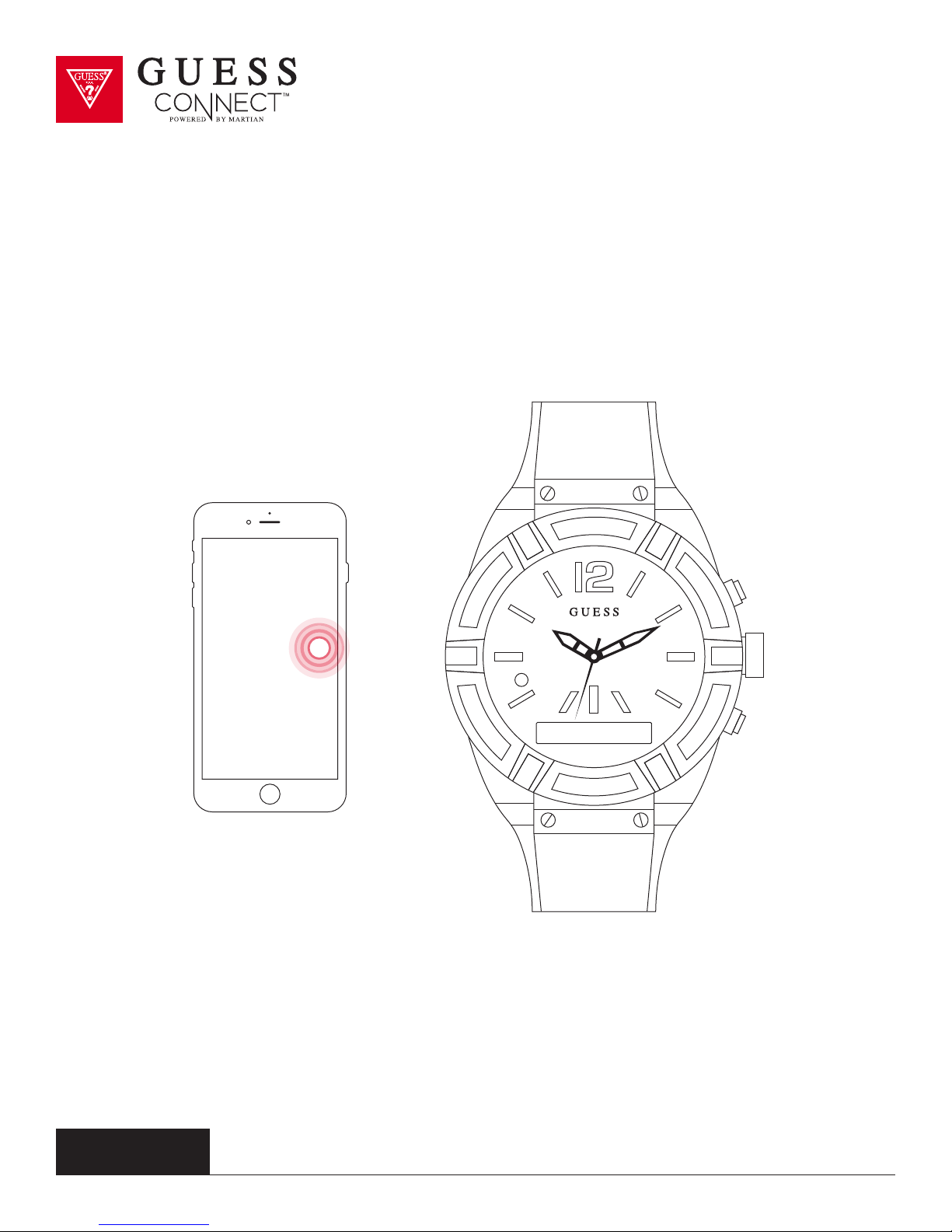
Setting the Weather
On the My Watch tab, slide the button from GREY to RED to set the weather. This will enable a drop
down that automatically sets the weather at your current location.
High of 85 today
Enabling this feature will allow the weather to scroll in the OLED screen
of the watch when you press the bottom pusher one time.
guessconnect.com
iOS USER MANUAL
26
Page 29
Setting Up The GUESS Connect App
Do Not Disturb
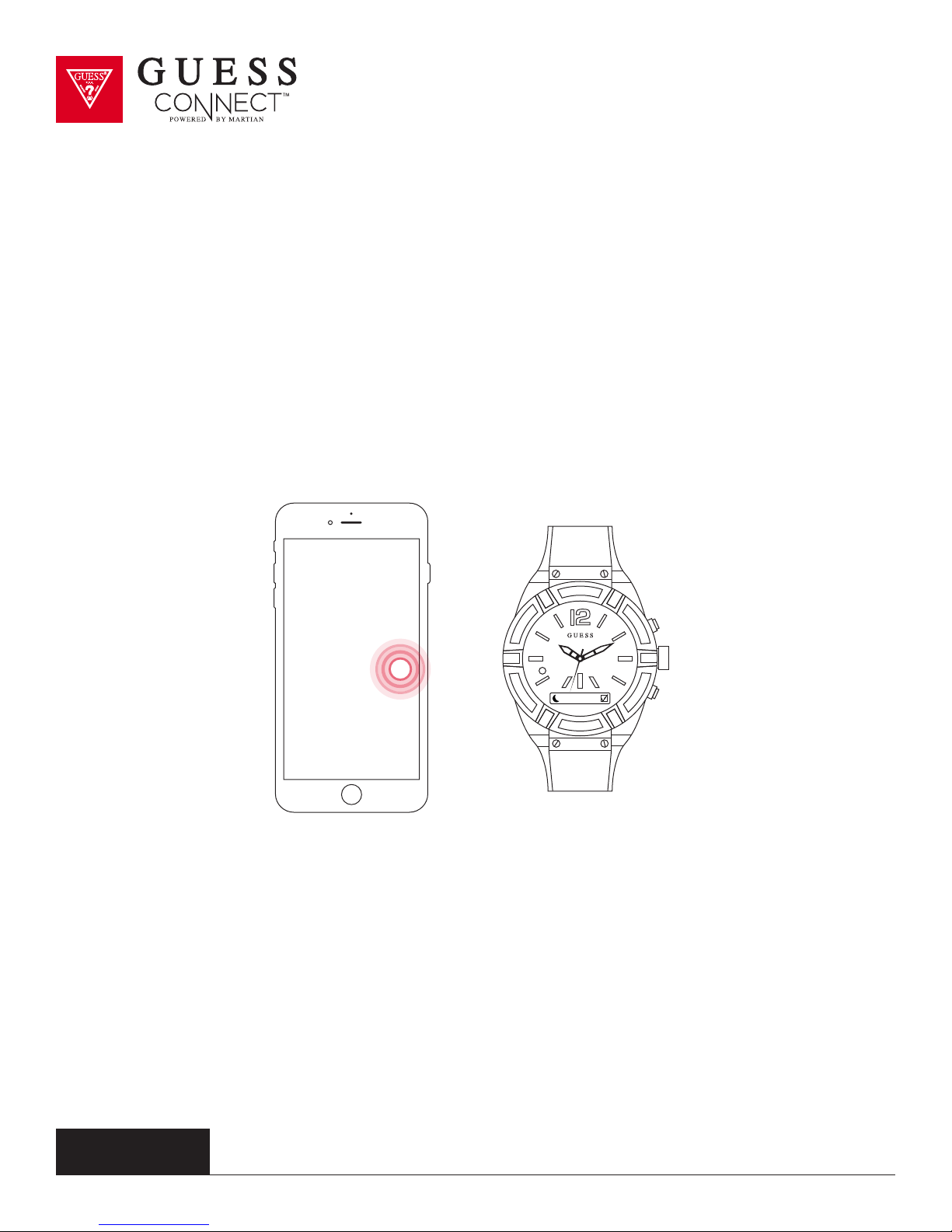
Another useful feature of the GUESS Connect watch is the ability to set the
iOS or Android device to Do Not Disturb without touching the smartphone.
This will prevent you from getting any notifications on your watch.
ON APP:
Go to the My Watch tab and scroll down and swipe Do Not Disturb from GREY to RED.
DND
ON WATCH:
Press the bottom pusher until you reach Setup, and select by pressing the top
pusher. Continue to scroll through the menu using the bottom pusher until you
reach DND. Press the top pusher to turn on, indicated by a check box.
You have now activated Do Not Disturb.
To turn Do Not Disturb o, repeat these steps to deactivate.
guessconnect.com
iOS USER MANUAL
27
Page 30
Find My Phone
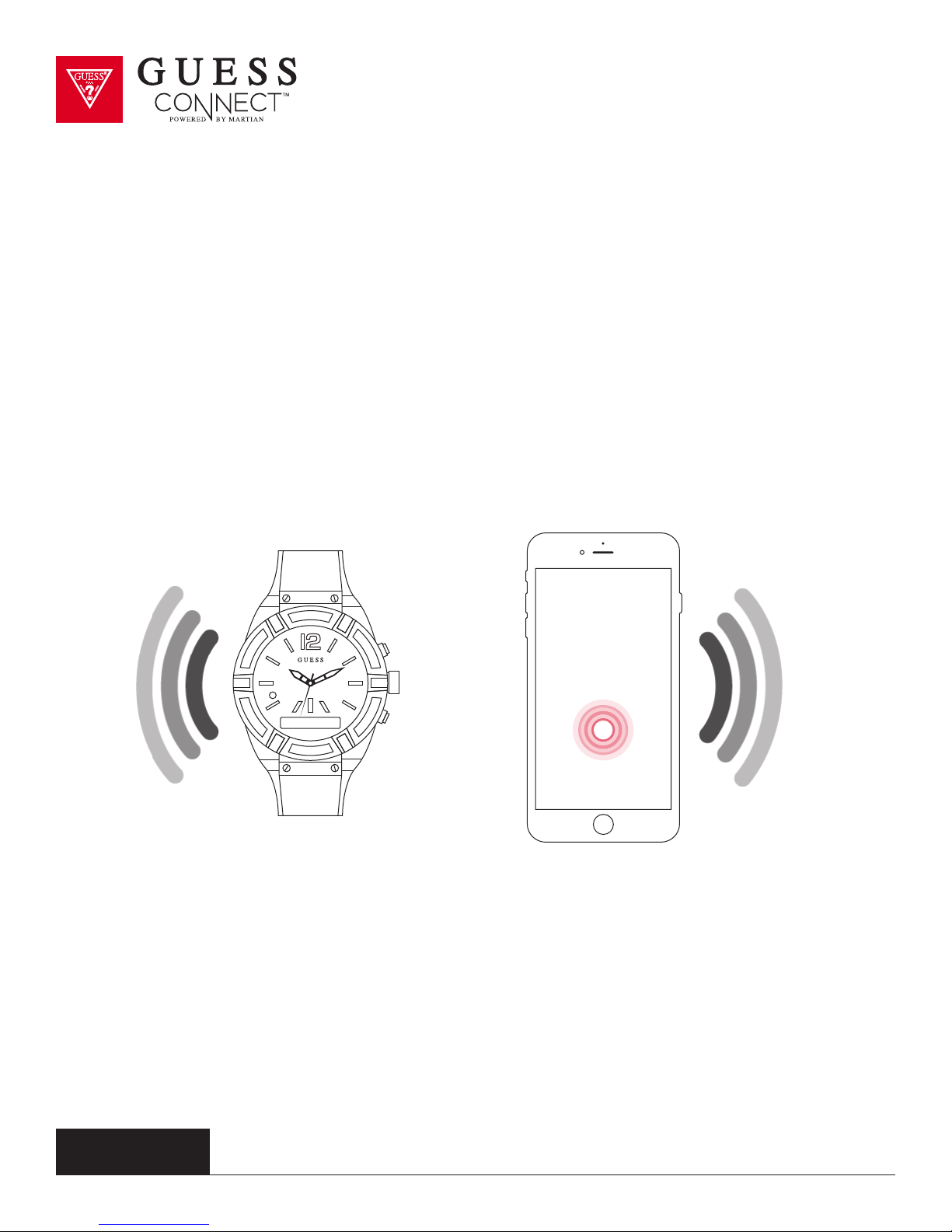
The GUESS Connect watch comes equipped with Bluetooth® technology
which allows you to communicate with your iOS or Android device using only
the watch. This can be especially helpful when you cannot locate your smartphone.
The GUESS Connect App enables a unique ringtone when the Find My Phone feature is activated.
This special tone is heard even if your phone is in silent mode.
1. Press the bottom pusher until Find Phone displays on the OLED screen.
2. Press the top pusher to select this menu item and you should hear
the phone’s distinctive tone allowing you to locate your device.
Find Phone
TO ACTIVATE FIND MY WATCH:
Go to the My Watch tab on the GUESS Connect App and scroll down to the Find My Watch button.
By pressing the button, you should hear the watch’s distinctive
tone allowing you to locate your GUESS Connect.
guessconnect.com
iOS USER MANUAL
28
Page 31
How To Send & Receive Calls & Texts
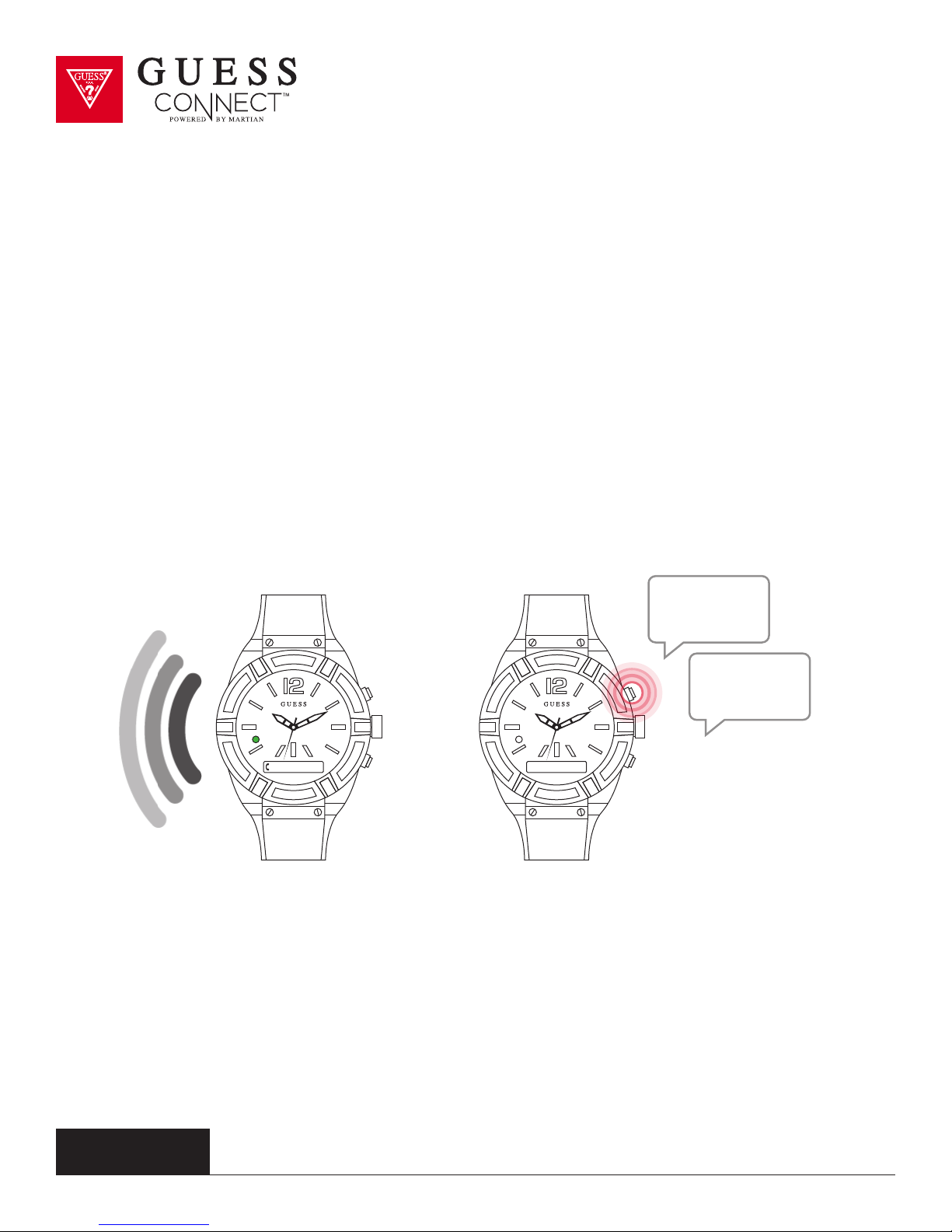
The GUESS Connect watch has a speaker and microphone which enable
you to listen to, and respond to calls and incoming text messages using
Bluetooth technology.
INCOMING CALLS
A GREEN flashing light and vibration notifies you of an incoming phone call.
Upon notification, the caller’s name and phone number will scroll across
the screen. To answer a call, press the top pusher and begin speaking. If you
cannot take the call, a simple shake of the wrist will dismiss the call and send
the caller to voicemail (If Gesture Control is activated). If Gesture Control is
not active, press the bottom pusher to send caller to voicemail.
Call
Annie’s Mobi
Dial
Number
Find Phone
OUTGOING CALLS
Making a call is just as easy. Press the command
button on the upper right of the watch and say
“Call” followed by the persons name you would
like to speak with, or “dial number” followed by
the phone number.
guessconnect.com
iOS USER MANUAL
29
Page 32
How To Send & Receive Calls & Texts
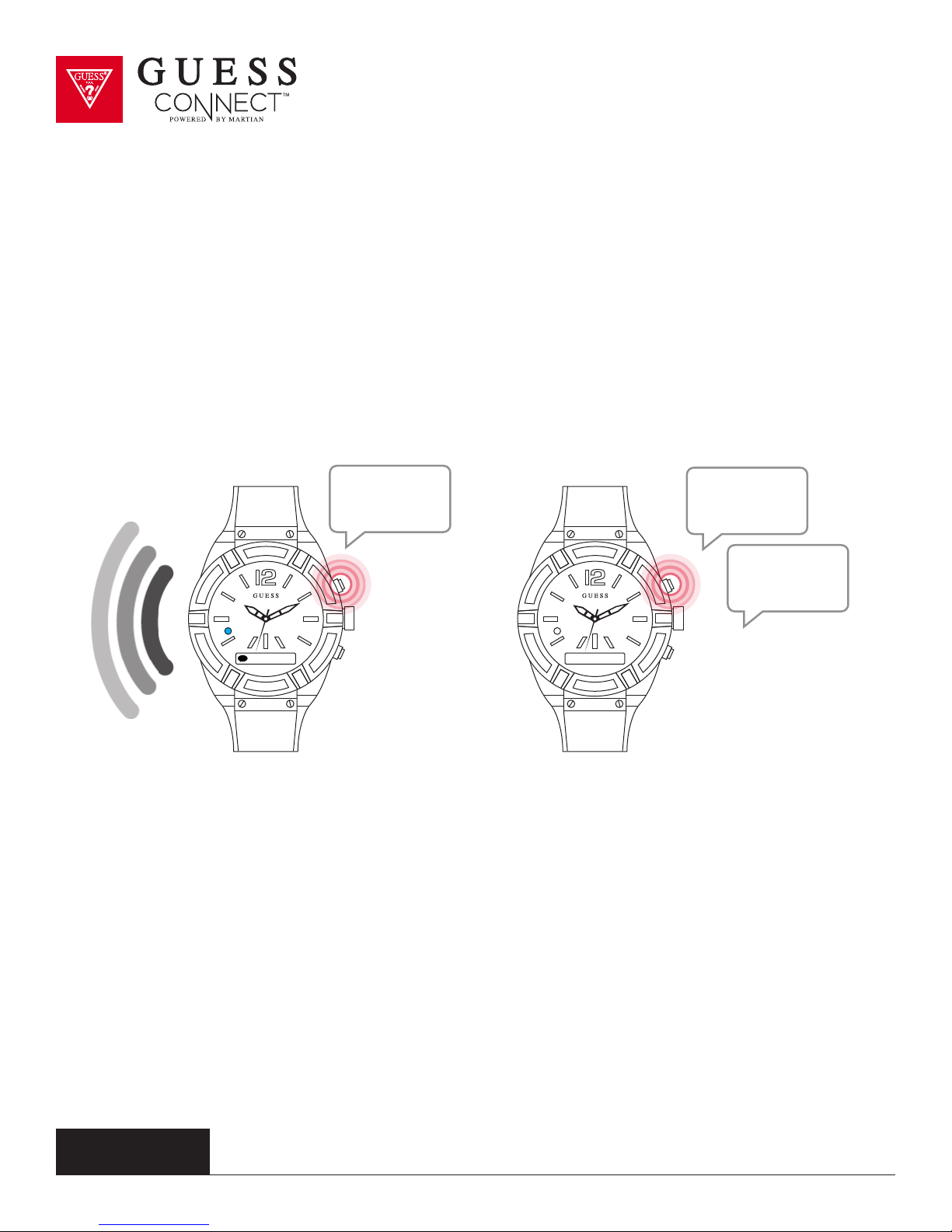
INCOMING TEXTS
A flashing BLUE light and vibration will notify you of an incoming
text message. When a new message is received, press the top
pusher on the upper right side and say, “read text” or read the text
message as it scrolls across the OLED screen.
How are...
Read Text
Reply
Text
Find Phone
OUTGOING TEXTS
To send a text message, press the command
button and say “reply” after reading your message,
or say “text”. The watch will then prompt you to
speak. This feature allows you to send and receive
phone calls and text messages using only the
GUESS Connect watch, allowing you to leave your
device in your pocket or handbag.
guessconnect.com
iOS USER MANUAL
30
Page 33
Camera Control
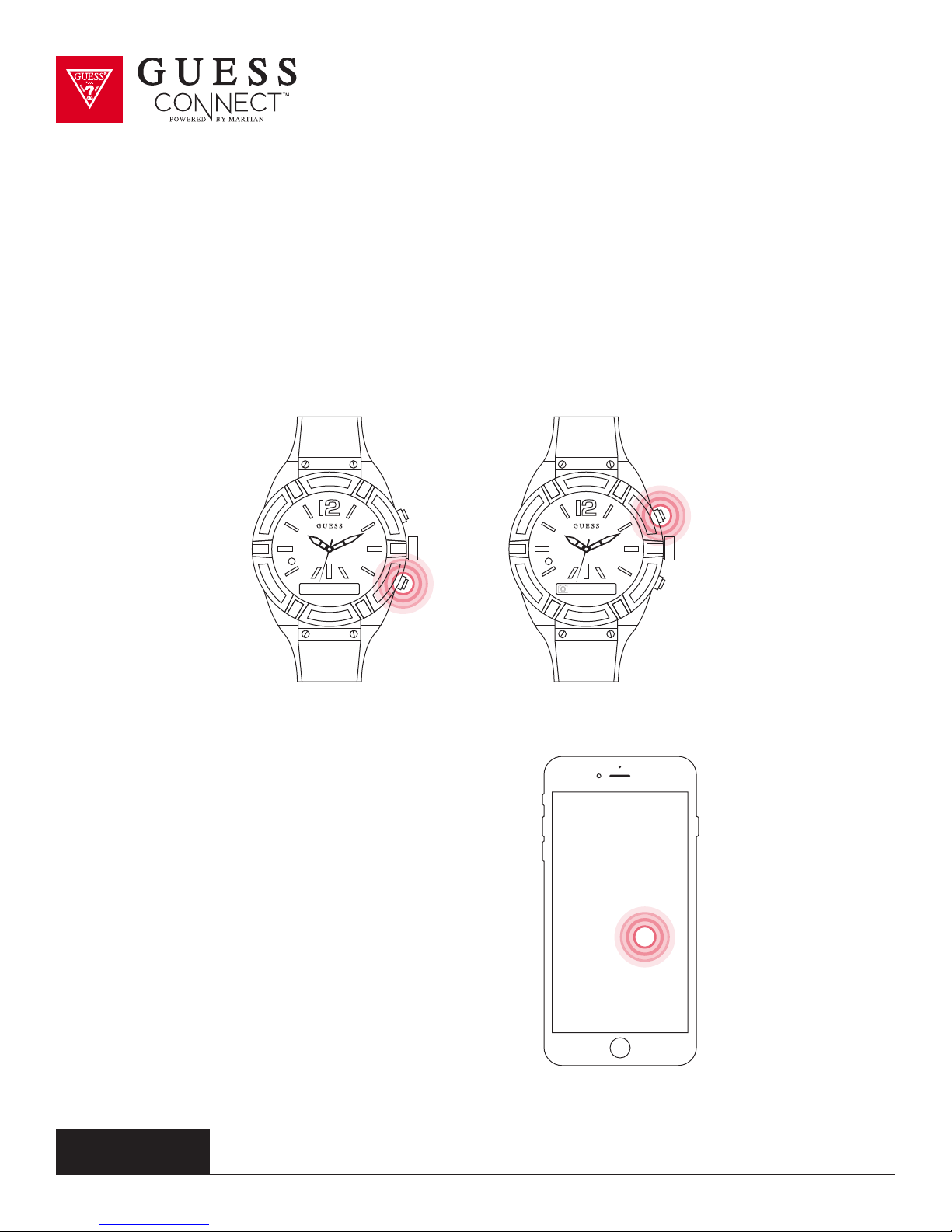
Take Photos
1. On your watch, press the bottom pusher until Camera Mode displays on the OLED screen.
2. Select by pressing the top pusher and the word Activated will confirm you are in camera mode.
Camera Mode
3. Your smartphone will prompt
you to allow access to the
camera. Click Allow.
Activated
guessconnect.com
iOS USER MANUAL
31
Page 34
Camera Control
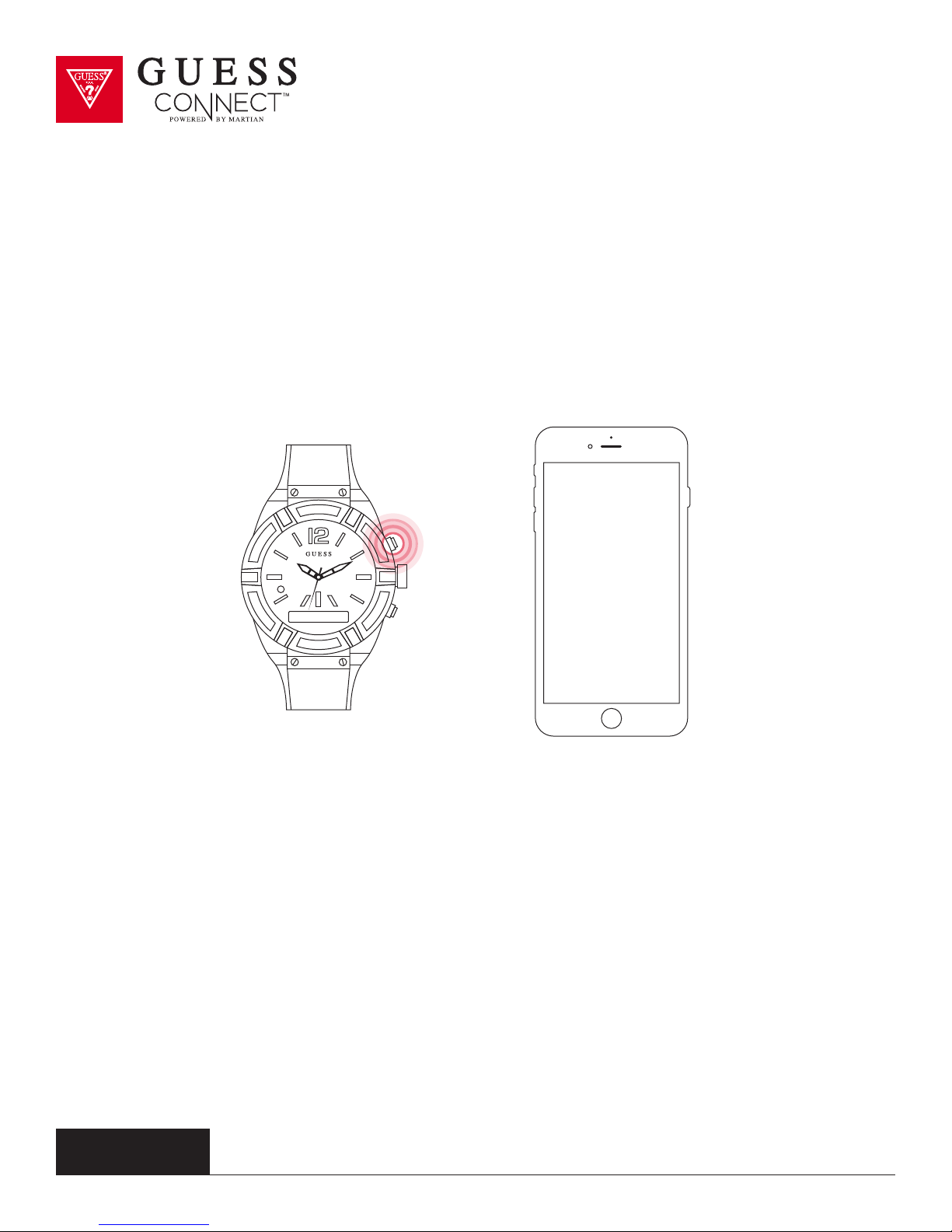
Take Photos
4. Once activated, a WHITE flashing LED appears. The top pusher acts as a remote shutter and
each press will take a photo. Alternatively, a long-press of the top pusher will activate a 3-2-1
countdown before a photo is taken.
5. Press the bottom pusher to exit camera mode.
guessconnect.com
iOS USER MANUAL
32
Page 35
Music Control
Play & Control Music
There are 3 dierent ways to control music from your GUESS Connect watch.
You may use:
• Voice command: Activated with your watch
• Music Mode: Accessed through the watch menu (available on iOS only)
• A2DP: A wireless standard that lets you listen to music
through your watch or nearby Bluetooth device.
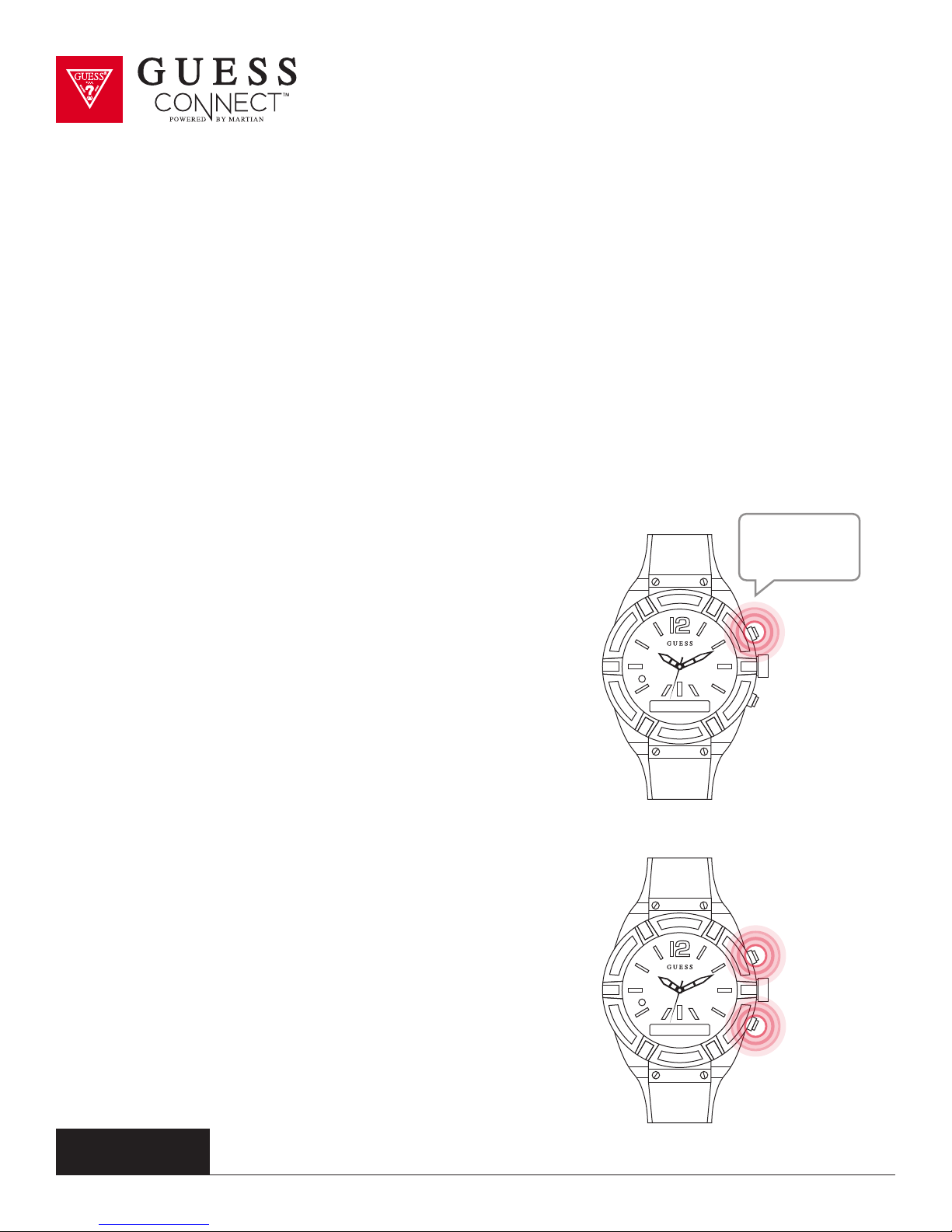
VOICE COMMAND
The GUESS Connect watch allows you to change or
select a playlist using simple voice commands.
To use voice command, simply push the top pusher
and speak a command, for example, “Play Dance Party
Playlist” and your watch will signal your device to initiate
the audio. This feature will play any music that is stored
or playable by your device.
MUSIC MODE
Music Mode on your watch allows you to
play and pause music from your watch.
To activate, press the bottom pusher until
Music Mode appears on the OLED screen.
Select by pressing the top pusher and it
will activate the last song that you played.
Play...
To pause music, press top pusher at any time.
To deactivate music mode, press the bottom pusher
and you will see Deactivated on the OLED screen.
guessconnect.com
iOS USER MANUAL
Music Mode
33
Page 36
Music Control
Play & Control Music
A2DP
A2DP is a wireless music standard that controls whether your
®
music comes through your watch or another Bluetooth
device. When A2DP is on, your music will play through your
GUESS Connect watch, otherwise it will play through your
phone or Bluetooth device.
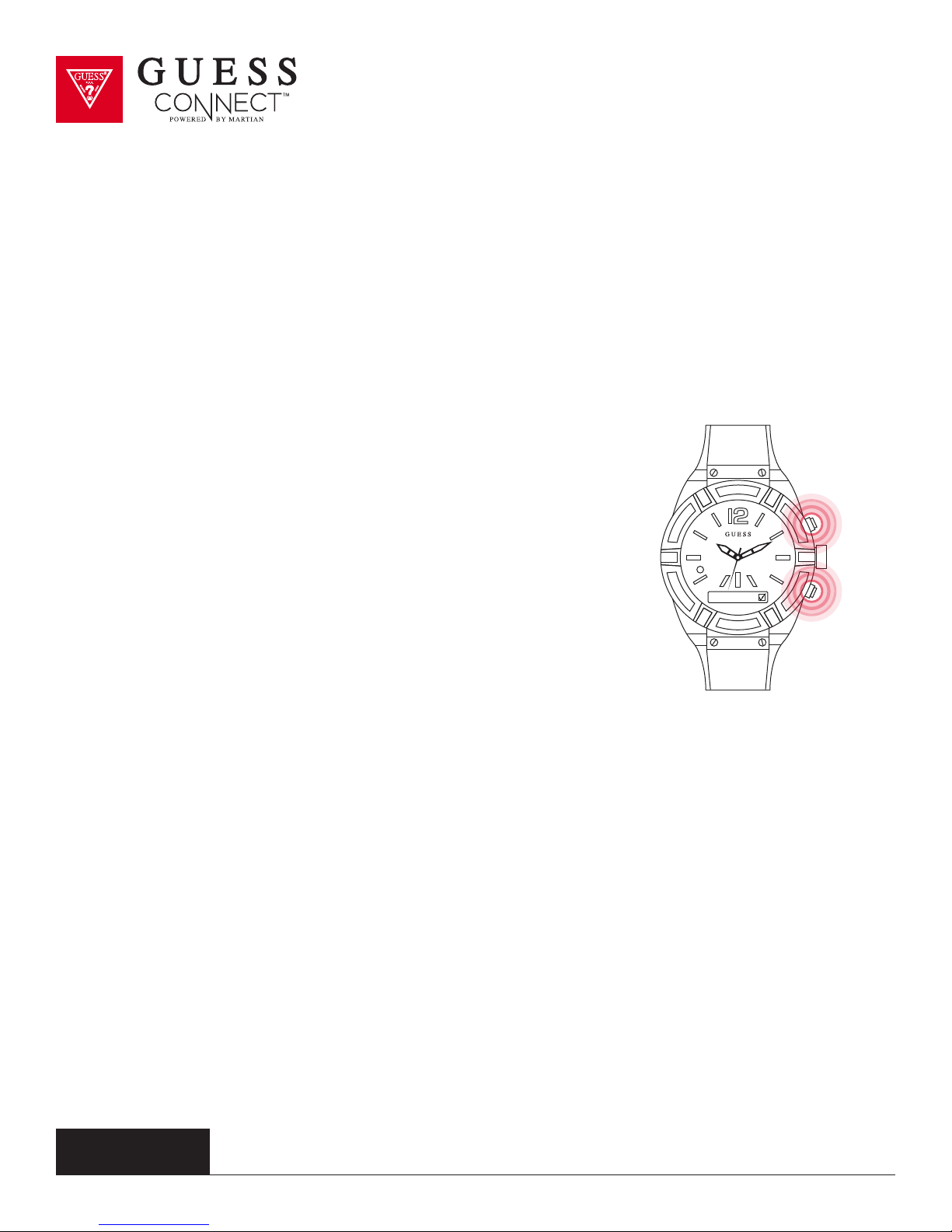
To activate A2DP, press the bottom pusher until you reach Set
Up. Select by pressing the top pusher and continue to scroll
through the menu using the bottom menu button until you
reach A2DP.
Upon pressing the top menu button, a check will appear in the
box indicating that it is on. Now you can listen to music directly
from your watch.
To turn o A2DP, follow the same steps and uncheck the box.
Whenever you enable or disable A2DP, you change your
Bluetooth settings. You must remember to re-pair your GUESS
Connect watch to your device once A2DP is used.
A2DP
Music volume can be adjusted based on phone settings.
guessconnect.com
iOS USER MANUAL
34
Page 37
Stopwatch
Stop Watch Function
The GUESS Connect watch has the convenience of a Stopwatch feature built in.
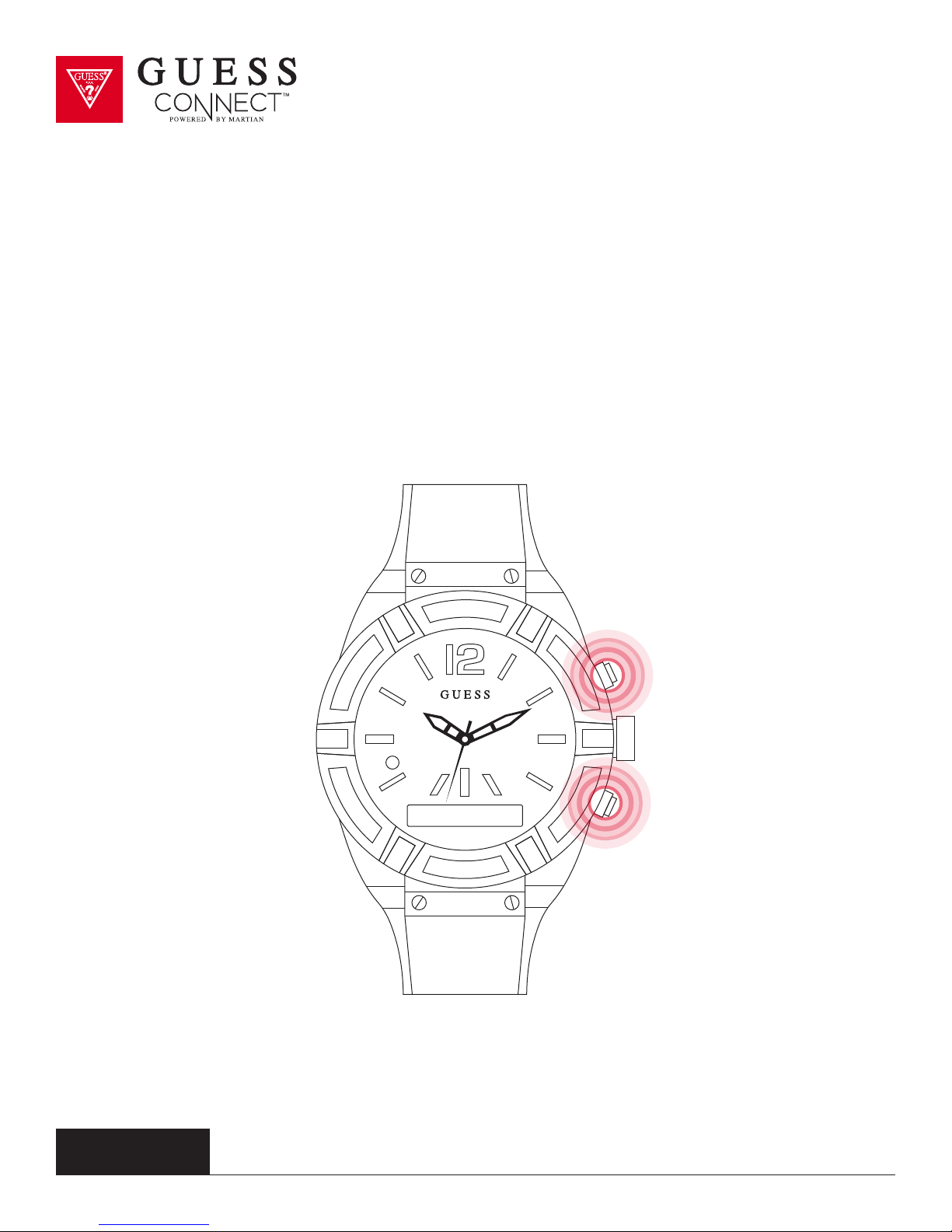
To activate, press the bottom pusher until you reach Stopwatch and a series of 0’s will appear in the
OLED screen. To start the stopwatch feature, simply press the top pusher and to stop, press again.
guessconnect.com
iOS USER MANUAL
00:00:0
35
Page 38
Appointments and Reminders
Voice Command and Notifications
To set an appointment, press the command button and speak, “Set appointment, Friday June
5th 2pm, meeting with caterers”. The watch will send the command to your phone and your
appointment will show up on your device’s reminders app, all hands-free. Commands can be given
even when phone is in a pocket or purse.
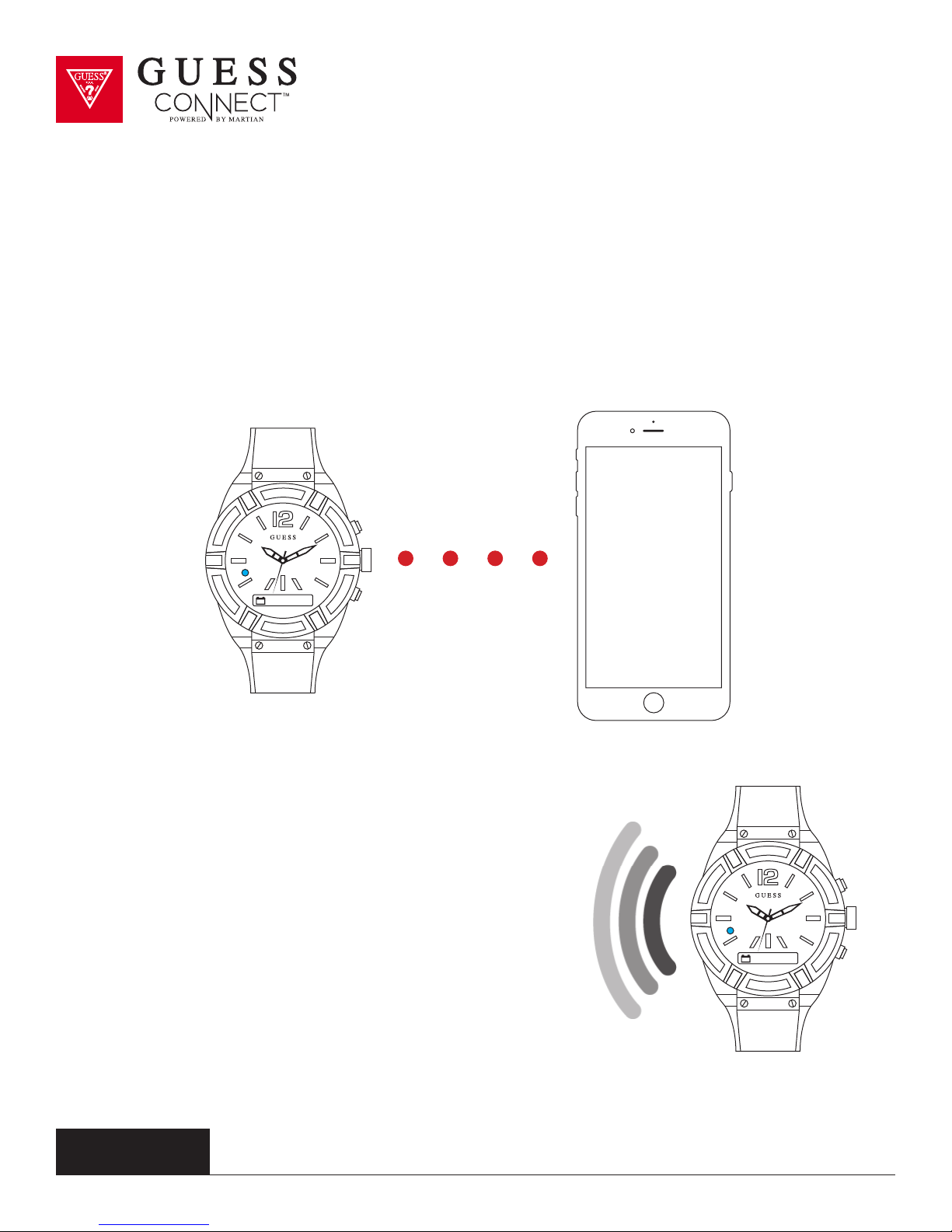
A BLUE light and vibration will notify you of an upcoming
appointment, or alert you of a reminder notification and
you can respond directly through your watch.
When an appointment or reminder alert is received,
press the command button on the upper right side to
acknowledge, or simply read the notification message as it
scrolls across the screen.
The GUESS Connect watch’s built in speaker and
microphone allow you to schedule appointments and
set reminders leaving you hands-free and allowing you to
leave your phone in your pocket.
guessconnect.com
iOS USER MANUAL
36
Page 39
Silent Alarms
Silent alarms are custom notifications within the GUESS Connect App. These alarms will alert
you with a vibration on the watch. Once you have created an alarm, it will be stored in the App
and you can enable and disable by simply tapping on the sliding button to the right.
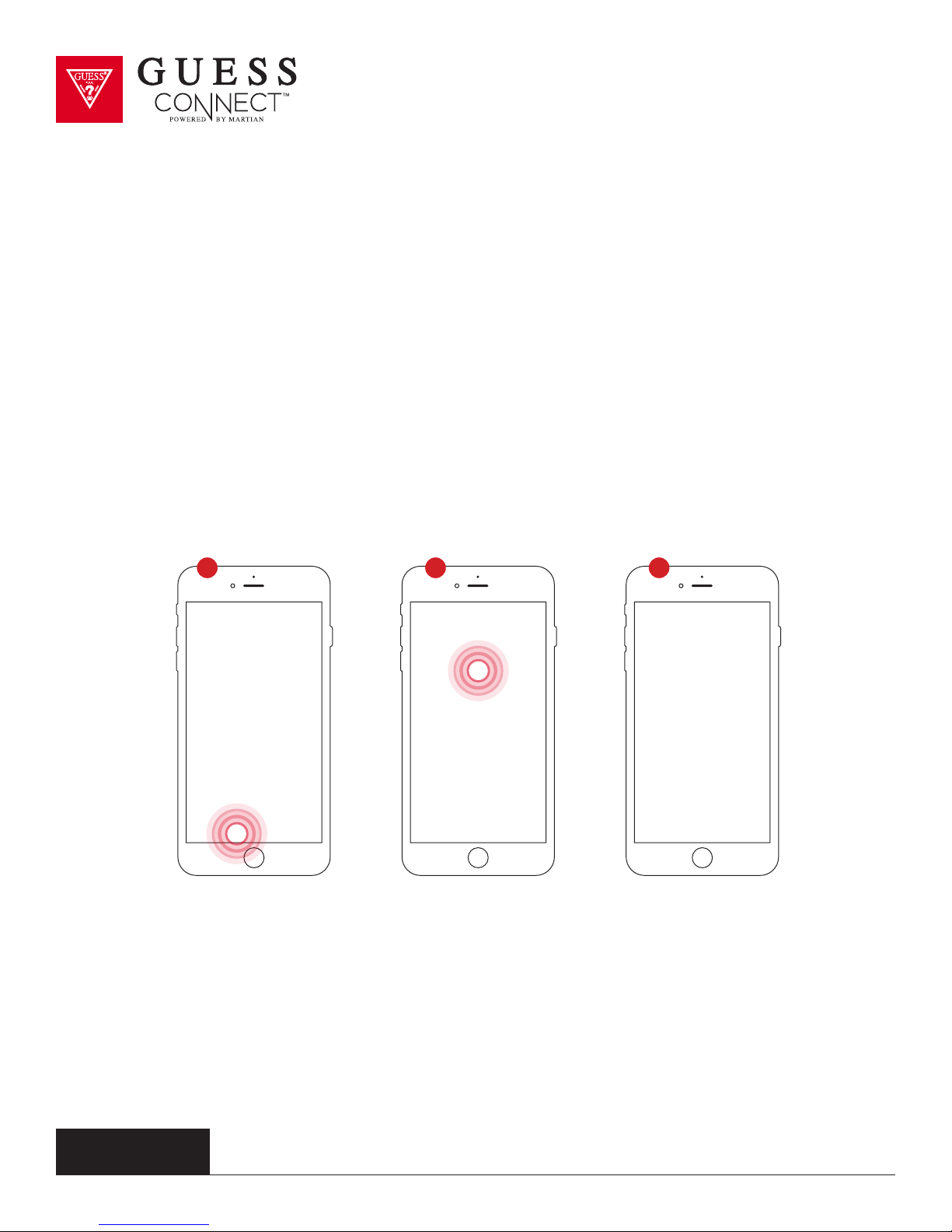
Tap on the Alarms tab in the GUESS Connect App.
1.
Tap the “+” to set up a silent alarm. The first time you open
2.
the App to create a silent alarm, it is a blank screen.
Scroll to the desired time to set the alarm. You will have the option to label the alarm,
3.
select how often it repeats, and if you would like to dismiss it from your phone only or
phone and watch. (Dismissing from phone setting may be helpful for heavy sleepers).
Save the alarm. Follow these simple steps to create multiple alarms.
1 2 3
ON WATCH:
Short-press the top pusher of the watch to Snooze the alarm for 5 minutes. Snooze will
show on the OLED screen. Note: Messages will not be sent to the watch during Snooze.
Long-press the top pusher on the watch to dismiss the Silent Alarm. Dismiss will show on the OLED
screen. Note: If Dismiss From Phone Only is set to YES, a long-press of the top pusher will not
dismiss the Silent Alarm. In this case, it must be dismissed from the mobile device.
guessconnect.com
iOS USER MANUAL
37
Page 40
Settings & Support
Disconnect Watch
To disconnect your GUESS Connect watch from your mobile device, tap
on the Settings Tab of the App and tap the DISCONNECT WATCH button.
This will separate all communication between the App and your GUESS Connect watch.
guessconnect.com
iOS USER MANUAL
38
Page 41
Settings & Support
Register Your Watch
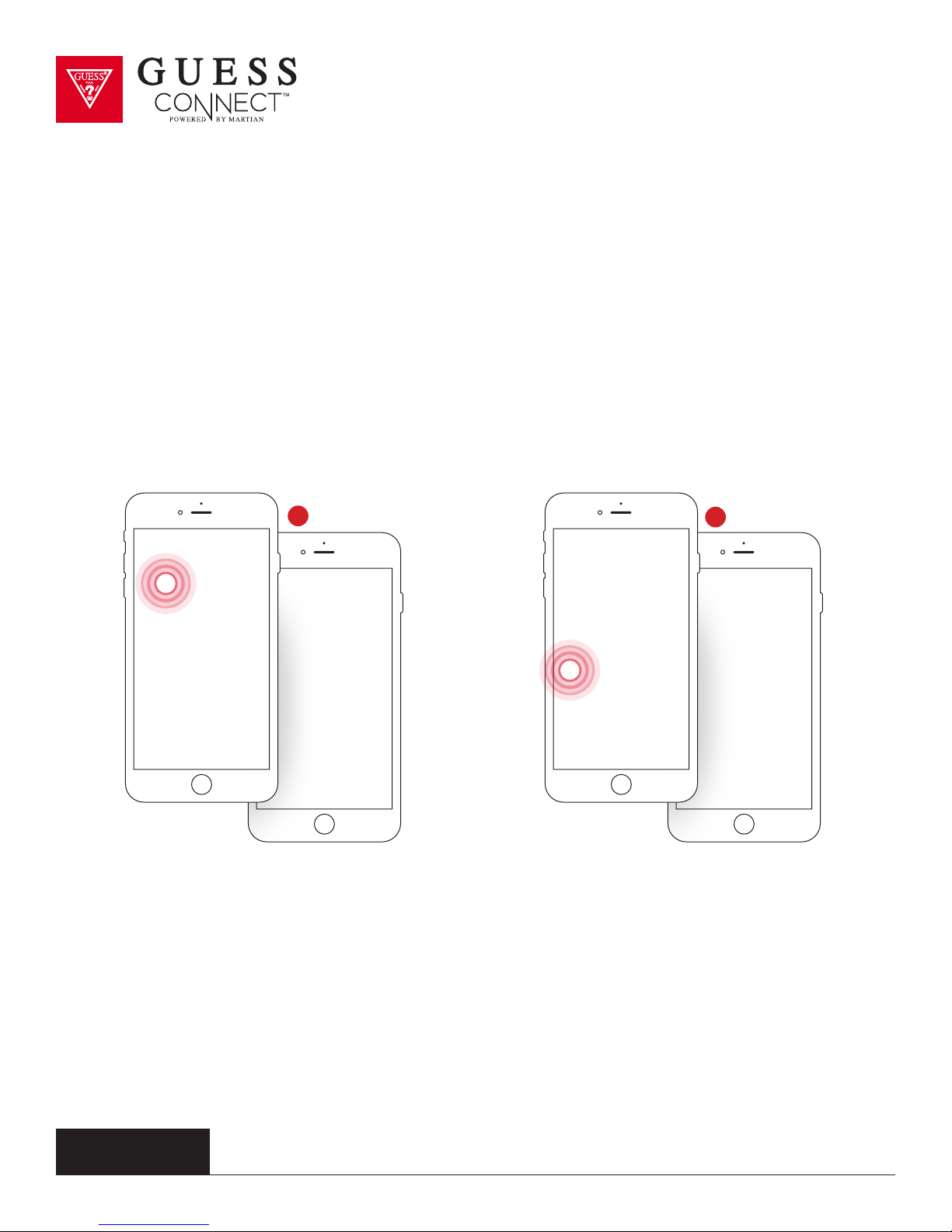
Register your watch to receive notifications and updates about your GUESS Connect watch.
In the App, tab on the Settings tab, and then (1) Register Your Watch. Here you can type in your
personal information along with the serial number of your watch. The serial number can be found
on the bottom label of the GUESS Connect box, or in the (2) About section of the App.
1
2
guessconnect.com
iOS USER MANUAL
39
Page 42
Settings & Support
Help & Support
In the Help & Support section of the App, you will find a variety
of information that can help you use your GUESS Connect.
Here you can access:
User Manual
•
• Video Tutorials
• FAQs
• Email to Support
guessconnect.com
iOS USER MANUAL
40
Page 43
Settings & Support
Reset Your Watch
Resetting your watch will restart the connection setup process. Please forget
GUESS Connect in Bluetooth Settings before setting up your new connection.
Your GUESS Connect watch uses a wireless technology called Bluetooth. While connected,
your watch answers calls, messages, and gives you alerts. There are times when your
watch will disconnect from your device, and there are simple steps to follow to reconnect
your watch quickly and easily.
After you go through the initial pairing procedure outlined in the pairing process for Android or iOS,
your watch will be linked to your device. There are several ways to troubleshoot your watch and
restore that wireless Bluetooth link.
If you are having trouble with either of your devices you may want to reset either
your GUESS Connect App, the wireless connection to your watch, or both.
To reset your App to the original factory settings, simply go to the Settings tab,
and choose reset your watch. The App will display a warning message. Choose
OK and you will be taken to the initial setup screen.
guessconnect.com
iOS USER MANUAL
41
Page 44
Settings & Support
Reset Your Watch
This process does not aect your wireless
Bluetooth connection. You will need to manually
unpair your watch from your device. To do this,
go into your iOS device’s General Settings then
Bluetooth and in the My Devices list, you will see
“GUESS Connect” and “GUESS Smart.” These are
the two separate connections between your watch
and phone. Select “GUESS Connect” by tapping on
the information icon to the right of the screen. This
takes you to additional options where you will tap
Forget This Device. Follow the same process for
“GUESS Smart.”
After forgetting both settings, you will now be able
to pair your watch to your iOS device once again.
There is no limit or restriction as to how often you
can repeat this process.
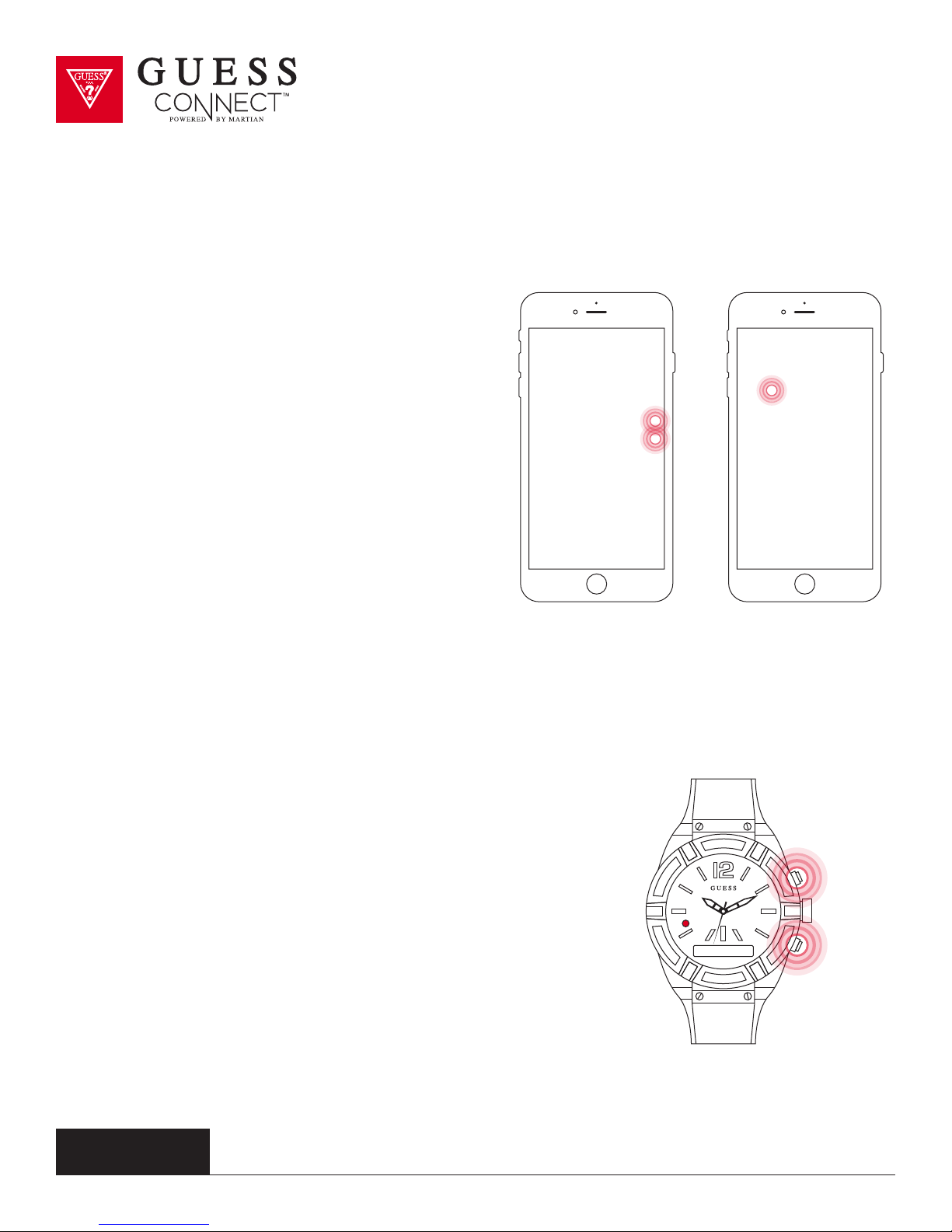
If you find that your watch is not responsive or want to pair it to a
dierent device, it is suggested that you “restore” your watch to its
original factory settings. To do so, hold down the top and bottom
buttons of the watch, at the same time for about 6 seconds. You
will see the word “restored” on the OLED screen with a solid RED
light on the LED. You will now be required to pair the watch to
your device.
Performing both the hardware and the software factory restore
procedures will likely resolve most issues you might be having. For
additional information about your GUESS Connect watch, visit the
support area at guessconnect.com
guessconnect.com
iOS USER MANUAL
Restored
42
Page 45

Regulatory & Safety Notices
The Bluetooth® word mark and logos are registered trademarks owned by Bluetooth SIG, Inc. and
any use of such marks by Sequel AG is under license. Other trademarks and trade names are those
of their respective owners.
“Made for iPod Touch,” “Made for iPhone,” and “Made for iPad” mean that an electronic accessory
has been designed to connect specifically to iPod Touch, iPhone or iPad, respectively and has been
certified by the developer to meet Apple performance standards. Apple is not responsible for the
operation of this device or its compliance with safety and regulatory standards. Please note that the
use of this accessory with iPod Touch, iPhone or iPad may aect wireless performance. iPod Touch,
iPad and iPhone are trademarks of Apple Inc., registered in the U.S. and other countries.
iOS is a trademark or registered trademark of Cisco in the U.S.
and other countries and is used under license.
Portions of this page are reproduced from work created and shared by the Android Open Source
Project and used according to terms described in the Creative Commons 2.5 Attribution License.
Android is a trademark of Google Inc.
MARTIAN is a trademark of SilverPlus, Inc.
This guide is published by Sequel AG, without any warranty. Improvements and changes to this
guide necessitated by typographical errors, inaccuracies of current information, or improvements to
programs and/or equipment may be made by Sequel AG at any time without notice. Such changes
will, however, be incorporated into new editions of this guide.
All rights reserved.
guessconnect.com
iOS USER MANUAL
43
Page 46

Regulatory & Safety Notices
USA: FEDERAL COMMUNICATIONS COMMISSION FCC STATEMENT
This device complies with FCC part 15 FCC Rules. Operation
is subject to the following two conditions:
1. This device may not cause harmful interference.
2. This device must accept any interference received, including
interference that may cause undesired operation.
FCC WARNING
Changes or modifications not approved by Sequel AG could
void the user’s authority to operate the equipment.
Note: This equipment has been tested and found to comply with the limits for a Class B digital
device, pursuant to part 15 of the FCC Rules. These limits are designed to provide reasonable
protection against harmful interference in a residential installation. This equipment generates,
uses and can radiate radio frequency energy and, if not installed and used in accordance with
the instructions, may cause harmful interference to radio communications. However, there is no
guarantee that interference will not occur in a particular installation. If this equipment does cause
harmful interference to radio or television reception, which can be determined by turning the
equipment o and on, the user is encouraged to try to correct the interference by one or more of
the following measures:
•Reorientorrelocatethereceivingantenna
•Increasetheseparationbetweentheequipmentandreceiver
•Connecttheequipmentintoanoutletonacircuitdierentfrom
that to which the receiver is connected.
•Consultthedealeroranexperiencedradio/TVtechnicianforhelp.
This device meets the FCC requirements for RF exposure in public or uncontrolled environments.
FCC ID: 2AFSYGVS02GC
guessconnect.com
iOS USER MANUAL
44
Page 47

Regulatory & Safety Notices
CANADA: INDUSTRY CANADA IC STATEMENT
This device meets the IC requirements for RF exposure in public or uncontrolled environments.
Cet appareil est conforme aux conditions de la IC en matière de RF dans des environnements
publics ou incontrôlée
IC NOTICE TO USERS IN ACCORDANCE WITH RSS GEN ISSUE 3:
This device complies with Industry Canada license exempt RSS standard(s). Operation is subject to
the following two conditions:
1. This device may not cause interference.
2. This device must accept any interference, including interference that may cause undesired
operation of the device.
Cet appareil est conforme avec Industrie Canada RSS standard exempts de licence(s). Son
utilisation est soumise à Les deux conditions suivantes:
1. Cet appareil ne peut pas provoquer d’interférences.
2. Cet appareil doit accepter Toute interférence, y compris les interférences qui peuvent causer un
mauvais fonctionnement du dispositive.
IC ID: 20610-GVS02GC
guessconnect.com
iOS USER MANUAL
45
Page 48
Regulatory & Safety Notices
EUROPEAN UNION EU
Declaration of Conformity with Regard to the EU Directive 1999/5/EC
Sequel AG is authorized to apply the CE Mark on GUESS Connect watch, thereby declaring
conformity to the essential requirements and other relevant provisions of Directive 1999/5/EC and
other applicable Directives.
Compliant with the standard R&TTE 99/CE/05
Conforme à la norme R&TTE 99/CE/05
SAFETY STATEMENT
This equipment has been tested to comply with safety certification in accordance with the
specifications of EN Standard: EN60950-1:2006 + A11:2009 + A1:2010 + A12: 2011.
Built-in battery precautions
• Your GUESS Connect watch product features a built-in battery, which is not user replaceable.
Tampering with your product or attempting to open it will void the warranty and can result in a
safety hazard.
• Use only the charger cable that shipped with your product to charge the battery.
• Charge the battery using a computer, powered hub, or power supply that is certified by a
recognized testing laboratory.
• Charge the battery in accordance with the instructions supplied within this guide.
• Your product uses a California Energy Commission battery charger.
guessconnect.com
iOS USER MANUAL
46
Page 49
Regulatory & Safety Notices
DISPOSAL AND RECYCLING INFORMATION
The symbol on the product or its packaging signifies that this product must be disposed of separately
from ordinary household waste at its end of life. Please kindly be aware that it is your responsibility to
dispose of electronic equipment at recycling centers to help conserve natural resources.
Each country in the European Union should have its collection centers for electrical and electronic
equipment recycling. For information about your recycling drop o point, please contact your local
related electrical and electronic equipment waste management authority or the retailer where you
bought the product.
• Do not dispose of your GUESS Connect watch with household waste.
• Disposal of the packaging and your GUESS Connect watch should be done in accordance with
local regulations.
•
Batteries are not to be disposed of in the municipal waste stream.
guessconnect.com
iOS USER MANUAL
47
Page 50

 Loading...