

Page 1
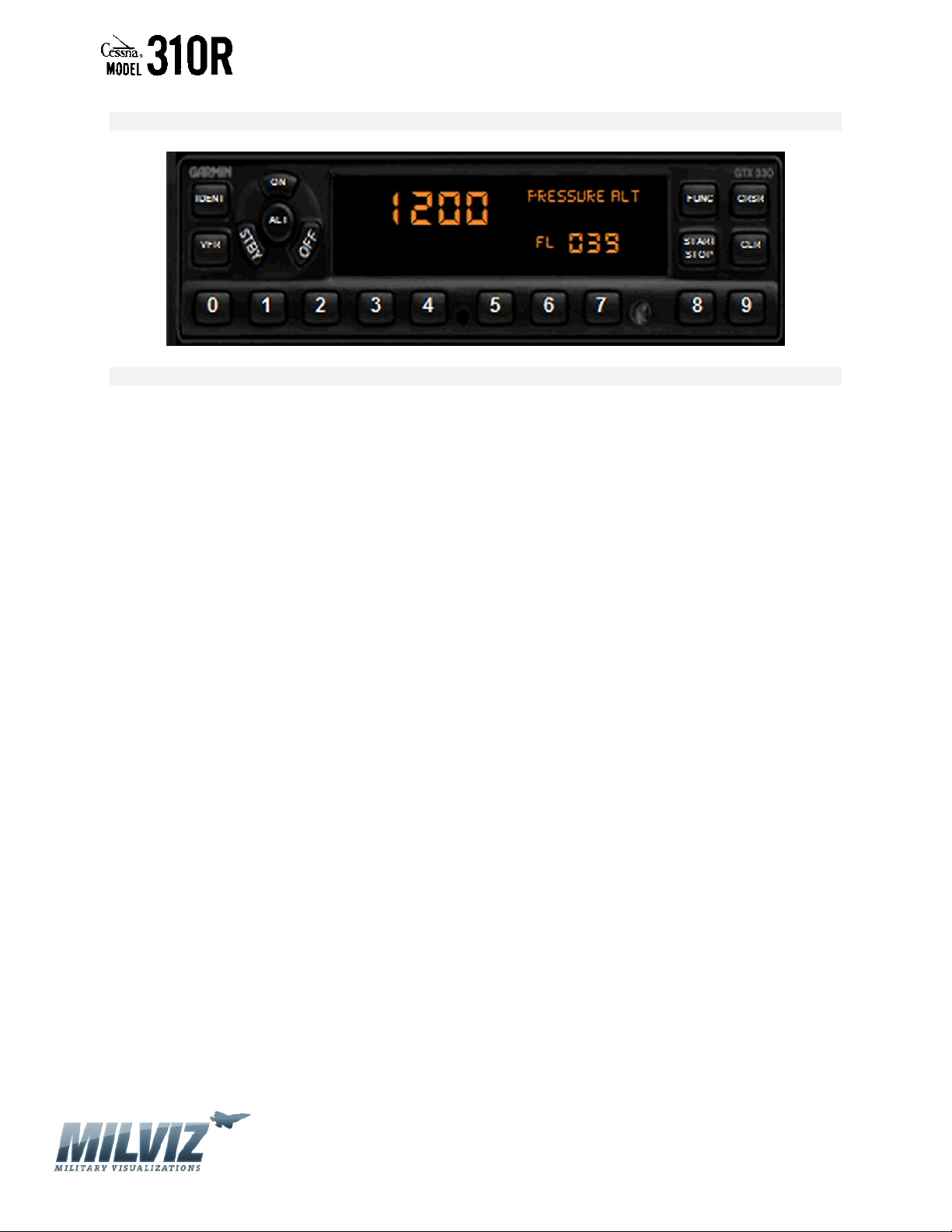
MilViz Cessna 310R Garmin GTX 330 Systems Manual
GARMIN TRANSPONDER MANUAL
Standard Disclaimer
This manual is intended for recreational use in Microsoft Flight Simulation FSX ONLY and may NOT be used in any
Real World Aviation application. The authors are not responsible for errors or omissions.
23 May 2010
Version 1.0 – 23 May 2010
[1]
Page 2
GARMIN TRANSPONDER MANUAL
MilViz Cessna 310R Garmin GTX 330 Systems Manual
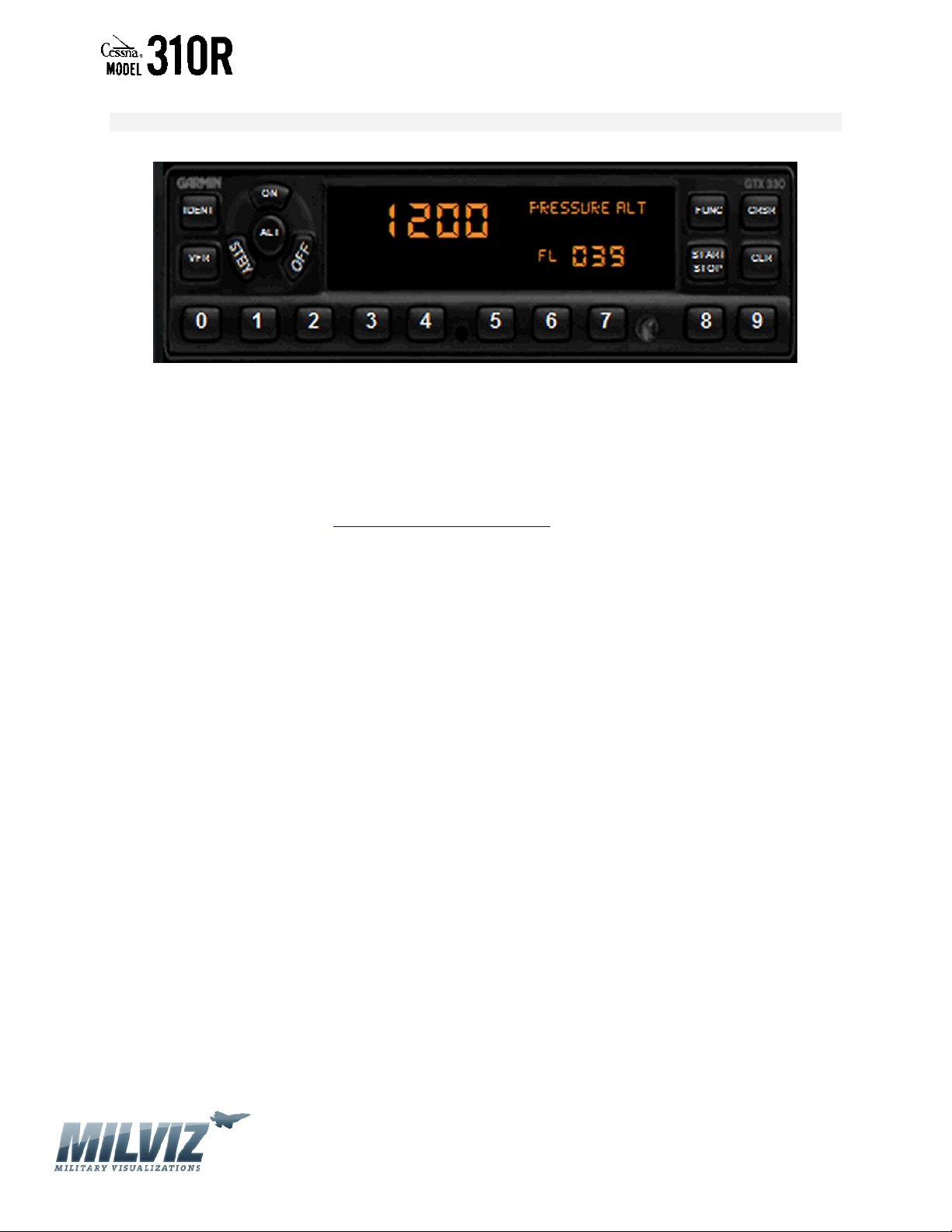
The Military Visualizations (MilViz) Cessna 310R Garmin GTX 330 Manual is designed to quickly orient
the novice or experienced flight simulation pilot with an overview of the various controls of the Garmin
GTX 330 available in the C-310R model.
The following pages will help you become familiar with the operation of Garmin GNS 430.
Note: For MilViz Product Support: Please Register and Login to our Support Forums for product
support at the following URL: http://www.milviz.com/forum/
[2]
Version 1.0 – 23 May 2010
Page 3
GARMIN TRANSPONDER MANUAL
MilViz Cessna 310R Garmin GTX 330 Systems Manual
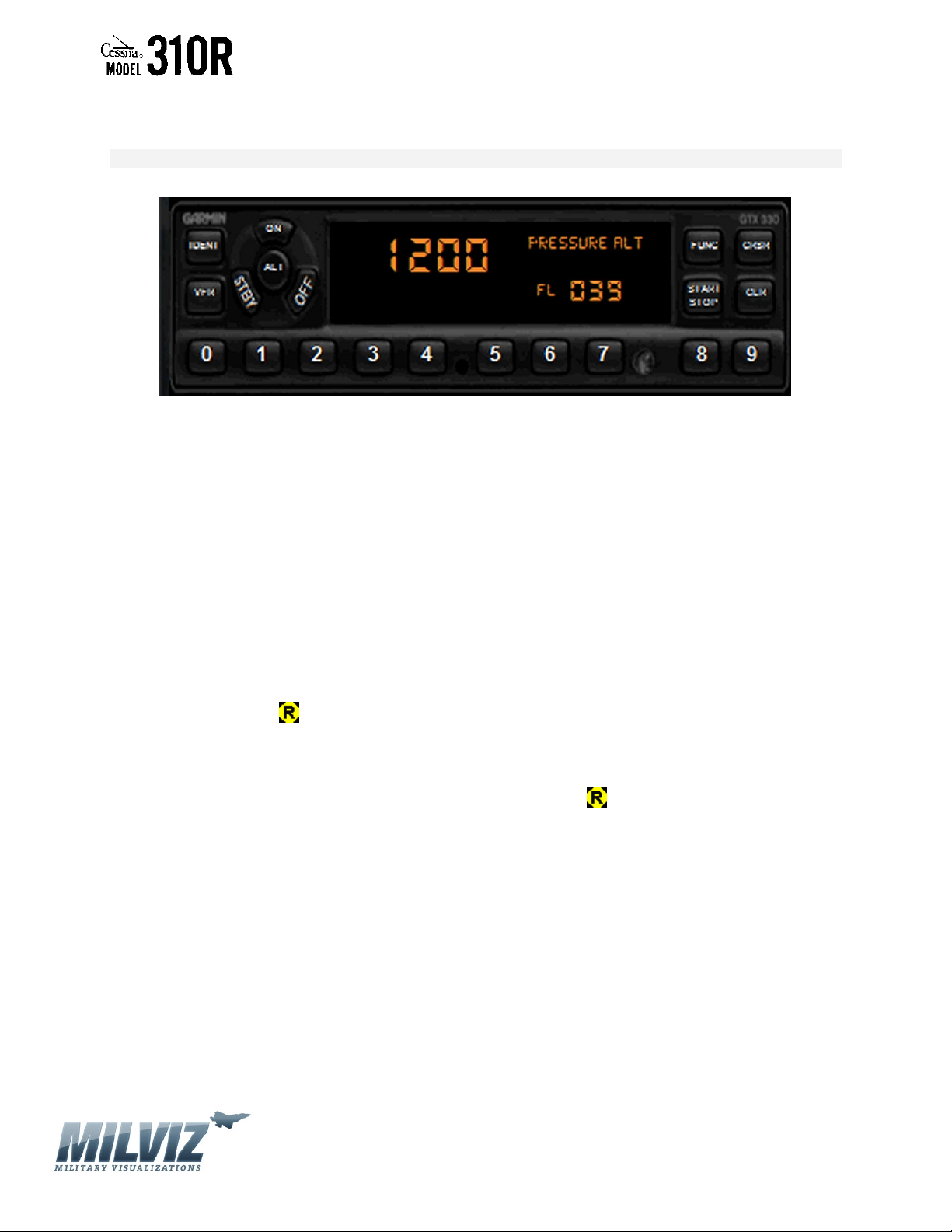
The GTX 330 is powered on by pressing the STBY, ALT or ON keys. After power on a startup page will be displayed while the unit performs a self-test. The MilViz GTX 330 is fully
compatible with both VATSIM and FSInn ATC control.
Mode Selection Keys
• OFF - Powers off the GTX 330.
• STBY – Powers on the transponder in standby mode. At power on the last active
identification code will be selected. When in standby mode, the transponder will not reply to
any interrogation.
• ON - Powers on the transponder in Mode A. At power on the last active identification
code will be selected. In this mode, the transponder replies to interrogations, as indicated
by the Reply Symbol . Replies do not include altitude information.
• ALT - Powers on the transponder in Mode A and Mode C. At power on the last active
identification code will be selected. In ALT mode, the transponder replies to identification
and altitude interrogations, as indicate by the Reply Symbol . Replies to altitude
interrogations include the standard pressure altitude received from an external altitude
source, which is not adjusted for barometric pressure.
[3]
Version 1.0 – 23 May 2010
Page 4
MilViz Cessna 310R Garmin GTX 330 Systems Manual
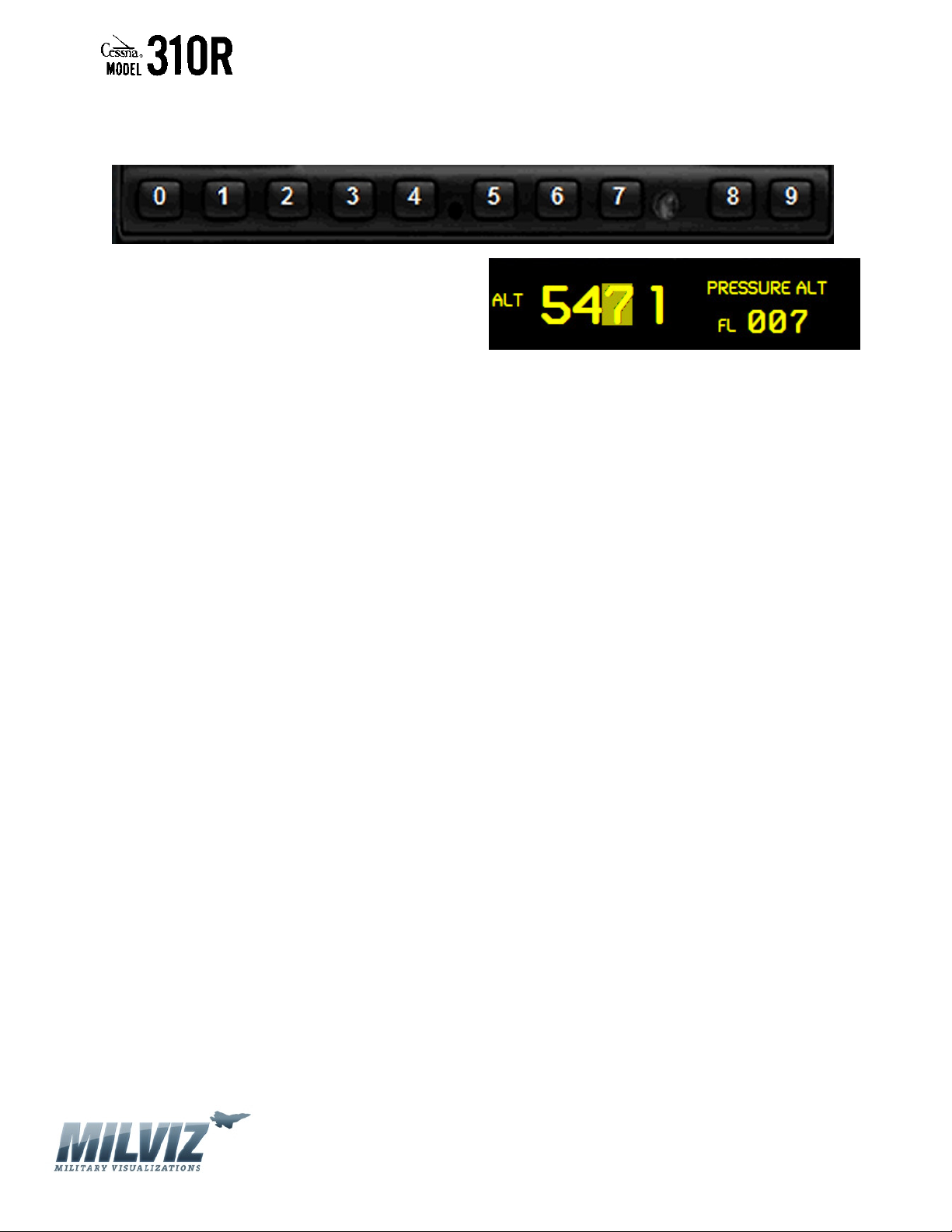
Code Selection
Code selection is done with eight keys (0 – 7)
that provide 4,096 active identification codes.
Pushing one of the keys begins the code
selection sequence. The new code will not be
activated until the fourth digit is entered.
Pressing the CLR key will move the cursor
back to the previous digit. Pressing the CLR key when the cursor is on the first digit of the
code, or pressing the CRSR key during code entry, will remove the cursor and cancel data
entry, restoring the previous code. The numbers 8 and 9 are not used for code entry, only
for entering a Count Down Time.
[4]
Version 1.0 – 23 May 2010
Page 5
MilViz Cessna 310R Garmin GTX 330 Systems Manual
Important Codes:
1200- The VFR code for any altitude in the US (Refer to ICAO standards elsewhere)
7000- The VFR code commonly used in Europe (Refer to ICAO standards)
7500- Hijack code (Aircraft is subject to unlawful interference)
7600- Loss of communications
7700- Emergency
7777- Military interceptor operations (Never squawk this code!)
0000- Military use (Not enterable)
Care should be taken not to select the code 7500 and all codes in the 7600-7777 range,
which trigger special indicators in automated facilities. Only the code 7500 will be decoded
as the hijack code. An aircraft’s transponder code (when available) is utilized to enhance the
tracking capabilities of the ATC facility; therefore care should be taken when making routine
code changes.
NOTE: When using the VATSIM network, NEVER attempt to squawk any emergency codes,
unless you enjoy being auto-booted off the server and risk being reprimanded!
Keys for Other GTX 330 Functions
IDENT- Pressing the IDENT key activates the Special Position Identification (SPI)
Pulse for 18 seconds, identifying your transponder return from others on the air traffic
controller’s screen. The word ‘IDENT’ will appear in the upper left corner of the display while
the IDENT mode is active.
VFR- Sets the transponder code to the pre-programmed VFR code.
FUNC- Changes the page shown on the right side of the display. Displayed data
includes Pressure Altitude, Flight Time, Altitude Monitor, OAT/Density Altitude, Count Up
timer and Count Down timer.
START/STOP- Starts and stops the Altitude Monitor, Count Up, Count Down and
Flight timers.
[5]
Version 1.0 – 23 May 2010
Page 6
MilViz Cessna 310R Garmin GTX 330 Systems Manual
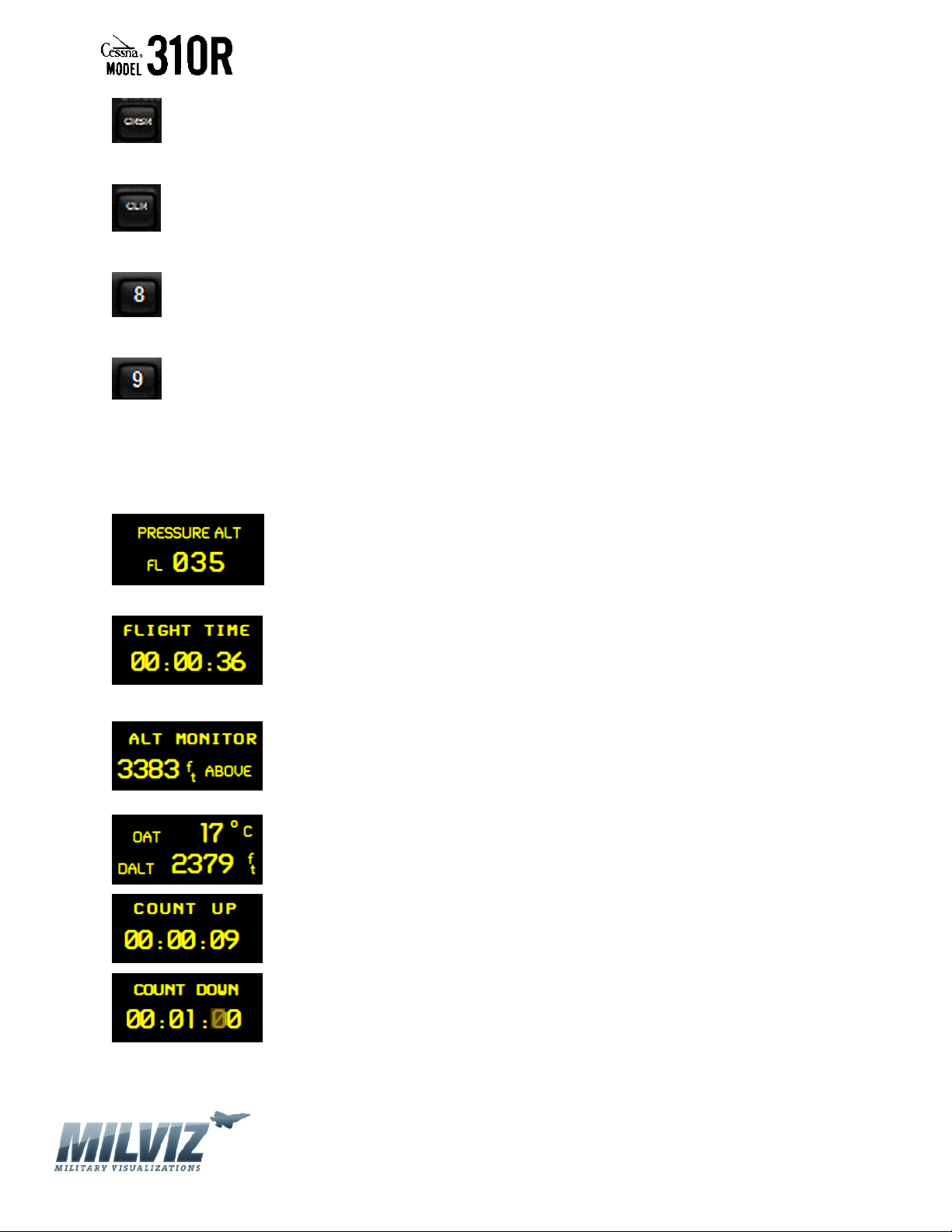
CRSR- Initiates starting time entry for the Count Down timer, and cancels
transponder code entry.
CLR- Resets the Count Up, Count Down and Flight timers. Cancels the previous key
press during code selection and Count Down entry.
8- Reduces Display brightness and enters the number eight into the Count Down
timer.
9- Increases Display brightness and enters the number nine into the Count Down
timer.
Function Display
Pressure ALT: Displays the altitude data supplied to the GTX 330 in
hundreds of feet (i.e., flight level).
FLIGHT TIME: Displays the Flight Time, which is controlled by a squat
switch. With squat switch control, the timer begins when lift off is
sensed and pauses when landing is sensed. While in flight, the timer
may be paused and restarted with the START/STOP button, and may
be reset by pressing the CLR button.
ALT MONITOR: Displays the altitude deviation above or below the
assigned altitude, as set by the altitude pre-selector on the autopilot (if
so equipped). This display is toggled on/off by pressing the
START/STOP button.
OAT/DALT: Displays Outside Air Temperature and Density Altitude.
COUNT UP TIMER: Controlled by START/STOP and CLR buttons.
COUNT DOWN TIMER: Controlled by START/STOP, CLR and CRSR
buttons. The initial Count Down time is entered with the 0 – 9 buttons.
A soft chime will sound when the Count Down time is reached, and the
text “EXPIRED” replaces the “COUNT DOWN” on the display. The timer
will continue to accumulate time until the START/STOP button is
pressed.
[6]
Version 1.0 – 23 May 2010
Page 7

MilViz Cessna 310R Garmin GTX 330 Systems Manual
Timer Operation
To operate the Flight Timer:
1. Press the FUNC key until “FLIGHT TIME” is displayed
2. This GTX 330 is configured with Automated Airborne Determination, so the timer
begins automatically when the unit senses that the aircraft has become airborne. The
timer may be reset to zero at every take off, continue accumulating time at take off,
or may be reset manually.
3. If desired, you may press START/STOP to pause or restart the timer.
4. Press CLR to reset the timer to zero.
5. The timer will automatically stop accumulating time when the Automated Airborne
Determination senses that the aircraft is on the ground.
To operate the Count Up timer:
1. Press the FUNC key until “COUNT UP” is displayed.
2. If necessary, press CLR to reset the Count Up timer to zero.
3. Press START/STOP to begin count up.
4. Press START/STOP to pause the timer.
5. Press CLR to reset the timer to zero.
To operate the Count Down timer:
1. Press the FUNC key until “COUNT DOWN” is displayed.
2. Press CRSR and use the 0 – 9 keys to set the initial time.
3. Press START/STOP to begin count down.
4. Press START/STOP again to pause the timer.
5. When the Count Down timer expires, the “COUNT DOWN” banner is replaced with an
“Expired” banner, a soft chime sounds, and the counter begins counting up.
6. Press CLR to reset the timer to the initial time value.
GTX 330 Mode S Transponder Features
Audio Alerts
• “Leaving Altitude” Altitude deviation plus/minus 100’ of assigned altitude exceeded.
NOTE: This alert will only sound if the Autopilot Altitude Hold is selected at least once.
• Soft Chime for Count Down timer expiration
Traffic Information Service
NOTE: This feature is not enabled in this version of the GTX 330
The GTX 330 Mode S transponder provides a data link for Traffic Information Service (TIS).
TIS is derived through a Mode S transponder data link and viewed on a multifunction
[7]
Version 1.0 – 23 May 2010
Page 8

MilViz Cessna 310R Garmin GTX 330 Systems Manual
display. ATC radar sends a traffic picture within a radius of 55 miles from select sites. The
TIC protected area is a cylinder of 7-mile radius, extending 3500’ above and 3000’ below
your aircraft.
TIS provides a graphic display of traffic information in the cockpit for non-TCAS equipped
aircraft. Transponder-equipped aircraft can be displayed within the coverage volume within
range of your position on indicators such as a Garmin 430 or 530, GNS 480 and MX20.
Aircraft without an operating transponder are invisible to TIS Refer to 400/500 series, GNS
480 or MX20 pilot literature for details.
[8]
Version 1.0 – 23 May 2010
 Loading...