

Page 1
User Manual
Mika MX
Mika MX|0
Page 2

Copyright
All mobile products by GIGA-BYTE COMMUNICATIONS IN C. mentioned in this document,
including the device, accessories, software, text, music, and pictures, are owned by, or
authorized by orig ina l manufacturers to GIG A-BYTE COMMUNICATIONS INC. Reproduction,
transfer, distribution, or storage of part or all of the contents in this document in any form
without the prior written permission of GIGA-BYTE COMMUNICATIONS INC. is prohibited.
GIGA-BYTE COMMUNICATIONS INC.
Mika MX|1
Page 3

General Information
This section contains im portant information on safe and ef ficient operation. Please r ead this
information before using the d evice. Ignor ance of the following no tices ma y lead to viola tions
of the law.
Before using the device, please make sure you have fully charged the battery.
Do NOT remove the battery from the device during charging.
Before inserting SIM card into the device, make sure that the device is switched off.
Do NOT attempt to dissemble the device on your own. This should be done by an
authorized person.
Use the device in accordance to instructions when in public facilities.
In some countries, it is a vi olation against th e law to recor d phone conversat ions. Always
ask permission of the other party when you are going to record a conversation.
To protect your ears, turn down the volume before you use stereo headsets or other audio
devices.
To avoid damaging the touch screen and the device, do NOT apply excessive pressure on
them, and remove the device from your pants’ pocket before you sit down. It is also
recommended that you on l y use the stylus or your finger to interact w ith t he touch screen.
It is not covered by the w arrant y that you crack the touc h scr een because of the im proper
usage.
When you use the device for a long time, such as talking on the phone, browsing online, or
charging the battery, the device may become warm. In most cases, this condition is
normal.
Refer servicing to the pr o vider , or an aut h ori zed t ec hn i cian u nder th e f oll o wing c o ndit io ns :
1. The device has b een damaged. 2. W hen you f ol low the instr uc t ions t o use your device,
it does not operate normally. 3. The device has been exposed to water. 4. Liquid has been
spilled or an object has fallen onto the device.
Do Not push unauthorized objects into slots and openings in your device.
The device should be placed away from heat sources such as stoves, radiators, heat
registers, or other products that produc e he at.
Condensation ma y form on or within your device, when you move your device between
environments with ver y different tem perature and/or humidity ran ges. To avoid dam aging
your device, make the moisture to evaporate before you use the device.
To avoid damaging your device, do Not put your device on an unstable table, stand,
bracket, or other places.
Before you clean your device, unplug it, please. Use a damp cloth for cleaning, but do Not
use water, liquid cleaners, or aerosol cleaners to clean the touch screen.
Mika MX|2
Page 4

Table of Contents
Copyright
1
General Information
2
1.1 Your Phone
4
1.2 Installing or uninstalling the SIM Card, Battery, and Memory Card
4
1.3 Charging the Battery
6
1.4 Turning the Phone On or Off
6
1.5 Lock/Unlock
7
1.6 Contacts
7
1.7 The Home Screen
8
2. Phone Functions & Messages
10
2.1 Voice Calls
10
2.2 Video Calls
10
2.3 Creating and sending a text message
10
2.4 Multimedia Message
11
3.1 Wi-Fi
12
3.2 Bluetooth
12
4.1 Camera
13
4.2 Music
13
6.1 Protecting Your Phone
16
6.2 Backup or Reset Your Phone
17
1. Getting Started 4
3. Wi-Fi & Bluetooth 12
4. Multimedia Applications 13
5. Pre-Installed Programs Introduction 15
6. Managing Y our Phone 16
7. Specifications
18
Mika MX|3
Page 5
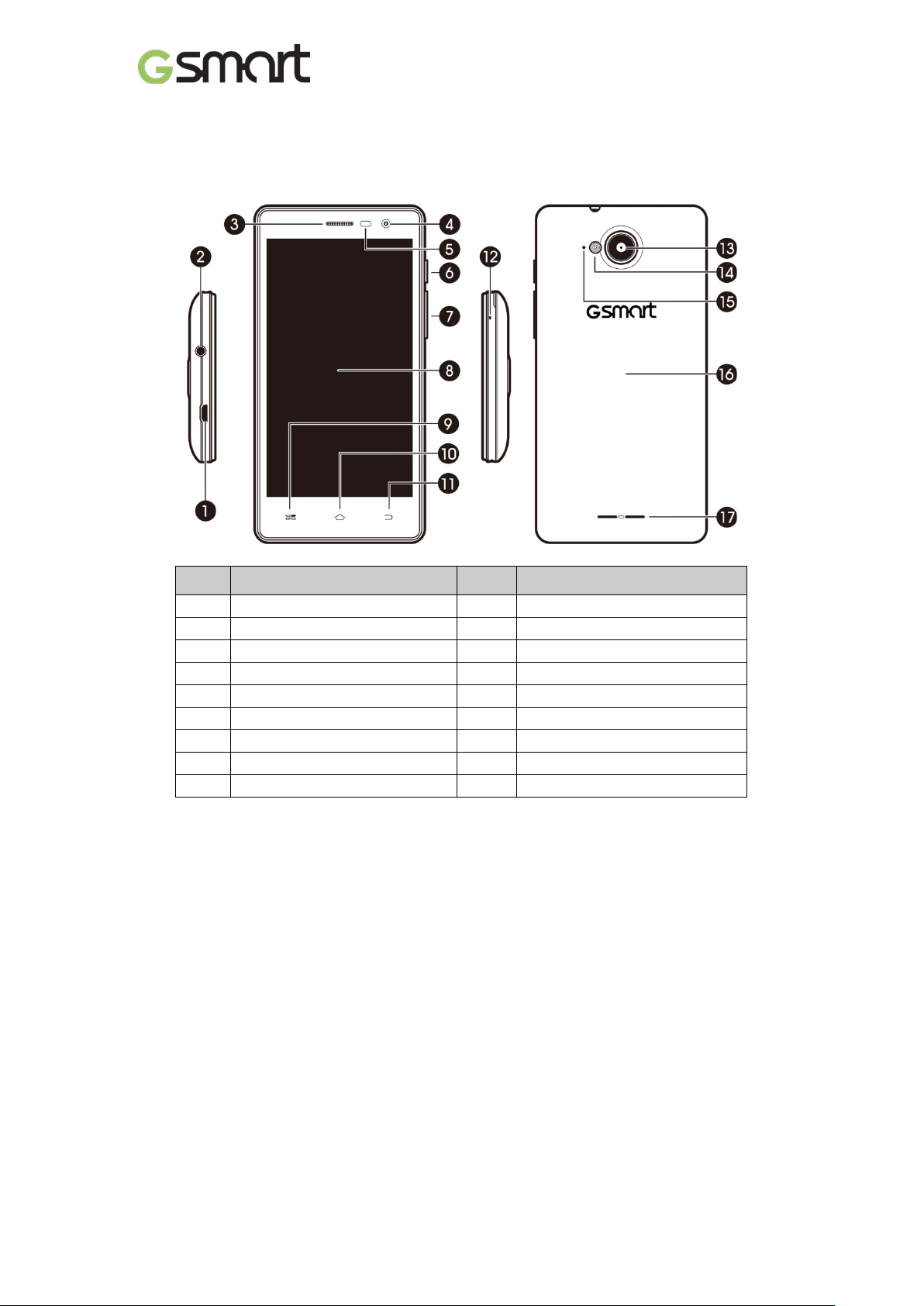
1
Micro-USB Port
10
Home
2
Earphone Jack
11
Return
3
Receiver
12
Main MIC
4
Front Camera
13
5MP Camera
5
P Sensor/ Light Sensor
14
Flash LED
6
Power
15
Sub MIC
7
Volume
16
Battery Cover
8
Touch Screen
17
Speaker
9
Menu
1. Getting Stared
1.1 Your Phone
This section introduces you to the hardware of the device.
No items No Items
1.2 Installing or uninstalling the SIM Card, Battery, and Memory Card
SIM card
The SIM card contains your phone number, memory storage, and details of network service.
To install the SIM card
There are two slots for Micro SIM cards. Left slot is for SIM1 (LTE+WCDMA+GSM) and right
slot is for SIM2 (GSM).The gold contacts are facing down. And the cut-off corner is facing
toward the inside.
Mika MX|4
Page 6
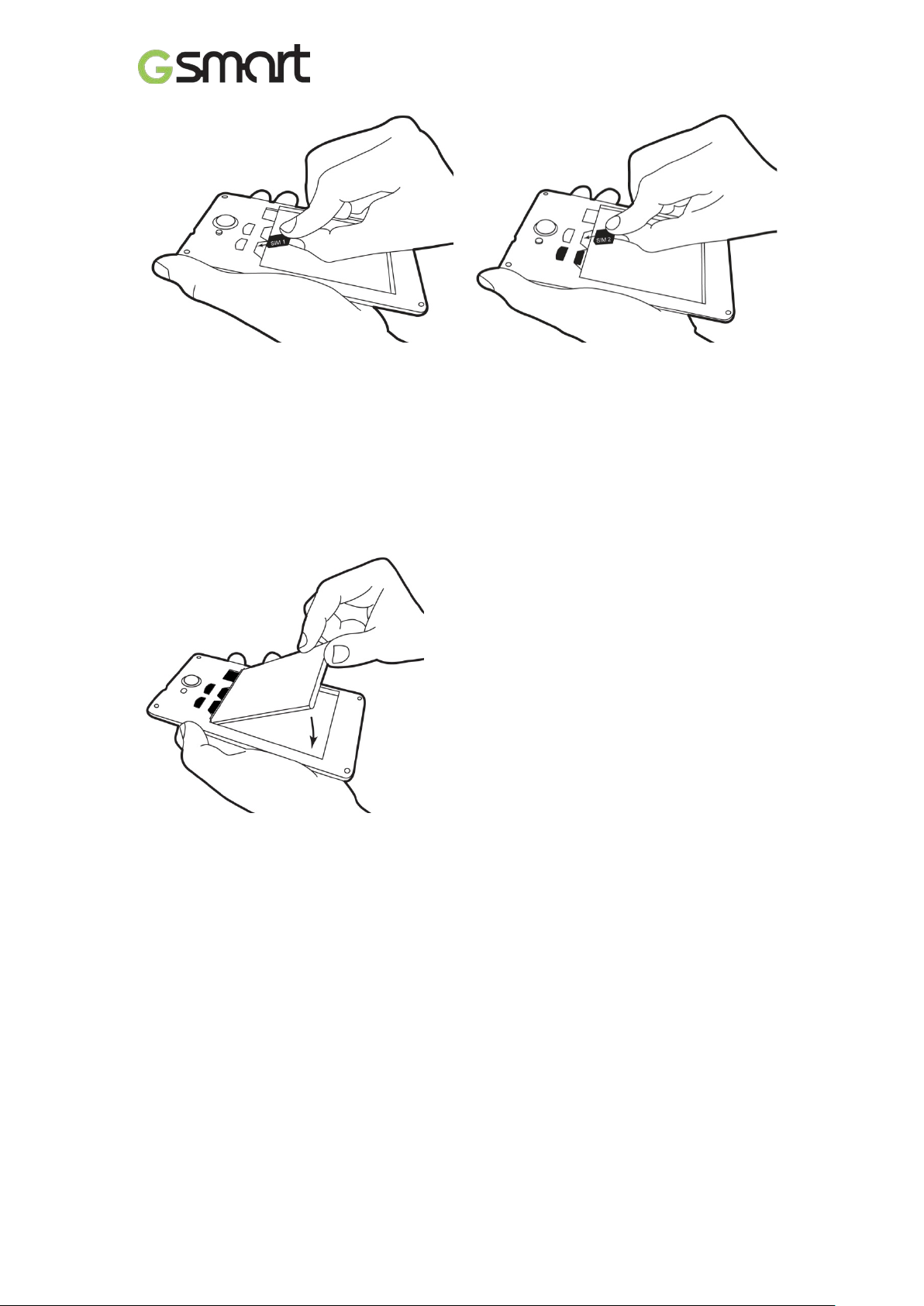
To install the SIM1 card To install the SIM2 card
To remove the SIM card
Use your finger to slide the SIM card out of card slot.
Battery
Your phone comes with a rechargeable battery. Battery life varies depending on the network,
used applications, and the type of connections attached to your phone.
To install the battery
Make sure the contact of the battery is close to connectors in the battery slot.
To remove the battery
Use your fingertip to lift the battery, and then remove it.
To replace the back cover
(1) Insert the cover into the slot from the bottom.
(2) Then, press all around back cover fully until hearing clicks.
Memory card
You may need a microSD card to store photos, music, videos and other data.
To install the memory card
(1) Insert the memory card with the gold contact facing down.
(2) Push the memory card until it clicks into slot.
Mika MX|5
Page 7
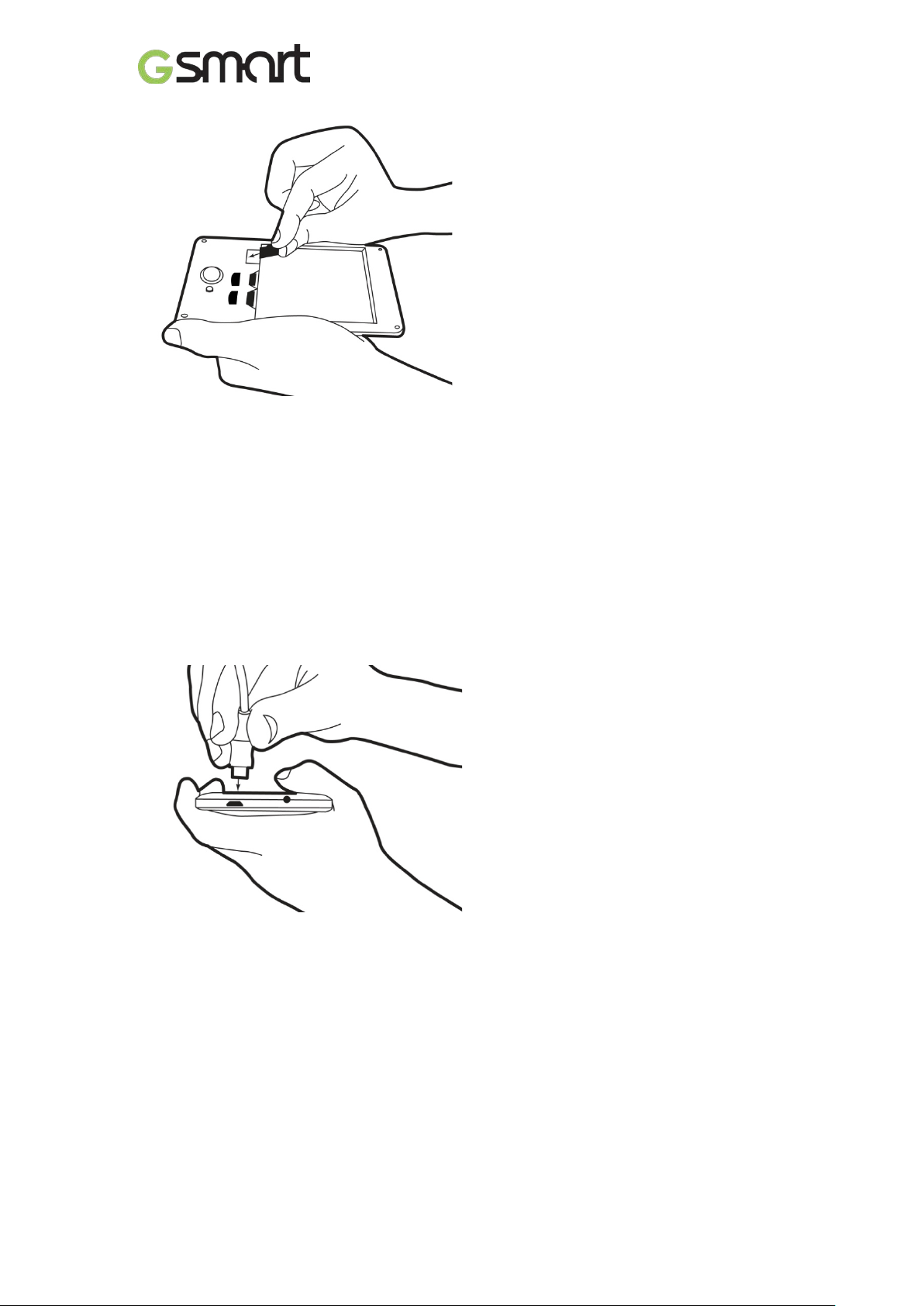
To remove the memory card
(1) For safe removal, tap Applications tab > Settings > Storage > Unmount SD card > OK.
(2) Push the memory card to eject it from the slot.
1.3 Charging the Battery
When you take your phone out of box for the first time, the battery isn’t at full power. Please
charge the battery fully before using.
(1) Connect the USB cable to the AC adapter, and then, connect to the device via the USB
cable.
(2) Plug the AC adapter to a socket to start the charge.
(3) For phone’s safety, please only use the original charger that comes with your device. Any
possible damage caused by using non-original charger or any other equipment will not be
under GIGABYTE Communication Inc.’s responsibility.
NOTE:
To ensure safety, do not remove the battery from the p ho ne while the AC adapter is
connected or while it is being charged.
1.4 Turning the Phone on or off
To turn on your phone
Press and hold the power button until the phone shortly vibrates.
To turn off your phone
(1) Press and hold the power button for several seconds.
(2) A pop-up window appears, then tap “Power off”.
(3) Select “OK” to confirm.
Mika MX|6
Page 8
To set your phone to the sleep mode
To set your phone to the sleep mode, press the power button briefly. It will turn the display off.
To turn the display on, press the power button briefly again.
1.5 Lock/Unlock
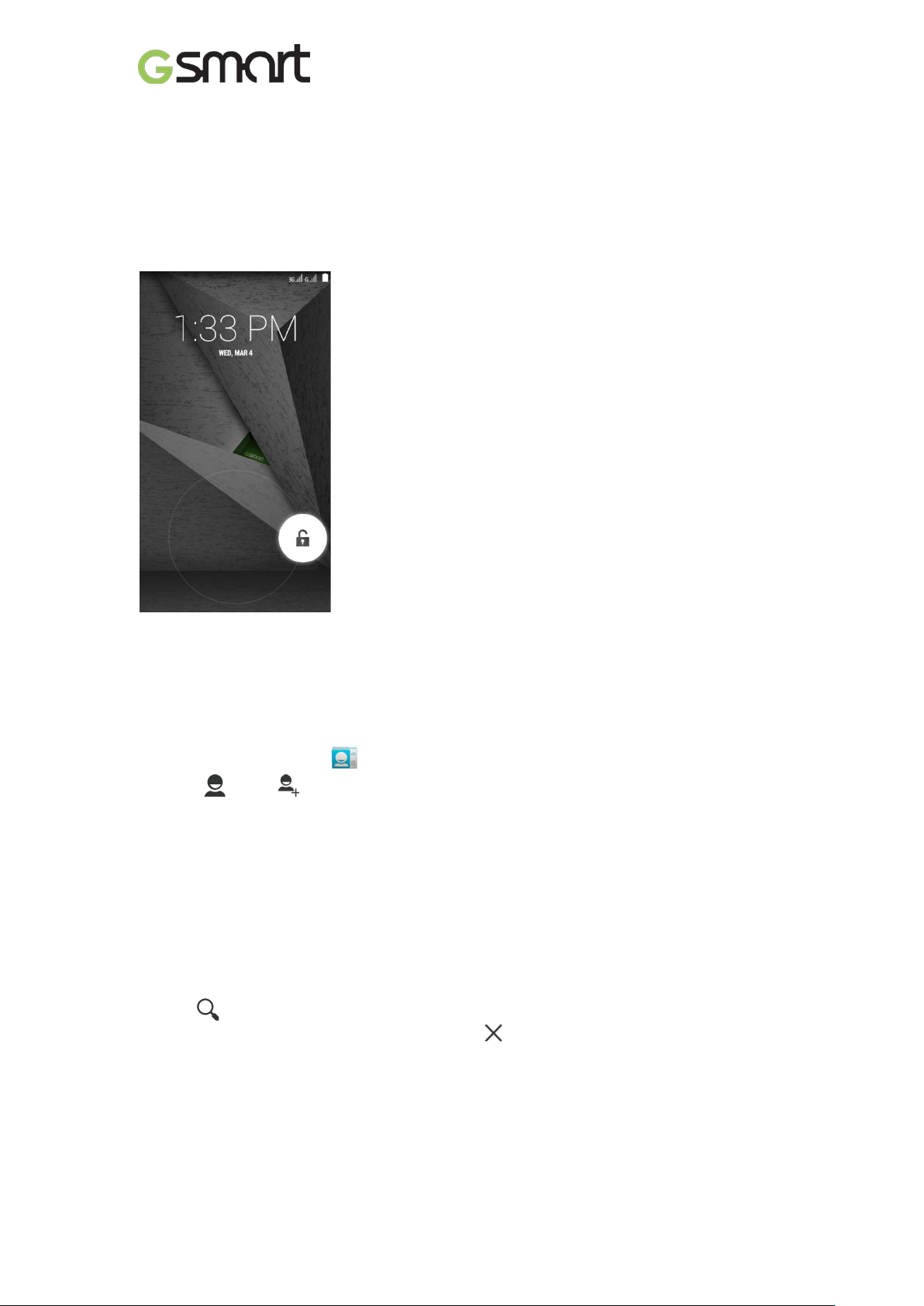
Unlock the device
Drag G icon on screen and slide to unlock icon for unlocking the device.
1.6 Contacts
“Contacts” is your phonebook that you can store friends’ names, phone numbers, e-mail
addresses and other information.”Contacts” can connect to your Google, corporate accounts,
and integrate your contact information.
Adding a Contact
(1) Tap Applications tab > .
(2) Tap > tap to add a new contact.
(3) Choose where you want to synchronize the new contact with Google account, Phone,
SIM1 or SIM2.
(4) A new contact screen appears.
(5) Tap each field to fill out the contact information.
(6) Tap ”DONE” to save it.
NOTE:
The SIM card contact can’t add picture to contact information.
Searching for Contacts
On Contact Screen, do any of the following to easily search for contacts:
• Tap to type the first few letters of the contact name to search. The list is filtered when
typing. When finishing s earching, you could tap to go back to the contacts screen.
Mika MX|7
Page 9
1.7 The Home Screen
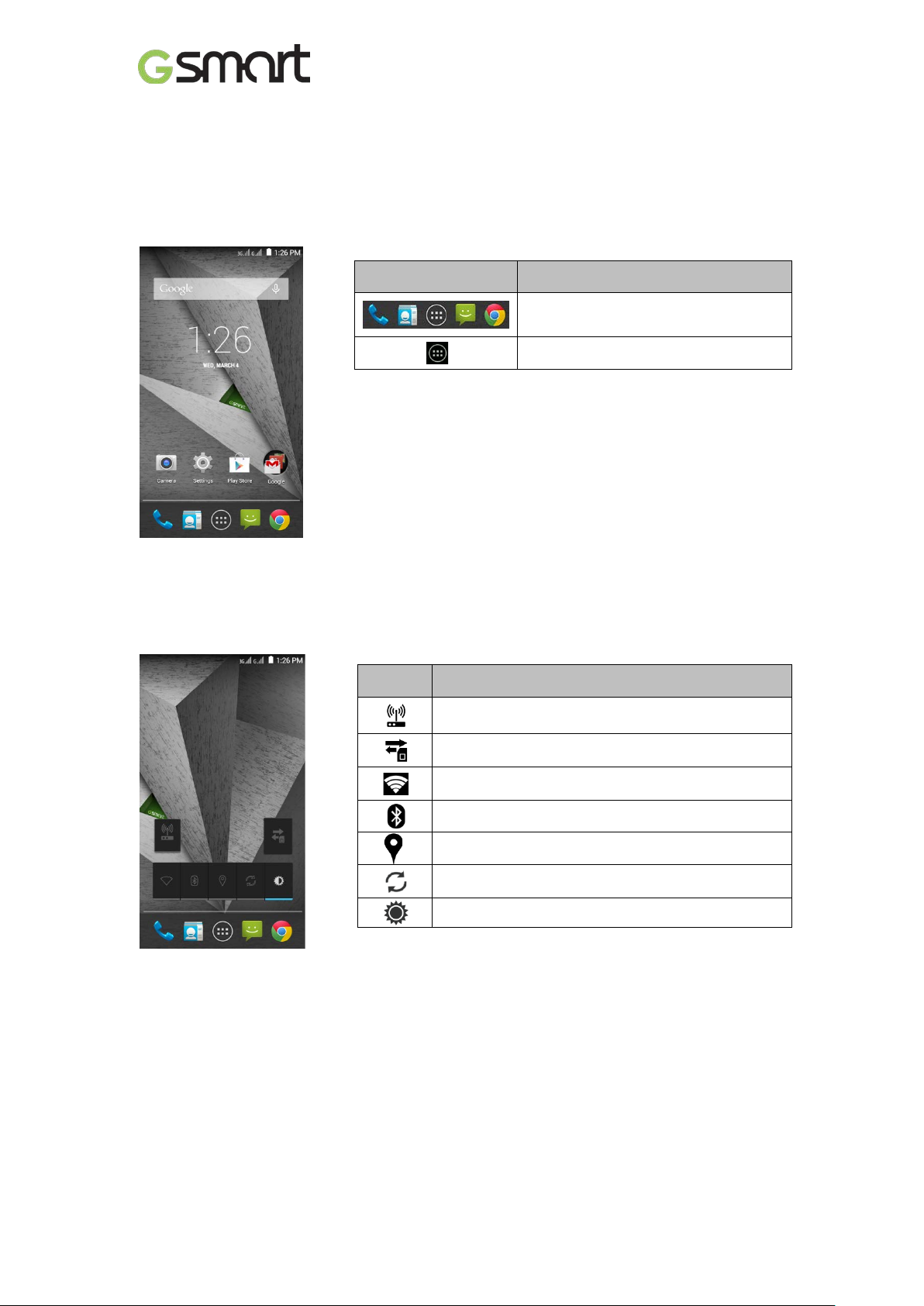
On Home Screen, you can quickly access common features and view notifications of missed
calls, received messages, battery, and the status of the connection.
Default Home Screen: Main functions.
Icons Descriptions
Favorites Tray can keep your most
important shortcuts and folders.
Tap to launch Application Drawer.
You can slide the Home Screen from the left side to the right side or from the right side to the
left side to switch it. The icons located at the bottom of the home page have different functions:
Self-defined Home Screen: You can add the shortcuts and widgets.
Icons Functions
Tethering or hotspot active
Tap to turn on/ off network.
Enable/disable Wi-Fi.
Enable/disable Bluetooth.
Enable/disable Google Location service.
Enable/disable Data Synchronization.
Tap to adjust the brightness.
Mika MX|8
Page 10
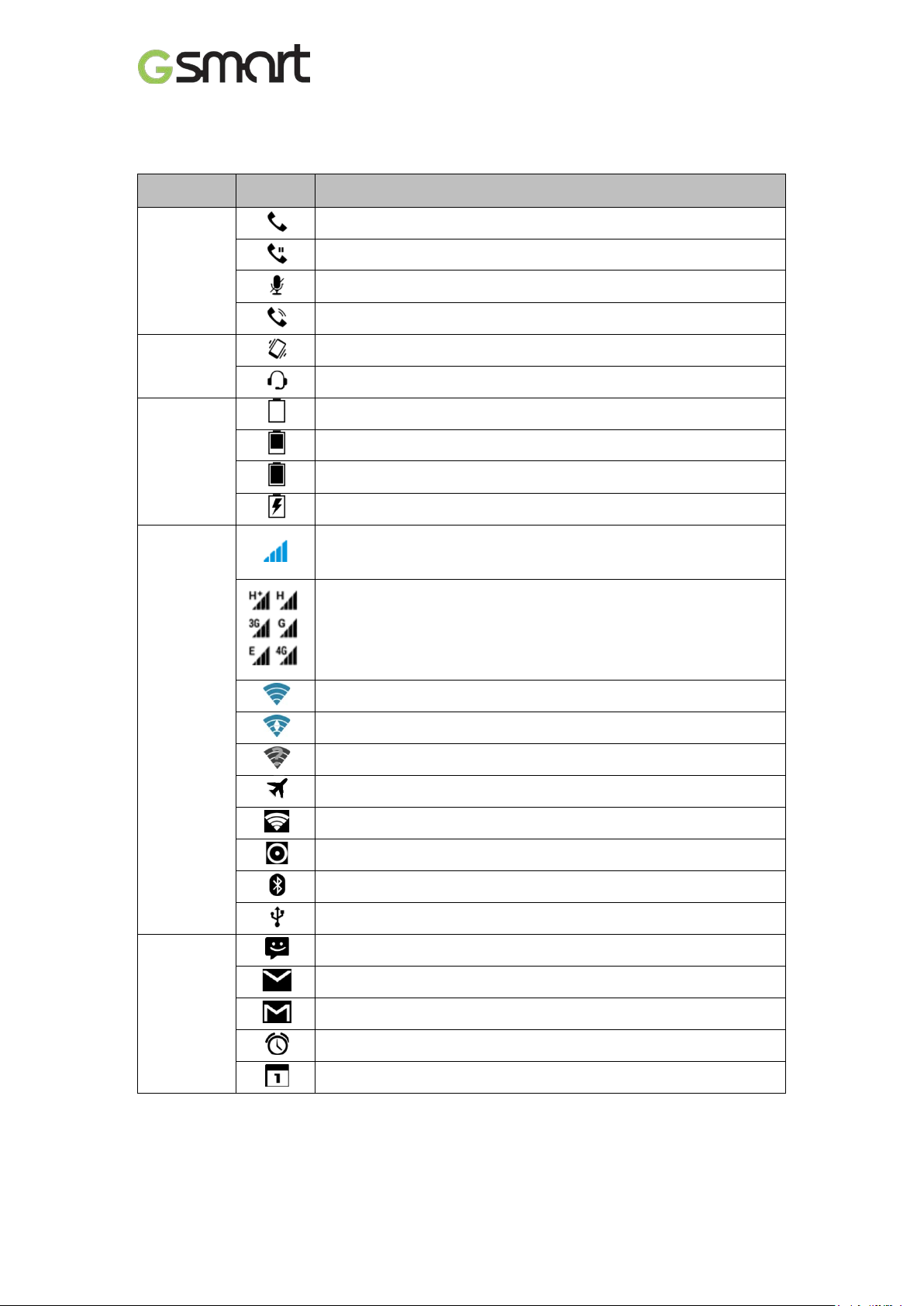
Maximum signal strength. Fewer bars indicate lower signal strength.
(GSM).
Status Icons
The icons of the status bar indicate different types of information. Tap the status bar and scroll
down to view notifications or view system information.
Types
Phone call
Volume
Battery
Icons
Descriptions
Call is in progress.
Your call is on hold.
Mute the call.
Speaker is on.
Vibration is on.
Wired microphone hea ds et c onnected.
Battery is full.
Battery is low.
Battery is very low.
Battery is charging.
Left icon is SIM1 signal (WCDMA+GSM). Right icon is SIM2 signal
4G \ HSPA \3G \ EDGE \ GPRS is in progress.SIM1 supports 4G \
HSPA \3G \ EDGE \ GPRS networks.SIM2 supports GPRS\ EDGE
networks.
Network
and
Connection
Notification
Wi-Fi is connected.
Wi-Fi is in progress.
Wi-Fi Network is activated.
Airplane mode.
Portable Wi-Fi hotspot is activated.
Both USB tethering and Portable Wi-Fi hotspot are activated.
Bluetooth is on.
The device is connected to PC via the USB cable.
New text message.
New e-mail.
New Gmail.
Alarm.
Event notification.
Mika MX|9
Page 11
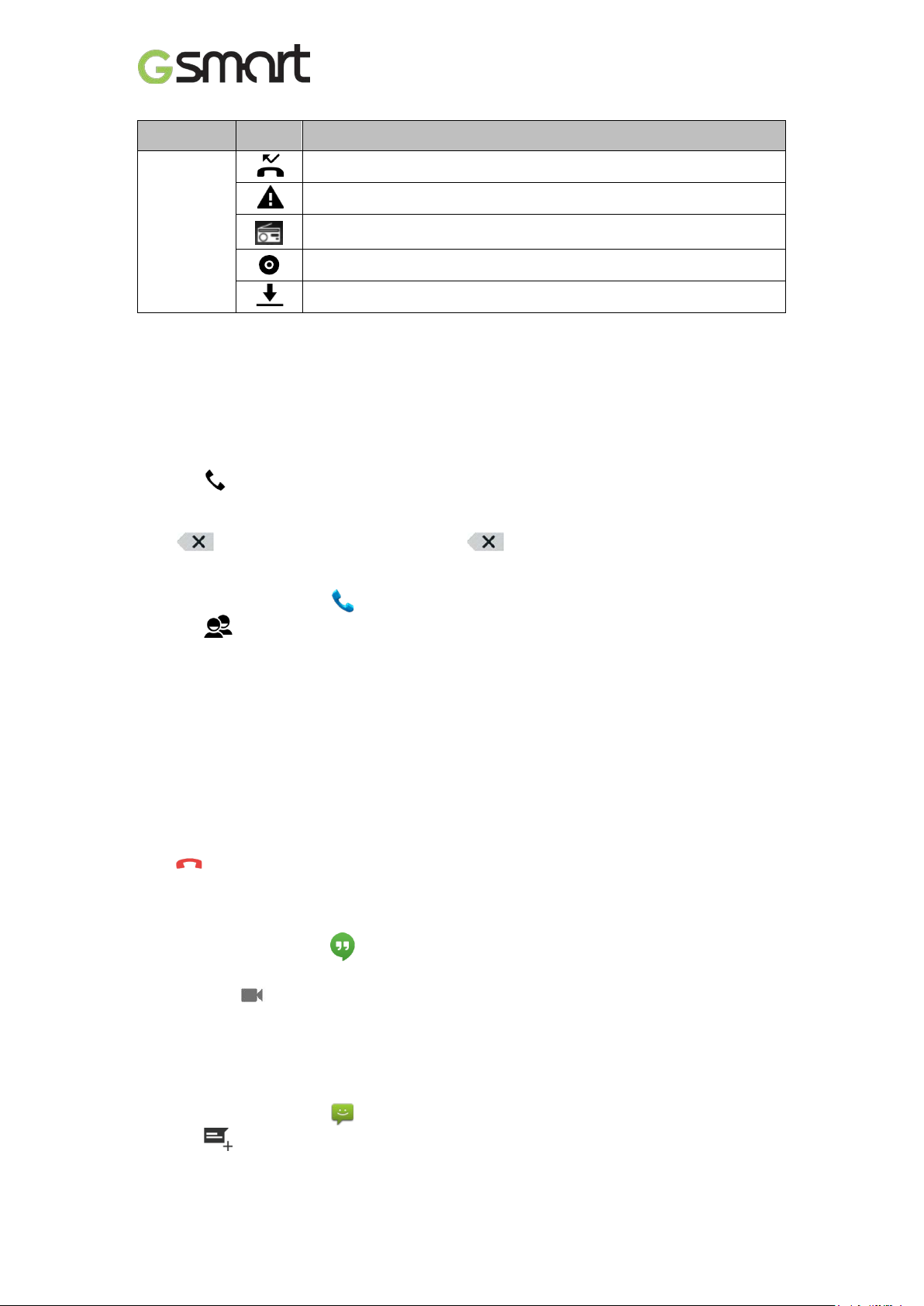
Types
Notification
Icons
Missed call.
General notification.
FM radio is on.
Playing a song.
Downloading an application.
Descriptions
2. Phone Functions & Messages
2.1 Voice Calls
To make a call from the Phone screen
(1) Go to the Phone screen.
(2) Use the keypad to input phone numbers.
(3) Tap to make the phone call.
NOTE:
Tap to delete a number. Tap and hold to erase entire numbers.
To make a call from Contacts
(1) Tap Applications tab > .
(2) Tap .
(3) Tap a contact you want to call.
To make emergency calls
You have to unlock your device before making an emergency call. Enter the international
emergency number 112 to make the emergency call.
Answering a call
When there is an incoming call:
The phone will ring with the ring volume is turned on.
A notification message will appear on the screen.
Ending a call
Tap . It’s the icon of end a call.
2.2 Video Calls
To make a video call
(1) Tap Applications tab >
(2) Tap a contact you want to call.
(3) Then tap .
2.3 Creating and sending a text message
Your phone offers several ways to create and send a new text message.
From Message screen
(1) Tap Applications tab > .
(2) Tap to create a new message.
Mika MX|10
Page 12
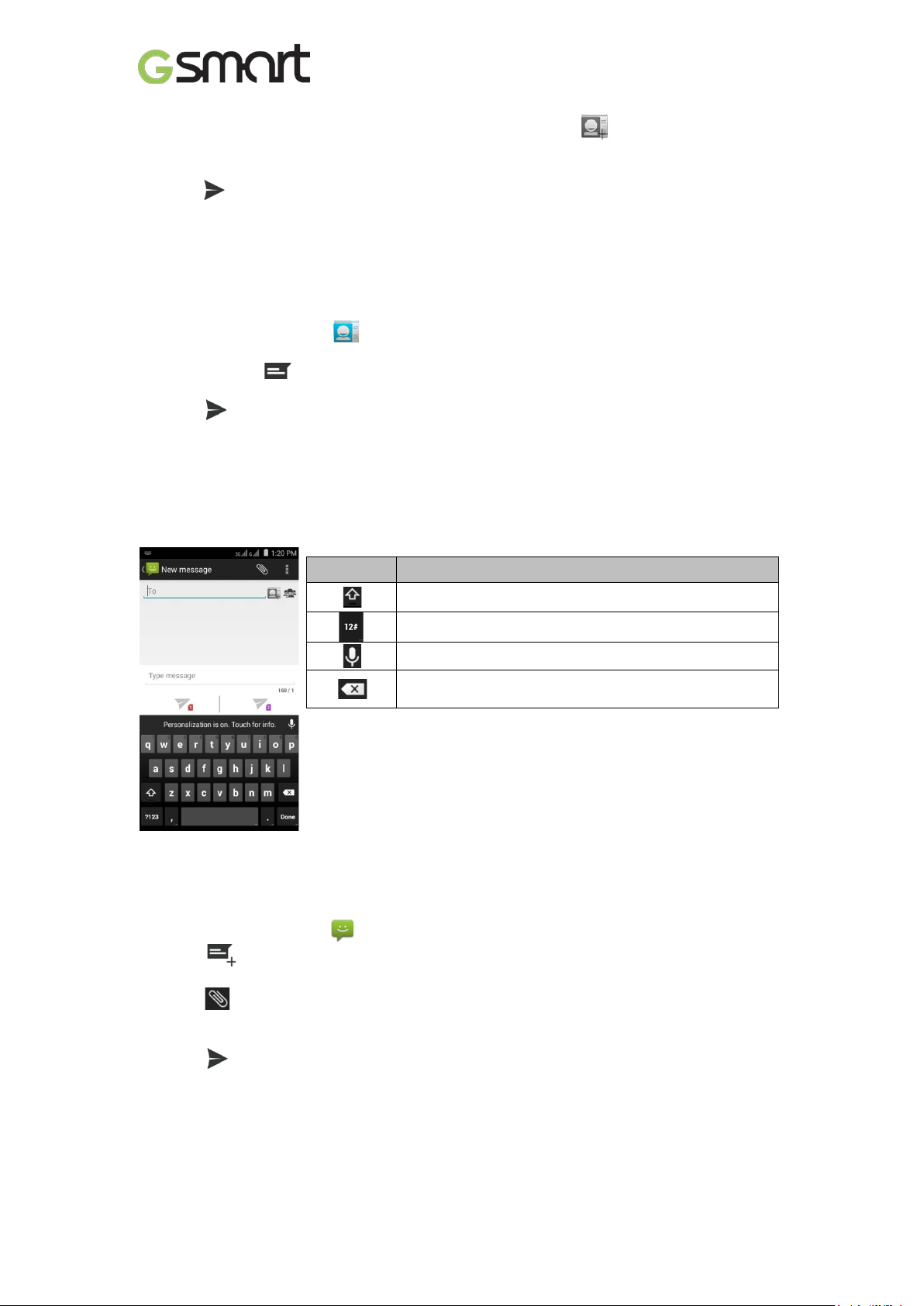
(3) In the “To” field, enter the recipient’s phone numbers or tap to add from your
contacts.
(4) Type your message in the “Type message” field.
(5) Tap to send your message.
NOTE:
If you insert SIM1 and SIM2 at the same time, the Message service will be set as default.
You can set the default from the status bar on Message screen.
From Contact screen
(1) Tap Applications tab > .
(2) Tap a contact to display the contact information.
(3) Tap the icon to send the message.
(4) Compose your message.
(5) Tap
NOTE:
If you exit Messages before sending, unsent message will be saved as a draft
automatically.
Google keyboard
to send your message.
Icons Function
Tap to active Capital letter mode.
Tap to activate the symbols and numerical keyboard.
Tap to input something by voice.
Tap to delete words.
2.4 Multimedia Message
A Multimedia message or MMS can contain letters, an image, an audio, or a video file.
To send MMS from Message screen
(1) Tap Applications tab > .
(2) Tap to create a new message.
(3) Enter the recipient’s phone numbers in the “To” field
(4) Tap to attach picture, video, record audio, contact, pictures, videos, audio or
calendar. The message converts to a MMS message automatically.
(5) Enter your message with the on-screen keyboard in “Type message” filed.
(6) Tap to send your message.
Mika MX|11
Page 13
3. Wi-Fi & Bluetooth
3.1 Wi-Fi
Your device can connect to the detected network through Wi-Fi.
(1) Tap Applications t ab > > Wi-Fi.
(2) Switch to turn “Wi-Fi” on or off.
To connect to a Wi-Fi network
(1) Tap “Wi-Fi”, check Wi-Fi function and turn it on. Begin to search the available Wi-Fi
networks.
(2) Detected networks are displayed below. Tap one network then tap “Connect”.
(3) If you select an open network, the connection is established automatically.
(4) To connect a secured connection, you will be prompted for the password. Enter the
password then tap “Connect”.
(5) When Wi-Fi is connected, the connection icon will be displayed on the status bar.
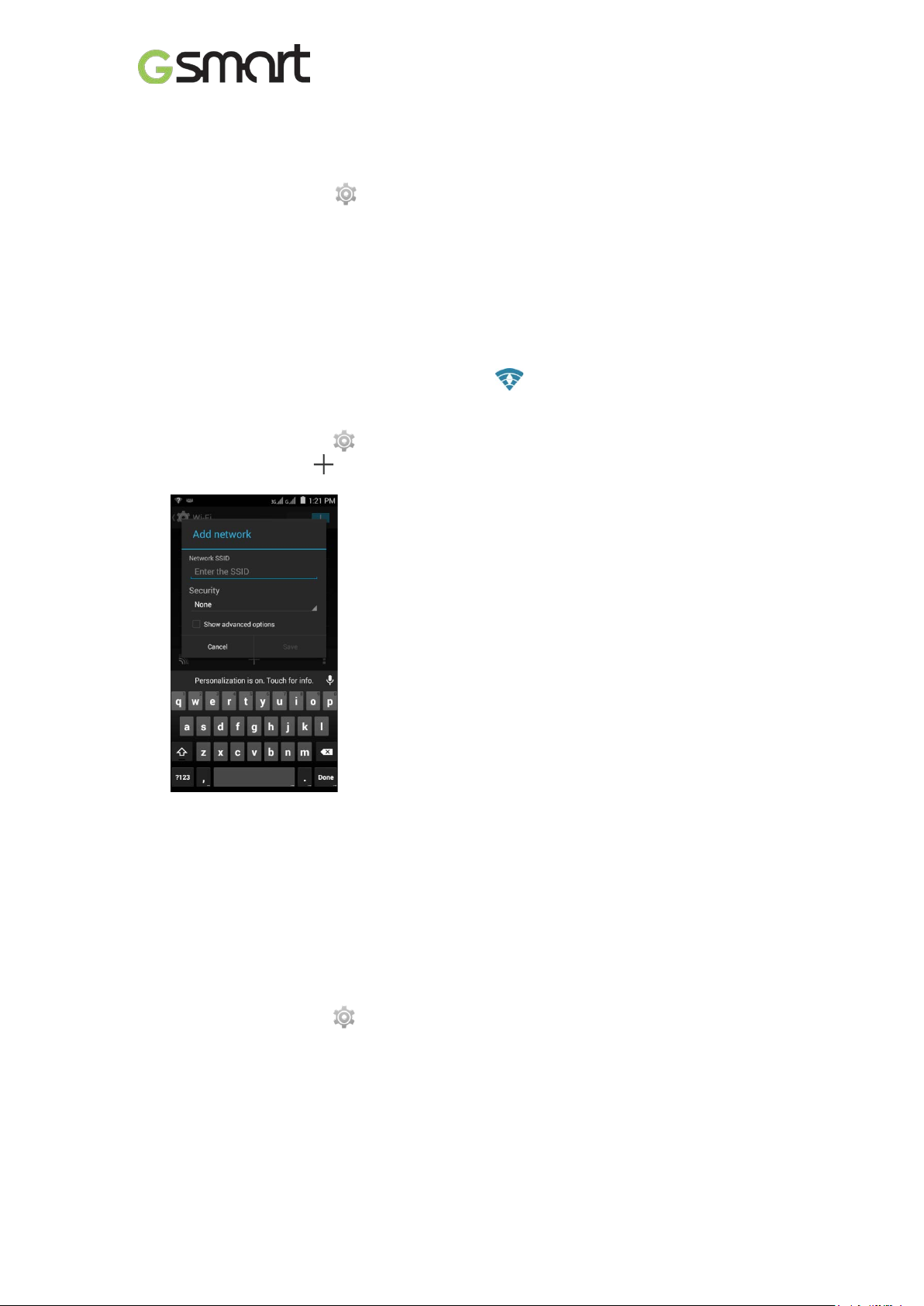
To add Wi-Fi network
(1) Tap Applications tab > > Wi-Fi.
(2) In Wi-Fi screen, tap . An on-screen window will pop-up.
(3) Follow the on-screen instructions and enter the necessary information, then tap “Save” to
save the settings.
3.2 Bluetooth
Bluetooth on your phone operates in thr ee dif f erent modes:
On: Bluetooth is turned on. Your phone detects other Bluetooth devices , but your phone is
not visible to others.
Discoverable: Bluetooth is turned on, and your phone is visible to other Bluetooth devices.
Off: Bluetooth is turned off.
To turn Bluetooth on or off
(1) Tap Applications tab > > Bluetooth.
(2) Switch or tap to turn it on.
(3) Tap “Bluetooth” to view the menu options.
(4) Tap the device’s name to make your device visible to others.
To connect to Bluetooth devices
A connection to a Bluetooth device is called a partnership. You need to pair and create a
partnership with a Bluetooth device to exchange inform ation.
Mika MX|12
Page 14
Icon
Function
Icon
Function
photo.
flash mode.
camera.
last image.
(1) Tap Applications tab > > Bluetooth.
(2) Tap “SEARCH FOR DEVICES” to search for a new device.
(3) Detected Bluetooth devices are displayed on the screen. Tap one device to connect.
(4) Start to pair, enter the password, and then tap “OK” to finish pairing.
4. Multimedia Applications
4.1 Camera
Your phone is equipped with an 5MP camera to take photos and videos.
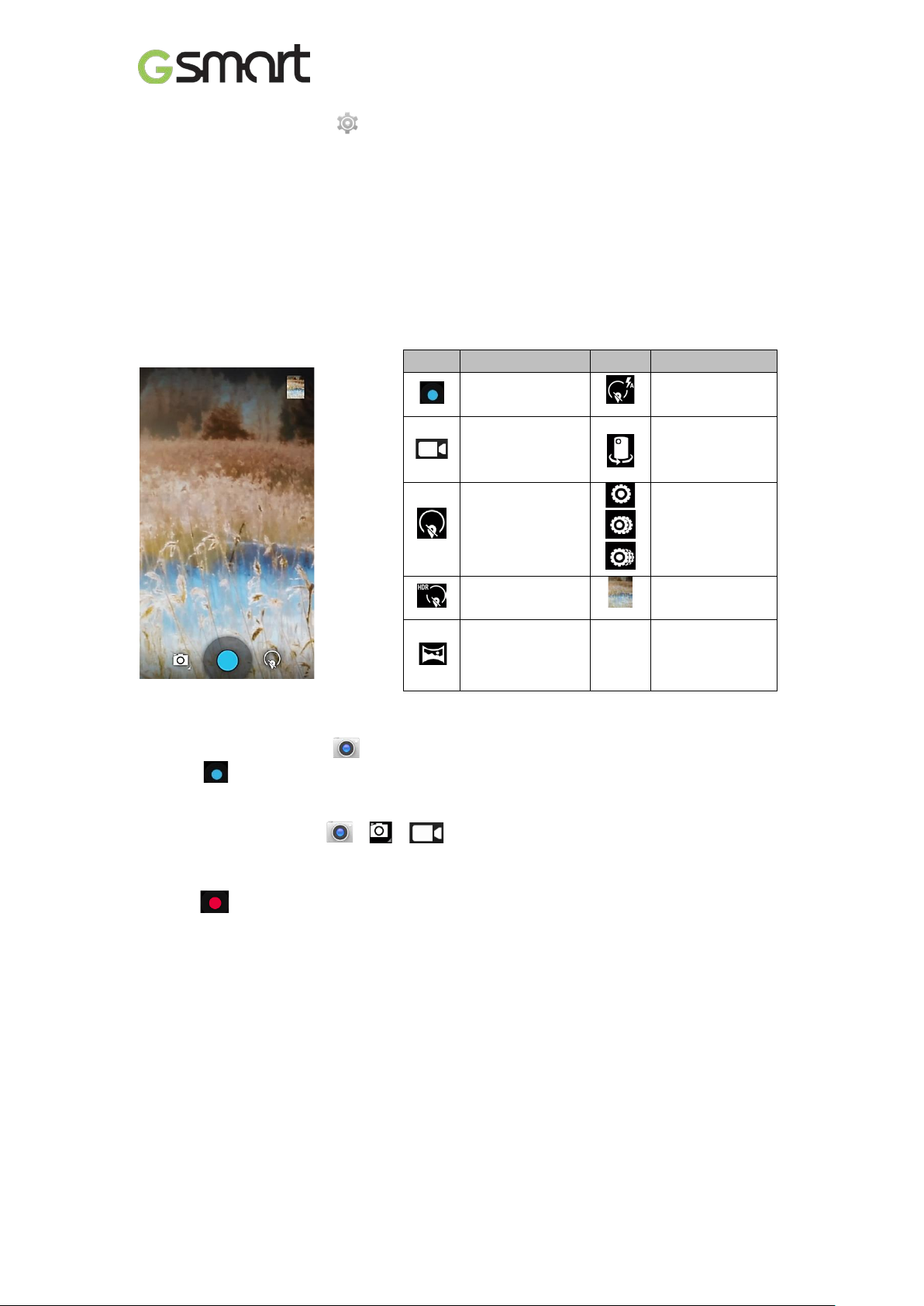
Camera Function
Tap to take a
Tap to record a
video.
Display the
Switch between
rear and front
Configure
Normal mode.
HDR mode.
Panorama
mode.
camera
settings.
Displays the
Taking a photo
(1) Tap Applications tab > . The screen switches to landscape view automatically.
(2) Tap to take a picture.
Recording a video
(1) Tap Applications tab > > > 。
(2) Switch to recorder mode.
(3) Aim the phone at the subject.
(4) Tap to start to record, tap again to stop recording.
4.2 Music
You have to copy your audio files to the storage card before playing music, because the music
player only plays audio files saved in the storage card of your phone. Tap Applications tab >
Music.
Mika MX|13
Page 15
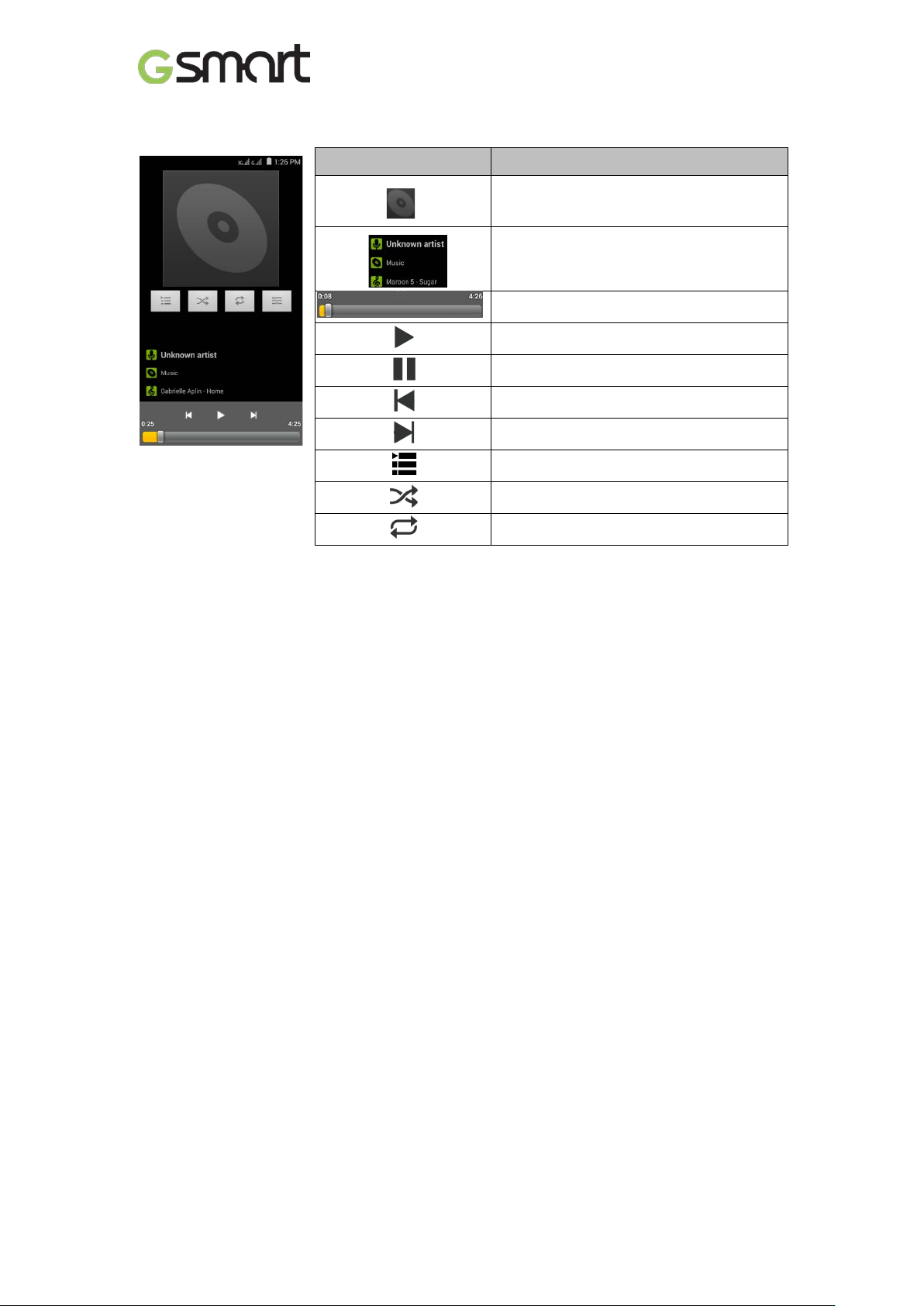
Playback screen: Displays the playback area with the playback controls.
Icon Function
Album art picture or animation
The area of audio information
Slide to go forward or backward
To play the song
To pause the song
Previous song
Next song
Tap to go to playlists
To start or close shuffle function
To repeat the current song/ all songs
Mika MX|14
Page 16
Recommended the best
functionality.
Browses the web
from Internet.
Performs arithmetic
division, etc.
Google’s browser
service.
Stores names,
mail, and
other information.
clearing cache,
uninstalling apps.
streaming service that to
view, search, and upload
File Manager
Listen to music/news
based
Shortcuts to your
and Ads.
places you want.
store
your phone.
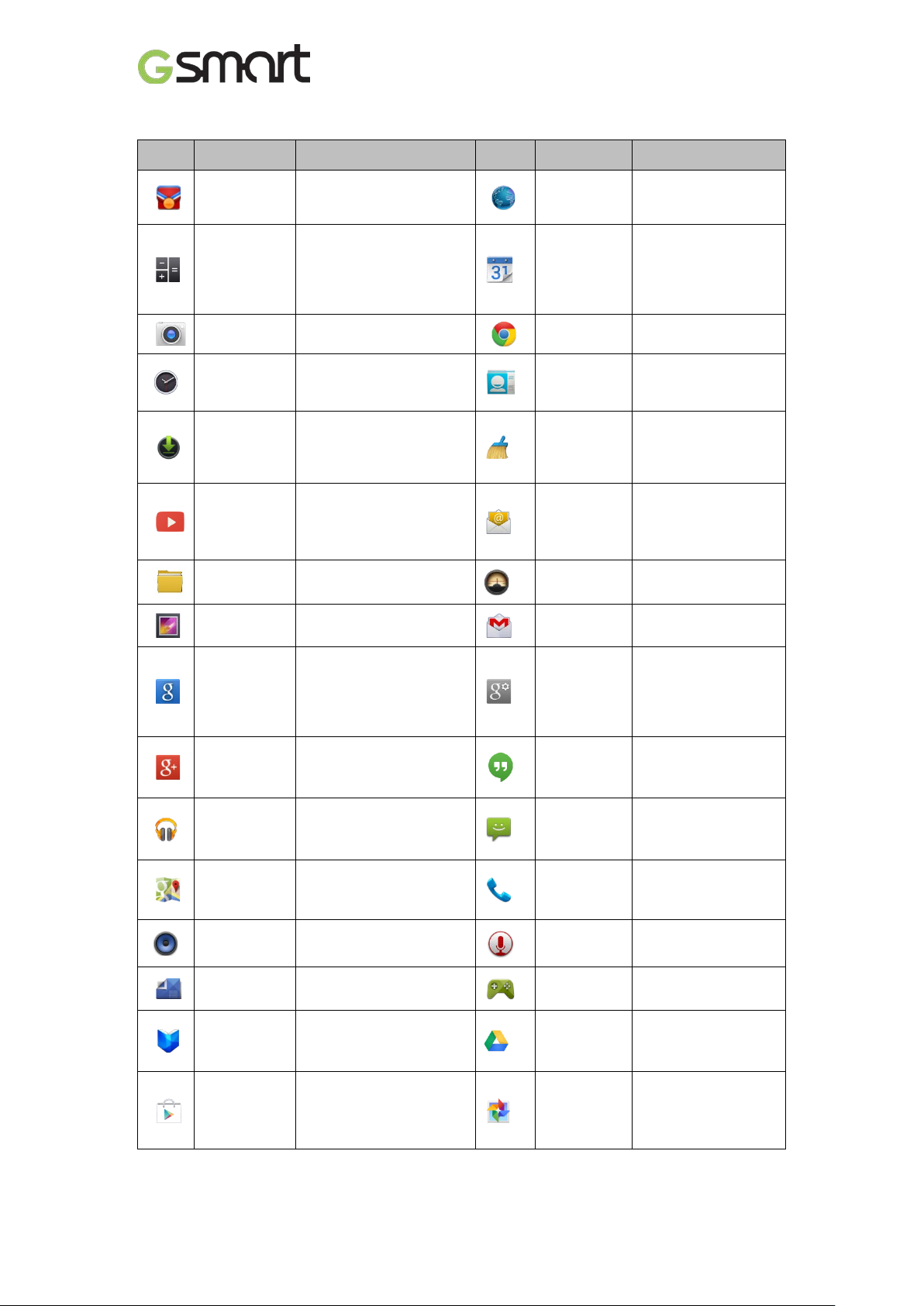
5. Pre-Installed Programs Introduction
Icons Programs Description Icons Programs Description
Best
Choice
Calculator
Camera
Clock
Downloads
YouTube
Gallery
software and
functions, such as
addition, subtraction,
multiplication, and
Captures still images.
Sets up alarm clock.
To view files and items
you've downloaded.
It is online video
videos.
Manages all files.
Views and edits photos
and videos.
Browser
Calendar
Chrome
Contacts
Clean
Master
Email
FM Radio
Gmail
and download files
Creates and tracks
schedule or
appointments.
numbers, e-
residual files,
privacy data and
Sends and receives
e-mail messages.
on the FM Radio.
Google’s web-
e-mail service.
Google
Search
Google+
Play Music
Maps
Music
Play
Newsstand
Play Books
Play Store
Google’s search
service.
Checks friends’
updates and post
updates of your own.
Listening to your music
collection anywhere.
Google’s mapping
service for searching
Plays and manages the
music and audio files.
Google’s news
services.
Google e-book Store .
To find applications
which you can
download and install on
Google
Settings
Hangouts
Messaging
Phone
Sound
Recorder
Play
Games
Drive
Photos
Google+ settings,
Maps & Latitude,
Location, Search,
Google’s instant
messaging program.
Sends and receives
all types of
messages.
Makes and receives
phone calls.
Records a voice
note.
Google game center.
Google drive to
files with Google
Docs.
Google service to
edit and back up
pictures.
Mika MX|15
Page 17
Play Movies
Writing down and
the phone.
Input
Quickly to search your
speaking.
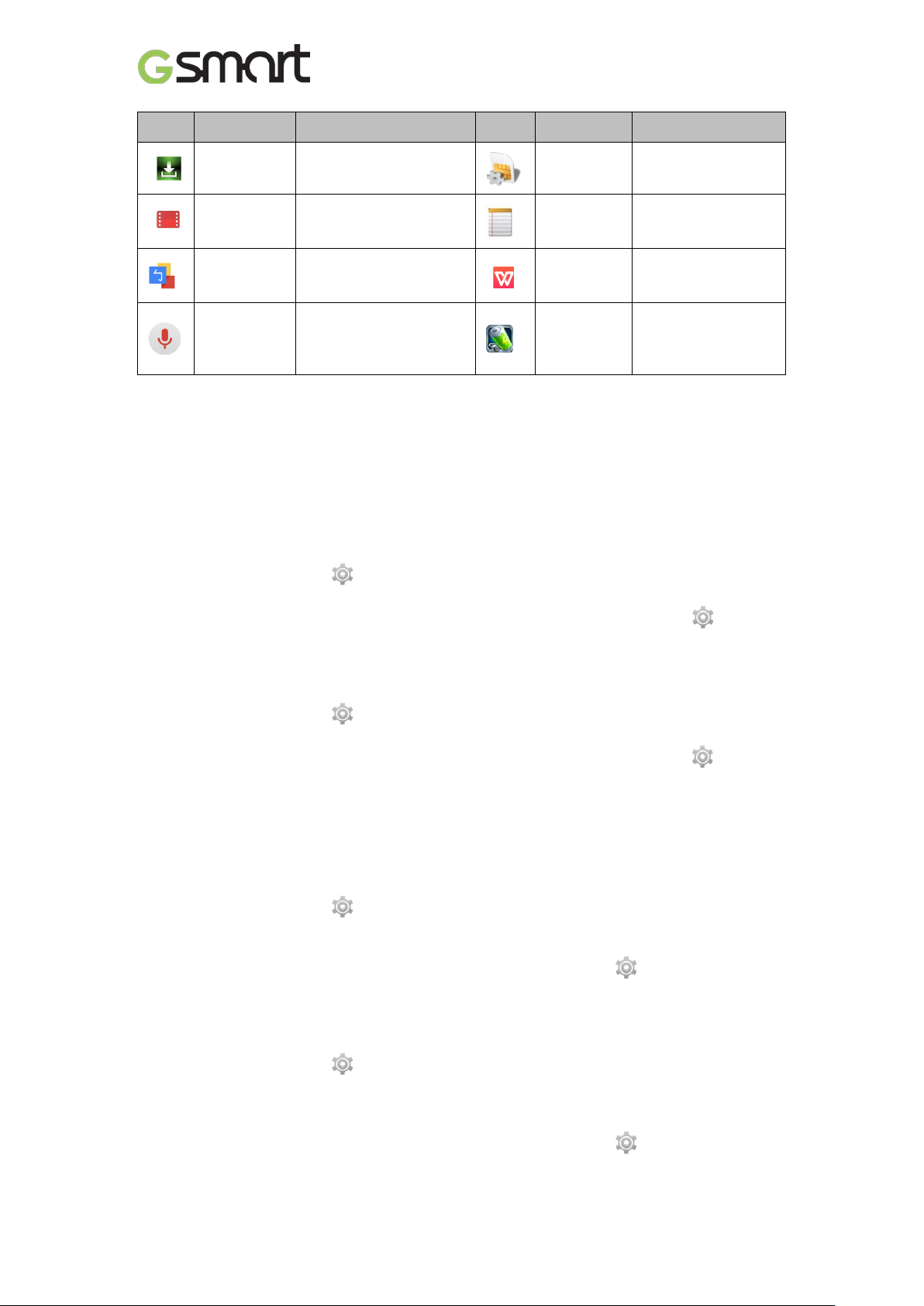
Icons Programs Description Icons Programs Description
System
update
& TV
Google
Zhuyin
Voice
Search
Checking the system
update information.
Playing videos.
Google Zhuyin
keyboard service.
phone, the web, and
nearby locations by
SIM Toolkit
Notes
WPS Office
Battery
Doctor
It enables the SIM
to initiate actions.
save the words on
Office Software.
To save juice and
extend battery life
significantly.
6. Managing Your Phone
6.1 Protecting Your Phone
You can protect your phone from unauthorized users in a few different ways.
Set up PIN Protection
(1) Tap Applications tab > > Security > Screen lock > PIN.
(2) Enter your PIN, and then, tap “Continue”. Confirm your password, then, tap “OK”.
(3) If you want to disable screen lock security, please tap Application Drawer > > APPS
tab > Security > Screen lock. Confirm your PIN, and then, tap “Continue”. Tap “None” to
disable it.
Set up Password Protection
(1) Tap Applications tab > > Security > Screen lock > Password.
(2) Enter your password, and then, tap “Continue”. Confirm your password, then, tap “OK”.
(3) If you want to disable screen lock security, please tap Application Drawer > >APPS
tab > Security > Screen lock. Confirm your password, and then, tap “Continue”. Tap “None”
to disable it.
Set up Unlock Pattern
You can further secure your data by locking the screen and requiring a screen unlock pattern
every time after your phone is turned on or it wakes up from the sleep mode every time (screen
is off ).
(1) Tap Applications tab > > Security > Screen lock > Pattern.
(2) Draw the unlock pattern by connecting at least four dots. Then tap “Continue”.
(3) Draw the unlock pattern again, and then, tap “Confirm”.
(4) If you want to disable the function, please tap Applications tab > > Security > Screen
lock. Confirm the saved pattern, and then, tap “None” to disable it.
Set up Face Unlock
You can use front-facing shot to verify your identity to unlock your phone.
(1) Tap Applications tab > > Security > Screen lock > Face Unlock.
(2) Tap Set it up > Continue.
(3) Show your face in front of your phone until face captured. Then tap continue.
(4) Set up Pattern or PIN as the backup lock.
(5) If you want to disable the function, please tap Applications tab > > Security > Screen
lock. Confirm the saved pattern, and then, tap “None” to disable it.
Mika MX|16
Page 18

Set up Voice Unlock
You can use voice command to unlock your phone.
(1) Tap Applications tab > > Security > Screen lock > Voice Unlock.
(2) Tap unlock command.
(3) Speak a command with 2-8 syllables, then repeat 3-6 times.
(4) Tap Record button and speak out your voice command.
(5) Set up Pattern as the backup lock.
(6) If you want to disable the function, please tap Applications tab > > Security > voi c e
unlock. Confirm the saved pattern, and then, tap “None” to disable it.
Enable the PIN of the SIM card
When the PIN is enabled, you are required to enter the PIN before using the phone.
(1) Tap Applications tab > > Securit y > Set up SIM card lock.
(2) Tap “SIM1” or “SIM2”. (If SIM2 inserted).
(3) Check “Lock SIM card”. Input the PIN, and then, tap “OK”.
6.2 Backup or Reset Your Phone
With Clean Boot, you can reset your phone to its factory defaults. When you reset your phone,
the data stored in your phone may be erased.
(1) Tap Applications tab > > Backup & reset.
(2) Tap Factory data reset > Res et phone > Erase everything to reset the phone.
NOTE:
Before resetting your device, please remember to back up all your data and informa tion.
Mika MX|17
Page 19
System Information
Processor
1.2GHz Quad Core
Memory
ROM 8GB/ RAM 1GB
Resolutions
qHD 960x540 pixels
Size
Power
FDD-LTE
900/1800/2600MHz (Bands 3, 7, 8)
USB
Micro USB
Digital Camera
Memory Card
microSD supports up to 32GB
Temperature
SIM Card Slot
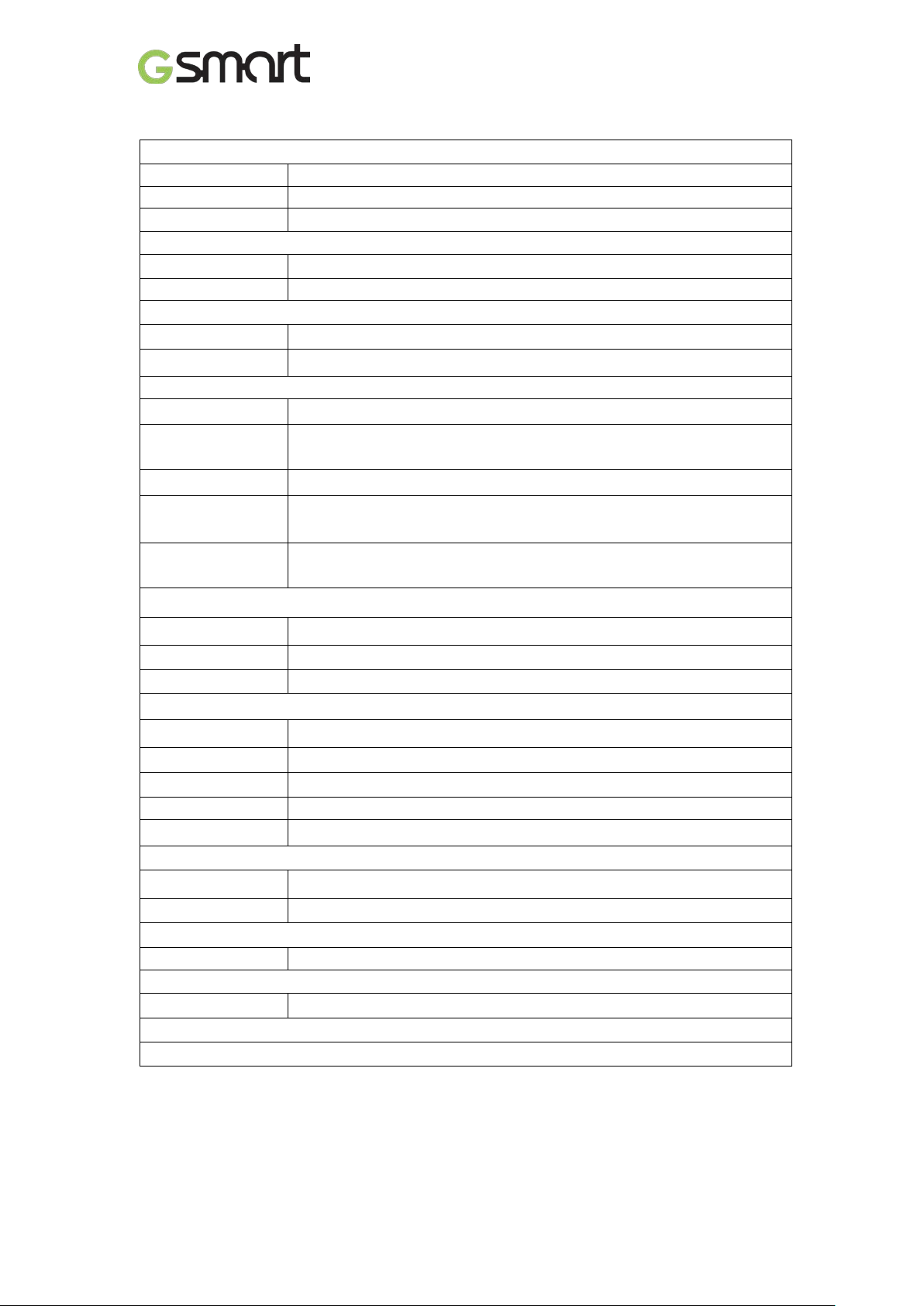
7. Specifications
Platform Android 4.4
Display
Size 5”
Dimensions 143x72x9.8 mm (L x W x H)
Weight 165 grams with battery
Battery Li-ion battery 3000 mAh
Power Adapter AC
input
DC output 5V, 1A
100-240V, 50/60Hz,
0.5A max.
Standby time
Talk time
Radio Band & Standard
GSM/GPRS/EDGE 850/ 900/ 1800/1900 MHz
WCDMA/HSDPA 900/ 2100 MHz
Connectivity
GPS
Wi-Fi IEEE 802.11 b/g/n
Bluetooth Bluetooth 4.0
Audio Jack 3.5 mm stereo audio jack
Rear Camera 5MP Color Camera with AF and Video Recording
Front Camera 2MP
External Memory
Up to 320 hours (It may vary depending on the availability of local
networks and the individual usage.)
Up to 20 hours (It may vary depending on the availability of local
networks and the individual usage.)
GPS, AGPS, GLONASS
Operating 0°C to 40°C
Dual SIM card slot. ( micro SIM x 2 )
NOTE:
1. Specifications are subject to change without the prior notice. They may vary in
some regions also.
2. Mobile data interruption, unexpe cted error in CPU and high power consumption
could be caused by in-app AD in Android phone. We suggest you try to remove
Mika MX|18
Page 20

those apps with AD which had been installed in your device for preventing any
abnormal situation happens and saving more p ower as well.
If this document is modified, please download the latest version on GSmart official website.
www.gigabytecm.com
Mika MX|19
 Loading...