

Page 1

Smart Toothbrush
QuickStart Guide
Page 2
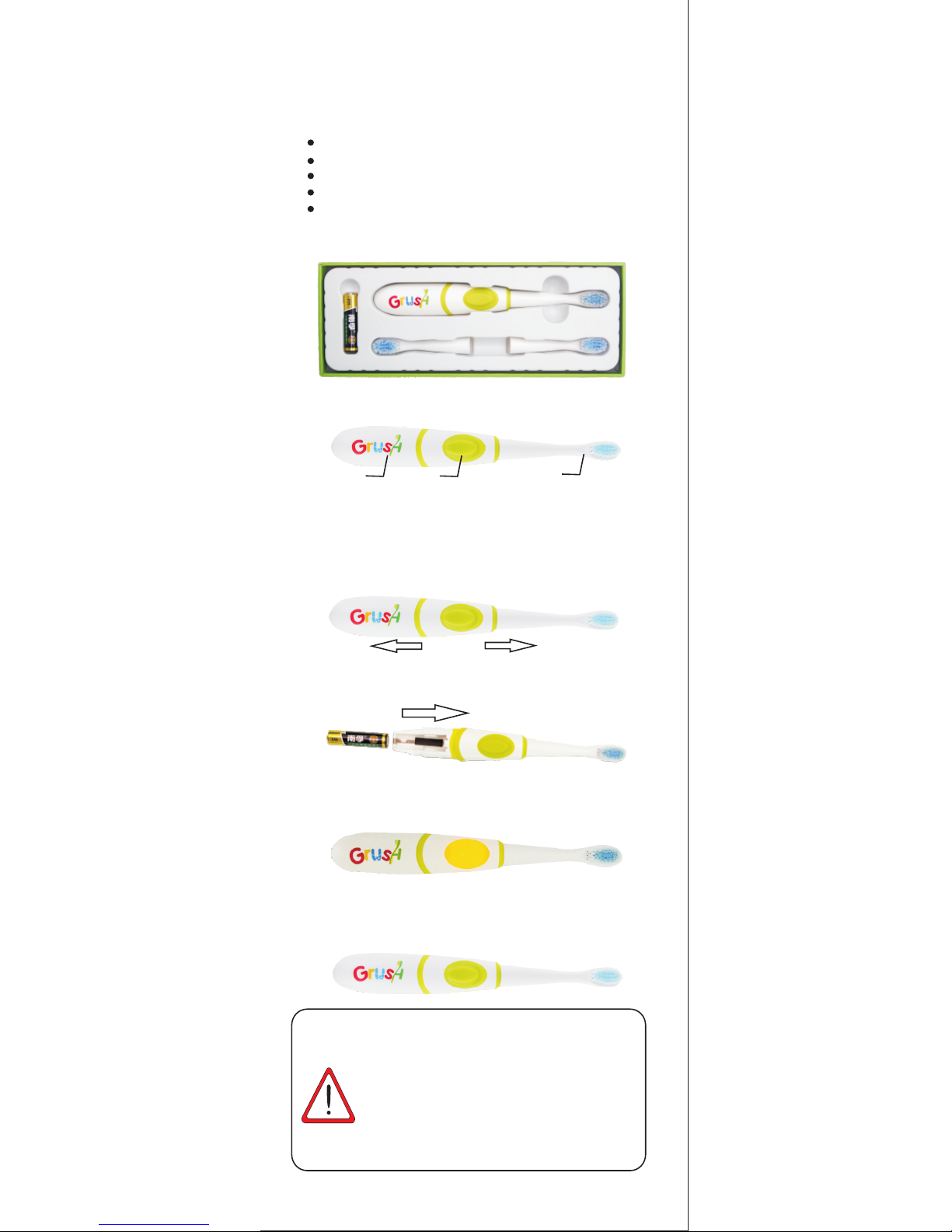
1. Package Contents
1.1 The Grush S mart Gaming Toothbrush pa ck age
includes:
1 Grush B rush
3 high quality DuPont Nylon bris tle bru sh head s
1 AAA Batte ry
Quick Start Guide
War ranty C ard
Pleas e contact the seller if any o f theab ove ite ms are
missi ng or damaged.
1.2 Grush Brush Lay out
2. Get Started in 5 Easy Steps!
1. Remove the battery cover by pulling open the Grush
as shown by the arr ows below.
2. Insert the batte ry with the positiv e end toward the
bottom of the Grush .
3. Reinstall the battery cover by pushing it back tightly.
4. Now, the motion sensors will turn on automatically.
The yellow LED behi nd the button light s up .
5. Put the Grush on a flat surface facing up for 30 seconds
until the light turns off . Now the Grush is ready to use!
Do this every time when you replace the battery.
1
The START Position
The Grush recognizes its orientation and will
not star t unless I t is in the S TART position. T he
Start position is when the brush is held horizontally
with the bristles across the front face of two upper
fro nt teeth with the handle facing ri ght.Every
time you use Grush, make sure to start in the START
position.
Battery cover
Home button
Brush head
ATTENT ION
Page 3
2
3. Install the Game
Now that your Grush is ready, your kids can't wait to use
it!You can have your kids enjoy Grush even before doing
the full registration. Here a re s ome simple steps to g et
th em Gr ushin g! No te : you will not ha ve a ccess to the
Parental Dashboard or tracking until you complete your
registration.
3.1 Use an Android 4.3 or ab ove smartphone or tab let
or your iPhone 4s and above, iPad Air/Mini and above
device.
3.2 Navigate to the iOS AppStore or Google Play™ and
download “Grush Parental Dashboard” which is your
tracking and rewards app, and “Grush Toothy Castles”
w hich is the bundled G ru sh Game.
4. Three Steps to Quick Play
1. Open “Toothy Castl es” and select “Qui ck Play”
2. Place the brush ho rizontally with t he h andle facing
right and the bristles over the two front teeth (The START
position) and push the b utton . The mo tor w ill sta rt
an d you are ready to G rush!
3. Play the game. Use the Grush to brush away the bad
guys that show up on the different faces of the teeth.
Attack the monsters with short brush strokes that are
mostly up and down s trokes and sometimes sid e to
side s troke s. When th e le vel c omple tes, pus h th e
button to turn off the motor. Put the brush down. The
LED will turn off on its own and Grush will go to sleep after
30 seconds.
With Gr ush, yo ur kids are improving the ir
brush ing habits for life. Th e prope r usage of
the Grush gaming toothbrush will lead to improved
dental hygiene for yourchild. Now that you have
gone through the Quic k Play,i t' s ti me to s et up
th e Pa rental Dashboard s o you c an reward
your kids for proper brushing! The more your kids
brush , the more you will see posit ive res ults
refle cted in the Parental Dash board .
5. Setting up the Parental Dashboard
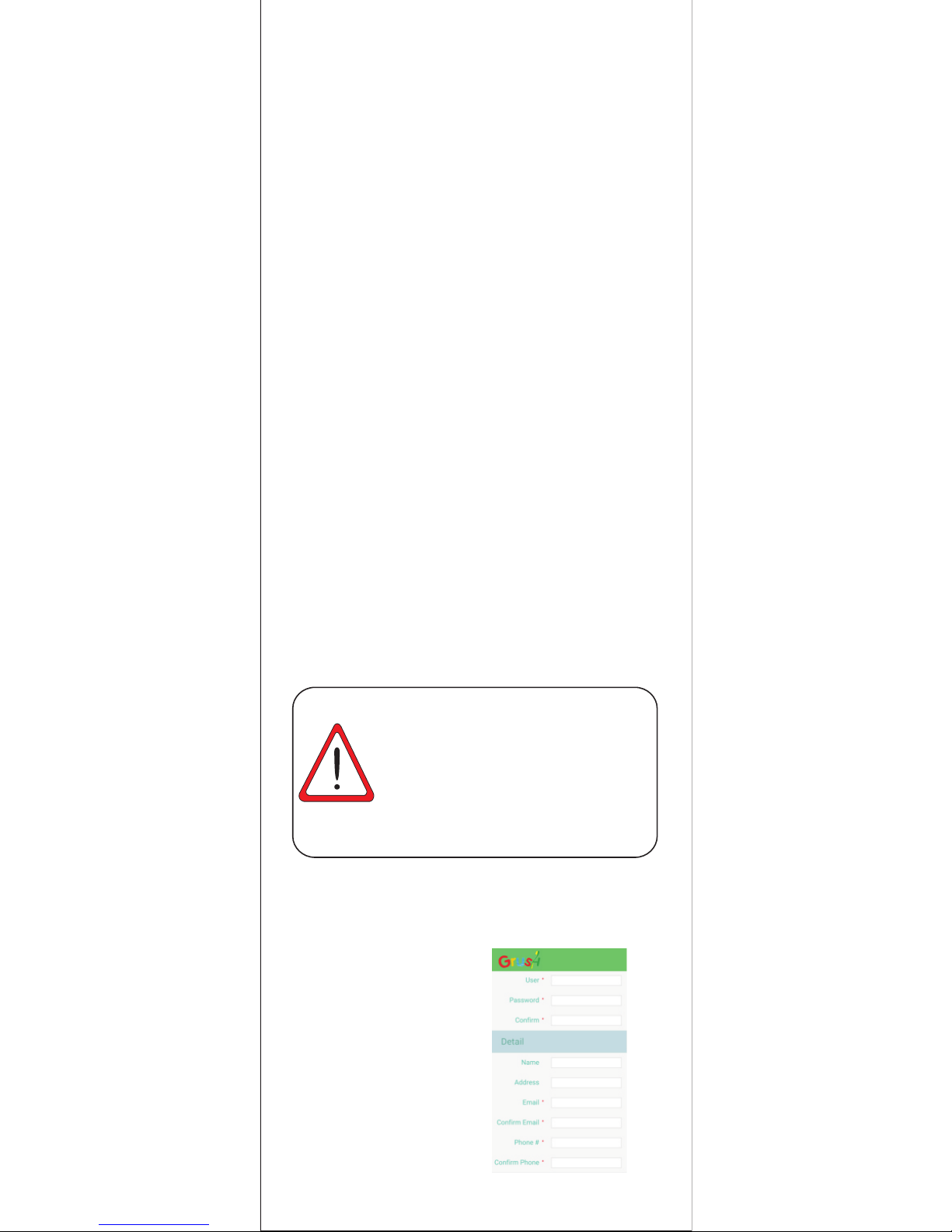
5.1 Open the Grush Parental
Dashboard application,
and click on the Registration
link. This will take you to the
registration page. Fill it out
completely, the fields marked
with an * symbol are
mandatory.
ATTE NTION
Page 4
3
Please note that the Link Code is unique to
every childand is used to register that child for
brush tracking within Grush games. Refer back to
this page in the Parental Dashboard to retrieve the
Link Code when necessary.
5.2 Try t o f ill out th e pa ren ts a n d
dentist information as completely
as possible, the more complete
information,the better services
provided to you and your children.
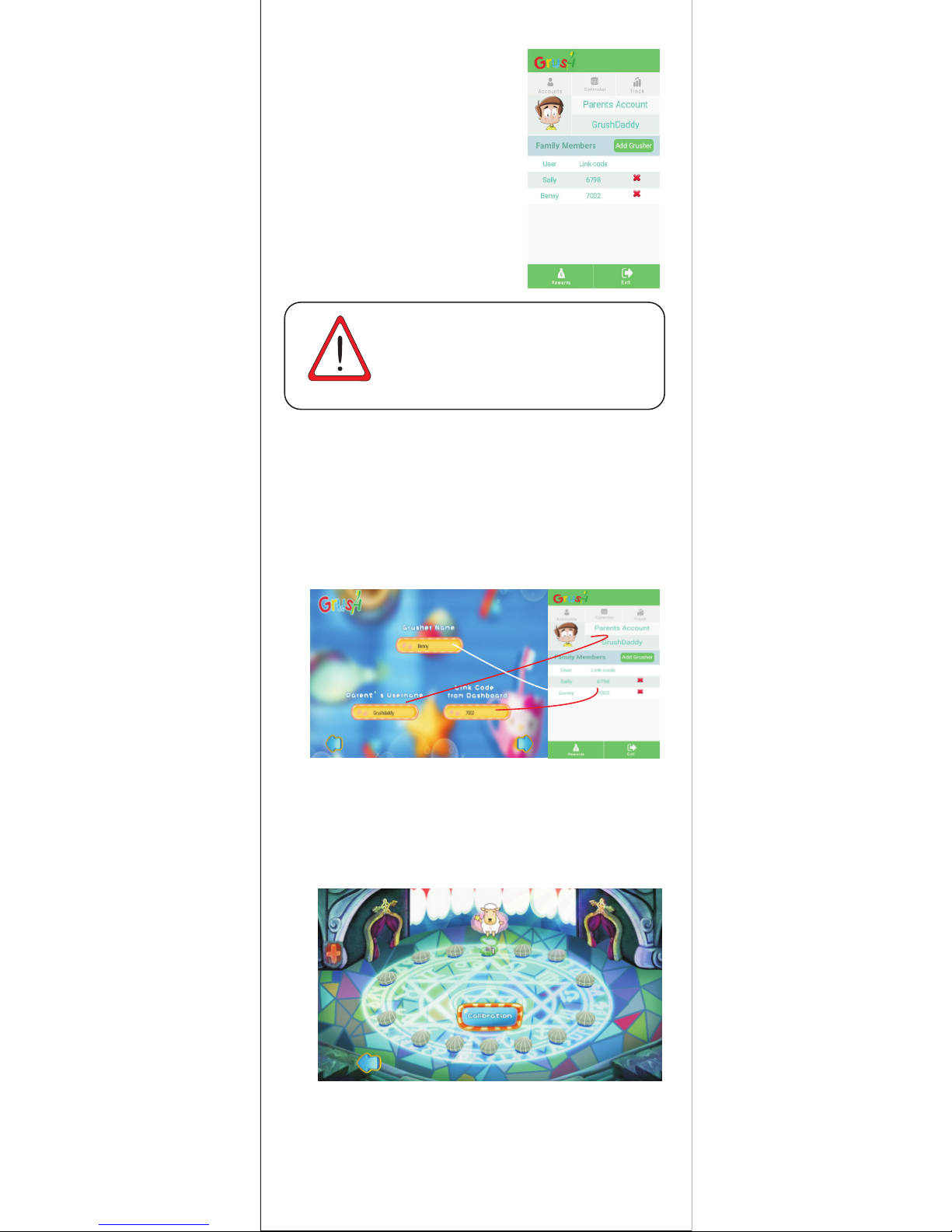
5.3 Once you register and log into the
Parental Dashboard,navigate to
the “Accounts” section. From there
you can sel e ct “ Ad d Gru sher”
5.4 Enter your child’s name and then
tap the button that says “Generate”.
You will now see your child’s name
next to a Link Code.
6. Toothy Castles Registration
Open th e game “Gr ush Too thy Cas tle s” and sel ect “Pl ay”
and then select “New Grusher” You will be prompted to register
your child into the game. Input your child’s name, or nickname,
the n your us ernam e for the G rush Parent al Das hboard, and
the Link Code for the child that you generated in step 3.4.
6.1 Create Player Profile
6.2.1 W hen you choose to Start a New Adventure, you will be taken
to the level select screen. From here, you can select “Calibration”
to perform a software calibration. This will take a virtual “map”
of your mouth by measuring the curvature from the START position
between the two front teeth, to the left-most molar in your mouth.
6.2 Create Player P ro file
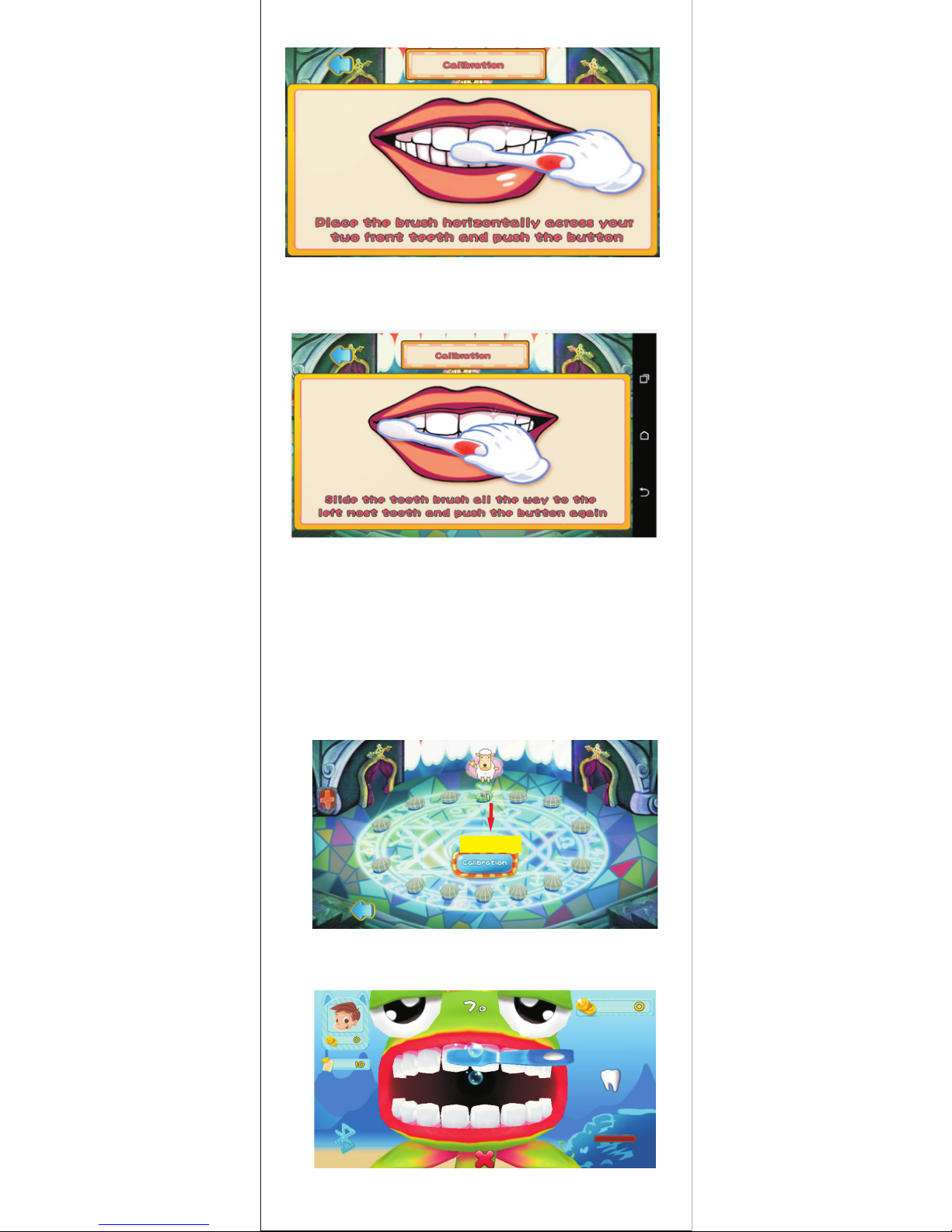
6.2.2 H old the brush in the START posi tion. This i s with th e brush
handle facing right, and the br ush hea d horiz ontal ly plac ed
across the two top front teeth. Push the button, and the motor
will start. This means the START position was detected properly.
Push t he button again in this pos ition t o turn off the m otor.
ATTEN TION
Page 5
4
6.2.3 F ollow the voice prompts and slide the brush head all the way
over to the most left molar and push the button again. The motor
should go on ag ain.
The Game cycle lasts 3 month s (12 we eks) after this time it is
recommended that you replace your brush head, and the battery
in the Grush. We recommend we ekly rewards an d one bigger
rew ard at the end of the brushi ng cycle.
7.1 You will see a level select screen with 14 green shells
corresponding to two brushing sessions per day for the first
week of brushing Click on the highlighted and open shell
to start.
.
Open Shell
7.2 Place the brush in the “START” position with the handle
facingright and the brush head placed horizontally across
the middle of the top front teeth.
7. Game Guide
Page 6
5
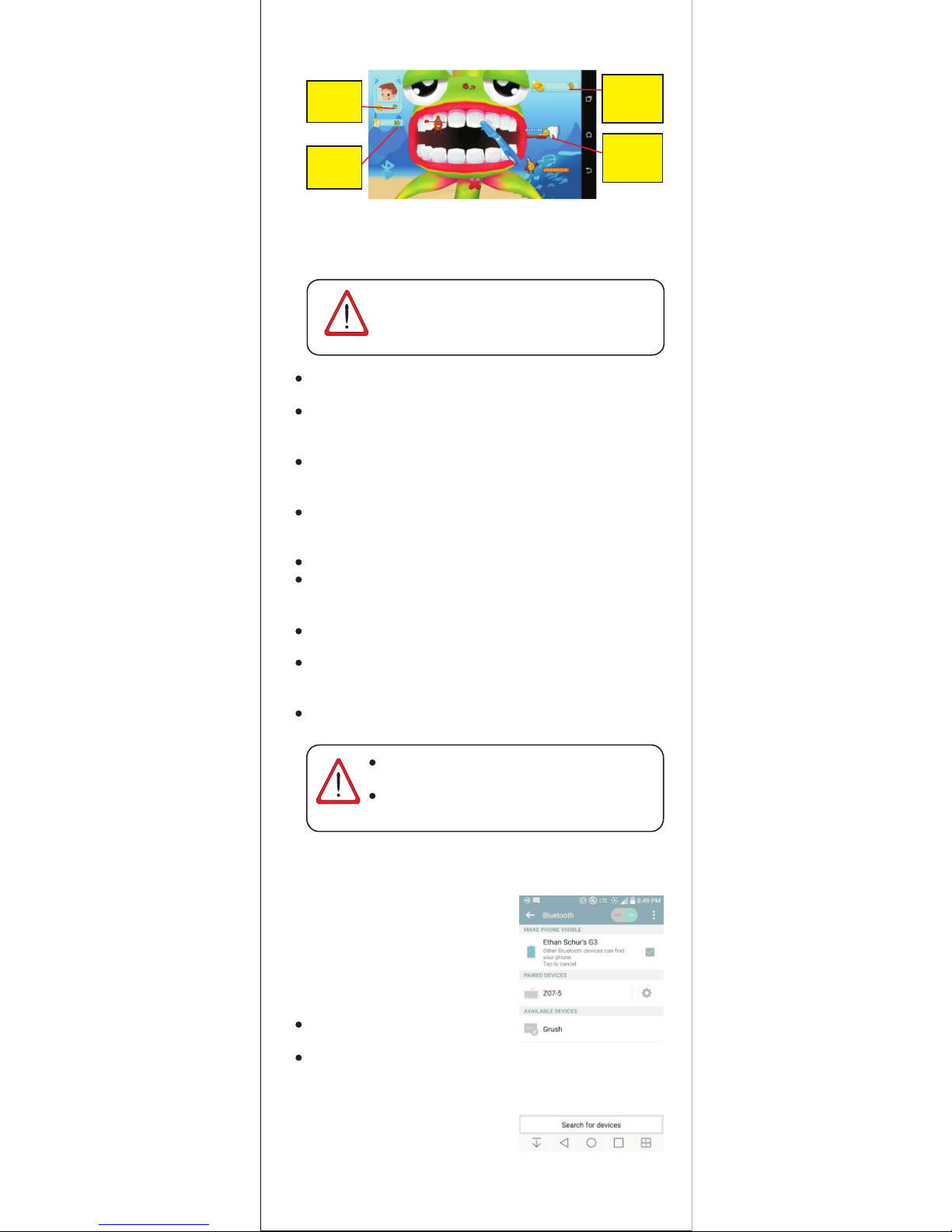
7.3 Here is the game interface layout:
Total
Score
Current
Game
Score
Part of
the tooth
to brush
Previous
Score
9. Important Notes
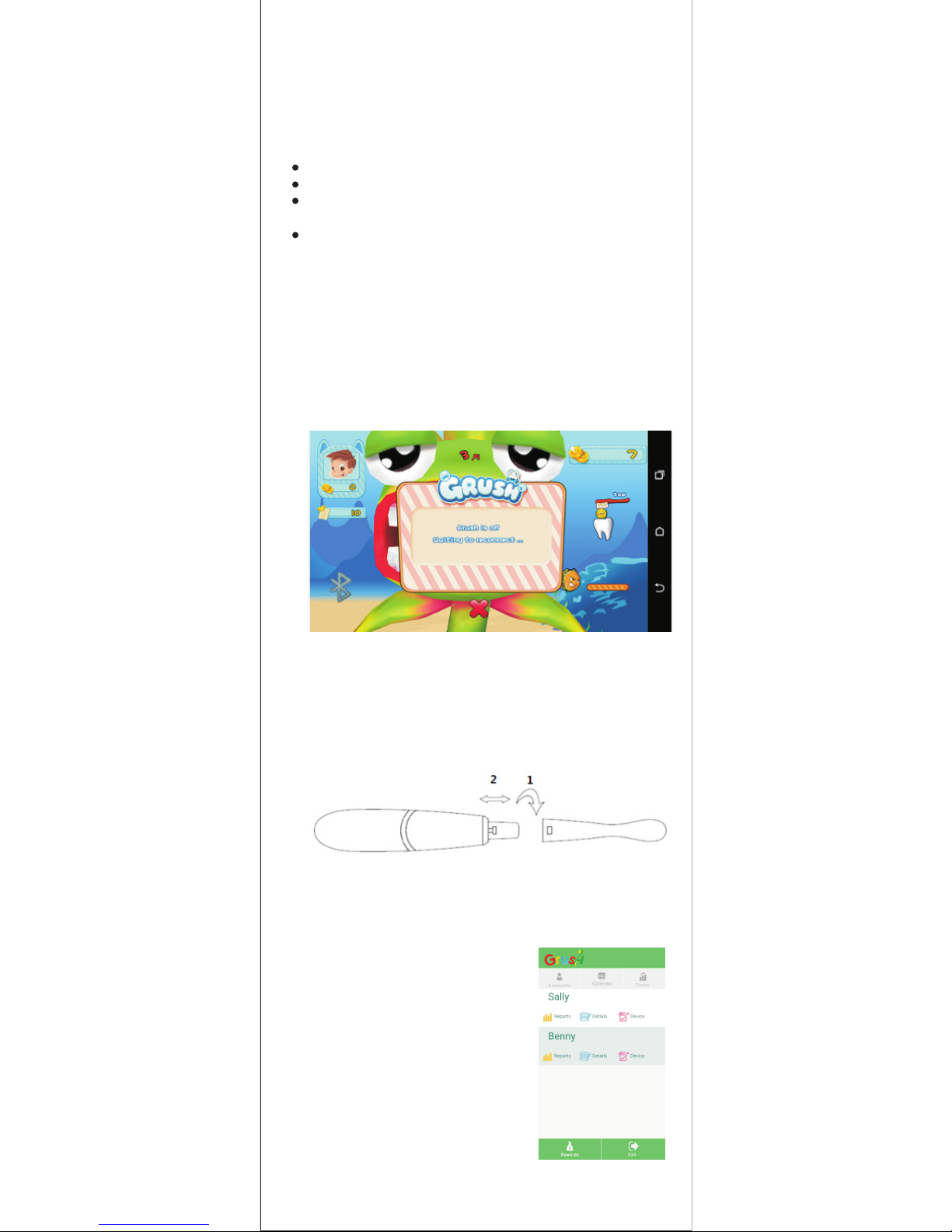
9.1 Bluetooth Pairing Grush uses
the latest version of Bluetooth
(BluetoothLow-Energy /Smart
/ 4.0) To pair Grush with your
mobile device, please do the
following:
Ensure that Blue tooth i s enabl ed
on your mobile dev ice.
Power on the Grush and go to your
Bluetooth settings. Select “Search
for nearby Bluetooth devices” and
select “Grush” when it appears in
the ava ilable dev ice lis tin g. You
should see the device status changed
8. Recommendations from
Pediatric Dentists
Grush brush is a Smart Toothbrush, it’s not just a
game! Follow these recommendations from our
team of dental experts for best results.
Brush 2 times a day, once in the morning and once before bed,
2 minut es per brushing session .
While brushing, hold the brush level against the teeth for good
contact, follow the contours of the teeth in the mouth by sliding
the bru sh across the teeth.
Don’t walk / move around or t wi st your n ec k wh il e using t he
Grush, stay in the same position facing the mobile screen that
you sta rted in.
Grush b rush uses a sonic frequen cy, th is vibr ation g reatl y
enhances the effici ency of r emovi ng plaq ue and de bris fr om
your te eth.
Super vise children’s bru shing u nder 4 ye ars of ag e.
Twist yo ur wrist a bit while you brus h, not on ly to mak e short
right and left strokes but up and down as well while yo u brus h.
Grush c an detect all of these move ments .
Try o ut our ga me “Toothy C astle s” to sta rt, mor e games are
comin g soon!
Food mo nsters will appear over t he teeth and you must brush
them aw ay! By f ol lo wi ng the ga me , yo u will be a ble to br ush
every q uadrant of the mouth.
Br us h over the mo ns te r repeatedly un ti l he di sa pp ea rs and
then mo ve onto the next baddie!
Don’t move the mobile device or your head while
brush ing
Put the Brush down 30 seconds every
tim e unti l the light is off
ATTENTI ON
ATTENTI ON
Page 7
6
to “Paired” (Ple ase not e that so metim es it loo ks like t he Grus h
is still paired from a previous session and you may need to manually
unp air and repair it)
9.2 If for any reason the above steps does not result in the ability
to use the Grush with the Grush game please try the following
steps:
Tur n off Bluetooth on your m obile d evice a nd then r e-ena ble it
Restart your mob ile dev ice
For some phones li ke Huaw ei, it helps to stop the WiFi, pair the
Grush, then restart WiF i
Find a location w it ho ut another Bl ue to ot h or Wi Fi s ig nal, star
th e game. After the fi rst tim e pa ir in g, the phone wi ll
re membe r t he Gru sh and yo u can u se the Gr us h in a no rm al
environment wi th othe r signa ls.
9.3 Bluetooth Reconnection in the Game
Grush uses advanced Bluetooth Low-Energ y Techno logy, whi ch
enables the brus h to go int o a sleep m ode aft er 20 sec onds or
so. You will notice when the brush is as leep when the LED is not
li t. You can gi ve th e G ru sh a li tt le sh a ke t o w a ke it up. If th e
Bluetooth is d is co nnect ed then t he foll owing p ictur e will sh ow
up. Push the button sever al time s to re-c onnec t the Blu etoot h.
9.4 Replacing the brush head
Grush c omes with th ree rep lacement b rush he ads. Denti st
sugge st you shoul d replace the brush head every three months
(12 wee ks). Hold the brush head in one hand and the brush body
in the other and twist the brush head counter- clockwi se and pu ll
to remov e t he br us h h ead . Now replac e the bru sh head with a
new one i n the same way.
10.Grush Parental Dashboard
10.1 How to track your children’s
brushing
Launch the Grush Parental Dashboard
app on your mobile device. Select “Track”
and you will see the children’s profiles
you crea ted. This area gives you access
to brushing reports, detailed brushing
session information and Grush device
status. You can select any of these options
to view.
Page 8
7
10.1.2 Details
Th e rep or ts hi st ogram s ho ws
brush in g act iv ity f or the pa st
15 days, and the c hild’s sc or es
(Grush Factor). The blue colored
ba rs tr ac k mor ni ng brushin g,
while yellow colored ba rs t rack
eve nin g b rus hin g sc ores.
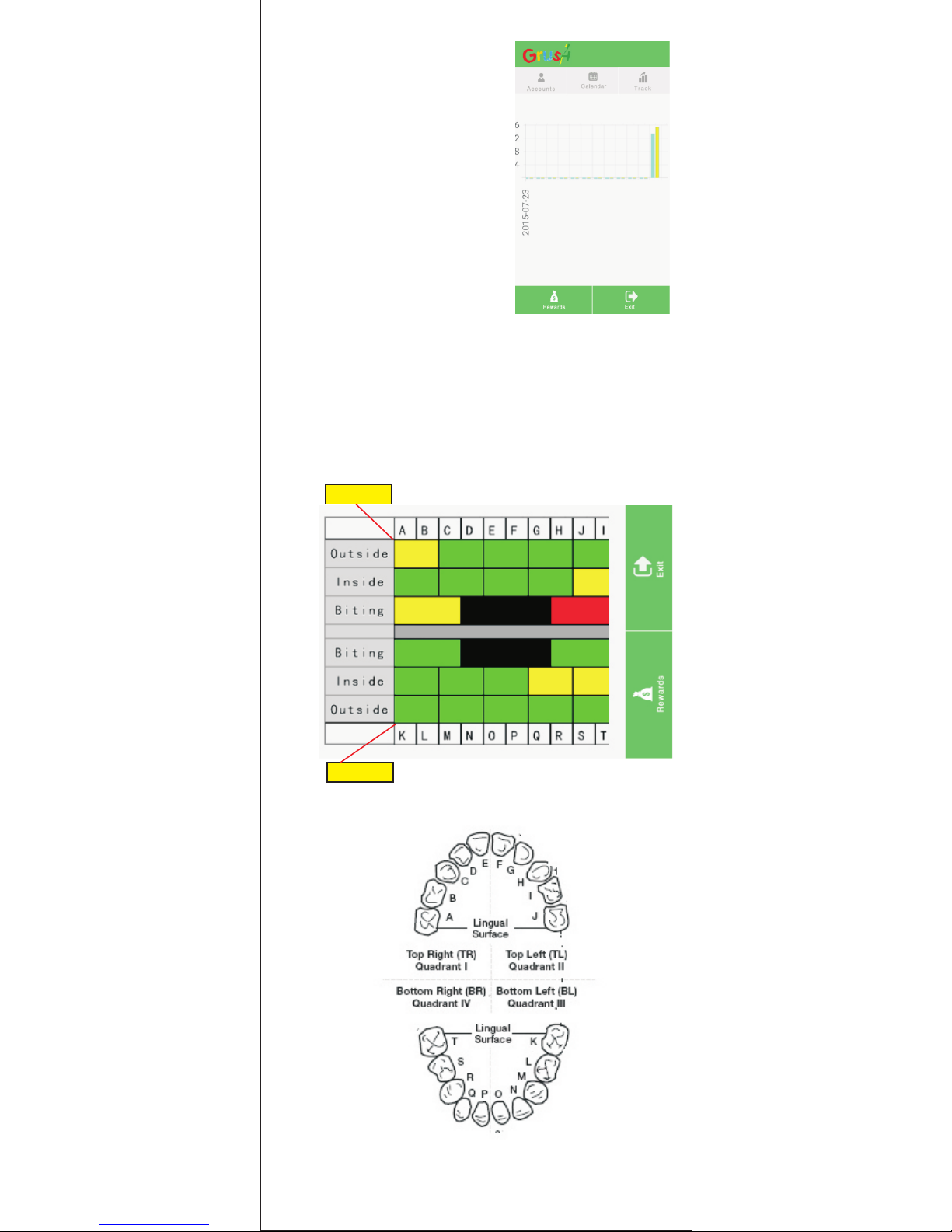
10.1.1 Reports
Th is detailed c ha rt s ho ws the
cumulative bru shing s tatis tics
from the first time users use Grush.
The chart tracks brushi ng
efficiency of every surface of every
tooth!
The best score of each surf ace of ea ch toot h is 5 poin ts. A,
B …to K are the name of each baby t eeth ac cordi ng to US
dental standard. Outside, insid e and biting surface are liste d
on different rows.The chart is col or code d. Gree n means t he
brushing efficie ncy is great than 4 and users brush this surface
very well. Yellow means the aver age bru shing e ffi ciency is 3
points and is acce ptabl e. Red me ans the a verag e brush ing
effic iency i s less th an 2 and br ushin g need to b e improved.
Upper teeth
Lower teeth
Tooth labeling chart(International Standard):
Page 9
8
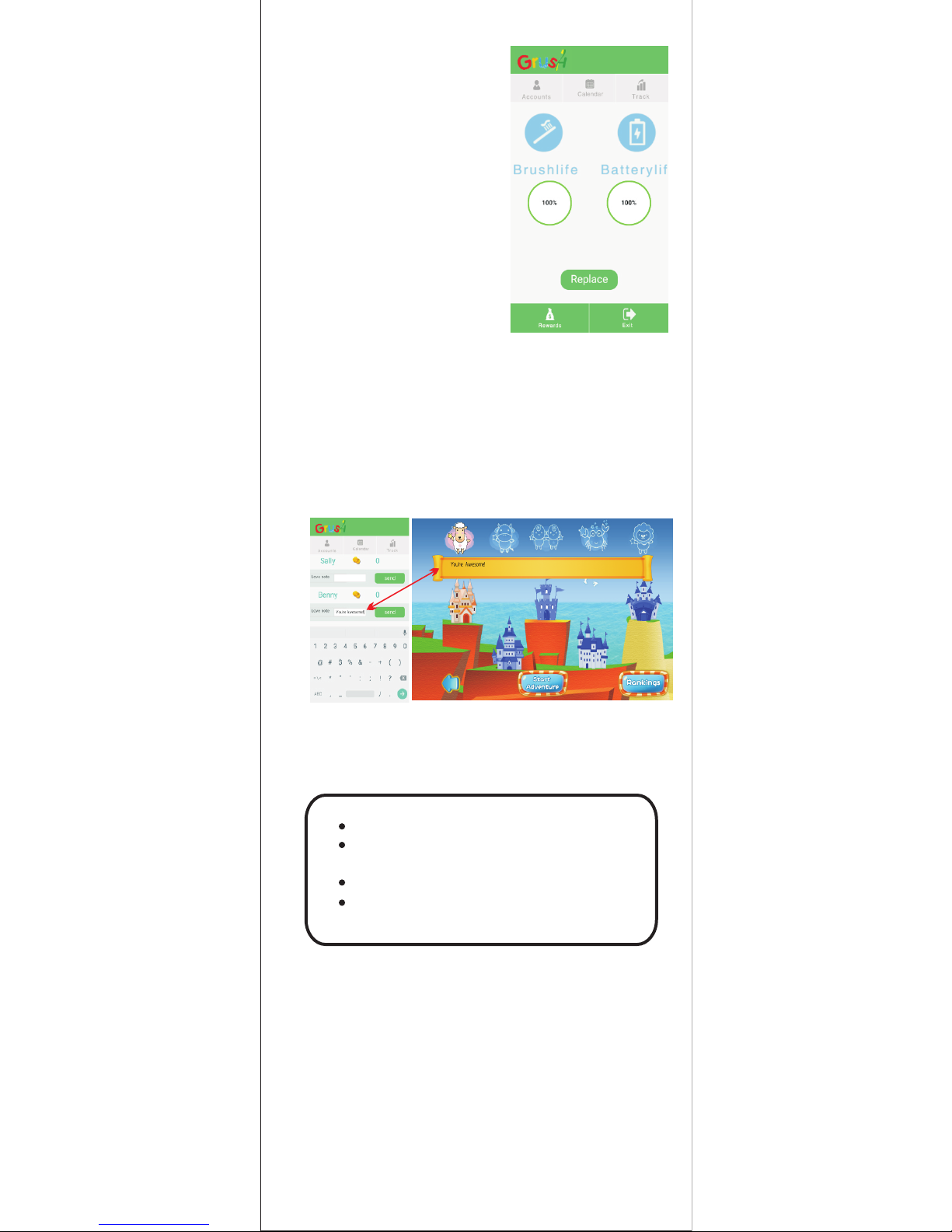
10.1.3 Device St atus
This section presents yo u wit h
information on brush head wear
and battery life. The brush head
and the ba tte ry sh oul d be both
be replaced in three month when
their life re ach the en d.
After replacing th e AAA batte ry
and brush head, pu sh the
“Replace” button to reset counters.
You will see both progress bars
refresh to 100%. They will gradually
decrease over time with increased
usa ge. It takes around 3 months
(12 weeks) to deplete the battery
and wear out the bru sh head .
10.2 Rewards / Encouragements(Below)
In th e begin ni ng w e have a system of encouragements. In the
Parental Dashboard select “Rewards” and type a message in
the “Love note” field and click send. Your c hil dre n will receive
this mes sag e of encouragement while th ey ar e playing their
game!
11.Helpful tips
Please note we will be adding the Grush Rewards system as
we roll out Grush units to the public.
Do not reverse the battery
If you don't use the battery for over three
months, please replace
Do not cause a short on the battery terminal
Recycle your battery when it runs out
This device complies with part 15 of the FCC Rules.Operation is
subject to the following two conditions:(1) this device may not
cause harmful interference, and (2) this device must accept any
interference received, including interference that may cause
undesired operation.
Any Changes or modifications not expressly approved by the
party responsible for compliance could void the user’s authority to
to operate the equipment.
This equipment complies with FCC radiation exposure limits set forth
Page 10
Contact US:
Websi te
Company Name: Grush, Inc.
Address: 2513 Van Ness Ave, San Francisco, CA 94109
Web: www.grushgamer.com
Phone Number: 1-877-204-7874
 Loading...