

Page 1

Application Note
PATA NANDrive™ Evaluation Board with
Compact Flash Connector User Guide
March 2011
PATA NANDrive™ Evaluation Board with
CompactFlash Connector
User Guide
Rev 00.001
Greenliant Systems
Proprietary and Confidential
03/18/2011
© 2011 Greenliant Systems Greenliant, the Greenliant logo and NANDrive are trademarks of Greenliant Systems
03/18/2011 Windows is a trademark of Microsoft Corporation in the United States and other countries
S74020 These specifications are subject to change without notice.
Page 2

Application Note
PATA NANDrive™ Evaluation Board with
Compact Flash Connector User Guide
March 2011
Disclaimer
By downloading and using these files, you agree:
1. The information delivered hereunder (“Information”) is confidential to Greenliant Systems. You may use the
Information only to generate or produce a reference PCB (“Product”), or a Modified Product, as defined
below. The Information is delivered as is. Greenliant Systems makes no warranty express or implied, with
respect to the use, merchantability, or fitness for purpose of the Information, the Product or the Modified
Product. Further, Greenliant Systems disclaims any patent infringement liability arising out of, resulting from,
or in connection with the use of the Information, the Product, or the Modified Product, or the use of the
Information, the Product or the Modified Product, in combination with any other component, products or
process. In no event shall Greenliant Systems be liable for any incidental or consequential damages with
regard to the Information, the Product, or the Modified Product.
2. You will not sell or otherwise commercially exploit the Product. You will have the right to use the Information
to generate or produce a reference PCB in which at least all references to Greenliant Systems markings,
logos and part numbers are removed (“Modified Product”), and have the right to commercially exploit the
Modified Product.
3. The unauthorized use, disclosure or duplication of the Information or the Product will result in irreparable
harm to Greenliant Systems for which legal damages would be an inadequate remedy. Accordingly, in the
event of unauthorized use, disclosure or duplication, Greenliant Systems will be entitled to injunctive relief in
addition to any other rights or remedies it may have at law or equity.
4. All Intellectual Property rights residing or subsisting in the Information or the Product belongs to Greenliant
Systems.
Identification and Warnings of Safety Hazards
Greenliant uses the following system to identify the severity of the hazards associated with this product:
“DANGER” Imminently hazardous situation that, if not avoided, will result in death or serious injury.
“WARNING” Potentially hazardous situation that, if not avoided, could result in death or serious injury.
“CAUTION” Potentially hazardous situation that, if not avoided, may result in minor or moderate injury or property
damage.
Greenliant, the Greenliant logo and NANDrive are trademarks of Greenliant Systems © 2011 Greenliant Systems
Windows is a trademark of Microsoft Corporation in the United States and other countries 2 03/18/2011
These specifications are subject to change without notice. S74020
Page 3

Application Note
PATA NANDrive™ Evaluation Board with
Compact Flash Connector User Guide
March 2011
Table of Contents
1 Introduction ·········································································································································································· 5
1.1 Required Equipment ···························································································································································· 5
1.2 Included Equipment ····························································································································································· 5
1.3 Board Layout ······································································································································································· 5
2 Install the Evaluation Board ················································································································································· 6
2.1 Connect Board to PC via CompactFlash Reader ················································································································ 7
2.1.1 To connect the board using the CompactFlash connector: ································································································· 7
2.2 Configure / Add a Drive ······················································································································································· 7
2.2.1 To add a drive in Windows XP: ··········································································································································· 7
2.2.2 To connect as a physical drive: ··········································································································································· 9
2.2.3 To connect as an OS-partitioned drive: ····························································································································· 10
2.2.4 To add a drive in DOS: ······················································································································································ 10
2.3 Troubleshooting ································································································································································· 10
3 Schematic ·········································································································································································· 11
© 2011 Greenliant Systems Greenliant, the Greenliant logo and NANDrive are trademarks of Greenliant Systems
03/18/2011 3 Windows is a trademark of Microsoft Corporation in the United States and other countries
S74020 These specifications are subject to change without notice.
Page 4
Application Note
PATA NANDrive™ Evaluation Board with
Compact Flash Connector User Guide
Number
Description
Date
00.001
Converted to Greenliant format
03/18/2011
March 2011
Revision History
Greenliant, the Greenliant logo and NANDrive are trademarks of Greenliant Systems © 2011 Greenliant Systems
Windows is a trademark of Microsoft Corporation in the United States and other countries 4 03/18/2011
These specifications are subject to change without notice. S74020
Page 5
Application Note
PATA NANDrive™ Evaluation Board with
Compact Flash Connector User Guide
March 2011
1 Introduction
The NANDrive Evaluation Board allows NANDrive products to be tested and/or demonstrated in a realistic
environment. The board connects to the user environment using the Integrated Drive Electronics (IDE) interface.
This board works for all NANDrive products.
1.1 Required Equipment
The Greenliant NANDrive evaluation board will operate in any environment with a storage device utilizing a
CompactFlash connector. This would include any computer with Windows XP, Windows 2000, Windows Vista,
DOS, Linux, or even proprietary operating systems.
1.2 Included Equipment
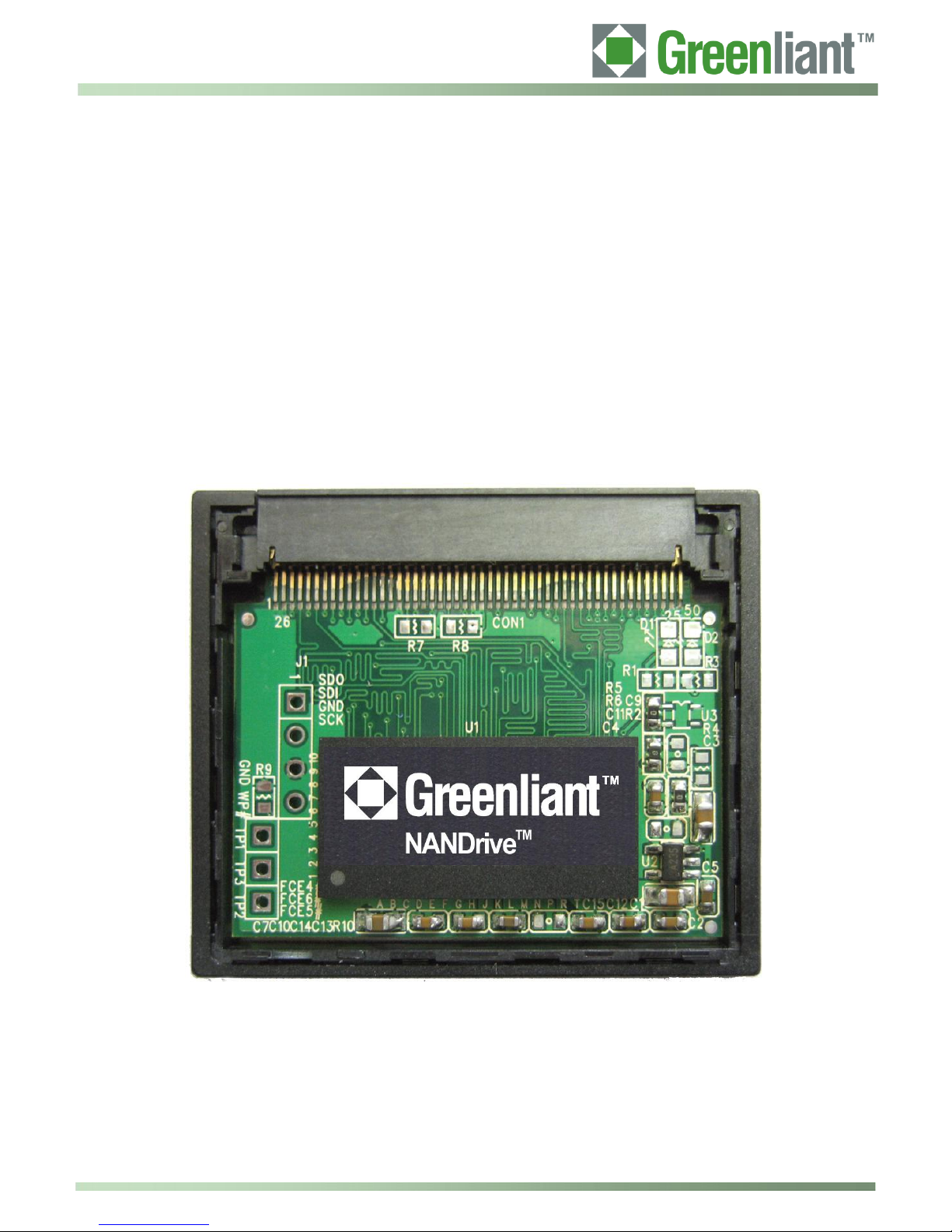
NANDrive Evaluation Board with CompactFlash connector - See Figures 1 and 2.
1.3 Board Layout
The evaluation board is shown in Figure 1. For the board layout, see Figure 2 and Table 1.
© 2011 Greenliant Systems Greenliant, the Greenliant logo and NANDrive are trademarks of Greenliant Systems
03/18/2011 5 Windows is a trademark of Microsoft Corporation in the United States and other countries
S74020 These specifications are subject to change without notice.
Figure 1: NANDrive Evaluation Board
Page 6

Application Note
PATA NANDrive™ Evaluation Board with
Compact Flash Connector User Guide
Symbol
Description
Notes
CON1
CompactFlash Connector
50pins connector
C3, C1
Capacitor
2.2μF
C2, C5, C8, C9, C10, C11, C12, C13, C14, C15
Capacitor
0.1μF
C4
Capacitor
470pF
C7
Capacitor
4.7μF
D1
Green LED
LED1206
D2
Red LED
LED1206
J1
SCI Debug Port
R1, R3, R6
Register
470Ω
R2, R4, R5, R9
Register
0Ω
R10
Register
10k Ω
R7, R8
Register
No Connect
TP1, TP2, TP3
FCE4#, FCE5#, FCE6#
U1
Greenliant NANDrive
U2
LDO Voltage Regulator
Supply 3.3V operation voltage
U3
Voltage detector
Supply 3.3V operation voltage
March 2011
Figure 2: Top View of Board Layout
Table 1: Board Components
2 Install the Evaluation Board
Perform these two tasks to install the evaluation board:
1. Connect board to PC via CompactFlash reader
2. Configure or Add a drive (if required)
Greenliant, the Greenliant logo and NANDrive are trademarks of Greenliant Systems © 2011 Greenliant Systems
Windows is a trademark of Microsoft Corporation in the United States and other countries 6 03/18/2011
These specifications are subject to change without notice. S74020
Page 7
Application Note
PATA NANDrive™ Evaluation Board with
Compact Flash Connector User Guide
March 2011
2.1 Connect Board to PC via CompactFlash Reader
The evaluation board easily connects to any desktop PC with a CompactFlash reader that supports UDMA and
PIO standards.
CAUTION: Never connect this board to a CompactFlash reader that does not use True-IDE mode; doing so
could damage the device. This evaluation board only works with devices using True-IDE mode.
2.1.1 To connect the board using the CompactFlash connector:
1. Insert the evaluation board into the CompactFlash card reader on your PC. The BIOS should automatically
detect and mount the NANDrive as a new drive.
2. If the NANDrive is not automatically detected, follow the directions in “Configure/Add a Drive”.
2.2 Configure / Add a Drive
If you wish the mount the drive using non-default settings, use the “add a drive” functionality for your particular
OS to remount the drive in your chose configuration.
Consult the PC’s user manual for instructions to add a new drive. Below are directions for Windows® XP and
DOS systems.
The NANDrive can be installed as either a physical drive or as an OS-partitioned drive. When configured as a
physical drive, do not access the drive through the OS. When configured as an OS-partitioned drive, access the
drive through the OS.
2.2.1 To add a drive in Windows XP:
1. Right-click on My Computer.
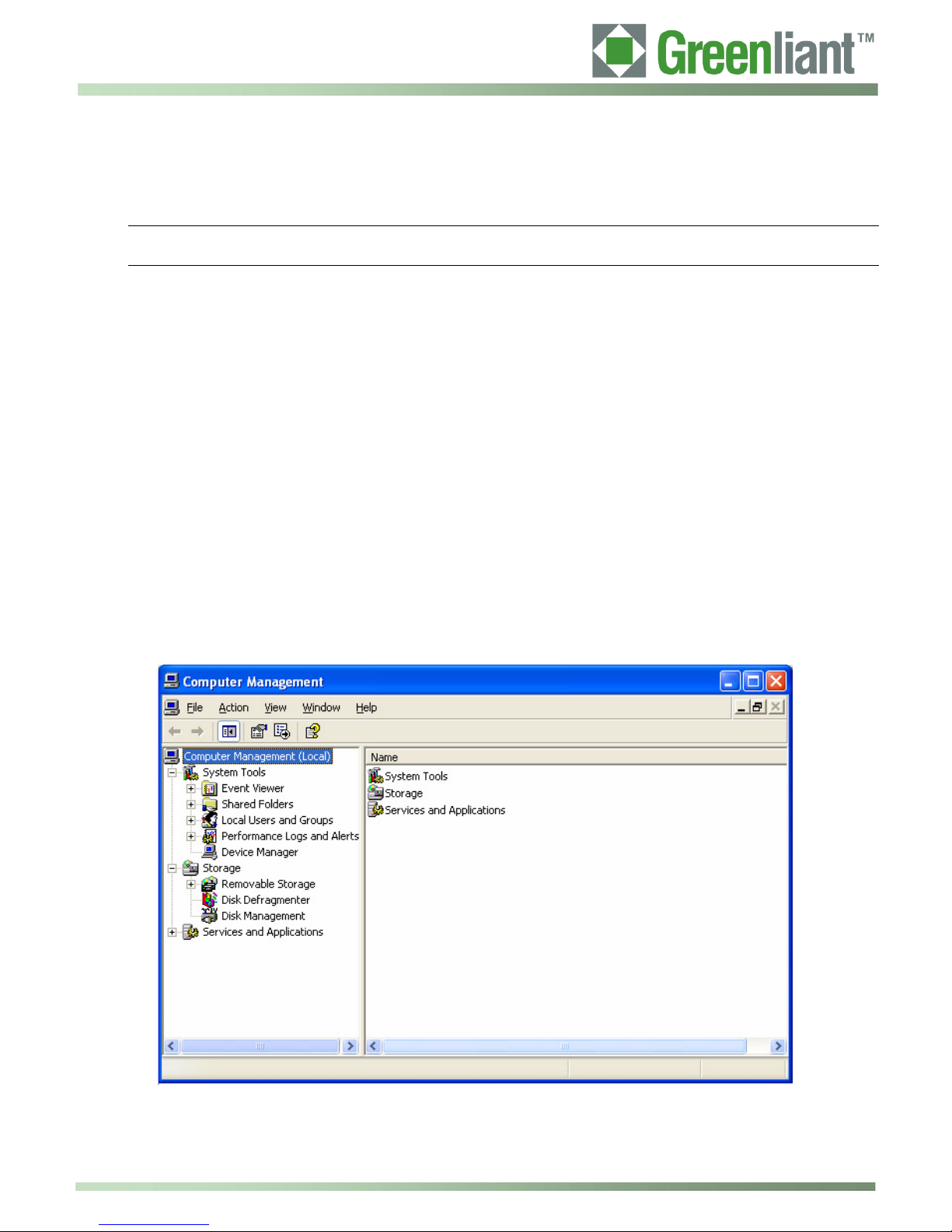
2. Select Manage from the drop-down list. The Computer Management interface opens, see Figure 3.
Figure 3: Computer Management Interface
© 2011 Greenliant Systems Greenliant, the Greenliant logo and NANDrive are trademarks of Greenliant Systems
03/18/2011 7 Windows is a trademark of Microsoft Corporation in the United States and other countries
S74020 These specifications are subject to change without notice.
Page 8
Application Note
PATA NANDrive™ Evaluation Board with
Compact Flash Connector User Guide
March 2011
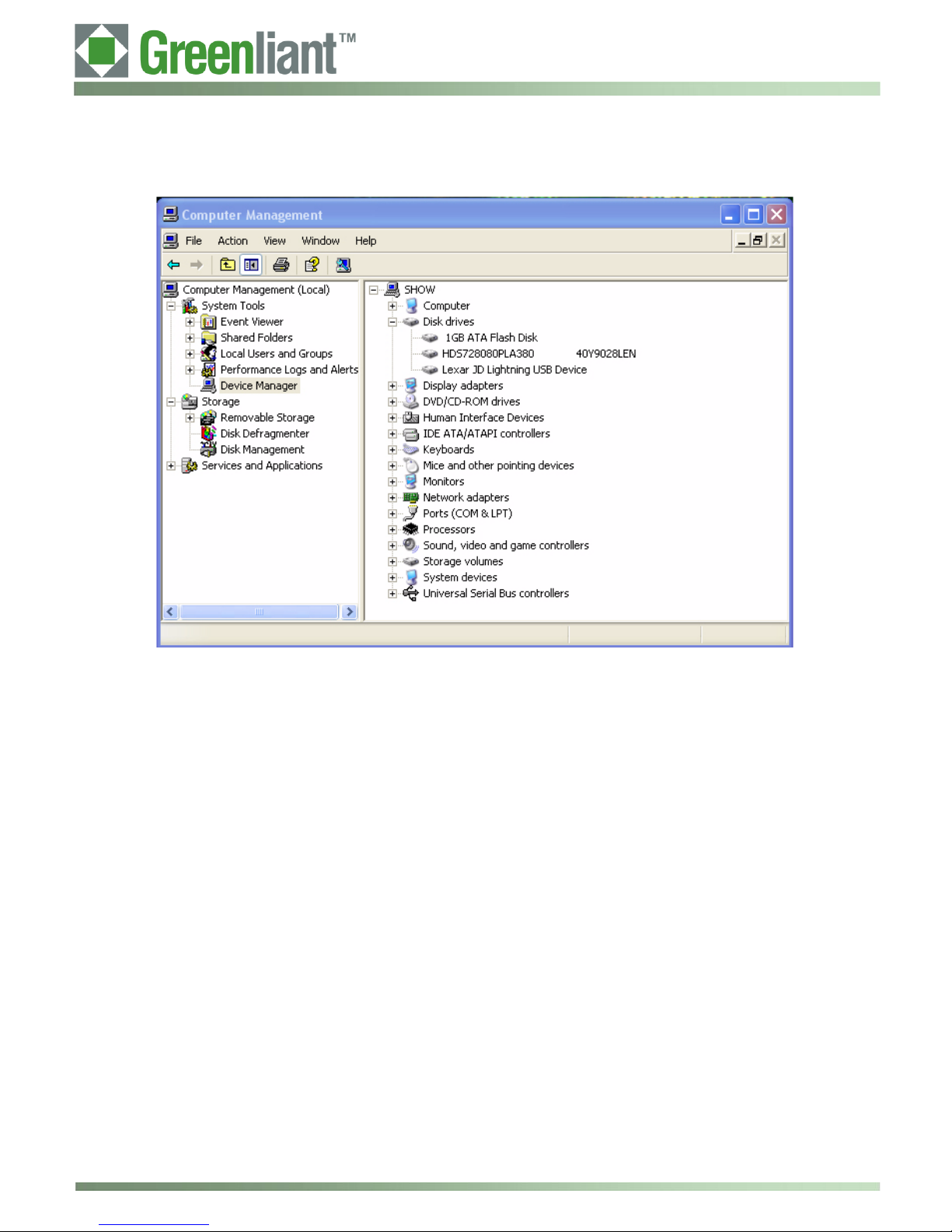
3. In the left-hand pane of the Computer Management interface, click on Device Manager. The NANDrive
will appear in the right-hand window under Disk Drives. See Figure 4.
Figure 4: Device Manager
4. In the left-hand pane, click on Disk Management. Choose if you want to connect the NANDrive as a
physical drive or as a partitioned drive. Follow the appropriate directions below.
Greenliant, the Greenliant logo and NANDrive are trademarks of Greenliant Systems © 2011 Greenliant Systems
Windows is a trademark of Microsoft Corporation in the United States and other countries 8 03/18/2011
These specifications are subject to change without notice. S74020
Page 9
Application Note
PATA NANDrive™ Evaluation Board with
Compact Flash Connector User Guide
March 2011
2.2.2 To connect as a physical drive:
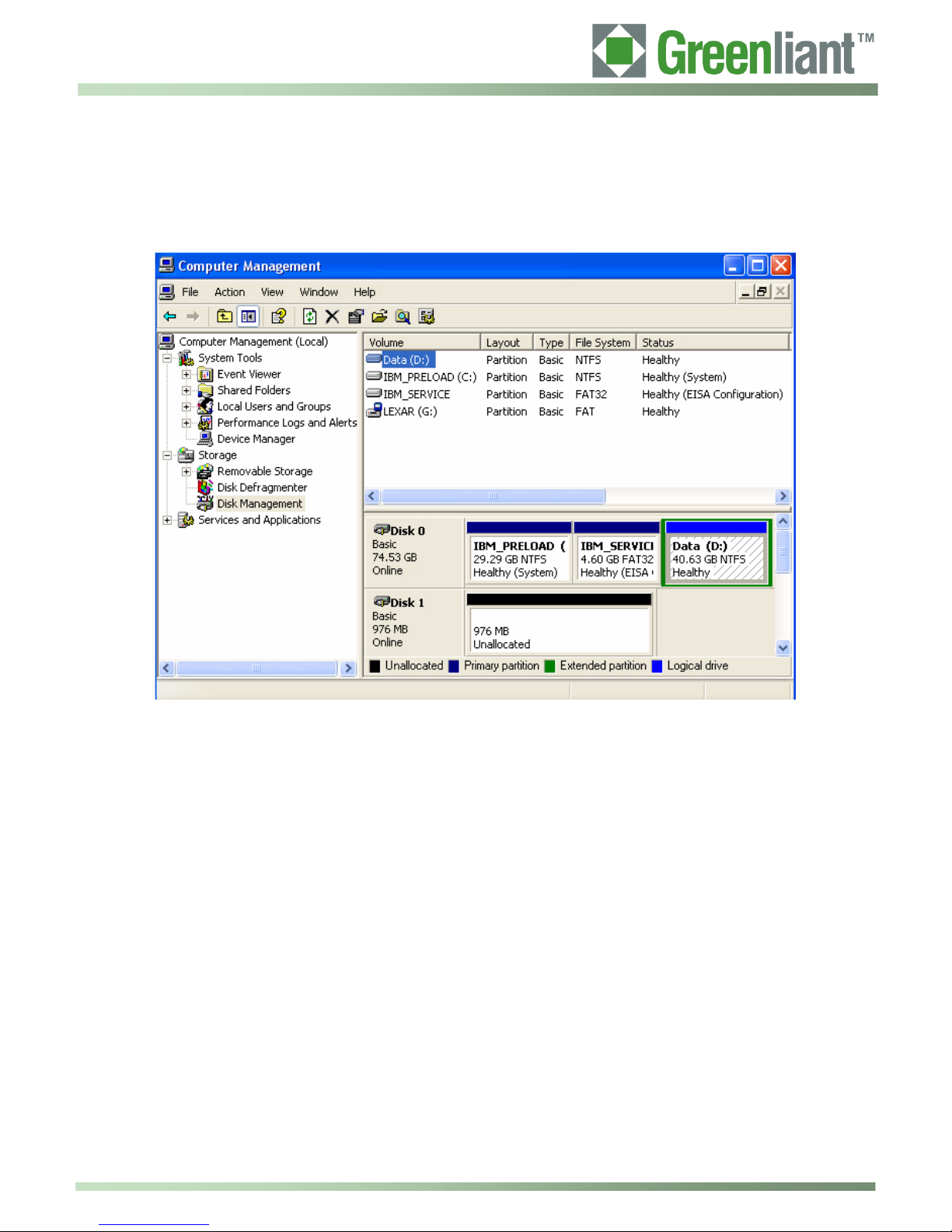
1. Right-click on the NANDrive icon in the right-hand pane. See Figure 5.
2. Select Delete Partition. The label for the NANDrive will change to “unallocated” and the drive will not
show up as a resource under My Computer.
Figure 5: Connect as a Physical Device
© 2011 Greenliant Systems Greenliant, the Greenliant logo and NANDrive are trademarks of Greenliant Systems
03/18/2011 9 Windows is a trademark of Microsoft Corporation in the United States and other countries
S74020 These specifications are subject to change without notice.
Page 10
Application Note
PATA NANDrive™ Evaluation Board with
Compact Flash Connector User Guide
March 2011
2.2.3 To connect as an OS-partitioned drive:
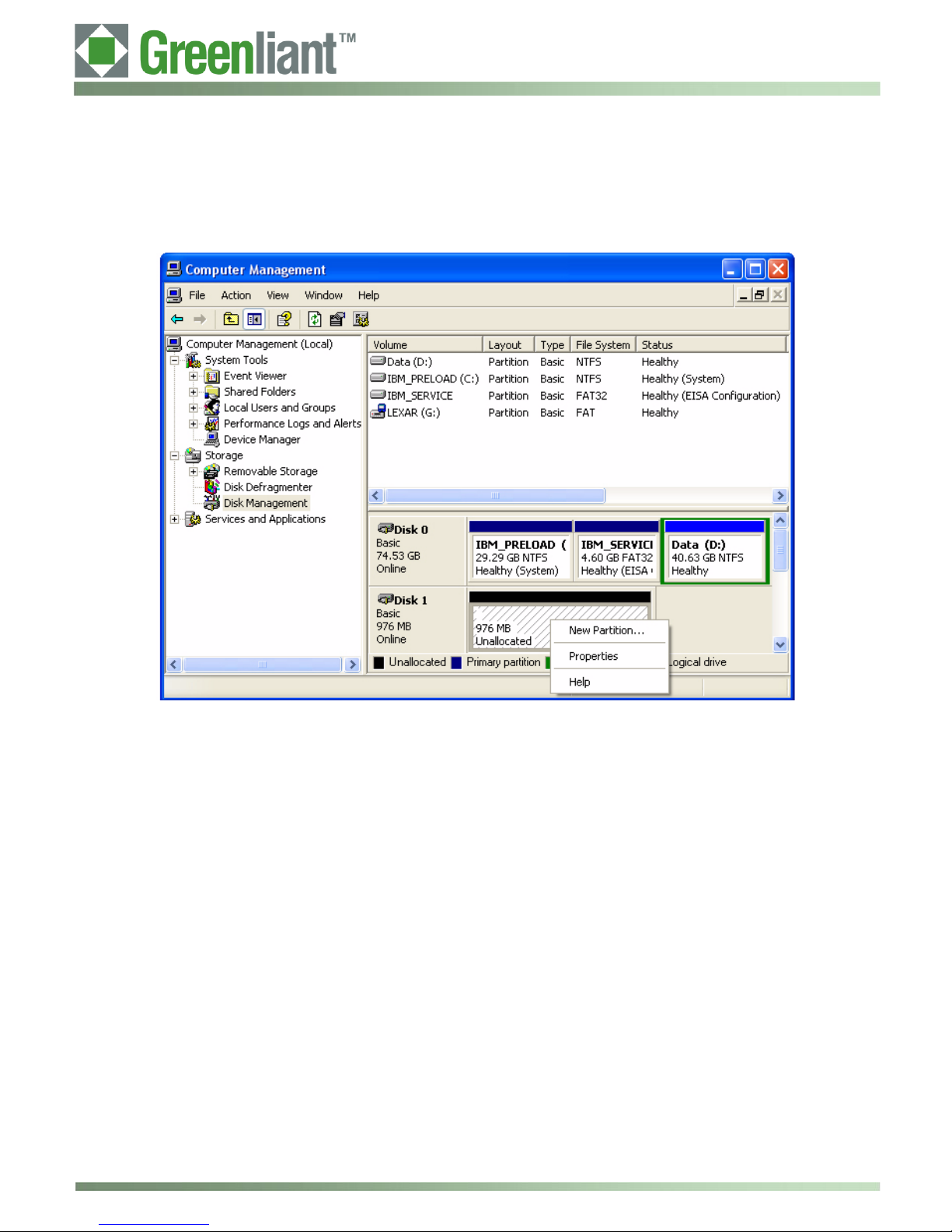
1. Right-click on the NANDrive icon in the right-hand pane. See Figure 6.
2. Select New Partition. Follow the prompts to add a new partition. The NANDrive will now show up as a
drive-lettered resource under My Computer.
Figure 6: OS-Partitioned Drive
3. Go to My Computer to confirm that the NANDrive is connected in your chosen configuration.
2.2.4 To add a drive in DOS:
1. Type FDISK.exe. This will create a partition.
2. Type FORMAT.exe. This will format the new partition.
2.3 Troubleshooting
If you encounter problems when trying to use this evaluation board, contact Greenliant for assistance.
Greenliant, the Greenliant logo and NANDrive are trademarks of Greenliant Systems © 2011 Greenliant Systems
Windows is a trademark of Microsoft Corporation in the United States and other countries 10 03/18/2011
These specifications are subject to change without notice. S74020
Page 11
Application Note
PATA NANDrive™ Evaluation Board with
Compact Flash Connector User Guide
March 2011
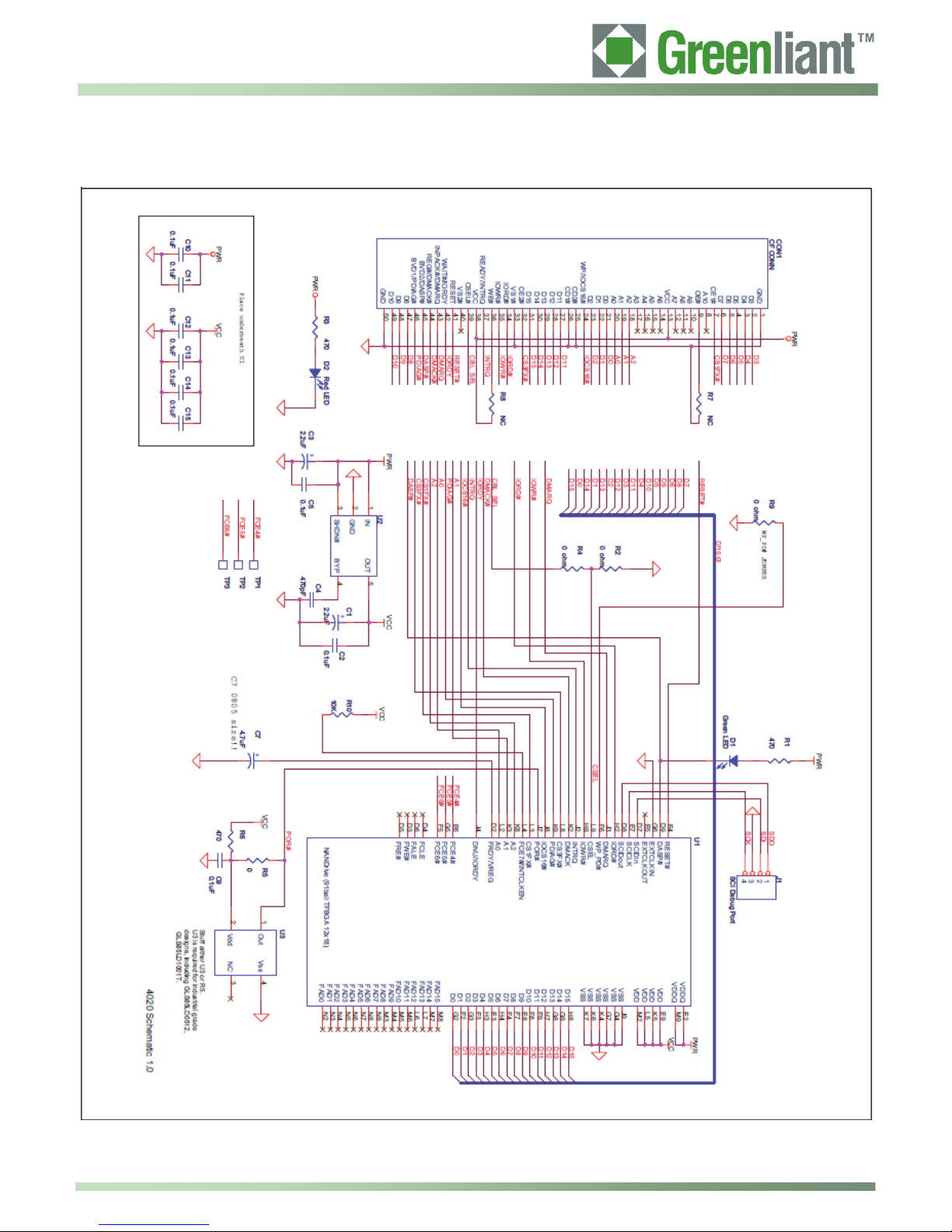
3 Schematic
© 2011 Greenliant Systems Greenliant, the Greenliant logo and NANDrive are trademarks of Greenliant Systems
03/18/2011 11 Windows is a trademark of Microsoft Corporation in the United States and other countries
S74020 These specifications are subject to change without notice.
Figure 7: Evaluation Board Schematic
 Loading...