

Page 1

Multi-Touch Control Wheel
Software Development Kit
User’s Guide
V3.0
Bulletin #1204
561 Hillgrove Avenue
LaGrange, IL 60525
Phone: (708) 354-1040
Fax: (708) 354-2820
E-mail: [email protected]
www.grayhill.com/instinct
Page 2

Multi-Touch Ring Encoder Software Development Kit User’s Guide v3.0
Copyright © 2014 Grayhill, Inc. All rights reserved.
The information supplied in this manual is believed to be reliable and accurate at the time of its publication. Grayhill,
Inc. assumes no responsibility for any errors, omissions, or suitability of its products for a particular application.
Contents
Introduction .................................................................................................. 3
What’s in this Guide? .................................................................................................. 3
What’s in the Kit? ....................................................................................................... 3
Multi-Touch Ring Encoder Features ........................................................................... 3
Multi-Touch Control Wheel Medical Demo ............................................... 3
Downloading the Medical Demo ................................................................................ 3
For users of Google’s Chrome Browser ......................................................... 4
For users of Mozilla’s Firefox Browser ......................................................... 4
For users of Microsoft Internet Explorer ....................................................... 4
Installing the Demo ..................................................................................................... 4
Running the Demo ...................................................................................................... 5
Demo Screens ............................................................................................................. 6
2D Demo ........................................................................................................ 7
3D Demo ........................................................................................................ 8
Instinct Demo ................................................................................................. 9
MTRE Demo ................................................................................................. 10
Multi-Touch Ring Encoder Overview ...................................................... 11
Mechanical Drawing ................................................................................................. 11
USB – I/O Interface .................................................................................................. 13
Touchpad .................................................................................................................. 13
Proximity .................................................................................................................. 14
Joystick Direction Indicators ..................................................................................... 14
Additional Information ............................................................................................. 14
Grayhill’s Instinct Gesture Recognition Library .................................... 14
What is Instinct? ....................................................................................................... 14
What makes the Grayhill Instinct Gesture Recognition Library unique? .................. 15
Event Gestures .............................................................................................. 16
Tracking Gestures ........................................................................................ 17
Additional Information ............................................................................................. 18
© 2014 Grayhill, Inc., Confidential and Proprietary Page 2
Page 3

Introduction
Multi-Touch Ring Encoder Software Development Kit User’s Guide v3.0
What’s in this Guide?
Welcome to the Grayhill Multi-Touch Control Wheel (MTCW)
Software Development Kit User’s Guide. We’ll first get your control
wheel up and running with a demo so you can quickly begin to appreciate
the MTCW’s many features and capabilities. Next we’ll dive in deeper into
the MTCW operation. Lastly, we’ll introduce Grayhill’s Instinct Gesture
Recognition Library that makes product development a snap. Let’s get
started!
What’s in the Kit?
The Multi-Touch Control Wheel Software Development Kit contains a
Quick Start Guide, and (1) Grayhill Multi-Touch Ring Encoder (Part
number:T201-7C1) mounted in a case, with a USB cable ready to plug into
your type “A” USB host connector on your hub or PC.
Multi-Touch Ring Encoder Features
The Grayhill Multi-Touch Ring Encoder has the following features:
• A 70mm round projected capacitive touchpad, that can track up to
5 touch positions
• Proximity sensor
• Outer finger groove
• Joystick direction indicators
• Interface connectors – (1) USB signaling
Multi-Touch Control Wheel Medical Demo
Downloading the Medical Demo
The Medical Demo is a Windows XP, Windows 7, or Windows 8 application
that will introduce you to some of the basic features of the MTCW. The
Demo is a simulation of some of the functions that may be required in a
typical imaging application. To load and run the demo, follow these steps:
Plug in the USB cable into any convenient USB port on your PC. Your
computer should automatically recognize the device without any special
drivers.
Next find the Multi-Touch Medical Demo application at
http://www.grayhill.com/instinct
© 2014 Grayhill, Inc., Confidential and Proprietary Page 3
Page 4

Multi-Touch Ring Encoder Software Development Kit User’s Guide v3.0
For users of Google’s Chrome Browser
Click on the link “Grayhill Instinct Demo (zip)”
When the download is complete, click on the file “Grayhill Instinct
Demo.zip” that appears in the download area at the bottom of the screen.
Follow the instructions of your zip file extraction tool to ex tract and locate
the files on your PC where it can be easily found.
For users of Mozilla’s Firefox Browser
Click on the link “Grayhill Instinct Demo (zip)”
The browser should open a popup box. Under “What should Firef o x do wi th
this file?” select your zip file extraction tool under “Open with.”
Follow the instructions of your zip file extraction tool to ex tract and locate
the files on your PC where it can be easily found.
For users of Microsoft Internet Explorer
Click on the link “Grayhill Instinct Demo (zip)”
The browser should open a pop up box. Under “Do you want to open or
save this file?” select “Open.” Under certain settings this step may be
skipped.
Follow the instructions of your zip file extraction tool to ex tract and locate
the files on your PC where it can be easily found.
Installing the Demo
To install the demo, navigate to the directory on your system where the
application files were extracted and run “setup.exe.” Follow the on screen
instructions to install the application. An internet connection is required.
© 2014 Grayhill, Inc., Confidential and Proprietary Page 4
Page 5
Multi-Touch Ring Encoder Software Development Kit User’s Guide v3.0
Running the Demo
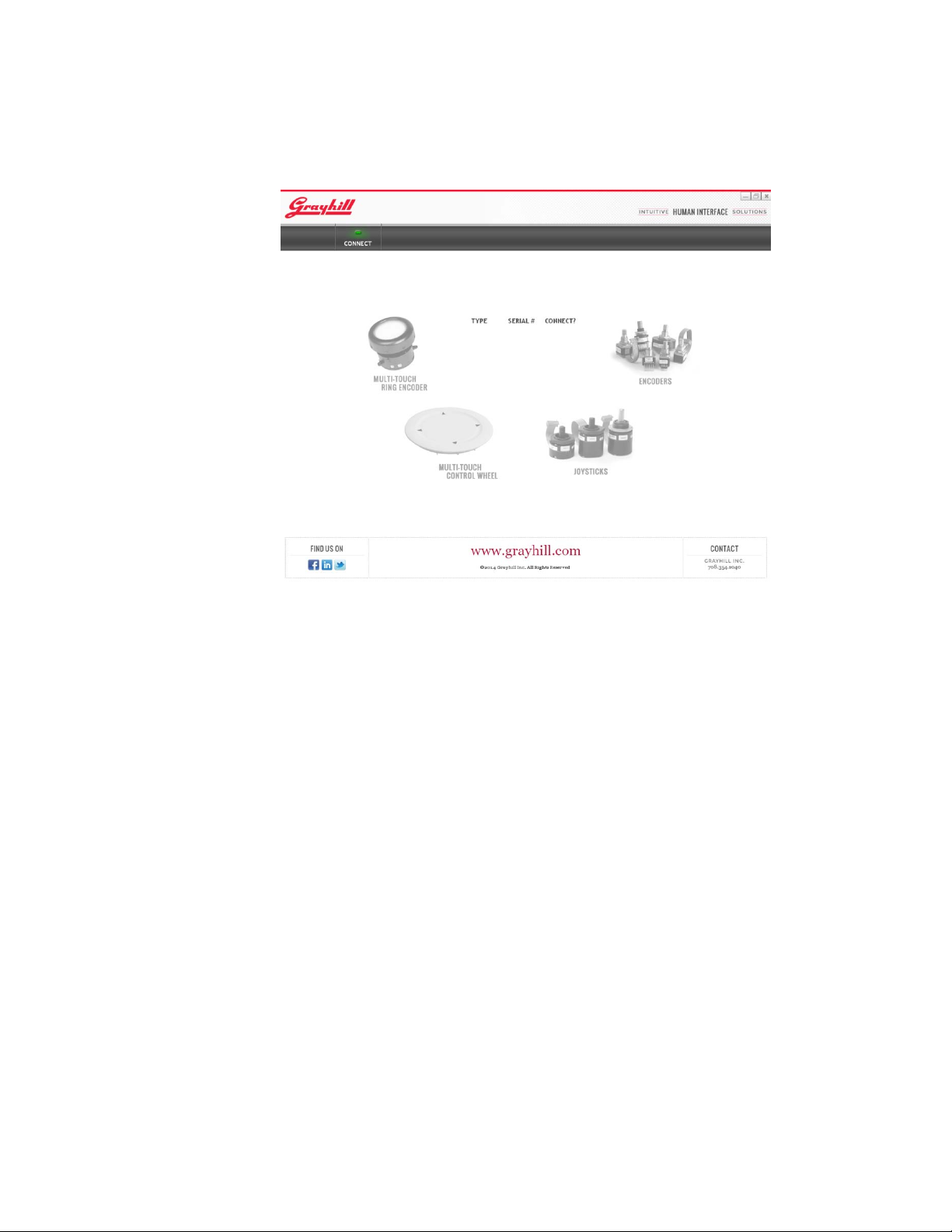
To run the demo, click on the application icon on your desktop. The connect
screen should appear as below:
Make sure the USB connector from the MTCW SDK is plugged into the
PC’s USB port. After the MTCW is found, the type (MTCW) and serial
number will be listed in the connection list next to a check box under the
“CONNECT?” heading. Click on the check box to connect the MTRE. If
multiple devices are connected to the PC, they will also appear in the list.
Click on the check box for all the devices you wish to connect, or alternately
click on the “CONNECT?” header to connect to all Grayhill devices
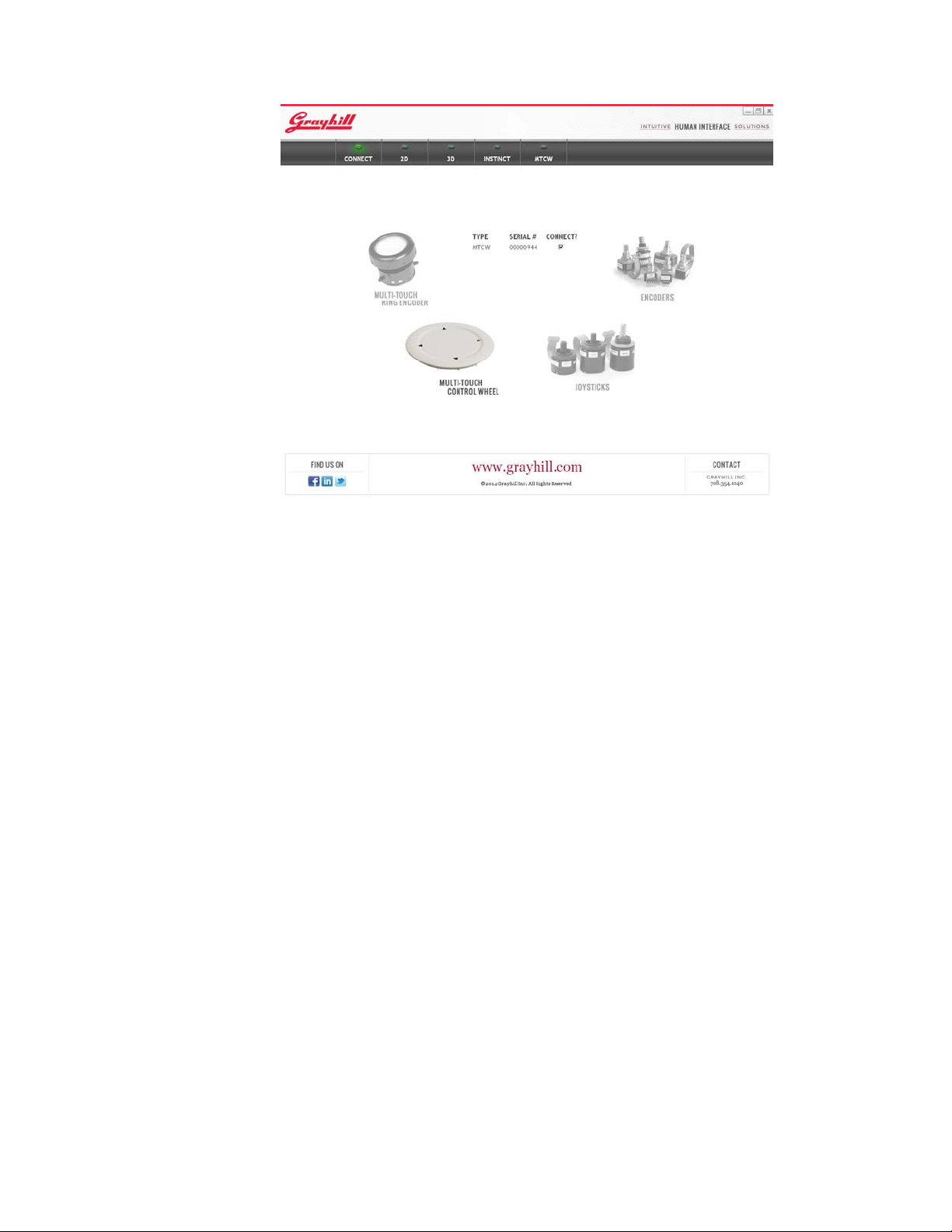
currently connected to the PC. When the application connects to any type of
device, the picture of the device will be highlighted as shown on the
following page:
© 2014 Grayhill, Inc., Confidential and Proprietary Page 5
Page 6
Multi-Touch Ring Encoder Software Development Kit User’s Guide v3.0
Demo Screens
When only MTRE devices are connected, five buttons will appear across the
top of the screen:
To select any of the screens above, use your mouse to click on the button
corresponding to the desired function.
• CONNECT – Allows editing of the connection list
• 2D – Demo of 2D picture control application
• 3D – Demo of 3D object control application
• INSTINCT - Demo of the Instinct Gesture Recognition Library
• MTCW – Demo of functions specific to the MTCW
© 2014 Grayhill, Inc., Confidential and Proprietary Page 6
Page 7
Multi-Touch Ring Encoder Software Development Kit User’s Guide v3.0
2D Demo
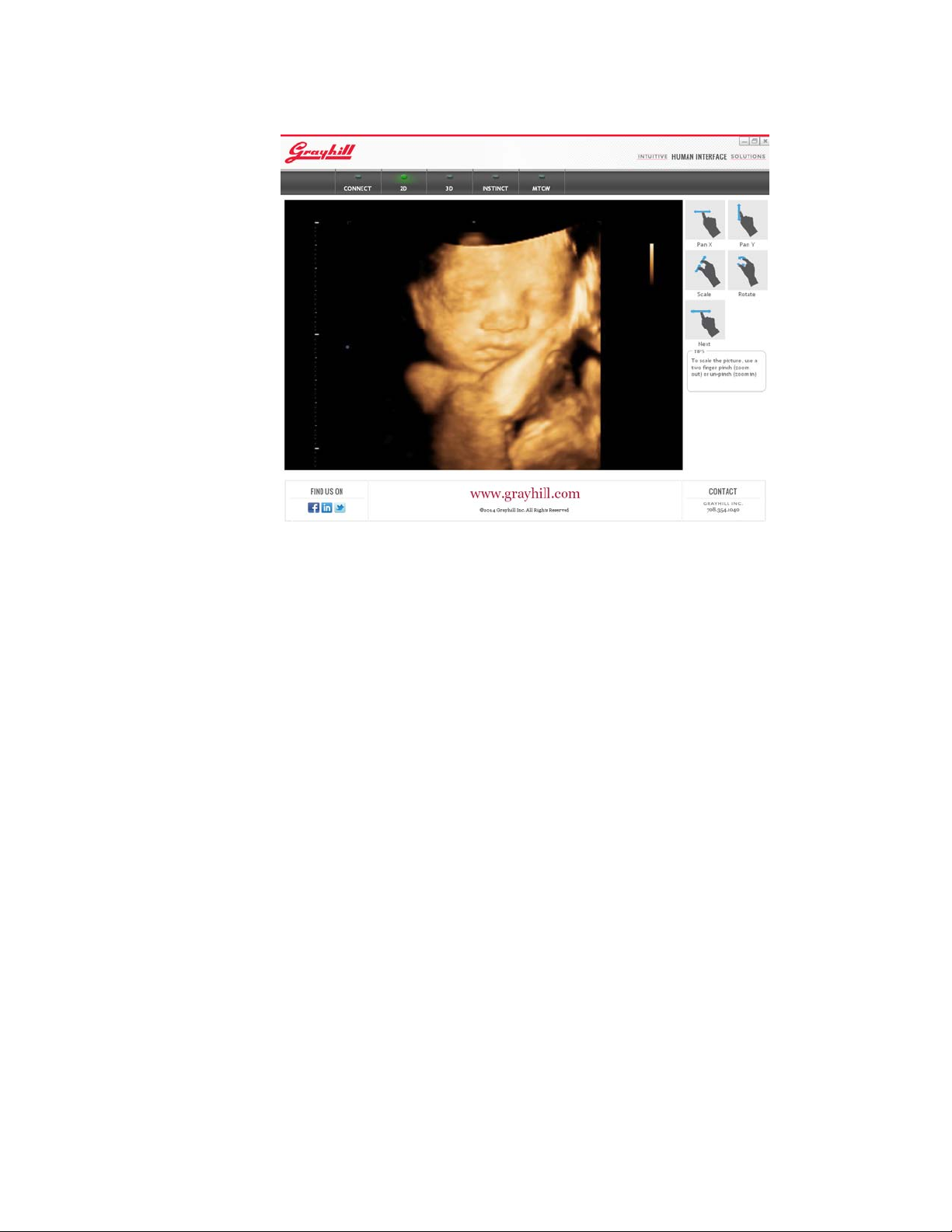
The 2D demo screen is an example application that illustrates how easy it is
to position and size an image for viewing using the MTCW. Use a single
finger (or two fingers) on the touchpad to pan the image in the X or Y
direction. Use two fingers in a pinching or un-pinching motion to control the
zoom level. Spin two fingers about each other to rotate the image.
In this example application, any of these gestures can be performed
simultaneously to quickly and efficiently position the image. If the fingers
are released from the touchscreen during a gesture, the object will continue
the gesture’s movement with virtual momentum. This is a more efficient
method of positioning especially when lar ge images are used.
Also in this example, a different picture can be selected by flipping a single
finger to the left or right as if turning a page.
All of the gestures shown on the 2D screen application example can be
easily configured and recognized using the Instinct Gesture Recognition
Library. The gestures implemented and corresponding actions are only an
example of a typical 2D image application. The library is very flexible and
allows many different configurations for many different applications. The
Instinct Gesture Recognition Library is available license-free for Grayhill
customers. For further information about Instinct, please refer to
“Grayhill’s Instinct Gesture Recognition Library” section at the end of
this document.
© 2014 Grayhill, Inc., Confidential and Proprietary Page 7
Page 8
Multi-Touch Ring Encoder Software Development Kit User’s Guide v3.0
3D Demo
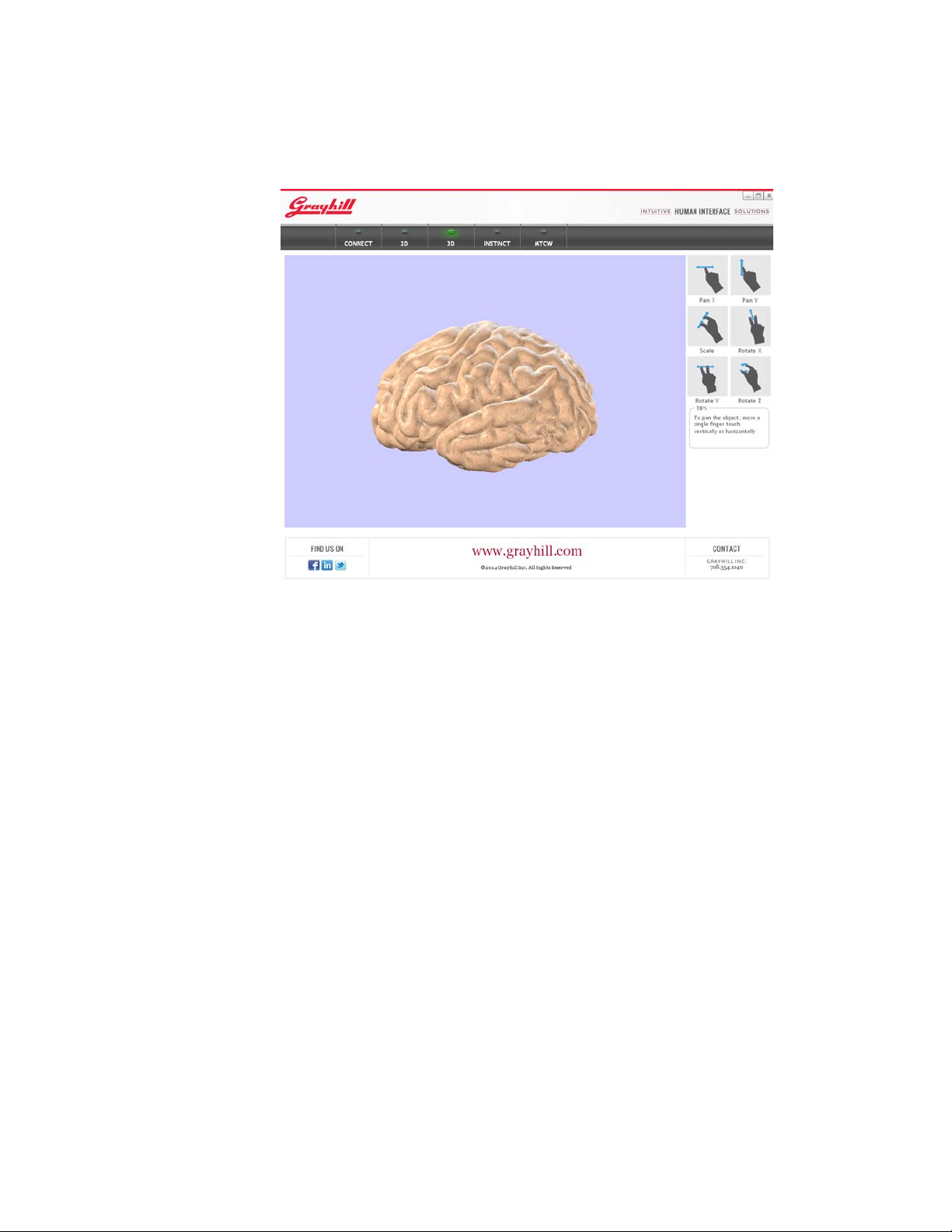
The 3D demo screen is an example application that illustrates how easy it is
to position and size an object for viewing using the MTCW. Use a single
finger on the touchpad to pan the object in either the X or Y direction. Drop
a second finger to rotate the object about the opposite axis. Use two fingers
in a pinching or un-pinching motion to move the object in the Z axis (toward
or away from the screen.) Spin two fingers about each other to rotate the
image in the z plane. In fact, using these simple gestures, all six degrees of
freedom of movement can be resolved.
Gestures that use the same number of fingers can be performed
simultaneously to quickly and efficiently position the object where it is
desired. Again, as in the 2D example, if the fingers are released from the
touchscreen during a gesture, the object will continue the gesture’s
movement with virtual momentum.
All of the gestures shown on the 2D screen application example can be
easily configured and recognized using the Instinct Gesture Recognition
Library. The gestures implemented and corresponding actions are only an
example of a typical 2D image application. The library is very flexible and
allows many different configurations for a variety of applications. The
Instinct Gesture Recognition Library is available license-free for Grayhill
customers. For further information about Instinct, please refer to
“Grayhill’s Instinct Gesture Recognition Library” section at the end of
this document.
© 2014 Grayhill, Inc., Confidential and Proprietary Page 8
Page 9
Multi-Touch Ring Encoder Software Development Kit User’s Guide v3.0
Instinct Demo
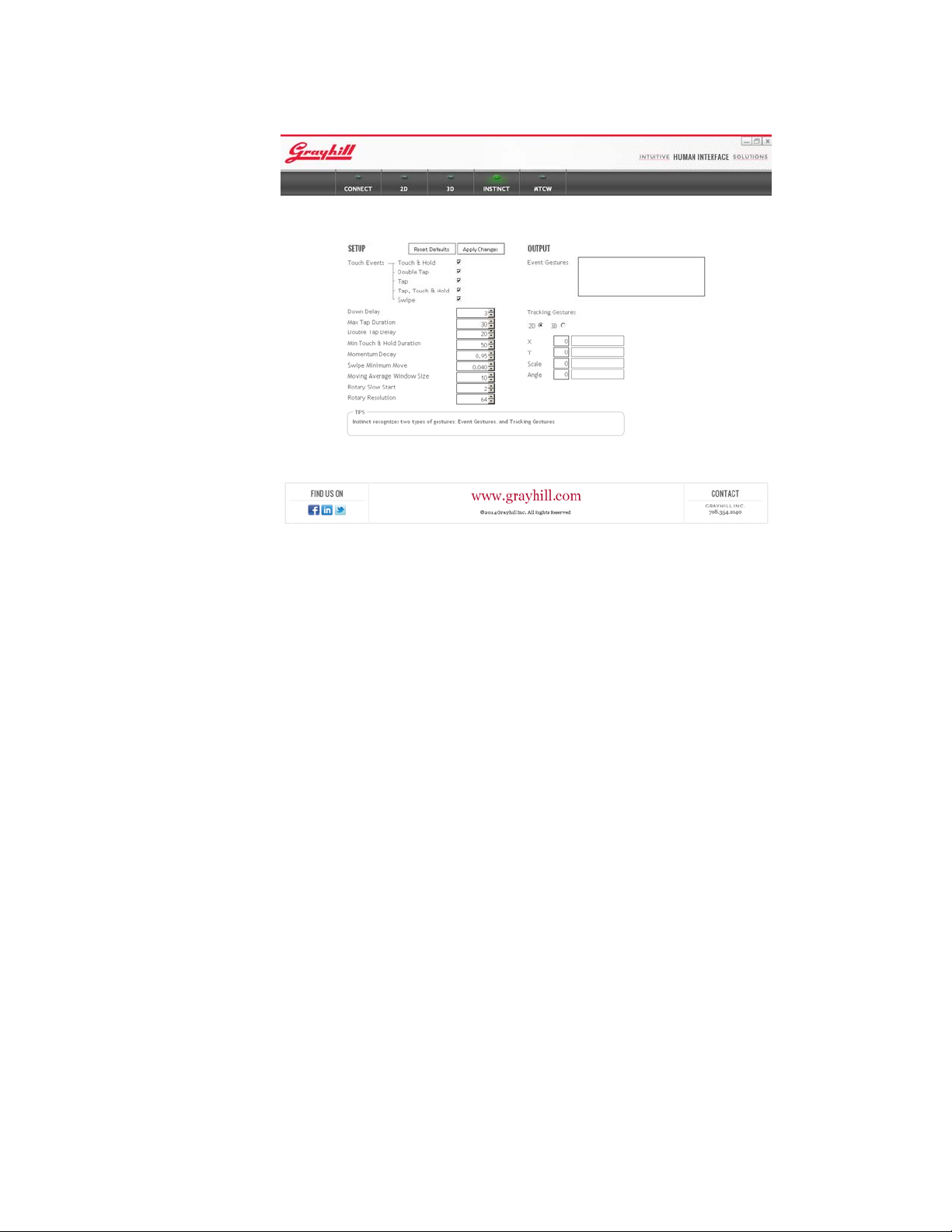
The Instinct Page demonstrates the Instinct Gesture Recognition process by
allowing the user to change some of the settings that control how gestures
are recognized - and then allowing the user to observe how these changes
affect the output. After changing one of the settings, hit the “Apply
Changes” button to try out the new settings. Default settings can easily be
recovered by hitting the “Reset Defaults” button. The current settings are
retained for use with any of the other demo screens.
You can enable or disable any of the Event Gestures in Instinct through a
simple bit mask. Setting the check boxes next to the Event Gestures
assembles the bit mask and sets up Instinct to recognize only the checked
gestures. For more information on Event Gestures see the “Instinct
Introduction” section at the end of this document.
The Instinct page lists some of the Instinct parameters that can be used to
optimize the Gesture recognition process for a particular application. Not all
the settings are listed here, but they are a good example of some of the
settings available.
• The Down Delay is the time in 20mS intervals before the specific
number of current touches are declared down. This delay helps
eliminate "false positives" during transitional periods, i.e. when the
desired number of fingers is not yet in contact with the touch pad.
• The Max Tap Duration is the maximum number of 20mS intervals
that a given number of fingers can be "down" in order for the
"TAP" event to be re ported.
© 2014 Grayhill, Inc., Confidential and Proprietary Page 9
Page 10
Multi-Touch Ring Encoder Software Development Kit User’s Guide v3.0
• The Double Tap Delay is the minimum number of 20mS intervals
required in between taps before a "DOUBLE TAP" event is
reported.
• The Minimum Touch & Hold Duration is the number of 20mS
intervals that a given number of fingers must be "down" in order for
the "TOUCH & HOLD" event to be reported.
• The Momentum Decay is the decay factor applied to motion data
between subsequent 20mS intervals when momentum is active and
no touches are down.
• The Swipe Minimum Move controls the sensitivity of the swipe
detection.
• Moving Average Window Size is the number of data samples used
for smoothing.
• Rotary Slow Start is the number of rotary counts that are ignored
before rotary counts get reported after a direction change or at the
beginning of the rotary gesture.
• Rotary Resolution is the number of rotary counts reported per full
revolution for a single finger sliding around the outside of the touch
screen.
MTRE Demo
© 2014 Grayhill, Inc., Confidential and Proprietary Page 10
Page 11

Multi-Touch Ring Encoder Software Development Kit User’s Guide v3.0
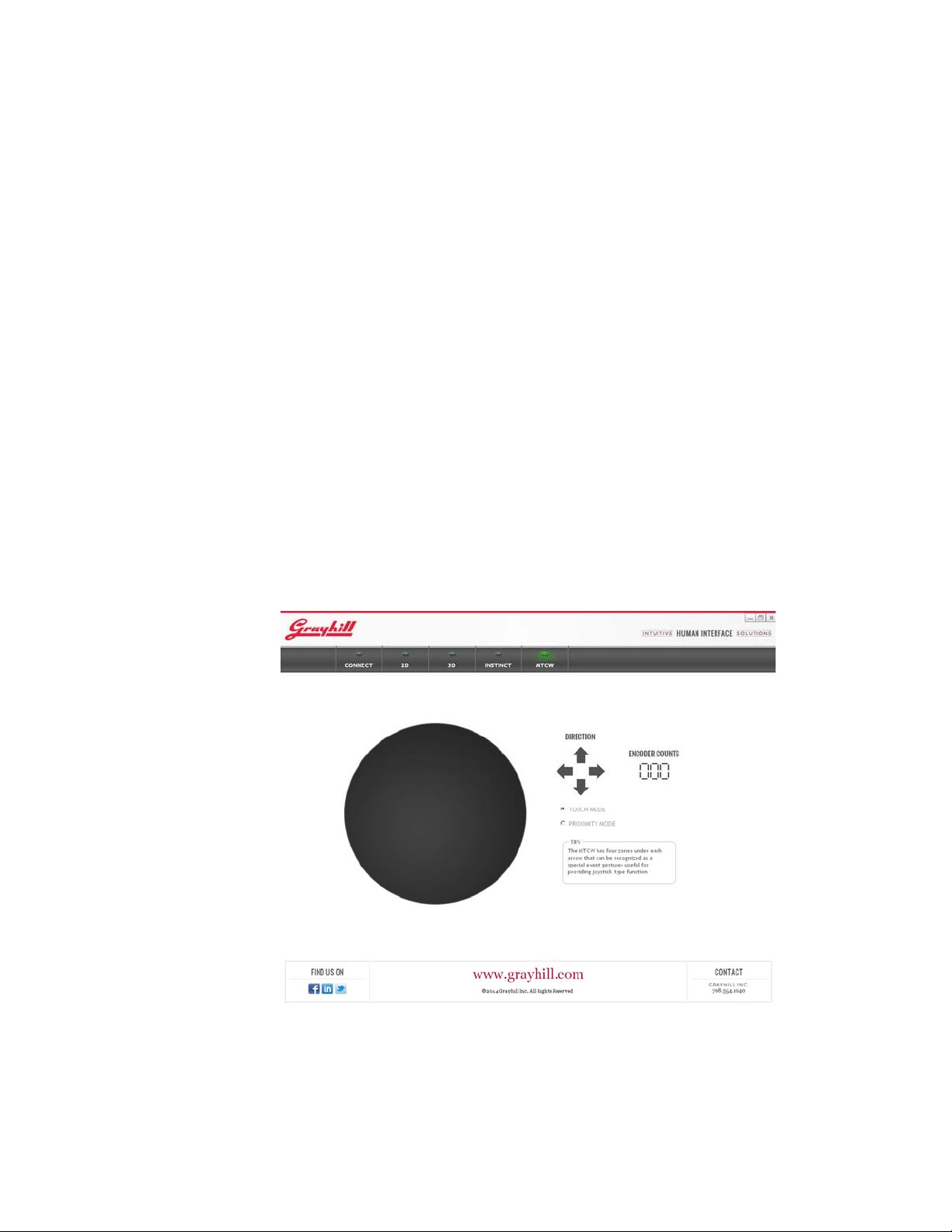
The MTCW page allows interaction with the features exclusive to the
MTCW. If a finger or fingers are placed on the touchscreen, while in touch
mode, its movements will be tracked in the circular area on the left hand side
of the screen.
To demonstrate the encoder feature of the MTCW, place a single finger in
the groove running along the outside of the touch area. To increment the
encoder counts, move the finger clockwise along the grove; to decrement the
counter move the finger counter-clockwise.
To demonstrate the joystick function of the MTRE, pl ace a single finger on
the one of the direction icons. The corresponding icon will flash under the
“DIRECTION” heading.
The MTCW can be placed in proximity mode by selecting the
“PROXIMITY MODE” option button. To demonstrate the proximity mode
function, the circular area where the touch movements are tracked will turn
green when proximity is detected. To return to touch tracking, select the
“TOUCH MODE” option button.
Multi-Touch Ring Encoder Overview
We’ve demonstrated some of the functions of the MTCW with a simple
demo application - but we’ve only scratched the surface of its possibilities.
While the demo can show some examples of the ways the MTCW can be
used, it cannot match your imagination of how it might be used. In this
section we’ll cover the technical details of the MTCW so that you can
appreciate its flexibility.
Mechanical Drawing
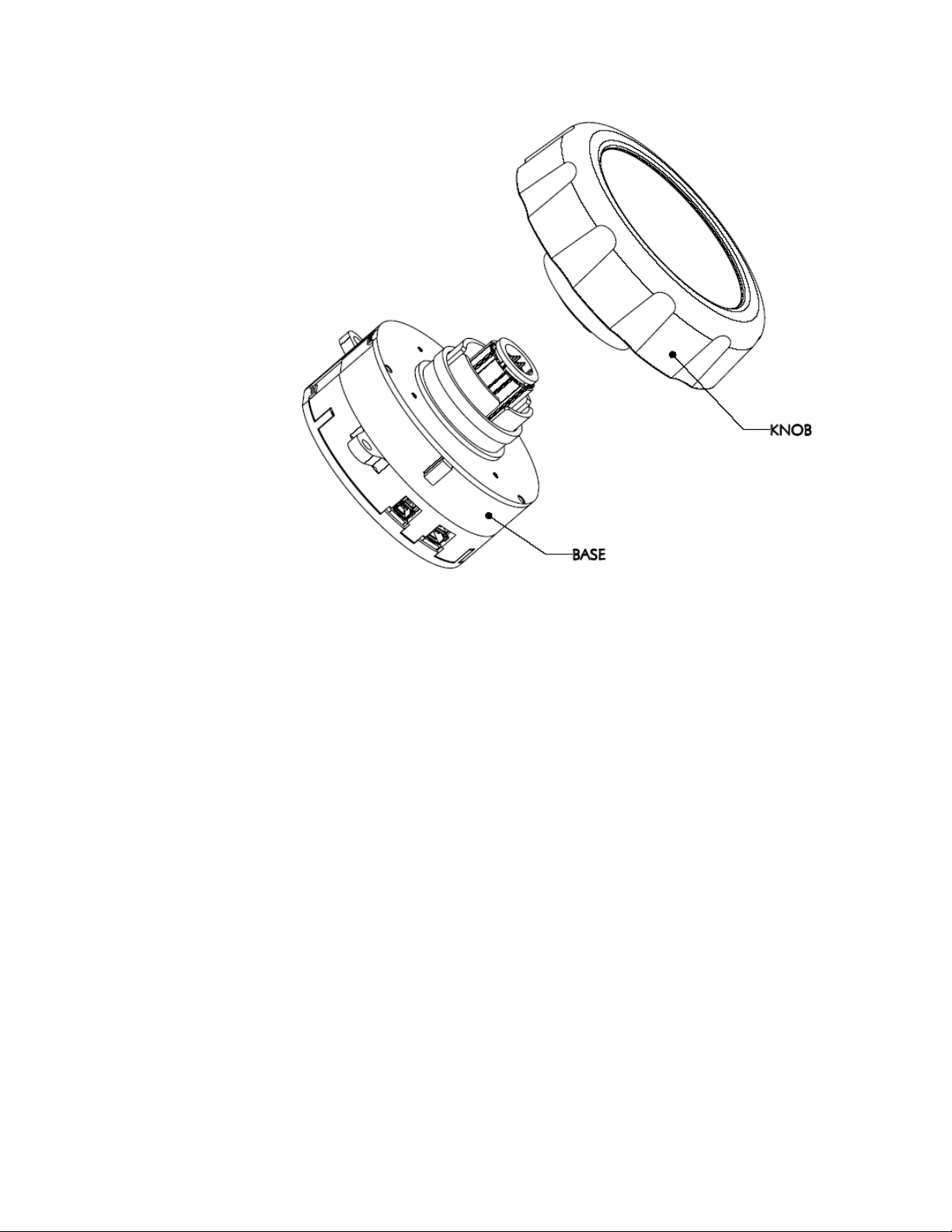
The mechanical layout of the MTCW is shown below. The knob is
removable but the number of times it can be engaged is limited. For this
reason, the knob should not be removed by users in the field but sho uld be
installed one time during manufacturing.
© 2014 Grayhill, Inc., Confidential and Proprietary Page 11
Page 12
Multi-Touch Ring Encoder Software Development Kit User’s Guide v3.0
© 2014 Grayhill, Inc., Confidential and Proprietary Page 12
Page 13
Multi-Touch Ring Encoder Software Development Kit User’s Guide v3.0
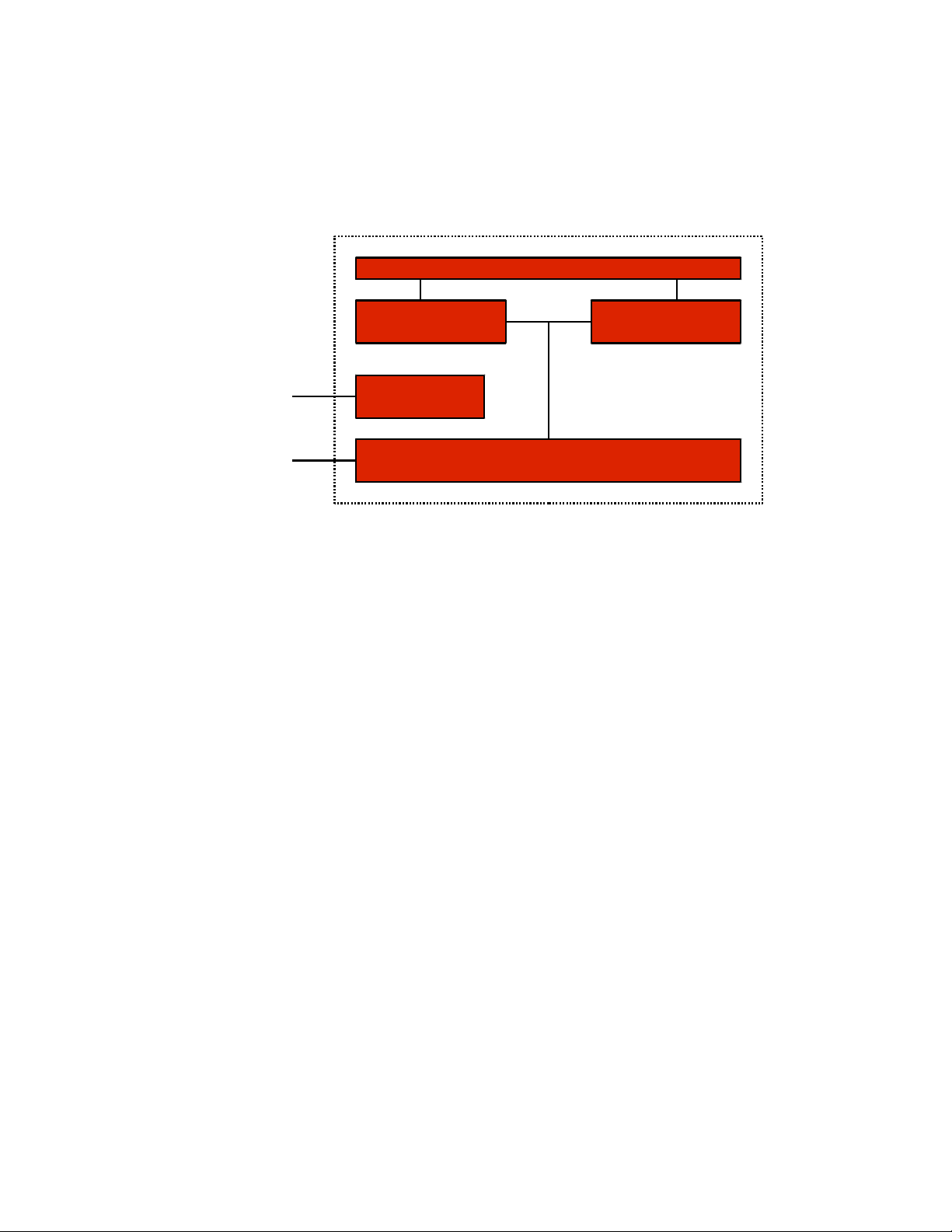
For the discussion of the components of the MTCW see the block diagram of
the MTCW shown below:
Multi-Touch Control Wheel
Touchscreen
Powe r
Touchscreen
Controller
Switching
Proximity
Sensor
Power Supply
USB
Micro-controller
USB – I/O Interface
The MTCW has a full speed USB device interface. Data that is transmitted
from the MTCW to the host includes the following: the raw touch positions,
proximity status, encoder (outer ring) changes, and pushbutton status. Data
can be sent to the MTCW to set the current touchpad/proximity mode, or
change the backlight or highlight on - off or control the brightness.
In addition to the USB connector, a redundant output is provided that
contains the quadrature output I/O from the encoder and the pushbutton
status.
Touchpad
The touchpad built into the MTCW uses the mutual projected capacitive
method to track up to 5 touch positions simultaneously with a 20mS sample
rate. Some features of the touchpad are listed below:
• As each individual touch is sensed, the touch is assigned the lowest
number available from 0 to 4 for reporting.
• The touch is tracked under this number until it has been released.
• The screen has an overall resolution of 1280 x 1280, although because
of the round shape, not all of these positions are utilized.
• No gesture recognition is provided in the MTCW, but “Instinct” -
Grayhill’s gesture recognition library, is available to our customers and
will be introduced later in this guide.
• Two-touch differentiation can be sensed down to about 3mm.
• Touch sensing will work with latex gloves.
© 2014 Grayhill, Inc., Confidential and Proprietary Page 13
Page 14

Multi-Touch Ring Encoder Software Development Kit User’s Guide v3.0
• The MTCW can be set to either Touch or Proximity mode, but they
cannot be used simultaneously.
Proximity
The device has two modes of operation: touchpad, and proximity. The
device is set to proximity mode by command over the USB. In Proximity
Mode the device sends make and break codes over the USB corresponding to
the current status of the proximity sensor. Proximity is detected using the
mutual projected capacitance method.
Joystick Direction Indicators
The MTCW comes pre-printed with four direction indicators: Up, Down,
Left, and Right arranged in the cardinal directions. Instinct Gest u re
Recognition Software can easily be set to recognize touches in these areas.
Additional Information
Please visit http://www.grayhill.com/instinct for updates to this document,
updates and releases of demos, updates to unit firmware and settings files,
Errata, and other application notes.
Documentation for the USB data input and output format is available to our
customers with a signed Non-Disclosure Agreement. To request a form
please email Grayhill at [email protected].
Grayhill’s Instinct Gesture Recognition
Library
What is Instinct?
Welcome to the Grayhill Instinct Software Developer’s Guide. Instinct is
Grayhill’s Gesture Recognition Software Library for Grayhill Touch Devices
that makes developing applications using touch gestures a snap. Instinct
uses proven and tested recognition algorithms to accurately track and detect
single and multi-touch gestures. The Grayhill Instinct Gesture Recognition
Software Library is a C source code library – which is intended to be
included and built into your application. Simple initialization calls allow the
flexible setup of parameters to fine-tune the recognition process for your
application. During normal operation, data from the Grayhill touch device is
passed directly to the library. The data is quickly processed and the results
are passed back to your application.
© 2014 Grayhill, Inc., Confidential and Proprietary Page 14
Page 15

Multi-Touch Ring Encoder Software Development Kit User’s Guide v3.0
What makes the Grayhill Instinct
Gesture Recognition Library unique?
When we looked at Human/Machine interface we found two basic, but
powerful types of gestures useful for machine control – we call them Event
Gestures and Tracking Gestures.
© 2014 Grayhill, Inc., Confidential and Proprietary Page 15
Page 16

Multi-Touch Ring Encoder Software Development Kit User’s Guide v3.0
Event Gestures
An Event Gesture is defined as any gesture that is performed and recognized
as a singular event and that might be used to initiate immediate state changes
in the host. The following are examples of event gestures: Tap, Double-Tap,
Touch&Hold, Tap,Touch&Hold, Swipe etc. Note that these events don’t
require any magnitude information - they are simply recognized as the user
performs them as single events. These types of events have a long hi st o ry in
user interface. A mouse click or a key press, for example, can both can be
thought of as an event.
However, since a touch panel has many more dimensions than a simple
pushbutton, these event gestures can be far more complex and powerful. For
example, Instinct has the ability to detect event gestures involving from one
to five touch points. Instinct can also recognize single-finger gesture events
in certain user-configurable circular areas, called “Icons”.
If the user taps within the area of Icon1, for example, a Tap event and an
Icon1 event is generated. By default, Icon1 through Icon4 are located in the
top, bottom, left and right corners of the screen. All other Icons are
undefined by default but can be enabled easily by using GestureConfigure.
The Tap,Touch&Hold event gesture is a combination of the Double-Tap and
Touch&Hold gestures. During a Tap,Touch&Hold, the second contact with
the screen is held longer than during a Double-Tap. One way a
Tap,Touch&Hold gesture event might be used is to in itiate an object drag
across the screen.
The Swipe gesture event is recognized when any given number of touches
leaves the touch screen with a specified velocity . The direct i onal gest u re
events Up, Down, Left, Right are used in combination with Swipe to indicate
in which direction the Swipe was performed. One way a Swipe gesture
event might be used is to initiate an advance to the next screen (Swipe Left)
or a return to the previous screen (Swipe Right).
The following Event Gestures are recognized by Instinct:
• Tap (1-5 fingers)
• Double-Tap (1-5 fingers)
• Touch&Hold (1-5 fingers)
• Tap,Touch&Hold (1-5 fingers)
• Swipe Up (1-5 fingers)
• Swipe Down (1-5 fingers)
• Swipe Left (1-5 fingers)
• Swipe Right (1-5 fingers)
• Icon1 through Icon16* (1 finger only)
*(These events can only be recognized in combination with a single-finger
Tap, Double-Tap, Touch&Hold or Tap,Touch&Hold event.)
© 2014 Grayhill, Inc., Confidential and Proprietary Page 16
Page 17

Multi-Touch Ring Encoder Software Development Kit User’s Guide v3.0
Tracking Gestures
A Tracking Gesture is not recognized as a single event, but rather, is
reported as a continuous stream of control data for as long as the user
performs the gesture. Tracking Gestures are very useful fo r vi ewi n g an d
positioning 2-D and 3-D objects or images, or positioning the view in a field
of text. Pan, Zoom, Rotate and Scroll are examples of Tracking Gestures.
Note that these gestures need not be exclusive (they can all occur
simultaneously) and magnitude and direction information is very important
in providing the most intuitive experience.
The Instinct library can be set to provide tracking data optimized for
controlling/ positioning either 2-D or 3-D objects. Additionally, the 2-D or
3-D tracking data can be reported either in “relative” mode or in “threshold”
mode. The relative mode reports the changes in normalized tracking data
since the last report received from the device. In threshold mode, Instinct
keeps an internal cumulative value of the relative data, but then reports the
number of times this cumulative value is evenly divisible by the specified
threshold value. The internal cumulative value then gets reduced by the
reported multiple of the threshold value.
In the 2-D modes (relative and threshold), Instinct provides the following
tracking data:
• X - average movement of one to five touch positions along the
x-axis
• Y - average movement of one to five touch positions along the
y-axis
• Scale - average change of scale indicated by the relative
expansion (un-pinch) or contraction (pinch) of one to three
touch positions
• Angle - average rotation angle of one to three touch positions
about a point determined by the number of touches
In order to provide the maximum flexibility, Instinct provides full tracking
data for up to three touches. For example; using only the X and Y data:
• A mouse cursor could be moved when only one touch is
present
• An underlying picture could be panned if two touches are used
• The entire picture album could be re-positioned, or a different
one selected, if three touches are used
In this case, the developer simply qualifies the X and Y position data, with
the number of touches, and sends the data to the proper function. Although
some gesture / number of touch combinations are well known, (such as two-
finger “pinch” to control zoom) Instinct gives the flexibility to add many
more dimensions.
In the 3-D modes (relative and threshold), Instinct provides six parameters
corresponding to the six degrees of freedom of movement of any object in
space.
© 2014 Grayhill, Inc., Confidential and Proprietary Page 17
Page 18

Multi-Touch Ring Encoder Software Development Kit User’s Guide v3.0
• X - average movement of one to five touch positions along the
x-axis
• Y - average movement of one to five touch positions along the
y-axis
• Z - corresponding movement in the z-axis (toward or away
from the user) by relative expansion (un-pinch) or contraction
(pinch) of from one to three touch positions
• X Angle - rotation angle around the x-axis that would
correspond to an average movement of one to five touch
positions along the y-axis
• Y Angle - rotation angle around the y-axis that would
correspond to an average movement of one to five touch
positions along the x-axis
• Z Angle - rotation angle about the z-axis of one to three touch
positions, about a point determined by the nu mber of touches
In 3-D modes, as in 2-D modes, the developer has flexibility to qualify the
tracking data with the number of touches desired for a particular gesture.
For example; moving fingers along the x-axis produces both X data,
(panning along the x-axis) and Y Angle data (rolling an object about the yaxis.) The developer may decide that two fingers should be used to
perform a pan along the x axis and three fingers will be used to rotate about
the y axis. It is then only a matter of applying the X data when two touch
positions are indicated and Y Angle data when three occur.
Additional Information
The Grayhill Instinct Gesture Recognition Library is available to our
customers with a signed Non-Disclosure Agreement. To request a form
please contact Grayhill at [email protected].
© 2014 Grayhill, Inc., Confidential and Proprietary Page 18
 Loading...