

Page 1

TKR-373MU
manual
Page 2

Ver.1
Page 3

4
5
6-10
11
12
13
14
15-19
20-21
22-26
27-30
31
32
33
FCC DECLARATION OF CONFORMITY
Packing Guide
Quick Guide
Introduction
How to use the keys
How to take care of your GRAND VIDEOKE
Package Contents
Product Overview
Installation Guide
How to operate the GRAND VIDEOKE
Additional menu function & conguration settings
Troubleshooting guide
Q&A - other
Product Specication
- Search Menu
- Favorite Menu
- Record Menu
- Repeat Menu
- PERFECT PITCH
- MTV/ Multiplex/ RealSound/ Chorus/Duet Menu
- Conguration Menu
- How to use your photos or videos saved in a USB storage/memory device as background
- Howto use your photos which is saved in your player as background
- Basic Functions, Secondary Functions, Channel Settings
- Main player
- Remote control
- Microphone
- Power on/o
- Search and reserve songs by remote control and microphone control buttons
- Play, Pause, Stop, Music Volume, Mic volume, Echo, Melody,
Tempo adjustment, Key adjustment, Skip
- Main Unit to HDTV Connection
- Main Unit to Standard TV Connection
3
www.grandvideoke.com
Page 4

Trade Name : TJ media
Model : TKR-373MU
Address : 23, Hwagok-ro 64-gil, Gangseo-gu, Seoul, Korea
Telephone : +82-2-3663-4700
IMPORTANT NOTE :
To comply with the FCC RF
exposure compliance requirements, no change to the antenna
or the device is permitted. Any change to the antenna or the
device could result in the device exceeding the RF exposure
requirements and void user’s authority to operate this device.
For customers in the USA FCC Notice
Warning:
This device complies with part 15 of the FCC Rules.
Operation is subject to the following two conditions:
(1) This device may not cause harmful interference,
and (2) this device must accept any interference received,
including interference that may cause undesired operation.
Caution:
You are cautioned that any changes or modifications not
expressly approved in this manual could void your authority to
operate this equipment.
Note:
This equipment has been tested and found to comply with
the limits for a Class B digital device, pursuant to part 15 of the
FCC Rules. These limits are designed to provide reasonable
protection against harmful interference in a residential installation.
This equipment generates, uses and can radiate radio frequency
energy and, if not installed and used in accordance with the
instructions, may cause harmful interference to radio
communications. However, there is no guarantee that interference
will not occur in a particular installation. If this equipment does
cause harmful interference to radio or television reception,
which can be determined by turning the equipment off and on,
the user is encouraged to try to correct the interference by one or
more of the following measures:
- Reorient or relocate the receiving antenna.
- Increase the separation between the equipment and receiver.
- Connect the equipment into an outlet on a circuit different from
that to which the receiver is connected.
- Consult the dealer or an experienced radio/TV technician for
help.
4
www.grandvideoke.com
Page 5
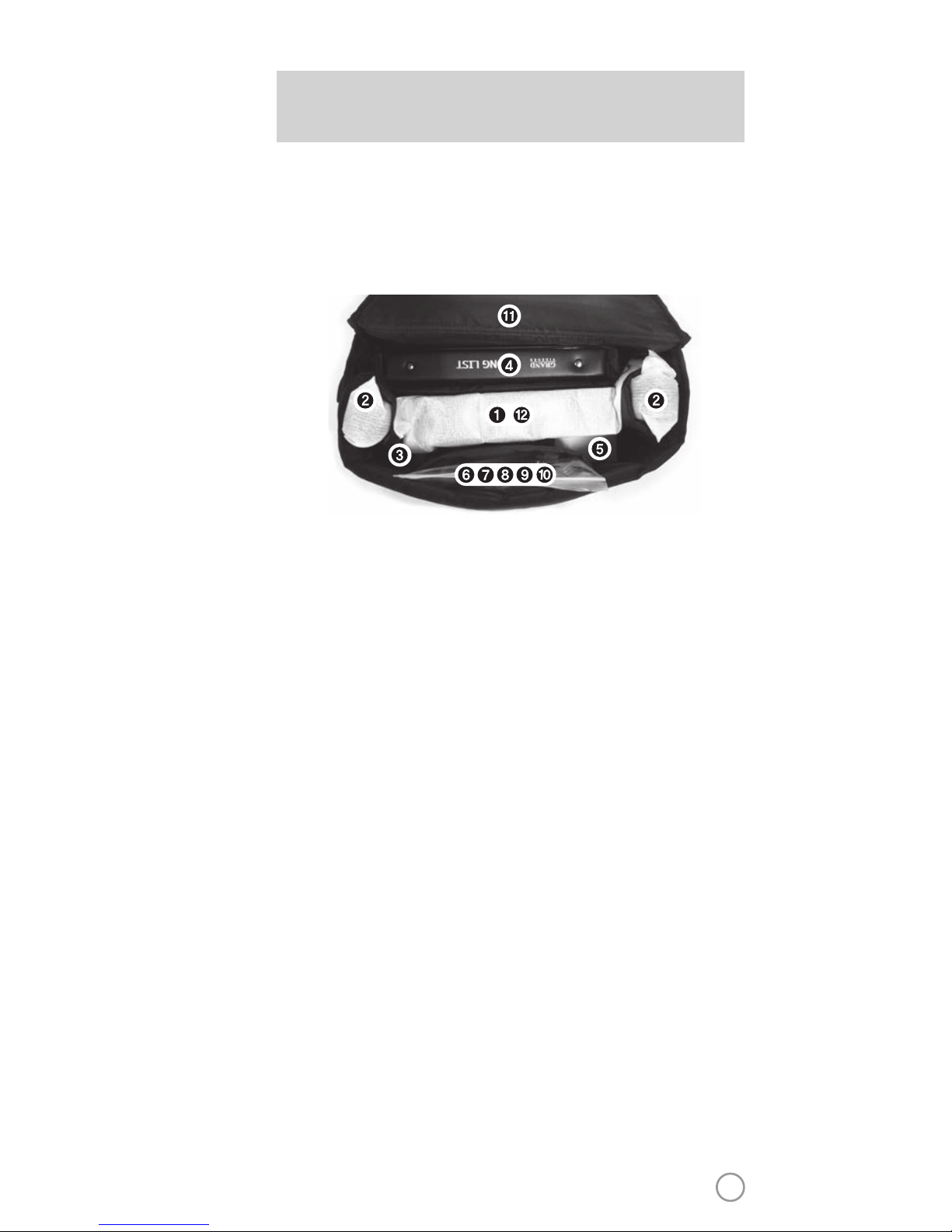
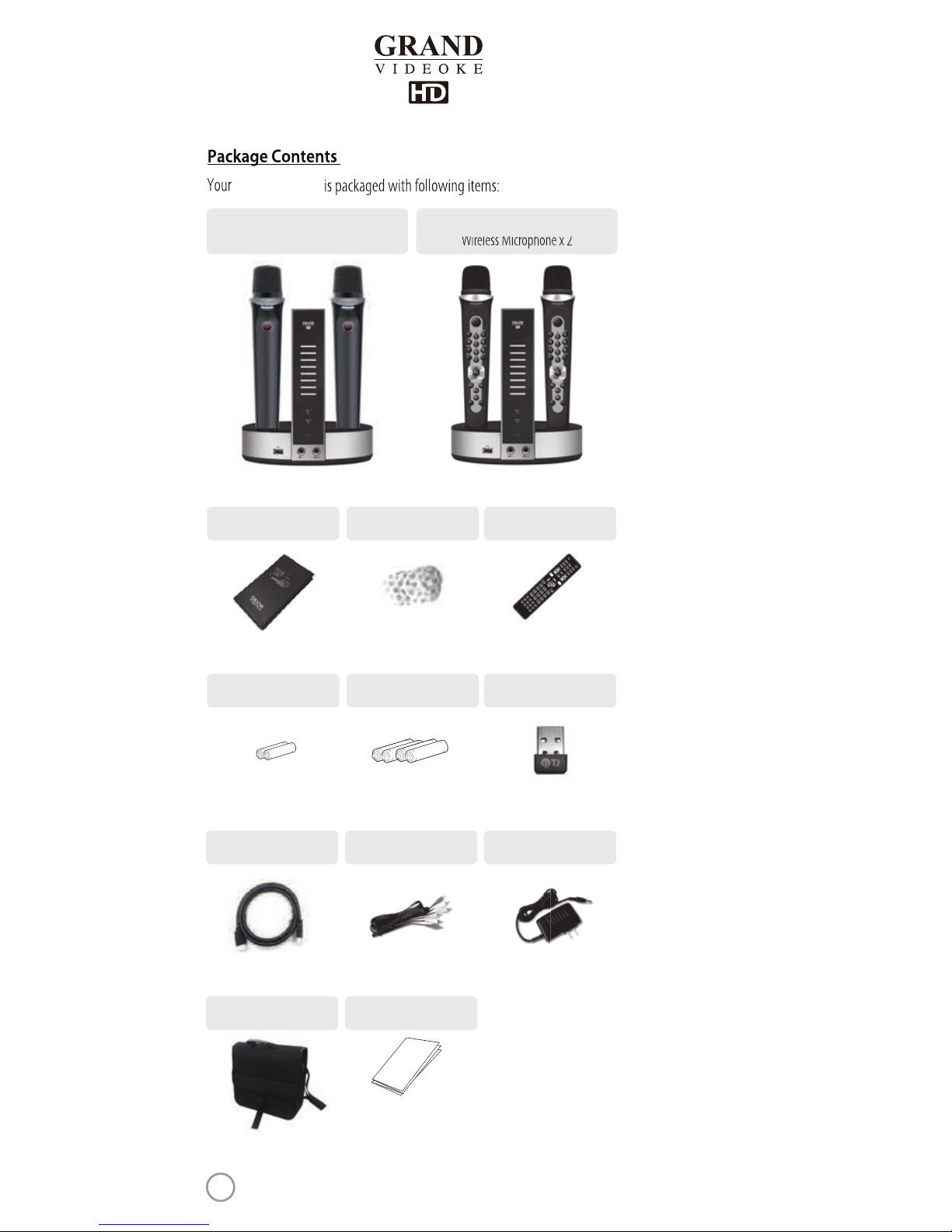
PACKING GUIDE
1. Main Unit(Player)
2.Wireless Microphone x 2
3. Remote Control
4. Song List, Manual & Quick Guide
5. Auto-Volt Power Adapter
6. Audio/Video Cable(RCA cable)
7. HD Output Cable
8. 4 x AA Batteries for Wireless Microphones
9. 2 x AAA Batteries for Remote Control
10. MIC Cover
11. Carrying Bag
12. USB Wi-Fi Adapter
Top View
5
Page 6

BASIC FUNCTIONS BAS
METHOD 1. By entering song number directly.
- Key in the song number using the alphanumeric keypad,
then press .
SONG SELECTION & PLAYBACK
METHOD 2. By searching the song.
(1) To Open the Song List : Press .
(2) Input the Title or Artist by typing on the alphanumeric
keypad.
(3) To Sort by Title, Artist : Press .
(4) To Select : Press the Arrow keys, then press .
To stop a song while playing, press .
STOP
1. To pause a song while playing,press .
2. To continue, press .
PAUSE
Select a song, then press .
RESERVATION
Press Reserved song number, then press .
CANCEL THE RESERVED SONG
6
Page 7
BASIC FUNCTIONS SECON
SECONDARY FUNCTIONS
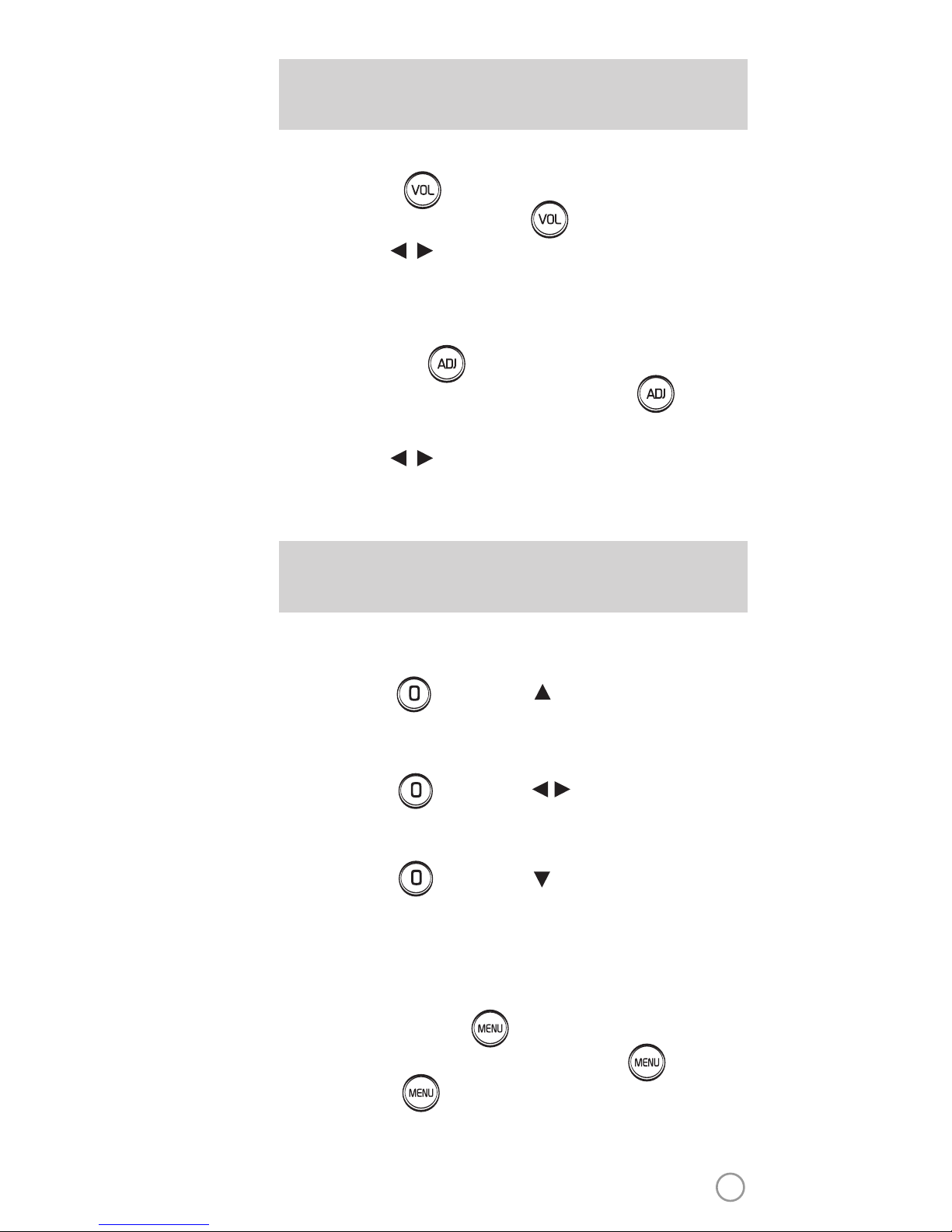
1. Volume : Press .
2. Type selection(MUSIC, MIC, ECHO) : .
3. Adjustment : , .
VOLUME(MUSIC, MIC, ECHO)
1. Adjustment : Press .
2. Type selection(KEY, TEMPO, MELODY, BGV, VOCAL) : .
* VOCAL : Multiplex Only
3. Adjustment : , .
KEY, TEMPO, MELODY, BGV, VOCAL
METHOD 1. Prelude/Interlude skip.
Press (While playing), .
METHOD 2. Rewind a tune, Forward a tune.
Press (While playing), , .
METHOD 3. Verse skip.
Press (While playing), .
SKIP
1. To Add: Select a song, press .
2. To Remove: Select a song that has been added, press .
3. To Search: Press , then select “FAVORITE”.
FAVORITE SONGS
R
7
Page 8

SECONDARY FUNCTIONS
You can record a song in 5 ways :
METHOD 1. , Select “REC”, Select“Recording Song”,
Select a song, press .
METHOD 2. , Select“Recording Song”, Select a song, press .
METHOD 3. Open the Song List, Select a song, press .
METHOD 4. While playing music, press . :
Record the playing song.
METHOD 5. Key in the song number using the alphanumeric keypad,
then press .
RECORDING
You can record a song in 2 ways :
METHOD 1. , Select “REC”, Select “Listen/Download”.
METHOD 2. , Select “Listen/Download”.
SEARCHING RECORDED SONGS
Press , Select “REPEAT”.
SONG REPEAT
METHOD 1. Press .
METHOD 2. Press , Select "PERFECT PITCH".
PERFECT PITCH FUNCTION
8
Page 9
CHANNEL SETTINGS CH
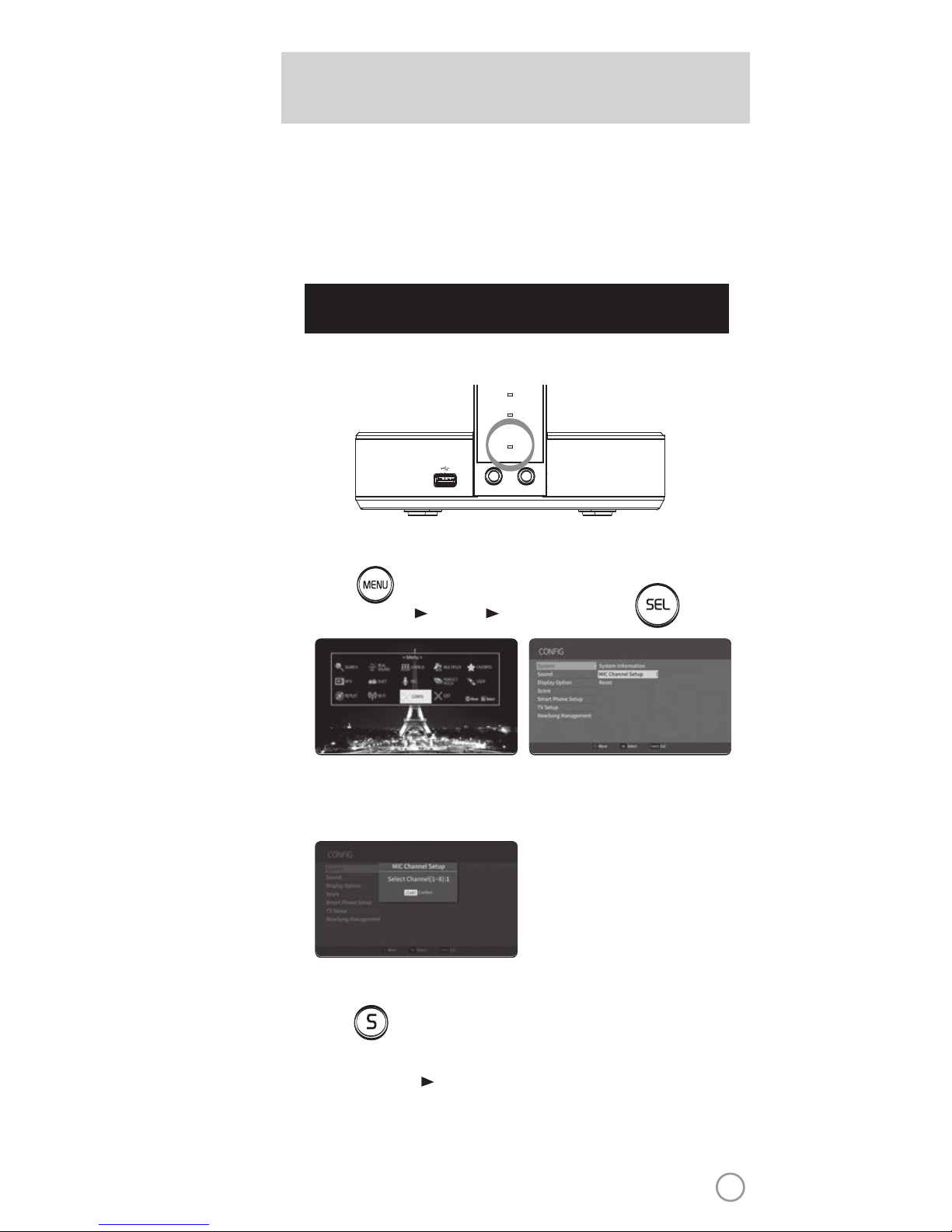
Step1] Change the channel on the main unit by usingthe
remote control.
3) Select one channel number from 1 to 8 and press that specific number
on the remote.
2) Go to channel select menu:
Press button +
choose “Config” ”System” ”MIC Channel Setup”+ button.
TKR-373MP has sixteen(16) avaitable channels.
(MIC1 Ch 1~Ch 8, MIC2 Ch 1~Ch 8)
Please take note that microphones and main player should be on the
same channel.
In case of channel interference (either one or two of the microphones
cannot be detected by the main player),
Please follow the step by step instruction below for re-channeling.
1) Turn on the main unit. Make sure no song is playing.
4) Press button.
5) Press [Power off] [Power on] to save.
F
MIC 1
MIC 2
POWER
MIC 1 MIC 2
9
www.grandvideoke.com
Page 10
CHANNEL SETTINGS
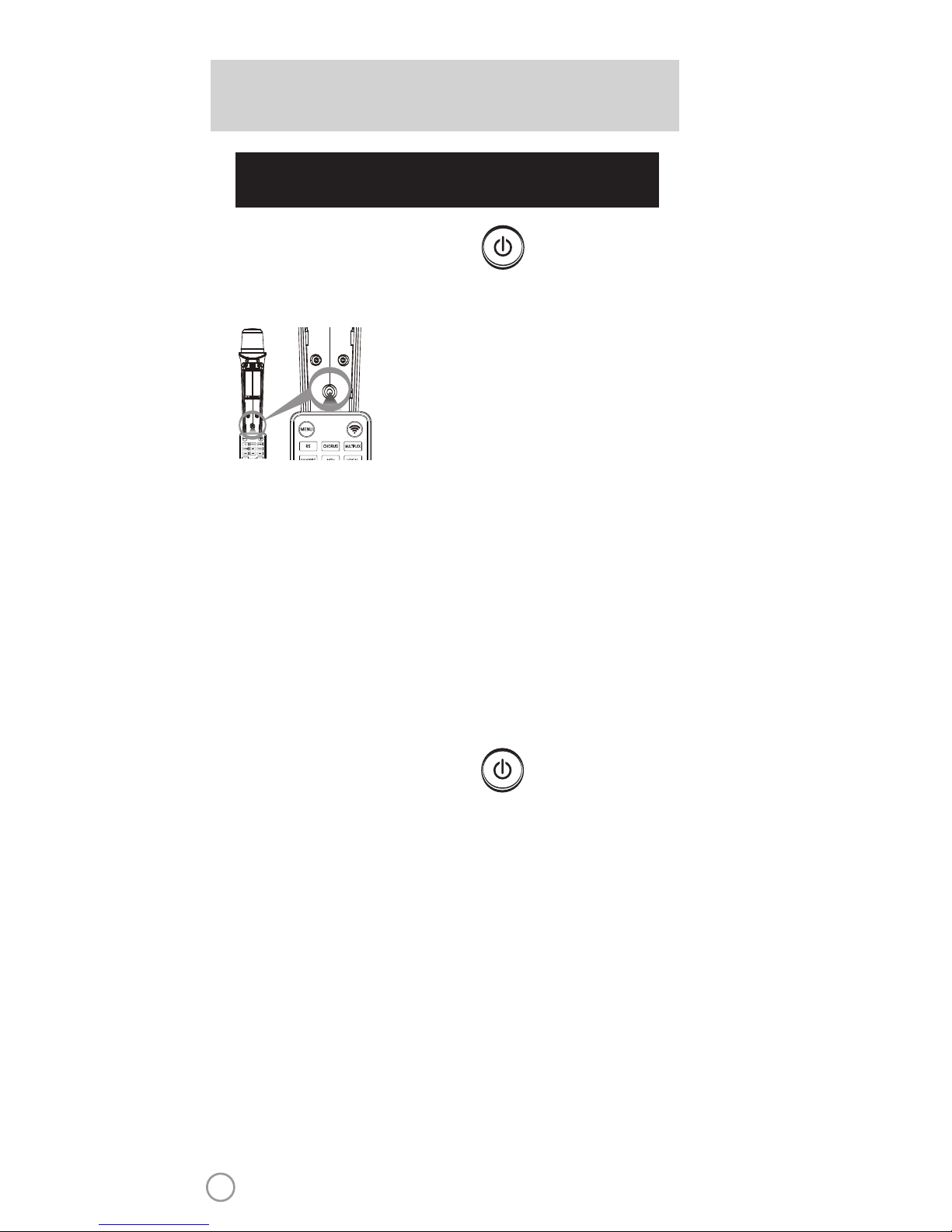
Step2] Setthe channel of the twomicrophones using the
microphone's keypad.
For the first(1st) microphone:
1) Turn onthe microphone by pressing the button.
2) Separate the battery cover from a microphone.
(Refer to “How to change batteries” in the manual)
4) Press [RES] button on the remote control.
The microphone LED will be turned on and off twice.
5) Press the same channel number that you set in the main player.
The microphone LED will be turned on and off twice.
6) Press [REC], Microphone LED will be turned on and off twice.
7) Press [MENU]button to save.
Microphone LED will be turned on and off 6 times.
8) If a wireless microphone is successfully connected to the main unit,
LED of MIC1 on the main unit will will be on.
For the second (2nd) microphone:
1) Turn onthe microphone by pressing the button.
2) Separate the battery cover from a microphone.
3) Prepare a remote control and set as above picture and follow the below
steps from 4) to 7).
4) Press [RES] button on the remote control.
The microphone LED will be turned on and off twice.
5) Press the same channel number that you set in the main player.
The microphone LED will be turned on and off twice.
6) Press [APPLAUSE], Microphone LEDwill be turned on and off twice.
7) Press [MENU]button to save.
Microphone LED will be turned on and off 6 times.
8) If a wireless microphone is successfully connected to the main unit,
LED of MIC2 on the main unit will will b
e on.
3) Prepare aremote control and set as shown
on the left and follow the below steps from
4) to 7).
10
www.grandvideoke.com
Page 11

Thank you for purchasing the GRAND VIDEOKE SYMPHONY 3 PRO (TKR-373MP).
The GRANDVIDEOKE SYMPHONY 3 PRO is the rst portable videoke system
equipped with the highly-advanced Perfect Pitch scoring system. Experience
professional-grade scoring in real-timewhile singing, rating your key/rhythm,
vibrato, upband, and downband.
The GRANDVIDEOKE features a smartphone/tablet companion app called the
GV Smart App for Android and iPhone/iPad. The app features special functions
such as Direct Song Download, GV™ Smart Card Authentication System, OneTouch Pairing, Voice Command+, Remote Control, Screenshots Sharing, and Live
Messaging.
The GRANDVIDEOKE is pre-loaded with various kinds of Full HD 1080p
Background Videos (BGVs) includingWOW Philippines, World Tour, 3D Anime
Dance, Motion, K-Pop M/V, K-Drama, and OPM MTVs.
The GRANDVIDEOKE is equipped with a built-in 32GB ash internal storage for
storing Direct Song Download (song pack) volumes purchased via the GV™
Smart App. Add thousands of songs to your main unit without the hassle of
purchasing and using physical song packs. The internal storage can also be used
to store photos and music les for viewing and playback.
The GRANDVIDEOKE features HD+ Sound powered by Dream® Sound Module.
With 414 instruments, 16-bit PCM, and 48 kHz sampling rate, experience audio
performance that is better than CD-quality.
The GRANDVIDEOKE can play ve (5) types of music content - all of which
were remastered for even better sound quality compared toprevious Grand
Vide
oke models.
- 3D RealSound is the enhanced version of TJ Media’s exclusive MP3-based
format for karaoke use with orchestralaccompaniment, real instruments,
and backup singers.
- MIDI (Musical Instrument Digital Interface) is music produced through a
synthesizer to generate all the sounds of all instruments for a specic song.
- Multiplex is music with full-length backup vocals than can be turned on oro.
- Chorus is music with backup vocals overlayed on MIDI music.
- MTV is original music video with original singer’s voice and music.
The GRANDVIDEOKE features multimedia playback capability that supports
most popular media formats including advanced HD formats suchas H.265.
Media les such as movies, music, and photos can be played back from USB
ash drives and hard drives of up to 1TB (full compatibility may depend on
storage media brand and model).
11
www.grandvideoke.com
Page 12
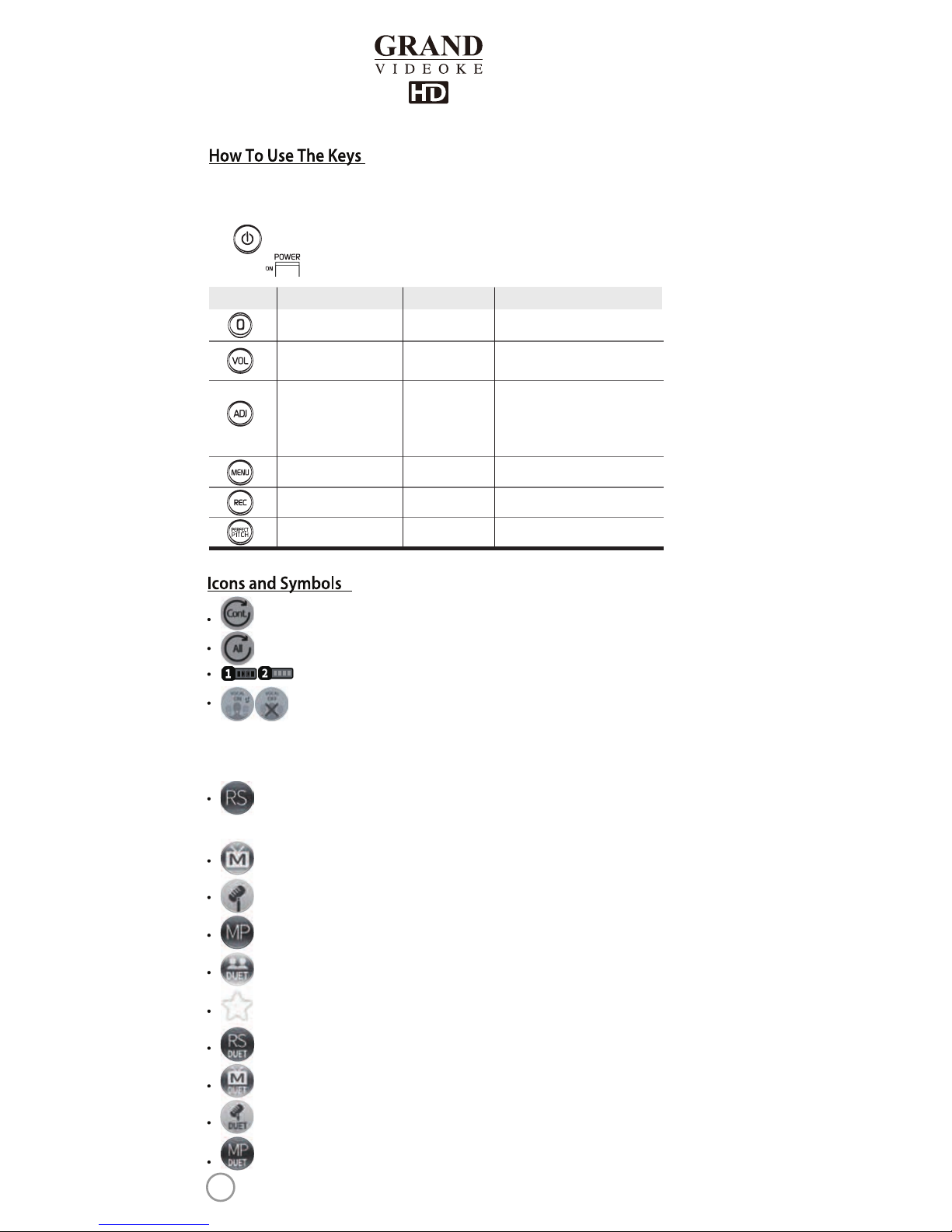
: When reserved song is repeated, the icon is indicated in the screen.
: When all songs are repeated, the icon is indicated in the screen.
: When mic is on, the battery power is indicated in the screen.
: When multiplex is played, the vocal status is indicated in the screen.
Icon the song list, the icon indicates as following.
Realsound song : Song with orchestral accompaniment,
real instruments and back-up vocals.
MTV song : Original music videos.
Chorus song : Song with back-up singers.
Multiplex song : Song with full-length vocals.
Duet song : Song for two singers.
Favorite song : User-selected song tagged as favorite.
: Realsound + Duet.
: MTV + Duet.
: Chorus + Duet.
: Multiplex + Duet.
The in theGRAND VIDEOKE Microphone is used to power on the Microphone,
while the
on the GRAND VIDEOKE is used toturn the GRAND VIDEOKE on and o.
The keypad of the GRAND VIDEOKE is an alphanumeric keypad similar to a cell phone.
You can key-in letters into the screen when searching for songs.
Button/Key Play Standby
Skip “0” “SPAC E”→“0”
Move to Music, MIC,
Echo Volume
Move to Music,
MIC Volume
Sort(Title, Artist)
Record the playing song Record Menu Record the song
Run Perfect Pitch Run Perfect Pitch
MenuMenu
Adds the highlighted song to favorites list
Move to Key, Tempo,
Melody Levels,
BGV, VOCAL ON/OFF
(Only for Multiplex)
BGV
Search Mode
12
www.grandvideoke.com
Page 13
GRAND VIDEOKE
1. Do not attempt to open the GRAND VIDEOKE. This will void the warranty.
2. Use only the power adapter included with your GRANDVIDEOKE.
Using other power adapters could cause serious damage to the product and
there by void its warranty.
3. Do not cover the product or any of its accessories while theGRAND VIDEOKE
is turned on. Always allow air to move freely around the GRAND VIDEOKE and
the microphones in order to prevent overheating.
cables
the product
and
GRAND VIDEOKE
and for repair, if necessary.
power adapter
from the wall socket.
power adapte r.
power adapter and all cables.
power adapter
the product
GRAND VIDEOKE.
GRAND VIDEOKE
13
www.grandvideoke.com
Page 14
Main Unit(Player) &
Wireless Microphone x 2
Carry Bag
Song List&Manual MIC Cover Remote Control
2xAAA Batteries 4xAA Batteries USB Adapter
RCA Cable Auto-Vo lt Power Adaptor
Quick Guide
GRANDVIDEOKE
Main Unit(Player) &
Wireless Microphone x 2
TKR-373MU
HD Output Cable
14
www.grandvideoke.com
Page 15
MIC 1
MIC 2
POWER
MIC 1 MIC 2
POWER
DCIN 12 V
AUDIO/VIDEO
OUT
HDOUT
DEF
MNO
WXYZ
START
GHI
PQRS
CANCEL
SEL
4
5
123
6
789
C S
0
ABC
JKL
TUV
SKIP
VOL
MENU
RES
ADJ
REC
PERFECT
PITCH
DEF
MNO
WXYZ
START
GHI
PQRS
CANCEL
SEL
4
5
123
6
789
C S
0
ABC
JKL
TUV
SKIP
VOL
MENU
RES
ADJ
REC
PERFECT
PITCH
PERFECT PITCH
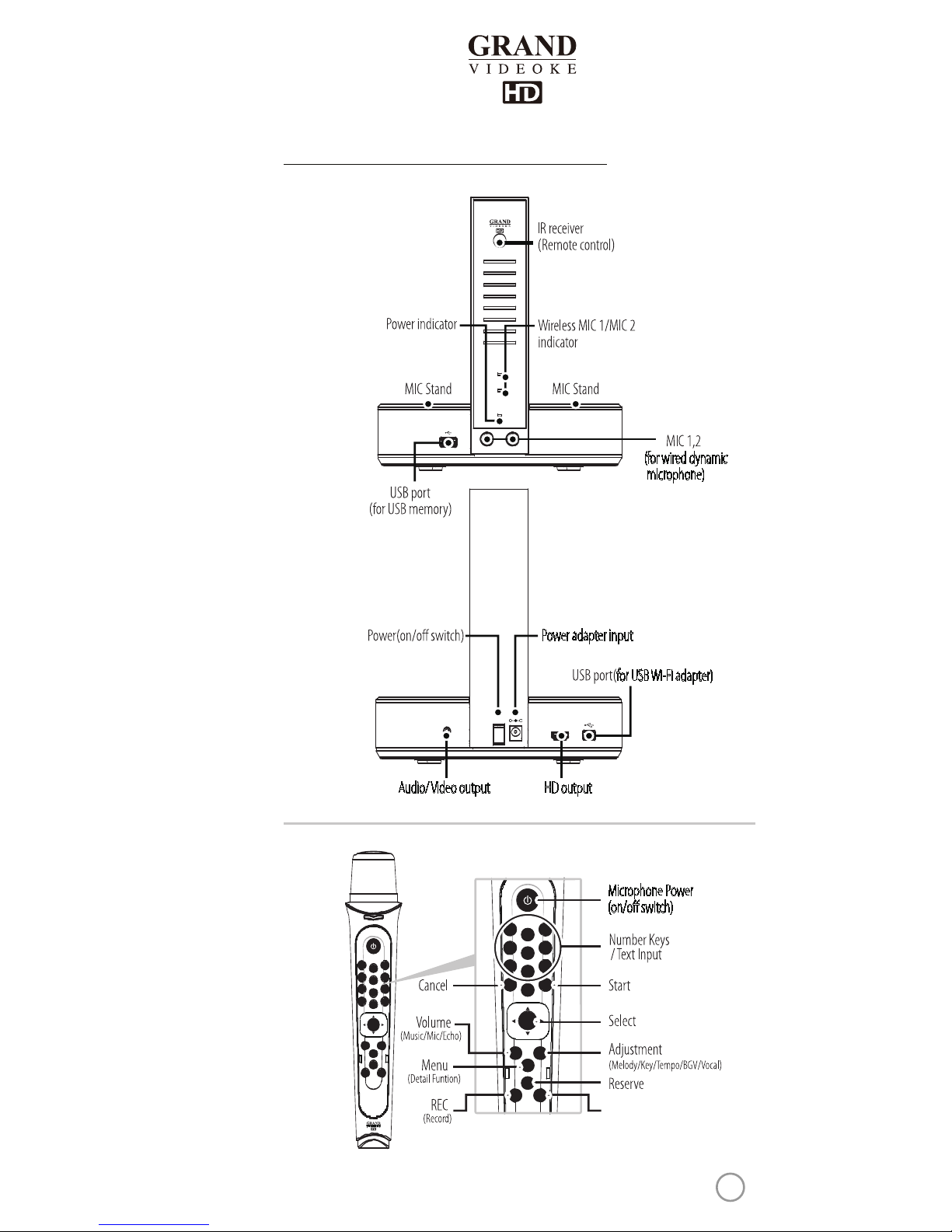
HD output
for USB Wi-Fi adapter)
Microphone Power
(on/o switch)
(for wired dynamic
microphone)
Power adapter input
Audio/ Video output
Product Overview (Main Unit & Microphone)
15
www.grandvideoke.com
Page 16
3
6
8
9
21
4
7
12
11
15
17
19
14
16
18
10
5
13
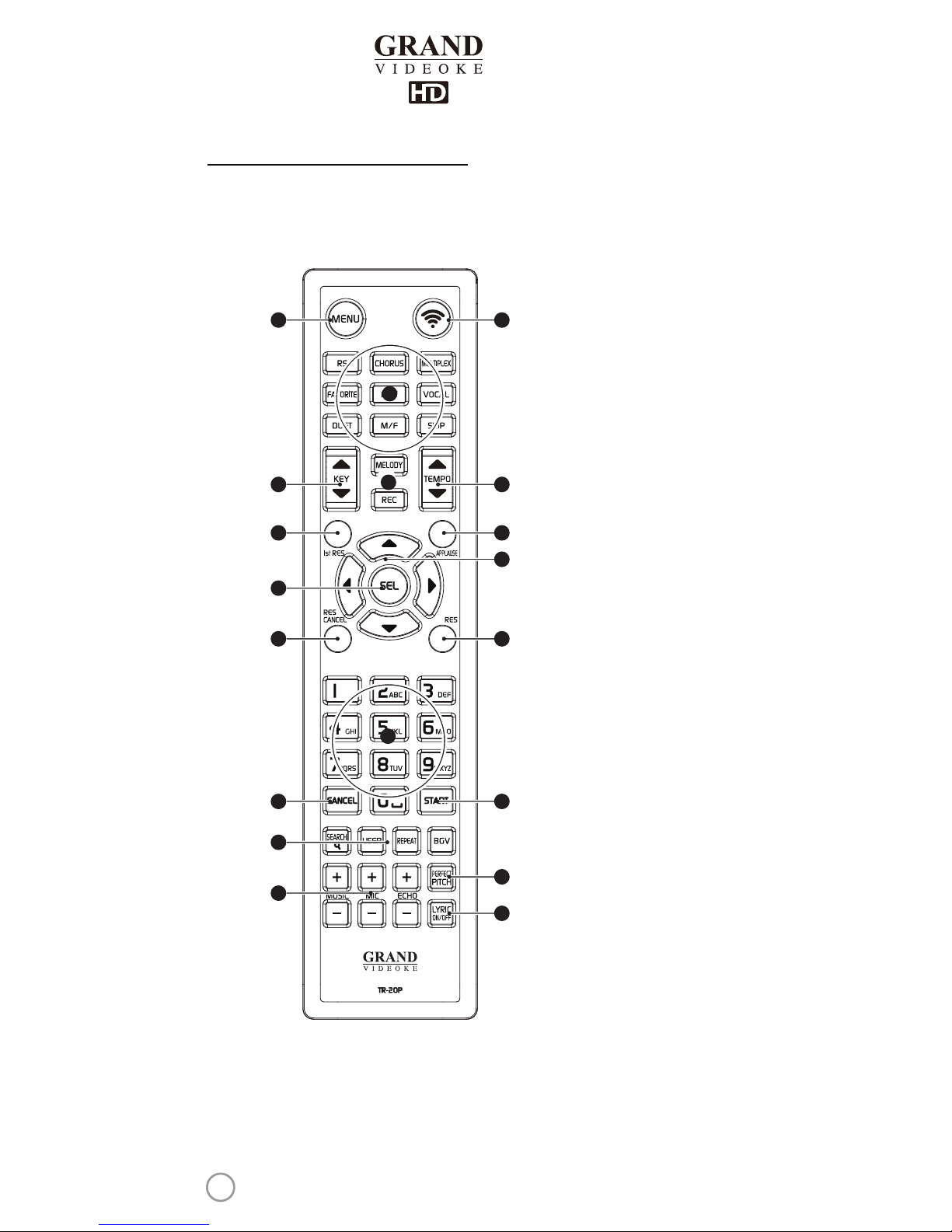
Product Overview (Remote Control)
16
www.grandvideoke.com
Page 17

Product Overview (Remote Control)
NO
1
2
3
4
5
6
7
8
9
10
11
12
13
14
15
16
17
18
19
FUNCTION
MENU
RS
CHORUS
MULTIPLEX
FAVORITE
MTV
VOCAL
DUET
M/F
SKIP
KEY ▲,▼
MELODY
REC
TEMPO ▲,▼
1st RES
APPLAUSE
▲,▼,◀,▶
SEL
RES CANCEL
RES
0~9/A~Z
CANCEL
START
SEARCH
USER
REPEAT
BGV
PERFECT PITCH
MUSIC/MIC/ECHO
LYRIC ON/OFF
SUBSTANCES
Display menu window.
Open Wi-Fi network set-up menu.
Display the list of RealSound songs.
Display the list of Chorus songs.
Display the list of Multiplex songs.
Display the list of Favorite songs.
Display the list of MTV songs.
Vocal assist AUTO/ON/OFF for Multiplex songs.
Display the list of Duet songs.
Change song key to maleor female voice.
Jump to a prelude/interlude, a tune, or a verse of a playing song.
Stepped song key control between male and female voices.
Display recorded song list; start recording song.
Control the speed of playingsong.
Activate rst reservation.
Activate applause sound eect.
Move up, down, left, right in the list or display function.
Cancel reserved song.
Reserve a song on song list window; Display Reserved Song List.
Number/Text.
Cancel.
Play, Pause.
Song search byTitle or Artist.
Open user videos, music and photo les (multimedia player mode).
Normal → Continuous → All song repeat.
Select background video type.
Run PERFECT PITCH.
Control the volume of music, echo and microphone.
Turn lyrics display on or o.
Select the volume of melody on the playing song.
(None - Low - Mi
ddle -
High)
Select.
View lyrics(on song list window).
17
www.grandvideoke.com
Page 18
Product Overview (Remote Control)
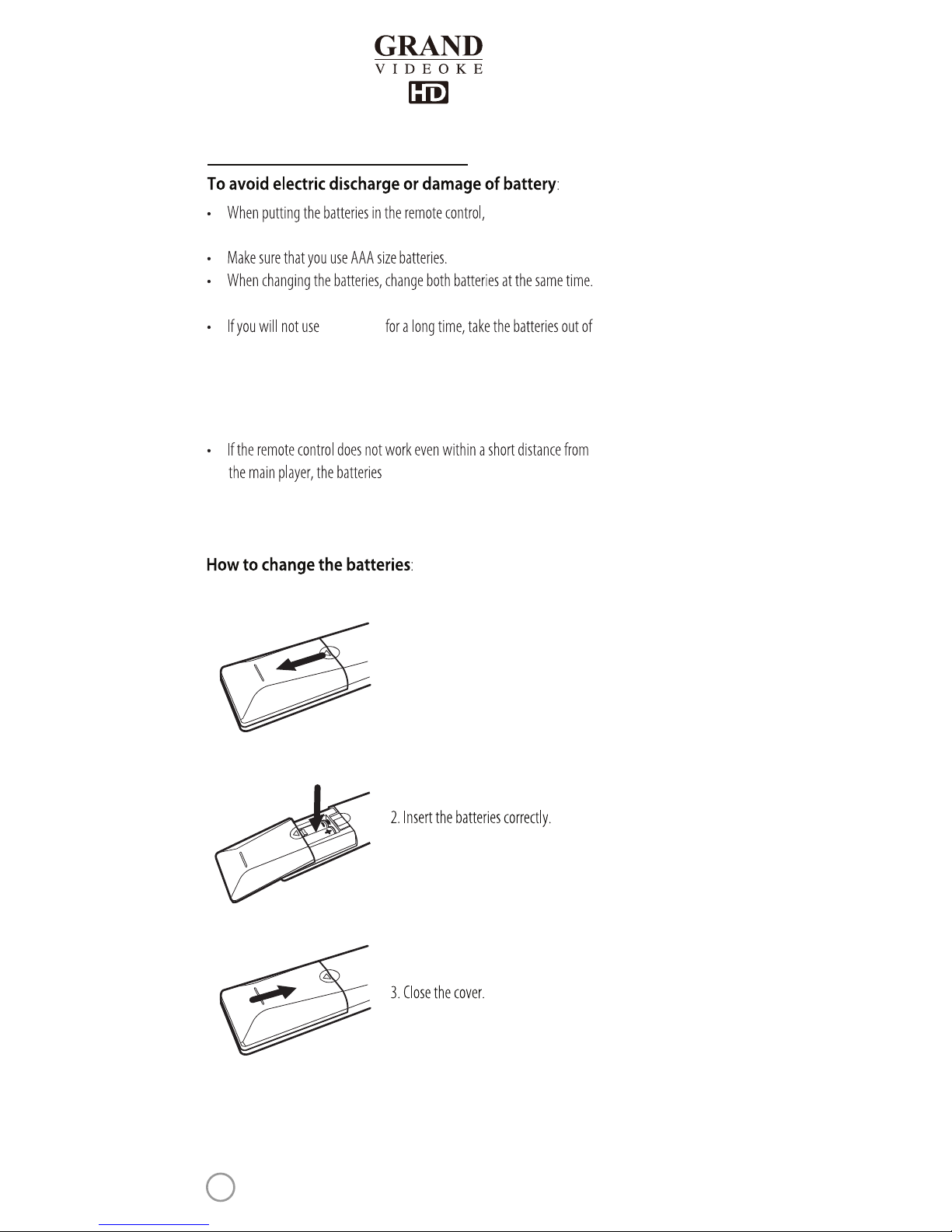
When to change the batteries(2 x AAA Batteries)
1. Push and slide the battery cover tab to open the
battery compartment.
check if the polarities are
correct (+/-).
Do not mix old and new batteries.
the remote control.
must be changed.
the product
18
www.grandvideoke.com
Page 19
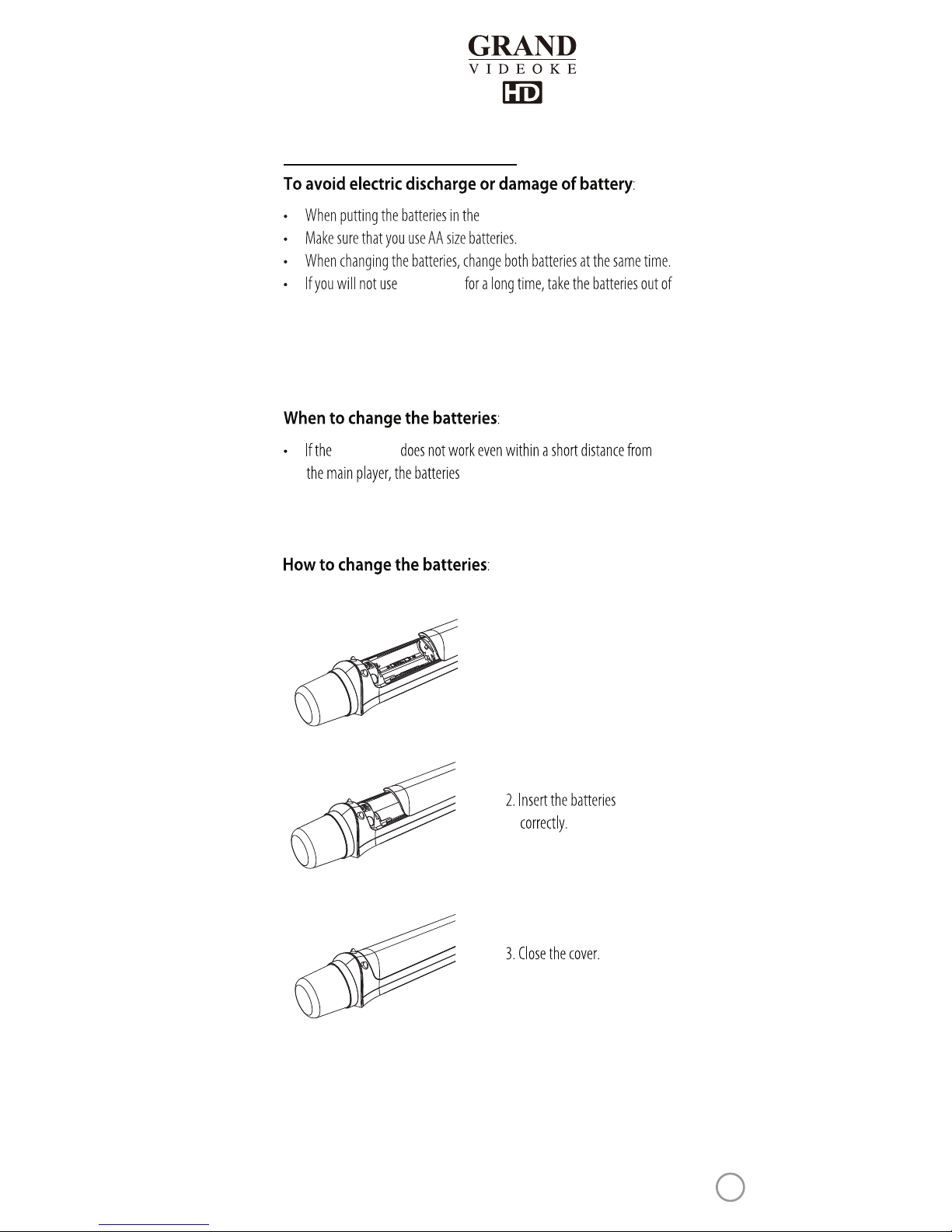
Product Overview (Microphone)
microphone, check if the polarities are correct (+/-).
the microphone.
the product
microphone
1. Push and slide the battery cover tab to
open the battery compartment.
must be changed.
19
www.grandvideoke.com
Page 20
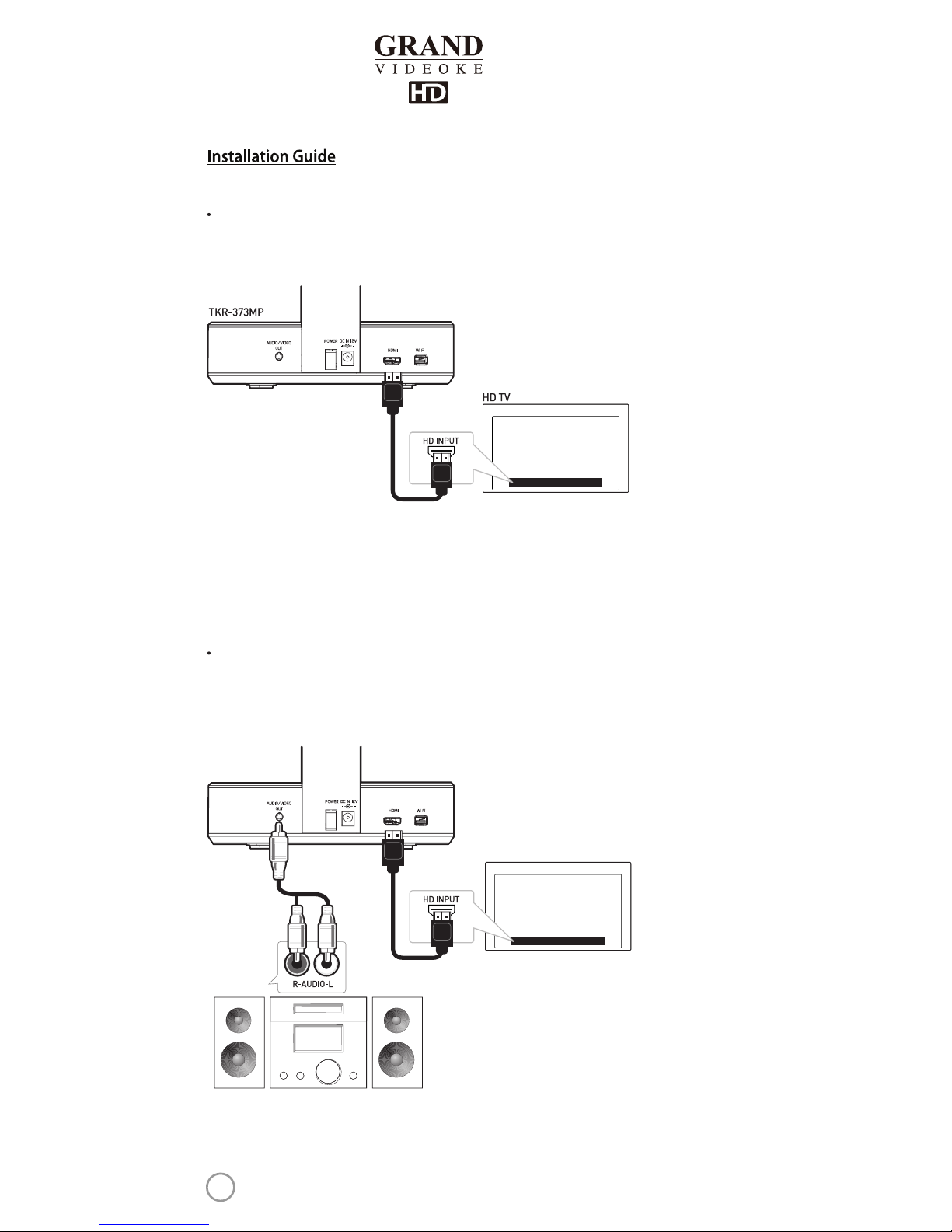
Please connect the main unit to the HDTV using an HD Output cable as shown in the
image below.
Main Unit to HDTV Connection
If a speaker system is available:
Please connect the audio output of the main unit to the audio input of the
speaker system as shown in the image below.
HD TV
TKR-373MP
AUDIO
20
www.grandvideoke.com
Page 21
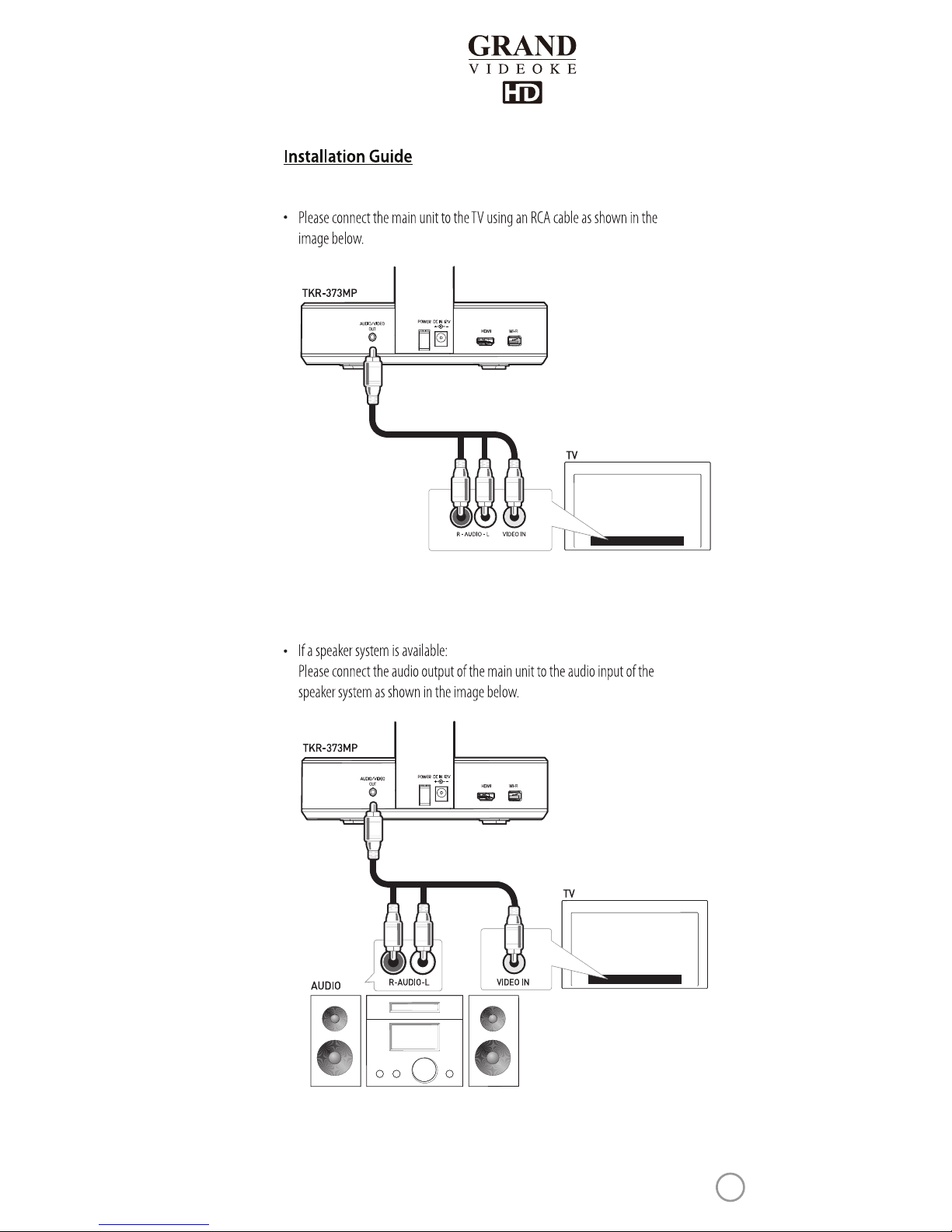
Main Unit to Standard TV Connection
21
www.grandvideoke.com
Page 22
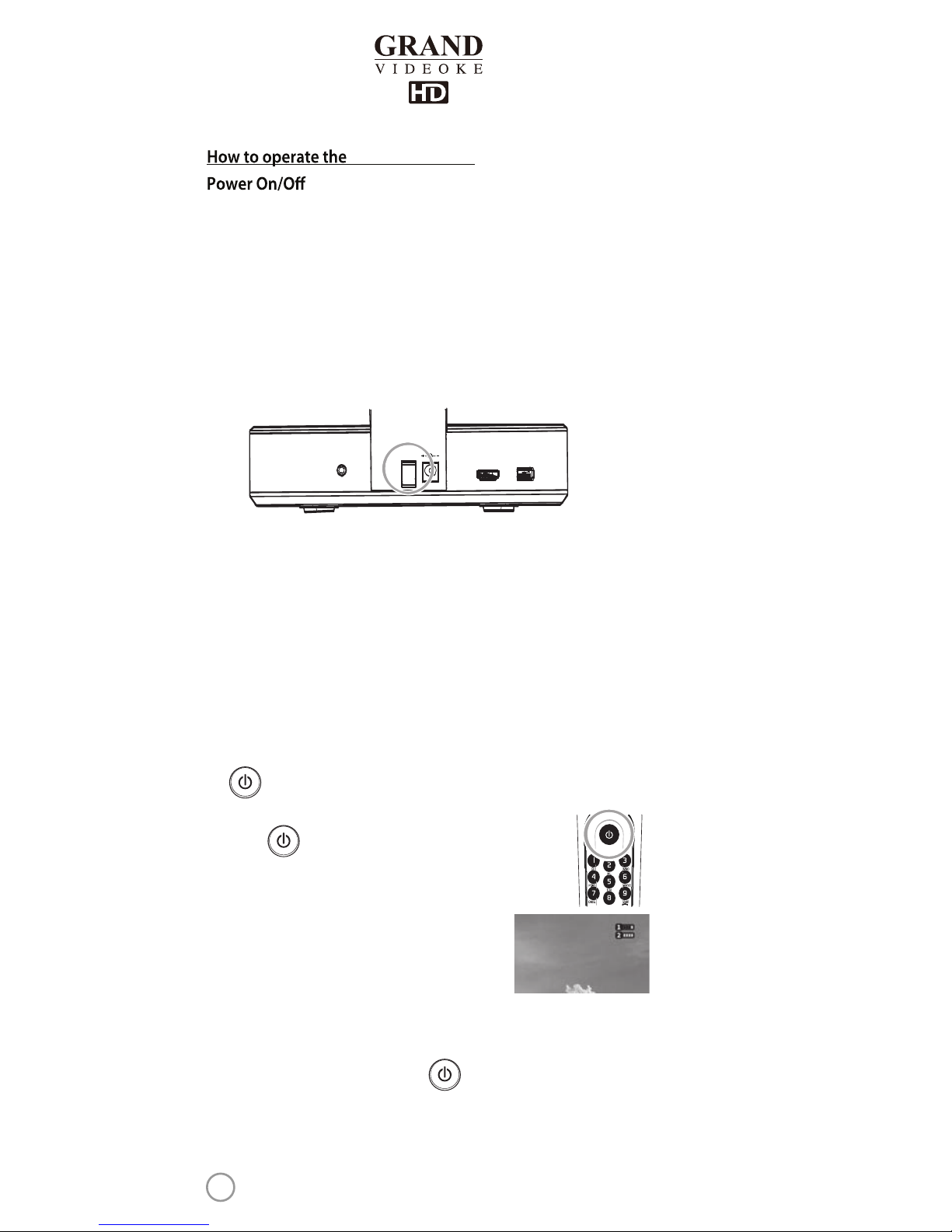
GRAND VIDEOKE
Power ON - Grand Videoke Main Unit
Power OFF - Grand Videoke Main Unit
Power ON/OFF - Microphone
1. Connect the main unit and all its accessories accordingly.
(Refer to Installation Guide for connection instructions.)
2. Turn on your TV set and select the AV source where the device is connected.
3. Turn the Grand Videoke main unit on through the rear panel power switch
(as seen on illustration below).
4. Check if the POWER LED on the front panel of the main unit is turned on to conrm
that the product is powered on.
1. Turn the GRAND VIDEOKE microphone(s)o rst before turning o the main unit.
2. Turn the Grand Videoke main unit o throughthe rear panel power switch (as seen
on illustration above).
3. Check if the POWER LED on the front panel of the main unit is turned o to conrm
that the product is powered o.
The button turns the microphone(s) on and o.The main unit will not be turned
on and o through this button.
1. Press button to turn the microphone(s) on.
2. Check if the POWER LED of the microphone is lighted up to
conrm that it is turned on.
3. Check if the microphone icon is indicated on the
TV screen.
- To check the icon, the main unit must be turned on.
- If icon did not appear, the microphone is not
connected properly and it must be rechanneled.
Please refer to"CHANNEL SETTINGS" section of this manual for rechanneling
instructions.
4. To turn o the microphone, press the button for two(2) seconds.
5. Check if the POWER LED of the micro
phone is not lig
hted up to conrm that it is
turned o.
AUDIO/VIDEO
OUT
POWER
DCIN 12V
HDMI Wi-Fi
22
www.grandvideoke.com
Page 23
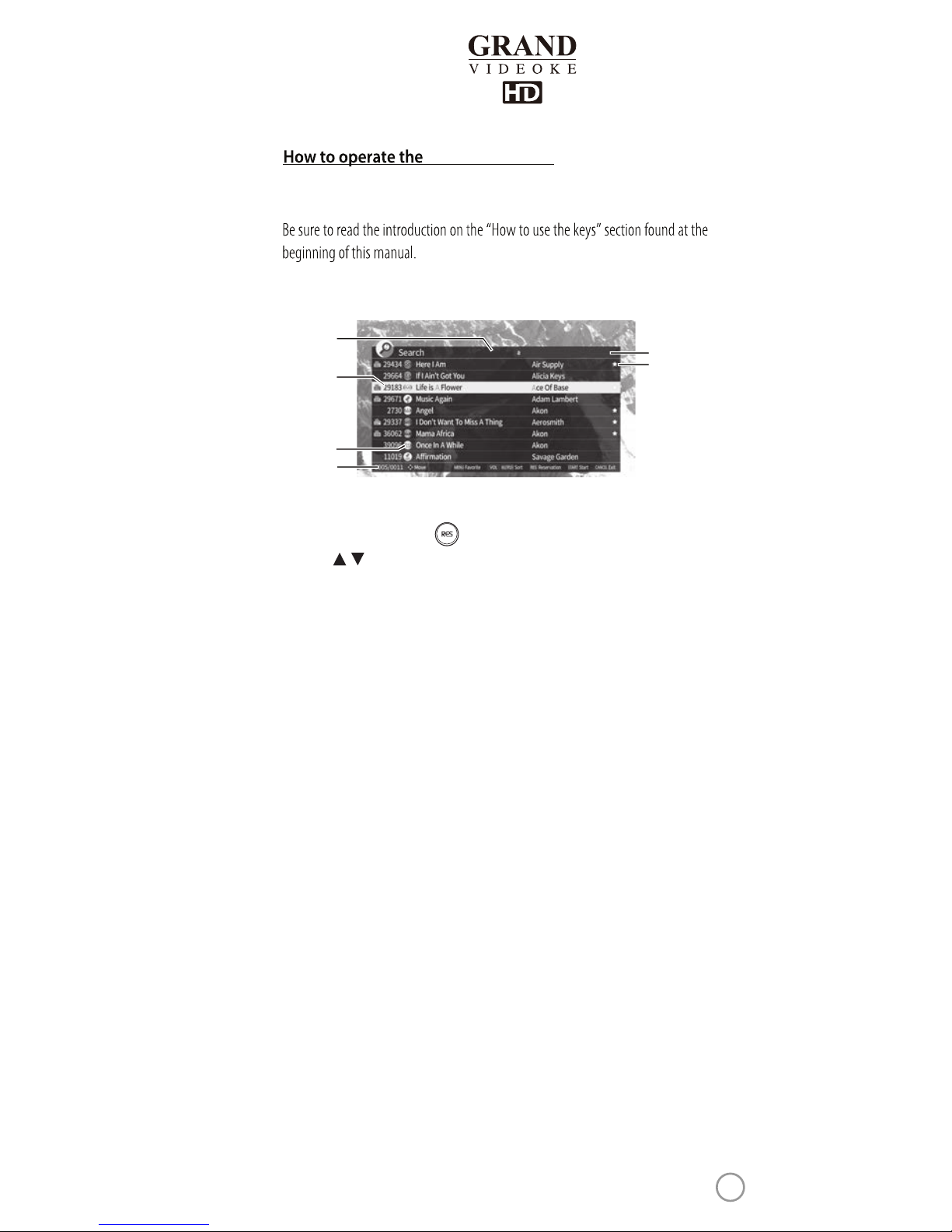
1.
2.
3.
4.
5.
6.
Title/Artist –This is the current sort mode. To change to another sort mode,
press [VOL].
Song numbers – Index number of the song in GRAND VIDEOKE songbook.
Type - Indicates the type of the song.
0005/0011 – Current page over the total number of pages for the whole
GRANDVIDEOKE HD library.
If
you add a new song,the total number of pages willchange accordingly.
Search input box. (Enter title or artist name.)
Favorite symbol –Activates when the song has been added to the Favorite list.
In the illustration above, the song “Life Is A Flower” is highlighted.
You can reserve it by pressing
Move the keys to highlight and reserve more songs.
,
1
2
5
6
3
4
GRAND VIDEOKE
Search and reserve songs by remote control and
microphone control buttons
Unied Search Screen-Title or Artist
23
www.grandvideoke.com
Page 24
The GRAND VIDEOKE plays the reserved songs one after the other.
you will cancel the reserved song.
,
GRAND VIDEOKE
GRAND VIDEOKE is turned o.
window
screen.
100
GRAND VIDEOKE.
Unied Search function.
title or artist that
title or artist,
will
title or artist that title or artist
,
Selecting Songsby Title or Artist
1.
2.
3.
4.
5.
6.
7.
8.
9.
10.
11.
24
www.grandvideoke.com
Page 25
25
www.grandvideoke.com
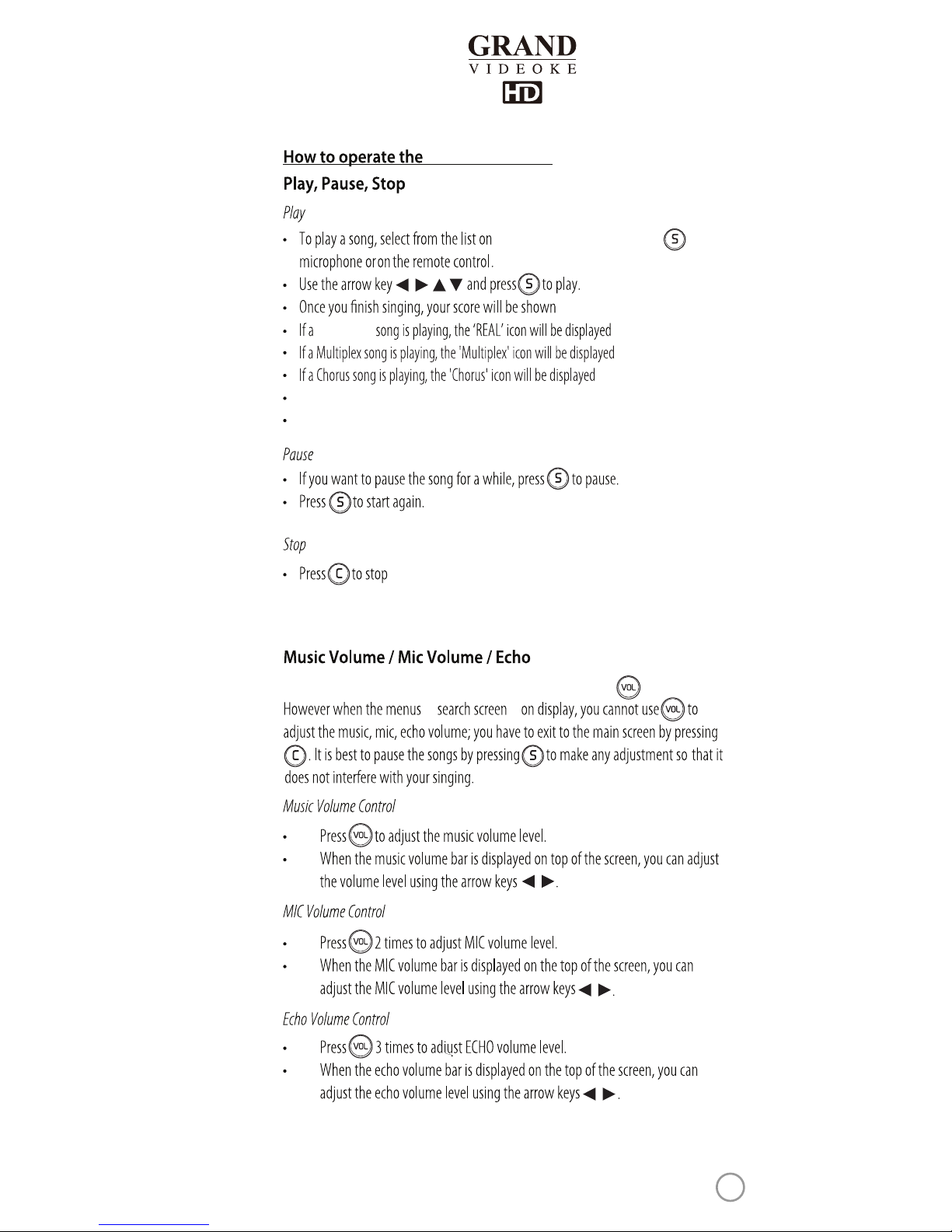
If a MTV song is playing, the 'MTV' icon will be displayed on the left side of the screen.
If a Duet song is playing, the 'DUET' icon will be displayed on the left side of the screen.
the song.
Music, microphone, and echo levels can be adjusted by pressing .
or is
Real Sound
the song search screen and press on the
on the screen.
on the left side of the screen.
on the left side of thescreen.
on the left side of thescreen.
You can also select songs from the song list.
,
,
,
, , ,
GRAND VIDEOKE
Page 26
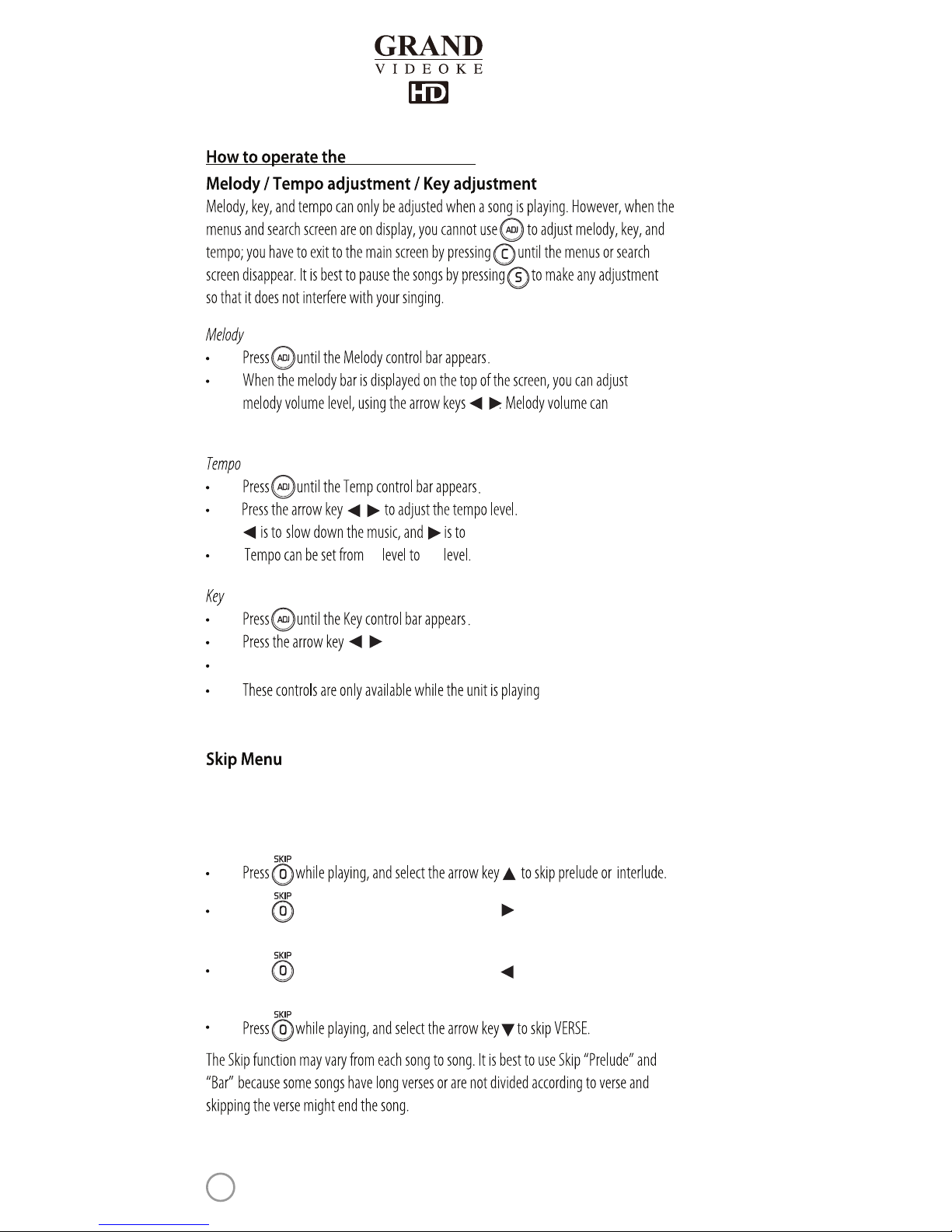
be set 4 in levels(None - Low - Middle - High).
-6
speed it up.
to adjust the key setting.
a song.
The Skip function allows the user to skip the current prelude (instrumental, intro, interlude),
line, or verse. This function can be compared to the fast forward or rewind function in
music players.
Key can be set from -6 level to +6 level.
Press while playing, and select the arrow key to skip BAR.
Skipping the bar lets you move to the next line of lyrics.
Press while playing, and select the arrow key to skip BAR.
Skipping the bar lets you move to the previous line of lyrics.
+6
,
,
,
GRAND VIDEOKE
26
www.grandvideoke.com
Page 27
GRAND VIDEOKE’s
GRAND VIDEOKE
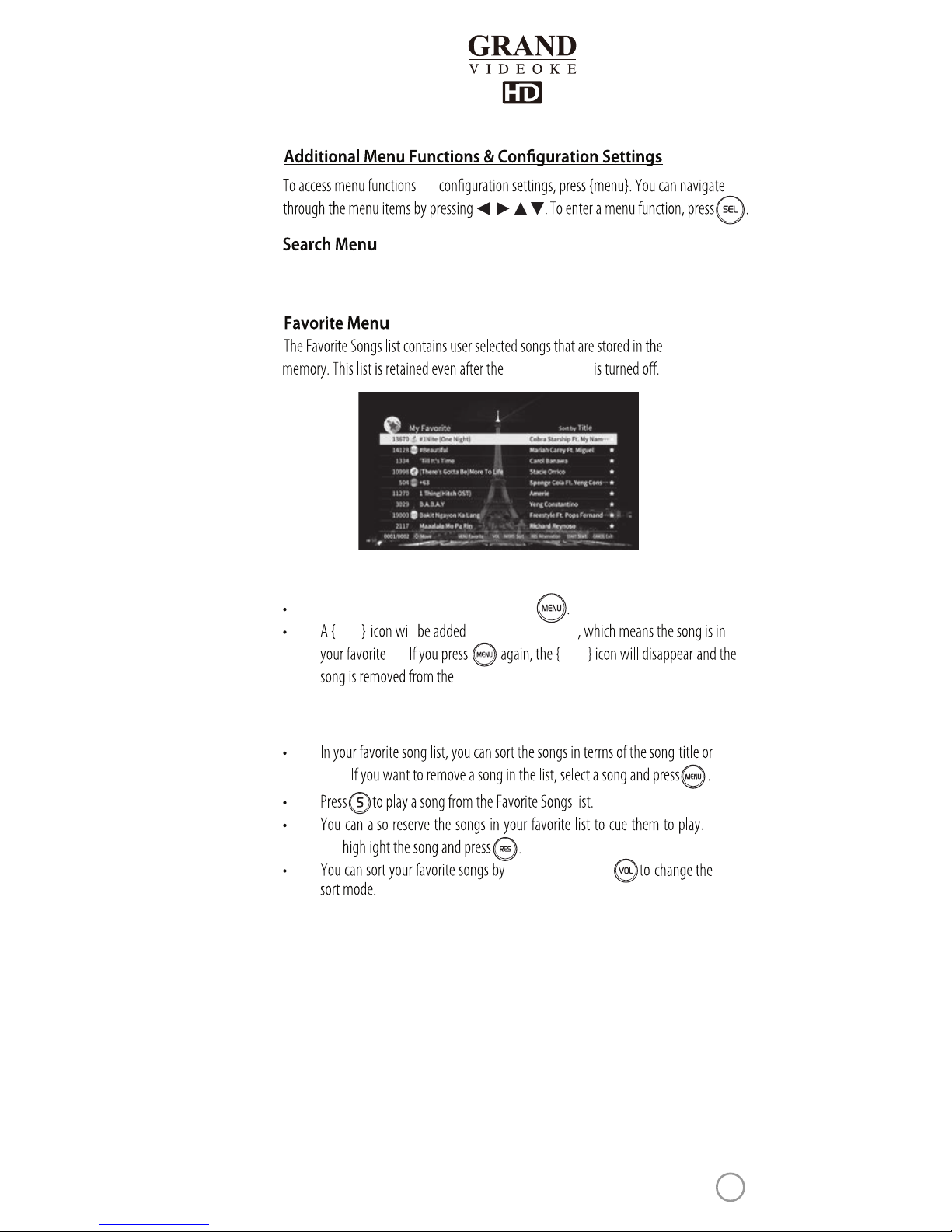
Select a song on the search screen and press
and
See the instructions entitled“Search Screen”, “Search Function”, and “Song Reservation” on
this manual for more information.
STAR
favorite list.
STAR
Title and Artist. Press
after the artist column
list.
artist.
Just
, ,,
Toadd songs to the favorite list :
Managing the favorite list :
27
www.grandvideoke.com
Page 28
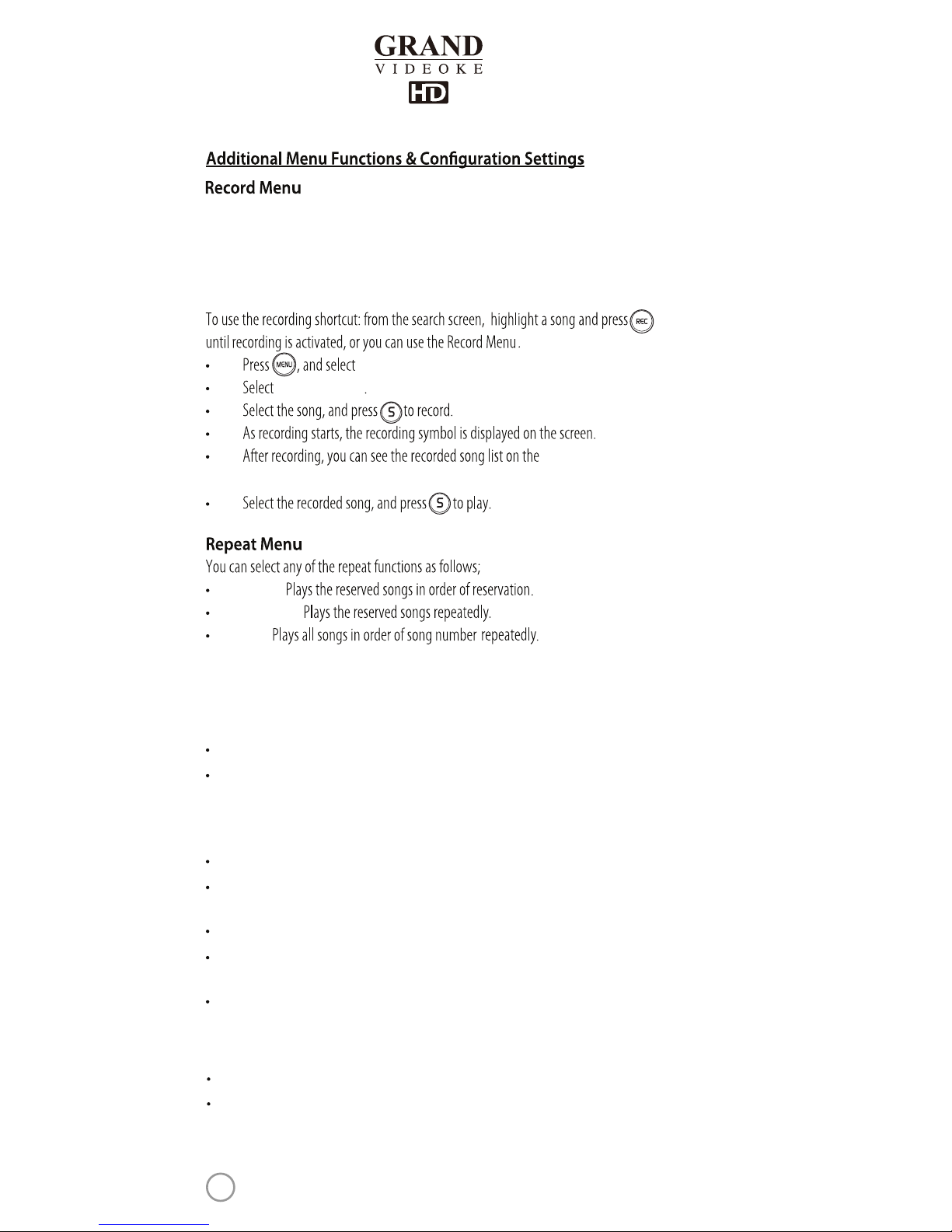
The record function allows the user to record his/her own voice on asong.
Both the instruments and the user’s voice are recorded and can be played back.
Recorded songs are stored in the GRAND VIDEOKE's built-inmemory.
Recorded time is up to 5 minutes per song. If exceeded, it may notbe properly recorded.
“REC”
“Listen/Download”,
menu and play the recorded songs.
{None} :
{Continue} :
{All} :
“Recording Song”
PERFECT PITCH
The ‘Perfect Pitch’ feature allows you to check thebeat and pitch in real time with
enjoyment of singing as a game.
GAME MODE : Select from SINGLE / BAT TLE mode.
PLAY TIMES : Select the number of songs to be played (1-3 times).
Feature only on Battle Mode.
* 'Select song → Play' is repeated until 'Perfect Pitch' mode is cancelled in
‘Single Mod e’.
CHARACTERS : Select from fourcharacters or one of your photos as the character.
RANKING CHART : Displays the ranking of singers singing in SINGLE mode.
The record is retained even when the device is turned o andon.
HELP : Simple manual of the Perfect Pitch feature.
START : After selecting settings on Perfect Pitch such as PlayTimes and Character,
selecting this will let you choose song(s) to sing.
EXIT : Exit/cancel Perfect Pitch mode.
MTV/ Multiplex/ RealSound/ Chorus/ Duet Menu
This menu provides the list of dierent types (formats) of songs.
If you select an item, a song format on the remote,the list will be displayed.
28
www.grandvideoke.com
Page 29
Sound Setup
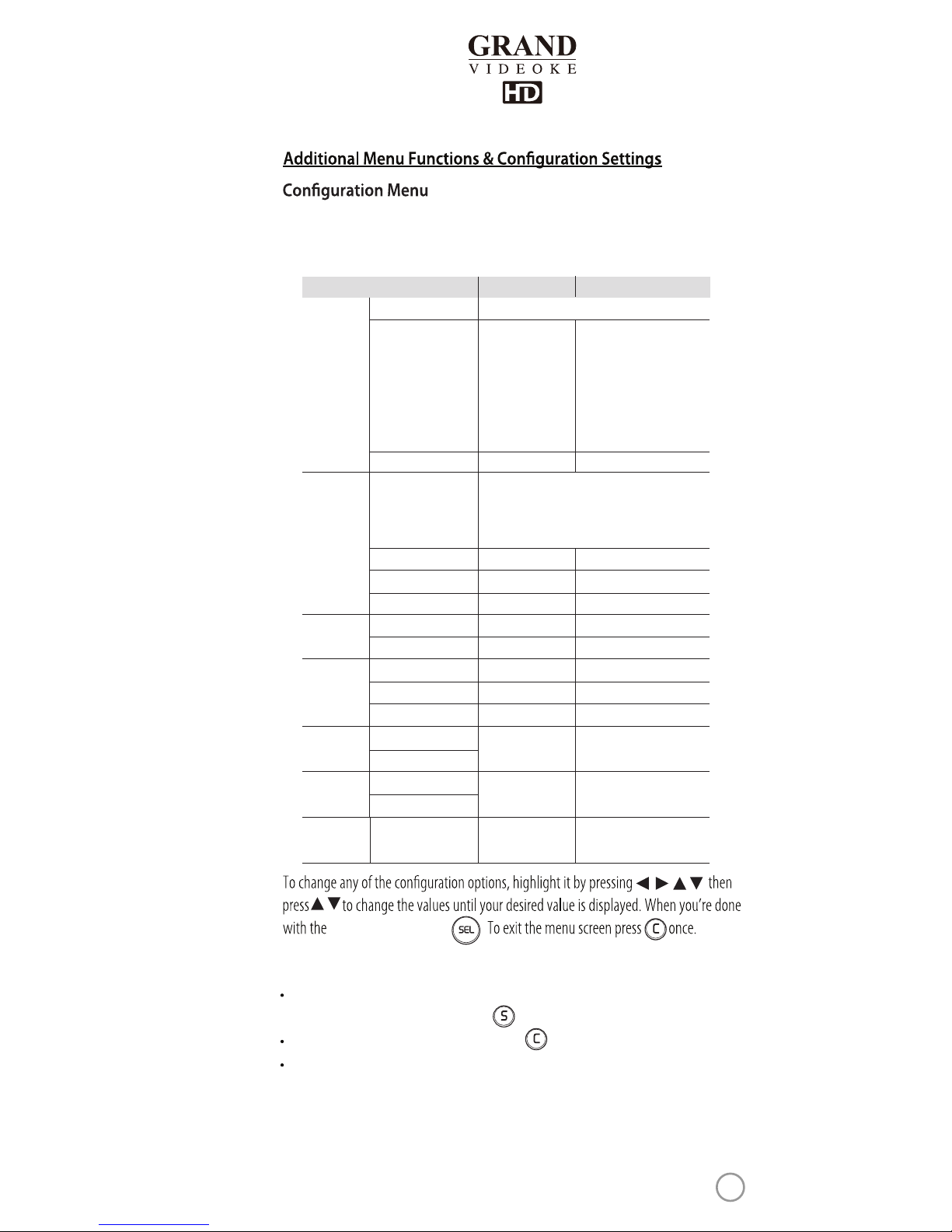
The Conguration menu enables you to change some ofthe settings of the GRAND VIDEOKE
like lyrics alignment and diculty level of thescoring. Here is the list of thedefault values for
each conguration option.
Conguration Option
System
Sound
Score
Current version of the program
MASTER VOLUME : MIC/ECHO/MUSIC
MIC GAIN : MIC1/MIC2
MIC 4Band EQ : LOW/MID LOW/MID HI/HI
ECHO CONTROL : TIME/FEEDBACK
New Song
Management
Smart Phone
Setup
TV Setup
System Information
MIC Channel Setup
Score Check
Reset
MIC/Music Setup
Real Time Score
Score Display
Delete New Song
Melody
Key
Button Eect
Lyric Array
MIC Input Check
PAL
NTSC
HOT SPOT
AP
Display
Option
Default
The current channel
Middle
Amateur
O
Normal
HOT SPOT
NTSC
Original
Normal
Center
O
Left-Right/Center
On/O
List of Possible Values
MIC1 :
CH1(494.0 MHz), CH2(494.4 MHz),
CH3(494.8 MHz), CH4(495.2 MHz),
CH5(499.8 MHz), CH6(500.2 MHz),
CH7(500.6 MHz), CH8(501.0 MHz)
MIC2 :
CH1(498.2 MHz), CH2(498.6 MHz),
CH3(499.0 MHz), CH4(499.4 MHz),
CH5(504.0 MHz), CH6(504.4 MHz),
CH7(504.8 MHz), CH8(505.2 MHz)
None, Low, Middle, High
Amateur,Professional, O
On,O
Normal(100~0)/Grade(S~F)
-
--
-
--
Original/-1/-2
Normal, Electronic, None
To adjust the master volume, microphone1/2 gain, equalizer and echo control,
press the song number, then press button.
If you want to adjust without song, press button to adjust.
It is available toadjust the volume of each microphone.
- Microphone1 : It is available to adjust both of the rst wireless microphone and
wired dynamic microphone.
- Microphone2 : It is available to adjust both of the second wireless microphone and
wired dynamic microphone.
change the value, press .
,, ,
,
29
www.grandvideoke.com
Page 30
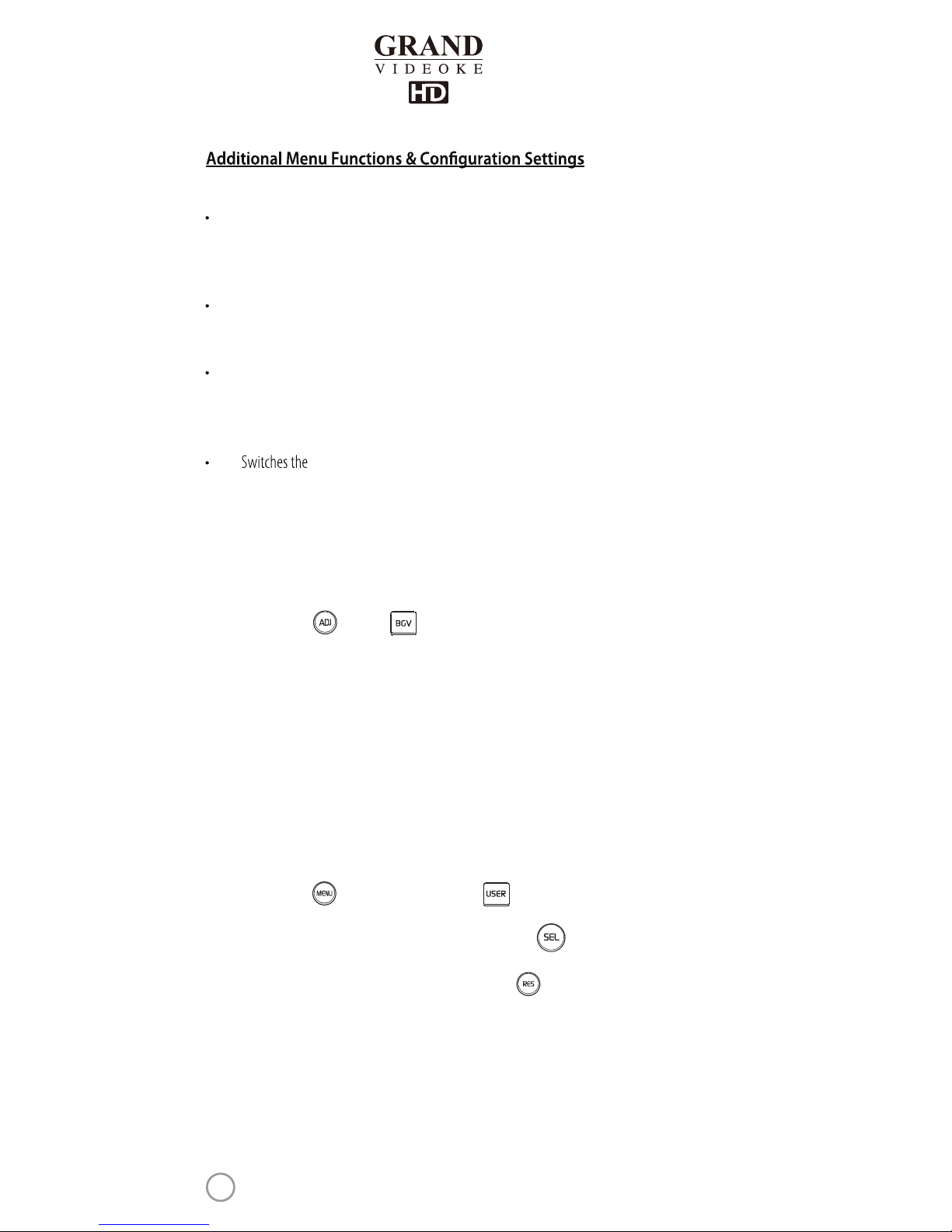
GRAND VIDEOKE’s video system output between NTSC and PAL.
Lyric Arrayallows the two lines of the lyrics to be aligned either to the center or
to the left and right.
When enabled, the GRAND VIDEOKE will output sound whenever a button
is pressed.
This selects the diculty level of scoring.
Button Eect
Score check
TV Setup
Lyric Array
How to use your photos or videos saved in a USB storage/memory
device as background
1.
2.
3.
4.
5.
Save the photoor video le you want to use as background to USB memory.
Please insert your USB memory to the front side USB port, only.
Press the MIC button or button on the remote control to select
"Ext.Photo" which will display your pictures in USB memory as the background.
If you select "Ext.Video" in the same way, as described above your video stored
in the USB memory will be displayed as background.
Pictures or videos in the USB memory will not be displayed as background when
you remove the USB memory from the player.
How to use your photos which is saved in your player as background.
1.
2.
3.
4.
5.
6.
Insert the USB memory with your personal pictures to the USB slot of the
GRAND VIDEOKE.
Press the mic button, then "USER" or the button on the remote control
to select "Ext.Photo".
Move the highlight using the direction key, and press the button when
highlight is placed on the picture you want to use as background.
When you have nished selecting pictures, press the button to save the
selected picture to the player.
Your photos in the player will be displayed as a background when you select
"My.Photo" in the background category.
Pictures in the player can be deleted from the "USER" →"My.photo" menu.
30
www.grandvideoke.com
Page 31
GRAND VIDEOKE
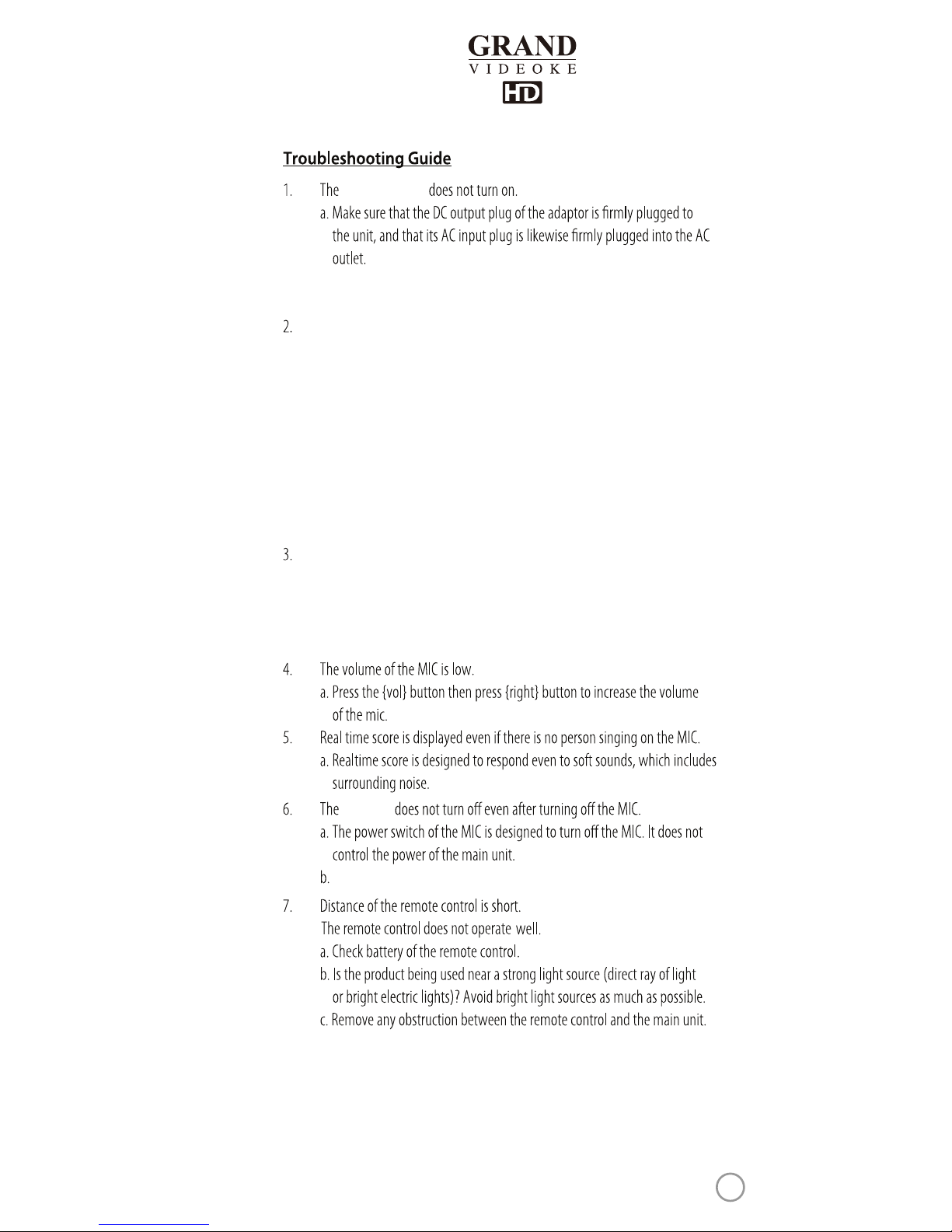
b. Please turn on the GRANDVIDEOKE through the power switch on the rear panel
of the main unit.
The screen displays video but there is no sound.
a. Check if a headphone is connected to the TV, t he amplier, or speaker system
and if so, disconnect the headphone.
b. Increase the volume of TV, amplier, or speaker system.
c. Also increase the volume of main playe r.
d. If the main player is connected to the HD TV, check if the HD Output cable is
connected to the HD terminal between TV and main player.
If there is an external speaker system or amplier, or if the GRAND VIDEOKE is
connected to an SD TV via RCA, check if the red and white RCA cables are
correctly to the speaker system, amplier or TV.
The screen does not display video.
a. If the main player is connected to the HD TV, check if the HD Output cable is
connected to the HD terminal between TV and main player.
If the main player is connected to the SD TV, check if the yellow RCA cable
is connected between TV and main player.
Main Unit
Please turn o the power with the main unit's power switch.
31
www.grandvideoke.com
Page 32

2. How to use wired microphone.
1. How do you set the TV system?
It is possible to use wired microphone in case that wireless microphone is
defective or lost.
If you using wireless microphone 1, please use wired microphone through MIC 2
on the main unit.
If you using wireless microphone 2, please use wired microphonethrough MIC 1
on the main unit.
It is possible adjust the volume of microphone through the conguration menu:
Cong →Sound →MIC Setup →”GAIN MIC1/2”.
You
32
www.grandvideoke.com
Page 33
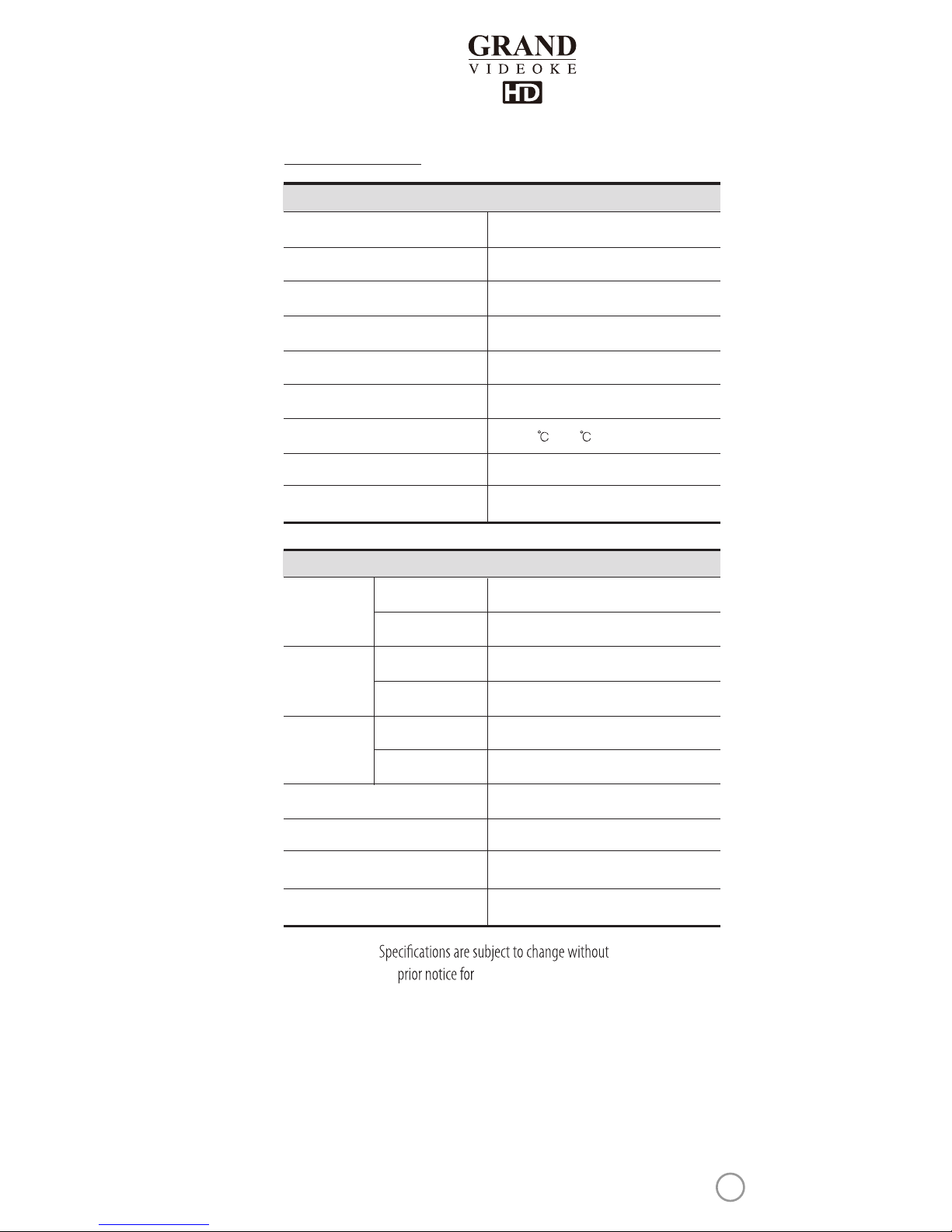
Analog Wireless Microphone
Microphone Typ e
494MHz~505.2MHz / F3E
RF Frequency / RF Type
Dynamic / 600Ω
Unit Type / Impedance
Up to 10m (30-ft)
RF Transmission Range
1.5V(AA) x 2
Battery Spec
50Hz ~ 15kHz
Audio Frequency
0 ~ 40
Operating Temperature(L)
230g(without battery)
Weight (g)
49.5 x 258.2 x 50 (mm)
Dimension(WxHxD)
Microphone
2.2Vrms
Output
20Hz ~ 20kHz
Frequency
75Ω 1.0Vpp
Input
75Ω 1.0Vpp
Output
AC100~240V (50~60Hz)
Input
DC12V, 1A
Output
Audio
Video
Adaptor
DC12V, 1A
Input
12W
Consumption
676g
Weight (g)
190 x 212.2 x 205.5 (mm)
product improvement.
Dimension(WxHxD)
Main Player
Product Specication
33
www.grandvideoke.com
Page 34

 Loading...