

Page 1
Red Road Telecom
Te l e p h o n e U s e r’s G u i d e
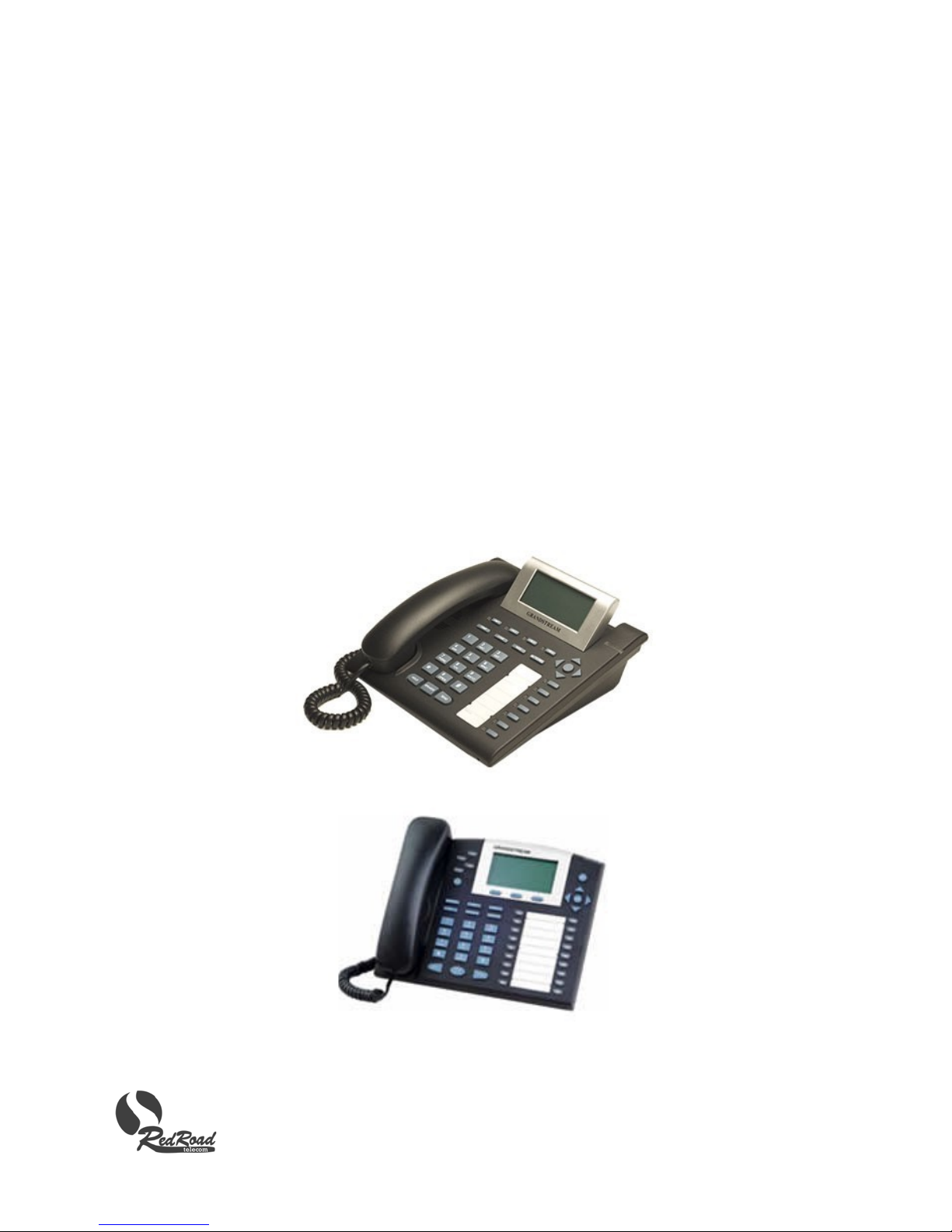
Grandstream GXP 2000 Series
!
v2.0 © 2008 Red Road Telecom, LLC
Page 2

Contents
Line Keys 3 ......................................................................................................
Programmable Keys 3 ..........................................................................................
Display 3 .........................................................................................................
Answering a Call 4 ..............................................................................................
Not Answering A Call 4 ......................................................................................
Placing a Call 4 .................................................................................................
Tran s f er A Call 4 ................................................................................................
Transfer Using Transfer Key 4 ..............................................................................
Blind Transfer 4 ...........................................................................................
Attended Transfer 5 ......................................................................................
Transfer Using * Key 5 .......................................................................................
Blind Transfer 5 ...........................................................................................
Attended Transfer 5 ......................................................................................
Tran s f er to Vo ice Mail 5 .......................................................................................
Conference Call (3-Way Calling) 5 ...........................................................................
Park Call 6 .......................................................................................................
Retrieve a Parked Call 6 .......................................................................................
Page 6 ............................................................................................................
Voice Mail Button 6 ............................................................................................
Day / Night Mode 6 .............................................................................................
Missed Calls 7 ...................................................................................................
Call History 7 ....................................................................................................
Call Center Queueing System 7 ..............................................................................
Log In / Log Out 7 ...........................................................................................
Other Agents 7 ...............................................................................................
Mobile Extension 8..........................................................................................
GXP 2000-series Guide Red Road Telecom 443-2700 2
Page 3

Line Keys
There are 3-6 LINE keys across the top of your phone, or along the left side of the screen
depending on your phone model. These keys are used to get a new dial tone when you have a
call in progress and want to transfer it or put it on hold and make another call. Some of them
may be programmed as PARK keys, and will be labeled as such.
Programmable Keys
There are programmable keys along the right-hand side of your phone. These keys have been
programmed for you by Red Road Telecom and labeled accordingly. You can also program
these keys by using the My Phone page. Each can be an extension with busy and ring indicator,
a speed-dial for an outside line, or a function such as Day/Night mode, Do Not Disturb, Voice
Mail Box, Transfer to Voice Mail, Page, or Park.
You can program your own speed-dial numbers into your programmable keys. Go to this web
address:
http://redroad.com
Under “Customer Portal” click on “My Phone”. Full instructions and a link to the web
configuration screen are on that page.
Fill in the login form using your extension number and voicemail password. The Personal
Speed Dial Editor handles your phone's function keys. Do not modify any keys that have been
programmed by Red Road Telecom unless you are certain you know what you’re doing.
To add a new key, click “Add”. To edit an existing key, click on the pencil icon to the right of
that key definition. To delete a speed-dial, click the trash can to the right of that key
definition.
Once you are done editing, you must click “RESET MY PHONE” in order to implement your
changes.
Phones with a single row of programmable keys are numbered from the top down. Phones
with two rows are numbered top down and then left to right (so for example on a 24-key
phone the bottom left key is #12 and the top right key is #13). Consult Red Road Telecom for
key numbering schemes on phones with multi-key sidecars.
Display
Your phone’s display will change during the course of a call to let you know what’s going on.
In the idle state, it displays your name and your extension number.
When you have one or more calls on hold, the display shows you the caller ID and the LINE key
number for each call.
GXP 2000-series Guide Red Road Telecom 443-2700 3
Page 4

Answering a Call
When your extension is ringing, simply pick up the handset or press the SPEAKER key to
answer the call.
To pick up a call that is ringing on another phone, if you have a programmed key for that
phone it will be blinking red. Pick up your phone and press the blinking red button. To pick
up a call that's ringing on another phone, if you do not have a key programmed for that
phone, pick up your handset and dial **.
Not Answering A Call
If you have a call ringing on your phone and you don’t want to take it, press the "Reject" or
“MUTE/DEL” key and the call will go to voicemail.
Placing a Call
To dial one of the numbers programmed into your programmable keys, simply press that key.
Your phone will go into SPEAKER mode automatically and the destination line starts ringing.
Alternatively, pick up the handset and then press the key for the number you’re dialing.
To place a call to another extension or an outside number, pick up the handset and dial the 3digit extension or the outside number.
To dial in speakerphone mode, press the “SPEAKER” button either before or after dialing the
number.
Long distance calls: dial 1, area code, and number.
International calls: dial 011, country code, area or city code, and number.
Transfer A Call
There are two methods for transferring calls. The preferred method is the transfer key,
pictured with 2 phones (may say 'TRNF' on some phones). This allows you to transfer to your
speed-dial numbers, and provides on –screen instructions to assist you. The alternative
method using the * key works with phones that do not have a transfer key.
Transfer Using Transfer Key
Blind Transfer
Press the transfer key. Your caller is placed on hold and you hear a dial tone. If you are
transferring to a button you already have programmed, just push that button and the call is
transferred.
Otherwise, dial the number to which you are transferring. Then press the "Transfer" soft key
at the bottom of the display, or press the SEND button if your phone has one. Wait for the
call to disappear from your phone. The destination party sees the original caller’s Caller ID.
GXP 2000-series Guide Red Road Telecom 443-2700 4
Page 5

Attended Transfer
Press an available LINE button. The caller’s LINE key is blinking. The phone display shows
the caller on hold. You hear dial tone.
Press the key for the extension to which you are transferring, or dial the number and press
SEND or Dial. The destination party sees your extension number as the Caller ID. When the
destination party answers, announce the call.
Destination party wants to accept the call:"
Press the transfer button, press the original (blinking) LINE button, and hang up when the call
clears from your phone.
Destination party does not want to accept the call:"
Push the original (blinking) LINE button, and you are back with the original caller.
Transfer Using * Key
With this method, the destination party sees the original caller’s Caller ID.
Blind Transfer
Press *. Your caller is placed on hold and you hear “Transfer” and then a dial tone."
Dial the number to which you are transferring. WAIT for the “ring” tone, then hang up.
Attended Transfer
Press *. Your caller is placed on hold and you hear “Transfer” and then a dial tone."
Dial the number to which you are transferring. When the party answers, announce the call.
Destination party wants to accept the call:"
Hang up.
Destination party does not want to accept the call:"
When the destination party hangs up, you are back with the original caller.
Transfer to Voice Mail
Using either of the transfer methods shown on the previous page, transfer the call to #xxx
(where xxx is the person’s extension number).
Conference Call (3-Way Calling)
With a “live” call on your phone, select an available LINE key. Your caller is placed on hold
and you hear a dial tone. Dial the number you want to add in to the conference.
When the party answers, press the conference button, pictured with 3 phones in a triangle
(may say "CONF" on some phones) . Press the original (blinking) LINE button. All three parties
are now connected.
GXP 2000-series Guide Red Road Telecom 443-2700 5
Page 6

Park Call
With a “live” call on your phone, press the transfer button, and then press one of the
available (green) PARK buttons.
Retrieve a Parked Call
Press any parked (blinking red) PARK button.
Page
To page any single extension, dial * followed by the extension number. Wait for a beep and
then speak – what you say is announced over the speaker of that phone.
To page multiple extensions, press the programmable key marked “PAGE”, wait for the beep,
and then speak. If you have multiple page groups, follow the system prompts to select which
group to page.
Note: With a live call, park the call before paging.
Voice Mail Button
Each phone has its own voice mailbox. When there is a message in that box, the large red
light at the top right of the phone will be blinking red. To access the voice mailbox, press the
"MSG" key or the key with a picture of an envelope.
If your phone has a button programmed for another mailbox, it will be labeled, for example,
“General Mailbox”, or “Sales Mailbox”. When this button is blinking red, it means there is
new voice mail in that mailbox. To retrieve the messages, press the button.
Day / Night Mode
If you have selected Day, Night, or Break modes for your system, at least one of your phones
will usually have a “Day / Night” key. This button changes to the next mode and announces
the new mode to you.
What your phones do in the different modes depends on how you asked to have your system
configured. A common configuration is this:
Day mode: incoming calls ring the receptionist"
Break mode: incoming calls ring a group of phones"
Night mode: incoming calls go to the auto-attendant
There are many other ways to configure this. The modes can be scheduled by day of the
week and time of day. Please consult with your Red Road Telecom representative for all the
details.
GXP 2000-series Guide Red Road Telecom 443-2700 6
Page 7

When you press this button, the system will cycle through only those modes that you have
defined. If you have a schedule as well as all three modes defined, the selections in order
will be: Day Mode, Break Mode, Night Mode, Automatic Mode.
Missed Calls
When your phone display reports missed calls, you can press the UP arrow or "Missed Calls"
key (depending on the phone model) to look at them. The phone menu will enable you to
see the details of each call, and dial back the caller. Missed call logging can be enabled or
disabled, please contact Red Road Telecom for assistance. If your phone is part of a ring
group, you probably won't want to enable missed calls. This is because when a call rings
multiple phones, it will show as a missed call on all phones except the one that answers the
call.
Call History
You can rev i ew miss ed , r e ce ive d , and dialed ca lls an d r e di al t hem if y ou choo s e. Pr ess th e
round Menu button, then press it again to select Call History. Select which category you want
by pressing the Up or Down arrow keys, and then press the round Menu button. Following this
same procedure you can dial or clear any of the stored numbers.
Call Center Queueing System
If you have the Call Center set up, your company has a “queue”, or waiting line, for outside
calls. When a caller is placed into the queue, the Call Center sends that call to the next
available agent. Depending on how your Call Center is set up, several agent phones may ring
at once – the first one to answer gets the call.
Log In / Log Out
If your phone is part of the Call Center, you will have a button marked “LOG IN/OUT”. (This
button may be labeled “DND” if you converted from a previous application.)
As a Call Center agent, you must log in before you will receive any calls from the queue.
When you log out, you will not receive any calls from the queue, but anyone can still call you
by dialing your extension.
When you press the LOG IN/OUT key, the voice says “Agent Logged In” or “Agent Logged Off”,
and the light changes color. When you are logged in, the light on your LOG IN/OUT key will
be green. When you log out, the light turns red.
Other Agents
Your phone may have buttons labeled for other agents. These buttons will show the status of
the other agents: "
RED: Agent is logged off
GXP 2000-series Guide Red Road Telecom 443-2700 7
Page 8

GREEN: Agent is logged in
BLINKING RED: Agent has taken a call from the queue.
You can call the other agent by pressing the button. This will dial the other agent regardless
of whether she is logged in or out.
Mobile Extension
If you have the Mobile Extension feature on your phone, it works a little differently when you
are a Call Center agent. Please see “Mobile Extension” in the Messaging Guide.
GXP 2000-series Guide Red Road Telecom 443-2700 8
 Loading...