

Page 1
Grandstream Networks, Inc.
IPVideoTalk Cloud Conferencing System
How to Use GVC320x in IPVideoTalk Meeting
Page 2

How to use GVC320x in IPVideoTalk Meeting
Page 1 of 20
Index
OVERVIEW ................................................................................................ 2
START AN ONE-CLICK INSTANT MEETING ............................................ 3
START AN INSTANT MEETING WITH ANOTHER GVC320X ................... 5
JOIN AN ACTIVE MEETING ...................................................................... 8
HOST SCHEDULED MEETING ............................................................... 10
SIGN UP IN ADMIN CENTER ............................................................................................................. 10
LINK GVC320X TO ADMIN CENTER ................................................................................................. 11
LINK DEVICE USING DEVICE CODE ......................................................................................... 12
LINK DEVICE USING MAC ADDRESS ....................................................................................... 13
HOST SCHEDULED MEETING .......................................................................................................... 15
GVC320X MEETING CONTROL .............................................................. 17
ADD OTHER GVC320X PARTICIPANTS ............................................................................................ 17
PIN LOCK ............................................................................................................................................ 18
SHARE PRESENTATION .................................................................................................................... 19
MEETING RECORDING...................................................................................................................... 19
Page 3

How to use GVC320x in IPVideoTalk Meeting
Page 2 of 20
OVERVIEW
Users can attend an IPVideoTalk meeting on the GVC320x using different ways. There are 4 ways:
1. Start an one-click instant meeting
2. Start an instant meeting with another GVC320x
3. Join an active meeting that has already been hosted by other GVC320x
4. Schedule a meeting as a host on IPVideoTalk Admin Center
The following sections describe the steps for each above way. Additionally, once the GVC320x is in an
IPVideoTalk meeting, the user could add other GVC320x participants into the meeting, set PIN code to
protect your meeting from being disturbed by unnecessary incoming calls, share presentation and record
the meeting. These meeting control operations are explained in the last section of the document.
For more information about IPVideoTalk usage or GVC320x usage, please refer to the links below:
IPVideTalk User Manual:
http://www.ipvideotalk.com/s/IPVideoTalk%20Cloud%20Conferencing%20System%20User%20Guide.pdf
GVC320x User Manual:
User Guide:
http://www.grandstream.com/sites/default/files/Resources/gvc320x_user_guide.pdf
Administration Guide:
http://www.grandstream.com/sites/default/files/Resources/gvc320x_administration_guide.pdf
IPVideoTalk website:
http://www.ipvideotalk.com/
Grandstream Networks website:
http://www.grandstream.com/
Page 4
How to use GVC320x in IPVideoTalk Meeting
Page 3 of 20
START AN ONE-CLICK INSTANT MEETING
The GVC320x can start an instant IPVideoTalk meeting immediately by clicking on the “CALL” icon at any
time. Here are the steps:
1. On the GVC320x LCD HOME screen, click on button to bring up the dial screen.
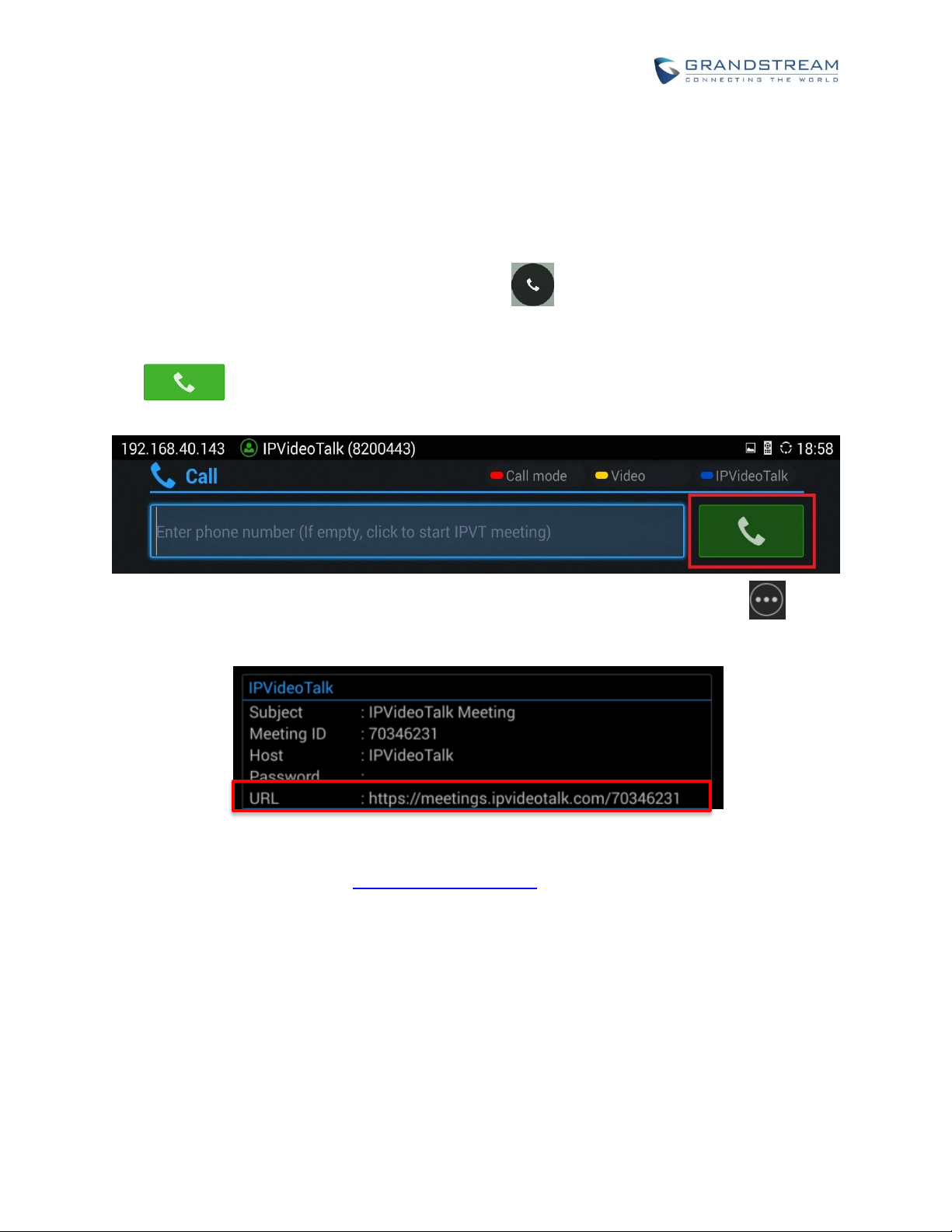
2. On dial screen, use GVC320x remote control blue shortcut key to select “IPVideoTalk” as the account.
3. On dial screen, use the GVC320x remote control to navigate, and select green CALL button
without entering any number. This will start an instant meeting with IPVideoTalk cloud
server.
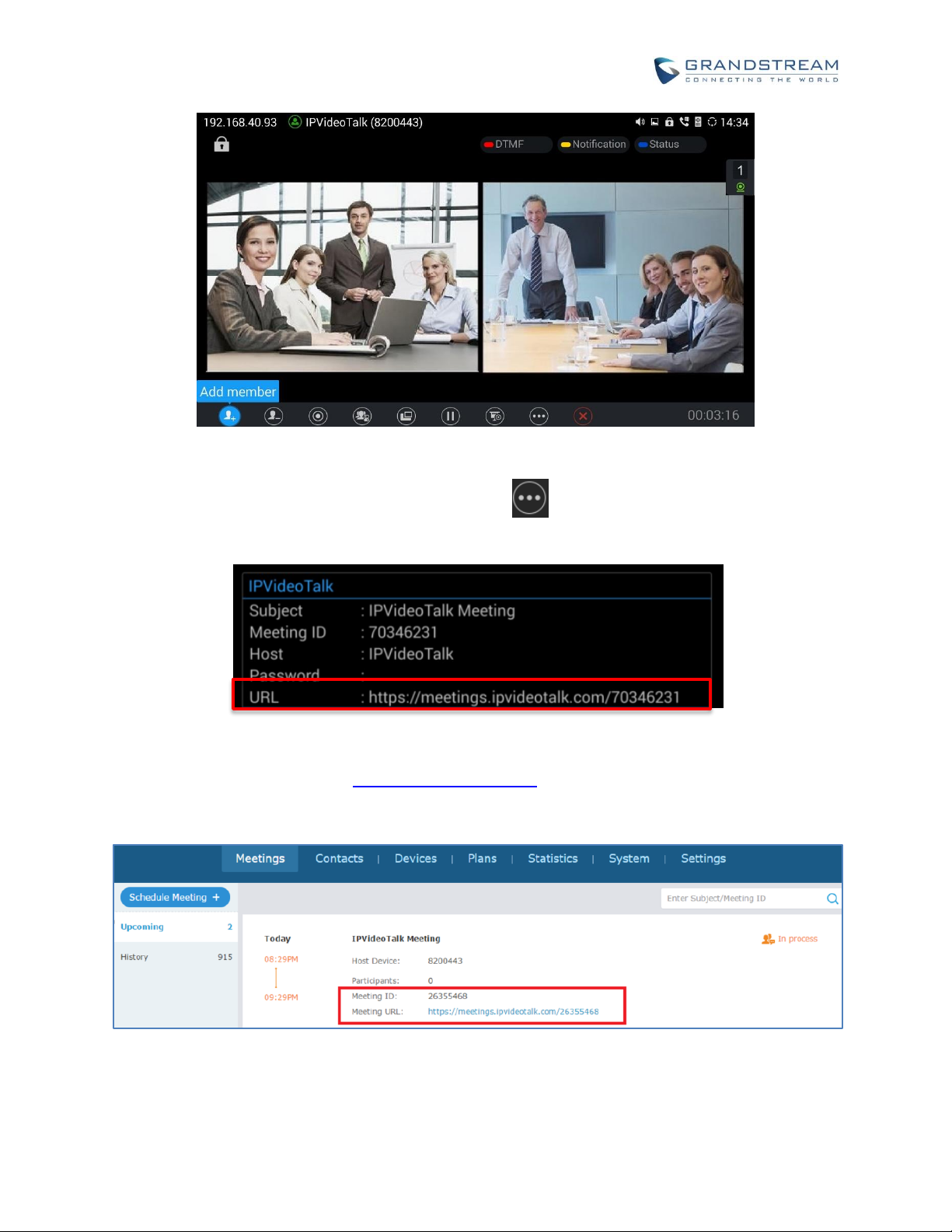
4. Check the meeting ID/meeting URL. On the GVC320x LCD call screen, click on icon on the
bottom menu and select “Meeting Info”. The meeting information will be displayed as below.
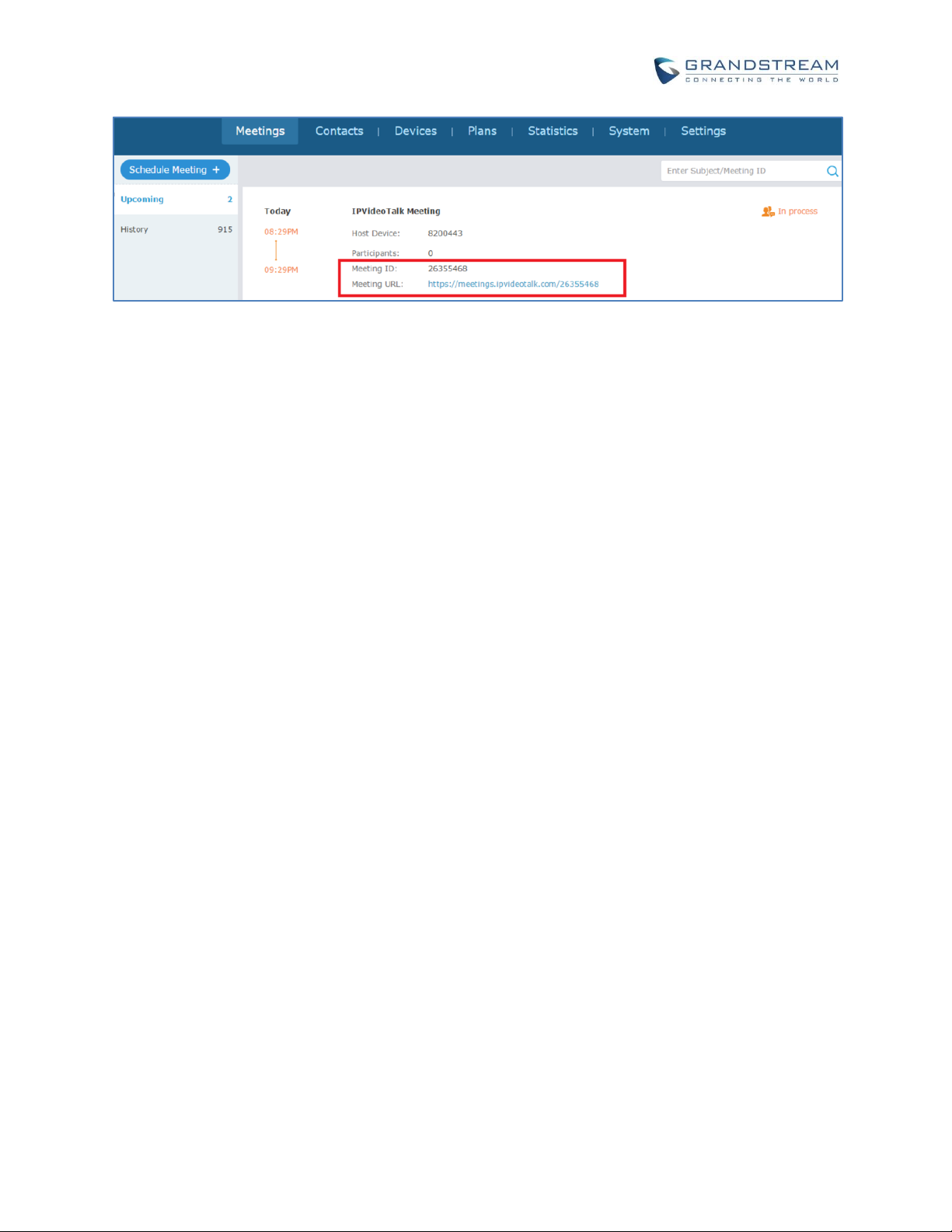
If you already have an IPVideoTalk Admin Center account, you can also find the meeting info there.
After logging in Admin Center http://www.ipvideotalk.com, click on “Meetings”-> “Upcoming”, you will
see a meeting “In Process”, and the “Host Device” is the IPVideoTalk ID of you GVC320x. The meeting
ID and URL information are displayed there.
Page 5
How to use GVC320x in IPVideoTalk Meeting
Page 4 of 20
5. Send the meeting ID or URL to the desired attendees, so they can join the meeting from their GVC320x,
webRTC browsers or mobile app.
In this method, the GVC320x is the meeting host. Since this is an instant meeting, the webRTC or mobile
app attendees will not be able to see participants list.
Page 6
How to use GVC320x in IPVideoTalk Meeting
Page 5 of 20
START AN INSTANT MEETING WITH ANOTHER GVC320X
If there are more than one GVC320x, you can use your GVC320x to call the other GVC320x by dialing the
IPVideoTalk ID to start the meeting. Here are the steps.
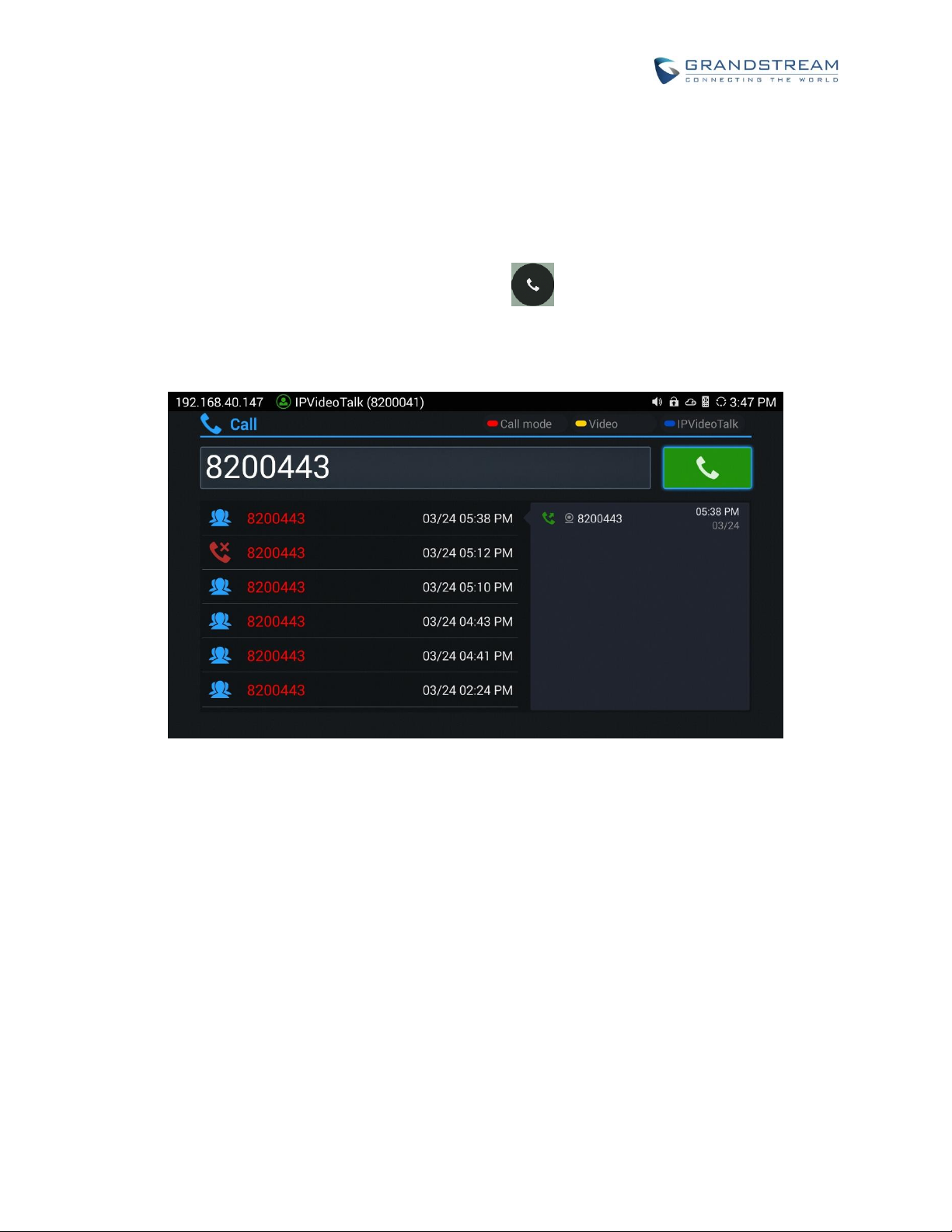
1. On the GVC320x LCD HOME screen, click on button to bring up the dial screen.
2. On dial screen, use GVC320x remote control blue shortcut key to select “IPVideoTalk” as the account.
3. On dial screen, use GVC320x remote control to enter the IPVideoTalk ID of the other GVC320x and
dial out.
4. Once the other GVC320x answers the call, IPVideotalk meeting will be established.
Page 7
How to use GVC320x in IPVideoTalk Meeting
Page 6 of 20
5. Check the meeting ID/meeting URL. On the call screen of the caller GVC320x (which is the host since
it initiates the call at the very beginning), click on icon on the bottom menu, and select “Meeting
Info”. The meeting information will be displayed as below.
If you already have an IPVideoTalk Admin Center account, you can also find the meeting info there.
After logging in Admin Center http://www.ipvideotalk.com, click on “Meetings”-> “Upcoming”, you will
see a meeting “In Process”, and the “Host Device” is the IPVideoTalk ID of you GVC320x. The meeting
ID and URL information are displayed there.
6. Send the meeting ID or URL to the desired attendees, so they can join the meeting from their GVC320x,
webRTC browsers or mobile app.
Page 8

How to use GVC320x in IPVideoTalk Meeting
Page 7 of 20
In this method, the caller GVC320x is the meeting host, and it can display the meeting information. The
callee GVC320x is a participant, so it will not show “Meeting Info” in the call screen->bottom menu after
clicking on “More” option icon .
Page 9
How to use GVC320x in IPVideoTalk Meeting
Page 8 of 20
JOIN AN ACTIVE MEETING
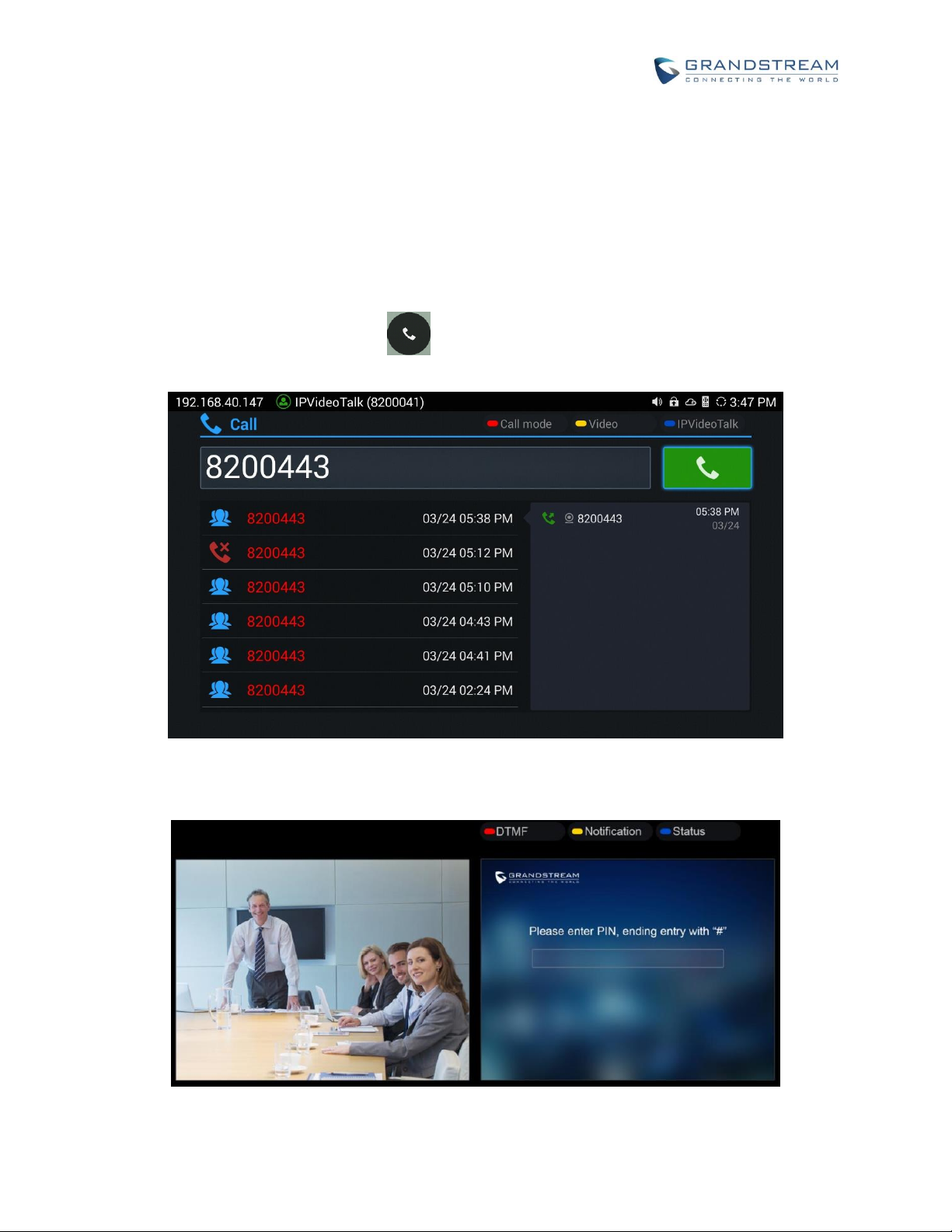
Assuming there is already an active IPVideoTalk meeting hosted by other GVC320x, you can join this
meeting from your GVC320x by dialing the host GVC320x’s IPVideoTalk ID, or dialing the meeting ID directly.
Here are the steps:
1. Contact the active meeting’s host to obtain the host GVC320x’s IPVideoTalk ID, or the meeting ID.
2. On your GVC320x LCD, click on to bring up the dial screen.
3. Enter the IPVideoTalk ID or meeting ID in the dial-up box, then dial out.
4. If the meeting is locked or password-protected, you will see video screen like below. Contact the host
to get the password.
Page 10
How to use GVC320x in IPVideoTalk Meeting
Page 9 of 20
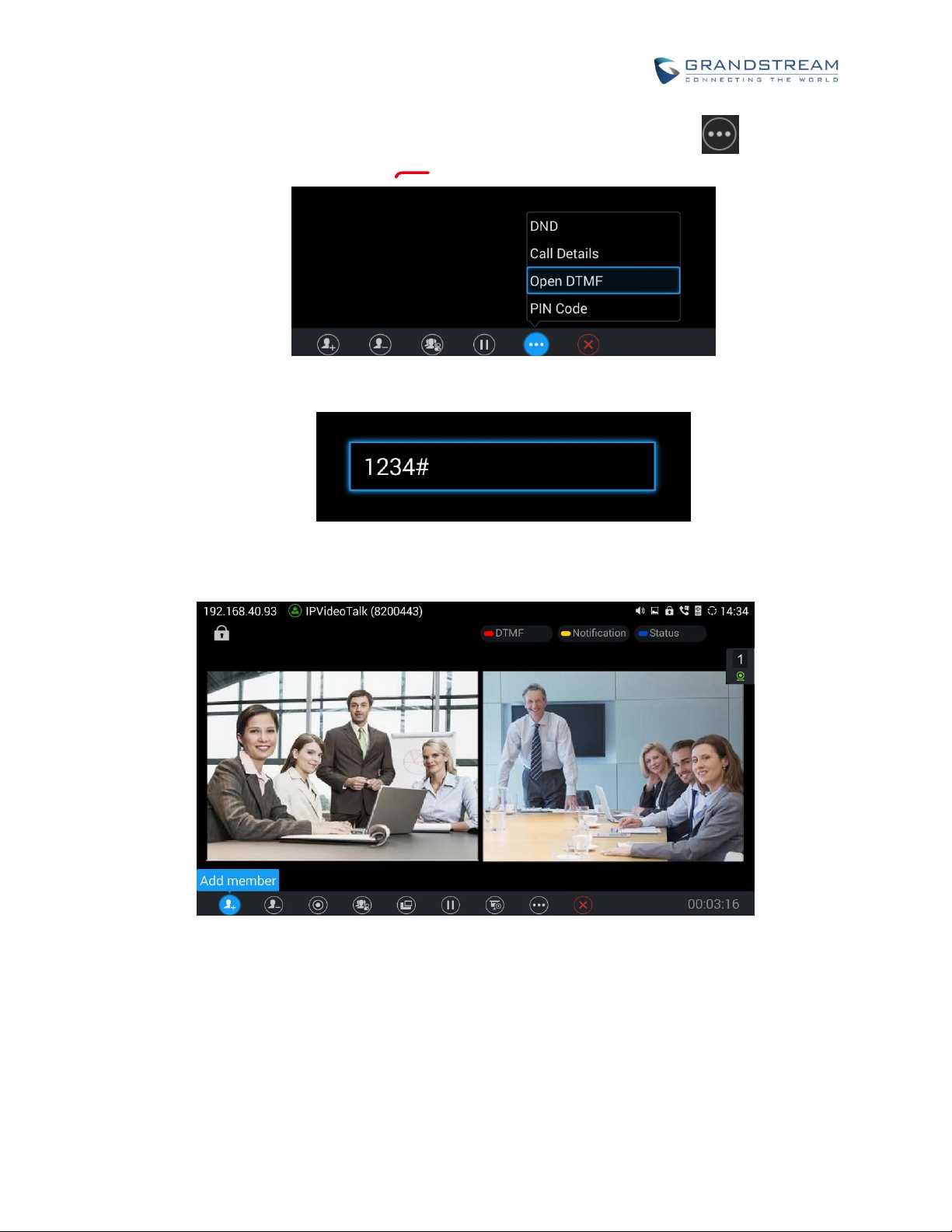
5. To input PIN Code or password on your GVC320x call screen, select MORE icon ->Open
DTMF, or press the red shortcut key on the GVC320x remote control to open DTMF.
6. Then, input the DTMF with the password followed by #.
7. Once the meeting host GVC320x answers the call, you will join this active meeting successfully from
your GVC320x.
Page 11
How to use GVC320x in IPVideoTalk Meeting
Page 10 of 20
HOST SCHEDULED MEETING
If you would like to schedule a meeting using your GVC320x as the host, please make sure you have signed
up on IPVideoTalk Admin Center and your GVC320x is already linked on the Admin Center.
SIGN UP IN ADMIN CENTER
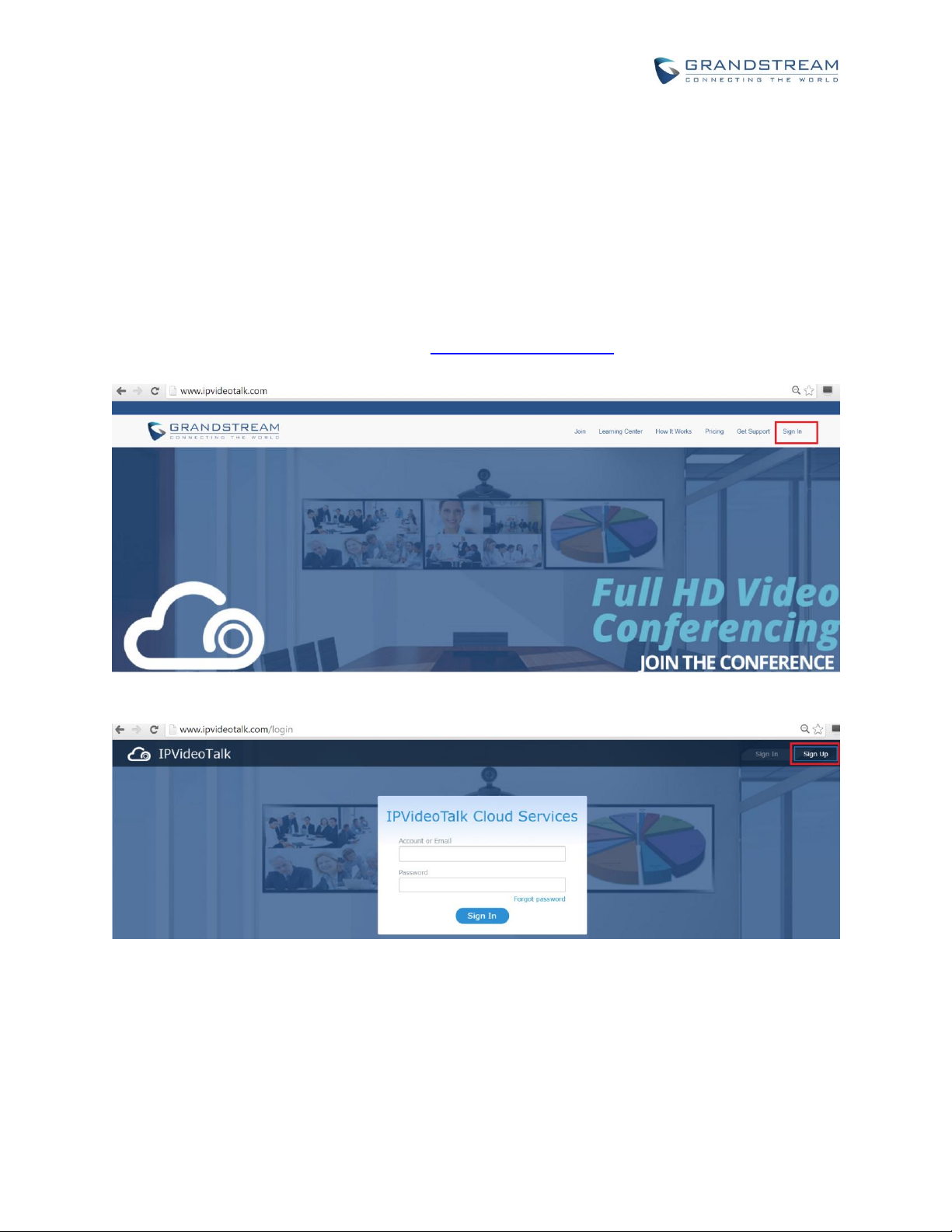
1. Go to IPVideoTalk Admin Center website http://www.ipvideotalk.com. Click on “Sign In” on the upper
right.
2. Click on “Sign Up” on the upper right.
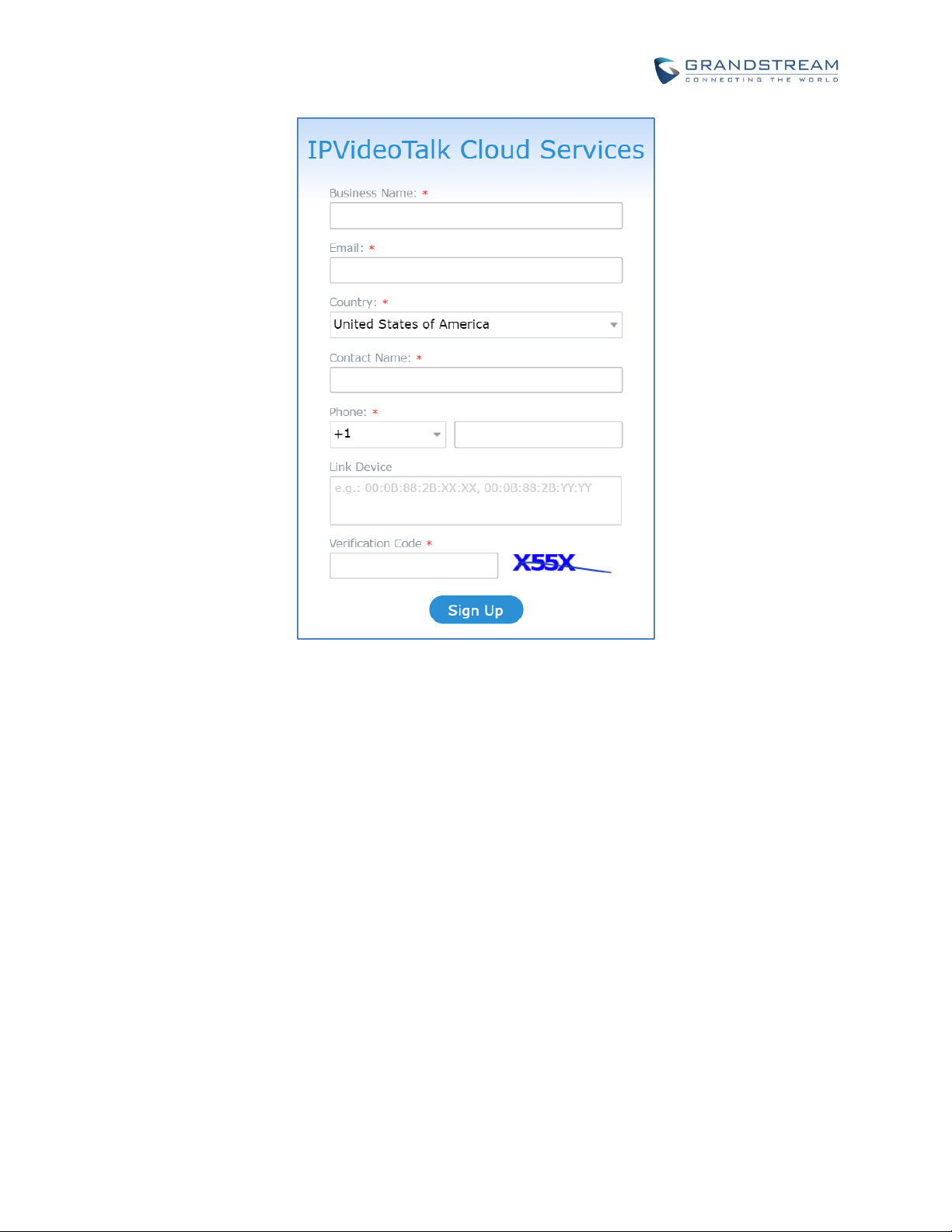
3. Fill in the sign up form with your account and submit it.
Page 12
How to use GVC320x in IPVideoTalk Meeting
Page 11 of 20
LINK GVC320X TO ADMIN CENTER
There are two ways to link the GVC320x to Admin Center:
Link device using device code
Link device using MAC address
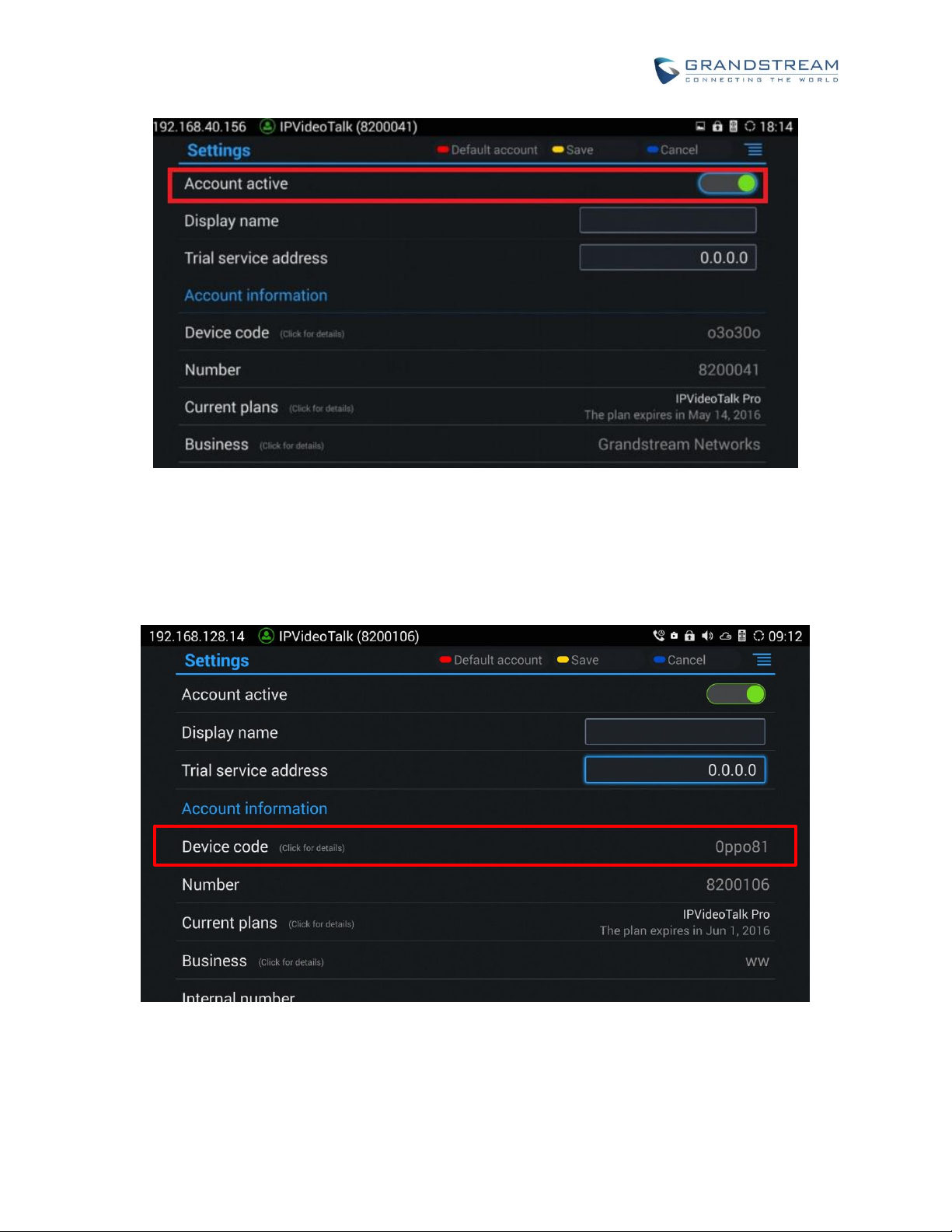
Before linking your device, make sure your GVC320x’s IPVideoTalk ID is active and registered.
You can check this by going to GV320x LCD menu->Applications->IPVideoTalk application->Settings:
“Account active”. It should be green to show “registered”.
Page 13
How to use GVC320x in IPVideoTalk Meeting
Page 12 of 20
LINK DEVICE USING DEVICE CODE
This is the easiest way to link device to Admin Center and it is recommended. Please see the steps:
1. Go to the GVC320x LCD menu->Applications->IPVideoTalk application->Settings, find the device code.
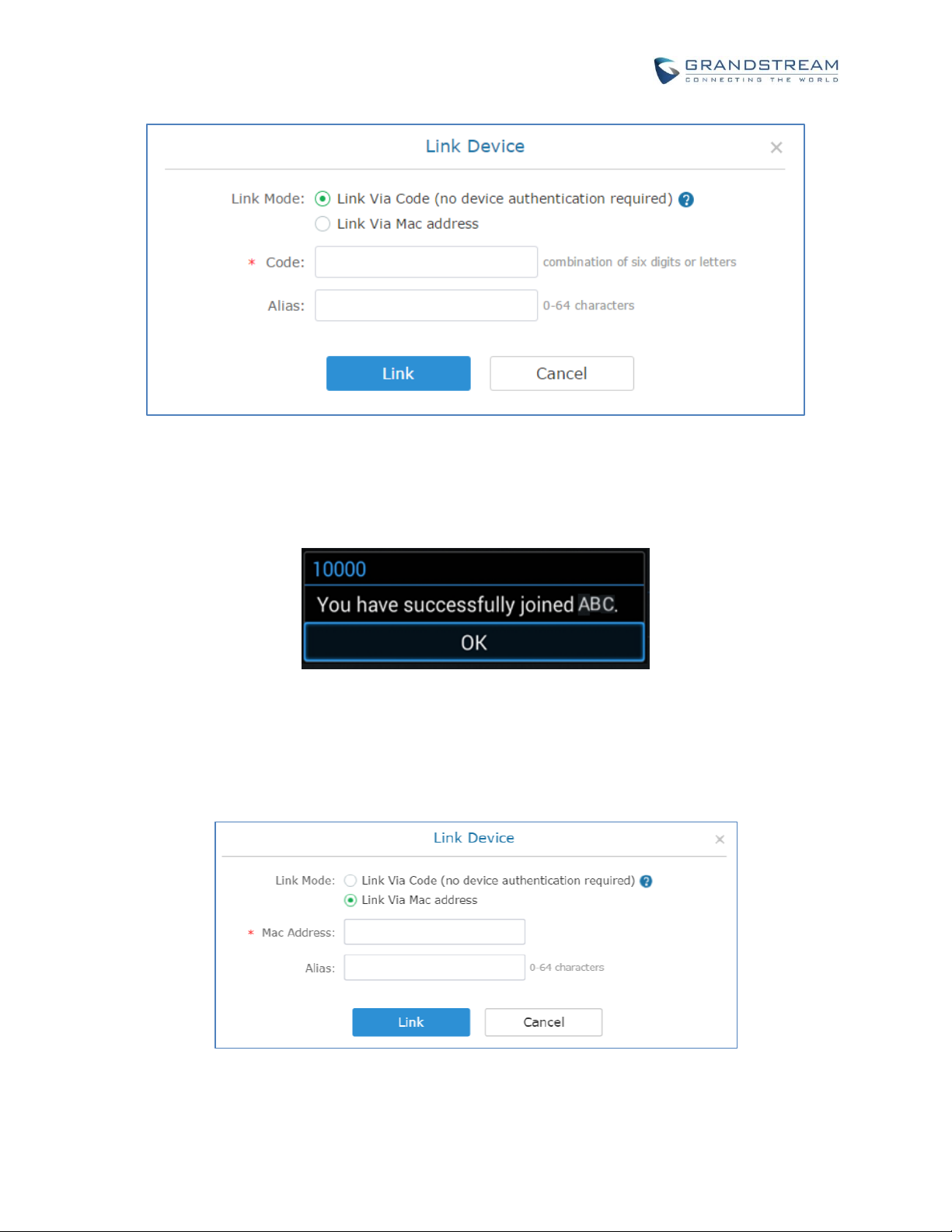
2. Log in Admin Center web portal using your admin center account. Click on tab “Devices” and select
“Link Device”. Enter the device code in the prompt.
Page 14
How to use GVC320x in IPVideoTalk Meeting
Page 13 of 20
3. On the GVC320x LCD menu->Applications->IPVideoTalk application->Notices, the users will see a new
message as below. This means you have linked your device successfully. Your GVC320x will be shown
as “online” in admin center now.
LINK DEVICE USING MAC ADDRESS
1. Log in Admin Center->Devices, click on “Link Device” and enter the device MAC address.
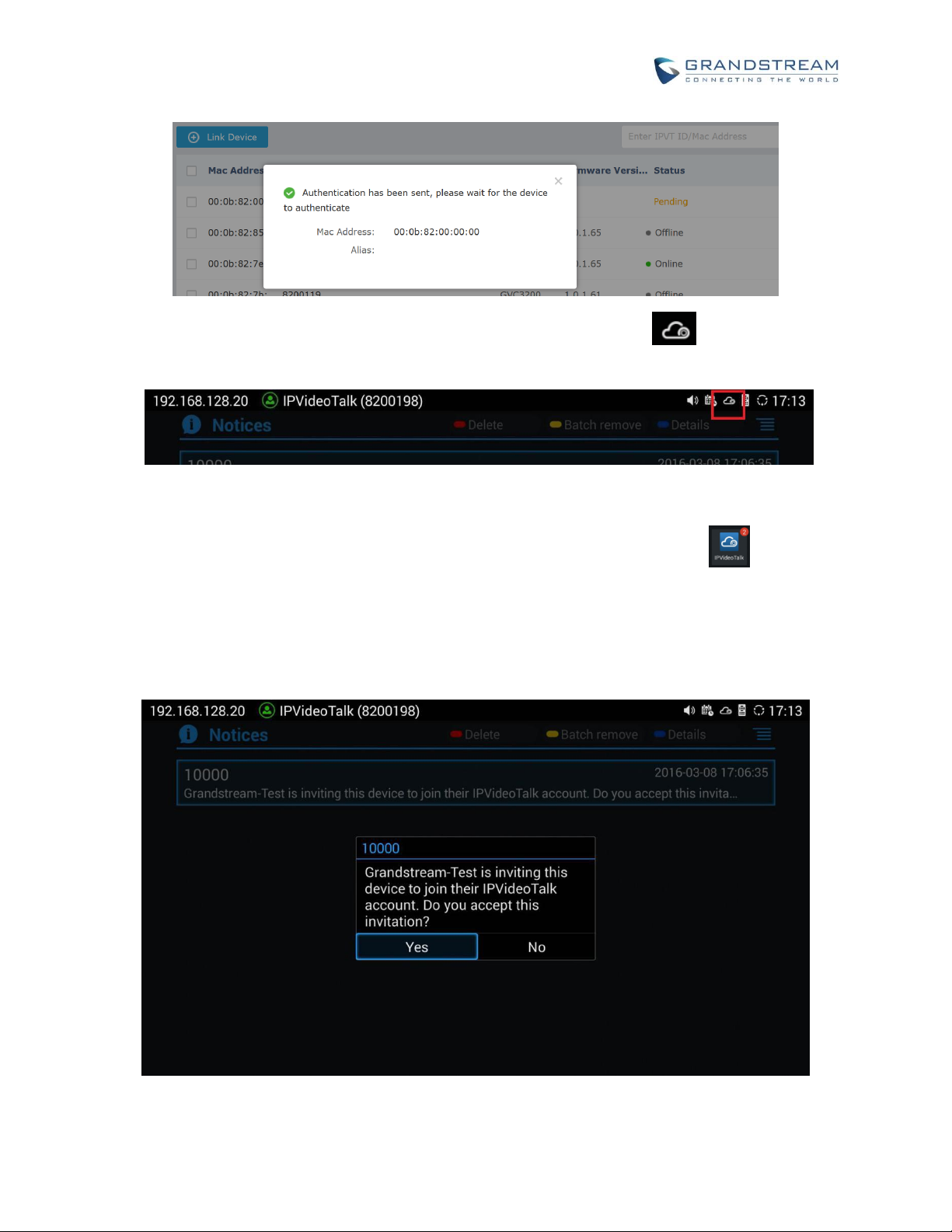
2. Click on “Link” to send authentication request to the GVC320x. This device will be shown as “Pending”
in Admin Center.
Page 15
How to use GVC320x in IPVideoTalk Meeting
Page 14 of 20
3. The GVC320x will receive a new message from IPVideoTalk system. Icon will be displayed on
the top status bar of the GVC320x display device to indicate the new message notification.
In the GVC320x LCD menu->Applications->"IPVideoTalk" application, the user will also see a new
unread message notification on the upper right of the IPVideoTalk application icon .
4. Open the IPVideoTalk application and click on “Notices”, users will see a new message about "Device
authentication”. Open this message to check the enterprise name and ID. If the enterprise name and
ID belong to the user, please selects "Yes" to confirm to link the device. Otherwise, select "No" to reject
to link the device.
Page 16
How to use GVC320x in IPVideoTalk Meeting
Page 15 of 20
5. Once the user confirms to link the device, the administrator could see the device shown as online in
Admin Center.
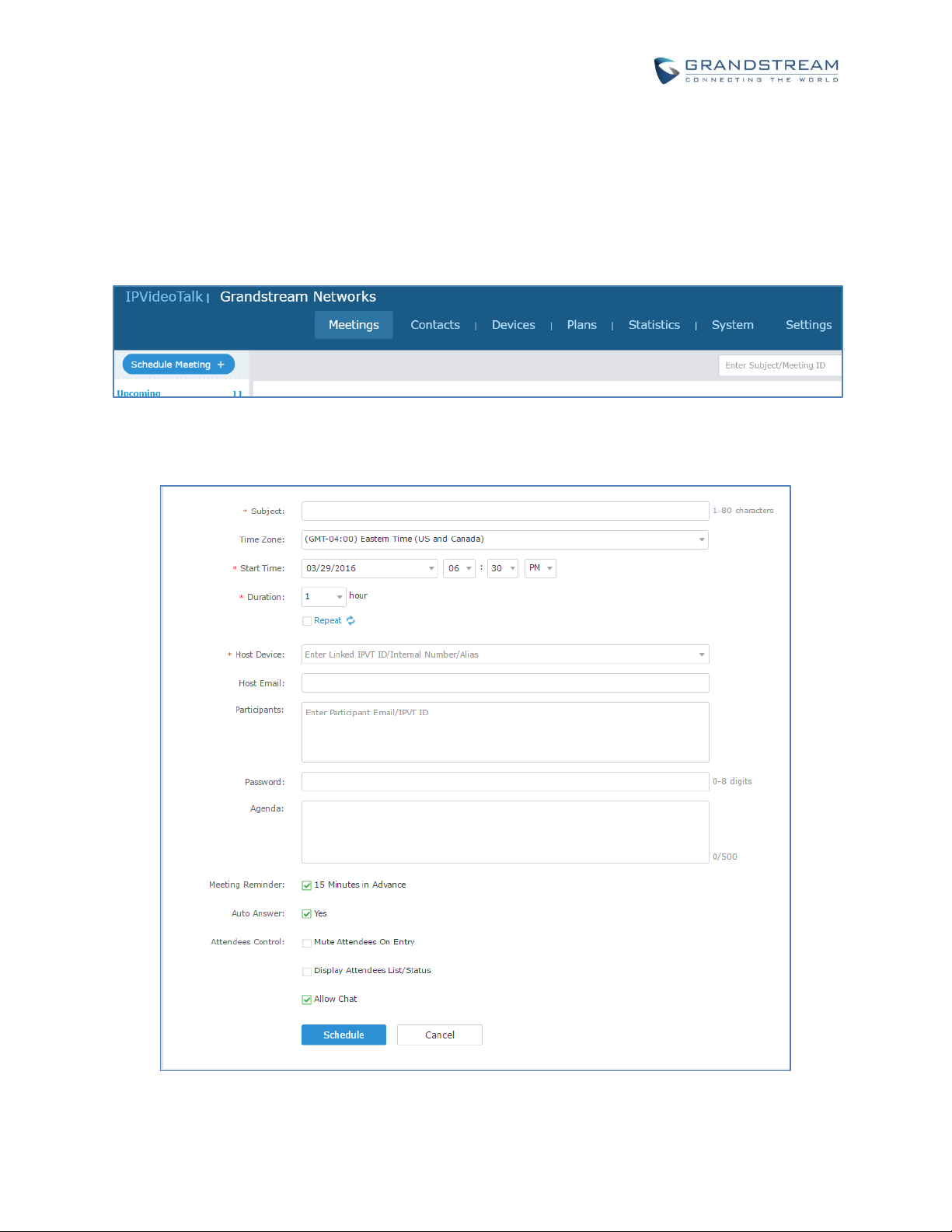
HOST SCHEDULED MEETING
1. Log in Admin Center->Meetings, click on “Schedule Meeting”.
2. Specify meeting details for the scheduled meeting. Make sure “Host Device” is your GVC320x’s
IPVideoTalk ID.
3. The host GVC320x will receive a reminder prompt before the meeting starts.
Page 17

How to use GVC320x in IPVideoTalk Meeting
Page 16 of 20
4. When the meeting time arrives, the GVC320x will start the meeting as the host. Other meeting
participants can join the meeting after the meeting on the host GVC320x is started.
Page 18
How to use GVC320x in IPVideoTalk Meeting
Page 17 of 20
GVC320X MEETING CONTROL
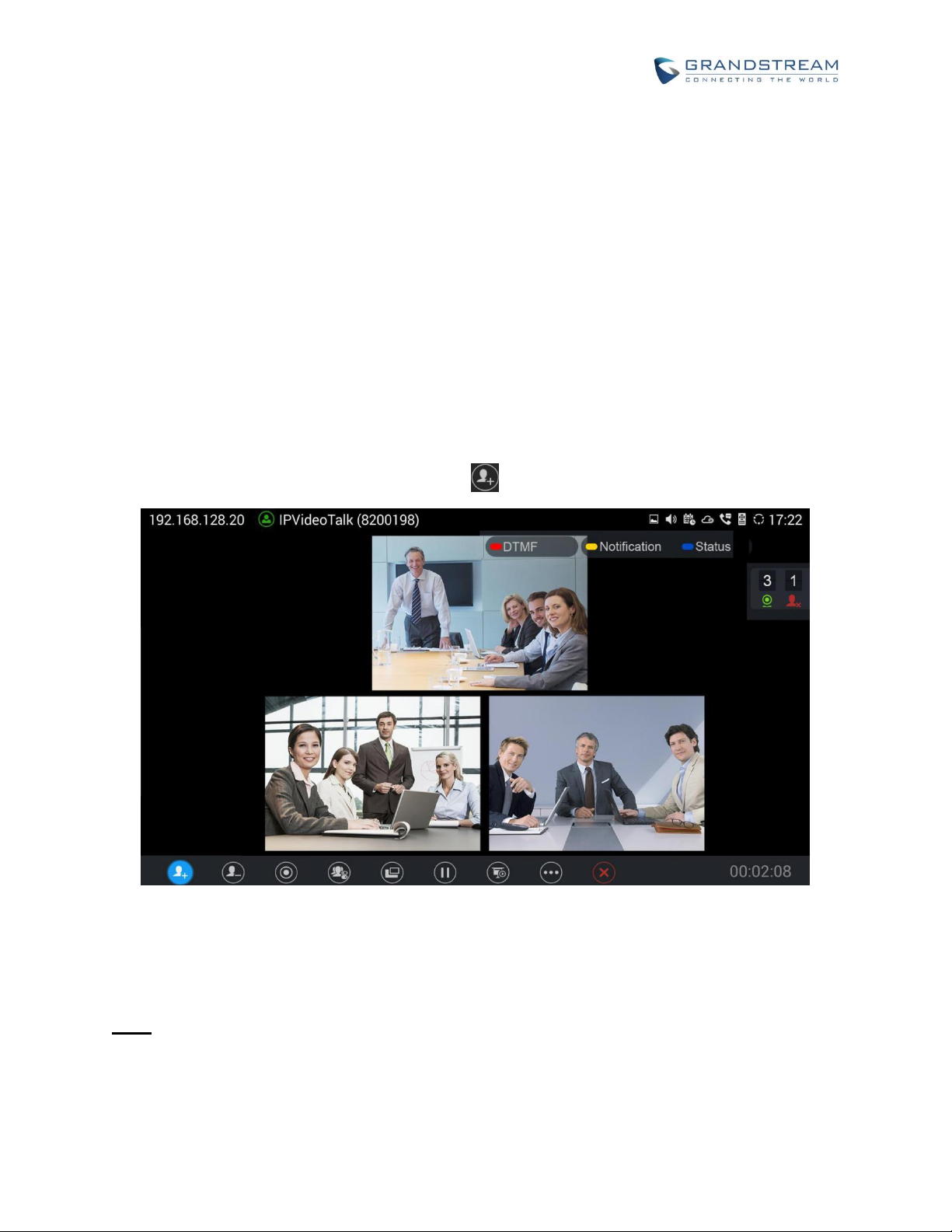
During an IPVideoTalk meeting, the GVC320x meeting control options are similar to meetings when the
GVC320x is using regular SIP account. We will describe adding other GVC320x participants into the
IPVideoTalk meeting, setting PIN lock, sharing presentation and recording functions during the IPVideoTalk
meeting.
ADD OTHER GVC320X PARTICIPANTS
During an active IPVideoTalk meeting, if your GVC320x is the meeting host, you can add other GVC320x
into the meeting if the other GVC320x has an active IPVideoTalk ID. Here are the steps:
1. On the host GVC320x call screen, click on icon .
2. On the new dialing screen, enter the other GVC320x’s IPVideoTalk ID and dial out from your
IPVideoTalk account.
3. Once the other GVC320x answers the call, it will join the IPVideoTalk meeting.
Note:
If your GVC320x is a participant in the IPVideoTalk meeting rather than meeting host, you will not
be able to use your IPVideoTalk account to add more participants into the meeting.
The GVC320x host can only directly add other GVC320x participants into the meeting, it cannot
Page 19
How to use GVC320x in IPVideoTalk Meeting
Page 18 of 20
add webRTC or mobile app clients into the meeting. However, webRTC or mobile app clients can
use the meeting ID to join the meeting.
If the GVC320x would like to remove the added GVC320x participants, click on icon and
select the GVC320x participant to remove from the meeting.
PIN LOCK
When a scheduled IPVideoTalk meeting has password configured, the meeting participants including
GVC320x, webRTC and mobile app clients will be required to enter the password before they can
successfully join the meeting. Besides the password protection in meeting scheduled in Admin Center, on
the GVC320x host, the user could also set a PIN code to protect the meeting from being disturbed by other
GVC320x callers.
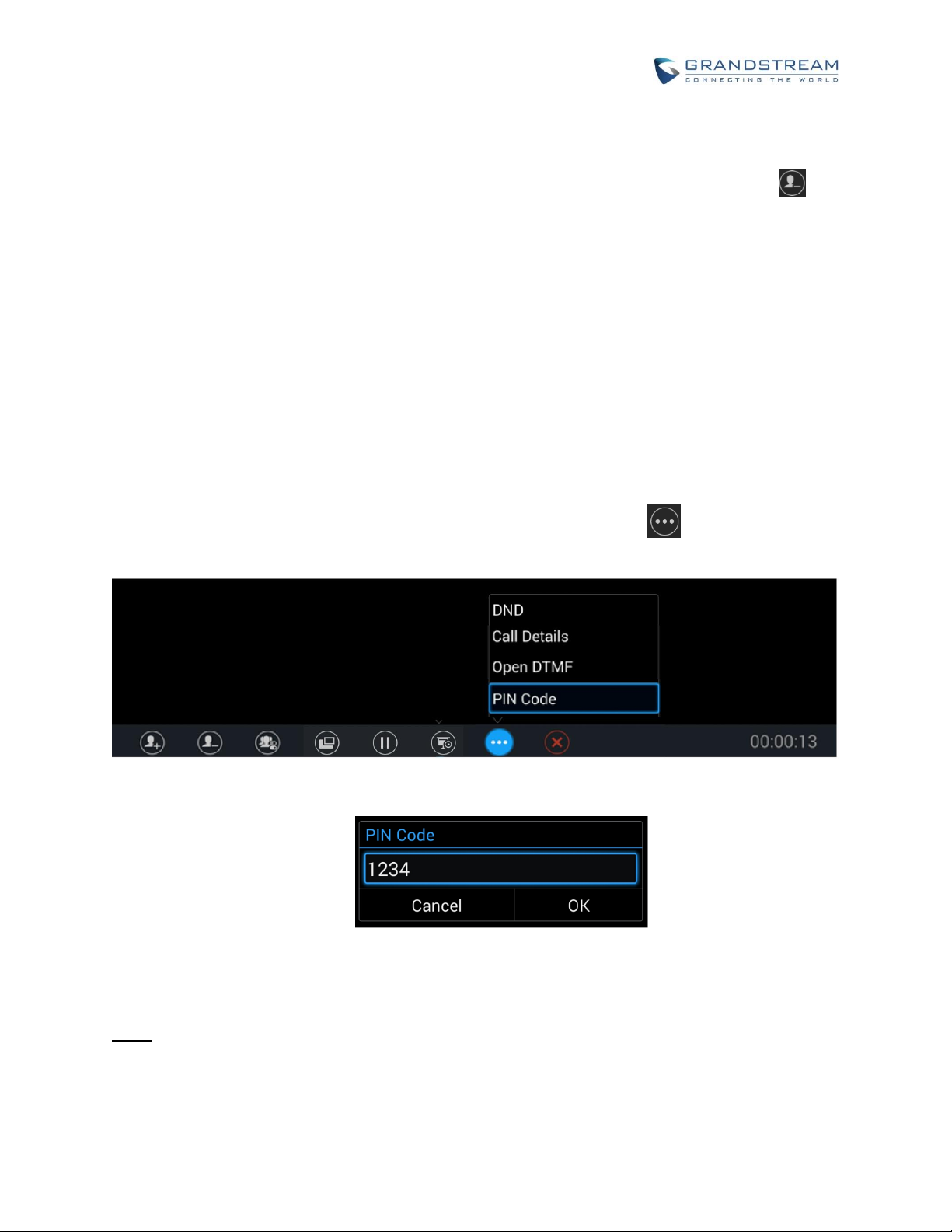
To set PIN code on the GVC320x host:
1. During the meeting, on the GVC320x host LCD call screen, click on button from the bottom menu
and select “PIN Code”.
2. Enter the PIN Code to lock the meeting. If it is empty, the meeting is not locked.
3. Click on “OK” to confirm.
Note:
The PIN code configured on the GVC320x host only takes effect for GVC320x callers. WebRTC or
mobile app clients will not be asked to enter this PIN code when joining the meeting.
Page 20
How to use GVC320x in IPVideoTalk Meeting
Page 19 of 20
For the meeting that already has password configured in Admin Center when the meeting is
scheduled, if the GVC320x host also sets PIN code, other GVC320x callers will be asked to enter
GVC320x PIN code instead of the IPVideoTalk meeting password. For webRTC and mobile app
clients, they still need to enter the IPVideoTalk meeting password to join the meeting.
If the GVC320x caller is already in the meeting participants list when the meeting is scheduled in
Admin Center, this GVC320x caller will not be asked to enter password or PIN code when calling
into this meeting.
SHARE PRESENTATION
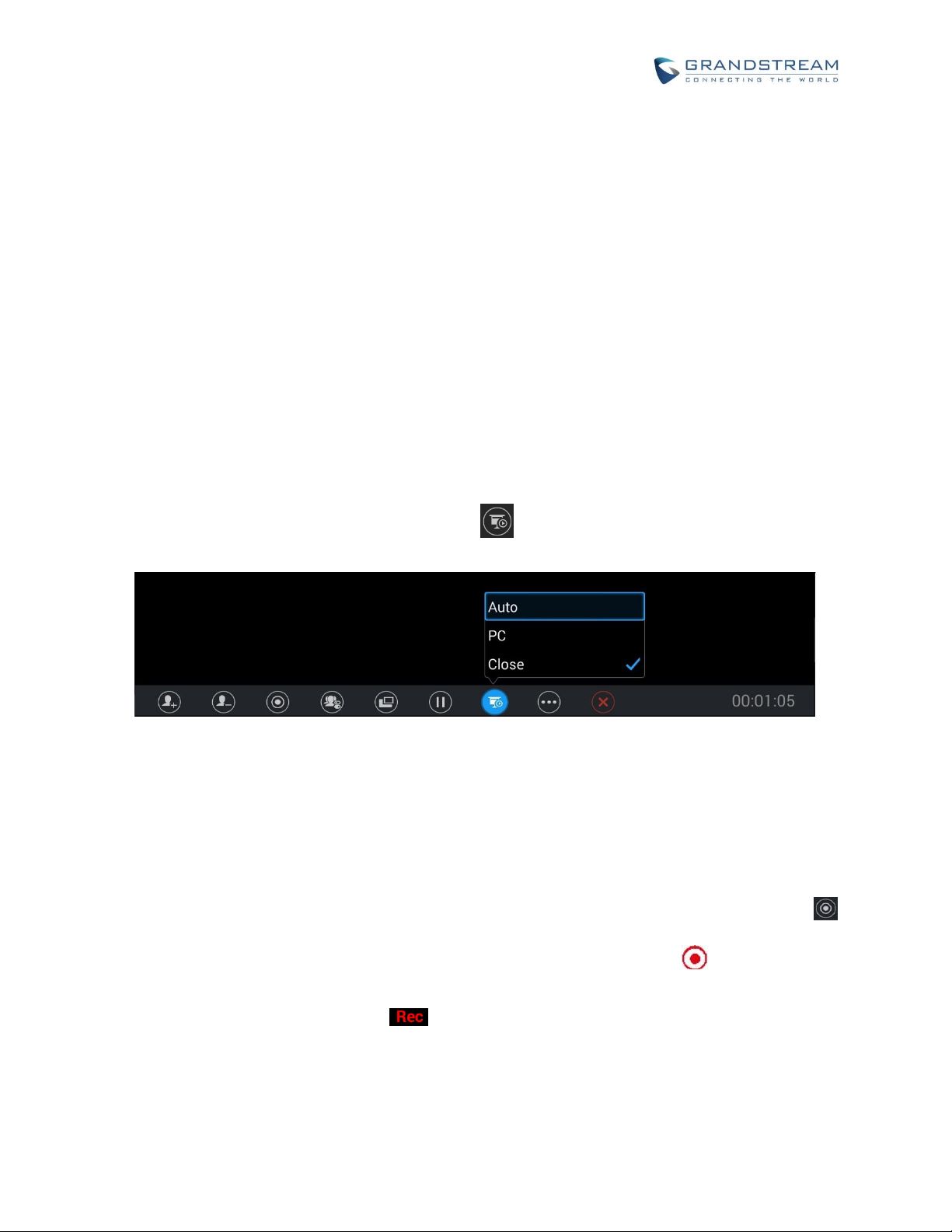
During an IPVideoTalk meeting, the GVC320x can share presentation to other meeting participants. Here
are the steps:
1. From your presentation device (e.g., a laptop), use HDMI cable or VGA cable to plug in HDMI IN or
VGA IN port on the GVC320x device.
2. On the GVC320x LCD call screen, click on icon on the bottom menu and select “PC” to share
presentation.
3. Click on “Close” to turn off presentation and send normal video again.
MEETING RECORDING
The IPVideoTalk meeting can be recorded on the GVC320x. Here are the steps:
1. During an IPVideoTalk meeting, on your GVC320x LCD call screen->bottom menu, click on icon
to start recording. Or, you can use GVC320x remote control and press button to start recording.
2. The IPVideoTalk meeting audio and video will be recorded on the GVC320x. During recording, the
user could see the recording icon flashing on the upper left corner of GVC320x LCD. If the
meeting participant enables presentation during recording, GVC320x will record the presentation as
well. If the meeting participant disables presentation during recording, the GVC320x will switch to
record the video.
Page 21

How to use GVC320x in IPVideoTalk Meeting
Page 20 of 20
3. Click the recording button again to stop recording. The recording file will be saved in the GVC320x.
4. It is recommended to plug in SD card to the GVC320x SD card slot for recording purpose. The
recording file can be retrieved from the GVC320x LCD->Applications->File Manager->External SD
Card->Recording. It can also be downloaded from the GVC320x web UI->Maintenance->Recording
page.
5. On GVC320x firmware 1.0.1.65, each recording file has maximum size 1G. If the recording file exceeds
1G, a new file will be created automatically to resume recording.
 Loading...