

Page 1

CHAPTER 1
Adjustable H-SIZE and V-SIZE.
WELCOME TO GRAND ULTIMATE WIRELESS
64 stages control : Brightness, Contrast, Hue, Saturation adjustment.
16 stages control :
Fine Tune (Sharpness), Flicker adjustment.
1.1 INTRODUCTION
Thank you for purchasing the Grand ULTIMATE WIRELESS.GRAND ULTIMATE
WIRELESS is a VGA to TV converter with an integrated 2.4GHz Wireless
Transmitter & separate Receiver. Transmit the computer’s video and audio to any
remote TV. It is ideal for Internet or DVD/VCD movie viewing, presentations,
baby/patient monitoring, burglary detection, theft prevention, or home/company
monitoring.
Stereo Audio input from sou nd card or any audio device.
RF frequency: CH1=2414MHz, CH2=2432MHz, CH3=2450MHz,
CH4=2468MHz.
Demodulation Method: FM.
Frequency Generating: P.L.L..
Audio Response: 20Hz ~ 20kHz.
Video Output: 1Vpp/ 75 ohm composite Video.
Distance : Open area is 100 meters, indoor is 30 meters. (Actual range may
vary depending on environment)
1.2 FEATURES
Plug and Display, no software required.
1.3 MODE AND RESOLUTION TABLE
Supports four selectable channels and multiple receivers , transmits , ISM
Band from 2414~2468Mhz.
This converter supports the following VGA display modes:
Resolution
720
x
400
640
x
480
800
x
600
1024
x
768
1152
x
864
1280
x
960
1280
x
1024
Vertical
Frequency
(Hz)
70 60, 70,
72, 75,
85, 100,
120
56, 60,
70, 72,
75, 85,
100
60, 70,
72,
75
60, 70,
72, 75
60 60
Simultaneous display on TV, Remote TV and VGA monitor.
Supports NTSC,NTSC-EIAJ,PAL-N, PAL, PAL-M, PAL-combination-N and
SECAM video system.
Supports CVBS, S-VIDEO video outputs by switch change (via wired
connections) .
True 24 bit, true color digitizer.
User controls: MENU, ZOOM, FINE TUNE,SAVE,VIDEO SOURCE,POWER
& Position adjustments.
This converter supports the following MAC display modes:(for MAC G4,G4
Cubic,G3)
Menu key supports Freeze , Size, Brightness, Contrast, Hue, Saturation,
Video Standard, Flicker , OSD color, Reset.
Resolution
640
x
480
832
x
624
800
X
600
1024
X
768
1152
X
864
DIP Switch supports functions : CHANNEL 1~ CHANNEL 4
LED indicator PAL & POWER.
1 2
Page 2
Vertical
Frequency(Hz)
60,66,72,7
5,85,100,
120
75 56,60,72,
75,85, 100
60,70,
75
60,70
4
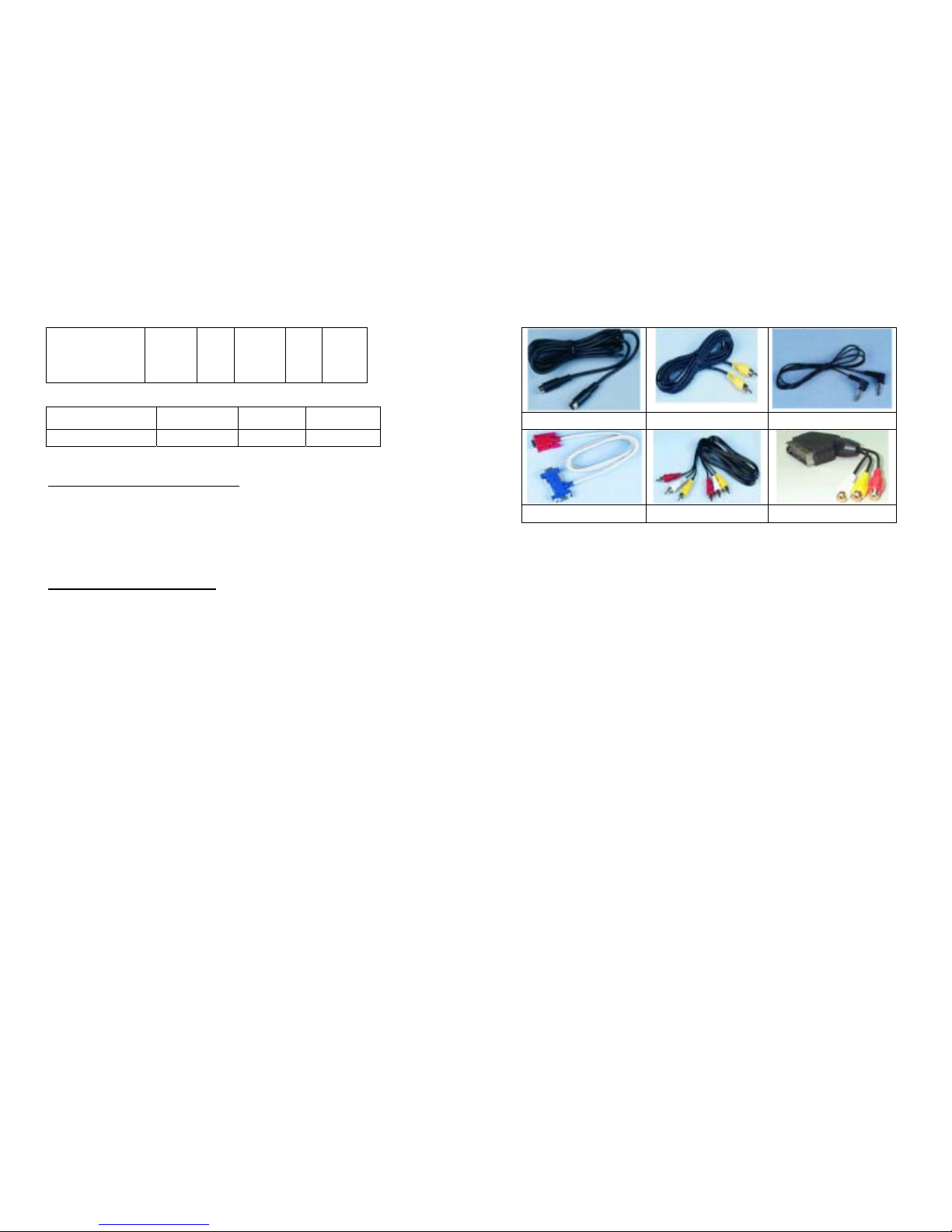
S-Video cable Video cable. Audio cable.
H cable for IBM PC Audio/Video Cable RGB SCART w/ AV Cable
This converter fully supports APPLE iMac and iMAC DV computer display modes
Resolution 640x480 800x600 1024x768
Vertical frequency (Hz) 117 95 75
1.4 SYSTEM REQUIREMENTS
Desktop or laptop computer with HD15 VGA standard connection.
TV or VCR that supports NTSC or PAL video standard with composite video
input (required for wireless transmission), (or) S-Video input, (or) SCART input
connector.
1.5 PACKAGE CONTENTS
This package contains the following items:
User’s Manual
For Tx
Grand ULTIMATE WIRELESS Tx
S-Video cable
Video cable.
Audio cable.
H cable for IBM PC
Power adapter (DC 6V/800mA )
For Rx
Grand ULTIMATE WIRELESS Rx
Audio/Video Cable for Rx
RGB SCART with AV cable (for Europe)
Power adapter (DC 6V/800mA )
3
Page 3
CHAPTER 2
INSTALL GRAND ULTIMATE WIRELESS
2.1 CONNECTORS OF GRAND ULTIMATE WIRELESS
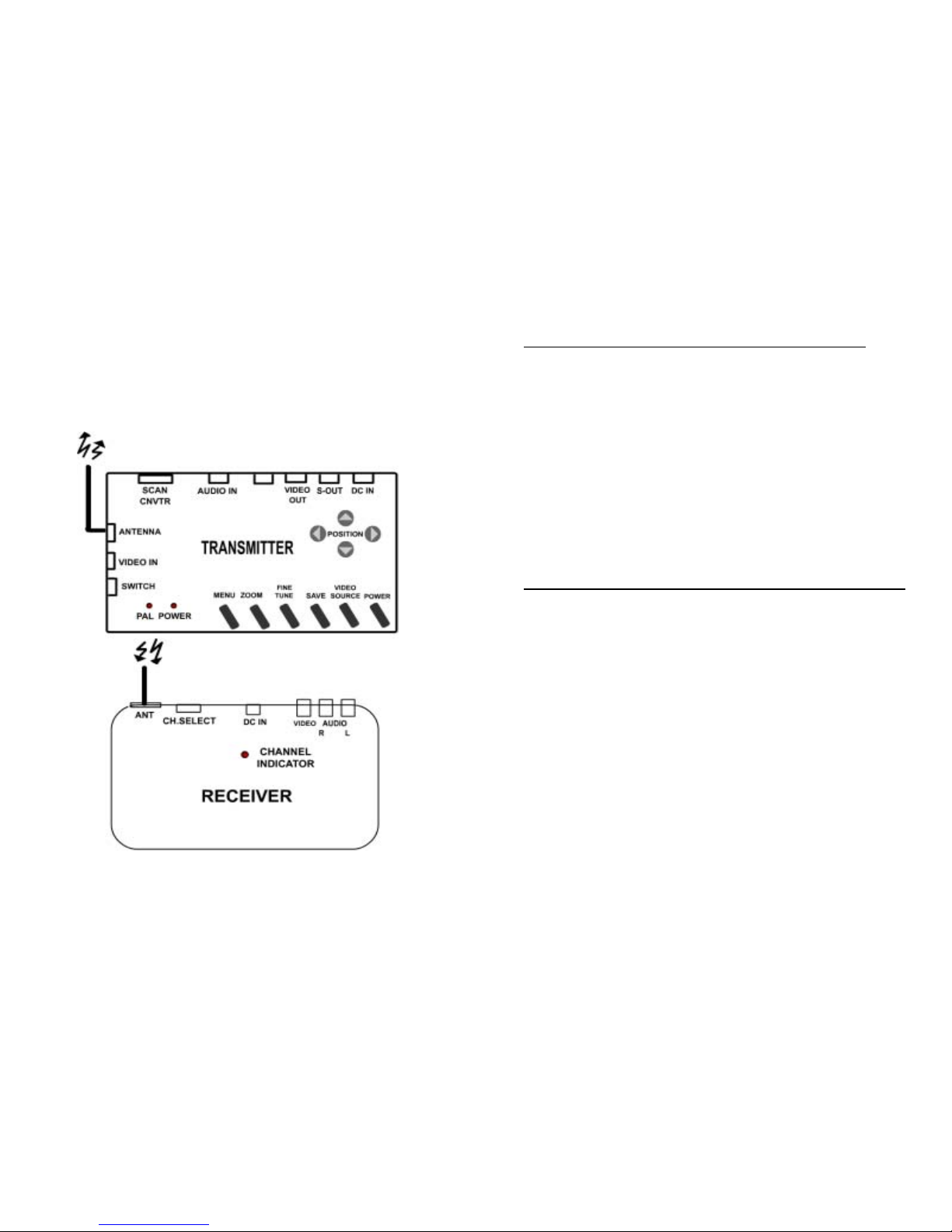
SCAN CNVTR : Connects H cable to PC, Grand ULTIMATE WIRELESS and
monitor.
AUDIO IN: Connects to sound device or audio output of DVD/ VCD /VCR.
VIDEO OUT: Connects Grand ULTIMATE WIRELESS to the Video input of
TV.
S-OUT : Connects Grand ULTIMATE WIRELESS to your TV supporting
the S-VIDEO input.(Recommend for wired connections)
DC IN : Connects with supplied AC power adapter.
VIDEO IN: Connects to your video device such DVD/VCR/Camera for
video pass-through.
The following section shows the function of controlling the Grand ULTIMATE
WIRELESS. Refer to Figure 1 for the Outline of Grand ULTIMATE WIRELESS.
2.2 BUTTONS & SWITCH OF GRAND ULTIMATE WIRELESS
POWER : Toggle between power on & off.
VIDEO SOURCE : Toggles between displaying the converted computer
display and the video pass-through source.
SAVE: Press this button to save current display and position settings.
FINE TUNE : Press this to fine-tune the video image.
ZOOM : Toggle between Zoom and Normal display for converted computer
display.
MENU : Press button to cycle through the functions. The functions are Freeze,
HSIZE, VSIZE, Brightness, Contrast, Hue, Saturation, Video Standard, Flicker
OSD color & Reset.
POSITION : Press up, down, left and right button to adjust the position of the
converted TV display. These four buttons also are used to make adjustments
to the settings in the MENU.
FIG.1 Outline of Grand ULTIMATE WIRELESS
5 6
Page 4
8
2.3 CHANNEL SETTING
DIP SWITCH:
SW1 SW2 SW3 SW4 SW5 SW6 DESCRIPTION
DOWN (ON) CHANNEL 1
DOWN(ON) CHANNEL 2
DOWN(ON) CHANNEL 3
DOWN(ON) CHANNEL 4
DOWN(ON) Optional
DOWN(ON) Optional
2.4GHz Receiver Channel seting:
SWITCH 1 CHANNEL 1
SWITCH 2 CHANNEL 2
SWITCH 3 CHANNEL 3
SWITCH 4 CHANNEL 4
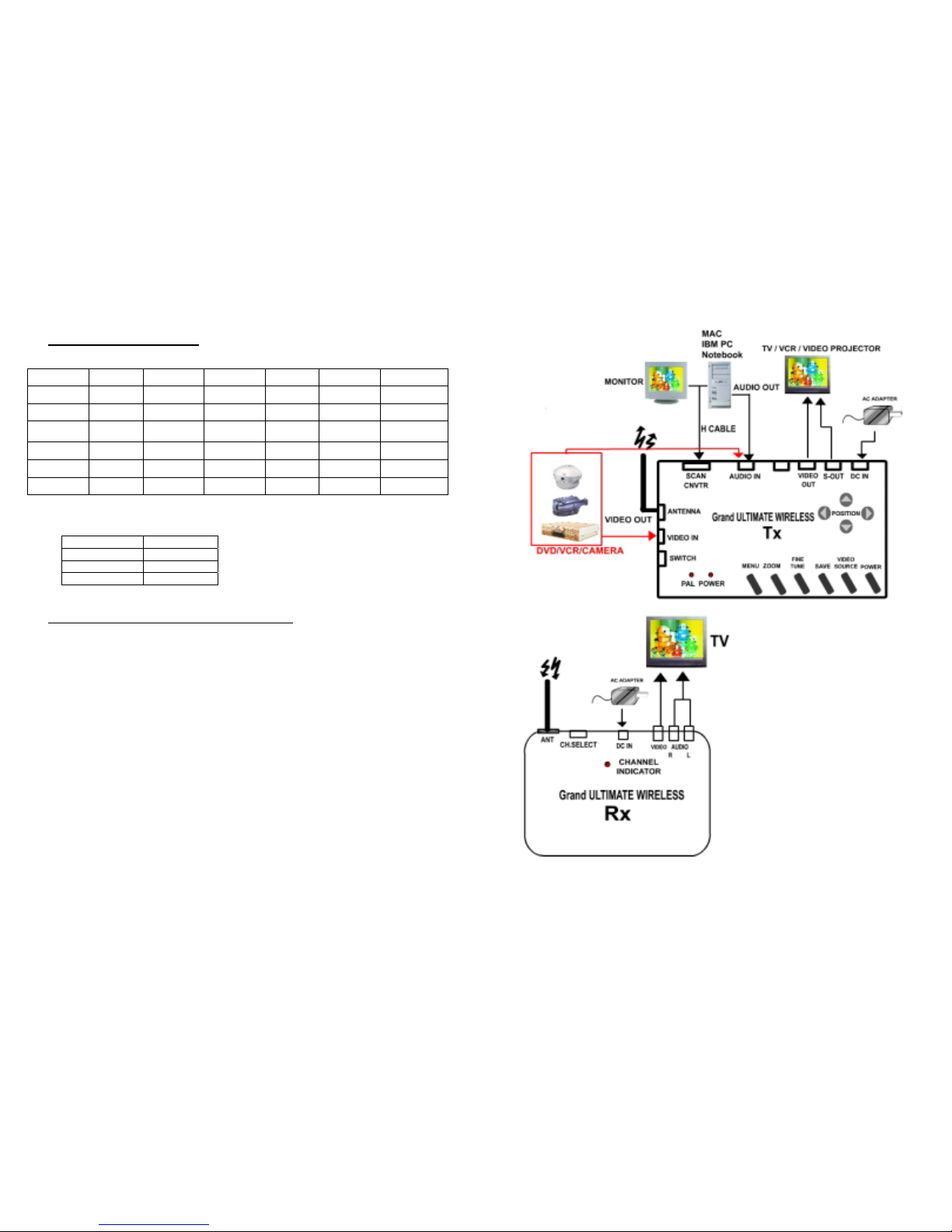
2.4 INSTALLATION FOR IBM PC USER
The Grand ULTIMATE WIRELESS is a “Plug and Display” video converter. The only
requirement to get the output of the computer on the TV is to make the proper
connection and ensure that your computer display is set within the supported
parameters. Please read the following sections carefully for the installation of the
hardware. Please refer to Fig.2 for and overview of the process.
Fig.2 Grand ULTIMATE WIRELESS Installation
7
Page 5
2.5 STEP BY STEP CONNECTIONS
NOTE: Connecting anything other than a 6V DC power supply with a center
positive connector to the Grand Ultimate Wireless will cause damage to the
product and will void the warranty. GrandTec recommends using only the
supplied power supplies when using the Grand Ultimate Wireless.
IMPORTANT! Turn your computer OFF before connecting
the Grand Ultimate Wireless!
1. Connect the end of the H Cable that is RED to the port on the Ultimate Wireless
labeled SCAN CNVTR (which is also red).
5. Connect the Grand Ultimate Wireless Receiver to your TV using the AV Cable.
Plug the power supply to the DC IN of the Receiver and then connect the supply
to a wall outlet.
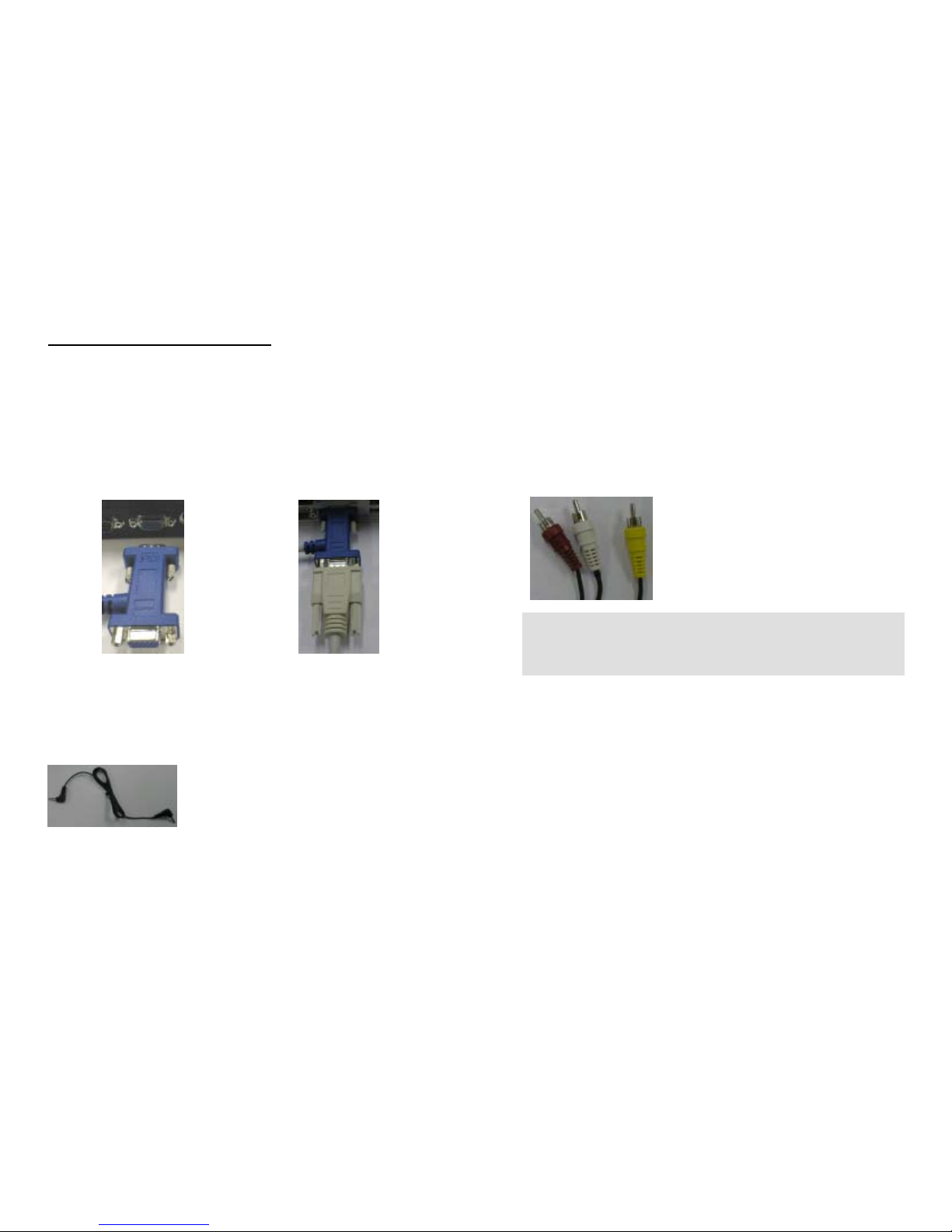
2. Connect the end of the H cable that is BLUE to the CRT port on the back of your
laptop or desktop PC. On a desktop, you may need to first unplug the monitor.
Fig. 3 – Laptop Connection Fig. 4 – Desktop with Monitor
3. Connect one end of the audio pass-through cable to the AUDIO IN port on the
Grand Ultimate Wireless. Connect the other end to the LINE OUT or SPEAKER
OUT of your sound card. On a desktop you may first have to disconnect your
existing computer speakers.
Fig. 5 – Audio Pass-Through Cable
4. Connect one of the supplied power supplies to the DC IN port on the Grand
Ultimate Wireless and then connect the supply to a wall outlet.
Fig. 6 – Audio/Video Cable
Note: Grand Ultimate Wireless also supports high quality S-VIDEO via the
S-video cable. If your TV or VCR supports S-VIDEO IN, we highly
recommend you use it to get the best TV picture. This option is not
available when transmitting the video wirelessly.
6. Toggle the display input to correspond with the video input you are using. For
instance, a TV defaults to the antenna or cable input when it is turned on. You will
see either a TV channel or snow. Each TV varies slightly, so you may need to
refer to your TV's user's manual for further assistance.
7. If you are experiencing any distortion or interference in the wireless transmission,
change the transmission channels. Using a paperclip, change the switches on
both the transmitter and the receiver so that they are on the same channel. Only
one switch should be DOWN on each and the switch that is DOWN indicates
which channel is in use.
9 10
Page 6

CHAPTER 3
8. If your TV does not have a VIDEO input, you may connect through a VCR's
VIDEO IN. Note: Since virtually every VCR is different, please refer to your VCR
User's Manual for exact instructions for recording an external video source.
TECHNICAL TIPS
The following are problems that might arise when using the PC to TV converter, and
possible solutions to them.
To connect the Grand Ultimate Wireless to a VCR for recording, follow these steps:
1. Using either the RCA or the S-video (recommended) cable, connect from the
video out on the Grand Ultimate Wireless to the Video IN on the VCR
2. Using either an RCA or a 75 Ohm coaxial cable connect from the Video OUT on
the VCR to the Video IN on the TV
3. Set the TV/VCR switch on the VCR to "VCR"
4. Set the TV to display the video input signal (Refer to TV's User's manual for
instruction on displaying an external video source)
Q: How can I enhance the display quality?
A: You can usually decrease the contrast and increase brightness control to get
the better picture.
Q: I connect with a NOTEBOOK PC, no output is displayed on TV.
A: Please refer to your computer’s User’s Manual to display an external VGA Signal.
(Many Notebook computers have 3 settings, VGA external only, VGA internal only,
and VGA internal & external simultaneously)
5. You should be able to see the converted computer display on the TV
6. Insert a blank tape into the VCR and press "RECORD". Stop the tape after a few
moments to test that it is recording.
11 12
Page 7
CHAPTER 4
When you need RMA or advanced technique service, please fill this form as detail
as possible and FAX to your dealer.
TROUBLE SHOOTING
Product S/N:
Name:
TEL No.: FAX No.:
E-mail address:
Full Address:
Hardware condition:
Mainboard chipset:
Mainboard CPU: CPU clock: MHz
Main memory: MB Cache memory: KB
VGA card: Display memory: MB
Sound card: Hard Disk: MB
Other add-on cards:
Monitor: Horizontal Freq.: KHz to KHz
Vertical Freq.: Hz to Hz
Problem description:
Check the followi ng before requesting service.
Symptom Point to check
No TV output
Press the video select or AV button of the TV to select the
video Input from the Grand ULTIMATE WIRELESS.
Text not sharp
Use S-Video or SCART connection.
Ghost image
1. If long cable is used to connect the Grand ULTIMATE
WIRELESS to a TV, use a better 75 ohm coaxial cable.
(RG-59 is recommended)
2. Adjust Sharpness of TV.
Missing
characters
1. Set the Grand ULTIMATE WIRELESS to underscan. Adjust horizontal
and vertical position button to the center screen.
No color
1. Toggle the PAL/NTSC button to match your TV system.
2. Make sure the color (also called saturation for some TVs) setting
is not minimum.
3. If your TV is multi-standard, set the standard to AUTO or the same as
that output from the Grand ULTIMATE WIRELESS.
Flicker:
Adjust the Flicker or V SIZE of the GRAND ULTRAVIEW EX.
Distorted lines:
Reduce the brightness level of the TV. If problem persists, choose
a better TV model.
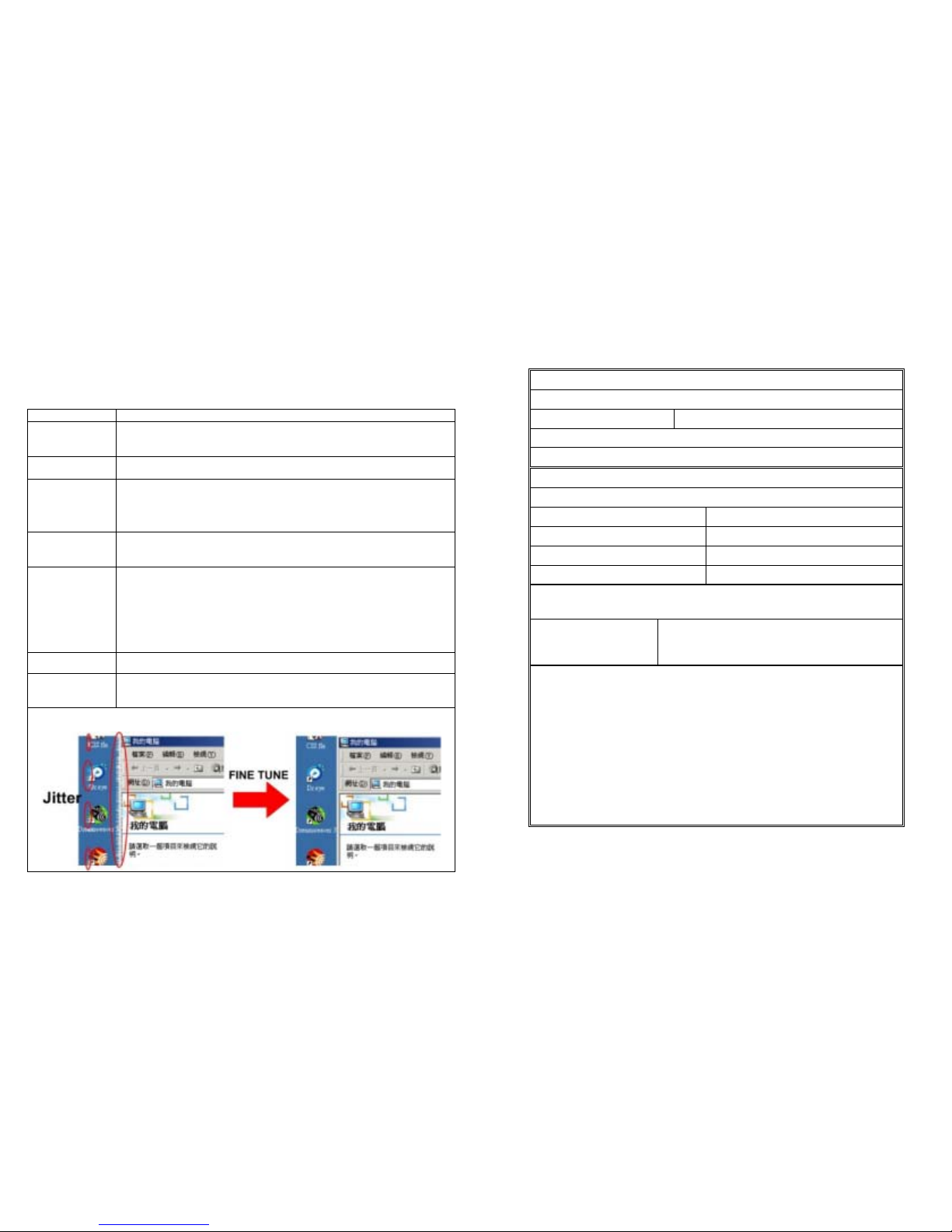
Jitter : Press the FINE TUNE Button to get the smooth picture. Please refer to the
figure below.
13 14
 Loading...