

Page 1
GPS LOG BOOK
USER MANUAL
V1.1
Page 2
GPS Log Book – User Manual
www.gpslogbook.com.au
Page 1 of 21
1 Introduction
The GPS Log Book is a compact trip recording device that plugs into the power adaptor
(cigarette lighter) of a motor vehicle. It completely replaces manual log books and
records data automatically whenever the vehicle is driven, and doubles as a USB
smartphone charger!
It removes the ‘pain’ and hassle of keeping a manual logbook and can be used for:
ATO tax logbooks
Fringe Benefits Tax logbook
Claiming tax back for business mileage (the ATO allows you to claim per km up
to 5,000 km per year)
Proof of activity for tradies, sales reps, technicians and others
Managing employee vehicle usage claims by providing the evidence of distance
and time driven
Recording Pool car usage
Helping Learner Drivers to keep their learner logbook
The device contains a high sensitivity GPS receiver and records the following information:
Date and time down to seconds resolution
GPS position (latitude and longitude)
Speed
Heading
Altitude (you never know!)
This data is recorded into the flash memory of the device – which is big enough to store a minimum of 3 months of driving
data, although we recommend syncing the data more regularly.
The GPS Log Book syncs data via a USB port on your PC or Mac to the GPS Log Book web site, where the trips are processed
and stored. On the web site you can easily view your trip list, mark trips as business or private, enter comments and even
view the detailed trip and route in Google Maps.
Page 3

GPS Log Book – User Manual
www.gpslogbook.com.au
Page 2 of 21
An example of the trip list:
A detailed trip integrated with Google Maps:
You can also use the reports section to generate a variety of PDF reports including tax logbooks and analysis of business
versus personal travel, and even export the trip data into Excel. Reports can be emailed or printed.
Page 4

GPS Log Book – User Manual
www.gpslogbook.com.au
Page 3 of 21
1.1 Who can benefit from keeping an accurate Log Book
Anyone who needs to update their logbook for the ATO (in fact you can use the GPS Log Book for longer than the
minimum 12 weeks and then pick the period that gives you the best tax benefit!)
Companies needing to track the Fringe Benefits Tax (FBT) payable on company vehicles or novated leases
Employers that reimburse staff for using their personal vehicles for work travel – make sure that your staff are
submitting the evidence to accurately support their claims
Sales reps can use the GPS Log Book to produce their sales visits reports
Technicians and support staff can use the GPS Log Book to produce evidence of support / maintenance calls
Companies that have pool cars that they want to monitor usage
Commission earners
People that need to keep a log of activity – use the GPS Log Book to jog your memory of where and what you
were doing at a particular date and time
Learner drivers who need to keep a logbook of their driving
1.2 Key Features of GPS Log Book
Compact device – no wires or cables in the vehicle to get in the way
Cutting edge GPS technology works in even tricky vehicle positions (it even works inside the centre console of the
BMW X5)
Ample storage capacity to store many months of driving if required
The GPS Log Book is also a USB smartphone charger – charge your phone while you are recording your trips!
The GPS Log Book is a user-friendly and well-designed online system that works with PC and Mac systems
Reports comply with the ATO requirements for evidence of travel related tax claims
Integrates with Google Maps to display trip detail – easy to remember where and what you were doing
One-click categorization of trips as business or private and easily enter comments against a trip
Create zones (for regularly visited locations) to easily label trips and reports
One year warranty period from date of purchase
Page 5
GPS Log Book – User Manual
www.gpslogbook.com.au
Page 4 of 21
2 In the Box
When receiving the GPS Log book, the following items will be found in the box:
GPS Log Book device
Illustrated quick start guide (as part of the packaging insert)
USB Cable
3 Technical Specifications
Component
Rating
Assisted GPS
High sensitivity 50 Channel GPS with a maximum accuracy of 2.5m
Power supply (input voltage range)
8V - 30V DC with transient protection. Internally fused at 8A.
Power supply (average current draw)
Approximately 45mA acquiring, 35-40mA tracking
USB Charger
5V, max 1A continuous
USB interface to PC
HID (Human Interface Device) via a USB Mini-B cable.
Super capacitor
Sufficient charge to hold the GPS time and data for > 8 hours.
Internal Flash Memory
4Mbytes total, 3.6Mbytes for trip data. Enough for 30,000 waypoints which
equates to approximately 4 months of driving
Metal components
Nickel plated mild and spring steel
Plastic
ABS Plastic
LED
Tri colour
Operating temperature
-10 to + 60 degrees C with 0.5A charging load
Dimensions
102mm x 41mm x 22mm
4 Requirements
4.1 Minimum PC Requirements
The minimum requirements for running the software required to operate the GPS Log Book are listed below:
Microsoft Windows 7 / Vista / XP SP2 or better
MAC OS X 10.4 or later
Internet Connectivity
1 x USB port
4.2 Supported web browsers include
Microsoft IE8 or greater
Mozilla Firefox
Google Chrome
Page 6

GPS Log Book – User Manual
www.gpslogbook.com.au
Page 5 of 21
5 Getting Started
5.1 Quick Start Guide
1. Go to www.gpslogbook.com.au and register an account if you haven’t already.
2. Install the Sync app from the Downloads page. Select either the PC or Mac version depending on your computer
type. The Sync application is a small program that is used to extract the data from the GPS Log Book and to send
it up to the GPS Log Book web server. The sync app will also update your device with any software or parameter
updates and keep the GPS aiding data file on the device up to date.
3. Connect your device via the USB cable. The Sync app will take you to a web page where you will link your device
to your account. Once this step is completed please unplug your device and then re-connect it to the USB cable
to re-start the sync process.
4. After the device has updated itself with the latest software and settings you can unplug it and plug into your
vehicle and drive!
5. The next time you connect your device it will sync and then take you automatically to view the latest trip upload
in your web browser.
5.2 In Your Vehicle
Plug the device into the 12V outlet / cigarette lighter of the vehicle.
Turn the ignition of the vehicle on.
The LED will be solid red – this indicates that the device has not yet found its position and is searching for GPS
satellites.
The LED will turn green – this indicates that the device has found its location and tracking is in progress.
Remove the device at any stage to stop the recording.
NOTE: The device will end a trip when it loses power which in most modern vehicles is when the ignition is turned off.
Some vehicles’ 12V outlet / cigarette lighter do not switch off when the ignition is turned off. In these cases the device will
stop recording data and go into a low power mode when the vehicle does not move for 5 minutes.
5.3 LED Information
Red
The log book has power and is searching for satellites
Green
The log book has found satellites and is logging
Flashing Red
The log book is 80% full and will need to be connected to the server soon to upload the
data (see below).
DID YOU KNOW?
The LED on the GPS Log Book is dimmable – in fact we use your last known GPS position to calculate what the sunrise and
sunset times are in your area and automatically dim the LED at night time so that it does not blind you or distract you while
driving at night. Neat!
Other LED Facts:
If the solid Red does not turn Green then the device is unable to find any satellites (e.g. if the vehicle is parked in
a basement) and no data will be recorded.
In order to allow the GPS Log Book to find GPS satellites as quickly as possible we have designed the unit to use
GPS aiding data in a file that is downloaded to the GPS Log Book as part of the sync process. This aiding data file
is valid for a 2 week period and therefore we suggest that you sync the device every 2 weeks.
If the aiding data file is invalid (the device has not synced for more than 2 weeks) then the GPS Log Book will still
work but you may find that the first position fix of the day takes longer than usual to acquire (the LED stays RED
for longer at the start of the first trip of the day).
Page 7
GPS Log Book – User Manual
www.gpslogbook.com.au
Page 6 of 21
5.4 Using the Sync Application
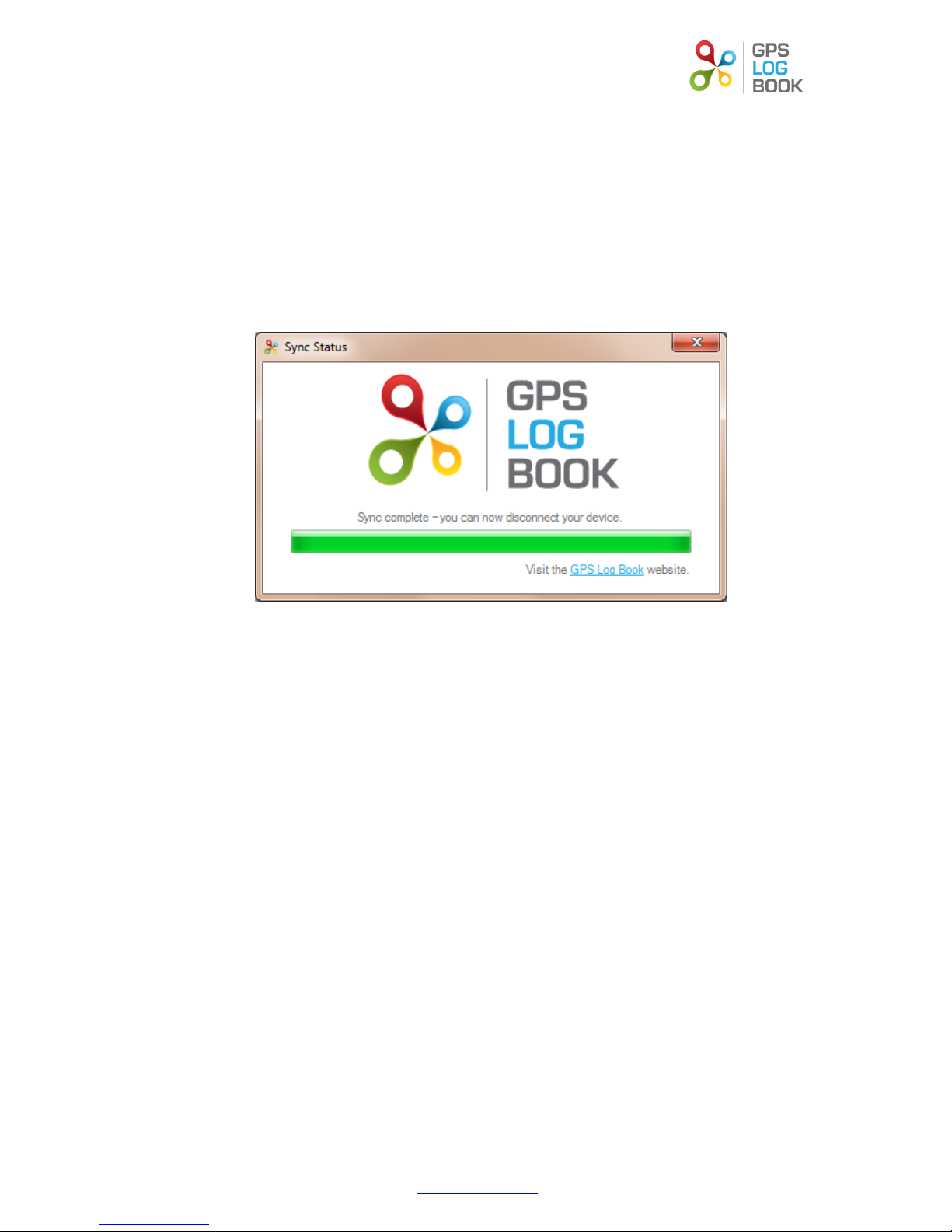
When the Sync App is running it will automatically detect when a GPS Log Book device is attached to the computer and
begin syncing the data from the device:
1. Connect the GPS Log Book device to the computer using the USB cable provided.
2. The Sync Application will automatically download any trip data from the device and upload it to the GPS Log Book
server.
3. The LED on the device will turn Red while data transfer is in progress.
4. Once all the data has been transferred from the device and new aiding data downloaded to the device, a
message will be displayed stating that it is safe to disconnect the device and the LED on the GPS Log Book will
turn Blue.
Page 8
GPS Log Book – User Manual
www.gpslogbook.com.au
Page 7 of 21
6 Managing Trip Data
6.1 Trips Page
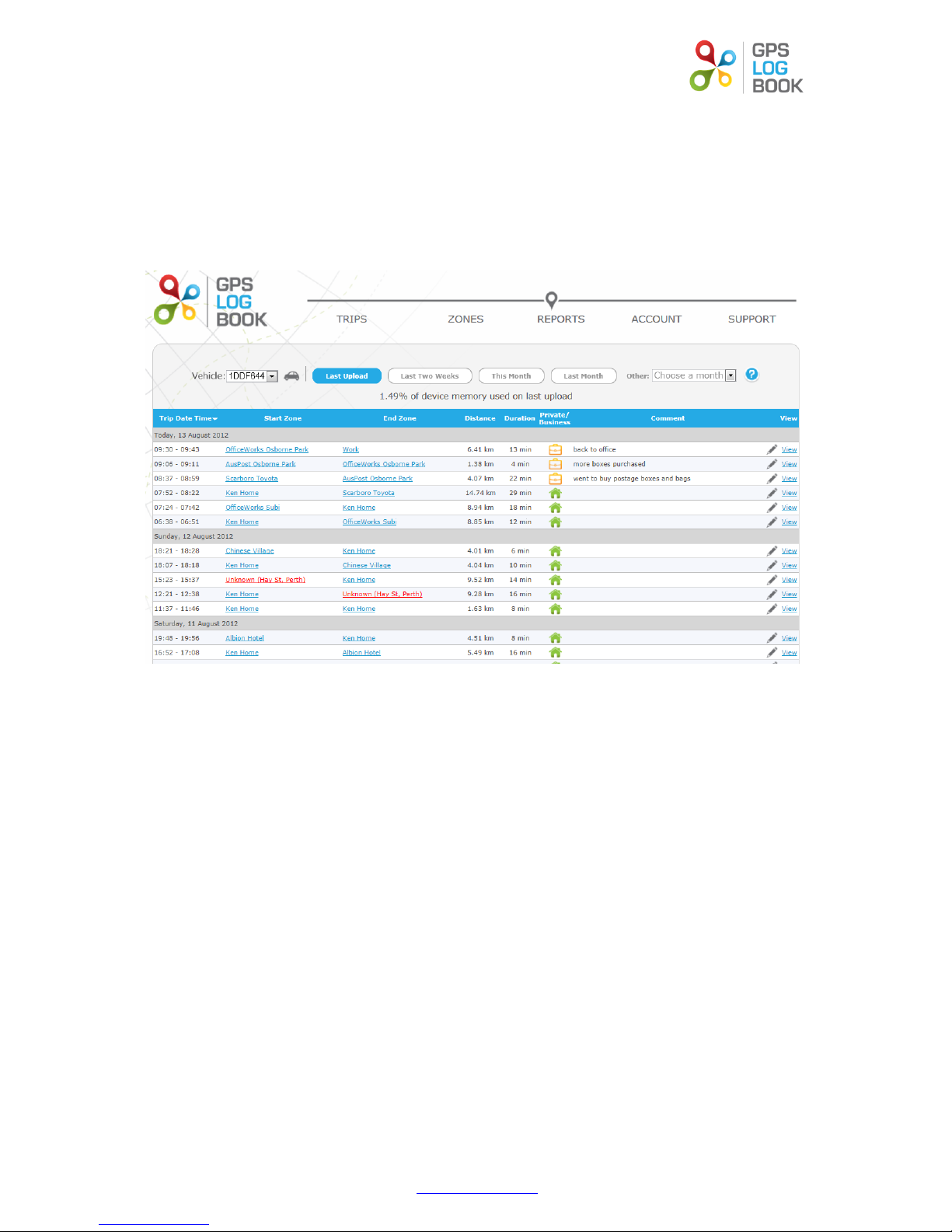
The GPS Log Book system will display all the trips for a specific vehicle. The trip list is the quickest and easiest way to see
recent activity, and to designate the trip as business or private and add a comment.
Simply click on the home/briefcase icons to toggle the trips as business/private. Click in the comment box next to the icon
to enter a comment.
The line above the trip list shows “1.49% of device memory used on last upload”. This indicates to you how full the device’s
memory was when you performed the last upload so that you can get an idea of how much driving the GPS Log Book
device can store.
6.1.1 Create and Edit Zones
The system allows you to add regularly visited locations as Zones, for example “Work”, “Home”, “Joes House”, “Customer
ABC” etc. Any trip that starts or ends in a zone will automatically be linked to that zone and the name of the zone will be
shown in the trip list as in the image above. Creating zones allows you to easily see where you have been travelling from
and to, and in addition allows you to pull reports based on zones. For example, a sales rep could use zone reports to list all
sales visits to a particular customer.
Zones can be flagged as business or private. Any trips that go from a business zone to another business zone are
automatically designated as business trips by the system.
The first time you view your trips all the zones will be labelled “Unknown (Street Name, Suburb)” with the actual name of
the street and suburb where you started and stopped. This indicates that the system does not have a zone at (or nearby)
that location.
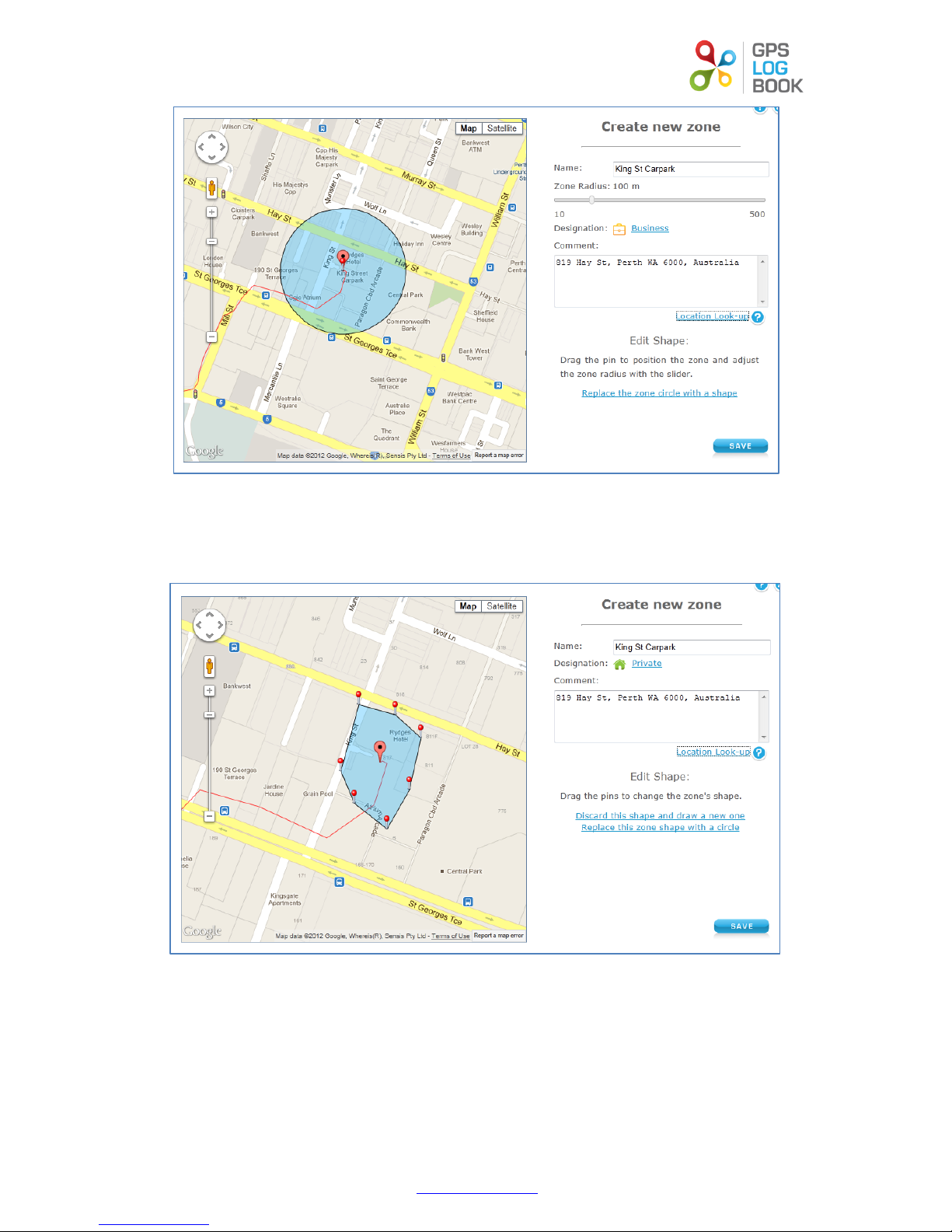
To create a zone at that point, click on the “Unknown” link.
Page 9
GPS Log Book – User Manual
www.gpslogbook.com.au
Page 8 of 21
The default zone radius is set to 100m. This can be changed to suit the zone that you are creating. The zone radius is the
area directly surrounding the point at which the trip started or ended. You can also change the zone to be a polygon or
shape instead of a circle, by clicking on the “Replace the zone circle with a shape” link. If you click the “Location Look-up”
link, the web page will attempt to get the closest street address from Google Maps and display it in the Comment box.
You can change any of the information about the zone, including the shape and size of the zone, by clicking on the name of
the zone in the trip table. This will bring up the edit zone screen.
Click Save when you are done with creating or changing the zone. To cancel without saving click on the cross in the top
right-hand corner of the dialog box.
Once you have created or update a zone, all the trips will be reprocessed and the new zone will be applied to the trips and
the trip table will be updated to reflect the change.
Page 10
GPS Log Book – User Manual
www.gpslogbook.com.au
Page 9 of 21
6.1.2 Change designation of a trip
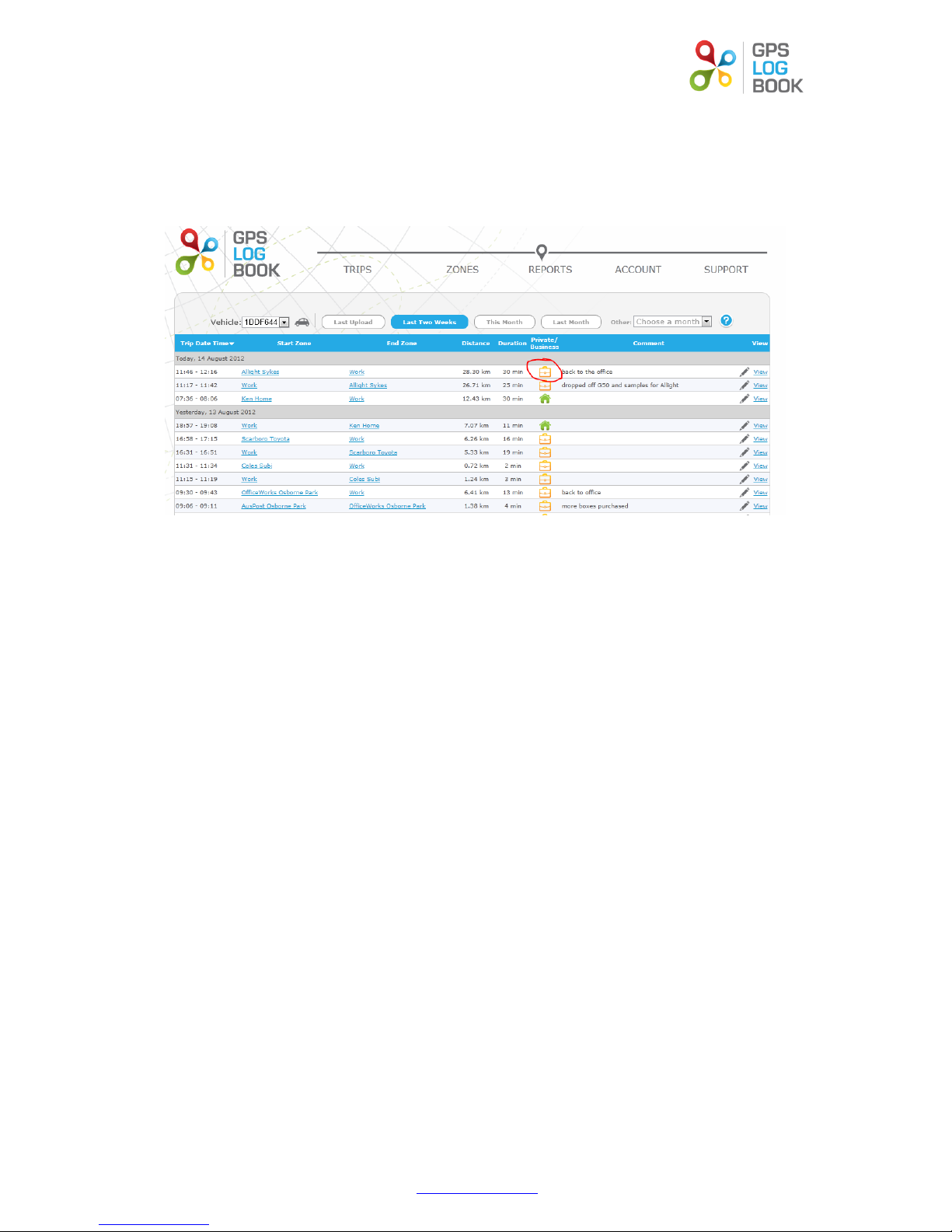
Trips can be designated as business or private. To change the designation of a trip, click on the Private/Business icon and it
will toggle between personal (green house icon) and business (yellow briefcase icon). The designation can also be changed
in the View Trip screen.
Page 11
GPS Log Book – User Manual
www.gpslogbook.com.au
Page 10 of 21
6.1.3 View Trip detail
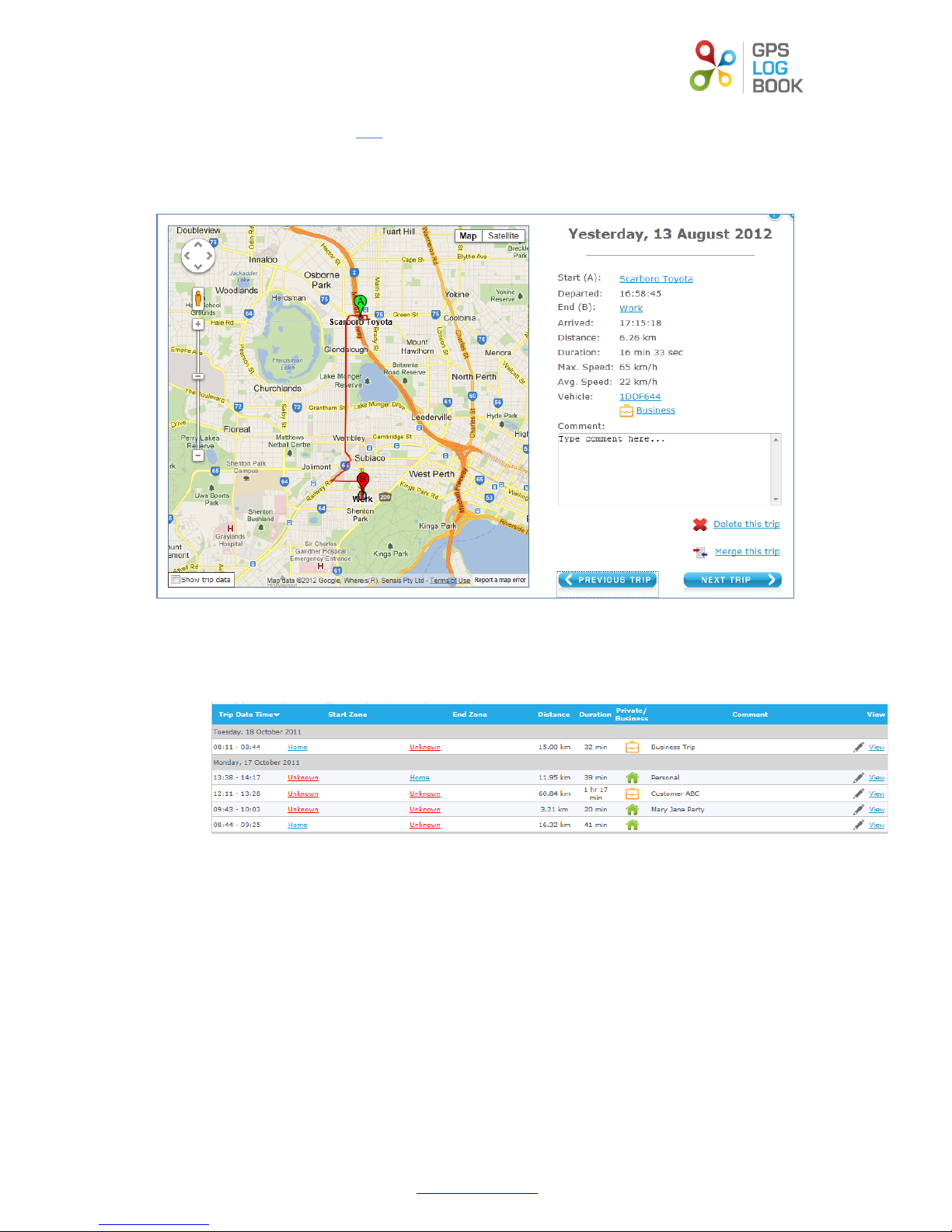
To view the detail of a trip, click on the View link in the trip list. The trip will be displayed on a map showing the trip in red.
Trip details can be edited in this view and the trip can also be deleted. It is also possible to move to the next or previous
trip from this page. Any changes made to the trip will be saved when you close the dialog or click the next or previous
button.
6.1.4 Add a comment about a specific trip
To add a comment to a trip, click on the comment field in the table or click on “View Trip”.
6.1.5 Snap To Zone
When a trip starts or ends within the snapping distance of a specific zone, that zone will automatically be selected. The
zone selected will be referred to as a Snapped Zone. These zones will have an asterisk (*) next to them on the Trip Table.
6.1.6 Selected Zone
It is possible to select a nearby zone to the start or end point of the trip. Select the zone to be edited and then select the
nearby zone from the drop down list provided. The assigned zone is referred to as a Selected Zone and will be marked with
a tilde (~) next to the zone name on the Trip Table.
Page 12
GPS Log Book – User Manual
www.gpslogbook.com.au
Page 11 of 21
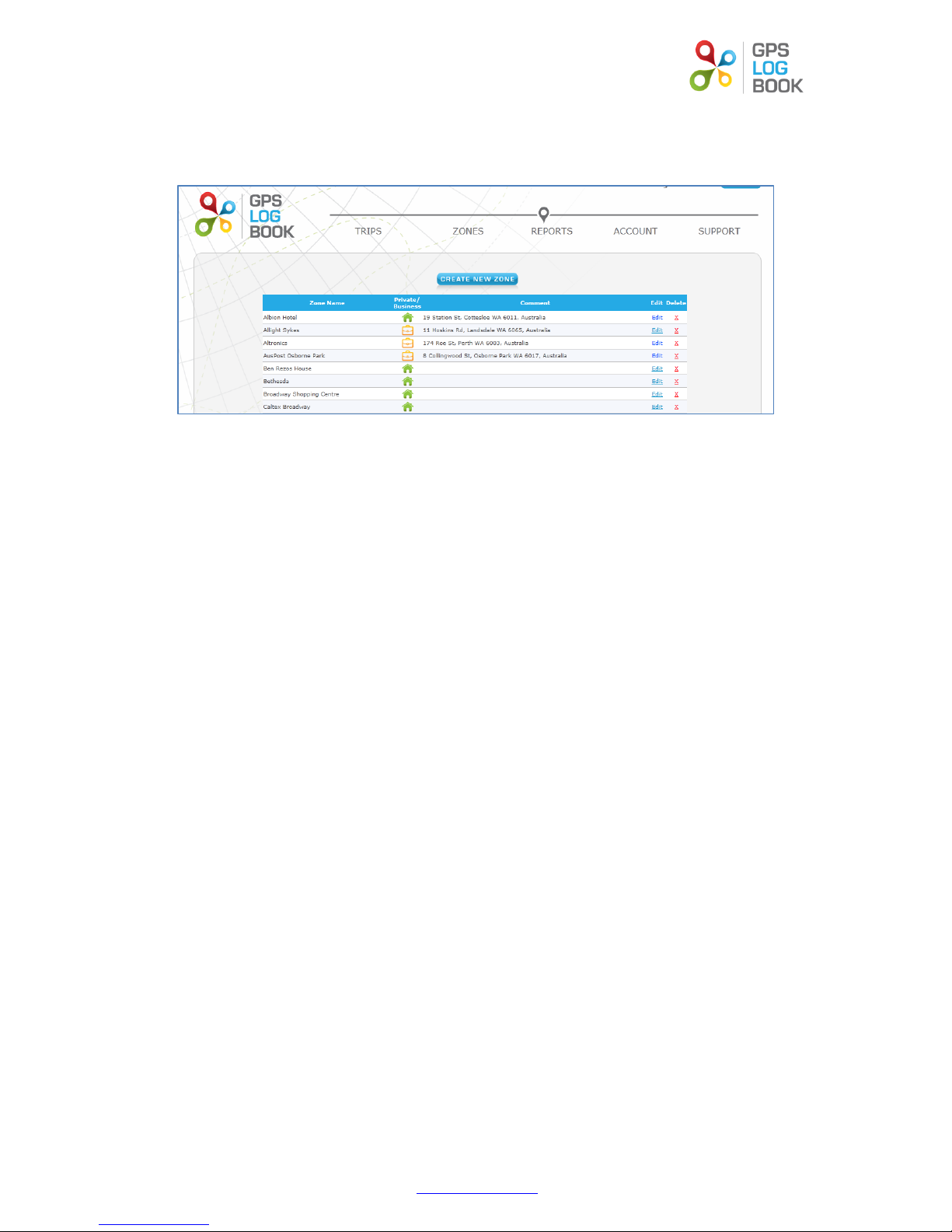
6.2 Zones Page
The Zone Table contains all zones that have been created. The zones can be edited or deleted from this table. It is also
possible to add a comment or change the designation of the zone from this page.
6.2.1 Create a New Zone
To create a new zone, click on the Create New Zone button on the Zones page. A dialog will be displayed with a map of the
world as well as an option to draw a circle or a specific shape. Once the specific location on the map where the zone is to
be created has been found using the Google Maps controls, the pin can be dragged to the relevant area, or the outline of
the area defined. The zone can be named, and the correct designation selected. The new zone will then be added to the
Zone Table.
Page 13
GPS Log Book – User Manual
www.gpslogbook.com.au
Page 12 of 21
6.3 Reports
There are a number of reports available through the system. (Additional reports may have been added after the time of
writing this document.)
Sample reports can be downloaded from the Product Page on the web site.
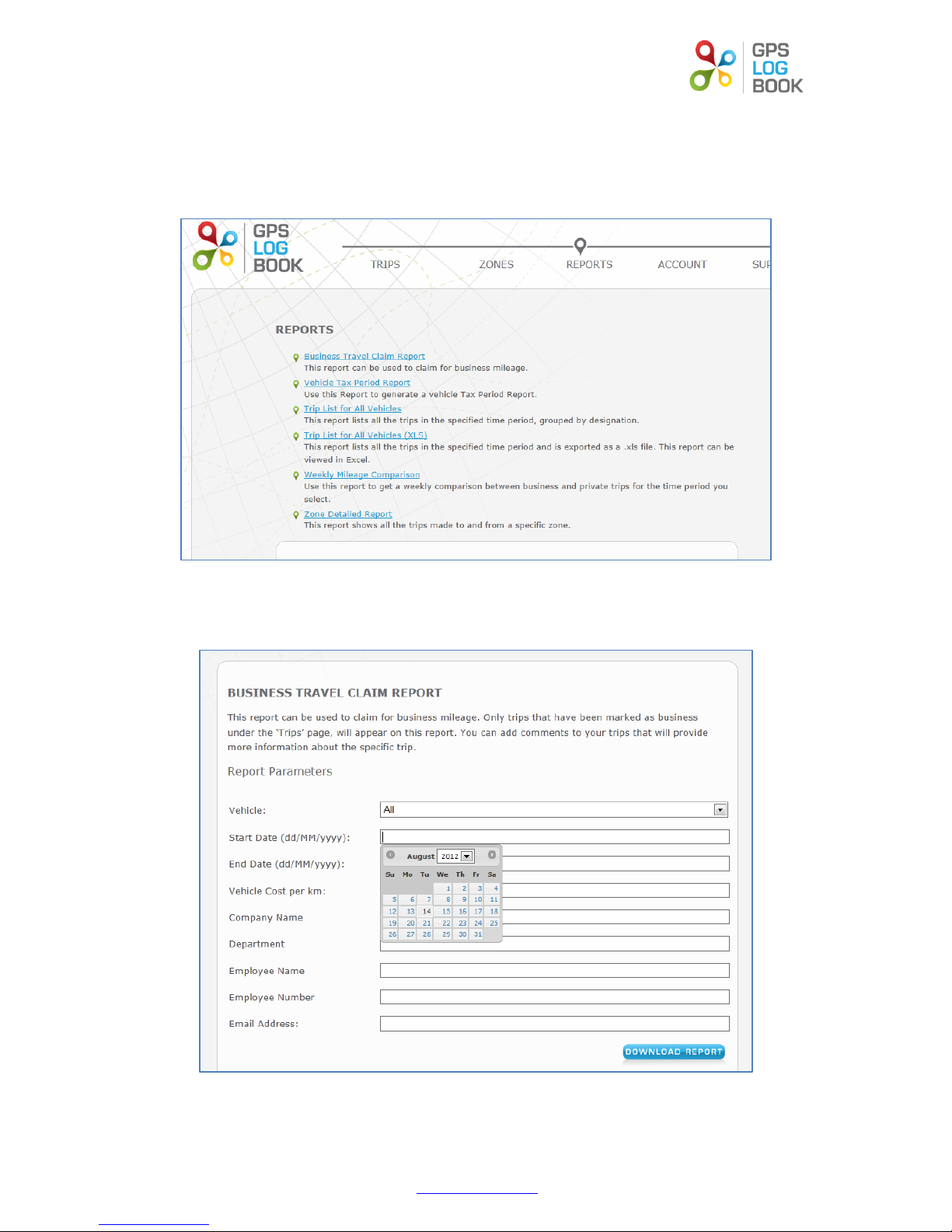
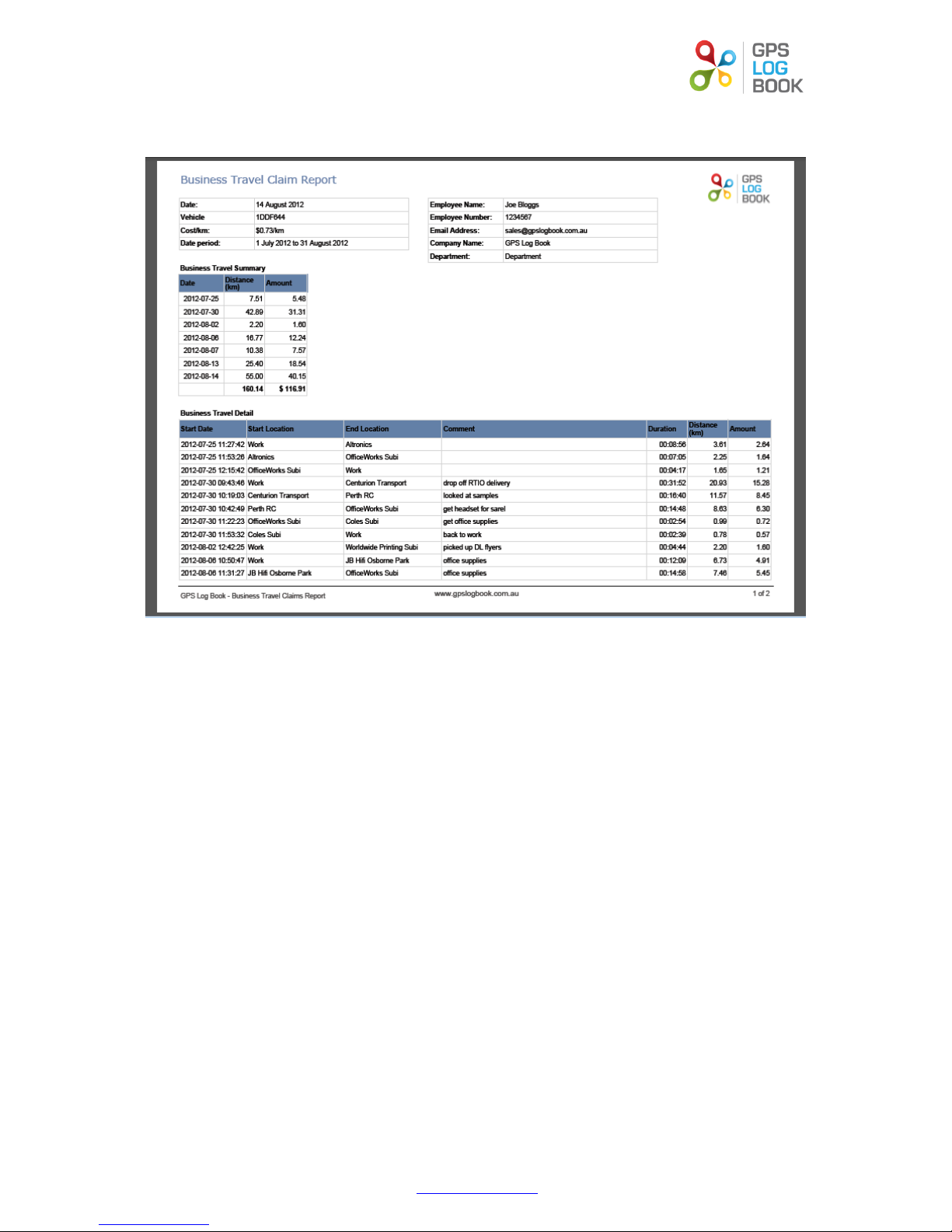
6.3.1 Business Travel Claim Report
This report can be used to claim for business mileage. Only trips that have been marked as business under the ‘My Trips’
page, will appear on this report.
Page 14
GPS Log Book – User Manual
www.gpslogbook.com.au
Page 13 of 21
Sample Business Travel Claim Report:
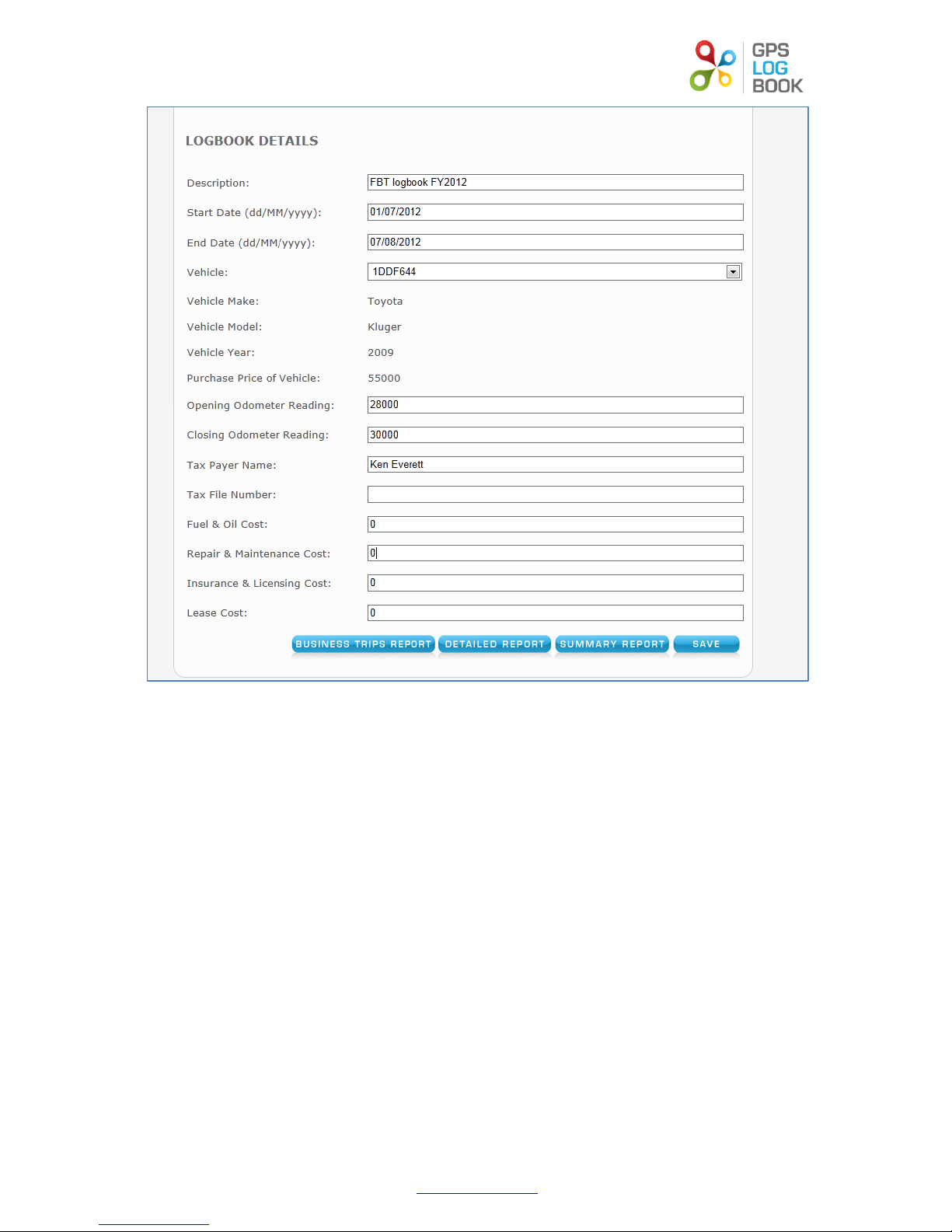
6.3.2 Vehicle Tax Period Report
This report allows you to enter the information required for a specific tax period including the dates and vehicle odometer
readings, and to analyse the business trips driven during this period compared to the total distance travelled.
You can create and save any number of tax periods and use these to generate ATO compliant logbooks.
Page 15
GPS Log Book – User Manual
www.gpslogbook.com.au
Page 14 of 21
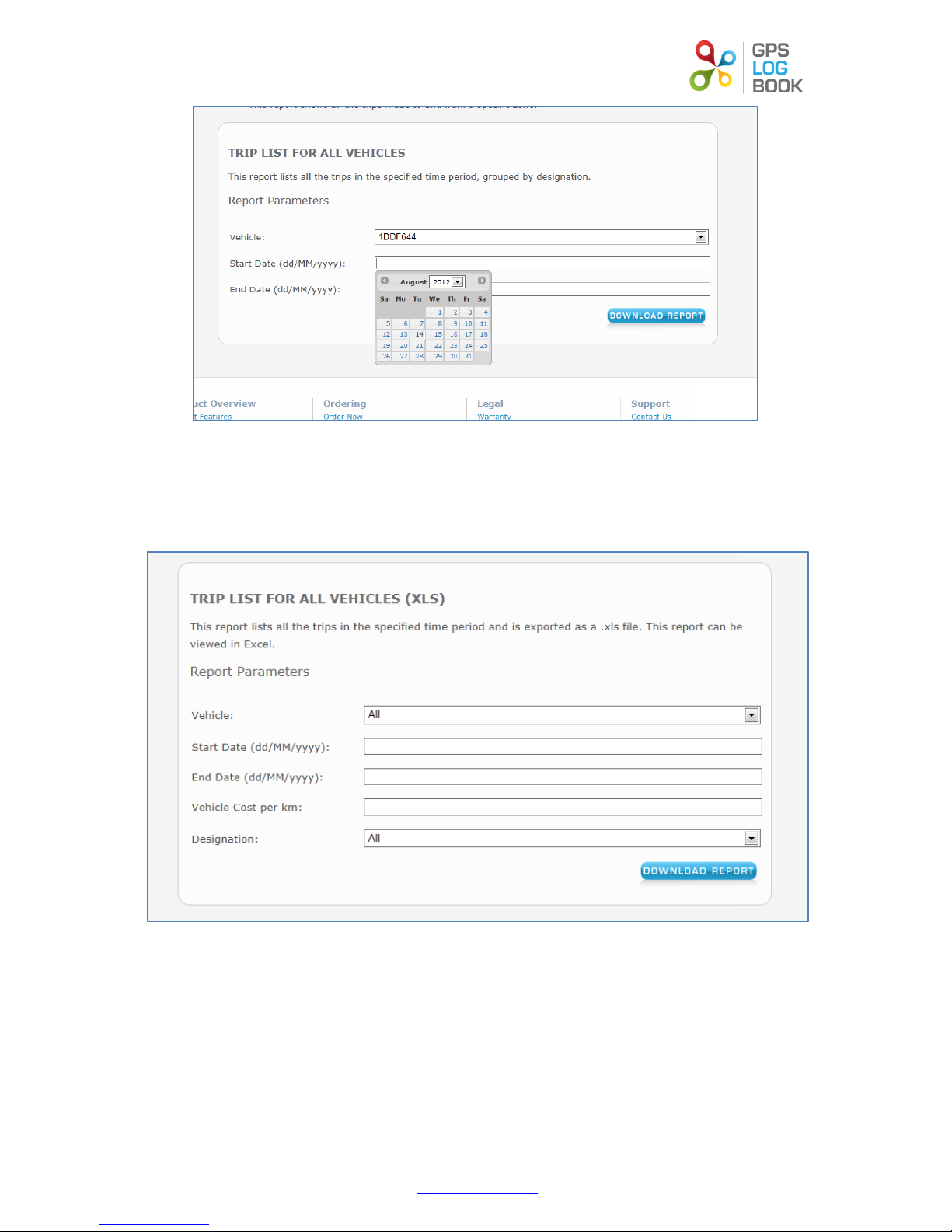
6.3.3 Trip List for All Vehicles
This report lists every trip for every vehicle linked to the account, within the selected date range. Trips are grouped by
vehicle and designation (private or business).
Page 16
GPS Log Book – User Manual
www.gpslogbook.com.au
Page 15 of 21
7.3.4 Trip List for All Vehicles XLS
This report lists all the trips made by all the vehicles linked to the account, ordered by date and time. It is exported to an
Excel file that can be viewed as a spreadsheet.
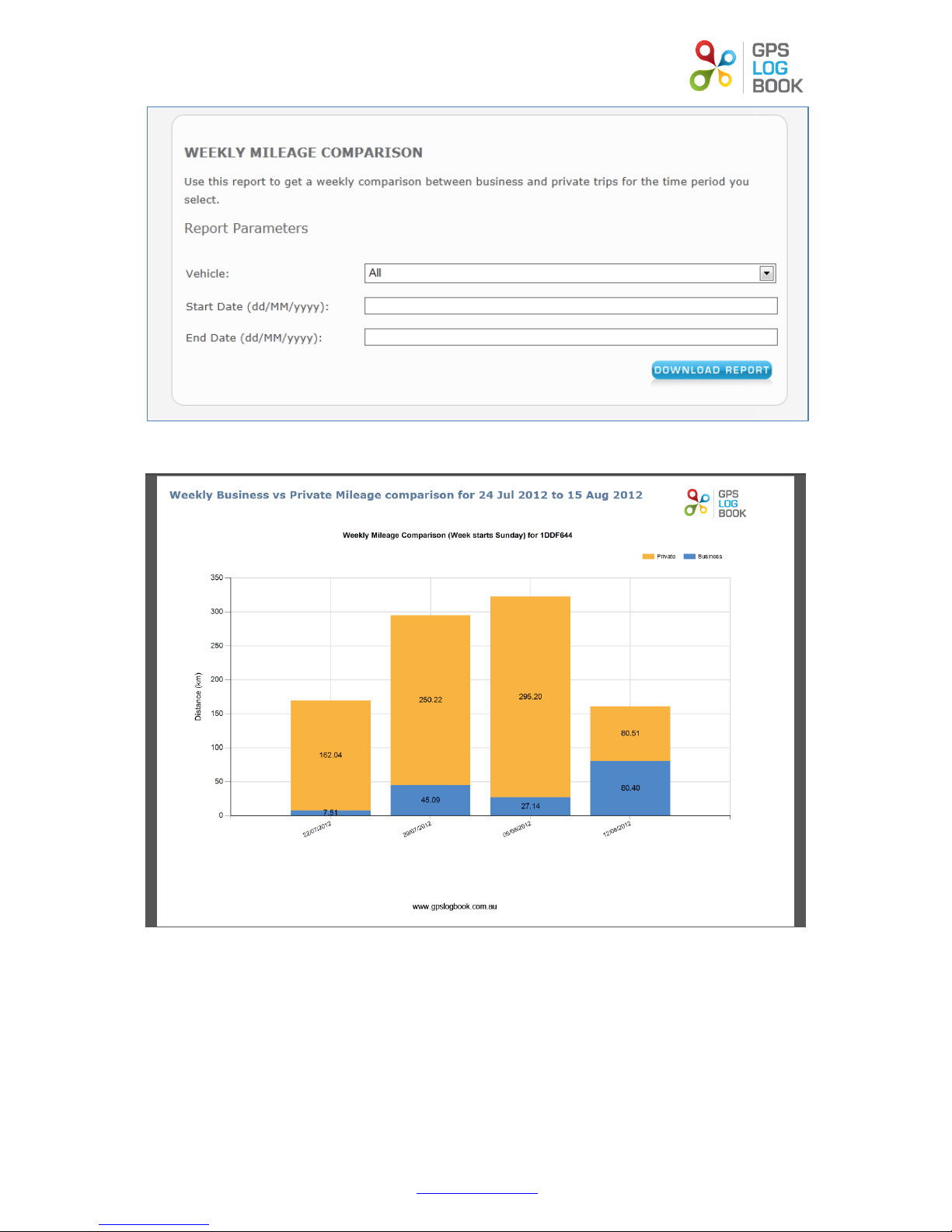
6.3.5 Weekly Mileage Comparison
Use this report to get a visual weekly comparison of business versus private mileage for the selected period. This is very
useful when it comes to analysing a period of travel and to pick the weeks that give you the maximum business use.
Page 17
GPS Log Book – User Manual
www.gpslogbook.com.au
Page 16 of 21
Sample output:
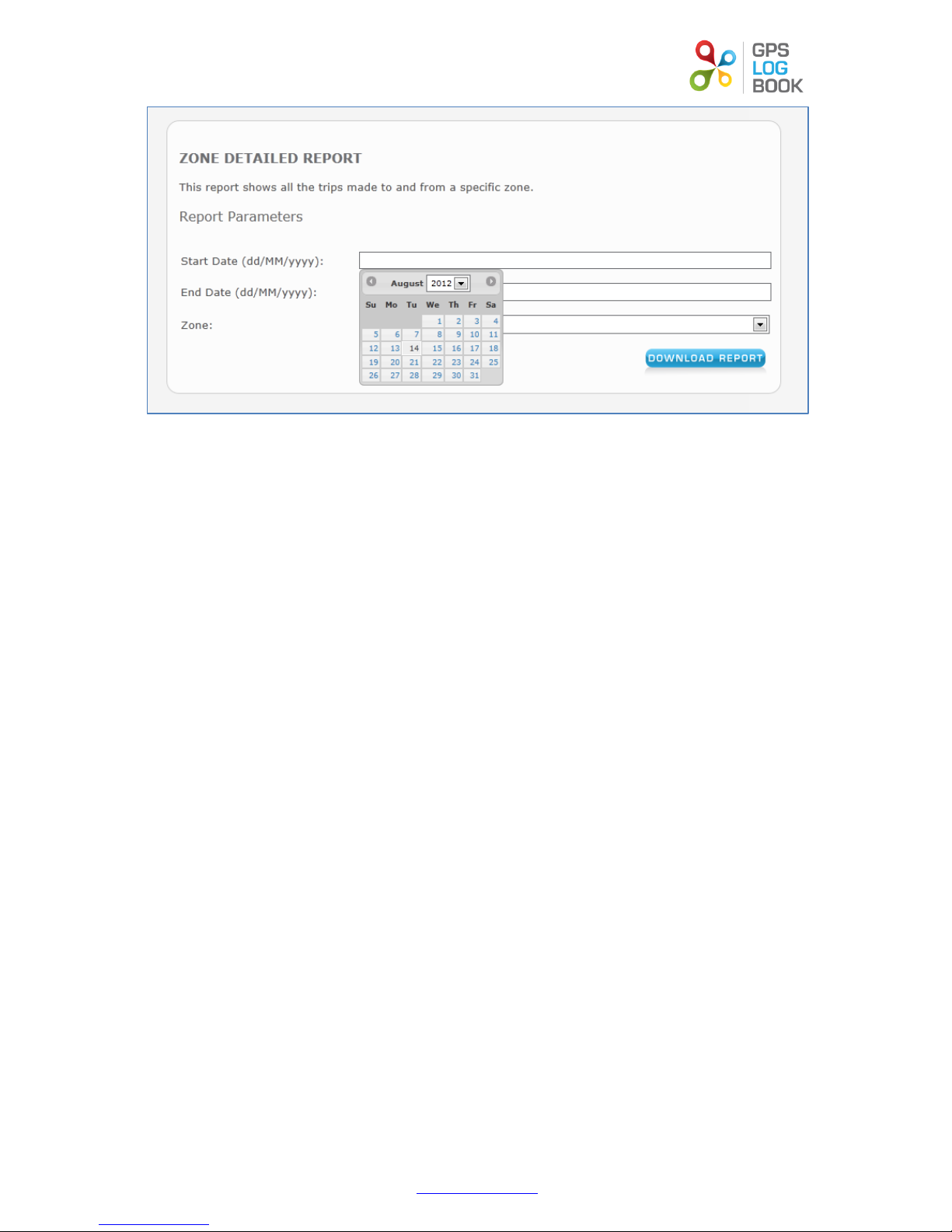
6.3.5 Zone Detailed Report
The Zone Detailed Report shows all the trips that have been made to and from a specific zone. This report is valuable if
information is required for business trips to a specific customer or supplier for example.
Page 18
GPS Log Book – User Manual
www.gpslogbook.com.au
Page 17 of 21
Page 19

GPS Log Book – User Manual
www.gpslogbook.com.au
Page 18 of 21
7 Managing Your Account
7.1 Update Details
7.1.1 Edit Personal Details
Once logged in, it is possible to change the name, surname, contact number or email address of the user in the Update
Details menu under Account. Save changes by clicking on the Save button at the bottom of the page.
7.1.1.1 Change Email Address
In order to change an email address, the user will be required to enter and confirm the new email
address before this will be changed. An email will be sent to the new email address to verify that
the change is correct. An email confirming the change will also be sent to the old email address.
7.1.2 Change Password
To change your login password go to the Update Details page. Scroll down to the Reset Password section and enter the
current password and the new password. Please remember to click Save after the new password has been entered.
If you have forgotten your password and cannot log in, go to the Login page and click the “Reset Password” link. Enter your
username (email address used with your account) and click the Reset button. A new password will be emailed to you. You
should be able to log in now using this password. It is recommended that you change your password back to something
that is easier to remember.
7.1.3 Settings
It is possible to change the settings that are used to process trip data and display information about trips and zones that
are created.
7.1.3.1 Snapping Distance
When a trip starts or ends just outside a zone, that zone will be assigned to the trip if it is within the
“snapping distance”. This is useful when, for example, you forget to plug your device in before you
drive off or the device takes too long to find a satellite which causes the trip to start just outside a
known zone.
7.1.3.2 Minimum Trip Time
Any trips shorter than this time period will not appear in the trip list. This could be caused by
switching the car’s ignition on and then immediately off again.
7.1.3.3 Minimum Trip Distance
Any trips shorter than this distance will not appear in the trip list.
7.1.3.4 Nearby Zone Metres
Any zone that falls within this distance of a trip start or end point is considered a nearby zone. Only
nearby zones are shown as alternatives to snapped zones when editing a trip.
7.1.4 Personal Selection
There are three additional preferences that can be updated. These include the following:
7.1.4.1 Receive Reminders
When selected, a notification email will be sent when the recommended time limit for uploading
data has expired.
7.1.4.2 Receive Newsletters
When selected, the GPS Logbook newsletter will be emailed to the email address in the account.
The newsletter contains information about Special Offers, Industry developments, and the latest
GPS Logbook news.
Page 20
GPS Log Book – User Manual
www.gpslogbook.com.au
Page 19 of 21
7.1.4.3 Open Webpage on Device Upload
When selected, the trip list will be opened in the browser after the GPS Log Book device is plugged
into the computer and has successfully uploaded data via the Sync application. The Sync
Application must be running on the PC / Mac in order for this to happen.
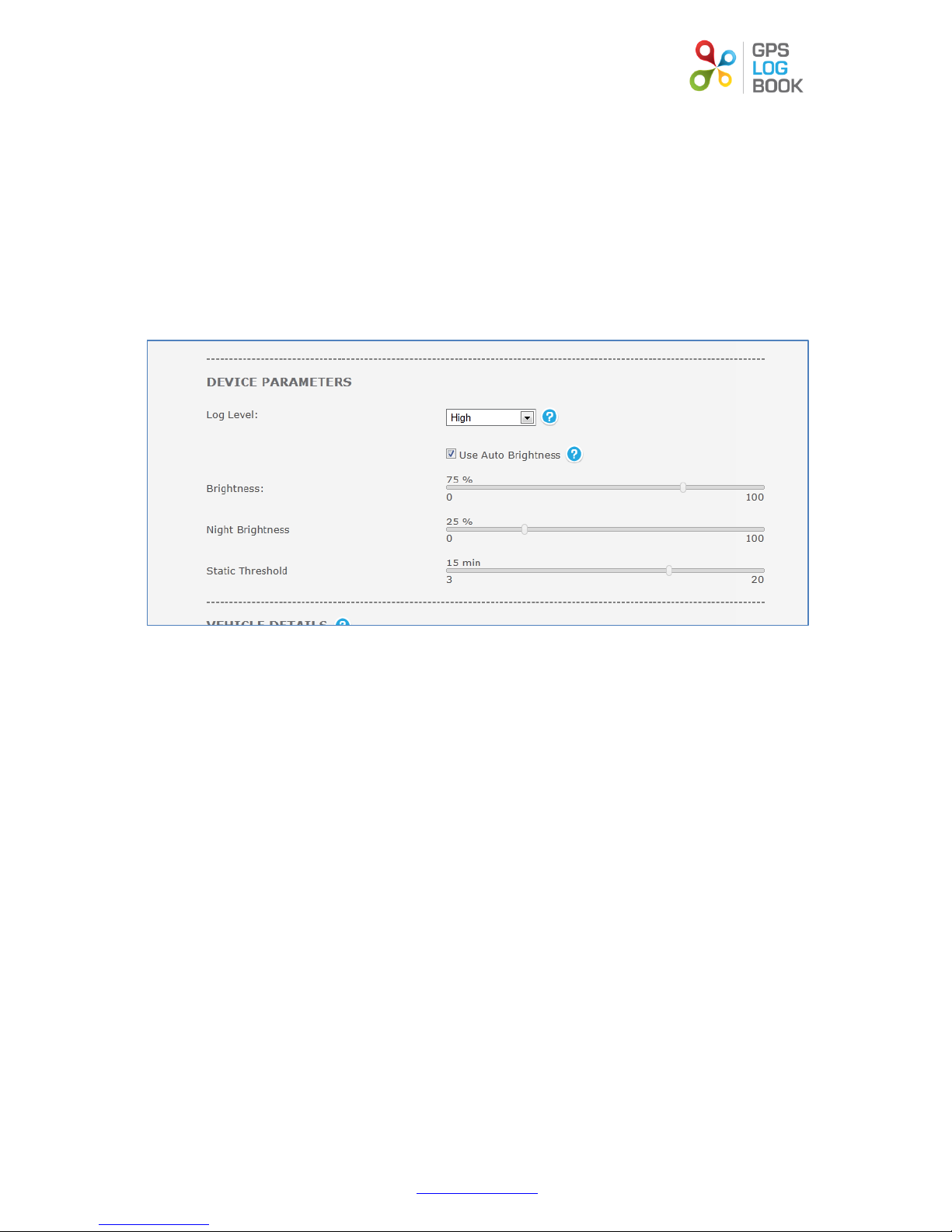
7.2 Device Parameters
Under the “Account” menu click on “Devices” to see information about your device(s).
Here you can modify some device parameters including the Log Level detail. This can be set to “High” if you want to get
more granular trip data at the cost of increased data.
Page 21

GPS Log Book – User Manual
www.gpslogbook.com.au
Page 20 of 21
8 Recommendations
To get the most out of the GPS Log Book device and website, the following best practises are recommended.
8.1 Upload Data Every Two Weeks
It is recommended that the GPS Log Book device is synchronised to the website at least every two weeks. This ensures that
the GPS aiding data is updated and the trip data is saved onto the system. Apart from ensuring that your data is backed up
to the server it is also a good idea to review your trips while they are relatively fresh in your memory.
9 Frequently Asked Questions
The FAQ’s can be viewed on the GPS Log Book website www.gpslogbook.com.au under the Support menu
 Loading...