

Page 1

GpsGate
VehicleTracker
User Guide
Version: 1.3.2
Rev: A
Page 2

GpsGate VehicleTracker User Guide
Version: 1.3.2 - Rev: A.
Table of Contents
1 Introduction......................................................................................................................3
2 User interface...................................................................................................................4
3 Account management.....................................................................................................4
3.1 Account types................................................................................................................4
3.1.1 Vehicles.............................................................................................................................................4
3.1.2 Operators..........................................................................................................................................4
3.1.3 Application Administrators.................................................................................................................4
3.2 Adding Users.................................................................................................................5
3.3 Adding Vehicles.............................................................................................................6
3.4 Managing Accounts.......................................................................................................7
3.5 Managing Devices.........................................................................................................7
3.6 Track Recorder settings................................................................................................8
3.7 Connecting Devices/Users/Vehicles..............................................................................9
4 Map view page................................................................................................................10
5 Panel Details...................................................................................................................12
5.1 Selecting Vehicles.......................................................................................................12
5.2 Selecting Tracks..........................................................................................................12
5.3 Drawing Tracks............................................................................................................13
5.4 Advanced Filters..........................................................................................................14
6 Exporting track data......................................................................................................15
6.1 Using the Export Window............................................................................................15
6.2 Exporting from the Map View......................................................................................15
7 Application Settings......................................................................................................16
7.1 Map Selection..............................................................................................................17
Date: April 4, 2008 Page 2(17)
Page 3
GpsGate VehicleTracker User Guide
Version: 1.3.2 - Rev: A.
1 Introduction
Welcome to the GpsGate VehicleTracker User Guide! This guide covers the user functionality in
VehicleTracker. Please read the guide before you start using GpsGate VehicleTracker.
If you need additional information, please ask your GpsGate Server Site Administrator for help.
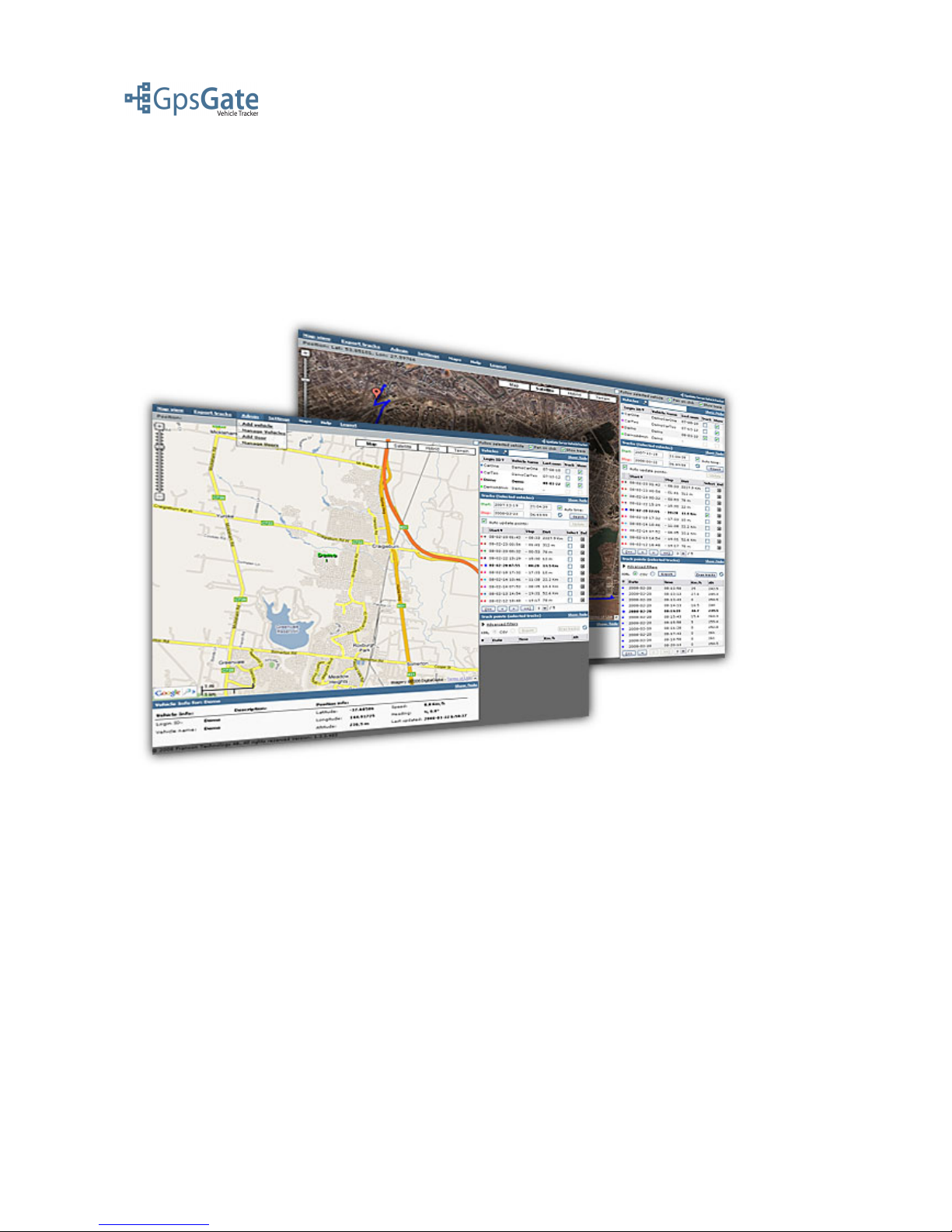
VehicleTracker is a web based tracking application with a top-down approach to tracking. As a user
you can manage multiple vehicles and optionally access administrative functions if setup by your
administrator. Each user has a personal account and user access rights are defined for each user for a
set of vehicles. This gives the administrator both flexibility and comfort.
Thank you for using GpsGate VehicleTracker!
The GpsGate Team
Date: April 4, 2008 Page 3(17)
Page 4
GpsGate VehicleTracker User Guide
Version: 1.3.2 - Rev: A.
2 User interface
All you need to use GpsGate VehicleTracker is a web browser. Ask your GpsGate Server
Administrator for the url (http-address) to your installation.
The recommended web browsers for GpsGate VehicleTracker are Firefox 2.0 (or later) and Internet
Explorer 7 (or later). GpsGate VehicleTracker also supports Internet Explorer 6, Opera 9 and Safari
3.1.
3 Account management
3.1 Account types
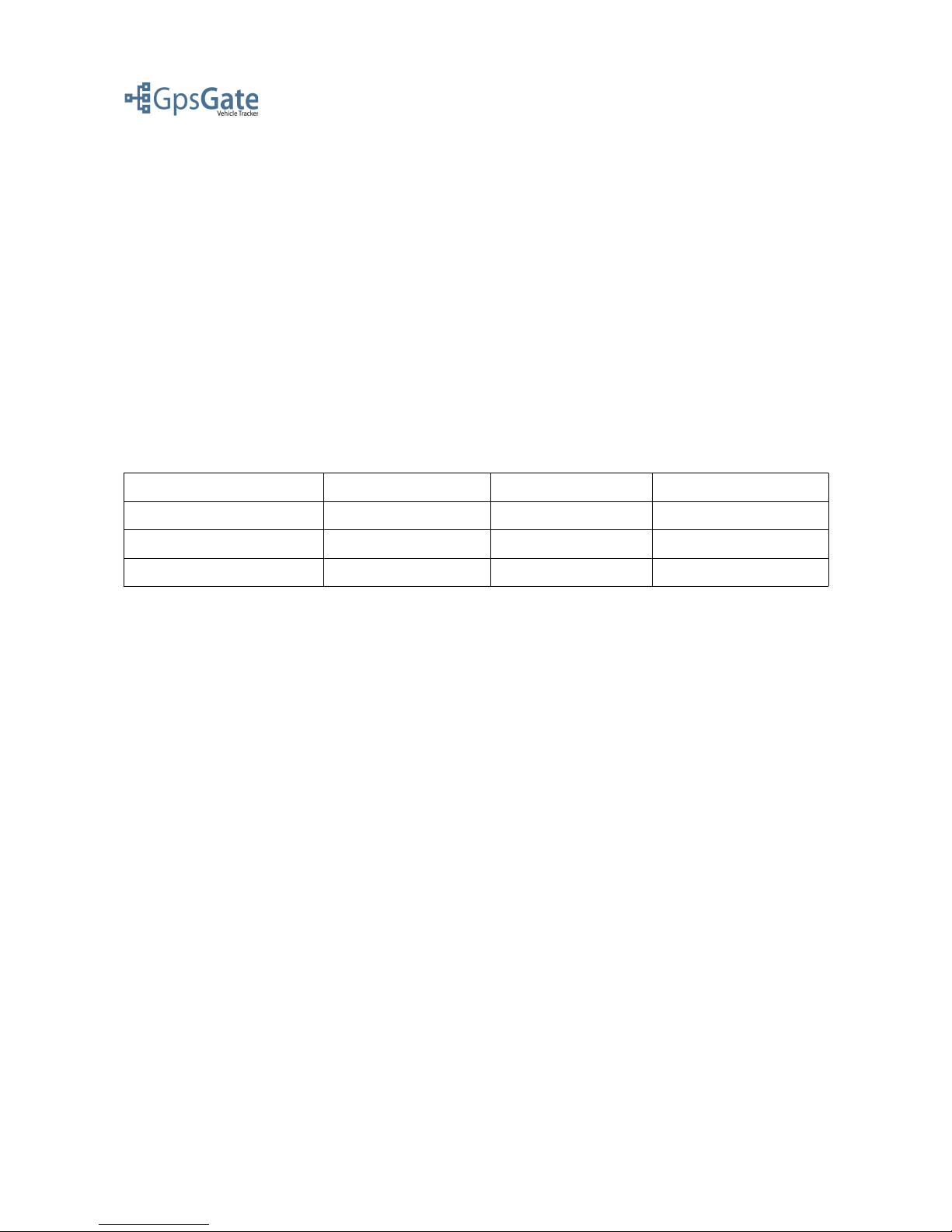
There are three different user types in GpsGate VehicleTracker: Application Administrator,
Operator, and Vehicle. The table below shows the differences between the user types.
User type Send tracking data Viewing rights Administration rights
Application Administrator Yes Yes Yes
Operator Yes Yes -
Vehicle Yes - -
As all three types of users can send tracking data to VehicleTracker , they all appear in the Vehiclelist on the Map view page.
3.1.1 Vehicles
Vehicles are users that can send tracking information to GpsGate Server. These users can not login
to VehicleTracker.
3.1.2 Operators
In addition to the Vehicle functionality Operator are able to login to VehicleTracker to view
vehicles, draw tracks and export track data in KML and CSV formats.
3.1.3 Application Administrators
In addition to the Operator functionality Administrators can create, edit and delete other users in the
application.
Date: April 4, 2008 Page 4(17)
Page 5
GpsGate VehicleTracker User Guide
Version: 1.3.2 - Rev: A.
3.2 Adding Users
As an Application Administrator you can create other application users and decide if they're should
be Application Administrators or Operators.
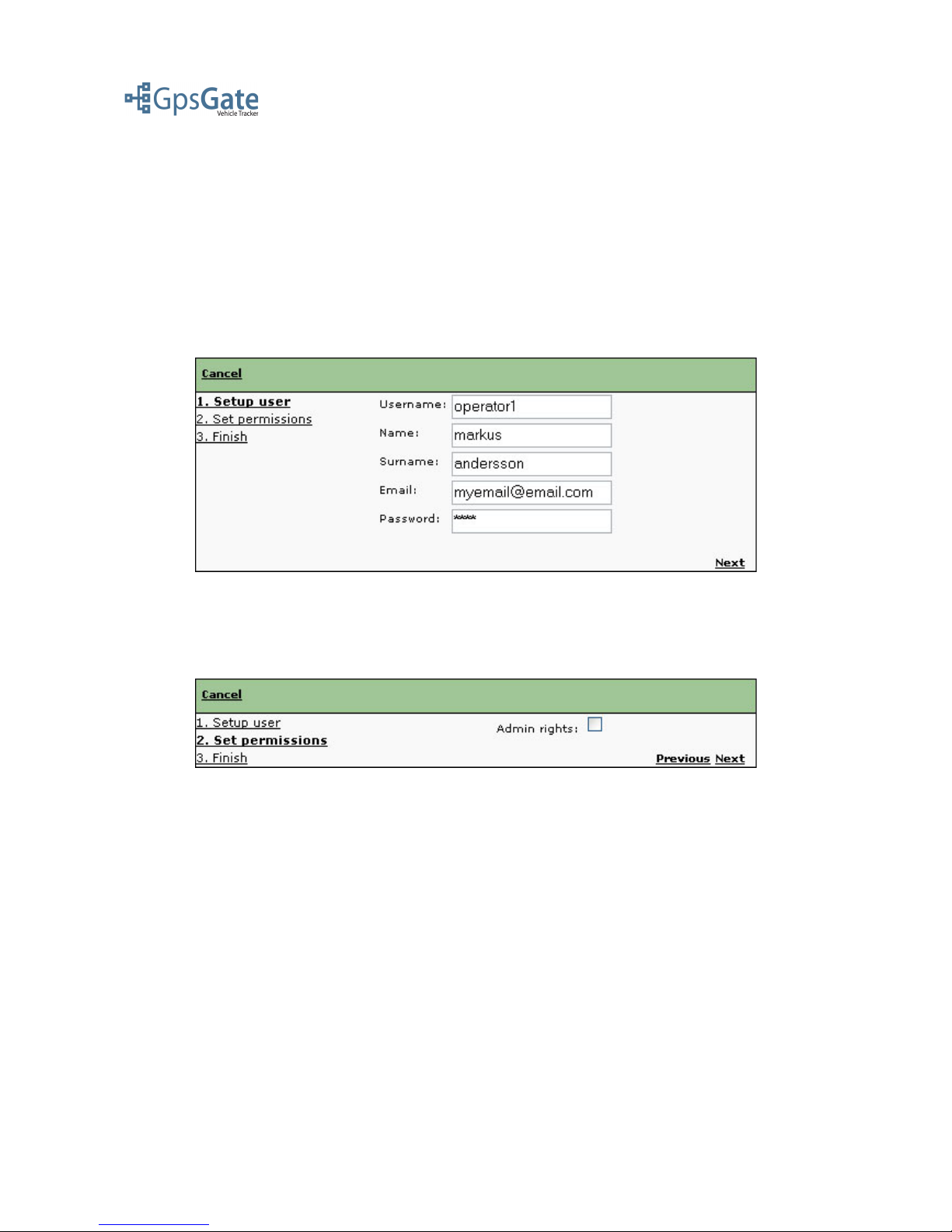
Create a User by clicking on the Admin menu and selecting “add User”, this will open up a window
where you write the Username, Name, Surname, E-mail and Password.
Note: The Username and Password are used both as the user login to VehicleTracker and the client
login when sending data to GpsGate Server from a GpsGate Client.
Click Next to continue.
Now you select whether you want this user to have Admin rights or not.
Click Next to continue and lick Finish to save the user. The user will now appear in the user list and
also in the Vehicle list on the Map view page.
Date: April 4, 2008 Page 5(17)
Page 6
GpsGate VehicleTracker User Guide
Version: 1.3.2 - Rev: A.
3.3 Adding Vehicles
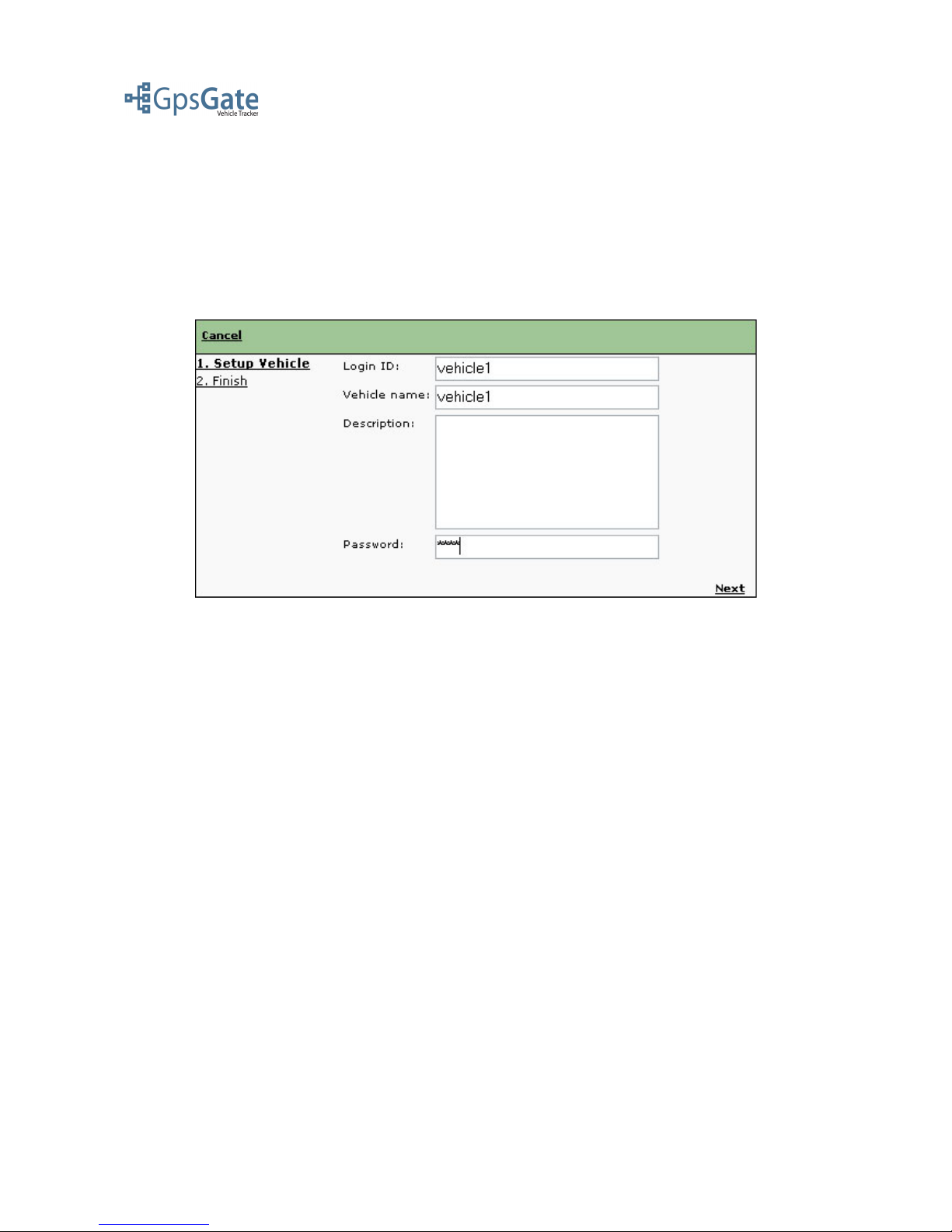
As an Application Administrator you can create a Vehicle by clicking the Admin menu and selecting
“add Vehicle”. A Vehicle can not login to the application, but you still have to give it a Login ID and
Password.
Note: The Login ID and Password is used if your Vehicle uses GpsGate Client to send its position
or a device that uses Login ID and Password to connect.
Click Next to continue and click on Finish to save the Vehicle. The Vehicle will now appear in the
list of vehicles list and also in the Vehicle list on the Map view page.
Date: April 4, 2008 Page 6(17)
Page 7
GpsGate VehicleTracker User Guide
Version: 1.3.2 - Rev: A.
3.4 Managing Accounts
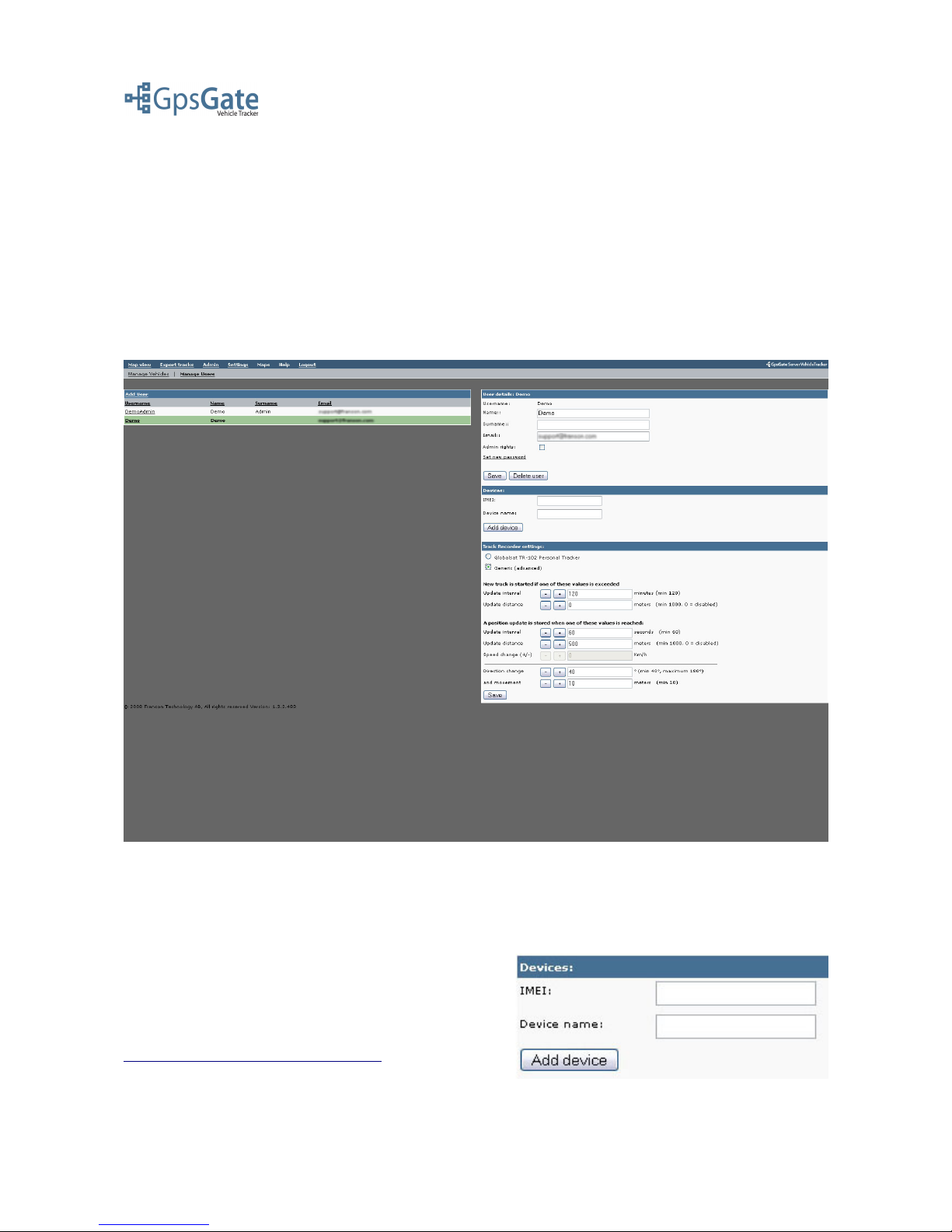
As an Application Administrator you can edit an existing User/Vehicle account by selecting
“Manage Vehicles” or “Manage Users” in the Admin menu. To display the User/Vehicle you then
click the Username/Login ID in the list.
On this page you can change user information such as password and description. If you want to
upgrade an Operator to an Application Administrator you have the option to set Administrator rights
here. You can also manage Devices and Track Recorder Settings here, that is explained further in
the sections below.
3.5 Managing Devices
You can attach GPS tracking devices to a Vehicle or a User by entering a device name like “My
device” and the device IMEI number and clicking the Add Device-button. The device will now be
stored in a list below the Device fields. You can also
Edit and Delete a device here.
For more information for specific devices, please have
a look at the connection guides found in the link below.
http://gpsgate.com/index.php?id=41
Date: April 4, 2008 Page 7(17)
Page 8
GpsGate VehicleTracker User Guide
Version: 1.3.2 - Rev: A.
3.6 Track Recorder settings
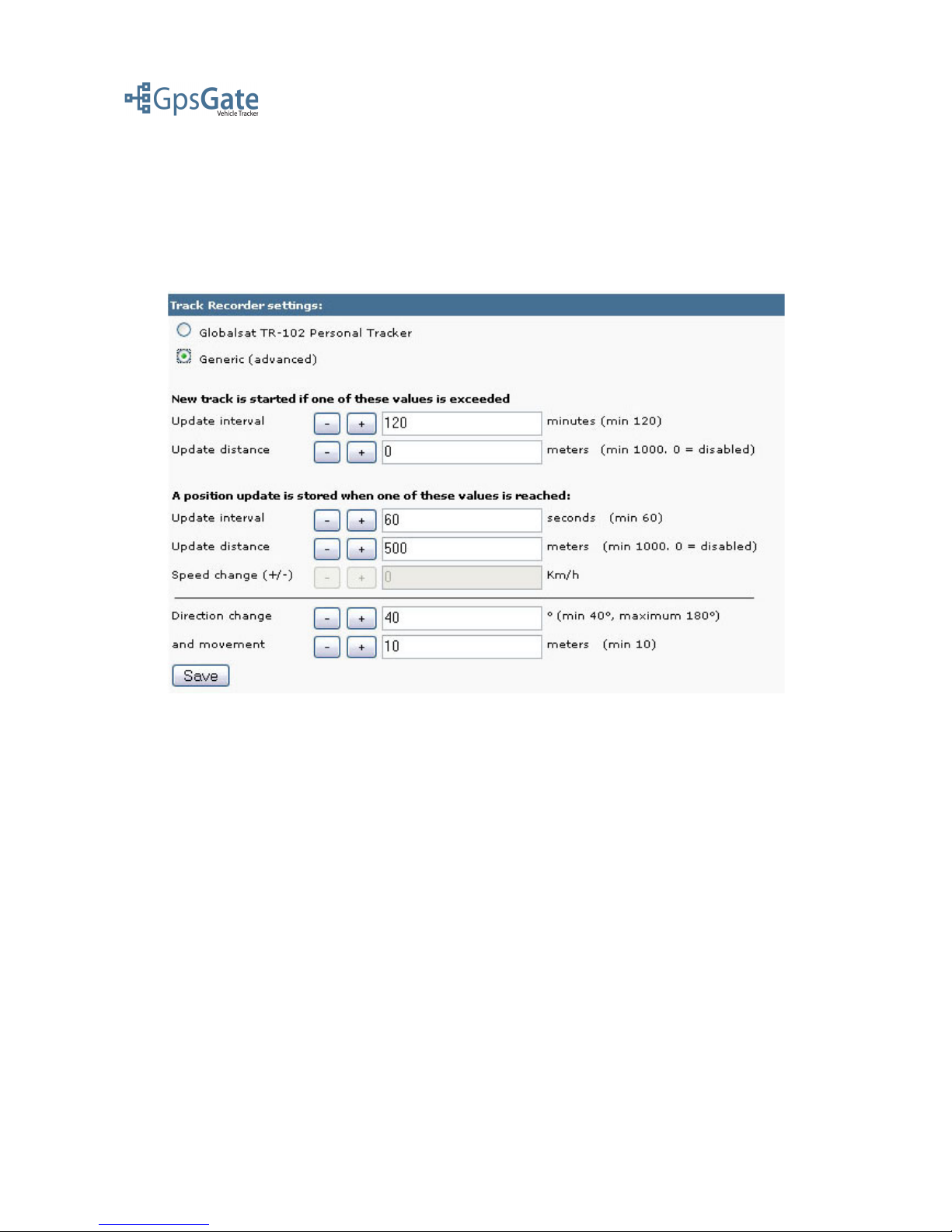
A Track is a collection of Geo coordinates (referred to as Track Points in GpsGate VehicleTracker).
In the Track Recorder you specify when a new Track should start and how often a Track Point
should be stored from the User or Vehicle. You have two main options “Globalsat TR-102
Personal Tracker” and “Generic (advanced)”.
Globalsat TR-102 Personal Tracker
Select this option if a User or Vehicle is using a TR-102 GPS tracking device. For a TR-102 you can
set the criteria for starting a new track based on the update interval and the distance between two
position updates. You can also select the Update interval for the device.
Note: The Update interval setting for the TR-102 device affect the settings on the device itself.
Generic (advanced)
Select the Generic option if you are using any other GPS tracking device. First you can set the
criteria for starting a new track based on the update interval and the distance between two position
updates. Secondly you select the criteria for how often you wnat to store a new Track Point based
on update interval, distance and direction change and movement.
Note: The Generic option settings will only apply to the server and not affect the device settings.
Date: April 4, 2008 Page 8(17)
Page 9

GpsGate VehicleTracker User Guide
Version: 1.3.2 - Rev: A.
3.7 Connecting Devices/Users/Vehicles
Connecting devices to GpsGate VehicleTracker is usually handled by your GpsGate Server
Administrator. This is a brief overview of how it works, please contact your GpsGate Server
Administrator for additional help.
To get position updates to GpsGate VehicleTracker you need to connect a GPS device to GpsGate
Server over the Internet. The two main device types are:
● GpsGate Client (available for Windows computers, Windows mobile devices and Java
mobile phones)
● Dedicated GPS tracking devices.
GpsGate Client:
GpsGate Client is a client product that can be downloaded from GpsGate.com. It is identified as a
VehicleTracker user with a Username and Password. Please look at these online guides for
connection instructions:
Windows: http://gpsgate.com/index.php?id=30
Windows Mobile: http://gpsgate.com/index.php?id=40
Mobile phone (Java): http://gpsgate.com/index.php?id=42
Dedicated GPS tracking devices:
Tracking devices all have different identification methods. The most common is the use of an id
number or the device IMEI number. Please look at these connections guide for supported devices
and a generic guide for most devices using a NEMA based message format:
Supported devices list: http://gpsgate.com/index.php?id=41
Generic guide: http://gpsgate.com/index.php?id=45
Note: Please contact us at [email protected] if you have a device you would like us to support!
Date: April 4, 2008 Page 9(17)
Page 10
GpsGate VehicleTracker User Guide
Version: 1.3.2 - Rev: A.
4 Map view page
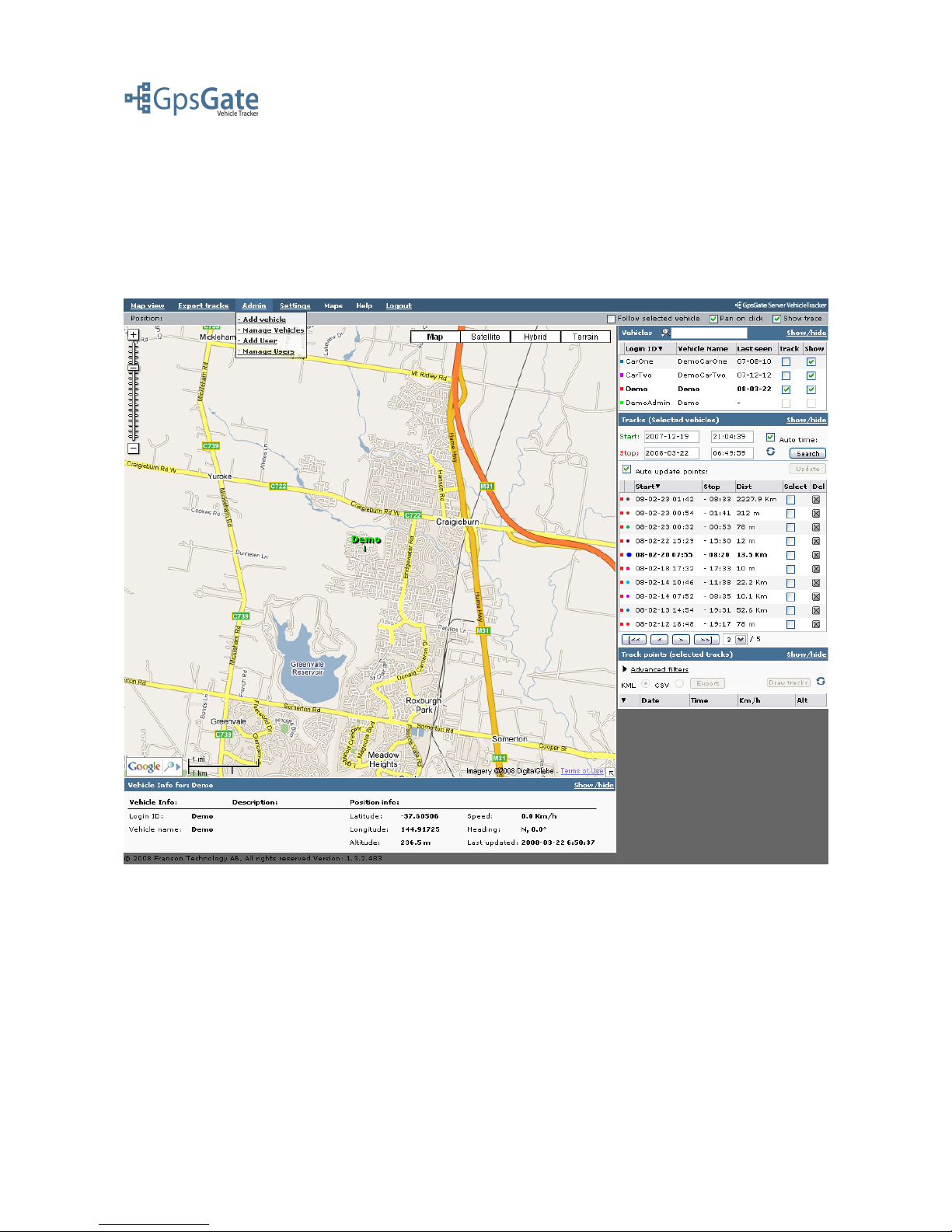
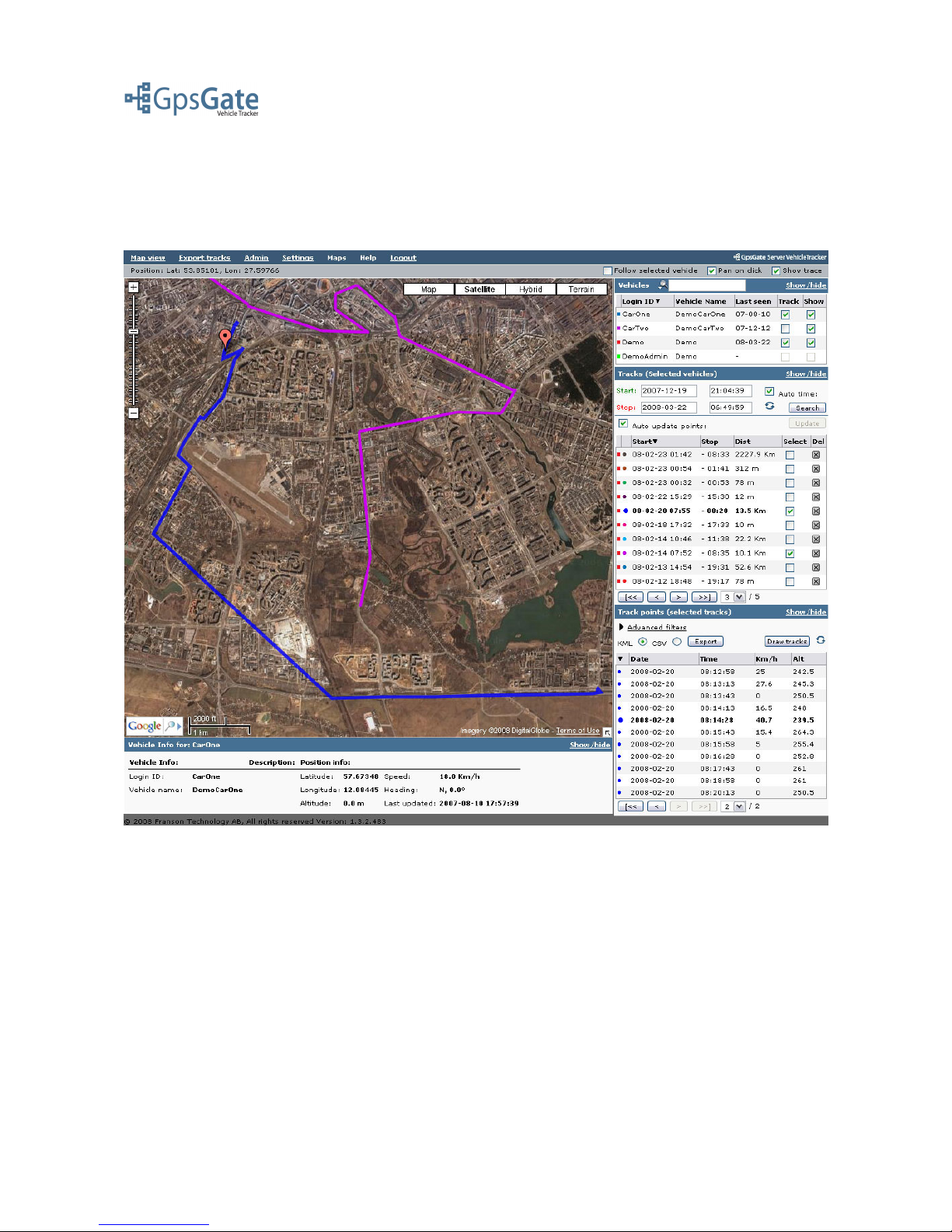
The Map view page is the default view in VehicleTracker. What you see on this page is the selected
map, different panels with Vehicles, Vehicle Info for the selected vehicle and panels with Tracks and
Track points. Above the map there are a number of menu options depending on if you are an
Application Administrator or an Operator.
At the top of the screen you have the following Menu options:
Map view – Takes you to this main page.
Export Tracks – Enables you to export multiple tracks as KML or CSV files.
Admin – This is where you create/delete/edit Users and Vehicles. (This option is only available for
Application Administrators)
Settings – Where you select Languages, Measurement settings, and change your own password.
Maps – If you have more then one map available for this application you can choose between them
in this menu.
Date: April 4, 2008 Page 10(17)
Page 11

GpsGate VehicleTracker User Guide
Version: 1.3.2 - Rev: A.
Help - Will open up a browser with the Help-pages.
Logout – Logs you out from the application.
Above the map on the right hand side of the screen you have the following Display options:
Follow selected vehicle – if this is checked the map will automatically center on the position of the
vehicle selected in the Vehicle list.
Pan on click – If this is checked the map will center on a vehicle when you select it in the Vehicle
list.
Show trace – This option will show a short red line after the vehicle you have selected in the
Vehicle list, the line represents the last 10 position updates for the vehicle.
To the right of the screen you have the following panels:
The Vehicle panel where you see all Users and Vehicles in the application. It shows the Login ID,
Vehicle Name, the time it was last seen, a check-box for Tracks, and one for Show/Not show.
Above the Vehicle panel there is a Search-function where you can search for Users/Vehicles by
Login ID or Vehicle name. If you have a large number of Users/Vehilces you can use this function
to limit the number shown in the Vehicle list.
If you check the box for Tracks for one or more vehicles, this will open up the Tracks panel where
you can see the tracks for these vehicles. The Tracks-list consists of the Start and Stop timestamp
for the track and the total track length.
You can also delete tracks in this list by clicking the icon to the right of a track.
When you check the box next to a track in the Tracks list this opens up the Track Points panel,
where you see the individual positions in the track.
Clicking on the Draw Tracks button will draw the chosen tracks on the map. There is also a button
here for clearing all tracks from the map.
Below the map you have the Vehicle Info panel:
The Vehicle Info panel shows information for the vehicle currently selected in the Vehicle list. It
displays information such as Latitude/Longitude, speed, heading and when it was last updated.
Date: April 4, 2008 Page 11(17)
Page 12
GpsGate VehicleTracker User Guide
Version: 1.3.2 - Rev: A.
5 Panel Details
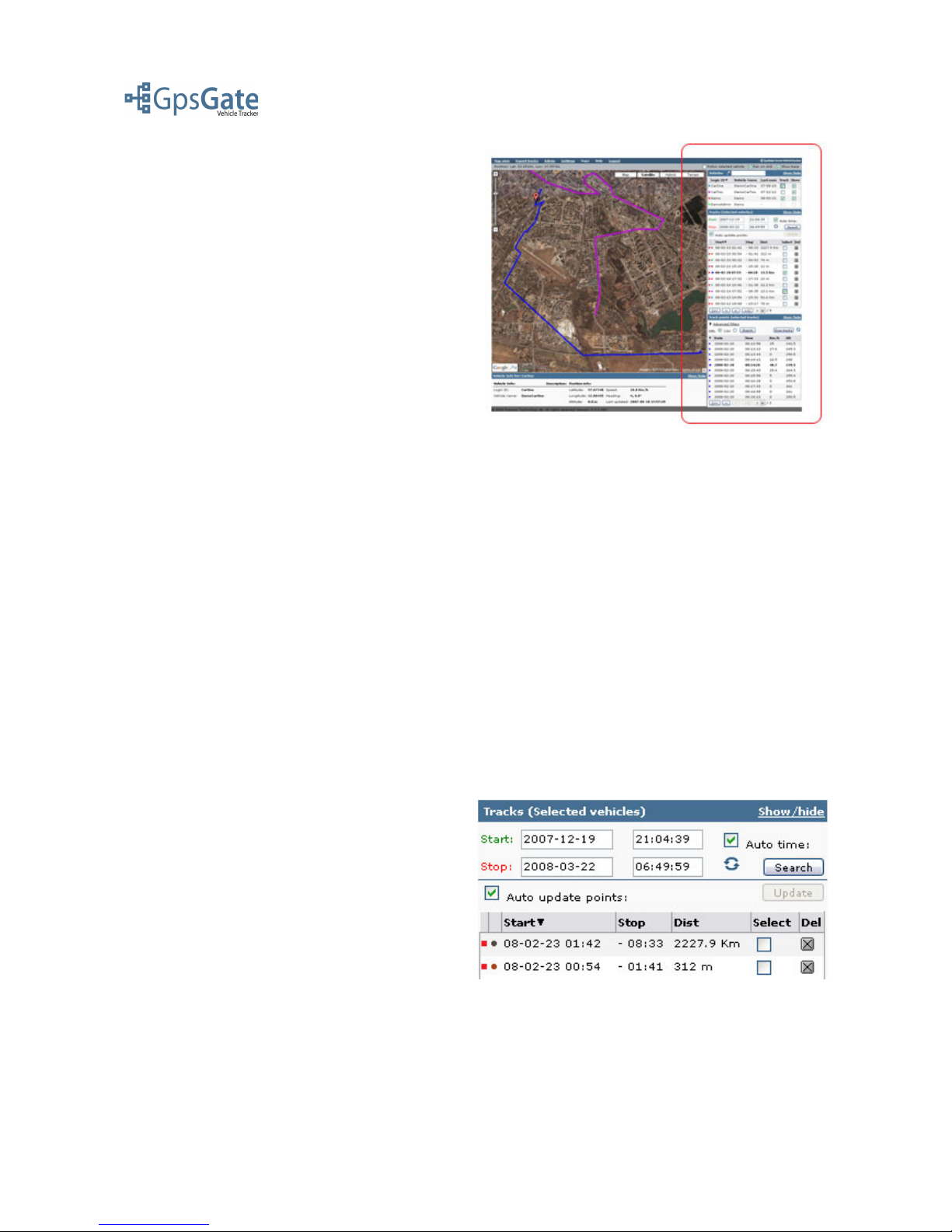
In the right column on the Map view page you
have the options to select Users/Vehicles and
display and export tracks. The Track Export is
explained in more detail in the Export Tracks
section.
The right column has three main panels, Vehicles,
Tracks and Track Points. The three panels are
logically connected from the top down. This means
that everything you change in one panel will affect
the panel below.
5.1 Selecting Vehicles
You select a User/Vehicle either by clicking on its name on the map, or in the Vehicle list in the
Vehicles panel. A selected User/Vehicle will be marked in green color on the map and highlighted in
the Vehicle list.
5.2 Selecting Tracks
You can show multiple tracks for multiple Users/Vehicles at the same time on the map. First you
select the users/vehicle you wish to see the tracks for by checking the Track box next to the name in
the Vehicle list in the Vehicle panel. This will open the Tracks panel below the Vehicle panel that
displays the selected Users/Vehicles different tracks, sorted with the newest track first in the list.
You can sort the lists in another order by clicking the column headers. You can limit the tracks you
wish to show by narrowing the start and stop time stamps. By doing this you will only display
Tracks that have Track points inside the selected time period.
To view a Track click on the check-box in the Select column in the Track list. This will open then
Track points panel and fill the Track points list with all the Track points from the selected Track.
If you have selected the “Auto update points”
option all you changes in the Tracks panel will
instantly take effect in the Track Points panel. If
you are working with many tracks and Track
Points at the same time you can disable this
function by clearing the check-box. This will
Speed up the load time. If you have done this then
use then Update-button to load the Track Points
into the Track Points panel.
Date: April 4, 2008 Page 12(17)
Page 13
GpsGate VehicleTracker User Guide
Version: 1.3.2 - Rev: A.
5.3 Drawing Tracks
Click on the Draw tracks button on the top of the Track points panel. This will draw the chosen
Track points on the map in a different colour for each track.
You can highlight each individual track point in a track by either clicking on the track on the map,
or by clicking on it in the Track point list. You remove Tracks from the map by clicking the blue
“recycle”-icon next to the Draw Tracks-button.
Date: April 4, 2008 Page 13(17)
Page 14
GpsGate VehicleTracker User Guide
Version: 1.3.2 - Rev: A.
5.4 Advanced Filters
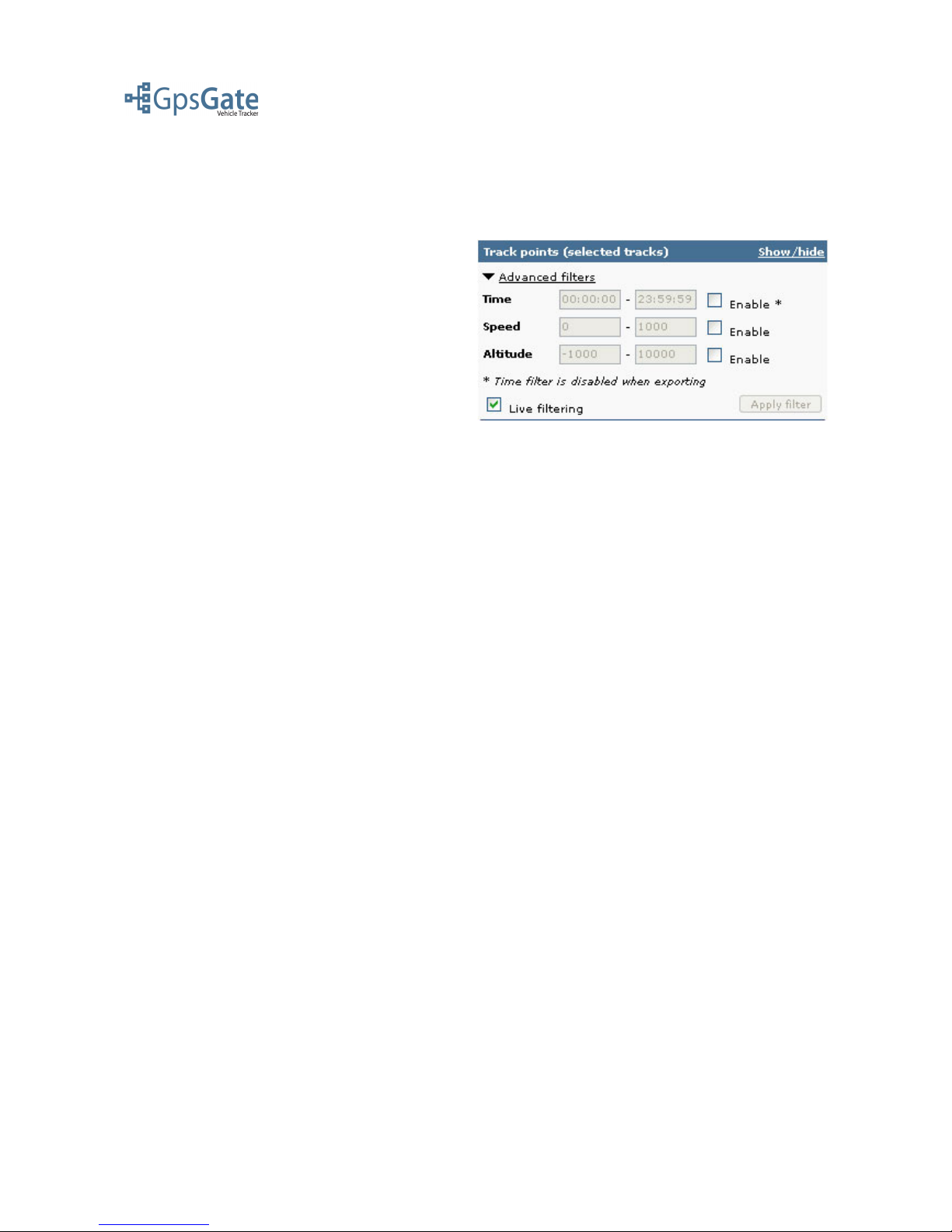
You can narrow down your search further based on different search criteria. This is done by
expanding the Advanced filters options found on top of the Track points panel. You have the
options time, speed and altitude. By default the
search options are disabled. You enable them by
checking the check-box to the right of each field.
Below the search fields you have a check-box
named “Live Filtering”. When this option is
enabled the Track Point list below will update
directly when you change your search criteria. If
you are working on large amounts of data you
have the option to disable the Live Filtering by
clearing the check-box and using the Apply Filter
button to the right.
Date: April 4, 2008 Page 14(17)
Page 15
GpsGate VehicleTracker User Guide
Version: 1.3.2 - Rev: A.
6 Exporting track data
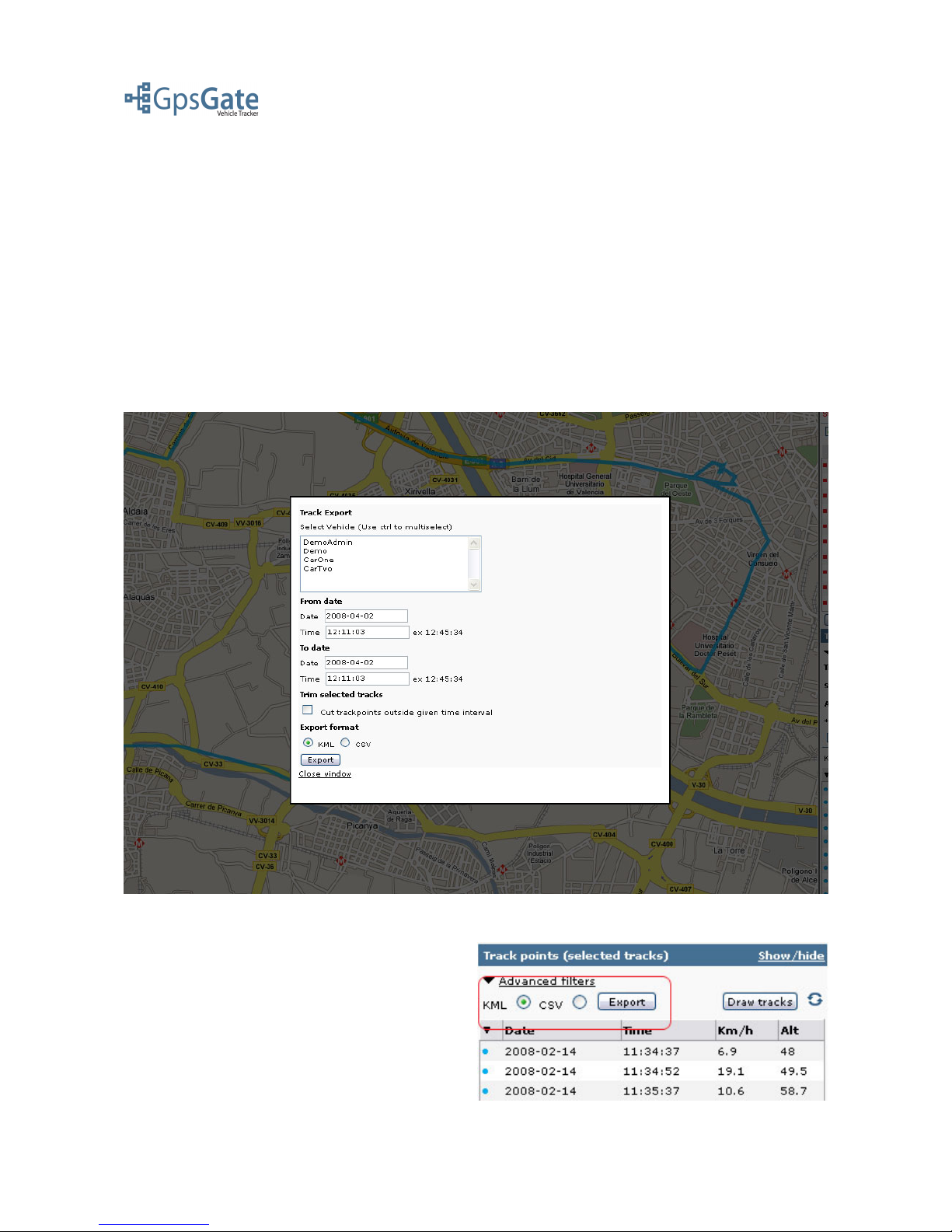
There are two ways to export tracks. The Export-window that you open in the Export-menu, and
the Export button that you find in the Track points panel.
6.1 Using the Export Window
The Export window allows you to choose one or more vehicles that you wish to export tracks for,
the start and stop time stamps, the option to “trim” any tracks that cross a start/stop time stamp, and
whether it should be exported as CSV (Comma Separated Values) for use in, for example, Excel or
Access, or in KML (Keyhole Markup Language) format for Google Earth. Note that all time
stamps are exported in UTC (Universal Time Coordinated) format.
6.2 Exporting from the Map View
Exporting from the map view is done by clicking
on the Export button in the Track points list. You
export the tracks that are listed in the Track points
list (and visible on the map if you have drawn
them). All time stamps are exported in UTC
(Universal Time Coordinated) format.
Date: April 4, 2008 Page 15(17)
Page 16
GpsGate VehicleTracker User Guide
Version: 1.3.2 - Rev: A.
7 Application Settings
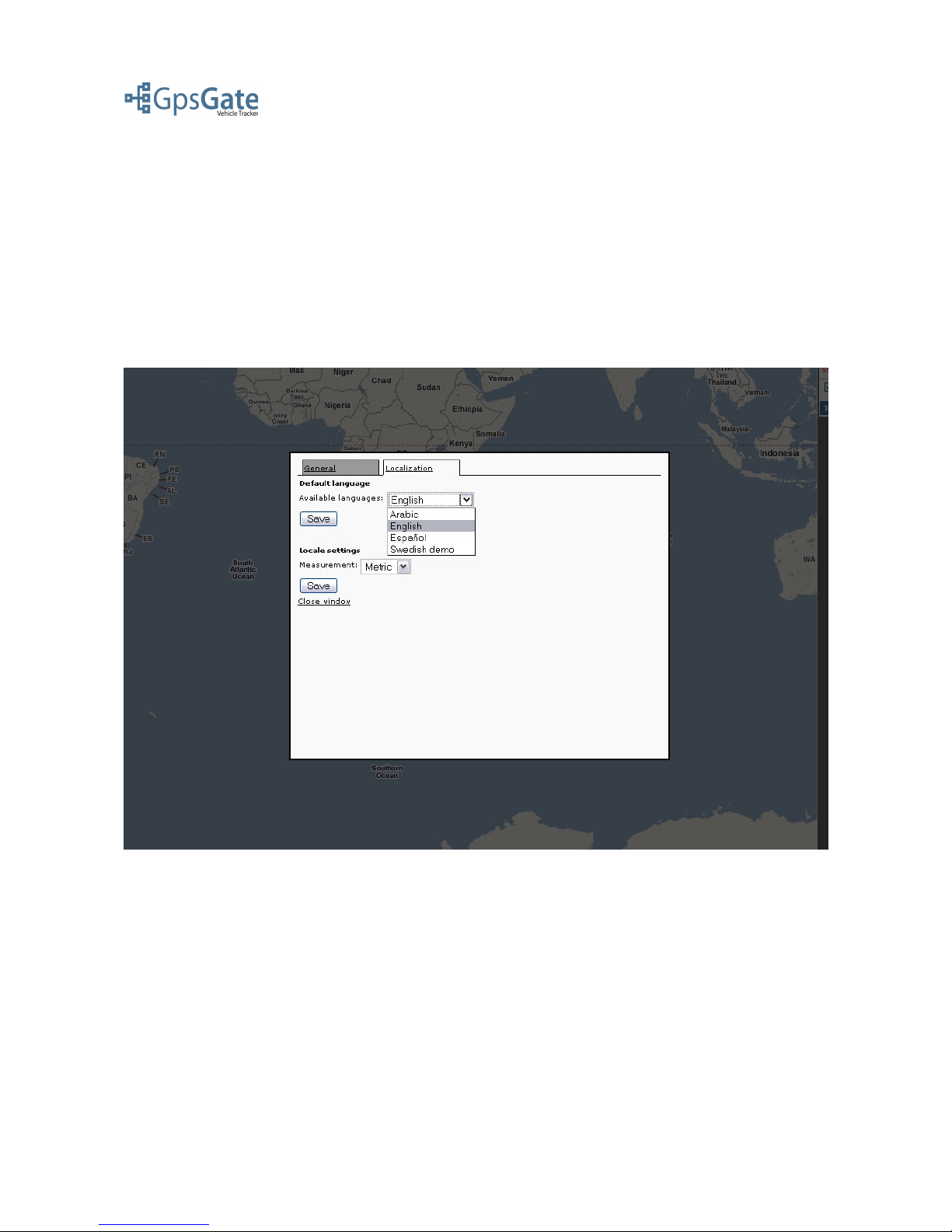
Under the Settings link in the top menu you can select the Language file of choice, change the
Measurements you want the user interface to display (Metric/en-US/Nautic) and change your
password. Ask you GpsGate Server Site Administrator if you would like to add more languages to
your application.
Note: You have to reload the page in your browser after you have saved your settings to make them
take effect.
Date: April 4, 2008 Page 16(17)
Page 17
GpsGate VehicleTracker User Guide
Version: 1.3.2 - Rev: A.
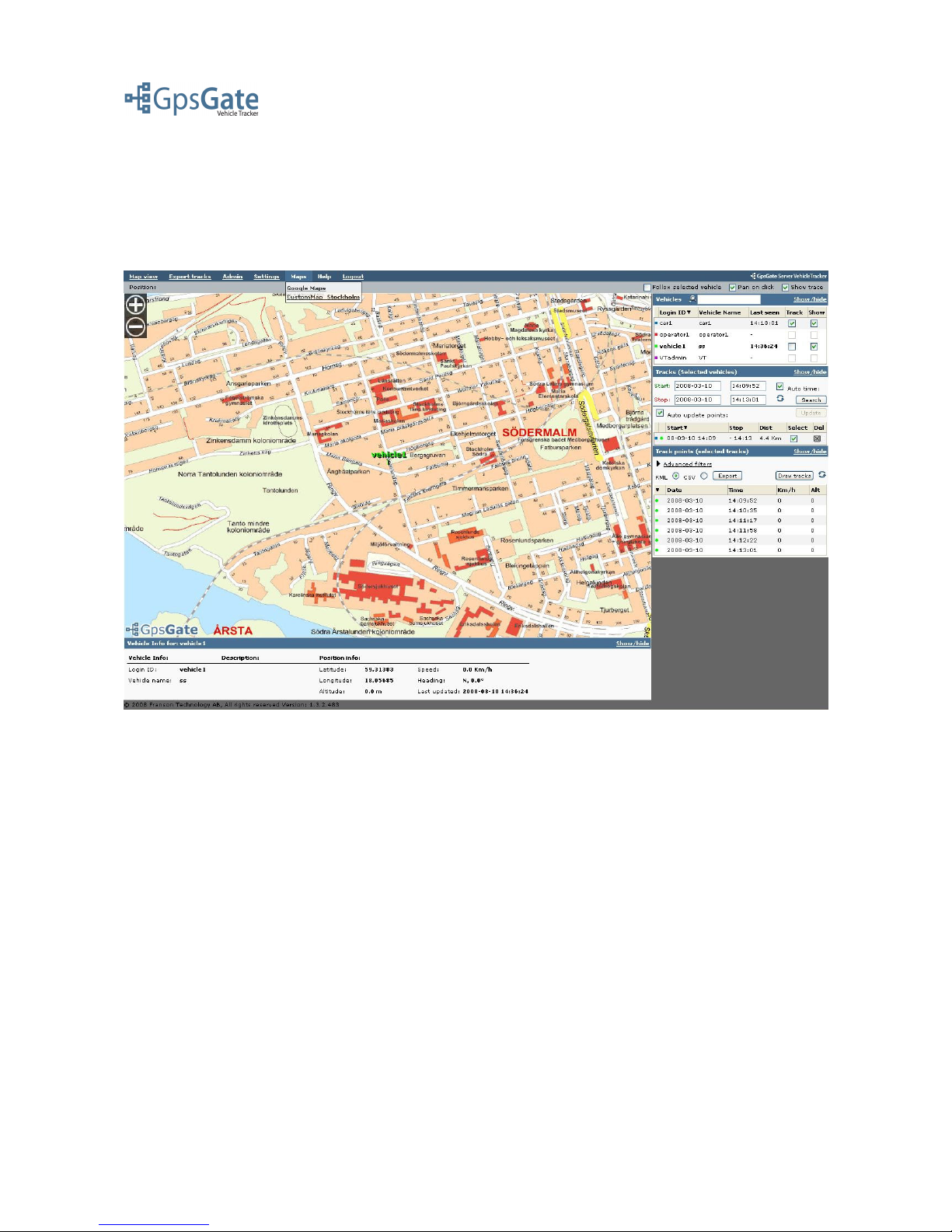
7.1 Map Selection
Here in the Maps menu you can choose between the maps available to your VehicleTracker
application. Ask your GpsGate Server Site Administrator if you want to add custom maps to your
application.
Date: April 4, 2008 Page 17(17)
 Loading...