

Page 1
GPO BRONX_User_Manual UK_v1 - Sept 2019.indd 1 24/09/2019 09:43
USER GUIDE
V1 | SEPT 2019
Page 2

GPO BRONX_User_Manual UK_v1 - Sept 2019.indd 2 24/09/2019 09:43
2
Page 3

CONTENT
Introduction 4
Charging the GPO Bronx 4
Controls 5
Operating the GPO Bronx 6
Bluetooth Operation 6
Playback Modes 7
GPO BRONX_User_Manual UK_v1 - Sept 2019.indd 3 24/09/2019 09:43
3
Page 4

Introduction
Thanks for purchasing the GPO Bronx Speaker. This compact
portable speaker allows you to listen to music, and answer calls
while connected to your smartphone.
Includes:
• 1x GPO Bronx Speaker
• 1x Charging Cable
Before using your GPO Bronx Speaker for the rst time, make sure
that you read these instructions and keep them safe for
future reference.
Charging the GPO Bronx
To charge your GPO Bronx Speaker, connect it to your mains
power supply using the provided charging cable.
When the speaker’s battery is low, the speaker will intermittently
make a warning sound.
While charging, the LED indicator will turn red.
Once fully charged, the LED indicator will turn green.
Fully charging your speaker will take up to two hours.
GPO BRONX_User_Manual UK_v1 - Sept 2019.indd 4 24/09/2019 09:43
4
Page 5
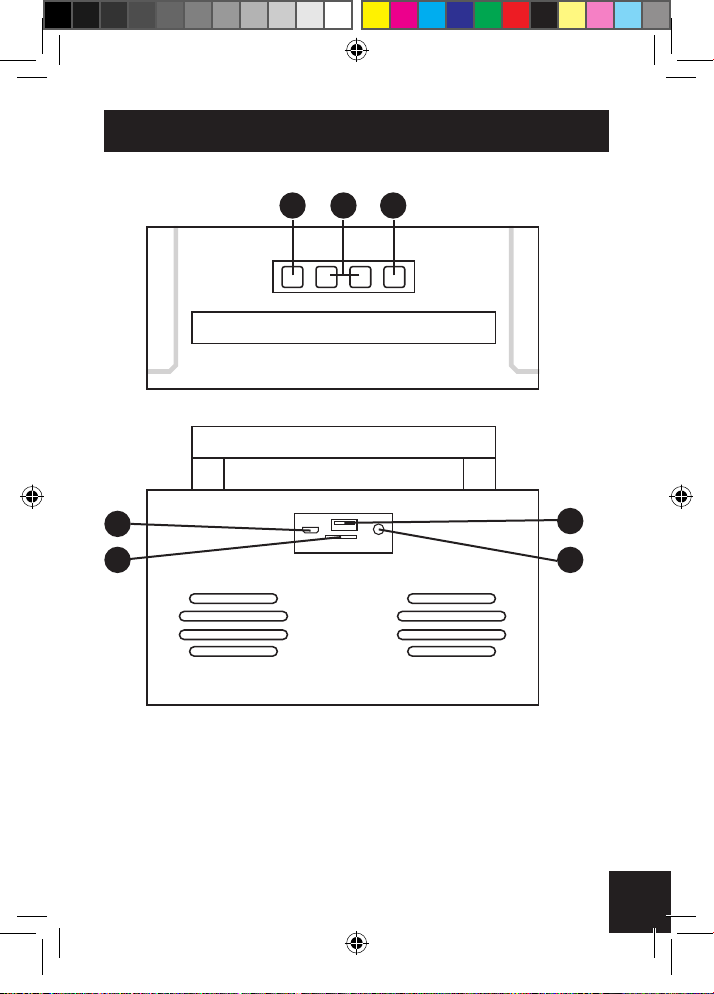
Controls
2 1 7
GPO BRONX_User_Manual UK_v1 - Sept 2019.indd 5 24/09/2019 09:43
3
5 6
1. Volume Buttons 2. Play/Stop Button
3. Micro 5P Port 4. USB Card Port
5. TF Card Port 6. AUX Mode
7. On/Off
4
5
Page 6

Operating the GPO Bronx
To turn your GPO Bronx on or off, hold down the Power Button for two
to three seconds.
A short press of the Power Button allows you to choose your
preferred mode.
When turned on, the speaker’s LED indicator will turn blue.
Volume Buttons
The GPO Bronx’s volume buttons control the speaker’s volume, and
allow you to navigate songs.
Tap the volume up or down buttons to adjust the speaker to your
preferred volume.
Hold down the volume up or down buttons to skip to the next song or
move back to the previous song.
Play/Stop Button
Tap the Play/Stop button to start or stop a song when in music mode.
While in music mode, tap the Play/Stop button twice to enter BT mode
and redial the last call made on your connected mobile device.
In BT mode, pressing the Play/Stop button once will answer an
incoming call. Pressing it twice in quick succession will reject the call.
Bluetooth Operation
GPO BRONX_User_Manual UK_v1 - Sept 2019.indd 6 24/09/2019 09:43
The GPO BRONX can be paired with a suitable Bluetooth device ie.
phone / tablet to allow the user to play tracks through the speakers of
the GPO BRONX unit.
Connecting a Bluetooth Device
1) Ensure GPO BRONX & pair device (Phone / Tablet) are switched on
6
Page 7

2) Bluetooth on pair device should be discoverable
3) Select ‘GPO BRONX’ from the Bluetooth menu list on pair device
4) The GPO Bronx will sound to inform the user the units are now
paired successfully
Disconnecting a Bluetooth Device
To disconnect, disable Bluetooth on pair device
Playback Modes
The GPO Bronx can play back your chosen songs in a number of
ways:
Micro 5P Port
Download your chosen songs to a TF card, and insert it into the
speaker’s Micro 5P port.
USB Card Port
Download your chosen songs to a USB drive. The GPO Bronx
supports ash drives up to 32G, and can play back songs in WAV/
FLAC/MP3 formats.
TF Card Port
Download your chosen songs to a TF Card. The GPO Bronx supports
cards up to 32G, and can play back songs in WAV/FLAC/MP3 formats.
AUX Mode
The GPO Bronx can be connected to any external audio source
with a standard 3.5mm DC jack. Simply connect your speaker to a
smartphone, computer, tablet or MP3 player with a jack to enter AUX/
LINE mode and use your device’s controls to start playback.
GPO BRONX_User_Manual UK_v1 - Sept 2019.indd 7 24/09/2019 09:43
7
Page 8
Hereby ProtelX, declares that this equipment (GPO BRONX) is
in compliance with the essential requirements and other relevant
provisions of Directive, you can access a copy of this certicate on
www.gporetro.com/Certicate-of-Conformity
www.gporetro.com
GPO BRONX_User_Manual UK_v1 - Sept 2019.indd 8 24/09/2019 09:43
IMPORTED AND DISTRIBUTED BY:
ProTelX Ltd, Unit 6, Park 17 Industrial Estate, Moss Lane,
Whiteeld, Manchester, M45 8FJ UK
The Bluetooth® word mark and logos are registered trademarks owned by Bluetooth SIG, Inc.
and any use of such marks by Protelx Ltd is under license. Other trademarks and trade names
are those of their respective owners.
 Loading...