

Page 1
User Guide
Page 2
02 GoVision Apollo User Guide GoVision Apollo User Guide 03
QUICK START GUIDE
Please fully charge your glasses before
use to ensure high quality video and still
photography.
Glasses are fully charged when solid red
light is o.
To keep the glasses from water damage,
please make sure the silicone USB cover is
securely positioned enclosing USB port (5)
before water exposure. Dry glasses
thoroughly after being exposed to water.
1
2
3
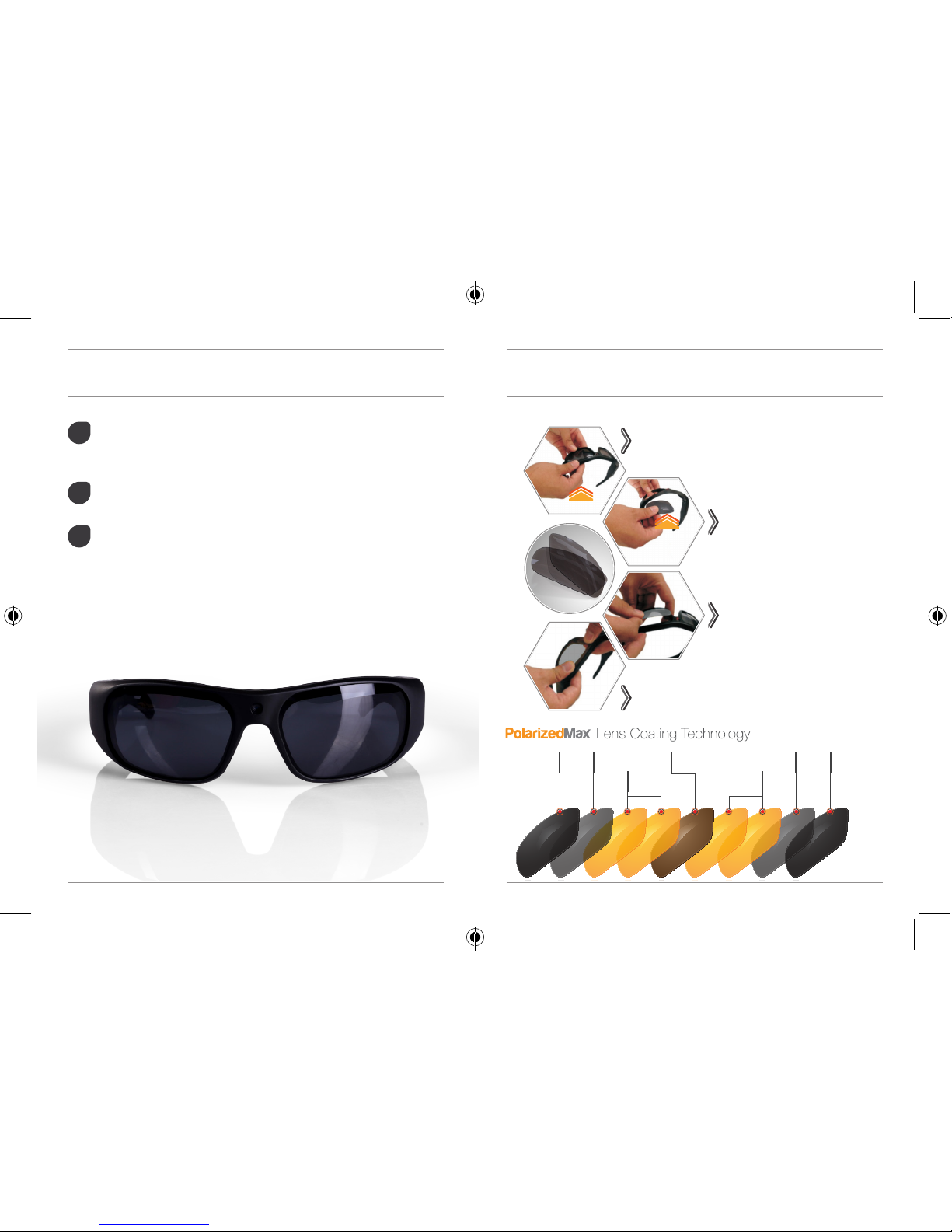
LENS CHANGING GUIDE
PULL OUT THE FRAME AND TAKE THE BACK
LENS OFF BY GENTLY PRESSING THE LENS
TOWARDS YOU WITH YOUR FINGERS
PRESS DOWN GENTLY AROUND THE
EDGES UNTIL LENSES CLICK INTO PLACE
ON FRAMES
REMOVE BLACK LENS
FROM FRAME
ALIGN LENS TO THE INSIDE
CORNER OF FRAMES
1X SCRATCH
RESISTANT
LAYER
1X SCRATCH
RESISTANT
LAYER
1X SHOCK
ABSORBER
1X SHOCK
ABSORBER
2X UV
FILTER
2X UV
FILTER
1X
POLARIZING
CORE
Page 3
04 GoVision Apollo User Guide GoVision Apollo User Guide 03
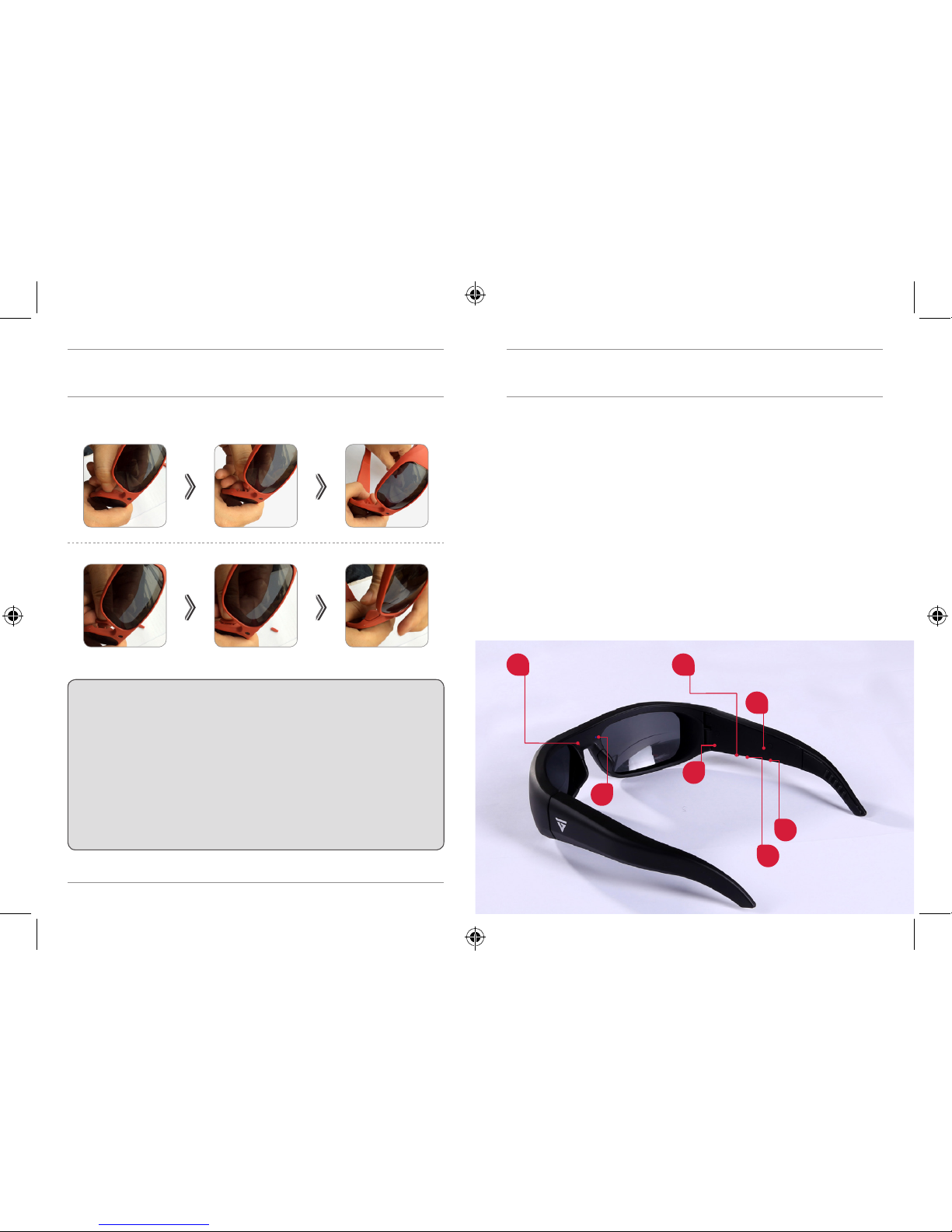
NOSE PIECE CHANGING GUIDE
Pull-o / Push-on, Customize your GoVision’s with
interchangeble nose pads to achieve your perfect fit.
Simply pull o the nose pads starting from the top
part of the pad by pulling outwards away from the
frame. Once the nose pad has detached, correctly
align and position the desired nose pad with the nose
frame mount before connecting the new nose pad to
the frame. Use slight pressure when connecting.
PULL–OFF
PUSH–ON
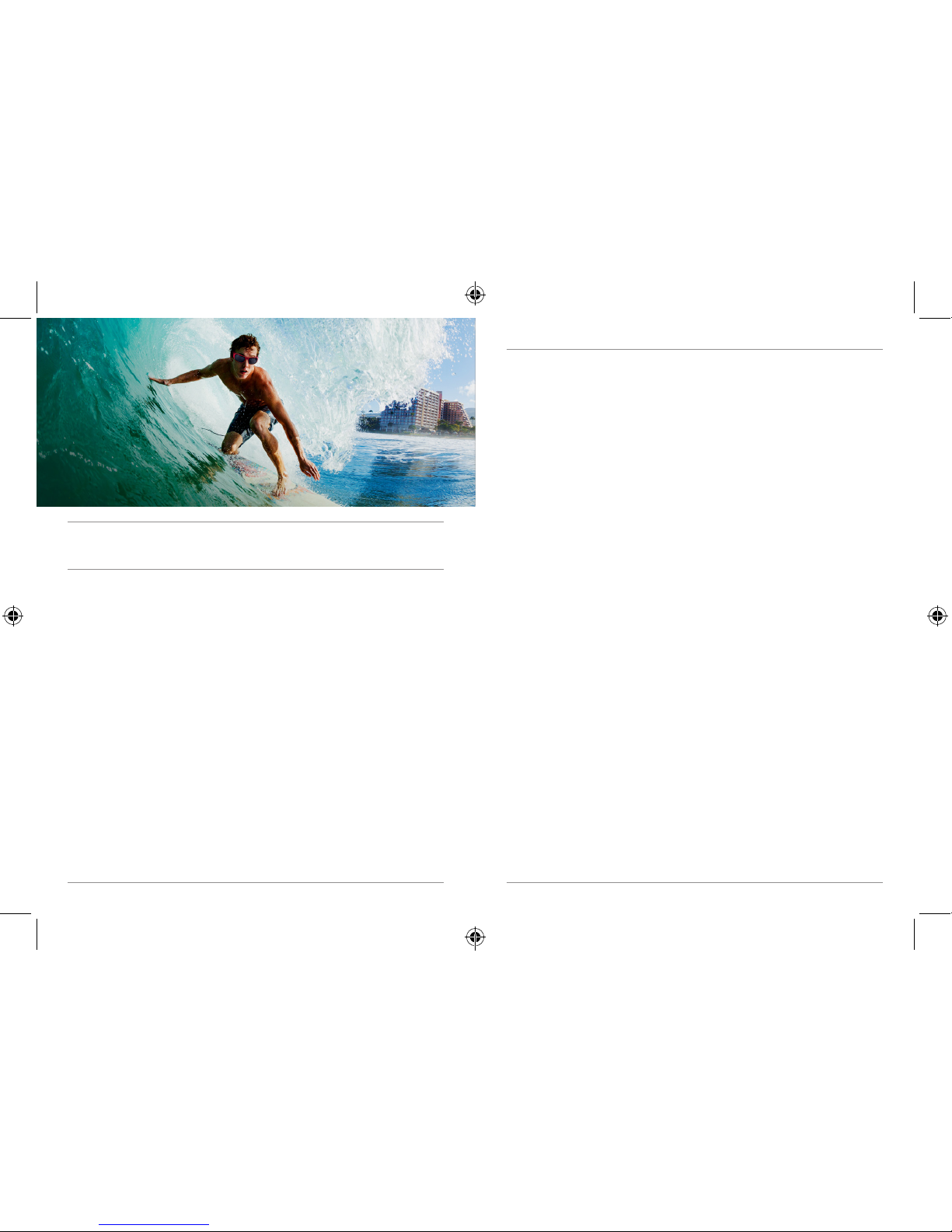
GoVision is a brand of action camera sunglasses that allows
users to capture their life-seeking adventures in high definition
video/photography.
High definition polarized lenses oer highest available light
reduction UV 400 protection for brilliant color enhancements
and clarity. Image and recording life’s adventures just got
more stylish.
GOVISION PRODUCT PREVIEW
1. On/O/Video Recording Button
2. Red LED power indicator light
3. Blue LED low battery indicator light
4. Microphone
5. 5 pin USB port
6. Reset Button
7. Charging LED indicator light
2
3
6
5
4
RED LED POWER
INDICATOR LIGHT
BLUE LED LOW BATTERY
INDICATOR LIGHT
RESET BUTTON
USB PORT
MIC
1
7
ON/OFF/
VIDEO RECORDING BUTTON
CHARGING LED
INDICATOR LIGHT
Page 4
06 GoVision Apollo User Guide
ON/OFF
Press and hold down the on/off button (1) until the red LED
power indicator Light (2) turns on and the glasses vibrate
before releasing the button with your finger to turn on your
GoVision. GoVision will automatically enter video recording
mode once the glasses have been turned on. The red LED
power indicator light (2) will flash while recording.
To Power off the glasses, hold down the on/off button (1)
for two seconds and the red LED power indicator light
(2) will turn off and the glasses will vibrate automatically
saving the files and shut down.
RECORDING VIDEO
Power on the glasses by holding down the on/off
button (1). The red LED power indicator light (2) will turn
on and the glasses will vibrate. After you feel the vibration
you can release your finger from the on/off button (1).
Once powered on the glasses will automatically enter into
video record mode. To Stop recording, press the on/off
button (1). The system will automatically save video files
in 10 minutes increments.
USER GUIDE
LIFE THROUGH
YOUR EYES
SEE IT. RECORD IT.
SHARE YOUR LIFE
GoVision Apollo User Guide 07
In order to ensure good sound quality, make sure you do
not block the microphone.
To keep the glasses from water damage, please make sure
the silicone USB cover is securely positioned enclosing
USB port (5).
TAKING PICTURES
When the glasses are powered on and shooting video,
simply press the on/off button (1) to take still pictures.
The glasses blue LED indicator light (3) will flash letting you
know the picture was taken and saved. Taking pictures will
not interrupt the video recording process and the user now
has the ability to capture photos and video simultaneously.
• Note: Make sure there is adequate light when taking pictures and
the glasses are upright and stable.
FILE UPLOADS
Connect the GoVision Sunglasses with USB cable to a
proper computer USB port. The micro SD card will be
recognized as an external drive. All of your movies and
photos can be accessed in the file folder DCIM.
• Note: Please allow time for your computer to discover the
glasses USB cable in external disk drive when looking to view
video and photo files. If the USB cable is not identified after
2 minutes, ensure the 5-Pin end of the cable is properly secured
to the glasses then remove the USB cable and re-insert all the
way into the computer.
CHARGING
Connect glasses to computer by USB cable to charge
battery. The charging led indicator light (7) will be solid
red during the charging process. Glasses are fully charged
when the charging indicator light (7) shuts off. It will take
up to two hours to obtain a full charge. Please make sure
your GoVision is fully charged before use.
• Note: It is recommended that you only charge the GoVision
glasses for no more than 2 1/2 Hours at one time.
Page 5
08 GoVision Apollo User Guide
USER GUIDE
HOW TO FORMAT MICRO SD CARD
If your GoVision glasses are on and your indicator light
stays solid red for 1 minute and shuts off automatically the
SD card must be formatted.
WINDOWS
• Go to My Computer
• Go To Removable Disk Drives
• Make sure your cursor is over the drive that holds the
GoVision Glasses (ex: Removable Drive E)
• Right click
• Go to format
• Click on it
• A dialog box will appear asking to format
• Click Start
MAKING IT POSIBLE FOR PEOPLE TO
LIVE IN THE MOMENT
GoVision Apollo User Guide 09
MAC
• Open the Applications Folder
• Select Utilities
• Click on Disk Utilities
• Click on the Untitled folder/No name folder
on the left pane of disk utilities
• Click on Erase
TROUBLESHOOTING
INSUFFICIENT MICRO SD CARD STORAGE SPACE
Blue LED indicator light (3) will flash for 5 seconds and you
will feel a slow vibration at the same time and turn off. If this
happens, please move the files off the SD card and store the
files into a remote hard drive or on your computer to free up
the SD card storage.
LOW BATTERY
Blue LED indicator light (3) will flicker for 5 seconds with
a fast vibration sequence at the same time and shut off.
Please recharge your glasses.
NO FUNCTION
If the glasses stop working for any reason or are not
responding, please insert a small paper clip end into the reset
button (6) to restart device. If additional problems persist,
please email us at [email protected] or call
our customer service support line at 617.379.0023
Page 6
10 GoVision Apollo User Guide
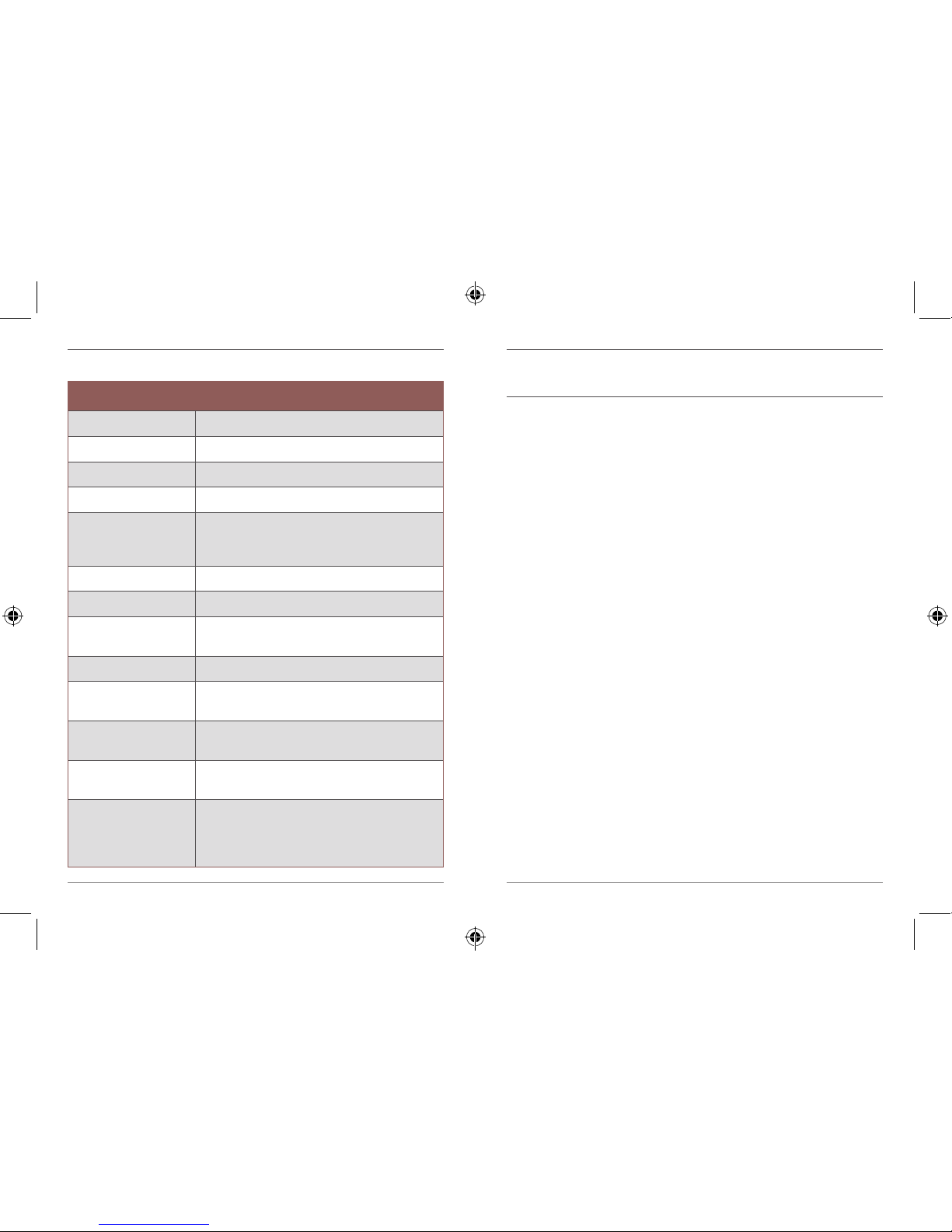
TECHNICAL SPECS
Video Format: AVI
Video Encoding: M-JPEG
Video Resolution: 1080P
Video Frame rate: 30 fps
Media playing
software:
Window Media Player or Mainstream
audio and video media playing
software. KM Player recommend.
Picture Format: JPEG
Picture Pixels: 1440 x 1080
Supporting
systems:
Window me/2000/xp/2003/Vista/7,8
and 8.1 and MAC OS
Interface type: USB 5 pin Port
Storage support: Internal Micro-SD (TF Card)
Max.to 8GB
Battery type: 480mAh high-capacity lithium
polymer
Battery charge
time:
Approximately 2 hours
by standard computer
IP66 Level
Dust and Water
proof resistant
Glasses are protected against the
eects of temporary water immersion
up to 3 feet for a duration time of
1 minute.
GoVision Apollo User Guide 11
1. Application: Please strictly abide to all relevant state and
federal regulations and laws as it relates to video and photo
recordings. This product should not be used for any illegal
purposes. The user is fully responsible for all videos and
photos captured.
2. Battery: If you have not recorded video for a long time, please
charge your device fully before using.
3. File security: This product is not a professional storage device.
It does not guarantee the integrity and security of saved files.
Please back up your important documents on the computer
or other storage device timely.
4. Operating temperature: 0--40°C. For the extension of life,
it is best used at room temperature.
5. Shooting brightness: Do not stare directly into sunlight to
avoid damage to built-in optical devices and your eyes.
6. Water exposure: Glasses are protected against the eects
of temporary water immersion up to 3 feet for a duration
time of 1 minute. The glasses are not meant for diving and
continuous underwater exposure. Not intended to be used
as an underwater camera.
7. Night time driving: Not suitable for driving in twilight or at
night or under conditions of dull light.
8. Additional eyewear: Some activities may require glasses
support straps or protective eyewear in addition to the
HD Sunglasses.
WARNING
Page 7
+1.617.379.0023 | [email protected]
Designed and Distributed by Audy Global Enterprises, Inc.
GoVision products and accessories are guaranteed against
manufacturing defects for a period of one (1) year from the
original date of purchase. GoVision’s sole obligation in the
event of a defect during this period is to repair or replace
the defective part or product with a comparable part or
product at GoVision’s sole discretion. Except for such repair
or replacement, the sale, processing or other handling of this
product is without warranty, condition or other liability even
though the defect or loss is caused by negligence or other
fault. Damage resulting from use, accident, or normal wear and
tear is not covered by this or any warranty. GoVision assumes
no liability for any accident, injury, death, loss, or other claim
related to or resulting from the use of this product. In no event
shall GoVision be liable for incidental or consequential damages
relating to or resulting from the use of this product or any of
its parts. Returns or replacements of parts and/or products
may be subject to shipping, handling, replacement and/or
restocking fees.
Your Questions and Comments? Look no further than our
Support Team for world class customer support, please email
[email protected]. We are here to help you
with your GoVision product. We want you to like it as much
as we do!
WARRANTY
 Loading...