

Page 1
Axios Pro
www.golzr.com
User’s Guide
Page 2
Safety and General Information
Follow the charging procedure described in this guide to charge the product.
Keep away from fire, water, and high voltage equipment.
To avoid impairing your hearing in the long-term operation, keep the headphones
volume in a moderate level.
Do not use the headphones while operating a motor vehicle.
To avoid electronic interference and/or compatible conflicts, turn off the product in any
facilities where posted notices instruct you to do so. For example: Military Base, Hospital
or Health Care Facilities.
Users are not permitted to make changes or modify the product and the accessories in
any way.
First Time Use
Charging the battery before use is recommended but not required. The unit ships pre-charged,
however, the initial charge may vary. Low battery is indicated by the led status indicator blinking red
on the left earcup with a periodic audible tone. For charging, connect the unit to a power source
using the included micro USB cable, the charging input port is located on the left earcup.
Package Includes
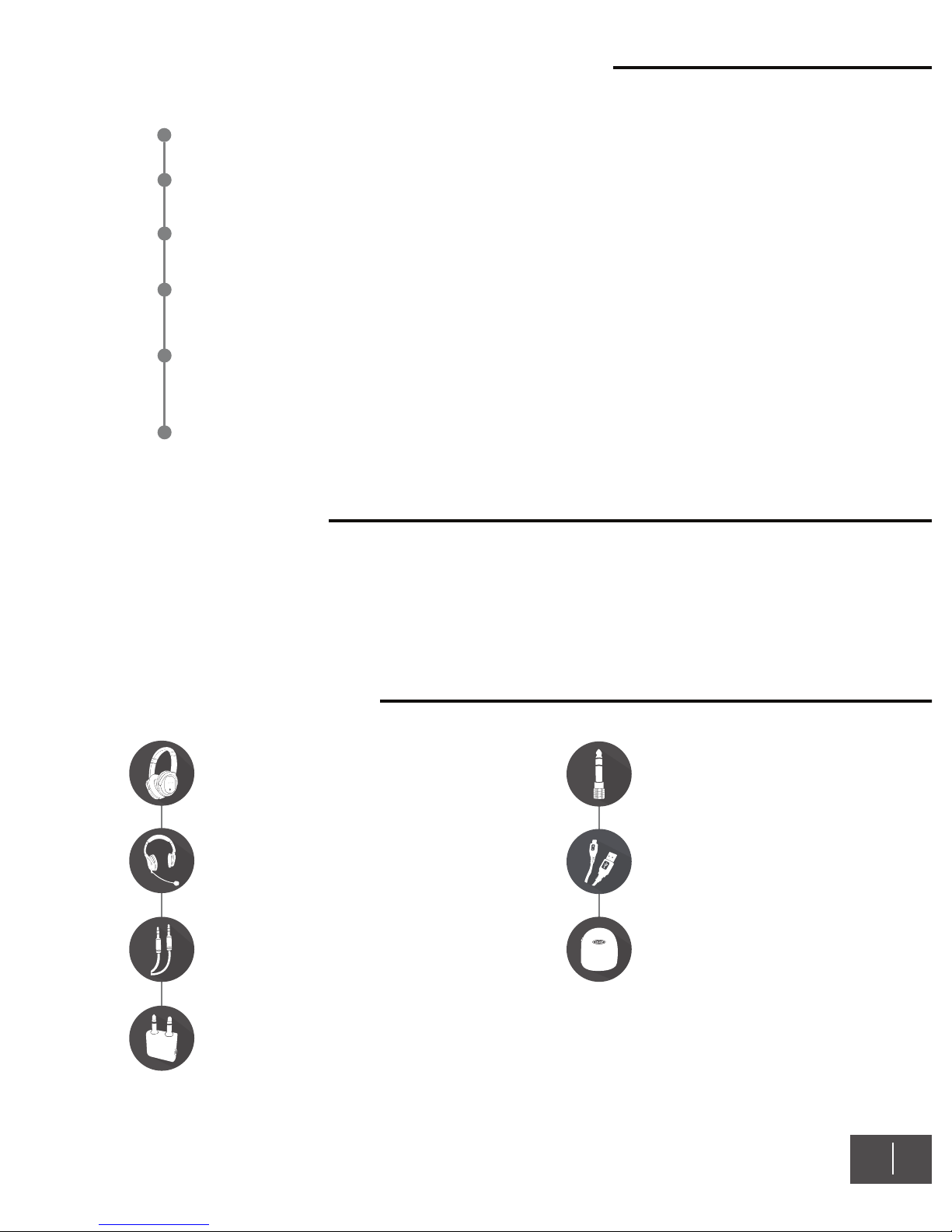
Golzer Axios Pro Headphones Unit
Detachable Boom Microphone
Standard Stereo 3.5mm Audio Cable
Airplane Adapter
EN 02
1/4 inch Adapter
Charging Cable
Hard Carry Travel Case
Page 3
EN 03
Pairing
Pairing is the process in which your headphones and your host device connect for the first time.
Bluetooth devices must be paired first before they can communicate. Pairing only has to done once,
after that, your headphones will automatically connect to the last paired device even after a dead
battery or a Bluetooth disconnect.
Headphones to device pairing
1
2
3
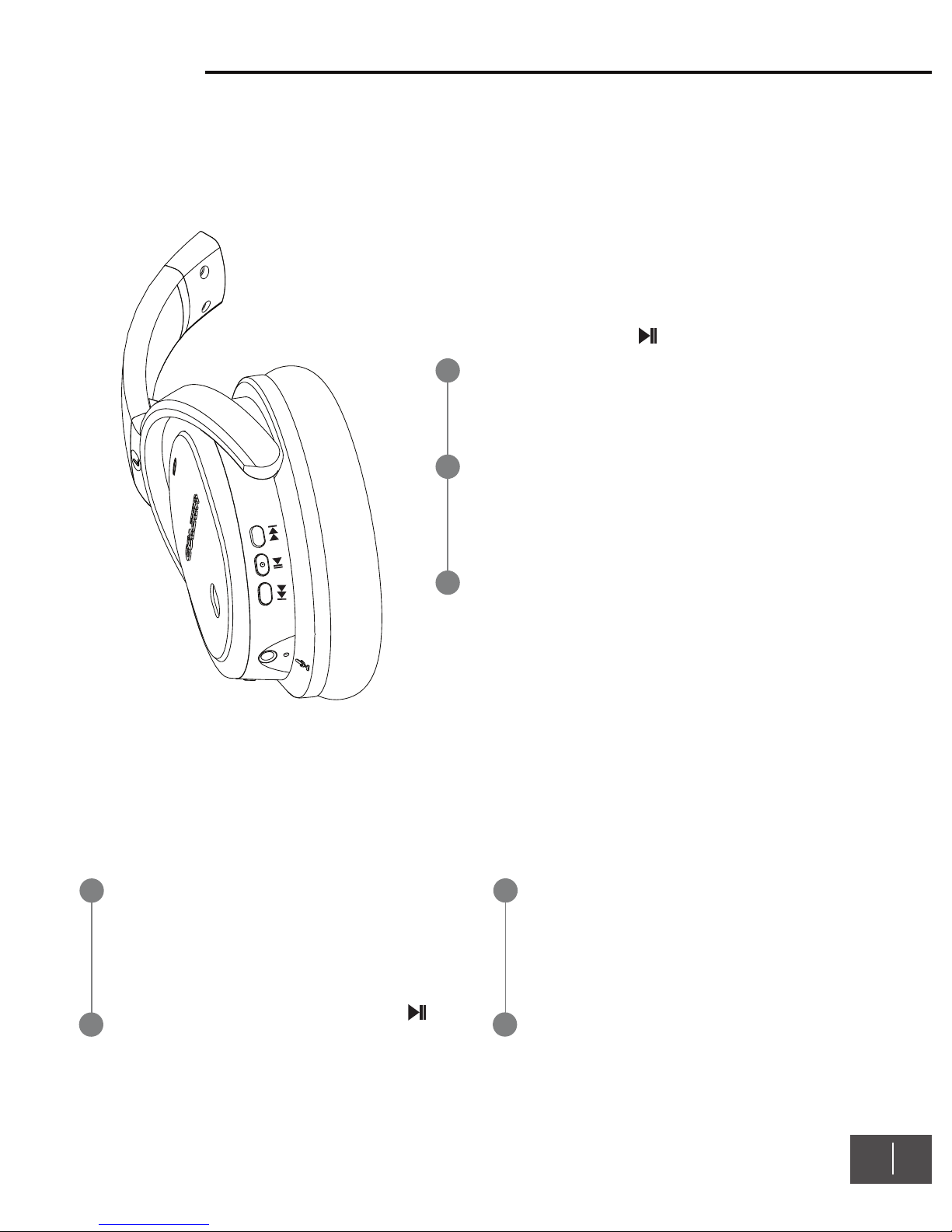
Press and hold the button until the light
indicator flashes green once then in green and
red alternatively which indicates that the
headphones entered into pairing mode.
From your host device (ex: a smartphone), enter
the Bluetooth menu and search for available
devices.
Select “Golzer Axios Pro” from the available
Bluetooth device list. If connected, the
headphones will enter into standby mode, the
flashing green and red light will turn into flashing
green.
Headphones to headphones (H2H) pairing
1
2
To activate H2H sharing, first, ensure both
the primary and secondary units are
turned off. The primary unit is the one
connected directly to the host device,
whereas the secondary unit is the one
connected to the primary unit.
Put the secondary unit into H2H pairing
mode by pressing and holding the
button until the left LED indicator flashes
orange. The orange flash indicates the
unit is in H2H pairing mode.
3
4
Once the secondary unit is in H2H pairing
mode, put the primary headphones into
H2H pairing mode by repeating the same
process. The primary unit should then
switch to H2D pairing mode indicated by
the red and green flashes.
H2H pairing process is now complete. Pair
or connect the primary device to a host
device and the audio should playback on
both units.
Page 4
EN 04
Active Noise Cancelling
The Active Noise Cancelling (ANC) feature can dynamically cancel out unwanted low-frequency
sound with the switch of a button. The ANC can be used by itself or with any audio input
(Bluetooth or In-Line Audio)
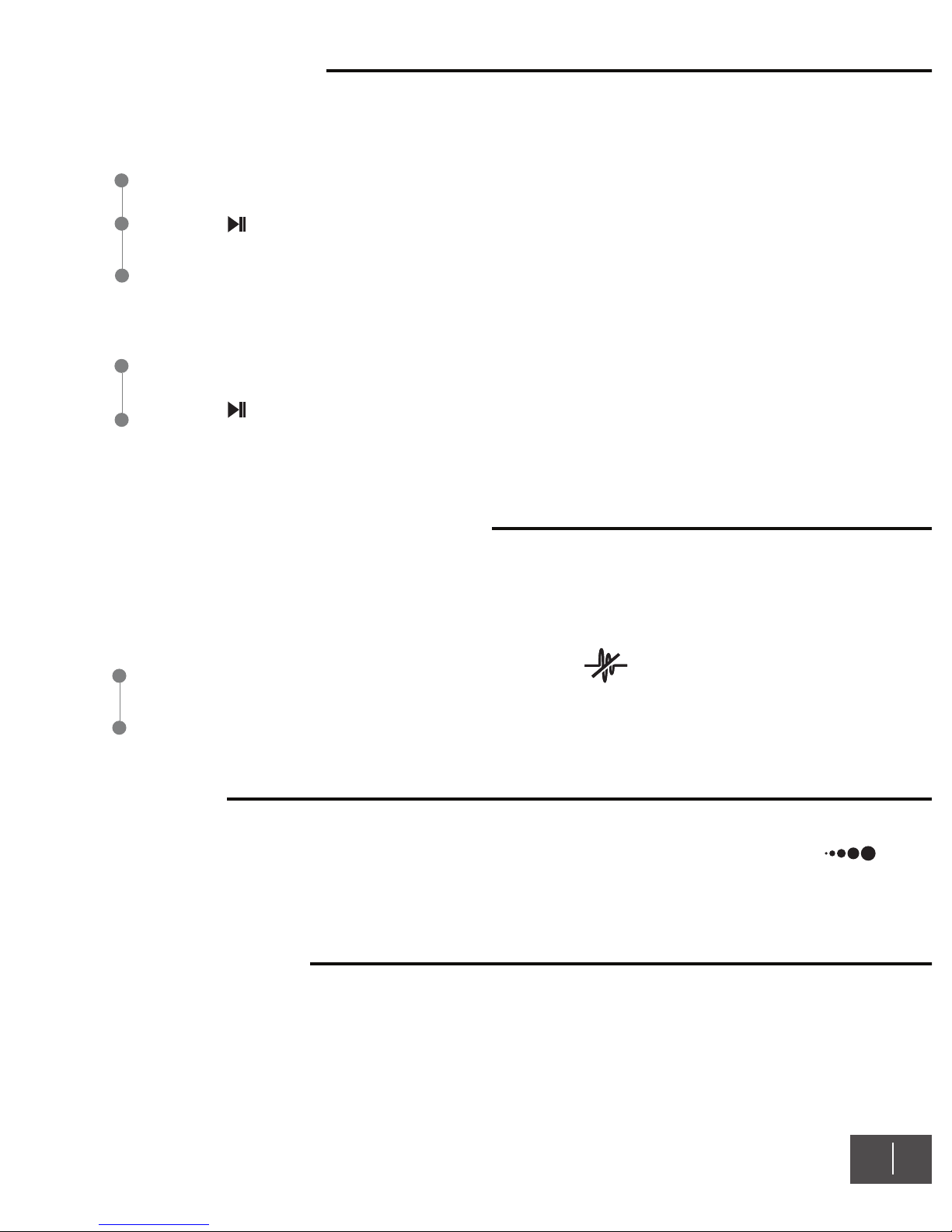
To turn on the active noise cancelling feature, move the switch located on the right
earcup to the up position.
The green light located on the right earcup should turn on.
Volume
Wired Mode
You can use the headphones with a variety of audio sources: airline audio, a CD, DVD or MP3 player,
a personal or laptop computer, or home stereo. Connect the headphones to the audio source using
the included audio cable; the 3.5mm audio input port is located on the bottom of the right earcup.
The Golzer Axios Pro offers a quick and convenient way to adjust the volume using the knob
located on the right earcup. Turn the knob clockwise to increase the volume and counter-clockwise
to decrease the volume.
Power on/off
Powering on
Ensure the headphones are turned off
Press the button for 3 seconds until a “beep” sound is heard then release the button
A solid or flashing green light on the left side should indicate that the Axios Pro is powered
on
Powering off
Ensure the headphones are turned on
Press the button for 5 - 6 seconds until the left indicator light turns solid red with a
descending sound.
Page 5
EN 05
Microphone
The Golzer Axios Pro features two microphone input options, an internal microphone and a 3.5mm
microphone input port located on the bottom side of the left earcup. In noisy environments or for
an increase the accuracy, we recommend using the provided external boom microphone.
Multipoint
The Golzer Axios Pro features Bluetooth Multipoint technology enabling the headphones to be
connected to two (2) devices at the same time. For example, you can enjoy music through your
smartphone and receive calls from your PC while staying connected to both devices simultaneously,
once the call ends, the headphones will automatically switch back to the smartphone. The Golzer
Axios Pro knows which device is ringing and will connect to the right one automatically.
Setup
1
2
3
Connect the headphones to your first
device (i.e. smartphone)
Power off the headphones
Connect the headphones to your second
device (i.e. PC or Mac)
4
5
6
Power off the headphones
Turn on the headphones
Both devices will automatically connect to
the Golzer Axios Pro and Multipoint is
now enabled
Status Light
Charging light indicator
Red left light is on
Red left light is off
Charging
Finished Charging
Pairing light indicator
Red and green alternating left light
Single green flashing left light
Double green flashing left light
Orange flashing left light
H2D Pairing Mode
Standby Mode
Connected to device
H2H Paring Mode
Page 6
EN 06
Call Operation
Making a call
1
2
3
Use the keypad on your smartphone to dial the desired number
Press the “Send” or “Dial” key on your smartphone to initiate the call
Your call is automatically routed to the Golzer Axios Pro
Answering a call
1
2
3
Incoming call will prompt a beep on the headphones
To answer the call, simply tap the button once
Your call is automatically routed to the Golzer Axios Pro
Ending a call
1
Press the button once to end a call
Rejecting a call
1
Press the button for 1 second to reject/ignore a call
Redial the last dialed number
1
Briefly press the button twice while in standby mode
Active noise cancelling light indicator
Green right light is on
Green right light is off
ANC is turned on
ANC is turned off
Page 7
When making or receiving a call while audio is playing, the Golzer Axios Pro will switch the
connection from the music player profile (A2DP) to the mobile phone profile (HSP or HFP). Music
will be temporarily paused. At the end of the call, your audio will automatically resume playing.
Swap calls between headphones and smartphone
1
During the call, press the button until a “beep” sound is heard then release the button
EN 07
Troubleshooting
Ensure the headphones has enough power
Ensure the Bluetooth function of your host device (ex: smartphone) is enabled
Ensure the headphones and the host device are within a 10 meter range and that there are no
obstructions, such as walls or other electronic devices in between.
The Golzer Axios Pro disconnects or will not pair, please check the following;
The Golzer Axios Pro pairs but there is no sound, please check the following;
Ensure the headphones volume is up, turn the volume wheel clockwise to increase the volume
Warranty & Support
Please visit our website at www.golzr.com for full warranty details, product registration and support.
Page 8
EN 08
1
2
3
4
5
6
7
8
9
510119
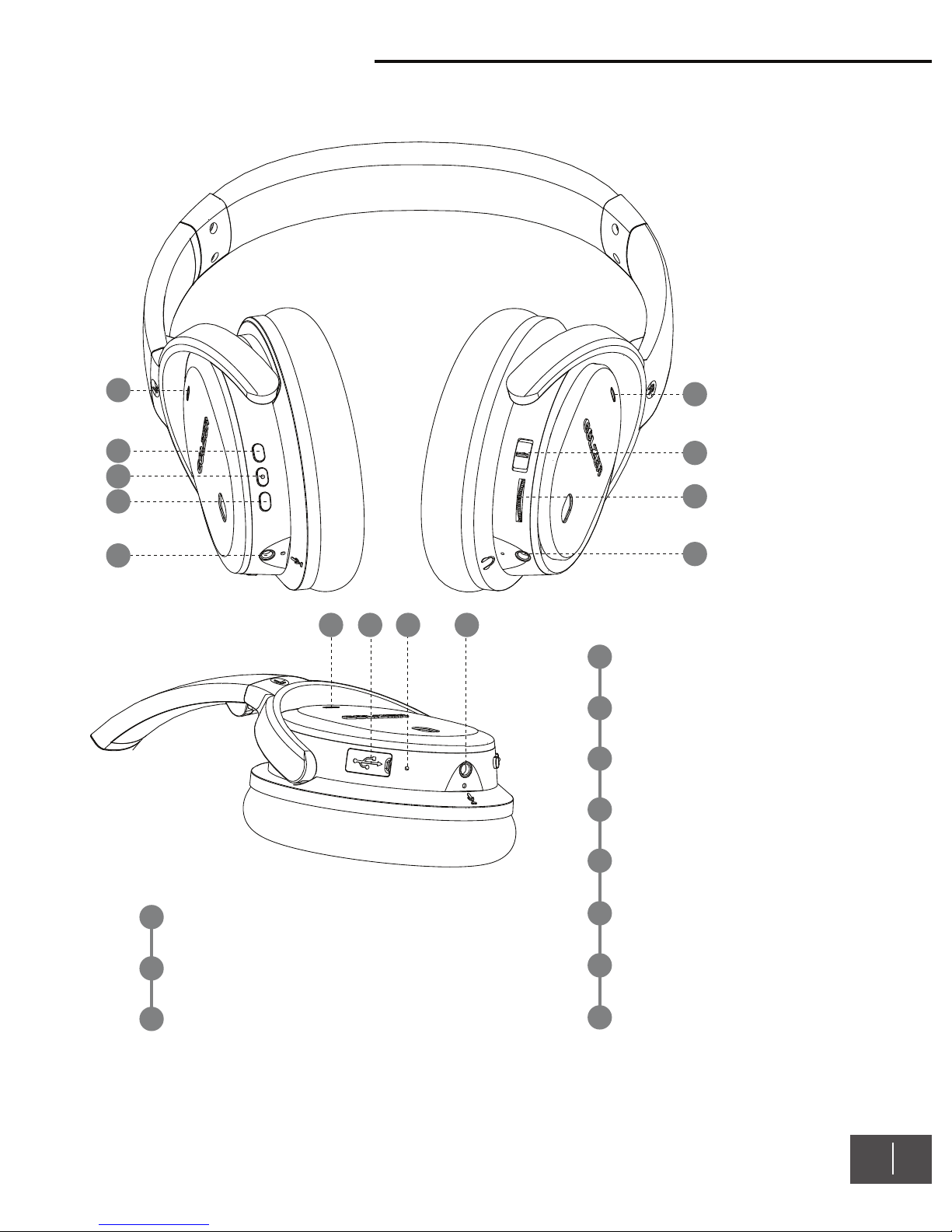
Audio Line In Port
Volume Knob
ANC Switch
ANC Light Indicator
Microphone Line in Port
Previous Track Button
Play/Pause/Call/Pair Button
Next Track Button
Bluetooth/Battery Light Indicator
Internal Microphone
Micro USB Charging Port
1
2
3
4
5
6
7
8
9
10
11
Golzer Axios Pro
 Loading...