

Page 1

Q
ui
c
TE
A
ww
w
k
G
M 7.
0
.gol-mobil
e
uid
e
3G
.com
Page 2

SAFETY INFORMATION
Transportation Safety
Please observe all transportation laws and regulations
Hospital Safety
The Tablet PC must be turned off when you are in a hospital.
You have to abide by the relevant regulations of hospital and turn your device off when you are near
medical equipment. Any wireless transmission device will interfere that equipment not fully-protected.
Airport Safety
Remember to follow all airport and flight safety regulations.
Water Hazard
Your tablet is not waterproof. Keep your tablet away from water or liquid to avoid damage.
Emergency Calls
Make sure your tablet is switched on and in a service area. In home screen, tap the phone key and
dial the emergency number.
Battery Usage
For better performance and longer battery life, it is recommended that you charge the battery fully
before using the tablet for the First time and that you initially compete two to three charge cycles.
Page 3
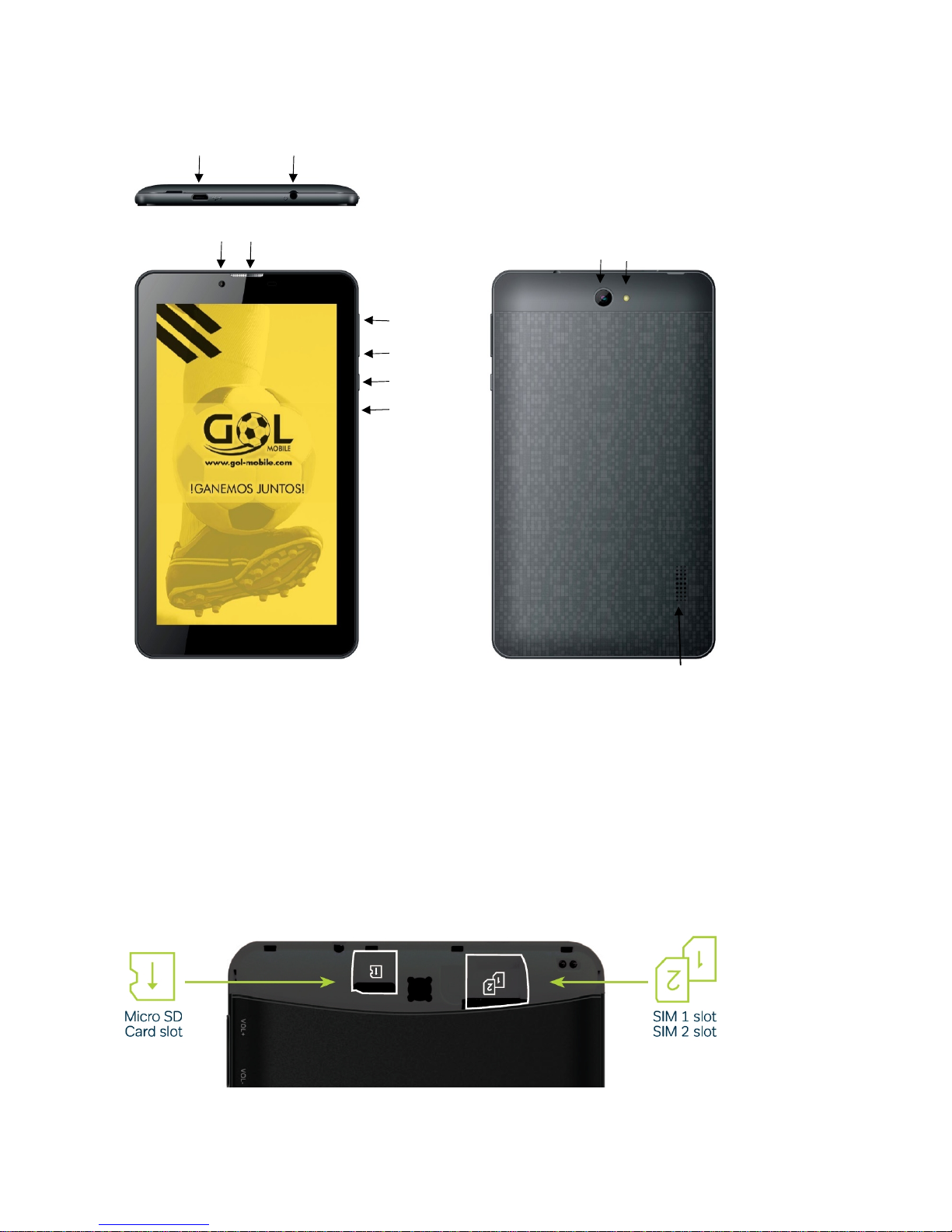
KEY FUNCTIONS
INTRODUCTION
Installation of the SIM Card
Warning: Please keep the SIM card out of the reach of children, The SIM card and its contact are
easily damaged due to scratching or bending. Please use caution when carrying, installing or taking
out the SIM card.
Note: Please contact your cellular phone service provider directly to obtain your SIM card.
To insert SIM card
1. Push the SIM card slot cover out and insert the SIM card in SIM slot.
2. Insert the SD card (For additional storage capacity)
MicroUSBPort HeadsetJack
Frontcamera
EarpieceSpeaker
Rearcamera
FlashLight
Vol+
Vol‐
Power
Reset
Loudspeaker
Page 4

3. Put back the SIM card cover and power on the Tablet.
When you initially power on your tablet, there will be a series of steps to set up basic features.
INSERT SIM
Insert your SIM card so the tablet can register to the network.
SELECT LANGUAGE
While on the welcome screen, please scroll to select your language.
SELECT Wi-Fi
This process allows the device to connect to the internet.
Click on the desired Wi-Fi network that the device will be connecting to. Please note that any
unsecured Wi-Fi networks can be connected to directly and any secured Wi-Fi networks require a
password for credentials prior to connection, it’s recommended that you connect to a Wi-Fi network
to check for software update prior to startup.
ADD YOUR ACCOUNT
Sign in to your Google account in order to keep accounts streamlined with Google services. Your
Gmail account will be used for some Google programs. If you don’t have a Google account, click to
create a new account. In this step you can also setup payment info if desired.
RESTORE APPS & DATA
You can restore your previous applications and data that have been backed up from another device.
You may also setup the tablet as a new device.
GOOGLE SERVICES
Click to add or remove Google services which include backup, Location Service, and Google Now.
Page 5
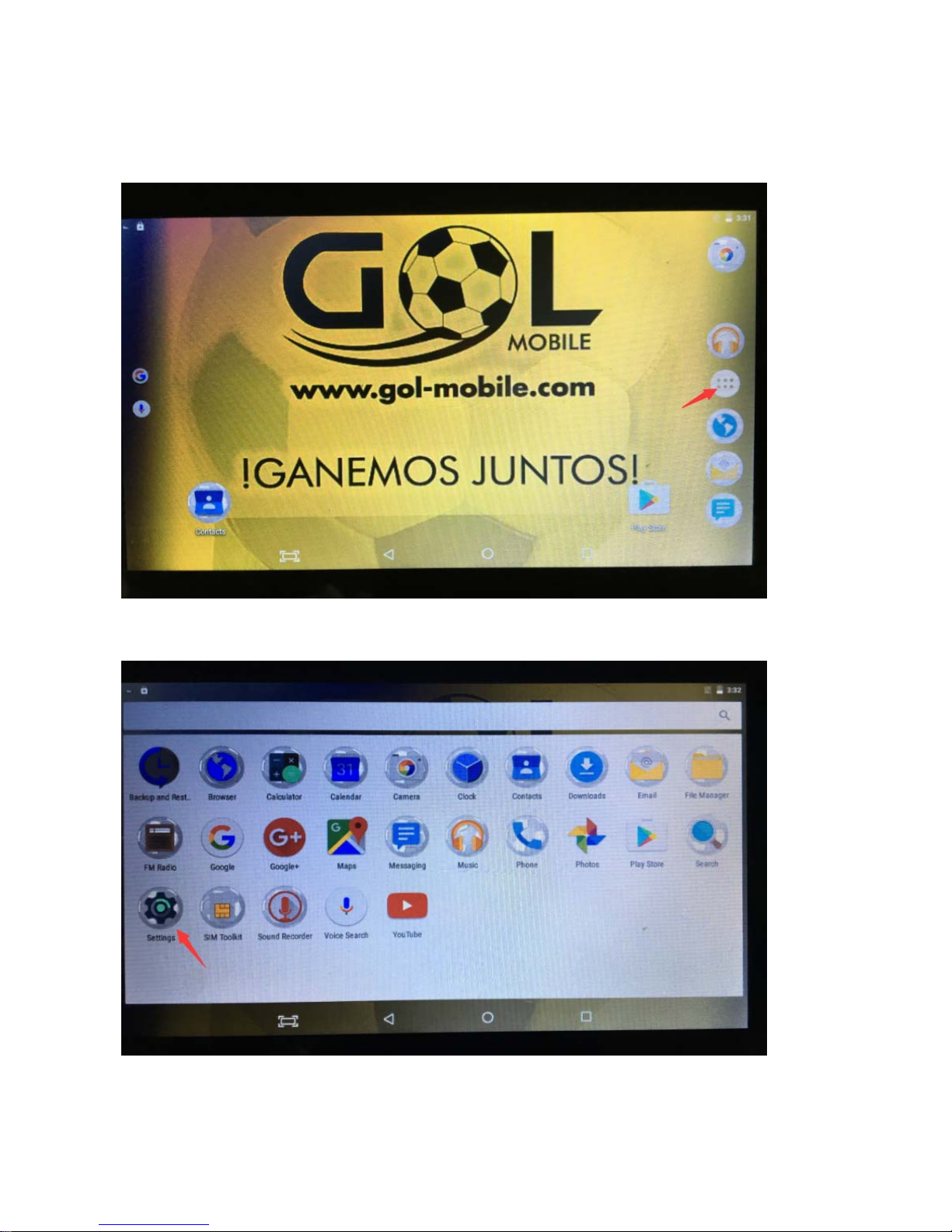
How to connect to Bluetooth?
Step 1: On the Home screen, click this button.
Step 2: Click the Settings button
Step 3: Click the Bluetooth connection settings
Page 6
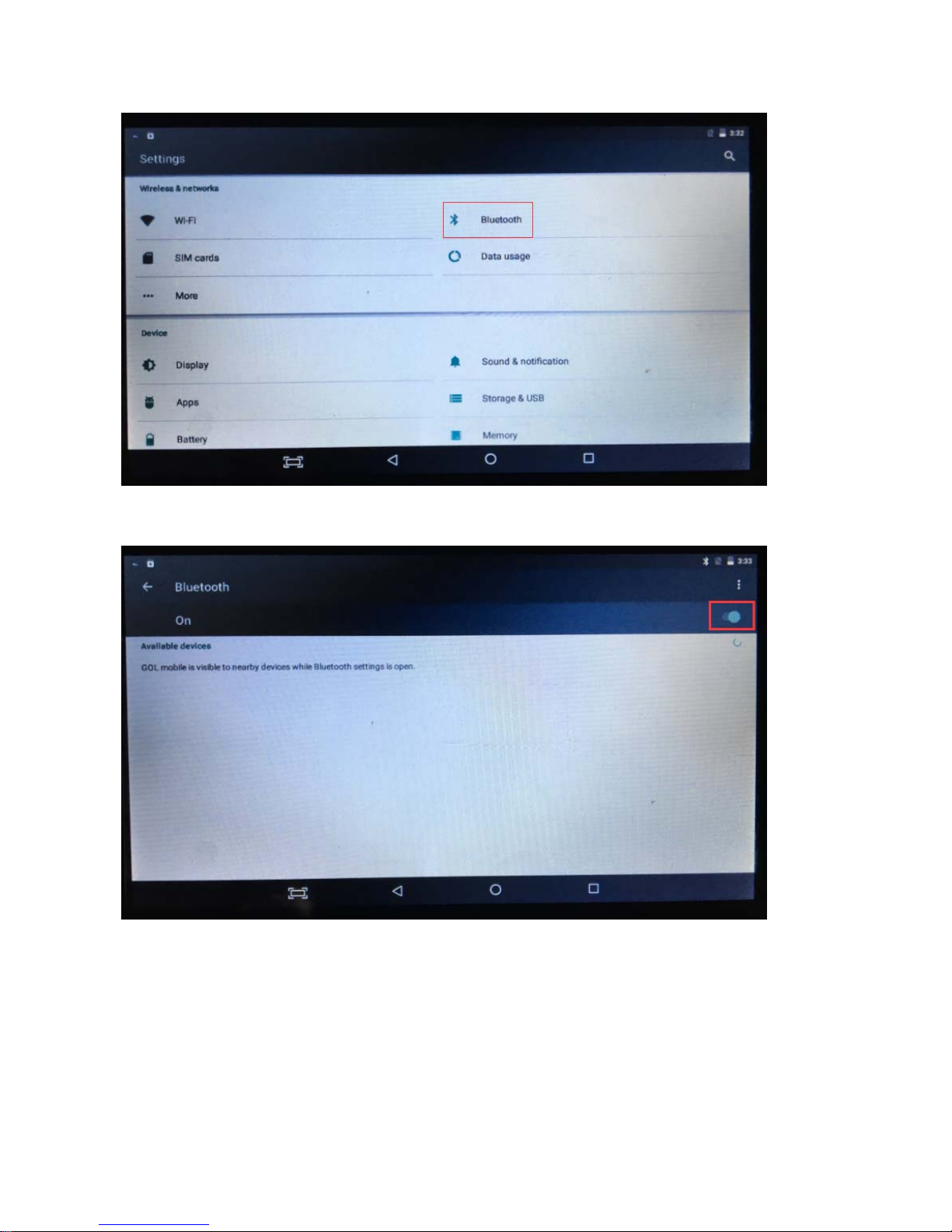
Step 4: Turn on the Bluetooth switch and search for the Bluetooth device you want to connect to.
Step 5: search for the Bluetooth device you need, click on the link.
Page 7
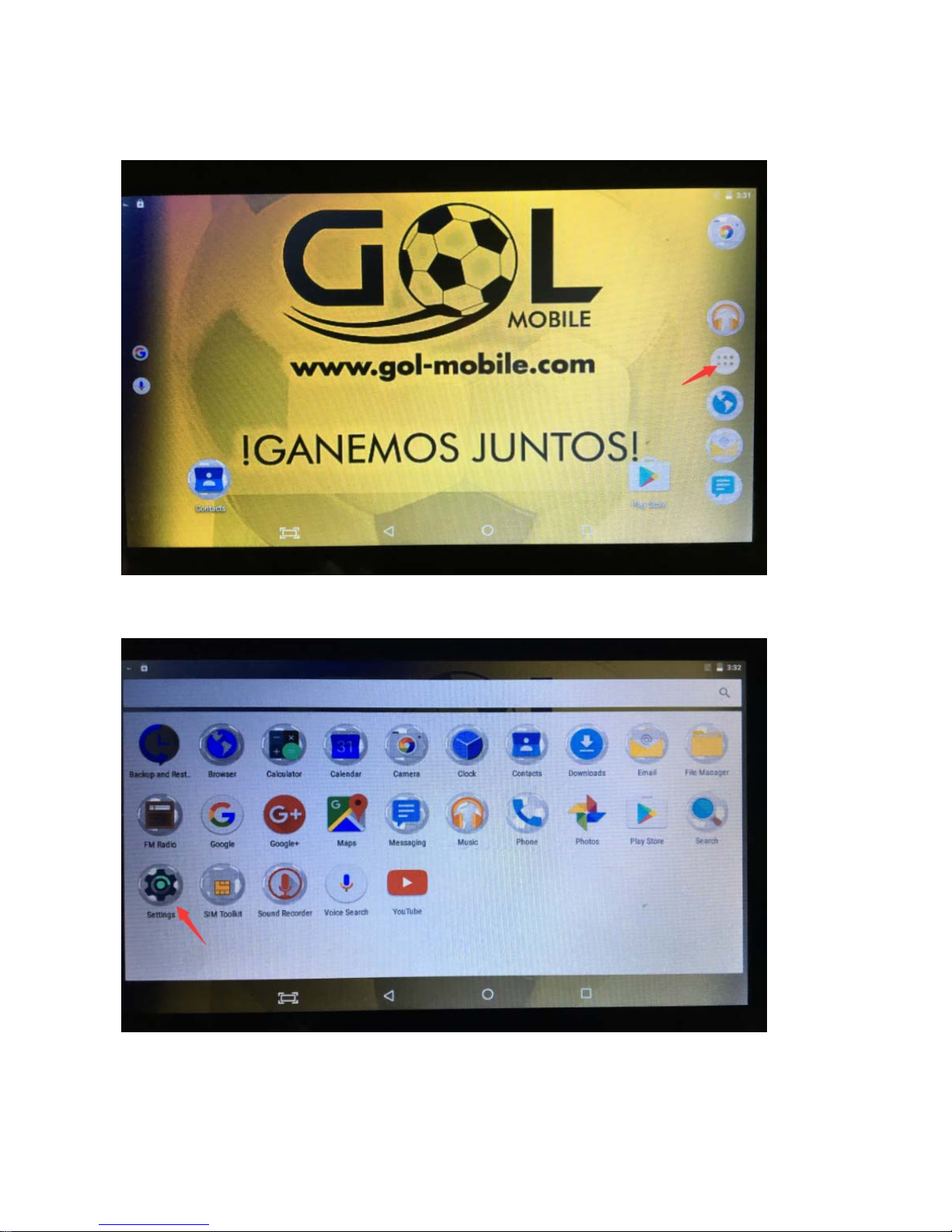
How to connect to WiFi?
Step 1: On the Home screen, click this button.
Step 2: Click the Settings button
Step 3: Click WiFi connection settings
Page 8
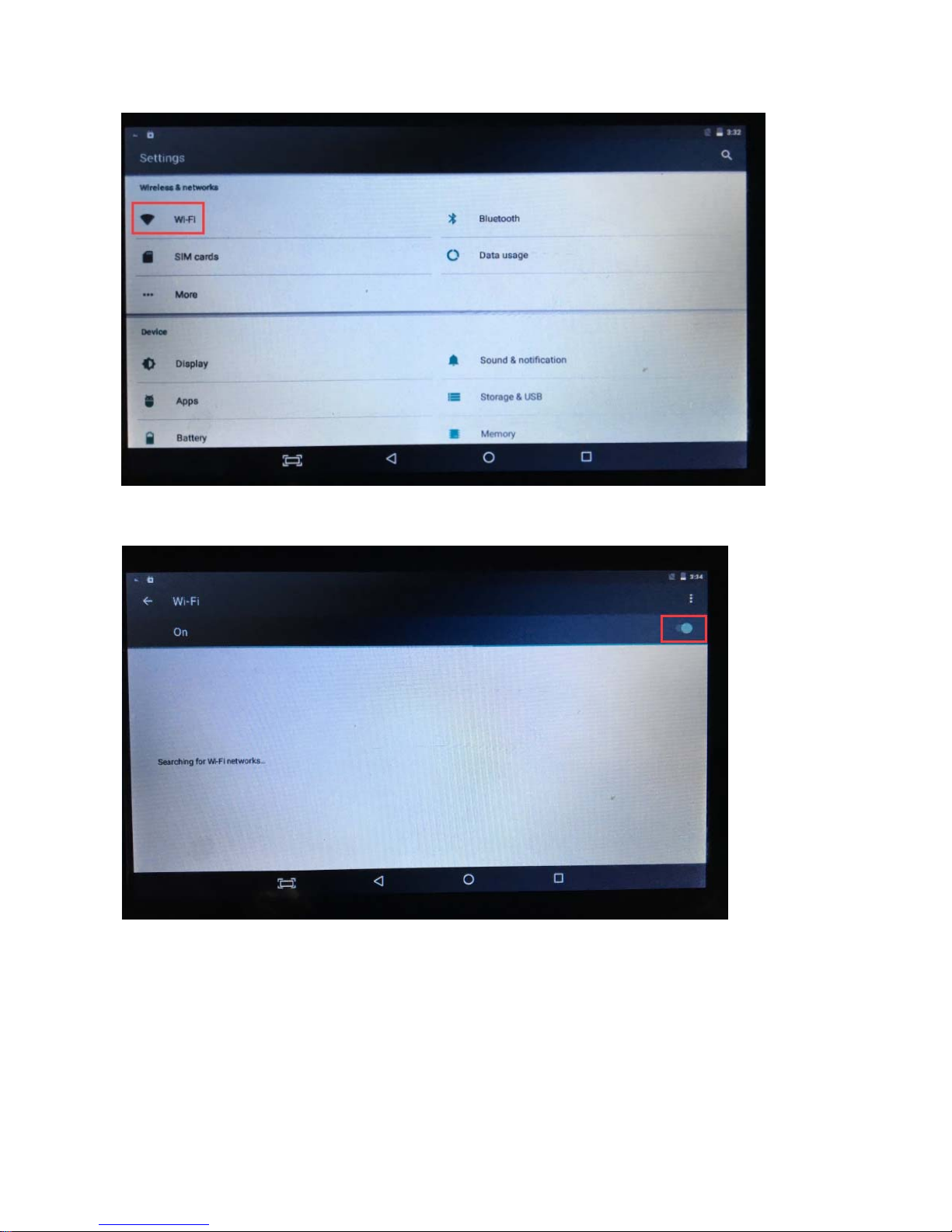
Step 4: open the WiFi switch, search you need to connect the WiFi account
Step 5: Search for the WiFi account you want, click on the link, and then the dialog box will appear. You will
need to enter the connection password for this WiFi account. After entering the password, you can connect.
Page 9
Page 10

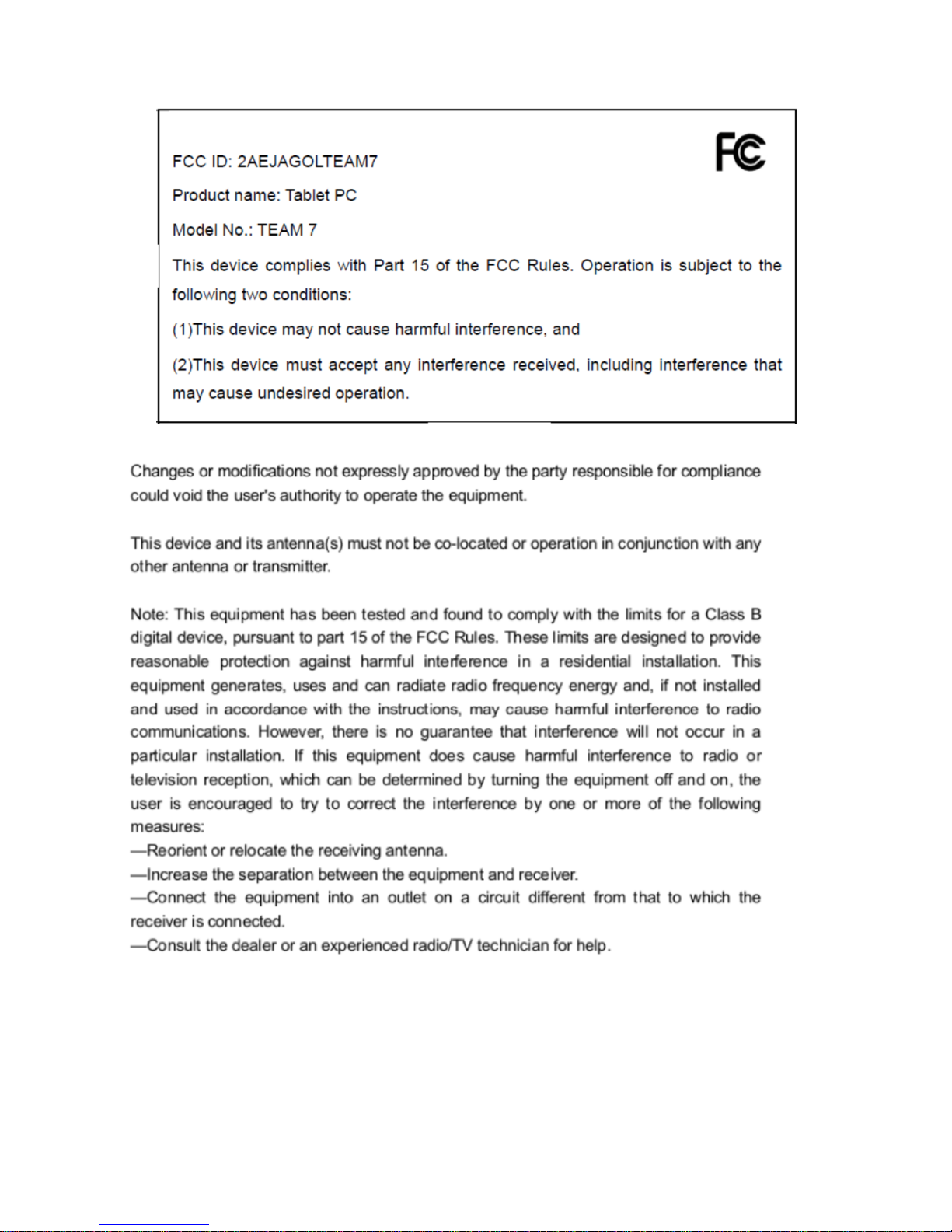
The SAR limit of USA(FCC) is 1.6W/kg averaged over one gram tissue. Device types like mobile phones and
also this Tablet PC have to be tested against this SAR limit.
This Tablet PC with FCC ID: 2AEJAGOLTEAM7 has also been tested against this SAR limit. The highest values
for Head SAR and Body SAR are 0.293 W/kg, and 1.16 W/kg respectively. This device was tested for Head
SAR operations with the front of the Tablet PC kept 0mm from the Head. In addition this device was tested
for Body SAR operations with the back of the Tablet PC at 0mm distance to the Body. The use of
accessories(with or without metallic components) are not assumed to be used for Tablet PC, and shall
therefore not be used.
 Loading...