

Page 1
GoInternet Setup Guide for Netcomm NF4V Modem Router (VDSL)
Page 2
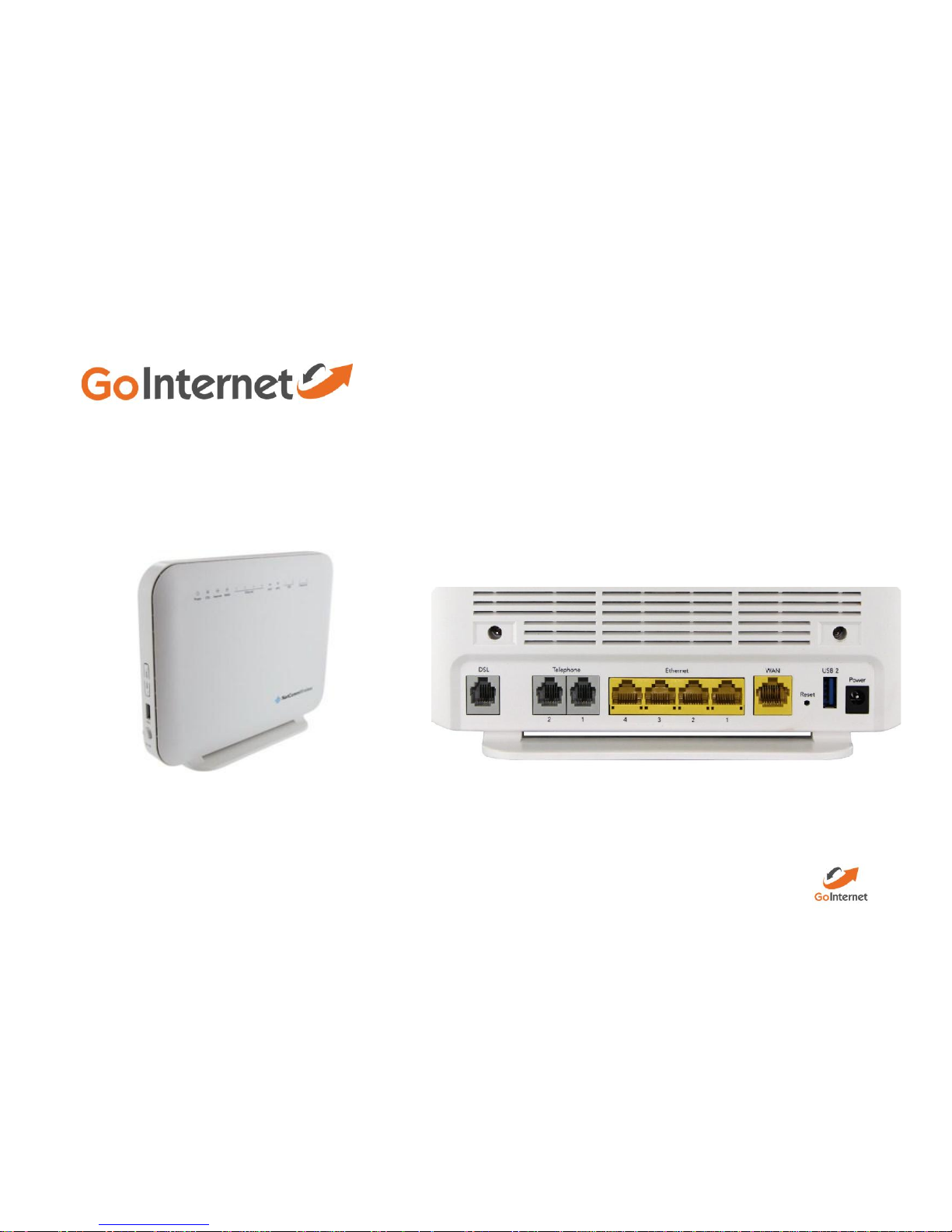
To install the router:
Connect Router to power
Connect the DSL port on the router to a jackpoint on the wall
Connect Router to computer (i.e.: PC or laptop) via an ethernet cable.
Setting up for GoInternet
Basic and Fast – VDSL
To set the modem up for the Turbo plan:
Launch your Web Browser (e.g.: Internet Explorer, Chrome or Firefox).
Access the modem settings:
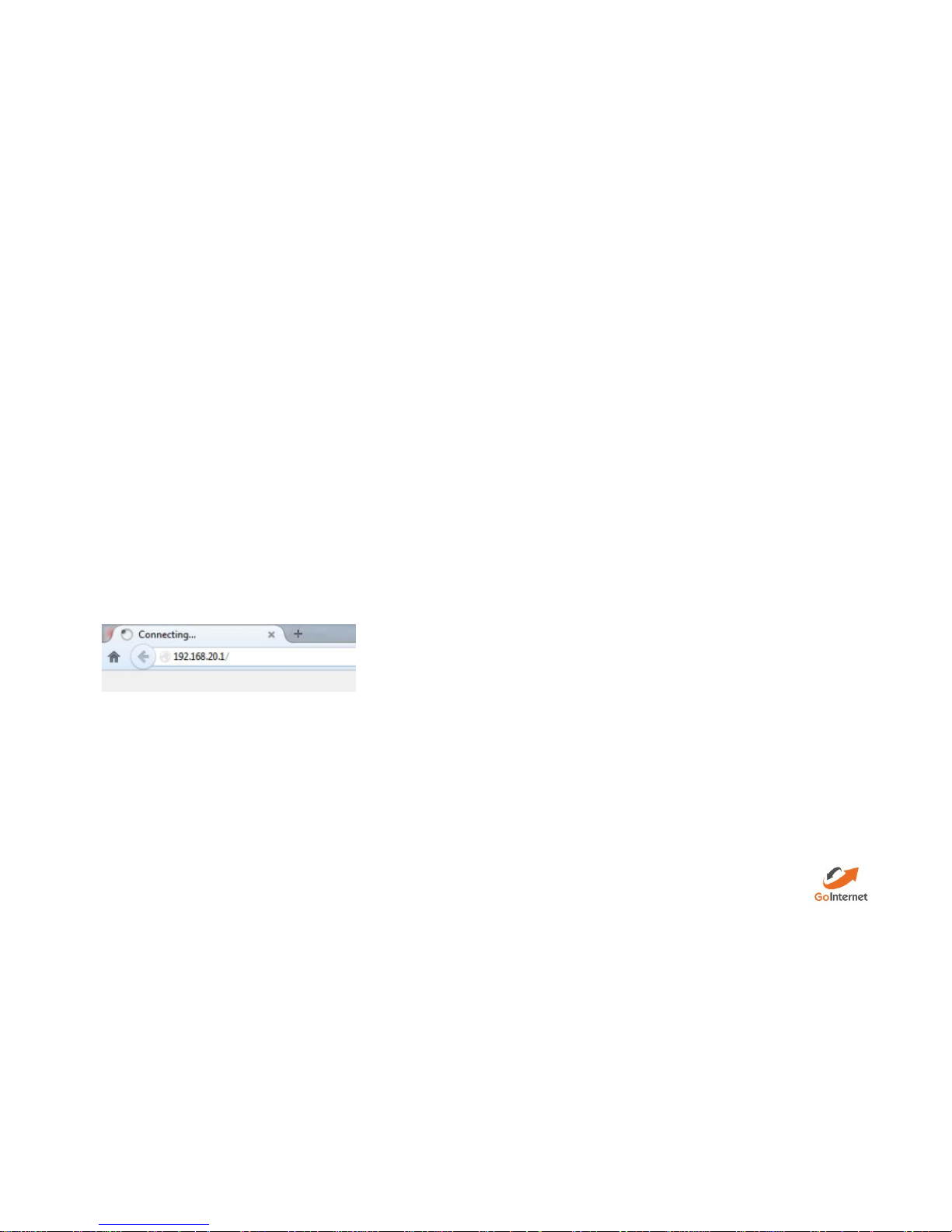
Type 192.168.20.1 into the address bar.
Press the ENTER key.
Page 3
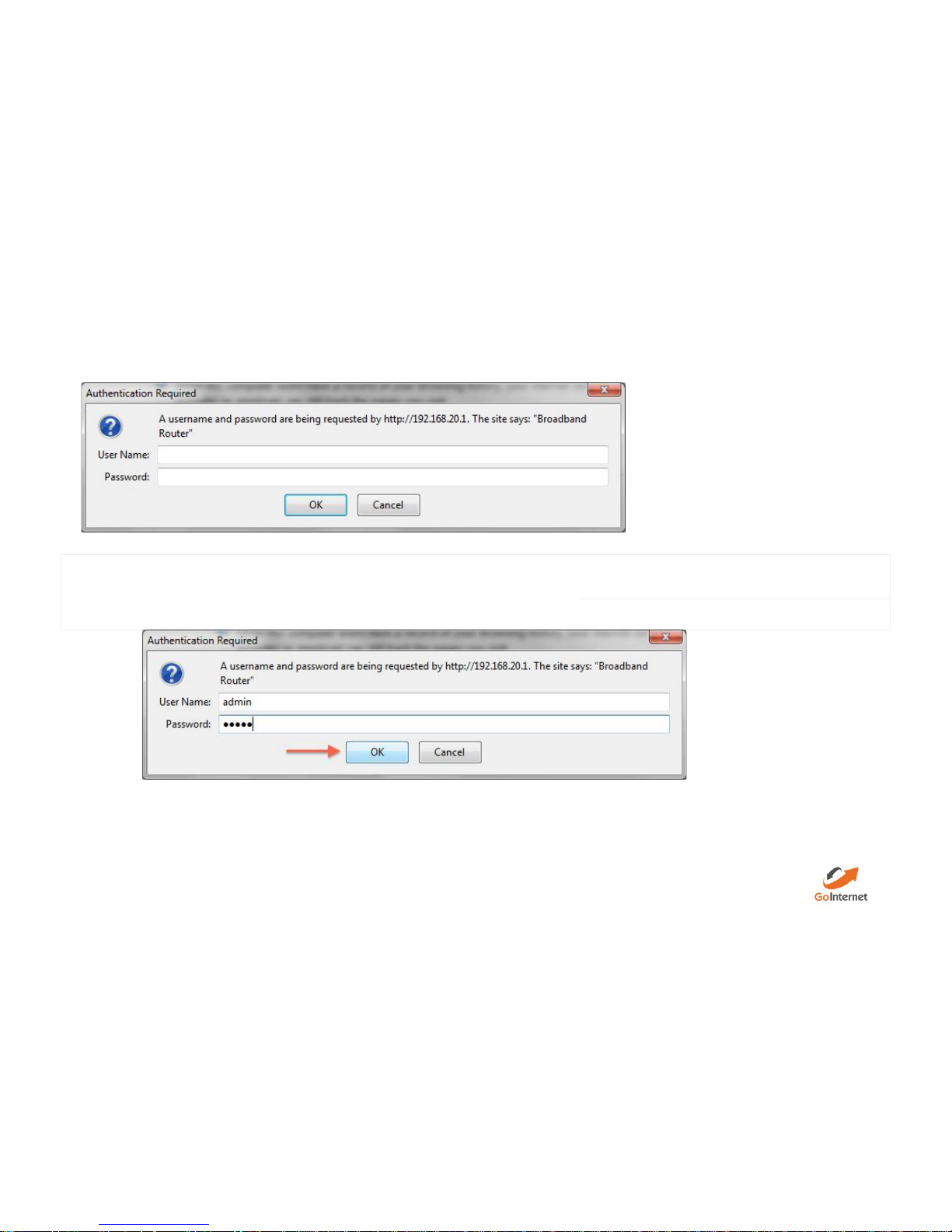
The login screen displays.
Login to the modem page:
Username
admin
Password
admin
If that Username and Password do not work you should RESET the modem tofactorysettings (see the instructions below).
Click the Log In button.
Page 4
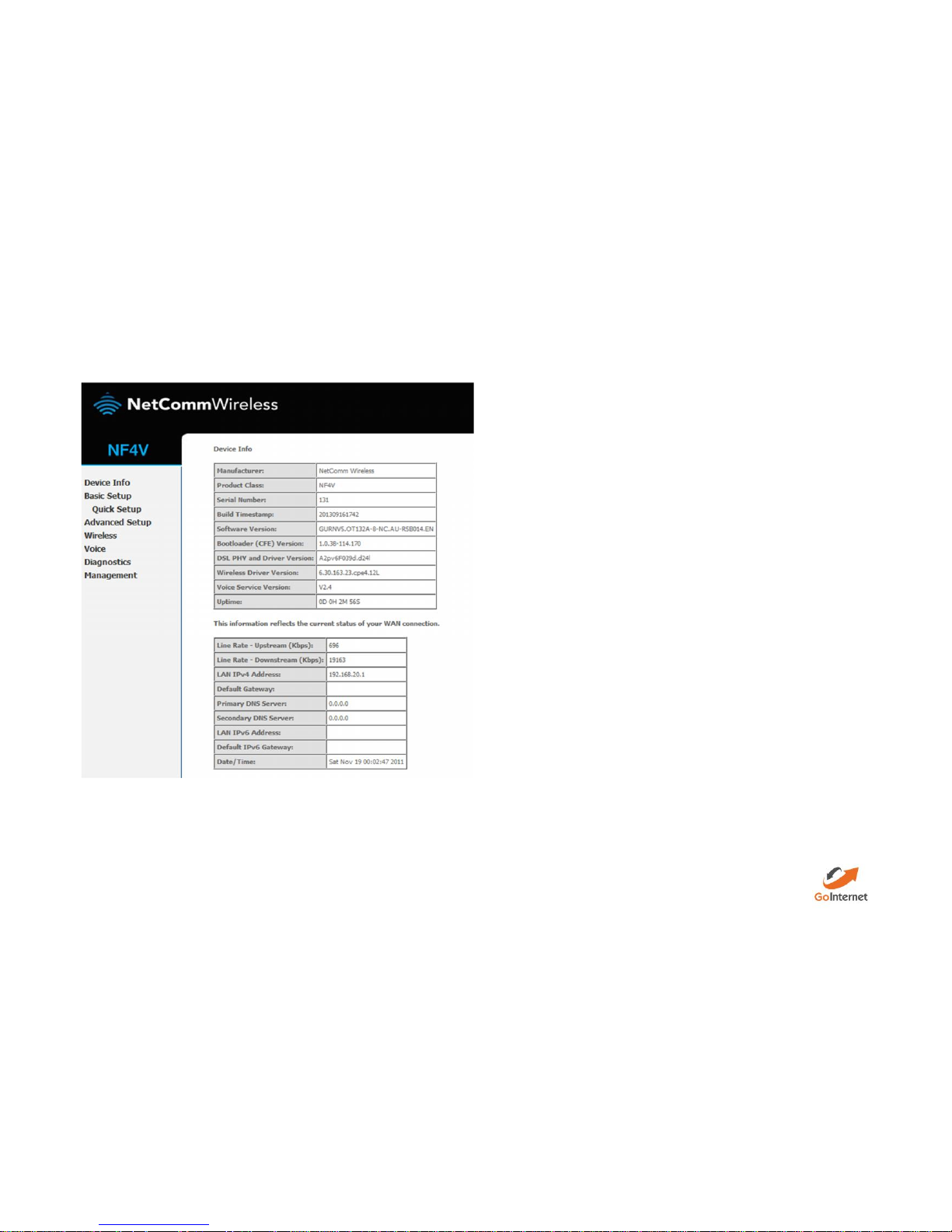
The modem’s Dashboard screen displays.
Configure the modem for GoInternet:
Page 5
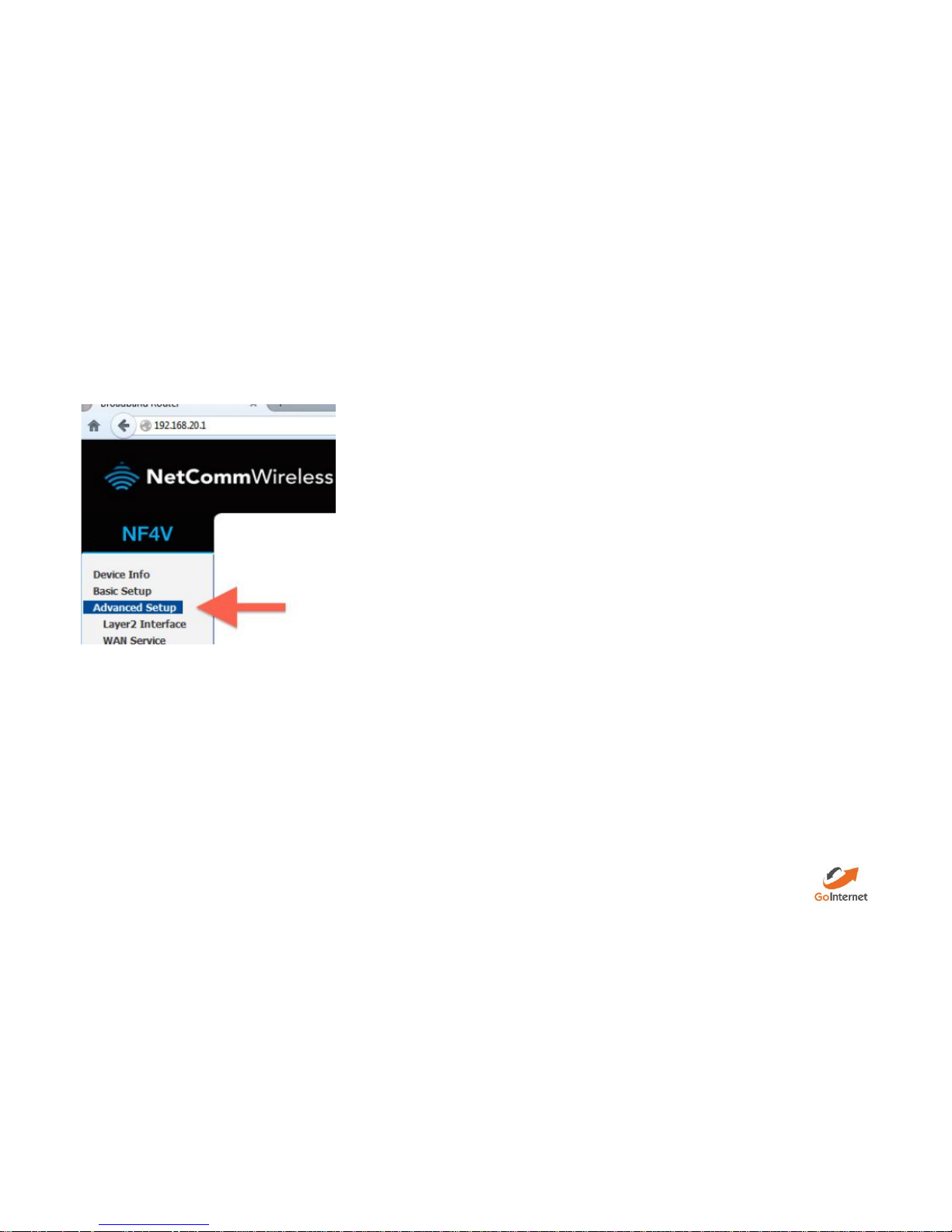
From the menu on the left, click Advanced Setup.
Remove all old WAN services if there are any present.
1. Click on WAN service.
2. Tick each interface that is present.
3. Click remove.
Page 6
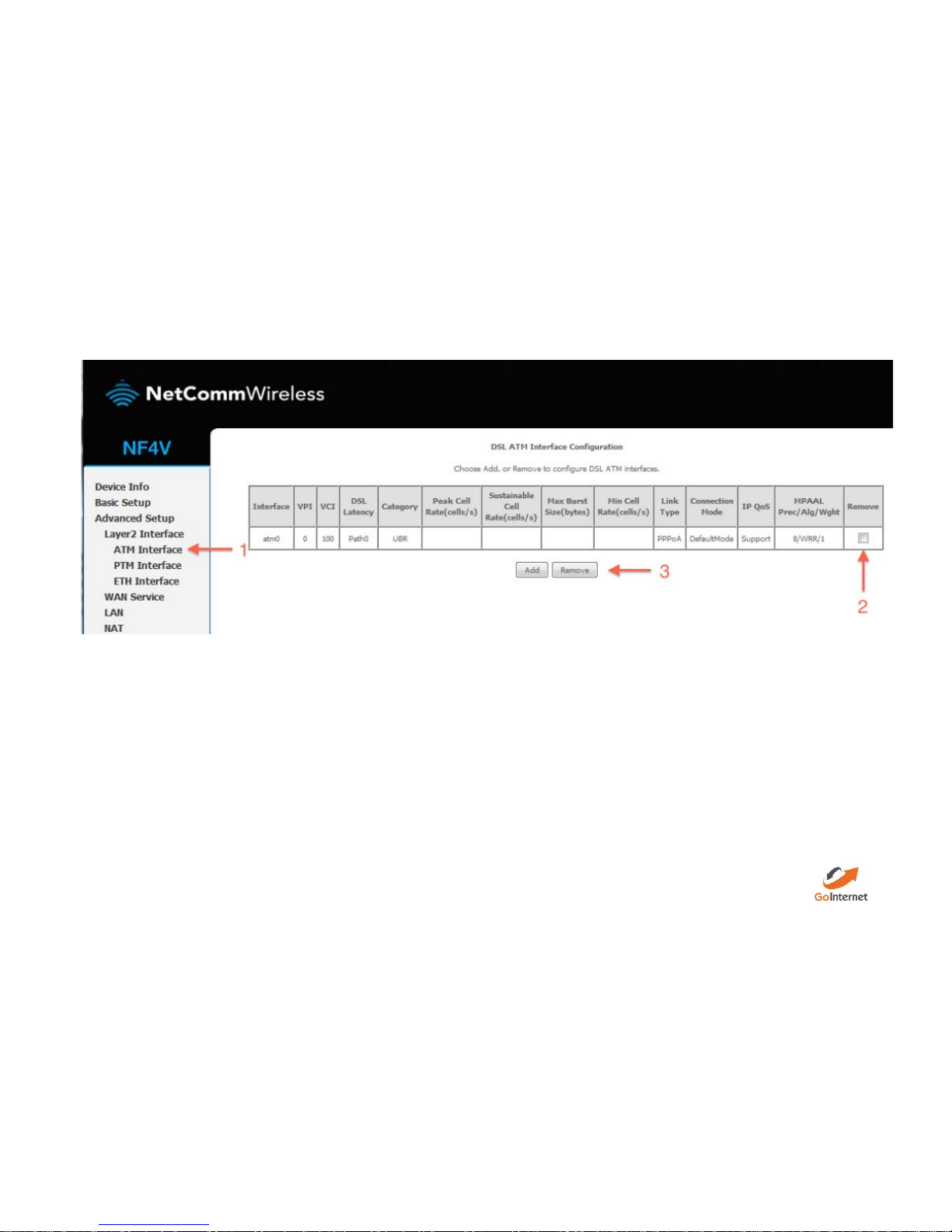
Check to see that there are no old PTM interfaces. If there are, remove them with the steps below:
Click PTM Interface
Tick the remove box(es)
Click remove.
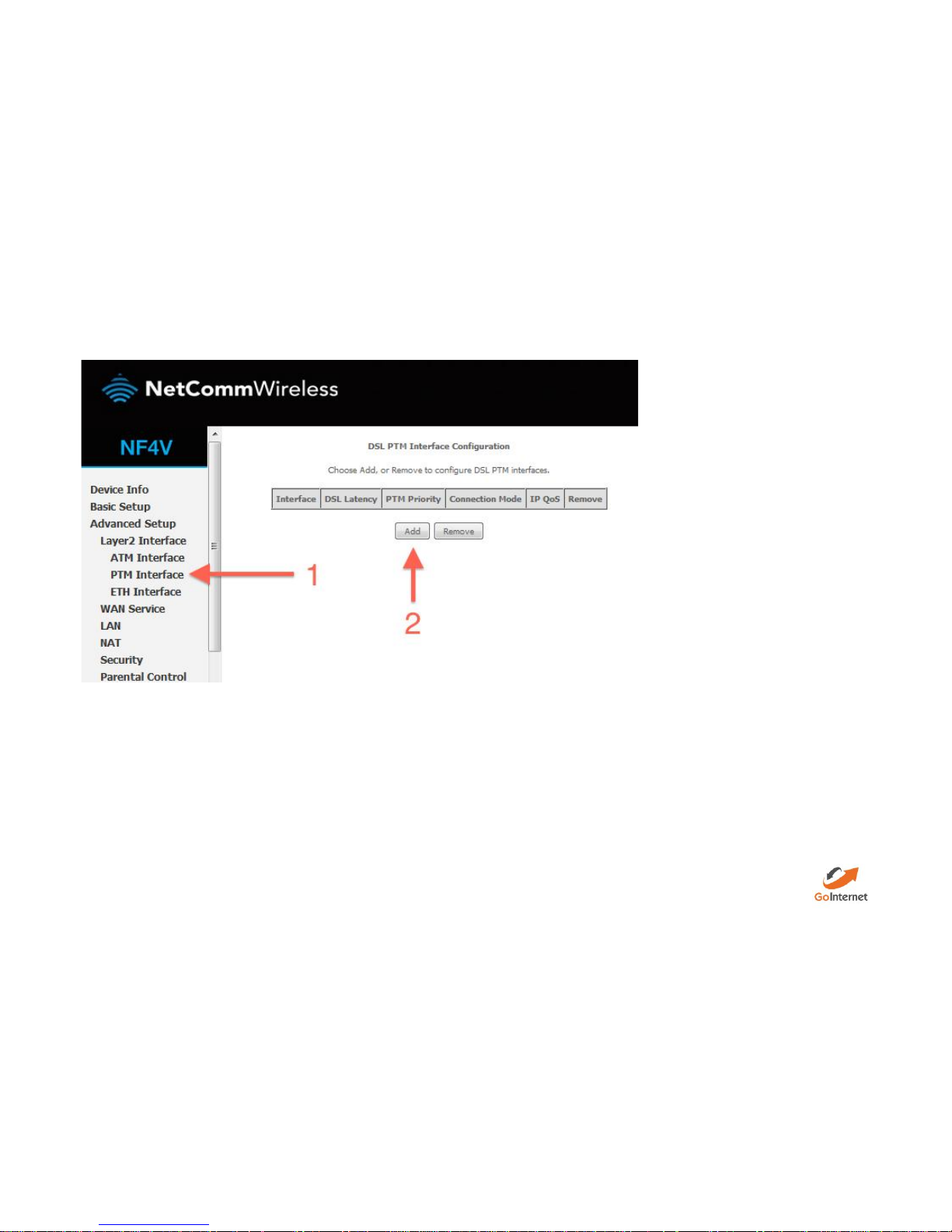
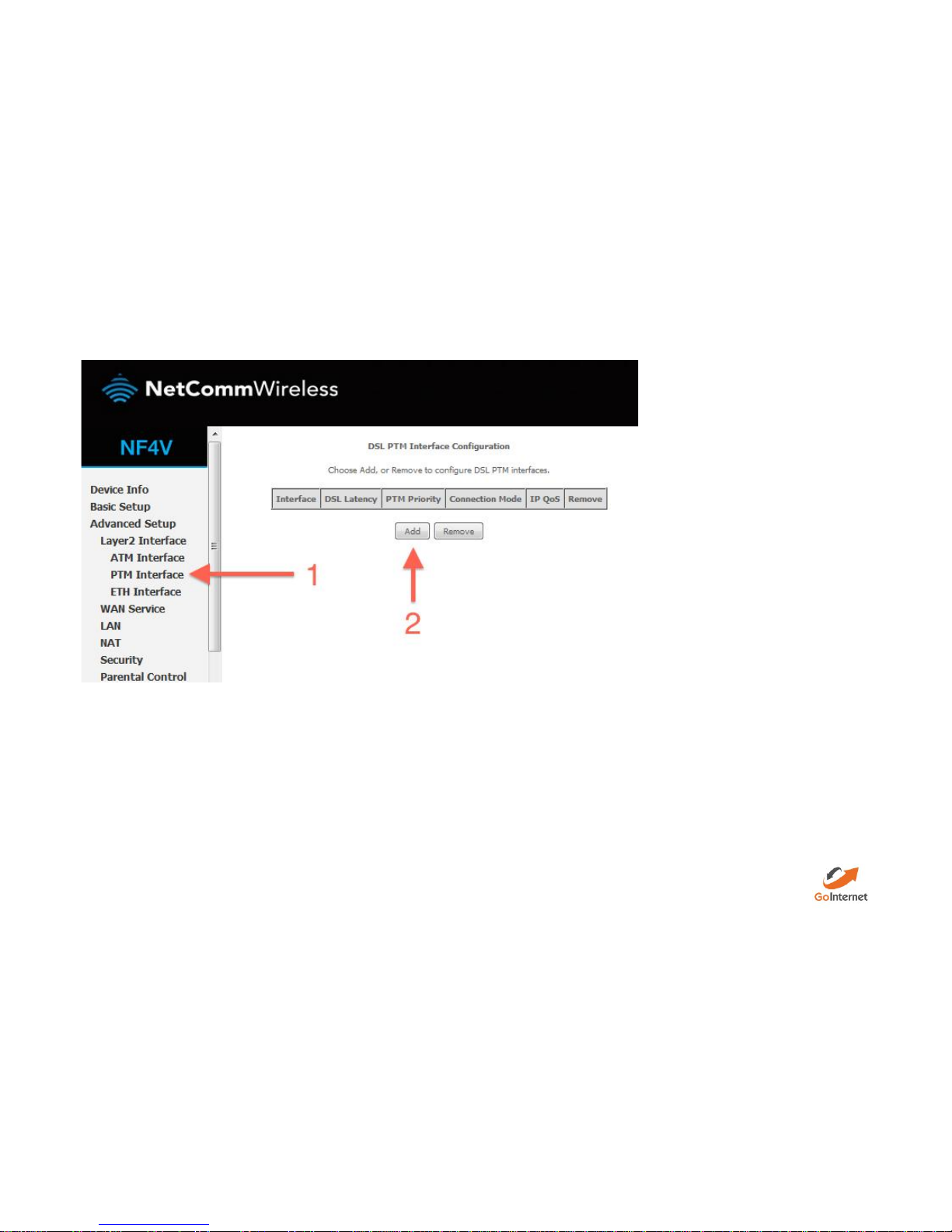
Add your new PTM interface.
Click PTM Interface.2. Click the Add button under the PTM interface.
Page 7
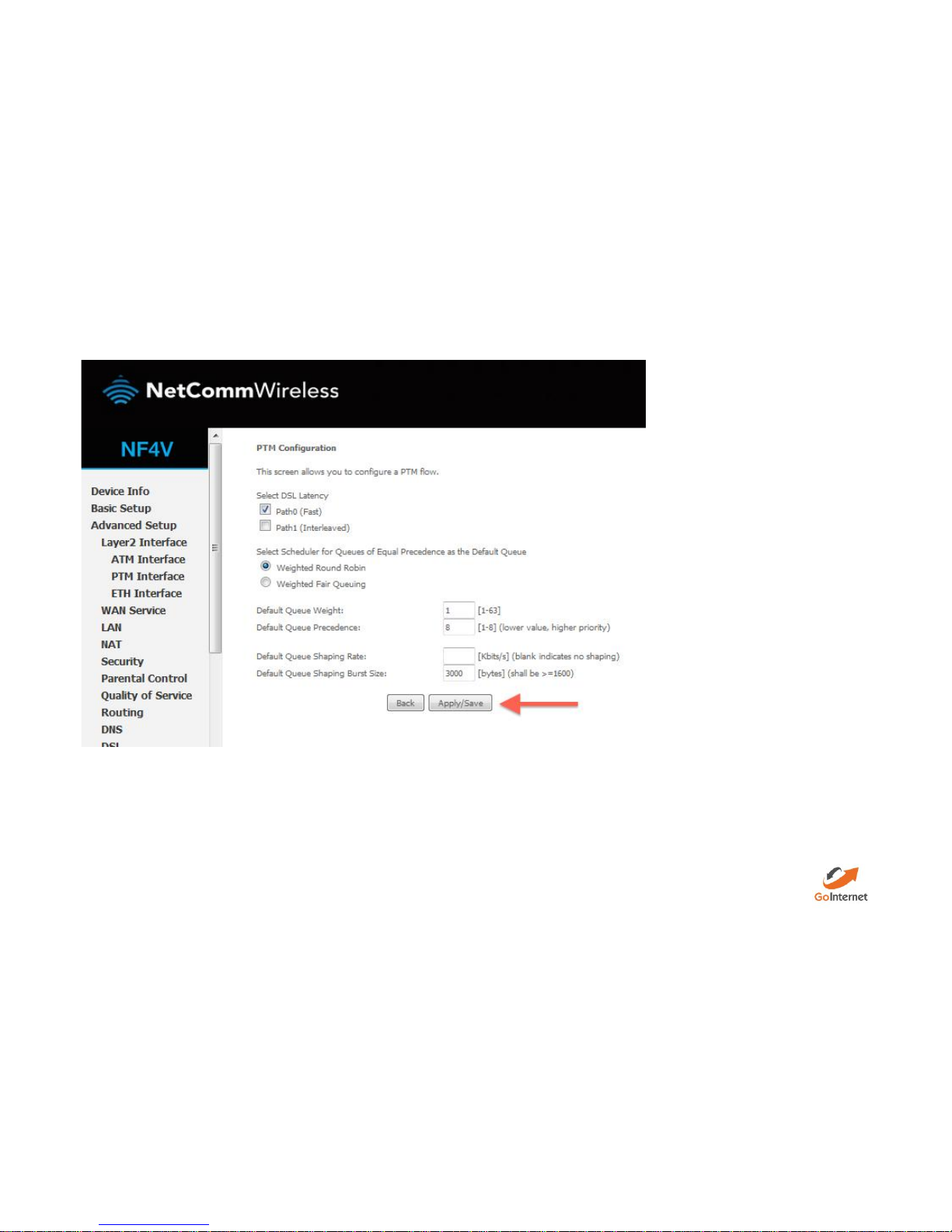
Enter the required settings for your new PTM interface. Leave all settings on defaults2. Click Apply/Save.
Page 8
Add a new WAN service.
Click WAN service
Click Add
Page 9
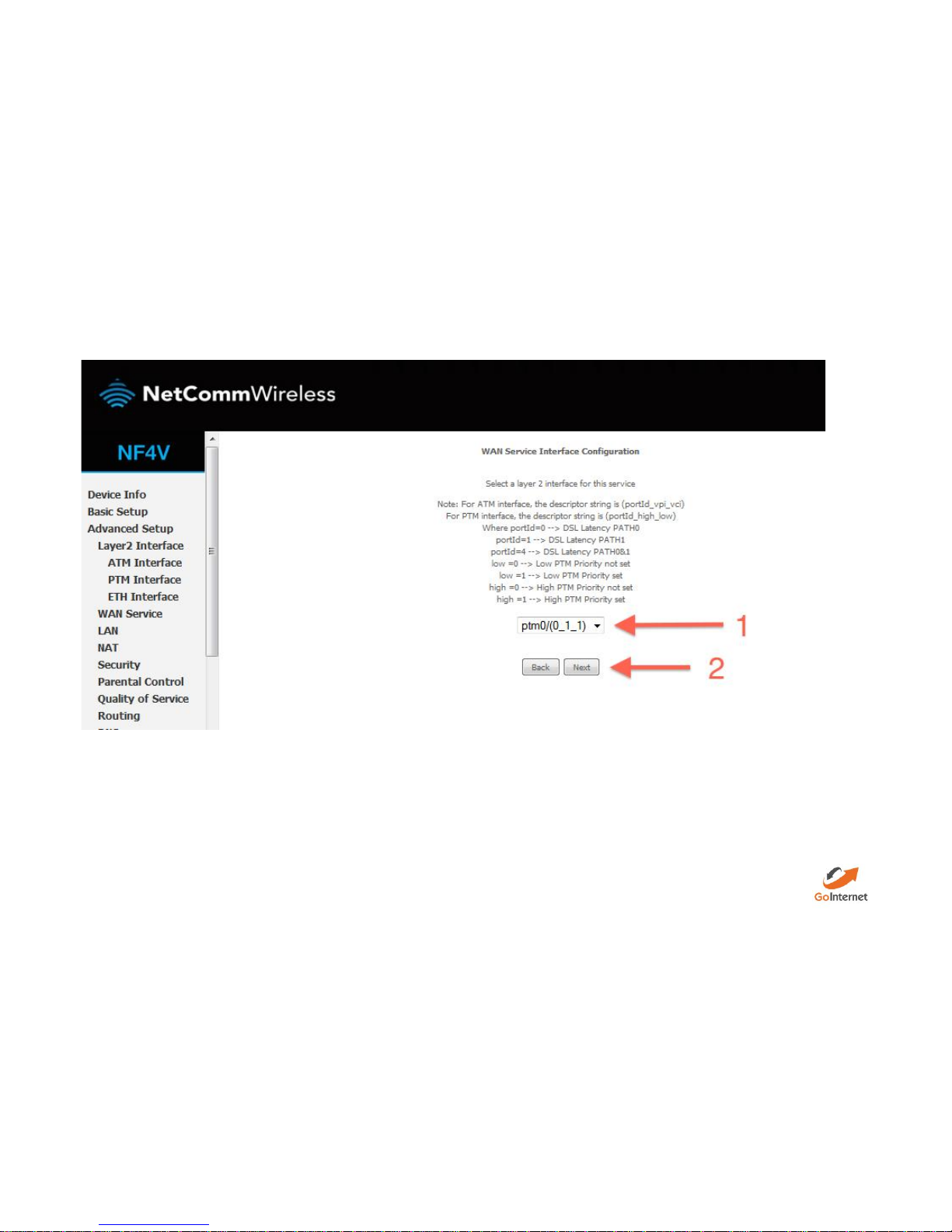
Select your new PTM interface.
Select ptm0\(0_0_100).
Click Next.
Page 10
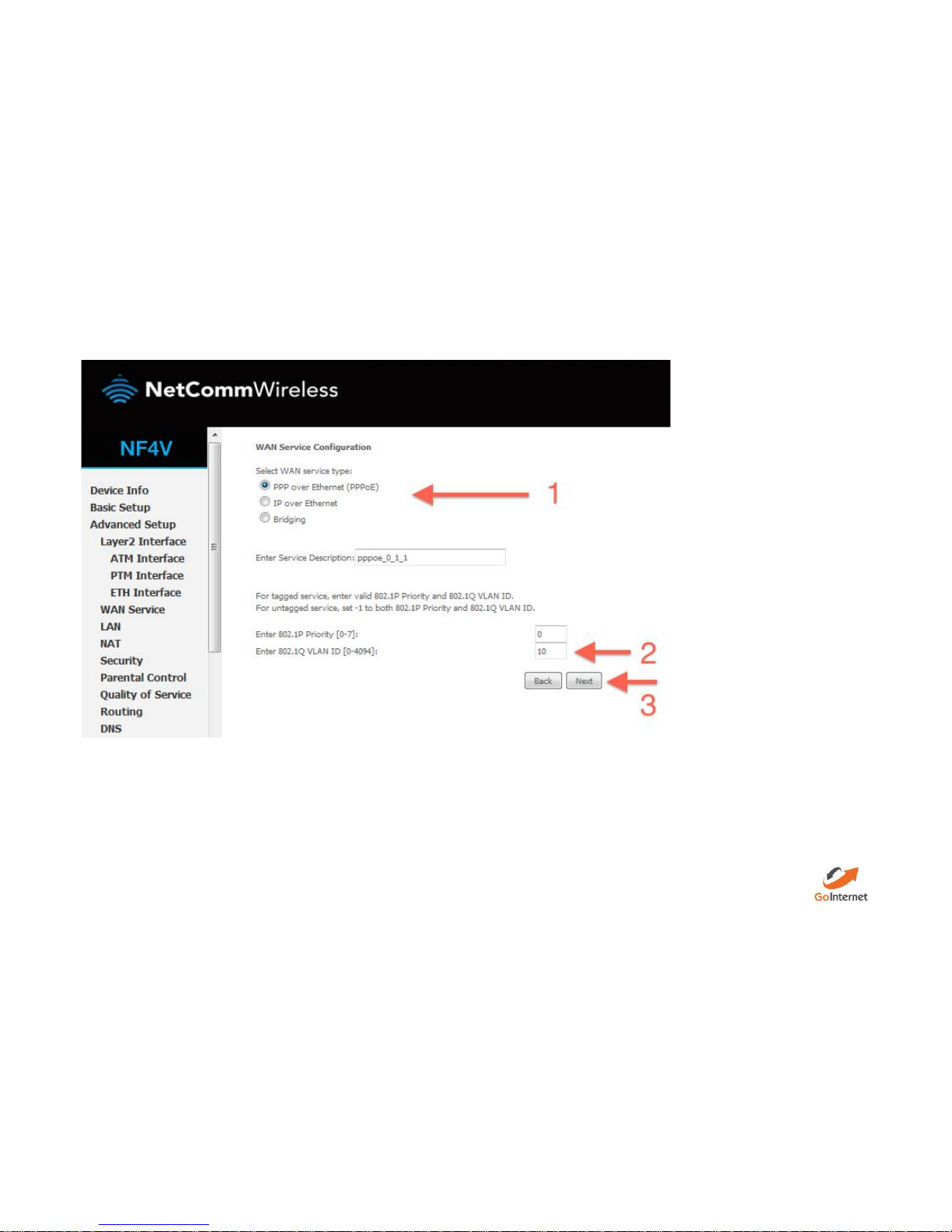
Enter a service name if desired.
Select PPP over Ethernet.
Enter Priority 0 and VLAN ID 10.
Change the service name if desired, or leave on the default and click Next.
Page 11
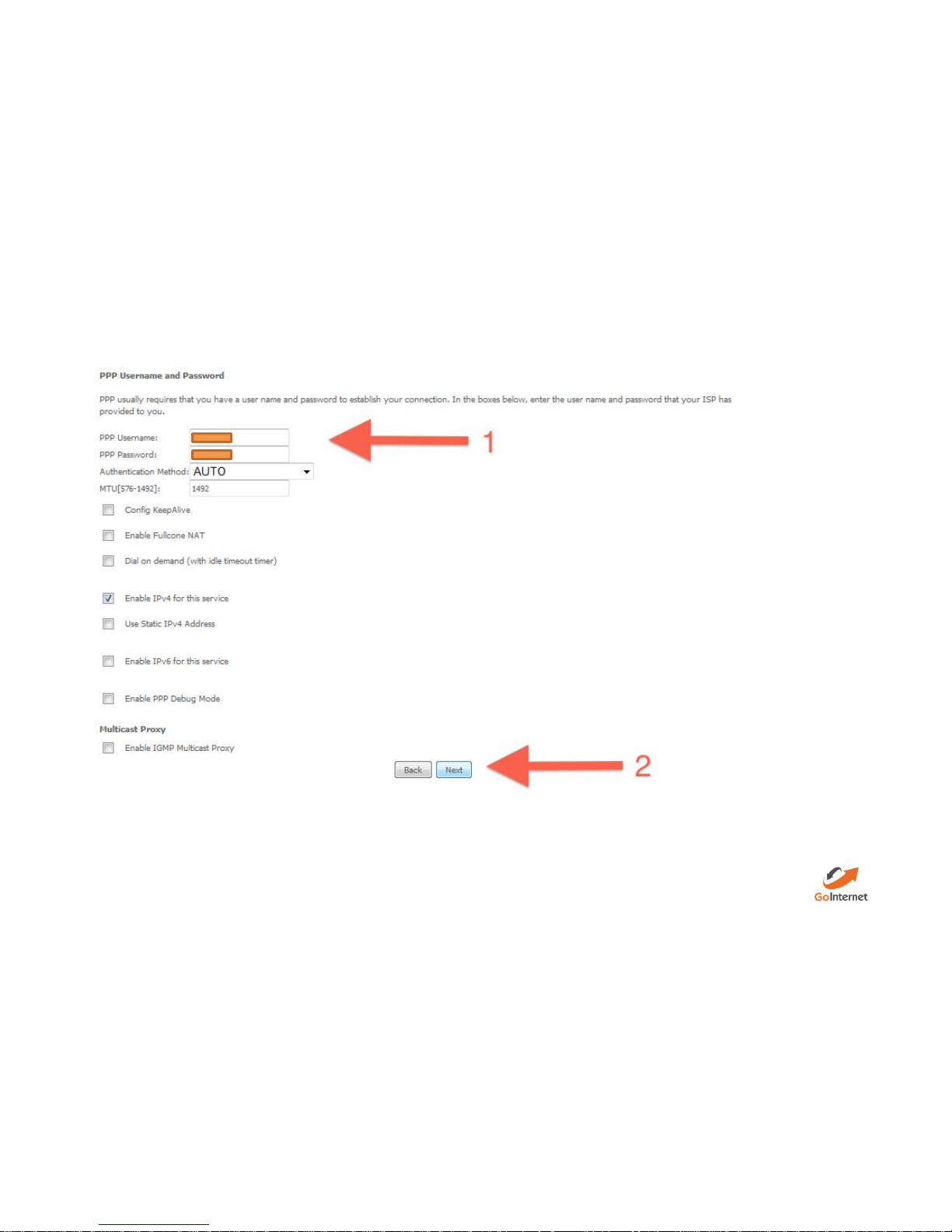
Enter a PPP username and password.
Enter a PPP username and password. These can be anything you like, but cannot contain special characters or be left blank.
Set authentication method to AUTO and MTU to 1492. Enter 802.1P Priority as 0 and add Vlan as you were provided by GoInternet
Click Next.
Page 12
Ensure ppp0.1 is in the left column, and click Next.
Page 13
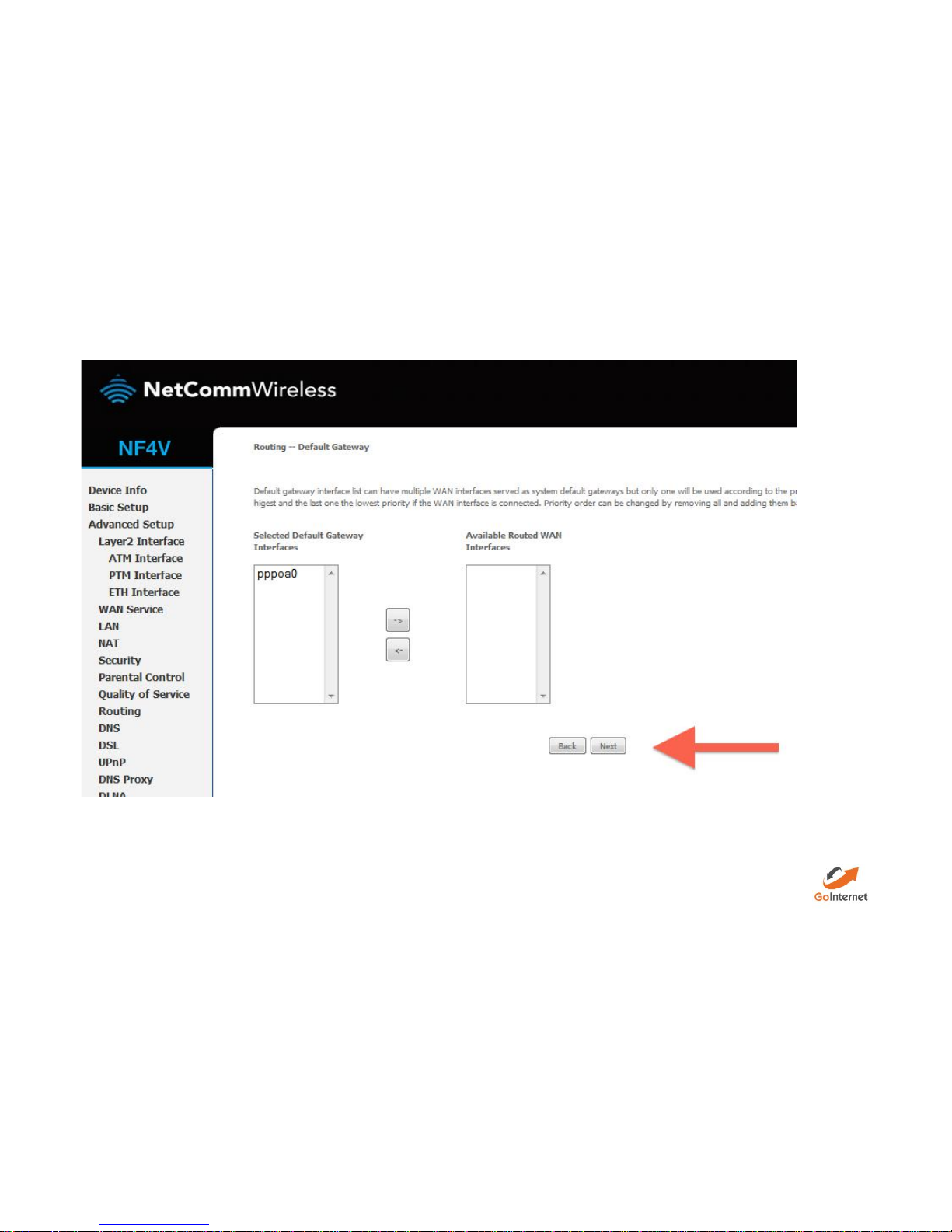
Ensure ppp0.1 is in the left column, and click Next.
Click Save/Reboot
Page 14
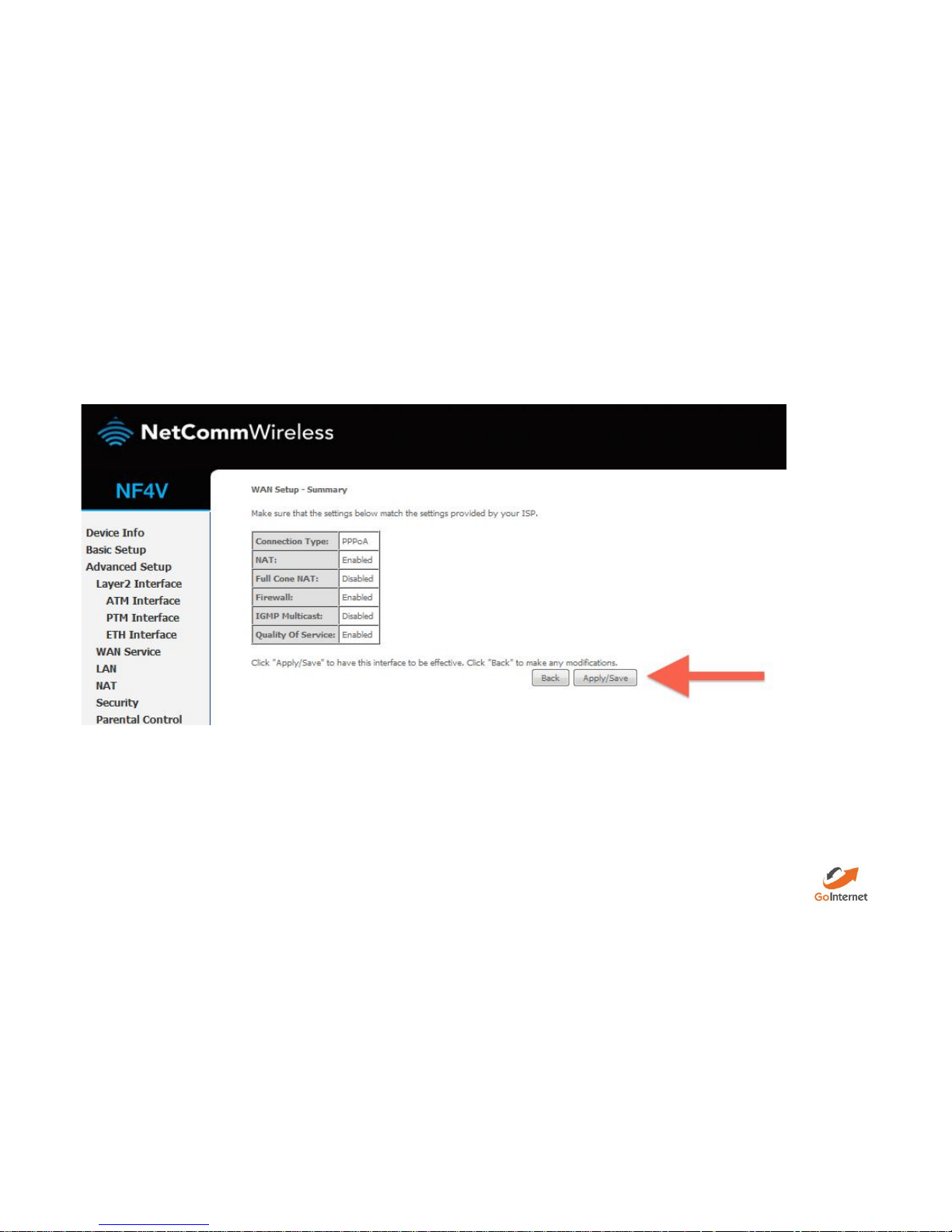
Click Apply/Save.
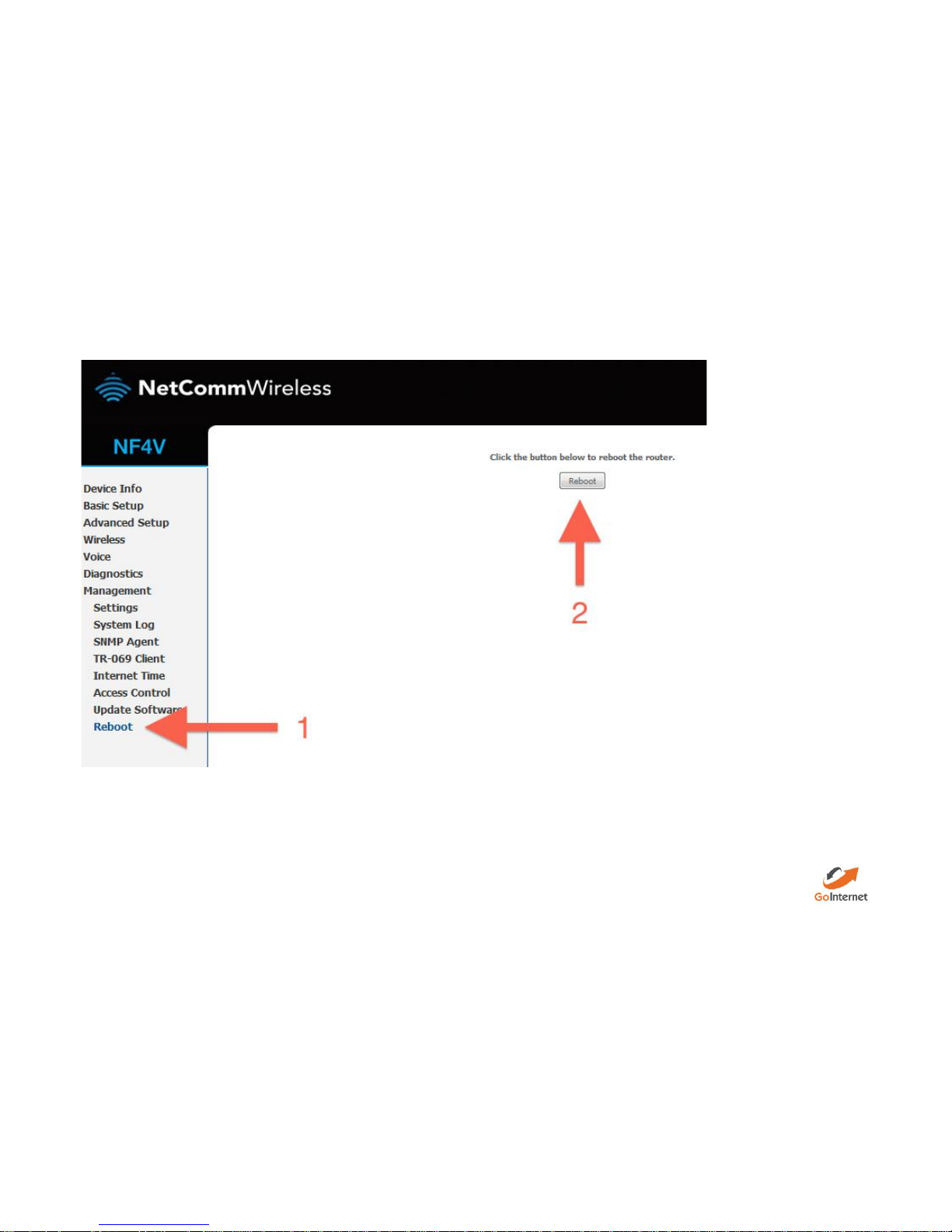
Reboot your router.Click Reboot in the bottom left menu.
Click the reboot button.
Page 15
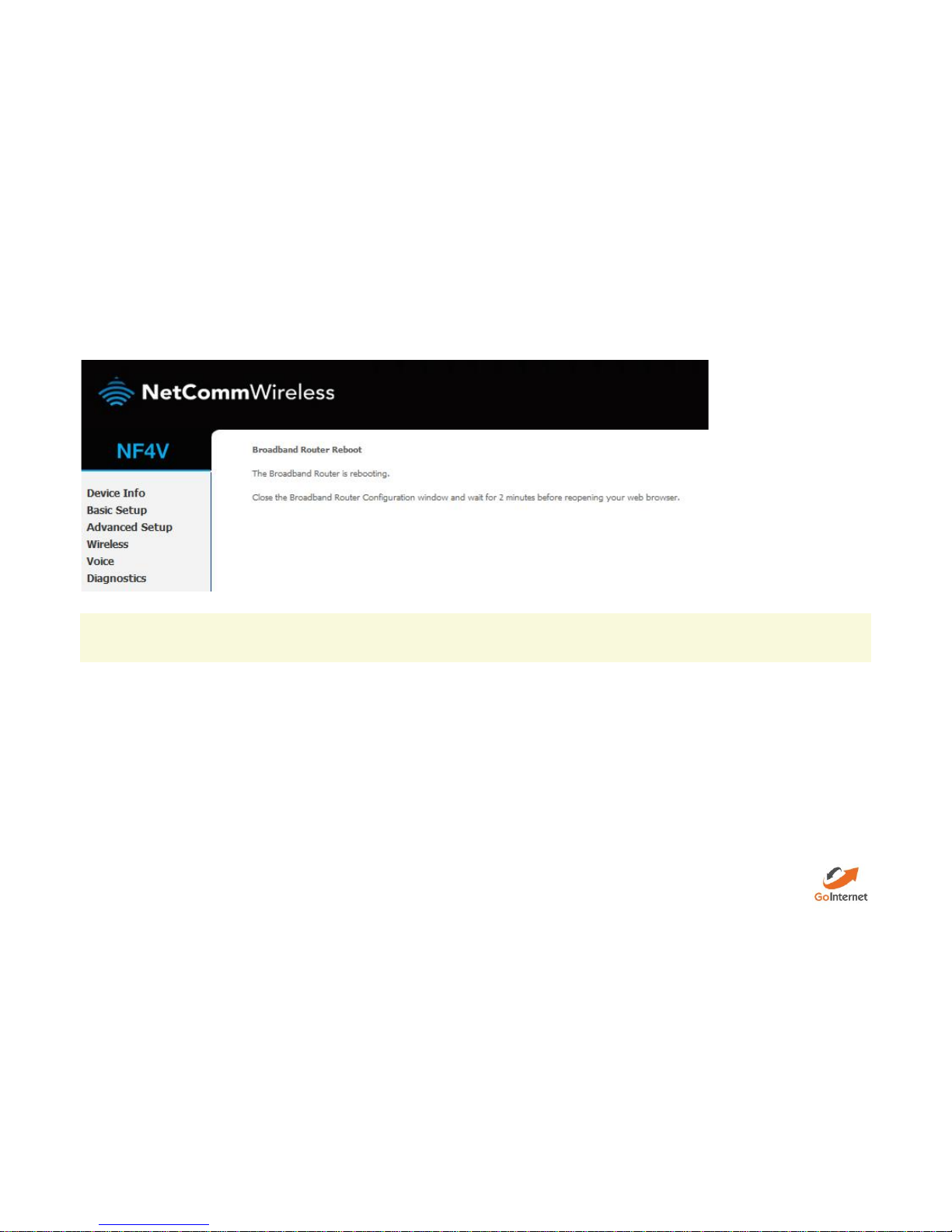
Your router should now restart.
Page 16
Your router is now configured for GoInternetVDSL. After your router has rebooted you should be able to browse the internet.
Disclaimer: Our modem guides are just for setting up your GoInternet connection, please refer to all manufacturer settings and support material, we
recommend obtaining professional IT services to install your Modem/Router.
Resetting the Router
If something goes wrong with your router, you can reset the device to the default Factory settings. You will lose any of your customised settings.
To reset the modem:
Check it is on (i.e.: plugged in with one or more lights lit).
You cannot reset the modem if it is off.
Use something, like a paperclip, to press and hold the Factory Reset button, which is in between the plug and the USB port.
Page 17
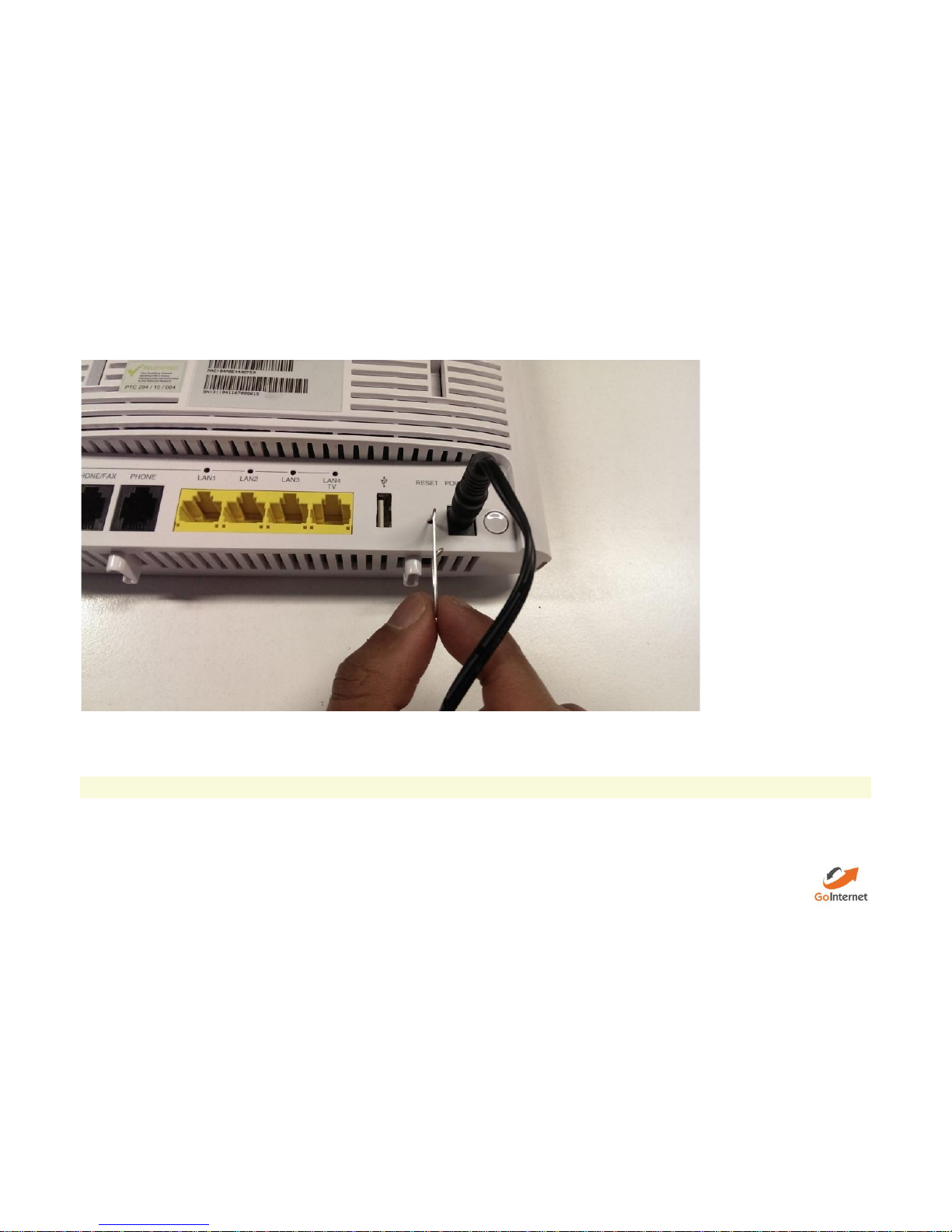
Hold for 5 seconds.
Release the Factory Reset button.
After a few seconds, the modem will start to reset.
The modem will have reset itself to its original factory settings. Any customised settings will have been lost.
 Loading...