

Page 1
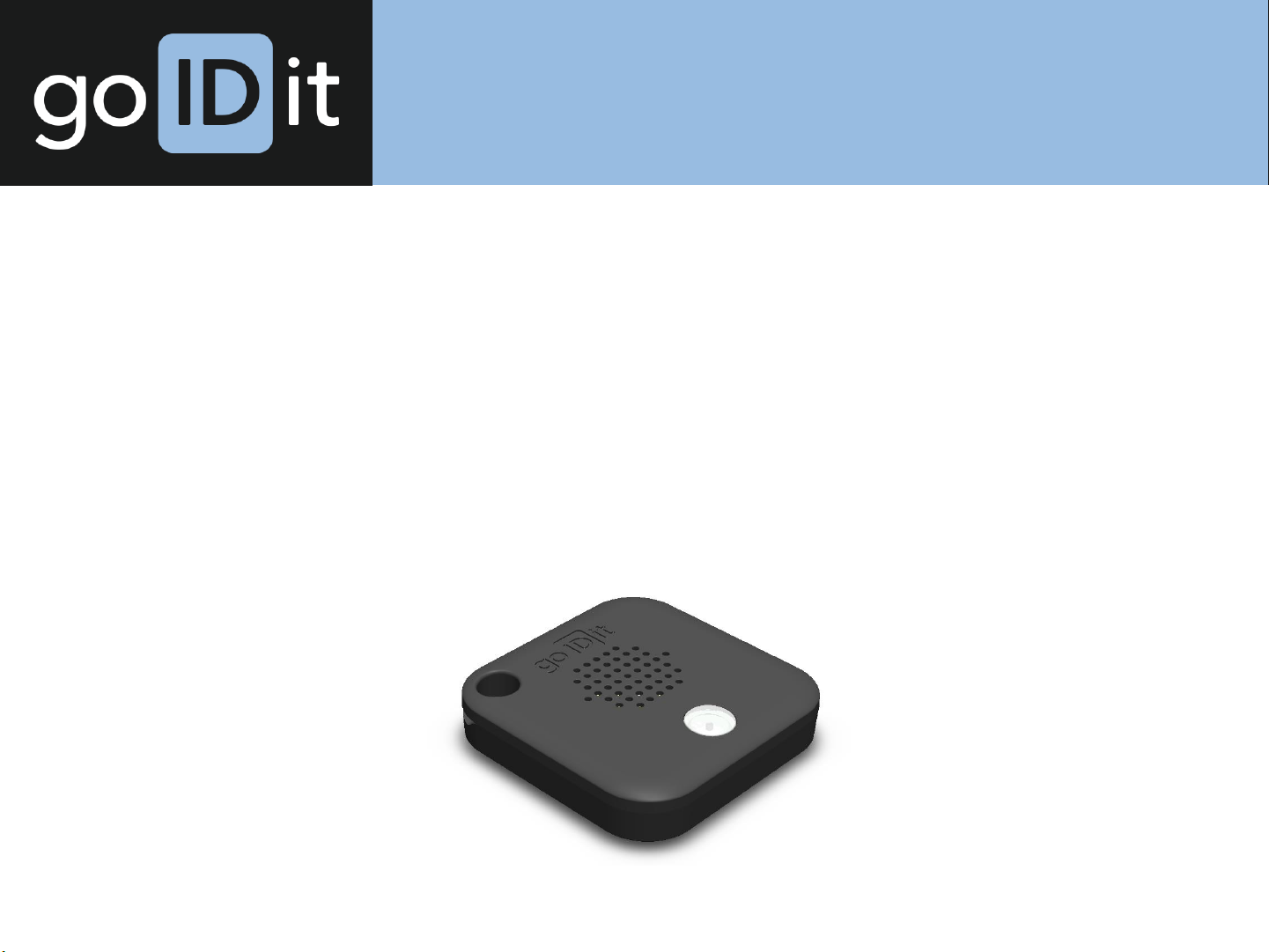
Key Locator
End User Guide
Page 2

Installation
goIDit Key Locators are ready to be used the moment to
receive them.
Simply remove them from their shipment protection and
attach them to key rings via the provided clips.
Install goIDit’s smartphone app and log in. You are ready to
track your keys!
Note: It will require some time for all the key locations to
have been reported.
© 2016 goIDit LLC. All rights reserved.
Page 3

Configuration Changes
Care must be taken when changing configuration options for
key locators. They have already been configured for the vast
majority of use cases.
In the case where additional changes are required, the app
will guide the user through the required steps. Please
review the in-app instructions carefully.
© 2016 goIDit LLC. All rights reserved.
Page 4
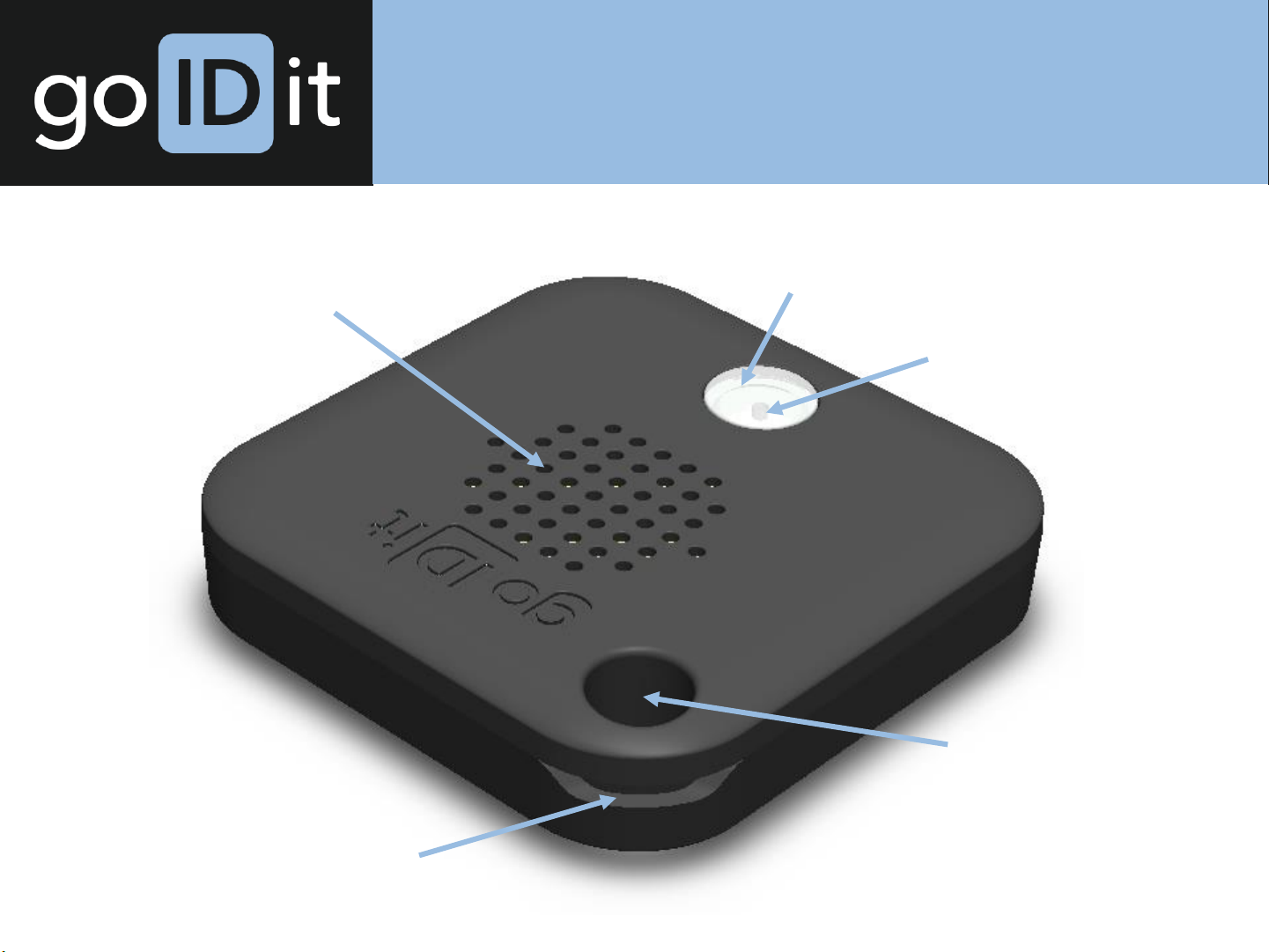
Device Overview
Speaker for audible
indications
Button for device
interaction
LED for visual
indications
Key Ring Clip
Opening
Notch for Battery
Replacement
© 2016 goIDit LLC. All rights reserved.
Page 5

Key Check-In/Check-Out
Each key locator has a button on its front, just below the device’s
speaker.
Using this button a person can trigger the key check-in/check-out
process in combination with the goIDit app.
A short press signals a key check-out and assigns it to the person
carrying it for later return to the key repository.
A long press (>3 seconds) signals a key check-in when the key is
no longer needed and makes it available for other users again.
Returning the key to the key repository also engages an
automatic check-in process that does not require a button press.
© 2016 goIDit LLC. All rights reserved.
Page 6

Device Reset
Each key locator has a button on its front, just below the device’s
speaker.
This button can also be used to perform a complete device reset to
factory configuration.
To prevent accidental resetting of key locators please follow the
instructions below carefully:
Press and hold the button for 30 seconds. After 30 seconds a visual
and audible indication is triggered.
Within 1 second of this indication, release the button and press it
again, quickly releasing it afterwards.
The tag will now clear all configuration changes reactive factory
settings. No further action is required.
© 2016 goIDit LLC. All rights reserved.
Page 7

Battery Replacement
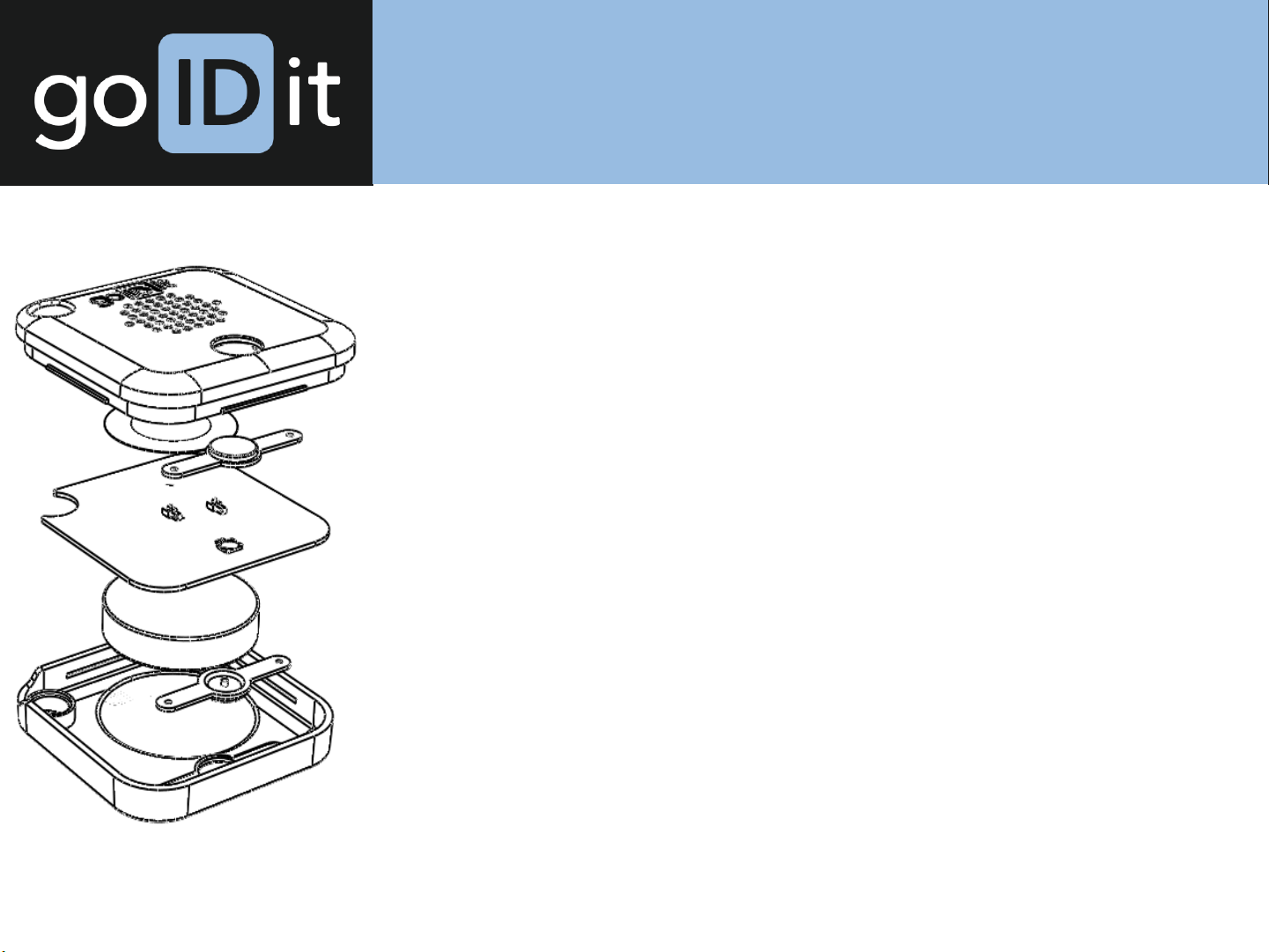
Detach key locator from key ring and remove clip from key
locator.
Using a small coin or screwdriver, insert it into the corner
notch and carefully twist until the enclosure opens.
Remove enclosure cover and the battery within is exposed.
Remove old battery and replace with coin cell battery of
same type.
Align enclosure cover over battery and press down firmly
until it clicks in place.
Reattach clip to key locator and attach to key ring.
© 2016 goIDit LLC. All rights reserved.
Page 8

Troubleshooting
• Symptom: No visible or audible indication on button press.
• Solution: Replace battery. See battery replacement
section.
• Symptom: An old location is shown for the key.
• Solution: Replace battery. See battery replacement
section.
• Symptom: No key location is shown in app.
• Solution: Contact customer support for step-by-step
guidance.
© 2016 goIDit LLC. All rights reserved.
Page 9

Device Information
goIDit Key Locators (KL and KL1) use 2.4GHz Bluetooth Low
Energy to advertise their presence and for smartphone
interactions.
They implement the Eddystone protocol and expand upon it
to allow interactions between the key locators and smart
devices for localization and configuration.
They are battery-powered with an expected battery lifetime
of >12 months.
© 2016 goIDit LLC. All rights reserved.
Page 10
Specifications
• Wireless Specifications
• 2.4 GHz Bluetooth Low Energy
• 2 MHz channels
• 4 dBm maximum TX Power
• Hardware Specifications
• Physical Interfaces:
• Multi-Function Button on front
• LEDs on front and back
• Speaker on front
• Power Usage: 3.3 V, <10mA
• Integrated PCB Trace Antenna
• Dimensions:
• KL: 37mm(L) x 37mm(W) x 6mm(H)
• KL1: 40mm(L) x 40mm(W) x 8mm(H)
• Battery:
• KL: CR2025 (expected lifetime 1 year)
• KL1: CR2450 (expected lifetime 3+ years)
© 2016 goIDit LLC. All rights reserved.
Page 11

FCC Statement
This device complies with part 15 of the FCC Rules. Operation is subject to the following two
conditions: (1) This device may not cause harmful interference, and (2) this device must accept
any interference received, including interference that may cause undesired operation.
Changes or modifications not expressly approved by the party responsible for compliance
could void the user's authority to operate the equipment.
Note: This equipment has been tested and found to comply with the limits for a Class B digital
device, pursuant to part 15 of the FCC Rules. These limits are designed to provide reasonable
protection against harmful interference in a residential installation. This equipment generates,
uses and can radiate radio frequency energy and, if not installed and used in accordance with
the instructions, may cause harmful interference to radio communications. However, there is
no guarantee that interference will not occur in a particular installation. If this equipment does
cause harmful interference to radio or television reception, which can be determined by
turning the equipment off and on, the user is encouraged to try to correct the interference by
one or more of the following measures:
—Reorient or relocate the receiving antenna.
—Increase the separation between the equipment and receiver.
—Connect the equipment into an outlet on a circuit different from that to which the receiver is
connected.
—Consult the dealer or an experienced radio/TV technician for help.
© 2016 goIDit LLC. All rights reserved.
 Loading...