

Page 1
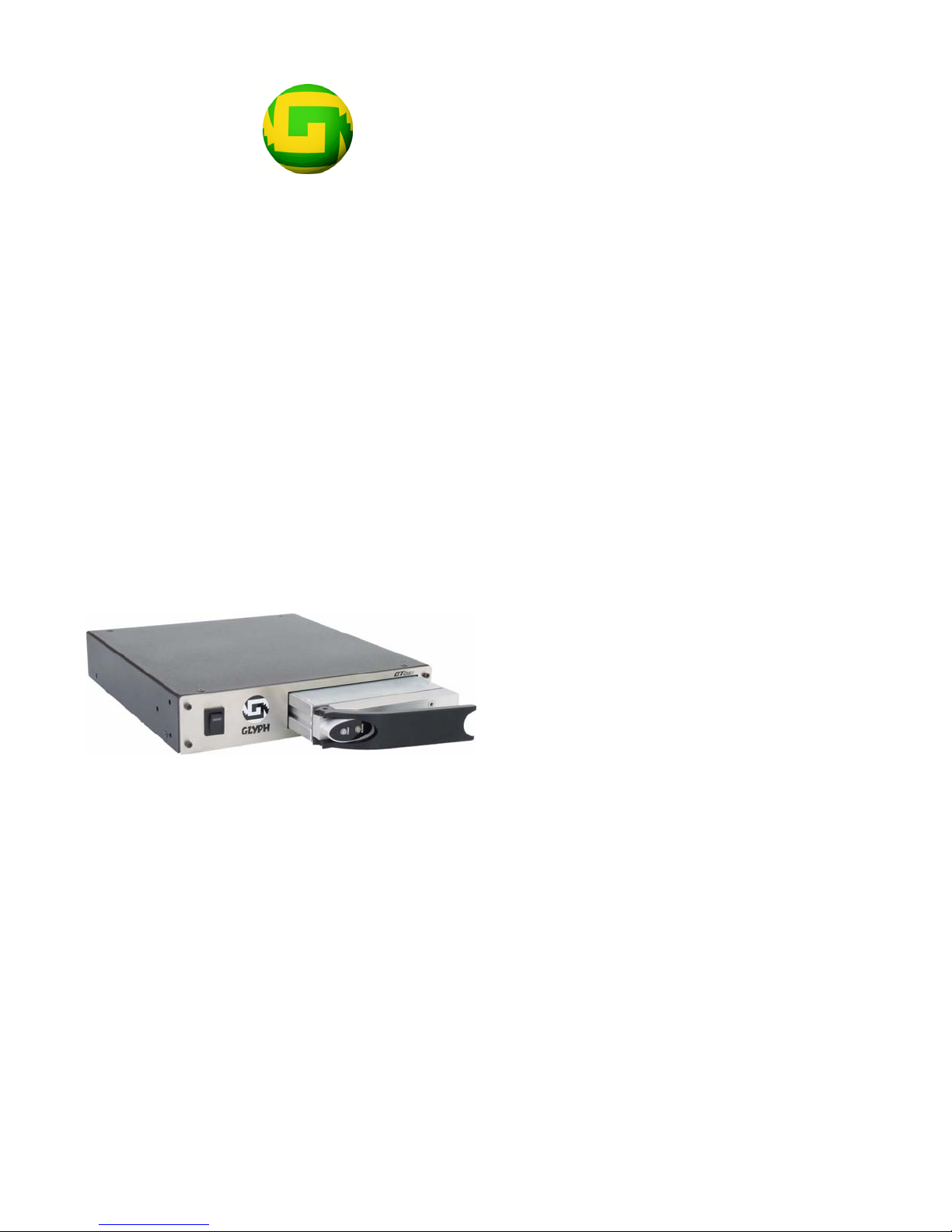
GT 051™
FireWire hot-swap enclosure for
GT Key™ cartridges
Quick Guide
610011-1.04
Dec 7, 2006
©Glyph Technologies
Quick Guide
Page 2

Blank Page
Page 3

GT 051
Proprietary Notice and Disclaimer
Unless noted otherwise, this document and the information herein
disclosed are proprietary to Glyph Technologies, 227 Cherry St, Ithaca
NY 14850 (“GLYPH”). Any person or entity to whom this document is
furnished or having possession thereof, by acceptance, assumes
custody thereof and agrees that the document is given in confidence
and will not be copied or reproduced in whole or in part, nor used or
revealed to any person in any manner except to meet the purposes for
which it was delivered. Additional rights and obligations regarding
this document and its contents may be defined by a separate written
agreement with GLYPH, and if so, such separate written agreement
shall be controlling.
The information in this document is subject to change without notice,
and should not be construed as a commitment by GLYPH. Although
GLYPH will make every effort to inform users of substantive errors,
GLYPH disclaims all liability for any loss or damage resulting from the
use of this manual or any software described herein, including without
limitation contingent, special, or incidental liability.
© 2002-2004 Glyph Technologies. All rights reserved. Specifications
are subject to change without notice. Glyph and the Glyph logo are
registered trademarks of Glyph Technologies. All other brands and
product names mentioned are trademarks of their respective holders.
ABOUT THIS DOCUMENT
This document is a brief introduction to Glyph’s GT 051, a FireWire
hot-swap enclosure for GT Key™ cartridges.
Quick Guide #610011-1.04 Proprietary Notice and Disclaimer
© Glyph Technologies – www.glyphtech.com
1
Page 4
GT 051
DOCUMENT CONVENTIONS
Notes
Notes alert you to important information. They are indented and
preceded by the word Note in bold type.
Cautions
Cautions alert the user to actions or situations that can result in
damage to users or data. Cautions are accompanied by a triangle icon,
as in the example below.
C
AUTION:
If the container is damaged, file a report with the carrier or dealer
immediately.
Proprietary Notice and Disclaimer Quick Guide #610011-1.04
2 www.glyphtech.com – © Glyph Technologies
Page 5

GT 051
CONTACTING GLYPH
Please use the following contact information to contact Glyph and its
distributors.
Glyph USA offers phone support Monday through Friday, 9:00 am to
6:00 pm Eastern Time.
Note: DO NOT ship any return goods to the mailing addresses below
unless you have a valid RMA number. All goods will be refused
delivery unless a valid RMA number is displayed on the outside of the
package.
UNITED STATES OF AMERICA
Mailing Address Phone/Fax Email and Web Site
Glyph Technologies
227 Cherry St.
Ithaca, NY 14850
USA
Phone:
+1 607-275-0345
Fax:
+1 607-275-9464
General information:
[email protected]
Sales enquiries:
[email protected]
Technical support:
[email protected]
www.glyphtech.com
Europe
Mailing Address Phone/Fax Email and Web Site
Steyler Str. 121
D - 41334 Nettetal
Germany
Quick Guide #610011-1.04 Proprietary Notice and Disclaimer
© Glyph Technologies – www.glyphtech.com
Phone: 0049 (0) 21 57
/ 12 76 23
Fax : 0049 (0) 21 57 /
12 83 12
Sales enquires:
[email protected]
Technical support:
[email protected]
www.glyphtech.com
3
Page 6

Contents of This Guide
Glyph’s GT Series, p. 4
About the GT 051, p. 7
Unpacking Your GT 051, p. 12
Installing the Hardware, p. 13
Preparing Your Drive for Use: Mac OS 9 Users, p. 14
Preparing Your Drive for Use: Mac OS X Users, p. 16
Preparing Your Drive for Use: Windows Users, p. 16
Care and Maintenance of the GT 051, p. 20
Troubleshooting, p. 23
GT 051 Specifications, p. 24
Audio Storage Guide, p. 25
Glyph’s GT Series
GT 051
The GT Series is a cross-functional line of FireWire-based storage
subsystems designed for mobility and easy expansion. GT Series
members include:
GT Key - A hot-swappable FireWire Drive
GT 050 - A Fixed-Mount FireWire Tabletop Drive
GT 051 - A Hot-Swappable FireWire Tabletop Drive
GT 103 - A One-space Thee-bay enclosure
GT 308 - A Three-space Eight-bay enclosure
Contents of This Guide Quick Guide #610011-1.04
4 www.glyphtech.com – © Glyph Technologies
Page 7

GT 051
The GT Series incorporates Glyph’s own advanced FireWire
technology called Integrity™. Inspired by the limitations of existing
hybrid ATA-to-FireWire hot-swap products, Glyph engineers resolved
the data integrity problems that arise from breaking at the ATA
interface by incorporating unique enhancements to existing FireWire
standards. As a result, the GT Key drive cartridge contains the
ATA-to-FireWire bridging technology in the cartridge itself. When
removing a hard drive from the receiver, the drive and its bridge
remain together to support hard drive hot-swapping in the proper
way—using circuits and protocols that are intended for hot-swap
applications. The GT Series sets new standards as Glyph’s Integrity™
technology surpasses today’s other hot-swappable storage.
Firewire is an implementation of the IEEE 1394 serial bus standard. It
not only supports automatic configuration ("plug and play") and
hot-swapping of devices, it’s fast, and best of all it’s reliable for
audio/video as well as for computer peripherals.
FireWire supports peripherals in a tree-like structure, as opposed to
SCSI's linear structure. It allows peer-to-peer device communication—
e.g. between a scanner and a printer—to take place, without using
system memory or the CPU.
With FireWire you don’t have to worry about IDs or device
termination; you can hook up to 63 devices to the same bus, with cable
lengths of up to 4.5 meters (14 feet) including internal cabling, allowed
between devices.
Its cable is not only more convenient than SCSI’s but can also carry
power. This allows low-consumption devices to operate without a
separate power cord, by using power supplied by other devices on the
bus.
Quick Guide #610011-1.04 Glyph’s GT Series
© Glyph Technologies – www.glyphtech.com
5
Page 8
GT 051
Noise Control
Elimination of Signal noise
Components in GT Series enclosures are of the highest quality
possible. These include:
• Heavy-gauge internal power cabling to carry current with minimal loss
• Bridge circuit boards designed to provide extra functions and top
performance
• High-quality data cables to maintain signal integrity at high data
rates
We use Teflon ribbon cables in our GT Series FireWire solutions
because Teflon is the best insulator for minimizing cross-talk and
maintaining high-frequency signal integrity. Good insulation
maintains signal quality. Maintaining signal quality ensures maximum
data transfer rates.
Elimination of Acoustic Noise
GT Series enclosures and the GT Key incorporate QuietMetal™ to
support quiet recording by virtually eliminating noise caused by the
vibrations of hard drives and fans.
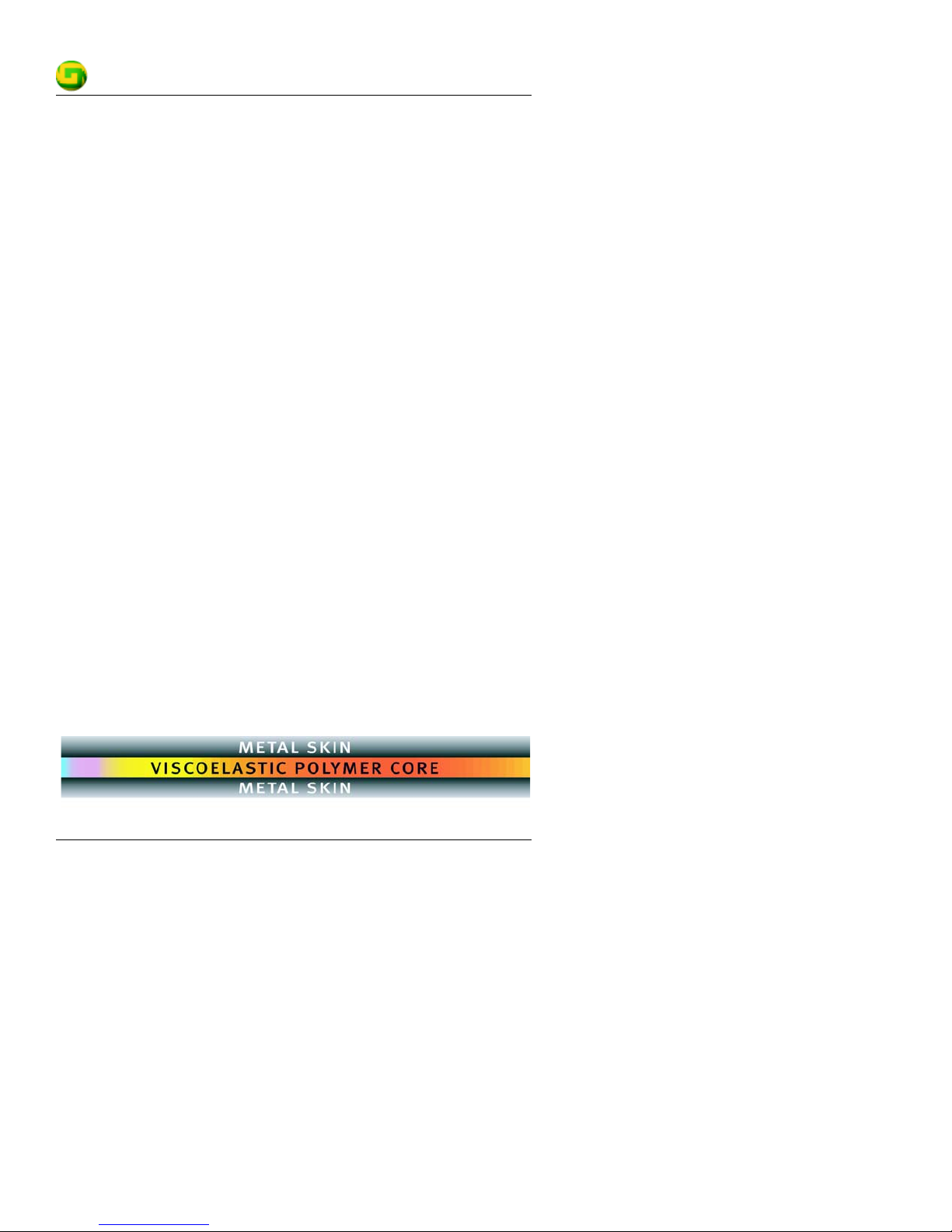
QuietMetal is a constrained-layer composite—a laminate formed of two
layers of metal sandwiching a viscoelastic polymer core. Vibration felt
by the metal layers is dampened by the softer center layer: the
deformation of the core facilitates the absorption of vibrational
energy. The combination of QuietMetal and secure fastening with
sturdy steel mounting hardware helps to ensure a still, quiet
environment for your recording sessions.
Glyph’s GT Series Quick Guide #610011-1.04
6 www.glyphtech.com – © Glyph Technologies
Page 9

GT 051
Power
Glyph uses efficient, high-quality power supplies, selected specifically
for the demands of production environments.
Our power supplies have a large amount of headroom, so your Glyph
system will function, for brief periods of time, with AC lines
significantly below specified limits.
Glyph FireWire devices, even when they’re not turned on, will pass
signal and bus power through to downstream FireWire devices.
Glyph’s FireWire solutions are 100% compliant with FireWire
specifications for reliable operation using FireWire’s repeater
functionality.
About the GT 051
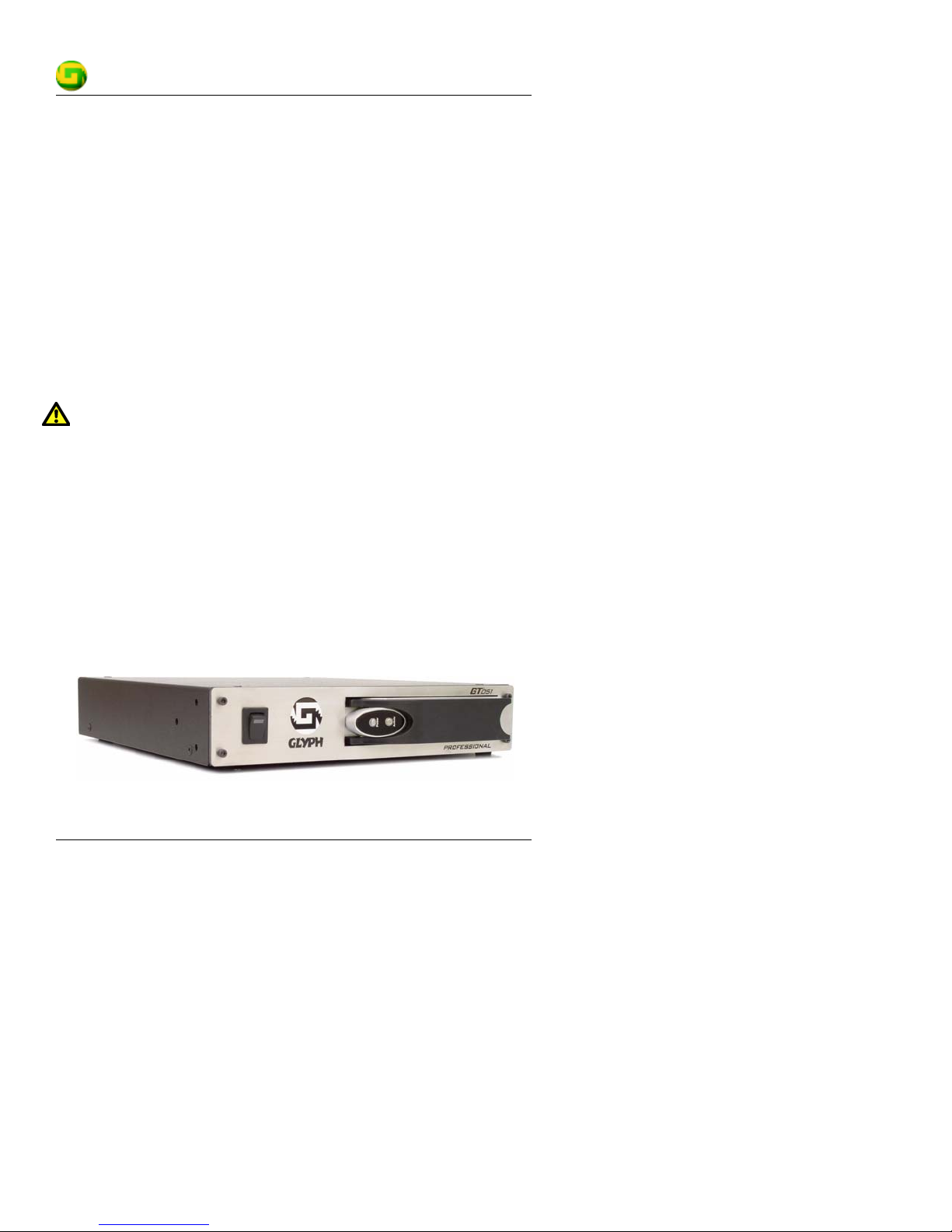
The GT 051 is a FireWire hot-swappable enclosure that makes it easy to
take drives between two computers. The GT 051 accepts a single GT
Key hot-swap drive cartridge.
Quick Guide #610011-1.04 About the GT 051
© Glyph Technologies – www.glyphtech.com
7
Page 10
GT Key Hot-Swap Drive Cartridges
GT 051
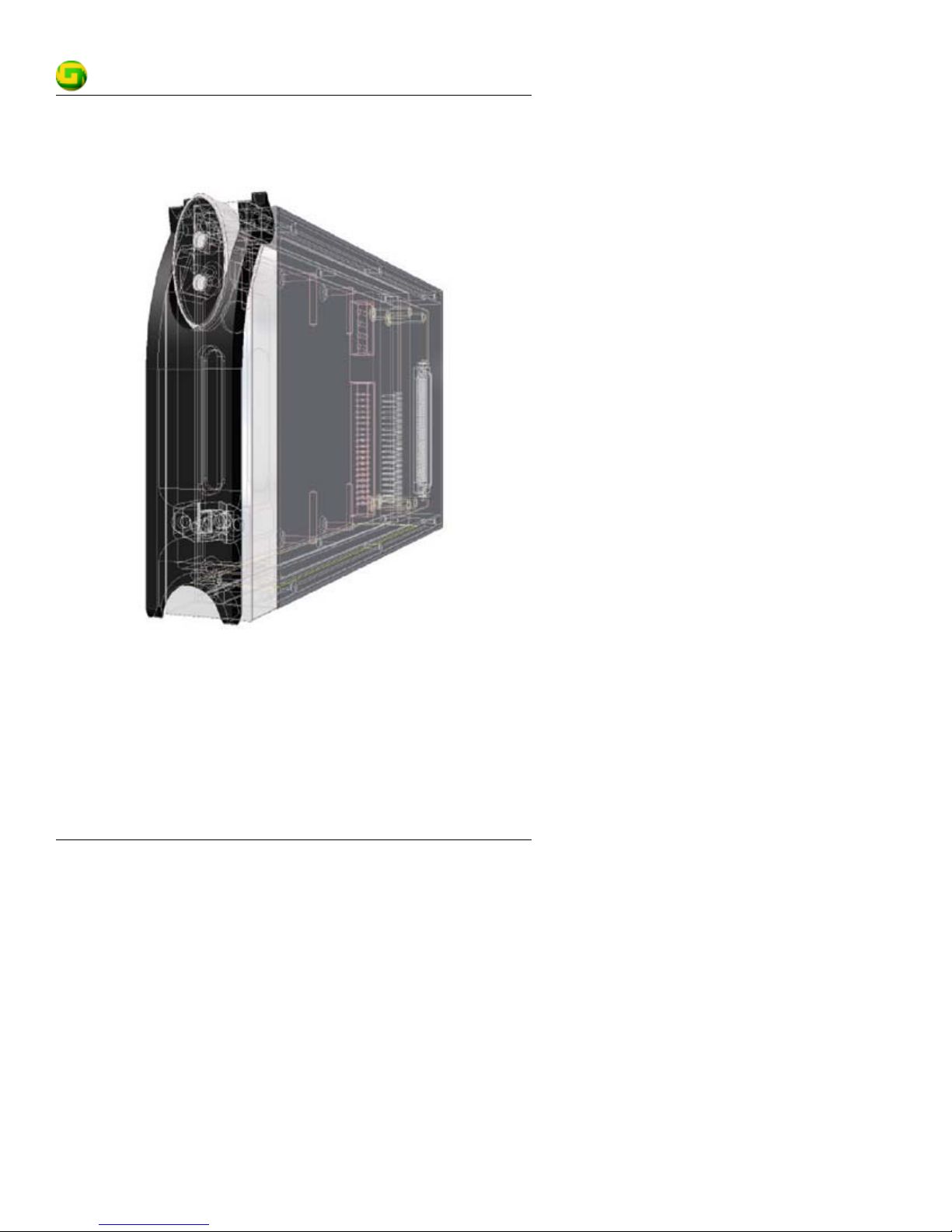
Having designed and engineered our own ATA-to-FireWire bridge, we
decided to enclose the bridge and the drive in a single unit. The result
is the GT Key FireWire cartridge.
This integrated exchange system offers true hard drive hot-swap
technology, ensuring data integrity and consistency: removing a
hot-swap drive from a Glyph FireWire system interrupts the data signal
at the FireWire bus, not on the ATA bus as with other hot-swap
systems.
About the GT 051 Quick Guide #610011-1.04
8 www.glyphtech.com – © Glyph Technologies
Page 11

GT 051
CAUTION:
When transporting an individual cartridge, place it in the anti-static
bag that it came in. This will help ensure the safety of the sensitive
electronics exposed at the back of the cartridge.
Quick Guide #610011-1.04 About the GT 051
© Glyph Technologies – www.glyphtech.com
9
Page 12
GT 051
Details
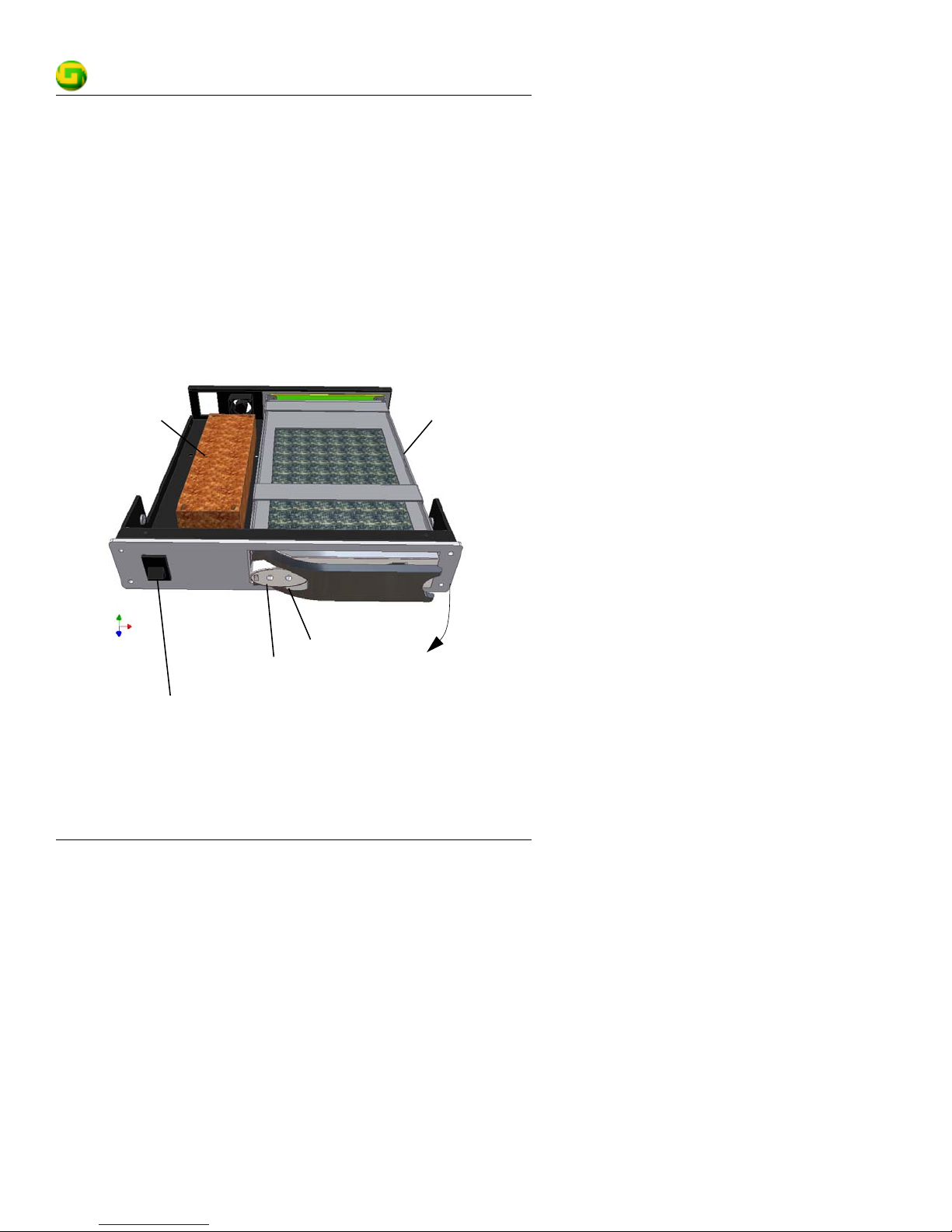
The GT Key locks conveniently into the GT 051 chassis by means of a
flip-out handle at the front of the drive. The cartridge loads on its side.
The illustration below shows the GT Key in a GT 051 chassis.
Below cover:
ATA hard disk drive
Below cover:
Glyph ATA-FW bridge
QuietMetal
Power supply
enclosure
LED: drive activity
LED: power to cartridge
Drive latch flips out
for drive removal
Power switch with LED: AC power to chassis
About the GT 051 Quick Guide #610011-1.04
10 www.glyphtech.com – © Glyph Technologies
Page 13

GT 051
Indicator Light on Chassis
• The power switch LED glows green to indicate that AC power is
applied: the GT 051 is plugged in and switched on.
GT Key Indicator Lights
• The LED labeled “Power” glows green to indicate that power is
applied to the cartridge.
• The LED labeled “Activity” glows yellow to indicate drive activity.
Features
• QuietMetal noise-damping construction
• AC power input filter
• Efficient power supply
• Durable tabletop enclosure
• Single quiet ventilator fan
• Indicator lights to monitor drive activity, and to indicate power
supplied to GT 051 and GT Key
Requirements
Macintosh Computer
• Computer with FireWire port(s) or FireWire host bus adapter
• MacOS 8.5 or greater, including Mac OS X
• (OS 9 users) Version 2.7 or later of Apple’s FireWire Enabler and
FireWire Support Extensions, enabled. In the case of G4
computers, version 2.8.1 or later of the Apple FireWire Enabler
Windows Computer
• Computer with FireWire port(s) or FireWire host bus adapter
• Windows 98 SE, 2000, ME or XP
Quick Guide #610011-1.04 About the GT 051
© Glyph Technologies – www.glyphtech.com
11
Page 14
GT 051
Unpacking Your GT 051
Your Glyph GT 051 and accessories are packaged in a sturdy shipping
container. Please inspect the container for evidence of shipping
damage and mishandling.
C
AUTION:
If the container is damaged, file a report with the carrier or dealer
immediately. Do not attempt to unpack and operate your GT 051
until the carrier or dealer confirms the damage.
If the container is in good condition, proceed with unpacking the GT
051. Verify that all of the items described in the next section are
present and in good condition.
Inspection
CAUTION:
If any of the items you expect to find in your container is missing or
damaged, contact the dealer before proceeding any further.
In any case, do keep the shipping container and all packing materials
in a safe place.
The GT 051 package includes:
•GT 051
• GT Key FireWire drive cartridge, if you ordered one
• FireWire cable
•Power cable
• Documentation CD with warranty card and this guide
Unpacking Your GT 051 Quick Guide #610011-1.04
12 www.glyphtech.com – © Glyph Technologies
Page 15
GT 051
Parts Identification
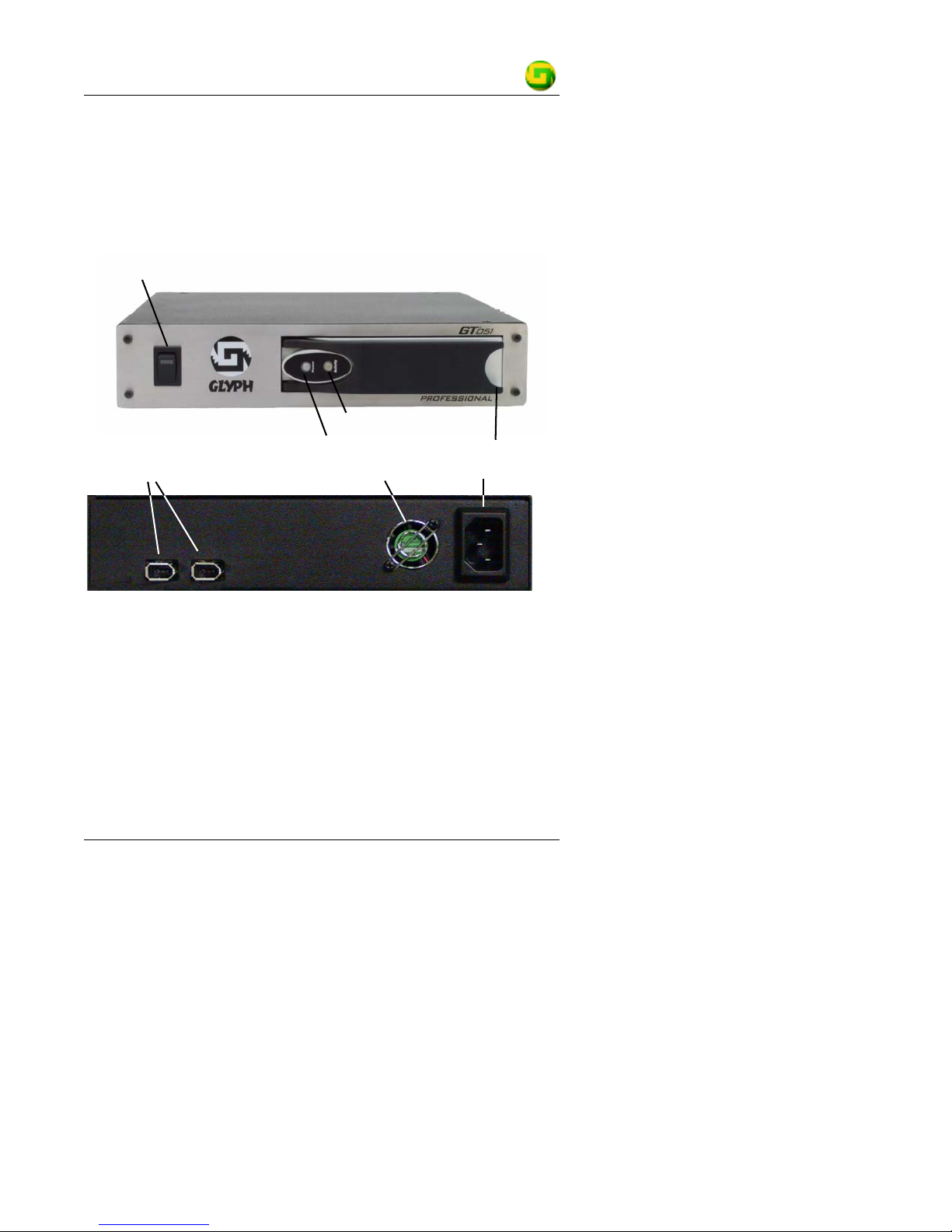
To familiarize yourself with the GT 051, take a moment to study the
image below.
Power switch with LED: AC Power to chassis
Drive activity
Drive latch
FireWire ports
Power to cartridge
Power connectorFan
Installing the Hardware
1. Position the GT 051.
Place the unit on a flat, level surface.
Quick Guide #610011-1.04 Installing the Hardware
© Glyph Technologies – www.glyphtech.com
13
Page 16

CAUTION:
Speakers are magnetic devices; they can harm your data if they’re
too close to your hard drives or tape cartridges.
2. Connect the power cable (power off):
Make sure that the power is off on all of your computer equipment
and the GT 051.
Connect the power cable to the back of the GT 051. Plug the
three-prong plug into an appropriate power receptacle, preferably
with surge and spike protection.
3. Connect the FireWire cable.
Plug one end of the FireWire cable into your computer’s FireWire
port, and the other into the back of the GT 051. The two ports
provide the same function, so it doesn’t matter which one you use.
4. Insert the GT Key into the unit.
Pull the handle on the cartridge out, then slide the cartridge into
the slot on the GT 051 and press the handle in well to lock the
cartridge firmly into place.
5. Power up the GT 051.
6. Power up your computer.
GT 051
If you are using a Macintosh computer the drive should mount
automatically on your desktop. You can now start using your GT 051.
Preparing Your Drive for Use: Mac OS 9 Users
Since your hard disk drive comes pre-formatted for Macintosh you
don’t need to format it on installation. If you should need to
re-initialize the disk, you can use the Erase Disk command in the Mac
operating system. This command will erase all the data on a volume
Preparing Your Drive for Use: Mac OS 9 Users Quick Guide #610011-1.04
14 www.glyphtech.com – © Glyph Technologies
Page 17

GT 051
and create a new file system. Erase disk will not allow you to
re-partition a FireWire drive or create a different volume structure
than what was previously there.
If you need more functionality than what is supplied by Mac OS 9, get
yourself a formatting and partitioning utility. Glyph recommends
FWB’s Hard Disk Toolkit or Charismac’s Anubis utility. These will
allow you to re-partition a disk and create multiple volumes, as well as
format those volumes. Directions for using these utilities will be
included with them.
Mac OS X users should use Disk Utility (supplied with the Mac OS X
operating system) to format and partition drives.
Re-initializing your drive using Erase Disk (Mac OS 9
Users)
Your new drive should have automatically mounted on the desktop as
a Glyph volume. We advise that you give it a recognizable name or
number on your desktop.
Your drive is a single volume by default. To re-initialize your drive, use
the following procedure.
C
AUTION:
This procedure will destroy any data currently on the drive. Before
formatting a drive, save any important data it contains.
1. Select the volume by clicking on it once in the Finder
2. Go to the Special menu and select Erase Disk...
The Erase Disk dialog box opens to verify your decision to erase
the disk.
3. In the Name field, enter the new name for the disk or leave the
name as it is.
Quick Guide #610011-1.04 Preparing Your Drive for Use: Mac OS 9 Users
© Glyph Technologies – www.glyphtech.com
15
Page 18

GT 051
4. In the Format drop-down menu, choose an Extended volume.
All GT Key drives in GT 051 units are formatted at the factory as
Extended volumes.
5. Click Erase.
The disk is now erased and should mount on your desktop with
the new volume information.
Preparing Your Drive for Use: Mac OS X Users
Since your Glyph hard disk drive comes pre-formatted for Macintosh
you don’t need to format it on installation. If your computer is
running Mac OS X and you decide to reformat or partition your drive,
use Disk Utility (supplied with the Mac OS X operating system).
Preparing Your Drive for Use: Windows Users
Because Glyph hard disk drives are formatted for Macintosh, Windows
users must reformat their drives in order to use them.
Windows 98 SE
1. From your computer’s task bar, go to Start > Programs > MS-DOS
.
Prompt
2. At the prompt, type
You’ll see a long message about disk support.
3. Enter
Preparing Your Drive for Use: Mac OS X Users Quick Guide #610011-1.04
16 www.glyphtech.com – © Glyph Technologies
Y (type Y and press Enter).
You are invited to make a choice.
fdisk and press Enter.
Page 19
GT 051
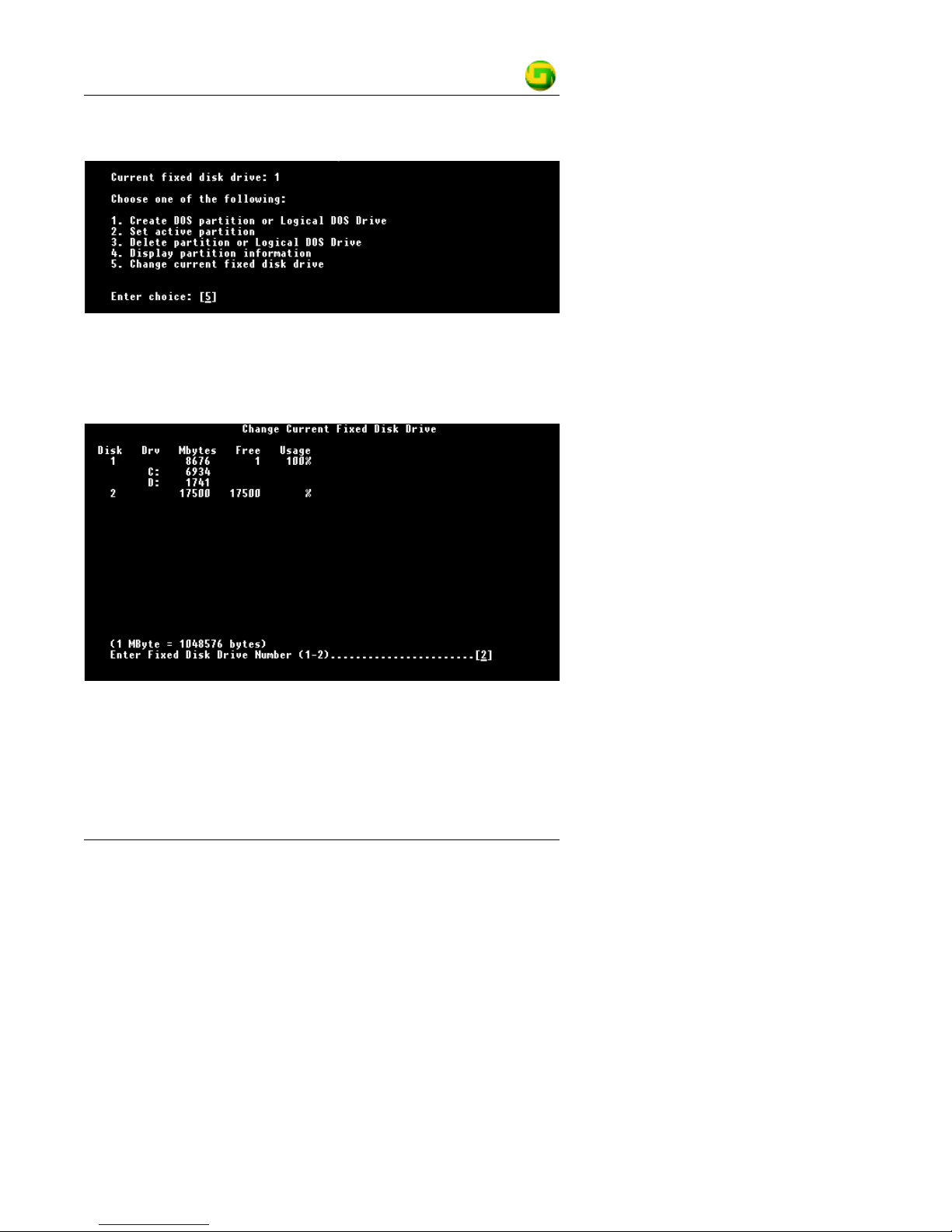
4. Enter 5 to change the current fixed disk drive.
MS-DOS displays the connected disk drives.
5. Enter the number of the disk that has no corresponding drive
letter (in the example below, that’s Drive 2).
You are invited to make a choice (same list as in Step 3).
6. Enter
1 to create a primary DOS partition.
Your computer verifies the drive’s integrity, after which you are
asked to choose whether you want to use all the space available.
Quick Guide #610011-1.04 Preparing Your Drive for Use: Windows Users
© Glyph Technologies – www.glyphtech.com
17
Page 20

GT 051
7. Enter Y to opt for using the maximum available space.
Your computer again verifies the drive’s integrity.
8. When the drive’s integrity has been verified, press ESC (Escape)
three times to exit
9. At the prompt, type
fdisk.
exit.
10. Restart your computer.
Your new drive is now ready to use.
Windows 2000
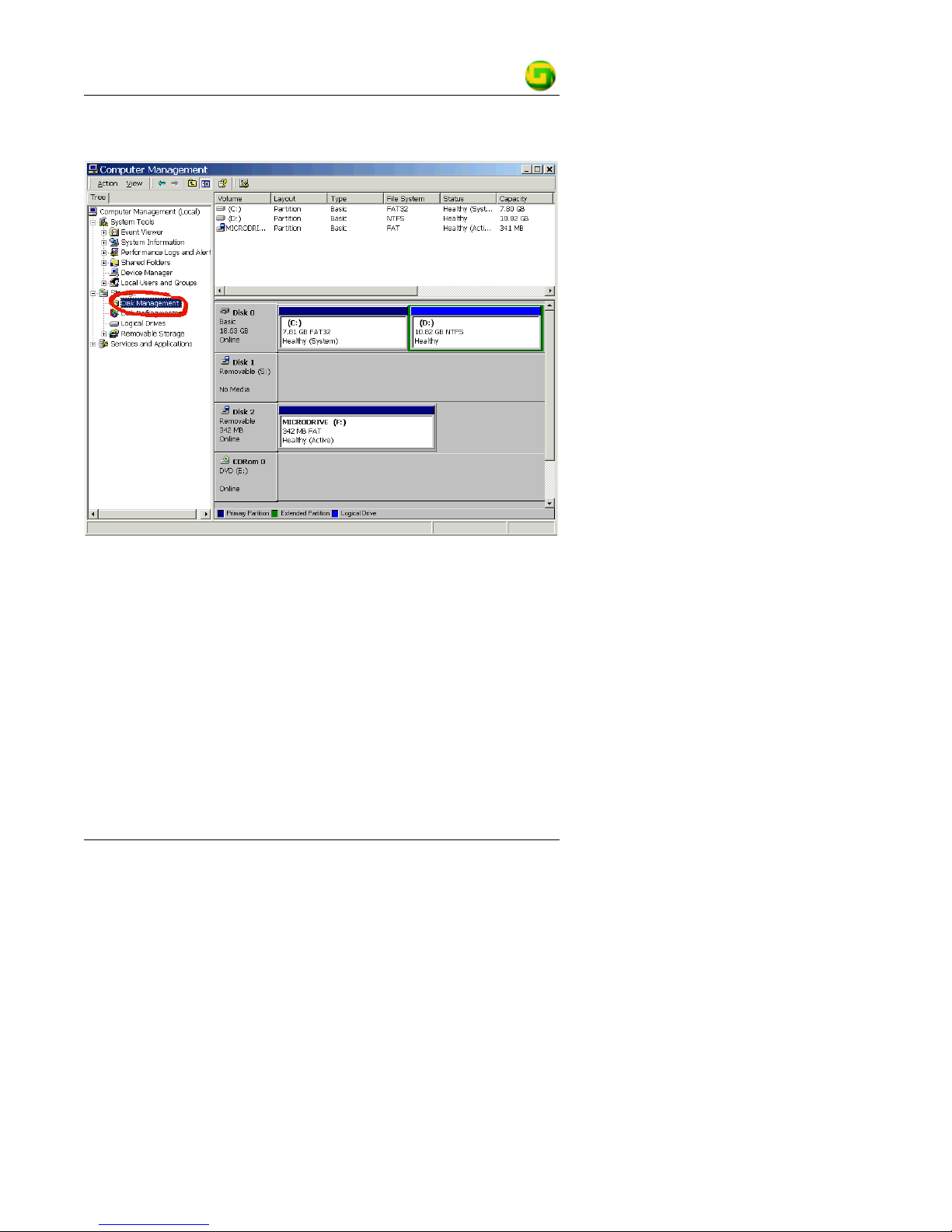
1. Right-click My Computer and click Manage.
2. In the
Computer Management window, click Disk Management.
Preparing Your Drive for Use: Windows Users Quick Guide #610011-1.04
18 www.glyphtech.com – © Glyph Technologies
Page 21
GT 051
The Write Signature wizard pops up.
3. Use the wizard to write a signature to the new drive.
4. Use the instructions that came with your operating system to
continue formatting the drive. We suggest doing a Quick Format.
Formatting will take a few minutes, after which your drive will be ready
to use.
Windows XP
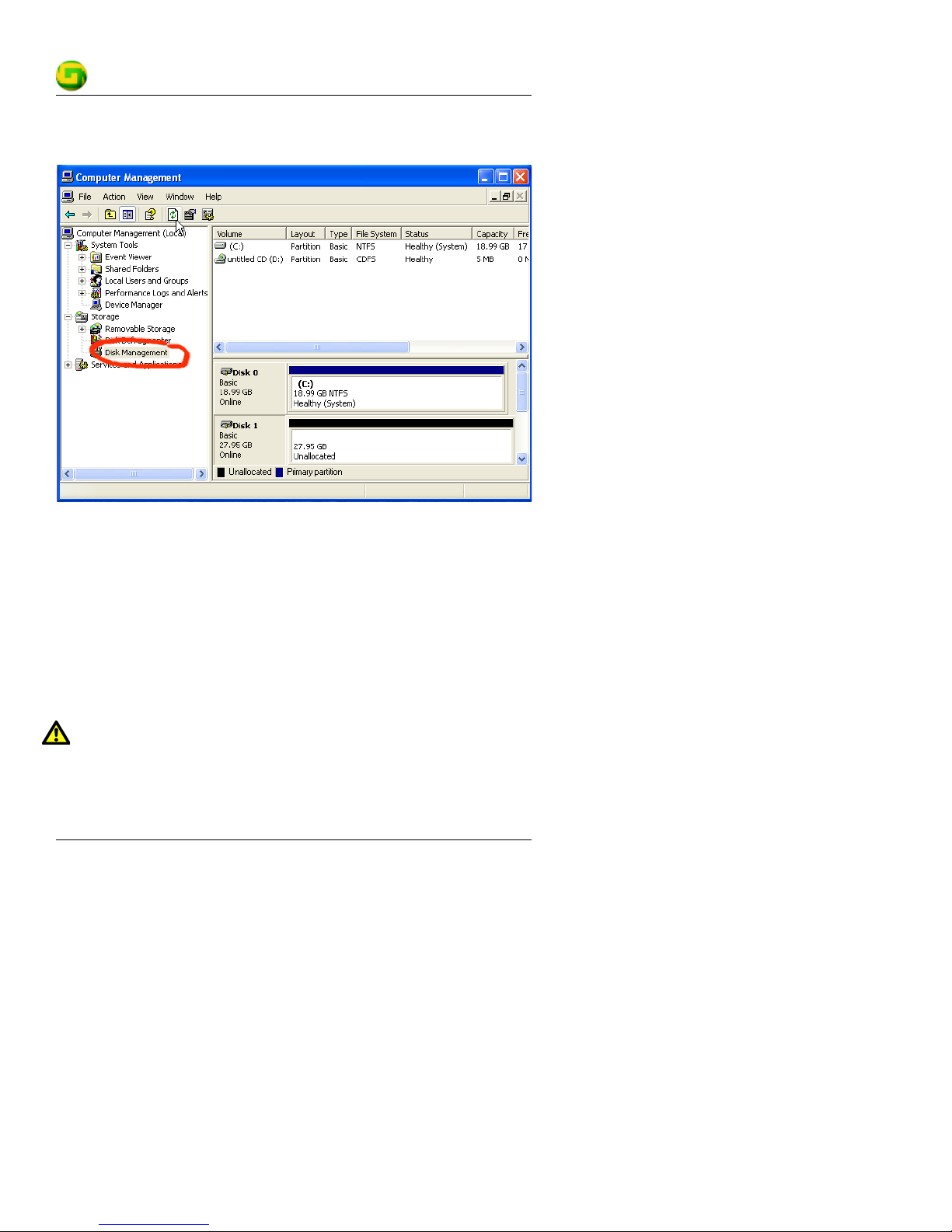
1. Open Control Panel and click Administrative Tools.
2. Click
Computer Management.
3. Click Disk Management.
Quick Guide #610011-1.04 Preparing Your Drive for Use: Windows Users
© Glyph Technologies – www.glyphtech.com
19
Page 22
The Write Signature wizard pops up.
4. Use the wizard to write a signature to the new drive.
5. Use the instructions that came with your operating system to
continue formatting your drive. We suggest doing a Quick Format.
GT 051
Care and Maintenance of the GT 051
CAUTION:
To properly operate and store your GT 051, make sure you observe
the rules for temperature and humidity specified under Tabletop
Portable Specifications on page 32.
Care and Maintenance of the GT 051 Quick Guide #610011-1.04
20 www.glyphtech.com – © Glyph Technologies
Page 23

GT 051
Power
Current
•Use only 100-240V AC.
• Avoid plugging into an outlet used by high-current equipment like
copiers or shredders.
Power and FireWire Cables
• Don’t crush cables or place heavy items on them. If the cable
insulation appears worn or broken, don’t use the cable.
• Always unplug a cable by holding the plug. Never pull the cable
itself, as it may damage the plug.
• If you are not planning to use your drives for a while, unplug the
power cable from the outlet.
Environmental Conditions
Shock and Vibration
Don’t subject the unit to excessive vibration. When shipping, remove
the GT Key cartridge from the unit.
C
AUTION:
If you intend to ship your GT 051, make sure it does not contain a
drive cartridge. If you want to ship the cartridge with the GT 051,
wrap it separately in the shipping box.
Quick Guide #610011-1.04 Care and Maintenance of the GT 051
© Glyph Technologies – www.glyphtech.com
21
Page 24
GT 051
Dust, Heat, Humidity
CAUTION:
When transporting an individual cartridge, place it in the anti-static
bag that it came in. This will help ensure the safety of the sensitive
electronics exposed at the back of the cartridge.
Don’t leave the GT 051 or a GT Key in a location subject to excessive
dust, direct sunlight, sudden changes in temperature (the resulting
condensation can cause damage), or high humidity or temperature.
C
AUTION:
If the GT 051 is turned on with condensation inside, and a drive is
installed, the drive or the GT 051 may be damaged. After a sudden
change in temperature wait at least one hour before turning on the
GT 051.
Ventilation
The GT 051 is equipped with a single quiet fan for ventilation. Install
the unit where it will have free air circulation around the case, and
don’t cover it while it’s running.
Care and Maintenance of the GT 051 Quick Guide #610011-1.04
22 www.glyphtech.com – © Glyph Technologies
Page 25

GT 051
Troubleshooting
If you are having difficulties or need assistance getting started, Glyph
Technical Support will be glad to assist you. Contact addresses and
numbers are on page 3 of this guide.
Before contacting Glyph please review the table below.
Symptom Diagnosis Treatment
Errors when reading
from or writing to drive
in Pro Tools.
Mac OS 9: Glyph
FireWire drive does
not mount on the
Desktop.
Mac OS 9 or X: Glyph
FireWire drive is
visible on the FireWire
bus, but not on the
Desktop.
Mac OS 9 or X: When I
unplug the drive from
the FireWire bus an
error message
appears on the screen.
Your Pro Tools DAE
setting may be wrong.
No obvious reason? Run Norton Speed Disk.
The cables may not
be connected.
The Mac FireWire
extensions may not
be enabled.
The drive’s directory
structure may be
damaged.
You may be
unplugging the drive
without dismounting
the volume first.
Check DAE setting in Pro
Tools.
Connect cables.
Enable FireWire extensions:
FireWire Enabler and
FireWire Support.
Use a disk repair utility such
as Alsoft Disk Warrior or
Norton Disk Doctor to repair
the directory.
Always drag the volume(s)
to the trash on the Mac
before unplugging the drive
or turning off the drive’s
power.
Quick Guide #610011-1.04 Troubleshooting
© Glyph Technologies – www.glyphtech.com
23
Page 26
GT 051
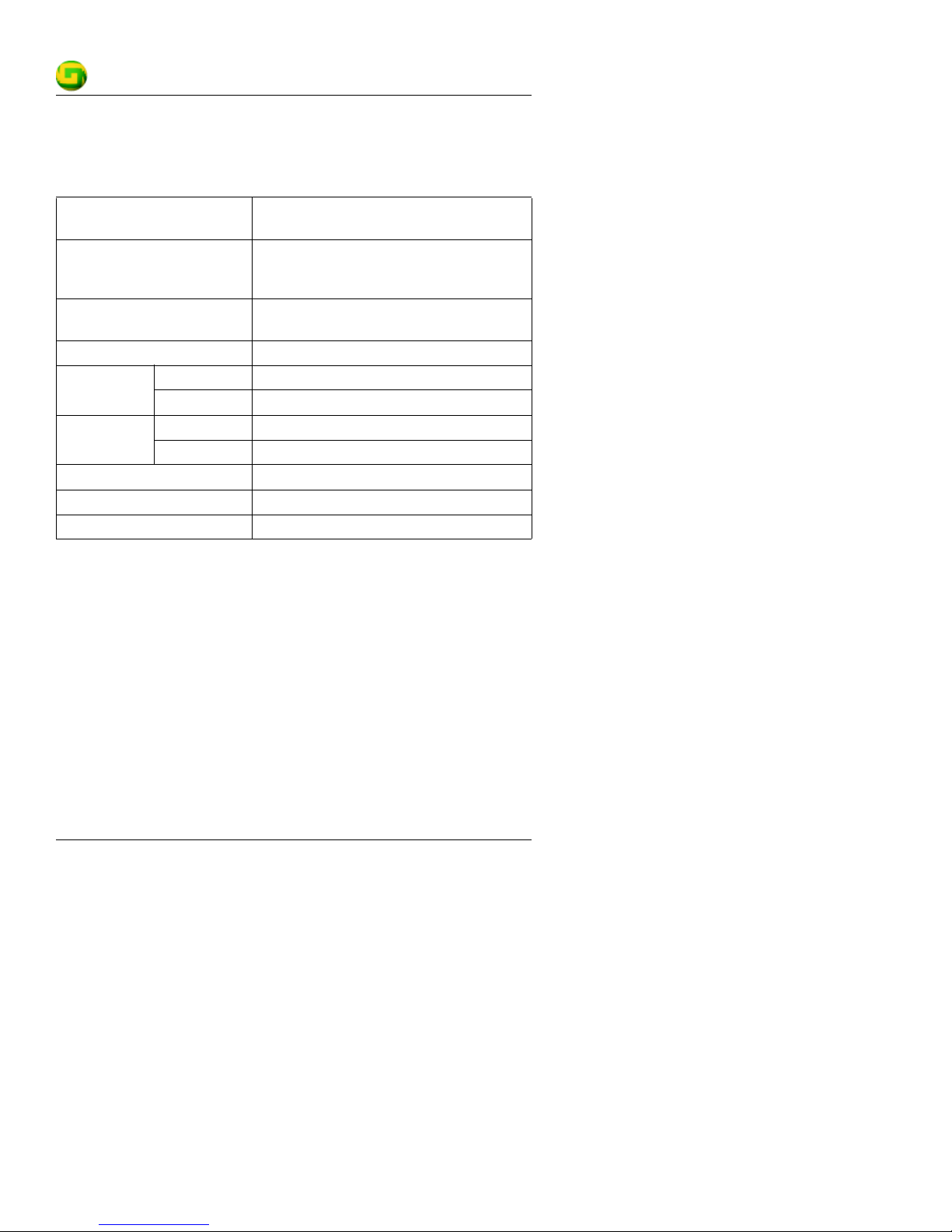
GT 051 Specifications
Form configuration Enclosure for single GT Key containing a
hot-swappable FireWire drive.
Construction QuietMetal around the drive, heat-dissipating
aluminum enclosure, stainless steel
faceplate.
Interface connectivity IEEE
1394 (FireWire)
Power supply Universal 100-240V AC 50/60Hz
Temperature Operating 5°C to 55° C (41°F to 131°F)
Non-operating -40° C to 65°C (-40°F to 149°F)
Humidity Operating 30% to 80% (assuming no condensation)
Non-operating 10% to 90%
Weight 1.9kg (4.3lbs)
Physical dimensions (H x W x D) 1.72” x 8.61” x 9.47”
Warranty 3 years
Oxford 911 bridging chip
GT 051 Specifications Quick Guide #610011-1.04
24 www.glyphtech.com – © Glyph Technologies
Page 27
GT 051
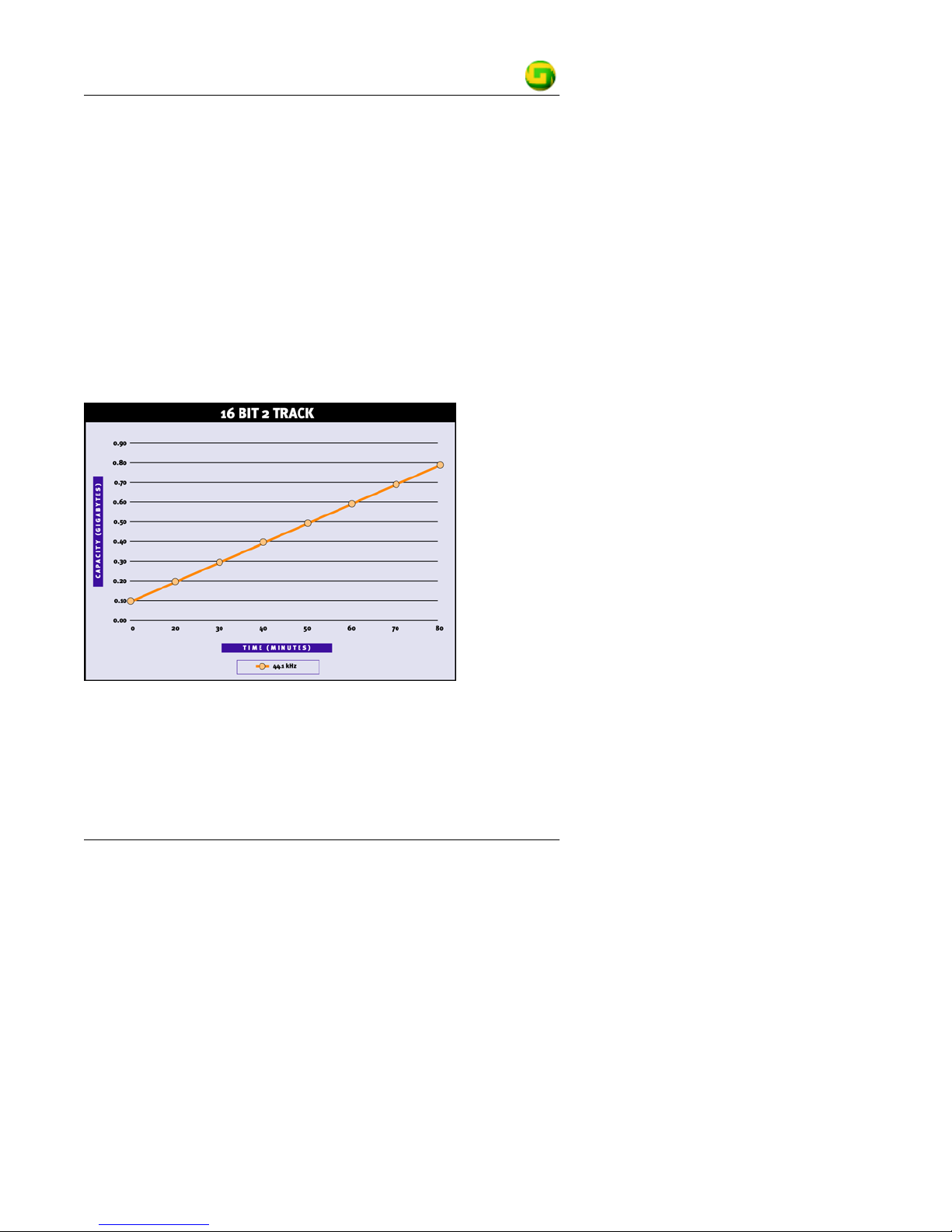
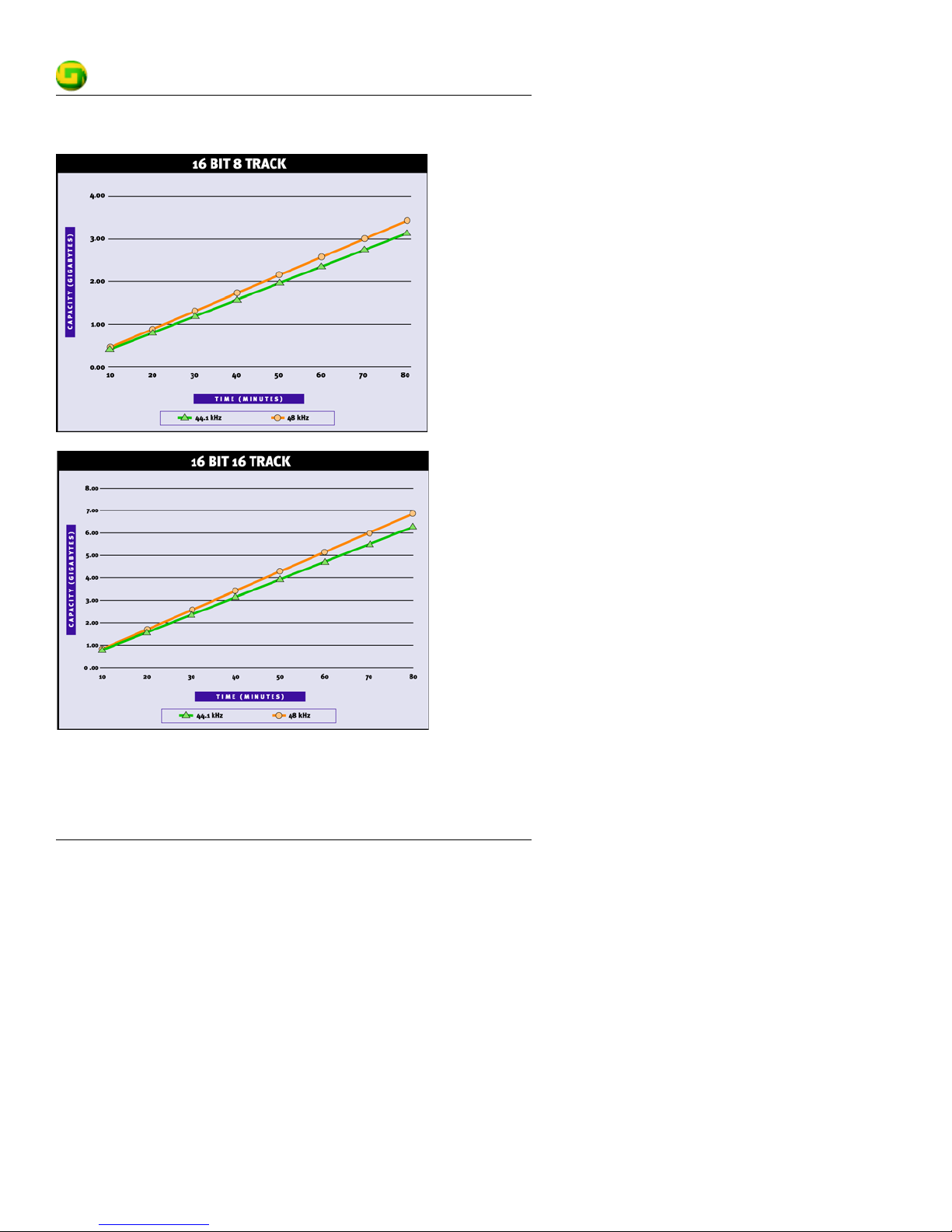
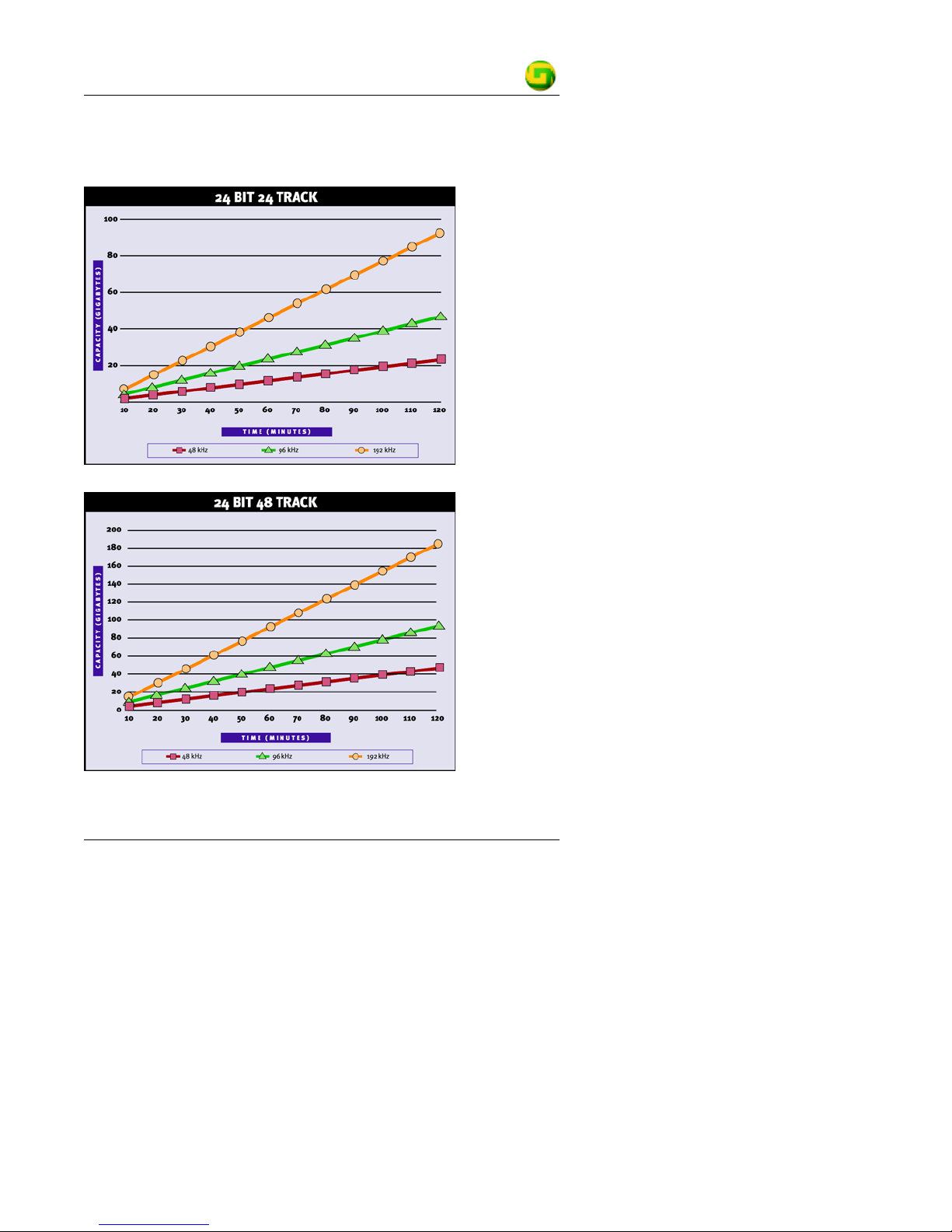
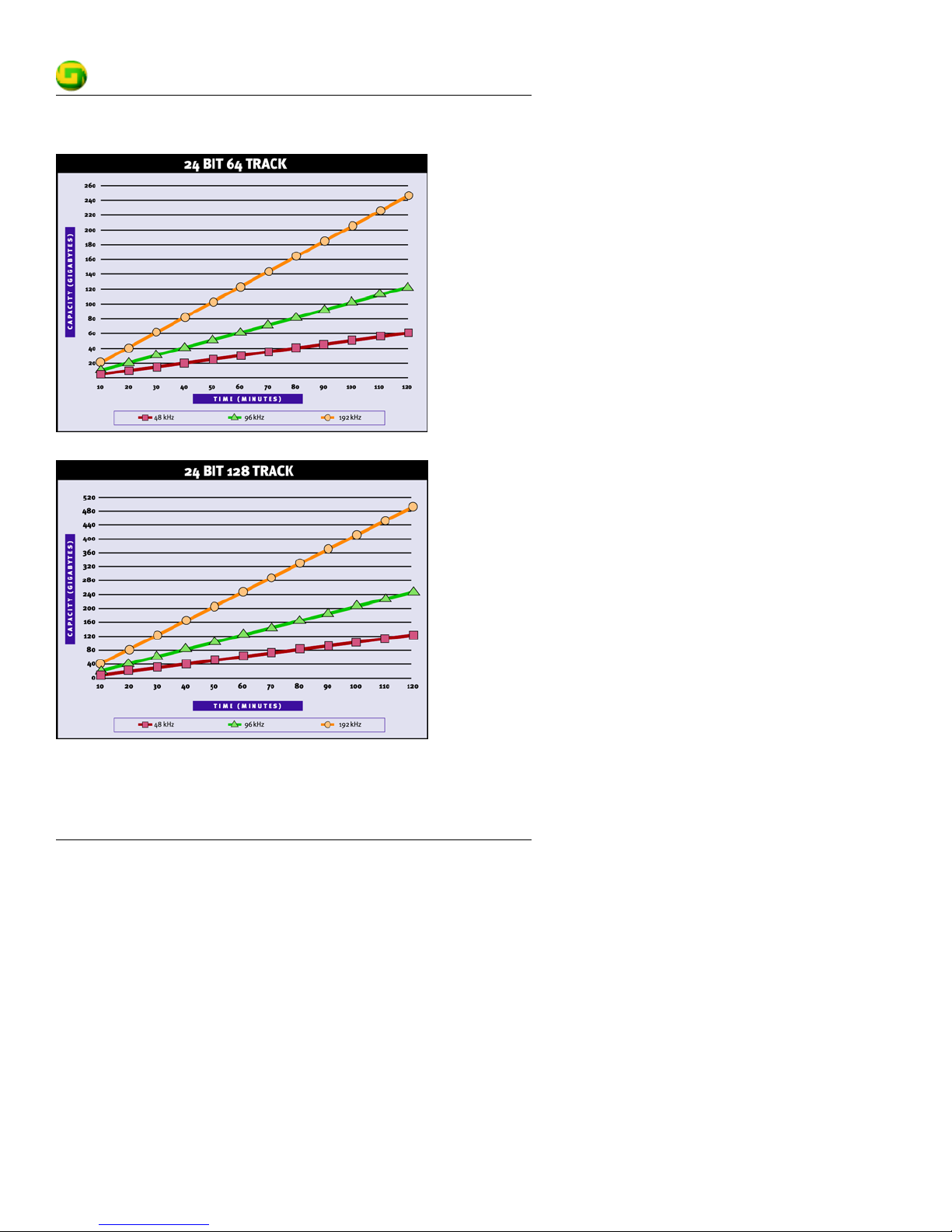
Audio Storage Guide
Be careful not to underestimate your needs. For maximum
performance you should use a drive at least 30% larger than your
estimated need. This gives you the room you need for operating
overhead and extra files generated during mixing and editing.
Note: The following charts illustrate the capacities required for
specific bit depths, sample rates and track counts. The ability to
achieve higher track counts depends on your DAW.
16 Bit Audio Storage Guide
Quick Guide #610011-1.04 Audio Storage Guide
© Glyph Technologies – www.glyphtech.com
25
Page 28
GT 051
Audio Storage Guide Quick Guide #610011-1.04
26 www.glyphtech.com – © Glyph Technologies
Page 29
GT 051
24 bit Audio Storage Guide
Quick Guide #610011-1.04 Audio Storage Guide
© Glyph Technologies – www.glyphtech.com
27
Page 30
GT 051
Audio Storage Guide Quick Guide #610011-1.04
28 www.glyphtech.com – © Glyph Technologies
 Loading...