

Page 1

NEBULA | User manual
15.6”, 21.5”Kiosk Tablet
Page 2

Thank you for purchasing a Glory Star Group Limited product. We recommend reading this user
guide carefully in order to achieve the optimal performance and to maximize the service life of
this product. The technical data provided in this manual come with adjustment from the actual
product, it should be treat as reference only.
We encourage you to visit our website at www.glorystargroup.com
Product video:
https://www.youtube.com/watch?v=GGVAPiKBXhY&t=4s
Page 3

Contents
Contents .................................................................................................................................................................... 3
Basic description...................................................................................................................................................... 4
Copyright information….………………………………………………………………………………………………………………………4
Safety and warning information………………………………………………………………………………………………………….5
Package contents…………………………………………………………………………………………………………………………………5
I/O description ......................................................................................................................................................... 6
Quick start user guide ........................................................................................................................................... 8
Android Operating System.................................................................................................................................. 11
FAQ & Solution ...................................................................................................................................................... 12
Page 4
Basic description
Nebula is designed as an all in one self-service kiosk.
The tablet embodies an option for attachments in magnetic card swipe, RFID readers and
barcodes that enables applications in system terminals, retail, employee, restaurant, hotels etc.
self-service kiosk. An integrated STAROS- the kiosk lockdown app and STARCONTROL- remotely
managed tablets software (optional) reinvents the tablet to an all in one solution for
growing enterprises to streamline productivity.
Copyright information
Copyright © 2017 Glory Star Group Limited. All rights reserved.
All intellectual property rights in this publication are owned by Glory Star Group Limited and
protected by applicable copyright laws and international treaty provisions. Glory Star Group
Limited retains all rights not expressly granted. No part of this publication may be reproduced in
any form whatsoever or used to make any derivative work without prior written approval by
Glory Star Group Limited.
Glory Star Group Limited reserves the right to revise this publication, and/or make improvements
or changes in the product(s) and/or the program(s) described in this documentation at any time
without prior notice. The information in this document is provided in good faith, but without any
representation or warranty whatsoever, whether it is accurate, or complete or otherwise, and on
express understanding that Glory Star Group Limited shall have no liability whatsoever to other
parties in any way arising from or relating to the information or its use.
All other trademarks are the property of their respective owners. Other company and brand
products and service names are trademarks or registered trademarks of their respective holders.
This device complies with CE and FCC regulations.
Page 5
Safety and warning information
1. Please read this manual carefully before using the device.
2. Please keep this manual for easy reference.
3. Please fix this product in a safe and stable location to avoid falling harming others
4. Appropriate use of this product temperature at about 0 C to 40 C, relative humidity
20%~80%, please avoid placing it on hot or moist location.
5. Avoid Collision against harden objects, may cause scratching on the surface and damaging
internal parts.
6. Should avoid liquid flow inside the device that may cause internal damage to the machine.
7. Do not attempt to repair this product yourself, always use a qualified service agent to
perform adjustments or repairs.
8. Do not overload electrical outlets, avoid electric shock or cause fire.
9. If you are not sure of the voltage, please consult with your local power company before
plug-in
PS: Main power Supply: This equipment is designed to operate from a 100-240 Volt, 50/60
Hz AC main supply. The use of other power sources may damage this machine.
10. Check that the voltage marked on the rating plate located at the rear of the power adaptor
states 100-240V. The manufacturer will not accept responsibility for damage or injury caused
by connecting to the wrong voltage.
Package contents
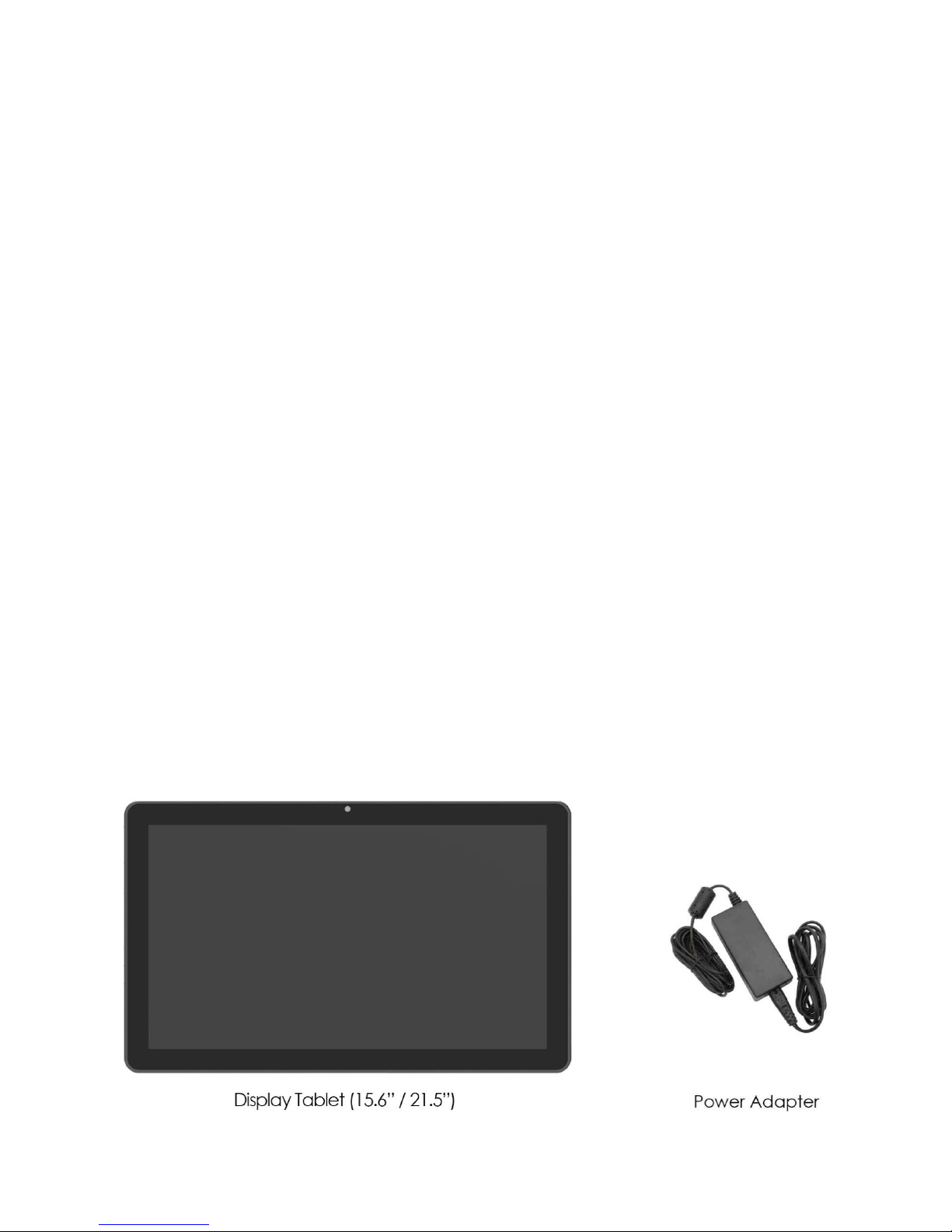
The package contains the following items:
Page 6
I/O description
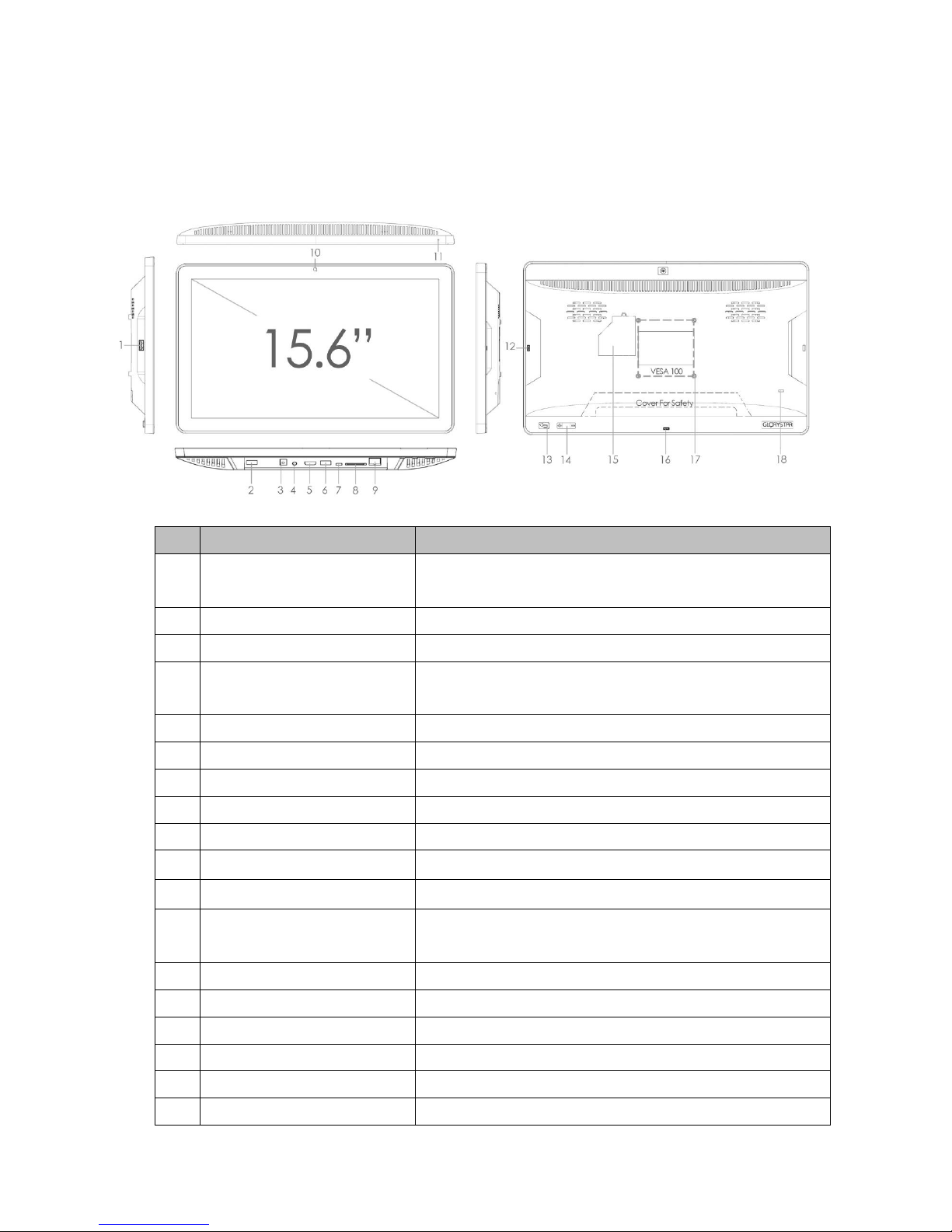
15.6” NEBULA
No.
Description
Remark
1
USB host port
For servicing – such as USB copy / mouse / movie or
file updated
2
USB host port
For external USB plug (length less than 30 mm)
3
Power jack
Power jack (diameter 3.5mm) / 12V/5A
4
3.5mm audio jack
Non-amplified audio signal, for use with headphones,
amplified stereo systems, etc...
5
HDMI port
Optional for HDMI
6
USB host port
For payment module / printer / bar code / NFC..etc
7
Micro USB OTG
For data transfer to PC
8
SD card slot
For extra memory storage
9
RJ45 Ethernet jack
LAN cable
10
Camera (optional)
For Skype / face detection
11
LED light
Power on signal
12
Micro USB Host
Optional accessories for “Glory Star” accessories -
RFID / bar code / NFC / MSR …etc.
13
Power button (optional)
Default disable
14
Volume up / down
Volume +/-
15
SIM card (optional)
Please check with the label in the inside cover
16
Micro USB OTG
For Glory Star accessories – bar code
17
VESA 100
M4 x 4 mm
18
Kensington key
For security on shelf
Page 7
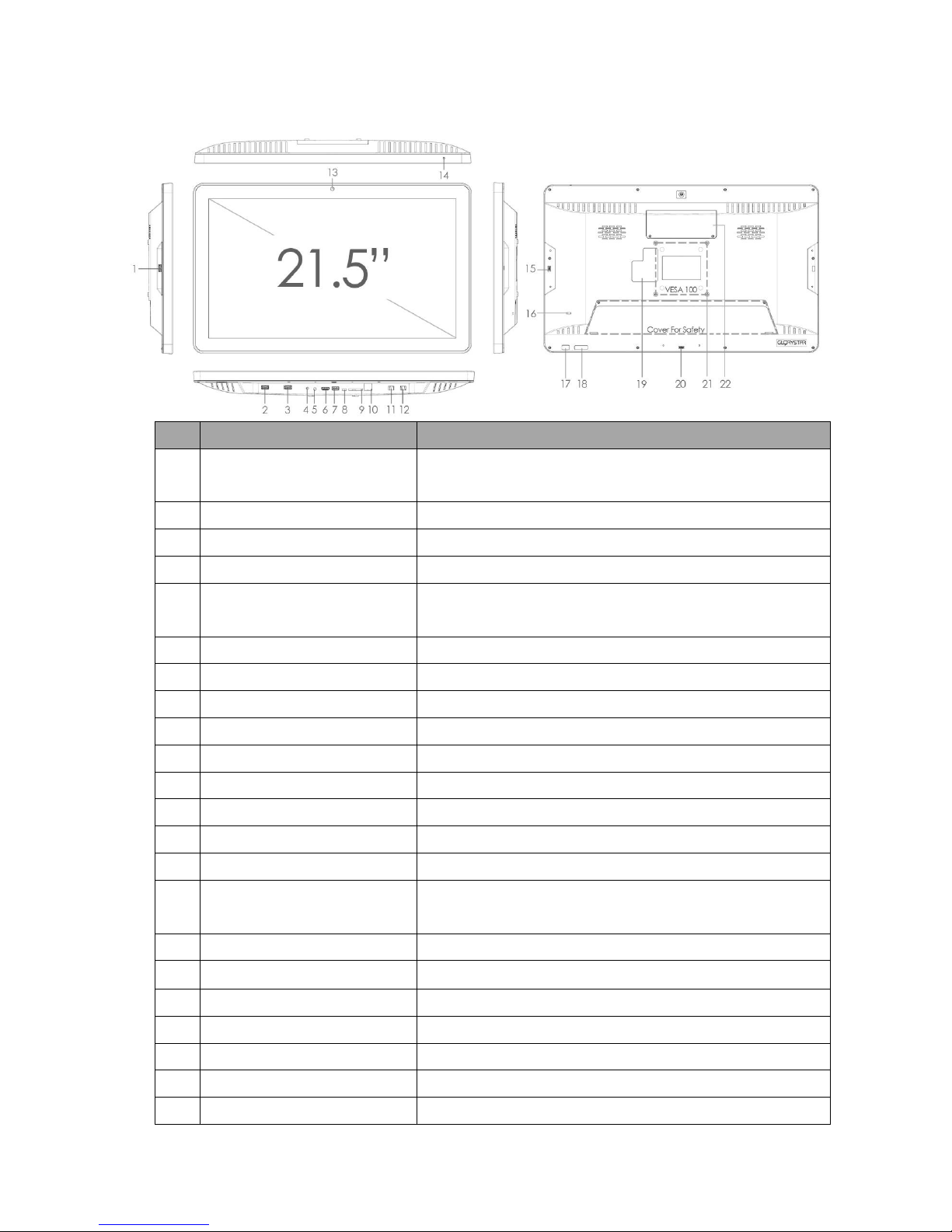
21.5” NEBULA
No.
Description
Remark
1
USB host port
For servicing – such as USB copy / mouse / movie or
file updated
2
USB host port
For external USB plug (length less than 30 mm)
3
USB host port
For payment module / printer / bar code / NFC..etc
4
Power jack
Power jack (diameter 3.5mm) / 12V/5A
5
3.5mm audio jack
Non-amplified audio signal, for use with headphones,
amplified stereo systems, etc...
6
HDMI port
Optional for HDMI
7
USB host port
For payment module / printer / bar code / NFC..etc
8
Micro USB OTG
For data transfer to PC
9
SD card slot
For extra memory storage
10
RJ45 Ethernet jack
LAN cable
11
RJ11 Ethernet jack optional
RS 232 (For TTL / mechanism connection)
12
RJ11 Ethernet jack optional
RS 232 (For TTL / mechanism connection)
13
Camera (optional)
For Skype / face detection
14
LED light
Power on signal
15
Micro USB host
Optional accessories for “Glory Star” accessories -
RFID / bar code / NFC / MSR …etc.
16
Kensington key
For security on shelf
17
ON / OFF button
Default disable
18
Power button (optional)
Volume +/-
19
SIM card (optional)
Please check with the label in the inside cover
20
Micro USB OTG
For Glory Star accessories – bar code
21
VESA 100
M4 x 8 mm
22
Dongle
For 3G / 4G USB dongle
Page 8
NEB 15.6
NEB 21.5
OS
Android 5.1
Android 5.1
Internal memory
8 GB
8 GB
SD card memory
32 GB (Max)
32 GB (Max)
RAM
2 GB DDR3
2 GB DDR3
Panel
1920 x 1080
1920 x 1080
Quick start user guide
This section describes how to set up and use NEBULA for the first time. The tablet runs Glory Star
Group Limited’s STAROS software by default, which runs on an Android operating system
installed in the player to play the desired contact.
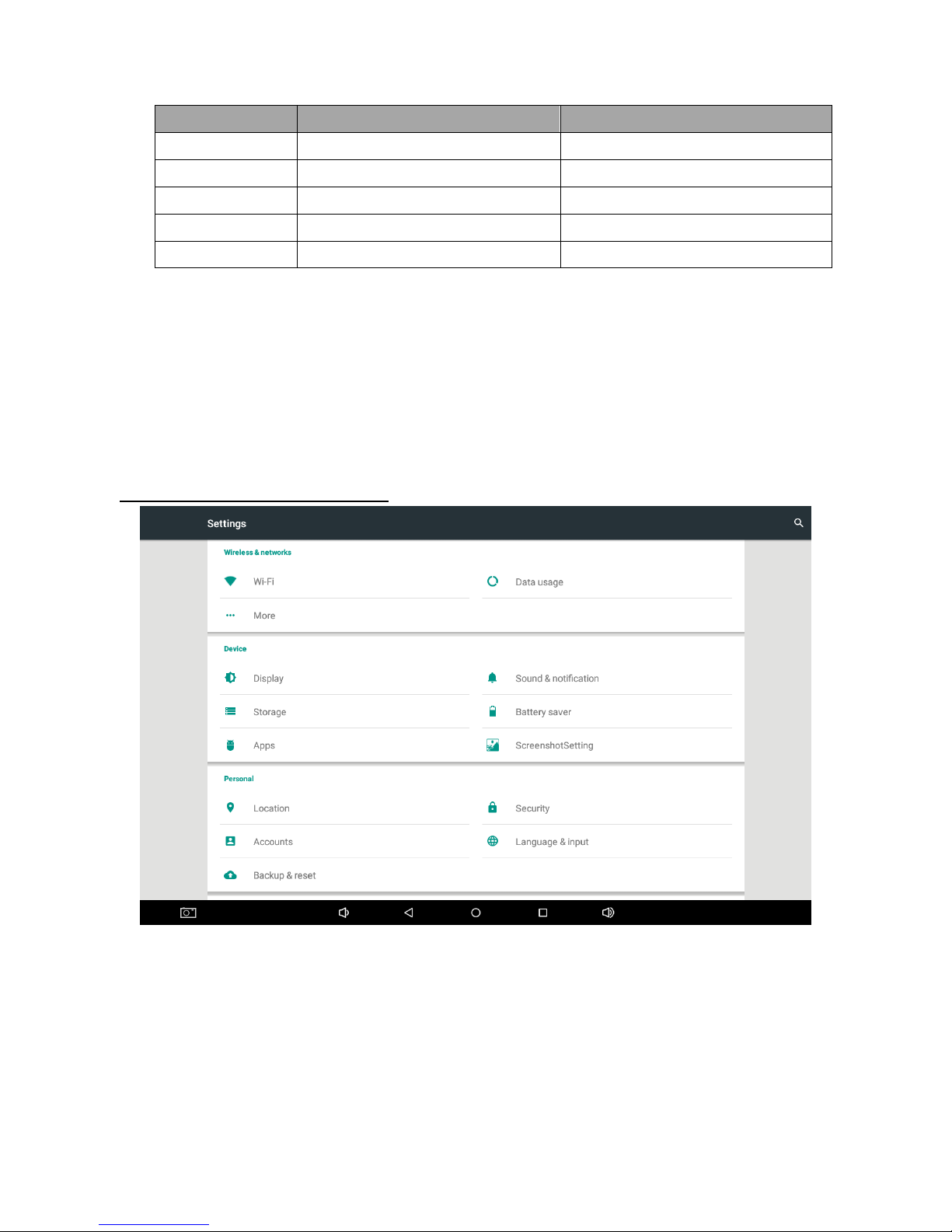
How to run WI-FI / LAN / Bluetooth?
WI-FI System
I. Go to home
II. Select Wi-Fi and turn it on
III. Select your network
Page 9
LAN System
I. Plug in your LAN cable
Bluetooth System
I. Go to setting
II. Go to more
III. Go to tethering & portable hotspot
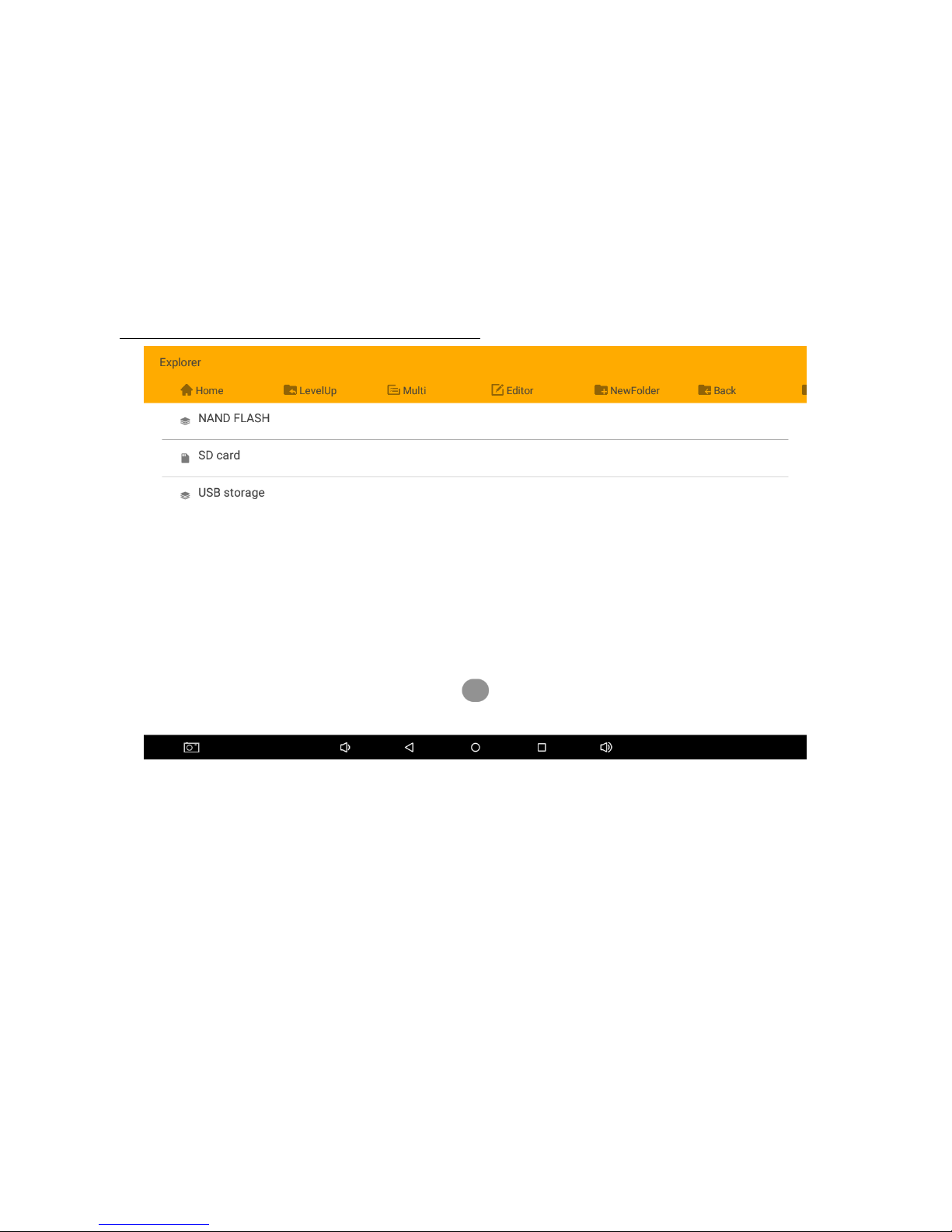
How to install APK / HTML / Media files to tablet?
I. Insert APK / HTML / media file to USB or SD card (ensure that the USB or SD card is empty)
II. Go to “Explorer”
III. Go to “USB / SD card storage” (where you place the file)
IV. Go to “Multi”. Select the file you want to copy
V. Select “Editor” and select copy
VI. Go to ”NAND FLASH” or the destination storage to paste
VII. Select “Editor” and select paste
VIII. The APK should appear on startup page
Page 10
How to unlock STAROS?
I. Please tap on the lower right corner 10 times until it pops-up instruction for passwords
II. Put “0000” to unlock
III. You can change the password going to “Security” and “Set Password”
How to remotely control tablets?
I. Please contact [email protected] to purchase STARCONTROL license
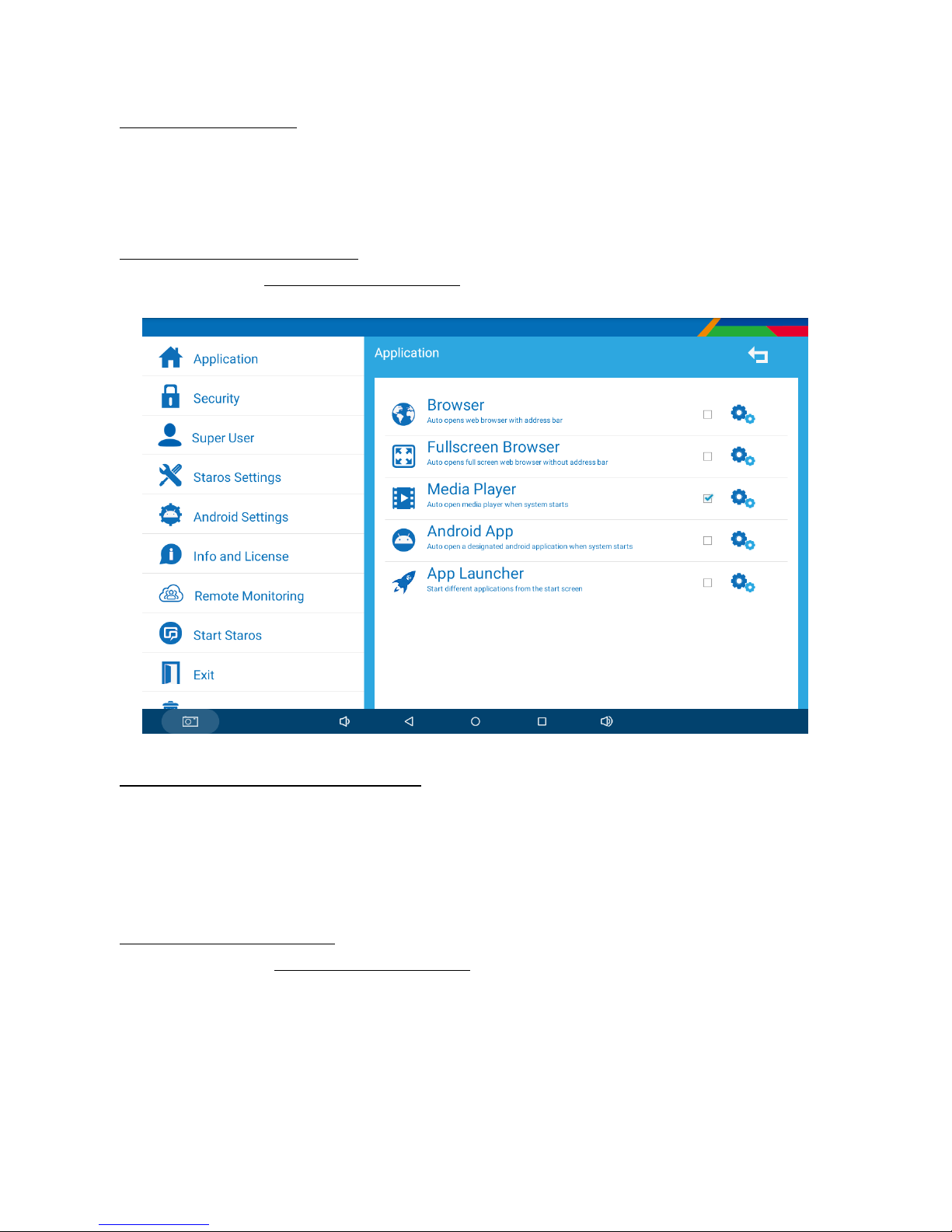
How to auto-run APK / Media / Website?
I. Tap on “STAROS 5.1” as pre-installed in NEBULA
II. Select “Application” and select “Android App”
III. Select the APK that you would like to auto-start
IV. Select “Start STAROS”
What if I uninstalled STAROS?
Please send email to [email protected] with serial number and customer name to
retrieve STAROS APP
Page 11

FAQ & Solution
Where is the license code?
- Please contact [email protected] with your serial number to retrieve your license
code
What is the largest APK size supported?
- APK file size cannot be large than 1 GB
How to set the tablet to factory default ?
Beware that all storage information will be erased.
-Go to “Android Settings”
-Go to “Personal”
-Go to “Backup & reset”
-Go to “Factory data reset”
-Select “Reset Device”
-Select “Erase Everything”
If the bottom bar is hidden, how do I go back to “STAROS settings”?
- Go to “Security”
- Select “Disable Bottom Bar”
- Uncheck the box to unhide bottom bar
Note: USB plug is not for charging
If the problem cannot be solved, please contact our maintenance staff through
[email protected]
Page 12

Glory Star Group Limited © All Rights Reserved
 Loading...