

Page 1

QUALCOMM Globalstar
GIK-1700 Globalstar
Installation Kit
User Guide
Page 2

This guide is based on the production version of the QUALCOMM Globalstar
GIK-1700 Globalstar Installation Kit. Software changes may have occurred after this
printing.
QUALCOMM reserves the right to make changes in technical and product
specifications without prior notice.
QUALCOMM Incorporated
5775 Morehouse Drive, San Diego, CA 92121-1714
Document Number 80-C6303-1 Rev B
Copyright © 2006 QUALCOMM® Incorporated
All rights reserved
This technology was exported from the United States Government. Diversio n
contrary to U.S. law prohibited.
QUALCOMM® is a registered trademark of QUALCOMM In co rpo rate d.
Digital by QUALCOMM® is a registered tra demark of QUALCOMM Incorporated.
SMART KEY™ is a trademark of QUALCOMM Incorporated.
Globalstar™ is a trademark of Globalstar, Inc.
All other trademarks and registered trademarks are the property of their respective
owners.
Printed in the United States of America
Page 3

Table of Contents
Introduction ......................... ........................................................ 1
Features ...................... ................... ................... .................... ....1
Safety precautions ...................................................................1
Exposure to radio frequency signals .......................................2
Antenna care ............................................................................3
Phone operation .................................. ....... ...... ....... ...... ....... ....3
Driving ........................ ...................................... ........................4
Electronic devices .....................................................................4
Pacemakers ....................................................................................5
Hearing aids ...................................................................................5
Other medical devices ....................................................................5
Vehicles ..........................................................................................6
Posted facilities ..............................................................................6
Aircraft .....................................................................................6
Blasting areas ..........................................................................6
Potentially explosive atmospheres ..........................................7
For vehicles equipped with an air bag ....................................7
Battery care ... ...................................... ....... ...... ....... ...... ....... ....7
Other safety issues ...................................................................8
Components .......................... ................... ............. ............. ...........9
Globalstar Installation Kit standard components ...............10
Component parts ....................................................................11
Globalstar Installation Kit ..........................................................11
Speaker ......................................................................................... 11
Hands-Free microphone ..............................................................11
Power interface cable ...................................................................11
i
Page 4

Car stereo muting (STEREO MUTE) .........................................12
Ignition sense ...............................................................................12
Car Power Adapter ......................................................................13
Exterior antenna ..........................................................................13
Globalstar Installation Kit optional accessories ..................14
Optional accessories (not included in kit) .............................15
Privacy headset ............................................................................15
Data cable .................................... .................................................15
Operation .............................. ...................................................... 17
Using the phone in a vehicle .................................................17
Attaching the phone to the Globalstar Installation Kit ............17
Turning on the phone and GIK ...................................................18
Charging the phone battery ........................ ..... ...... ..... ...... ..........19
Car stereo mute ...........................................................................20
Hands-free mode ....................................................................20
When you use hands-free mode ..................................................21
Adjusting speaker volume .....................................................21
Connecting to a personal computer .......................................22
Privacy Headset ............................................... ....... ...... ....... ..22
Privacy headset operation ...........................................................22
Troubleshooting ..................................... ................................... 25
ii
Page 5

Introduction
Caution
Before using your Globalstar Installation Kit in a vehicle, please
read this manual thoroughly and retain it for future reference.
Professional installation is recommended.
Features
The Globalstar Installation Kit (GIK) allows your Globalstar
satellite phone to be used as a mobile phone in your vehicle.
With this kit installed in a vehicle, you can:
■ Turn the phone on and off by turning the vehicle’s ignition on
and off.
■ Talk without picking up the phone.
■ Obtain unlimited talk time using DC current supplied by your
vehicle.
■ Charge the phone’s battery.
Safety precautions
When using your phone in a vehicle, please observe the following
rules.
Failure to fol low these instructions may lead to seri ou s
personal injury and possible property damage.
1
Page 6

Introduction
■
Secure the phone in your vehicle to prevent pers onal injury and
damage to the phone in the event of an accident.
When attaching or detaching the exterior antenna to the GIK
with the antenna cables, disconnect all power to the phone and
the GIK. Note that DC vol tage is present in the central
conductor of the antenna cable (45-C6162-1). See Globalstar
Installation Kit standard components, page 10.
■ Detach the phone from the GIK and disconnect the power
interface cable (
45-C6184-1) to the GIK when jump starting the
vehicle or recharging the car battery. Jump starting may cause
the GIK fuse to open. Refer to the installation sheet for further
information regarding interconnects.
Exposure to radio frequency signals
Your wireless handheld portable telephone is a low power radio
transmitter and receiver. When it is on, it receives and also sends
out radio frequency (RF) signals.
In August, 1996, the Federal Communications Commissions (FCC)
adopted RF exposure gui d elines with safety levels for hand-held
wireless phones. Those guidelines are consistent with the safety
standards previously set by both U.S. and international standards
bodies:
■ ANSI/IEEE C95.1-1999 Standard
■ NCRP Report 86 (1986)
■ ICNIRP (1998)
3
2
1
1. American National Standards Institute
2. National Council on Radiation Protection and Measuremen ts
2
Page 7

Introduction
IRPA (1991) Guidel ines on Protection Against Non-ionizing
■
Radiation
1
The phone and this kit are designed to comply with established
ANSI, FCC, and international safety standards for safe levels of
human exposure to RF energy. Nonetheless, RF field intensit y at
the surface of the transmitting antenna is fairly high. Maintaining
a minimum line-of -sight separation distance of 25 cm (10 inches)
between the transmitting antenna and all personnel will ensure
that the General Population/Uncontrolled Exposure Maximum
Permissible Exposure ( MPE) limits are not exceed ed. This satisfie s
the MPE limits mandated by the FCC in 47 CFR Ch. 1 (2006
Edition), Part 1, paragraph 1.1310 and defined in the ANSI/IEEE
C95.1-1999 standard, and also sat isfies the slightly mor e-stringen t
European and internatio nal exposure limit recommendations of
IRPA (1991) and ICNIRP (1998).
Antenna care
Use only the supplied or an approved replacement antenna.
Unauthorized antennas, modifications, or attachments could
damage the phone and may violate FCC regulations.
Phone operation
Hold the phone as you would any other tel ephone with the antenna
pointed up and over your shoulder.
3. International Commission on Non-Ionizing Radiation Protection
1. Internal Radiation Protection Association
3
Page 8

Introduction
Tip
For your phone to operate most efficiently:
❑ Extend your antenna fully.
❑ Do not touch the antenna unne cessarily whe n the phone is
in use. Contact with the antenna affects call quality and
may cause the phone to opera te at a higher power level
than otherwise needed.
Driving
In the areas where you drive, always obey the local laws and
regulations on the use of wireless telephones.
If using your phone while driving, please:
■ Give full attention to driving – driving safely is your first
responsibility.
■ Use hands-free operation, if available.
■ Pull off the road and park before making or answering a call if
driving conditions require you to do so.
Electronic devices
Most modern electronic equipment is shielded from RF signals.
However, certain electronic equipment may not be shielded against
the RF signals from your wireless phone.
4
Page 9

Introduction
Pacemakers
The Health Industry Manufacturers Association recommends that
a minimum separation of six inches (15 cm) be maintained between
a handheld wireless phone and a pacemaker to avoid potential
interference with the pacemaker. These recommendations are
consistent with the independent research by and recommendations
of Wireless Technology Research.
Persons with pacemakers:
■ Should ALWAYS keep the phone more than six inches from
their pacemaker when the phone is turned on.
■ Should not carry the phone in a br east pocket.
■ Should use the ear opposite the pacemaker to minimize the
potential for interference.
■ If you have any reason to suspect that interference is taking
place, turn your phone off immediately.
Hearing aids
Some digital wireless phones may interfere with some hearing
aids. In the event of such interference, you may want to consult
your service provider (or call the customer service line to discuss
alternatives). Optional for each phone manufacturer.
Other medical devices
If you use any other personal medical device, consult the
manufacturer of your device to determine if it is adequately
shielded from external RF energy. Your physician may be able to
assist you in obtaining this information.
5
Page 10

Introduction
Turn your phone off in health care facilities when any regulations
posted in these area s instruct you to do so. Hosp itals or health care
facilities may be using equipment that could be sensitive to
external RF energy.
Vehicles
RF signals may affect improperly installed or inadequately
shielded electronic systems in motor vehicles. Check with the
manufacturer or its representative regarding your vehicle. You
should also consult the manufacturer of any equipment that has
been added to your vehicle.
Posted facilities
Turn your phone off in any facility where posted notices require
you to do so.
Aircraft
FCC regulations prohibit using your phone while in the air. Switch
off your phone before boarding an aircraft.
Blasting areas
To avoid interfering with blasting operations, turn your phone off
when in a “blasting area” or in areas posted: “Turn off tw o-way
radio”. Obey all signs and instructions.
6
Page 11

Introduction
Potentially explosive atmospheres
Turn your phone off whe n i n a ny are a wi th a potentially explosive
atmosphere and obey all signs and instructions. Sparks in such
areas could cause an explosion or fire resulting in bodily injury or
even death.
Areas with a potentially explosive atmosphere are often but not
always clearly marked. They incl ude fueling areas such as gasoli ne
stations; below deck on boats; fuel or chemical transfer or storage
facilities; vehicles using liquefied petroleum gas (such as propane
or butane); areas where the air contains chemicals or particles,
such as grain, dust, or metal powders; and any other area where
you would normally be advised to turn off your vehicle engine.
For vehicles equipped with an air bag
An air bag inflates with great force. DO NOT place objects,
including both installed or portable wireless equipment, in the area
over the air bag or in the air bag deployment area. If in-vehicle
wireless equipment is improperly installed and the air bag inflates,
serious injury could result.
Battery care
The phone’s battery sto res a large amount of energy when fully
charged. If the battery is pun ctured, crushed, severe ly overheated,
or charged in a non-QUALCOMM charger, this energy can be
released suddenly and result in potential injury.
■ Do not overheat the battery by leaving it on a heater or in the
sun.
7
Page 12

Introduction
■
Do not dispose of the battery in a trash compactor or
incinerator.
■ Use only charging accessories manufactured by QUALCOMM,
and discontinue use of the battery if it becomes damaged.
Other safety issues
In order to avoid the potential fo r confusing the phone as a weapon,
the phone features a dist i nctiv e fl ame ora nge do t on t he t op of the
antenna.
■ This orange dot is a convention used by manufacturers of
various devices and is familiar to safety officers in the country
of manufacture and other countries.
■ Do not remove or cover the dot, and avoid usin g or handling the
phone in a threatening manner or so as to suggest that the
phone is a weapon.
8
Page 13

Components
Check the components of the Globalstar Installation Kit listed
below. If there is something missing, please contact the service
provider where you purchased your kit.
Component parts
CV90-C6029-1
CV90-C6030-1
80-C6061-1
45-C6184-1
65-C6185-1
45-H3210-6
50-C6045-1
CV90-C6032-1
45-C6162-1
65-C6056-1
GIK-1750
GIK-1770
Globalstar Installation Kit
Speaker Installation Kit
Hands-Free Microphone
Power-Interface Cable
Hardware Kit
Speaker Extension Cable
Speaker Mounting Bracket
Car Power Adapter
Antenna Cable
Literature Kit
Patch Antenna
Quadri-filar Helix Antenna
9
Page 14
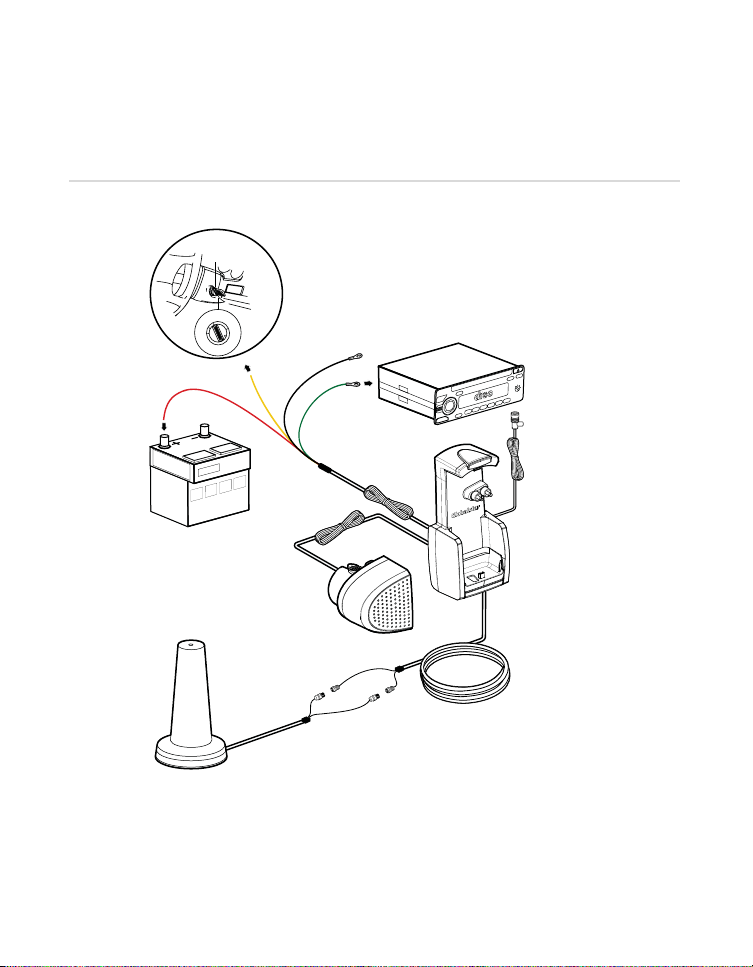
Components
Globalstar Installation Kit standard
components
Accessory
position
ACC
OFF
START
LOCK
SENS
DSPL
1
2
OFF
3
-BASS
D
ACT
P
OM
C
SOUND
O
Battery
45-H3210-6
45-C6184-1
MODE
SOURCE
RELEASE
6
AL AUDI
DIGIT
45
SHUF
3
T
A
REPE
12
OFF
80-C6061-1
Antenna
45-C6162-1
10
Page 15

Components
Component parts
Globalstar Installation Kit
The Globalstar Installation Kit (CV90-C6029-1) securely holds the
Globalstar phone, interfaces to the v ehicle’s power, and houses t he
electronic circuit for the GIK. It provides and controls the supply
voltages for the accessories and the charge current for the phone.
Speaker
The speaker (CV90-C6030-1) connects to the GIK speaker jack. It
should be mounted at least 20 inches (50 cm) away from the HandsFree microphone and should not be pointed towards the
microphone. It can be mounted either on the cradle or remotely,
depending on the user’s preference.
Hands-Free microphone
The Hands-Free microph one (80-C6061-1), a unidirectional mouse-
style microphone, connects to the GIK microphone jack. It can be
installed with velcro or tape on the A-pillar or on the driver’s sun
visor.
Power interface cable
There are two options to connect to the car’s power sup ply; the car
interface cable and the Car Power Adapter.
The power-interface cable (
4-pin connector.
45-C6184-1) connects to the GIK via the
11
Page 16

Components
Note
■
The fused red lead connects to th e positive terminal of the
vehicle’s battery.
■ The black lead ground (GND) connects to a clean, unpainted
metallic part of the vehicle.
■ The fused green lead (STEREO MUTE) is for car stereo mute.
■ The fused yellow lead (IGNS) is for ignition sense.
Car stereo muting (STEREO MUTE)
The phone provides a feature t o mute the car st ereo automa ticall y
during a conversation, which is convenient and provides for safer
hands-free operation. When the phone rings, the green fused lead
provided for the stereo mute feature goes to ground.
This feature requires a ca r stereo that supports it.
Ignition sense
The ignition sense feature prevents the car kit from draining the
vehicle’s battery by executing an auto power off 30 seconds after
the ignition key has been turned off, if not currently in a call. The
yellow wire of the power-interface cable (
ignition sense feature. The use of igni tion sense is recommended to
prevent accidental draining of the vehicle’s battery. The wire is
connected via a fuse to the vehicle’s ignition.
45-C6184-1) is used for the
12
Page 17

Components
Caution
Car Power Adapter
The GIK can alternatively be powered using the Car Power
Adapter (CPA) (
■ Connect the CPA cable to the 4-pin connector on the back of the
CV90-C6032-1).
unit.
■ Plug the CPA into the vehicle’s car power port.
Refer to vehicle’s user manual regarding car power port
operation. Some car power ports provide cont inuous
power regardless of vehicle ignition state. This may
require the user to rem ov e the CPA from car power port
to avoid vehicle battery drain when vehicle is off. When
using the CPA, the stereo mute function is not available.
Exterior antenna
The exterior antenna permits communication with the satellite
when the phone is installed in the GIK.
Antenna cables
The antenna cable consists of a pair of paired coaxial cables
(
45-C6162-1) that connect the exterior antenna to the GIK. Use only
the antenna cables that come with your kit when connect ing the
exterior antenna. Do not cut or modify the antenna cables.
13
Page 18

Components
Caution
DC voltage exists in the central conductor of the antenna
cable. Be sure that the cable connector is installed inside
the vehicle.
Globalstar Installation Kit optional
accessories
USB
Cable
Privacy
Headset
Optional accessories
GHS-1700 Privacy Head set
GDC-1700 USB Data Cable
14
Page 19

Components
Optional accessories (not included in kit)
Privacy headset
The privacy headset (GHS-1700) offers more privacy during a call
and is connected directly to the phone.
Data cable
A USB data cable (GDC-1700) can connect a computer or other
device to the GIK, allowing the phone to send and receive data.
15
Page 20

Components
16
Page 21
Operation
Using the phone in a vehicle
Attaching the phone to the Globalstar
Installation Kit
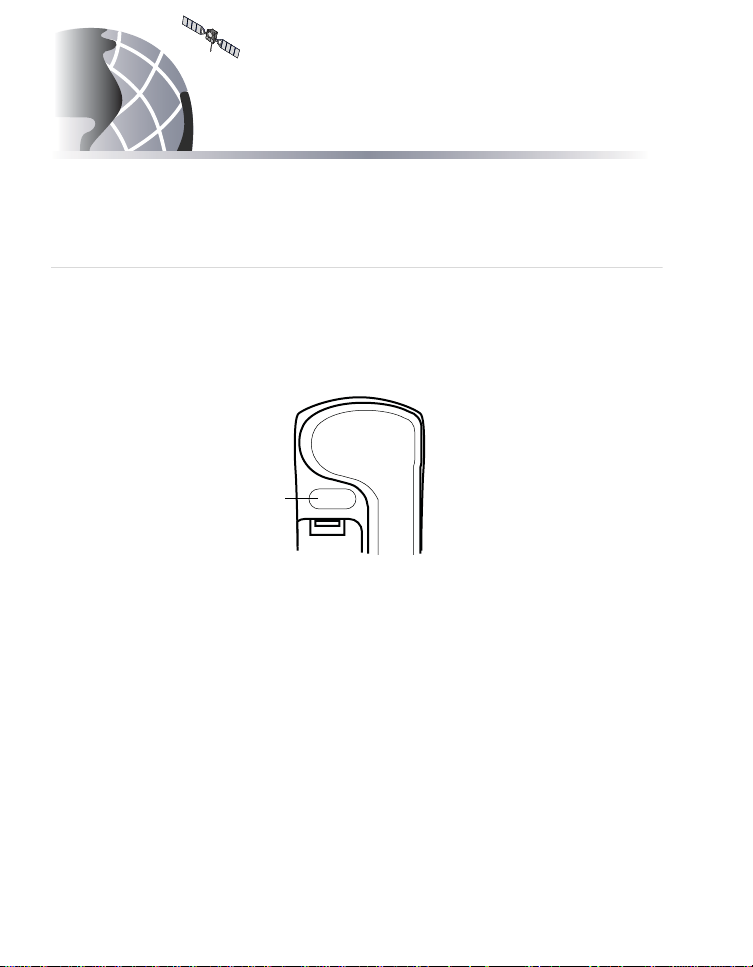
1. Remove GIK connector cover label from back of phone.
Remove
This
Sticker
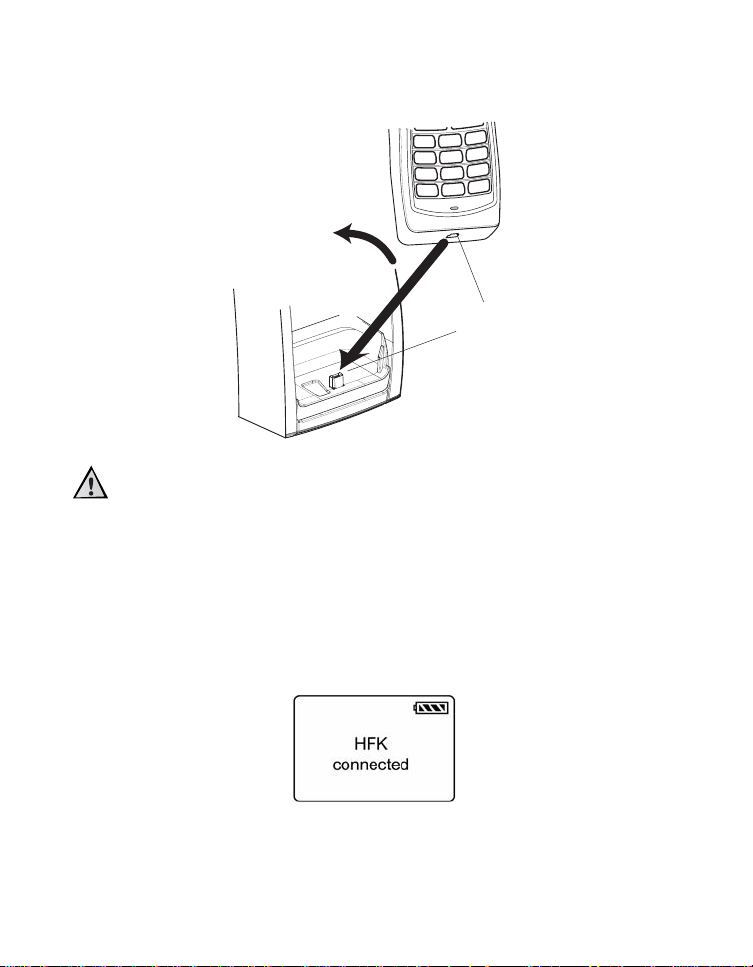
2. Remove rubber plug from connector at bottom of phone. Rotate
rubber plug toward antenna.
3. Insert the connector on the bottom of the GIK into the
connector on the phone.
4. Push the phone down and back until it locks into place. You
should hear a click.
5. To remove the phone, pres s the release but ton at the to p of the
GIK, and gently remove the phone.
6. Replace the rubber plug in the connector.
17
Page 22
Operation
Caution
1. Insert plug into
phone socket
2. Rotate phone into
locked position.
2.
1.
Phone Socket
Plug
Do not pull the phone out of the GIK without first
pressing the release bu tton. If you do so, you could
damage the phone and the GIK.
Turning on the phone and GIK
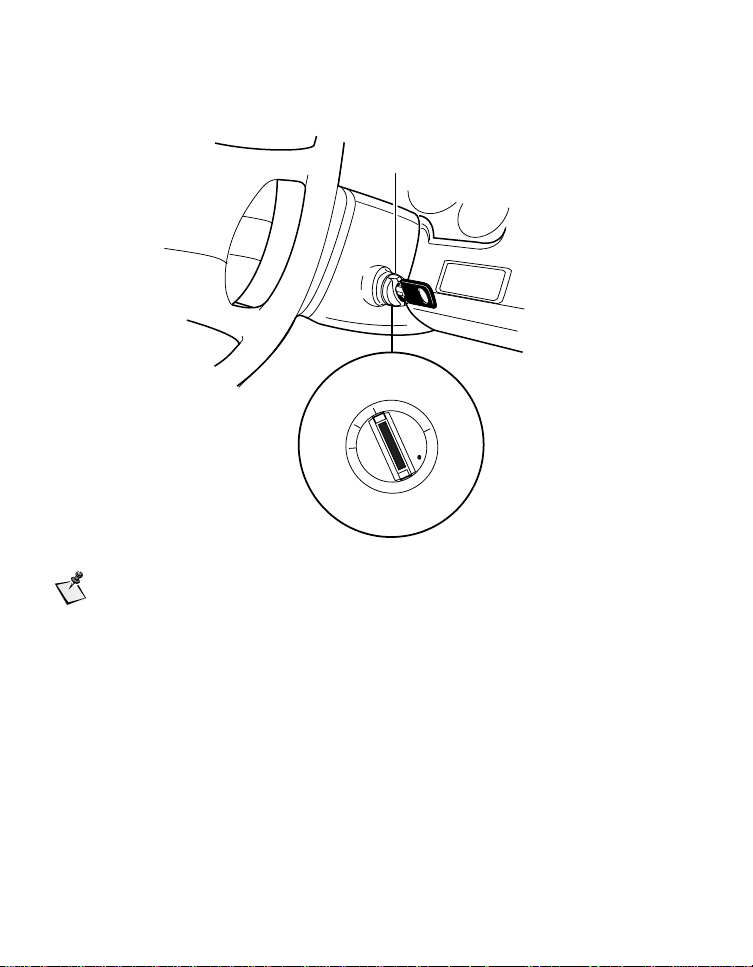
When you turn on the vehicl e’s ignition, t he phone and the GIK are
turned on. The phone is ready to make or receive a call.
18
Page 23
Operation
Note
358AB_1999Q
Accessory
position
ACC
OFF
LOCK
START
If you turn off the vehicle’s ignition duri ng a call, the GIK
remains on so you can continue talking . (The GIK will remain
on until the phone b attery is fully cha rged. Se e Char ging the
phone battery, page 19.)
Charging the phone battery
When a powered on phone is placed in the GIK, whether the
ignition is on or off, the GIK powers up and charges the phone’s
battery. When the charge is complete, the GIK will power down.
19
Page 24

Operation
Note
Caution
If both the phone and t he GIK are po were d do wn and the pho ne is
placed in the GIK, the phone will charge as long as:
■ the GIK is wired to the vehicle battery, OR
■ the car power adapter cable has power (the light on the cable is
lit).
The phone will c harge to f ull and then both t he phone a nd the GI K
will power down.
Car stereo mute
This feature requires a ca r stereo that supports it.
The GIK has the ability to mute the car stereo system
automatically when you make or receive a call if the car stereo has
an audio mute line (STEREO MUTE).
Hands-free mode
The GIK allows you to use your phone more efficiently and safely
while driv ing in yo ur vehicl e. When t he phone is properly attached
to the GIK and the vehicle’s ignition is on, you can speak into the
microphone and listen to the o ther party through the speaker while
keeping both hands on the steering wheel.
20
You should stop the vehi cl e in a safe place before
attempting to dial a number. If you must talk while the
Page 25

Operation
Note
vehicle is moving, use the Hands-Free microphone so that
you can always concentrate on traffic conditions.
If you turn off the vehicle’s ignition during a call, the call will not
be interrupted. After you terminate the call, the phone will power
off in 30 seconds. No subsequent calls can be made unless the
ignition is turned on. The GIK will continue to charge until the
phone is fully charged.
When you use hands-free mode
■ It is recommended that you use one-touch dialing or speed
dialing to simplify key operations. See the QUALCOMM
Globalstar GSP-1700 Phone User Guide.
■ Exercise extreme caution with traffic conditions.
Adjusting speaker volume
You can use the volu me keys on t he si de of t he phone t o adjust the
speaker volume. You can:
■ Adjust the phone speaker volume while on a call.
■ Adjust the ringer volume when the phone is not on a call.
You can also use menus to adjust the volume. Refer to the
phone user guide.
21
Page 26

Operation
Note
Connecting to a personal computer
Connecting a USB data cable (GDC-1700) from your computer or
other device to the data port of the GIK allows the phone to send
and receive data. See Component parts, page 11.
You cannot use the phone to talk while sending and receiv ing
data.
Privacy Headset
Privacy headset operation
Setting up the headset
Before starting to drive:
1. Remove rubber plug from the he adset jack on the left side of the
phone. Rotate rubber plug toward the antenna.
2. Plug the privacy headset into the headset jack on the phone.
3. Place the headset over your ear.
4. Speak in the direct ion of the headse t microphone instea d of the
Hands-Free microphone. You will he ar the other party through
the earplug.
5. Use the volume keys or Preferences menu on your phone to
adjust the volume of the earplug when you are on a call. See the
phone user guide.
22
Page 27

Operation
Using the headset
To make a call with the headset:
1. Dial the desired number on the keypad of your phone.
2. Press .
When you use the headset, the speaker and microphone are muted,
and you can speak in privacy.
To receive a call with the headset:
❑ When the phone rings, press any key except . See the
phone user guide for information on the AnyKeyAnswer
option.
To end a call with the headset:
❑ Press .
To switch from the headset to hands-free mode:
❑ Unplug the headset from the headse t jack when you are not
driving.
23
Page 28

Operation
24
Page 29

Troubleshooting
If you have problems usin g the kit, look at thes e poss ible solu tions
before calling your service provider.
T able 1. Error messages
Message Recommendation
Antenna not found Re-check phone connection to the GIK.
Re-check cable connection s between the
GIK, antenna cable, and antenna.
MCU/Communication
Error
Kit connected No troubleshooting necessary.
No message when
phone is placed in GIK
Re-check phone connection to the GIK.
Re-check phone connection to GIK. Verify
power is supplied to GIK, either via the
power-interface cable or the car power
adapter.
25
Page 30

Troubleshooting
Table 2. Other problems
Problem Recommendation
Speaker not working Verify peaker connection to GIK. Verify
volume setting on phone is loud enough to
hear speaker.
Microphone is not
working
After charging/
jumping vehicle
battery, phone no
longer works
Verify microphone connection to G IK. Verify
handset is not set to “mute” during a call.
Replace GIK fuse on the red wire. Refer to
the installation sheet for replacement
instructions.
26
Page 31

Index
A
adjusting headset earplug volume
22
adjusting ringer volume 21
adjusting speaker vol ume 21
air bag safe ty 7
anetnna cables
DC voltage
antenna
cable
exterior 13
patch 9
Quadri-filar helix 9
safety 3
antenna cables
DC voltage
14
9
2
B
battery
charging
19
C
cables
antenna
power interface cable 11
car interface cable
battery connection
ground 12
ignition sense 12
13
12
ignition sense feature 12
stereo mute 12
Car Power Adapter 9
car stereo mute 12, 20
components 11
D
data cable 15
dialing
one touch
speed 21
driving safety 4
21
E
electronic devices 4
exterior antenna 13
F
fuse 2, 26
G
Globalstar Installation Kit 11
attaching the phone 17
components 9
features 1
optional accessories 14
release button 17
standard components 10
turning off 19
turning on 18
Index-1
Page 32

Index
H
hands-free mode 20
Hardware Kit 9
hearing aids 5
I
ignition sense
auto power off
12
J
jump starting your vehicle
safety precautions
2
L
Literature Kit 9
M
medical devices 5
microphone 9, 11, 20
connecting 11
installation 11
O
operation 17
optional accessories 15
P
pacemakers 5
patch antenna 9
power interface cable 11
Power-Interface Cable 9
privacy handset 15
operation 23
privacy headset 22
adjusting earplug volu me 22
Q
Quadri-fi lar helix an tenna 9
R
radio frequency 2
recharging vehicle battery
safety precautions
2
S
safety
air bags
aircraft 6
antenna 3
blasting areas 6
driving 4
electronic devices 4
explosive atmospheres 7
hearing aids 5
hospitals 6
medical devices 5
pacemakers 5
precautions 1
radio frequency 2
speaker 9, 11, 20
connecting 11
extension cable 9
mounting bracket 9
7
T
Troubleshooting
Error messages
Other problems 26
25
U
USB data cable 22
Index-2
 Loading...