

Page 1
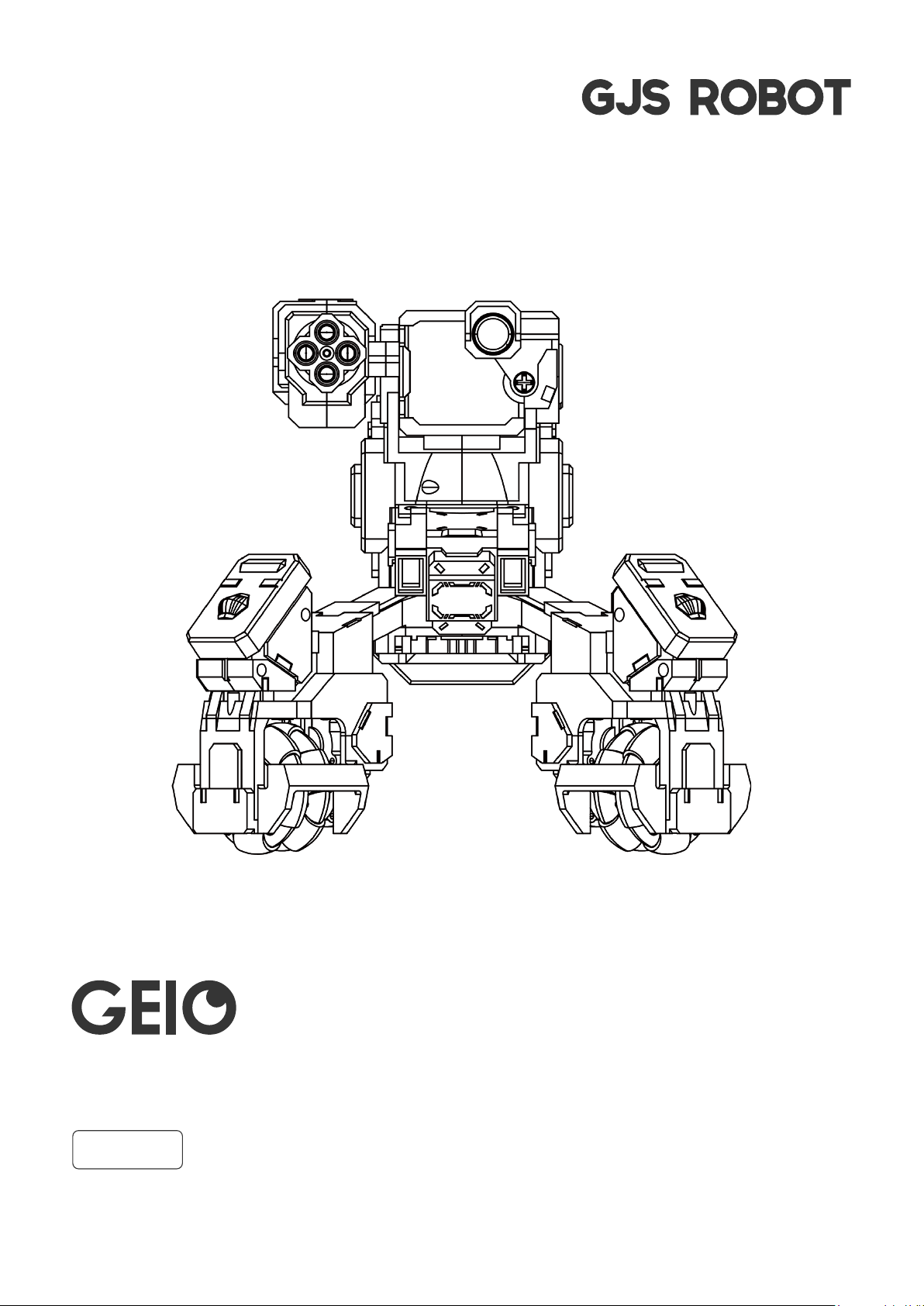
User Manual
V1.0
Novembre 2018
Page 2
Quick Search with keywords.
You can use the search function and search for keywords in the electronic PDF version. For example, in Adobe
Reader, Windows users can use the keyboard shortcut Ctrl + F, while Mac users can use Command + F to
search for keywords.
Printing the document.
This document can be printed out in high quality.
More GEIO Videos
Visit the following website for more videos:http://www.gjs.so/geio/intro
Download the GEIO app
GEIO can be controlled by two apps.
iOS users should search for GEIO or GEIO EDU in the App Store.
Android users should log in to Google Play or other major Android platforms and search for GEIO or GEIO EDU.
Or head to the following website to download the GEIO app
http://www.gjs.so/geio/intro? Here you can directly download GEIO or GEIO EDU.
The GEIO app supports Android v5.0 or higher and iOS 11.0 or higher.
GEIO GEIO EDU
*If you are going to use GEIO’s
programming function,
kindly use the GEIO EDU.
Notes:
· GEIO’s Wi-Fi uses 5GHz frequency. Seeing as some mobile devices do not support 5GHz frequencies, please make
sure that your device supports it before using your GEIO.
· This user manual is intended for GEIO v.3.2 and GEIO Educational v.2.0.
@Shenzhen GJS Technology Co., Ltd.
02
Page 3

Contents
Product Overview
Introduction
Preparations Before Usage
Upon Starting Your Bot
Machine Marks and Ways to Attack
Mode Selection
General Settings
Control Interface introduction
Mode Settings
Totem
04
05
05
06
07
08
08
10
11
12
Using GEIO
Basic Operations
Introduction to Gameplay
Battle Area
Specifications
Notice
FAQ
14
15
17
26
27
28
29
@Shenzhen GJS Technology Co., Ltd.
03
Page 4

Product Overview
This chapter introduces the feature of GEIO
@Shenzhen GJS Technology Co., Ltd.
04
Page 5
Introduction
GEIO is engineered to present you the most indulging robotic battle experience, equipped with
First Person Shooter (FPS) and Visual Recognition system. The power behind GEIO is attributed
to the groundbreaking artificial intelligence technology.
Preparations Before Usage
·Charging and Install the Battery
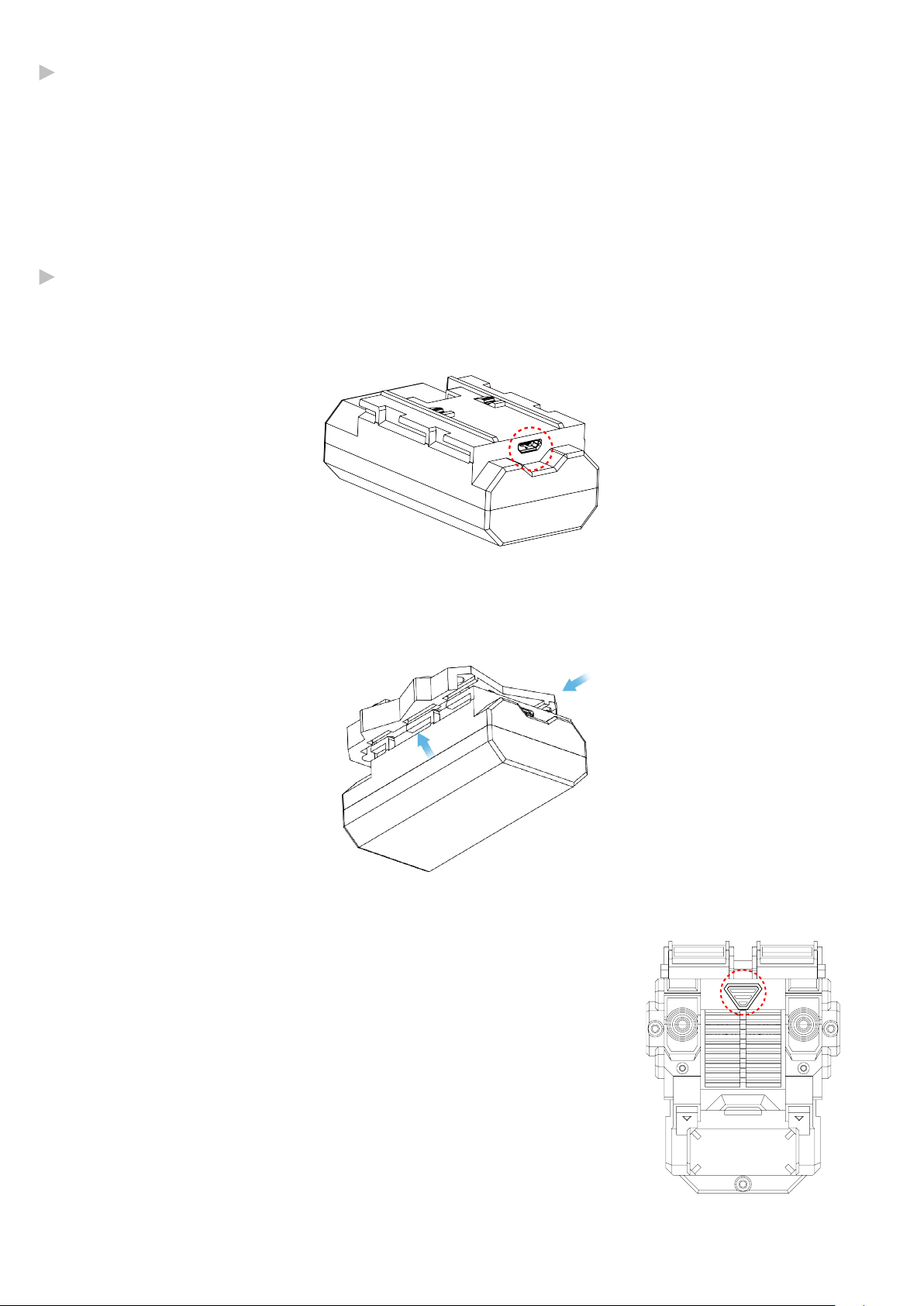
Charge the battery with the USB cable that we provided and a normal USB power adapter. A red
light will flash while the battery is charging. When the battery is fully charged, the light will keep on.
Put the battery in the socket and push it backward still it locked
·Turn On Your GEIO
Turn on: long press the triangle button shown as picture until
the power LED turns on.
Turn off: long press the button until the power LED turns off.
@Shenzhen GJS Technology Co., Ltd.
05
Page 6
Upon Starting Your Bot
·When not connected to a mobile device
Cute Pet Mode: GEIO will move automatically, recognize and follow human face*, and show
different expressions.
Turret Mode: GEIO will search enemy bots nearby automatically after it has been turned on
but not connected. If the other GEIO enters its range of attack, the Turret GEIO will start to
shoot the enemy bots. When there are multiple players, you can set one or several GEIO in
Turret Mode which will increase the difficulty and fun a lot.
Go to General Settings - General - Launch Mode in the GEIO app to change the launch mode.
* For face recognition, you need to be facing your GEIO from around 20cm away.
·Connect to GEIO
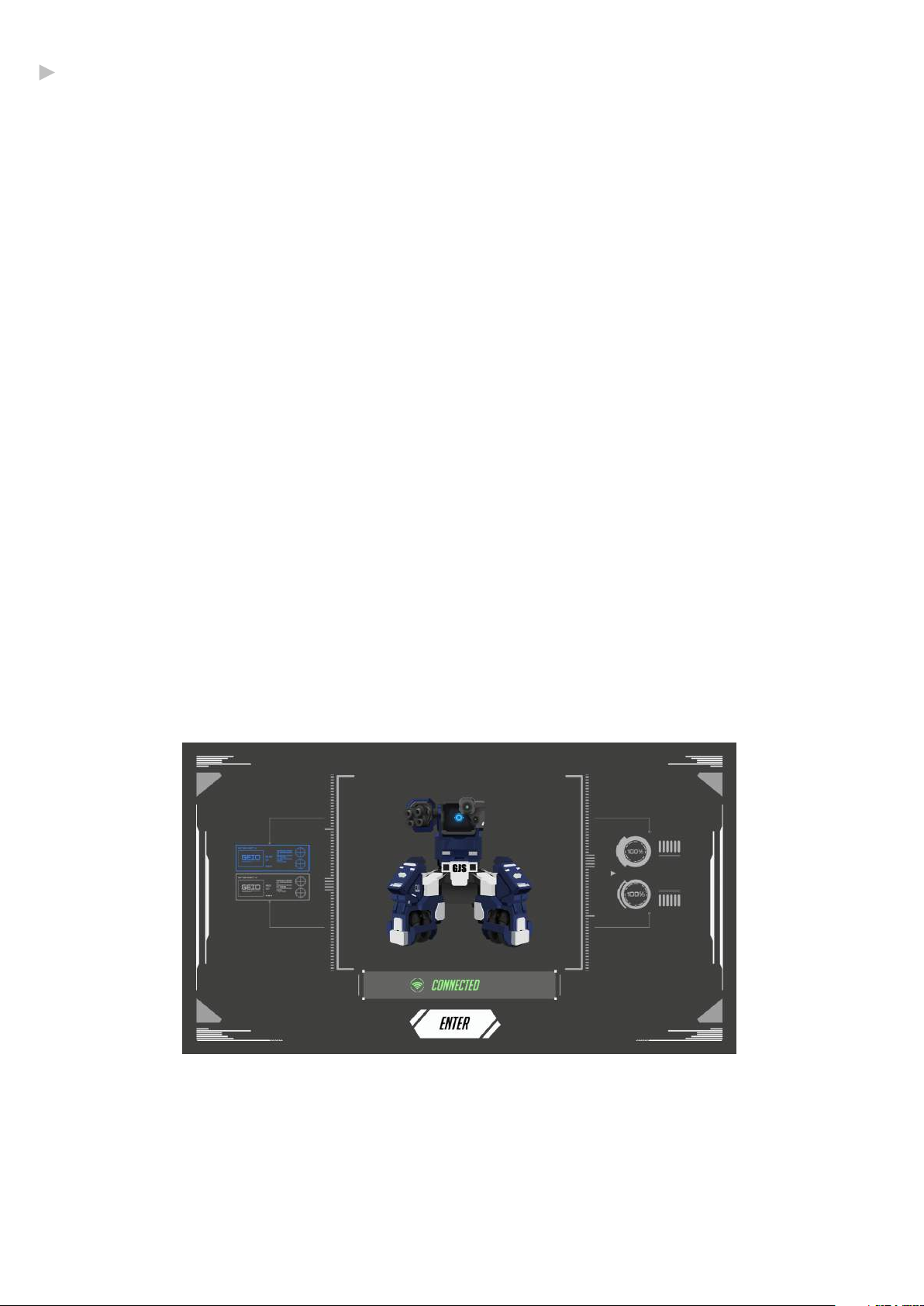
With GEIO turned on, connect to the GEIO_XXXXXX Wi-Fi with your mobile device.
The default password is: 12345678. Open the GEIO app after you have connected to the Wi-Fi.
·Start the app
Start the GEIO app after connecting to your GEIO, then select MODE and your team to enter
the Control Interface.
@Shenzhen GJS Technology Co., Ltd.
06
Page 7
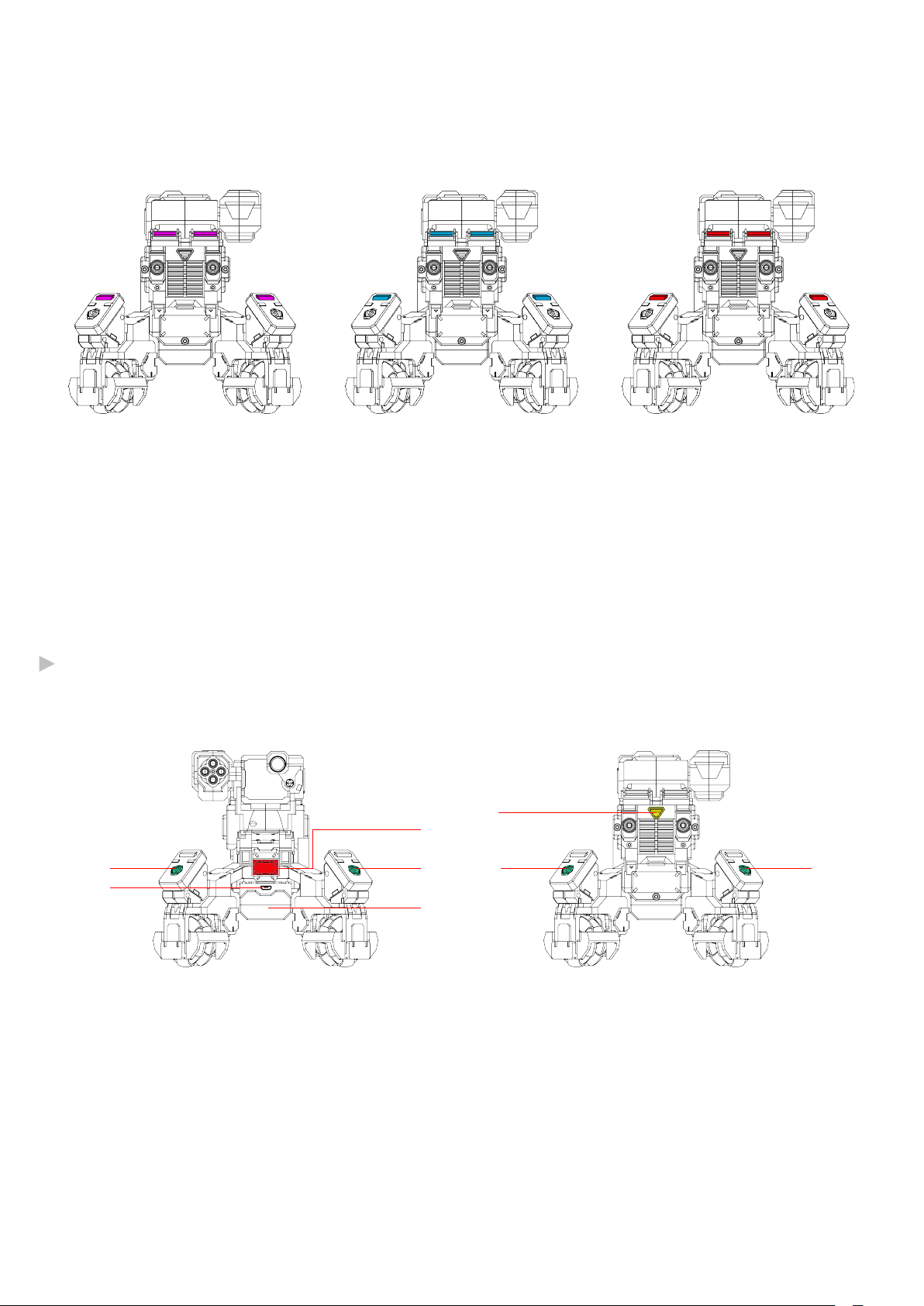
·Lighting Effects on the Machine
There are multiple LED lights on the GEIO machine which are used to display various statuses.
Purple
「Cute Pet Mode」or「TurretMode」
Blue
Choose Team Blue
*Low battery: The lights on the legs will flash slowly.
*When attacked: The lights on the legs will flash quickly two times.
*Almost dead (low health): All lamps will flash for as long as your health is low.
Machine Marks and Ways to Attack
5
3
1 1
2
4
1 1
Red
Choose Team Red
1. Electronic Scoring Receiverx4 2. Battery Recharge Socket 4. Battery 5. On/Off Button3 physical attack
*When the electronic scoring system receives any infrared attacks or physical attacks, the damages will show on
your phone. When the health point turn into zero, the GEIO dead.
@Shenzhen GJS Technology Co., Ltd.
07
Page 8
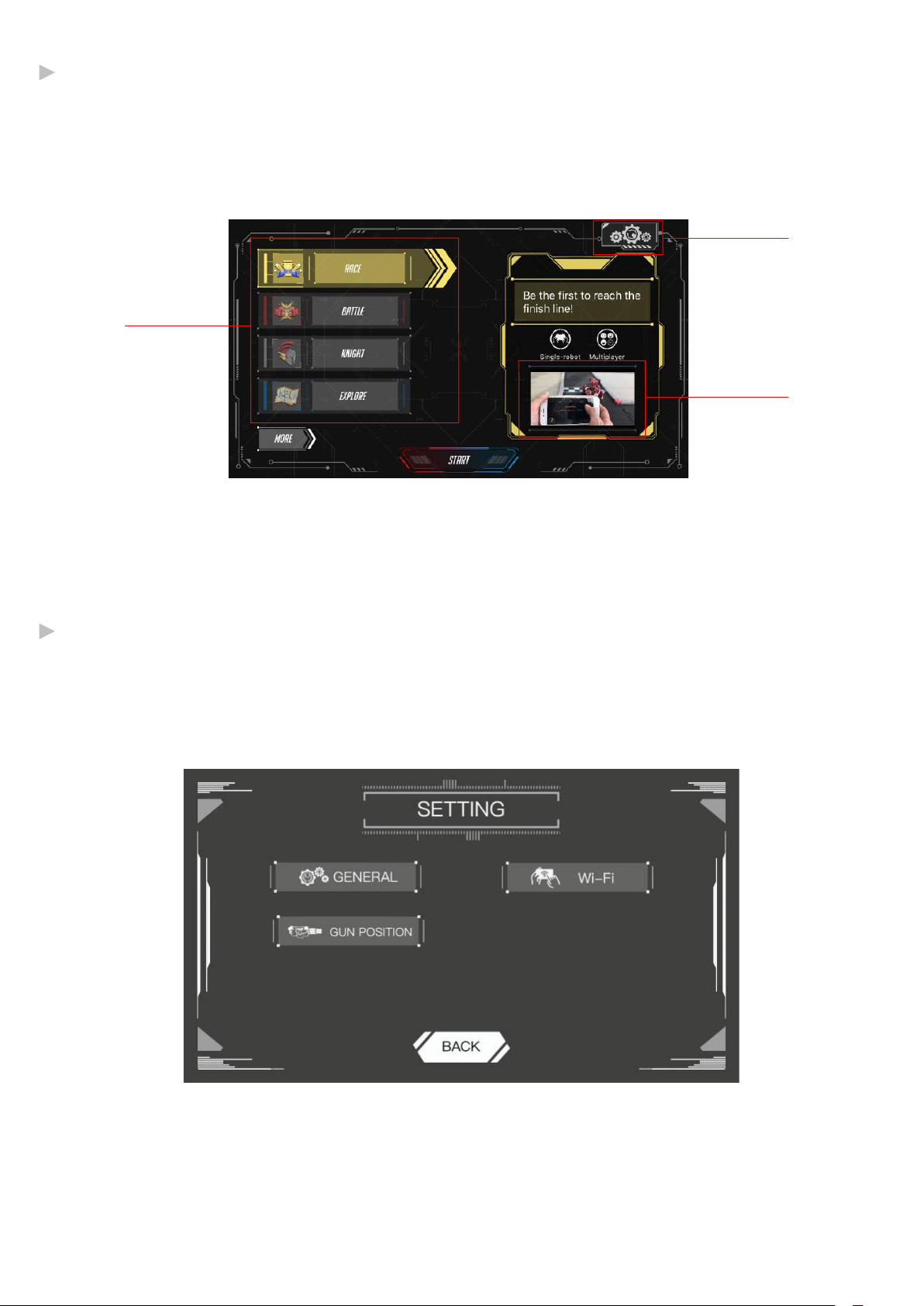
Mode Selection
·Menu Introduction
1
2
3
1.Mode Selection 3.Educational Videos2.General Settings
General Settings
Click Setting button to set your GEIO
@Shenzhen GJS Technology Co., Ltd.
08
Page 9
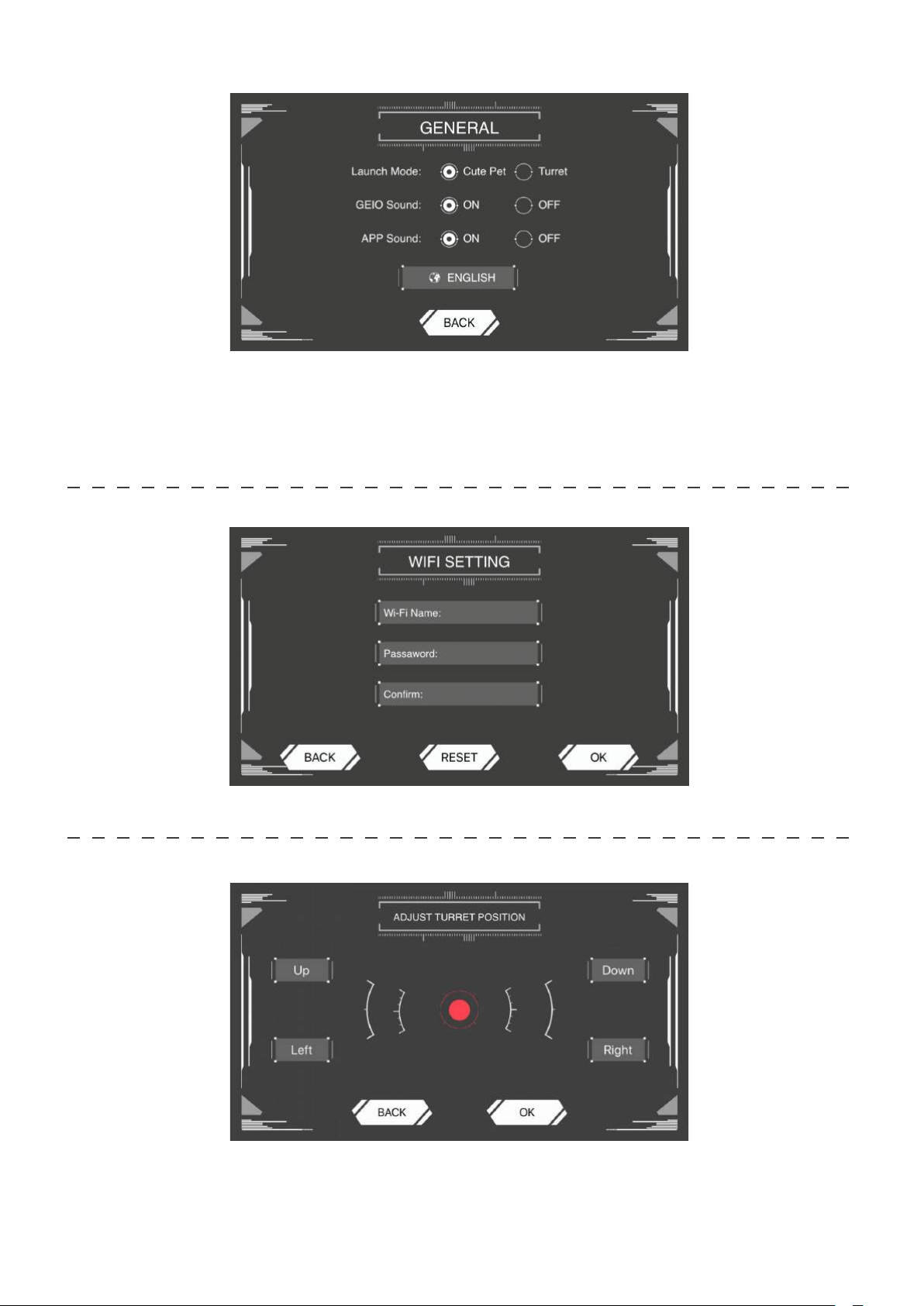
·General
Launch Mode: Select either Cute Pet or Turret mode. This setting takes effect the next time you
start your bot.
GEIO Sound: Adjust whether your GEIO will have sounds enabled while playing.
App Sound: Adjust whether the app will have sounds enabled while playing.
Choose Your Language
·WIFI
You can revise the Wi-Fi name and password here.
·Turret Position
You can choose the turret position as you prefer.
If the gun position changes while playing with your GEIO, you can adjust it here.
@Shenzhen GJS Technology Co., Ltd.
09
Page 10
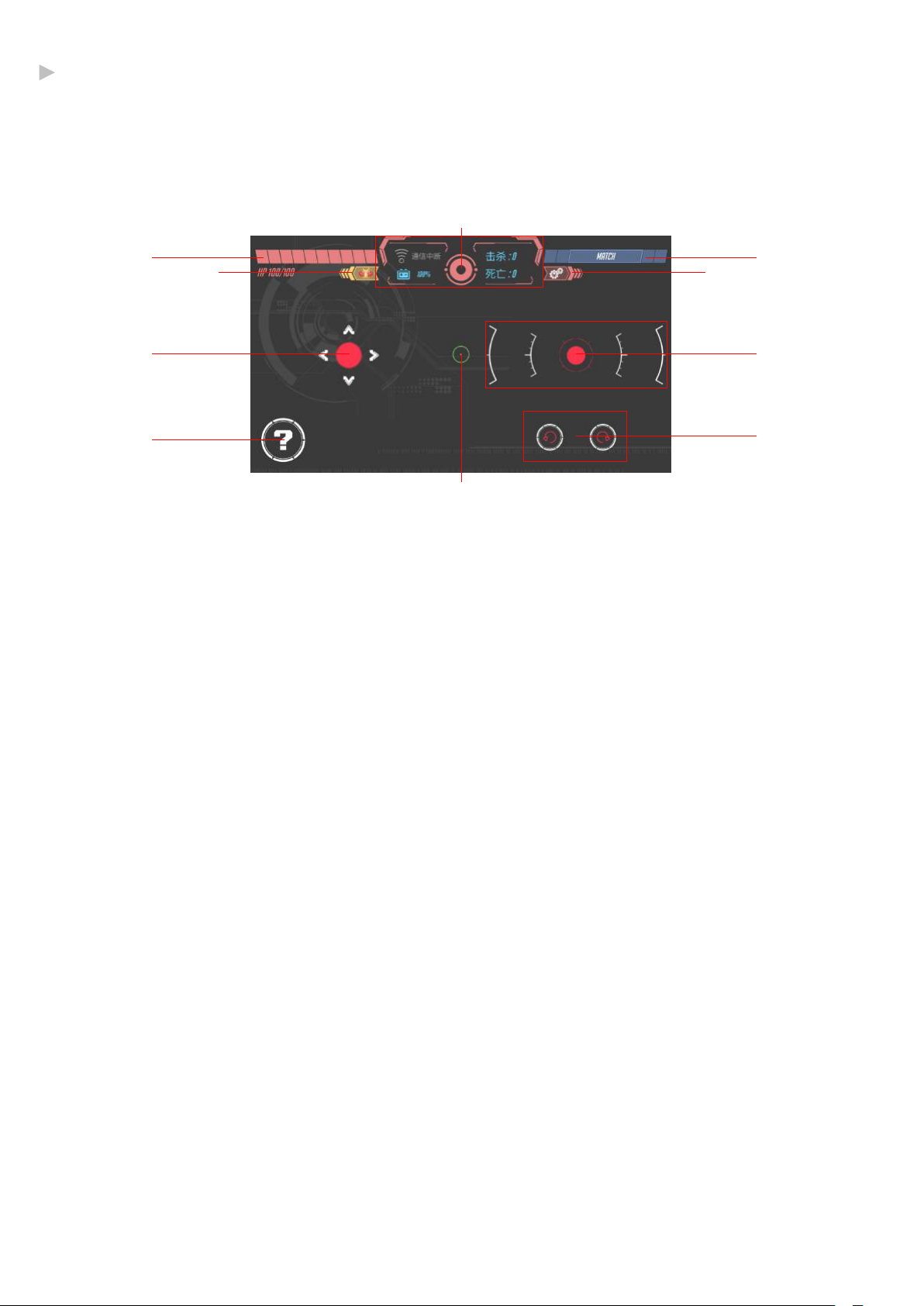
Control Interface introduction
·Control Interface
2
1
9 10
4
6
8
1、Health
2、FPV switch & Status Ba
Wi-Fi connection, remaining battery, toggling first-person view on and off.
3、Quickly search for nearby friends to battle with.
3
5
7
4、Movement Control Stick
5、Attack Control Stick
6、Special Button
has different effects depending on the mode
7、Rotate Buttons
8、Crosshair(In first-person view)
9、Exit
10、Settings
* Different game modes are slightly different
@Shenzhen GJS Technology Co., Ltd.
10
Page 11
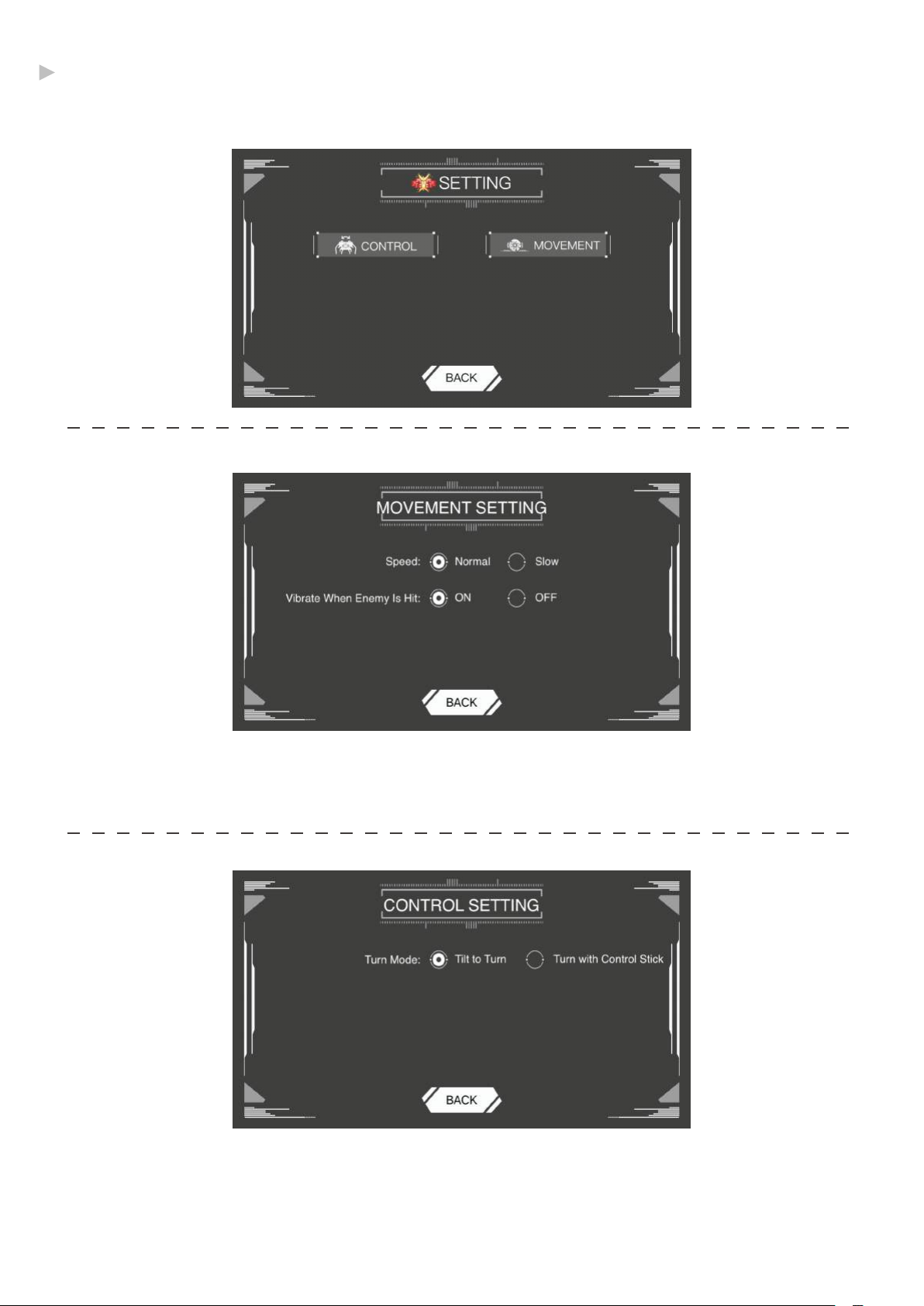
Mode Settings
Adjust your GEIO’s speed, motion control and other things for every mode.
·Movement
SPEED: The default speed is Normal, you can change into Slow.
Vibrate When Enemy Is Hit: Your phone will vibrate when GEIO hit an enemy during battle.
You can turn off the vibration here.
·Controls
The default Turning Mode is Rotate Device to Turn. It means you can rotate your phone to control
the movement of your GEIO.
If you change the mode in to Control Knob to turn, you can control GEIO by click the movement
button only.
@Shenzhen GJS Technology Co., Ltd.
11
Page 12
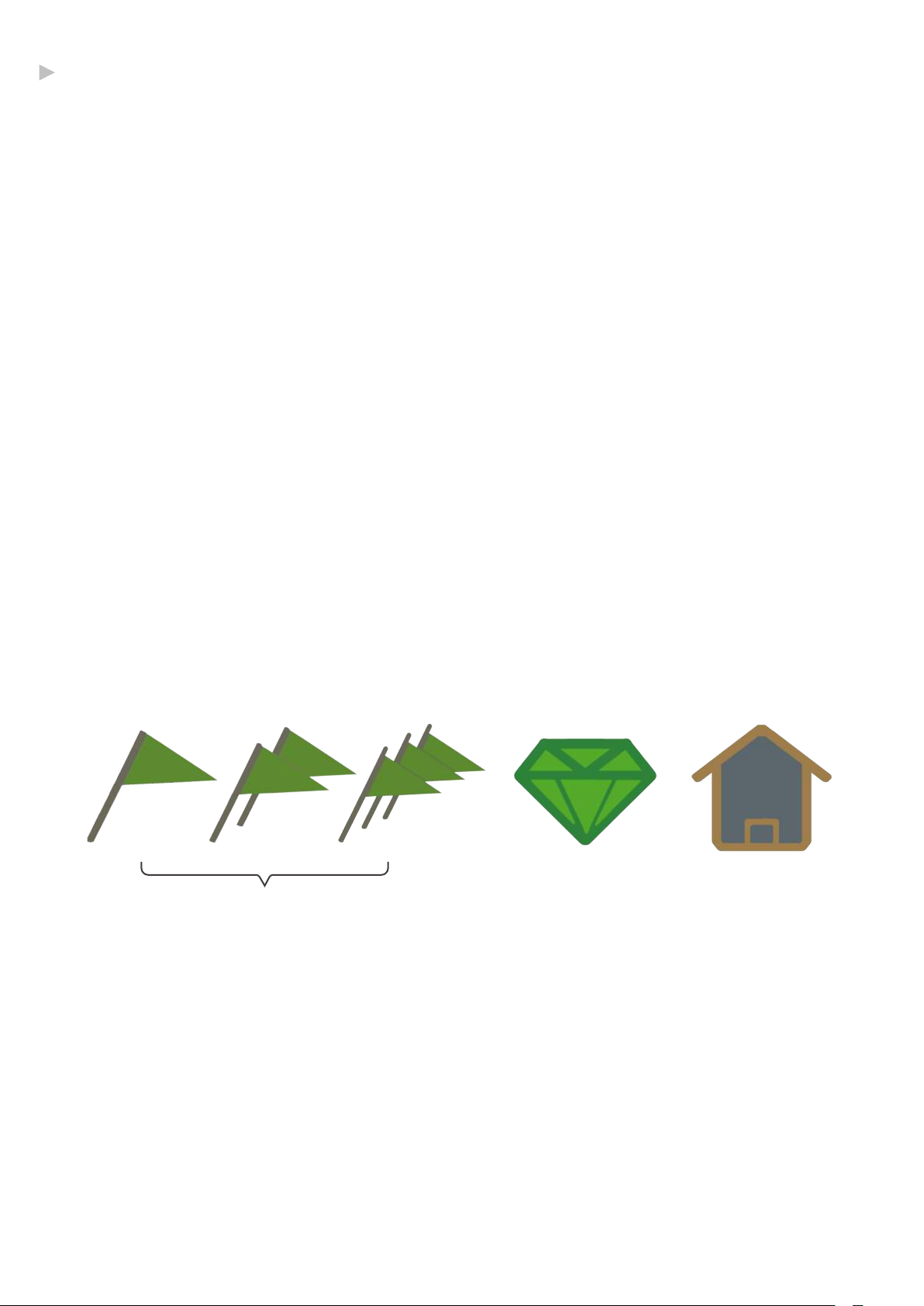
Totem
·Description
Different Totems can be used to play different modes with your GEIO bot. There are 10 Totems
in total and they fall into two major categories: Functional Totems and Special Weapon Totems.
The package comes will all Totem Cards. After assembling them, the player can place them
upon the ground as they wish. Here follows an introduction for how to use Totems.
·Recognize and Scan
Click the eye on the status bar to enter into first-person view and move your GEIO in front of the
Totem.Move the right control button target the Totem.When a green frame appears, you have
successfully scanned it.
* GEIO can scan Totems between a distance of 35 - 40cm
· Type, Design and Effect
I. Functional Totems
There are 5 Functional Totem:
Checkpoint
BaseTreasure
[Base] and [Treasure] are used in [Treasure Snatch]. For how to play, check the [Gameplay
Introduction and Battle Area] - [Treasure Snatch] in this manual.
*The checkpoint (flag) Totem can is used in [Speed Race]. For how to play, check the [Gameplay Introduction and
Battle Area] - [Speed Race] in this manual.
@Shenzhen GJS Technology Co., Ltd.
12
Page 13

II. Special Weapon Totems
There are 5 Special Weapon Totems:
Freeze Ammo
Freezes the opponent for 10 seconds
Duration: 5 seconds
CD: 30 seconds
5 times the damage of normal attacks
Duration: 3 seconds
Fire Ammo
CD: 50 seconds
Deceleration Ammo
Greatly decreases the enemy's
speed for 10 seconds
Duration: 5 seconds
CD: 15 seconds
Energy Recovery Totem
Scan it to recover a certain amount of health
Chaos Ammo
Scrambles the enemy's controls
(control directions become reversed)
Duration: 5 seconds
CD: 25 seconds
[Special Weapon Totems] are different from [Functional Totems] in that they can be freely used
in any mode—where they enrich the experience.
@Shenzhen GJS Technology Co., Ltd.
13
Page 14

Using GEIO
This chapter introduces the basic operations of GEIO,
Play Mode and application scenarios.
@Shenzhen GJS Technology Co., Ltd.
14
Page 15
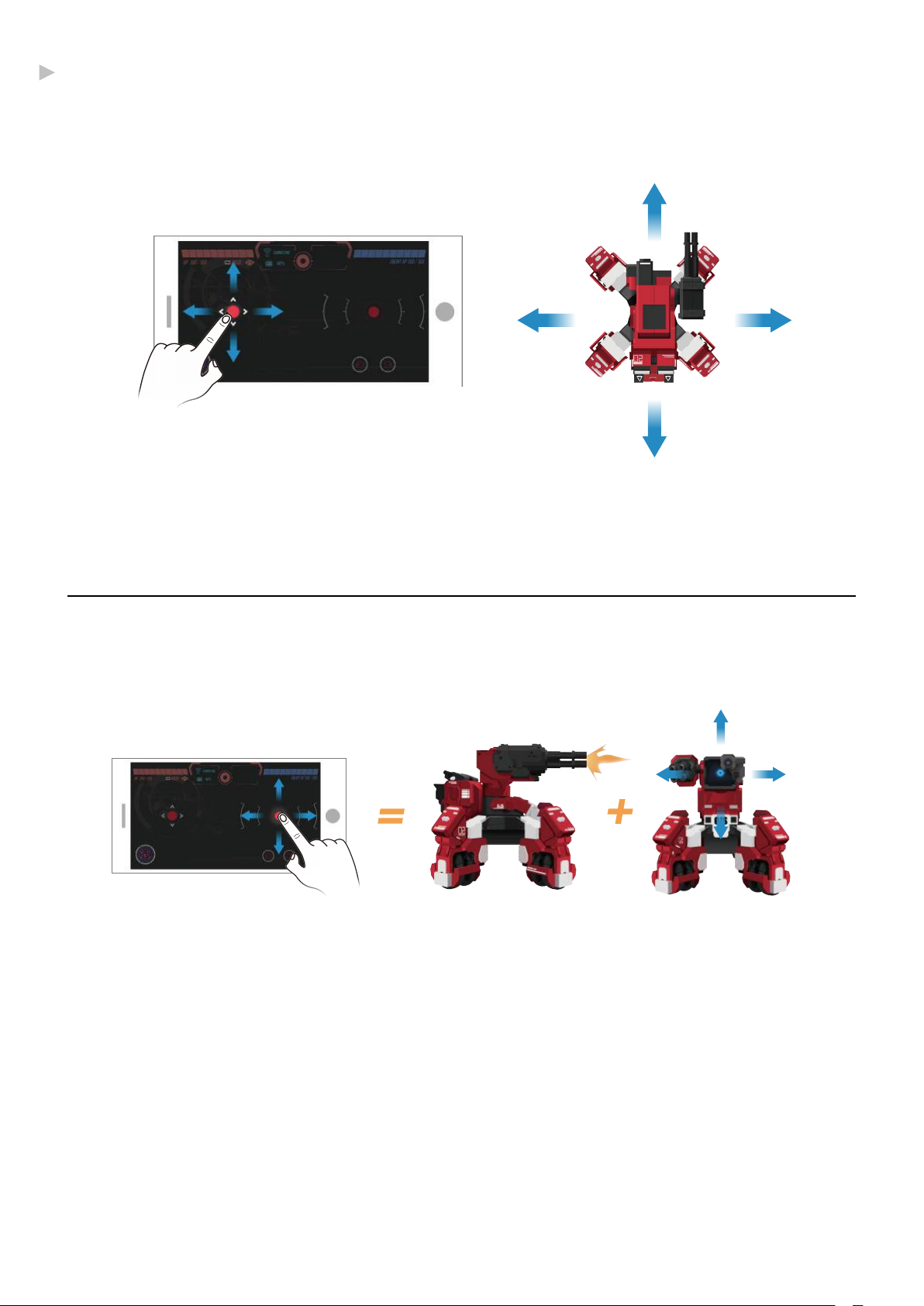
Basic Operations
·Movement Control
Left Control Button
Click and drag the left control button to control GEIO’s movement.
·Firing Control
Right Control Button
Controls GEIO’s head and firing.
Firing: long press the button to fire. You can drag the control stick to turn GEIO’s head while firing.
Scanning: click twice and hold on the right button, GEIO will move its head without shooting,it
apply to scan Totems.
@Shenzhen GJS Technology Co., Ltd.
15
Page 16
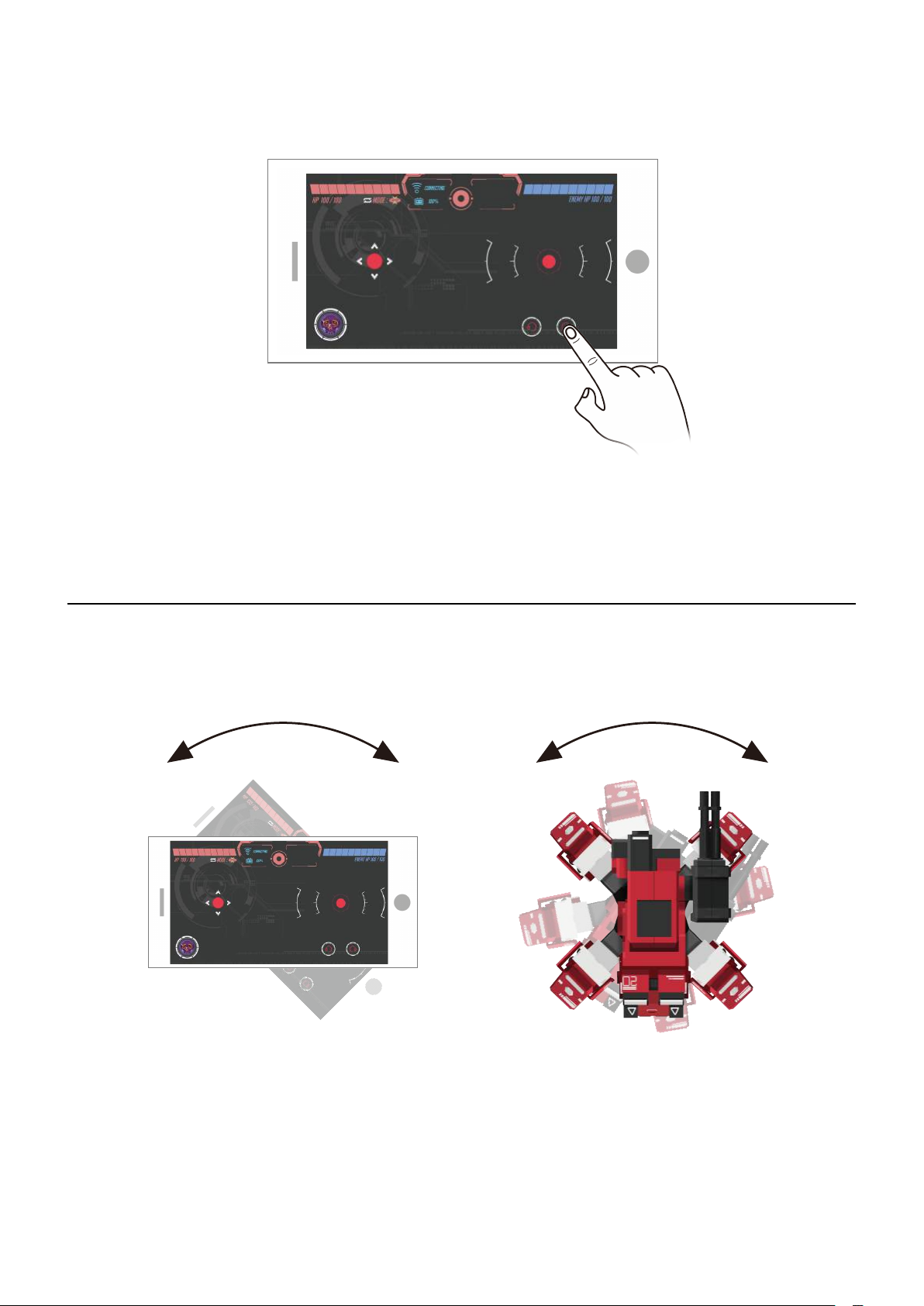
·Click button to turn
Rotate Button
Click rotate button to turn your GEIO clockwise or counter-clockwise.
·Rotate phone to turn
Control the direction of your GEIO by rotate your phone.
@Shenzhen GJS Technology Co., Ltd.
16
Page 17
Introduction to Gameplay
·Description
You can watch gameplay videos from the following link:
http://www.gjs.so/geio/intro
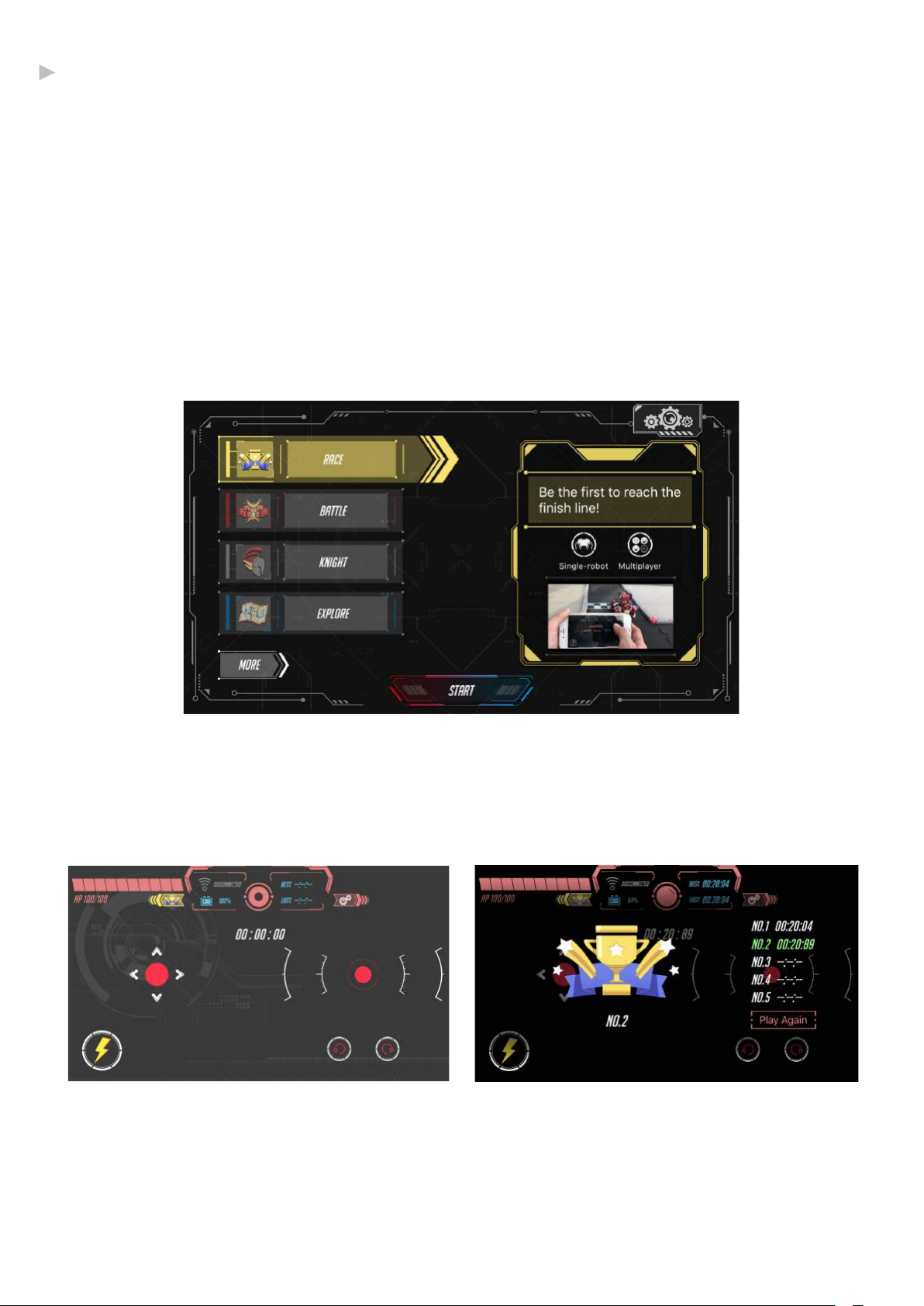
·Race
Note: This mode requires " Checkpoint" to play.
Select [Race] in the GEIO app to play solo speed races.
Players can hold speed race in their homes or on special racing tracks. The timer starts
automatically when the players begins moving their bot, and the result will be recorded when
they scan a checkpoint Totem.
The lightning button in the bottom left:
There is a brand-new function in this mode—Accelerate;
which speeds up your GEIO most
Skill Cooldown: 5 seconds
The result will be recorded in the system.
@Shenzhen GJS Technology Co., Ltd.
17
Page 18
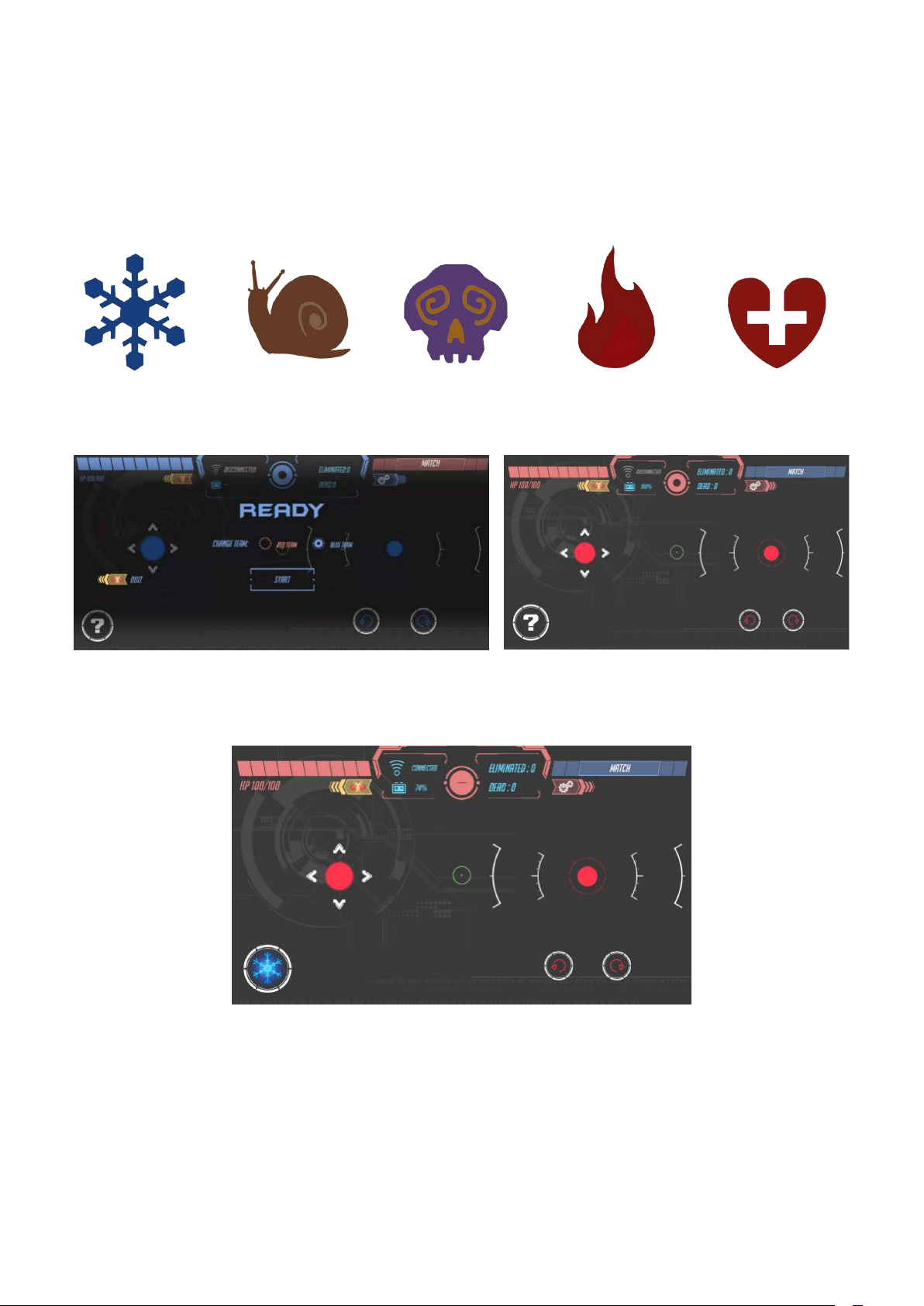
·Battle
Select Battle in the GEIO app.
You can place a few different Special Weapon Totems on the battlefield before starting a Royal Duel.
And then use the Totems to obtain more powerful weapons.
Freeze Ammo Deceleration Ammo Chaos Ammo Fire Ammo Energy Recovery Totem
*Click Match to search nearby enemy robot to battle with
You can click the question mark to generate a random Special ammo
Normal: You will gain 1 random special ammo out of 4.
After gaining one, that special ammo will replace your normal attack for a certain duration.
@Shenzhen GJS Technology Co., Ltd.
18
Page 19
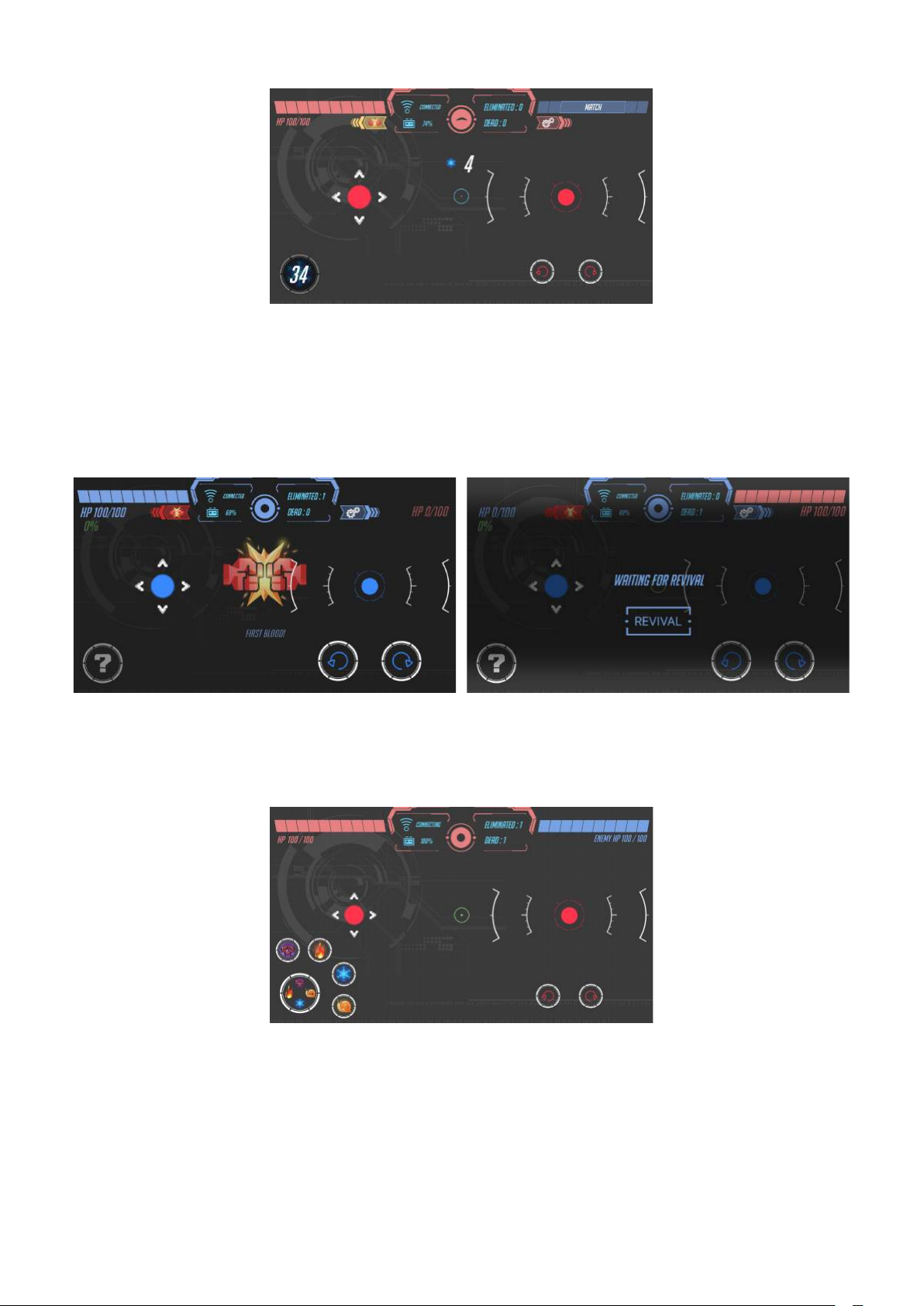
After using special ammo, you have to wait for the cooldown to finish before you can select your
next special ammo.
Every type of special ammo has a different cooldown time, which you may check in Product
Overview — Totems
Click revival to continue the battle
Get a kill streak of three to upgrade your weapon.
Upgraded: click to reveal 4 special ammos, player can choose anyone.
Upgraded status will last until death.(Upgraded conditions: Get a kill streak of 3 without dying)
@Shenzhen GJS Technology Co., Ltd.
19
Page 20
·Knight
Select [Knight] in the GEIO app, then choose a team to enter a two-player contest.
*Click Match to search nearby enemy robot to battle with
In Knight mode, you can control GEIO to move forward and backward by click the button only and
turn GEIO by motion control, its head cannot rotate. Defeat your enemy like a valiant knight.
*FPV cannot be used in KNIGHT mode
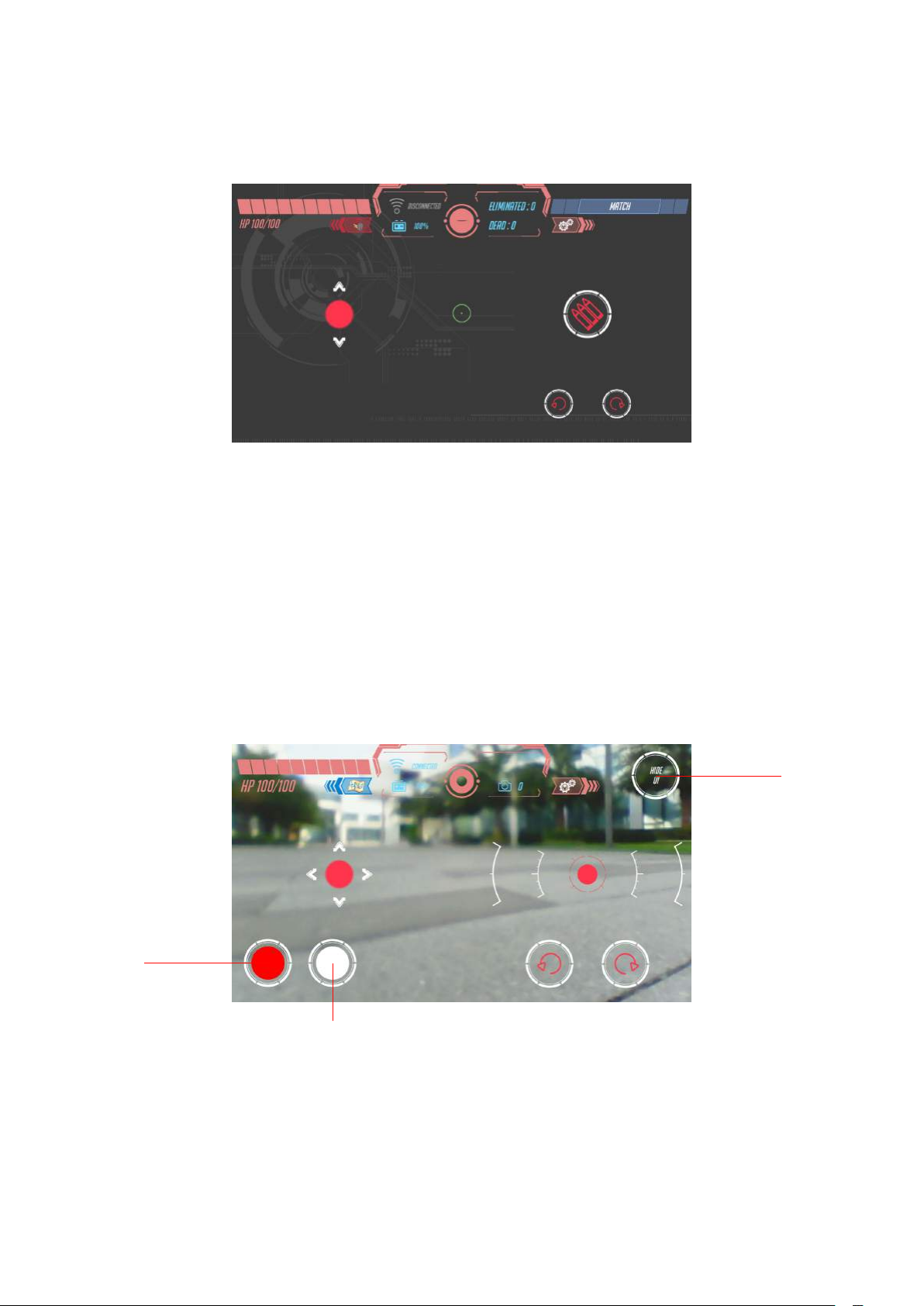
·Explore
1
3
2
Select Explore in the GEIO app to play this relaxing mode.
1. Display/Hide HUD
2.Camera
3.Record
@Shenzhen GJS Technology Co., Ltd.
20
Page 21
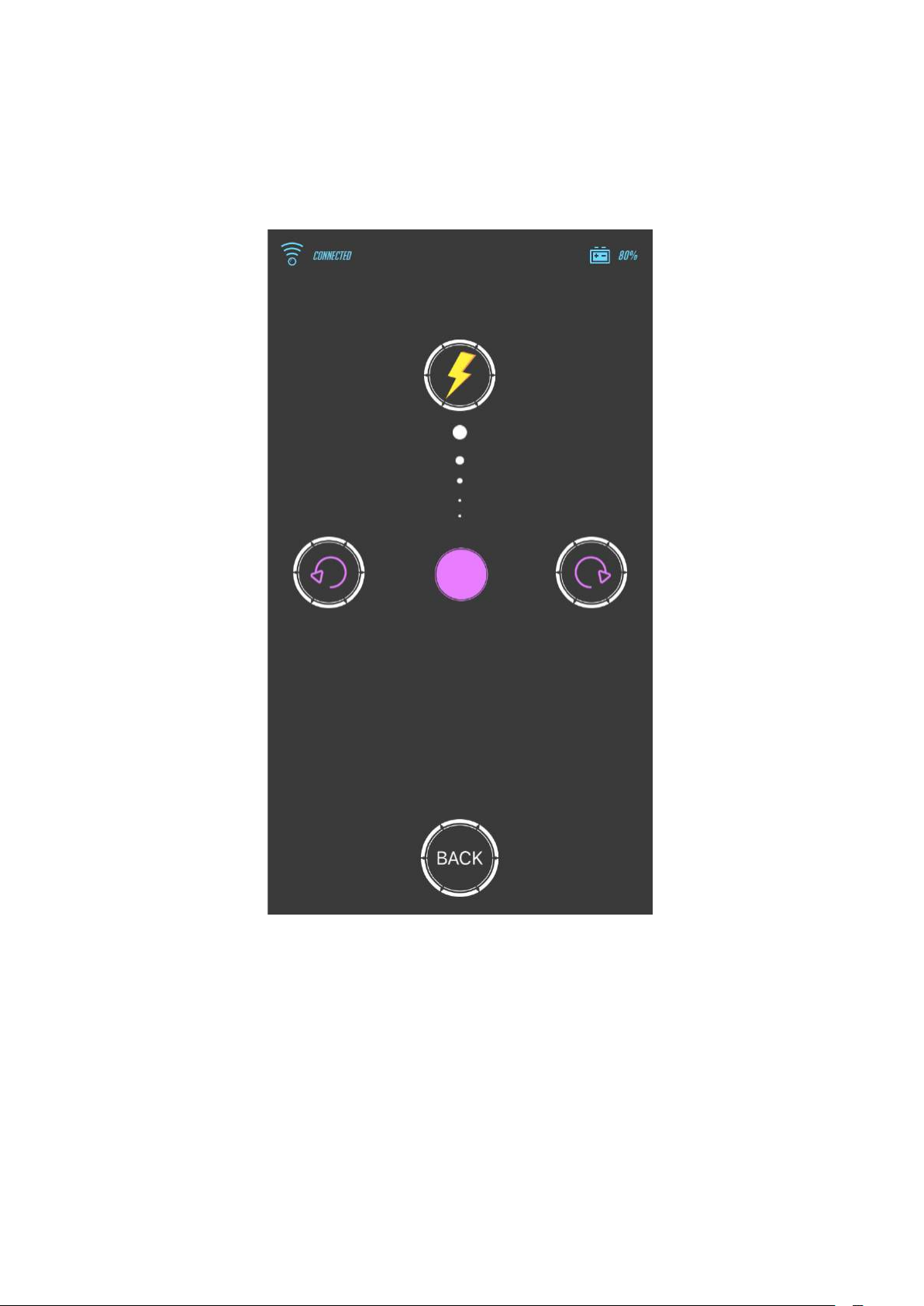
·Free Drive
Upon entering Free Drive, a demonstration will be shown, reminding you to use your phone's
motion control to steer your GEIO.
GEIO will move forward at different speeds when push up the purple button, and you may control
its direction with motion control.
Hold down the lightning button and GEIO will move forward at top speed.
@Shenzhen GJS Technology Co., Ltd.
21
Page 22
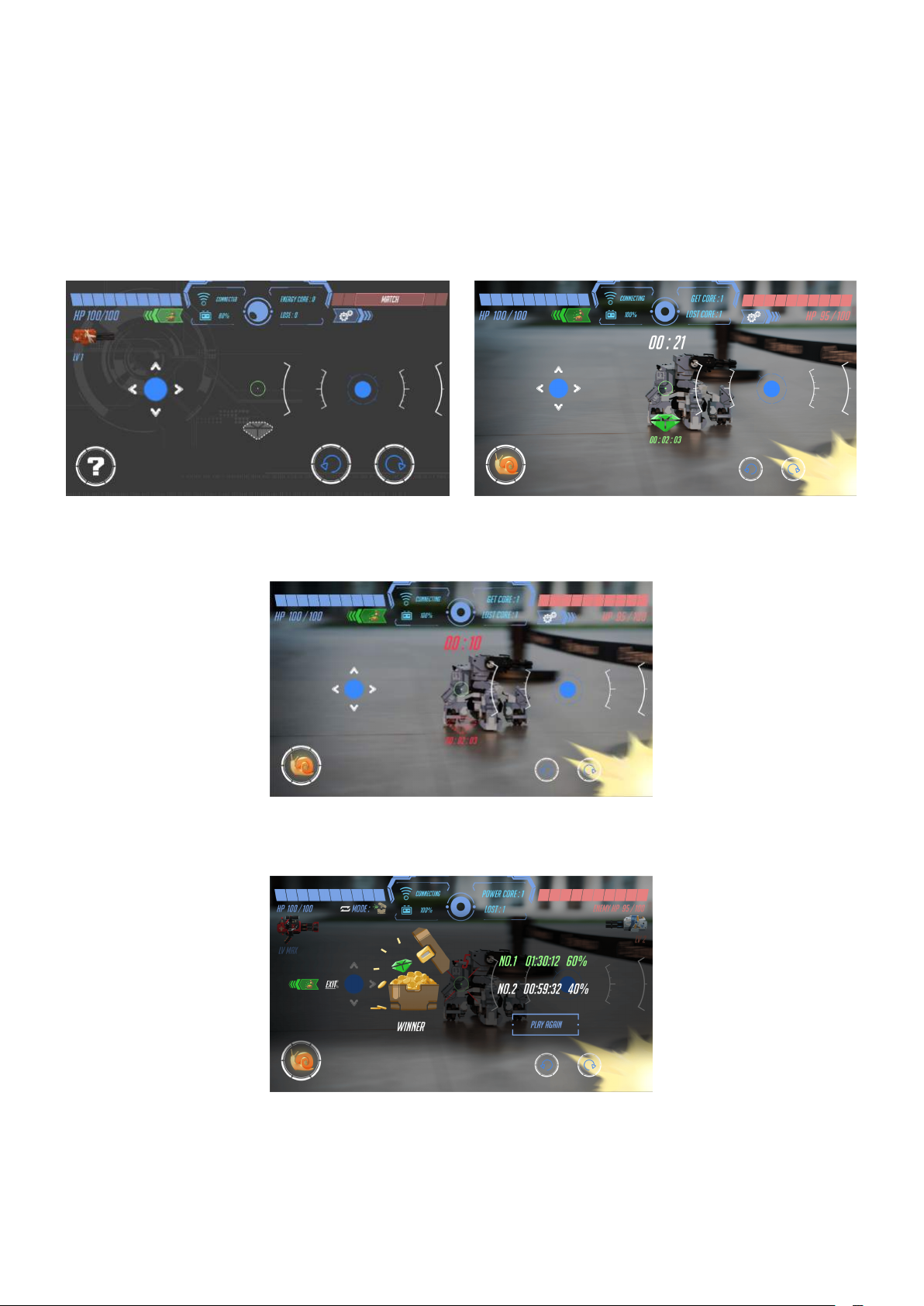
·Treasure Snatch Mode
Note: This mode requires " Treasure" to play.
The goal of Treasure Snatch is to protect a treasure for as long as possible within the two minutes.
When the game begins, you should attempt to be the first to scan the Totem and snatch the treasure.
If you have been hit more than five times or killed, you will drop the treasure.
You need to snatch the treasure from your enemy again.
Upon entering this mode, the remaining time and
the treasure's status will be displayed on your screen.
When the treasure has been snatched by an opponent,
the treasure status bar at the bottom of your screen
will turn red and the timer will freeze.
When you snatched the treasure, an emerald will appear in
the screen and the treasure status bar will turn green.
When the timer reaches 10 seconds, it will turn red and countdown sounds will be played.
When a game ends, the treasure possession length of both players
The winning player will see their result in green, and the losing
@Shenzhen GJS Technology Co., Ltd.
will be displayed, as well as total possession in percent.
one will see theirs in red.
22
Page 23
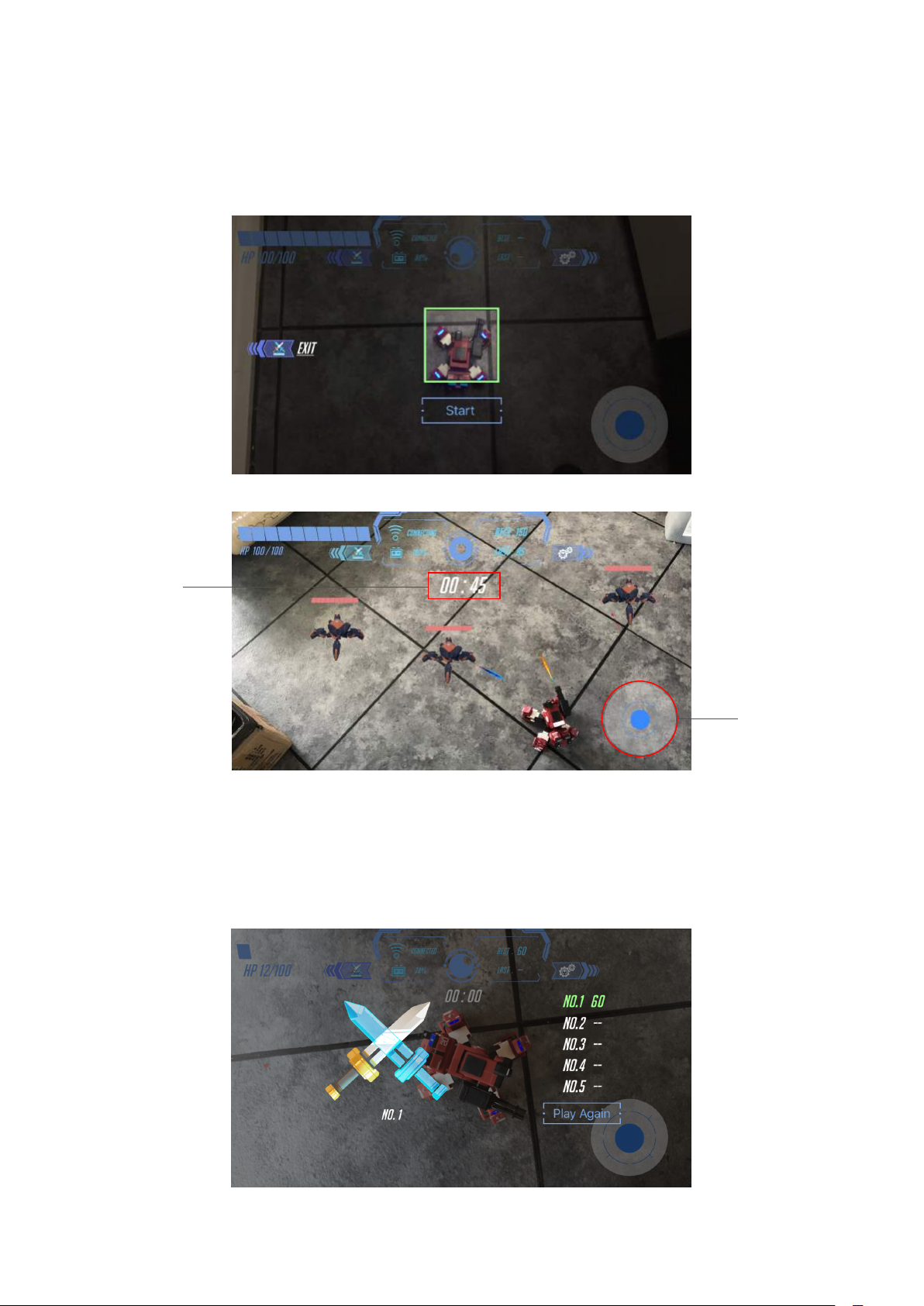
·AR Mode
Place the Augmented Reality device on a flat and open surface before entering Augmented Reality mode.
Click Augmented Reality button to scan the ground.
Aim the camera to the ground and wait for a few seconds, after the ground has been scanned,
it is time for GEIO calibration.
If the frame turns green, the calibration was successful and you will enter the game.
Countdown
Firing Button
Upon entering the game, random enemies will appear and attack you. Your goal is to attack and kill
the enemies as quickly as possible.You can control the direction of your GEIO with motion control.
Being killed in this mode won’t affect the game, simply tap Resurrect to continue playing.
* You can turn GEIO by motion control only.
@Shenzhen GJS Technology Co., Ltd.
When game ends, the results shows on screen
23
Page 24
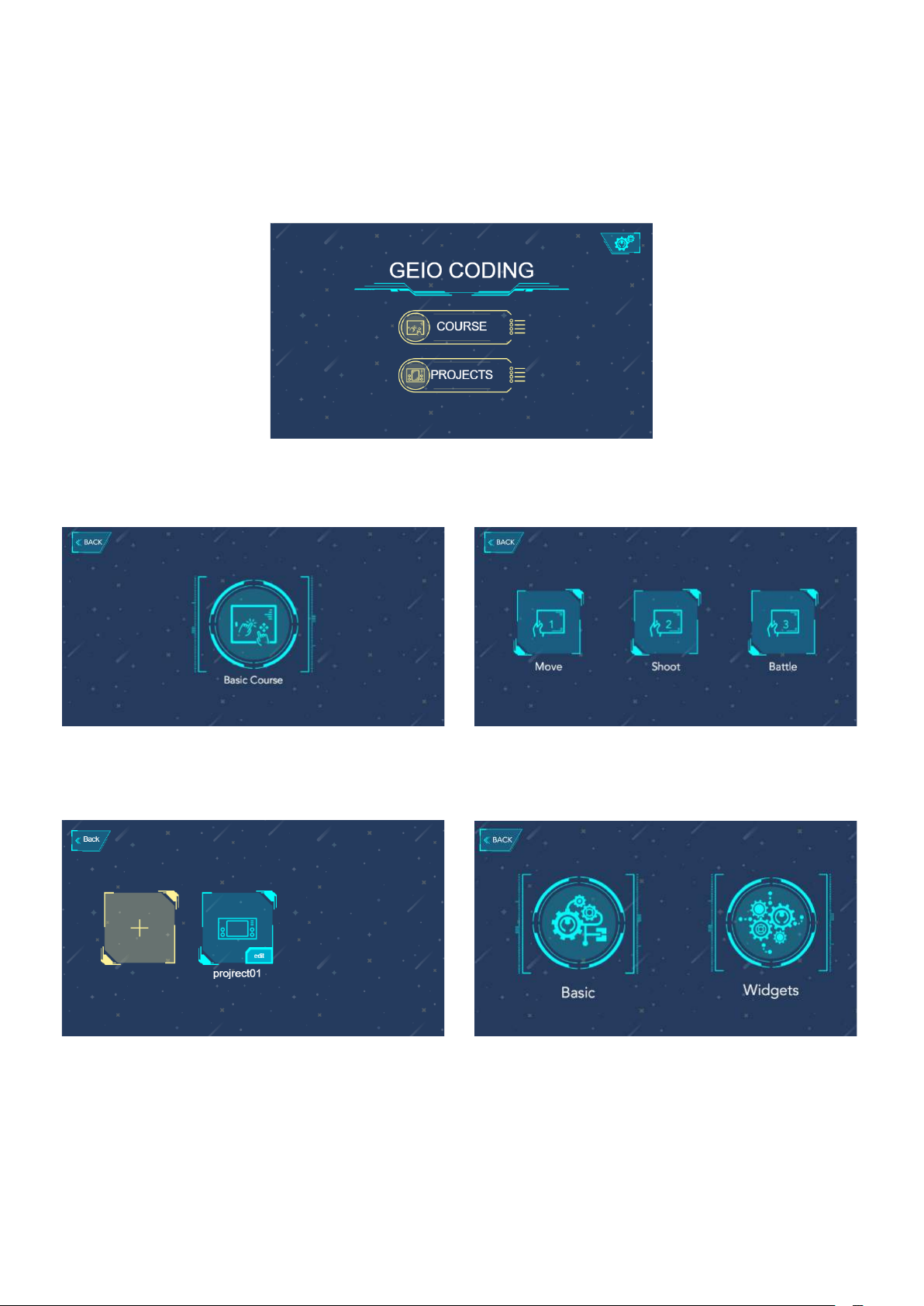
·Programming Mode
When entering programming, it will automatically jump to GEIO EDU.
If GEIO EDU is not yet downloaded, it will enter the download interface.
After entering the main interface, you will have two options:Course and Projects.
We recommend players using Programming Mode for the first time,to tap the Course button,
and then select a course of their liking to learn more about GEIO programming.
Upon entering Projects, you can tap the yellow button
to create a new programming project. Previously
created programming projects will be displayed on the right side.
You can change name or delete already completed projects
by tapping the Edit button.
Upon creating a new project, you can choose
between Basic and Widgets.
@Shenzhen GJS Technology Co., Ltd.
24
Page 25
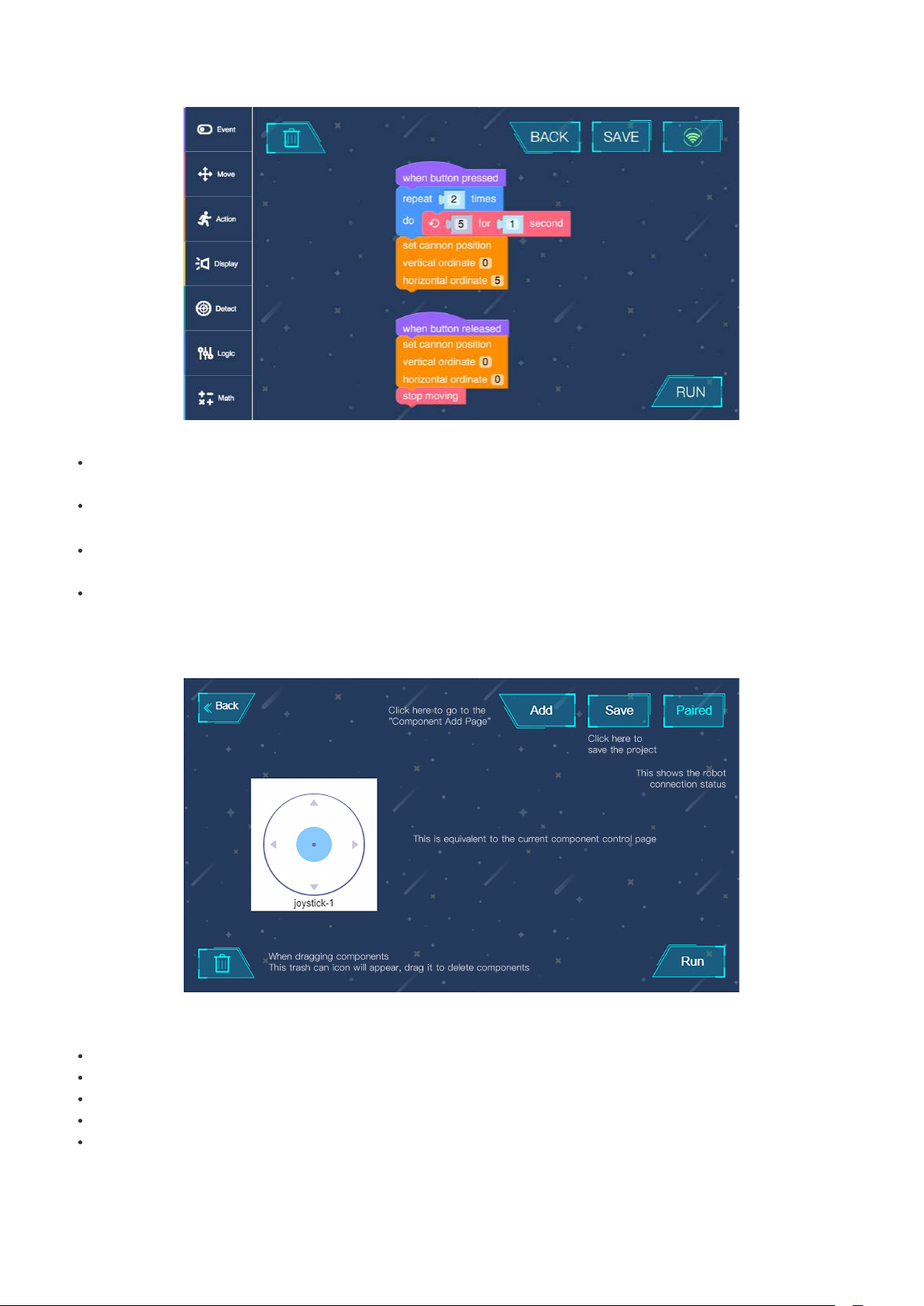
Click Programming to enter in Tapping the Basic button will take you to the programming interface. You can
select a suitable sequence for programming sentences on the left side.
When dragging a programming block, the Recycle Bin button will appear in the top-left corner;
drag a block onto it to delete.
Tapping Save will save your project.Tapping RUN in the bottom-right corner will run the code,
during which you can only tap on Stop Code.
If you want to save your code, you need to tap the Stop button and return to the Save interface.
Tapping the Widgets button will take you to the Control Components page.
Tapping on the Add Widgets button in the top-right corner will add the component of your choice.
When dragging a component, the Recycle Bin icon will appear; drag a component onto it to delete.
Upon tapping RUN, the buttons will be arranged and displayed on the screen.
By tapping on Save in the top-right corner of the screen, you can return to the Save interface and save your work.
@Shenzhen GJS Technology Co., Ltd.
25
Page 26

Battle Area:
GEIO gaming robot is suitable for use in small areas such as in a room or a house.
It is recommended to use furniture and walls as obstacles.
Of course, you can also place other objects in the battle area to make the battle more interesting.
Whether for 1vs1 duels or in free-for-all battles between many opponents the rules are flexible
as your set them yourselves.
@Shenzhen GJS Technology Co., Ltd.
26
Page 27

Specifications
MACHINE
Weight: 730 g (Battery 105 g)
Weight (including battery): 835g
Size: 170 × 170 × 60 (mm)
Operating Temperature Range: 0 - 40°C
HARDWARE
Turret Angle: Pitch 0-90°Horizontal 0-160°
Material: ABS、PC、aluminium alloy
Internal Sensor: Infrared Sensors、Magnetic Sensor
Lights: 3-colored LED lights on legs, back and head.
LED: LED lights in two parts (legs, back)
Camera resolution: 300,000 pixels
BATTERY
Battery Capacity: 2000 mAh
Charge: USB Cable
Max Play Time: 40 mins
CONNECNTION
Method: Wi-Fi
Operating Frequency: 5.8 GHz
Max Transmission Distance: 100 m
@Shenzhen GJS Technology Co., Ltd.
27
Page 28

Notice
·Disclaimer
The following situations does not fall within the scope of product quality:
A.Using product accessories not provided by a mechanic which results in damage;
B.If damage is caused when the user themselves remodels the product;
C.If irreparable damage (including dropping it, water intake, heavy impacts, high voltage electric shocks,
artificial burns, etc.) is caused to the product due to inappropriate usage by the user;
D.Damage caused by natural disasters;
E.Damage caused by illegal dismantling and/or maintenance by non-designated institutions and/or repair shops.
F.Quality requests initiated by anyone other than the original buyer.
·Safety Guide
GEIO bots have undergone rigorous quality certification and there are no safety risks when the bot is used
as normal. We recommend that children under the age of 3 should not use our products. Please check the
product manual for more detailed information.
Please avoid high-temperature and high-pressure environments during usage.
@Shenzhen GJS Technology Co., Ltd.
28
Page 29

FAQ
**Hardware**
Q: What do I do if GEIO doesn’t respond and no lights light up when I start it?
A:1. Please make sure that the battery is correctly installed into the slot;
2. Please make sure that the battery isn't too low; if it is, recharge it.
Q: What do I do if GEIO doesn’t turn when I control it, or if it doesn’t move in the correct direction?
A:1. Please lift up your GEIO and check whether all four wheels can rotate properly;
2. Turn off your GEIO, and try placing it upon an even surface before restarting it, then restart the app
and connect to your GEIO again.
Q: What do I do if the turret won’t shoot as commanded (or shoots continuously without stopping)?
A:1. Please try tapping the right control stick again and lift your finger; check whether GEIO stops shooting;
2. Try restarting your GEIO and the app, and connect to your GEIO again.
Q: What do I do if my device cannot find GEIO’s Wi-Fi?
A:1. Please make sure that your device supports 5GHz Wi-Fi, if not, it cannot connect to your GEIO;
2. Try restarting your GEIO;
3. Try refreshing your device’s Wi-Fi list.
Q: What do I do if my GEIO doesn’t get hurt when taking fire, or if it is difficult to damage my GEIO?
A:1. Please make sure that the attacks are targeted at GEIO’s legs;
2. Try restarting your GEIO and the app, and connect to your GEIO again.
29@Shenzhen GJS Technology Co., Ltd.
Page 30

FAQ
**APP**
Q: What do I do if I’ve already connected to GEIO’s Wi-Fi, but the app displays it as not connected?
A:1. When "This Wi-Fi cannot connect to the network. Do you want to continue to connect?"
pops up, select Yes;
2. When the app asks for permission to access Bluetooth, tap Allow.
Q: What do I do if I cannot find other players when using Bluetooth for matchmaking?
A:1. Please make sure that Bluetooth is turned on;
2. Please make sure that your device supports Bluetooth 4.0 or above, if not, you can’t use
it for matchmaking;
3. When the app asks for permission to access Bluetooth, tap Allow;
4. When matchmaking, both players must choose different teams.
Q: What do I do if I cannot resurrect my bot after it dies?
A:1. Please make sure that you have tapped the Resurrect button;
2. Restart the app;
3. Try restarting your GEIO and the app, and connect to your GEIO again.
Q: What do I do if the connection to my GEIO is interrupted; or if my device won’t show the
image (black screen), or if the image suffers serious lag issues?
A:1. Please make sure that there are no large obstacles between your device and
your GEIO (for example walls);
2. Please make sure that your GEIO is not too far away from your device
(stay within 20 meters for the best effect);
3. Please try moving your GEIO to a location without much radio interference.
Q: What do I do if I can’t control my GEIO with the app?
A:1. Please make sure that your device is connected to GEIO’s Wi-Fi, and that your connection status is
displayed as Connected;
2. Try restarting your GEIO and the app, and connect to your GEIO again.
30@Shenzhen GJS Technology Co., Ltd.
Page 31

CREATE FUTURE OF FUN
Shenzhen GJS Technology Co., LTD.
WWW.GJS.SO
@Shenzhen GJS Technology Co., Ltd.
 Loading...