

Page 1
T U N E U P S
W I R E L E S S 1 0 1
Pairing Your S805 and Bluetooth Phone
1. Turn on the Bluetooth power on your phone.
The Bluetooth power option may be in the
OFF setting by default.
For most Motorola phones:
a (Menu) > Settings > Connection > Bluetooth Link > Setup.
b Scroll to power.
c Select Change.
d Scroll to On.
e Press Select to turn in the Bluetooth function
Bluetooth feature remains on until you turn it off.
Note: For other phones, refer to your phone’s user’s guide.
2. Put your S805 into pairing mode.
With your S805 off, press and hold the “phone” button
Until it lights up and remains on (about 6 seconds).
3. Set your phone to look for your S805.
For most Motorola phones:
a (Menu) > Settings > Connection > Bluetooth Link >
Handsfree > Look for Devices.
b The phone lists all Bluetooth devices it finds.
c Select Motorola S805.
d Press OK and Yes to pair the handsfree device.
e Enter the passkey 0000 and press OK.
Your S805’s ID is now stored in your phone’s memory.
When your S805 is successfully paired with your phone,
The S805 indicator rapidly flashes and then resumes
regular flashing.
For more information visit www.giro.com.
Pairing your Wireless S805 pods
with your naviPlay iPod adapter
You must pair your S805 with your Bluetooth-enabled music
source before you can play music.
Note: To listen with the S805 to music originating from your
Bluetooth-enabled music source, the music source must support
the Advanced Audio Distribution Profile (A2DP).
1. Put your S805 into pairing mode.
With your S805 off, press and hold the “phone” button
Until it lights up and remains on (about 6 seconds).
2. Place the headphones near the naviPlay adapter.
3. Press the power button on the naviPlay Adapter and hold
down for at least 8 seconds, or until the STATUS LED
rapidly blinks alternating amber and green. This initiates
The pairing process on the naviPlay Adapter.
4. When the connection is complete the naviPlay Adapter’s
STATUS LED will blink green slowly. The indicator
Light on the S805 will produce 10 rapid flashes.
Charging the S805’s Internal Battery
First-Time Use: Before you can use your S805, you need to
charge its internal battery for at least three hours.
While charging, both indicator lights will turn on. The S805
cannot be used while charging.
When charging is complete the indicator lights will turn off.
Initial charging should take approximately 3 hours.
1. If necessary, install the
proper country adapter on
the wall charger connector.
2. Plug the charger
into your S805.
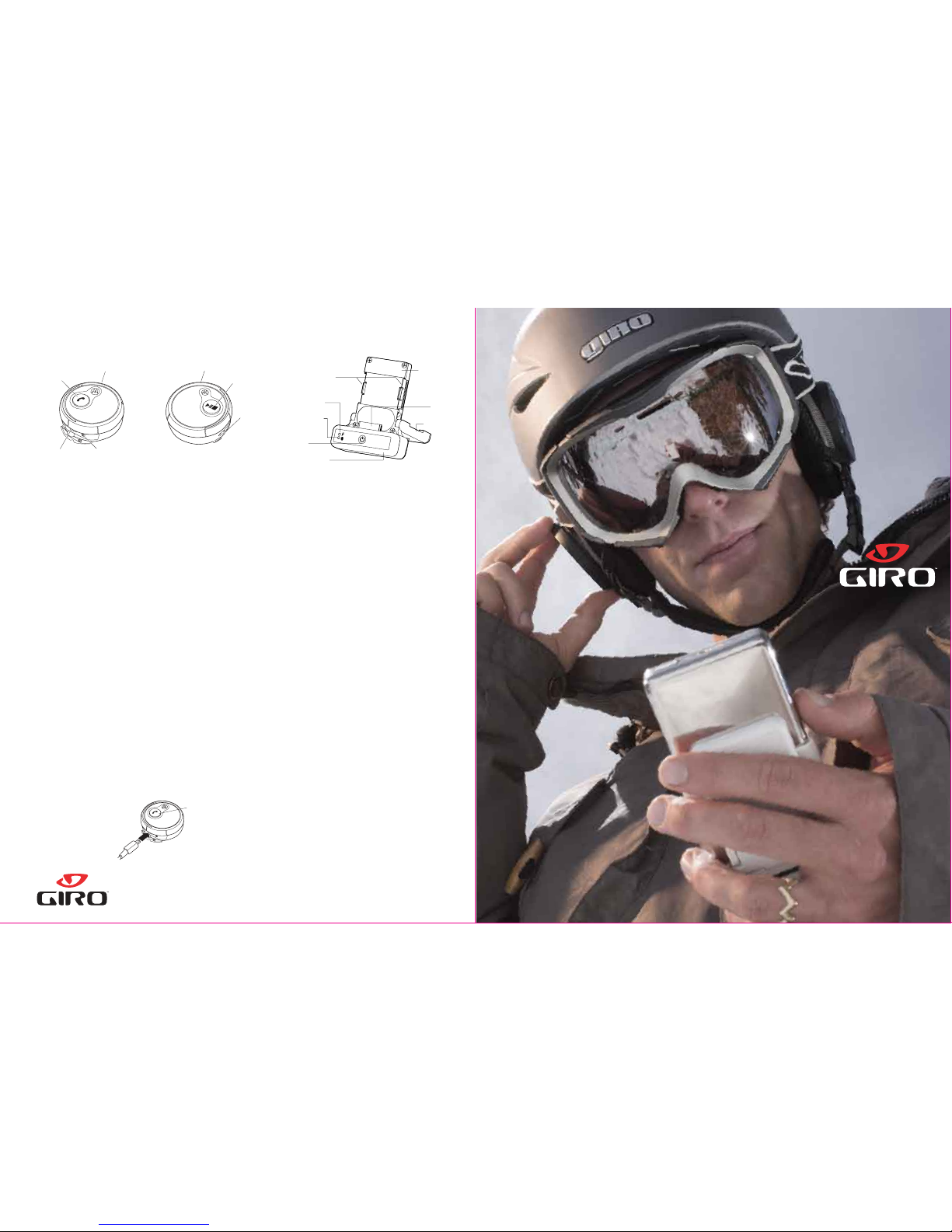
Call Controls (Left Side)
naviPlay Controls
Volume Control Wheel
Call Button
Charging Port
Headset Jack
Track Control Wheel
Play/Pause/
Stop Button
Microphone
Music Controls (Right Side)
TuneUps Wireless S805 Controls
Clip Attachment
Charge LED
Status LED
Power
Adapter Base
Battery Pack
iPod
Dock
Connector
Flip Stand
Indicator
Light
Giro Headquarters
380 Encinal Street
Santa Cruz, CA.
95060
Dealer Support
Tel: 800.969.4476
Fax: 800.888.9009
Email: [email protected]
Rider Lu
ke Wy
nen Photo by
Ti
m Zimmerman
Page 2
Cut the Cords!
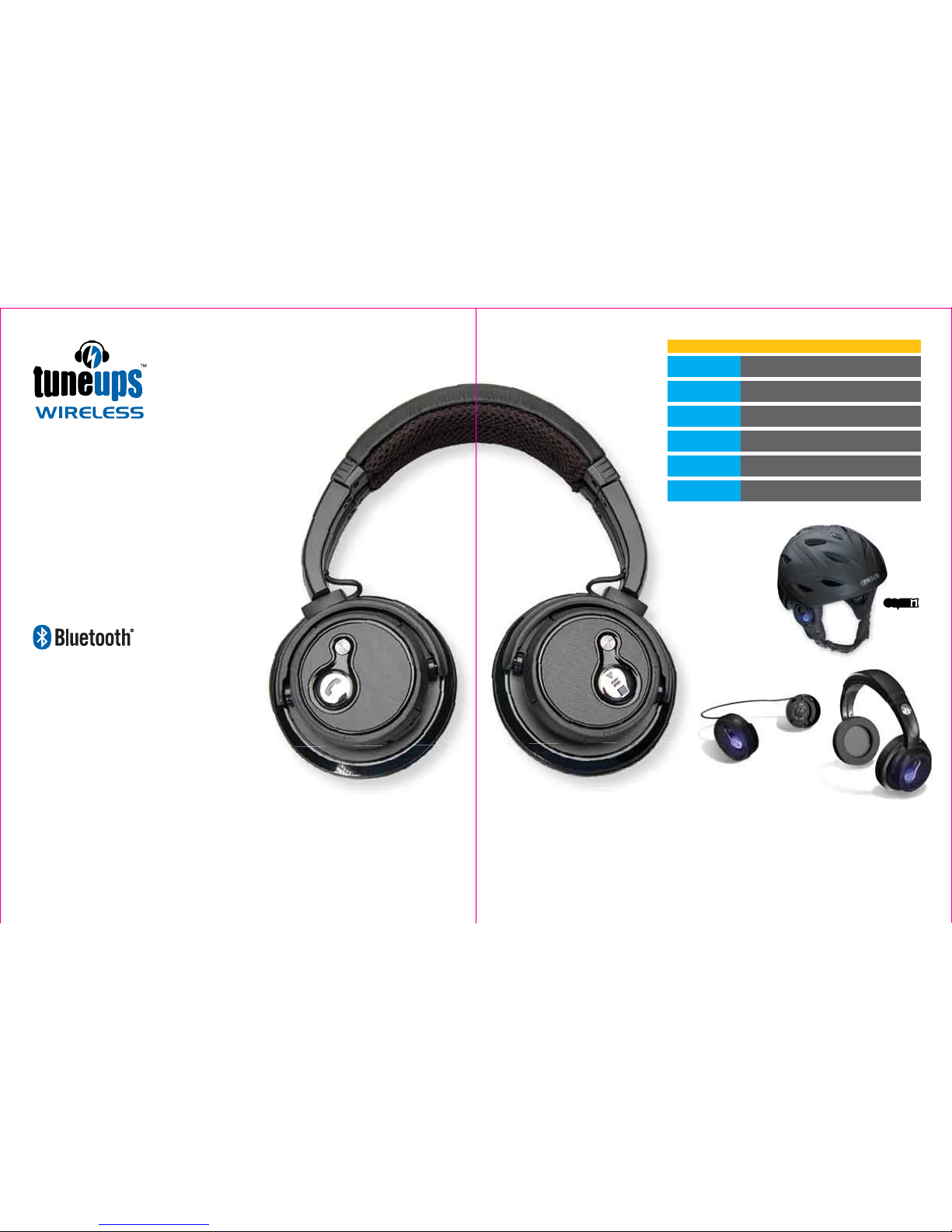
Tuneups Wireless, developed in conjunction with
Motorola™ is the hassle free way to stay connected to your
music and your phone. The system consists of a pair of
modular speaker pods that clip into either the ear pads of
your helmet or the included DJ headset. Intuitive, easy to
reach controls are located on the speaker pods and are
simple to use, even in gloved hands. Control your
music, answer your phone, even turn up the volume
without fumbling around for your phone or music
player. TuneUps Wireless is the ultimate way to stay
connected on the mountain.
What is Bluetooth?
Bluetooth is the name of a new technology that is now becoming
commercially implemented in things like computer components,
phones and music players. It does one thing and one thing only,
replaces cords.
Full Audio, No Wires
Now you can ride the mountain listen to your music and call in sick to
work all at the same time with no wires to hang you up. With our TuneUps
Wireless kit, featuring Bluetooth technology, complete control is at your
fingertips. Modular speaker pods keep the music flowing either in your
helmet or the included DJ headset.
Command Central
Play, fast forward, or turn up the volume on your personal soundtrack via the
headphone wheel controls on the speaker pods. No need to unzip and fumble for
your phone or music player, just tap the control buttons at your ear to answer a call
or adjust your tunes. Even in gloved hands, complete control is no problem.
Down Time
Since you can’t be on the mountain all the time TuneUps Wireless comes with a DJ headset for all non
riding situations. Cook some dinner, do your homework, or tune your ride while staying jacked in to your
music and calls. With up to 30ft. to roam from the source we’re sure you’ll find all sorts of things to do.
BA SIC F UNC TION S
PLAY/
PAUSE
MUSIC
The rig ht ear but ton func tions as y our pla y and paus e button .
A singl e tap gets t he music p laying , one mor e pauses i t .
STOP
MUSIC
To stop y our musi c use an ext ended pr ess on the r ight ea r button .
ANSWE R
INCOM ING
CALL
To answ er a call, t ap the lef t ear butt on once .
Your mu sic will a utomat ically p ause.
To hang u p tap the le ft ear but ton agai n and you r music wi ll resum e.
TURN
ON & OFF
To turn o n your spe aker pod s, press t he left e ar butto n untill t he
indic ator lig ht flash es twice .
To turn o ff, pres s until it f lashes t hree ti mes in a row .
ADVAN CE
TRACK
The rig ht contr ol wheel c ontrol s the tac k playin g
on your m usic pla yer.
Rotat e forwar d to advan ce, rota te back t o replay .
VOLUM E
CONTR OL
The lef t contro l wheel co ntols yo ur volu me.
Rotat e forwar d to incre ase volu me, back t o decre ase.
The use of wireless phones and/or headphones while engaged in activities requiring concentration may cause distraction or otherwise impair your ability to safely participate in such activities. Always use technology safely. iPod is a registered
trade mark of Apple Computer. Motorola and the Stylized M Logo are registered in the U.S. Patent and Trademark office. The Bluetooth trademarks are owned by its propprietor and used by Motorola Inc. under licence. © Motorola Inc 2006.
Does my iPod have Bluetooth?
No, but adapters, such as the naviPlay, by TEN Technology, are available for your iPod that will make it compatible with TuneUps Wireless.
The naviPlay is available through Giro.
How do I pair my phone or music player to my headphones?
After charging your speaker pods and any adapters you may need, follow the steps in the quick start guide on the back of this clinic as well
as the manual for your adapter or phone.
I can store music on my phone and it has Bluetooth, does this mean I can listen to it on the speaker pods?
You must have a phone with Advance Audio Distribution Profile ( A2DP ), such as the ROKR E2 by Motorola, to listen to music wirelessly on
your speaker pods. Even if your phone has Bluetooth for your phone functions it may not have A2DP for your MP3’s.
TuneUps Wireless is compatible with the following Giro Helmets; Omen, Fuse, G10MX, G10 & Nine.9
No tool required to swap the
speaker pods between your
helmet or the included DJ headset.
The
by Giro
 Loading...