

Page 1
Gigaset pro
N720 - BroadSoft
Version May 2018
Quick start guide
Page 2
Gigaset pro N720 - BroadSoft
Quick start guide
2
Introduction
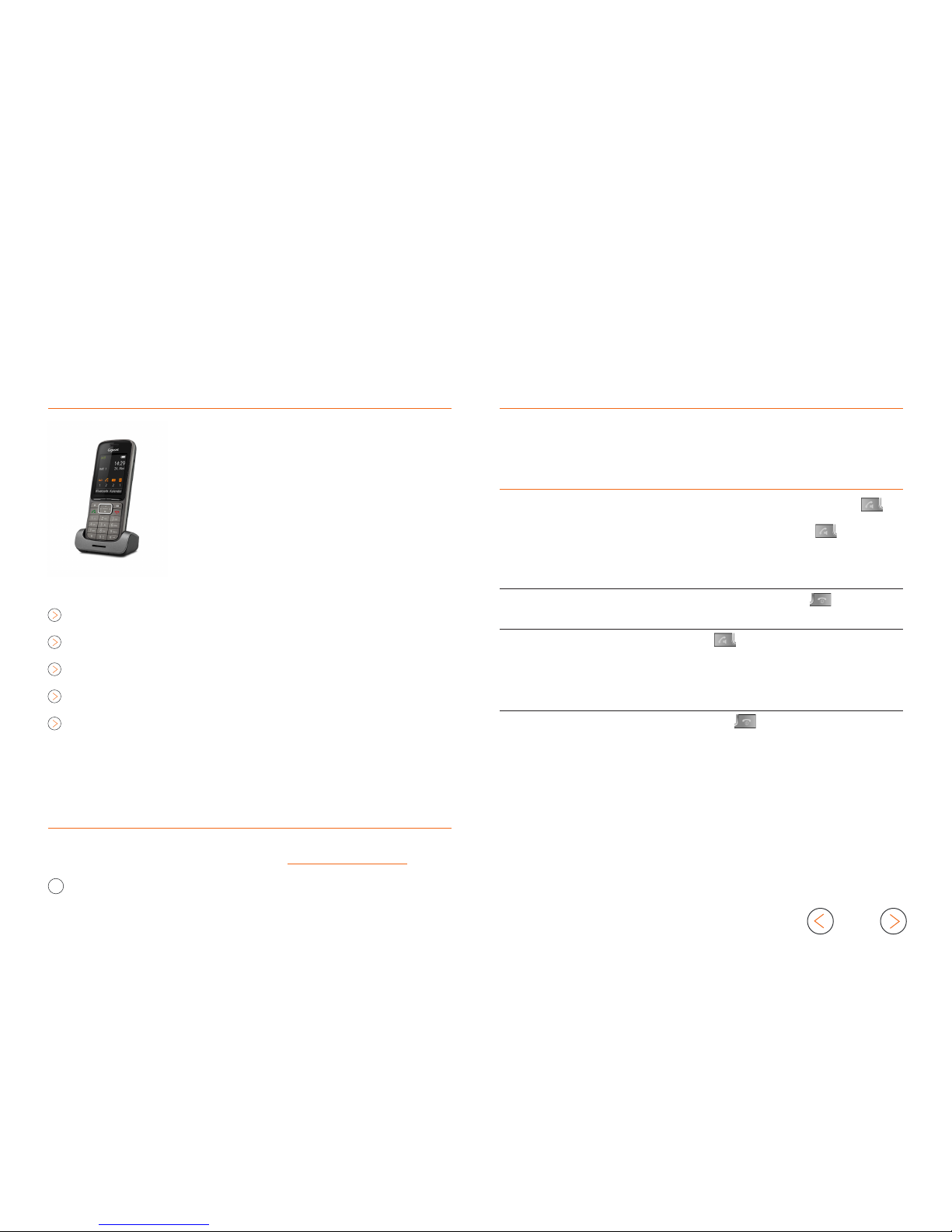
This quick start guide demonstrates key features of the
Gigaset DECT handsets using the N720 Multi Cell DECT
system combined with the BroadSoft platform and is
designed to help you learn the basics quickly.
Please note that most of the functions described here
depend on the features assigned to the account to be
used with the telephone. Some of the features can be
configured and enabled by you and/or by your administrator.
Basic Call Features
Call Transfer Attended
Call Transfer Un-Attended
Call swapping
Phonebook
Additional Information
Additional information is available and can be found: http://wiki.gigasetpro.com
!
This quick start guide is based on the software dd: May 2018, N720 Software 11 and
the then available Broadsoft release. Gigaset offers different DECT (pro) handsets.
Basic Call Features
The following basic call features are supported.
Feature Action
Make Call > Enter the number and briefly press the Talk key .
> For handsfree press again the Talk key .
You can switch between handsfree or handset at any
time during the call.
End active call > To end the call press the End call key .
Answer incoming call > Press the Talk key .
> Or press the Left Soft key “Accept“
> Or if Auto Answer is activated, lift handset from cradle.
Reject incoming call > Press the End call key .
Page 3
Gigaset pro N720 - BroadSoft
Quick start guide
3
Feature Action
Muting > During the call press the Mute (right) key .
On the display you can see that the Mute is enabled.
Hold > During the call press the Left Soft key “Ext. Call“ to put
the call on hold.
> To resume, press the Left Soft key “End”.
If you Hangup the call when on hold, a recall is initiated.
Message waiting > New messages are signalled via flashing MWI key
Message Centre > Press the MWI key to open the message Centre.
> Select between Mailbox or Missed calls.
> Press the centre of the Control key.
> The Voicemail is played via the speaker.
Feature Action
Call lists > Press the Left Soft key “Calls“
> Or press right to open the Menu and select the
Call Lists
> Scroll up & down
to select the required Call list.
- All calls
- Outgoing calls
- Accepted calls
- Missed calls
> Scroll up & down
to select the number.
> Press the Talk key the start the call.
Speed Dial > Via Long press key 2 - 9.
Redial > Briefly press the Talk key .
> Scroll up & down
to select the number.
> Press the Talk key .
Volume > During the call press the up key .
Activate / Deactivate > The handset has 3 sound profiles press the profile
Ring tone key.
- Loud
- Silent (Ringtone deactivated)
- Personal
Page 4

Gigaset pro N720 - BroadSoft
Quick start guide
4
Call Transfer Attended
When using attended transfer, you first make sure that the contact where you
want to transfer the call, is available and willing to answer this call. There is first a 2
way conversation before you transfer the call.
> You have an active call.
> During the call press the Left Soft key “Ext. Call“ to put the call on hold.
> Enter the phone number.
> Wait until the call is answered and you announced the call.
> Hang up to transfer the call.
> Or press up & down
to swap between the calls.
Call Transfer Un-Attended
When using un-attended transfer, you transfer the call without announcing it to
the other party.
> You have an active call.
> During the call press the Left Soft key “Ext. Call“ to put the call on hold.
> Enter the phone number.
> Wait until you hear the ringing tone.
> Hang up to transfer the call.
Call Swapping
> You have an active call.
> Press up & down
to swap between the calls.
Page 5

Gigaset pro N720 - BroadSoft
Quick start guide
5
Phonebook
Broadsoft supports the following phone books: Personal, Group, Group Common,
Enterprise and Enterprise Common. Here we describe the phonebooks behind
the BroadCloud environment.
> Short press phonebook (Directory) key , you will see all available
phonebooks.
- Enterprise
- Group
- Personal
> Scroll up and down to select the phonebook.
> Enter the Search criteria
> Or press the Right Soft key “Search“ to get a list with the first .. contacts.
> Scroll up and down to select the contact.
> Press the Talk key .
 Loading...