

Page 1
X
opilot
USER MANUAL
+
Page 2
CONTENTS
EN English
AR
BG
CS
DE
EL
ES
ET
FR
HE
HU
JA
KO
LT
LV
NL
PL
PT
RO
RU
日本語
SC
SR
TC
TR
UK-UA
Page 3
EN
English
1-1. Using GIGABYTE Notebook for the First Time
2
3
1
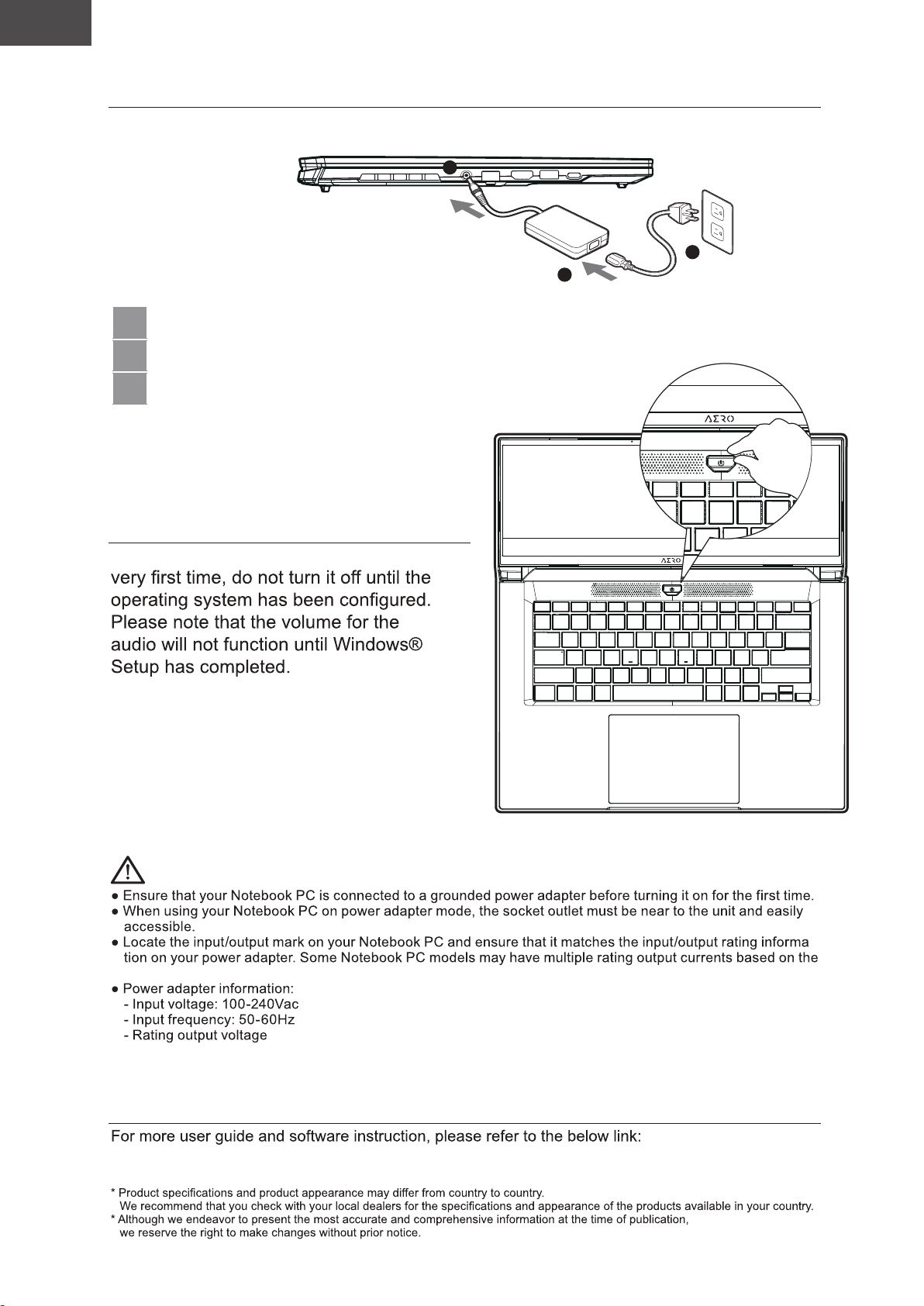
1 Connect the power cord to the AC adapter.
2 Connect the AC adapter to the DC-in jack of the notebook.
3 Connect the power cord to the power outlet.
1-2. Switching on the Power
After you turn on the notebook for the
IMPORTANT:
available SKU.
-
: 20V, 7,5A
1-3. Full User Manual
Page 4
EN
English
2.
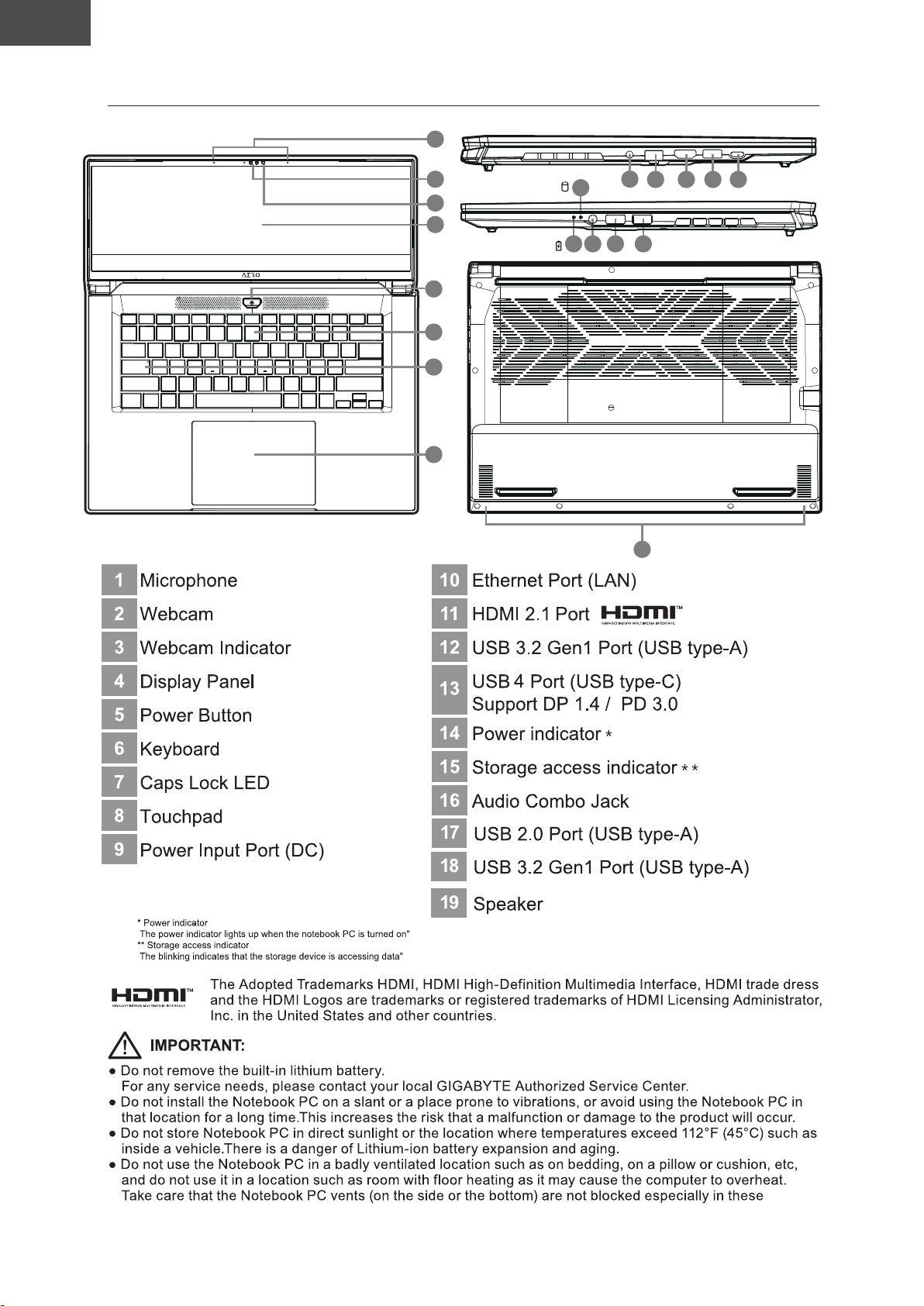
GIGABYTE Notebook Tour
1
1
2
3
4
5
6
7
8
15
14 16 17 18
9
10
19
11
12 13
environments. If the vents are blocked, it may be dangerous and cause the Notebook PC to overheat.
Page 5
EN
English
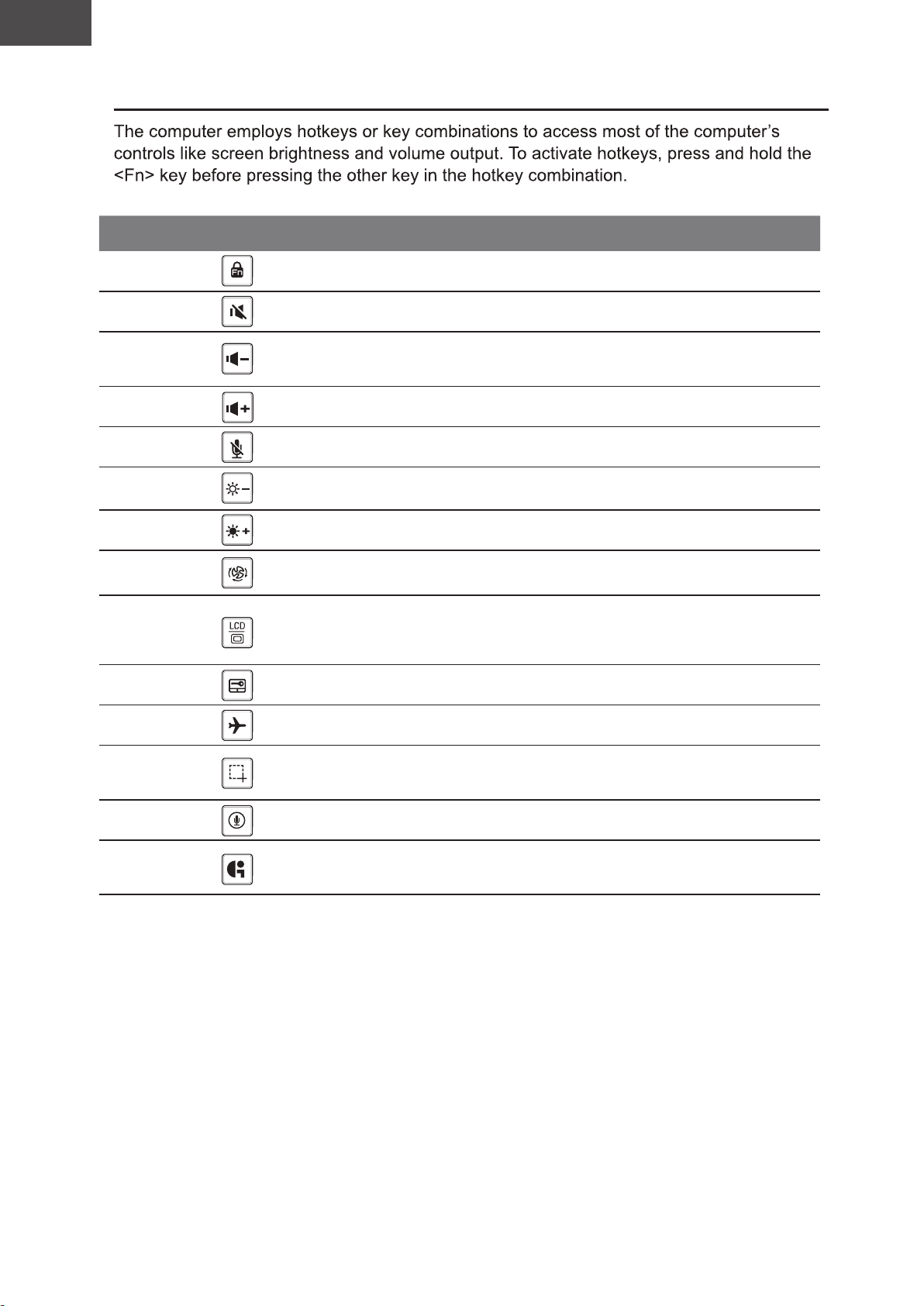
Hotkeys
Hotkey
Fn+ESC
Fn+F1
Fn+F2
Fn+F3
Fn+F4
Fn+F5
Fn+F6
Fn+F7
Fn+F8
Function Description
Function unlock/lock
Speaker Toggle
Volume Down
Volume Up
MIC mute/unmute MIC mute/unmute
Brightness Down Decrease the screen brightness.
Brightness Up Increase the screen brightness.
Power System setting
Display Toggle
Function unlock/lock (only F1~F12 switch,
default function key first)
Turn the speaker on and off.
Decrease the sound volume.
Increase the sound volume.
Power System setting
(ECO/Banlance/Performance)
Switche display output between the
display screen, external monitor
(if connected) and both.
Fn+F9
Fn+F10 Airplane Mode Enable/disable the Airplane Mode function.
Fn+F11
Fn+F12 Voice in Voice in
Fn+GiMate
Touchpad Toggle
Screenshot Screenshot: Shift+Win+S
GiMate Control center
Turn the internal touchpad on and off.
Open GiMate Control center
Page 6
EN
English
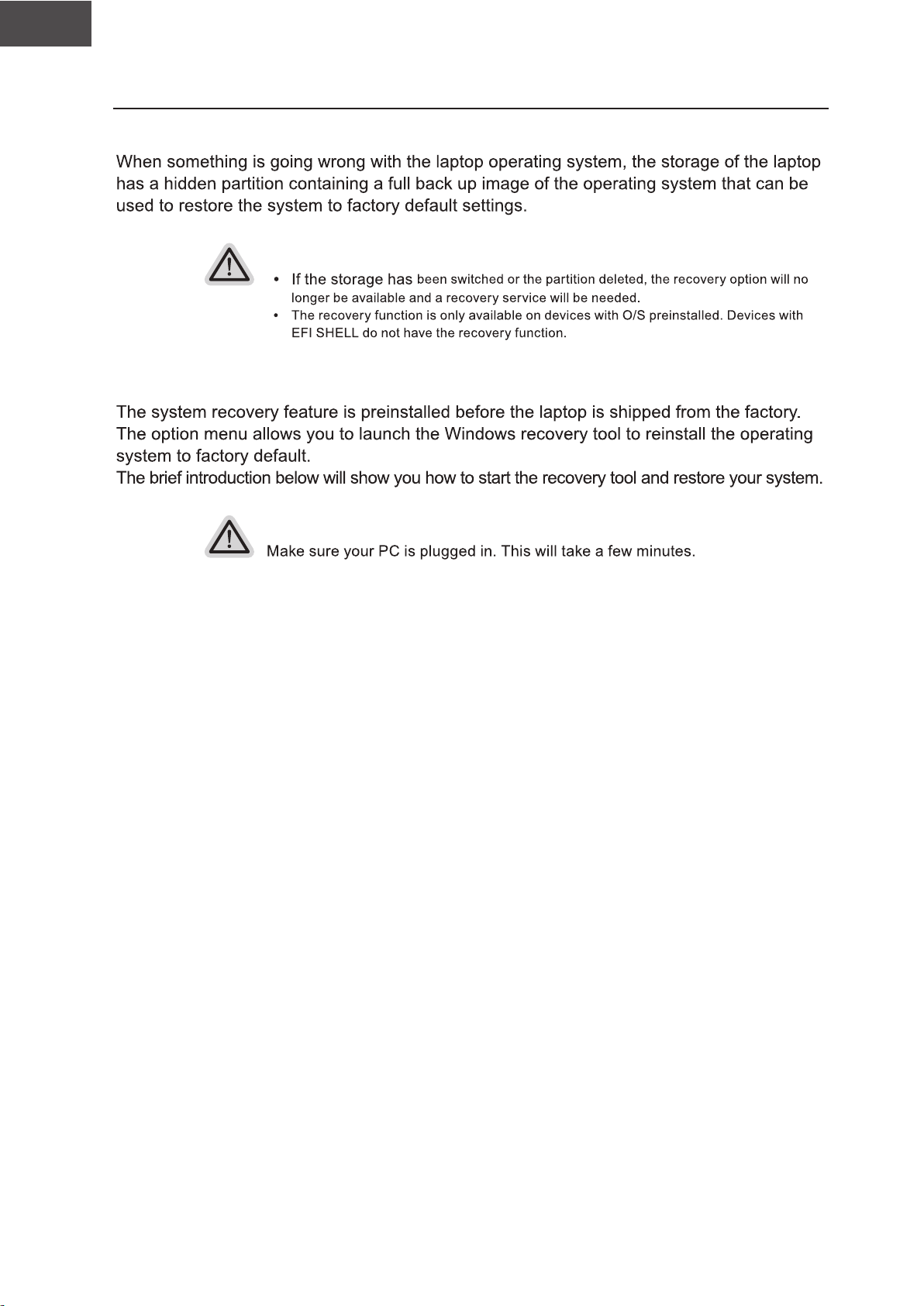
Recovery Guide
System recovery ( Restore your laptop operating system )
Note
Launch system recovery
All ready to go
Page 7
EN
English
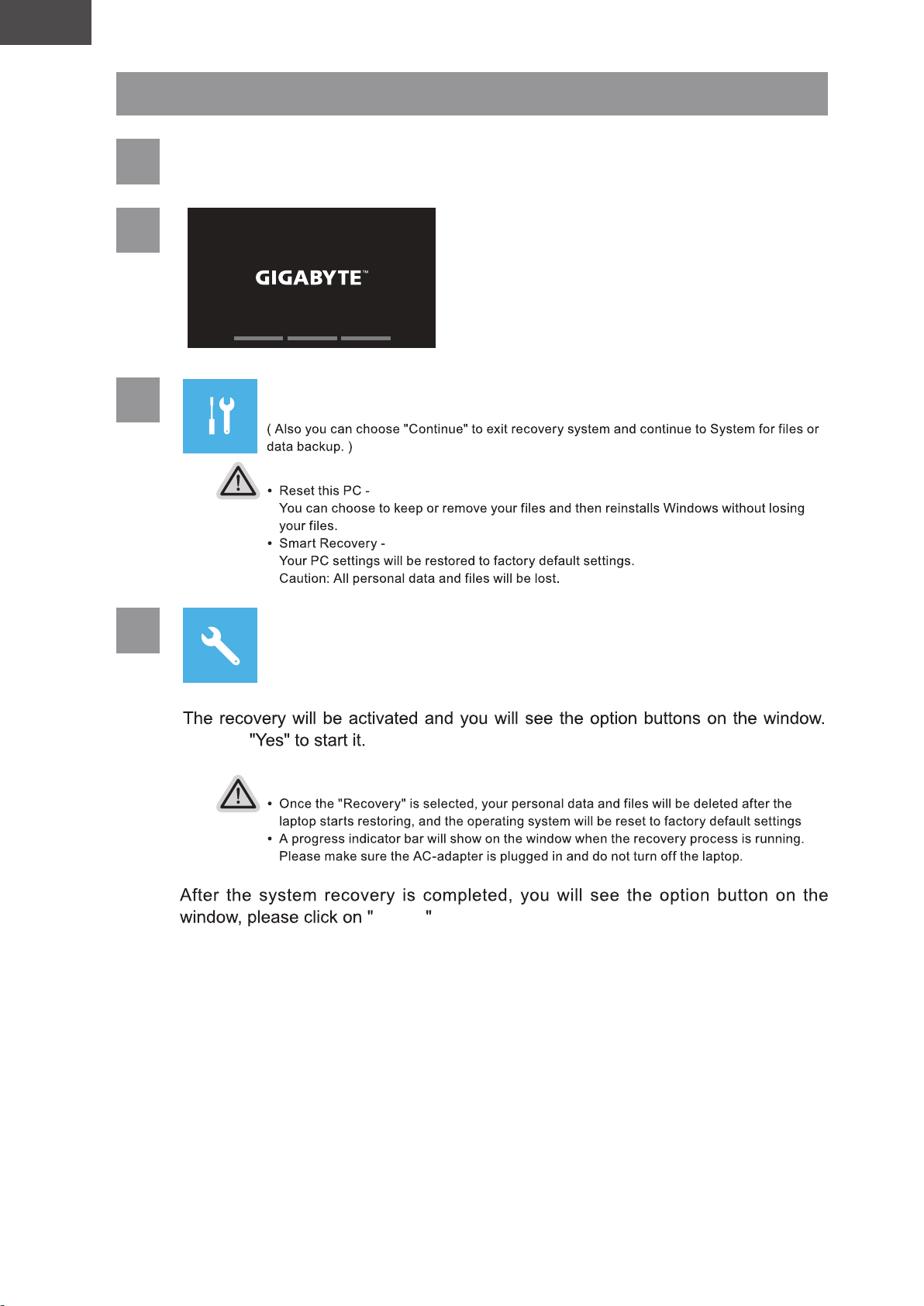
Recovery Guide
1
2
3
Turn off and restart the laptop.
Choose "Troubleshoot" to enter the recovery settings.
There are two options for system recovery
4
Smart Recovery
Click on
Caution
Finish .
Page 8
EN
English
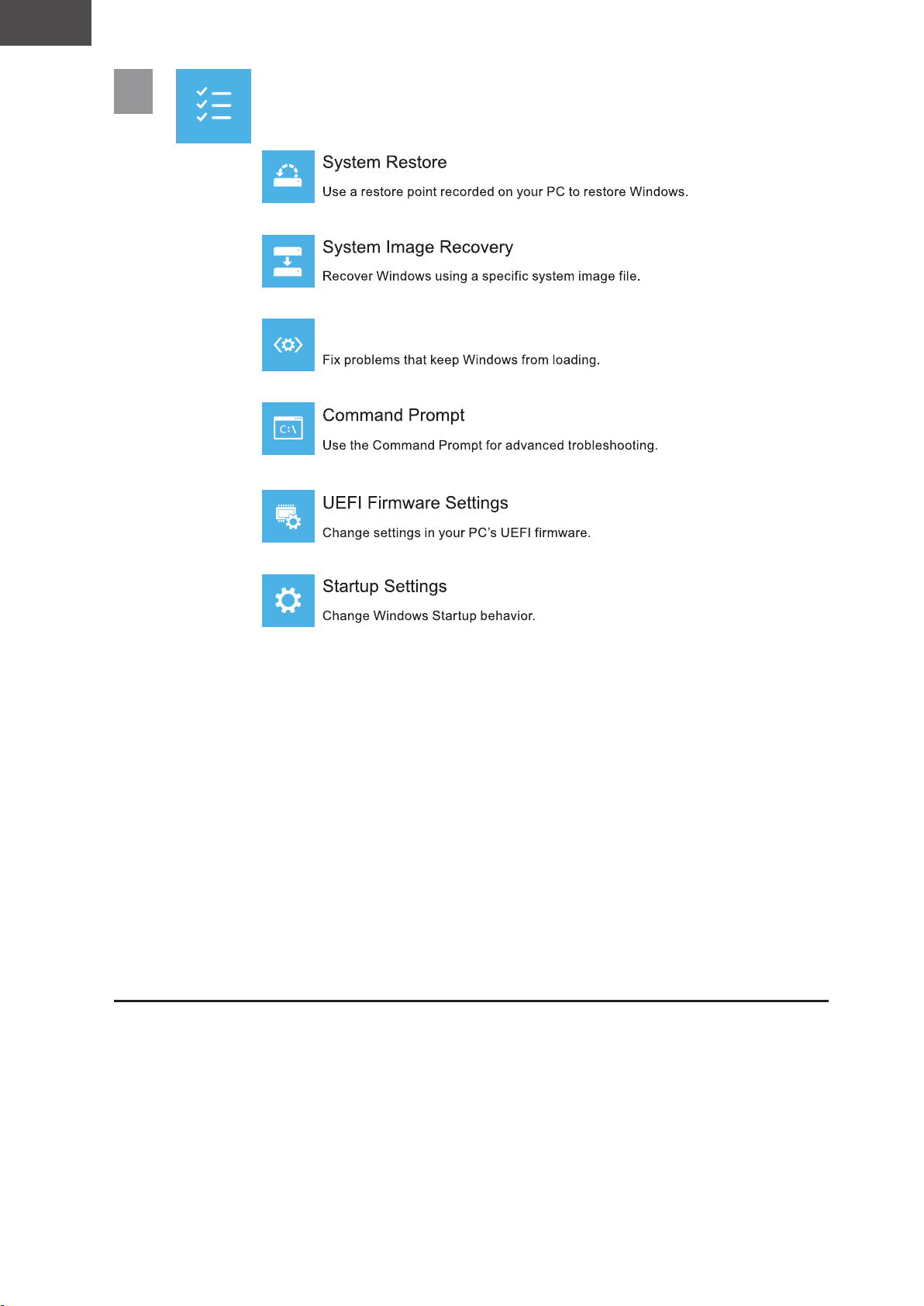
5
Advanced options
Startup Repair
Page 9
EN
English
For the model which adopts Flicker-Free technology which clears the eye visible monitor
flicker and prevents users from suffering eye strain and fatigue.
The following are some tips for comfortable viewing of your monitor:
•
Optimal viewing distances for laptop range from approximately 510 mm to 760 mm (20” t o 30”).
•
A general guideline is to position the monitor such that the top of the screen is at or slightly
below your eye-height when you are comfortably seated.
•
Use adequate lighting for the type of work you are performing.
•
Take regular and frequent breaks (at least for 10 minutes) every half-hour.
•
Be sure to periodically look away from your monitor screen and focus on a far object for at
least 20 seconds during the breaks.
•
Eye exercise can help reduce eye strain. Repeat these exercises frequently:
(1) look up and down (2) slowly roll your eye (3) move your eyes diagonally.
For the model which has passed Low Blue Light verification
by TÜV Rheinland.
To learn more:
https://www.gigabyte.com/tw/Support/FAQ/4309
Dolby, Dolby Vision, Dolby Atmos, and the double-D symbol are registered trademarks
of Dolby Laboratories Licensing Corporation.
Manufactured under license from Dolby Laboratories. Confidential unpublished works.
Copyright © 2012–2021 Dolby Laboratories.
All rights reserved.
All operational modes:
Appendix
https://www.gigabyte.com/Support/Laptop
https://www.gigabyte.com/Support/Faq
Page 10

EN
Giga-Byte Technology Co., Ltd.
No.6, Baoqiang Rd., Xindian Dist., New Taipei City 231, Taiwan
G.B.T. Technology Trading GMbH
Am Stadtrand 63, 22047 Hamburg, Germany
###
Conduction & Radiated Emissions:
EN 55032:2015+A11:2020, class B
###
Immunity requirements:
EN 55035:2017+A11:2020
###
Power-line harmonics:
EN 61000-3-2:2014
###
Power-line flicker:
EN 61000-3-3:2013+A1:2019
Safety:
EN IEC 62368-1:2020+A11:2020
EN 50566:2017/A1:2023
EN 62209-2:2010+A1:2019
Technical Requirements:
ETSI EN 300 328 V2.2.2
ETSI EN 301 893 V2.1.1
ETSI EN 300 440 V2.2.1
ETSI EN 303 687 V1.1.1
EN 301 489-1 V2.2.3
EN 301 489-17 V3.3.1
EU-type Examination:
Certification Number:
Notified Body:
1177, TIMCO Engineering, Inc.
Ecodesign requirements:
Commission Regulation (EU) No 617/2013
European Conformity marking:
Signature:
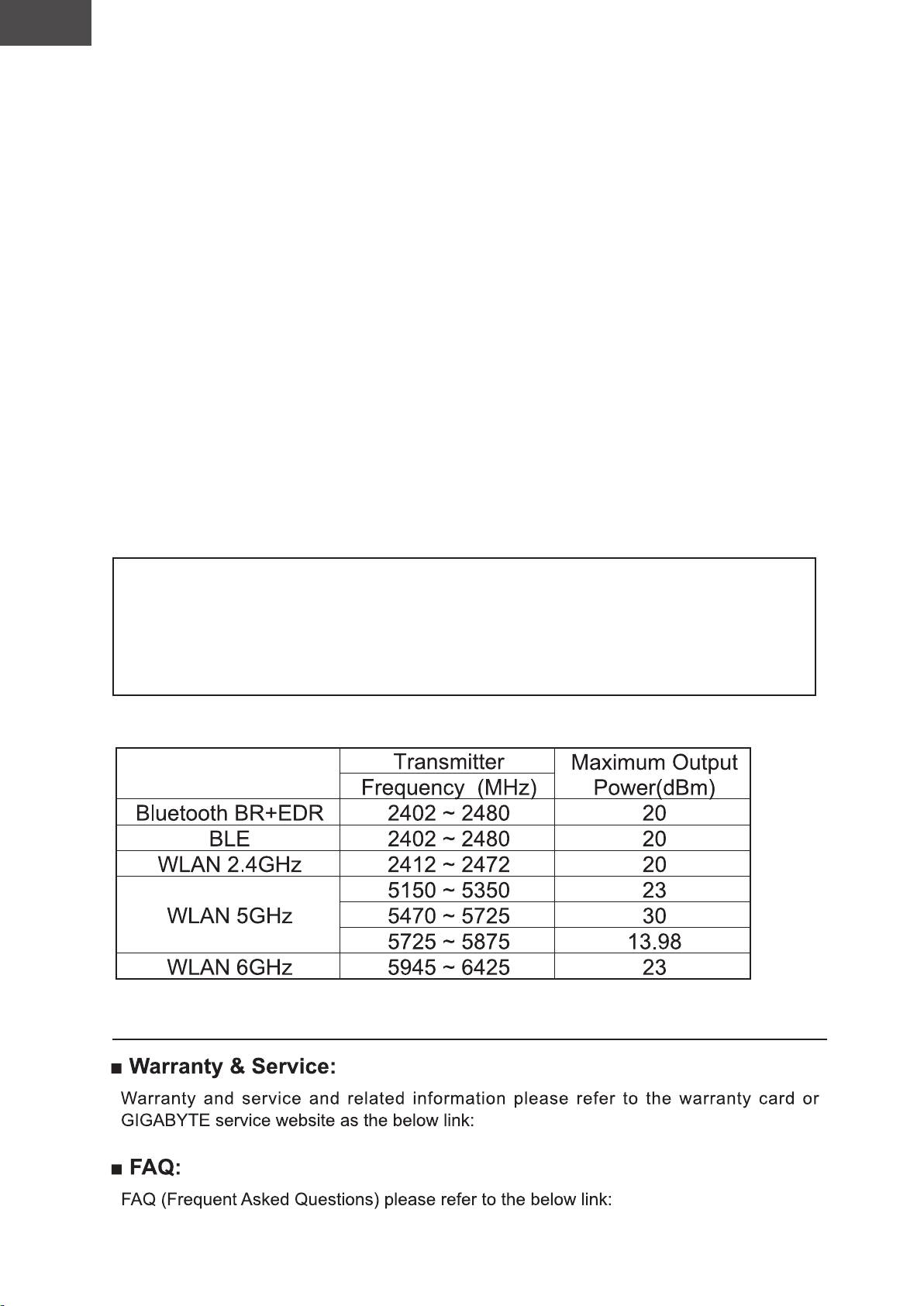
equipment:
E1177-255262
English
EU DECLARATION OF CONFORMITY
We, the undersigned,
Manufacturer:
Address:
and authorized representative in Europe of Manufacturer:
Company name:
Address:
Declare under our sole responsibility that the below product,
Product Type:
Brand Name:
Product Name:
conforms with the essential requirements of the following directives:
EMC Directive 2014/30/EU:
NOTEBOOK
GIGABYTE
EG61H
Low Voltage Directive (LVD) 2014/35/EU:
Radio Equipment Directive (RED) 2014/53/EU:
Ecodesign Directive 2009/125/EC:
RoHS Directive 2011/65/EU, Commission Delegated Directive (EU) 2015/863:
Restriction of use of certain
substances in electronic
This product does not contain any of the restricted substances listed in
Annex II, in concentrations and applications banned by the directive.
This declaration has been prepared under the responsibility of the manufacturer.
Signed by:
reganaM lareneG :noitcnuFgnauH ymmiT :emaN
5202 ,51 lirpA :etaDgrubmaH :ecalP
Page 11
ES
Español
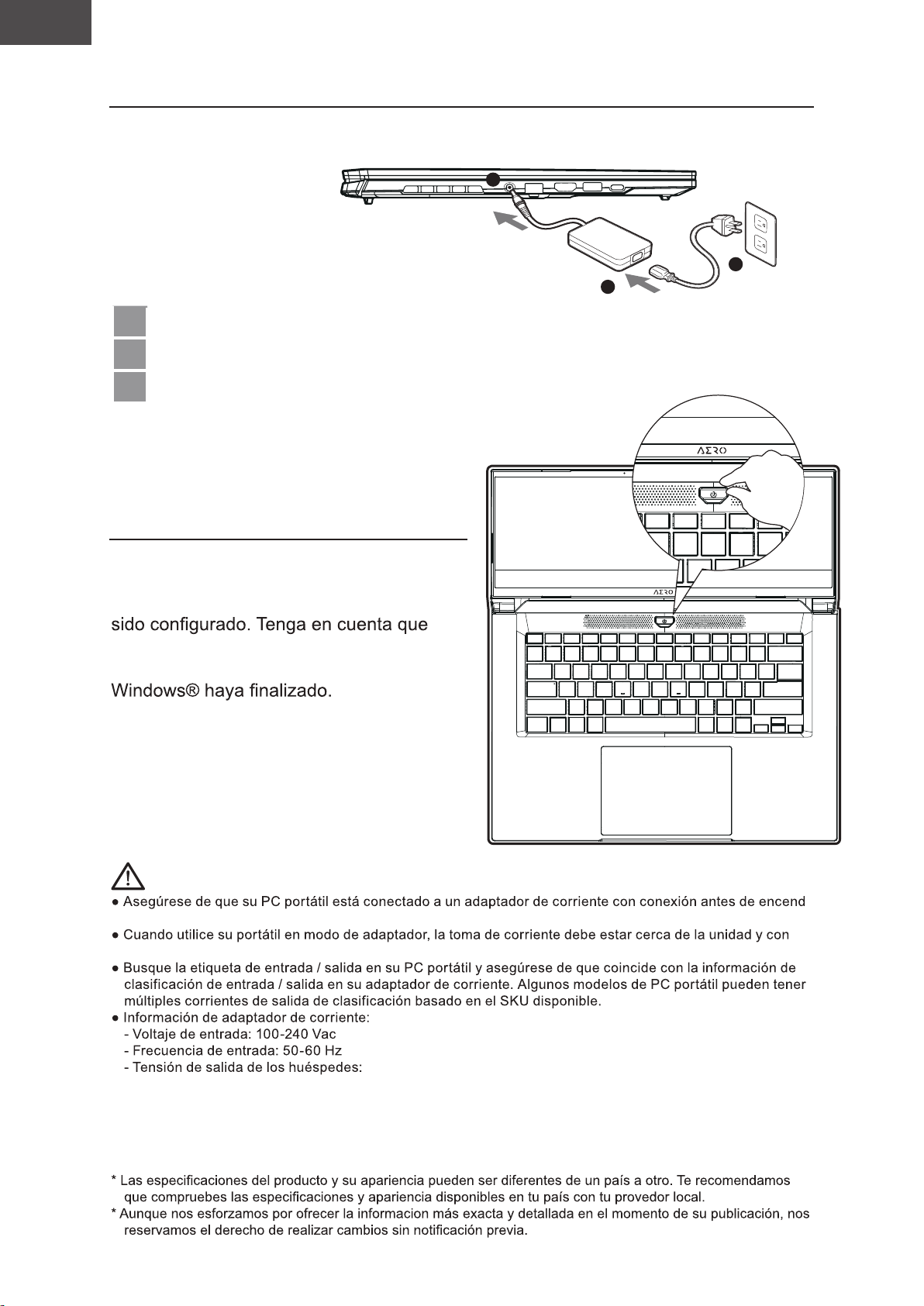
1-1. Primer contacto con el portátil GIGABYTE
2
3
1
1 Conecta el cable de alimentación al adaptador de CA.
2 Conecte el adaptador de CA a la clavija de entrada de CC de la computadora.
3 Conecta el cable de alimentación a la toma de corriente.
1-2. Activar el equipo
Después de encender el ordenador
portátil por primera vez, no lo apague
hasta que el sistema operativo haya
el volumen del audio no funcionará
hasta que el programa de instalación
IMPORTANTE:
erlo por primera vez.
fácil acceso.
-
20V, 7.5A
Page 12
ES
Español
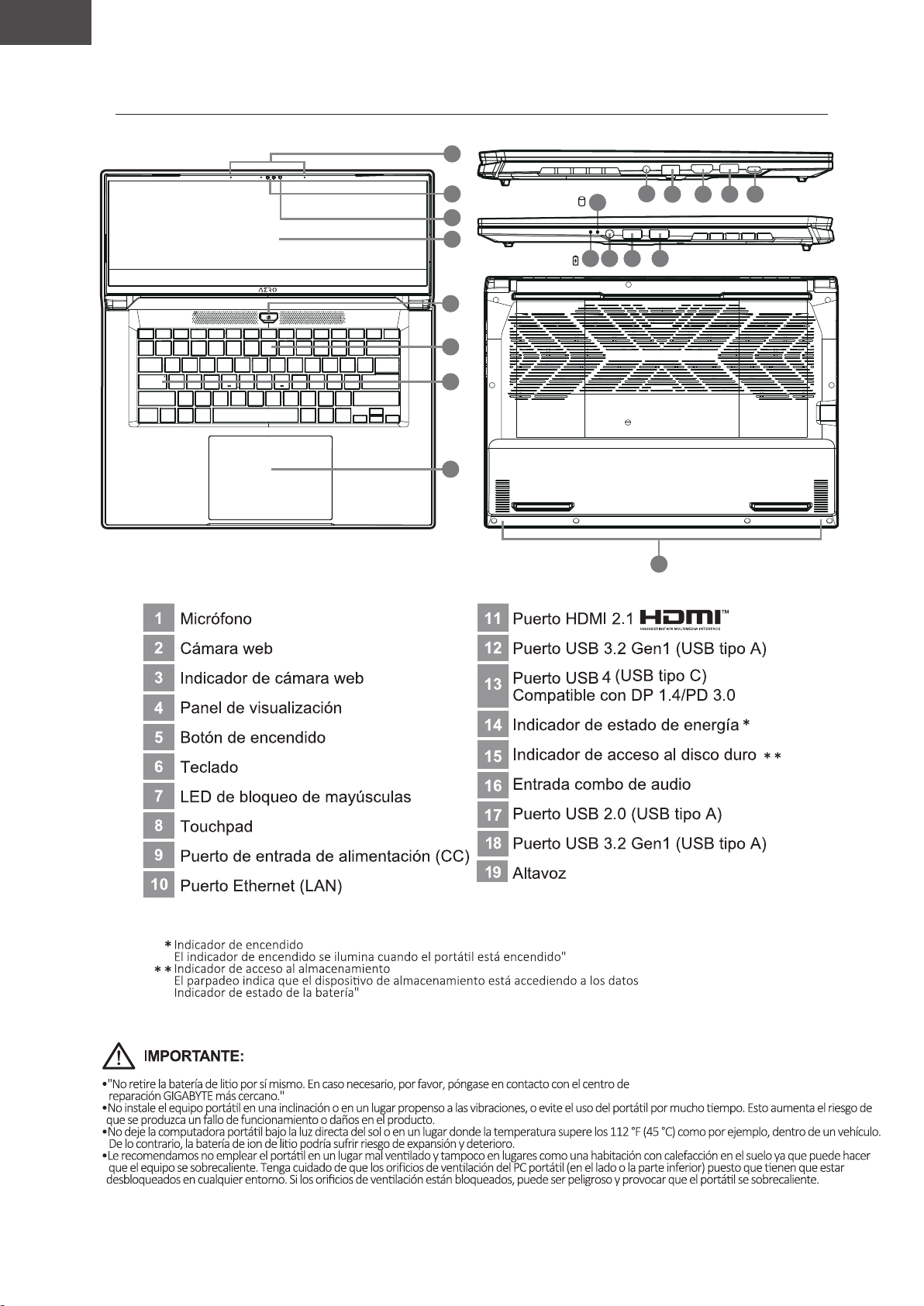
2. Presentación del portátil GIGABYTE
1
1
2
3
4
5
6
7
8
15
14 16 17 18
9
10
19
11
12 13
Page 13
ES
Español
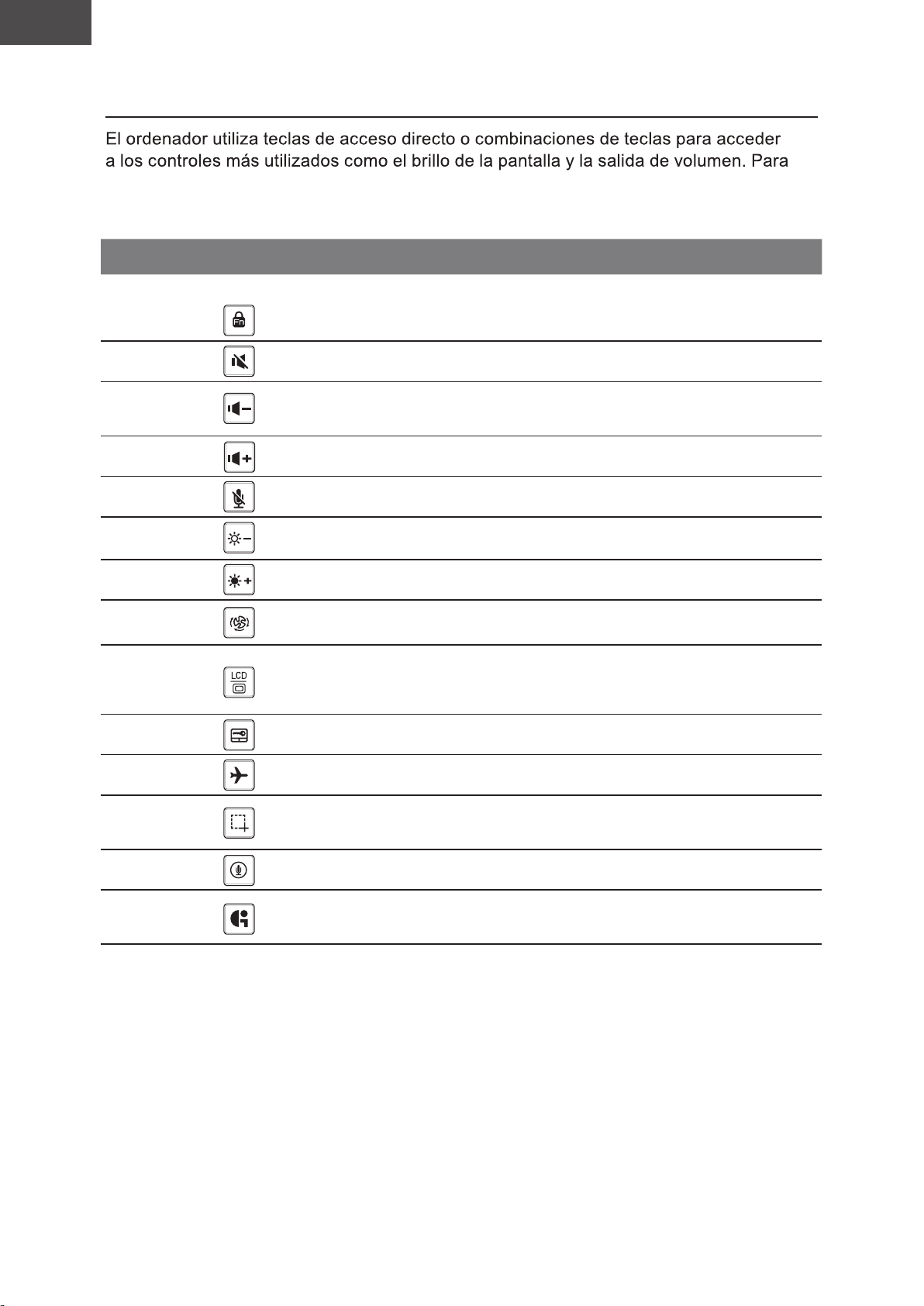
Teclas de acceso rápido
activar teclas de acceso rápido, mantenga pulsada la tecla <Fn> antes de pulsar la tecla
de la combinación de teclas rápidas.
Hotkey
Fn+ESC
Fn+F1
Fn+F2
Fn+F3
Fn+F4
Fn+F5
Fn+F6
Fn+F7
Fn+F8
función descripción
Desbloqueo/bloqueo de funciones
Función de desbloqueo/
bloqueo
Alternar altavoces Activa
Bajar volumen
Subir volumen
Silenciar/activar el
micrófono
Brillo de Down
Brillo Hasta Aumenta el brillo de la pantalla.
Configuración del sistema
de energía
Cambio de pantalla
(solo interruptor F1~F12, tecla de función
predeterminada primero)
Encienda el altavoz encendido
y apagado.
Disminuya el volumen del sonido.
Aumenta el volumen del sonido.
Silenciar/activar el micrófono
Disminuya el brillo de la pantalla.
Configuración del sistema de energía
(ECO/Equilibrio/Rendimiento)
Salida de la pantalla entre Switche
la pantalla de visualización, externa
seguimiento (si está conectado) o ambos.
Fn+F9
Fn+F10 Modo avión Activar/desactivar modo avión
Fn+F11
Fn+F12 Voz en Voz en
Fn+GiMate
Panel táctil Activa
Captura de pantalla Captura de pantalla: Shift+Win+S
Centro de control
de GiMate
Gire el panel táctil interno y apagado.
Abrir el Centro de control de GiMate
Page 14
ES
Español
Guía de recuperación
Recuperación del sistema (Restaurar el sistema operativo)
Cuando algo va mal con el sistema operativo de la computadora portátil, el
almacenamiento de la computadora portátil tiene una partición oculta que contiene una
copia de seguridad completa imagen del sistema operativo que se puede utilizar para
restaurar el sistema a los valores predeterminados de fábrica.
Note
de recuperación ya no estará disponible y un servicio de recuperación será
necesario.
recuperación.
La función de recuperación del sistema está preinstala
La función de recuperación del sistema está preinstalado antes de que el ordenador
recuperación de Windows para reinstalar el sistema operativo por defecto de fábrica . La
introducción breve a continuación le mostrará cómo iniciar la herramienta de recuperación
y restaurar el sistema.
Todo listo para ir
Page 15
ES
Español
Guía de recuperación
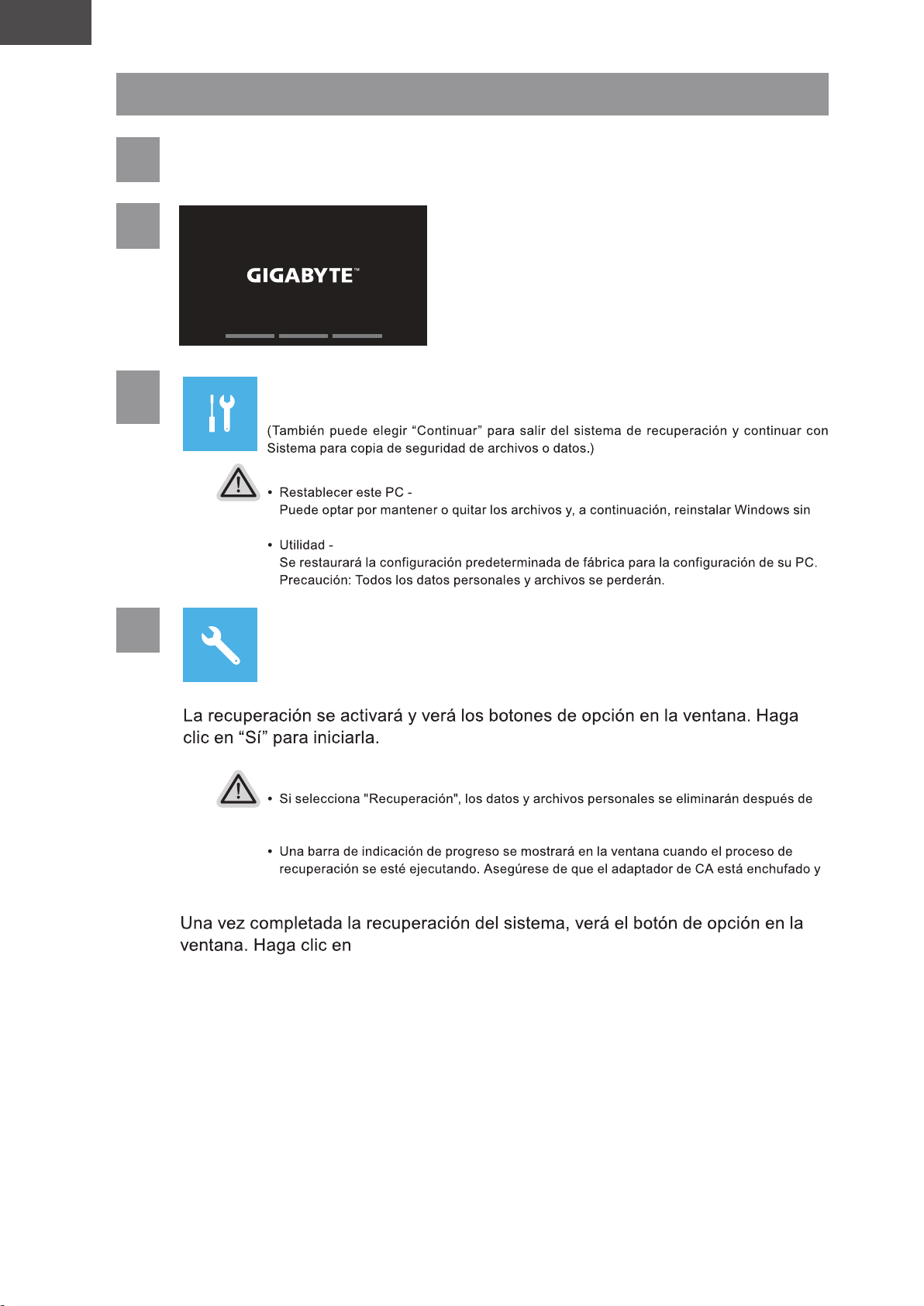
1
2
3
Apague y reinicie el equipo portátil.
Elija "Solucionar problemas" para entrar en la configuración de recuperación.
Hay dos opciones para la recuperación del sistema:
perder los archivos.
4
Elegir Utilidad
Precaución
que el equipo portátil inicie la restauración y se restablecerá la configuración predeterminada de fábrica del sistema operativo.
no apague el equipo portátil.
"Finalizar".
Page 16
ES
Español
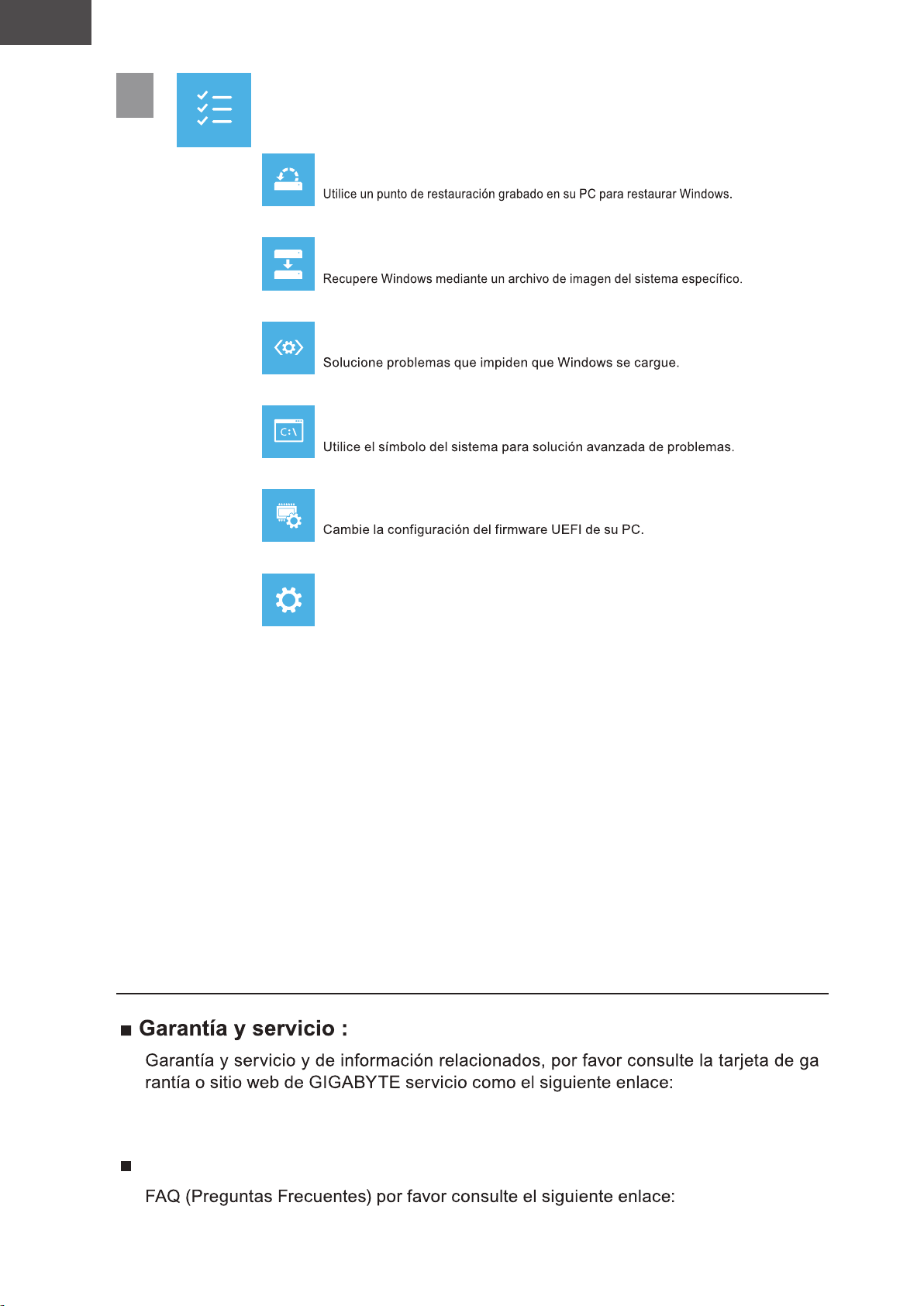
5
Opciones avanzadas
Restauración del sistema
Recuperación a partir de una imagen del sistema
Reparación de inicio
Símbolo del sistema
Configuración del firmware UEFI
Apéndice
Configuración de inicio
Cambiar comportamiento de inicio de Windows.
https://www.gigabyte.com/Support/Laptop
Preguntas frecuentes:
https://www.gigabyte.com/Support/Faq
-
Page 17
ET
Eesti keel
1-1. GIGABYTE ’i sülearvuti esmakordne kasutamine
2
3
1
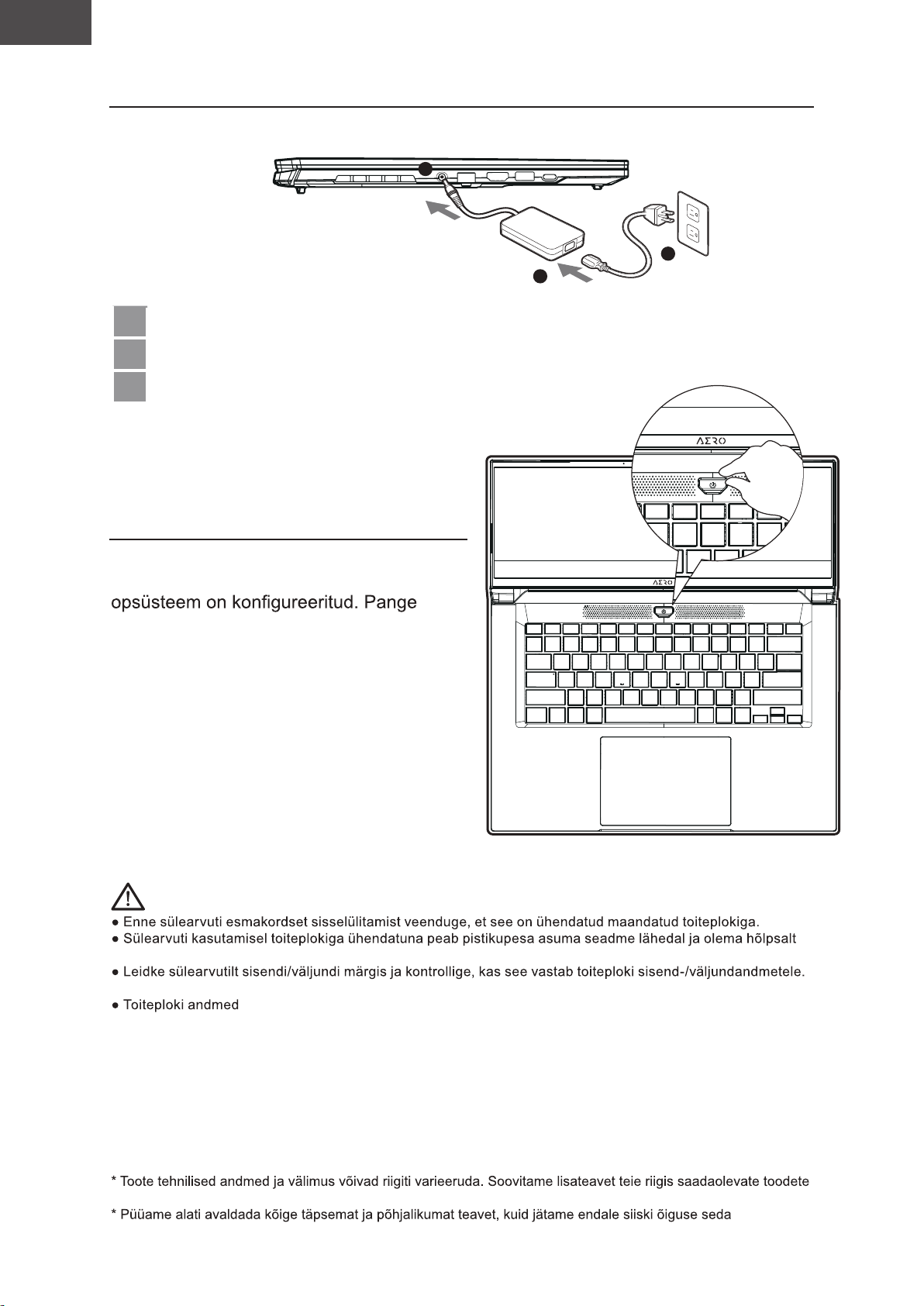
1 Ühendage toitekaabel toiteplokiga.
2 Ühendage toiteplokk sülearvuti DC-sisendiga.
3 Ühendage toitekaabel vooluvõrguga.
1-2. Toite sisselülitamine
Kui sülearvuti esmakordset sisse lülitate,
ärge lülitage seda välja enne, kui
tähele, et helitugevuse ei hakka toimima
enne, kui Windows® Setup on lõppenud.
TÄHTIS:
ligipääsetav.
Mõnel sülearvuti mudelil võib sõltuvalt SKU-st olla mitu nimiväljundvoolu.
:
- Sisendpinge: 100–240 VAC
- Sisendsagedus: 50–60 Hz
- Nominaalne väljundpinge:
tehniliste andmete ja välimuse kohta küsida kohalikult edasimüüjalt.
etteteatamata muuta.
20V, 7,5A
Page 18
ET
Eesti keel
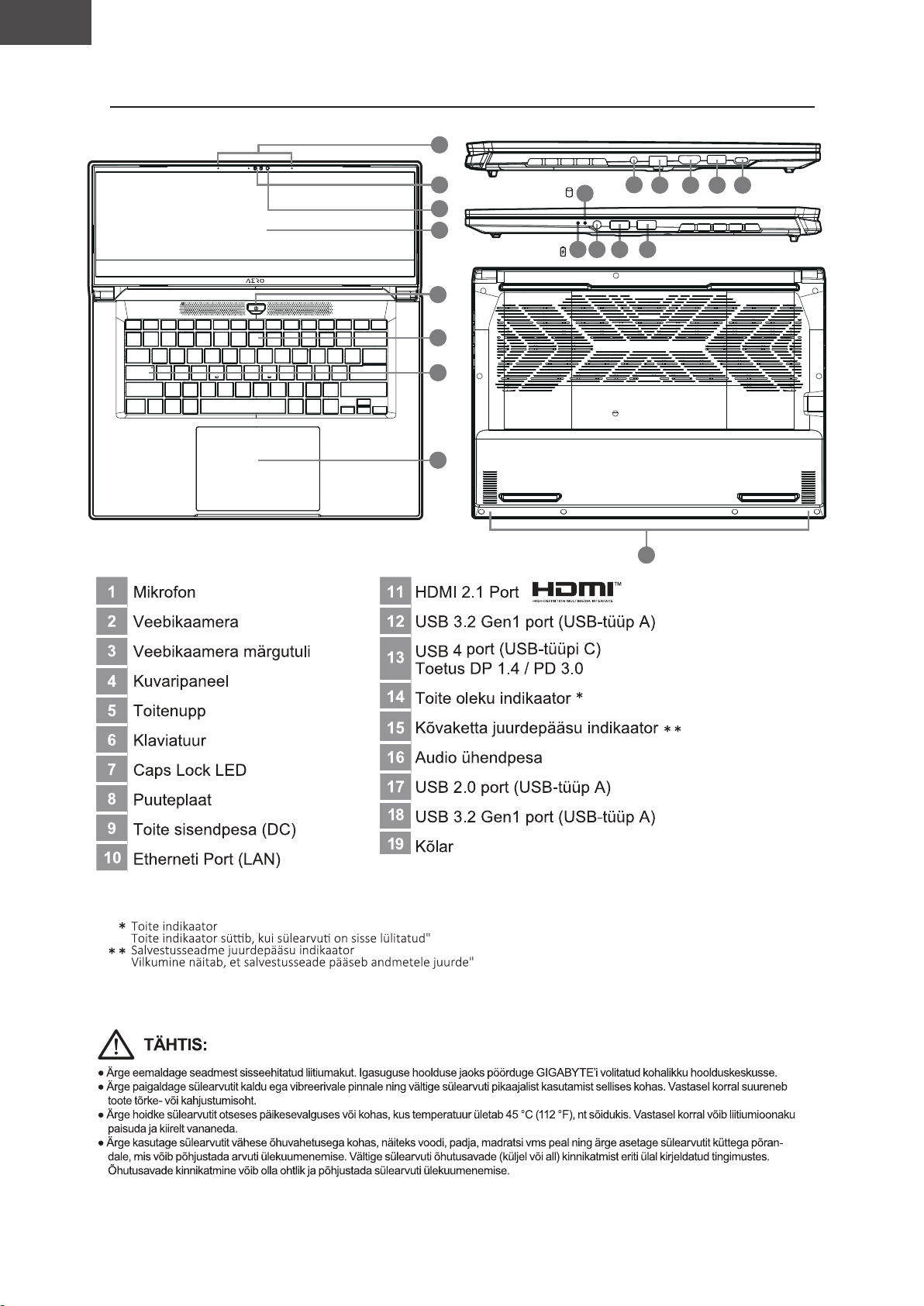
2. GIGABYTE ’i sülearvuti tutvustus
1
1
2
3
4
5
6
7
8
15
14 16 17 18
9
10
19
11
12 13
Page 19
ET
Eesti keel
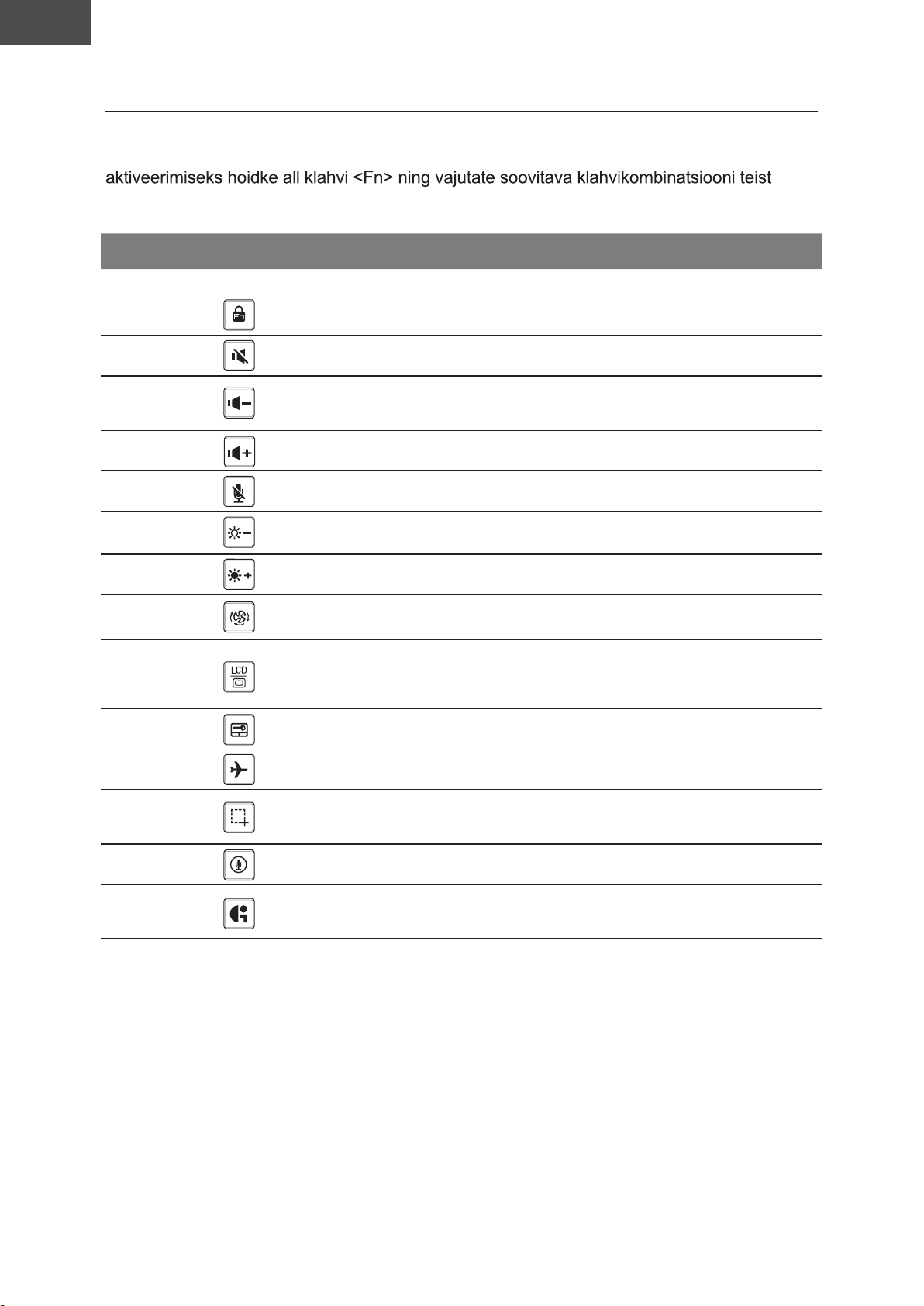
Kiirklahvid
Arvuti kiirklahve või klahvikombinatsioone saab kasutada juurdepääseuks enamikule arvuti
funktsioonidest, nagu näiteks ekraani heleduse ja helitugevuse seadmine. Kiirklahvide
klahvi.
Kiirklahv
Fn+ESC
Fn+F1
Fn+F2
Fn+F3
Fn+F4
Fn+F5
Fn+F6
Fn+F7
Fn+F8
Funktsioon Kirjeldus
Funktsiooni avamine/lukustamine
Funktsioon avamine/
lukustus
Kõlar sisse/välja
Heli vaiksemaks
Heli valjemaks
MIC vaigistamine/
vaigistuse tühistamine
Vähem heledust
Rohkem heledust Ekraani heleduse suurendamine.
Toitesüsteemi seaded
Kuvari ümberlülitus
(ainult lüliti F1–F12, esmalt
vaikefunktsiooni klahv)
Sülearvuti kõlari sisse- ja
väljalülitus.
Helitugevuse vähendamine.
Helitugevuse suurendamine.
MIC vaigistamine/vaigistuse
tühistamine
Ekraani heleduse vähendamine.
Toitesüsteemi seaded
(ECO/Balance/Performance)
Ekraaniväljundi vahetamine sülearvuti
kuvari, välise monitori
(kui on ühendatud) ja mõlema vahel.
Fn+F9
Fn+F10 Lennukirežiim
Fn+F11
Fn+F12 Hääl sisse Hääl sisse
Fn+GiMate
Puuteplaat sisse/välja
Kuvakaader Kuvakaader: Shift+Win+S
GiMate juhtimiskeskus
Sülearvuti sisemise puuteplaadi sisse
ja välja lülitamine.
Lennukirežiimi funktsiooni sisse- ja
väljalülitus.
Avage GiMate juhtimiskeskus
Page 20
ET
Eesti keel
Taastejuhend
Süsteemitaaste (sülearvuti opsüsteemi taastamine)
Kui sülearvuti opsüsteem rikneb, saab kasutada mäluseadme peidetud sektsiooni
salvestatud opsüsteemi täielikku varukoopiat süsteemi tehasesätete taastamiseks.
Märkus
:
Kui mäluseade on vahetatud või sektsioon on kustutatud, pole taastamine
enam võimalik ja kasutada tuleb taastamisteenust.
Süsteemitaaste käivitamine
Süsteemi taastefunktsioon eelinstallitakse sülearvutisse enne arvuti tehasest väljastamist.
tehasesätetega versioon.
Kõik on valmis
Page 21
ET
Eesti keel
Taastejuhend
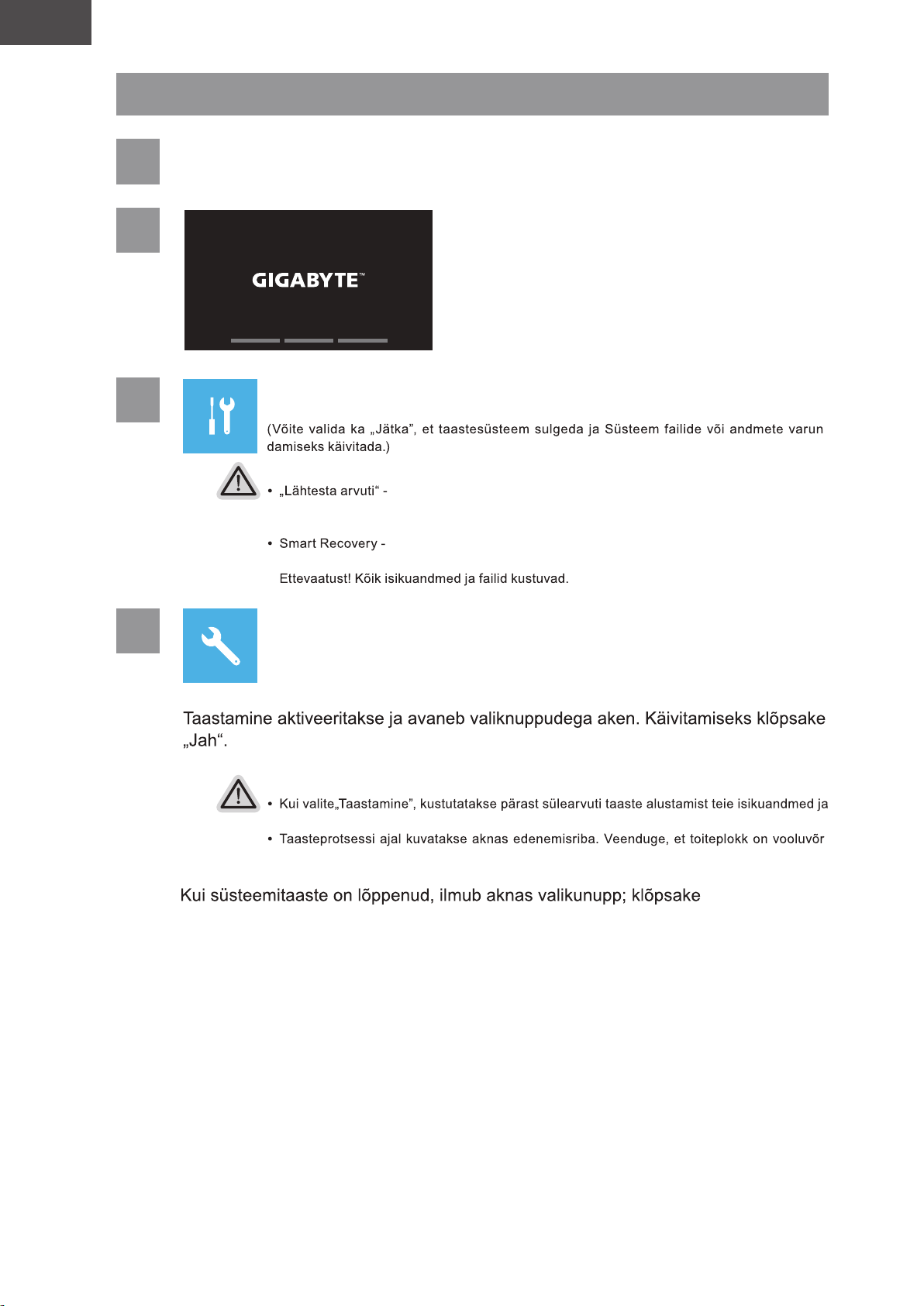
1
2
3
Lülitage sülearvuti välja ja taaskäivitage.
Taastesätete sisestamiseks valige „Tõrkeotsing”.
Süsteemi taastamiseks on kaks võimalust
Võite valida failide säilitamise või kustutamise ja Windowsi uuesti installida, ilma faile kustutamata.
Arvuti sätted taastatakse tehasesätetele.
-
4
Smart Recovery
Ettevaatust
failid ning opsüsteem lähtestatakse tehasesätetele.
guga ühendatud ja ärge sülearvutit välja lülitage.
-
„lõpetama”.
Page 22
ET
Eesti keel
5
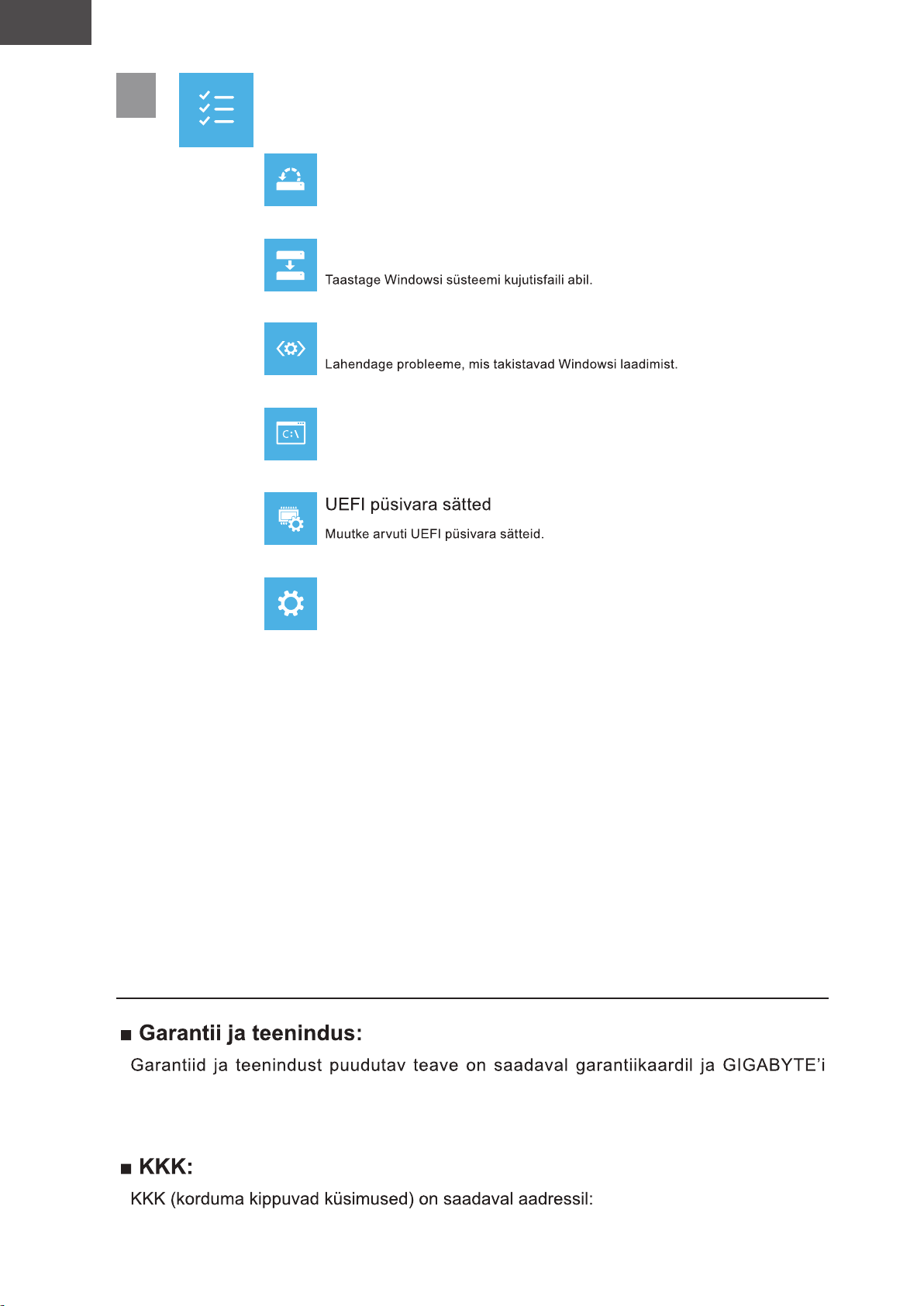
Täiendavad valikud
Süsteemitaaste
Windowsi taastamiseks kasutage arvutisse salvestatud taastepunkti.
Süsteemikujutise taaste
Käivituse parandamine
Käsuviip
Kasutage käsuviipa täpsema tõrkeotsingu jaoks.
Lisa
Käivitussätted
Muutke Windowsi käitumist käivitamise ajal.
teeninduse veebisaidil aadressil:
https://www.gigabyte.com/Support/Laptop
https://www.gigabyte.com/Support/Faq
Page 23
FR
Français
1-1. Vous utilisez ce portable GIGABYTE pour la première fois
2
3
1
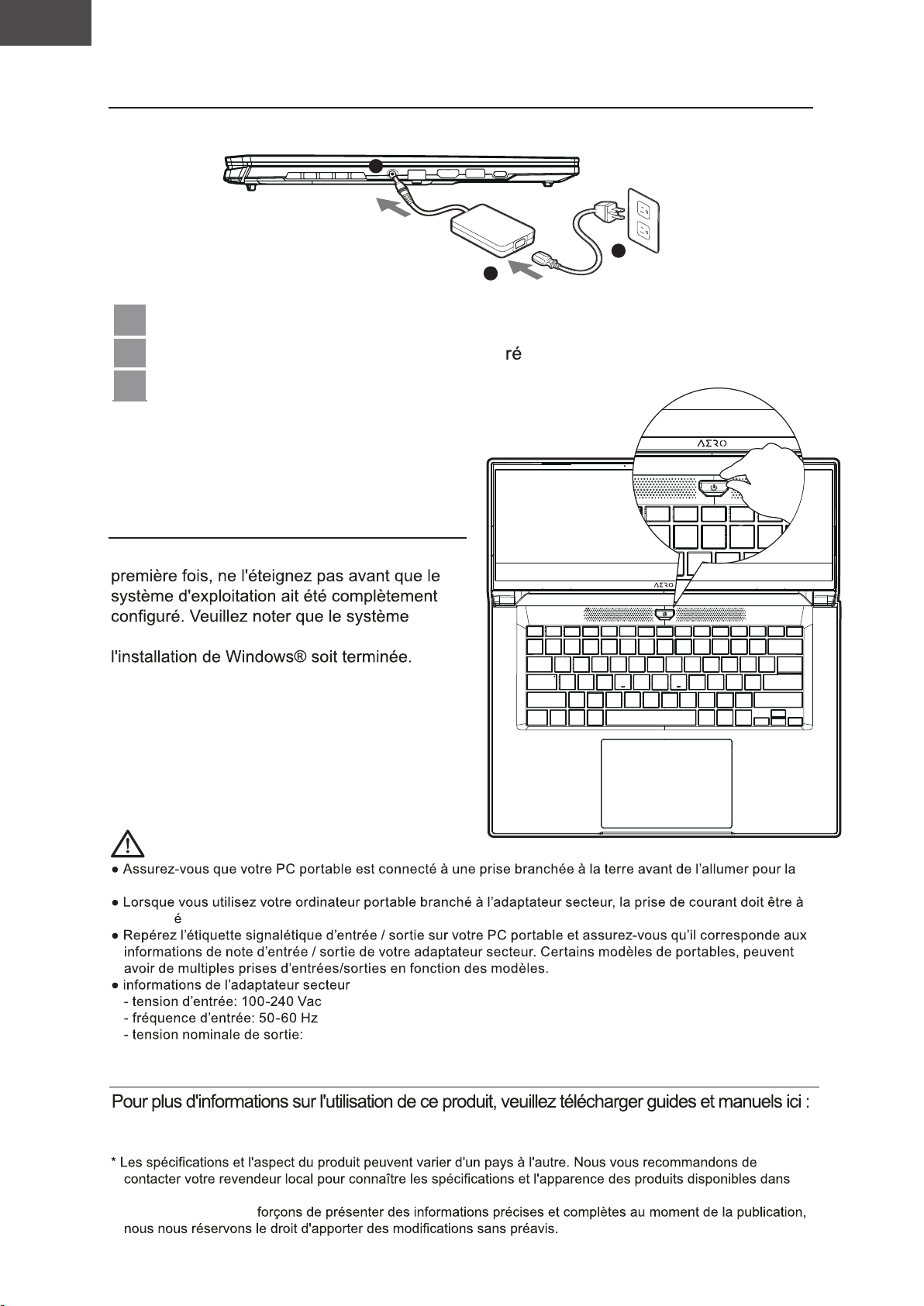
1 Branchez le cordon d'alimentation sur l'adaptateur secteur.
2 Connectez l'adaptateur CA à la prise d’ent
e CC de l'ordinateur portable.
3 Branchez le cordon d'alimentation sur une prise de courant.
1-2. Mise en marche
Lorsque vous allumez l'ordinateur pour la
audio ne fonctionnera pas avant que
IMPORTANT:
première fois.
proximit de l’appareil et facilement accessible.
:
20V, 7.5A
1-3. Manuel de l'utilisateur complet
https://www.gigabyte.com/fr/Support
votre pays.
* Bien que nous nous ef
Page 24
FR
Français
1-1. Vous utilisez ce portable GIGABYTE pour la première fois
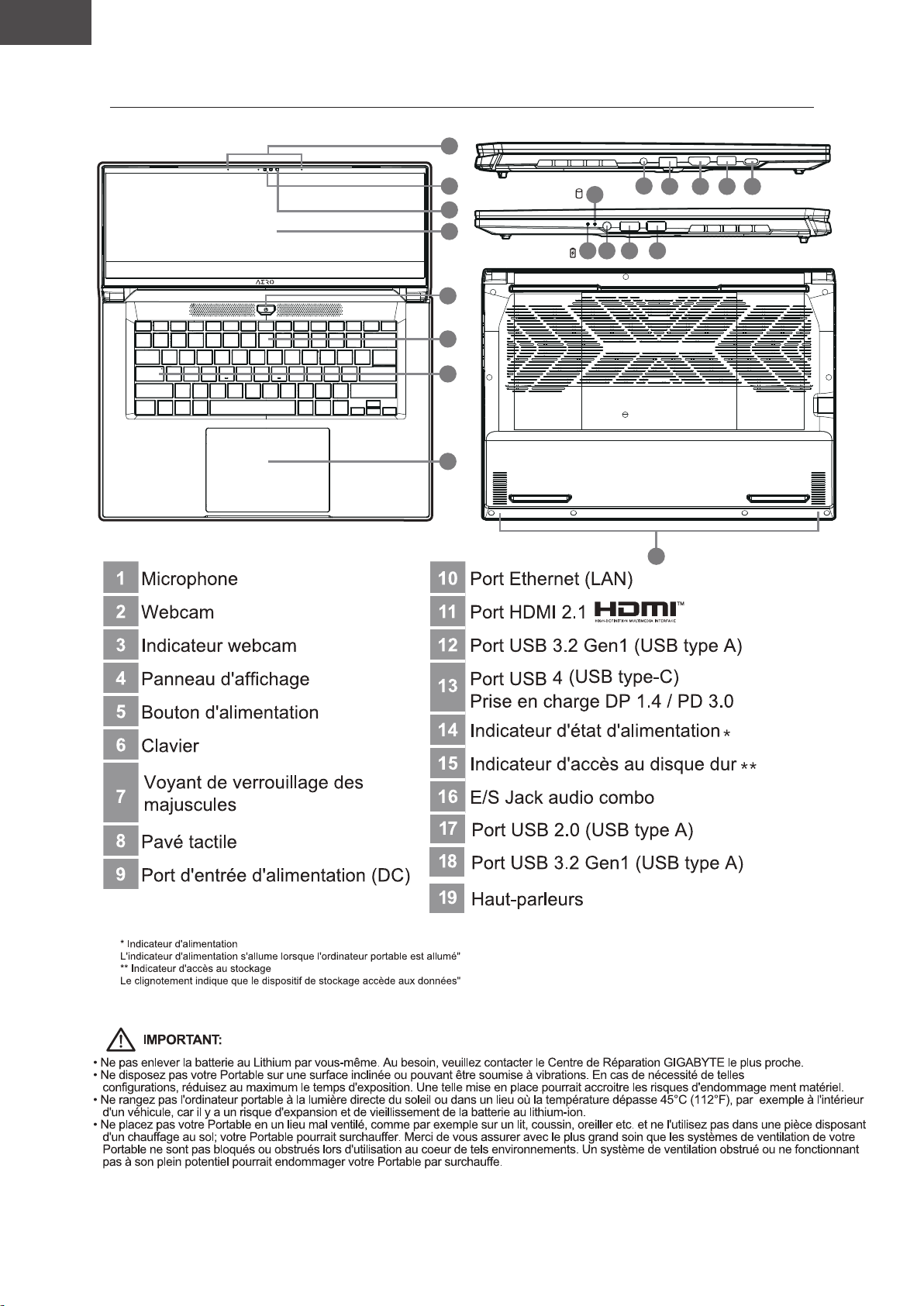
1
1
2
3
4
5
6
7
8
15
14 16 17 18
9
10
19
11
12 13
Page 25
FR
Français
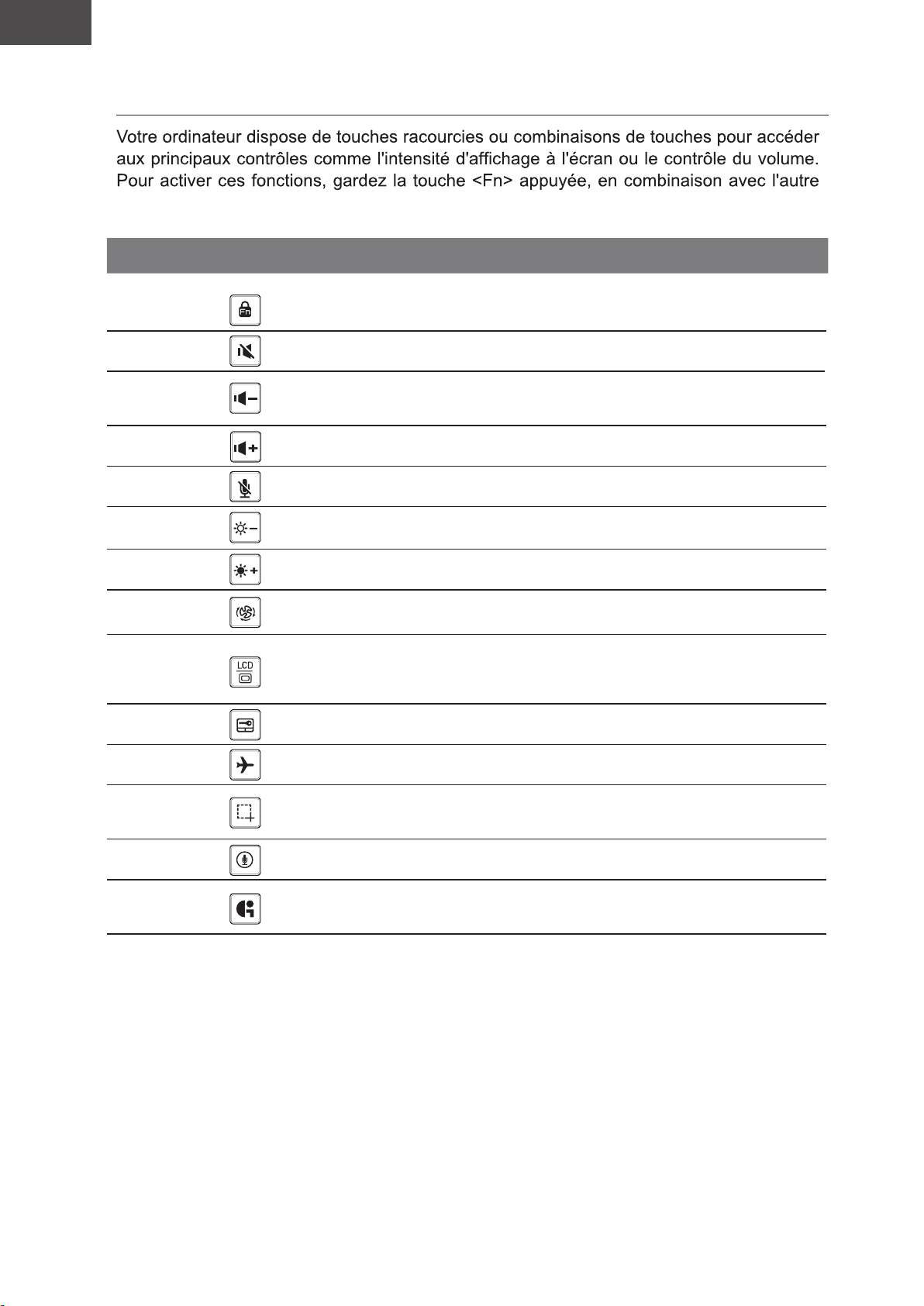
Utilisation des touches Fonction
touche correspondante à la fonction demandée.
Hotkey Function Description
Fonction de déverrouillage/verrouillage
Fn+ESC
Fonction de déverrouillage/
verrouillage
(uniquement commutateur F1~F12,
touche de fonction par défaut en premier)
Fn+F1
Fn+F2
Fn+F3
Fn+F4
Fn+F5
Fn+F6
Fn+F7
Fn+F8
Fn+F9
Fn+F10 Mode avion Active/désactive le mode avion
Audio
Baisser le Volume
Monter le Volume
MIC coupé/activé
Luminosité
Luminosité
Paramètres du système
d'alimentation
Mode d'affichage
Touchpad
Active ou désactive les haut parleurs.
Raccourci pour baisser le volume.
Raccourci pour augmenter le volume.
MIC coupé/activé
Touche raccourci pour baisser la
luminosité.
Touche raccourci pour augmenter la
luminosité.
Paramètres du système d'alimentation
(ECO/Équilibre/Performance)
Change de mode d'affichage entre, un
périphérique d'affichage externe (si branché)
et/ou l'écran du portable ou les deux.
Active ou désactive le pavé tactile
(Touchpad).
Fn+F11
Fn+F12 Voix dans Voix dans
Fn+GiMate
Capture d'écran Capture d'écran : Shift+Win+S
Centre de contrôle GiMate
Ouvrir le centre de contrôle GiMate
Page 26
FR
Français
Guide du système de restauration
Système de restauration (restaurer le système d’exploitation de
votre Portable)
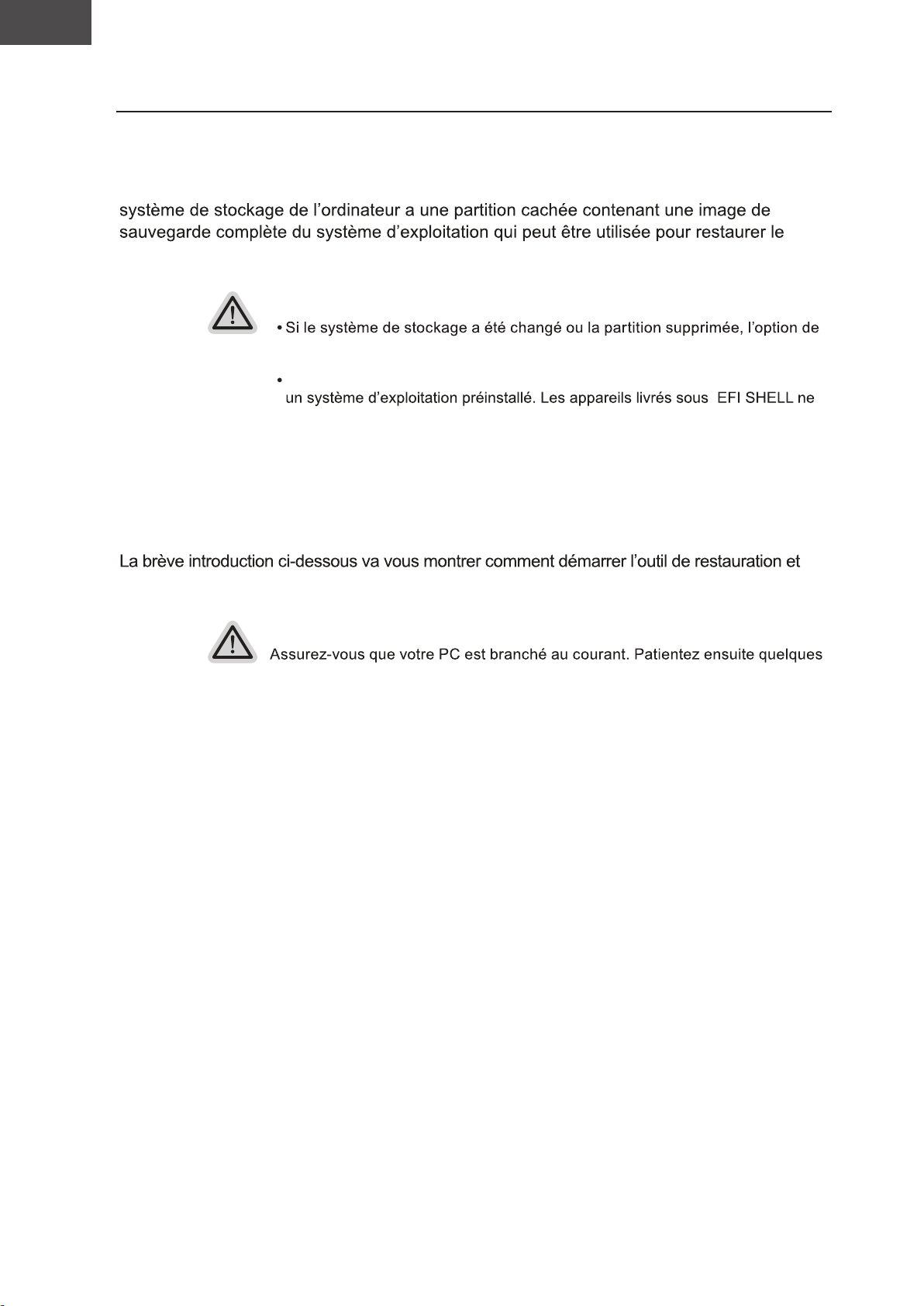
Quand quelque chose ne va pas avec le système d’exploitation de votre portable, le
système en revenant aux paramètres d’usine par défaut.
Note
récupération ne sera plus disponible et un service de récupération complet
sera nécessaire.
La fonction de récupération est disponible uniquement sur les appareils avec
disposent pas de la fonction de restauration.
Utilliser System Recovery
La fonction de restauration du système d’exploitation est installée en nos usines. Le menu
d’options au démarrage vous permet de lancer l’outil de restauration de Windows pour
réinstaller le système d’exploitation avec les réglages d’usine par défaut.
comment restaurer v otre système.
Tout est prêt pour commencer
minutes.
Page 27
FR
Français
Guide de restauration du système
1
2
3
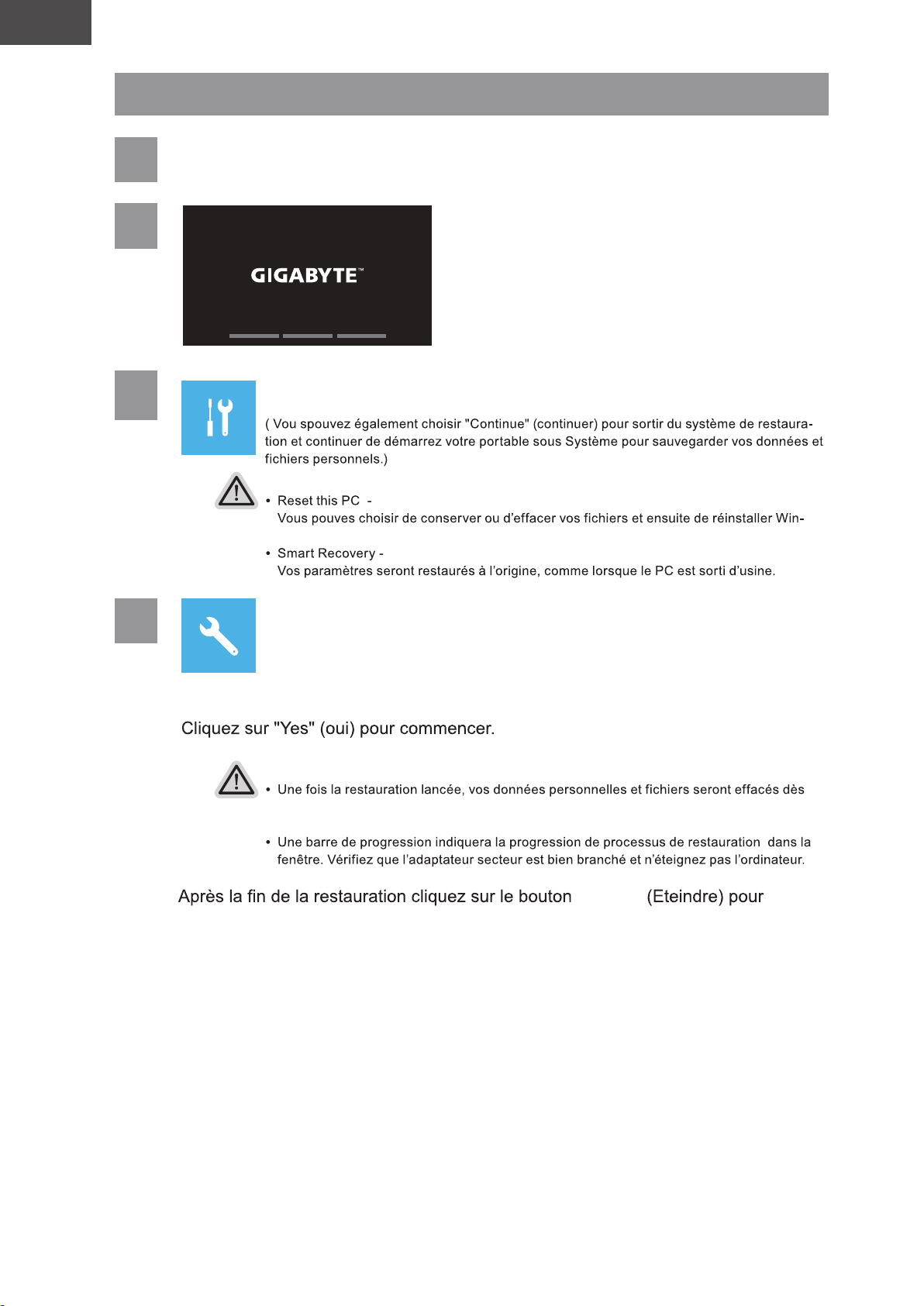
Eteignez et redémarrez votre ordinateur.
Choisissez "Troubleshoot" (Résoudre) pour entrer dans les
paramètres de restauration.
Il y a deux options de restauration
dows sans perdre vos données.
4
Smart Recovery
La restauration sera activée et vous verrez les boutons des différentes options.
Attention
que l’ordinateur commence la restauration, et le système d’exploitation sera restauré avec
les paramètre d’usine.
“Finish”
éteindre votre ordinateur.
Page 28
HE
GIGABYTE
1-1
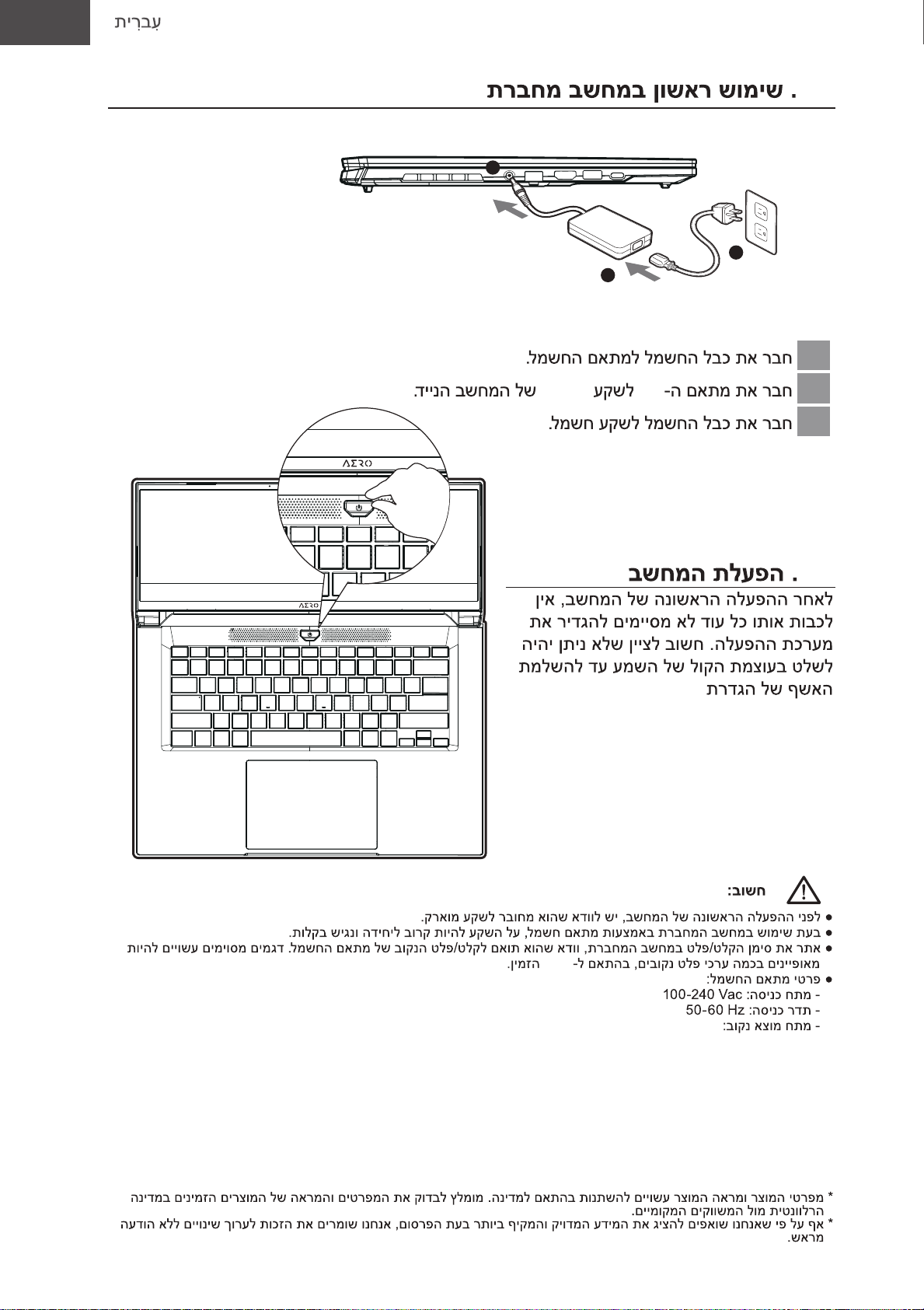
2
3
1
1
DC-in AC
2
3
SKU
.Windows
20V, 7,5A
1-2
®
Page 29
FR
Français
5
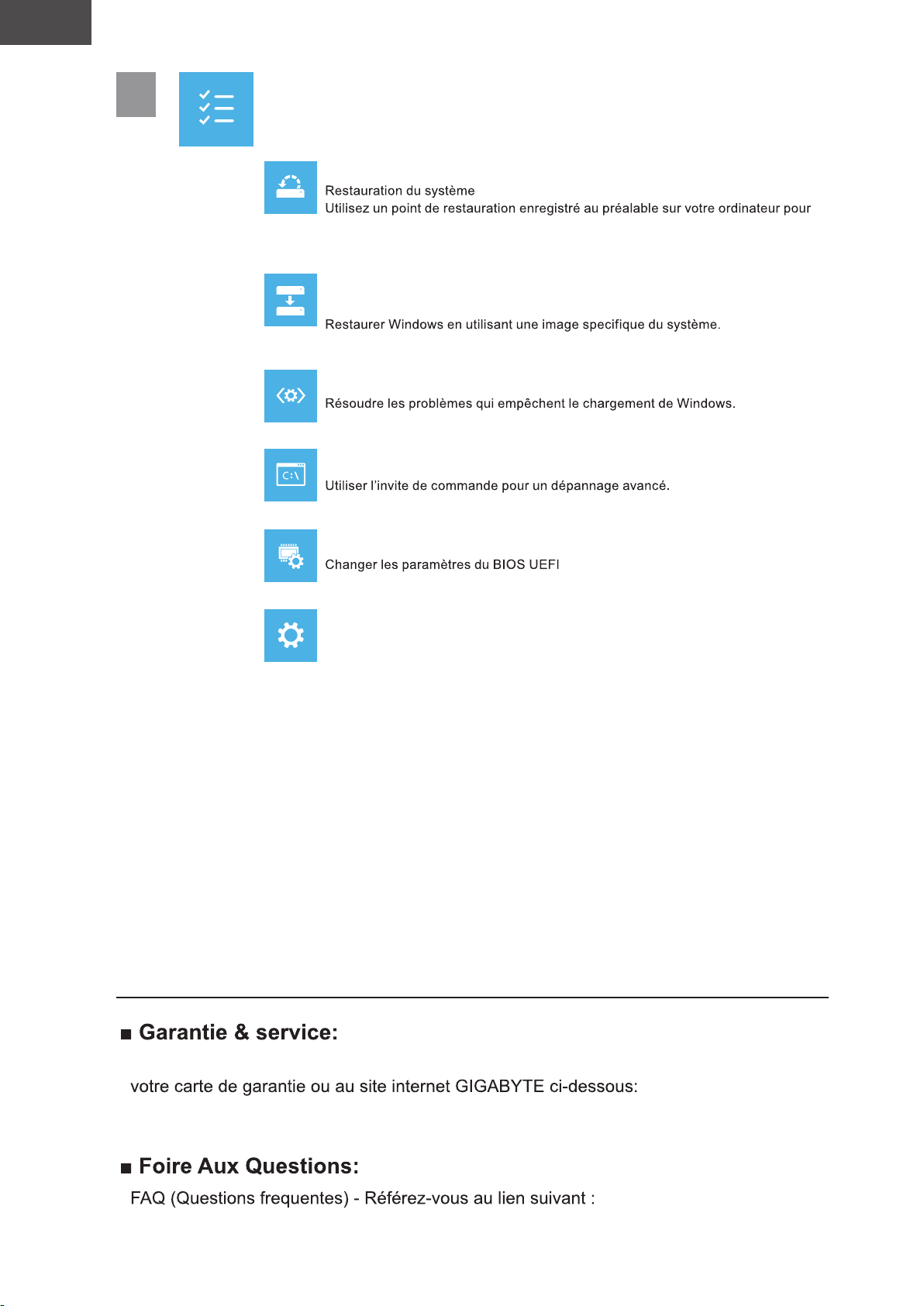
Options avancées
System Restore : Restauration du système
restaurer votre système.
System Image Recovery : Restauration à partir d’une image système.
Startup Repair : Réparation du système de démarrage
Command Prompt : Invite de commandes
UEFI Firmware Settings : Paramétrage du BIOS UEFI
Startup Settings : Paramétres de démarrage
Changer le comportement de Windows au démarrage.
Annexes
Concernant la garantie, les services et informations complémentaires, merci de consulter
https://www.gigabyte.com/fr/Support/Laptop
https://www.gigabyte.com/Support/Faq
Page 30
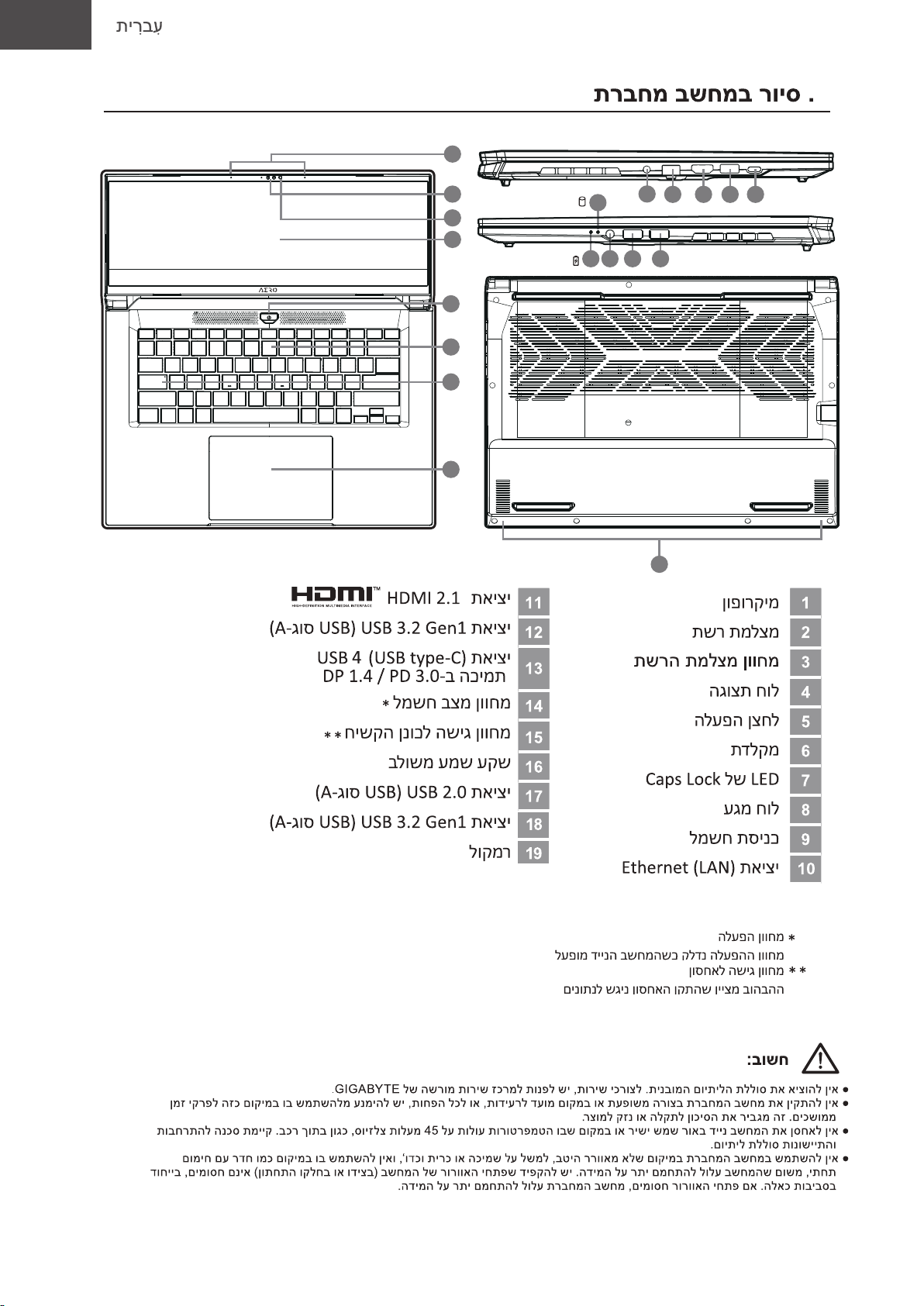
HE
GIGABYTE 2
1
1
2
3
4
5
6
7
8
15
14 16 17 18
9
10
19
11
12 13
Page 31
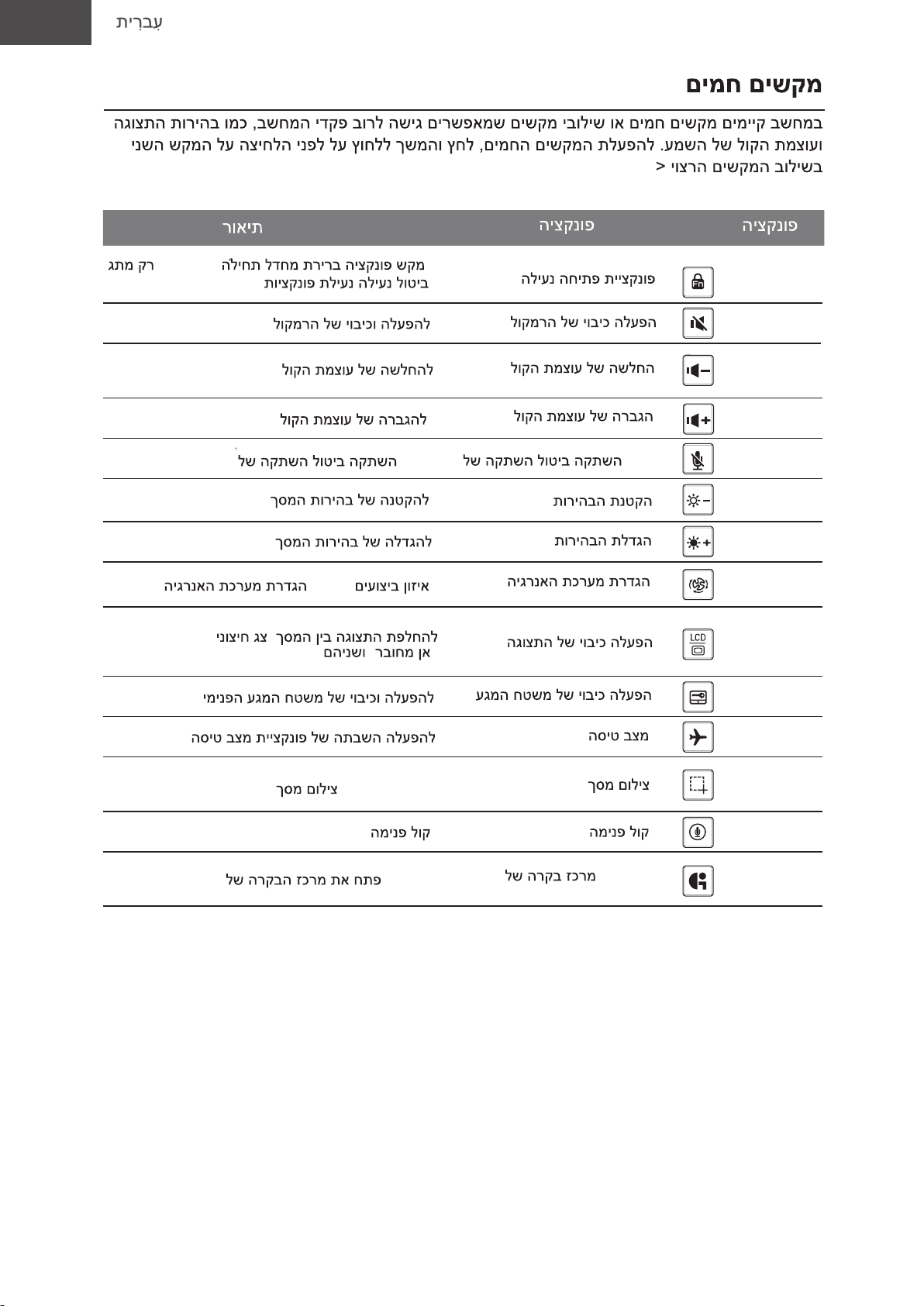
HE
.<Fn
( F1~F12, )
/
.
.
.
/ MIC
.
(ECO/ / )
, .
.
( )
/
/
/ MIC
/
/
Fn+ESC
Fn+F1
Fn+F2
Fn+F3
Fn+F4
Fn+F5
Fn+F6
Fn+F7
Fn+F8
Fn+F9
/ .
: Shift+Win+S
GiMate
GiMate
Fn+F10
Fn+F11
Fn+F12
Fn+GiMate
Page 32
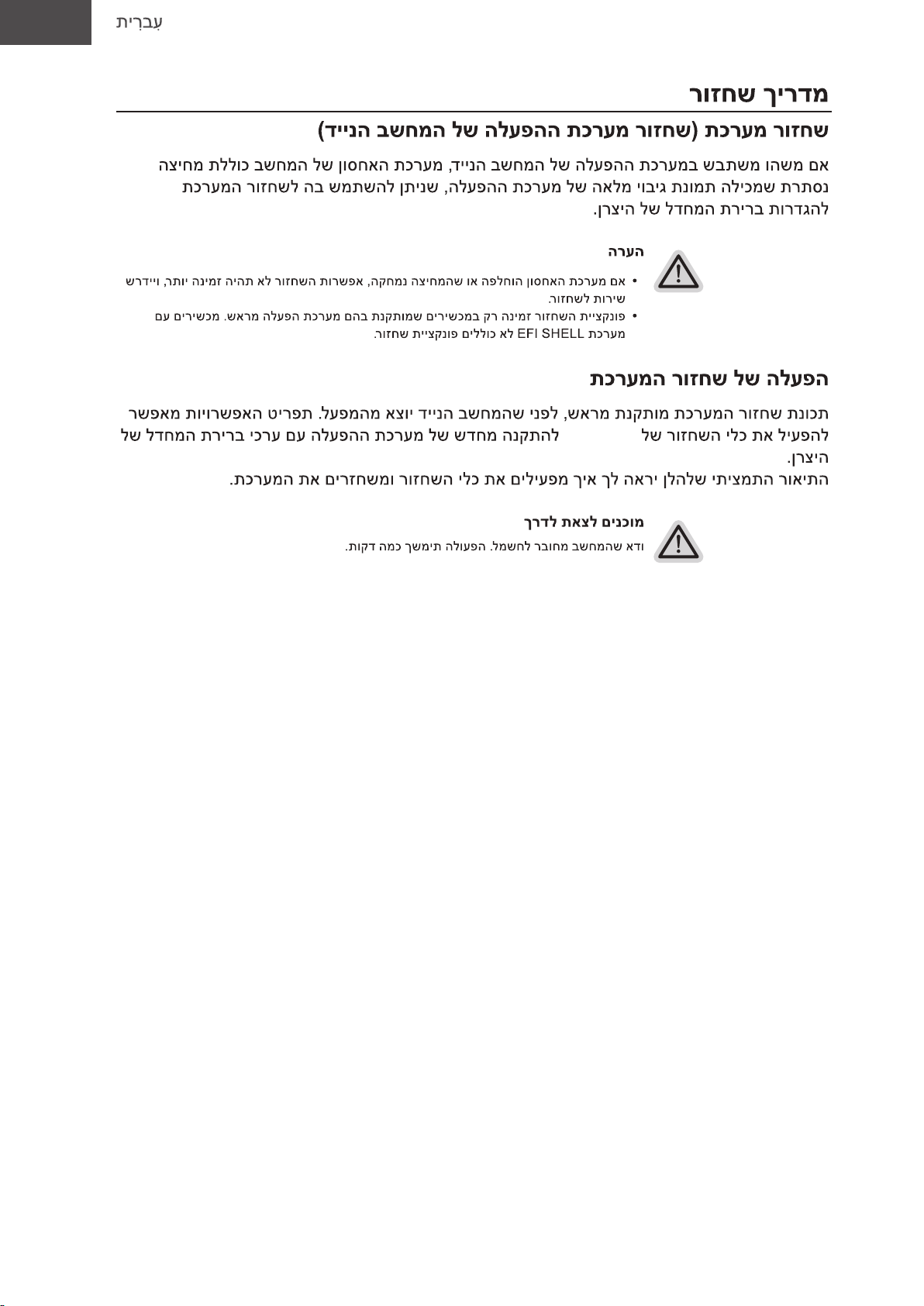
HE
:
Windows
:
Page 33
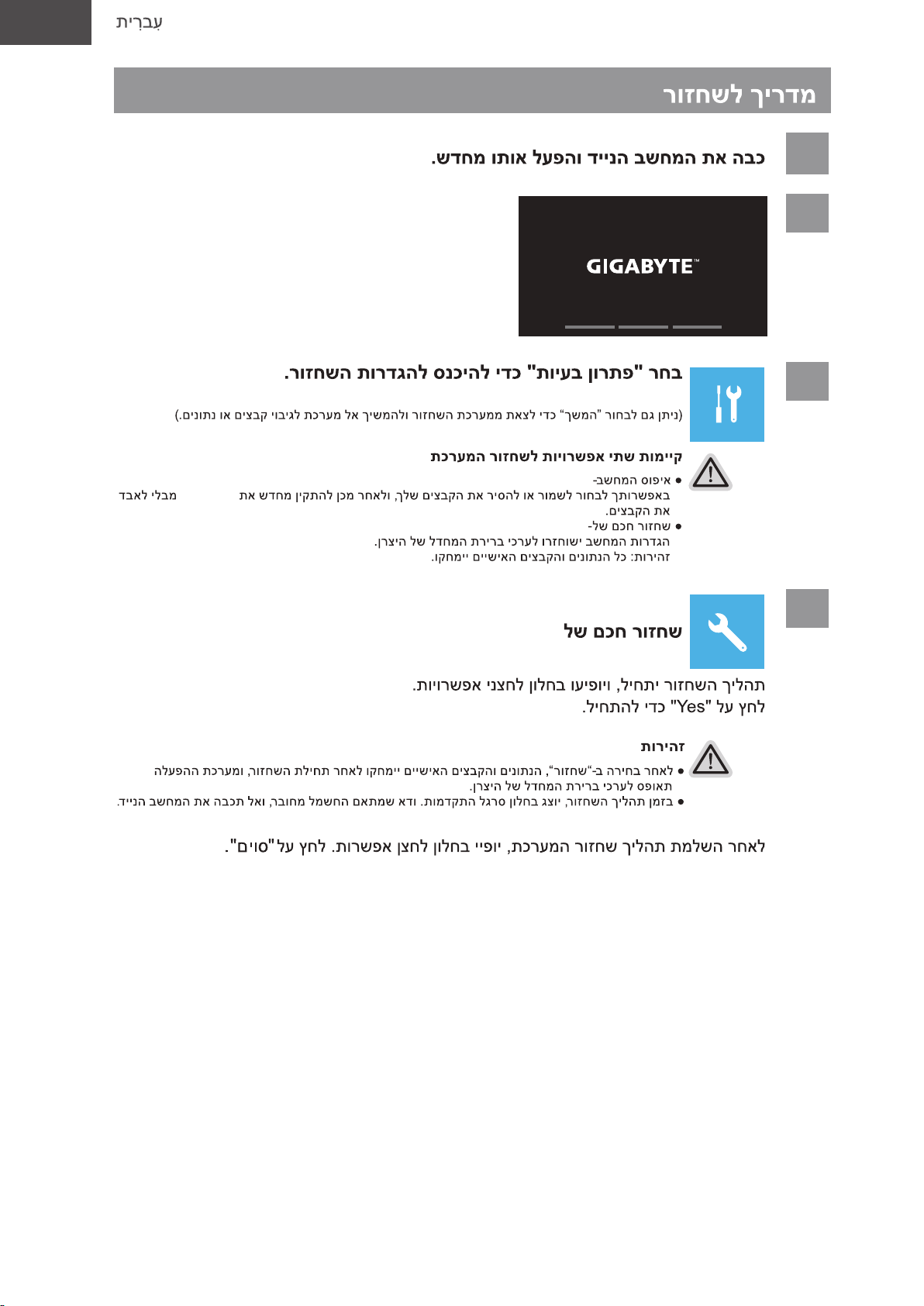
HE
1
2
3
Windows
4
Page 34
HE
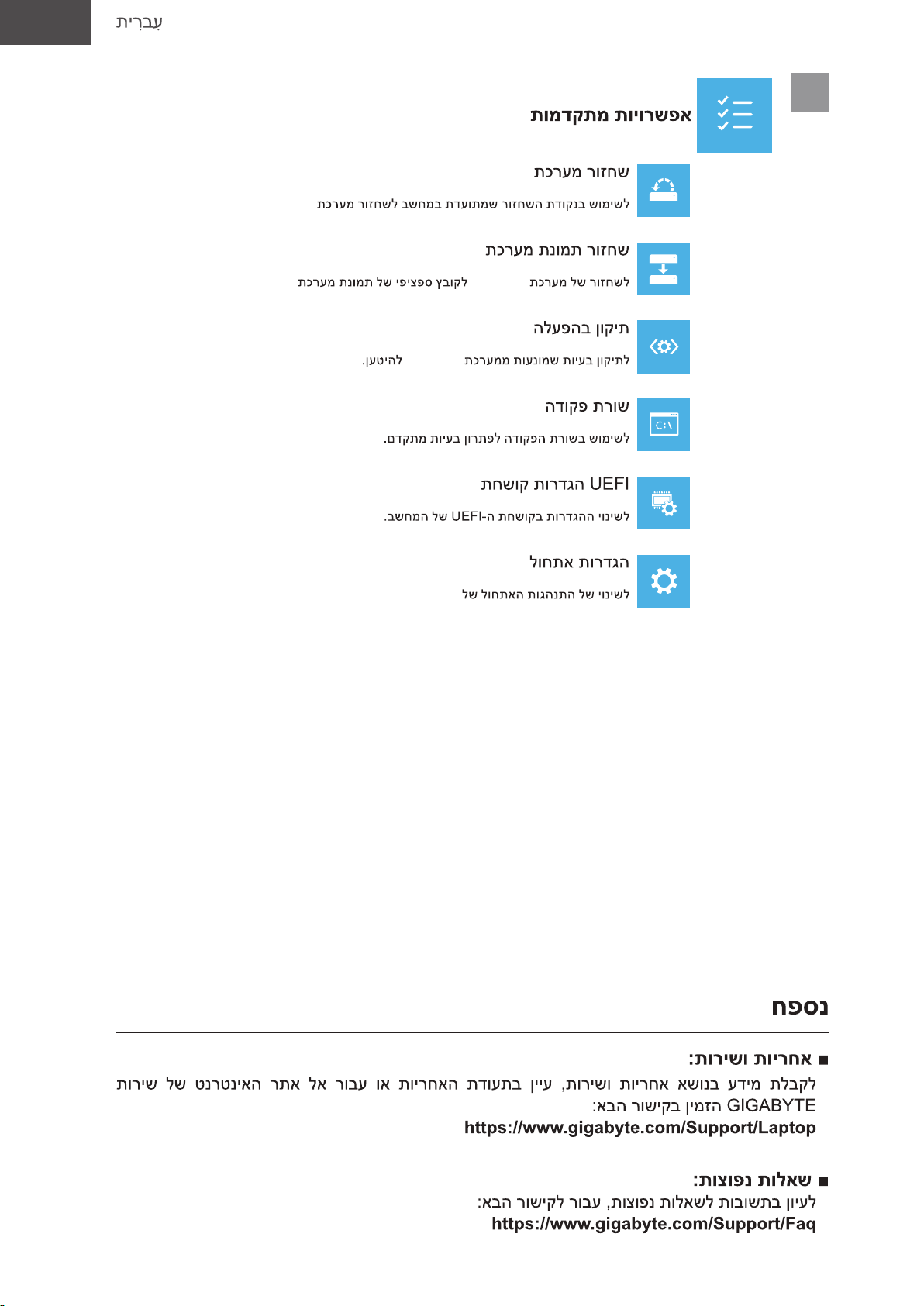
5
.Windows
Windows
Windows
.Windows
Page 35
HU
Magyar
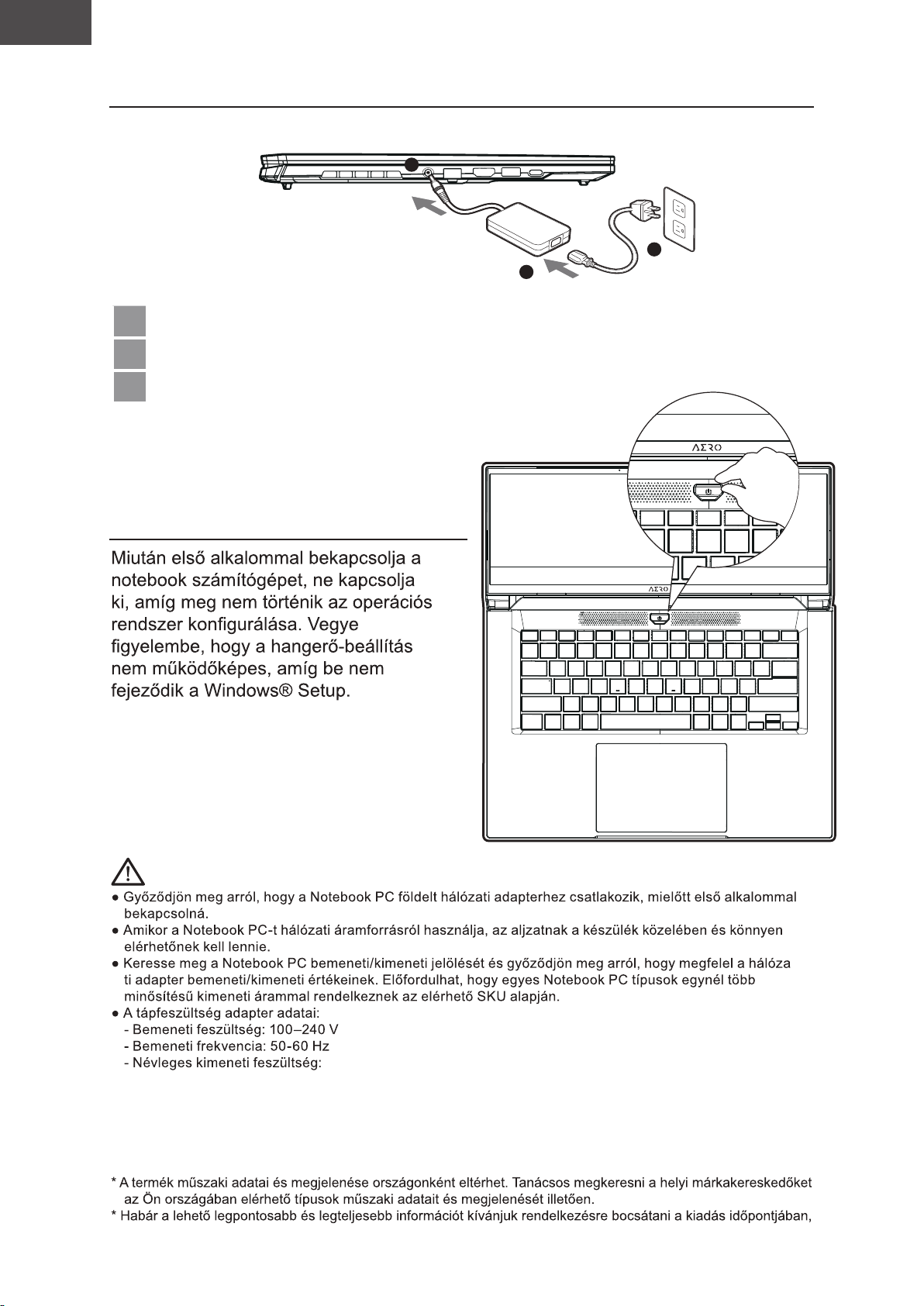
1-1. A GIGABYTE Notebook használatba vétele
2
3
1
1 Csatlakoztassa a hálózati tápkábelt a hálózati adapterhez.
2 Csatlakoztassa a hálózati adaptert a számítógép DC-in aljzatához.
3 Csatlakoztassa a tápkábelt a hálózati konnektorhoz.
1-2. A tápfeszültség bekapcsolása
FONTOS:
-
a változtatás jogát fenntartjuk.
20V, 7.5A
Page 36
HU
Magyar
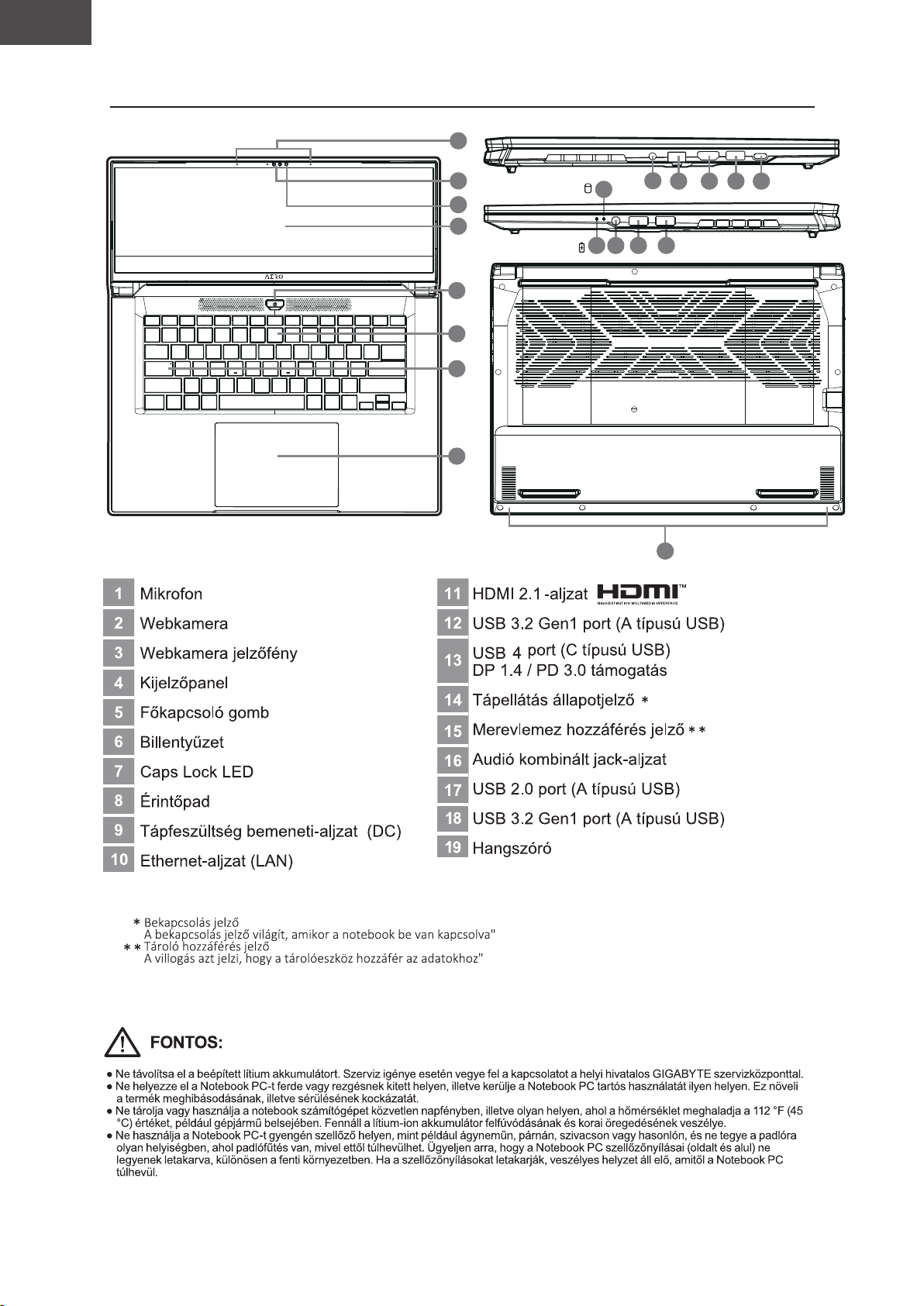
2. A GIGABYTE Notebook bemutatása
1
1
2
3
4
5
6
7
8
15
14 16 17 18
9
10
19
11
12 13
Page 37
HU
Magyar
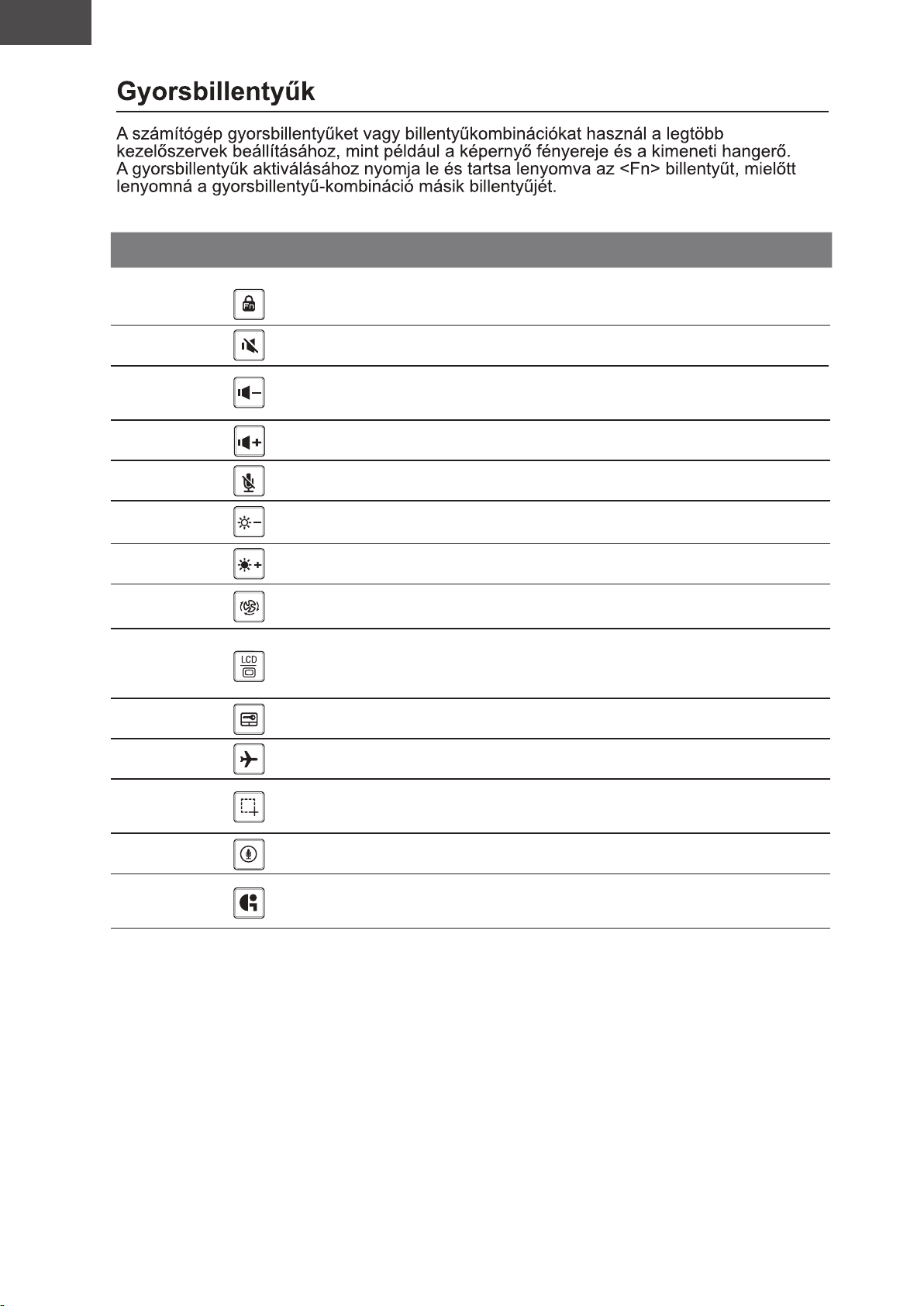
Gyorsbillentyű Funkció Leírás
Feloldás/zár funkció (csak F1-F12
Fn+ESC
Funkció feloldása/feloldása
kapcsoló, az alapértelmezett
funkcióbillentyű először)
Fn+F1
Fn+F2
Fn+F3
Fn+F4
Fn+F5
Fn+F6
Fn+F7
Fn+F8
Fn+F9
Fn+F10 Repülési üzemmód
Hangszóró be-/kikapcsolása
Hangerő csökkentése
Hangerő növelése
MIC némítás/némítás
feloldása
Fényerő csökkentése
Fényerő növelése
Tápegység beállítások
A kijelző be-/kikapcsolása
Érintőpad be-/kikapcsolása
A hangszórót be- és kikapcsolja.
Csökkenti a hangerőt.
Növeli a hangerőt.
MIC némítás/némítás feloldása
Csökkenti a kijelző fényerejét.
Növeli a kijelző fényerejét.
Tápegység beállítások
(ECO/Balance/Teljesítmény)
A kijelző kimenetet átkapcsolja a kijelző,
a külső monitor (ha van ilyen csatlakoztatva)
és mindkettő használata között.
A beépített érintőpadot be- és kikapcsolja.
A repülési üzemmód funkció
engedélyezésére/letiltására való.
Fn+F11
Fn+F12 Hang be Hang be
Fn+GiMate
Képernyőmentés Képernyőmentés: Shift+Win+S
GiMate vezérlőközpont
Nyissa meg a GiMate vezérlőközpontot
Page 38
HU
Magyar
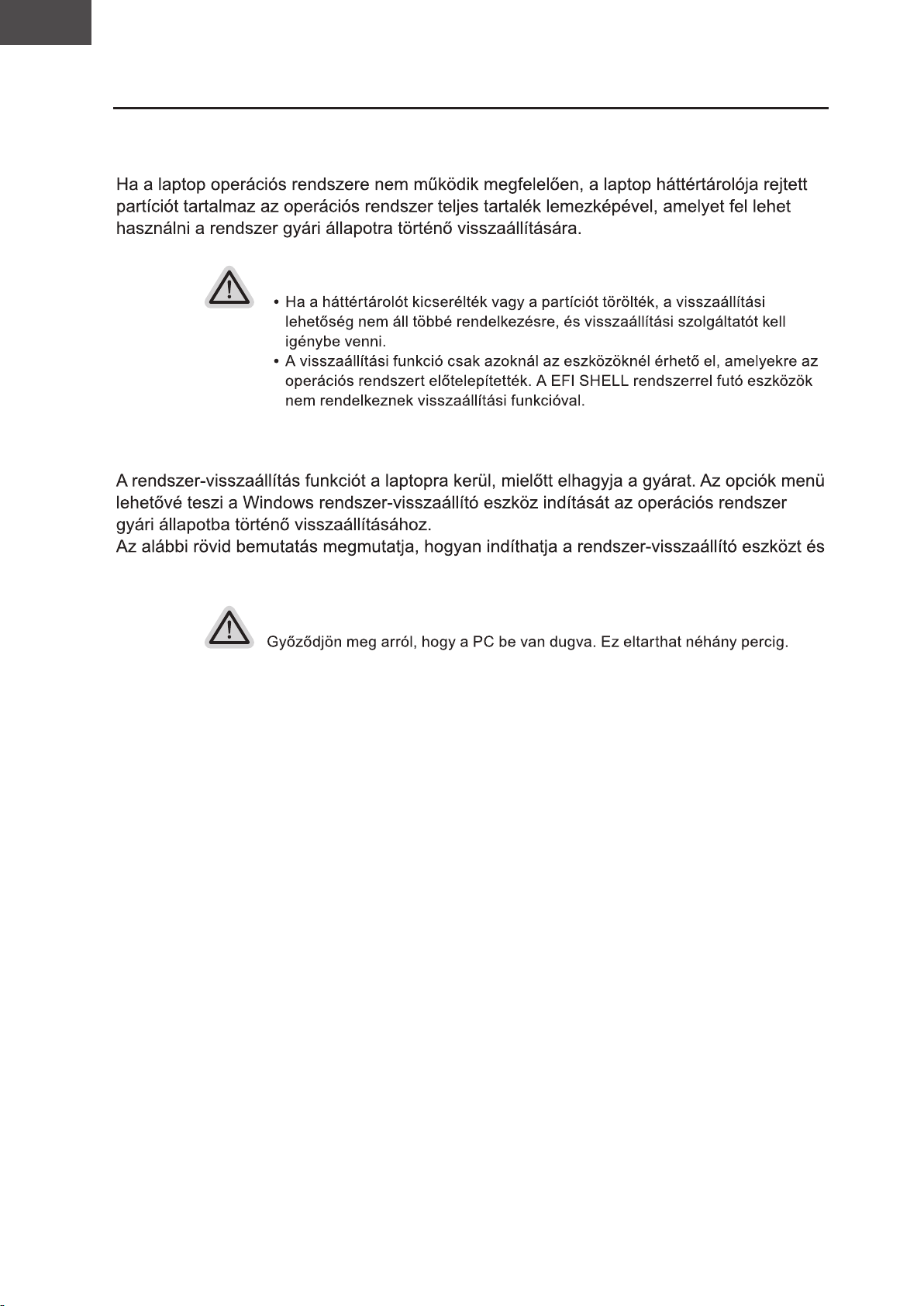
Visszaállítási útmutató
Rendszer-visszaállítás
(A laptop operációs rendszerének helyreállítása)
Megjegyzés
A rendszer-visszaállítás indítása
állíthatja vissza a rendszert.
Indulásra készen
Page 39
HU
Magyar
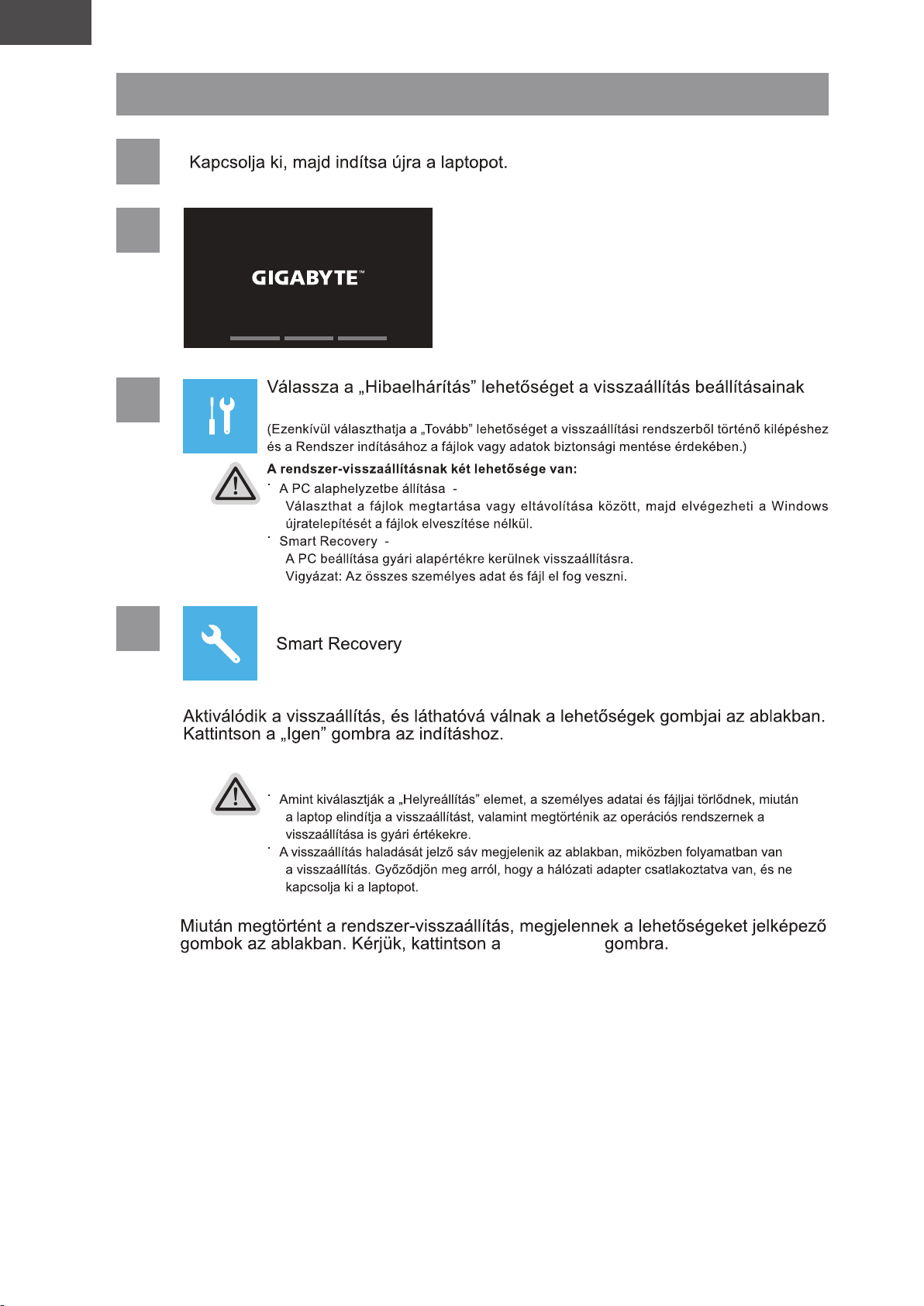
Rendszer-visszaállítási útmutató
1
2
3
4
megadásához.
Vigyázat
„befejezés”
Page 40
HU
Magyar
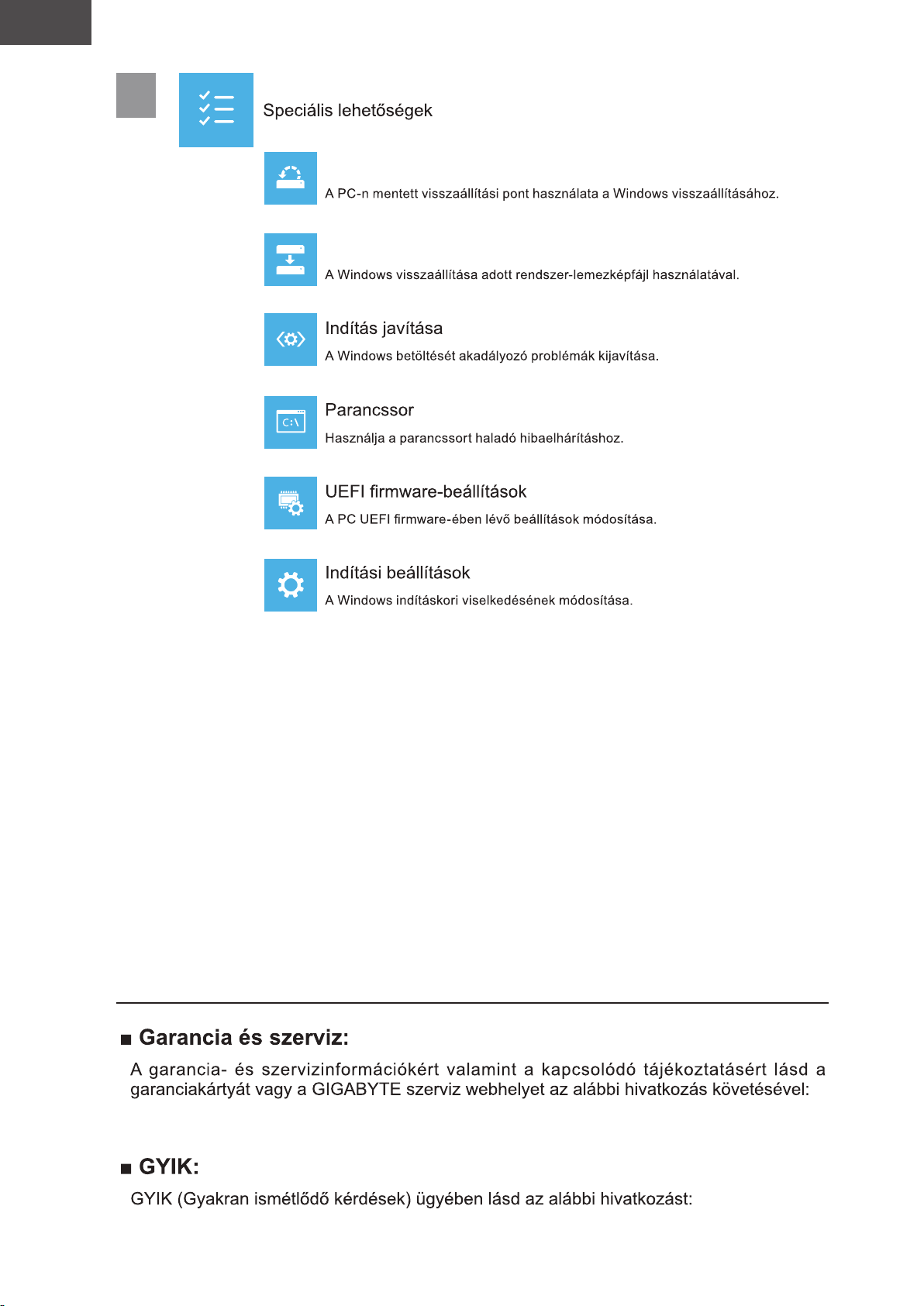
5
Rendszer visszaállítása
Rendszer-lemezkép visszaállítása
Függelék
https://www.gigabyte.com/Support/Laptop
https://www.gigabyte.com/Support/Faq
Page 41
JA
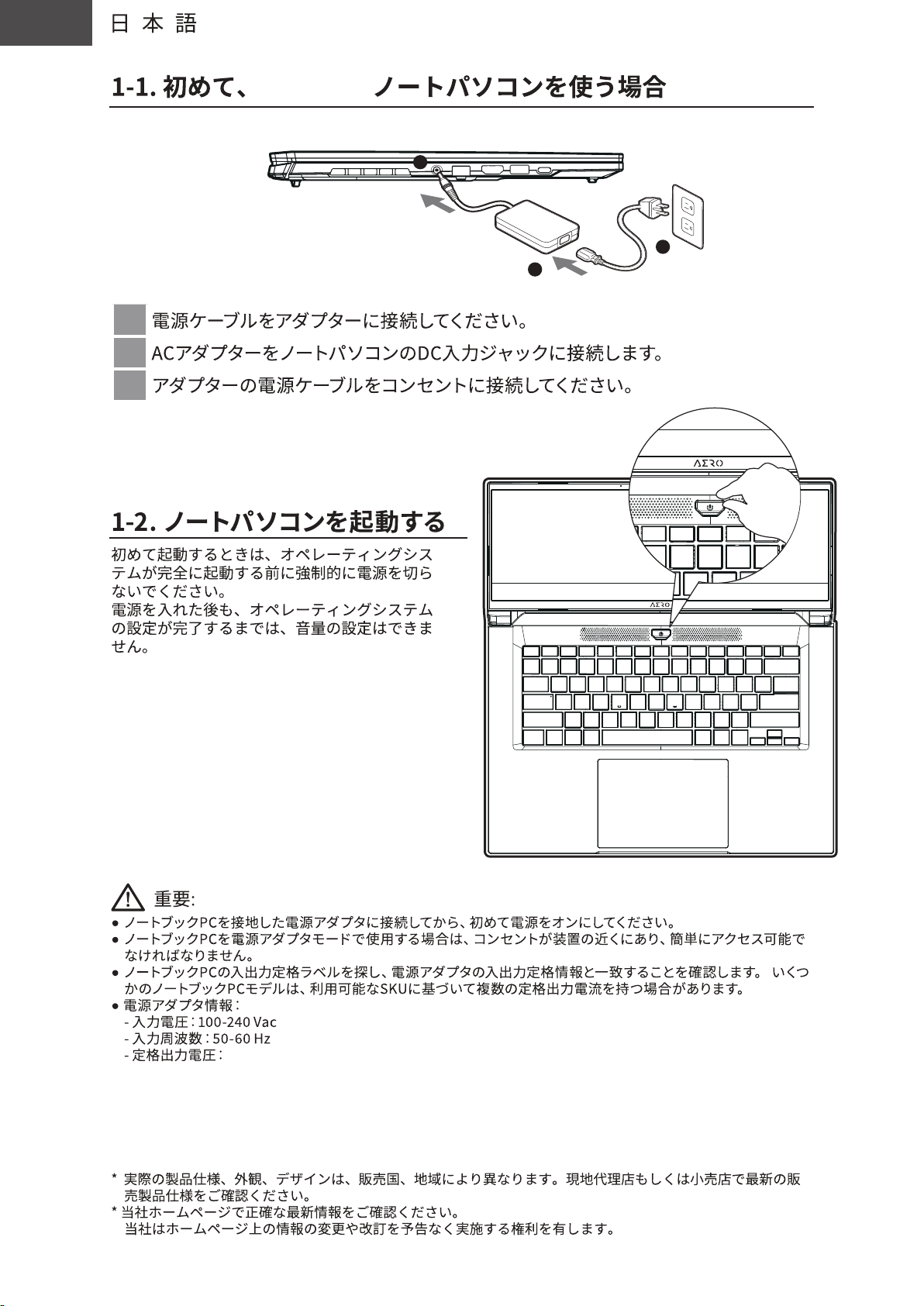
GIGABYTE
2
3
1
1
2
3
20V, 7.5A
・製品には、同梱された電源コードセットを使用すること
・同梱された電源コードセットは、他の製品に使用しないこと
Page 42
JA
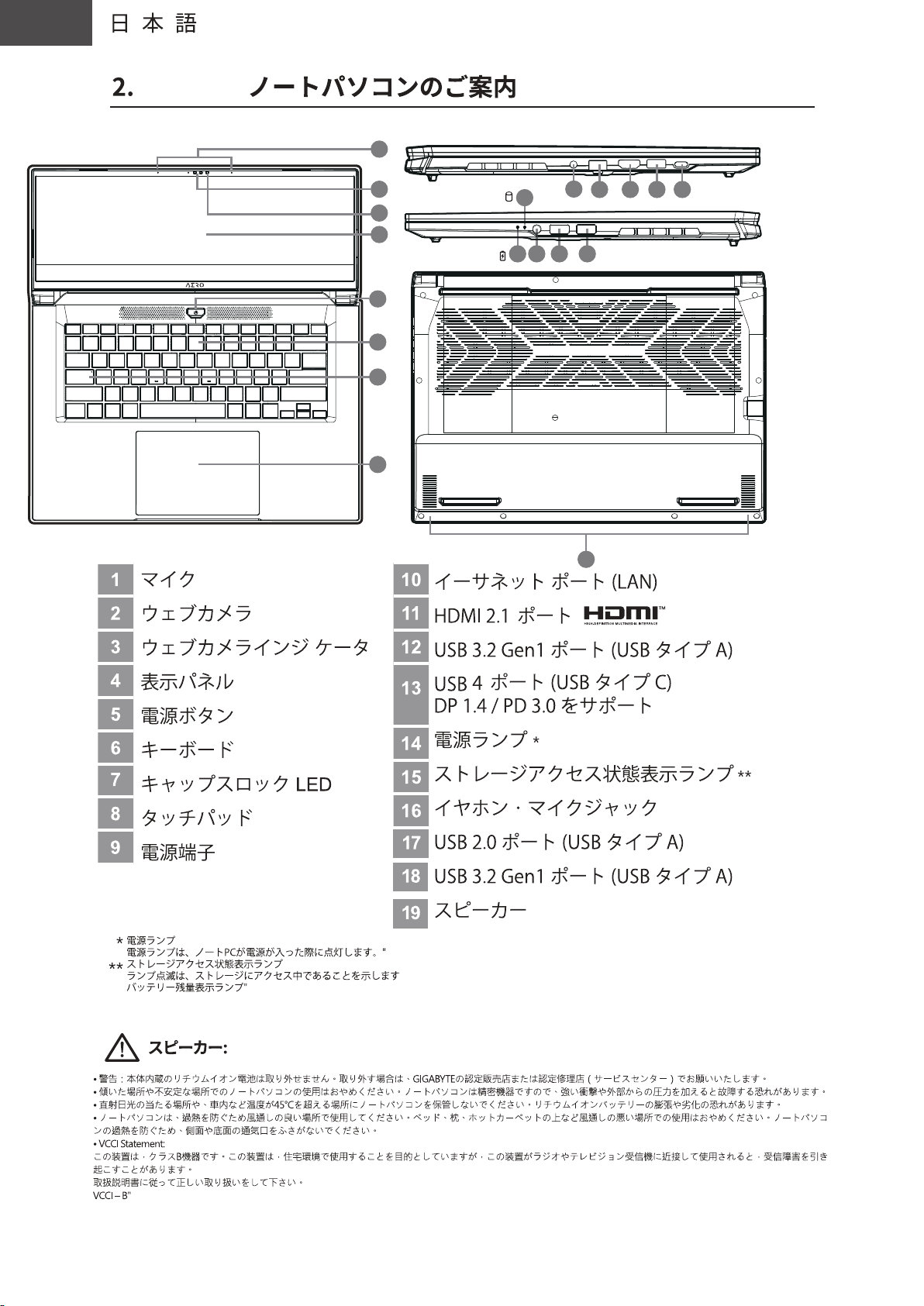
GIGABYTE
1
1
2
3
4
5
6
7
8
15
14 16 17 18
9
10
19
11
12 13
Page 43
JA
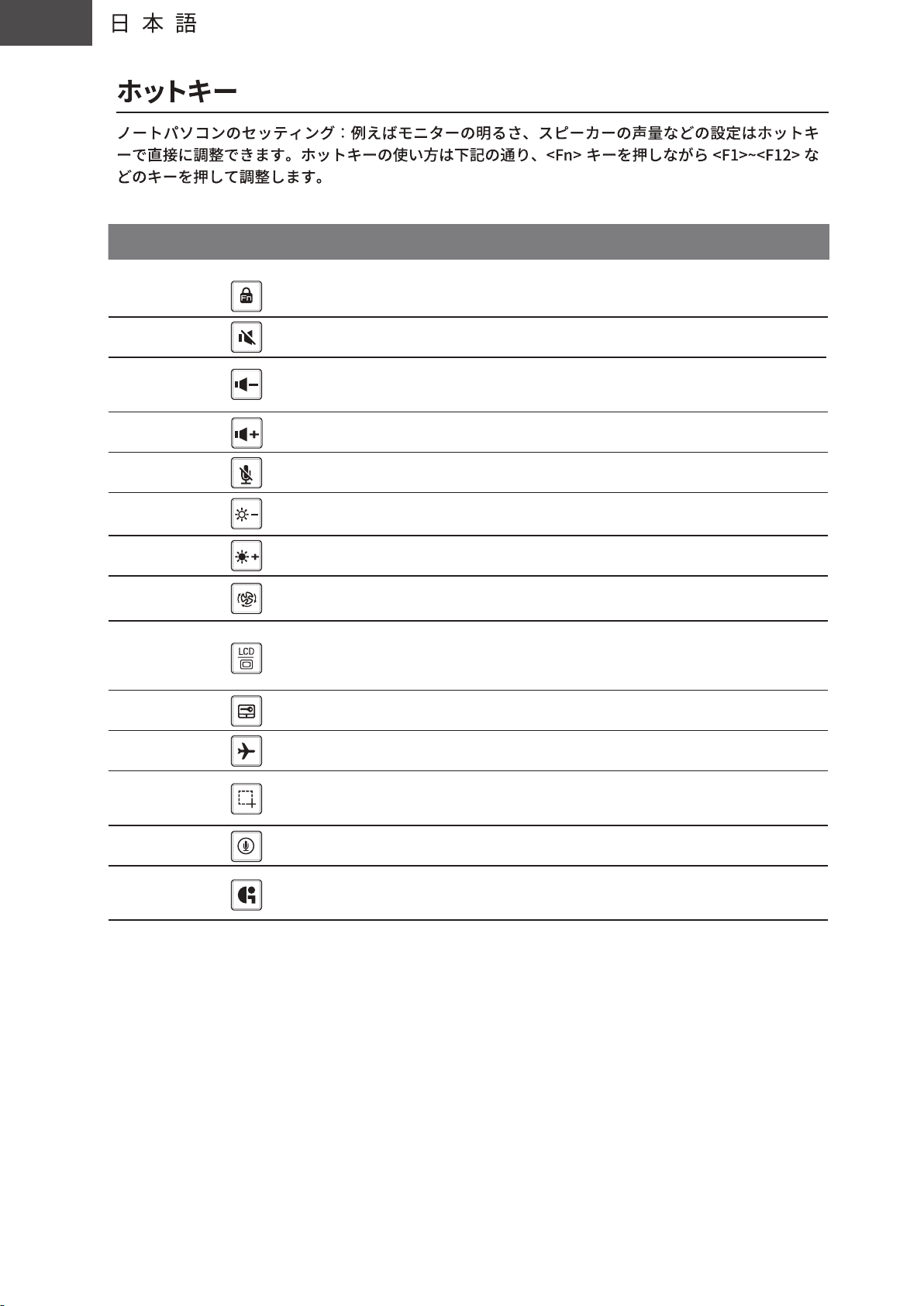
ホットキー 機能 機能ナラティブ
機能ロック解除/ロック
Fn+ESC
機能ロック解除/ロック
(F1〜F12スイッチのみ、
デフォルトの機能キーが最初)
Fn+F1
Fn+F2
Fn+F3
Fn+F4
Fn+F5
Fn+F6
Fn+F7
Fn+F8
Fn+F9
Fn+F10 機内モード 機内モードをオン/オフします。
スピーカー
音量を下げる
音量を上げる
マイクミュート/ミュート
解除
明るさを下げる
明るさを上げる
電源システム設定
ディスプレイ切り替え
タッチパッド
スピーカーをミュートします。
スピーカーの音量を下げます。
スピーカーの音量を上げます。
マイクミュート/ミュート解除
画面の明るさを下げます。
画面の明るさを上げます。
電源システム設定
(ECO/バランス/パフォーマンス)
本体と外部のディスプレイを切り替え、
または同時表示にします。
タッチパッドをオン/オフします。
Fn+F11
Fn+F12 音声入力 音声入力
Fn+GiMate
スクリーンショット スクリーンショット: Shift+Win+S
GiMate
コントロール センター
GiMate コントロール センターを開く
Page 44
JA
Page 45
JA
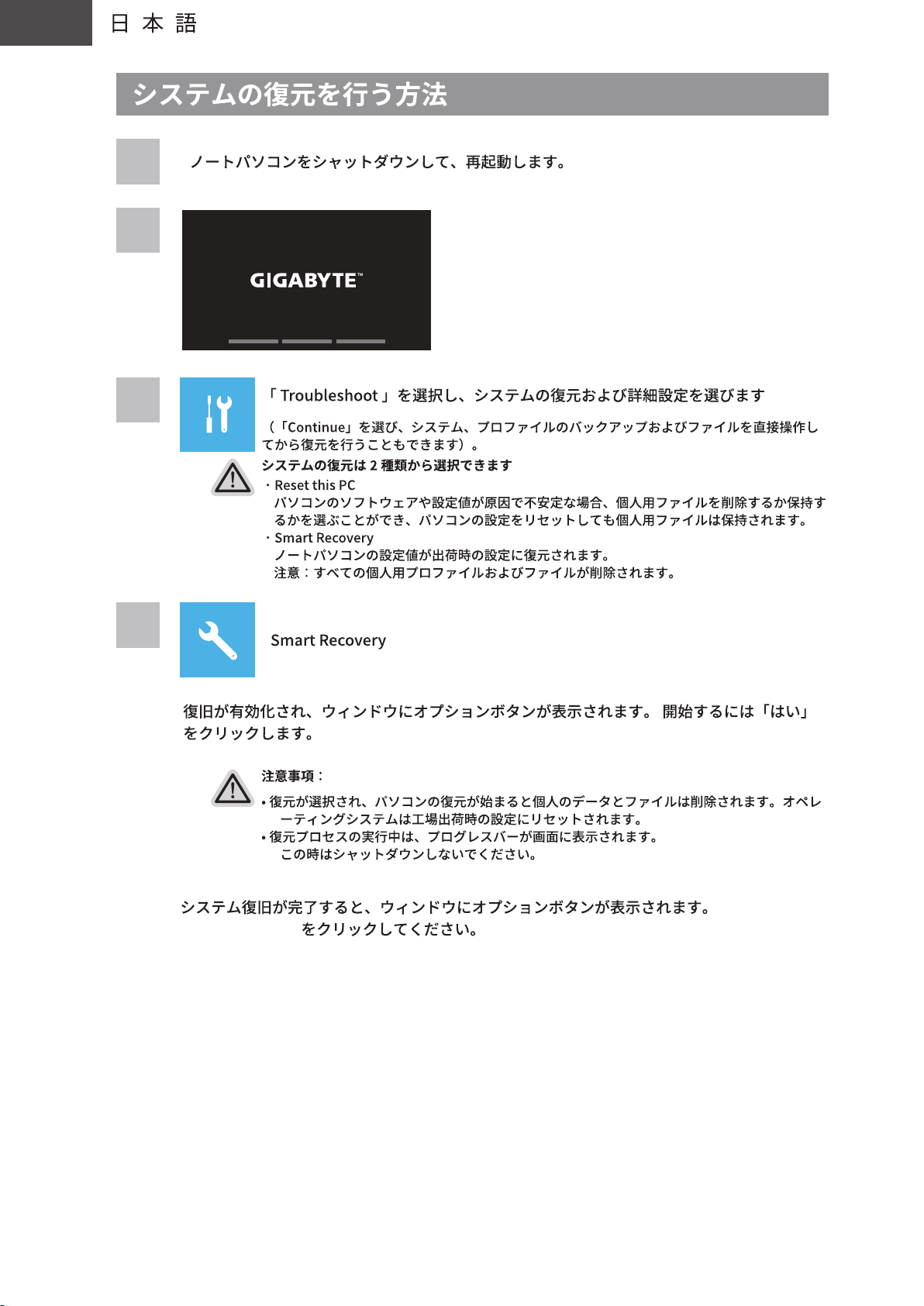
1
2
3
4
「フィニッシュ」
Page 46
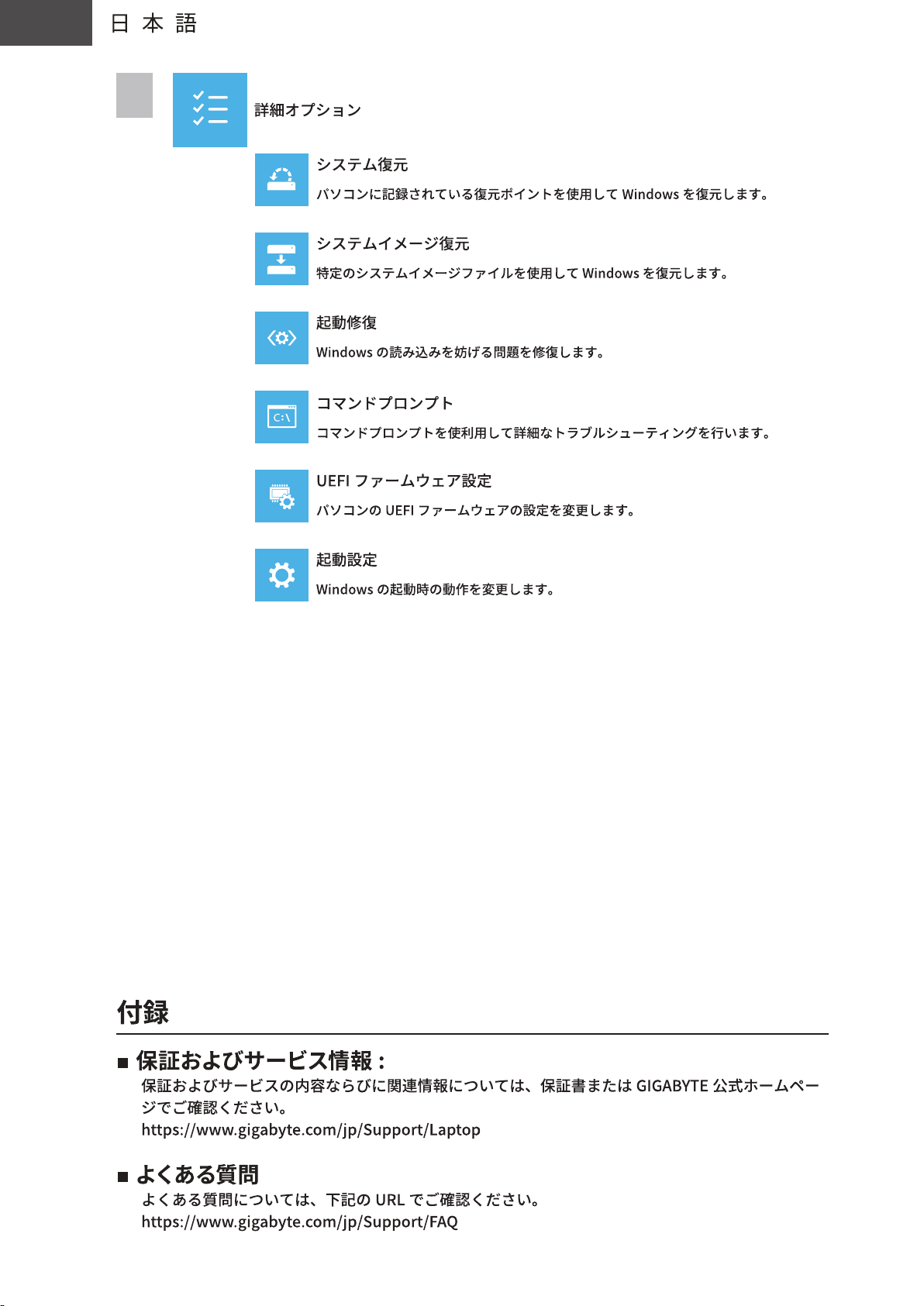
JA
5
Page 47
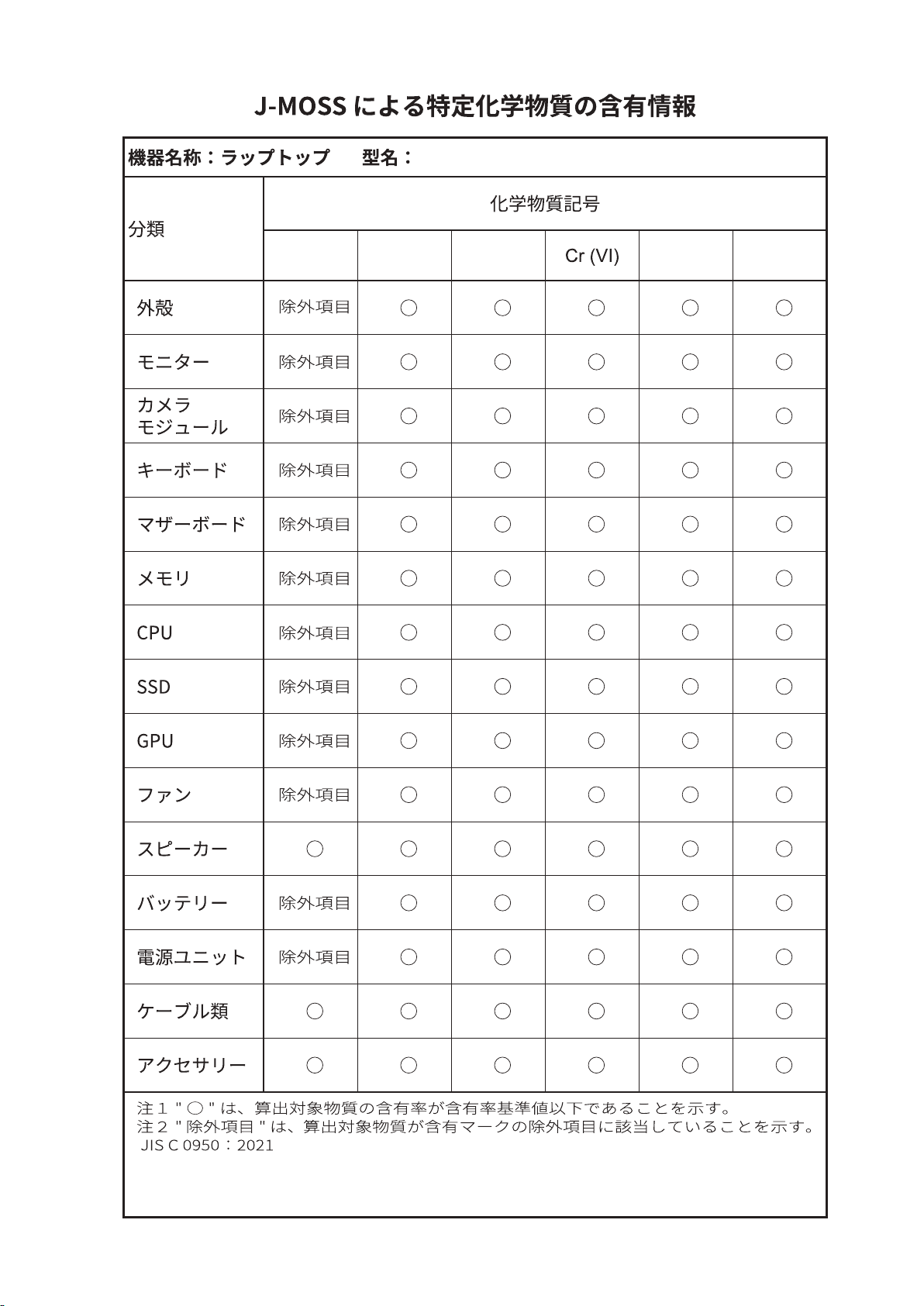
AM6H
Pb Hg Cd PBB PBDE
Page 48
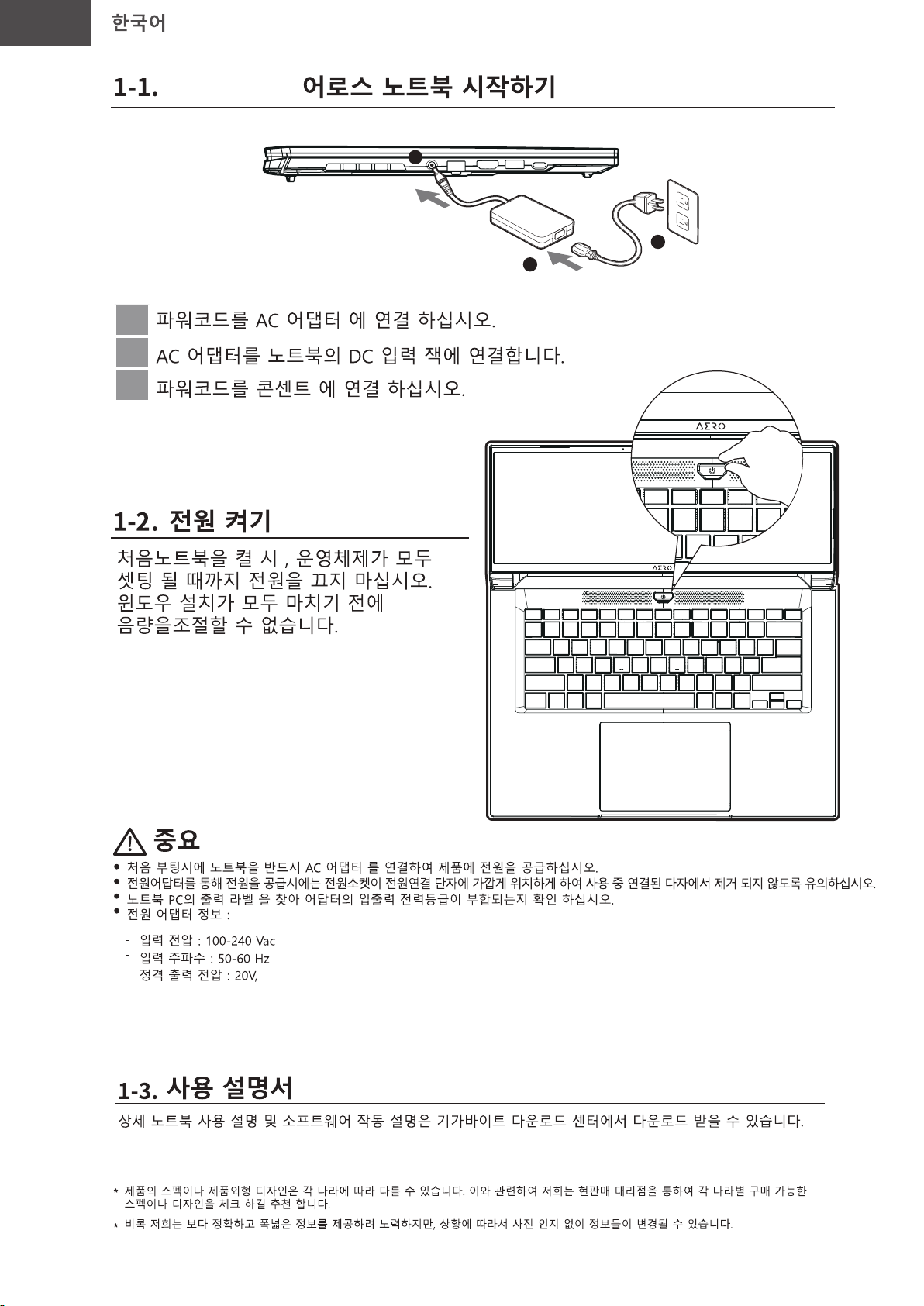
KO
GIGABYTE
2
3
1
1
2
3
7.5A
https://www.gigabyte.com/kr/Support
Page 49
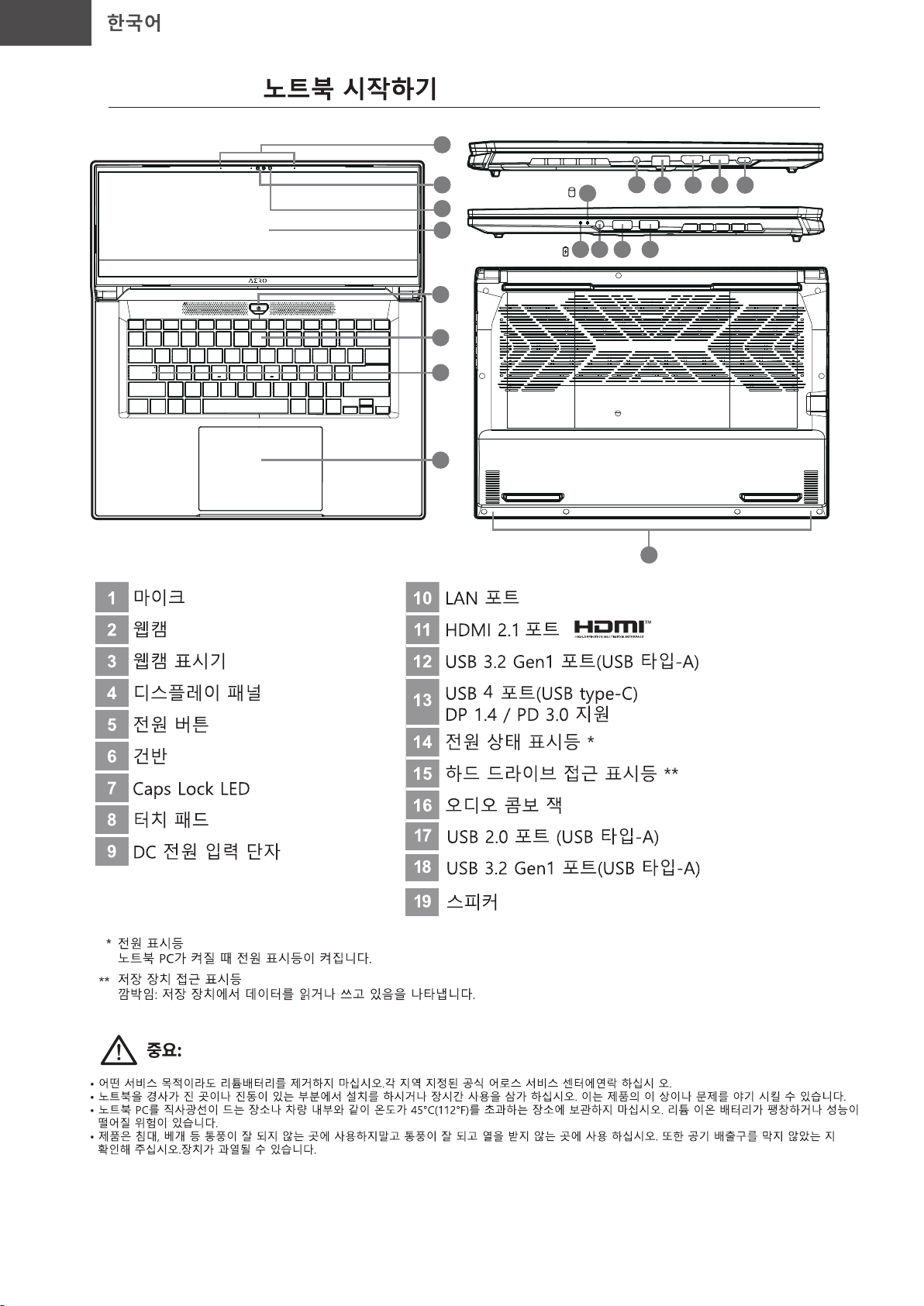
KO
2.
GIGABYTE
1
1
2
3
4
5
6
7
8
15
14 16 17 18
9
10
19
11
12 13
컴퓨터 유형 – 노트북 컴퓨터 (유형 C); 연간소비전력량: ≤ 30.0 kWh/year ; 절전모드 소비전력: ≤3.0 W; 오프모드 소비전력: ≤1.00 W.”
Page 50
KO
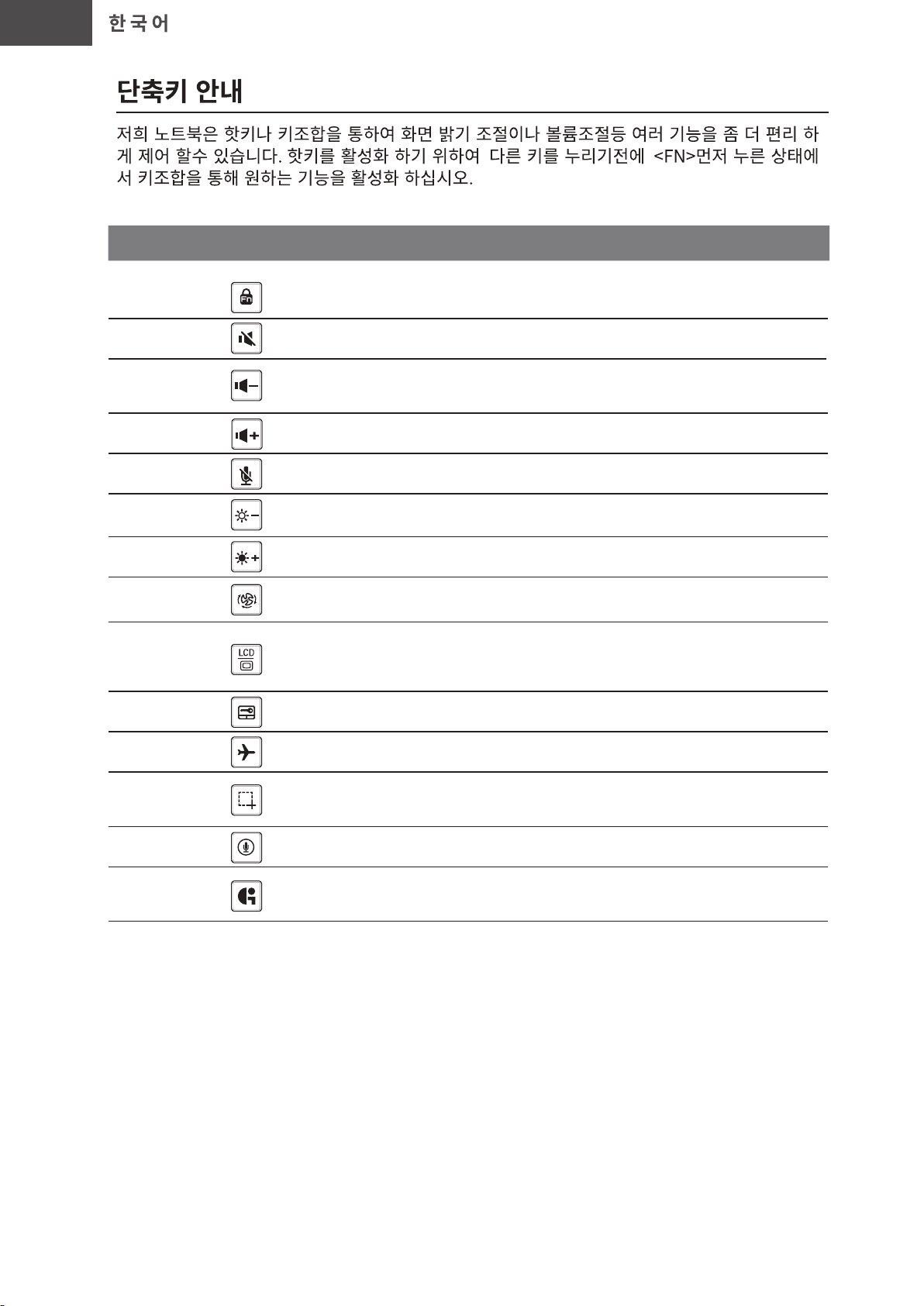
핫키 기능 설명
Fn+ESC
Fn+F1
Fn+F2
Fn+F3
Fn+F4
Fn+F5
Fn+F6
Fn+F7
Fn+F8
Fn+F9
기능 잠금 해제/잠금
음소거
음량 감소
음량 증가
MIC 음소거/음소거 해제
밝기 감소
밝기 증가
전원 설정
디스플레이 선택
터치패드 잠금
기능 잠금/해제
(F1~F12 전환만 가능, 기본 기능키 먼저)
소리는 켜거나 끕니다.
음량을 감소시킵니다.
음량을 증가시킵니다.
MIC 음소거/음소거 해제
화면의 밝기를 감소시킵니다.
화면의 밝기를 증가시킵니다.
전원 설정 (ECO/밸런스/성능)
노트북 액정 / 외부모니터 어느쪽에 화면을
표시할 지 선택합니다. 동시 출력도
가능합니다.
터치패드 기능을 켜거나 끕니다.
Fn+F10
Fn+F11
Fn+F12 음성 음성
Fn+GiMate
비행모드
스크린샷 스크린샷: Shift+Win+S
GiMate 제어 센터
비행모드 활성화/ 비활성화
GiMate 제어 센터 열기
Page 51
KO
Page 52
KO
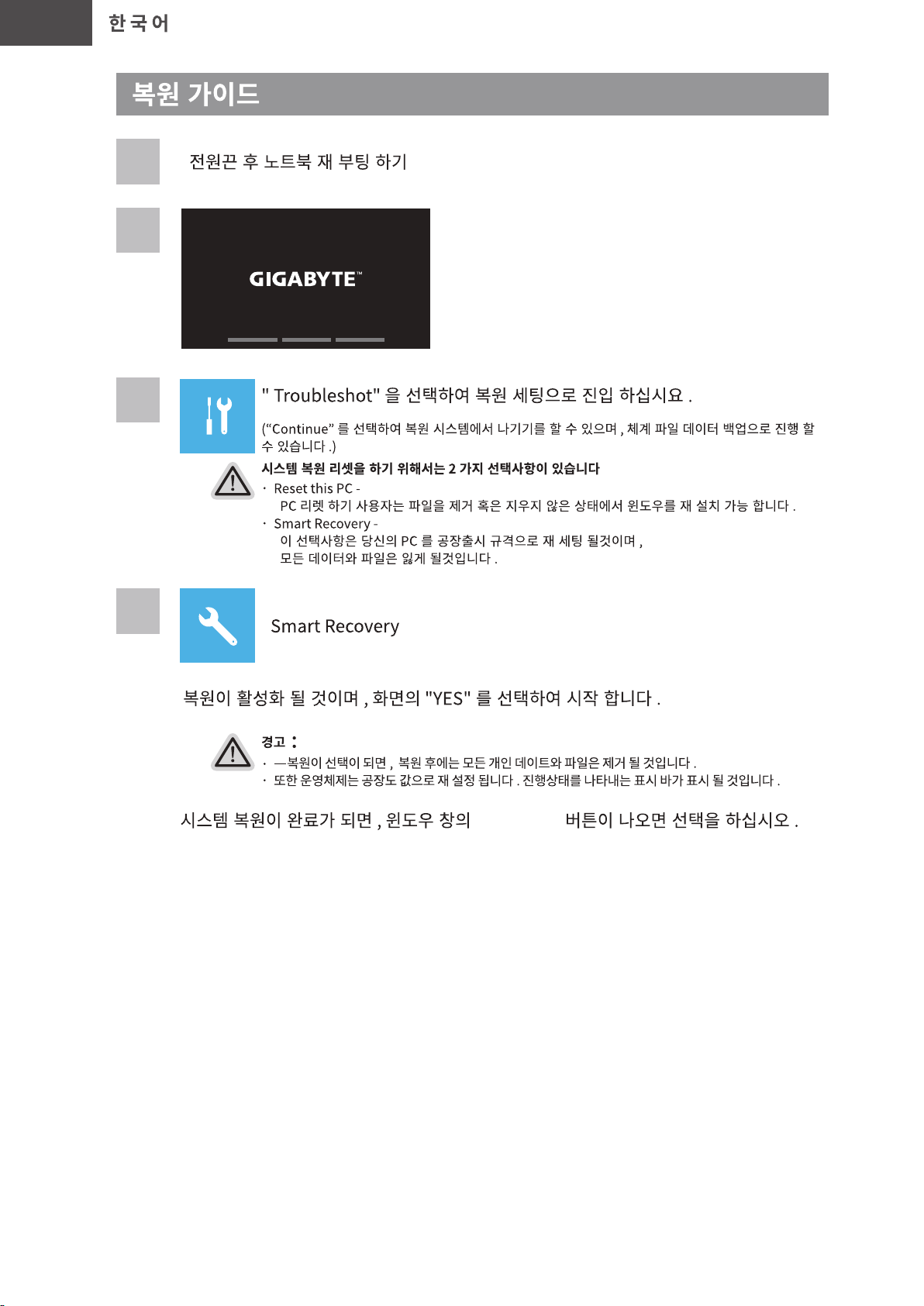
1
2
3
4
“끝내다 ”
Page 53
KO
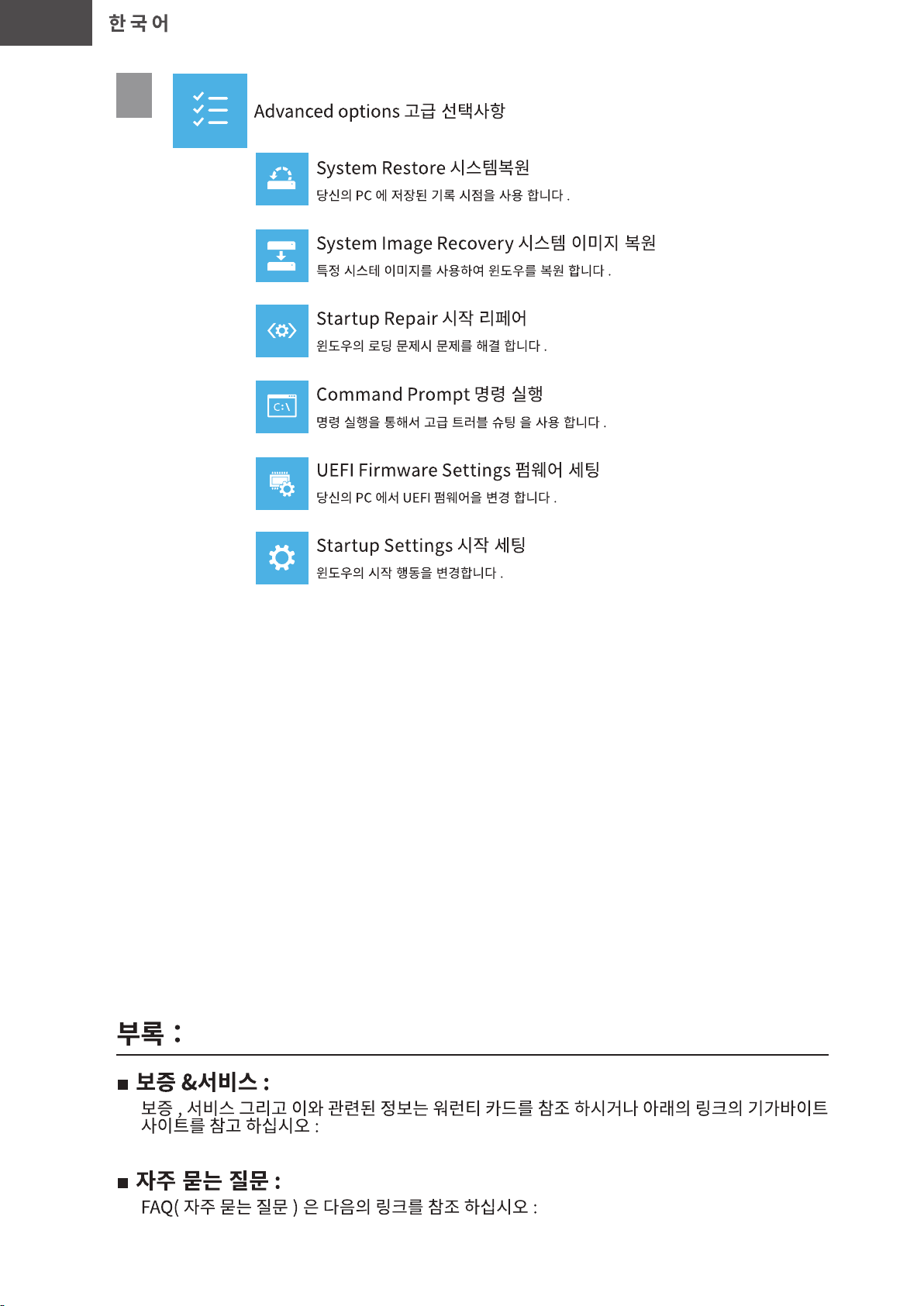
5
https://www.gigabyte.com/kr/Support
https://www.gigabyte.com/kr/Support/Faq
Page 54
LT
Lietuvių kalba
GIGABYTE
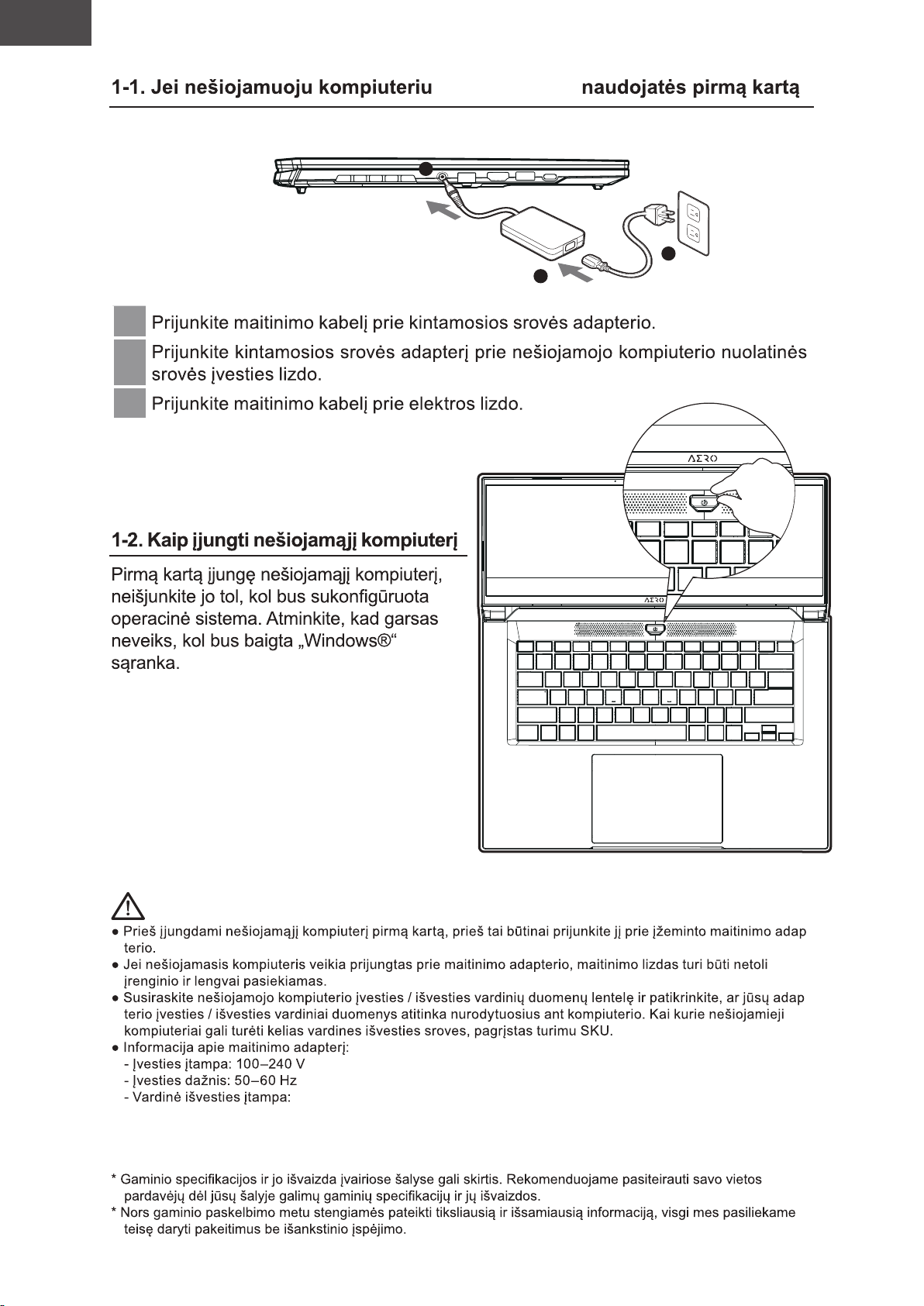
2
3
1
1
2
3
SVARBU!:
-
-
20V, 7.5A
Page 55
LT
Lietuvių kalba
GIGABYTE
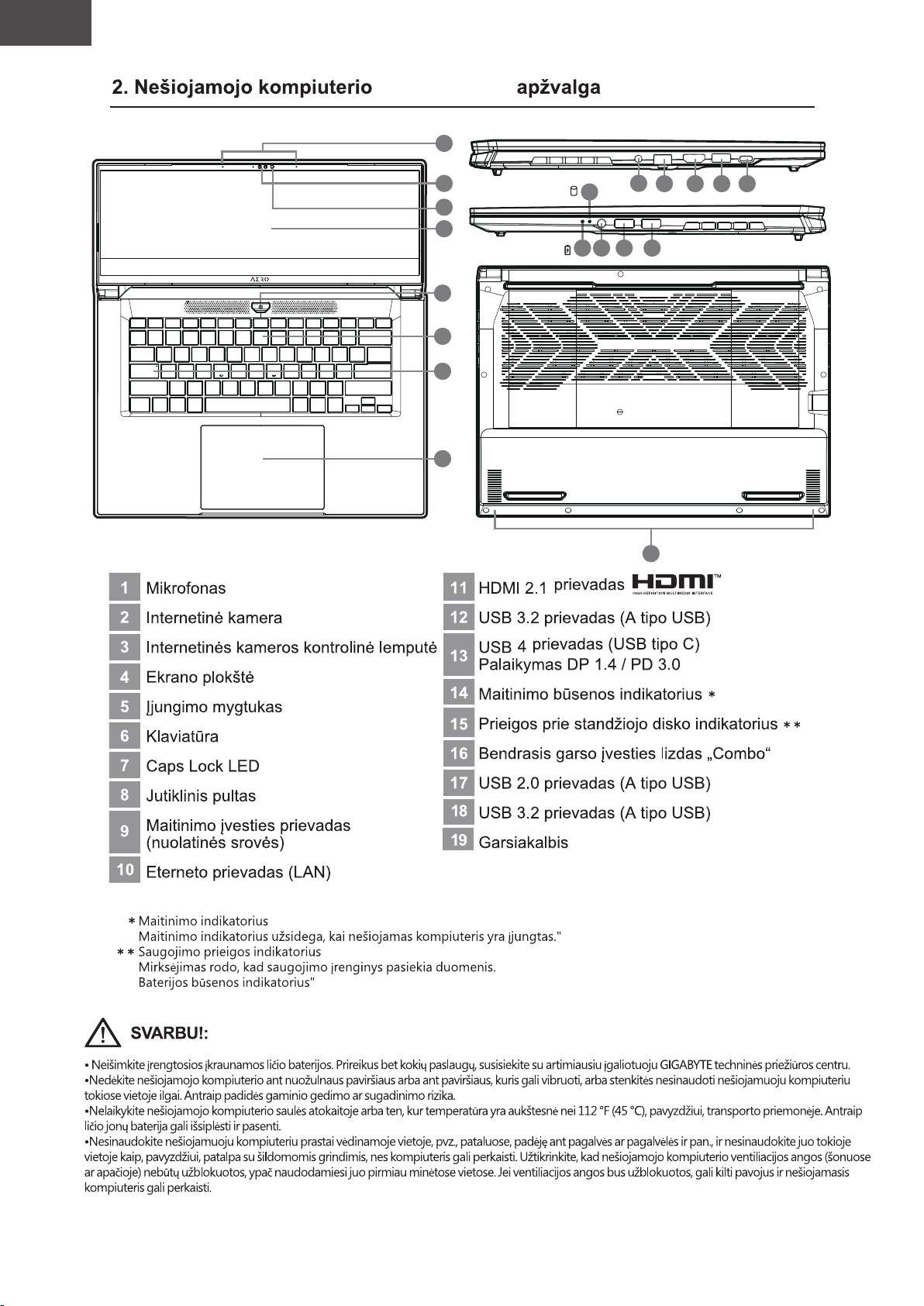
1
1
2
3
4
5
6
7
8
15
14 16 17 18
9
10
19
11
12 13
Page 56
LT
Lietuvių kalba
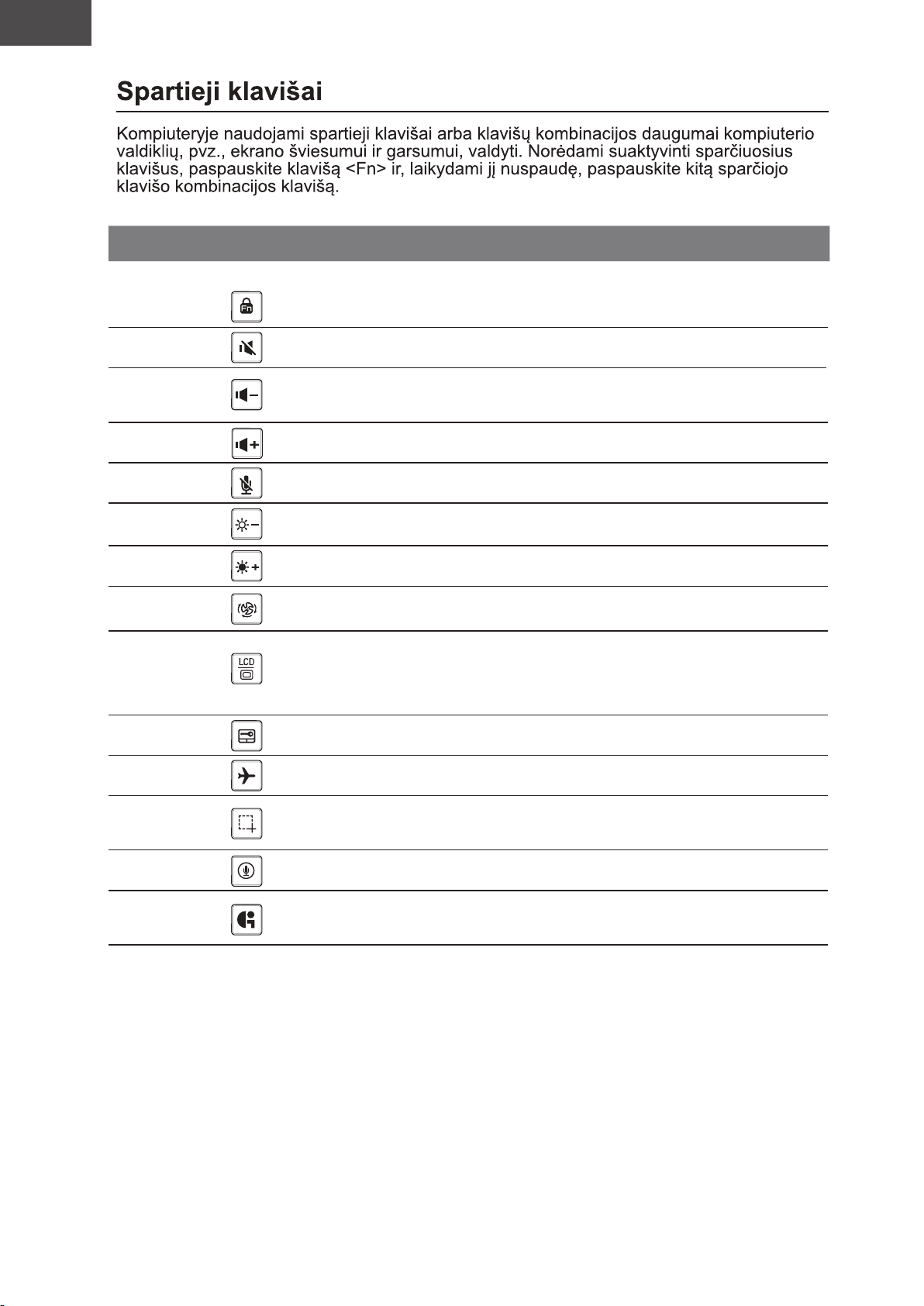
Spartusis klavišas Funkcija Aprašymas
Funkcinis atrakinimas / užrakinimas
Fn+ESC
Atrakinimo/užrakinimo
funkcija
(tik F1-F12 jungiklis, pirmiausia
numatytasis funkcijos klavišas)
Fn+F1
Fn+F2
Fn+F3
Fn+F4
Fn+F5
Fn+F6
Fn+F7
Fn+F8
Fn+F9
Fn+F10 Lėktuvo režimas Įjungia / išjungia lėktuvo režimo funkciją.
Garsiakalbio jungiklis
Garso mažinimas
Garso didinimas
MIC nutildyti / įjungti garsą
Šviesumo mažinimas
Šviesumo didinimas
Energijos sistemos
nustatymai
Ekrano jungiklis
Jutiklinio pulto jungiklis
Įjungia arba išjungia garsiakalbį.
Mažina garsą.
Didina garsą.
MIC nutildyti / įjungti garsą
Mažina ekrano šviesumą.
Didina ekrano šviesumą.
Energijos sistemos nustatymai
(ECO/Balansas/Veikimas)
Perjungia ekrano išvestį, kad ekrano
vaizdas būtų rodomas arba kompiuterio
ekrane, arba išorinio monitoriaus ekrane
(jei šis prijungtas), arba abiejuose.
Įjungia ir išjungia vidinį jutiklinį pultą.
Fn+F11
Fn+F12 Balsas Balsas
Fn+GiMate
Ekrano nuotrauka Ekrano nuotrauka: Shift+Win+S
GiMate valdymo centras
Atidarykite GiMate valdymo centrą
Page 57
LT
Lietuvių kalba
Page 58
LT
Lietuvių kalba
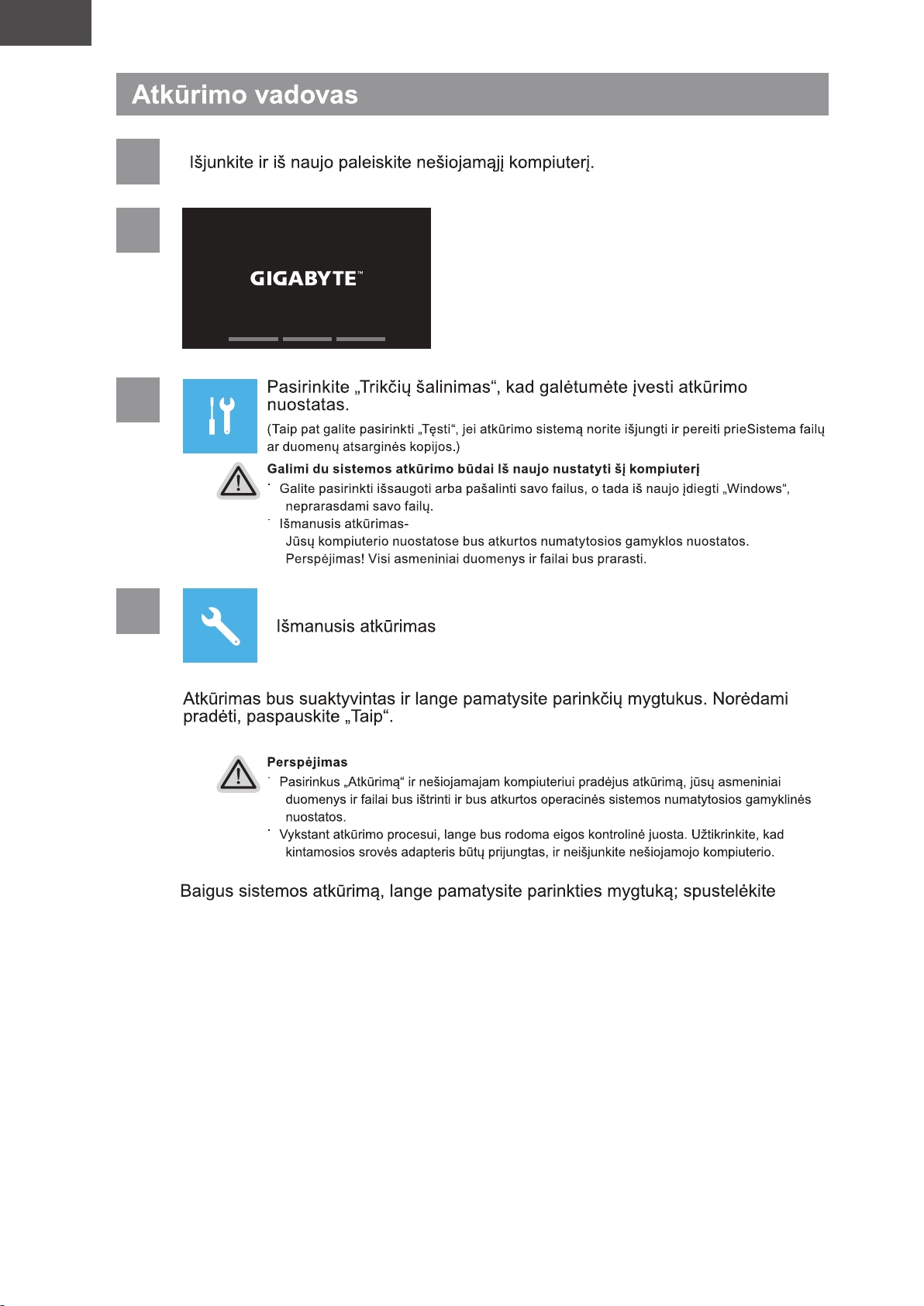
1
2
3
4
„Baigti“.
Page 59
LT
Lietuvių kalba
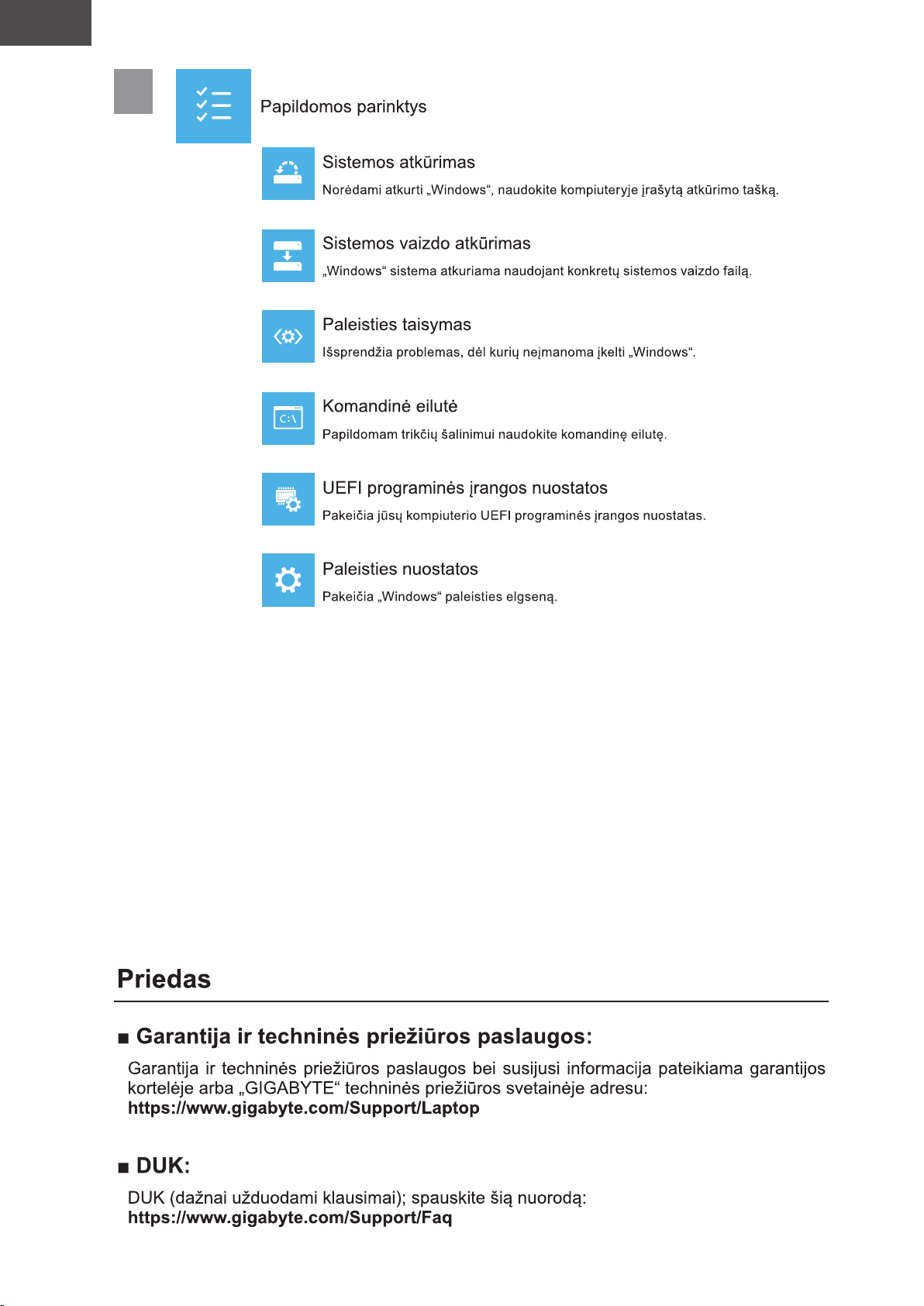
5
Page 60
LV
Latviešu valoda
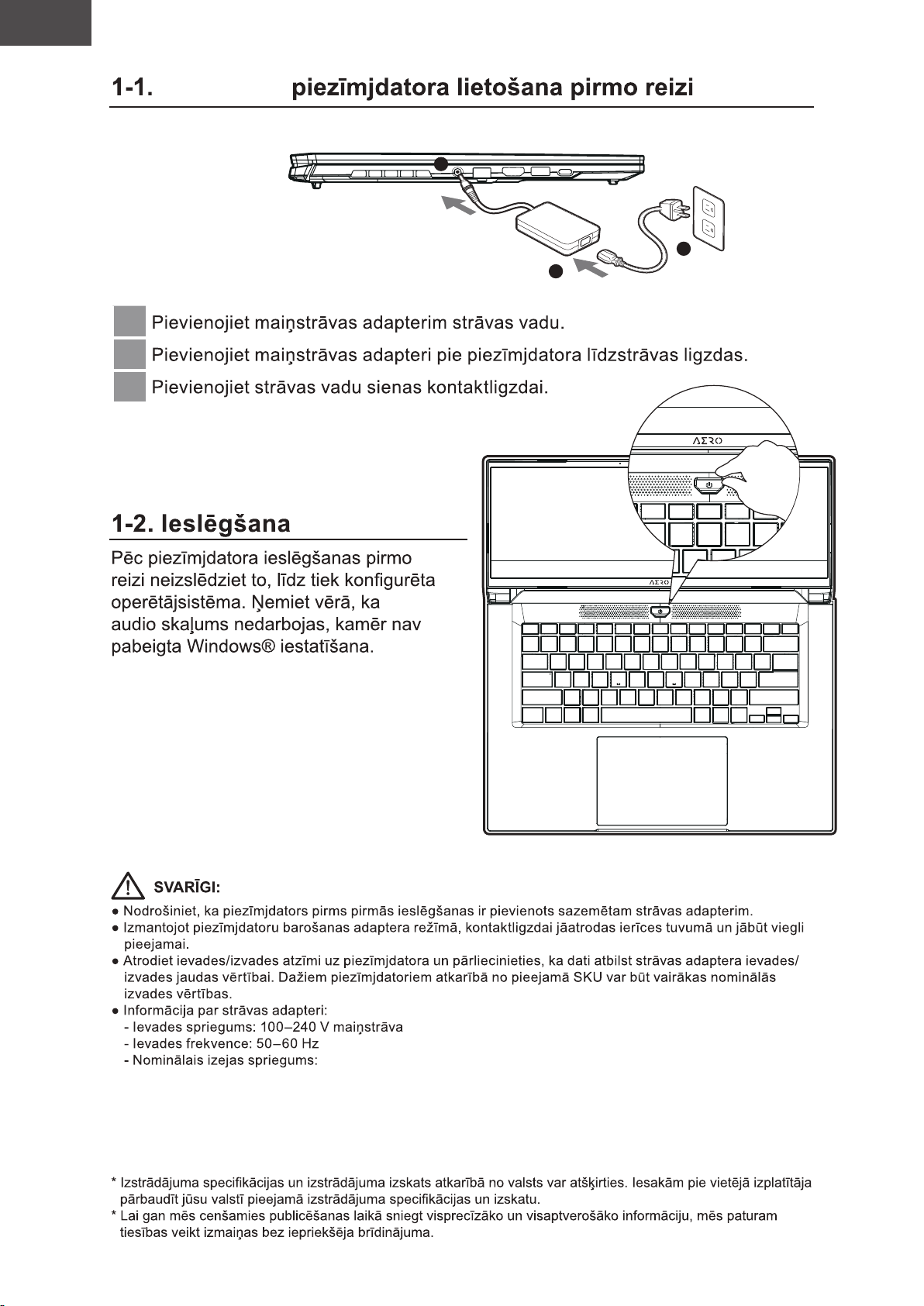
GIGABYTE
2
3
1
1
2
3
20V, 7.5A
Page 61
LV
Latviešu valoda
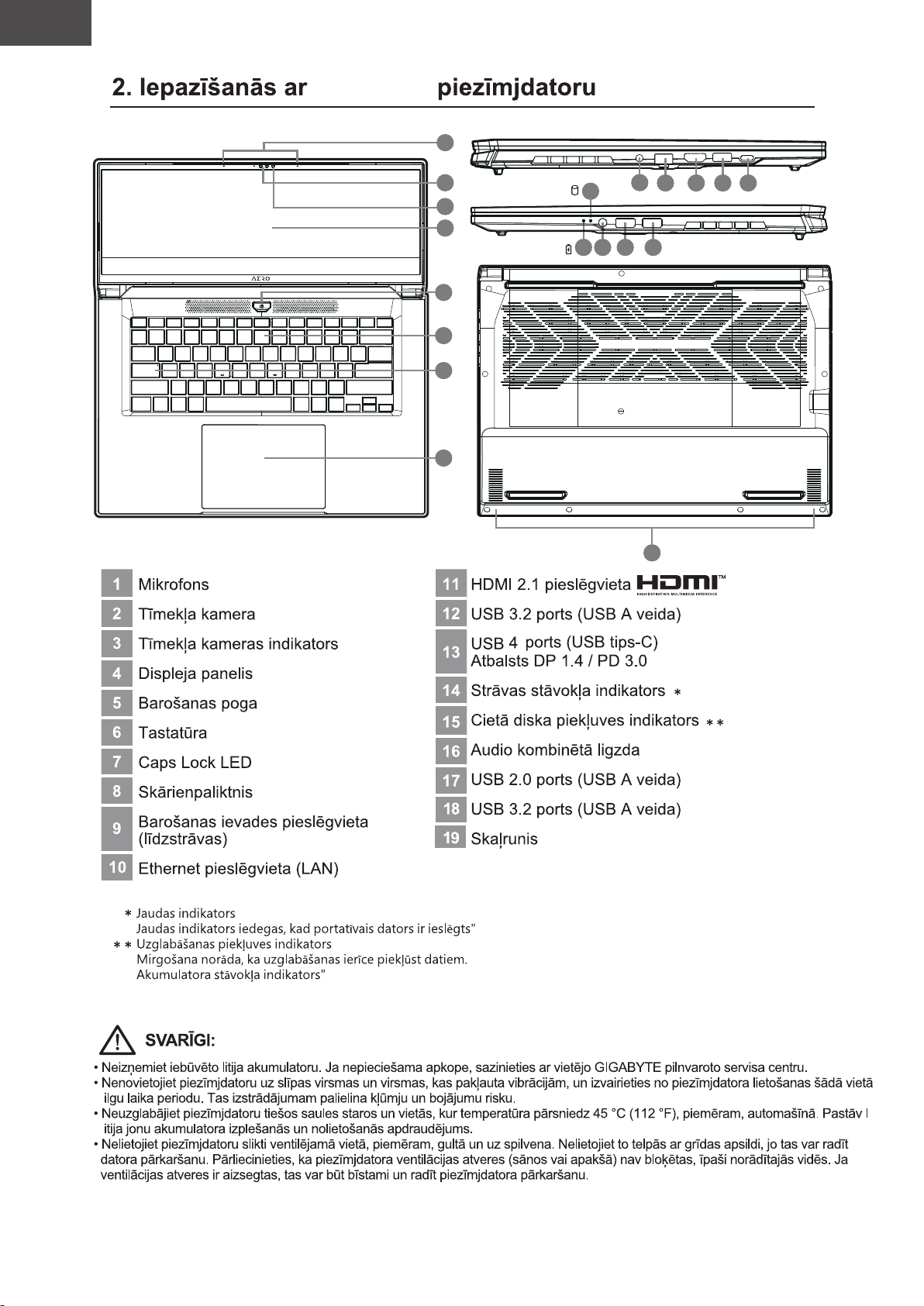
GIGABYTE
1
1
2
3
4
5
6
7
8
15
14 16 17 18
9
10
19
11
12 13
Page 62
LV
Latviešu valoda
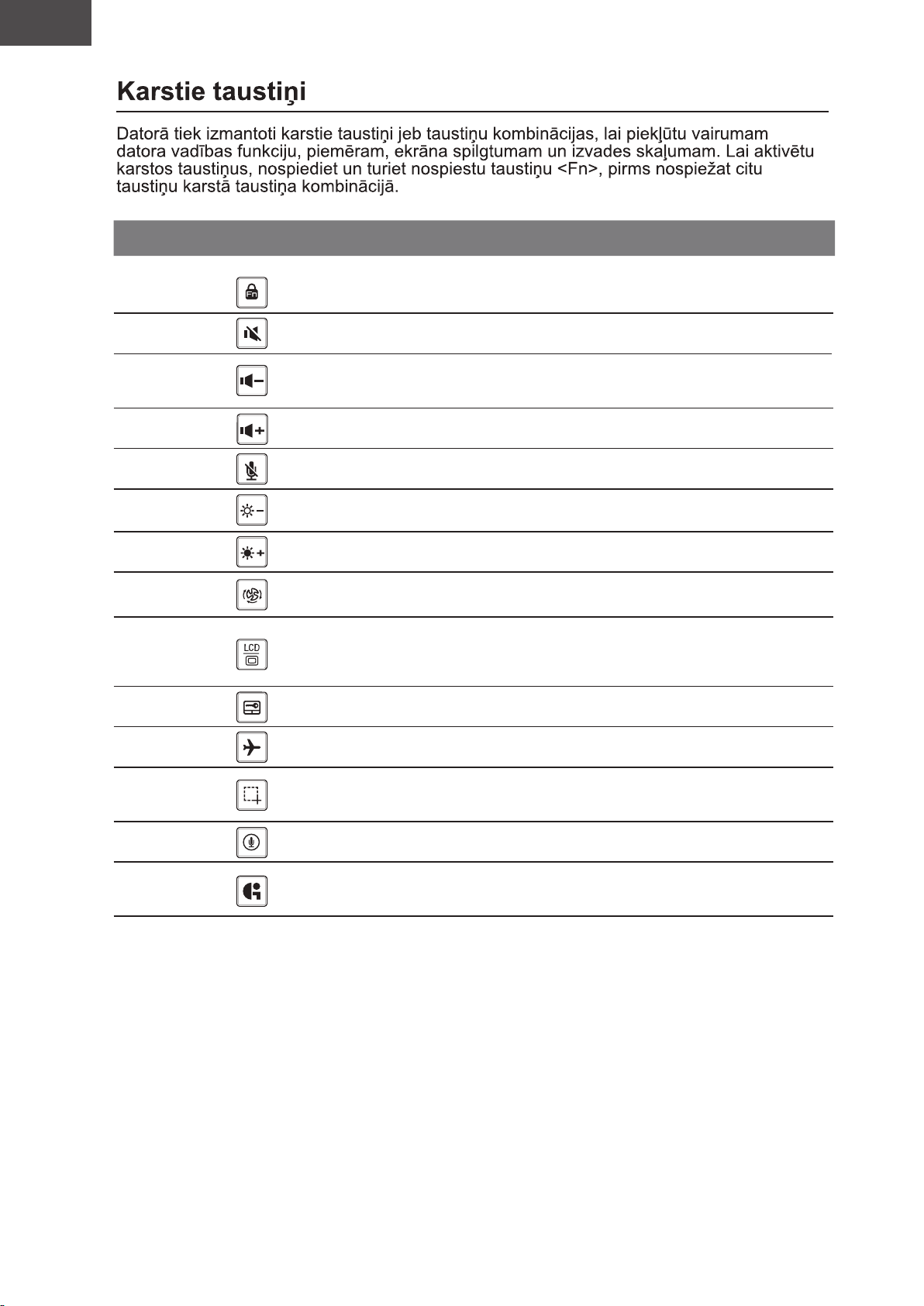
Karstais taustiņš Funkcija Apraksts
Funkcijas atbloķēšana/bloķēšana
Fn+ESC
Atbloķēšanas/bloķēšanas
funkcija
(tikai slēdzis F1~F12,
vispirms noklusējuma funkcijas taustiņš)
Fn+F1
Fn+F2
Fn+F3
Fn+F4
Fn+F5
Fn+F6
Fn+F7
Fn+F8
Fn+F9
Fn+F10 Lidmašīnas režīms Iespējo/atspējo lidmašīnas režīmu.
Skaļruņa pārslēgšana
Klusāk
Skaļāk
MIC izslēgt/ieslēgt skaņu MIC izslēgt/ieslēgt skaņu
Mazāk spilgtuma
Vairāk spilgtuma
Barošanas sistēmas
iestatījumi
Displeju pārslēgšana
Skārienpaliktņa
pārslēgšana
Ieslēdz un izslēdz skaļruni.
Samazina skaņas skaļumu.
Palielina skaņas skaļumu.
Samazina ekrāna spilgtumu.
Palielina ekrāna spilgtumu.
Barošanas sistēmas iestatījumi
(ECO/Izlīdzinājums/Veiktspēja)
Pieslēdz displeja izeju displeja ekrānam,
ārējam monitoram (ja ir pievienots)
vai abiem diviem.
Ieslēdz un izslēdz iekšējo skārienpaliktni.
Fn+F11
Fn+F12 Balss iekšā Balss iekšā
Fn+GiMate
Ekrāna ekrānuzņēmums Ekrāna ekrānuzņēmums: Shift+Win+S
GiMate vadības centrs
Atveriet GiMate vadības centru
Page 63
LV
Latviešu valoda
Page 64
LV
Latviešu valoda
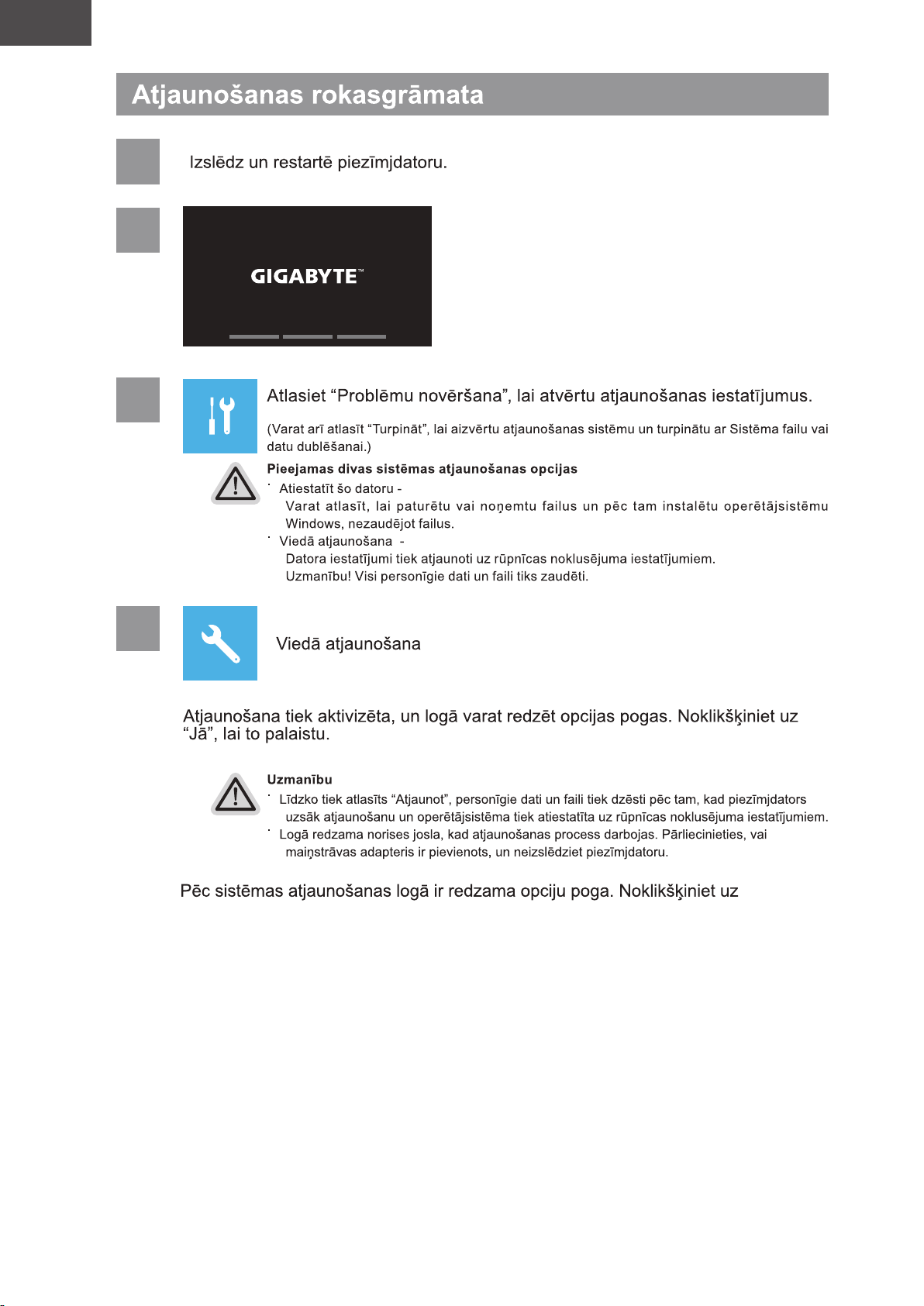
1
2
3
4
“Pabeigt”.
Page 65
LV
Latviešu valoda
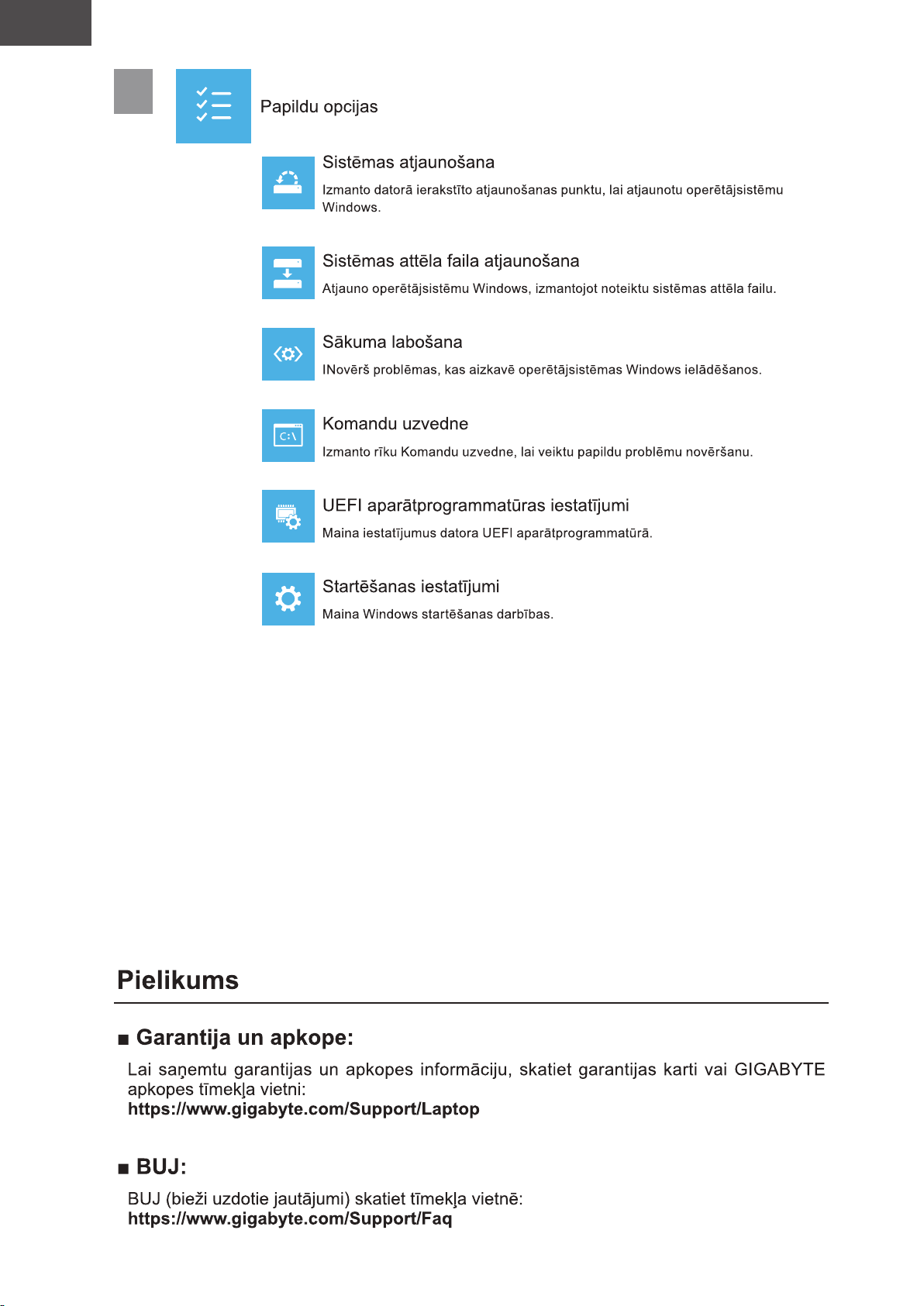
5
Page 66
NL
Nederlands
1-1. GIGABYTE-Notebook voor de eerste keer gebruiken
2
3
1
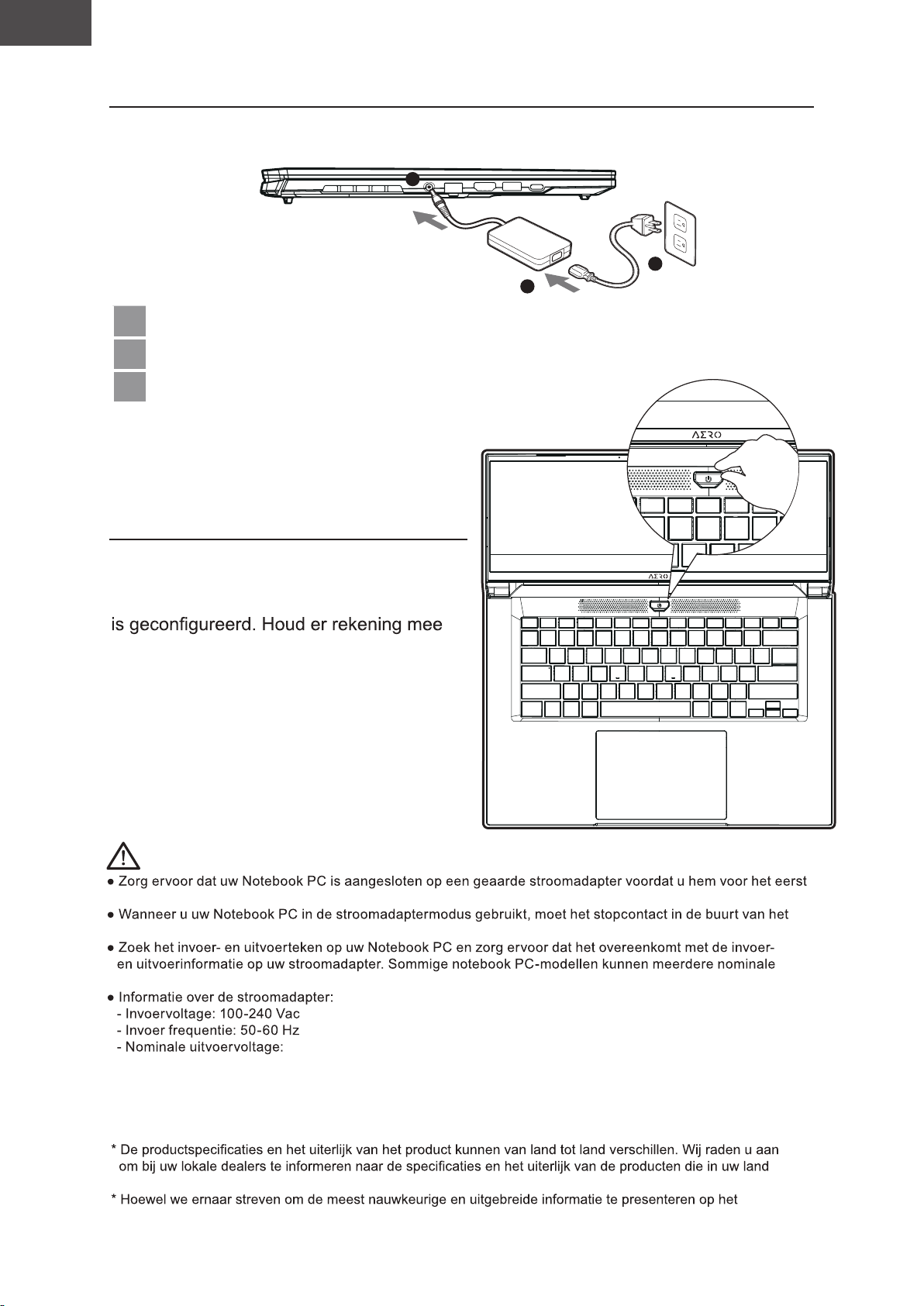
1 Sluit de voedingskabel aan op de AC-adapter.
2 Sluit de AC-adapter aan op de DC-ingang van de notebook.
3 Sluit de voedingskabel aan op het stopcontact.
1-2. De Notebook aanzetten
Nadat u de notebook voor de allereerste
keer hebt aangezet, moet u hem pas
uitschakelen als het besturingssysteem
dat het geluidsvolume pas functioneert
als de Windows® Set-up is voltooid.
BELANGRIJKE INFORMATIE:
aanzet.
toestel zijn en gemakkelijk bereikbaar zijn.
uitgangsstromen hebben op basis van de beschikbare SKU.
20V, 7.5A
verkrijgbaar zijn.
moment van publicatie, behouden we ons het recht voor om wijzigingen aan te brengen zonder voorafgaande
kennisgeving.
Page 67
NL
Nederlands
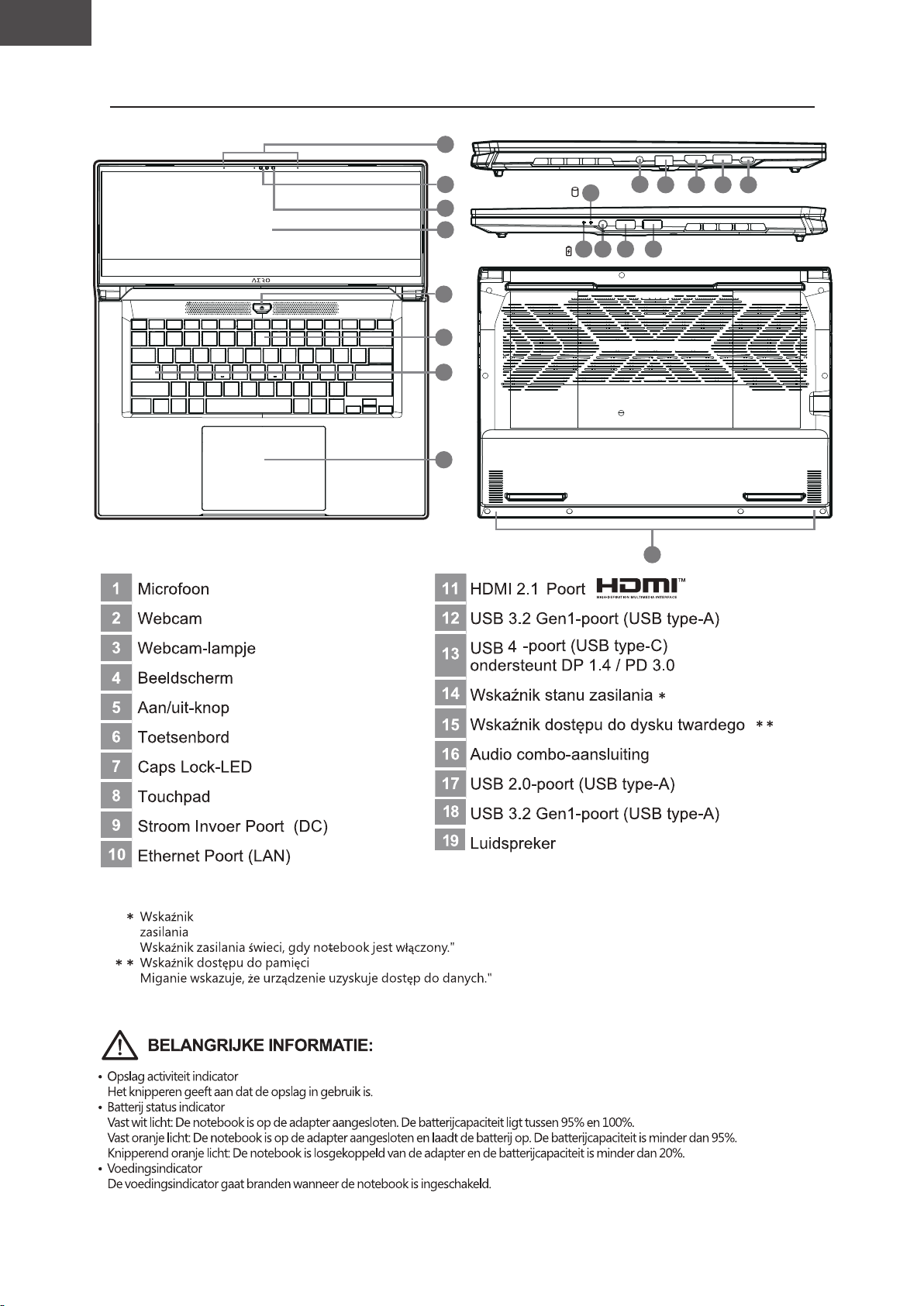
2. GIGABYTE Notebook Tour
1
1
2
3
4
5
6
7
8
15
14 16 17 18
9
10
19
11
12 13
Page 68
NL
Nederlands
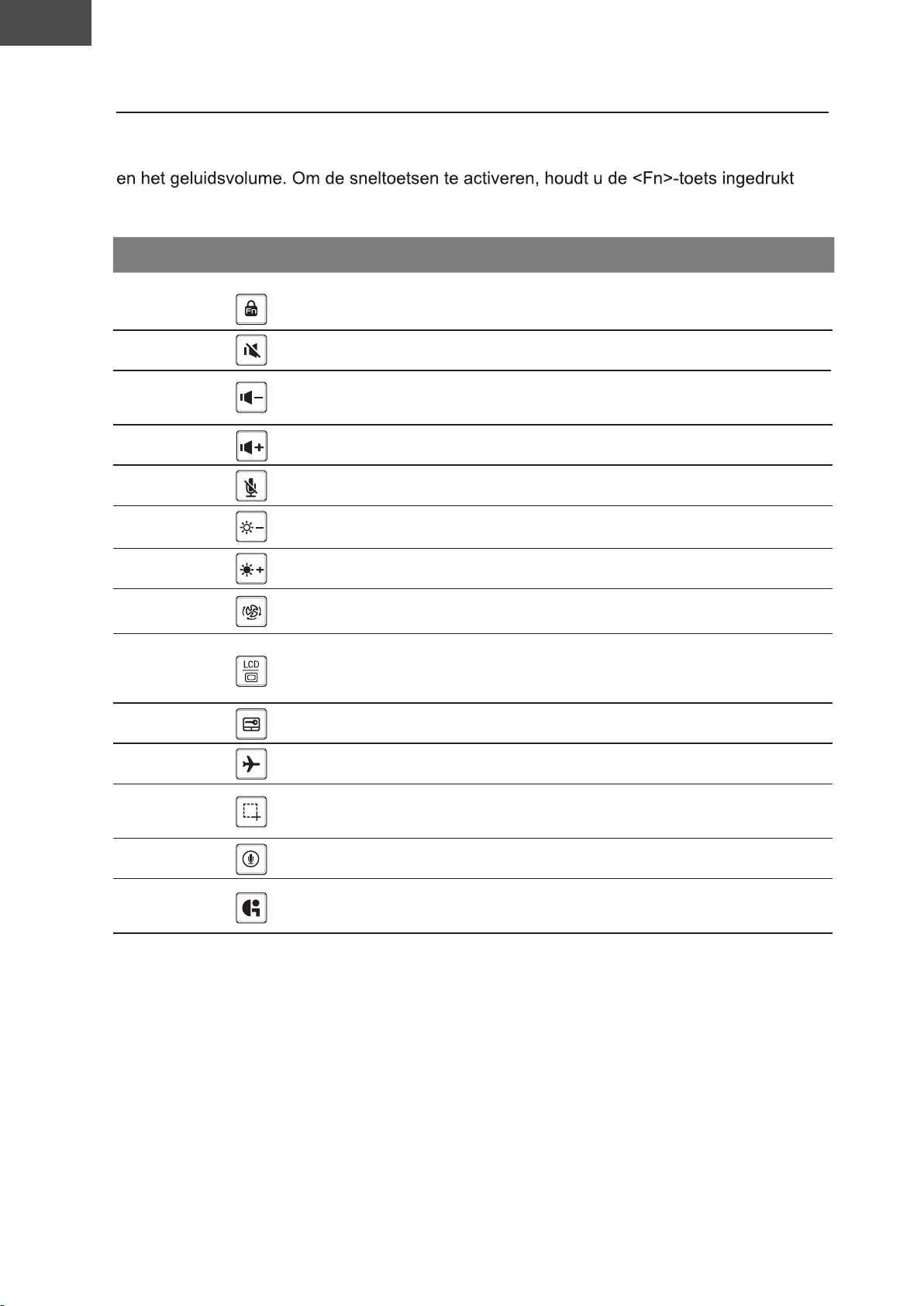
Sneltoetsen
De computer maakt gebruik van sneltoetsen of toetscombinaties om toegang te krijgen tot
de meeste bedieningselementen van de computer, zoals de helderheid van het scherm
voordat u de andere toets in de sneltoetscombinatie indrukt.
Sneltoets Functie Beschrijving
Functie ontgrendelen/vergrendelen
Fn+ESC
Functie ontgrendelen/
vergrendelen
(alleen F1~F12-schakelaar,
standaardfunctietoets eerst)
Fn+F1
Fn+F2
Fn+F3
Fn+F4
Fn+F5
Fn+F6
Fn+F7
Fn+F8
Fn+F9
Fn+F10 Vliegtuigmodus Schakelt de vliegtuigmodus in/uit.
Luidspreker Schakelaar
Volume omlaag
Volume omhoog
MIC dempen/
dempen opheffen
Helderheid omlaag
Helderheid omhoog
Energie-instellingen
Scherm schakelaar
Touchpad schakelaar
Zet de luidspreker aan en uit.
Verlaagt het geluidsvolume.
Verhoogt het geluidsvolume.
MIC dempen/dempen opheffen
Verlaagt de helderheid van het scherm.
Verhoogt de helderheid van het scherm.
Energie-instellingen
(ECO/Balance/Prestaties)
Schakelt de uitvoer van de weergave
tussen het beeldscherm, de externe
monitor (indien aangesloten) en beide.
Zet het interne touchpad aan en uit.
Fn+F11
Fn+F12 Stem in Stem in
Fn+GiMate
Screenshot Screenshot: Shift+Win+S
GiMate Control Center
Open GiMate Control Center
Page 69
NL
Nederlands
Herstelgids
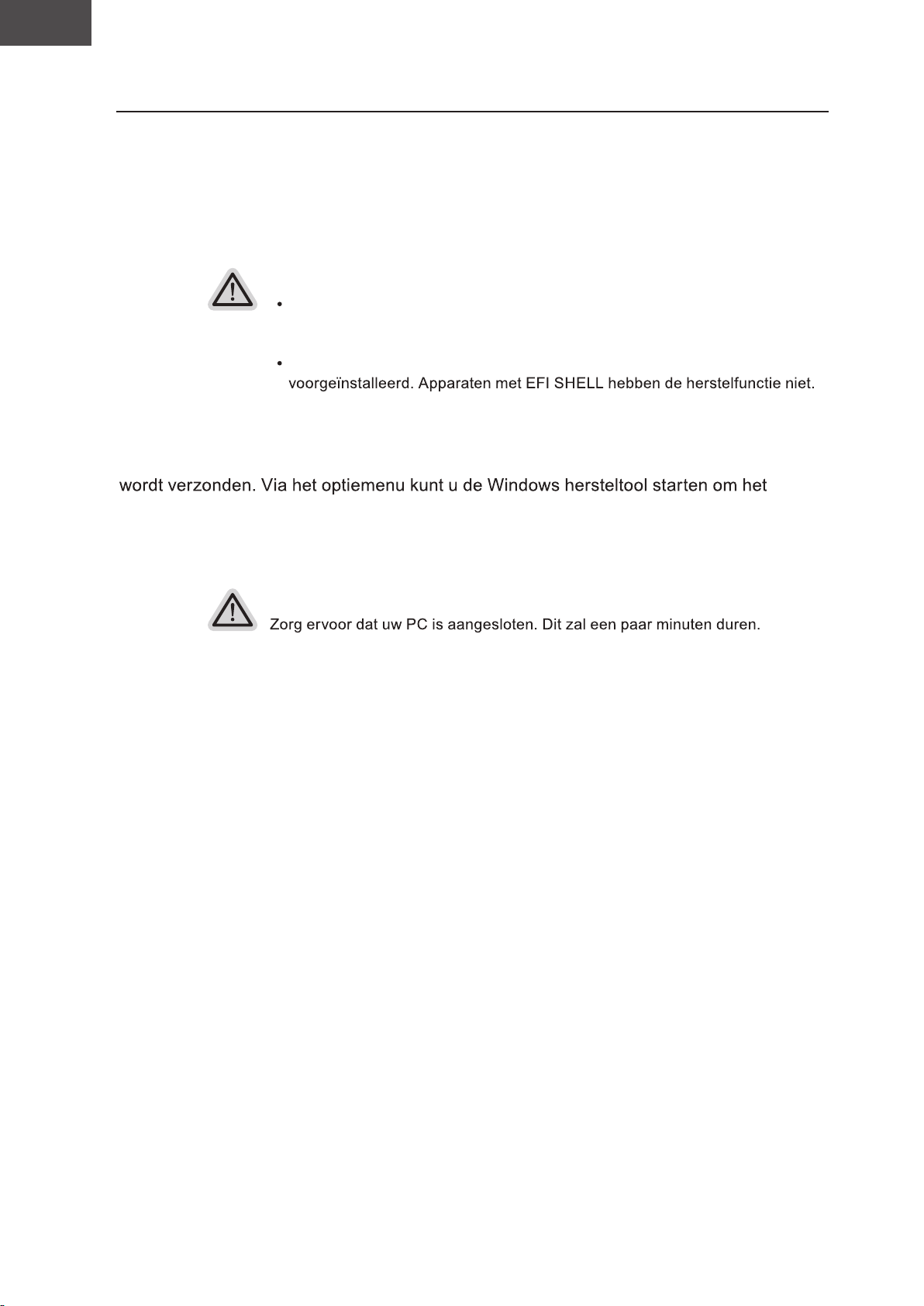
Systeemherstel (Herstel van het besturingssysteem van uw laptop)
Wanneer er iets mis gaat met het besturingssysteem van de laptop, heeft de opslag
van de laptop een verborgen afscheiding met daarin een volledig back-up beeld van
het besturingssysteem dat kan worden gebruikt om het systeem te herstellen naar de
standaard fabrieksinstellingen.
Let op
Als de opslag is geschakeld of de afscheiding is verwijderd, zal de
hersteloptie niet langer beschikbaar zijn en zal er een hersteldienst nodig
zijn.
De herstelfunctie is alleen beschikbaar op apparaten waarop O/S is
Systeemherstel starten
De systeemherstelfunctie is voorgeïnstalleerd voordat de laptop uit de fabriek
besturingssysteem opnieuw te installeren volgens de standaard fabrieksinstellingen.
De korte inleiding hieronder laat u zien hoe u de hersteltool kunt starten en uw systeem kunt
herstellen.
Alles klaar om te beginnen
Page 70
NL
Nederlands
Herstelgids
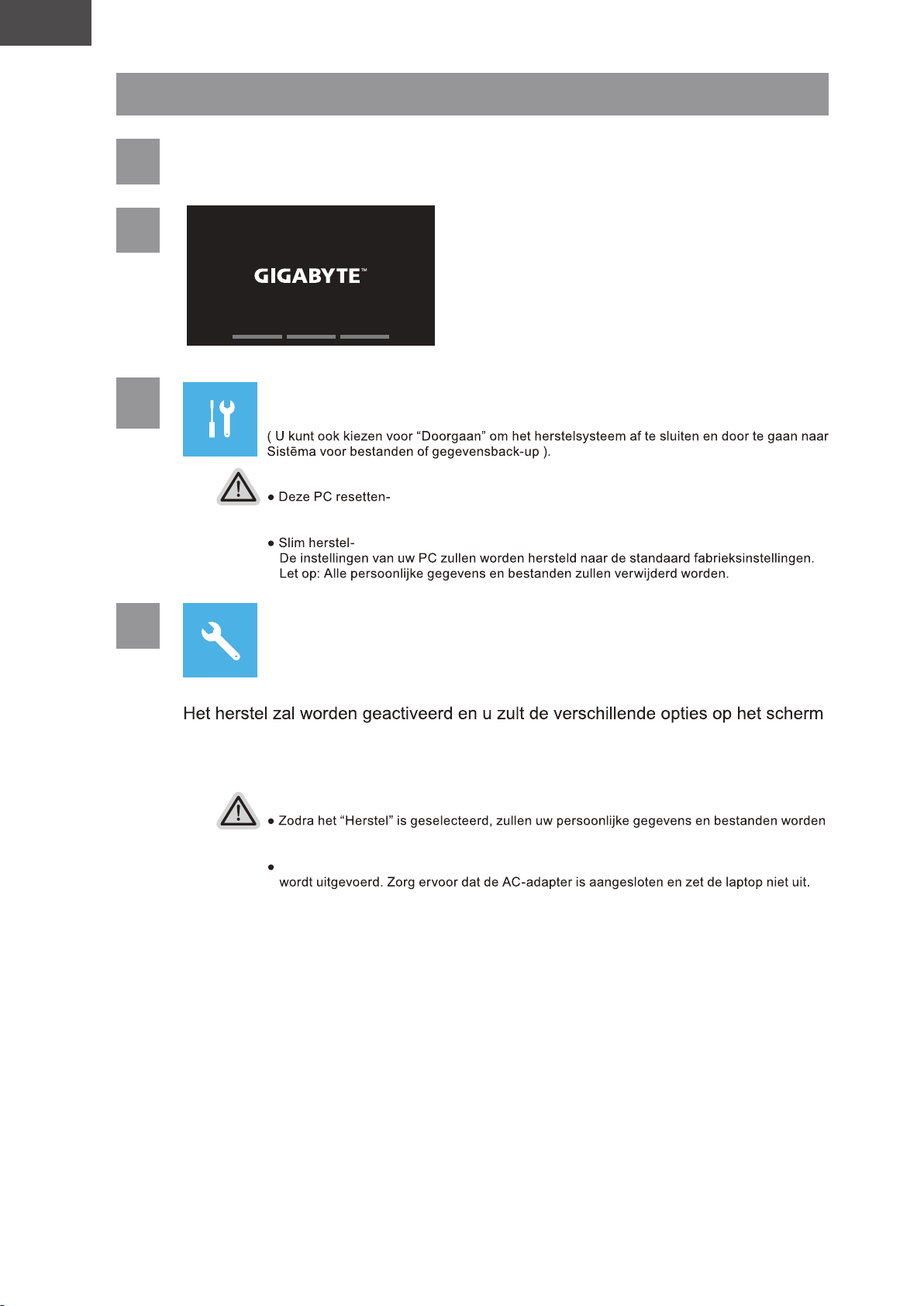
1
2
3
Zet de laptop uit en start hem opnieuw op.
Kies "Problemen oplossen" om de herstelinstellingen in te
voeren.
Er zijn twee opties voor systeemherstel
U kunt ervoor kiezen om uw bestanden te bewaren of te verwijderen en vervolgens Windows opnieuw te installeren zonder uw bestanden te verliezen.
4
Slim herstel
zien.
Klik op "Ja" om hiermee te starten.
Let op
verwijderd nadat de laptop begint met het herstellen, en het besturingssysteem zal worden
gereset naar de standaard fabrieksinstellingen.
Een voortgangsindicatiebalk wordt op het scherm weergegeven wanneer het herstelproces
Nadat het systeemherstel is voltooid, ziet u de optieknop op het scherm en klikt u
op "Finish".
Page 71
NL
Nederlands
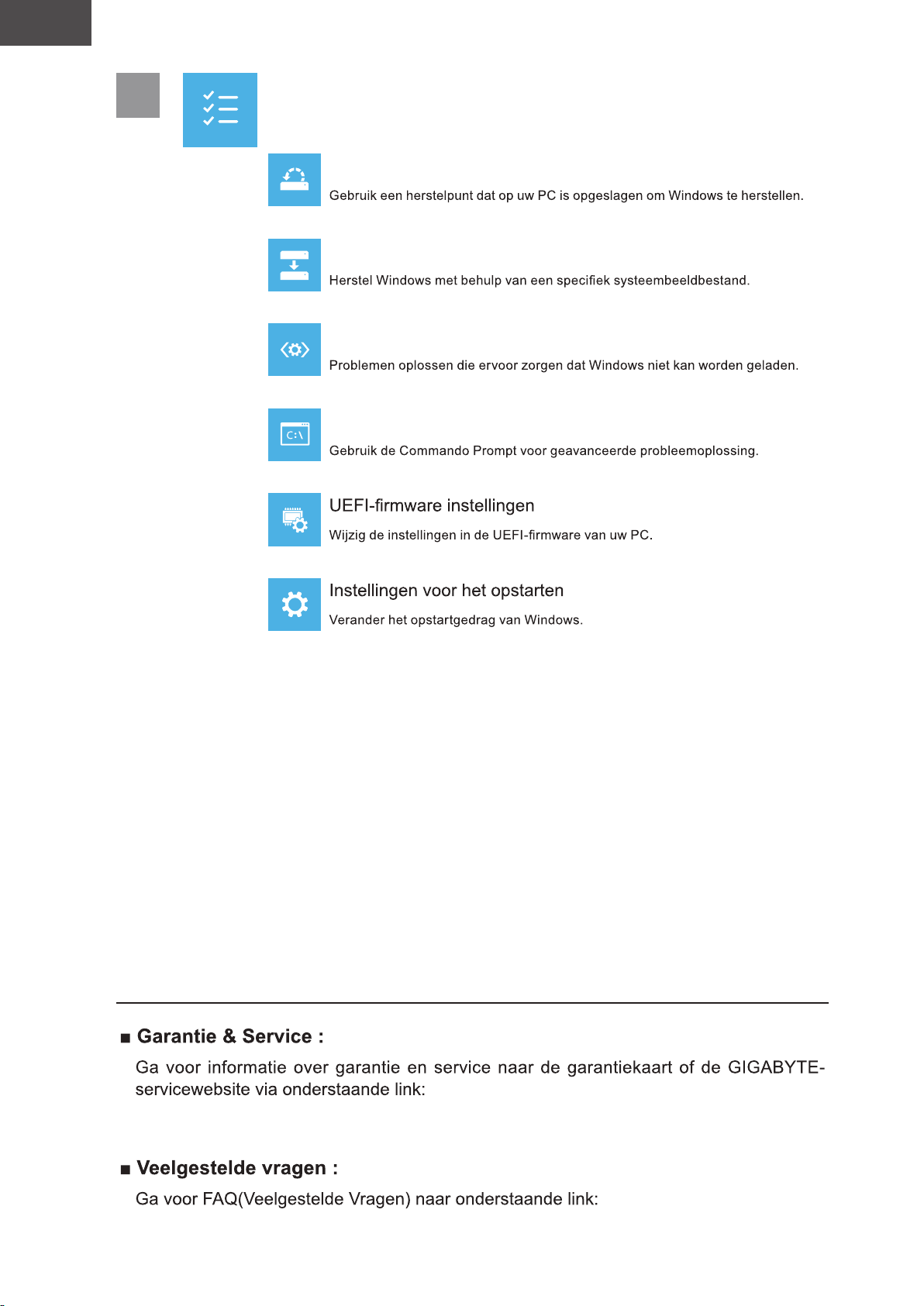
5
Geavanceerde opties
Systeemherstel
Systeembeeldherstel
Reparatie opstarten
Commando prompt
Bijlage
https://www.gigabyte.com/Support/Laptop
https://www.gigabyte.com/Support/Faq
Page 72
PL
Język Polski
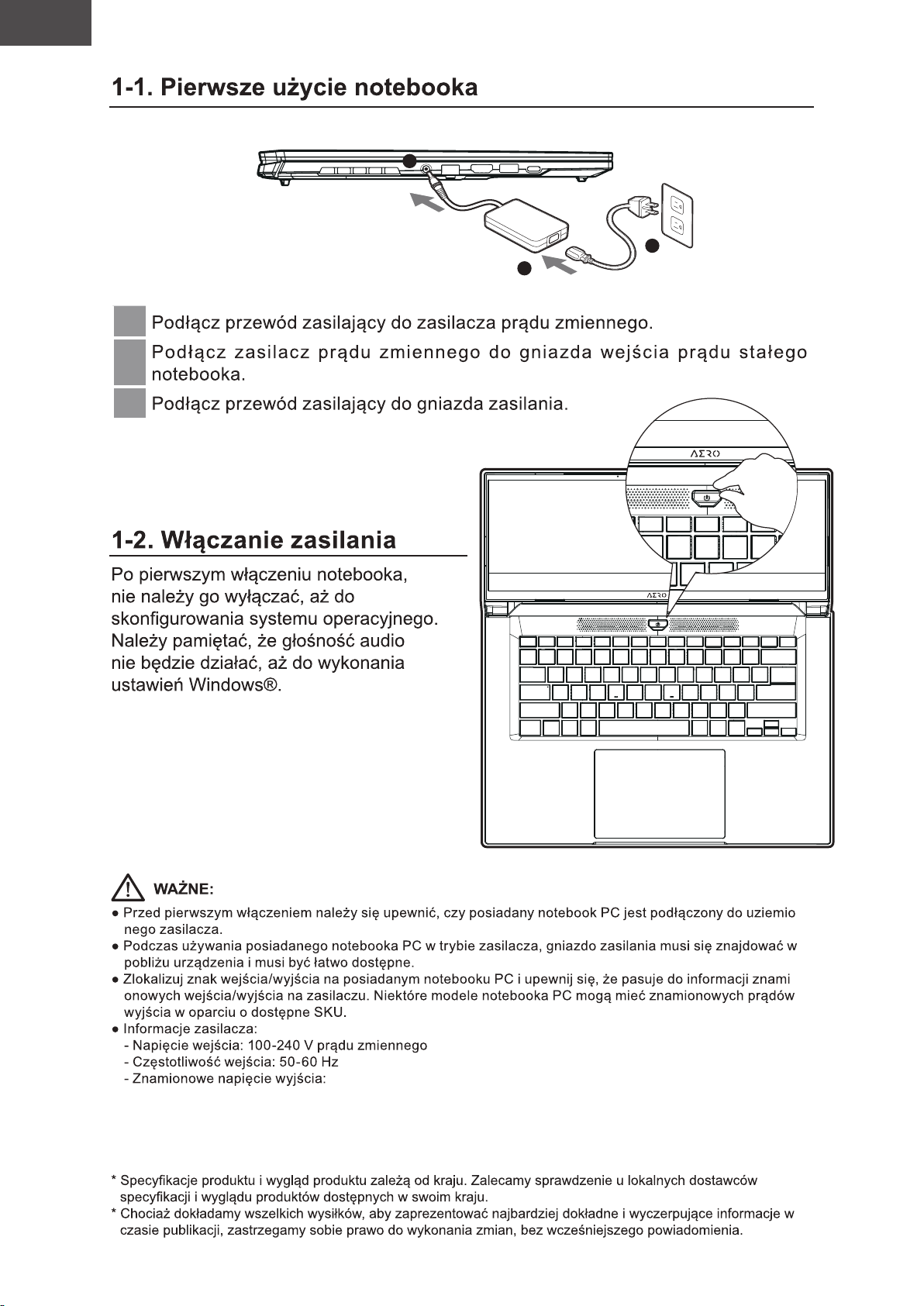
GIGABYTE
2
3
1
1
2
3
20V, 7.5A
-
-
Page 73
PL
Język Polski
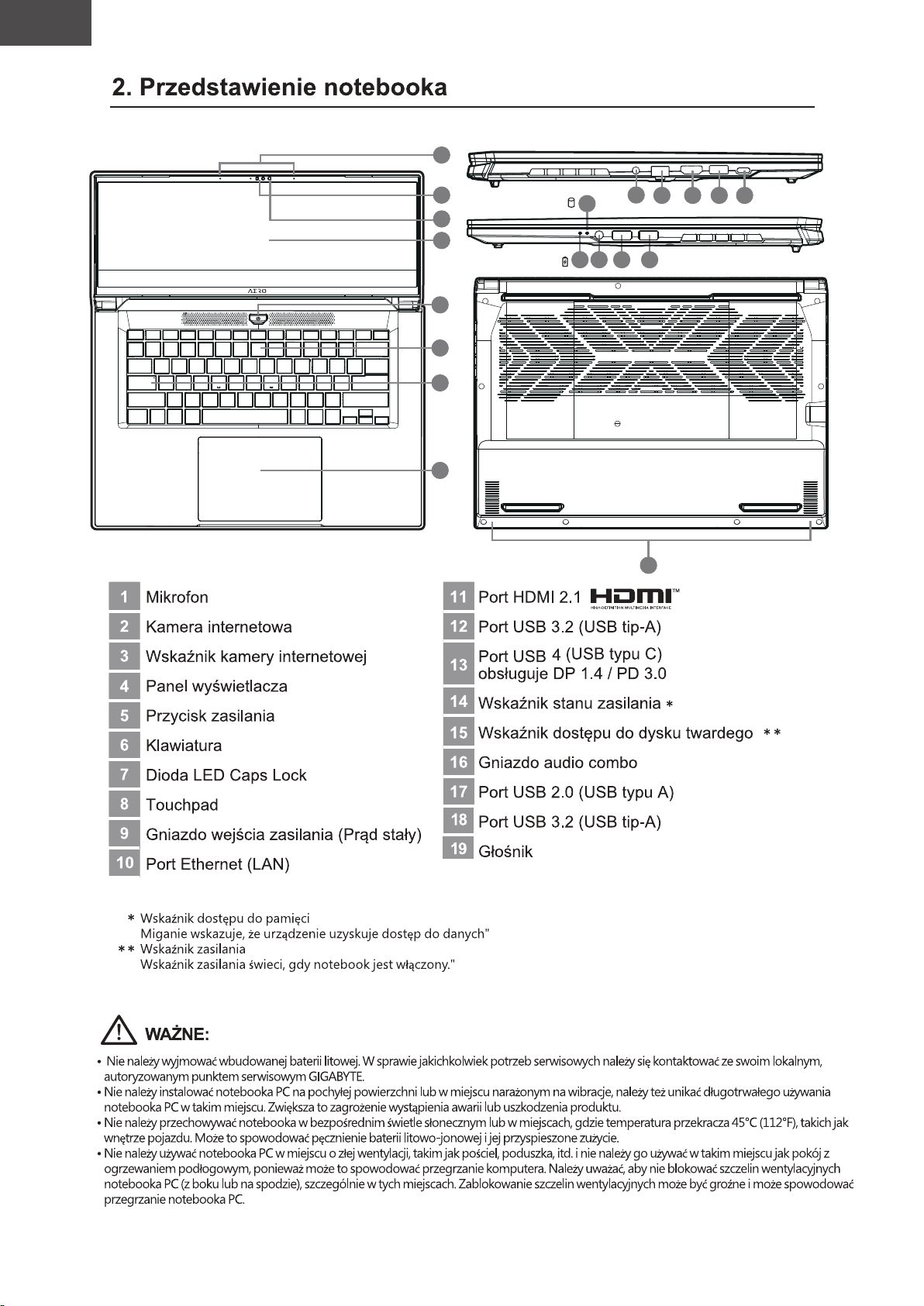
GIGABYTE
1
1
2
3
4
5
6
7
8
15
14 16 17 18
9
19
10
11
12 13
Page 74
PL
Język Polski
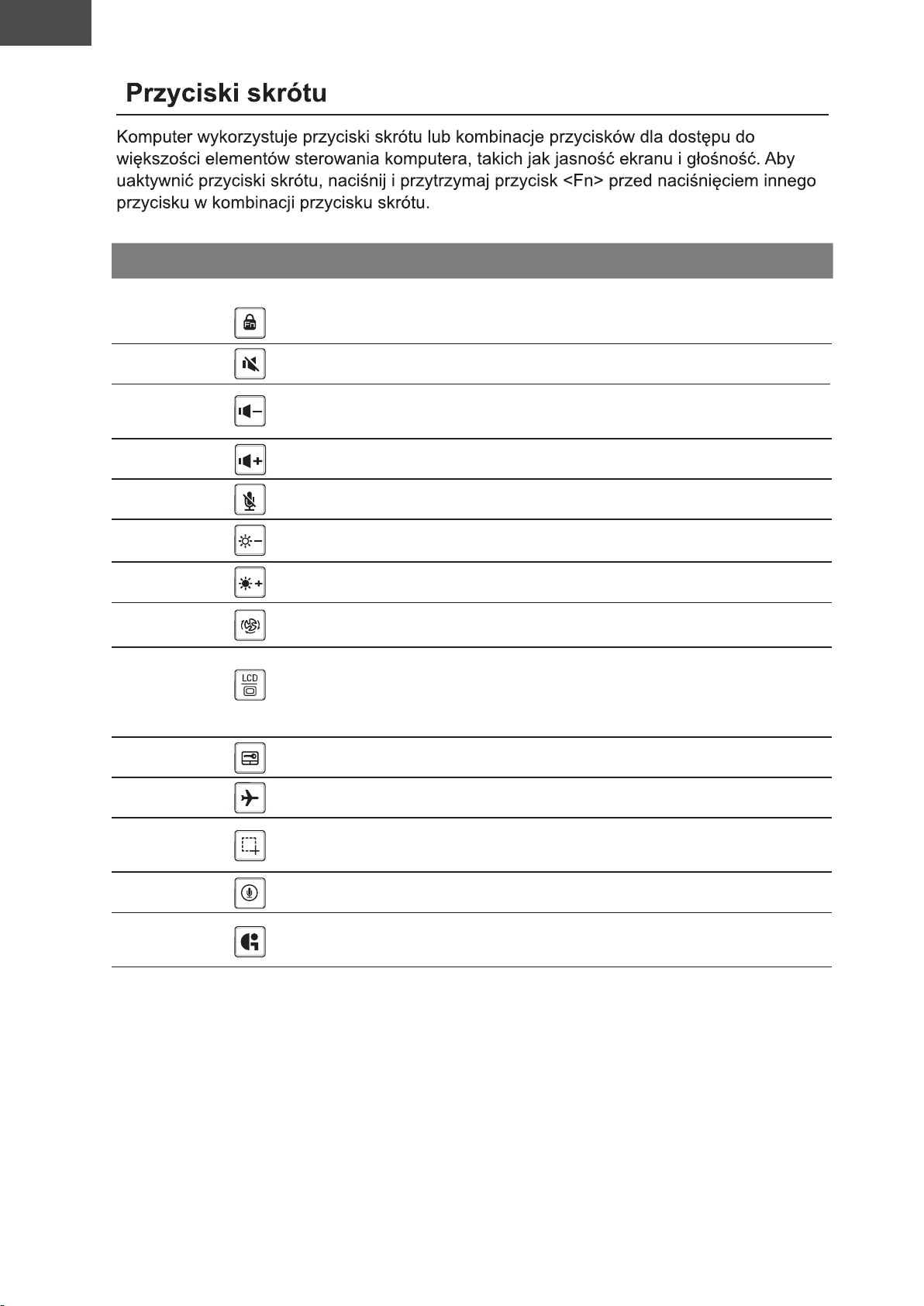
Przycisk skrótu Funkcja Opis
Odblokowanie/zablokowanie funkcji
Fn+ESC
Funkcja odblokowania/
zablokowania
(tylko przełącznik F1~F12, najpierw
domyślny klawisz funkcyjny)
Fn+F1
Fn+F2
Fn+F3
Fn+F4
Fn+F5
Fn+F6
Fn+F7
Fn+F8
Fn+F9
Fn+F10 Tryb Samolot
Przełączanie głośnika
Zmniejszenie głośności
Zwiększenie głośności
Wyciszenie/włączenie
mikrofonu
Zmniejszenie jasności
Zwiększenie jasności
Ustawienia systemu
zasilania
Przełączanie wyświetlacza
Przełączenie touchpada
Włączanie i wyłączanie głośnika.
Zmniejszenie głośności dźwięku.
Zwiększenie głośności dźwięku.
Wyciszenie/włączenie mikrofonu
Zmniejszenie jasności ekranu.
Zwiększenie jasności ekranu.
Ustawienia systemu zasilania
(ECO/Równowaga/Wydajność)
Przełączenie wyjścia wyświetlania
pomiędzy ekranem wyświetlacza,
zewnętrznym monitorem
(jeśli jest podłączony) i obu.
Włączanie i wyłączanie wewnętrznego
ouchpada.
Włączenie/wyłączenie funkcji
trybu Samolot.
Fn+F11
Fn+F12 Głos w Głos w
Fn+GiMate
Zrzut ekranu Zrzut ekranu: Shift+Win+S
Centrum sterowania GiMate
Otwórz Centrum sterowania GiMate
Page 75
PL
Język Polski
Page 76
PL
Język Polski
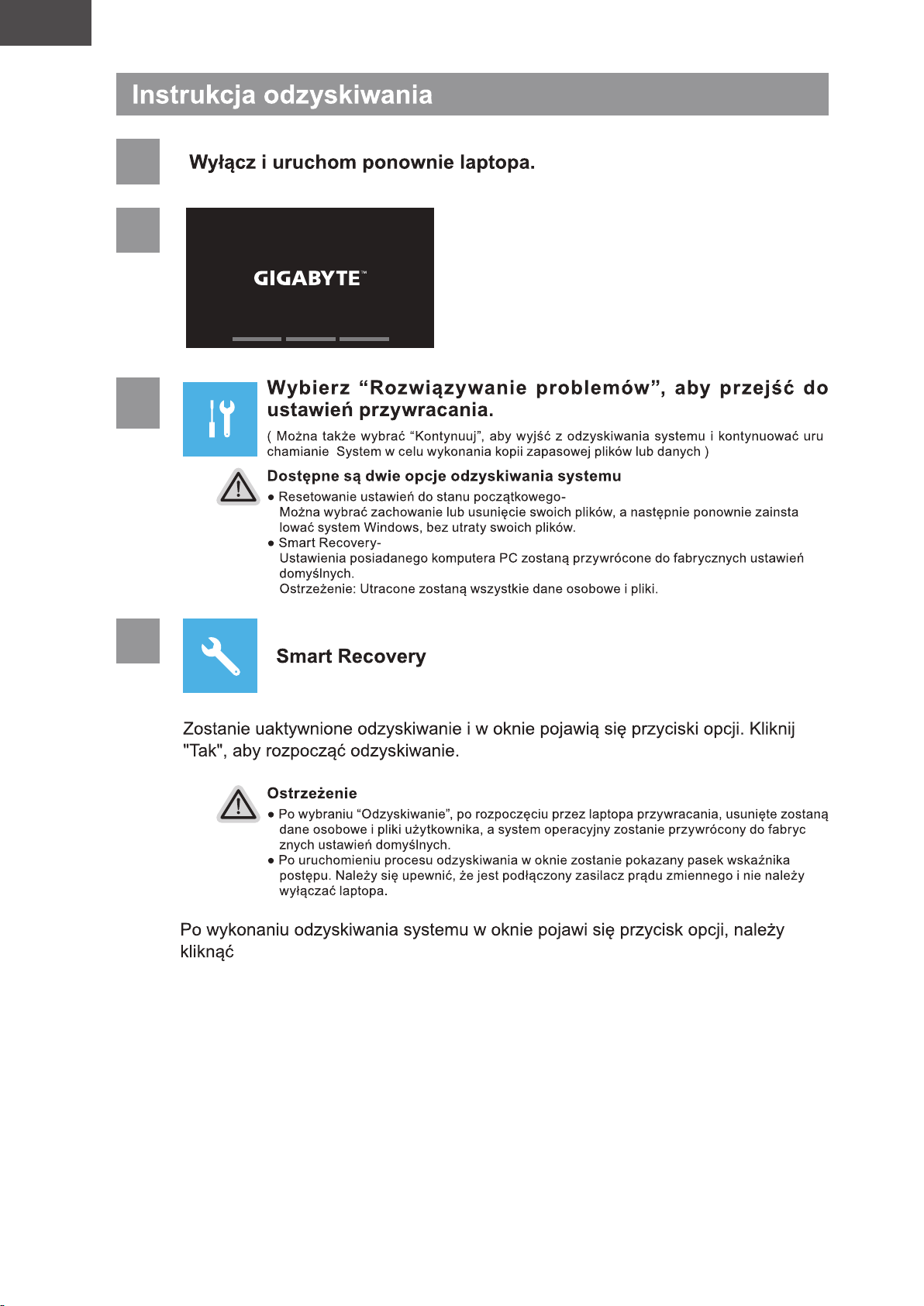
1
2
3
-
4
-
-
“Wykończenie”.
Page 77
PL
Język Polski
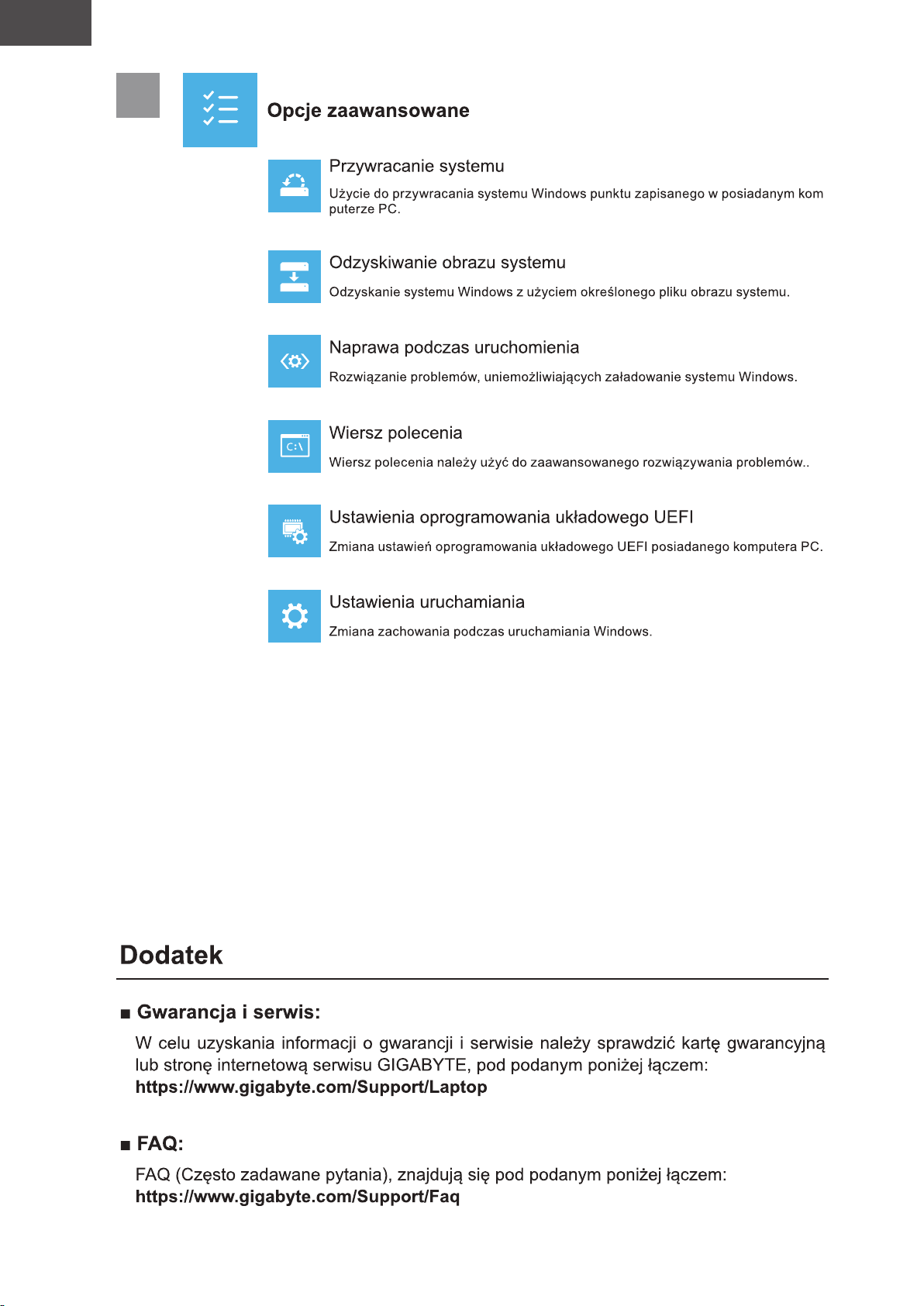
5
-
Page 78
PT
Português
1-1. Utilizar o computador portátil GIGABYTE pela primeira vez
2
3
1
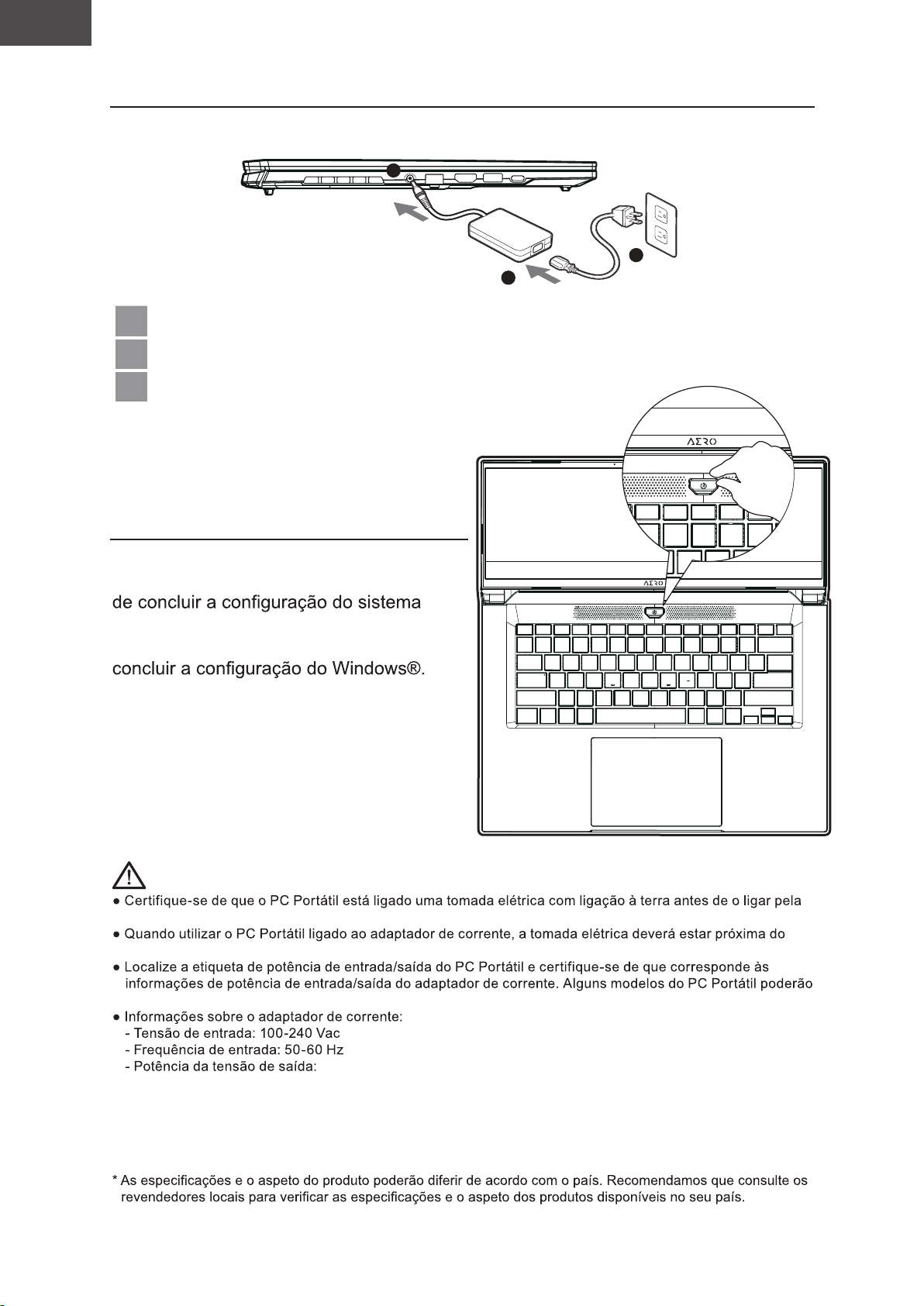
1 Ligue o cabo de alimentação ao adaptador de corrente AC.
2 Conecte o adaptador CA ao conector DC-IN do notebook.
3 Ligue o cabo de alimentação à tomada elétrica.
1-2. Ligar o computador
Depois de ligar o computador portátil
pela primeira vez, não o desligue antes
operativo. Tenha em atenção que o
volume do som não funcionará antes de
IMPORTANTE
primeira vez.
equipamento e facilmente acessível.
suportar várias tensões de saída, de acordo com a SKU disponível.
20V, 7.5A
* Embora nos esforcemos por apresentar as informações mais precisas e completas no momento da publicação,
reservamo-nos o direito de efetuar alterações sem aviso prévio.
Page 79
PT
Português
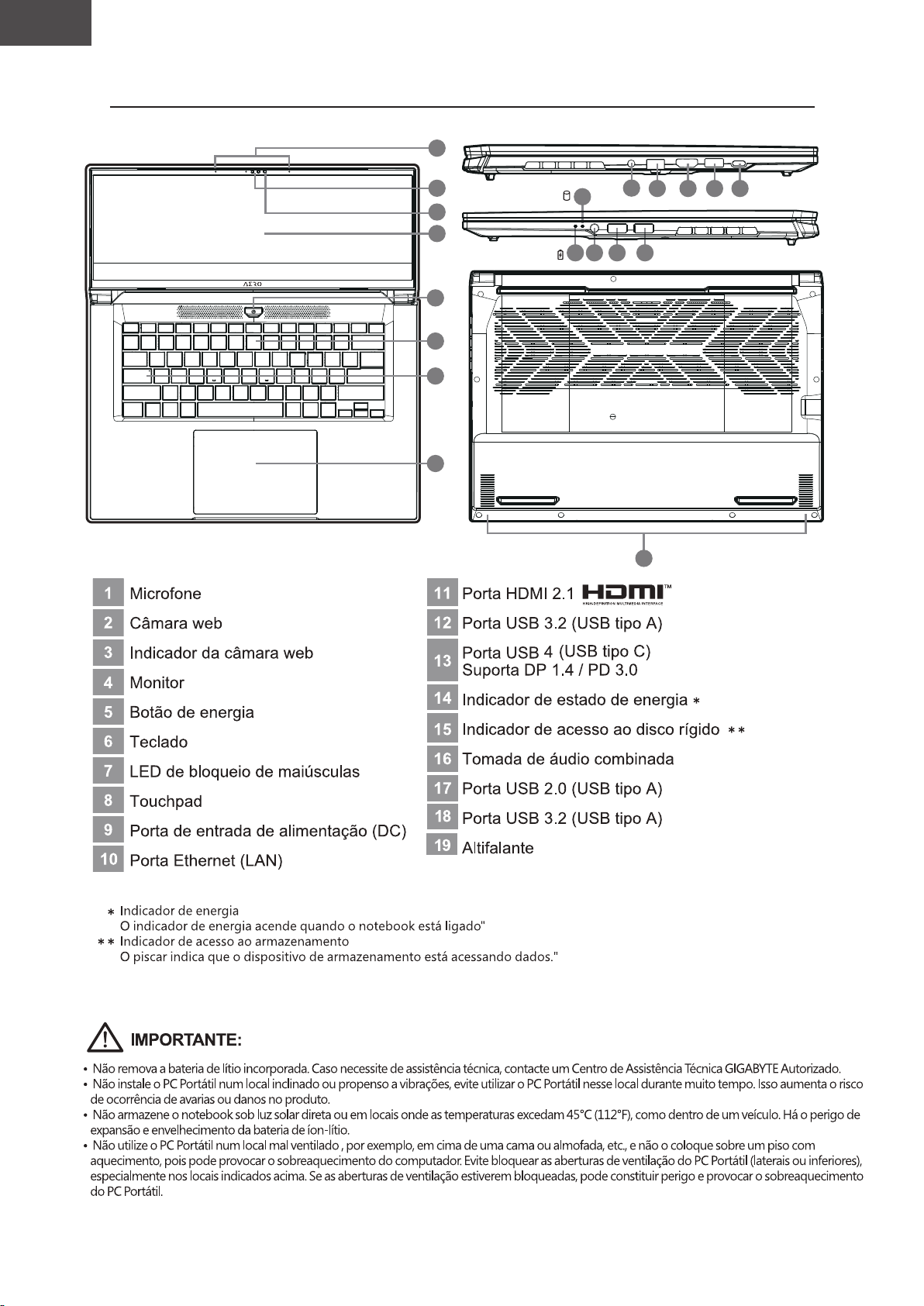
2. Descrição do computador portátil GIGABYTE
1
1
2
3
4
5
6
7
8
15
14 16 17 18
9
10
19
11
12 13
Page 80
PT
Português
Teclas de atalho
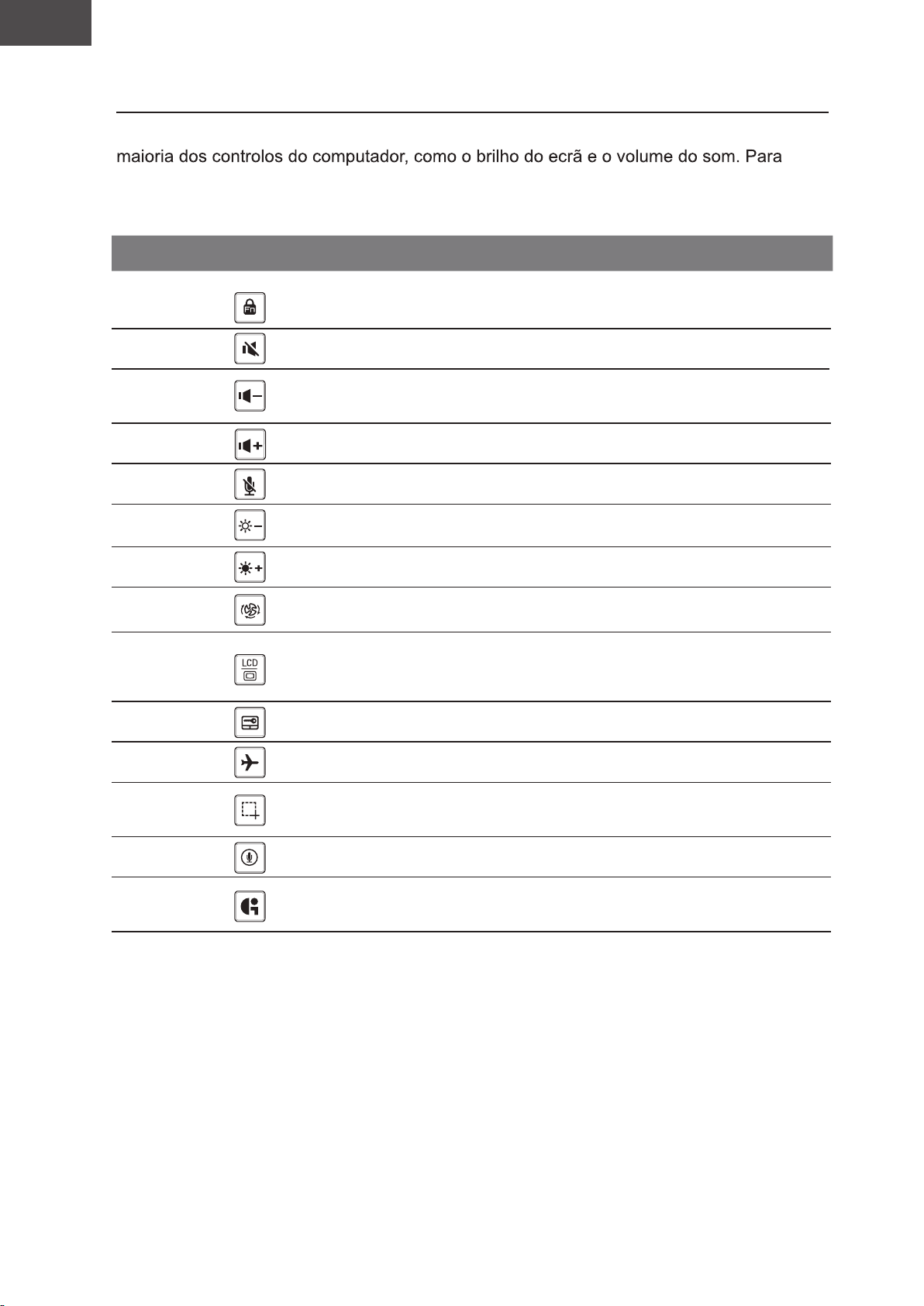
O computador disponibiliza teclas de atalho ou combinações de teclas para aceder à
ativar as teclas de atalho, mantenha pressionada a tecla <Fn> e pressione a outra tecla
da combinação de teclas.
Tecla de atalho Função Descrição
Desbloqueio/bloqueio de função
Fn+ESC
Funkció feloldása/feloldása
(apenas interruptor F1~F12, tecla de
função padrão primeiro)
Fn+F1
Fn+F2
Fn+F3
Fn+F4
Fn+F5
Fn+F6
Fn+F7
Fn+F8
Fn+F9
Fn+F10 Modo de avião
Alternar altifalante
Diminuir volume
Aumentar volume
MICROFONE silenciado/
ativado
Diminuir brilho
Aumentar brilho
Configuração do sistema
de energia
Alternar monitor
Alternar Touchpad
Ativar e desativar o altifalante.
Diminuir o volume do som.
Aumenta o volume do som.
MICROFONE silenciado/ativado
Diminuir o brilho do ecrã.
Aumentar o brilho do ecrã.
Configuração do sistema de energia
(ECO/Equilíbrio/Desempenho)
Alternar entre a exibição do ecrã do
computador, um monitor externo
(se estiver ligado) e ambos.
Ativar e desativar o touchpad
incorporado.
Ativar/desativar a função de modo
de avião.
Fn+F11
Fn+F12 Voz em Voz em
Fn+GiMate
Captura de tela Captura de tela: Shift+Win+S
Centro de controlo GiMate
Abra o centro de controlo do GiMate
Page 81
PT
Português
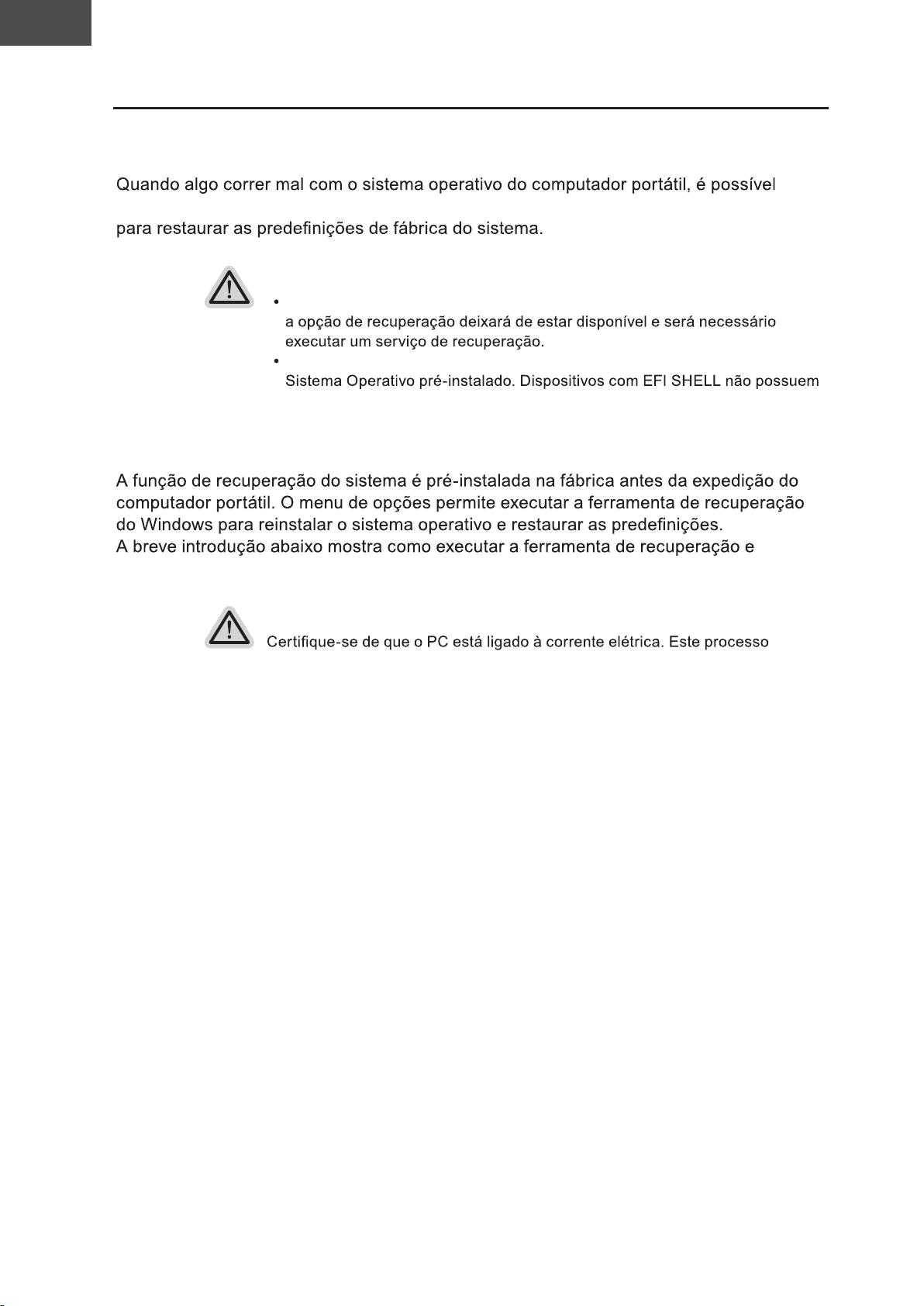
Guia de recuperação
Recuperação do sistema
(Restaura o sistema operativo do computador portátil)
utilizar uma imagem completa do sistema operativo, armazenada numa partição oculta
Nota
Se o armazenamento tiver sido alterado ou a partição tiver sido eliminada,
A função de recuperação está disponível apenas em dispositivos com do
função de recuperação.
Executar a recuperação do sistema
restaurar o sistema.
Tudo preparado para iniciar
demorará alguns minutos.
Page 82
PT
Português
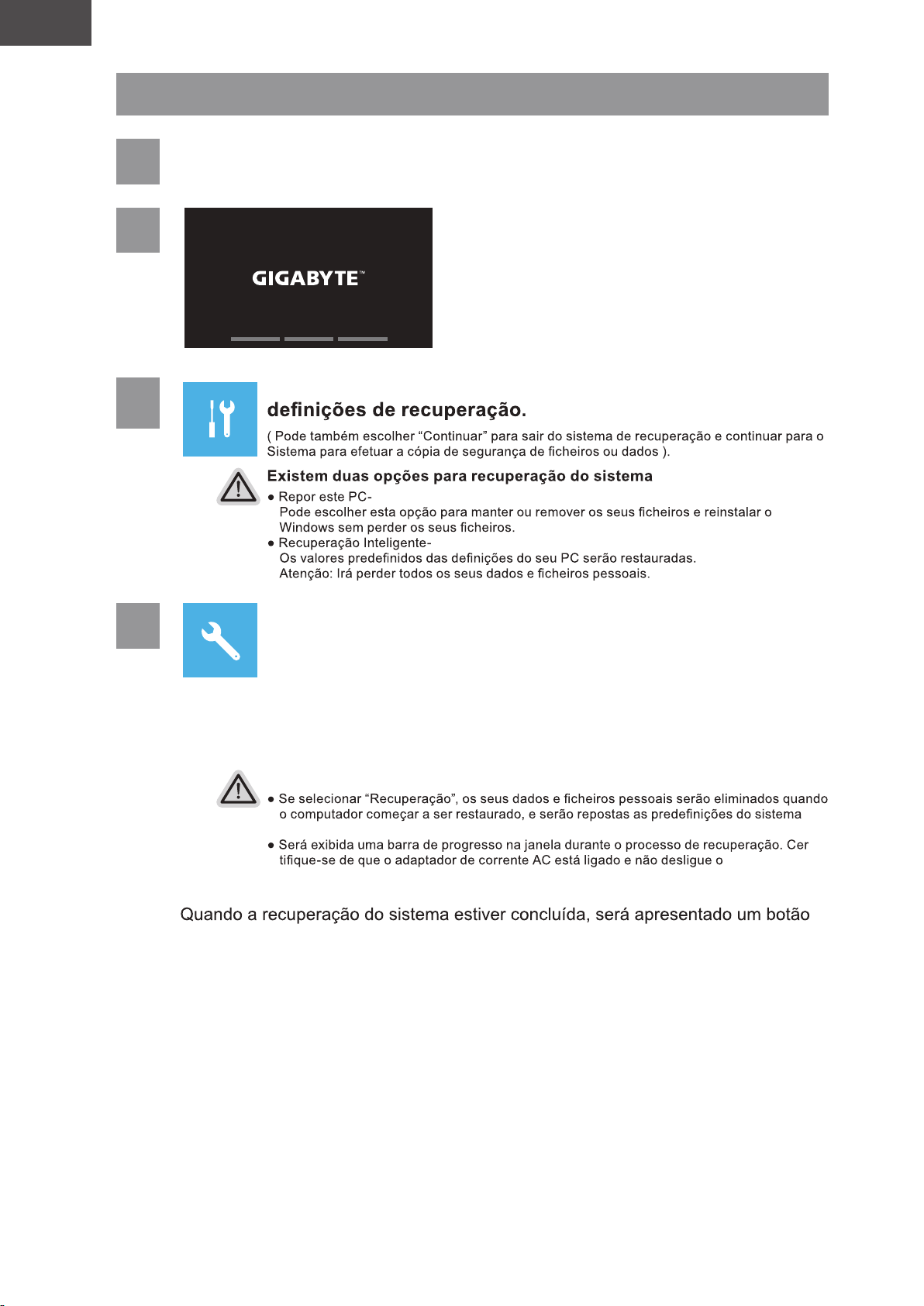
Guia de recuperação do
1
2
3
Desligue e reinicie o computador portátil.
Escolha “Resolução de problemas” para aceder às
4
Recuperação Inteligente
A recuperação será ativada e serão apresentados botões de opção na janela.
Clique em "Sim" para iniciar.
Atenção
operativo.
-
computador portátil.
de opção na janela. Clique em “Terminar”.
Page 83
PT
Português
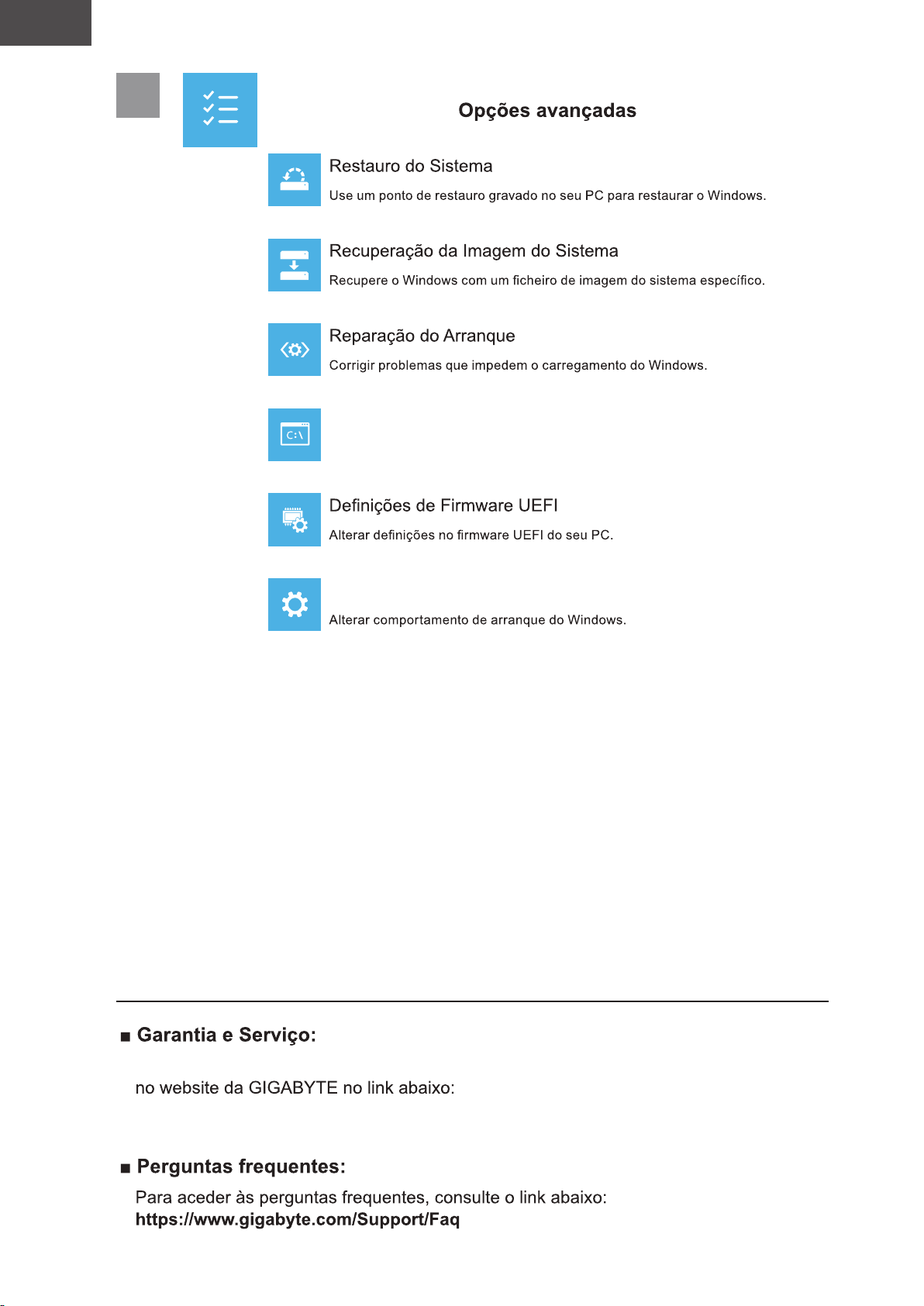
5
Linha de Comandos
Utilizar a Linha de Comandos para resolução avançada de problemas.
Anexo
Definições de Arranque
Consulte informações relacionadas com garantia e serviço no certificado de garantia ou
https://www.gigabyte.com/Support/Laptop
Page 84
RO
Limba Română
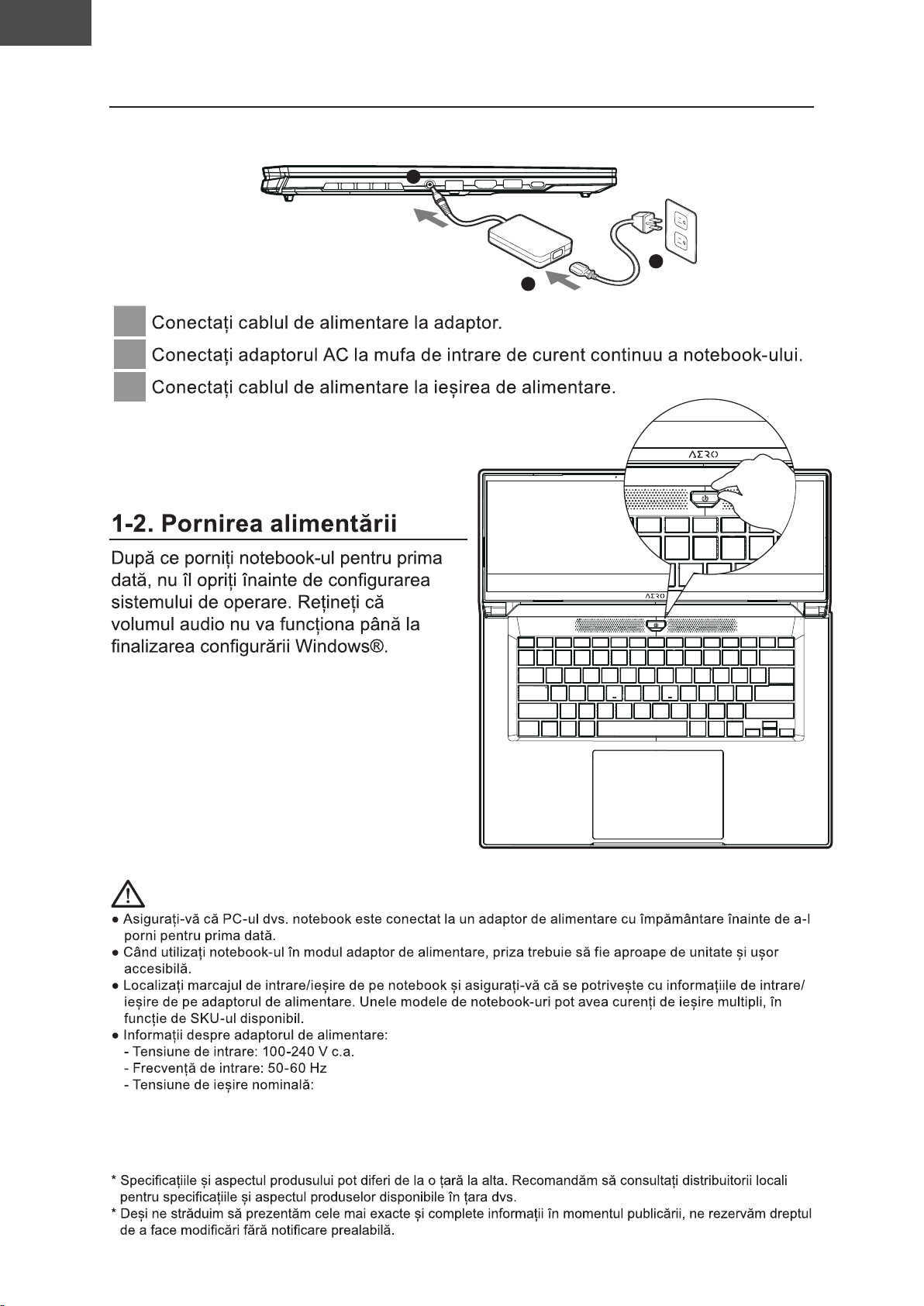
1-1. Prima utilizare a notebook-ului GIGABYTE
2
3
1
1
2
3
IMPORTANT:
20V, 7.5A
Page 85
RO
Limba Română
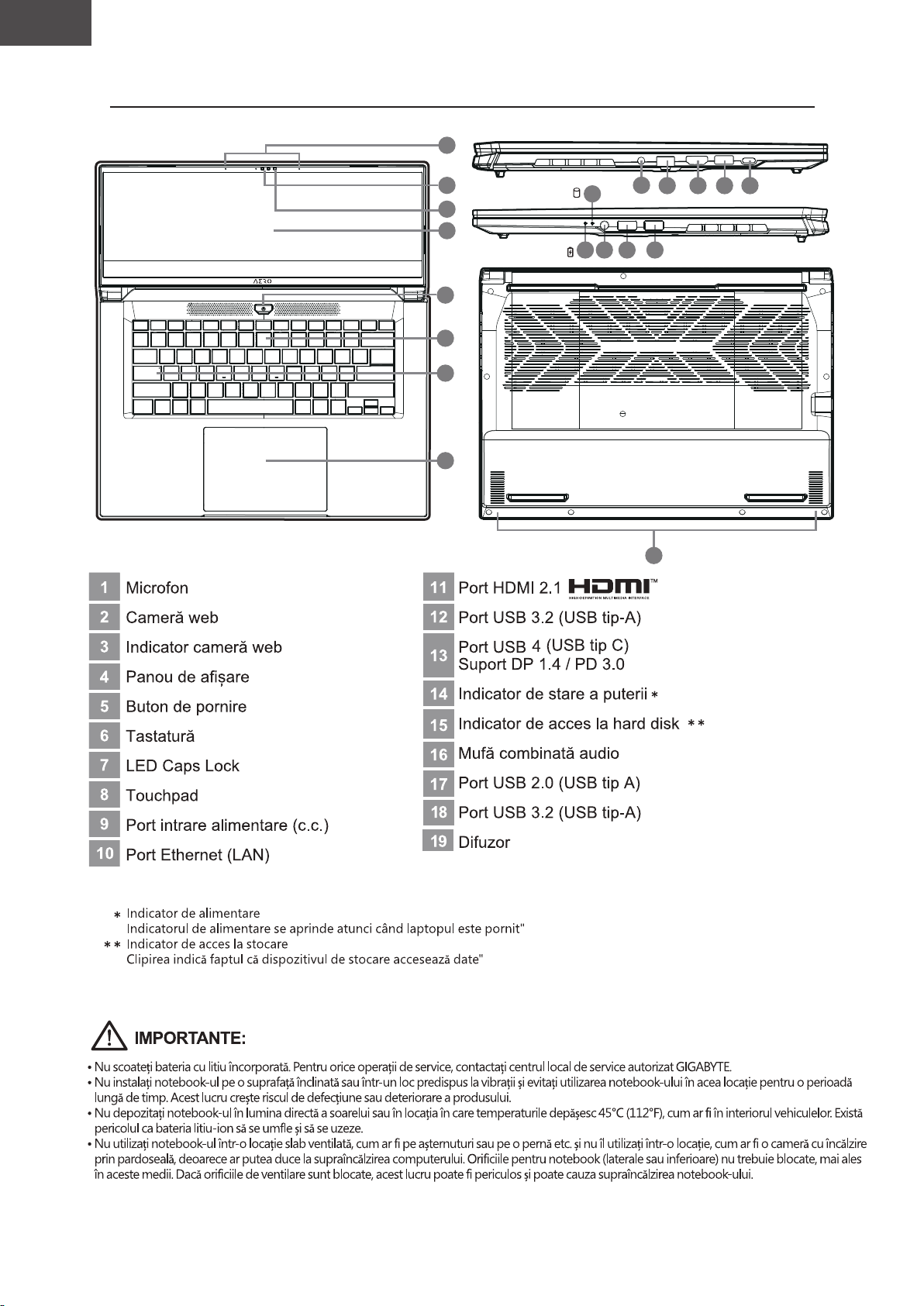
2. Tur al notebook-ului GIGABYTE
1
1
2
3
4
5
6
7
8
15
14 16 17 18
9
10
19
11
12 13
Page 86
RO
Limba Română
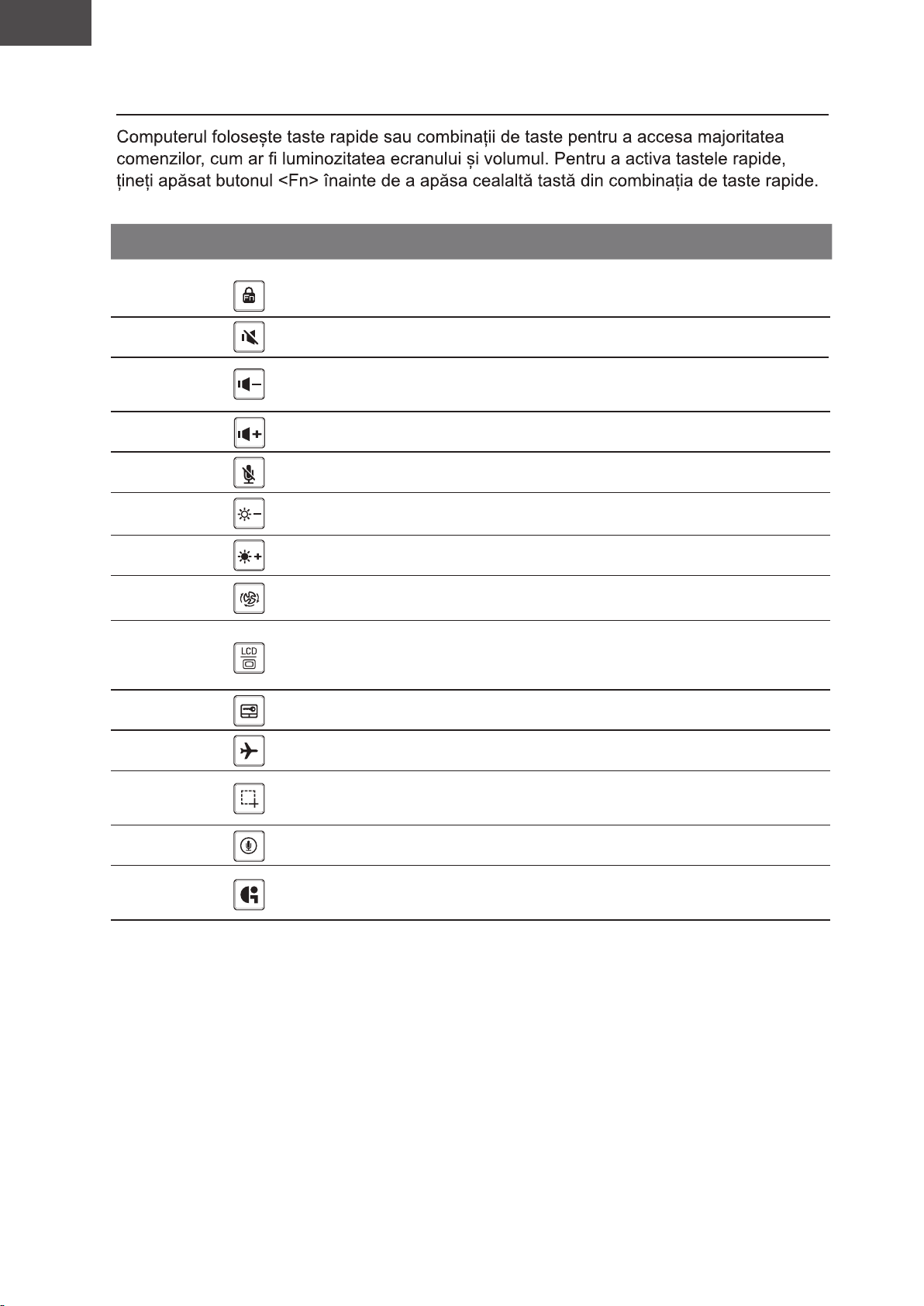
Taste rapide
Tastă rapidă Funcție Descriere
Deblocare/blocare funcție (numai
Fn+ESC
Funcție de deblocare/
blocare
comutatorul F1~F12, tasta funcțională
implicită mai întâi)
Fn+F1
Fn+F2
Fn+F3
Fn+F4
Fn+F5
Fn+F6
Fn+F7
Fn+F8
Fn+F9
Fn+F10 Mod avion Activare/dezactivare funcția mod avion.
Comutare difuzor
Reducere volum
Creștere volum
Dezactivați/dezactivați
sunetul MIC
Reducere luminozitate
Creștere luminozitate
Setările sistemului de
alimentare
Comutare afișaj
Comutare touchpad
Oprire și pornire difuzor.
Reduceți volumul sunetului.
Creșteți volumul sunetului.
Dezactivați/dezactivați sunetul MIC
Reduceți luminozitatea ecranului.
Creșteți luminozitatea ecranului.
Setările sistemului de alimentare
(ECO/Equilibru/Performanță)
Comutați ieșirea afișajului între ecranul de
afișare, monitorul extern
(dacă este conectat) și ambele.
Oprire și pornire touchpad intern.
Fn+F11
Fn+F12 Vocea înăuntru Vocea înăuntru
Fn+GiMate
Captură de ecran Captură de ecran: Shift+Win+S
Centrul de control GiMate
Deschideți Centrul de control GiMate
Page 87
RO
Limba Română
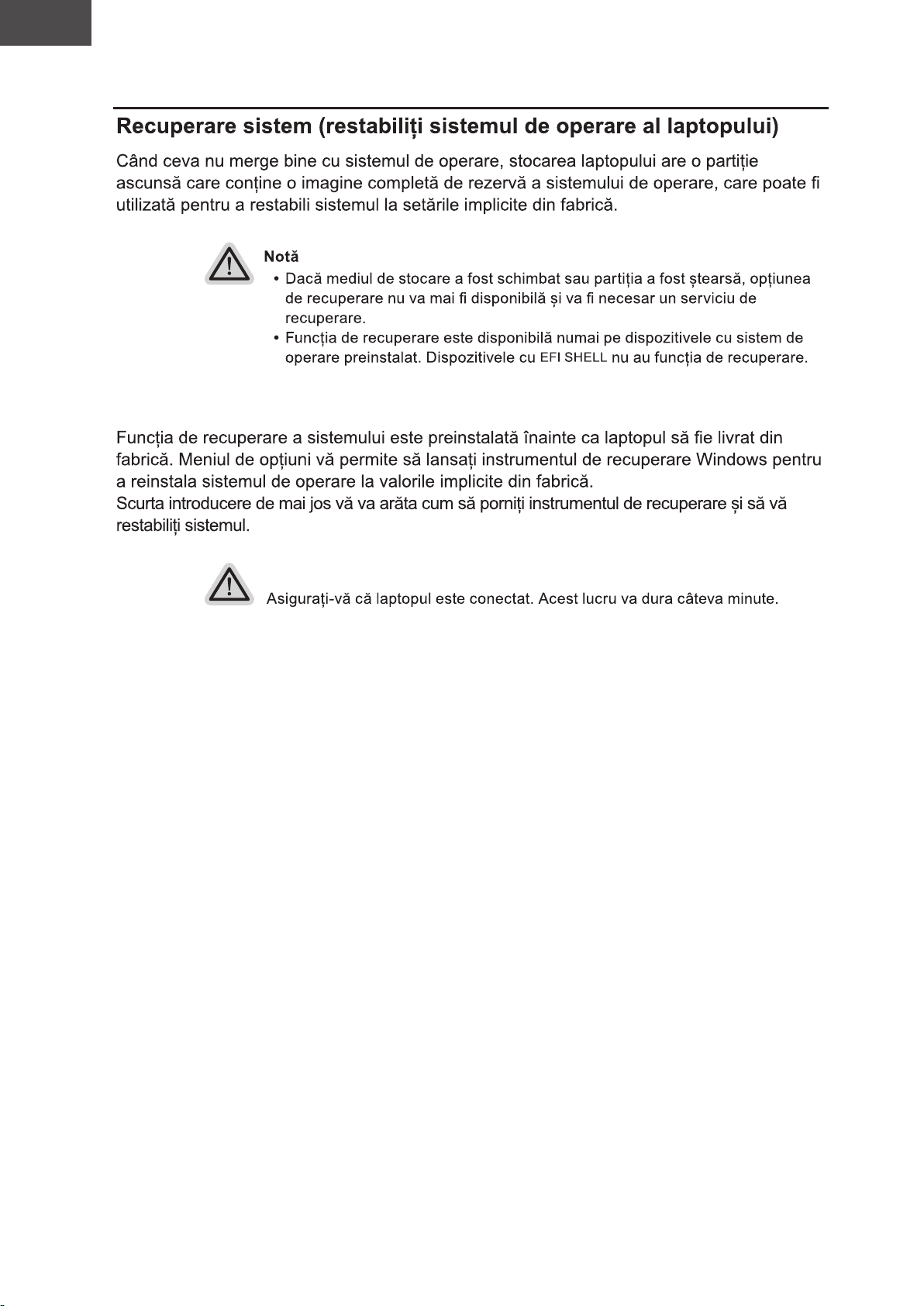
Ghid de recuperare
Recuperare de sistem
Gata de pornire
Page 88
RO
Limba Română
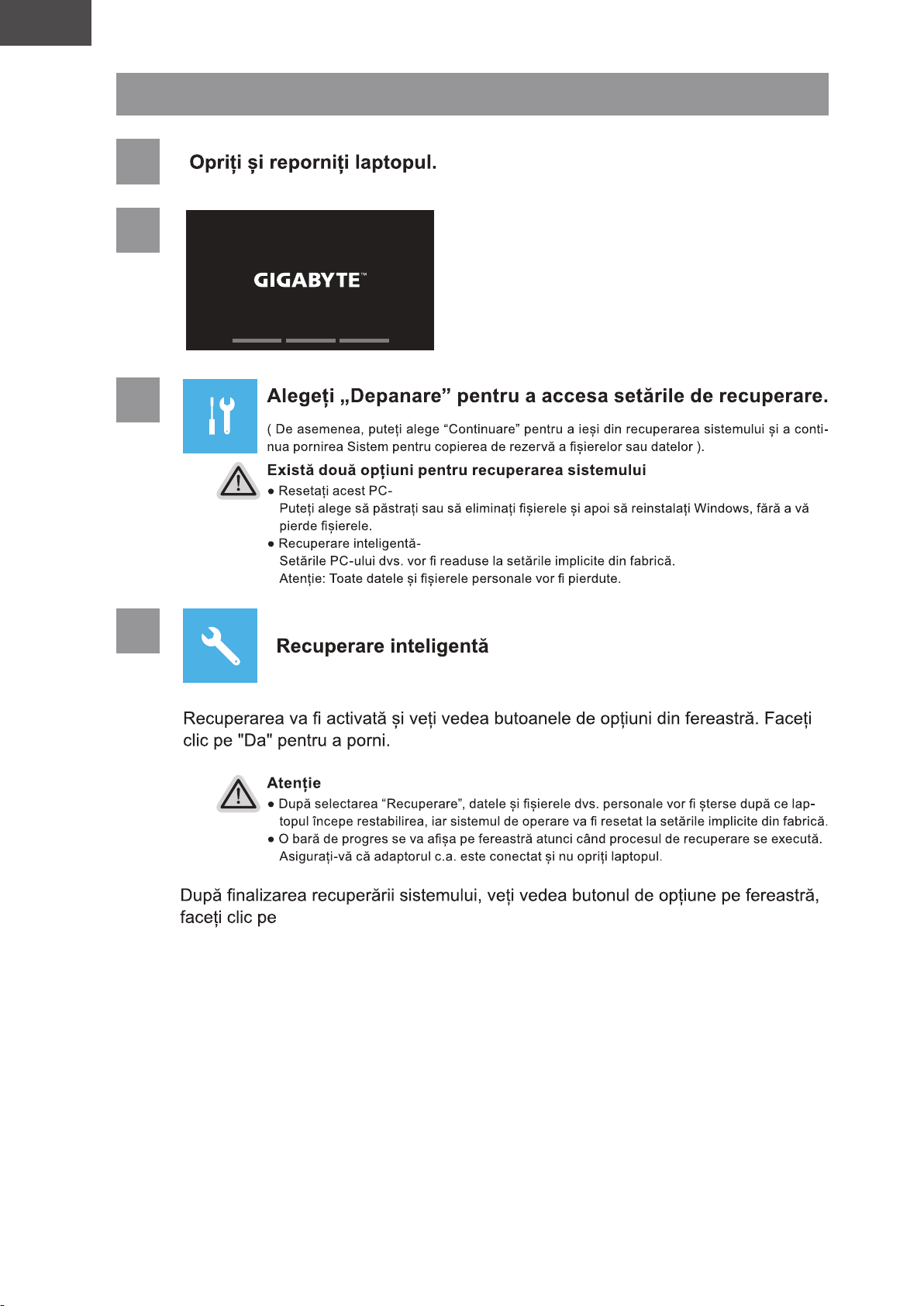
Ghid de recuperare
1
2
3
4
„Termina”.
Page 89
RO
Limba Română
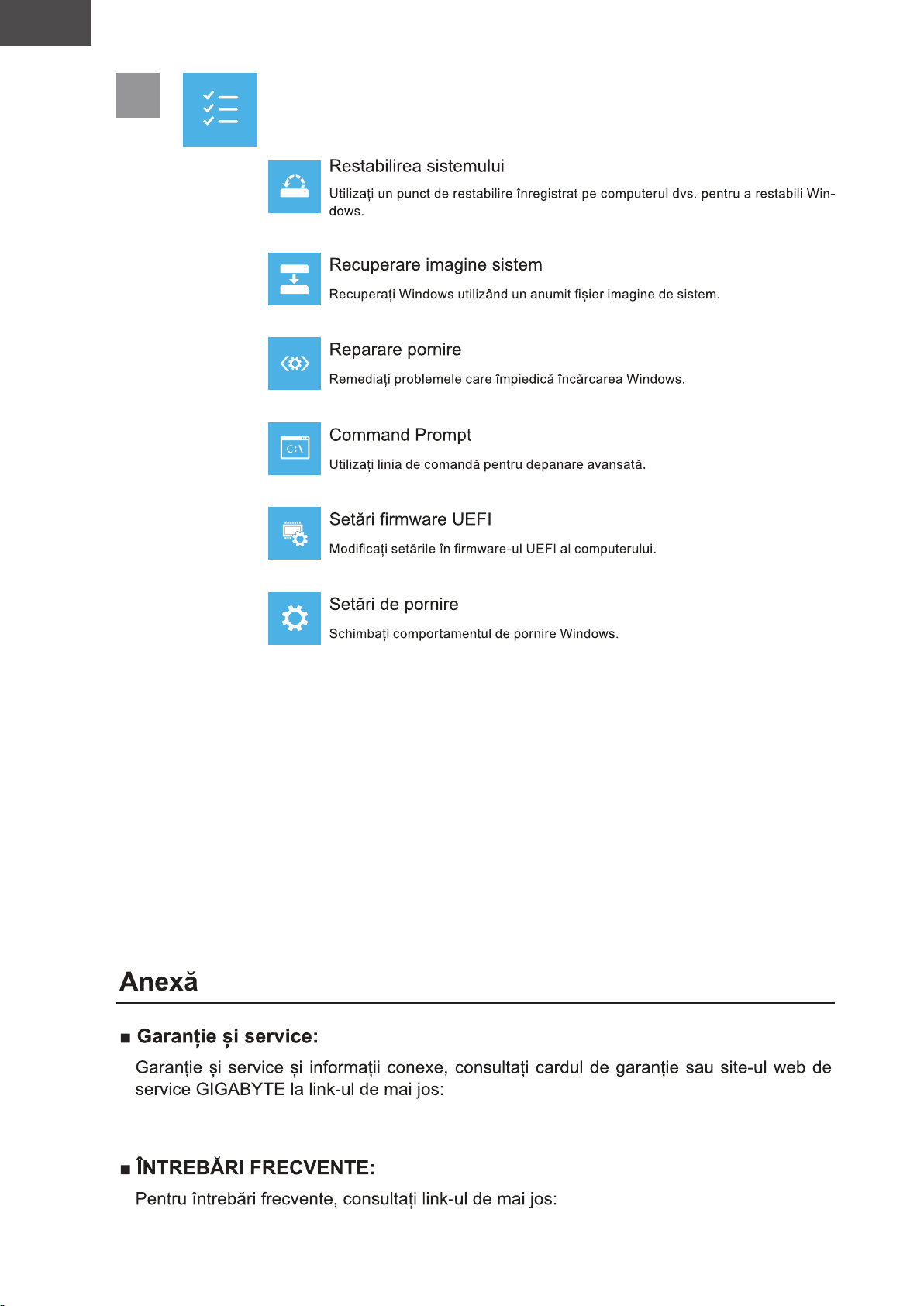
5
Opções avançadas
https://www.gigabyte.com/Support/Laptop
https://www.gigabyte.com/Support/Faq
Page 90
RU
Pусский
GIGABYTE
2
3
1
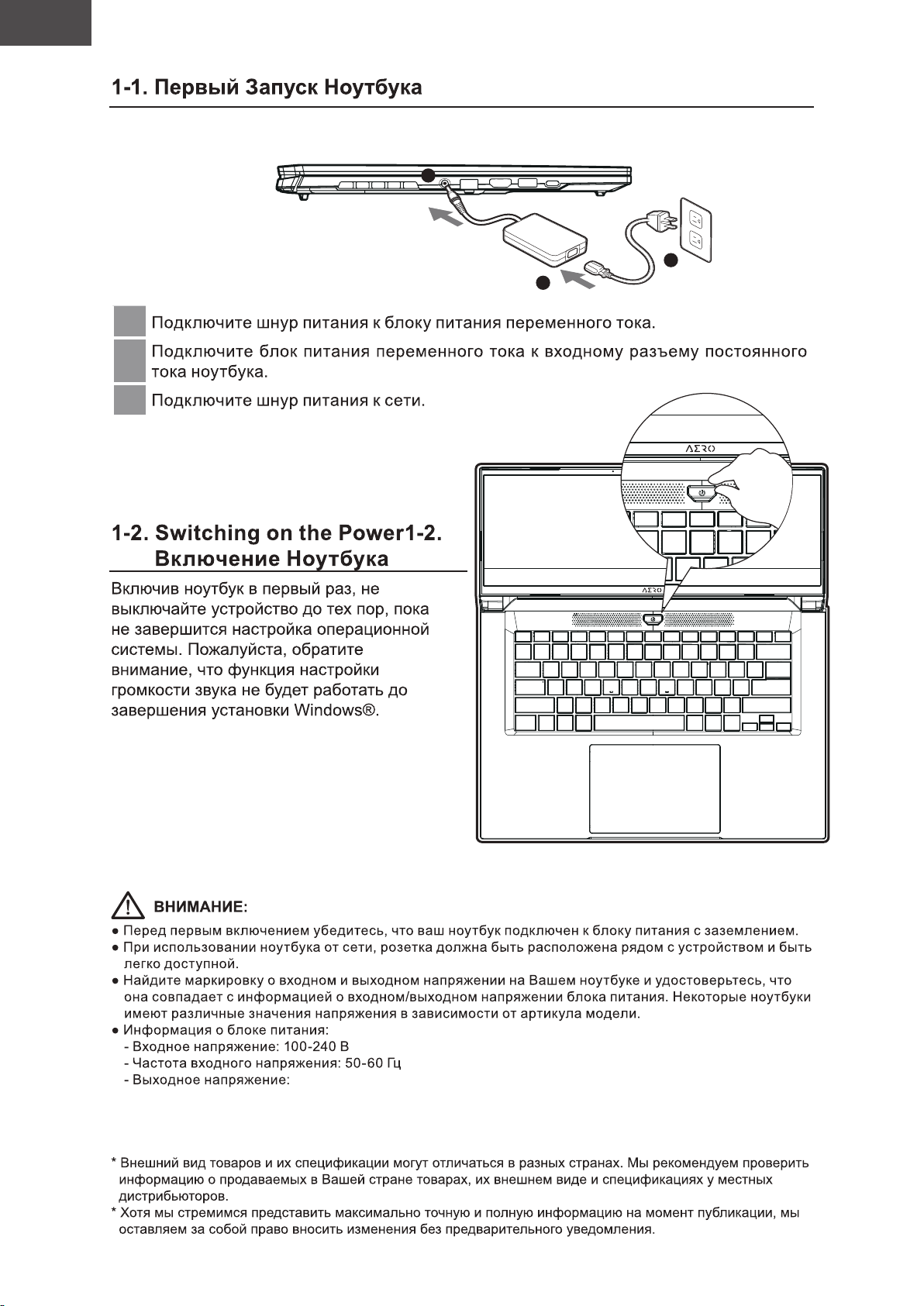
1
2
3
20V, 7.5A
Page 91
RU
Pусский
GIGABYTE
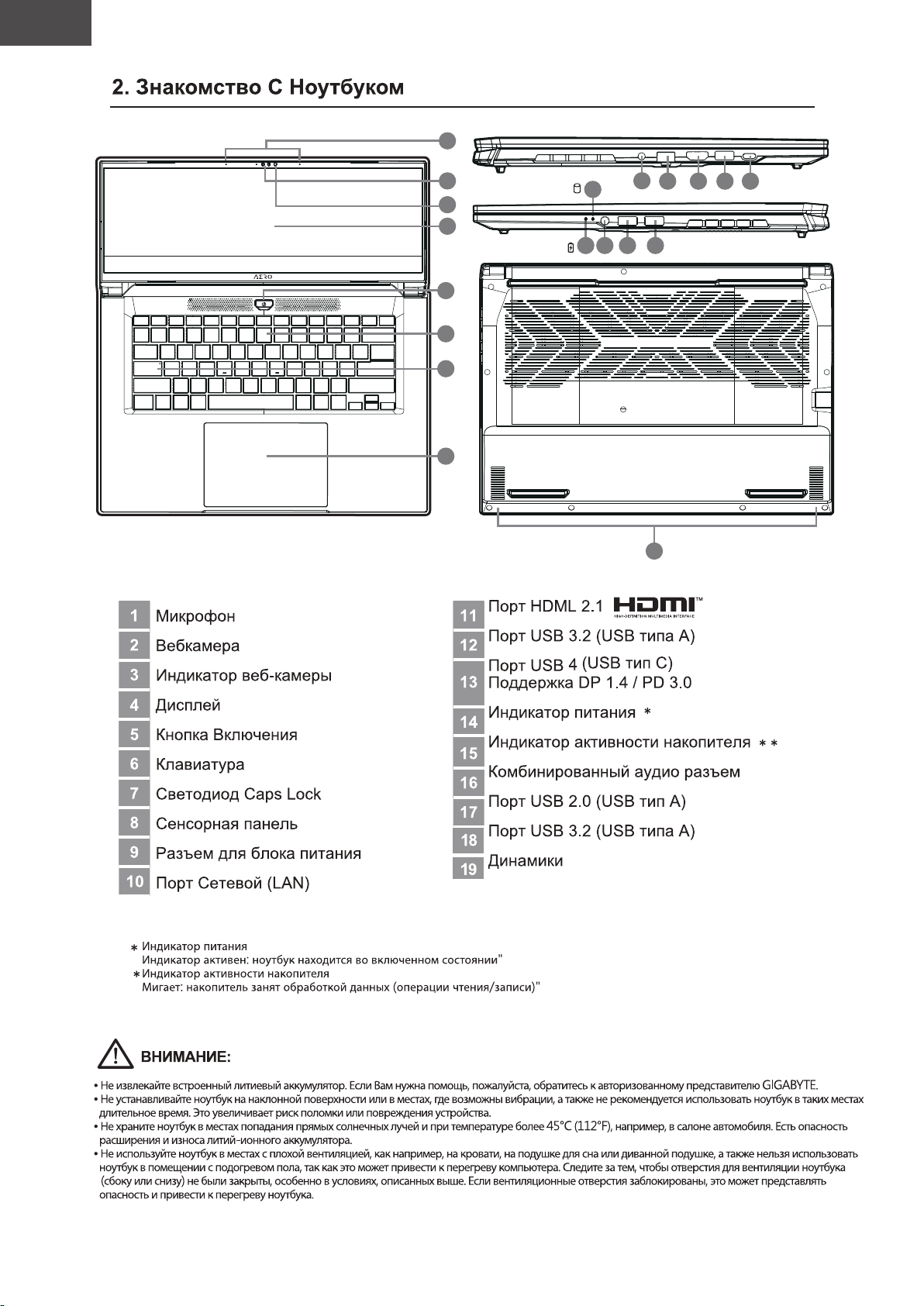
1
1
2
3
4
5
6
7
8
15
14 16 17 18
9
10
19
11
12 13
Page 92
RU
Pусский
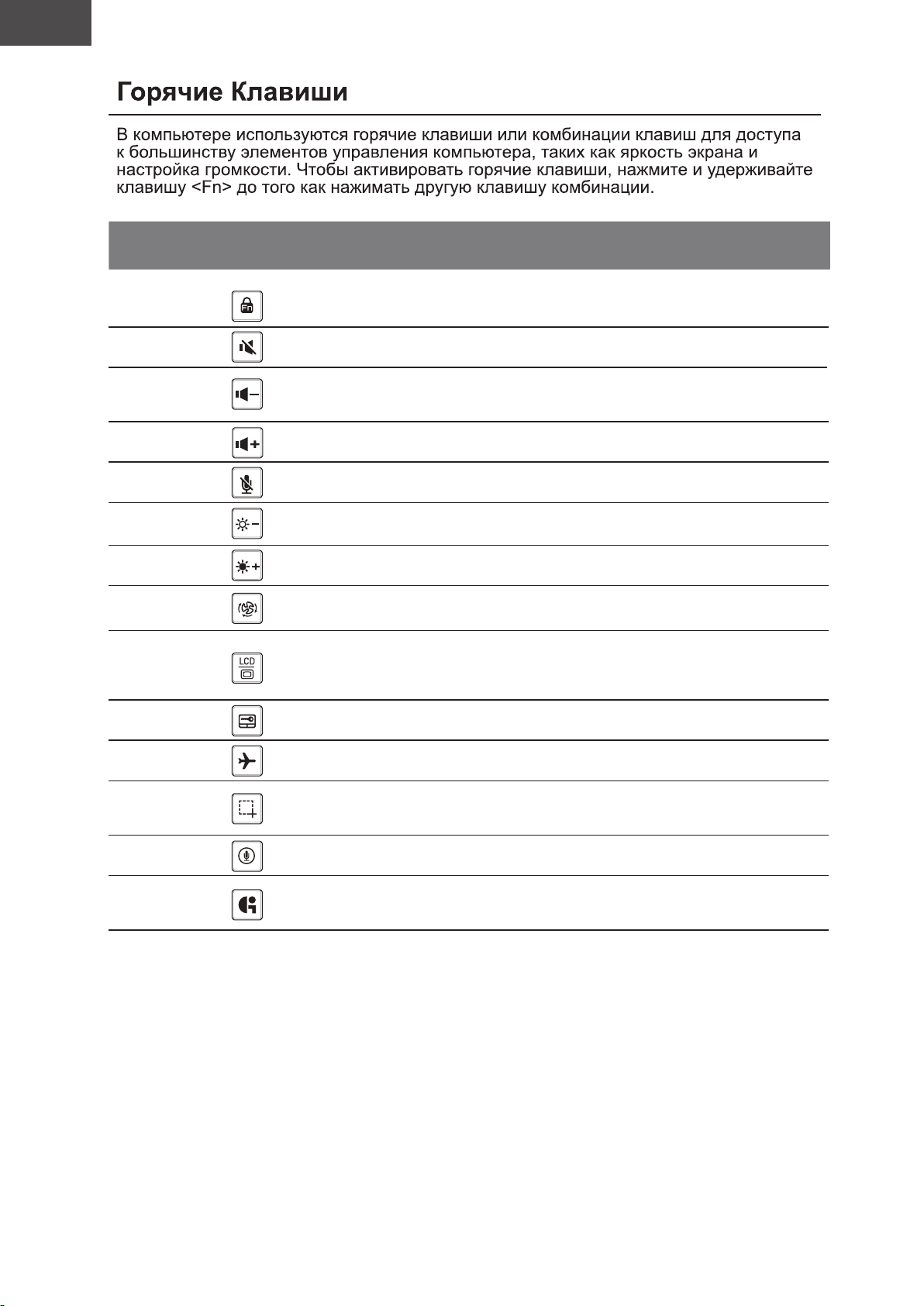
Комбинация
Клавиш
Fn+ESC
Fn+F1
Fn+F2
Fn+F3
Fn+F4
Fn+F5
Fn+F6
Fn+F7
Fn+F8
Функция Описание
Функцыя разблакоўкі/
блакіроўкі
Переключатель Динамиков
Убавить Громкость
Прибавить Громкость
Выключэнне/уключэнне
мікрафона
Уменьшить Яркость
Увеличить Яркость
Настройки системы
питания
Переключатель Дисплея
Разблокировка/блокировка функции
(только переключение F1~F12,
клавиша функции по умолчанию первой)
Уменьшить громкость звука
Reduceți volumul sunetului.
Увеличить громкость звука
Выключэнне/уключэнне мікрафона
Уменьшить яркость экрана
Увеличить яркость экрана
Настройки системы питания
(ECO/Баланс/Производительность)
Переключить вывод изображения между
встроенным экраном, внешним монитором
(если он подключен) или обоими
Fn+F9
Fn+F10 Режим Полета
Fn+F11
Fn+F12 Голос в Голос в
Fn+GiMate
Переключатель
Сенсорной Панели
Скриншот Скриншот: Shift+Win+S
Центр управления GiMate
Включить и выключить встроенную
сенсорную панель
Включение / отключение функции
режима полета.
Открыть центр управления GiMate
Page 93
RU
Pусский
Page 94
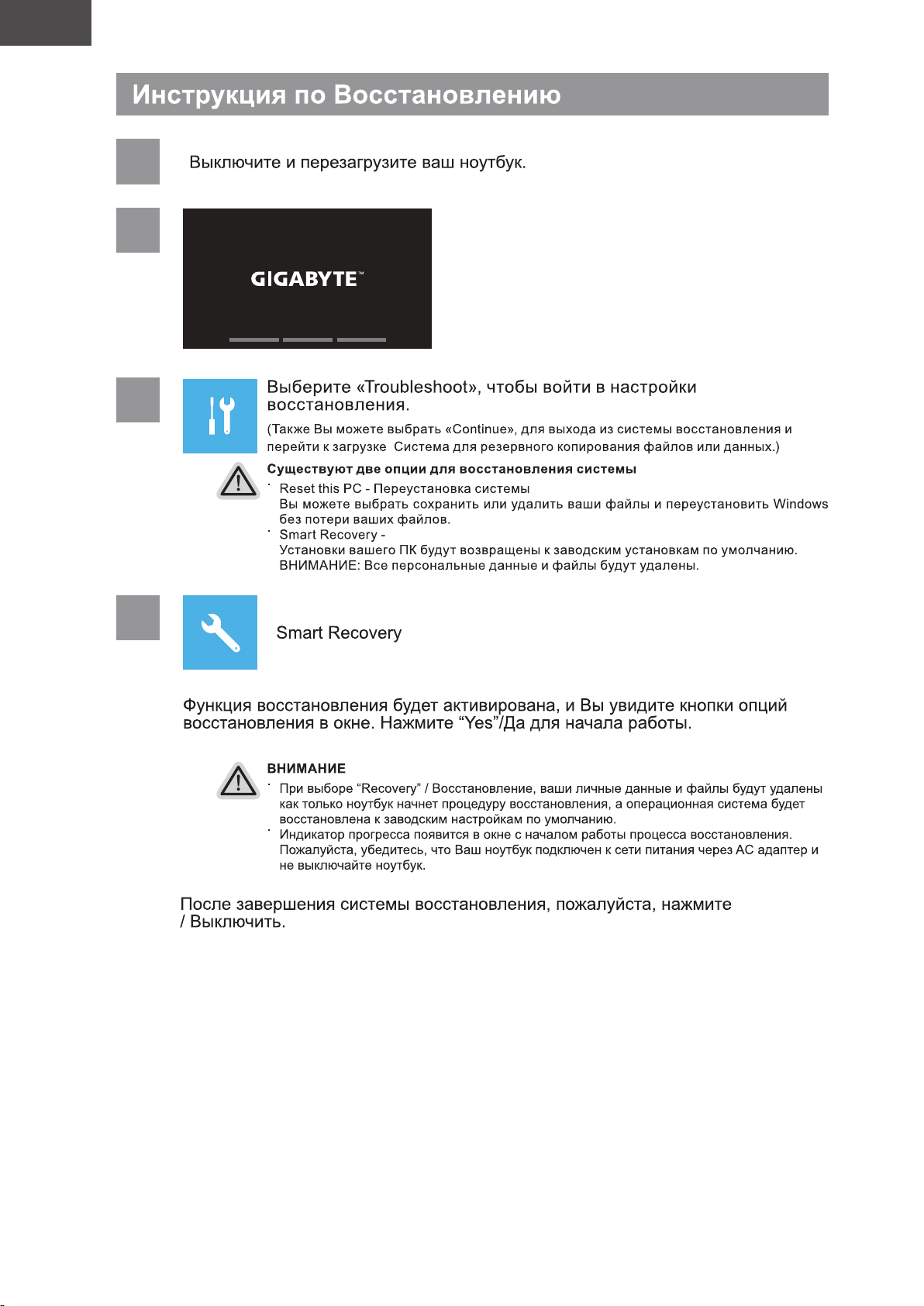
RU
Pусский
1
2
3
4
“Завершить”
Page 95
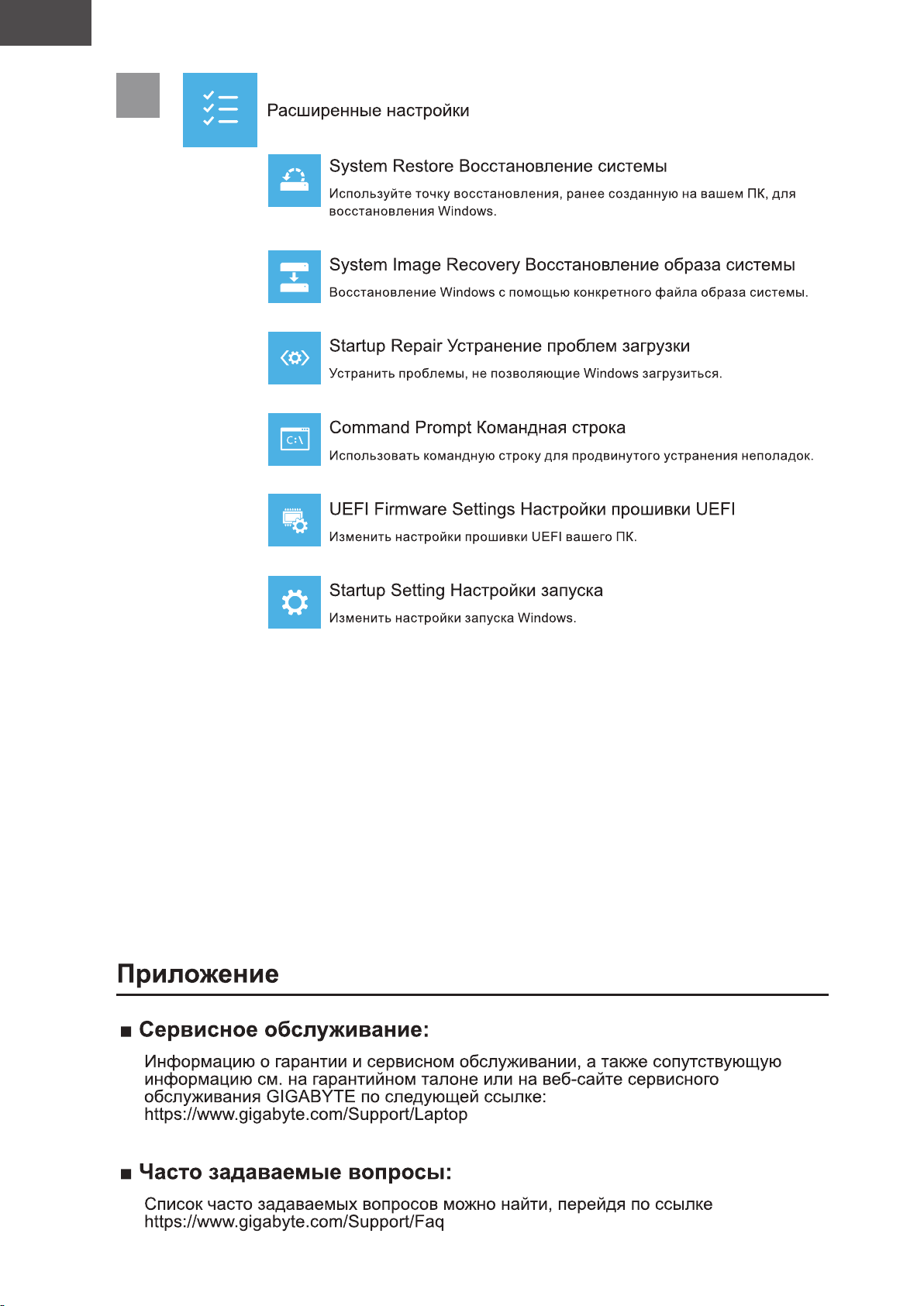
RU
Pусский
5
Page 96
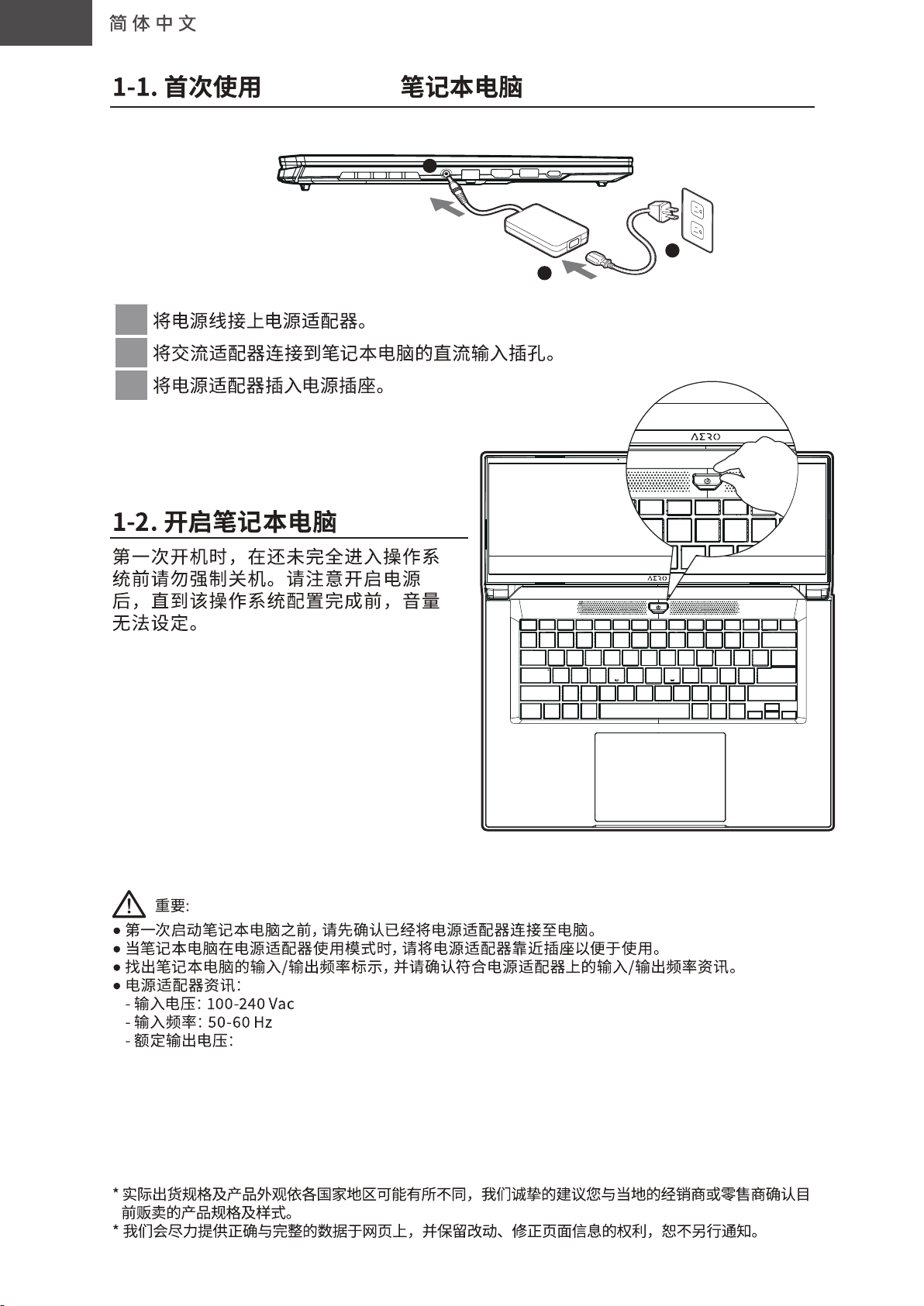
SC
GIGABYTE
2
3
1
1
2
3
20V, 7.5A
Page 97
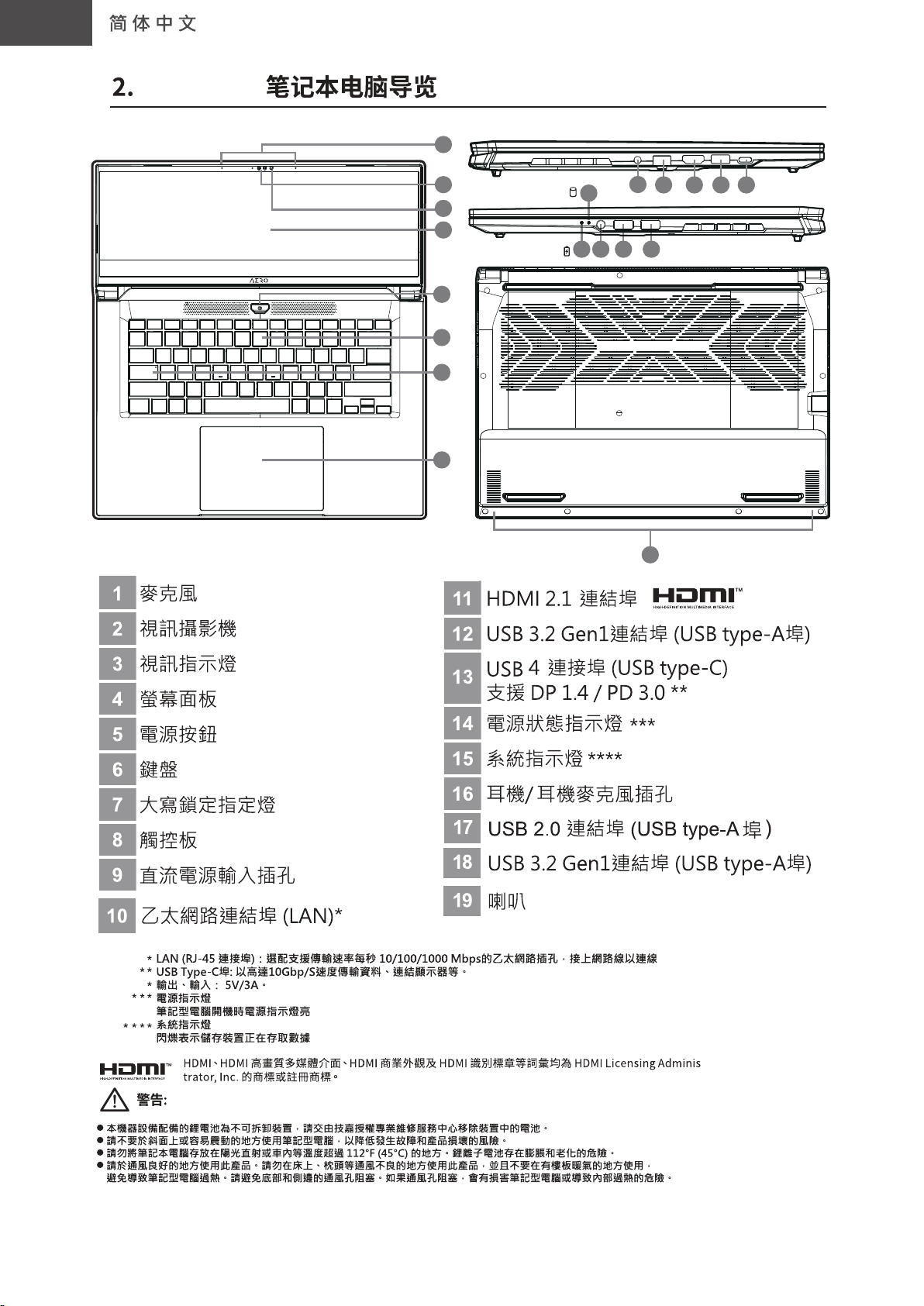
SC
GIGABYTE
1
1
2
3
4
5
6
7
8
15
14 16 17 18
9
10
19
11
12 13
Page 98
SC
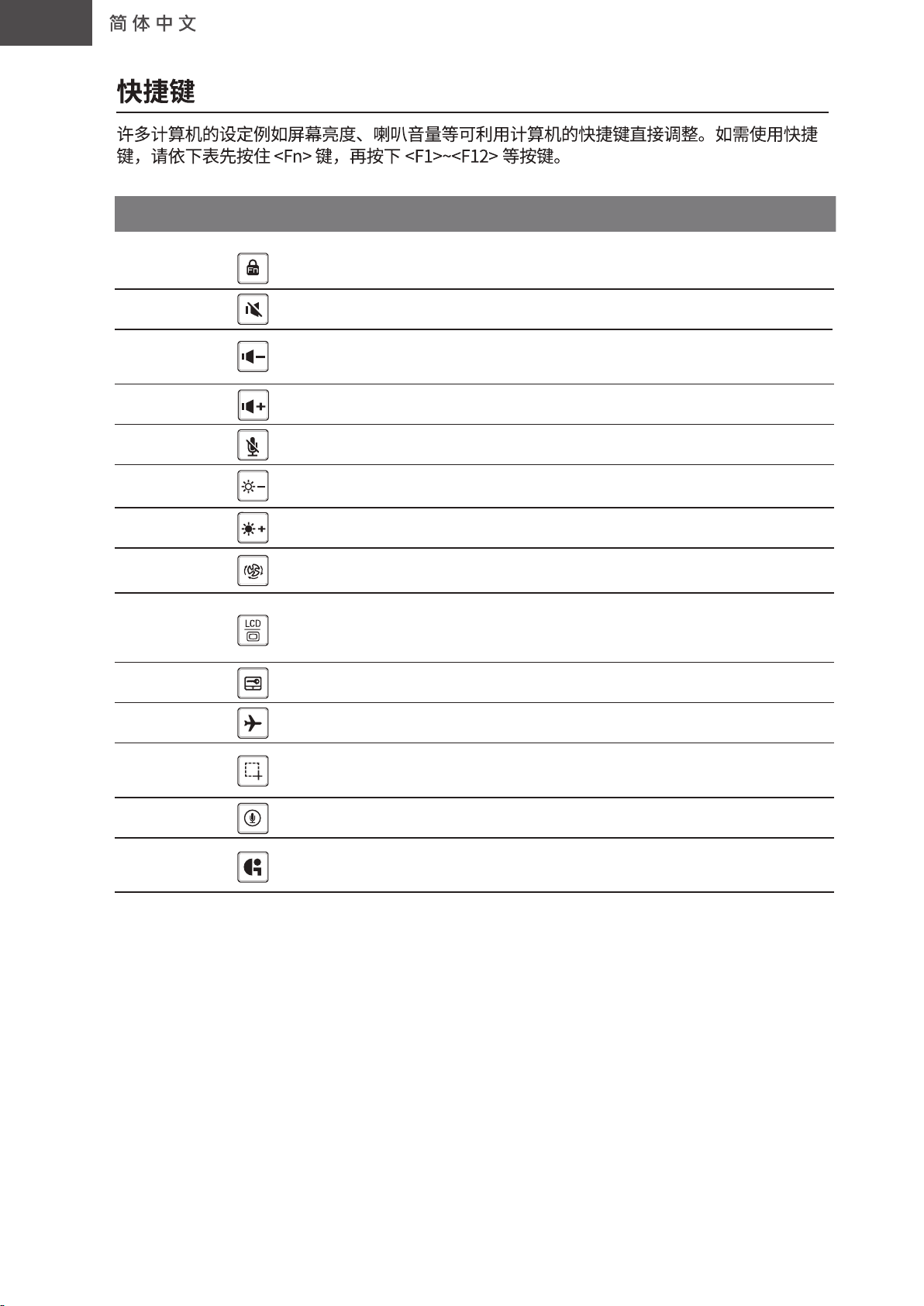
快捷键 功能 功能叙述
Fn+ESC
Fn+F1
Fn+F2
Fn+F3
Fn+F4
Fn+F5
Fn+F6
Fn+F7
Fn+F8
Fn+F9
功能解锁/锁定
喇叭静音
减弱音量
增大音量
麦克风静音 麦克风静/取消静音
减弱亮度
增强亮度
电源系统设置 电源系统设置(ECO/平衡/性能)
屏幕显示切换
触摸板开关
功能解锁/锁定(仅限F1~F12开关,
预设功能键在前)
将喇叭切换为静音模式。
降低喇叭音量。
提高喇叭音量。
降低屏幕亮度。
提高屏幕亮度。
在计算机屏幕以及外接式显示器之间
切换影像输出,或者同时显示。
开启/关闭触摸板。
Fn+F10 飞行模式 开启/关闭飞行模式
Fn+F11
Fn+F12 语音输入 语音输入
Fn+GiMate
截图 截图: Shift+Win+S
GiMate 控制中心
打开 GiMate 控制中心
Page 99
SC
Page 100
SC
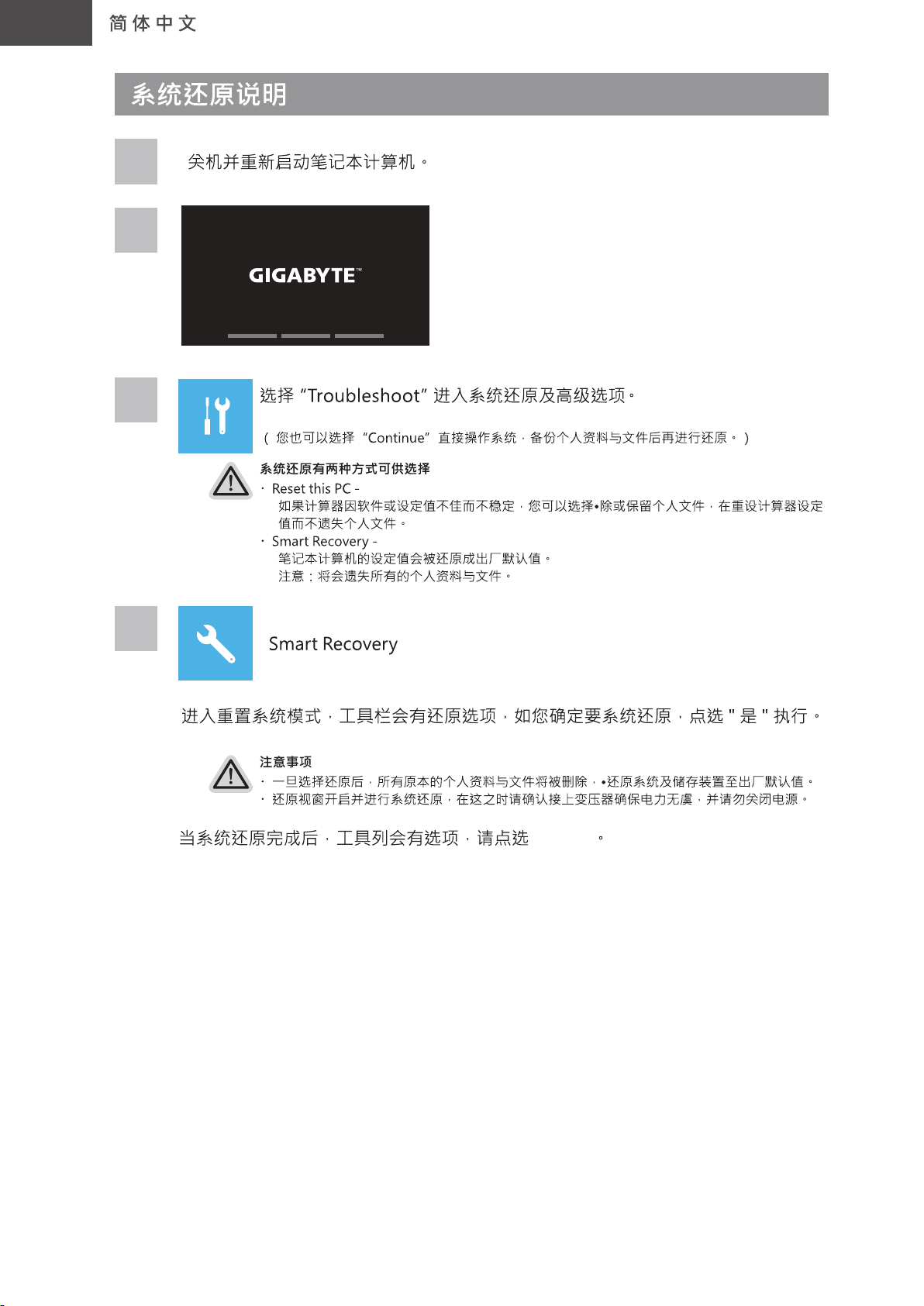
1
2
3
4
“完成”
 Loading...