

Page 1
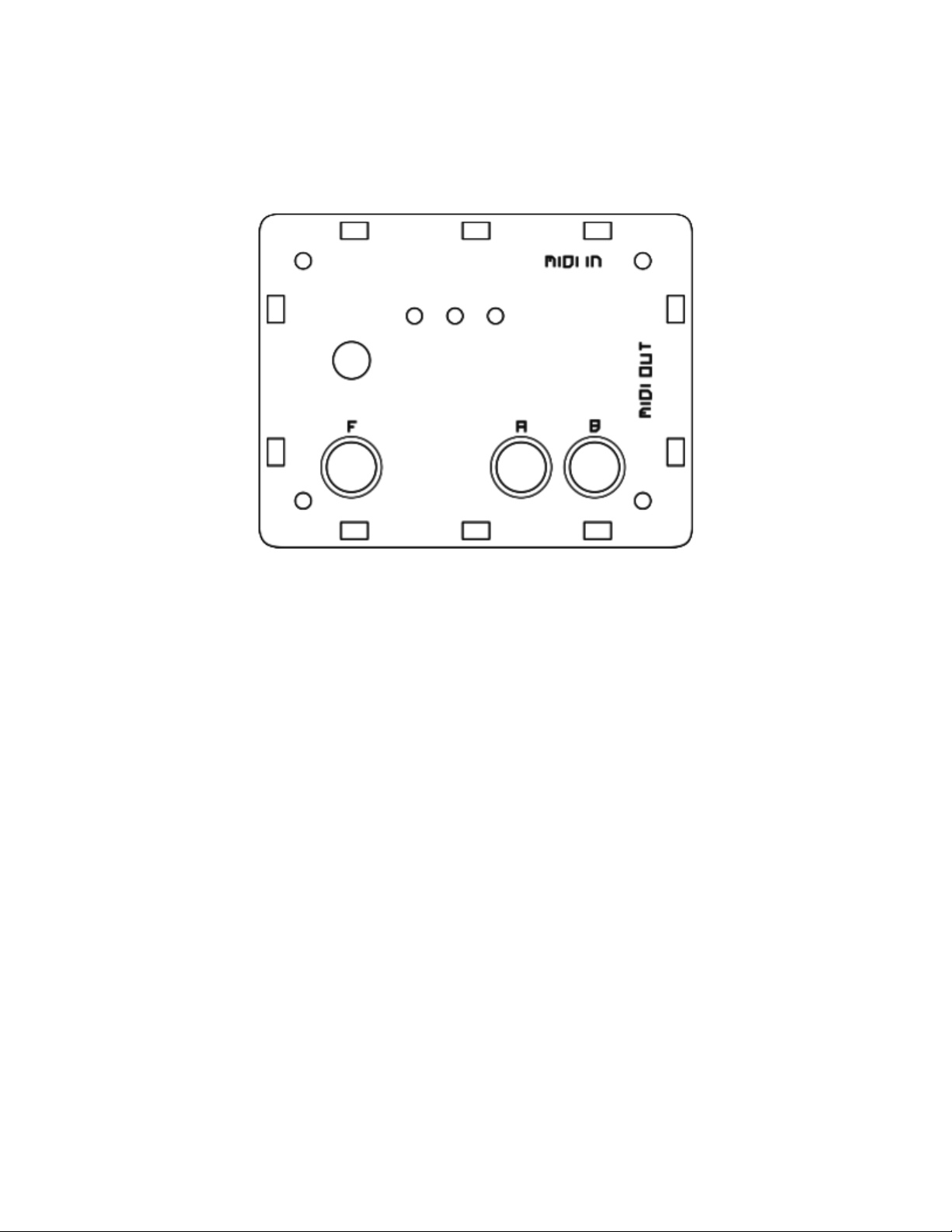
Goliath User Manual v.0.8.0
Thanks for choosing the Goliath as your new MIDI controller. The Goliath will bring you
new functionalities and give you more control over your MIDI devices.
What follows is a description of how to connect the Goliath to your machines, set it up
and use it.
Overview:
The Goliath is a small battery powered MIDI device that gives you the ability to control
more than one MIDI CC at a time, randomize the parameters, generate random notes
sequences and last but not least: have fun!
Power and connections:
The Goliath requires a 9V DC battery to operate. This is placed inside the controller by
removing the bottom part of the enclosure, unscrewing the four screws at the corners.
To connect the Goliath, simply plug a MIDI cable from the MIDI OUT of a device of your
choice (this can also be a DAW) to the MIDI IN of the Goliath. Connect a MIDI cable
from the MIDI OUT of the Goliath to the device you want to control.
Incoming MIDI messages can be merged with the MIDI data generated by the Goliath,
this option can be enabled or disabled in the early startup of the controller.
Page 2

Bunches:
A bunch is a set of MIDI CCs stored in the internal memory of the Goliath. There are 3
bunches in total, each bunch can contain up to 16 MIDI CCs. Independent settings for
the Random Notes Generator are also available for each bunch.
Store a MIDI CC in a bunch:
MIDI parameters are assigned and stored into one of the 3 available bunches using the
Multi MIDI Learn©. To enter Multi MIDI Learn (MML) hold [F] and press [A]. The LED of
the selected bunch will flash shortly and remain unlit, indicating the Goliath is now
waiting for incoming MIDI data. Send MIDI CC data from the device you want to control
(this could require you to setup the device you have chosen to send MIDI CC values,
make sure to have this option enabled), the LED will flash briefly to indicate that the
parameter has been stored in the bunch. A maximum of 16 MIDI CCs can be stored in
each bunch. MIDI channels will be stored independently for each MIDI CC. To exit this
mode, hold again [F] and press [A].
Remove a MIDI CC from a bunch:
To remove a MIDI CC from a bunch, first enter MML; once in this mode, hold [F] whilst
sending MIDI CC data from the device the Goliath is connected to. If a correspoding
MIDI CC is found, the LED of the currently selected bunch will remain lit for a short
moment and turn off, indicating that the parameter has been removed.
Change bunch:
To change a bunch press the rotary encoder button. A lit LED will indicate the selected
bunch.
Each time a bunch is selected, settings for the Random Notes Generator are reloaded
(selected scale, clock division and scale root note) together with the bunch settings.
Erase a bunch:
All data contained in a bunch can be erased by holding [B] and pressing [A]. The LED of
the currently selected bunch will turn off and on, indicating that all data has been
successfully deleted. This doesn't affect other bunches. A bunch can only be erased in
CTRAL mode.
Reset a bunch:
Holding [B] and pressing [F] will reset the selected bunch. When resetting a bunch, all
MIDI CCs values will be restored to their original values, that is: the values with which
they were stored initially. This is useful especially after having randomized the MIDI CCs
few times, as those values will be sent back to the connected device as well.
Page 3

Randomize parameters in a bunch:
Parameters assigned to a bunch can be randomized by pressing [A] when in CTRAL
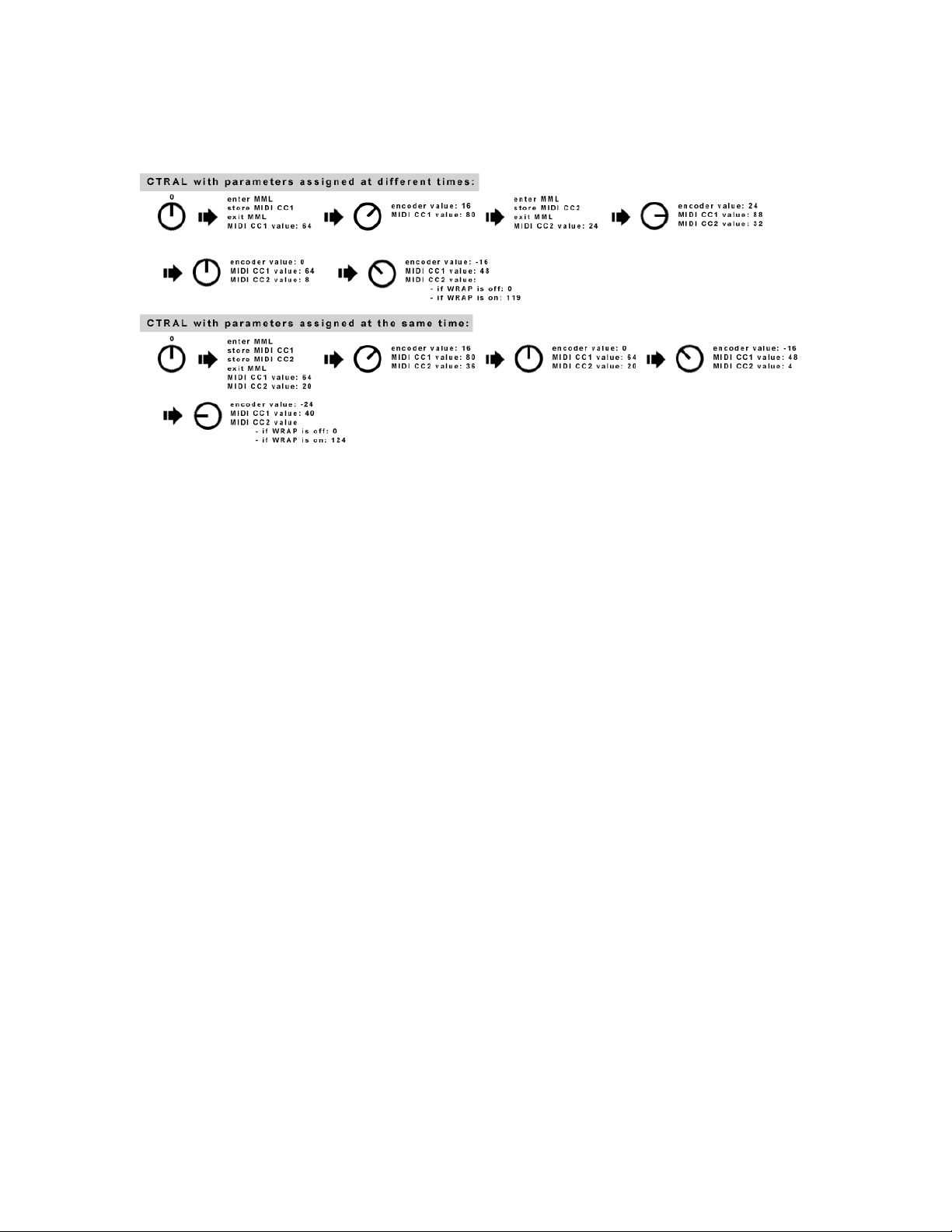
mode. Each randomization will also change the reference value of the encoder.
CTRAL Mode:
This is the mode in which the Goliath starts when switched on. In this mode, turning the
rotary encoder will send MIDI CC values for the parameters stored in the selected bunch
according to the reference value of the encoder.
Parameters can be randomized; it is possible to enter Multi MIDI Learn© (MML) or the
Random Note Generator (RNG).
Multi MIDI Learn© (MML):
MIDI CC parameters are stored or removed in Multi MIDI Learn mode. To enter MML
hold [F] and press [A]. The LED of the currently selected bunch will flash briefly and
then turn off indicating the Goliath has entered MML and is waiting for incoming MIDI
data. Send the desired MIDI CC number to the Goliath from the connected device. The
LED will blink few times on reception of a new MIDI CC parameter, indicating the MIDI
CC has been stored. Nothing will happen if the MIDI CC has already been stored, unless
it has a different MIDI channel.
Other MIDI CCs can be assigned using the same procedure. When the maximum
number of MIDI CCs (16) is reached, the Goliath won't store any more parameters.
To remove a MIDI CC, hold [F] whilst sending the value of the parameter to be removed
from the connected device. In this case the LED will briefly remain lit upon reception of
the MIDI CC value and then turn off, indicating that the parameter has been removed
from the bunch.
To exit the Multi MIDI Learn at any time, hold [F] and press [A].
Random Notes Generator (RNG):
The Random Notes Generator is a useful tool that can generate random sequences of
notes. Hold [F] and press [B] to enter the Random Notes Generator (make sure the
Goliath is in CTRAL mode before entering the RNG).
The LED of the currently selected bunch will turn off indicating the Goliath has entered
RNG mode.
There are 4 different scale modes that can be selected to generate random notes:
- Random: random notes are chosen within 10 octaves
- Major Scale: random notes are chosen within 1 octave using a major scale sequence
for the selection
- Minor Scale: random notes are chosen within 1 octave using a minor scale sequence
for the selection
- Repeat: repeats one single note
Page 4

Each scale mode has a root note and a clock division, independent for each bunch.
The clock division has up to 6 different divisions that can be changed by pressing [A].
The root note can be changed by holding [F] and turning the encoder or by sending a
MIDI note to the Goliath. To change the scale press [B].
To exit the RNG hold [F] and press [B], the LED of the selected bunch will lit up again
indicating the Goliath is now back into CTRAL mode.
To use the RNG the Goliath needs to receive MIDI clock! It will start generating random
MIDI notes once a MIDI Start message has been received, it will stop when either the
MIDI Clock stops or a MIDI Stop message is sent.
Settings for the Random Notes Generator are stored each time the bunch is changed or
RNG is exited.
Automation:
The CTRAL feature of the Goliath can also be controlled using external MIDI
automations. Sending MIDI CC 48 data to the Goliath will result in CTRAL data being
generated from the Goliath.
Firmware manager:
The firmware manager is accessed by holding the push button of the encoder whilst
switching on the Goliath.
Once in this mode, the Goliath will wait for incoming firmware data unless other actions
are taken (all LEDs will remain off).
To upgrade the firmware of the Goliath, download and run the software FUP from the
website. Locate the firmware file previously downloaded on your computer and send it to
the Goliath. A MIDI connection between the computer and the Goliath is needed to
upgrade the firmware.
When firmware data is being received, the yellow LED will flash to indicate reception of
data. If any error should occur, either the red or the green LED will lit to indicate that
something went wrong. Once the firmware has been fully loaded, the controller will reset.
To erase the current firmware from the Goliath, press [F], the red LED will turn on and
off briefly meaning the entire firmware of the Goliath has been erased, the data stored in
the internal memory won't be affected.
To backup the firmware on the external memory, press [A]. The yellow LED will lit up
and remain lit until the operation is completed (this action can take up few seconds).
To restore the firmware from the external memory press [B]. The green LED will remain
lit until the firmware has been completely restored.
Page 5

There is no need to backup the firmware of the Goliath when used for the first time as an
initial backup has been already performed.
Never switch off the Goliath whilst one of the above actions is taking place as this
could damage the firmware and render the controller unusable!
Page 6

Combos and actions
before switch on:
- holding [A] disables MIDI merge (red LED will remain lit until button is released)
- holding [B] enables MIDI merge (green LED will remain lit until button is released)
- holding the rotary encoder will enter the firmware menu. From here, it is possible to
upgrade, erase, backup and restore the firmware.
after switch on (soon after yellow LED has blinked):
- holding [A] disables wrap for CTRAL (red LED will remain lit until button is released)
- holding [B] enables wrap for CTRAL (green LED will remain lit until button is released)
in CTRAL Mode:
- hold [B] and press [A] to clean current bunch, other bunches are not affected (removes
all stored MIDI CCs)
- hold [B] and press [F] to reset the current bunch to initial values (also sends MIDI data)
- hold [F] and press [B] to enter RNG mode, repeat to exit
- press [A] to generate random values for the parameters assigned to the current bunch
- press encoder button to change current bunch (there are 3 bunches available, each
with 16 assignable MIDI CCs), an LED will lit accordingly.
- turn the rotary encoder to send CTRAL data (at least one MIDI CC has to be stored in
the current bunch)
- hold [F] and press [A] to enter MML (Multi MIDI Learn). Repeat to exit this mode
in Multi MIDI Learn (MML):
- hold [F] and press [A] to exit MML
- hold [F] and send MIDI CC to Goliath to remove a MIDI CC from the current bunch
in Random Note Generator (RNG):
- press [A] to change clock division. there are 6 different clock divisions available
- press [B] to change scale. there're 4 different scales available: random, major, minor,
repeat
- hold [F] and turn the rotary encoder to change root note for the scale
- press the rotary encoder button to change bunch
- turn the rotary encoder to send CTRAL data
- root note can also be changed by sending a MIDI note to the Goliath
- hold [F] and press [B] to exit RNG mode
Automation:
- to automate CTRAL on the Goliath send MIDI CC 48
Page 7
www.gibbondigital.com
2017
 Loading...