

Page 1
Hardware Installation
Hardware Installation
Note: Before installing or removing the mouse to or from your computer, always re
member to turn off your computer. Installing or removing the mouse when your com
puter is running will cause permanent damage to the mouse or your computer.
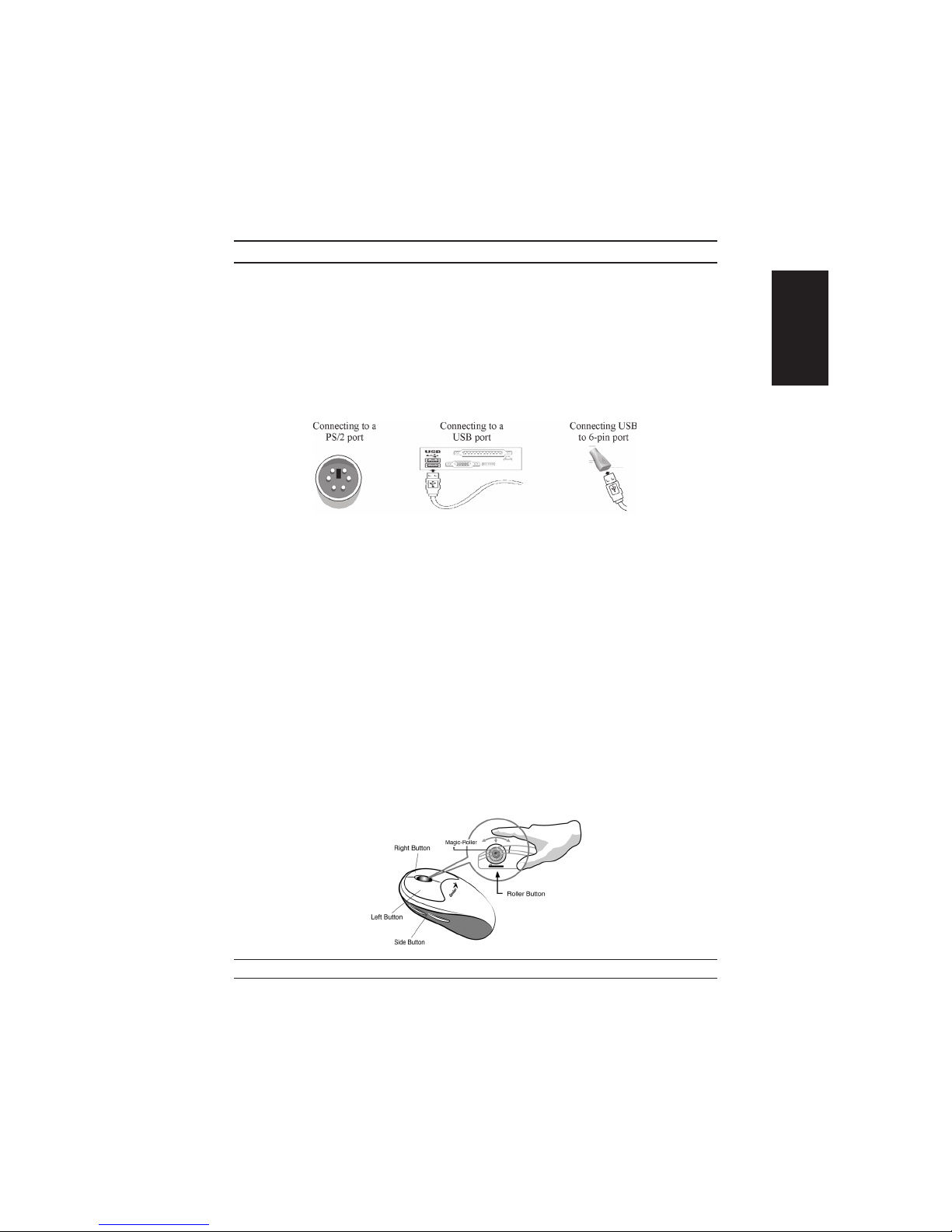
1. For PS/2 model, you can connect the mouse to the PS/2 port.
2. For the USB model, connect your mouse to the USB port on your computer.
3. For the USB & PS/2 model, you need to use the 6-pin PS/2 adapter.
4.
Turn on your computer.
Warning: Please do not use this optical mouse on a desk which is made of glass, mirror, iron, or black velvet. Also, a flat surface is necessary or the Optical Sensor will
not work properly.
-
Software Installation
Installing the MouseMate software
1. For PCs, start Windows, insert the software CD into the computer’s CD-ROM
drive, then follow the on-screen instructions. (If Autorun is not enabled, select
Run from the Start Menu on the Taskbar. Next, type D:\Setup.exe, where D: is
the designation of the CD-ROM drive.)
2. For the Macintosh, start the Macintosh operating system, insert the software CD
into the computer’s CD-ROM drive, find the Installer icon in the appropriate
language folder, double-click the icon, then follow the on-screen instructions.
Factory Settings
-
ENGLISH
1
Page 2
MouseMate Software Features
Magic-Roller Press the “Magic-Roller” to surf the Internet and Windows docu
ments
Left Button Provides traditional mouse functions such as click, double click
and drag.
Right Button You can assign this button frequently used keyboard and mouse
functions in addition to features like EasyJump, Auto-Panning,
Zoom, etc.
Roller Button You can assign this button frequently used keyboard and mouse
functions in addition to features like EasyJump, Auto-Panning,
Zoom, etc.
Side Buttons You can assign certain functions to the upper or lower side button
with the roller.
Horizontal
Scrolling
Hold the Shift key while pressing the Magic-Roller in the direction you want to go or move the cursor over the horizontal scroll
bar and press the Magic-Roller.
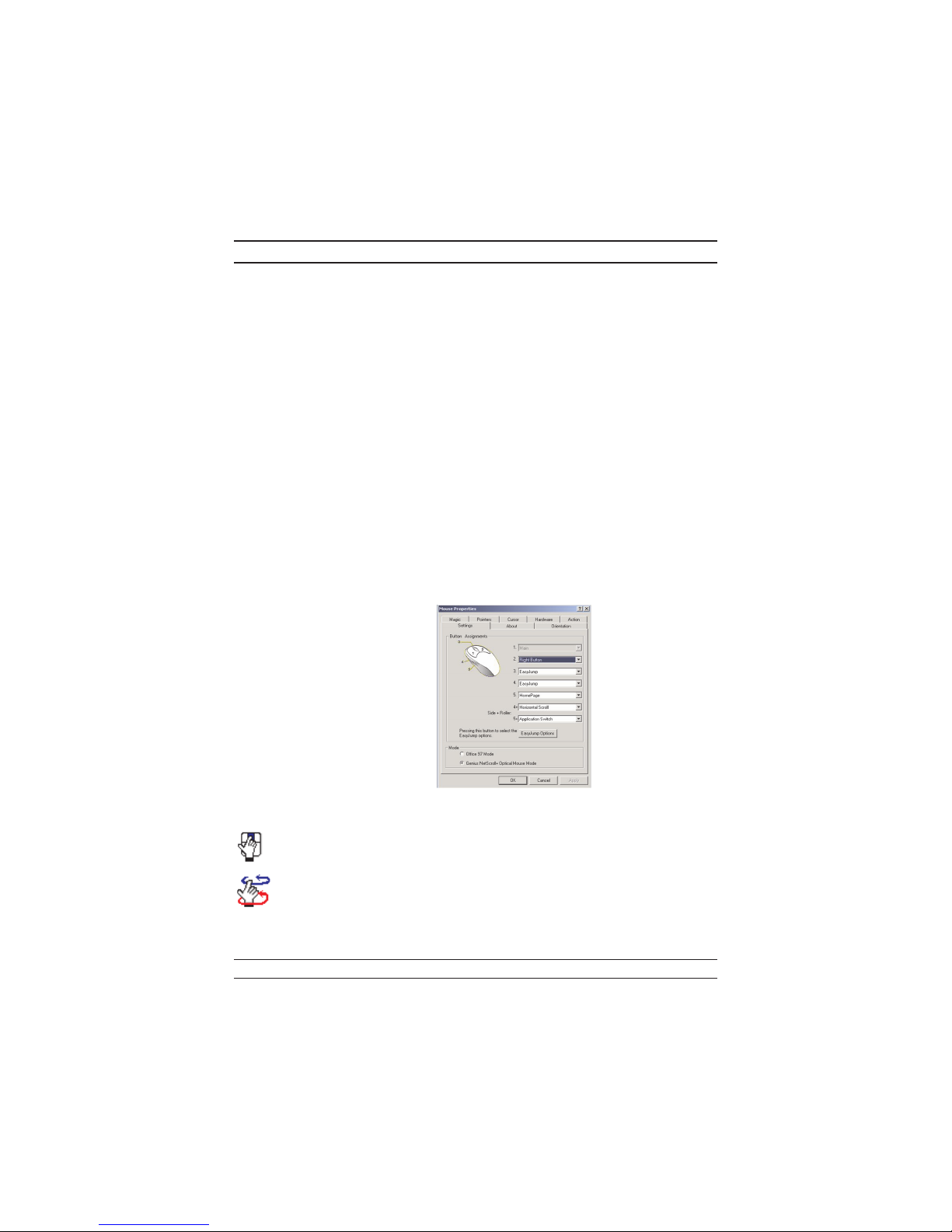
Button Assignments
The Button Assignment feature
lets you work in a more efficient
way because you can assign the
most frequently used commands
in Windows to the mouse buttons.
Side Buttons: You can assign the
following functions (Applica
tion/Document, Horizontal
Scroll, Last/Next Page, and
Zoom In/Out) to the upper or
lower side button with the roller.
MouseMate Software Features
Browsing Speed You can adjust the browsing speed when you surf the
Internet or Windows documents.
Browsing
Direction
Move the “Magic-Roller” forward and the screen will
browse to the top of the document. Move it in reverse and
the document will go in the opposite direction
-
2
Page 3
MouseMate Software Features
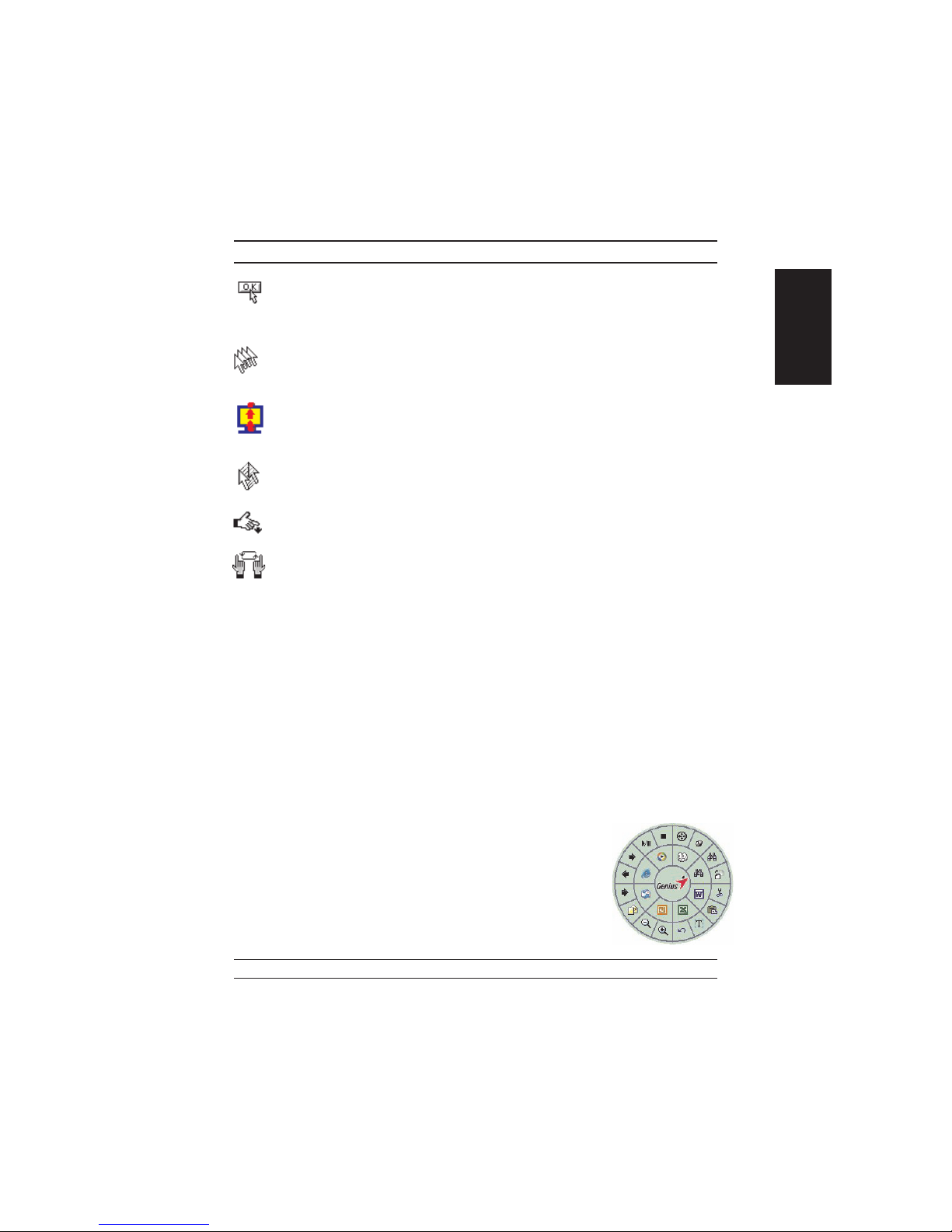
Button Find Automatically positions the cursor on the default button,
usually the OK button, when the dialog box appears on
your screen.
Trails This option makes it easier to find the cursor when using
an LCD monitor. This option cannot be used if your
monitor does not support it.
Loop When you move the cursor to the top (or bottom) of the
screen, it will automatically move the cursor to the bot
tom (or top) of the screen.
Mouse Speed This function lets you adjust the speed at which the
pointer moves across the screen.
Double Click
Speed
Swap Left/
Right
Pointers Folders This lets you change the shape of the cursor.
Office 97 Mode Only supports Microsoft Office 97 along with some new
Genius Mode Supports all applications that use scrollbars, including Of-
About Click here to open the Genius website “www.genius
Orientation This function lets you set the angle when you move the
Use this function to set the double click speed of the
mouse.
Select this option if you want to have the mouse operate
with the right mouse button as the primary button.
applications. Features include zoom, scrolling and Autoscrolling features. It’s similar to Microsoft’s
IntelliMouse.
fice97, with zoom, Auto-panning, and scrolling functions.
net.com.tw”
mouse upward. It gives you a more comfortable angle
when holding the mouse. This function works best with a
portable trackball.
-
-
ENGLISH
EasyJump
“EasyJump” now has two working modes: Office EasyJump
mode and Traditional EasyJump mode.
“Office EasyJump” lets you use eight commonly used appli
cations and 16 Cyber functions more easily and quickly.
-
3
Page 4
MouseMate Software Features
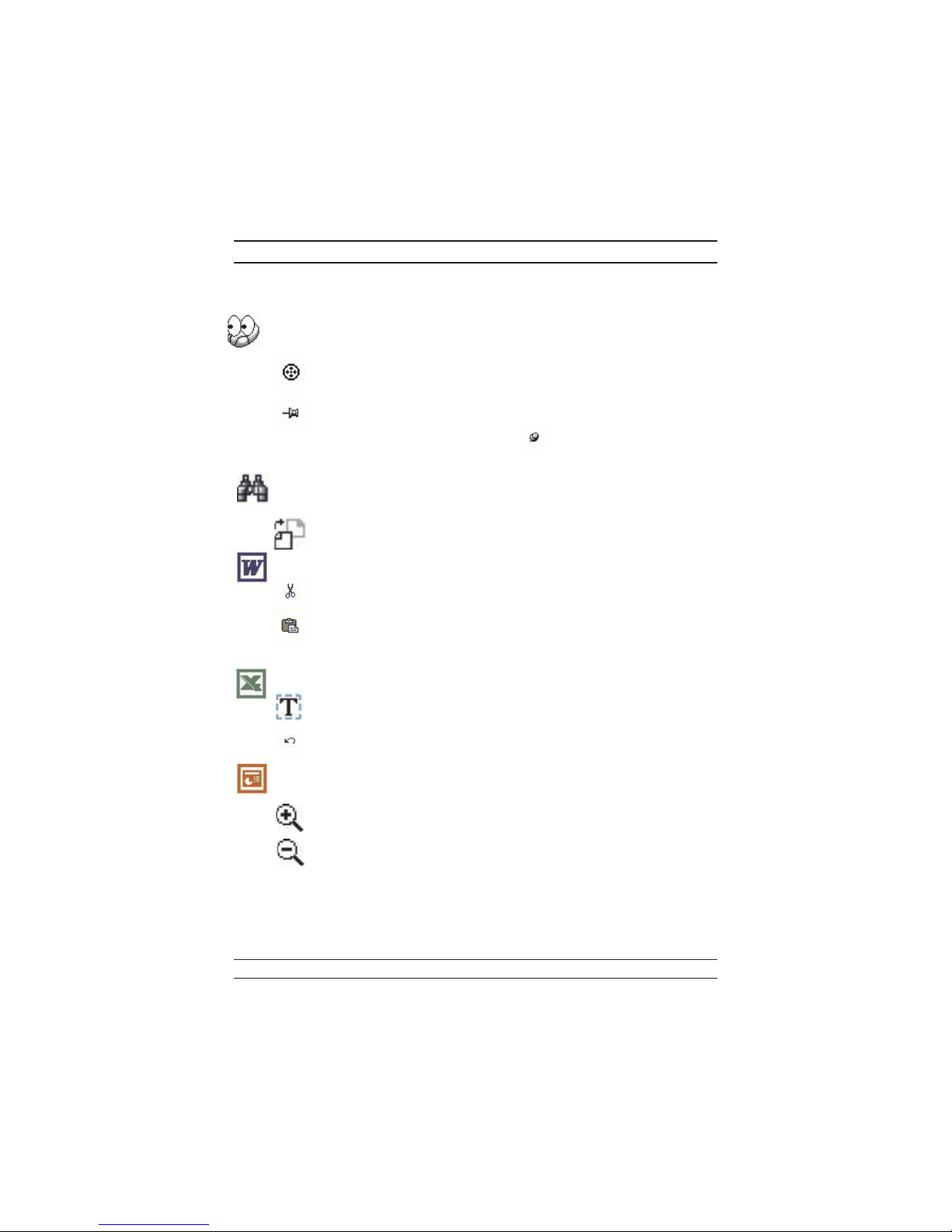
Once you press the button you assigned, “Office EasyJump” will be displayed on a
Frisbee. Note that the functions are only available in the applications they belong to.
Click this application button to show the mouse control panel. You can check
or modify the mouse properties.
Click this function and the pan icon appears. You can move the mouse
in any direction in a document or a spreadsheet. The farther you move
the pointer from the pan icon, the faster you can pan in that direction.
Click this function and Office EasyJump Frisbee will always be on the
screen and the button will change to . Click it again to cancel this
effect.
This is a programmable application button. Press the right button on this icon
and a dialog box will display for you to select an executable program. Click
on this button to launch your specific application.
Click this function to implement the “replace” function in the current
application.
Click on this application to launch Microsoft Word.
Click this function to perform the “cut” function in Word.
Click this function to implement the “paste” function in Word.
Click on this application to launch Microsoft Excel.
Click this function to implement the “select all” function in Excel.
Click this function to perform the “undo” function in Excel.
Click on this application to launch Microsoft PowerPoint.
Click this function to implement the “zoom in” function in PowerPoint.
Click this function to implement the “zoom out” function in Power
Point.
4
-
Page 5
MouseMate Software Features
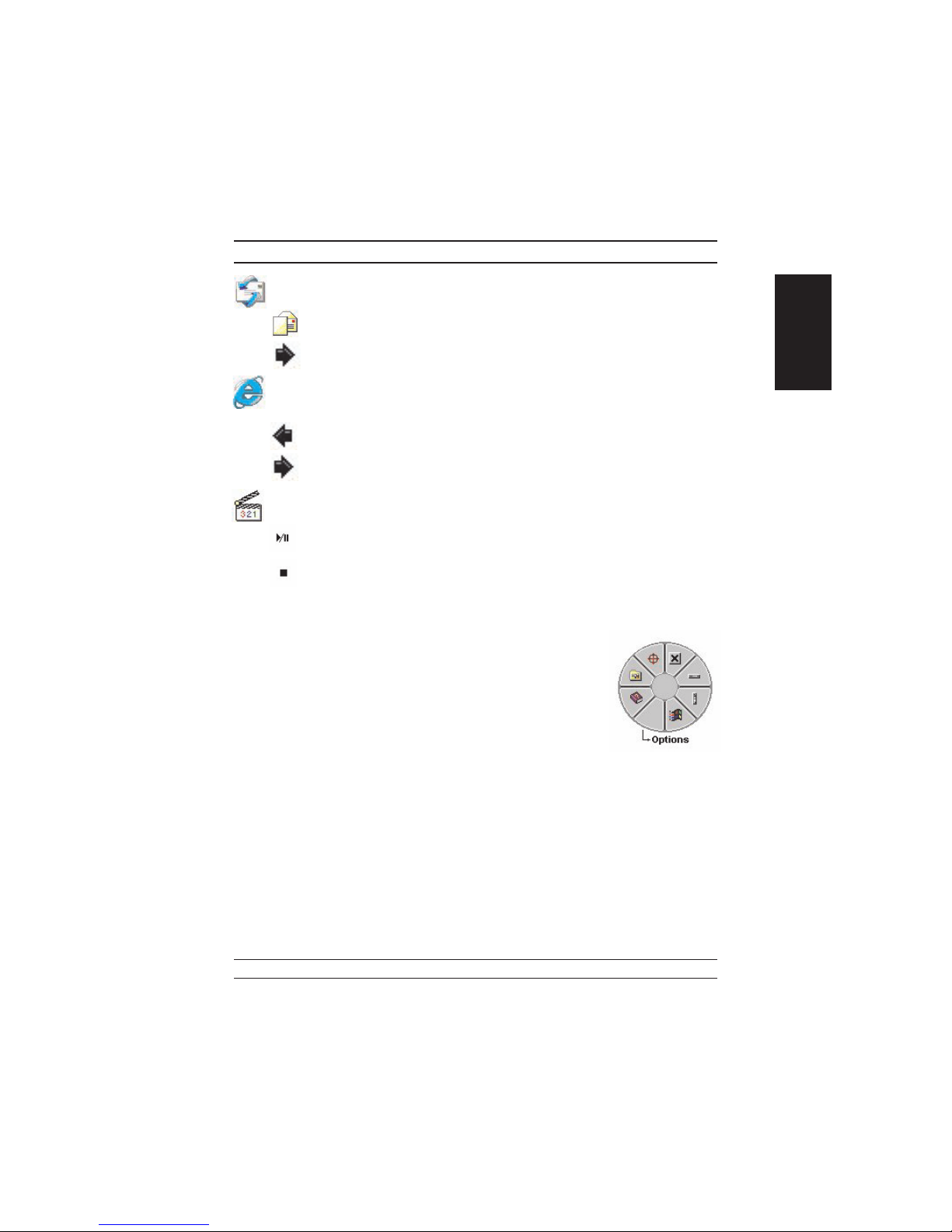
Click on this application to launch Outlook Express or any other email client
application installed in your system.
Click this function to open a new email.
Click this function to forward a selected email in your mailbox.
Click on this application to open Microsoft Internet Explore or any other
Internet browser installed in your system.
Click this function to return to the previous web page in your open
Internet browser.
Click this function to more forward to the next web page in your open
Internet browser.
Click on this application to launch Windows media player or any other multi
media player installed in your system.
Click this function to play/pause the current running media player.
Click this function to stop the current running media player.
Note: All the functions related to Office applications are
programmable. Place the cursor on the function icon you
want to change, and click the right button to select or reset
the unit from the popup menu. From the dialog box, you
can choose another function to use in the EasyJump Frisbee.
To change from Office EasyJump mode to Traditional
EasyJump mode, just click the right button on the Genius
logo in the center of the EasyJump Frisbee.
ENGLISH
-
5
Page 6
MouseMate Software Features
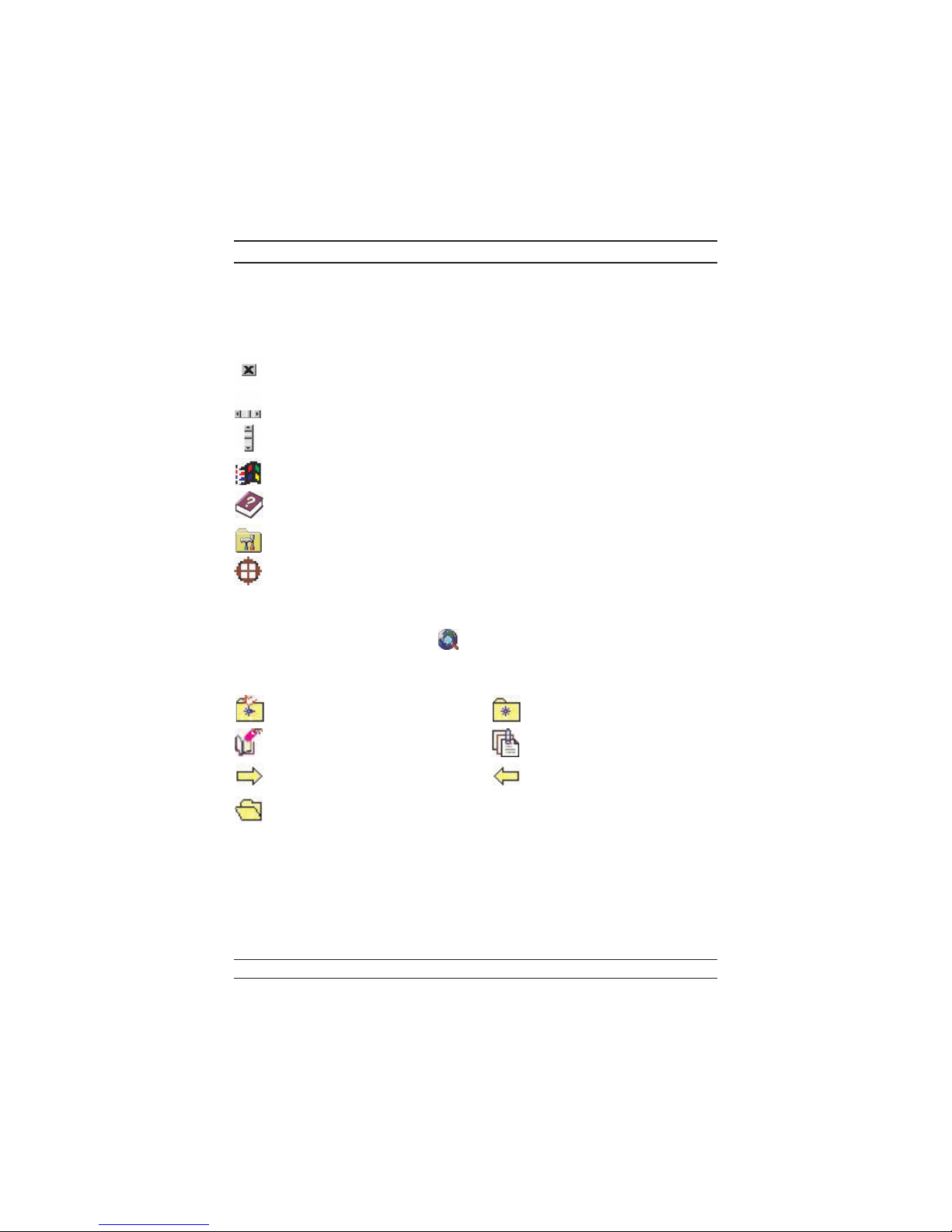
The “Traditional EasyJump” lets you use eight Cyber functions more easily and
quickly.
Once you press the button you assigned, the “EasyJump” Frisbee will pop up and
eight functions will be displayed on Frisbee.
Click this button to close the current window.
Click this button and the cursor will jump to the horizontal scrollbar. When
you move your mouse, the open document or spreadsheet will scroll horizon
tally.
Click this button and the cursor will jump to the vertical scrollbar. When you
move your mouse, the open document or spreadsheet will scroll vertically.
Click this button to open the Start Menu.
Click this button to open the Help button.
Click this button to open the Genius Mouse Control Panel.
Click the button and you can move the mouse in any direction in a document
or a spreadsheet. The farther you move the pointer from the pan icon, the
faster you can pan in that direction.
The buttons in “EasyJump Options” are especially used for Internet. The default function is “Open Browser” (button like ). You can select other functions from “EasyJump Options” in the “Settings” folder of the Genius Mouse Control Panel.
The functions in “EasyJump Options” are:
-
“Add to Favorite [IE] ” “Organize Favorite [IE] ”
“Add Bookmark [NetScape] ” “Edit Bookmark [NetScape] ”
“Go Next [Forward] ” “Go Previous [Back] ”
“Run Application”
Switch Applications
When the right-button or Magic-Roller is set to “Switch AP”, you can quickly switch
from one open application to another without moving the mouse. To switch to a spe
cific application, press the right button or the Magic-Roller to select the application.
6
-
Page 7

MouseMate Software Features
Zoom function for Office 97 and IE Applications
Press the “Ctrl” key and move the “Magic-Roller” forward (or backward) to set the
Zoom In/Out function. You can also use just one hand to Zoom In/Out: set the right
button to be the “Ctrl” function, press the right button and move the “Magic-Roller”
forward (or backward) to enlarge (or decrease) the document window.
Auto-Panning
You can set this function in the Button Assignment menu. Move the mouse, and the
document moves in the direction you just moved.
Uninstall the Software
Follow these instructions to remove the software from your hard disk. In Windows,
click on the Start button, select Programs and move to the mouse software. Then click
on Uninstall software.
Customize the Software
This section shows you how to customize the software. To open the software control
panel, you can double-click on the icon in the task bar or select the “Software” icon
from the program group.
Close the Software
Click the right button on the taskbar, and select “Close Software” to close the software.
ENGLISH
7
 Loading...