

Page 1

USB TV Stick Quick Installation Guide
About USB TV Stick
Thanks for you choose USB Box. This manual will provide quickly installation information. If you want know more
about application software, please refer relative software manual.
Product Features
High speed USB2.0 port, USB2.0 power
Global TV receiving(PAL/NTSC/SECAM)
Listen to FM Radio
Supports Nicam, Stereo and mono program
With Video capture function
With Time-Shifting function
Schedule TV recording and save directly to your HDD
Still image function, save image to BMP file
System Requirements
P4-1.7GHz CPU or higjer
256 MB RAM (minimum), or 512 MB RAM (recommended)
VGA card with 32MB
CD-ROM
Microsoft DIRECTX9.0 or higher
Windows XP Serivce Pack2/Vista
One free USB2.0 port
Available 50M HDD (install driver and application), add 600M/h-3G/h for recording
Package Contents
USB TV Stick
Remote Control
USB2.0 cable
Multi Cable
Software (Included Manual)
USB TV Stick Connection:
Driver and Software installation
Step1: OS will remind a new hardware-- “New Hard ware Device” was found. Please choose “Cancel”,
Page 2
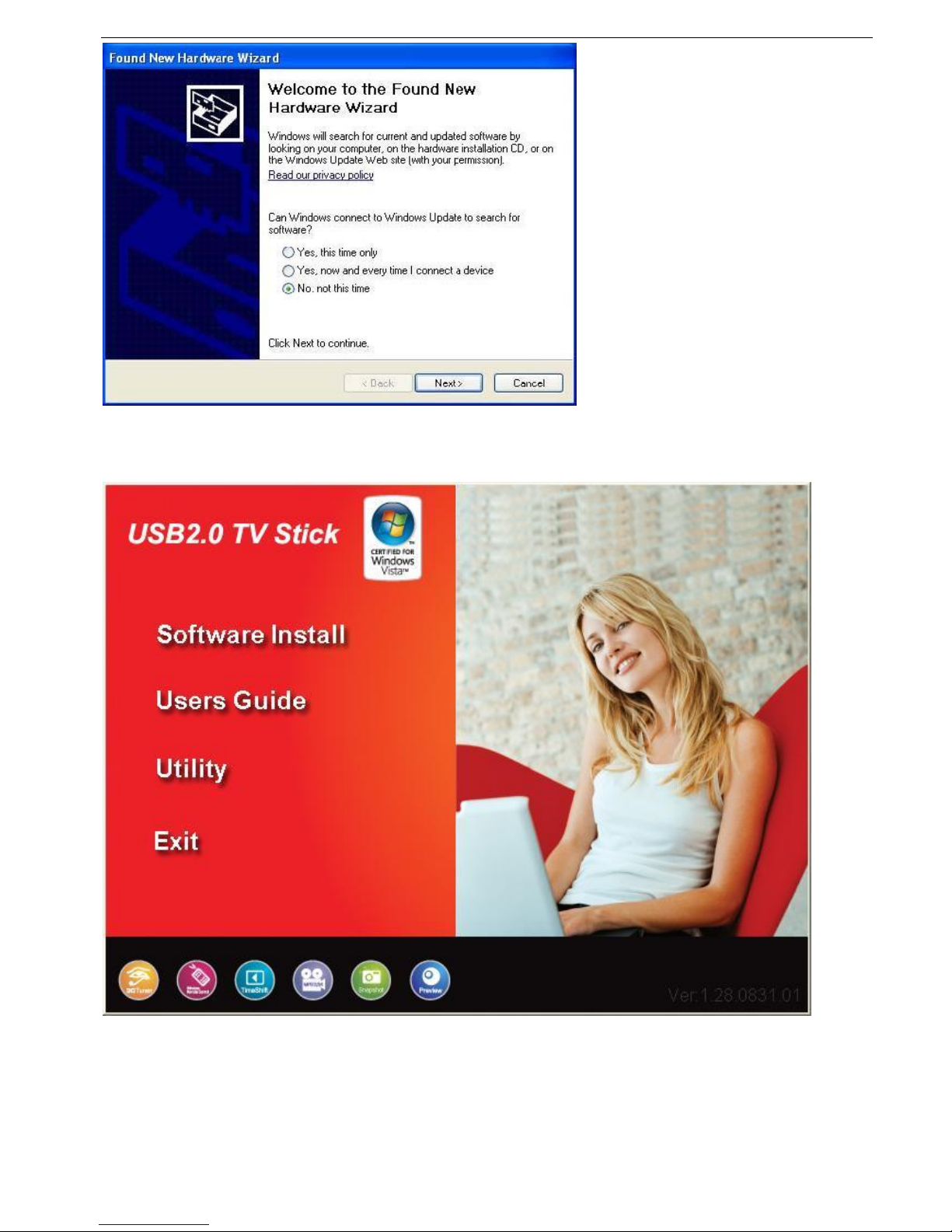
Step2: When insert CD, OS will promote setup automatically. Click “Software Install”, or browse the CD to
run USB _TV_Stick.exe.
Step3: Choose setup language
Step4: Click “yes” to install Window Media Format9
Page 3
Step5: Click “Next” to entry MYGICA Install Shield Wizard.
Step6: Click “Browse” to choose installation route, then click “Next” (Default route is better)
Step7: Choose install the components, and click “Next”
Step8: Installation need connect hardware device, please connect USB TV Stick to USB2.0 port.
Step9:Click “Install” to continue installation driver
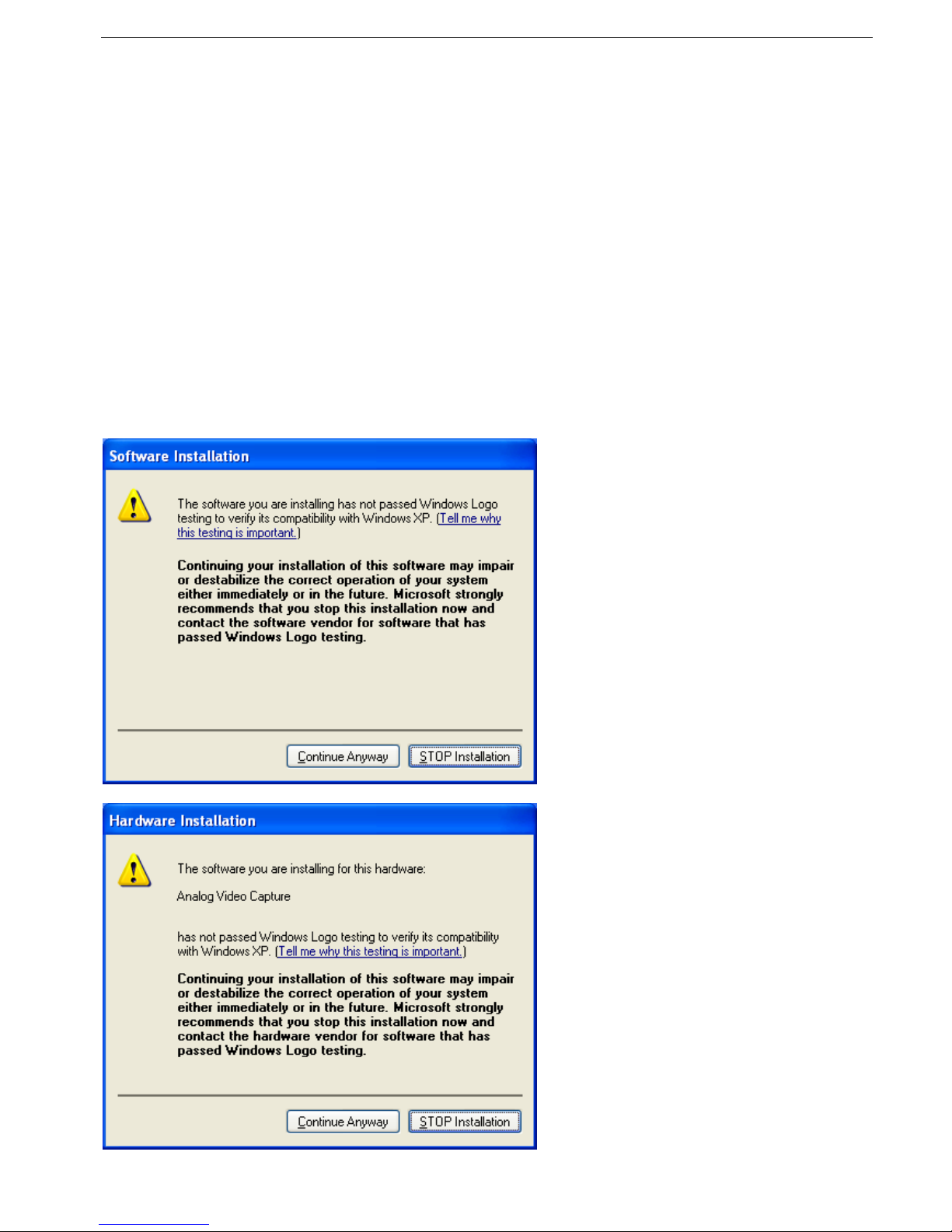
Step10: OS will promote to install devices,Click “Continue Anyway”
Page 4

Step11: Click “Finish” to completely install the Driver Software.
Step12:Click “finish” to finish installation.
Step13: You will see that MYGICA TV icons will appear on your desktop.
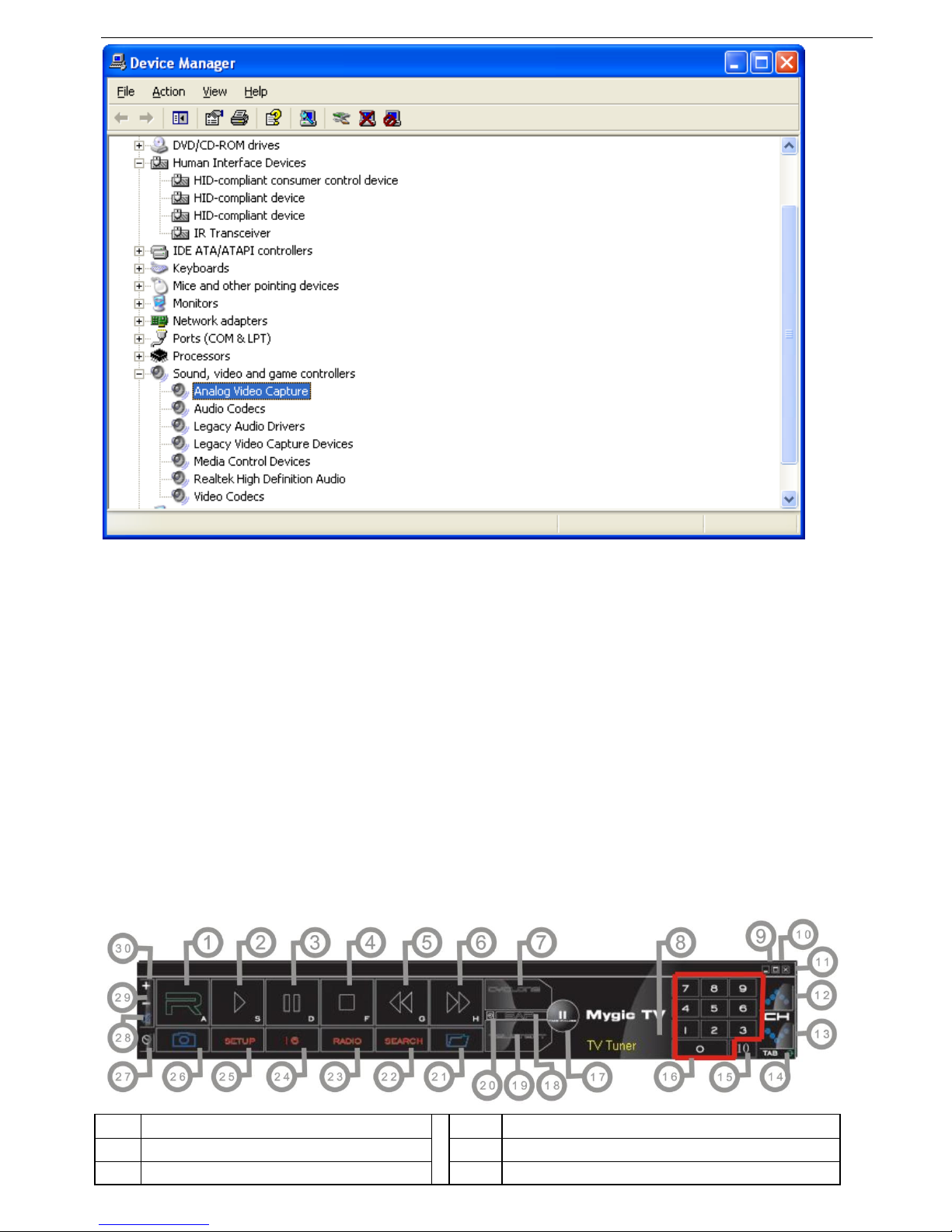
Step14: When its finished, please check on Control panel, select “Syste m” —“System properties”—“Device
Manager”, you can see three devices which new drivers are installed.
Page 5
Remark: Please refer E-Manual for using software.
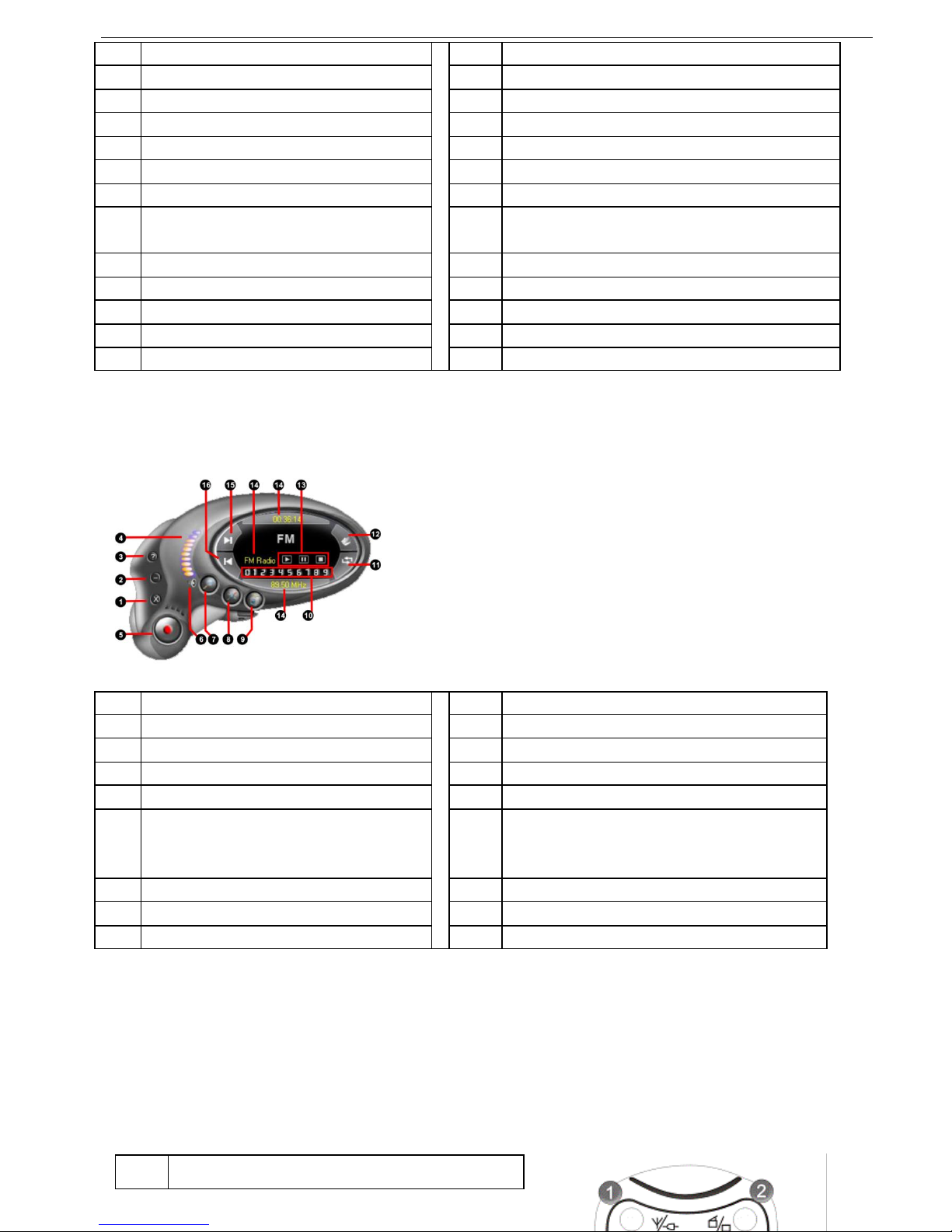
Mygica TV User Interface
NO
Description
NO
Description
1
Start to record
16
Digit keys
2
Play recorded files
17
Time-shifting
Page 6
3
Pause
18
Shift stereo
4
Stop
19
Teltext
5
Back forward
20
Shift video source
6
Fast forward
21
Open the recorded file
7
Hue control
22
Auto scan channel
8
Status window
23
Switch to FM
9
Minimize
24
16 channels preview
10
Full screen, Window and video desktop
switch
25
Setting Setup menu
11
Exit Mygica TV
26
Snapshot
12
Jump to next channel
27
Schedule recording
13
Jump to last channel
28
Mute
14
Back to previous channel
29
Volume down
15
Ten channels
30
Volume up
Note: Functions with * are not suitable for this product.
FM Interface
NO
Description
NO
Description
1
Exit FM
9
Shift to TV
2
Minimize
10
Channel digit key
3
FM copyright
11
Back to preview channel
4
Volume bar
12
Open recorded files
5
Start Record
13
Play recorded files
Pause/stop recorded files
Stop play next recorded files
6
Mute
14
Display window state
7
Auto scan channel
15
Jump to next channel
8
Setup menu
16
Jump to last channel
Remote Control and key description
Key
Description
Page 7
NO
1
Switch input source: Switch from TV, Composite
video
2
Turn On/Off Mygica TV application software
3
Digital Keys
4
Return to previous channel
5
Single/double/triple digit
6
CH+.CH-; Channel Up/Down
VOL+.VOL-; Volume Up/Down
Mute
7
Brightness up
8
Brightness down
9
AUD:Stereo/Mono
10
TTX;Teltext
11
Record: Record/stop
Play: Play recorded files
Pause
Stop/record
Fast forward
Back forward
Auto scan channel
Snapshot
Setup menu
Full screen window and video desktop switch
FM: Switch to FM
Power off: Off PC.
FAQ:
Q1: Why is the image discontinuit:y?
A1: 1. Please try others USB slot in your PC.
2. Please check If the OS requirement is lower than the minimum request.
3. DirectX Show. Please check if the VGA card supports Direct Show.
4. Please Upgrade your PC to Windows XP Service pack2.
Q2: Why do the drive not be installed?
A2: 1. Please check if the name of Facility Management is USB TV Stick.
2. Update DIRECTX9.0C is belonging to CD.
Q3: Why can not see the image?
A3: 1. Try to pull out reinsert application.
2. Try to reinstall driver.
Page 8

Q4: Why do the color and sound have problem when watching TV?
A4: Please check if the “Country and Zone” is correct.
Remark: The accessories and bundled software may not be the exactly same as this manual. The specifications
are subject to change without notice.
 Loading...