

Page 1
1
Thank you for purchasing this Geniatech product.
http://www.geniatech.com
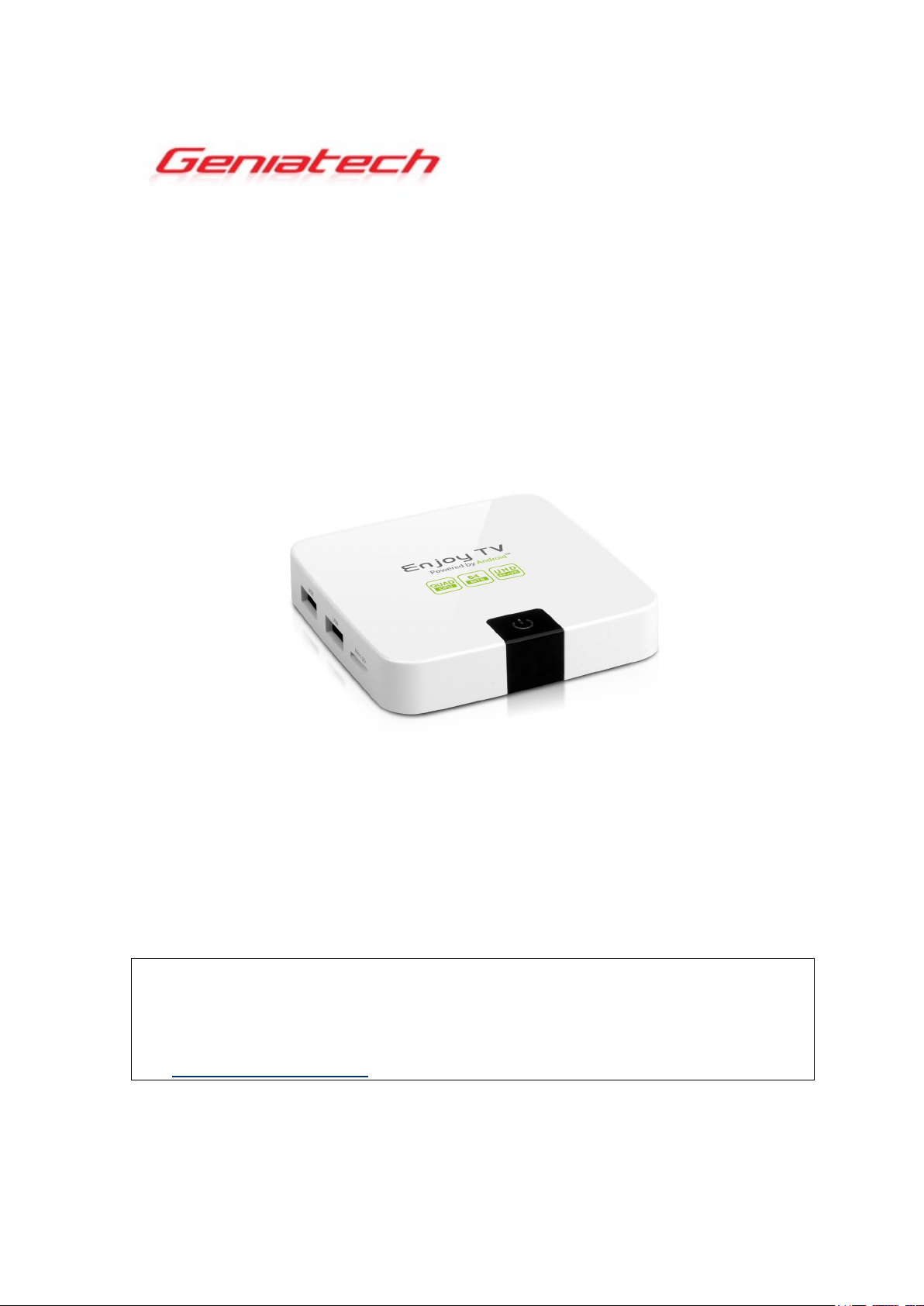
Android Box
ENJOY TV
MODEL: ATV495X
User’s Guide
.Before using it, be sure to read the precautions contained in this User’s Guide.
.Keep the User’s Guide in a safe place for future reference.
.For the most up-to-date information about this product, visit official website at
Page 2

2
Contents
1. Safety Information,
1.1 Warning, P3
1.2 Precautions, P3-4
1.3 Handling Cautions, P4
2. Introduction, P5-7
2.1 Package Contents, P5
2.2 Product Features, P5
2.3 Remote Controller, P6
2.4 Setup Connection, P7
2.5 Display when Power Up, P7-8
3. Settings, P8-21
3.1 WiFi, P9
3.2 Bluetooth, P10
3.3 Ethernet, P10
3.4 More…, P11
3.5 Sound and notification, P12
3.6 Display, P13-15
P3-4
3.7 Storage&USB, P16
3.8 Apps, P17
3.9 Memory, P17
3.10 Location, P18
3.11 Security, P18
3.12 Language & input, P19
3.13 Reset, P19
3.14 Accounts, P20
3.15 Google, P21
3.16 Date time, P21
3.17 About MediaBox, P22
4. Apps Install & Uninstall, P23
5. Firmware Update
6. Trouble Shooting/FAQ
7. Repairs
, P26
8. Specification
9. Trademark Notice
, P24
, P25
, P27
, P28
Page 3

3
1. Safety Information
Read and understand all instructions before using this product. If damage is caused
by failure to follow the instructions, the warranty does not apply.
1.1 Warning
To reduce the risk of electric shock, DO NOT remove the cover (or back).
DO NOT attempt to repair the product, this could lead to the risk of injury, damage
to the product .
To reduce the risk of fire or electric shock, keep this product away from exposed
direct sunlight, naked flames or heat, large amounts of moisture, dust, and sand.
FCC Note (for U.S.A)
This equipment has been tested and found to comply with the limits for a Class B
digital device, pursuant to Part 15 of the FCC rules. These limits are designed to
provide reasonable protection against harmful interference in a residential
installation. This equipment generates, uses and can radiate radio frequency energy
and, if not installed and used in accordance with the instructions, may cause
harmful interference to radio or television reception, which can be determined by
turning the equipment off and on.
The user is encouraged to try to correct the interference by one or more of the
following measures.
- Reorient or relocate the receiving antenna.
- Increase the separation between the equipment and receiver.
- Consult the dealer or an experienced radio/TV technician for help.
- This class B digital product meets all requirements of the Canadian Interference Causing Equipment Regulations.
1.2 Precautions
Important Safety Instructions
Read these operating instructions carefully before using the unit. Follow all the
safety instructions listed below.
Keep these operating instructions handy for future reference.
1.2.1 Read these instructions.
1.2.2 Keep these instructions.
1.2.3 Heed all warnings.
1.2.4 Follow all instructions.
1.2.5 DO NOT use this apparatus near water.
1.2.6 DO NOT clean with any chemical detergent. Clean only with a dry cloth.
1.2.7 DO NOT block any ventilation openings. Install in accordance with the
manufacturer’s instructions.
1.2.8 DO NOT install near any heat sources such as radiators, heat registers, stoves,
or other apparatus that produce heat.
1.2.9 Protect the power cord from being walked on or pinched particularly at plugs,
Page 4

4
convenience receptacles, and the point where it exits the apparatus.
1.2.10 Only use attachments/accessories specified by the manufacturer.
1.2.11 Use only with the cart, stand, tripod, bracket, or table specified by the
manufacturer, or sold with the apparatus. When a cart is used , use caution when
moving the cart/apparatus combination to avoid injury from tip-over.
1.2.12 Unplug this apparatus during lightning storms or when unused for long
period of time.
1.2.13 Refer all servicing to qualified service personnel. Servicing is required when
the apparatus has been damaged in any way, such as when the power-supply cord or
plug is damaged, liquid has been spilled or objects have fallen into the apparatus,
the apparatus has been exposed to rain or moisture, does not operate normally, or
has been dropped.
1.3 Handling Cautions
1.3.1 DO NOT expose this apparatus to dripping or splashing. Do not put objects
filled with liquids, such as vases on the apparatus.
1.3.2 To turn this apparatus off completely, you must pull the power plug out of the
wall socket. Consequently, the power plug must be easily and readily accessible at
all times.
1.3.3 DO NOT plug multiple electric devices into the same wall socket.
Overloading a socket can cause it to overheat, resulting in a fire.
1.3.4 Before connecting other components to this player, be sure to turn them off.
1.3.5 If the product makes an abnormal noise or produces a burning smell or smoke,
turn off the power switch immediately and disconnect the power plug from the wall
outlet. Then, contact the nearest customer service center for technical assistance. Do
not use the product. Using the product as it is may cause a fire or an electric shock.
Page 5

5
2. Introduction
2.1 Package Contents
Enjoy TV - ATV495X
IR Remote Controller (IR RC)
Power Adapter, Input: AC100 ~ 240V, 50/60Hz, Output: 5V, 2A
2.2 Product Features
• Quad Core CPU,Penta GPU, frequency is 2.0GHz, RAM is 2G, built in 8G
EMMC. Powered by Android 7.1 OS
• Built in browser and support virtual private network access
• RJ45 10/100M Ethernet interface
• Support 4k2k video local media playback from SD card or USB HDD
• Built in 802.11b/g/n AC WIFI module with antenna inside, WiFi frequency
range is 2.4G/5.8G
• Rj45:Wired internet connection
• HDMI video output, connect to HDTV for HD video playback
• 2 external USB interface , support mobile HDD, support mouse and keyboard
operating
• Support weather, calendar, and desktop clock gadgets
• Support USB mouse and keyboard operation
• Support simple IR remote control with mouse function
• Support music player, picture player and more family entertainment
• Support Micro SD card
• Support Google Chrome browser
• App Installer for application installation from USB/SD card
Page 6
6
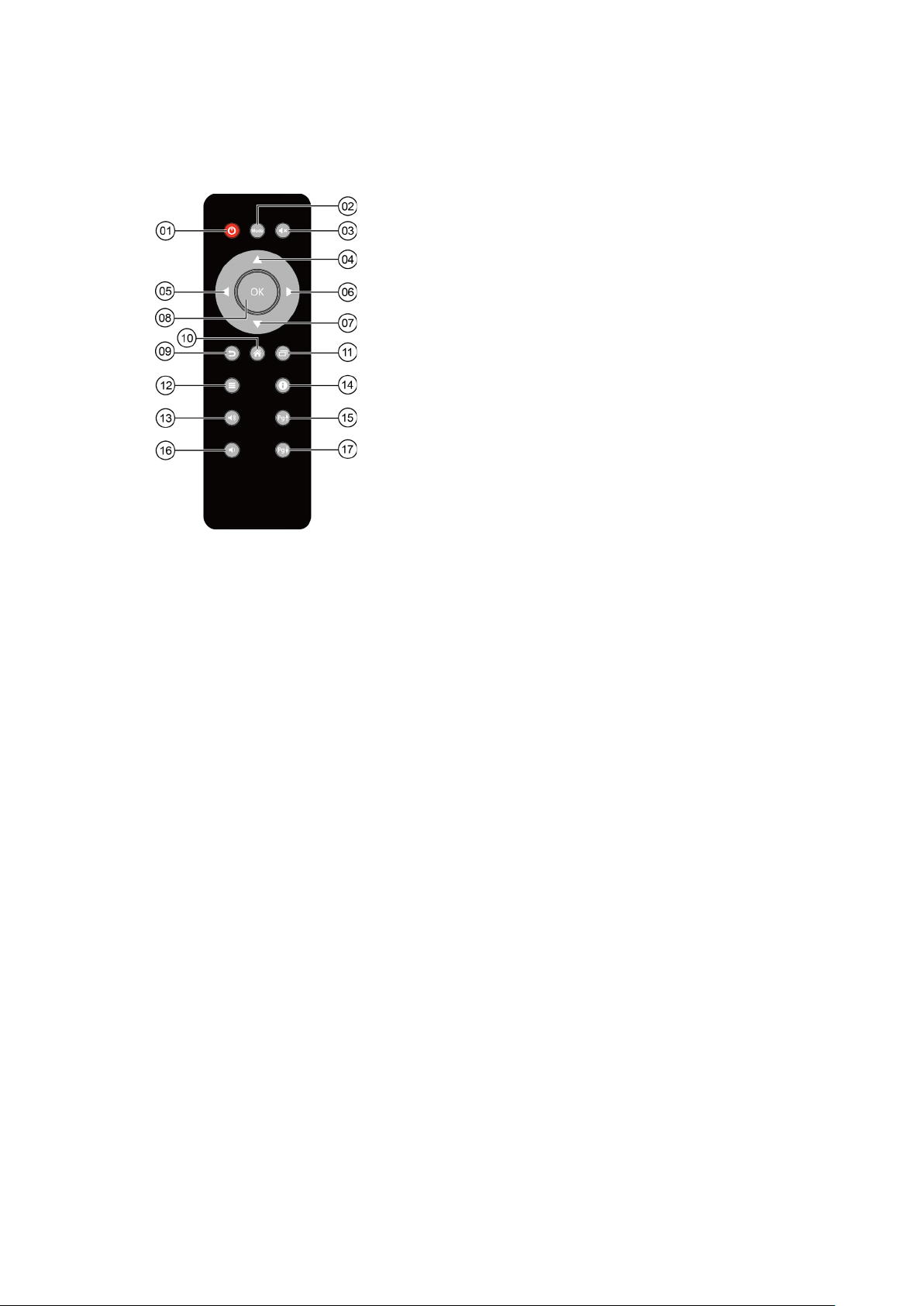
2.3 Remote Controller
①
②
③
④
⑤
⑥
⑦
⑧
⑨
⑩
⑪
⑫
⑬
⑭
⑮
⑯
⑰
Note: Button Battery 2025 3V insert with correct polarity (+/-).
Power
Mode
Mute
Upwards
Towards the left
Towards the right
Downwards
OK
Return
Home
Background App
Menu
Vol+
Notification
Page Up
Vol-
Page Down
Page 7
7
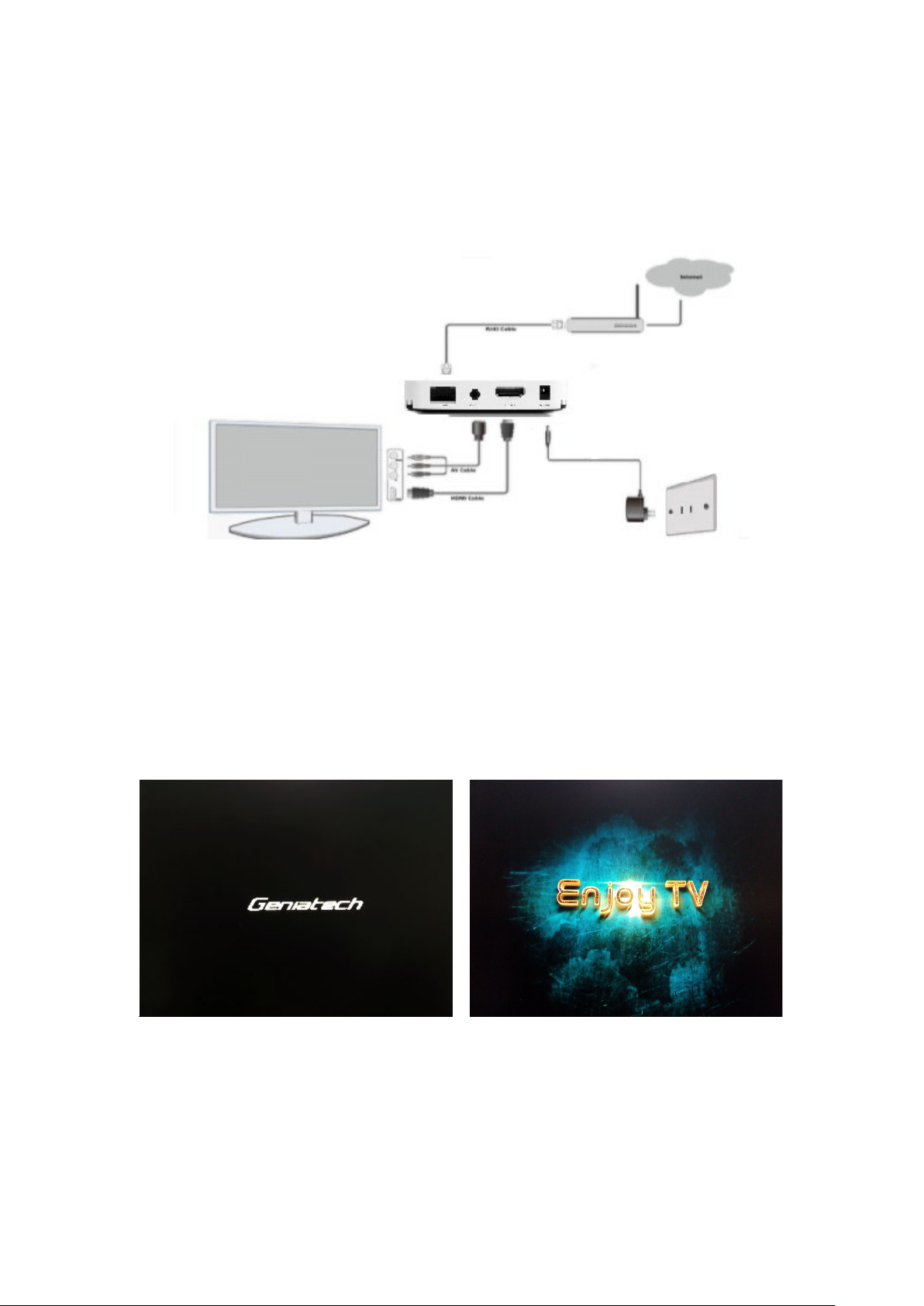
2.4 Setup Connection
Place ATV495X on a flat platform near the TV, and make sure nothing block the
remote control signal.
2.5 Display when Power Up
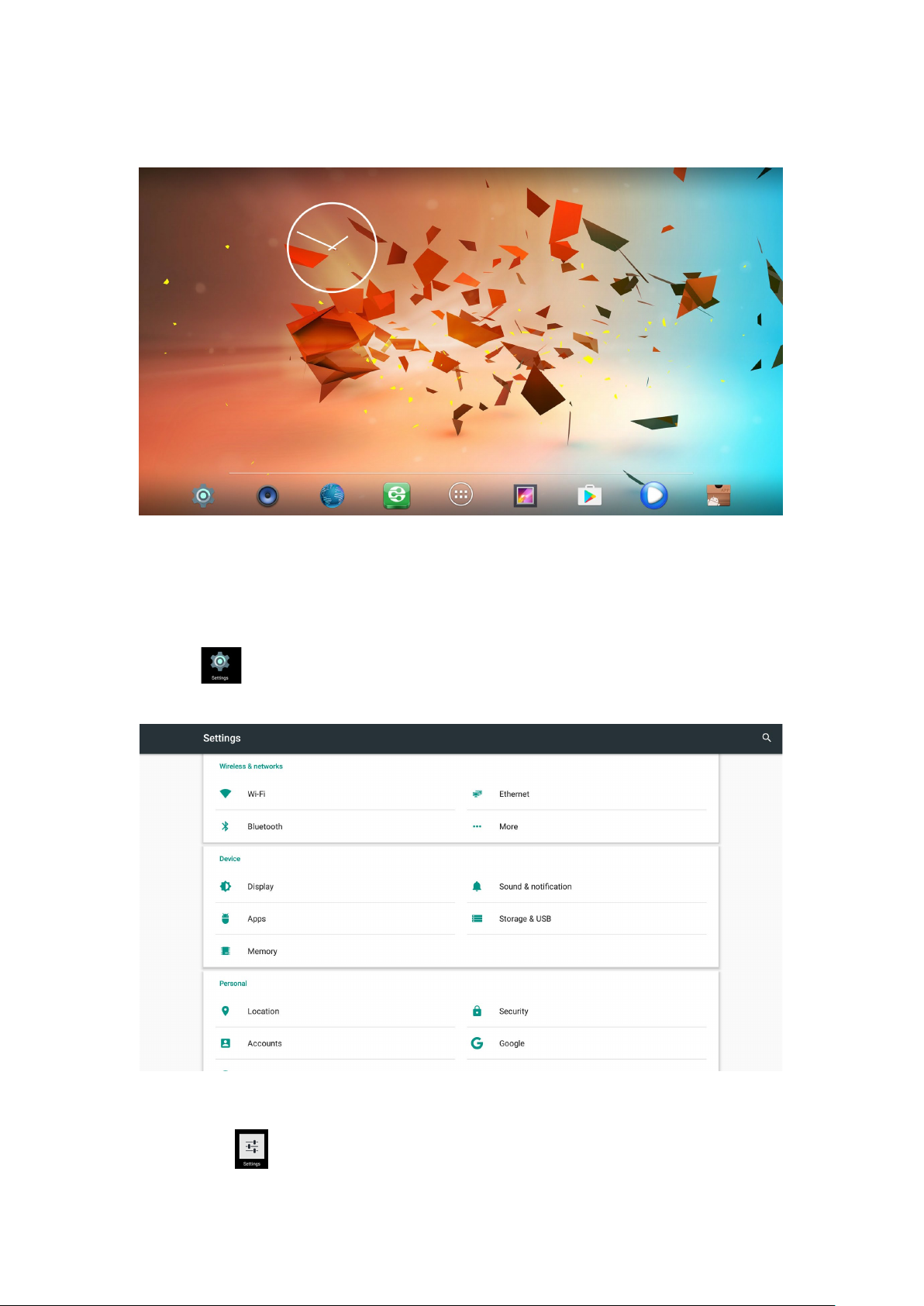
2.6.1 After power up, the TV will first show Geniatech logo,starting with Enjoy TV
boot animation. When finished, it will go to Home screen.
Page 8
8
2.6.2 Home Screen display.
3. Settings
Using Navigation (4 directions), OK, EXIT, and Menu keys of Remote Controller
to select the options, the option selected will be highlighted and confirmed by
pressing OK key. Same operation for text input if needed.
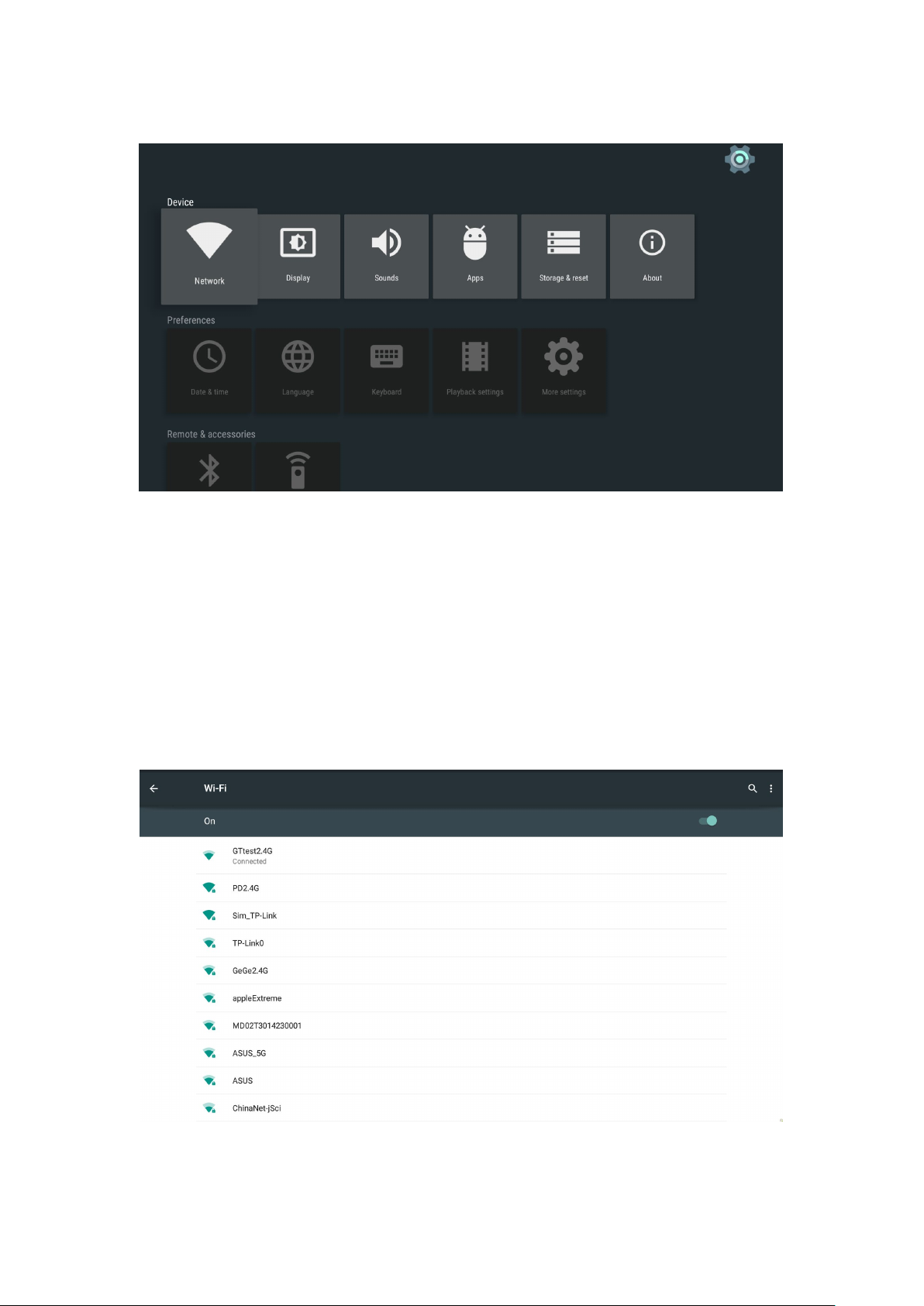
Select icon then press OK key to settings interface.
Or Select icon to settings interface.
Page 9
9
3.1 WiFi
3.1.1 It will automatically scan ambient WiFi networks when select “ON”.
3.1.2 Connect an available WiFi network. If connect a secured WiFi network,
corresponding password will be input firstly. Or fail to connect and need reset
password.
3.1.3 Once build up the connection with a certain WiFi network successfully,
ATV495X will connect this WiFi network automatically when restart.
Note: If factory reset, the password of WiFi network have to be reset.
Page 10
10
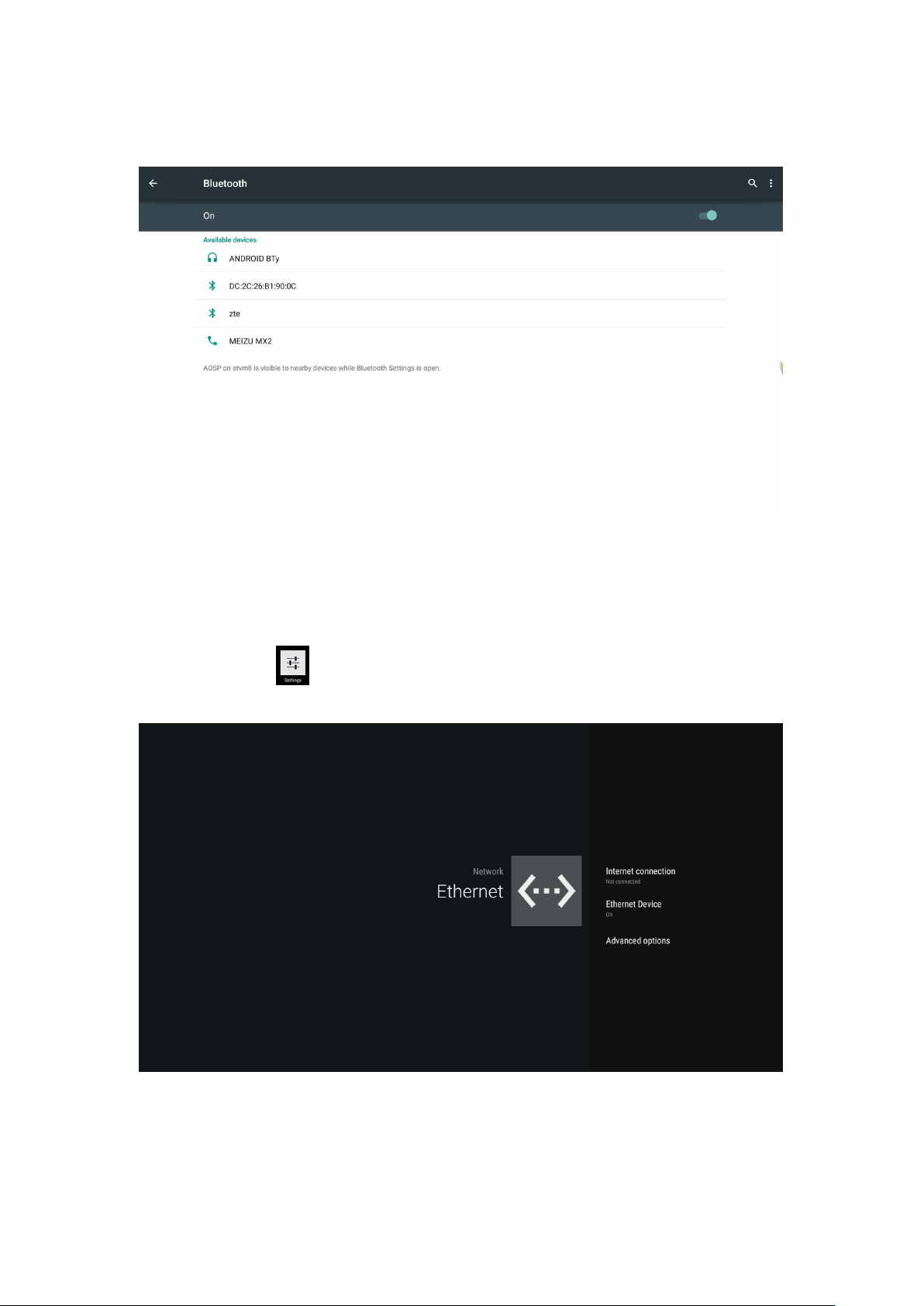
3.2 Bluetooth
3.3 Ethernet
Connect Box and Router by RJ45 network cable.
Press “ ON” in Ethernet setting, it will connect to network automatically.
Page 11
11
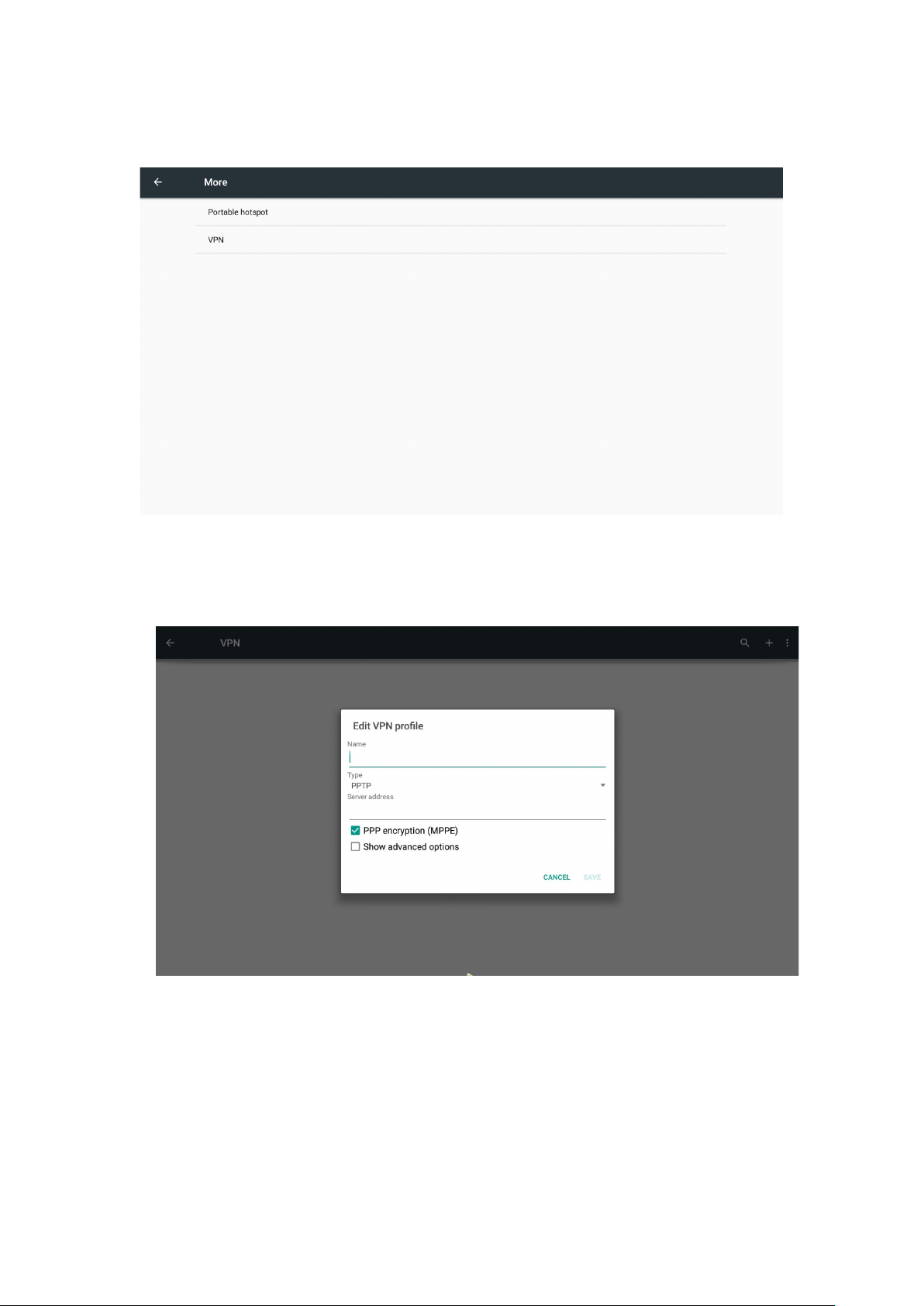
3.4 More...
3.4.1 VPN
Edit VPN profile
3.4.2 Portable hot spot
3.4.2.1 Enable Portable hot spot
3.4.2.2 Set up WiFi hot spot
WiFi and hot spot connection can not be applied at same time. Disconnect
WiFi and connect Ethernet while using hot spot function.
Page 12
12
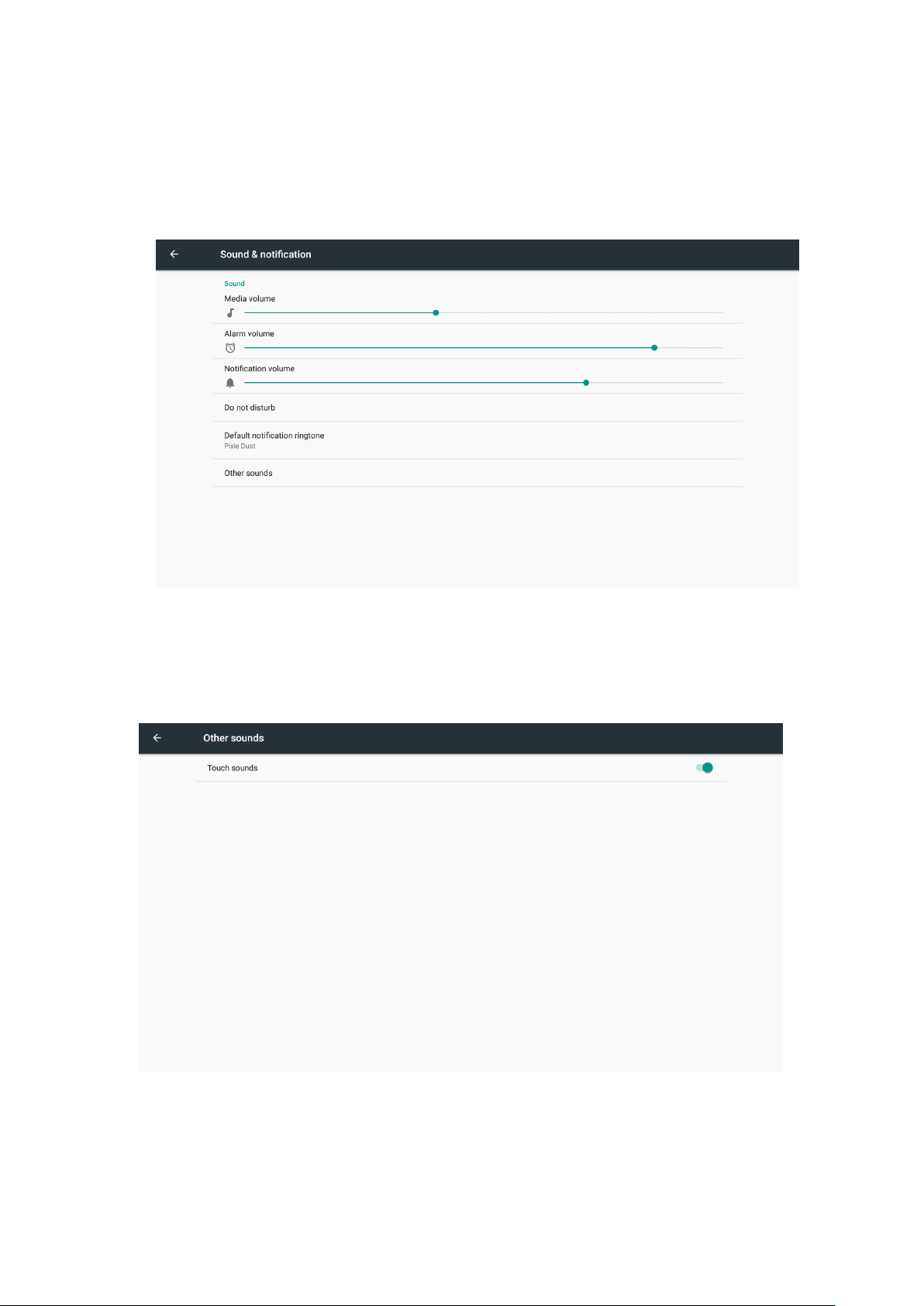
3.5 Sound and notification
3.5.1 Sound
Increase or decrease sound volumes
3.5.2 Touch Sounds
Choose Other sounds,you can set touch sound , if enable Touch sound, sound will
be heard while move remote controller.
Page 13
13
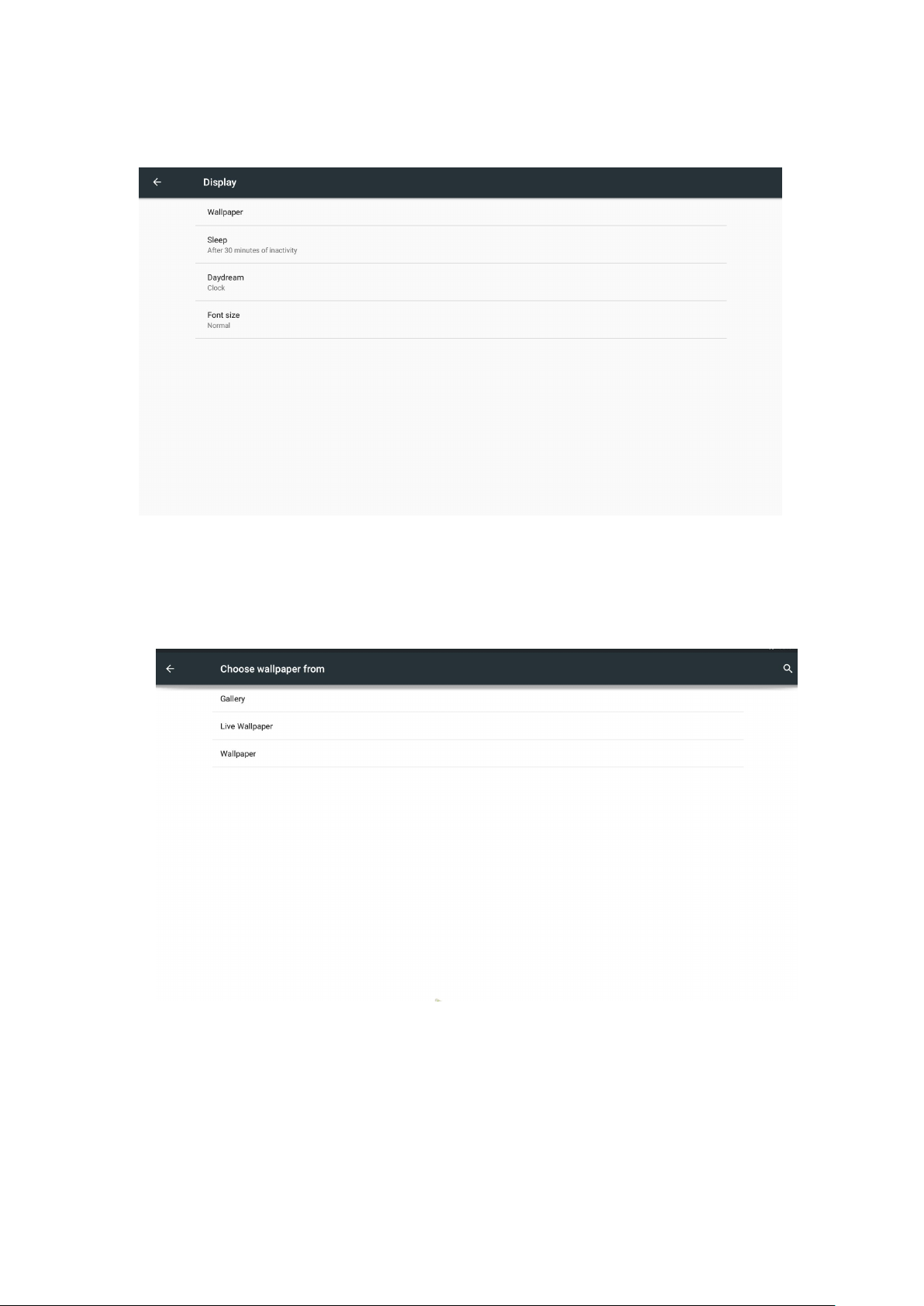
3.6 Display
3.6.1 Wallpaper
You can choose different wallpaper from gallery, live wallpaper and wallpaper.
Page 14
14
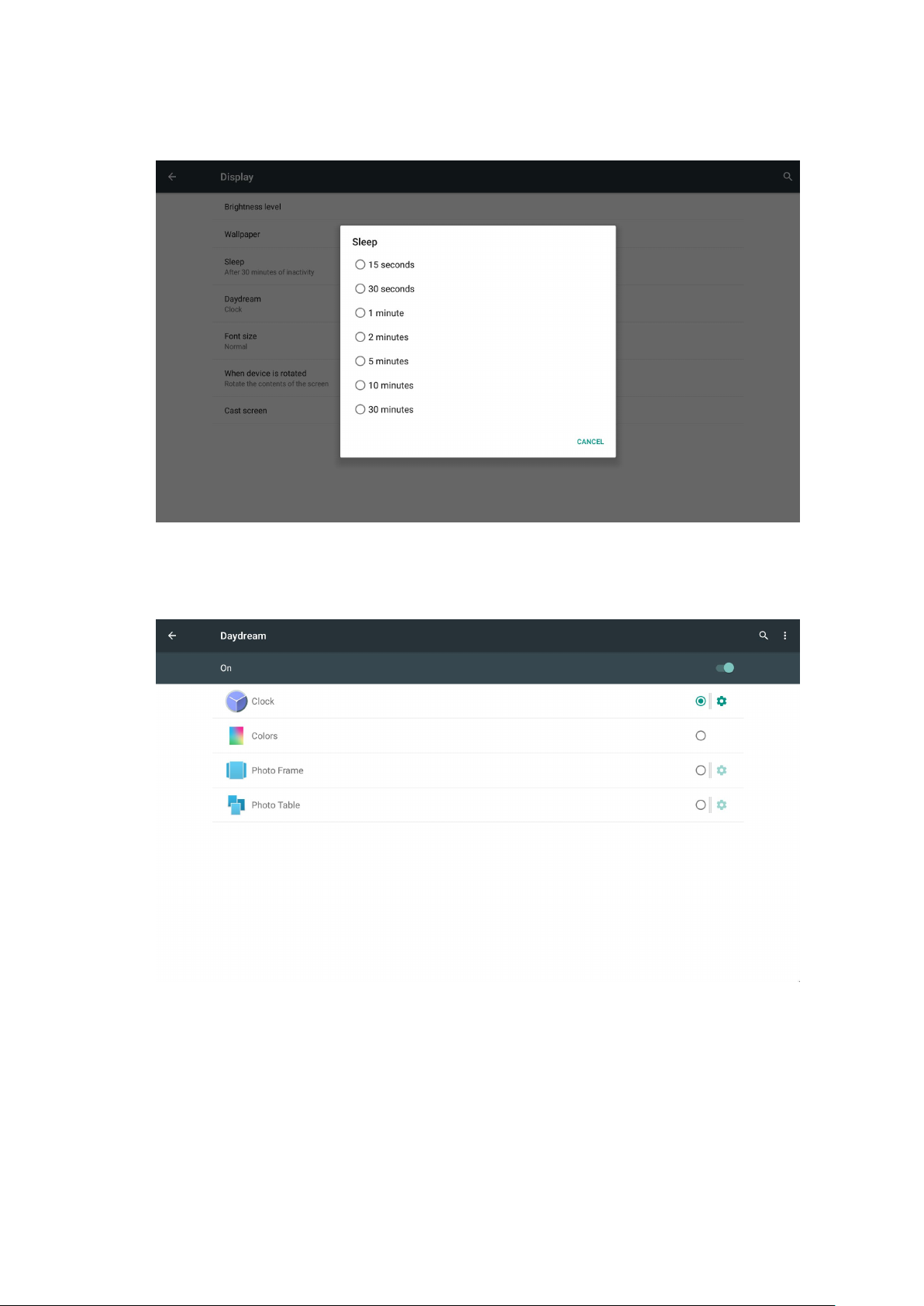
3.6.2 Sleep
3.6.3 Daydream
Page 15
15
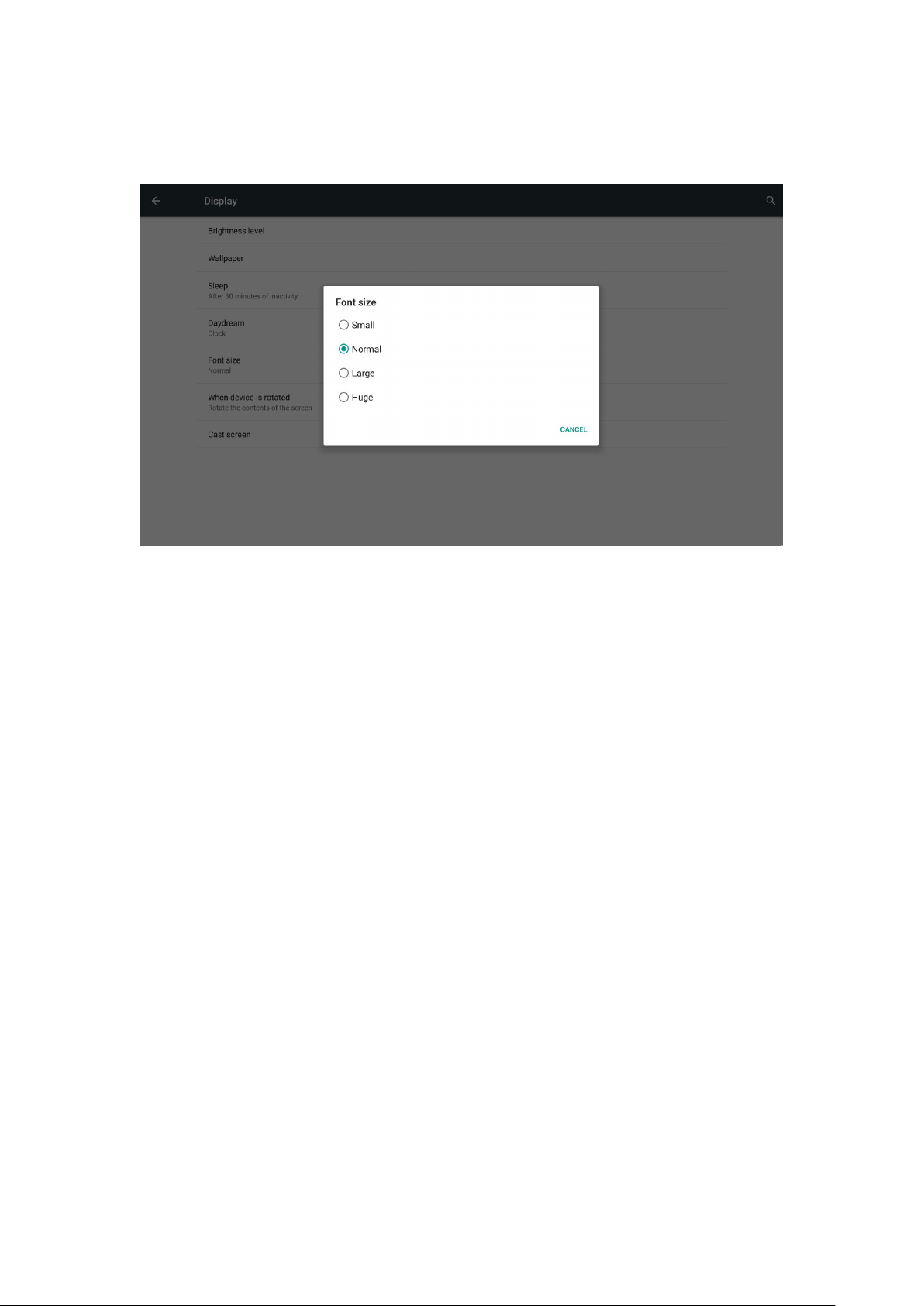
3.6.4 Font size
Change the font size of OSD
Page 16
16
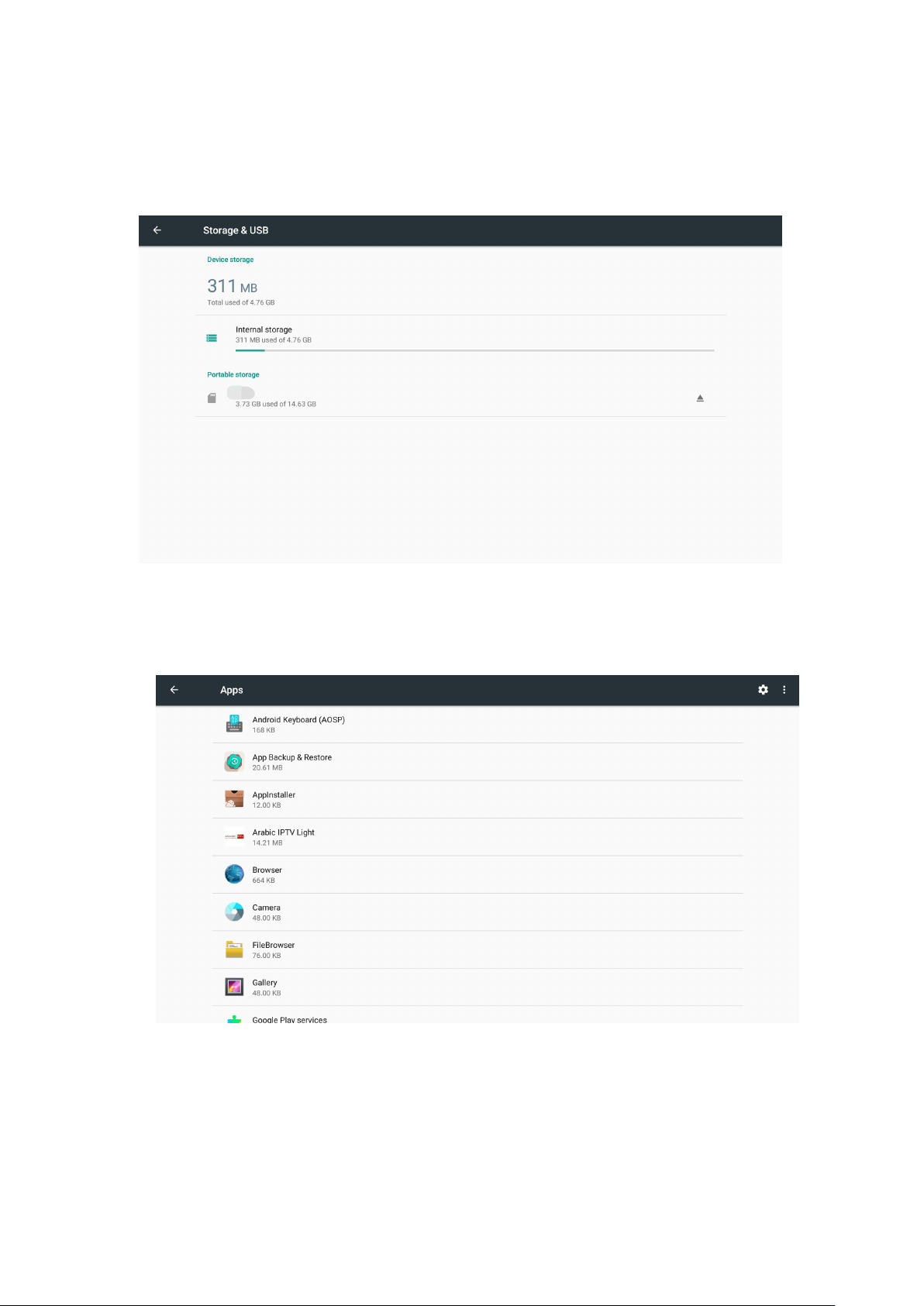
3.7 Storage&USB
Shows the storage used of the OS and SD card.
3.8 Apps
List all apps installed.
You can choose an application and force to shut down the app, uninstall the app,
clear user data, move to SD card and clear cache data.
Page 17
17
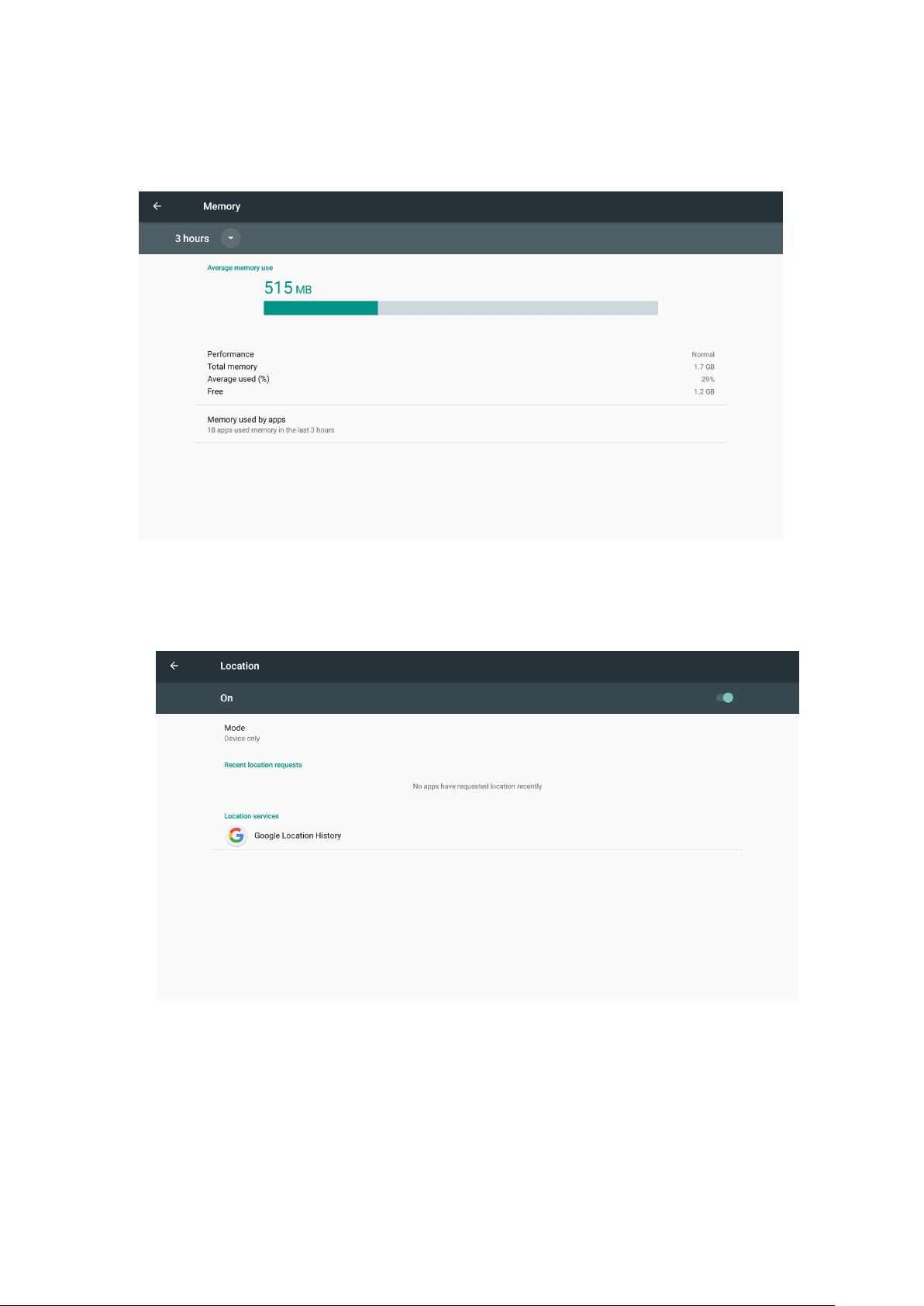
3.9 Memory
3.10 Location
Page 18
18
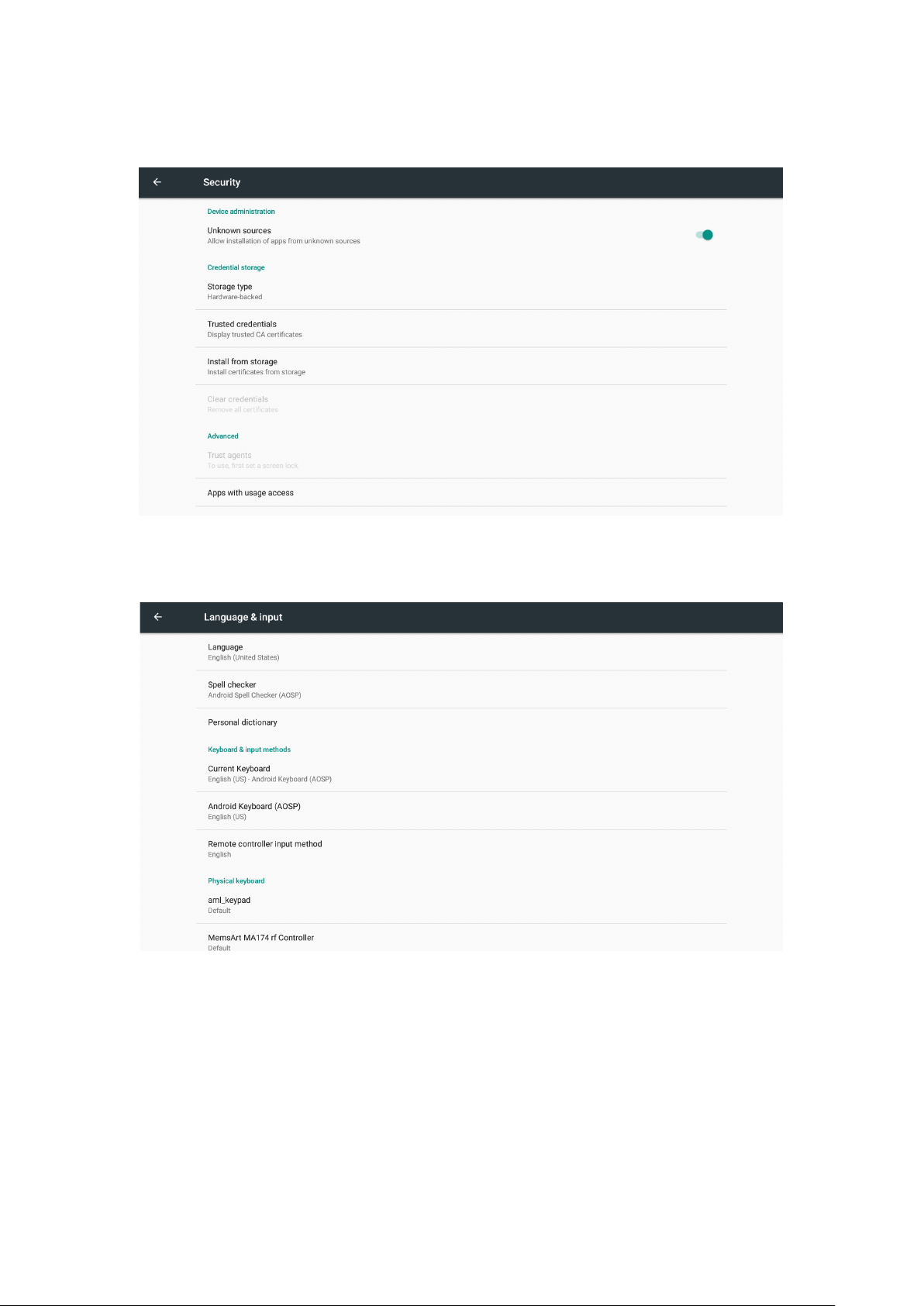
3.11 Security
3.12 Language & input
Change OSD language and input method.
The default input method is android standard keyboard.
If you are using our IR remote control, enter into “Default” option and switch to
remote controller input method.
Page 19
19
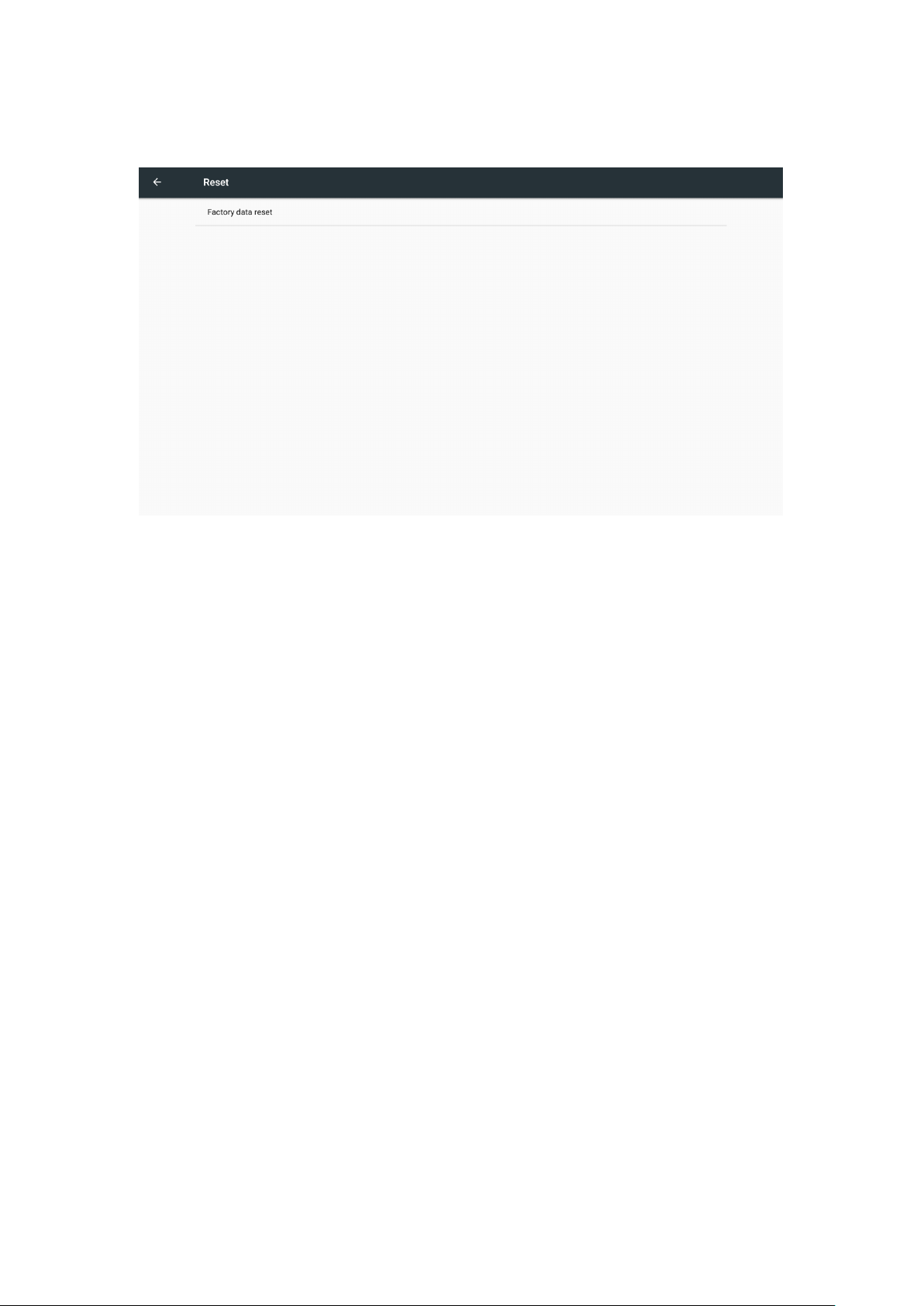
3.13 Reset
Factory data reset
This will erase all data from your mbox’s internal storage,including:
·Your Google account
·System and app data and settings
·Downloaded apps
·Music\Photos
·Other user data
You can reset all the settings and apps to factory default.
Note: Once you choose to reset to factory default, all data/apps will be deleted.
Page 20
20
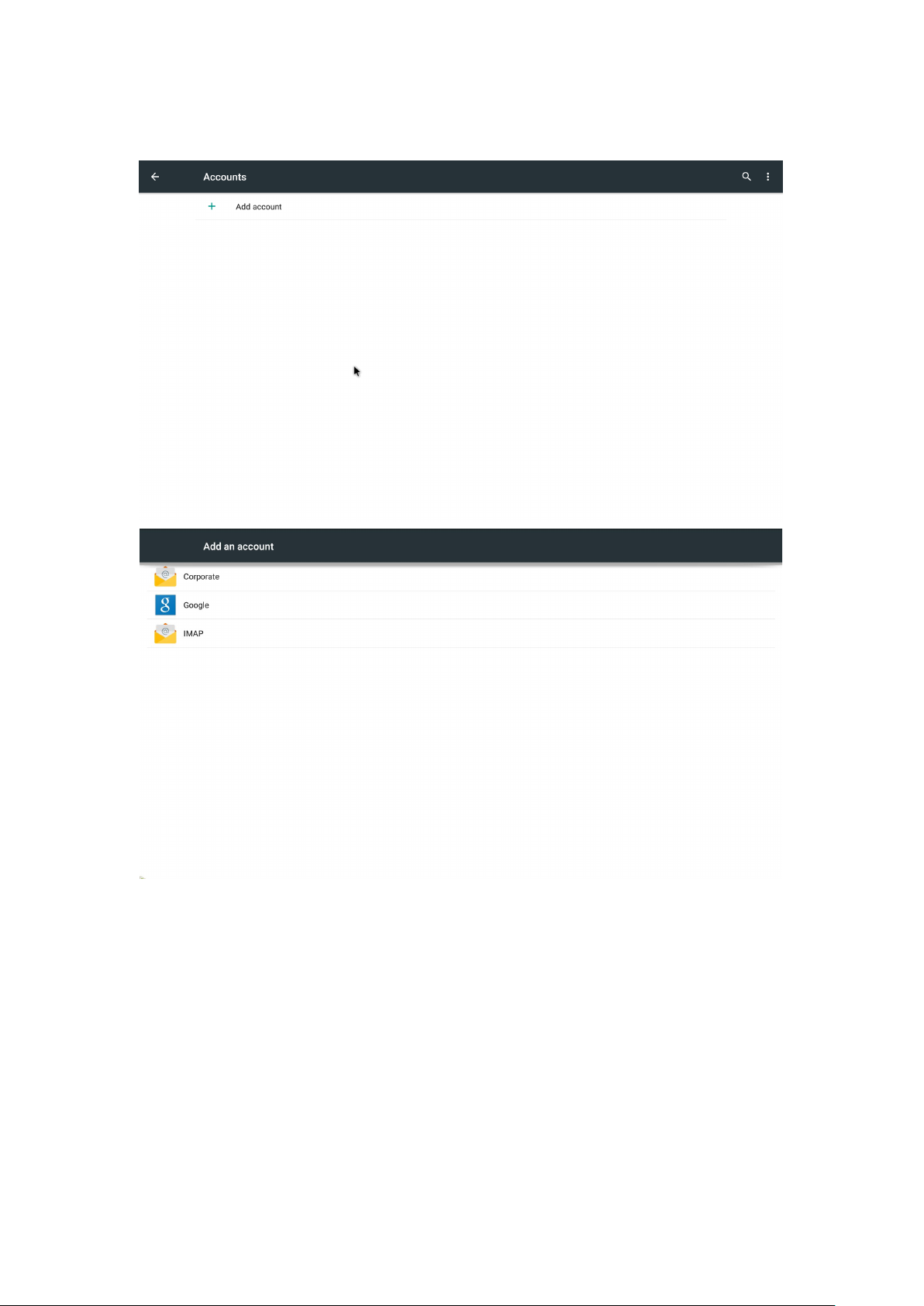
3.14 Accounts
Page 21
21
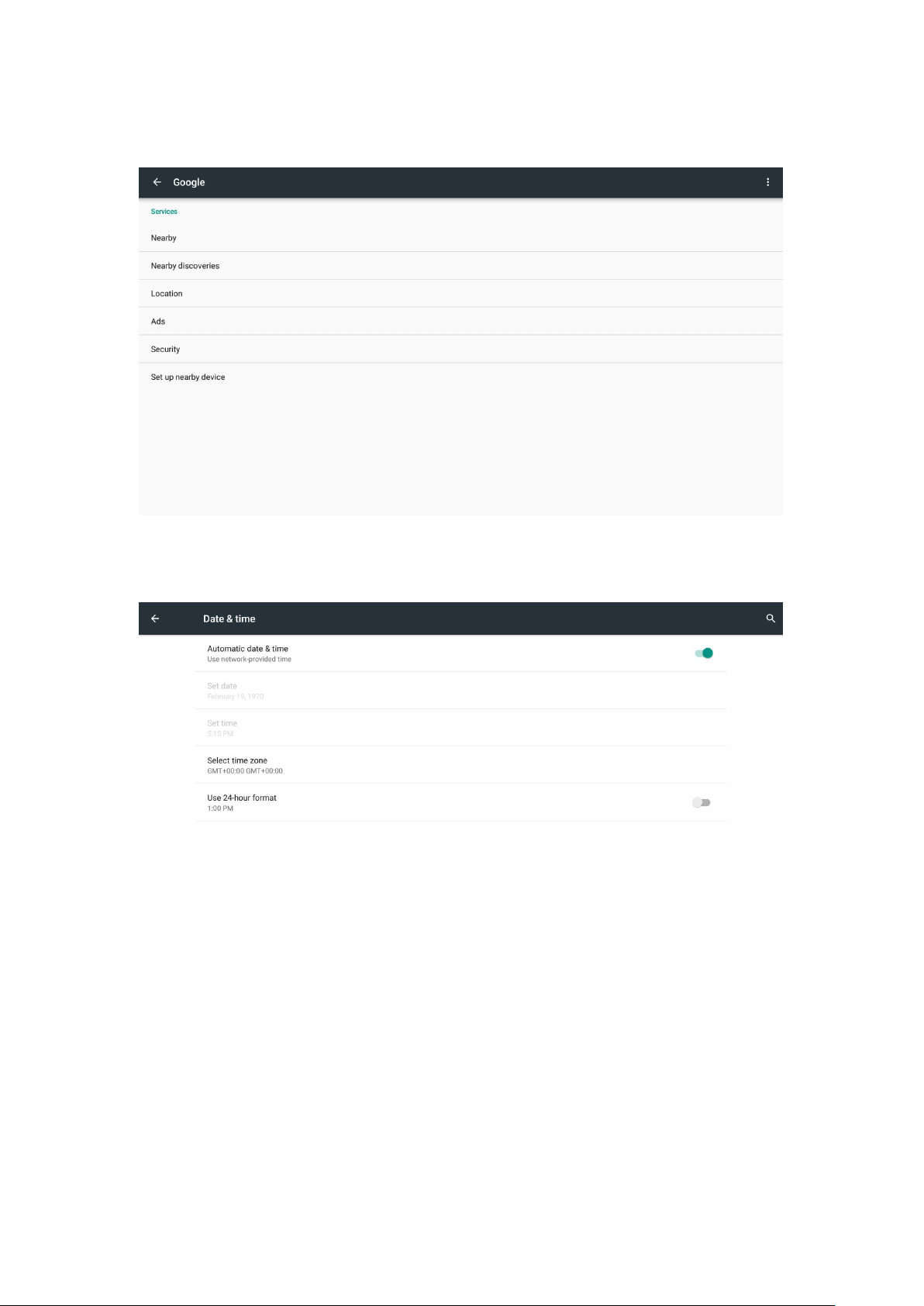
3.15 Google
3.16 Date time
Page 22
22
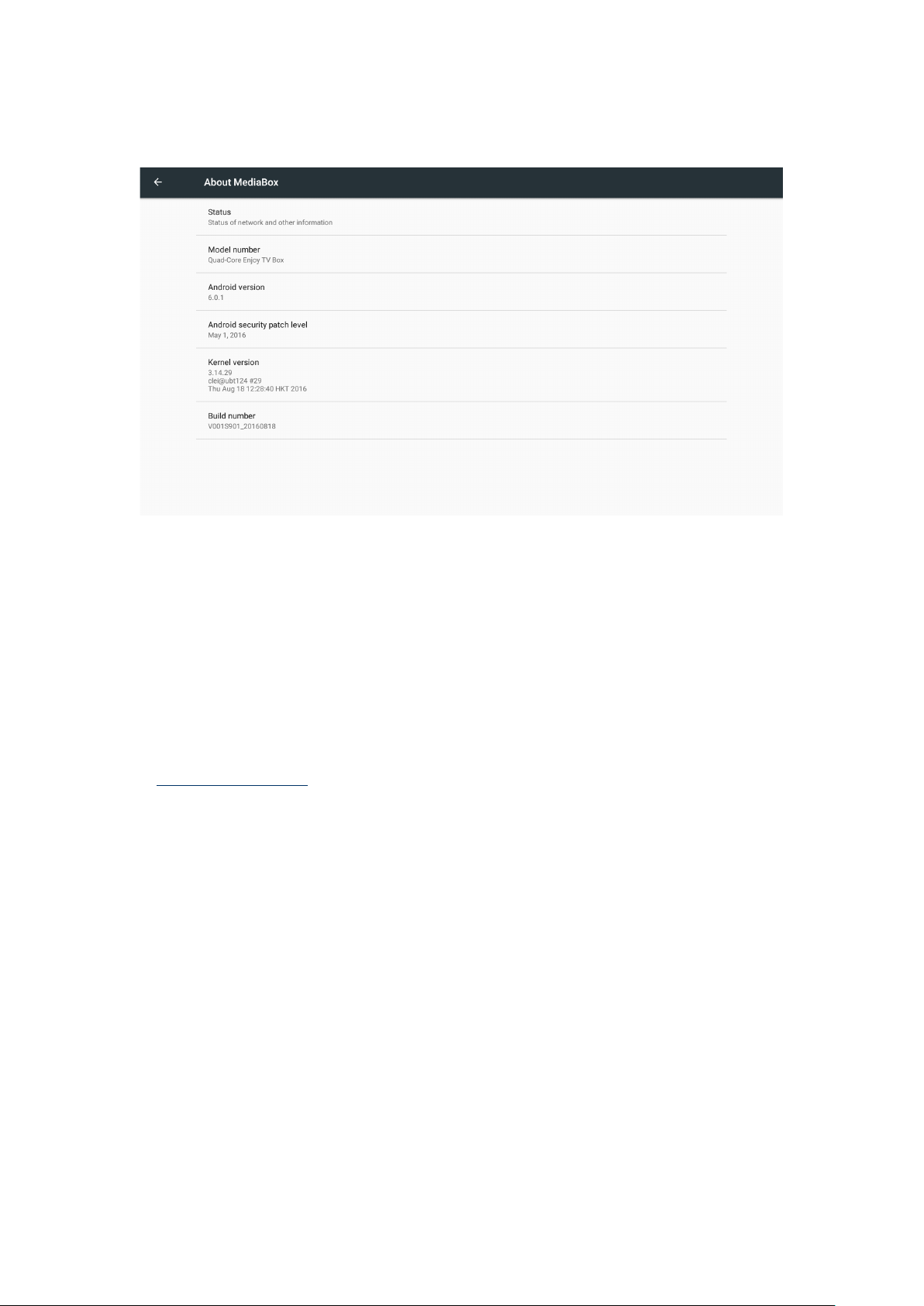
3.17 About MediaBox
4. Apps Install & Uninstall
On ATV495X, you can install apps from Android Market over the Internet or other
sources, such as other online sources, the internal storage and the USB storage
device and SD card that you have mounted onto ATV495X.
You also can manage apps on ATV495X and SD card, install/uninstall apps, stop
running apps, or select other options.
5. Firmware Update
You can download newest firmware from Geniatech Official website:
www.geniatech.com
6. Trouble Shooting/FAQ
6.1 No Picture
Refer to the TV user manual for how to select the correct video input channel.
6.2 USB Content cannot be read
. The format of USB storage device is not supported
. The supported memory size is 32G maximum.
. Make sure that this player supports these files.
6.3 Remote Controller cannot respond quickly to the pressing of keys
Make sure that batteries have enough power.
6.4 The firmware updating is not complete after a long time
If you update the firmware over the online service, it may take a long time to
Page 23

23
download the firmware update files from the server. To save your time, update the
firmware through the SD card.
7. Repairs
If you contact us to repair your player, an administration fee may be charged if
either:
An engineer is called out to your home at your request and there is no defect in the
product.
You bring the unit to a repair center and there is no defect in the product.
We will provide you with the amount of the administration fee before we make a
home visit or begin any work on your player.
We recommend you read this manual throughly, search for a solution on line at
www.geniatech.com, or contact Geniatech Customer Care before seeking to repair
your player.
Page 24

24
8. Specification
CPU
Quad Core ARM Cortex-A53 CPU up to @ 2.0GHz
ROM
8G EMMC
DC Input
5.0V-2A
Video Output
HDMI/CVBS
Audio Output
HDMI/RCA
BT
Optional
Audio Decoder
Low power Media CPU with DSP audio processing
H.265 HEVC [email protected] up to 4kx2k@60fps
MPEG-1 MP/HL up to 1080P@60fps
RealVideo 8/9/10 up to 1080P@60fps
Net Weight
159g
GPU Mali 450 GPU @ 750MHz+(DVFS)
RAM 2G DDR3(1G optional)
OS Android 6.0 OS
Optional DOLBY
USB USB2.0 x2
HDMI V2.0
SD Slot Max: 32G
IR receiver /
LAN RJ45 10/100M Ethernet interface
WiFi
IEEE 802.11 B/G/N AC 2.4G(5.8G Optional)
Supports MP3,AAC,WMA,RM,FLAC,Ogg and programmable with7.1/ 5.1
down-mixing
Video/Picture
Decoder
Size 82X 82 X 19mm
VP9 Profile-2 up to 4Kx2K@60fps
H.264 AVC HP @L5.1 up to 4kx2k@30fps
H.264 MVC up to 1080P@60fps
MPEG-2 MP/HL up to 1080P@60fps
MPEG-4 ASP@L5 up to 1080P@60fps
WMV/VC-1 SP/MP/AP up to 1080P@60fps
Multiple language and multiple format sub-title video support
MJPEG and JPEG unlimited pixel resolution decoding
Supports JPEG thumbnail,scaling,rotation and transition effects
Page 25

25
9. Trademark Notice
The terms HDMI and HDMI High-Definition Multimedia Interface, and the HDMI
Logo are trademarks or registered trademarks of HDMI Licensing LLC in United
States and other countries.
FCC ID: ZJU-E18DA5
FCC Warning
Changes or modifications not expressly approved by the party responsible for compliance
could void the user’s authority
This device complies with Part 15 of the FCC Rules. Operation is subject to the following
two conditions: (1) this device may not cause harmful interference, and (2) this device
must accept any interference received, including interference that may cause undesired
operation.
This equipment has been tested and found to comply with the limits for a Class B digital
device, pursuant to Part 15 of the FCC Rules. These limits are designed to provide
reasonable protection against harmful interference in a residential installation. This
equipment generates, uses and can radiate radio frequency energy and, if not installed
and used in accordance with the instructions, may cause harmful interference to radio
communications. However, there is no guarantee that interference will not occur in a
particular installation.
If this equipment does cause harmful interference to radio or television reception, which
can be determined by turning the equipment off and on, the user is encouraged to try to
correct the interference by one or more of the following measures:
-- Reorient or relocate the receiving antenna.
-- Increase the separation between the equipment and receiver.
-- Connect the equipment into an outlet on a circuit different from that to which the receiver
is connected.
-- Consult the dealer or an experienced radio/TV technician for help.
to operate the equipment.
This equipment complies with FCC radiation exposure limits set forth for an uncontrolled
environment. This equipment should be installed and operated with a minimum distance
of 20cm between the radiator & your body. This transmitter must not be co-located or
operating in conjunction with any other antenna or transmitter.
 Loading...