

Page 1
Hub USB 2.0 ultra-plat
GU2H-02
Manuel d'utilisation
(French)
1.Introduction:
Ce hub USB 2.0 haut débit vous permet d'ajouter des périphériques USB 2.0 à
votre ordinateur. Le hub possède 4 ports en aval pour connecter des appareils USB 2.0
ou USB 1.1. En effet il est retro-compatible avec tous vos appareils USB. Ce hub est
100% compatible avec la spécification USB 2.0.
Le hub USB 2.0 haut débit vous permet d'ajouter des appareils haute
performance tels que webcam, scanner USB 2.0, imprimante et dispositif
d'enregistrement rapide.
Ce hub, qui possède un câble USB 2.0 intégré, vous permet de connecter jusqu'à
127 appareils USB.
2.Fonctions:
Conforme aux normes USB-IF, CE & FCC
Compatible USB 2.0
Retro-compatible USB 1.1
Supporte taux de transfert 1.5/12/480 Mbps
Chaque port supporte un transfert de données jusqu'à 500mA
Alimentation par le port USB
Un port en amont et 4 ports en aval
Un indicateur de l'état de marche
Les ports en aval possèdent les fonctions connexion automatique, détection de vitesse,
protection contre surcharge et récupération automatique.
3. Besoins système
Interface USB : un port USB disponible
Compatible Windows 98SE/ME/2000/XP et MAC 8.6/9.X/10.X.
4.Installation du driver
Windows 98SE:
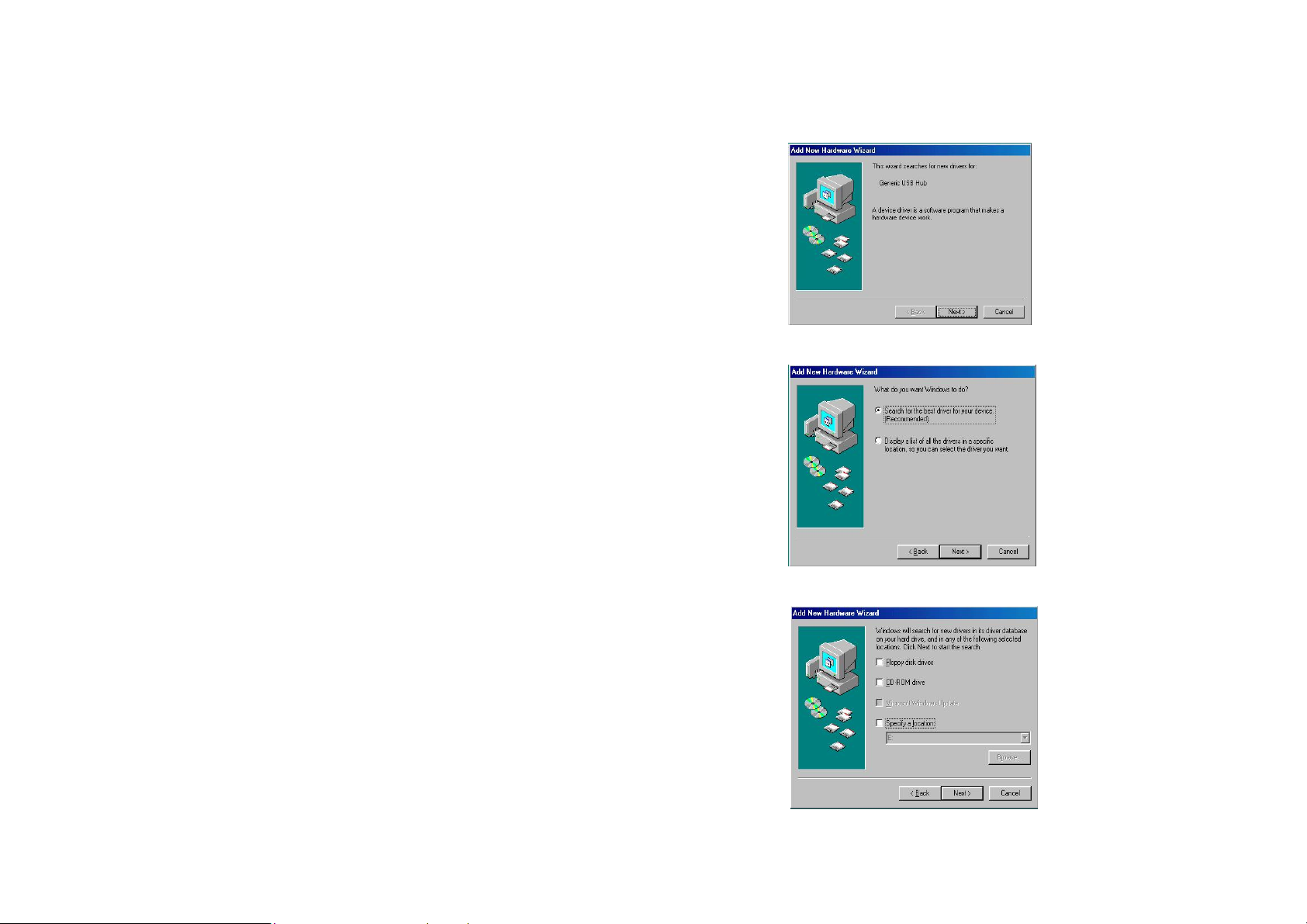
1) Le système détectera le hub et lancera “Add New Hardware Wizard.”
2) Quand vous voyez l'écran ci-dessous, cliquez sur “Next”.
.
3) Cochez la première option et cliquez sur “Next”.
4) Quand vous voyez l'écran ci-dessous, décochez toutes les options et cliquez sur “Next”.
5) A l'écran ci-dessous cliquez sur “Next”.
Page 2

6) Quand vous voyez l'écran ci-dessous, cliquez sur “Finish”.
windows ME/2000/XP:
Aucun driver n'est nécessaire
5. Vérification
Faîtes un clic-droit sur l'icône "Poste de Travail" sur le bureau. Sélectionnez
"Propriétés" puis l'onglet "Matériel" et "Gestionnaire de périphériques". Dans
"contrôleurs de bus USB" vous devez voir "Generic USB Hub" (voir
ci-dessous).
Sinon, merci de refaire la procédure d'installation
6. Contenu de l'emballage
Un hub USB 2.0 4 ports
Un manuel d'utilisation
6-INBOK----066A
Page 3
Hi-speed USB 2.0 SLIM HUB
GU2H-01 GU2H-02
GU2H-03 GU2H-04
User manual
1.Introduction:
This USB 2.0 Hi-Speed Hub lets you add more USB 2.0 peripherals to your
desktop computer, The hub has 4 downstream ports which will connect either the new
USB 2.0 high performance peripherals or the legacy USB 1.1 devices. This means it is
fully “backwards compatible” with all your existing USB products. The hub is 100%
compliant with the USB 2.0 specifications.
The USB 2.0 Hi-Speed Hub will allow users to add multiple higher performance
peripherals such as high resolution video conferencing cameras, and next generation of
USB 2.0 scanners, printers, and fast storage devices.
The hub will allow you to connect up to 127 USB devices to your computer and
comes with a USB 2.0 cable.
2.Features:
USB-IF certificated,CE & FCC approved.
Fully compatible with USB 2.0 Specification
Fully backward Compatible with USB 1.1 Specification
Support transfer rate of 1.5/12/480 Mbps
500mA each port is reliable at p to 15 feet of transmission
Support self-powered mode
One upstream port and four downstream ports
One LED to indicate the HUB is ready
Downstream ports have automatic connect and speed detection function plus
Over-current protection with auto recovery
3.System Requriements
USB Interface:one free USB port.
OS:windows98SE/ME/2000/XP and MAC 8.6/9.X/10.X.
4.Software Installation
Windows 98SE:
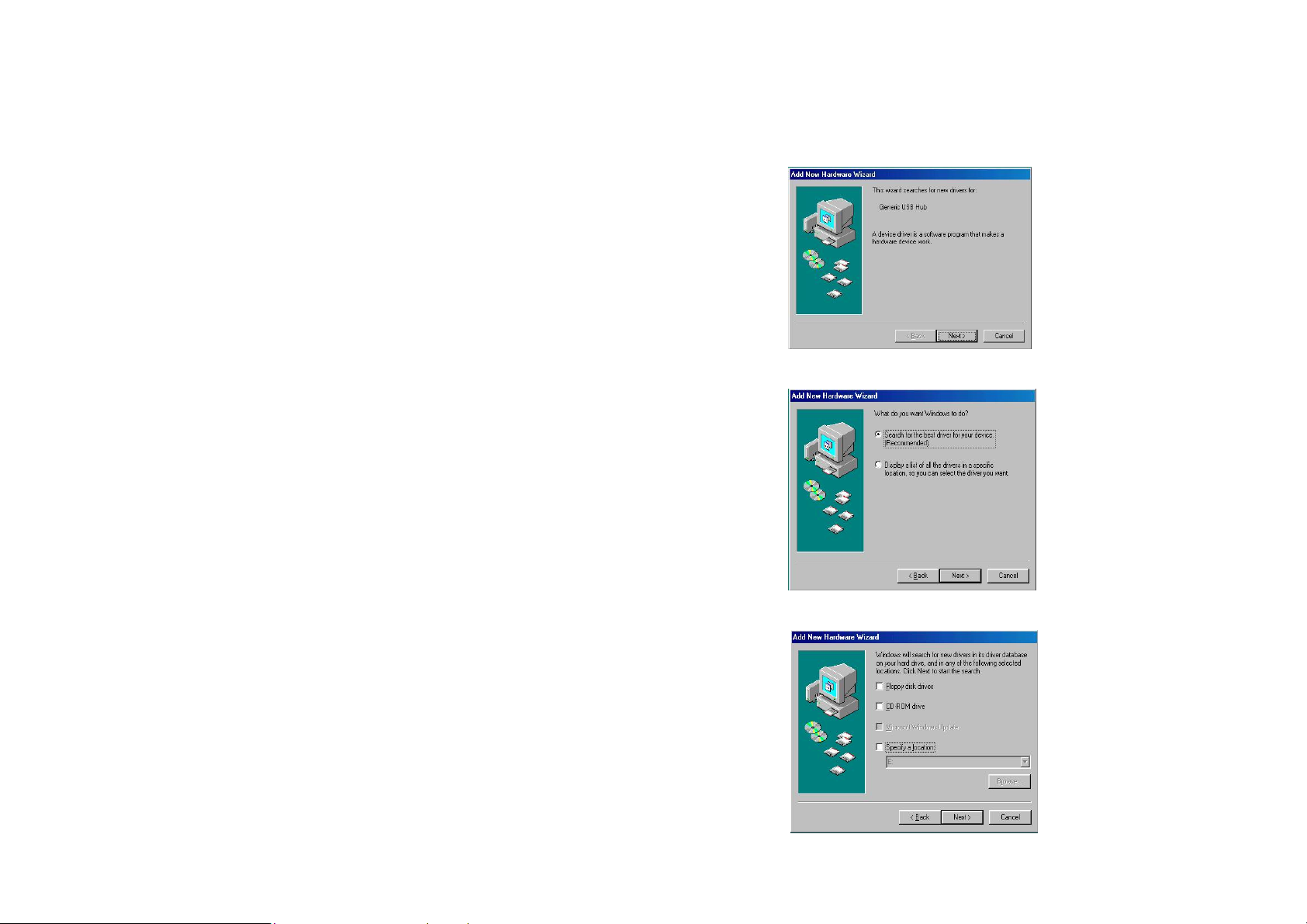
3) The system will detect the hub and run “Add New Hardware Wizard.”
4) As you see the following screen,press “Next”.
.
3) As you see the following screen, please check the first item ans press “Next”.
6) As you see the following screen, please cancel any item and press “Next”.
Page 4
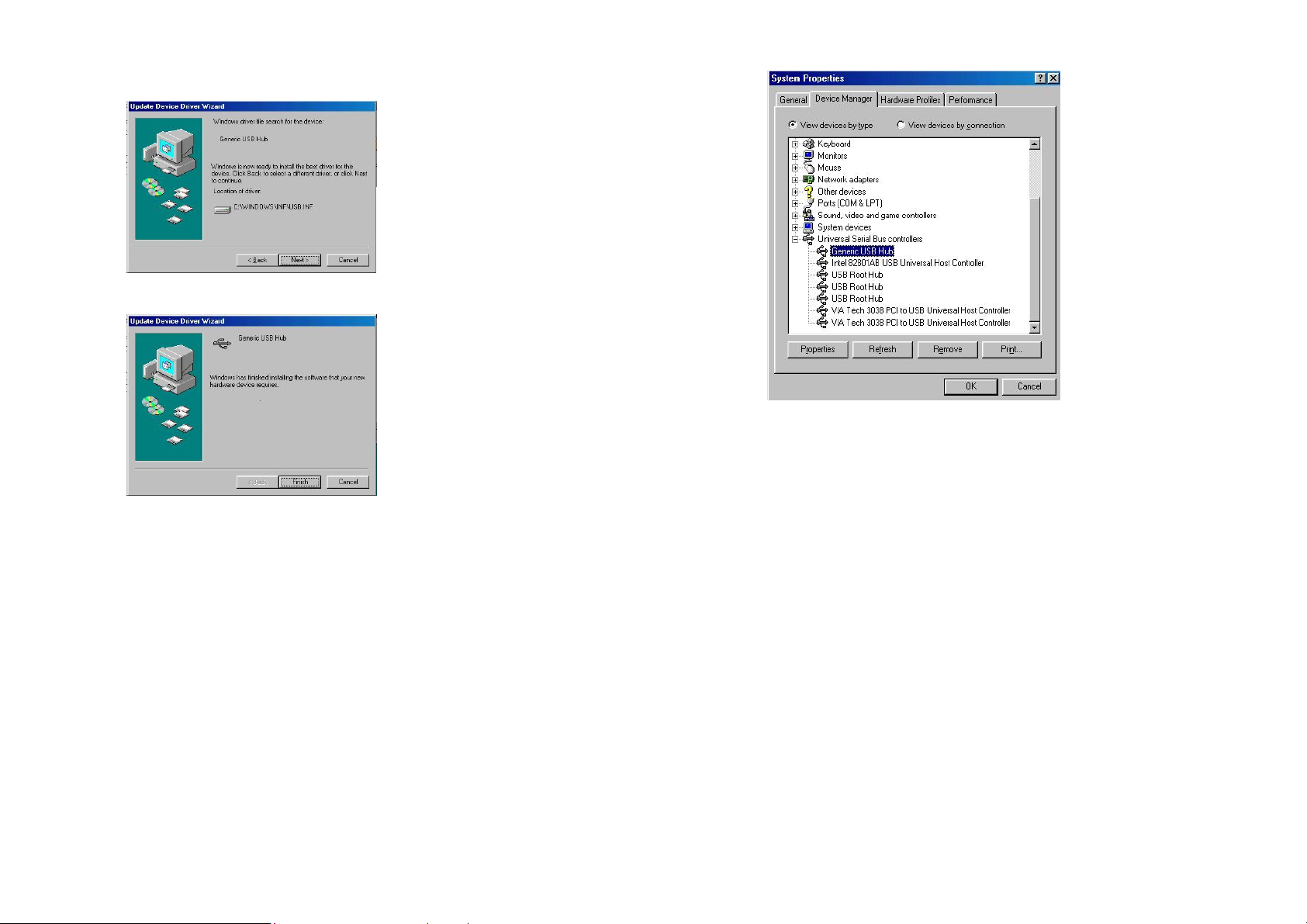
7) As you see the following screen, please press “Next”.
6) As you see the following screen, please press “Finish”.
windows ME/2000/XP:
Need no driver installation.
5. Verification
As the result of the successful installation, you should meet the following picture after
you unfold the item “Universal Serial Bus Controllers” in the “Device Manager” sheet of
the dialog “System Properties” which displays after you right-click the icon “My Computer”
and select the item “Properties” on the pop-up menu.
If you miss it, sorry, you must repeat as step 4 described.
6. Package List
Usb 2.0 4 port Hub
Usb manual
 Loading...