

Page 1
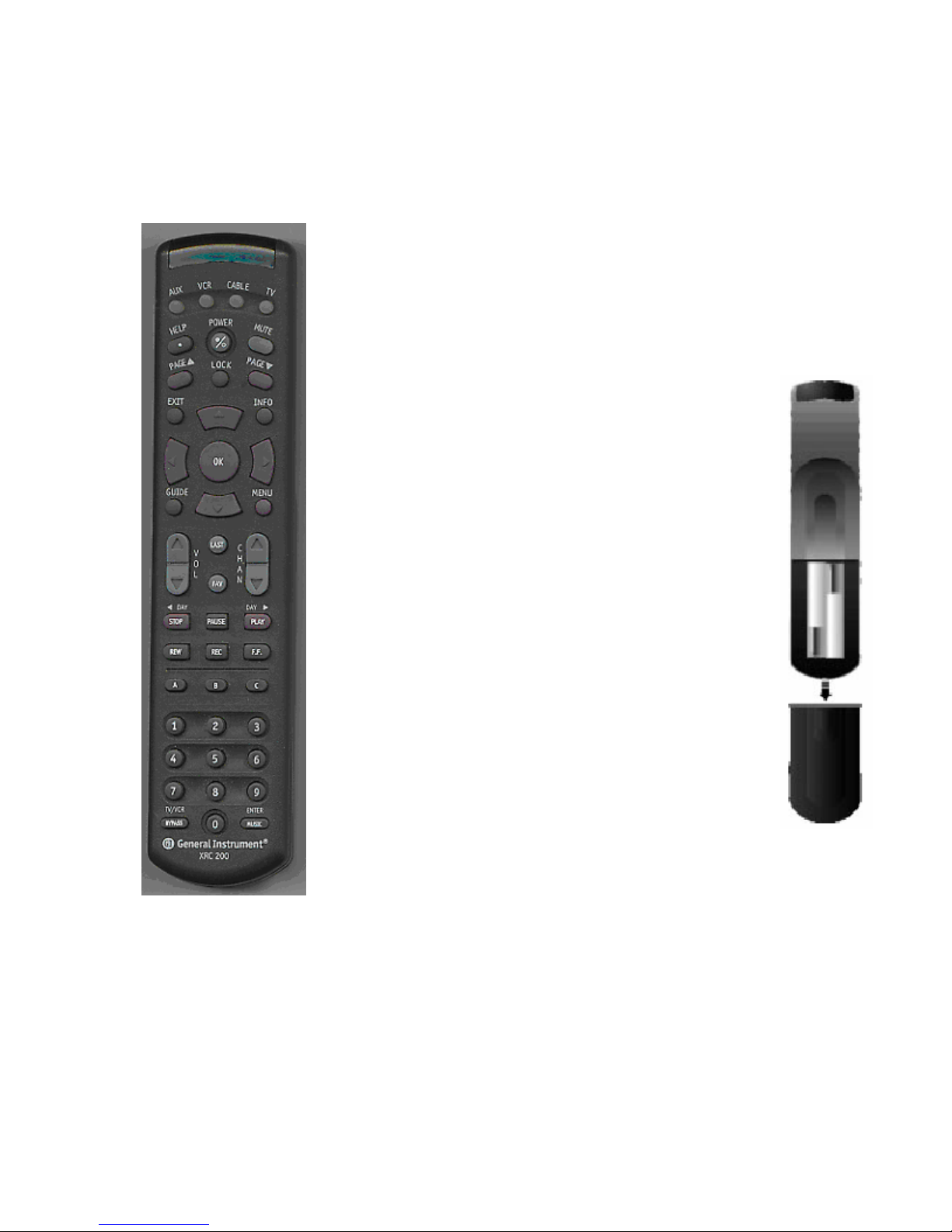
XRC 200
UNIVERSAL
REMOTE
CONTROL
(Made in China)
GETTING STARTED
Congratulations! Your XRC
200 universal remote control
brings new convenience to
television viewing. By
pressing a few keys, you can
see what is on TV, select a
program to watch, set up to
record programs on your
VCR, and much more.
The XRC 200 universal
remote control has been
designed to control most TV
sets and VCRs on the market
today as well as your cable
device, eliminating the
frustration of having to use
several remote controls.
Before you start to program
your remote control, please
read the following important
instructions.
The XRC 200 enables you to:
• Control multiple devices
such as a cable
device, TV, and VCR.
• Control an auxiliary device
such as a second TV or
VCR or a digital audio
tuner.
• Control the volume
through your TV while in
Cable mode. (Refer to
Programming Volume
Control later in this
brochure.)
• Control services such as
Digital Music Express
TM and Music Choice SM.
REPLACING THE
BATTERIES
Use two fresh 1.5 volt, AA
batteries. To install or
replace the batteries:
1. Slide the battery door
open on the back of the
remote
control.
2. Remove
the old
batteries,
and insert
the new
ones as
indicated.
3. Slide the
battery
door
closed until
it snaps
into place.
4. Point the
remote
control at
your cable
device, press CABLE, and
then press POWER. The
CABLE key lights.
If the key does not light, check
the battery orientation, or
replace the batteries as
needed.
Page 2

If you replace the batteries
within a few hours after
removing the old batteries,
you will not need to reprogram
the remote control.
USING THE KEYBOARD
Use the mode keys to switch control
to a device. The four mode keys
(AUX, VCR, CABLE, or TV) light to
indicate which device is being
controlled.
For example, to change the VCR
channel, press VCR and then press
the desired channel number key(s).
To control your cable device, press
CABLE and then press a function
key. The remote control will
continue to control the same device
until you press another mode key.
PROGRAMMING YOUR
XRC 200
You are now ready to program the
remote control. Find the codes for
your set top terminal, TV, VCR, and
any auxiliary device in the Device
Codes section at the end of this
guide.
Please note the following:
• All codes are three-digit
numbers. As you program for
each mode, write down the
correct codes in the spaces
provided for future reference.
• For many devices, more than
one code is listed. In these
cases, start with the first code.
• If you do not press the next key
within 10 seconds, the whole
sequence will be erased and
you will have to start over. This
prevents you from accidentally
reprogramming the remote
control during regular viewing.
• After you program the remote
control, check the device
functions. If a primary function
does not operate, you can try
another device code listed in the
Device Codes section for the
manufacturer. If the device does
not respond, refer to Finding the
Correct Device Code later in this
guide.
PROGRAMMING FOR YOUR
CABLE DEVICE, TV, AND VCR
The XRC 200 is already
programmed to control the General
Instrument CFT2200 and DCT1000
set-top terminals.
To control another device, look for
the list of manufacturers™ threedigit codes for the device type in the
Device Codes section. Then
perform the following steps:
1. On the remote control, press
and hold the appropriate mode
key until the four mode keys
flash twice.
2. Enter the three-digit code.
3. The mode key should flash
twice. If it doesn’t start over at
step 1.
4. Point the remote control at the
device and press POWER. If the
device turns on or off, you have
finished programming.
If you have tried all the codes listed
for the manufacturer and the device
does not respond, refer to Finding
the Correct Device Code later in this
guide.
5. Write the codes below:
Set-top device code ___ ___ ___
TV device code ___ ___ ___
VCR device code ___ ___ ___
6. Note that in the TV and VCR
modes, the PAUSE, PLAY,
REW, REC AND FF keys
control your VCR. To record a
program, you must hold down
REC and press PLAY. This
prevents accidental recording.
PROGRAMMING FOR AN
AUXILIARY DEVICE
You can program the AUX mode to
control an auxiliary device such as a
second remote-controlled TV or
VCR, a General Instrument satellite
receiver, or a digital audio tuner.
1. Look up the device
manufacturer in the Device
Codes section and note the
code.
2. Press and hold VCR, CABLE or
TV key (depending on which
device you will program the
AUX button for) for
approximately three seconds
until the four mode keys flash
twice.
3. Enter 992.
4. Press and hold down AUX until
the four mode indicators flash
twice; if it doesn’t, press AUX as
described above and try again.
5. Enter the three-digit code for
your VCR, Converter Box or TV.
6. After you have entered the
code, point the remote at your
device and press POWER. If
the device turns off, you have
successfully programmed for
that device.
If you have tried all the codes listed
for the manufacturer and the device
does not respond, refer to Finding
the Correct Device Code later in this
guide.
7. Write the device type and code
below:
Device Type ______________
AUX device code ___ ___ ___
Page 3

PROGRAMMING VOLUME
CONTROL
You can program your XRC 200 to
control the volume through the TV
while in any other mode. The TV
must permit remote volume control.
For example, you can control
volume through the TV while in
Cable mode. In VCR mode, the
volume control is always set through
the TV.
This procedure does not affect any
device codes you set previously.
To control the volume through the
TV while in Cable mode:
1. Press and hold mode key of the
device in which volume is to be
controlled until the four mode
keys flash twice.
2. Enter 993.
FINDING THE CORRECT DEVICE
CODE
Manufacturers often put their brand
name on devices made by others. If
you have tried all of the
manufacturers device codes listed in
this guide but the device still does
not respond, you can use the XRC
200 to find and identify the
appropriate device code.
SCANNING FOR A DEVICE CODE
Perform the following steps to scan
for a code that operates your
device:
1. Turn on the device.
2. Press and hold a mode key until
the four mode keys flash twice.
3. Enter 991.
4. Repeatedly press POWER and
then the mode key until the
device turns off. You may need
to press Power – mode key a
number of times. Be patient
and go slow so you don’t miss
the correct code.
5. When the device turns off, the
remote is programmed with a
code that controls the device.
6. Press SELECT to lock in the
code. The mode key will flash
twice to indicate that the code is
accepted.
RECALLING A DEVICE CODE
Perform the following steps to read
the code currently set for a device.
This is useful for retrieving a device
code that was set using the
scanning method described
previously.
1. Press any mode key until the
four mode keys flash twice.
2. Press 990.
3. Press 1 and count the number
of times the mode key blinks.
This number is the first digit of
the device code. If the indicator
does not blink after any step of
this procedure, the digit is 0.
4. Next, press the 2 key. The
mode key will blink again.
Count the number of blinks to
find the second digit of the code.
Finally, press 3. The number of
blinks is the third digit of the
code.
DEVICE CODES
CABLE DEVICE CODE
ABC 003, 011, 013,
014, 047
General Instrument 003, 011,
012, 014, 047,
276, 476, 690,
691
Hitachi 011
Jerrold 003, 011, 012,
014, 047, 276,
476, 690, 691
Rembrandt 011
Signature 011
Starcom 003, 047
Tocom 012, 013
United Cable 003
TV BRAND DEVICE CODE
A-Mark 003
Abex 032
Admiral 093
Adventura 046
Aiko 092
Akai 030, 098
Alaron 216
Alleron 179, 183
Ambassador 177
Anam 004, 009, 068, 180
Anam-National 055, 161
AOC 003, 019, 030,
137, 185
Archer 003
Asiro Text 379
Audiosonic 109
Audiovox 003, 180
Beloar 019
Bell & Howard 016, 154
Bradford 180
Brandt 109
Brockwood 019
Broksonic 003
Candle 030, 046, 056, 186
Carver 054
CCE 329
Celebrity 000
Citizen 030, 039, 046,
056, 060, 092,
186, 280
Clairtone 185
Concerto 056
Contec 157, 158, 180, 185
Craig 161, 180
Crown 039, 180
Curtis Mathes 030, 039, 060,
154, 415
CXC 180
Daewoo 019, 039, 066,
067, 091, 092,
451
Daytron 019
Dumont 017, 019
Dynatech 049
Electroband 000, 185
Electrohome 381, 389, 409
Emerson 019, 038, 039,
154, 158, 177,
178, 179, 180,
182, 183, 185,
236, 280, 282,
463
Envision 030
Ferguson 109
Fisher 154, 159
Fujitsu 179
Funai 179, 180
Futuretech 180
GE 021, 027, 029,
047, 051, 055,
135, 138, 174,
178, 251, 279,
282
GEC 437
Gibralter 017, 019, 030
Goldstar 001, 002, 019,
030, 032, 039,
056, 106, 109, 178
Gradiente 392
Grundig 070
Grunpy 179, 180
Hallmark 178
Harvard 068, 180
Page 4

Hitachi 032, 038, 056,
109, 145, 151,
173, 227, 279,
409, 413
Ima 180
Infinity 054
Janeil 046
JBL 054
JCB 000
Jensen 050
JVC 036, 053, 069,
160, 169, 182
Kamp 216
Kawasho 158, 216, 308
Kenwood 019, 030
Kloss 024, 046
KMC 106
KTV 030, 039, 180,
183, 185, 280
Logik 016
Luxman 056
LXI 047, 054, 148,
154, 156, 178
M-Electronic 109
Magnavox 030, 036, 054,
096, 186, 230,
386
Majestic 015, 016
Marantz 030, 054
Megatron 003, 145, 178
MEI 185
Memorex 016, 056, 106,
150, 154, 178
MGA 019, 030, 150,
155, 178
Midland 017, 032, 039,
047, 051, 135
Minutz 021
Mitsubishi 014, 019, 098,
` 150, 155, 178,
241, 331, 358
Motorola 055, 093
MTC 019, 030, 049,
056, 060, 191,
185
Multitech 049, 180
NAD 156, 166, 178
NEC 019, 030, 036,
056, 434
Nikko 030, 092, 178
Noblex 430
Nordmende 109
NTC 092
Onwa 180
Oplimus 154, 166
Optonica 093, 165
Orion 236
Panasonic 051, 054, 055,
162, 226, 250,
338, 375
Penney 002, 003, 018,
019, 021, 027,
030, 032, 039,
047, 051, 060,
110, 135, 138,
149, 156, 178,
309
Philco 019, 030, 054,
096, 302
Philips 054
Pilot 019, 030, 039
Pioneer 038, 109, 166
Portland 019, 039, 092
Priceclub 060
Prism 051
Proscan 047
Proton 003, 031, 178, 466
Pulsar 017
Pulser 019
Quasar 051, 055, 219, 250
Radio Shack 019, 032, 039,
165, 180, 409
RCA 018, 019, 029,
038, 047, 090,
135, 174, 254,
278
Realistic 019, 030, 032,
039, 056, 154,
165, 178, 180
Rhapsody 183, 185, 216
Runco 017, 030, 251
Saba 109
Sampo 030, 032, 039,
100, 110
Samsung 019, 030, 032,
039, 056, 060,
110, 178, 329,
408, 427, 482
Sanyo 107, 146, 154,
159, 232, 484
Scimitsu 019
Scotch 178
Scott 019, 178, 179,
180, 236, 309
Sears 015, 047, 054,
056, 146, 148,
149, 154, 156,
159, 168, 171,
178, 179, 281
Sharp 039, 093, 157,
165, 220, 281,
386, 491
Shogun 019
Signature 016
Simpson 186, 187
Sony 000, 011, 080,
111, 353
Soundesign 178, 179, 180, 186
Spectricon 003, 137
Squareview 171
SSS 019, 180
Starne 180
Supre-Macy 046
Supreme 000
Sylvania 030, 054, 096, 381
Symphonic 171
Tandy 093
Tatung 003, 049, 055, 396
Technics 051, 250
Techwood 051, 056
Teknika 016, 019, 039,
054, 056, 060,
092, 150, 175,
179, 180, 186,
322
Telefunken 074, 109
Tera 031
Thomson 109, 209
TMK 056, 177, 178
Toshiba 036, 060, 149,
154, 156
Tosonic 185
Totevision 039
Trical 157
Ultra 391
Universal 027
Vector Research 030
Victor 053
Video Concepts 098
Vidikron 054, 242
Vidtech 019, 178
Viking 046
Wards 016, 019, 020,
021, 027, 028,
029, 030, 054,
056, 080, 096,
111, 165, 174,
178, 179, 202
Yamaha 019, 030
Zenith 016, 017
Zonda 003
VCR BRAND CODE
Action 317
Advantz 356
Adventura 000
Aiko 278
Aiwa 000, 406, 436, 468
Akai 041, 049, 156, 242
American High 035
Asha 240
Audiovox 037
Beaumark 240
Page 5

Broksonic 121, 184, 211,
295, 361
Calix 037
Canon 035, 102
Capehart 020
Carver 081
CCE 072, 278
Citizen 037, 278
Colt 072
Craig 037, 047, 072,
240, 271
Curtis Mathes 035, 041, 060
Cybernex 051, 240
Daewoo 017, 020, 045,
087, 278
Daytron 020
Dynatech 000
Electrohome 037
Electrophonic 037
Emerson 000, 002, 036,
037, 043, 068,
088, 121, 184,
208, 209, 211,
212, 278, 294,
295, 361, 479
Fisher 047, 054
Fuji 033, 035
Funai 000, 325
Garrard 000, 325
GE 035, 060, 202
GoldStar 037, 038, 471, 480
Go Video 232, 279, 350
Gradiente 000, 408
Grundig 195
Harley Davidson 000
Harman/Kardon 038
Harwood 068, 072
Headquarter 046
HI-Q 047
Hitachi 041, 042, 082,
105, 235, 292,
396
Jensen 041
JVC 008, 041, 067,
206, 207, 384
Kenwood 038, 041, 067, 384
KLH 072
Kodak 035, 037
Lloyd 000
Lloyd's 208
Logik 072
LXI 037
Magnavox 035, 039, 081,
103, 110, 149
Magnin 240
Marantz 035, 081
Marta 037
Matsushita 035
MEI 035
Memorex 000, 035, 037,
039, 046, 047,
048, 240, 268,
299
MGA 043
MGN Technology 240
Minolta 042, 105
Mitsubishi 043, 067, 173,
242, 443
Motorola 035, 048
MTC 000, 240
Multitech 000, 072
NEC 038, 040, 041,
050, 067, 082
Nikko 037
Noblex 240
Olympus 035, 226
Optimus 037, 048, 432
Optonica 062
Orion 479
Panasonic 035, 102, 162,
225, 226, 227
246, 254, 378,
454
Penney 035, 037, 038,
040, 042, 054,
240
Pentax 042, 105
Philco 035
Philips 035, 062, 081,
110, 403
Pilot 037
Pioneer 067
Portland 020
Protec 072
Pulsar 039, 051
Quarter 046
Quartz 046, 155
Quasar 035
Radio Shack 000, 037, 325
Radix 037
Randex 037
RCA 042, 060, 105,
149, 202, 277,
453
Realistic 000, 035, 037,
046, 047, 048,
062, 240
Ricoh 034, 253
Runco 039
Samsung 045, 051, 240
Sanky 039, 048
Sansui 041, 067, 082, 271
Sanyo 046, 047, 240,
268, 372
Scott 043, 045, 121,
184, 210, 211,
212
Sears 035, 037, 042,
046, 047, 054,
057, 105
Sharp 048, 062
Shintom 072
Shogun 051, 240
Singer 072
Sony 022, 032, 033,
034, 035, 253,
275
STS 042
Sunpak 253
Sylvania 000, 035, 043,
081, 103, 110
Symphonic 000
Tatung 041
Teac 000, 041
Technics 035, 162, 246
Teknika 000, 035, 037 , 052
TMK 036, 208, 240
Toshiba 043, 045, 057,
210, 212, 366
Totevision 037, 240
Unitech 240
Vector 045
Vector Research 038, 040
Video Concepts 040, 045, 221
Videosonic 240
Wards 000, 035, 042,
047, 048, 062,
072, 149, 212, 240
XR-1000 000, 035, 072
Yamaha 038
Zenith 033, 034, 039
Page 6

 Loading...