

Page 1
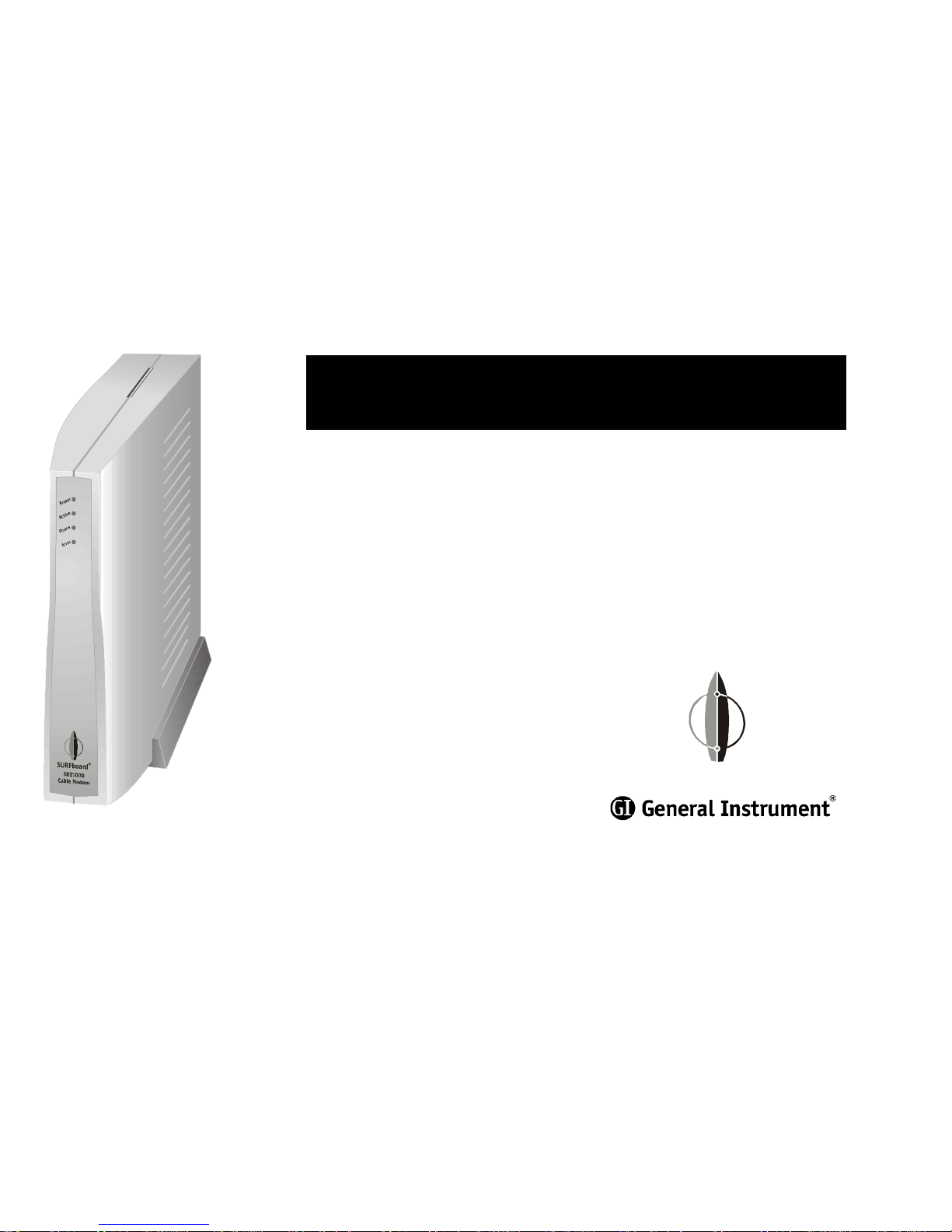
SURFboard® Cable Modem
SB2100D
User Guide
®
Page 2
REGULATORY INFORMATION
Federal Communications Commission Radio and Television Interface Statement for
a Class ‘B’ Device
This equipment has been tested and found to comply with the limits for a Class B
digital device, pursuant to part 15 of the FCC Rules. These limits are designed to
provide reasonable protection against harmful interference in the residential
installation. This equipment generates, uses and can radiate radio frequency energy
and, if not installed and used in accordance with the instructions, may cause
harmful interference to radio communications. However, there is no guarantee
that interference will not occur in a particular installation.
If the equipment does cause harmful interference to radio or television reception,
which can be determined by turning the equipment off and on, the user is
encouraged to try to correct the interference by one of the following measures:
• Increase the separation between the equipment and the effected receiver
• Connect the equipment on a circuit different from the one the receiver is on
• Ensure that the cover plate for the security card is secured and tight
You may find the following booklet, prepared by the Federal Communication
Commission, helpful:
How to Identify and Resolve Radio-TV Interference Problems
Stock No. 004-000-0342-4,
U.S. Government Printing Office
Washington, DC 20402
Changes or modification not expressly approved by the party responsible for
compliance could void the user’s authority to operate the equipment.
Declaration of Conformity
According to 47CFR, Parts 2 and 15 for Class B Personal Computers and
Peripherals; and/or CPU Boards and Power Supplies used with Class B Personal
Computers, General Instrument, 6450 Sequence Drive, San Diego, CA 92121,
declares under sole responsibility that the product identifies with 47CFR Part 2 and
15 of the FCC Rules as a Class B digital device. Each product marketed is identical
to the representative unit tested and founded to be compliant with the standards.
Records maintained continue to reflect the equipment being produced can be
expected to be within the variation accepted, due to quantity production and
testing on a statistical basis as required by 47CFR 2.909. Operation is subject to
the following condition: This device must accept any interference received,
including interference that may cause undesired operation. The above named party
is responsible for ensuring that the equipment complies with the standards of
47CFR, Paragraph 15.101 to 15.109. The Class B digital apparatus meets all
requirements of the Canadian Interface Causing Equipment Regulations.
This product was FCC certified under test conditions that included the
use of the supplied cable between system components. To be in
compliance with FCC regulation, the user must use this cable and install it
properly.
Page 3

Industry Canada CS-03 Statement
The Industry Canada label identifies certified equipment. This certification means that
the equipment meets certain telecommunications network protective, operational and
safety requirements as prescribed in the appropriate Terminal Equipment Technical
Requirements document(s). The department does not guarantee that the equipment
will operate to the user’s satisfaction.
Before installing this equipment, users should ensure that it is permissible to be
connected to the facilities of the local telecommunications company. The equipment
must also be installed using an acceptable method of connection. The customer should
be aware that compliance with the above conditions may not prevent degradation of
service in some situations. Repairs to certified equipment should be coordinated by a
representative designated by the supplier. Repairs or alterations made by the user to
this equipment, or equipment malfunctions may give the telecommunication company
cause to request the user to disconnect the equipment.
Users should ensure for their own protection that the electrical ground connections of
the power utility, telephone lines and internal metallic water pipe system, if present,
are connected together. This precaution may be particularly important in rural areas.
Users should not attempt to make such connections themselves, but should contact
the appropriate electric inspection authority, or electrician, as appropriate.
The Ringer Equivalence Number (REN) of this device is 0.5B. The Ringer Equivalence
Number (REN) assigned to each terminal device provides an indication of the
maximum number of terminals allowed to be connected to a telephone interface. The
termination on an interface may consist of any combination of devices subject only to
the requirement that the sum of the Ringer Equivalence Numbers of all devices does
not exceed 5. The telephone connection arrangement is a CA11A.
Page 4
CAUTION
RISK OF ELECTRIC SHOCK
REFERSERVICINGTO QUALIFIED SERVICEPERSONNEL.
TOREDUCE THE RISKOFELECTRIC SHOCK,
DO NOT REMOVE COVER(OR BACK).
NO USER-SERVICEABLE PARTS INSIDE.
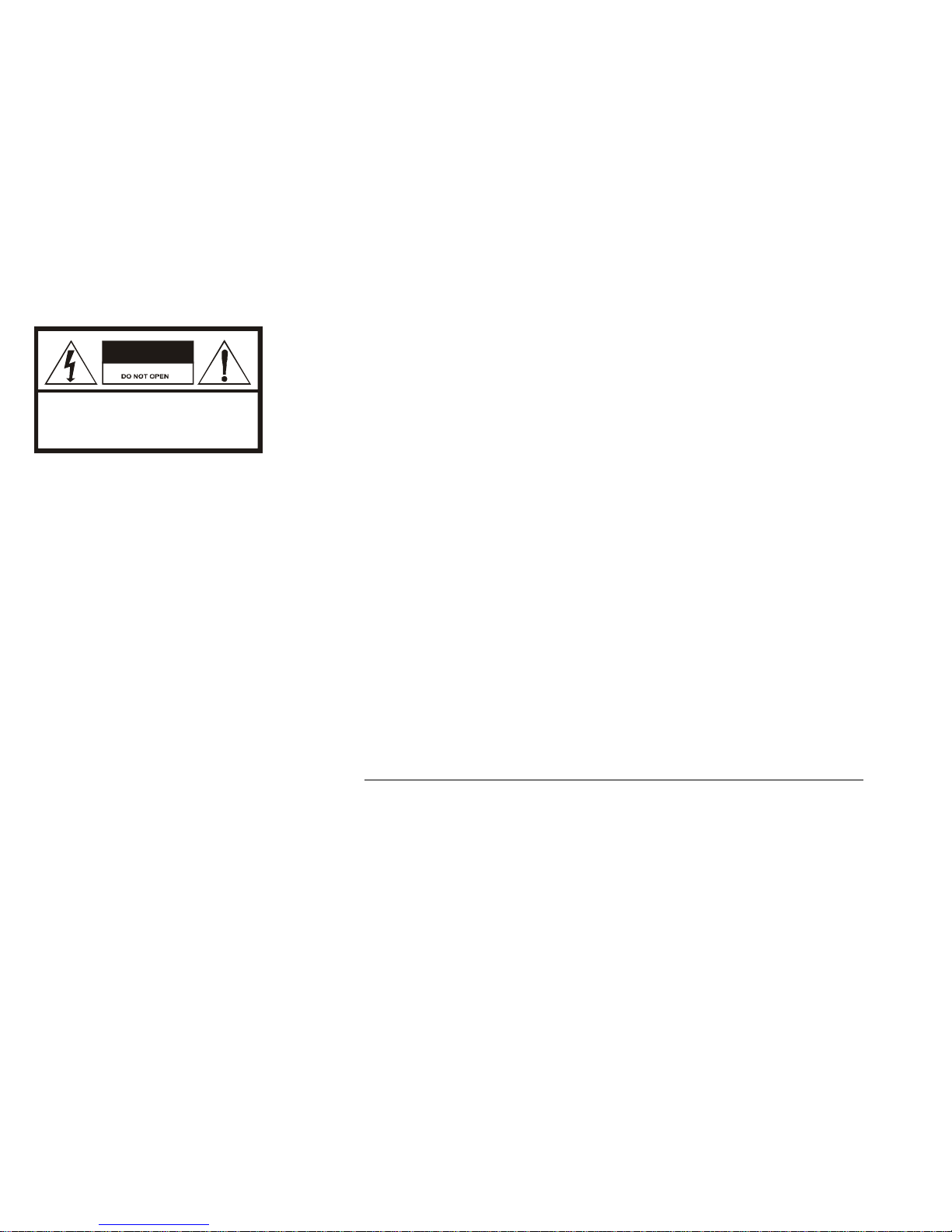
CAUTION:
The lightning flash with arrowhead symbol, within an equilateral
triangle, is intended to alert the user to the presence of uninsulated
“dangerous voltage” within the product’s enclosure that may be of
sufficient magnitude to constitute a risk of electric shock to persons.
The exclamation point, within an equilateral t riangle, is intended to
alert the user to the presence of important operating and
maintenance (servicing) instructions in the literature accompanying
the appliance.
CANADIAN COMPLIANCE
This Class B digital apparatus meets all requirements of the Canadian Interference-Causing Equipment
Regulations. Cet appareil numérique de la classe B respects toutes les exigences du Règlement sur le
matériel brouilleur du Canada.
IMPORTANT SAFEGUARDS FOR TELEPHONE EQUIPMENT
Observe the following precautions when installing telephone modem equipment:
a Never install telephone wiring during a lightning storm.
b Never install telephone jacks in a wet location unless the jack is specifically designed for wet
locations.
c Never touch uninsulated telephone wires or terminals unless the telephone lines have been
disconnected at the network interface.
d Use caution when installing or modifying telephone lines.
REPAIRS
If repair is necessary, contact your cable TV service provider.
Copyright © 1999 by General Instrument Corporation.
All rights reserved. No part of this publication may be reproduced in any form or by any means or used
to make any derivative work (such as translation, transformation or adaptation) without written
permission from General Instrument.
General Instrument reserves the right to revise this publication and to make changes in content from
time to time without obligation on the part of General Instrument to provide notification of such
revision or change. General Instrument provides this guide without warranty of any kind, either implied
or expressed, including, but not limited, to the implied warranties of merchantability and fitness for a
particular purpose. General Instrument may make improvements or changes in the product(s) described
in this manual at any time.
The General Instrument logo and SURFboard are registered trademarks of General Instrument Corporation.
Macintosh is a registered trademark of Apple Corporation.
Microsoft is a registered trademark and Windows is a trademark of Microsoft Corporation.
Netscape is a registered trademark of Netscape Communications Corporation.
UNIX is a registered trademark of the Open Group.
Page 5

CONTENTS
Introduction.............................................2
Front Panel...................................................................3
Rear Panel....................................................................4
Before You Begin.....................................5
Installation...............................................7
For a Single User........................................................7
For Multiple Users.....................................................8
Operation.................................................9
Powering Up the First Time....................................9
Basic Configuration...............................10
TCP/IP.........................................................................10
IP Address..................................................................13
Troubleshooting....................................14
Page 6
2
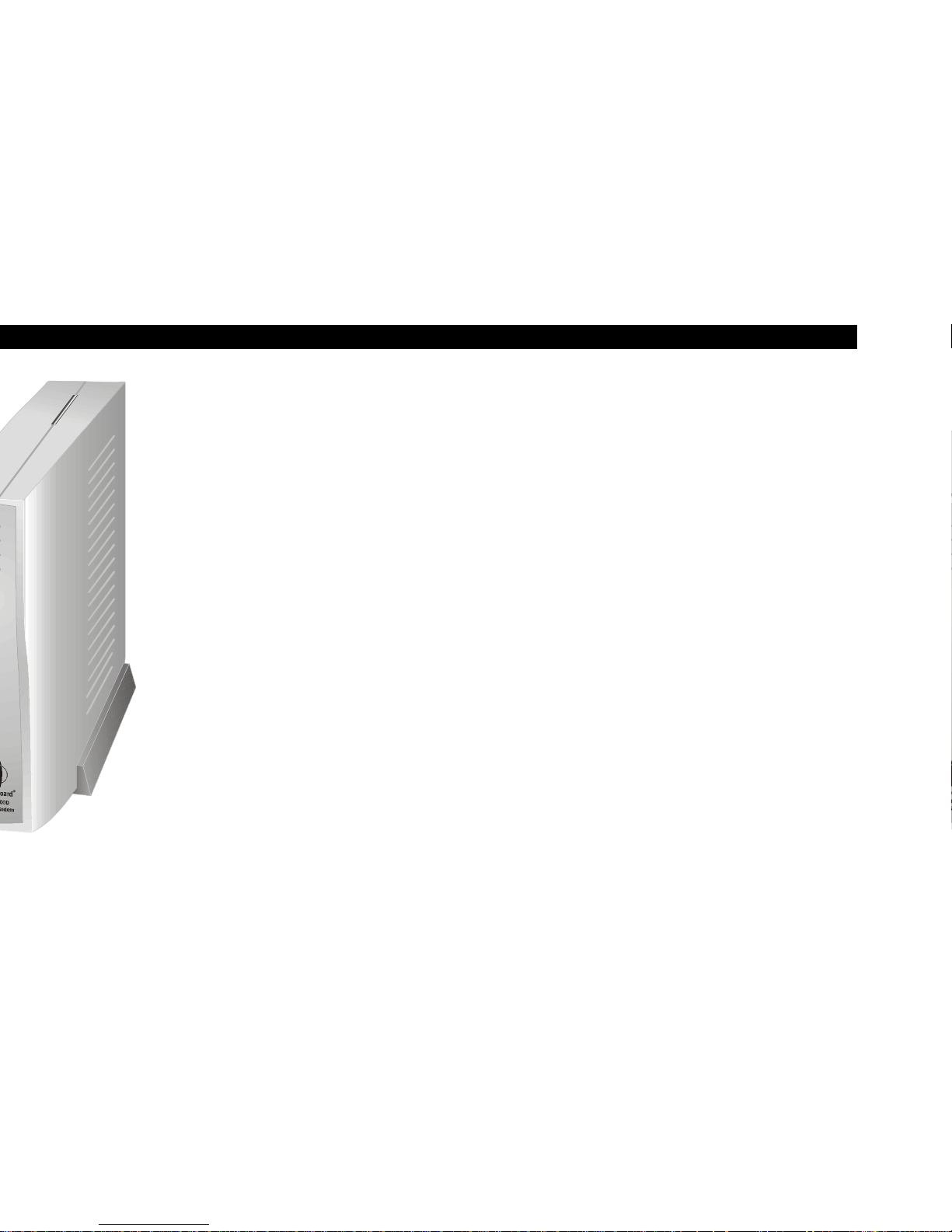
The General Instrument SURFboard® SB2100D cable modem enables you to
connect your home or business computer to a cable data network. It
provides high-speed access to the Internet and other online services.
The SB2100D is a dual-return cable modem. It can use either a coaxial TV
cable or a telephone line to connect with your cable TV service provider. It
includes a 33.6 kbps analog telephone modem for the telephone line
communication. The SB2100D chooses the correct method of
communication automatically.
Page 7
3
INTRODUC TION
Front Panel
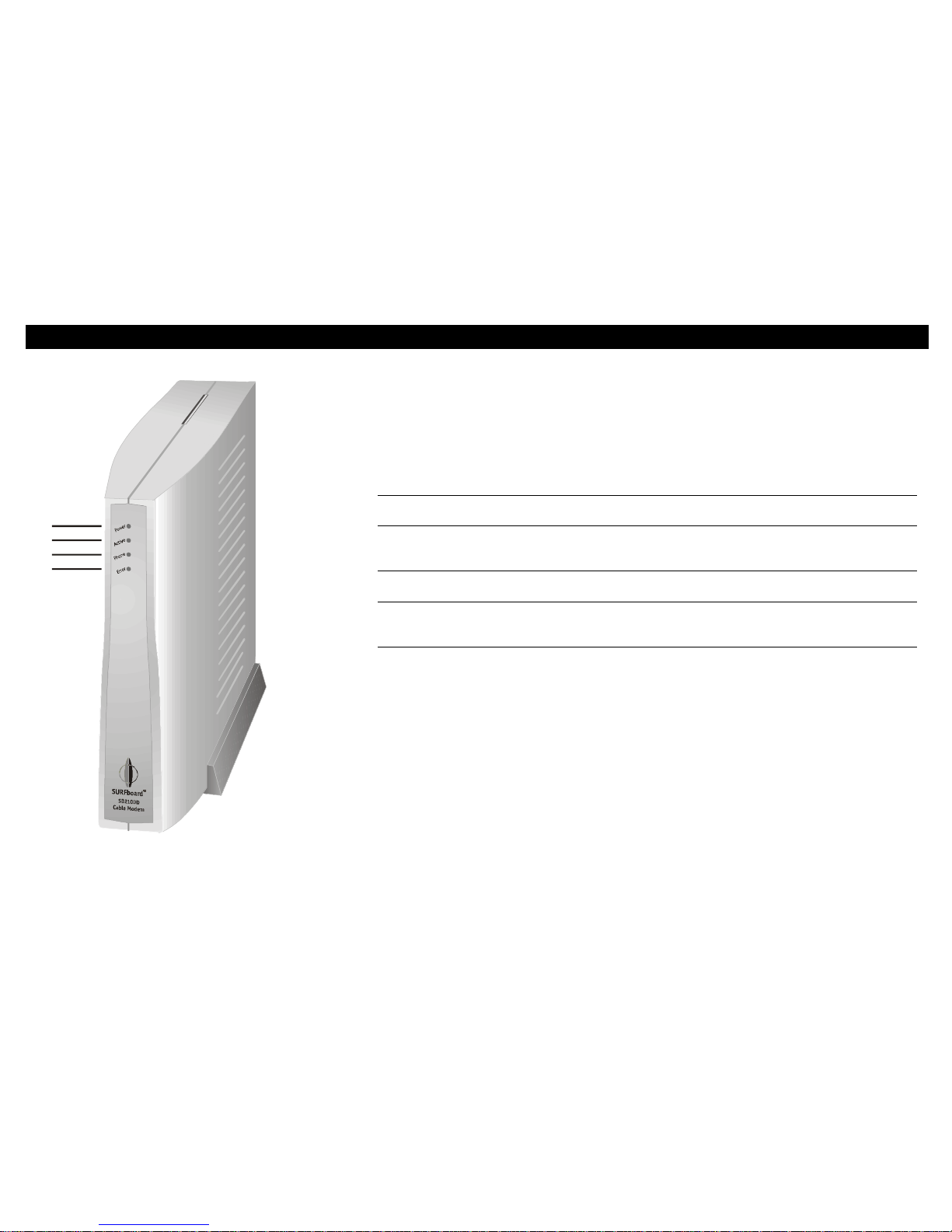
The four front-panel lights provide information about power,
communications, and errors.
Light Color Description
1
Power
Green When the light is on, the modem is on.
2
Active
Amber When the light is blinking, data is being transmitted
over the Ethernet cable.
3
Phone
Amber When the light is on, the telephone line is being used.
4
Error
Red When the light is on, the modem is in an error
condition or going through a start up procedure.
1
3
4
2
Page 8
4
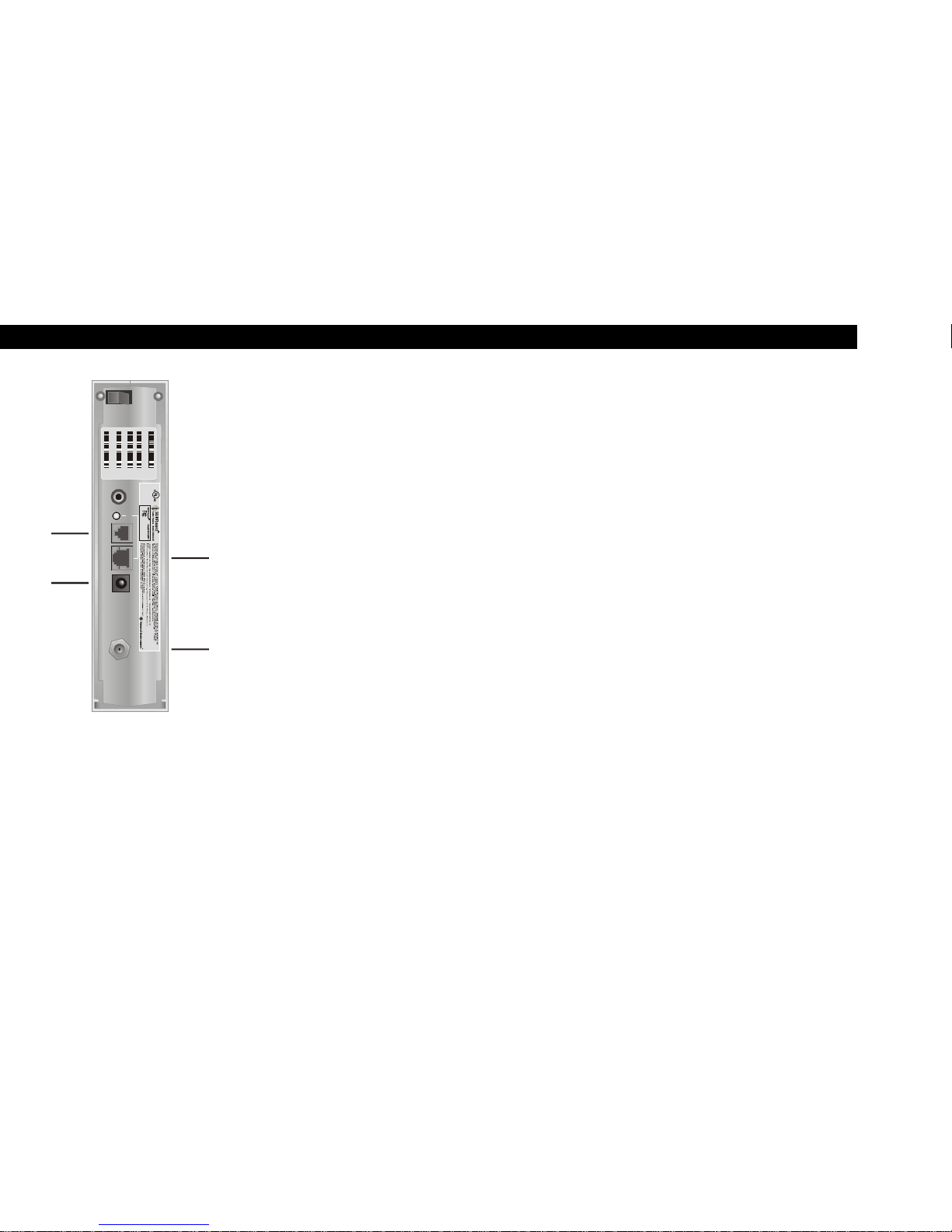
Rear Panel
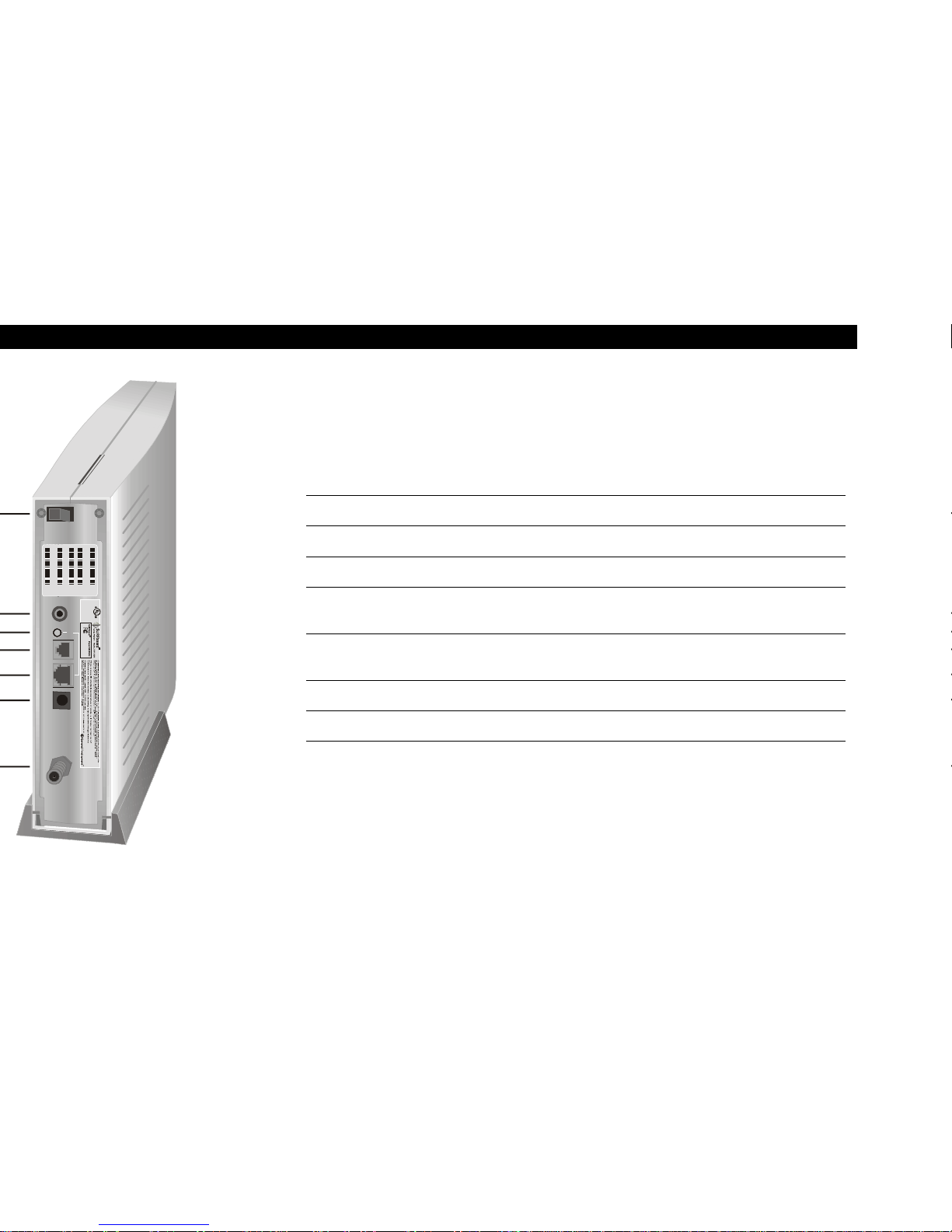
The rear panel provides an Ethernet link status light, the power ON/OFF
switch and all the connectors.
Item Description
1
ON/OFF
This is the power switch.
2
DIAG
This port is used by the service provider.
3
LINK
When the light is on, the Ethernet connection is available.
4
PHONE
LINE
This connector is for the internal telephone modem.
5
10BASET
ETHERNET
This port transfers data to and from your computer.
6
POWER
This connector provides power to the SB2100D.
7
CABLE
This port transfers data to and from the service provider.
ON
OFF
DIAG
SN X1/143 HFC MAC ADDR
LINK
POWER
CABLE
PHONE
LINE
10BAS ET
ETHERNE T
Listed
E15804 2
I.T.E.
FORHOMEOROFFICEUSE
TestedTo Comply
WithFCC Standards
InputVoltage:12VDC
CUSTS/ N:01PZ CRS2KTP3
HFCMACID:0020400169C0
S/N: 03410390 230004 18525 26901
P/N: 414395 -001
ETHERNET MA CID : 0020400 14169C1
ASSEMBLEDIN
MEXICO
Page 9
5
Before you begin the installation, check that you received:
Power adapter with cord
Required to connect the cable modem to
the electrical outlet.
One 10Base-T Ethernet cable
Required to connect your computer to the
cable modem.
Telephone cable
Required to connect the cable modem to
the telephone jack.
You may need to purchase a 75-ohm coaxial cable with F-type connectors
for connecting your SB2100D to the nearest cable outlet. If you have a TV
set attached to the cable outlet, you may need a 5-900 MHz splitter to use
both the TV and the cable modem. The cable and splitter can be purchased
at the local electronics store.
Page 10
6
To use the SB2100D with your computer system, you need the following:
Service Provider
You must sign up with your local cable TV service
provider who provides access to the Internet and other
online services.
Computer Your computer must support Ethernet and the TCP/IP
protocol to access the SB2100D. The SB2100D is
compatible with Microsoft
®
, Macintosh®, and UNIX
®
operating systems. You don’t need special software to
operate the SB2100D.
Ethernet card Any standard 10Base-T Ethernet card operates with the
SB2100D. Your computer must be configured for TCP/IP
and have an IP address for the SB2100D to operate. Your
service provider furnishes the IP address.
HTML Br o wser Any standard HTML (web) browser works with the
SB2100D.
Page 11
7
ON
OFF
DIAG
LINK
PHONE
LINE
POWER
CABLE
Ethernet
cable to
com p uter
outlet
TV cable
to cable
outlet
10BAS ET
ETHERNET
Listed
E15804 2
I.T.E .
FORHOMEOROFFICEUSE
TestedTo Comply
WithFCC Standards
InputVoltage:12VDC
CUSTS/ N:01PZ CRS2KTP3
HFC MAC ID: 0020 400169 C0
S/N:03 410390230 004 1852526 901
P/N: 41439 5-001
ETHERN ETMA CI D: 0020400 14169C1
ASSEMBLEDIN
MEXICO
You must call your service provider to activate your service. You need to
provide the media access control (MAC) address. This address is found on
the barcode label marked HFC MAC ID on the rear panel. The address
format is 00:20:40:00:00:00.
The installation of the SB2100D can be completed in a matter of minutes.
After you attach the four cables, you must configure your computer.
For a Sin gl e User
1
Check that the power switch is in the OFF position.
2 Connect the coaxial TV cable to the SB2100D connector marked
CABLE and the other end to the cable outlet or splitter. Hand-tighten
the connectors to avoid damaging them. You may need a 5-900 MHz
splitter if you have a TV connected to the cable outlet.
3 Connect the telephone cable to the SB2100D connector marked
PHONE LINE and the other end to your phone jack.
4 Connect the 10Base-T Ethernet cable to the SB2100D connector
marked 10BASET ETHERNET and the other end to the Ethernet jack
on the back of your computer.
5 Plug the power cord into the cable modem connector marked
POWER and connect the power adapter to the electrical outlet.
Page 12
8
Service
provider
Crossover
Ethernet cable
Standard
Ethernet cable
Ethernet
hub
Com puter
SB2100D
TV cable
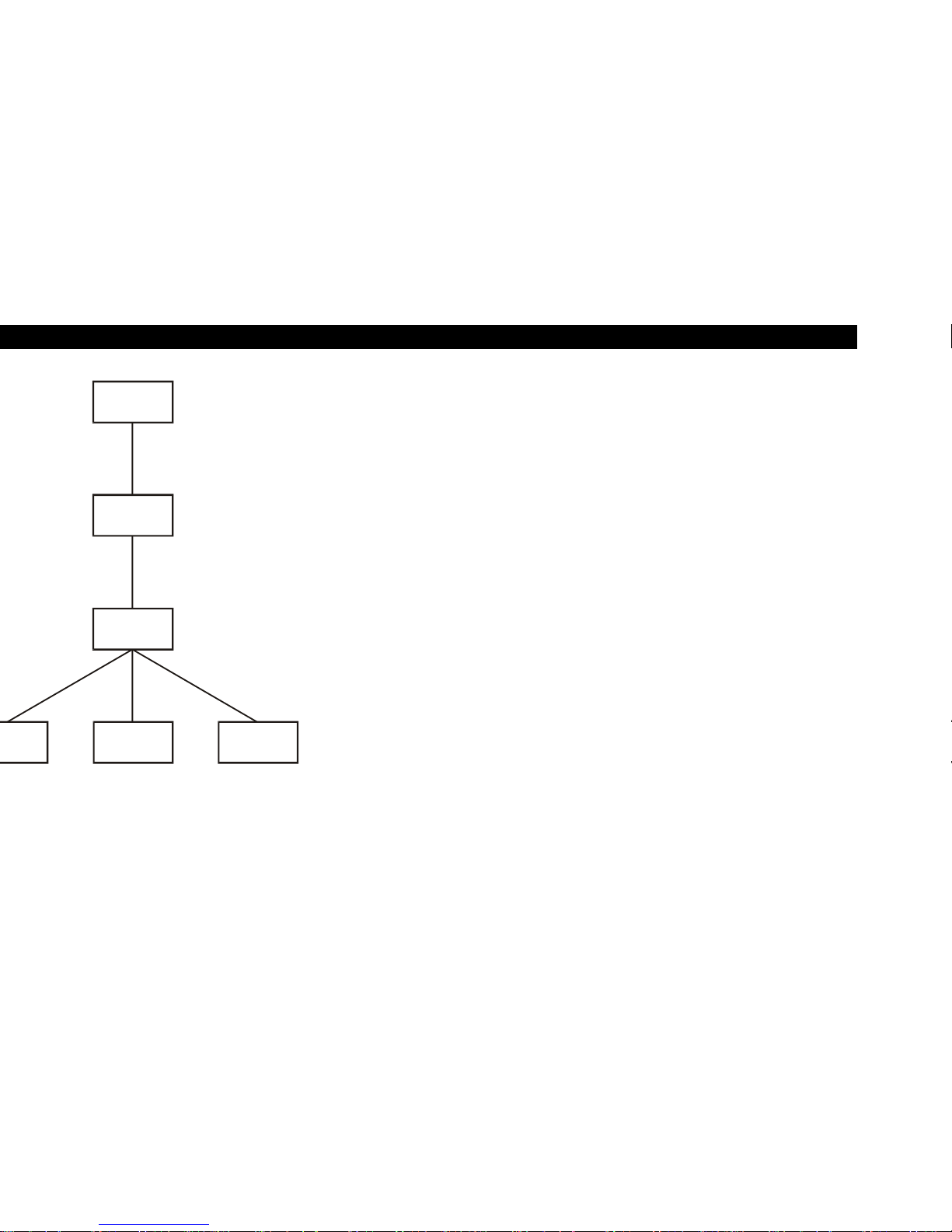
For Multiple Users
The SB2100D can easily serve as a gateway to the Internet for up to 32
users. The users must be on the LAN and the SB2100D must be attached to
the LAN and the cable system.
The network administrator at your service provider configures your modem
for multiple users.
Page 13
9
Powering Up the Fir st Time
After you attach the cables to the SB2100D, you must power up the
SB2100D. Powering up the SB2100D may take 5 to 30 minutes the first time
because it must find and lock on the appropriate channels for
communications. To power up:
1 Be sure that your computer is on and the cable modem is OFF.
2 Turn the cable modem ON and notice that the lights on the front panel
cycle through this sequence:
• All four lights come on for several seconds.
• The Error, Phone, and Active lights blink together several times
and then stop.
• The Active light blinks at a rate of one time/second for a few
minutes.
• The Active light stays on for a few seconds and then starts
blinking at a rate of two times/second for several minutes.
• The Active light stays on for a few seconds and then goes off.
When the SB2100D is operational, the Power light is on and the Error light is
off. The Active light blinks when the SB2100D is transmitting data. The Phone
light is on when the SB2100D is using the telephone modem for
communication with your service provider.
Page 14
10
The SB2100D contains all necessary software. You don’t need to configure
the cable modem but you must configure your computer for TCP/IP and
check for an IP address. Your service provider may provide additional
instructions for setting up your computer. The following basic instructions
are for Windows™ 95 or Windows 98. If you are using a different operating
system, refer to that user guide.
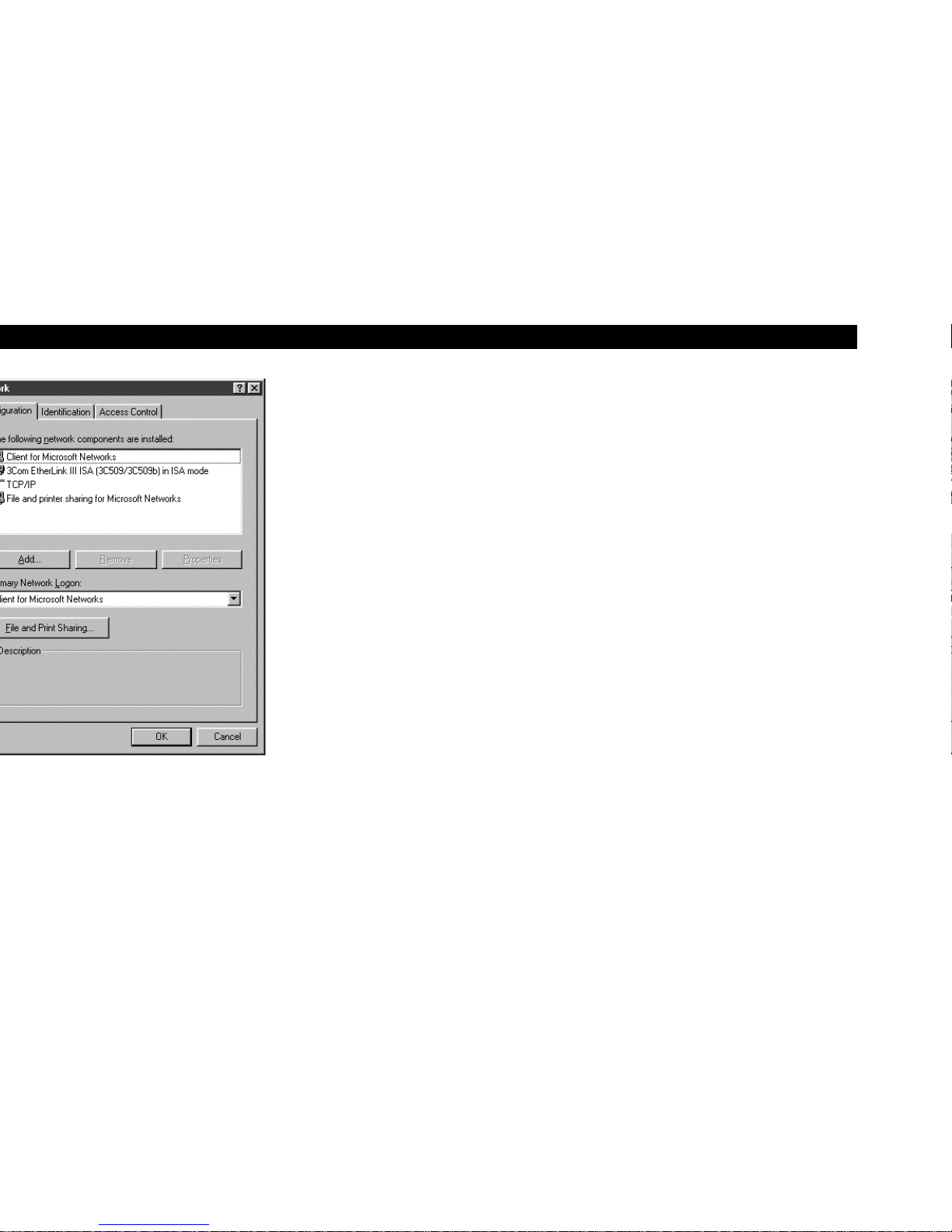
TCP/IP
To configure for TCP/IP for Windows 95 or Windows 98:
1 On the Windows Desktop, click Start.
2 Select Settings and then Control Panel from the pop-up menus.
3 Double-click the Network icon on the Control Panel window.
4 Select the Configuration tab on the Network window.
5 Check to see if TCP/IP has been installed for the Ethernet card. If
TCP/IP appears in the list of network components, it is installed and
you can proceed to step 10. If it doesn’t appear on the list, continue
with step 6.
Page 15
11
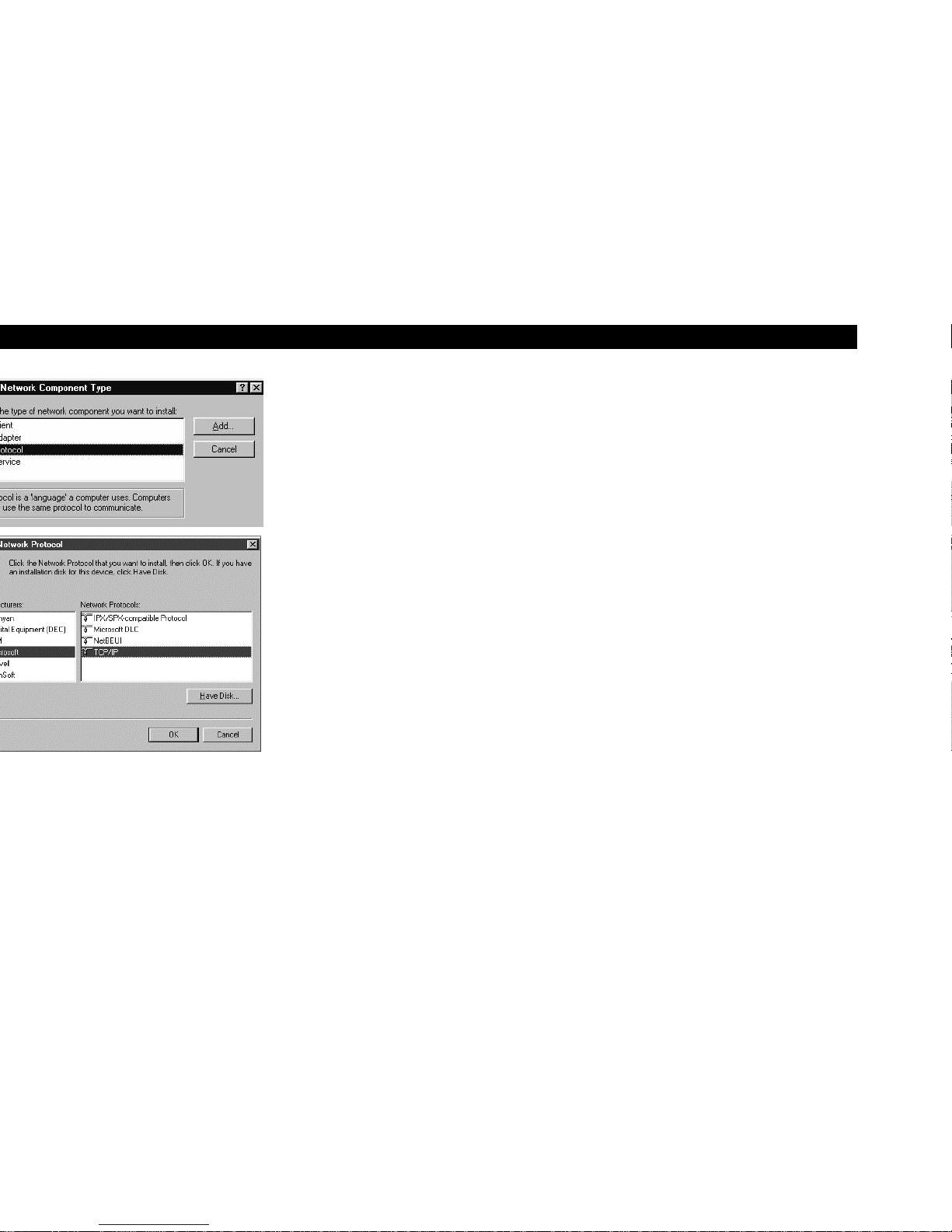
6 Click Add.
7 Double-click the Protocol option on Select Network Component
Type window.
8 Click Microsoft in the Manufacturers section and then click TCP/IP in
the Network Protocol section of Select Network Protocol window.
9 Click OK.
Page 16
12
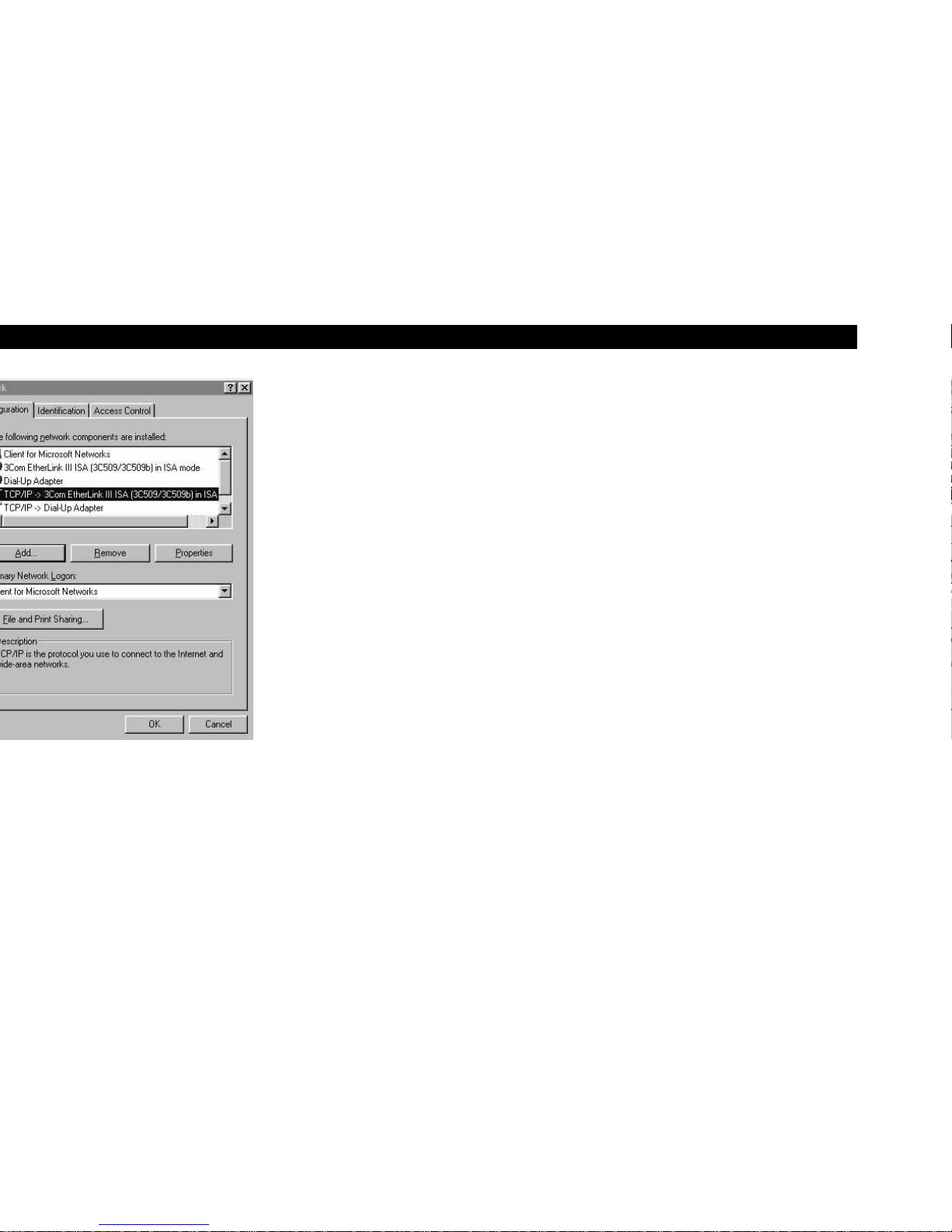
10 Click TCP/IP on the Network window. If you have more than one
TCP/IP entry, choose the one associated with the Ethernet card
connected to the cable modem.
11 Click Properties.
12 Select the IP Address tab on the TCP/IP window.
13 Click Obtain an IP address automatically.
14 Click OK to accept the TCP/IP settings.
15 Click OK to close the Network window.
16 Click OK when a prompt to restart your computer is displayed and
then click OK again.
Page 17
13
IP Address
The following basic instructions are for Windows 95 or Windows 98. If you
are using a different operating system, refer to that user guide. To check the
IP address:
1 On the Windows Desktop, click Start.
2 Select Run.
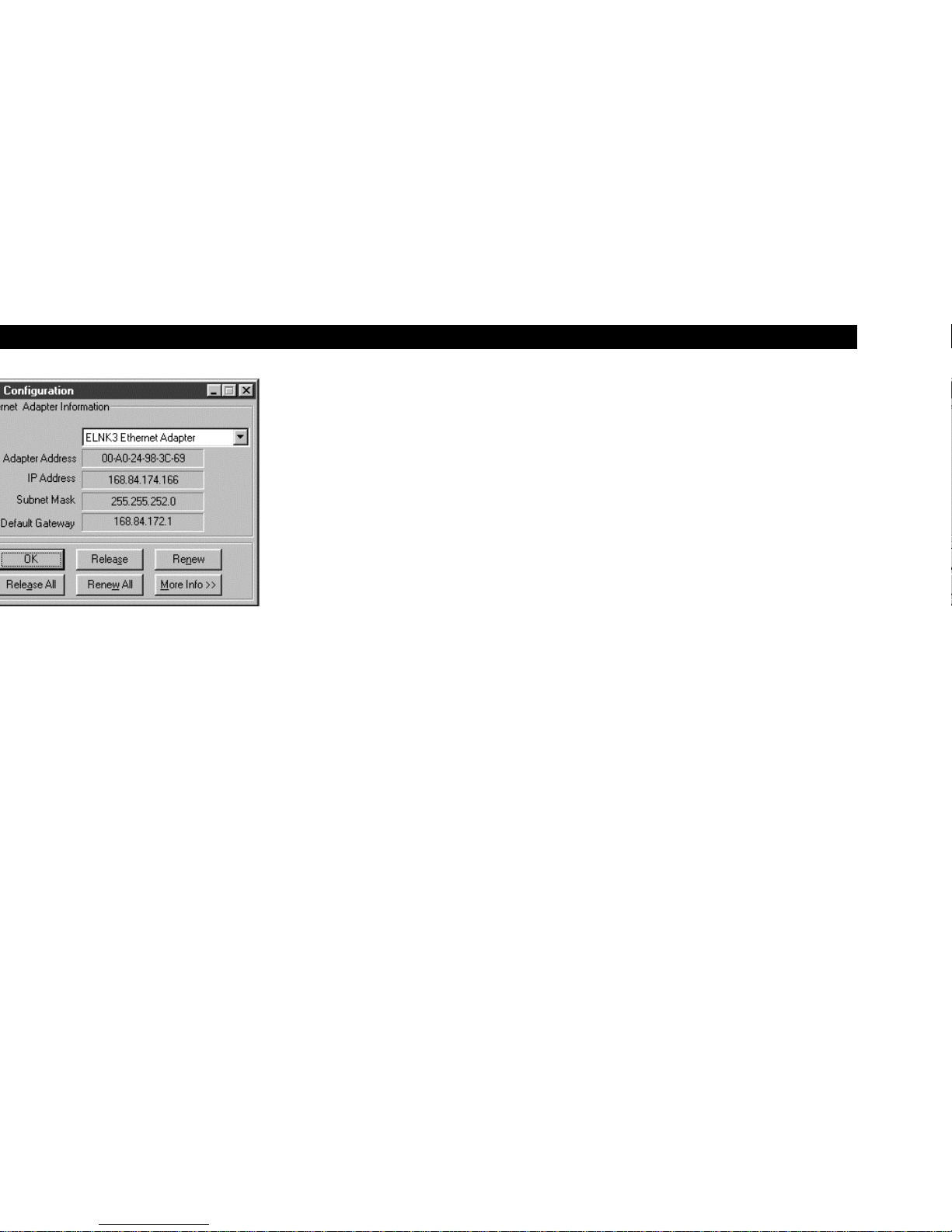
3 Type Winipcfg.exe. A window similar to the example is displayed.
4 Select your adapter name.
5 Click Renew, if an IP address isn’t displayed.
6 Click OK after the system displays an IP address. If an IP address isn’t
displayed, call your service provider. They will assist in verifying your
configuration.
Page 18

14
Check that the power switch is on. If off, it may take 5 to 30 minutes to power up.
Check that the power cable at the modem and the adapter at the outlet are securely connected.
If you have cable TV, check that your TV is working and that you have a clear TV picture. If your TV
picture is out, your high-speed data service will not function.
Check the coaxial cable at the modem and outlet and hand-tighten if necessary.
Check the telephone cable. Be sure that it is installed properly.
Check the LINK light on the rear panel. If off, check the Ethernet cable at the modem and your
computer.
Check the IP address (follow the steps on page 13); call your service provider if you need an IP address.
Turn the cable modem off and then on to reboot.
Turn the cable modem off and then on to reboot.
your service provider.
your service provider.
Page 19

TOGETHER WITH PROOF OF PURCHASE OF THIS PRODUCT, WITHIN TEN (10)
DAYS AFTER PURCHASE, FOR A FULL REFUND.
YOU SHOULD OPEN THIS PRODUCT PACKAGE AND USE THE PRODUCT ONLY
IF YOU ACCEPT EACH OF THE TERMS OF THIS AGREEMENT.
GI’s Cable Modem Software is never sold. GI licenses it to the original customer and to
any subsequent licensee for personal use only on the terms of this Agreement. GI
retains the ownership of this copy and any subsequent copies of the software. BY
OPENING THIS PRODUCT PACKAGE AND USING THE PRODUCT YOU
INDICATE YOUR ACCEPTANCE OF THESE TERMS. Otherwise, you may return this
product (including all software, components, documentation, and other contents of this
product package) together with proof of purchase, within ten (10) days after purchase,
to the place where you obtained it for a full refund. This copy of the software is licensed
to you under the following terms.
Page 20

You may not
Loan, distribute, rent, lease, give, sublicense or otherwise transfer the software or
documentation (or any copy of the software or documentation), in whole or in part, to
any other person, except as permitted under the TRANSFER paragraph above. Copy or
translate the User Guide included with the software. Copy, alter, translate, decompile,
disassemble or reverse engineer the software or documentation, including but not
limited to, modifying the software to make it operate on non-compatible hardware.
Remove, alter or cause not to be displayed, any copyright notices or startup message
contained in the programs or documentation. Export the software or the product
components in violation of any United States export laws.
The software is not designed or intended for use in on-line control of aircraft, air traffic,
aircraft navigation or aircraft communications; or in design, construction, operation or
maintenance of any nuclear facility. GI and its licensors disclaim any express or implied
warranty of fitness for such uses. You represent and warrant that you shall not use the
software for such purposes.
Title of this product, the software and the documentation, including the ownership of all
copyrights, mask work rights, patents, trademarks and all other intellectual property
rights subsisting in the foregoing, and all adaptations to and modifications of the
foregoing shall at all times remain with GI. GI retains all rights not expressly licensed
under this Agreement. This product, the software and the documentation, including any
images, graphics, photographs, animation, video, audio, music and text incorporated
therein is owned by GI or its suppliers and is protected by United States copyright laws
and international treaty provisions. Except as otherwise expressly provided in this
Agreement, the copying, reproduction, distribution or preparation of derivative works
of the software, any portion of the product or the documentation is strictly prohibited
by such laws and treaty provisions. Nothing in this Agreement constitutes a waiver of
GI’s rights under United States copyright law.
This Agreement and your rights regarding any matter it addresses are governed by the
laws of California. THIS LICENSE SHALL TERMINATE AUTOMATICALLY if you fail to
comply with the terms of this Agreement.
Page 21

CONSEQUENTIAL DAMAGES, SO THE ABOVE EXCLUSION OR LIMITATION MAY
NOT APPLY TO YOU.)
IN NO CASE SHALL GI’S LIABILITY EXCEED THE AMOUNT YOU PAID IN LICENSE
FEES FOR THE RIGHT TO USE A SINGLE COPY OF THIS SOFTWARE. GI’S
SOFTWARE PRICING REFLECTS THIS ALLOCATION OF RISK AND LIMITATIONS
ON LIABILITY CONTAINED IN THIS LIMITED WARRANTY.
What additional provisions should I be aware of? Because it is impossible for GI to know
the purposes for which you acquired this software and accompanying product or the
uses to which you will put this software and accompanying product, you assume full
responsibility for the selection of the software and accompanying product, and for their
installation and use and the results of that use.
While every reasonable effort has been made to insure that you will receive software
that you can use and enjoy, GI does not warrant that the functions of the software will
meet your requirements or that the operation of the software will be uninterrupted or
error-free. Due to the complex nature of computer programs, the programs in this
package (like all programs) will probably never be completely error-free.
GI is not responsible for problems caused by changes in the operating characteristics of
the hardware or operating system software you are using which are made after the
release date of this version of the Cable Modem Software, nor for problems in the
interaction of the Cable Modem with any other software. This agreement constitutes
the entire agreement between you and GI regarding the software, product and
documentation, and supersedes any prior representations, understandings and
agreements, either oral or written.
The Limited Warranty gives you specific rights, and you may also have other rights that
vary from state to state. No action for breach of warranty may be commenced more
than one (1) year following the expiration of the Warranty Period.
U.S. GOVERNMENT RESTRICTED RIGHTS
The software, product and documentation is provided with RESTRICTED RIGHTS. The
use, duplication or disclosure by the Government is subject to restrictions as set forth
in subdivision (c)(1)(ii) of The Rights in Technical Data and Computer Software clause at
52.227-7013. The contractor/manufacturer is General Instrument Corporation, 6450
Sequence Drive, San Diego, California 92121.
Page 22

General Instrument Corpo ration
465989-001-99
5/99
 Loading...