

Page 1
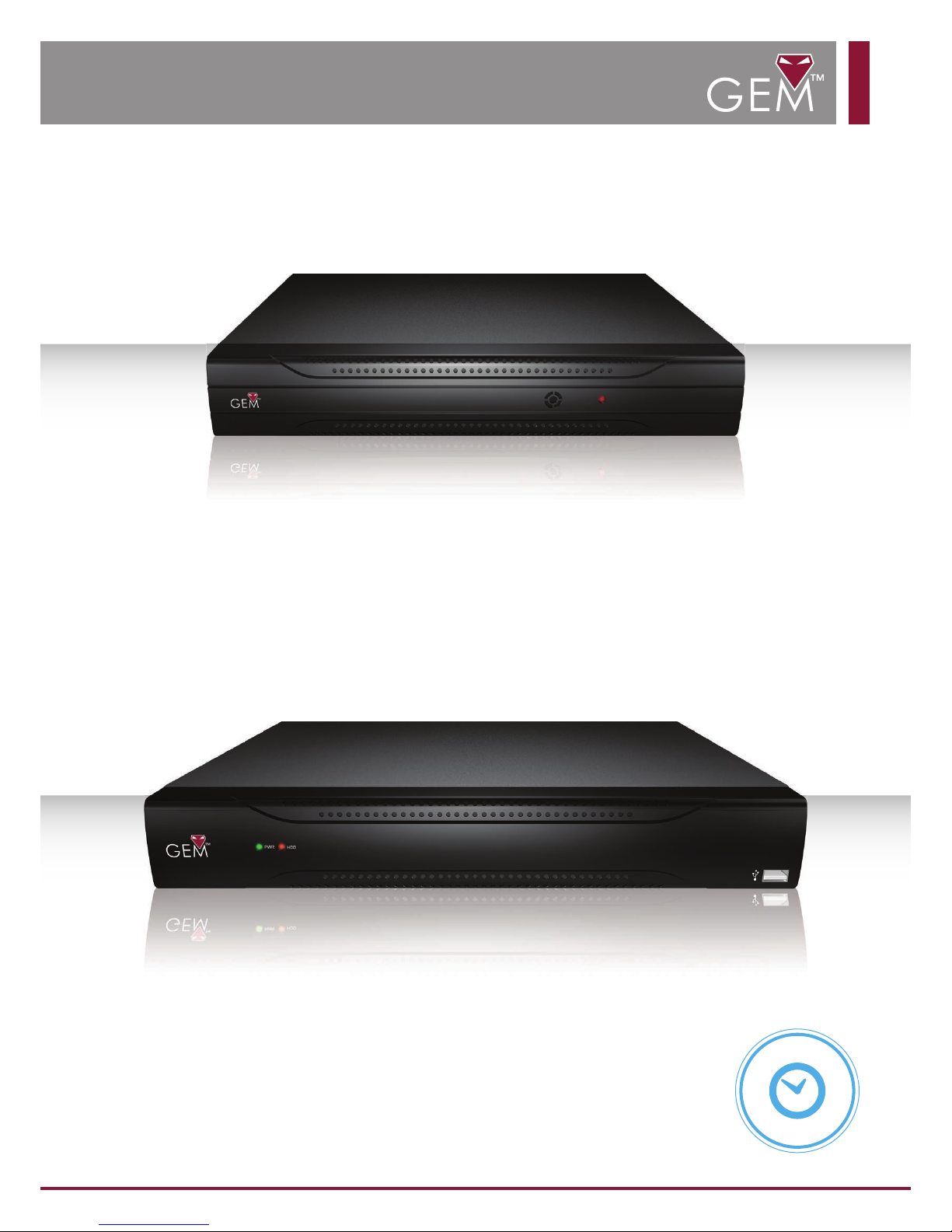
Instruction Manual
DSD604 - 4ch DVR
DSD608 - 8ch DVR
DSD616 - 16ch DVR
Q
u
i
c
k
S
t
a
r
t
G
u
i
d
e
Page 2
2
Contents
Introduction
Input & Control 3
Menu System 3
Live View Menu 4
Record Mode 4
Video Mode 5
Backup 5
Network 6
PTZ Con g 6
HDD Management 7
P2P QR Code 7
System 8
Speci cations 8
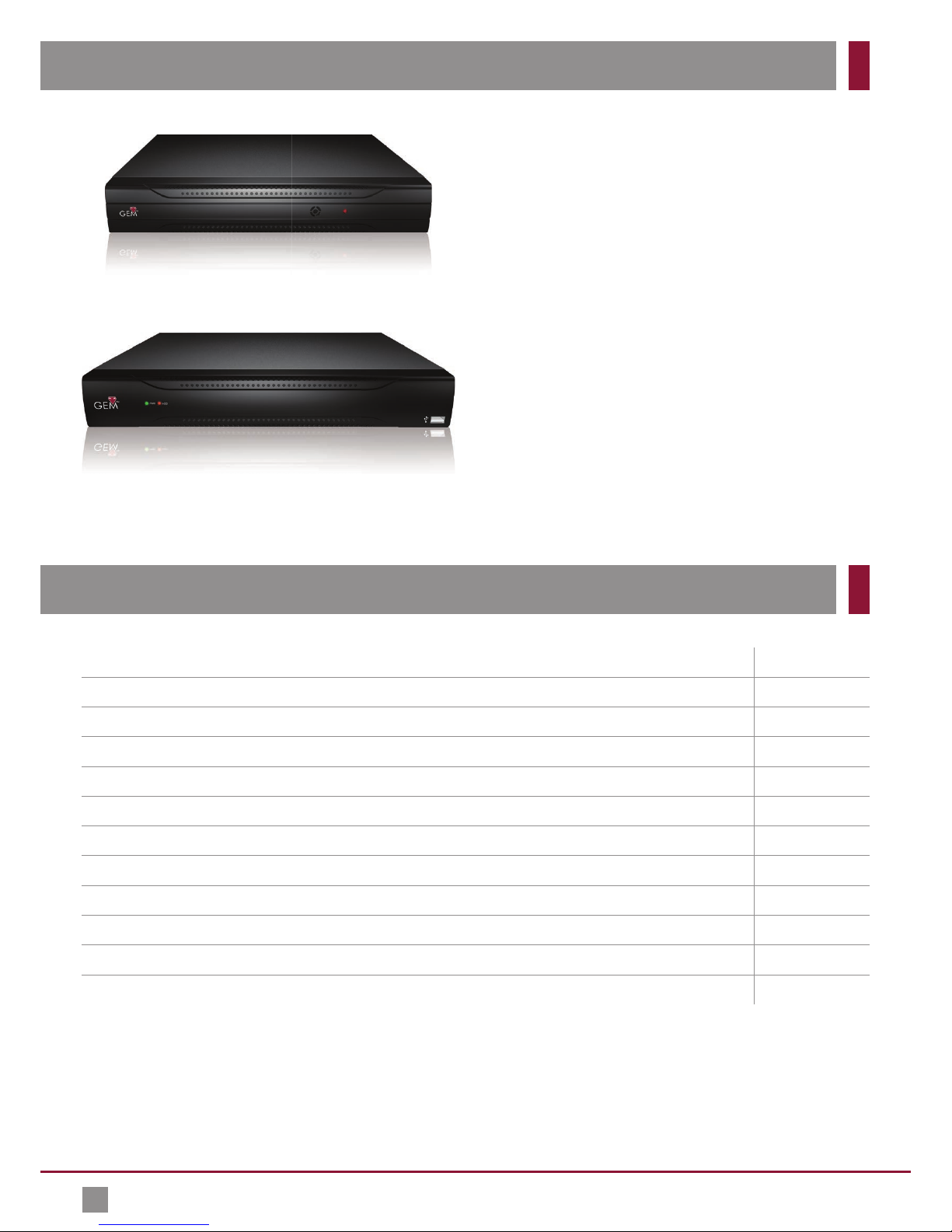
Our range of GEM DVRs o er 960H recording at an
unbelievable price.
The 960H standard was developed with modern
16:9 widescreen monitors in mind. The increased
resolution provides a 30% better quality image when
compared to D1.
This compact unit boasts all the features you would
expect to nd on an entry level DVR plus many more.
You’ll nd BNC, VGA and HDMI outputs for maximum
exibility and four audio inputs. There’s schedule
recording, motion detection and alarm handling, USB
and network backup and even UPnP.
The DVR supports simultaneous multi channel
playback either locally or via a network. You can also
remotely control and playback using the android and
iPhone app or web server.
Page 3
Menu System
3
Input & Control
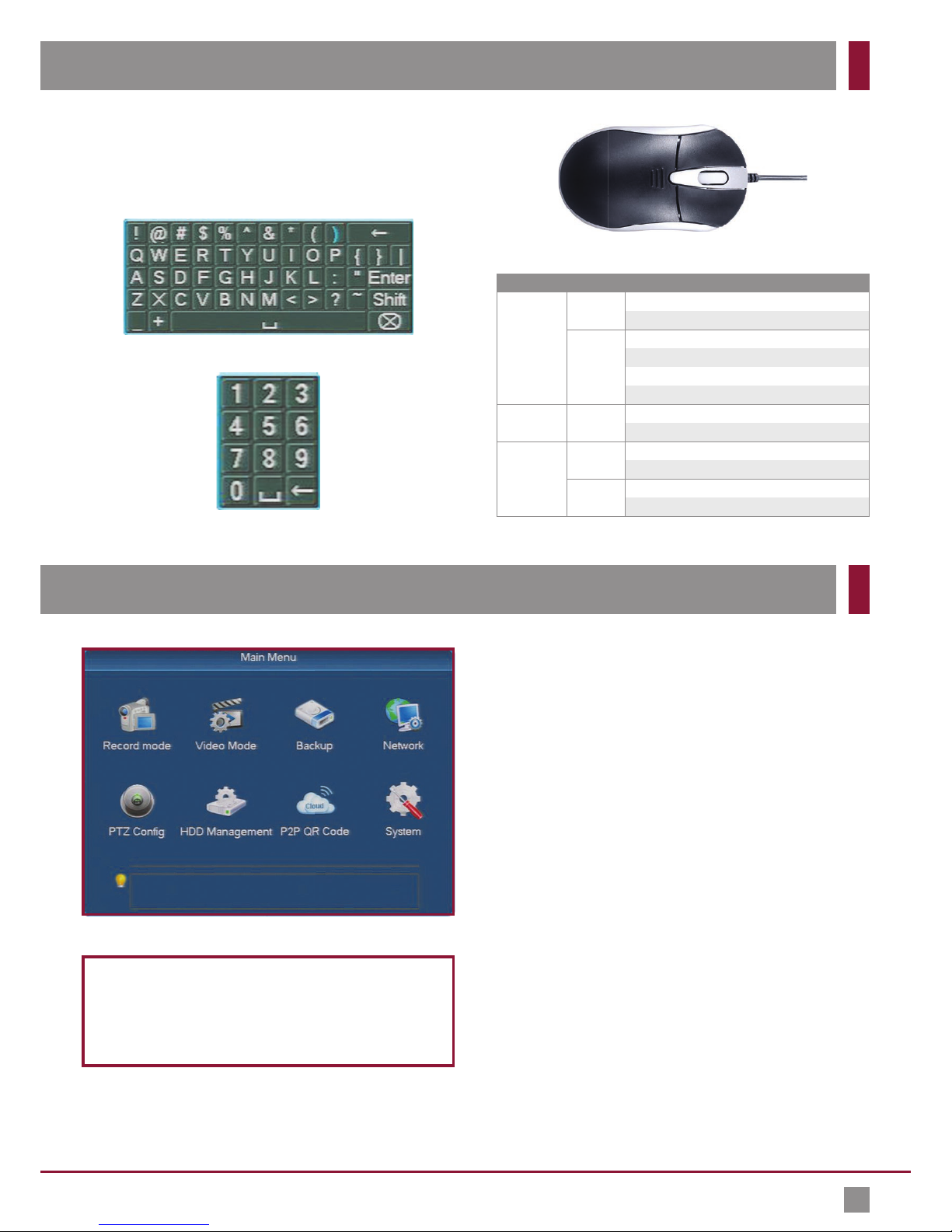
The GEM DVRs feature an easy to use menu system to allow
quick operation of all the key functions.
The menu is separated into two parts. The ‘Main Menu’ is used
for system setup and management while the ‘Live View Menu’ is
used for common tasks.
Live View Menu
The DVR will start up in Live View mode. To display the Live View
Menu simply right click using the mouse.
The Live View menu is further explained overleaf.
Main Menu
To display the Main Menu enter the Live View Menu and select
‘Main Menu’.
When entering the Main Menu you will be prompted to input
your user name and password. The default username is ‘admin’.
Leave the password eld blank and click ‘OK’.
Record Mode Pg4
Video Mode Pg5
Backup Pg5
Network Pg6
PTZ Con g Pg6
HDD Management Pg7
P2P QR Code Pg7
System Pg8
The simplest way to program and set up your DVR is using a
mouse, the on screen keypad and menu. We recommend you
connect the mouse to the rear USB port of the DVR, leaving
the front USB port free for fast backing up of footage.
Name Action Function / Description
Left-Click Single
Click
Access the Main menu.
Menu: Select and/or Enter.
Click &
Drag
PTZ control: pan, tilt and zoom.
Set target area. (Motion Detection etc.)
Digital zoom-in: Drag and select target area.
Live view: Drag channel/time bar.
Right-Click Single
Click
Live view: Display Live View menu.
Menu: Exit current menu to upper level menu.
Scroll-Wheel Scrolling UpLive view: Previous screen.
Right-click Menu: Previous item.
Scrolling
Down
Live view: Next screen.
Right-click Menu: Next item.
USB 3 Button Mouse (Supplied)
Text Input
Numerical Input
Default Settings
Username: admin
Password: (Leave blank)
Page 4
4
Record Mode
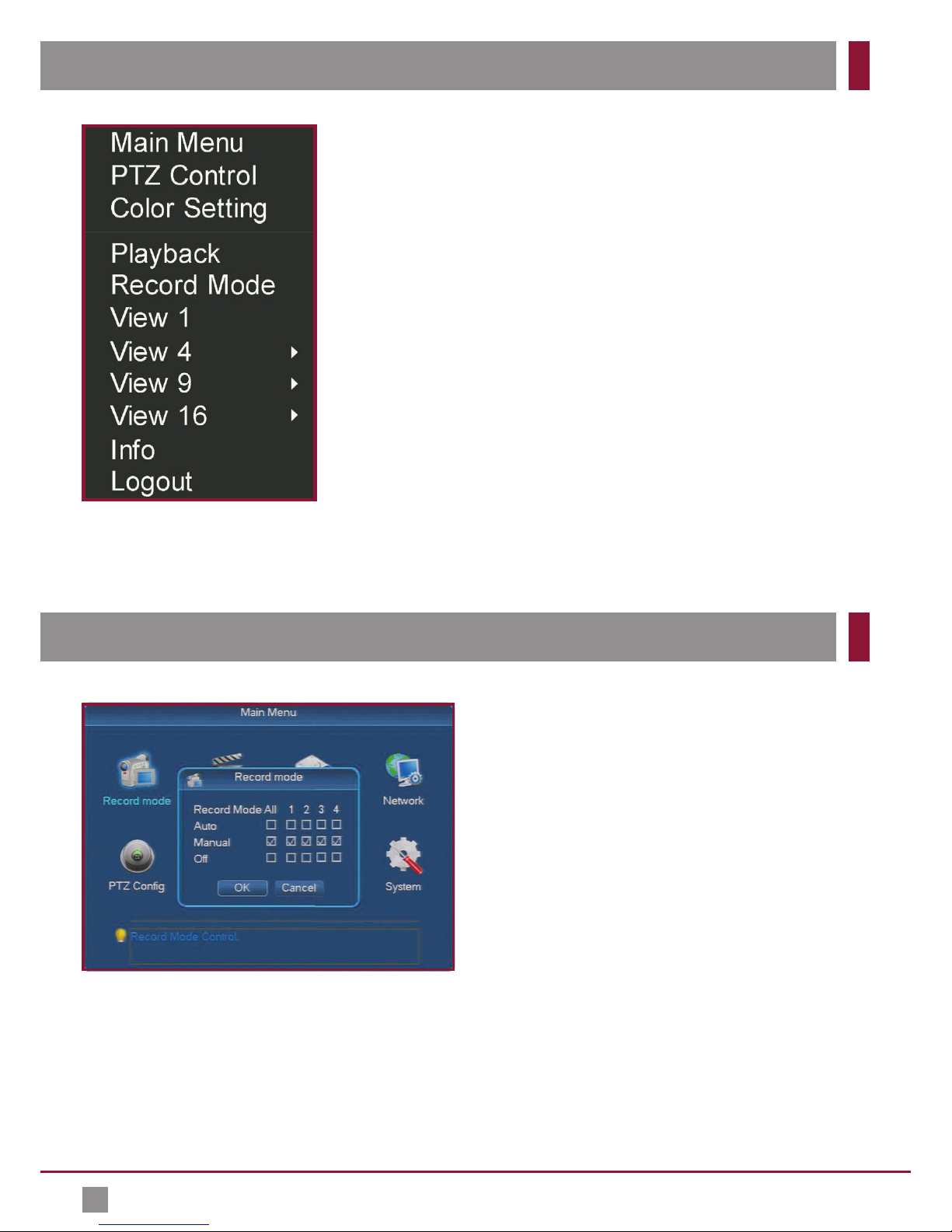
Live View Menu
Main Menu
Displays Main Menu.
PTZ Control
Enter PTZ control mode.
Color Setting
Allows you to create colour schemes
such as hue, brightness, contrast for
certain time periods.
Playback
Review recorded footage.
Record Mode
Set one or all cameras to record
automatically according to schedules.
Manually record or to not record at all.
View 1
Choose 1 channel to display fullscreen.
View 4
Choose 4 channels to be displayed in a
2x2 grid.
View 9
Choose 9 channels to be displayed in a
3x3 grid.
View 16
Choose 16 channels to be displayed in a
4x4 grid.
Info
View and con gure information such
as HDD Management, device info and
rmware number.
Logout
Reboot, Logout our Shutdown the DVR.
In this menu you can set the record mode for all cameras or
selection of cameras. There are three options to choose from.
When set to ‘Auto’ channels will automatically record as
instructed by record schedules or alarm triggers such as
motion detection or video loss.
If ‘Manual’ is selected channels will only record when the
operator manually starts a recording.
When set to ‘O ’ the channel will not record under any
circumstances.
Page 5
5
Backup
Video Mode
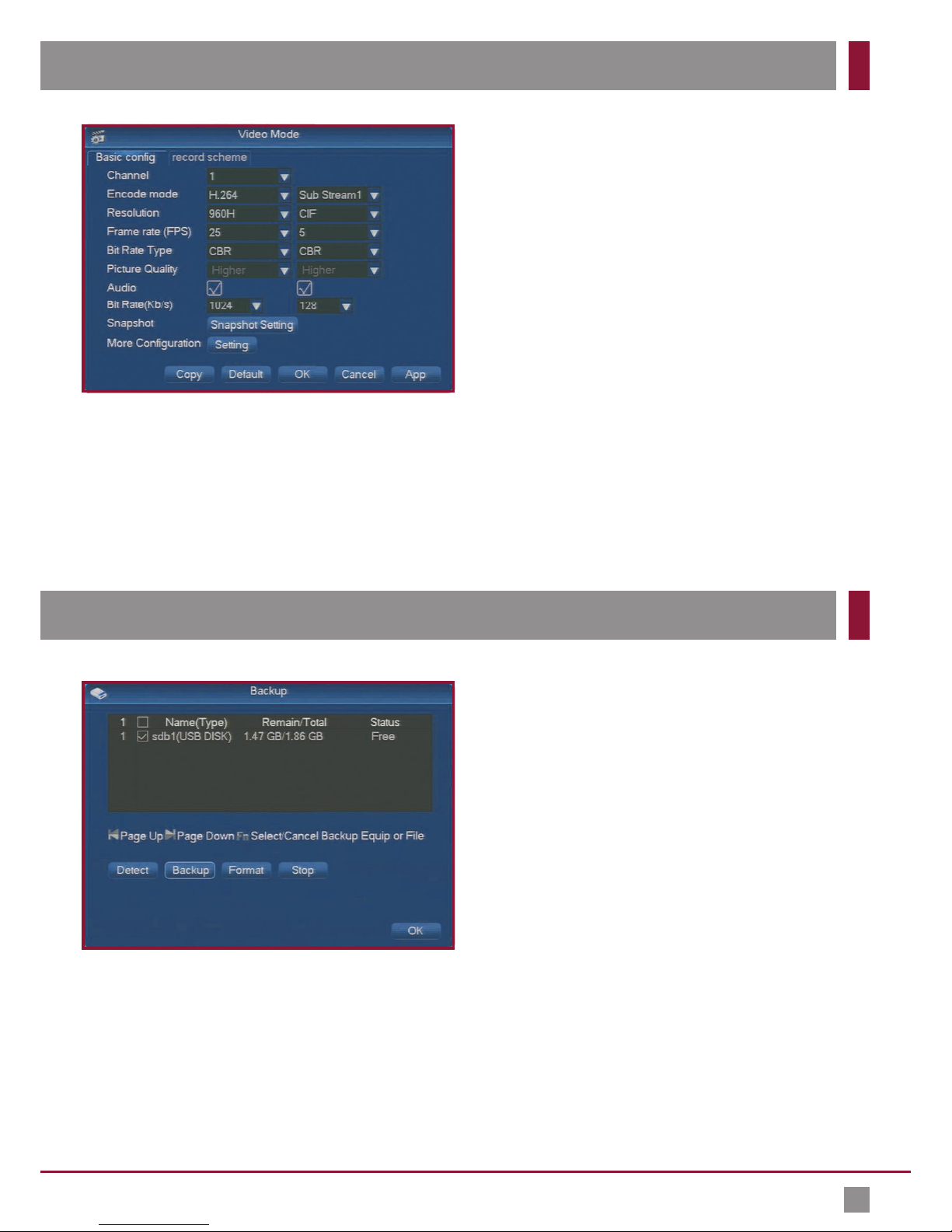
The Backup menu enables you to save recorded footage onto
an external USB device.
USB devices can be inserted into one of the USB sockets on
the front or rear of the DVR (depending on the model) and
will appear in the Backup device list.
If the backup device does not appear at rst you can click
‘Detect’ to search for attached devices.
Clicking ‘Backup’ lets you select the les you wish to save to
your USB device. You can also choose to export footage in avi
format by checking the tick box.
‘
Format
’ allows you to erase all les currently on the USB device.
In Video Mode you will nd the following options.
Basic Con g
Under the Basic Con g tab you can set the record quality for the
main stream and sub stream for each channel individually.
Settings such as resolution, frame rate, bit rate and audio can all
be con gured here.
Record Scheme
The Record Scheme tab allows you to create a recording
schedule for each channel. Channels can have unique schedules
or settings can be copied for one camera to another.
The DVR can be con gured to record footage during a
certain time period or as a reaction to an event such as
motion detection.
Page 6
6
Network
PTZ Con g
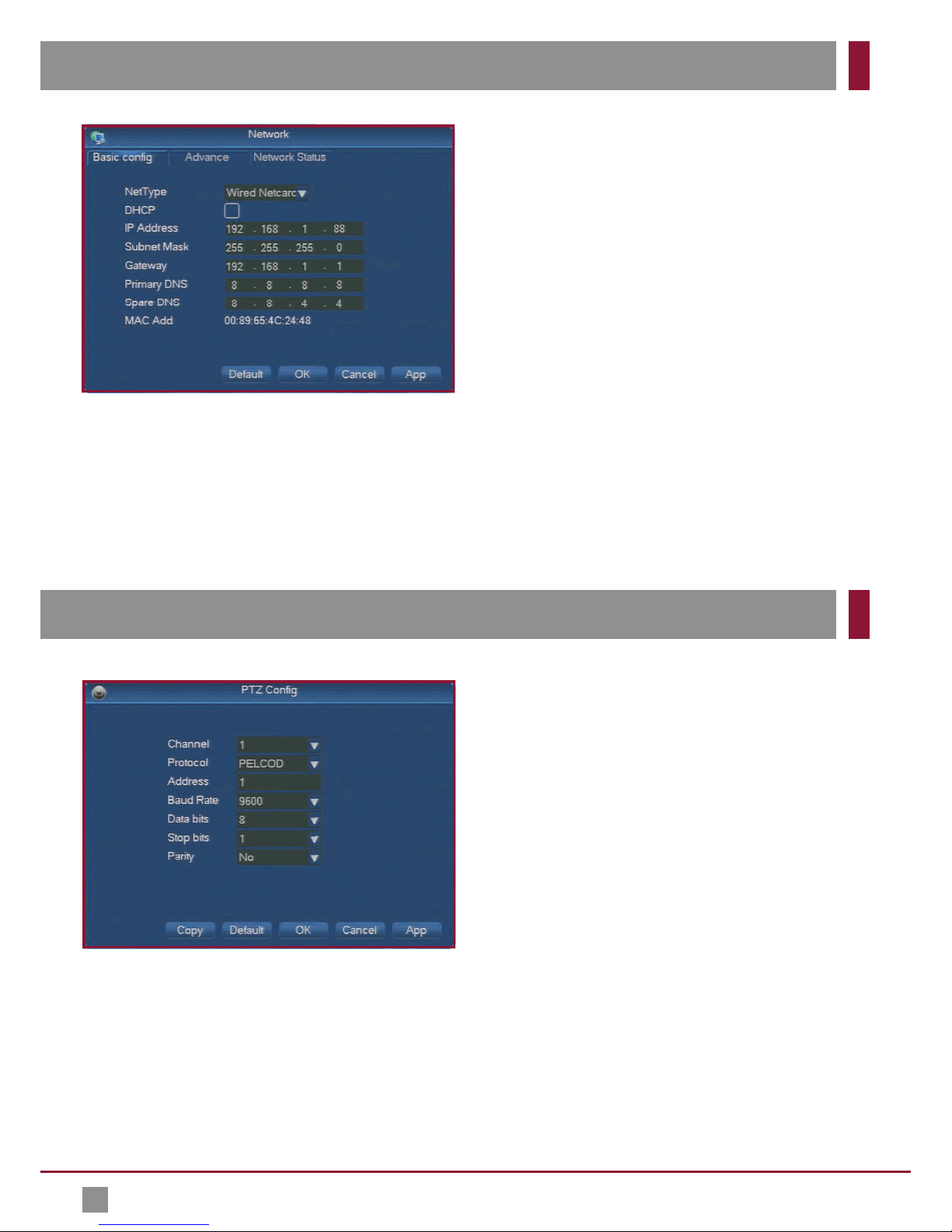
Under Network you will nd the following options.
Basic Con g
Here you can setup basic network settings. This will need to be
con gured (as well as port forwarding and DDNS) before you
can connect to and monitor the DVR remotely using the client or
mobile software.
Advanced
In the Advanced tab you can con gure settings such as DDNS,
ports, UPnP and the Email address you wish to use for alerts.
Network Stats
The Network Stats tab displays the current network settings
such as IP address, Subnet Mask and Gateway when using DHCP.
The PTZ Con g screen lets you set parameters so that they
match those of the attached PTZ cameras.
Simply select the channel you wish to con gure from the
drop down list. You can then set the Protocol, Address, Baud
Rate, Data bits, Stop bits and Parity.
To save time settings can also be copied from one camera
to another.
Page 7
7
P2P QR Code
HDD Management
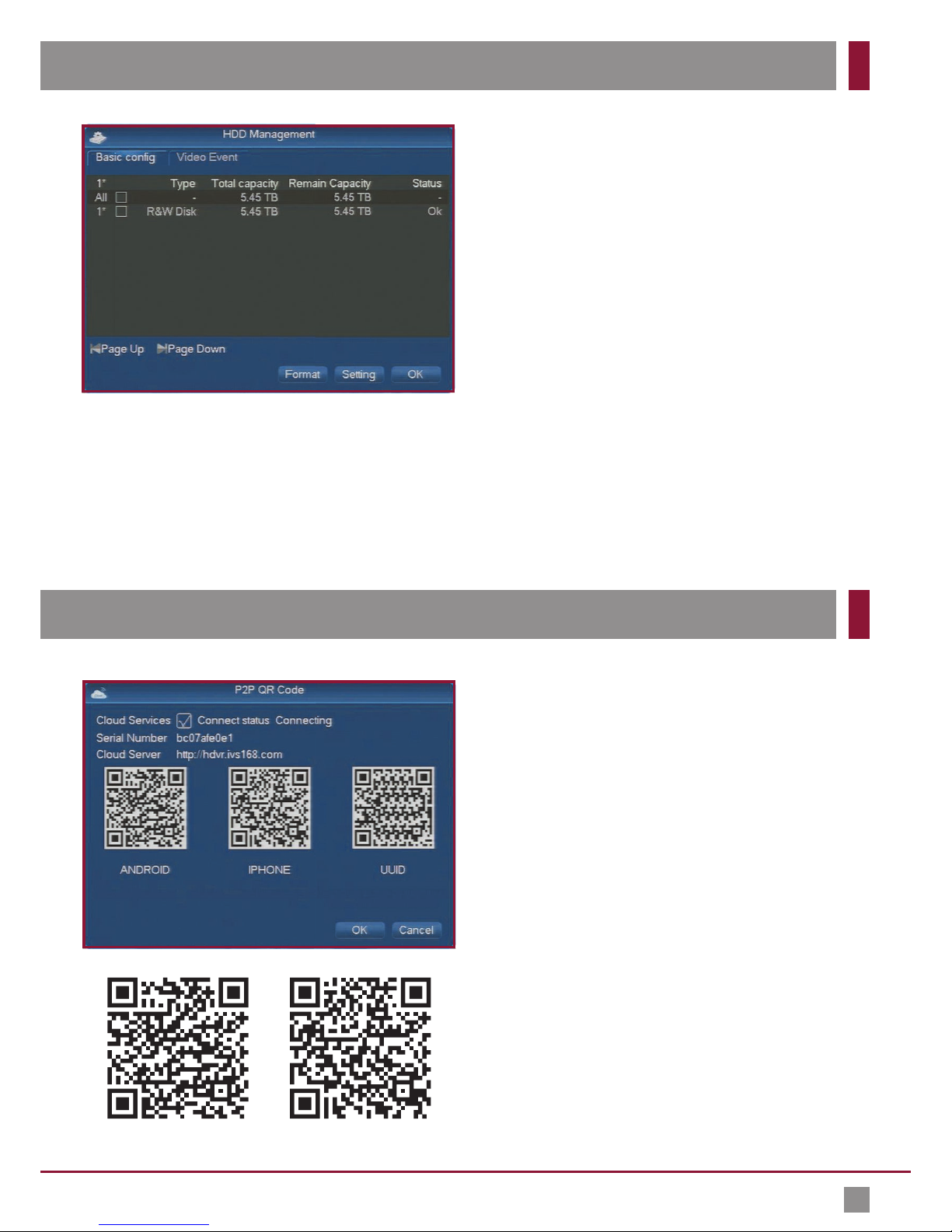
Basic Con g
The Basic Con g tab display key information on the DVR’s hard
drives. You can see the hard drive type, total hard drive capacity,
remaining capacity and hard drive status.
You also have the options to ‘
Format
’ the hard drive or click
‘
Setting
’ to change the hard drive type. There are three hard
drive types to choose from, R&W (Read & Write), Read (Read
only) or Redundant.
Video Event
The Video Event tab displays a list of all recordings on the hard
drive. It shows the start time and date and end time and date for
each recording.
In the he P2P QR Code screen you can nd the information
needed for remotely viewing and controlling your DVR.
The easiest way to remotely access the DVR for anywhere
in the world is to simply open Internet Explorer and enter
the DVR’s IP address into the address bar. You can then login
using the User Name and Password of the DVR.
The cloud server address is an alternative web client used for
remotely accessing the DVR via the internet.
There is also an Android and iPhone app available.
To download the Android app simply scan the QR code to the
left or search ‘FreecamHD’ in the Play Store.
To download the iPhone app simply scan the QR code to the
left or search for ‘Freecampro’ in the App Store.
The Cloud Service needs to be enabled if you intend to use
the mobile apps or Cloud Server.
Android App iPhone App
Page 8
8
Speci cations
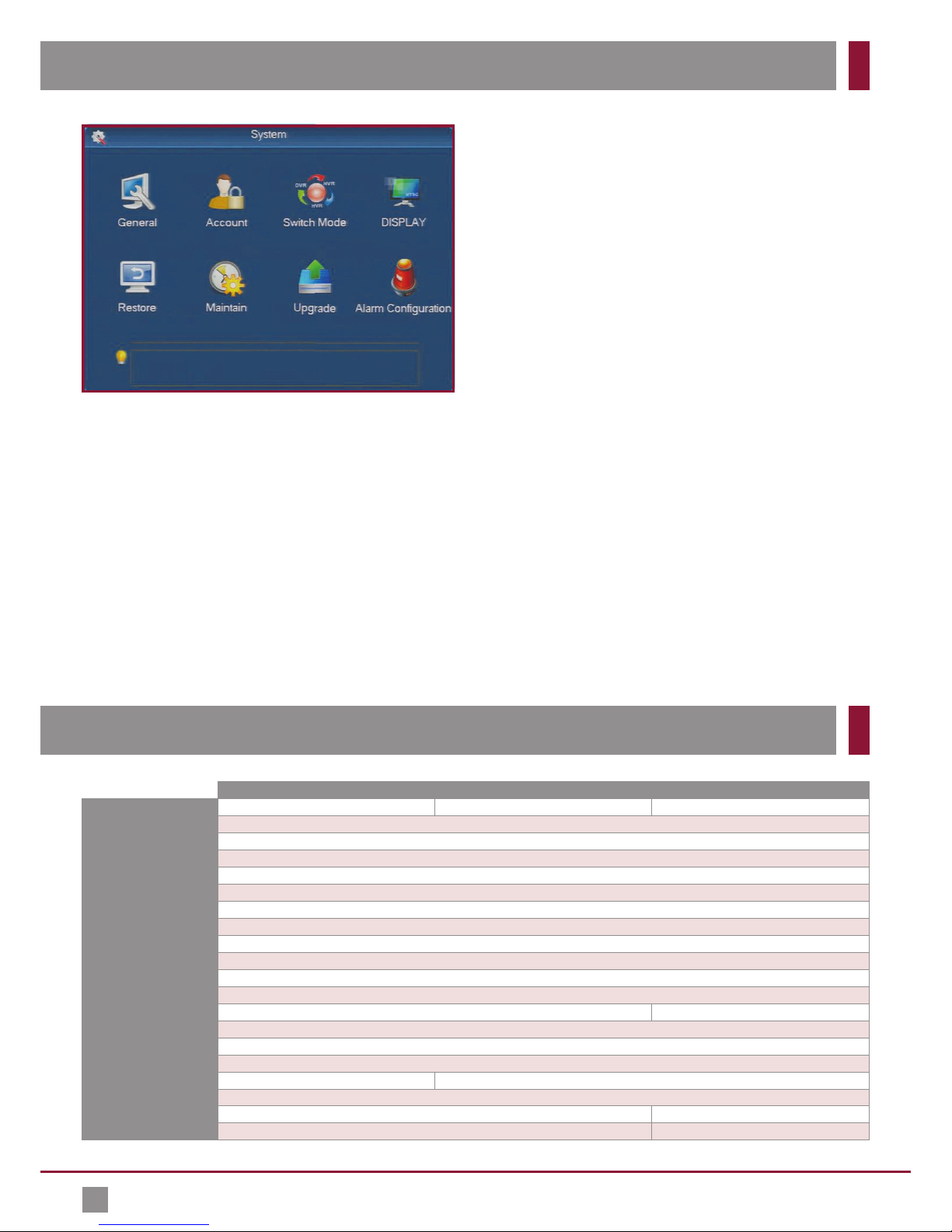
System
General
Here you can con gure general settings such as date, time,
system language and video standard.
Account
The account menu allows you to manage user accounts. You can
create, delete and modify user accounts.
Switch Mode
Switch mode gives the option to switch between 960h and D1
image resolutions.
Display
In the Display menu you can con gure the information overlaid
on the cameras image such as channel, time and date. You can
set the DVR’s output resolution and even setup the DVR to act as
a sequential switcher.
Restore
The Restore menu allows you to restore some or all of the DVRs
settings back to factory defaults.
Maintain
For maintenance purposes you can set the DVR to automatically
reboot or delete footage at a speci ed time and date.
Upgrade
The Upgrade menu enables you to update the rmware of the
DVR from a USB device.
Alarm Con guration
Here you can con gure alarm triggers such as motion detection
or video loss and how alarm triggers are handled. You can
choose what action the DVR takes, for example record a certain
channel or call a PTZ preset. You can also set the way in which
the DVR alerts the operator to an alarm trigger.
DSD604 - 4CH DSD608 - 8CH DSD616 - 16CH
Video Inputs 4 8 16
Video In Connection BNC Socket
Video Outputs 3
Video Out Connection BNC, VGA & HDMI
Audio Inputs 4
Audio Input Connection Phono
Audio Output 1
Audio Out Connection Phono
Resolution 960H (960 x 480)
Recording Speed FPS From 1-25 Per Channel
Compression MPEG-H264
Power 12V DC
Current Consumption 2A 5A
USB Backup Yes
Networkable Yes
Motion Detect Yes
PTZ Support No Yes
Mouse Control Yes
HDD Interface 1 x SATA 2 x SATA
Dimensions 250(W) x 40(H) x 240mm(D) 325(W) x 53(H) x 245mm(D)
Copyright 2015
 Loading...