

Page 1

Manual of 1502
Manual of 1502Manual of 1502
Manual of 1502
Read Me Before Usage!
Page 2

Chapter 1 Content Description
—1
Section 1 On-Lap Monitor and Accessories —1
Section 2 Notices of Touch Screen Monitor —2
Section 3 Safety Precautions —3
Section 4 Safety Instructions —3
Section 5 Product Maintenance —3
Section 6 LCD Pixel Statement —3
Section 7 Disposal of Electronic Equipment —4
Chapter 2 Installation Instructions
—4
Section 1 Install Stand 4 —4
Section 2 Connect the Video Cable and USB Touch Output and Power
Cable
—4
Section 3 Connect the 5V 2A Charger (Optional) —6
Section 4 Install the VESA 100 Mount (Optional) —6
Chapter 3 Power On and Off the On-Lap Monitor
—7
Section 1
Power On and Off the On-Lap Monitor
—7
Section 2 Monitor Display Setting —7
Chapter 4 Hot Keys, LED lights and OSD Instructions
—8
Section 1 Hot Keys & LED lights Description —8
Section 2 OSD Description —9
Section 3 Low Power Protection Warning —11
Chapter 5 Specification
—11
Section 1 Plug and Play —11
Section 2 Pin Assignment and Standard Default Modes —11
Section 3 Specification —12
Section 4 Troubleshooting —13
Section 3
Windows 8 Touch Gesture Description —8
Table of Contents
Page 3

Chapter 1 Content Description
Section 1 On-Lap Monitor and Accessories
1. Parts Description
1
Fig.: On-Lap 1502 input/
output ports
Magnetic Holder Mount
Fig.: 1502 parts, buttons and LED light Description
Page 4

2. Package & Accessories
Section 2 Notice of On-Lap Monitor
1. Please do not use sharp objects to touch the screen. Gently use the finger
to touch or swipe on the screen.
2. Please do not press the arm or other item to the screen or apply heavy
pressure onto the screen.
3. Please keep fingers clean and dry when performing touch. If the finger
has water drops it may result in the touch screen unable to determine
touch location. Use finger to touch the screen, do not use fingertip to
perform touch.
4. Touch signal needs to communicate through USB cable to Windows 8 or
Windows 7 installed computer. Need to first make sure the Micro USB to
USB Touch Power Cable is inserted into the correct port in order to have
touch function capability.
5. Unstable power input will interfere with touch signal, resulting in inaccurate or failed touch function. It is suggested to use the USB port on laptop or manufacturer’s 5V 2A Charger.
6. Disconnect power source before cleaning. Please use soft cloth to clean
touch screen monitor. When difficult to clean, wet the cloth then perform cleaning again. Please do not use chlorine, alcohol, ammonia, detergent or other corroding solvents. These solvents may cause damage
to the touch screen monitor or leave unremovable residue.
Fig.: Part description
of Stand 4
Accessories 1502 T 1502 I
Micro HDMI Video Cable x1 Yes Yes
VGA Video Cable x1
No (Optional) No (Optional)
Micro USB to USB Touch Power Cable Yes x 1 Yes x 2
Charger (5V,Max.2A) x1 No (Optional) Yes
Stand 4 Yes Yes
User Manual x1 Yes Yes
2
Page 5

7. Avoid LCD monitor become exposed to direct sunlight for a long period
of time, which may result in damage. When monitor displays different
images, image brightness may become slightly uneven.
8. Monitor may be broken when heavy pressure or sharp object is applied
to it. Please properly cover the monitor and make sure the monitor glass
will not be pressed if need to carry it outdoors. Placing touch screen
monitor inside carrying bag may result in monitor glass damaged by
pressing, dropping or colliding with laptop and other items.
Section 3 Safety Precautions
1. The Product may be severely damaged from overturning or falling.
Please do not place on a shaky or unstable table, cupboard or trolley. Do
not use the On-Lap Monitor on a moving vehicle.
2. Do not place the items on a vibrating surface, vibration may cause damage to the internal components.
3. The product is not waterproof. Do not use the Product at or near a place
with water.
4. Do not insert any object into the Product’s slots or gaps.
5. Loudness warning! Avoid volume levels that may be harmful to your
hearing. Please check the volume setting before you use the Audio Jack.
Section 4 Safety Instructions
Please read this Manual carefully and observe the operation instructions and
precautionary notes. Do retain this document for future reference.
Section 5 Product Maintenance
Do not attempt to repair the Product yourself. Should any of the following
conditions occur, please contact our maintenance personnel for service:
1) Unable to operate the Product after following the instructions in the
Manual.
2) The Product falls and the outer casing is damaged.
3) Power cable or video cables is damaged.
4) Liquid infiltrated into the Product.
Any normal wear and misuse, including but not limited to product failure due to normal
usage, is not covered under warranty. Accident, damage, software or hardware changes,
force majeure, or become in contact with liquid that result in product malfunction is not
covered under warranty.
Section 6 LCD Pixel Statement
The On-Lap Monitor uses a high quality LCD panel. Nevertheless, there might
be instances where defective pixels may occur; however, this will not affect
the normal functioning of the Product.
Section 7 Disposal of Electronic Equipment
The electronic equipment and batteries should not be disposed of
with household waste but should be left at an appropriate collection
point for recycling.
3
Page 6
Chapter 2 Installation Instructions
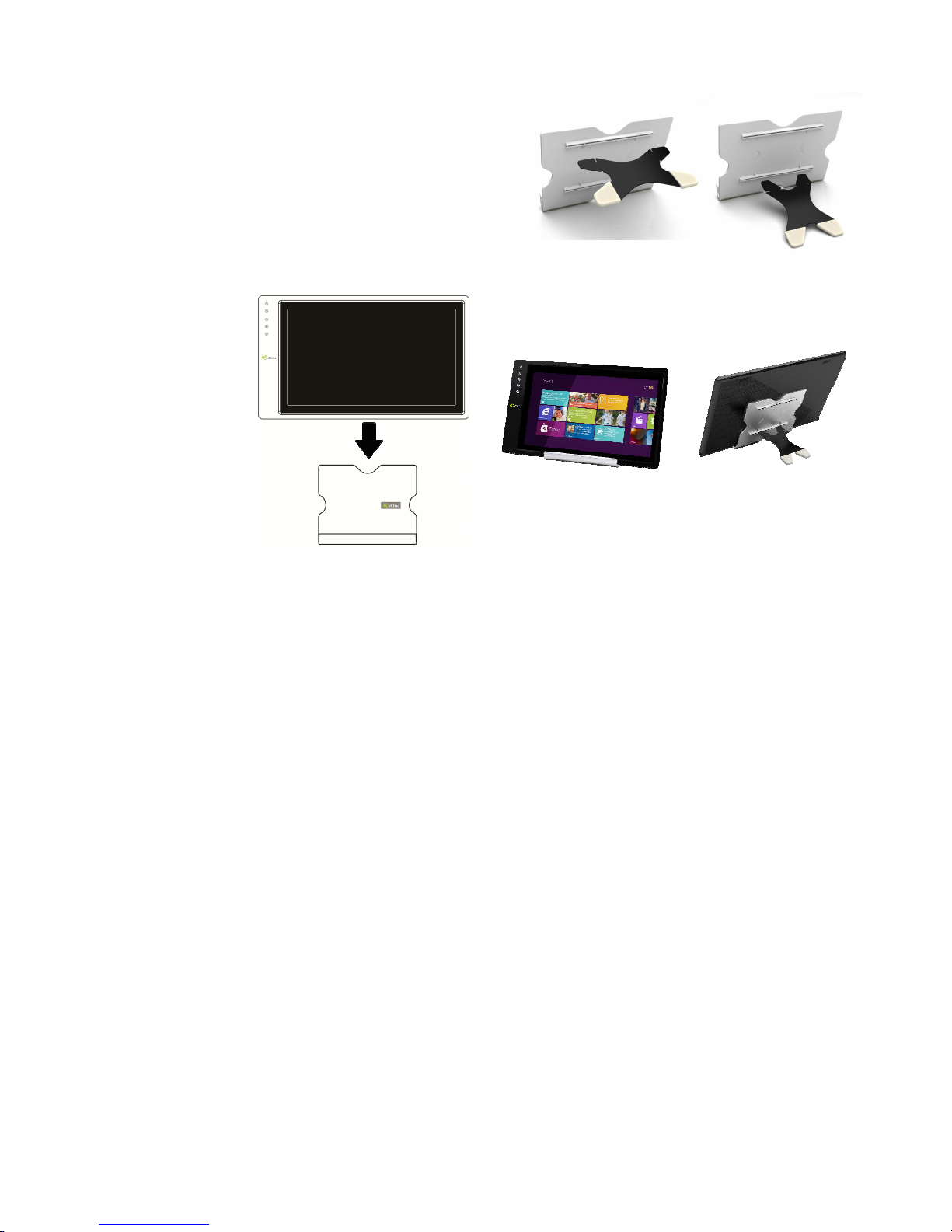
Section 1 Install Stand 4
Step 1 Assemble Stand 4
Select the desired angle placement to
assemble Stand 4. Before assembly, check
if X plate is properly inserted onto slot.
Step2: Place On-Lap 1502 onto Stand 4
Place On-Lap 1502 onto Stand 4. Stand 4 is positioned at the bottom center
of monitor.
Section 2 Connect the Video Cable and USB Touch Output and
Power Cable
Step1: Connect the Video Cables
Choose
1111
or
2222
based on the type of connection port
1111
Connect Micro HDMI Video Cable’s Micro HDMI (-D) type connector
to Micro HDMI port of On-Lap 1502. Connect the other end, HDMI-A
type connector to laptop, tablet, game console, or DVD player’s HDMI
port.
Or
2222
connect VGA Video Cable’s VGA connector to VGA port of OnLap 1502. Connect the other end, D-Sub connector to D-Sub/VGA connector port on the laptop. (Need to purchase VGA Video Cable designed
for On-Lap 1502 in order to use)
*The two On-Lap 1502 video cables look similar in appearance, match with the diagram
before connecting to avoid connecting to the wrong port. If wrongly connect Micro
HDMI Video Cable to VGA port, or wrongly connect VGA Video Cable to HDMI port, the
monitor will not display.
**Only when Micro HDMI Video Cable is connected will the monitor have sound. VGA
Video Cable is not able to transmit audio signal
4
Page 7
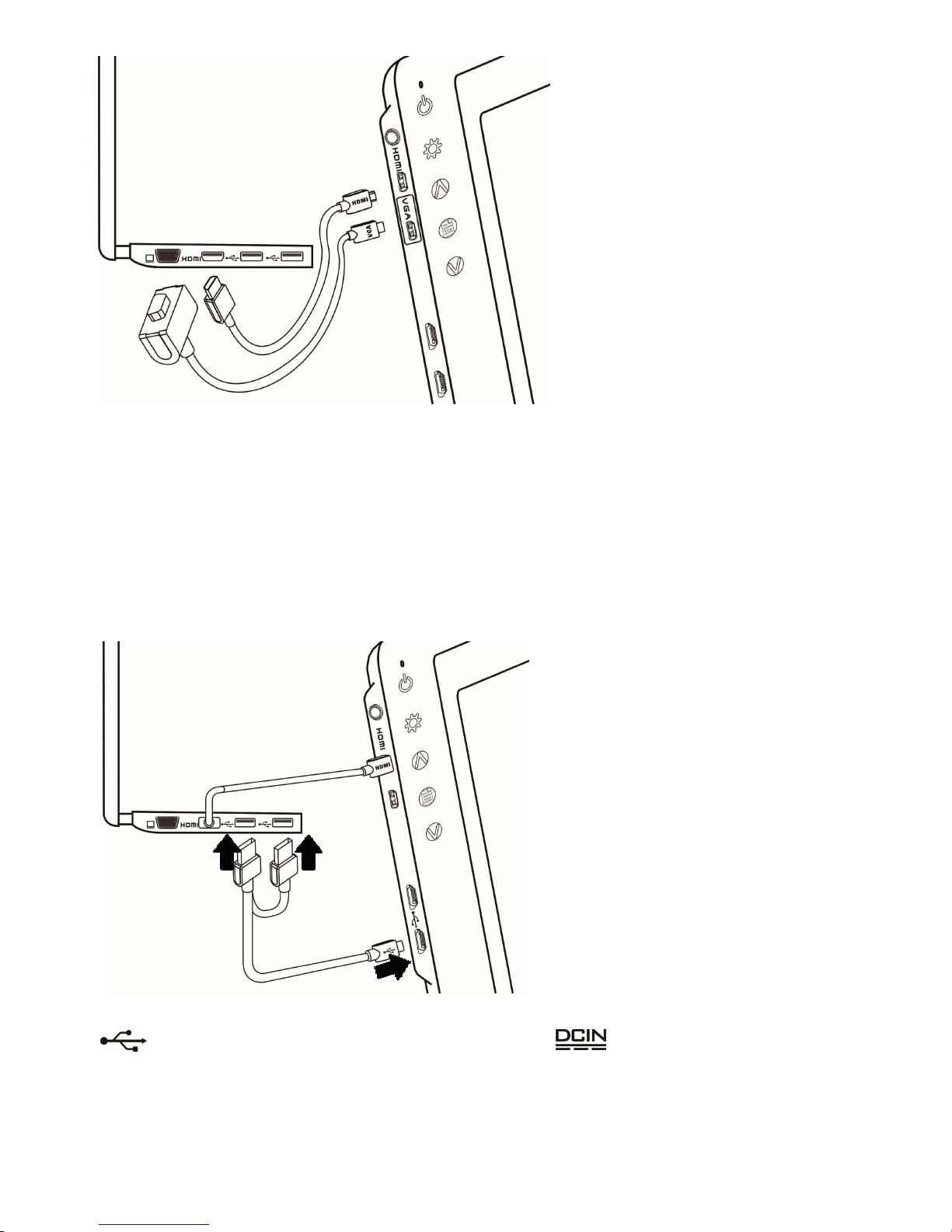
Step2: Connect USB Touch Output and Power Cable
1111
Connect USB Touch Output and Power Cable’s Micro USB (B type)
connector to On-Lap 1502’s Micro USB port. Connect the other end,
USB connector to USB port of laptop. With this connection, laptop will
provide power and touch signal to On-Lap 1502.
2222
If one USB port on laptop is unable to provide enough power, please
connect the two USB connectors to two USB ports on laptop, this can
provide twice the power.
*On-Lap 1502 has two Micro USB ports:
USB port can transmit touch signal and power, DC IN port can only transmit
power. If USB Touch Output and Power Cable connect to DC IN port, touch function
cannot be used.
Fig.: Connect VGA or
Micro HDMI Video Cable
Fig.: Connect USB Touch
Power Cable
5
1
11
1
1
11
1
2
22
2
On-Lap 1502
Notebook
1
11
1
2
22
2
On-Lap 1502
Notebook
Page 8
Section 3 Connect the 5V 2A Charger (Optional)
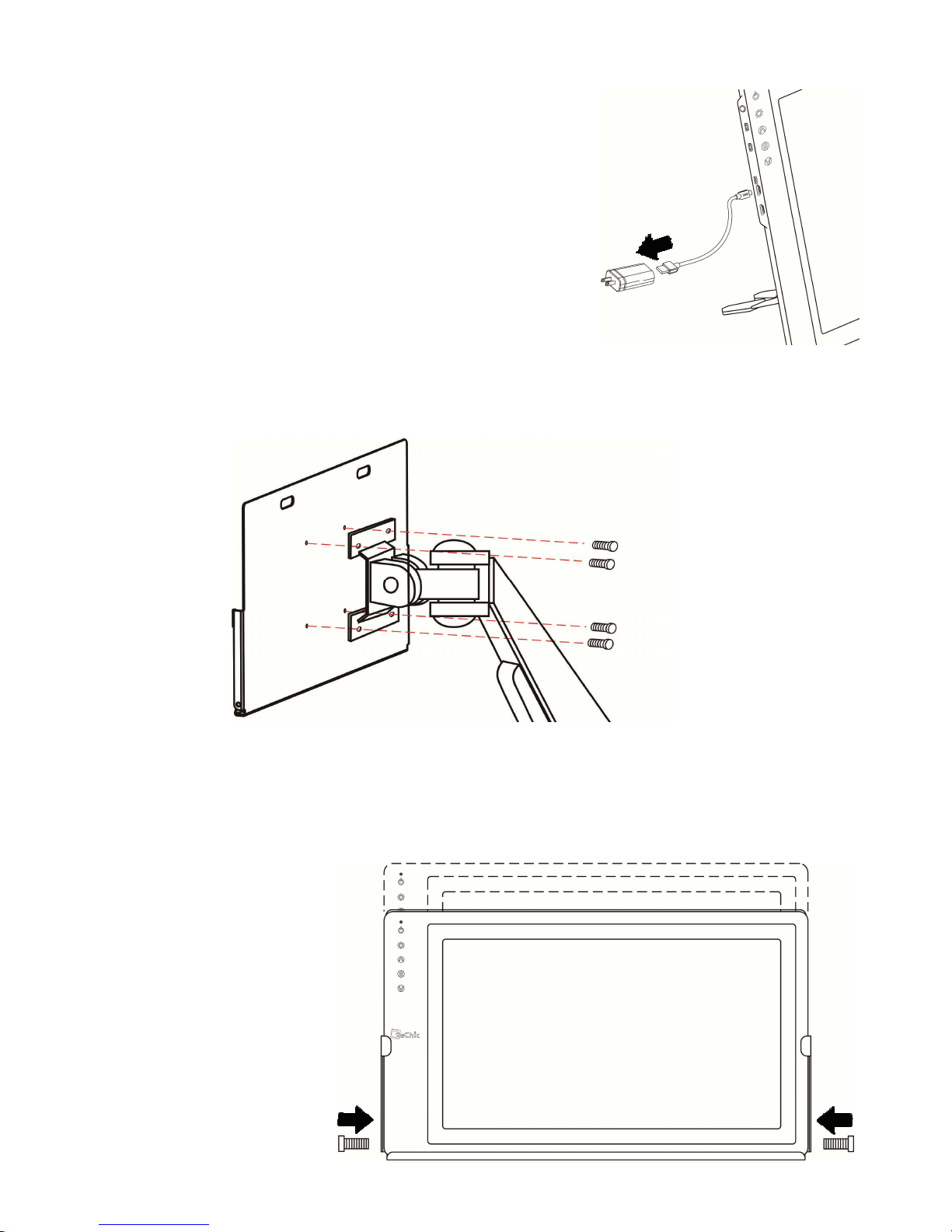
If wish to have On-Lap 1502 use independent
power source, use 5V 2A Charger to provide 5V DC
and not use power from laptop, please refer to
diagram. Connect 5V 2A Charger to Micro USB port
(DC IN) of On-Lap 1502. At this time, On-Lap 1502
will only use power from DC IN port.
*Do not disconnect the USB Touch Output and Power
Cable from On-Lap 1502 USB port, or else touch function
cannot be used.
Section 4 Install the VESA 100 Mount (Optional)
From diagram below, place VESA 100 mount to mount arm or wall mount, use
four screws to secure the holes.
Place On-Lap 1502 onto VESA 100 mount, secure with four screws.
* If need to adjust monitor position, please use two hands to hold VESA 100 mount to
adjust, do not apply force onto On-Lap 1502 body. Excessive force onto On-Lap 1502
body may result in monitor glass become broken.
Fig.: Place the
VESA 100 onto
VESA 100
Mount Arm
Fig.: Place On-Lap 1502
onto VESA 100 mount
6
Page 9
Chapter 3 Power On and Off the On-Lap Monitor
Section 1 Power On and Off the On-Lap
1. From Off state to On state: Press Power Button to activate On/Off.
2. First time use: When Micro USB to USB touch signal and power connect
to USB port on computer or 5V DC Charger, On-Lap will automatically
start and detect video signal to automatically display video. (Connection
method can refer to Chapter 2 Section 2)
Section 2 Monitor Display Setting
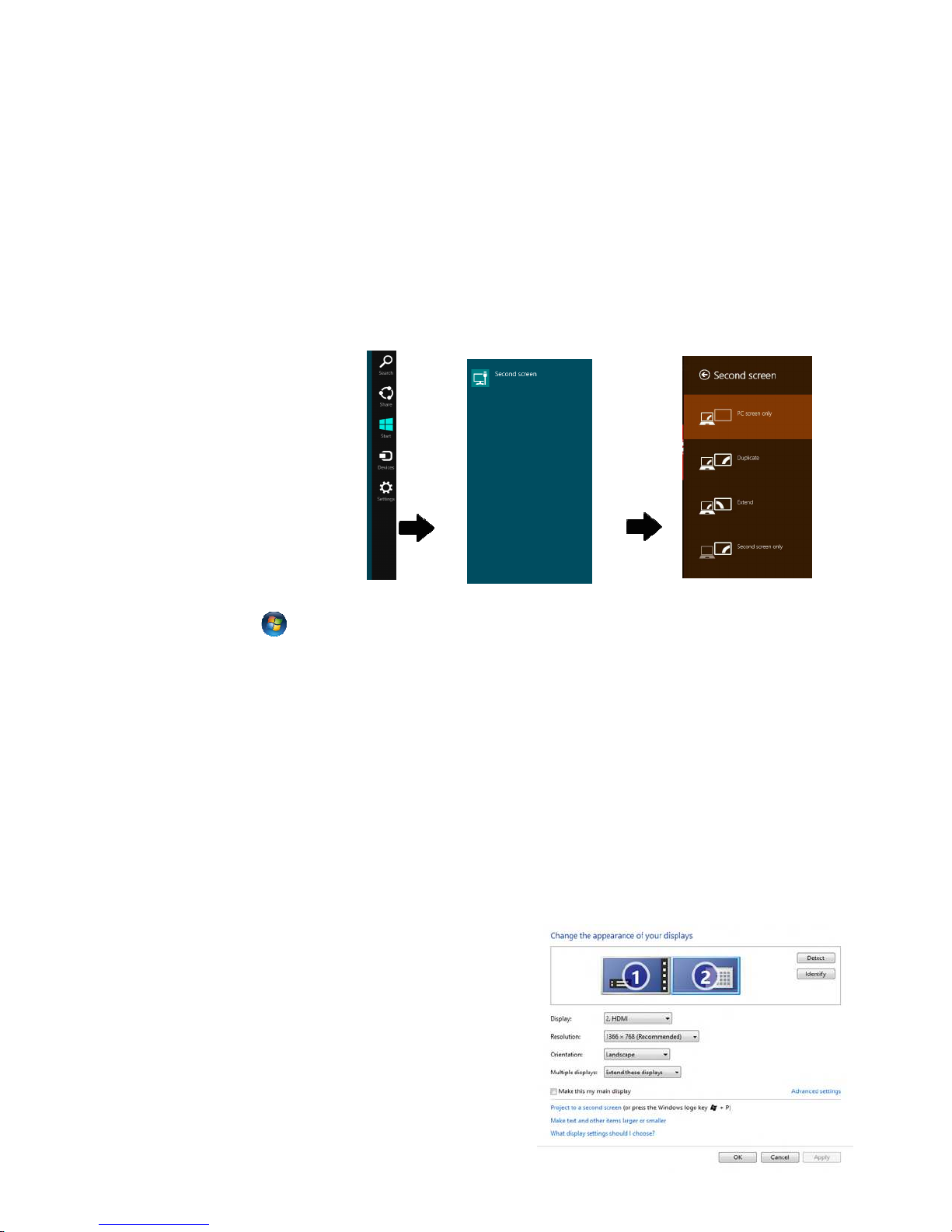
1. Set Extended Display Mode – Windows 8
Select directly from right side of screen [Devices] ->select [2nd Monitor] ->
select [Extend Mode]
2. Resolution setting – Windows 7 system
● Click on icon
● Click on Control Panel
> Appearance and Personalization
● Click on Display > Connect to an external display.
Normally Display ① is the laptop’s monitor, Display ② is the external
monitor. Click on Detect if you are unsure.
● At Display, select “2.HDMI” (digital video) or “2. display device:
VGA” (analog video) for Display
● Select "1366x768" for Resolution, On-Lap 1502I has IPS panel, with
resolution up to 1920x1080
● Select "Landscape" or "Portrait" for Orientation.
● Select "Extend these displays" for Multiple display, and drag Display 2
to the right side of Display 1. For
Duplicated mode, select "Duplicate
these displays".
● Select OK and exit after saving the
settings.
7
Page 10
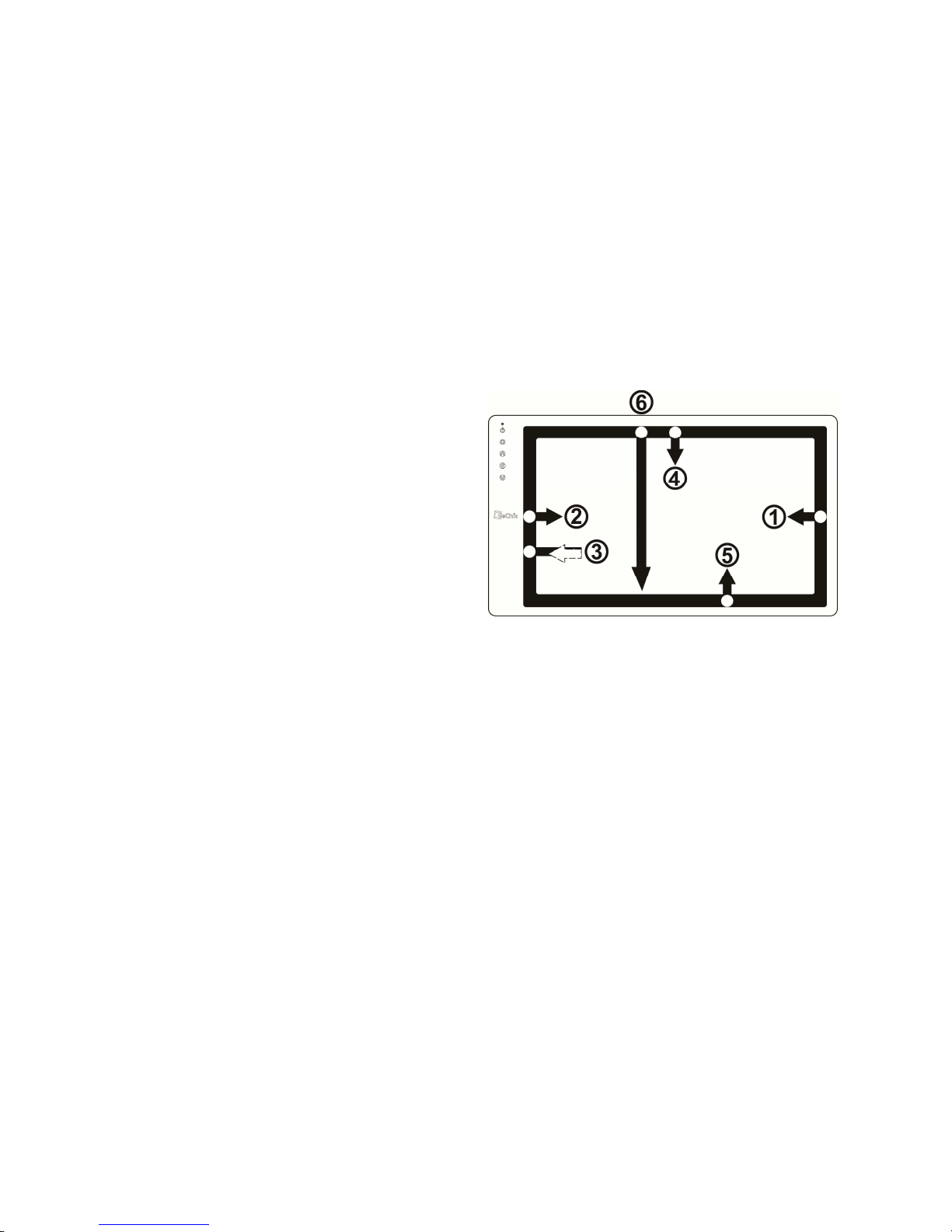
Section 3 Windows 8 Touch Gesture Description
Common Touch Gesture Introduction:
1. Use finger to swipe in from edge:
1
Swipe in from the right edge of the screen (Arrow 1) : Open the five
charms – Search, Share, Start, Devices, and Settings
2
Swipe in from the left edge of the screen (Arrow 2) : Switch between
apps
3
Swipe in from the left edge of the screen then out toward the left
edge of the screen (Arrow 3): Display all apps
45
Swipe in from the top edge (Arrow 4) or bottom edge (Arrow 5):
Display commands of app, like Add New, Reminder, etc.
6
With touch, drag the app from the top edge of screen (Arrow 6) to the
bottom of the screen: Close app
2. Select item: Tap on the item to open. This function is similar to clicking
on mouse.
3. Press and hold the item for a few seconds then release: Display item
information. This function is similar to right-clicking on mouse.
4. Zoom in and out: Touch the item with two fingers then move fingers
toward each other (pinch) or away from each other (stretch).
5. Slide finger on the screen, horizontally or vertically, to move through
content. This function is similar to scrolling with a mouse.
Chapter 4 Hot Keys and OSD Instructions
Section 1 Hot Keys and LED Light Description
* The buttons are capacitive touch module. Please touch the buttons by the fingertip
gently. Do not press the buttons with stress or continuously, which may cause them fail
to response. “Increase/up” or “Decrease/down” continuously shall be done by
touching the button and holding. Do not touch two buttons at the same time, due it may
cause no response or fault response.
LED Lights Description :
It shows green light when turn on On-Lap Monitor and shows red light when
shut down.
Fig.: Finger touch illustration,
arrow indicates movement
direction
8
Page 11
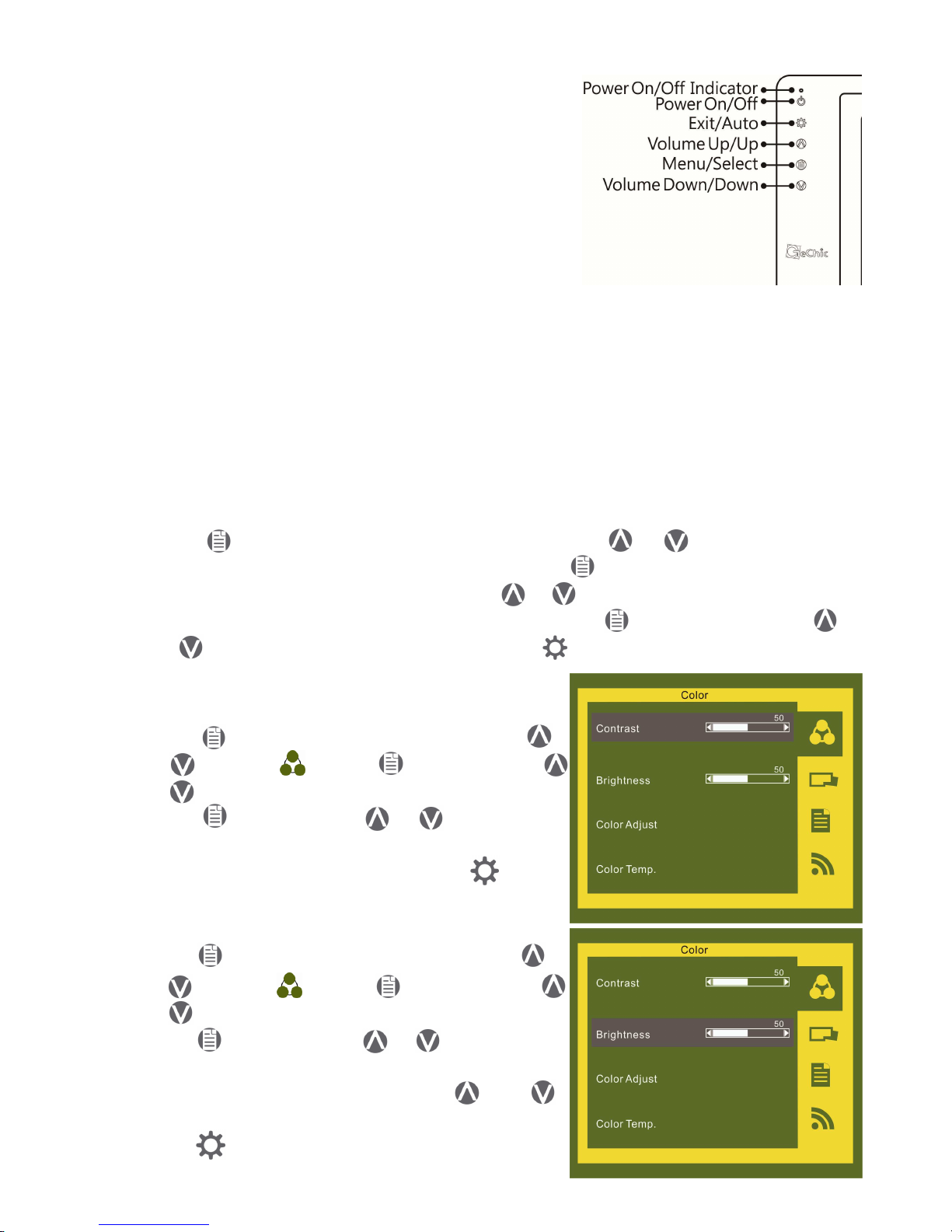
Hot Keys Description
Power: Touch the Power Button can power on/off
the Monitor.
Exit/Auto Adjustment: In the OSD panel, touch
the Exit Button to exit and back to the previous
page. When there is no OSD menu, touch this
Button will activate automatic adjustment function (only pertains to analog VGA signal)
Increase Volume/UP: Touch this Button to increase the volume of speakers. If the OSD menu is launched, touch this button
will move up the list. Touch and hold for automatic continuous increase.
Menu/Select: Touch the Menu Button to launch OSD panel.
Decrease Volume/Down: Touch this Button to decrease the volume of speak-
ers. If the OSD menu is launched, touch this button will move down the list.
Touch and hold for automatic continuous decrease.
Section 2 OSD Description
1. Basic Button Operation
Press button to launch the OSD panel. Press or to view the
functions. To adjust a certain function, press to launch it. If the selected
function consists of sub-menu, press or again to view the sub-menu.
When the desired function is highlighted, press to launch it. Press
or to change the setting. To exit, press to exit. Repeat the preceding
steps to adjust other setting.
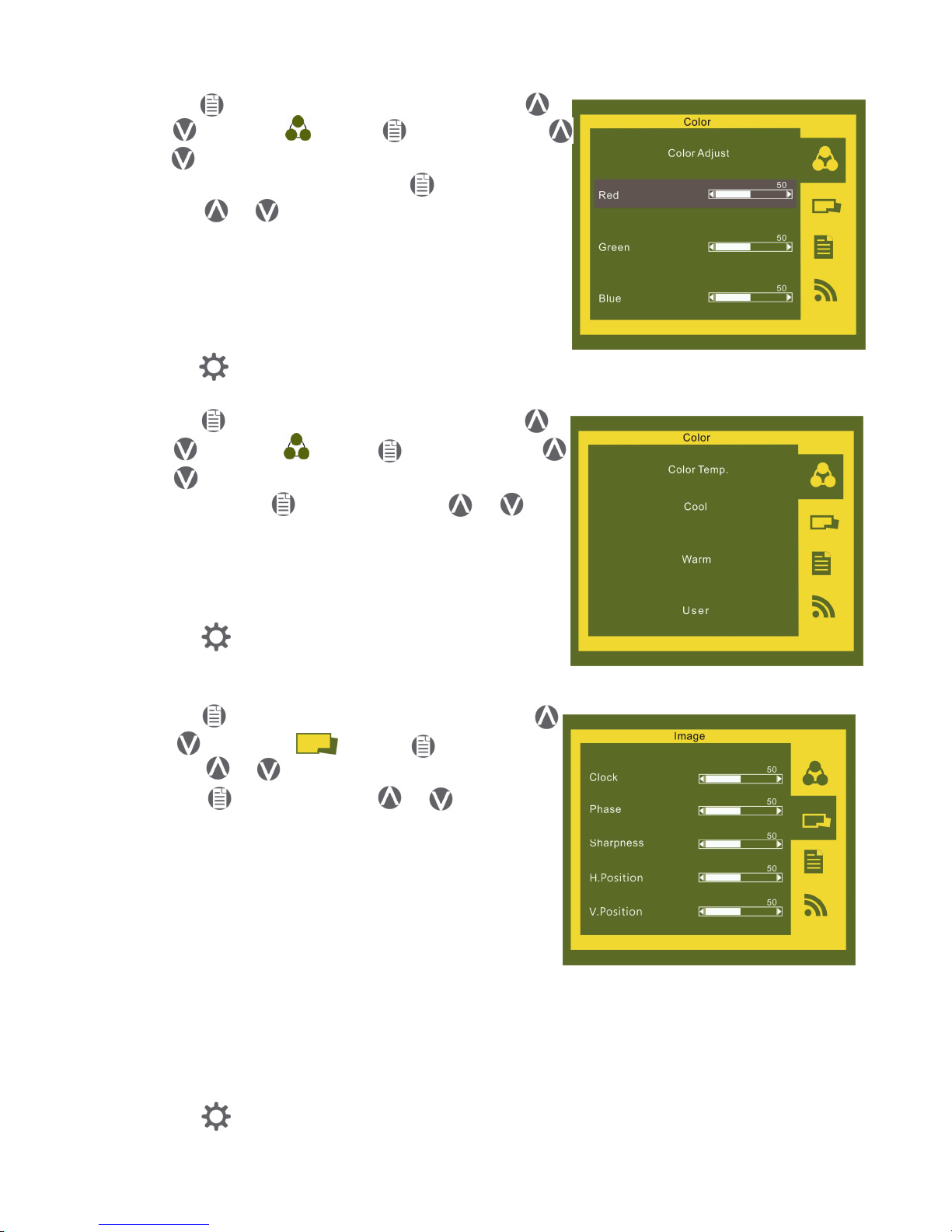
2. Color Setting – Contrast
Press to launch the OSD panel. Press
or to select , press to enter. Press
or to select Contrast sub-menu and
press to enter; press or to proceed
with the contrast adjustment → adjust the
display contrast from 0-100. Press to
exit.
3. Color Setting – Brightness
Press to launch the OSD panel. Press
or to select , press to enter. Press
or to select Brightness sub-menu and
press to enter; press or to proceed
with the brightness adjustment → adjust
the backlight from 0-100. Press and
hold for automatic continuous decrease.
Press to exit.
9
Page 12
5. Color Setting – Color Temperature adjustment
Press to launch the OSD panel. Press
or to select , press to enter. Press
or to select Color temperature adjustment sub-menu and press to enter;
press or to adjust color saturation for
R/G/B.
Red → increase / decrease the red saturation of
the image. Green → increase / decrease the
green saturation of the image. Blue → increase
decrease the blue saturation of the image.
Press to exit.
6. Color Setting – Color Temperature
Press to launch the OSD panel. Press
or to select , press to enter. Press
or to select Color Temperature submenu, press to enter. Press or to
proceed with the adjustment.
Warm color → Revert to warm color.
Cold color → Revert to cold color.
User → Revert to user's color adjust settings.
Press to exit.
7. Image Adjustment (Applicable only for
VGA input signal)
Press to launch the OSD panel. Press
or to select , press to enter.
Press or to select the sub-menu,
press to enter. Press or to adjust
Clock → Adjust the horizontal scan rate. If the
rate is incorrectly set, the vertical lines on
screen and screen width will not be
properly displayed.
Phase → Adjust the phase of pixel clock signal.
If the position is incorrectly adjusted and
when the screen displays bright image, it
will be affected by horizontal interference.
Sharpness → Adjust the sharpness of the image.
H Position → Adjust the image’s horizontal position.
V Position → Adjust the image’s vertical position.
Press to exit.
10
Page 13
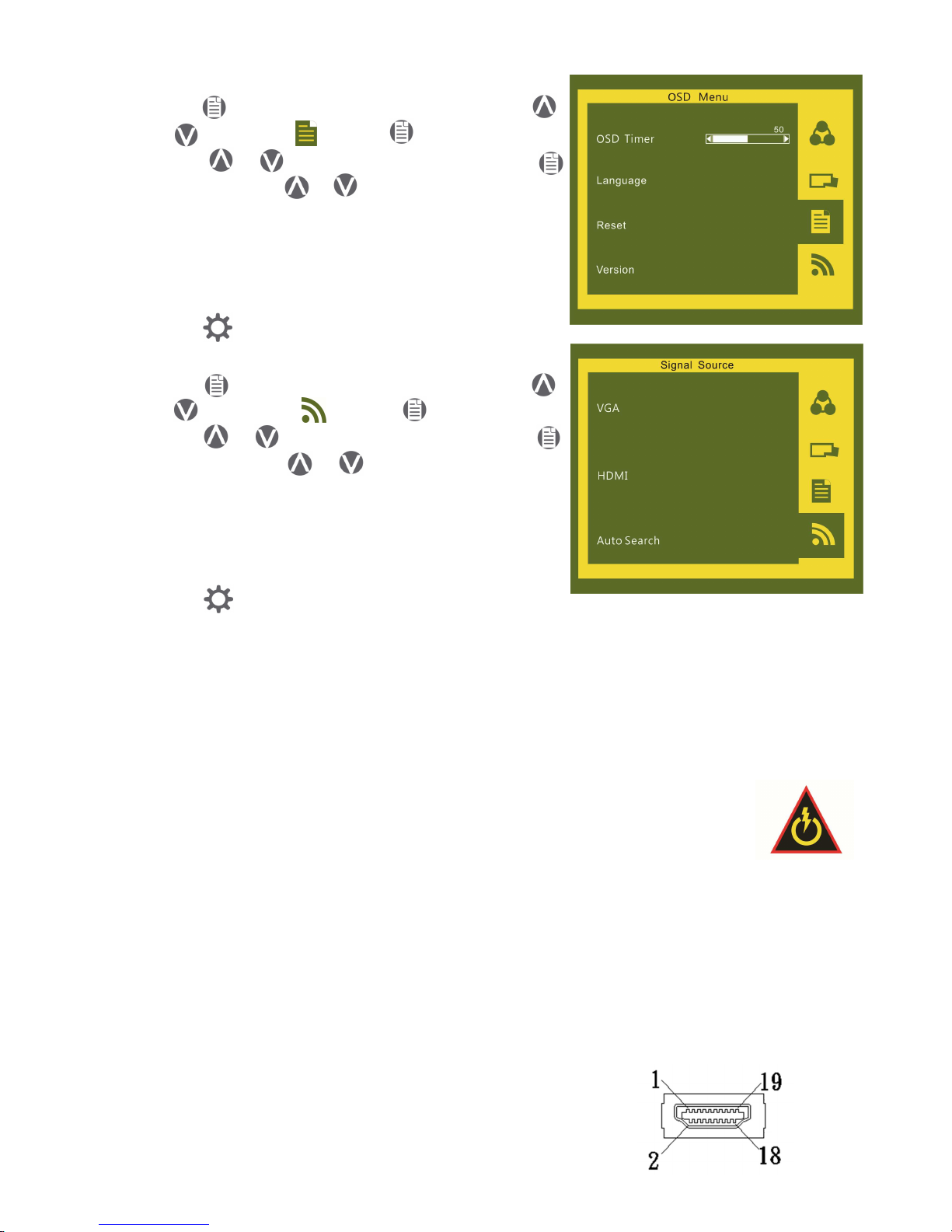
8. Menu Adjustment
Press to launch the OSD panel. Press
or to select , press to enter.
Press or to select sub-menu, press
to enter, press or to adjust.
OST Timer → adjust OSD time
Language → select language
Reset → restore to factory settings
Version → factory version
Press to exit.
9. Signal Selection
Press to launch the OSD panel. Press
or to select , press to enter.
Press or to select sub-menu, press
to enter, press or to select input
source, which are :
VGA → select analog signal as source of input
HDMI → select digital signal as source of input
Auto Search → auto search for input signal.
Press to exit.
Section 3 Low Power Protection Warning
If the volume setting is too high, the power requirement may be greater than
the power provided by computer or external 5V DC Charger. At this time, the
Low Power Protection Warning will appear. Please reduce the volume immediately. Connect the two USB connectors of Micro USB Touch Output and Power
Cable to the two USB ports on computer. If the volume is not reduced in time,
the Monitor will decrease the volume and brightness automatically.
Fig.: Low voltage warning shown at upper right corner on screen.
Chapter 5 Specification
Section 1 Plug and Play
The On-Lap Monitor conforms to VESA DDC standard and supports VESA
DDC2. DDC2B is a bi-directional data channel based on I
2
C protocol. The host
can request EDID information over the DDC2B channel. The On-Lap Monitor is
able to inform the host system of its identity, and depending on the level of
DDC used, communicate additional information about its display capabilities.
Section 2 Pin Assignment
1. HDMI Connector Pinout
11
Fig.: HDMI-A Connector (Connect to
HDMI port)
Page 14
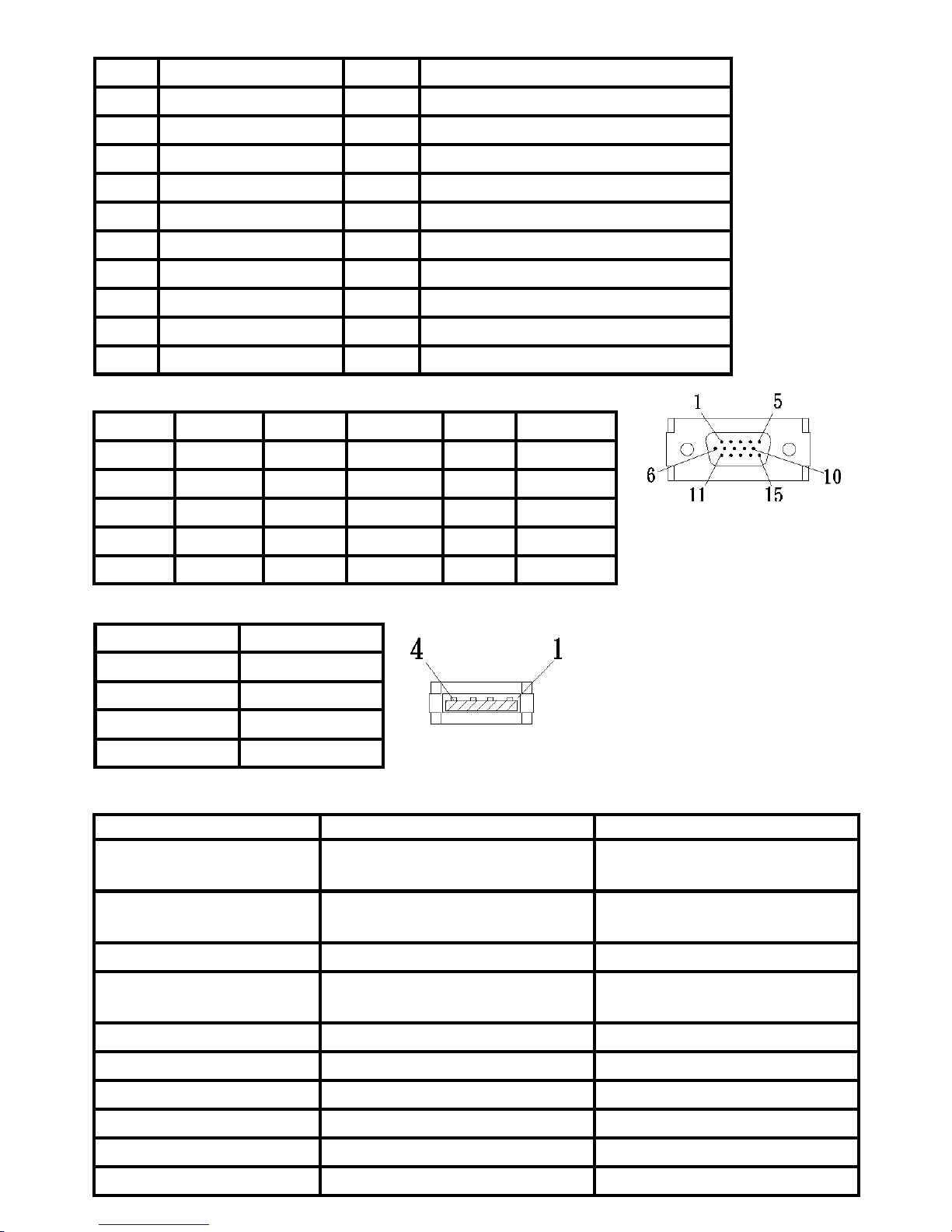
2. VGA Connector Pinout
3. USB Connector Pinout
Section 3 Specification
Pin Name Pin Name
1
TMDS Data2+
11
TMDS Clock Shield
2
TMDS Data2 Shield
12
TMDS Clock –
3
TMDS Data2 –
13
CEC
4
TMDS Data1+
14
Reserved
5
TMDS Data1 Shield
15
SCL (I²C Serial Clock for DDC)
6
TMDS Data1 –
16
SDA (I²C Serial Data Line for DDC)
7
TMDS Data0+
17
DDC/CEC Ground
8
TMDS Data0 Shield
18
+5 V Power
9
TMDS Data0 –
19
Hot Plug Detect
10
TMDS Clock+
Pin No. Name Pin No. Name Pin No. Name
1 RED 6 RGND 11 NC
2 GREEN 7 GGND 12 SDA
3 BLUE 8 BGND 13 HSYNC
4 NC 9 +5V 14 VSYNC
5 GND 10 SGND 15 SCL
Fig.: VGA connector
(connect to PC’s
VGA port)
12
Pin No. Name
1 Vcc(+5V)
2 D+
3 D4 Ground
Fig .: USB Connector
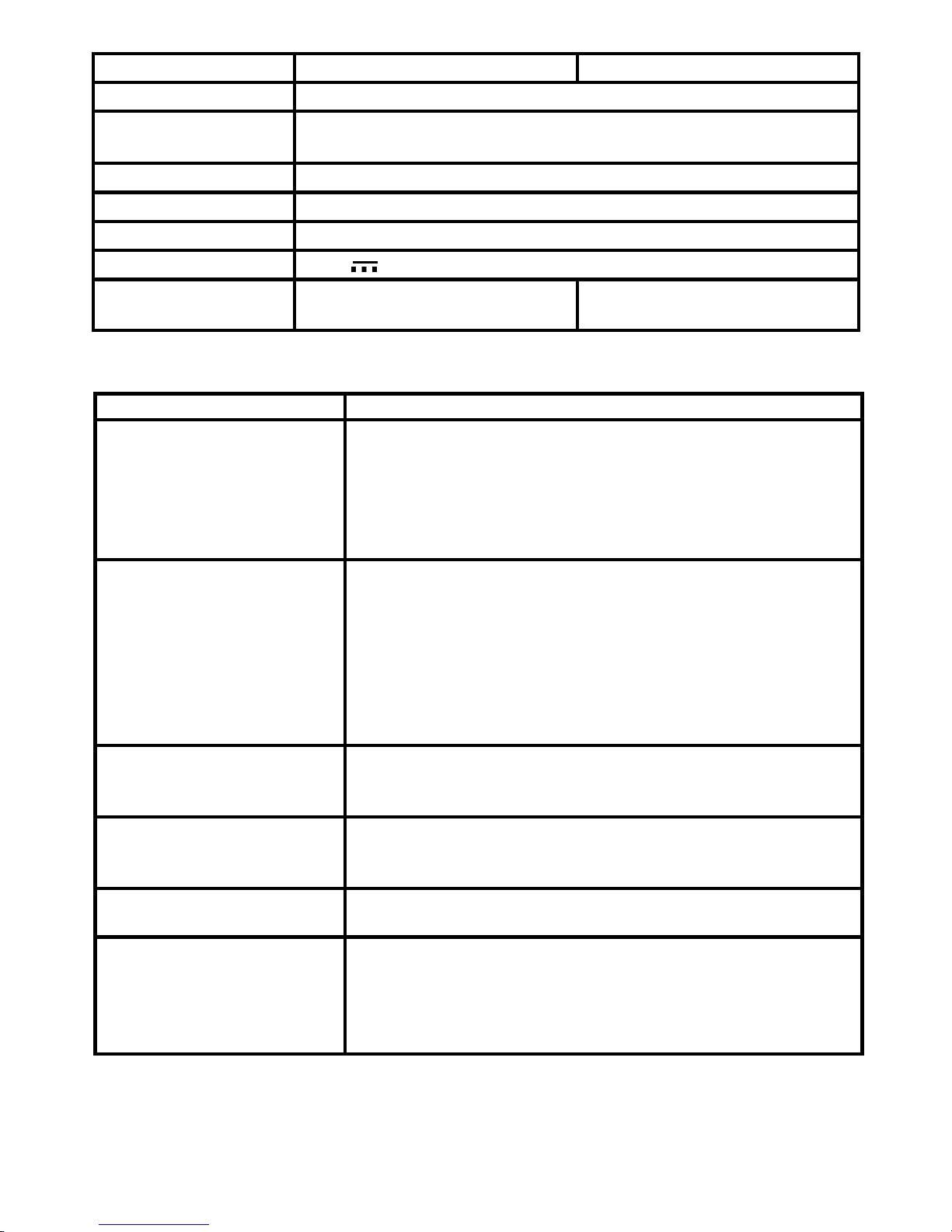
1502 I 1502 T
Panel type
15.6” TFT IPS (LED Backlight)
15.6” TFT TN (LED Backlight)
Resolution / Color
Depth
1920 x 1080 /262K colors 1366 x 768 /262K colors
Pixel Pitch 0.179mm 0.252mm
Viewing Angle
(Typical)
(U/D/R/L) 80°/80°/80°/80° (U/D/R/L) 15°/35°/45°/45°
Contrast Ratio 400:1(Typical) 400:1(Typical)
Response Time 17.5 (ms) (Typical) 8 (ms) (Typical)
Brightness 220 (cd/m
2
)(Maximum) 180(cd/m2)(Maximum)
Horizontal Scan Range 30KHz to 83KHz(automatic) 30KHz to 83KHz(automatic)
Vertical Scan Range 56Hz to 76Hz(automatic) 56Hz to 76Hz(automatic)
Preset Resolution 1920x1080(at 60Hz) 1366x768(at 60Hz)
Page 15
Section 4 Trouble Shooting
1. Image or Audio output troubles
2. The unavailability of “ Duplicate these displays” or “ Extend these
displays” in Display setting may be limited by the graphics chip of the
laptop or have the graphic chip features limited due to the power saving
mode of the laptop or have the graphic chip driver updated. Please consult your laptop manufacturer or graphic chip manufacturer.
1502 I 1502 T
Video Format 480p ; 576p ; 720p ; 1080p ; 480i ; 576i ; 1080i
Touch Type
Projected capacitive touch screen; 10-point multi-touch; Input
by fingers
Operation System Windows 7/ Windows 8
Screen Coating Touch screen hardness≧7H ; Removable anti-glare film:3H
Speakers 2x 1.0W(Max.) (Rated Impedance 8 Ω at 2KHz)
Rating Voltage 5V DC
Rating Current
1.8A (Brightness100, Audio
level 0)
1.2A (Brightness100, Audio
level 0)
13
Problem Solution
No response when finger
touches on monitor
1. Check if Micro USB Touch Output and Power Cable is
properly connected between the computer and On-Lap
1502’s USB port.
2. Check if Micro USB Touch Output and Power Cable is
mistakenly connected to DC IN port. If so, it only power
is transmitted and no touch is available.
No image
1. Check if Power On/Off Indicator shows green light. If
not, it means no power connection. Please refer to user
manual instruction to connect power.
2. Check if VGA/HDMI Video Cable is connected between
On-Lap’s connector port and computer’s connector
port.
3. Check if Micro HDMI Video Cable connector is accidently connected to the VGA port on On-Lap.
OSD displays “ No
Signal” warning
Please check if the Video Cable is correctly connected to On-
Lap Monitor’s video input port and laptops’ video output
port.
Image disappears, or image
size is too big, too small, or
image is not centered.
The trouble may be caused by VGA video input. Please
adjust resolution, clock, horizontal position and vertical
position via OSD.
Monitor has image but no
sound
1. Press UP Button to increase audio level.
2. Use of VGA input will not have audio signal.
Monitor displays Low
Power Protection Warning
Because the output current is greater than the input current,
please lower the audio and brightness level. Connect the two
USB connectors of Micro USB Touch Output and Power Cable
to the two USB ports on the computer to increase power. Or
using 5V 2A Charger to supply power.
Page 16

GeChic Corporation
5F-3, No. 138, Zhongming S. Rd.,
West Dist., Taichung, Taiwan (R.O.C.)
Customer Service: [email protected]
www.gechic.com
 Loading...