

Page 1
A735 / A835 SERVICE NOTICE: BATTERY INDICATOR METER
Dear GE Valued Customer,
There have been reported incidents that the battery indicator meter of some GE A735 and A835
digital cameras may be under-reporting battery levels on certain types of batteries, and
accordingly, we have released a firmware update to reset the battery indicator meter.
We extend our sincerest apologies for any inconveniences that this may have caused you, and
we make every effort to achieve the highest levels of quality possible and request your
continued support. Should you need any assistance, please contact us at 1-800-730-6597.
Symptoms and Cause
In certain units, the voltage of fully charged batteries may be under-reported by the camera’s
battery meter, which causes the batteries to be registered as only 1/3 power, or in some cases,
zero power (displayed on the LCD screen as “Power Exhausted”).
Resolution
The battery indicator meter can be reset by following the instructions below to install the latest
firmware to your camera.
INSTRUCTIONS:
Before you begin, you must have the following items available:
SD card
Computer
Internet access
GE camera
1. IMPORTANT - Verify the camera model on the front of the camera. Click on the appropriate
link below and save the firmware to your SD card.
A735
A835
*If you need assistance on how to save the firmware to your SD card, click here.
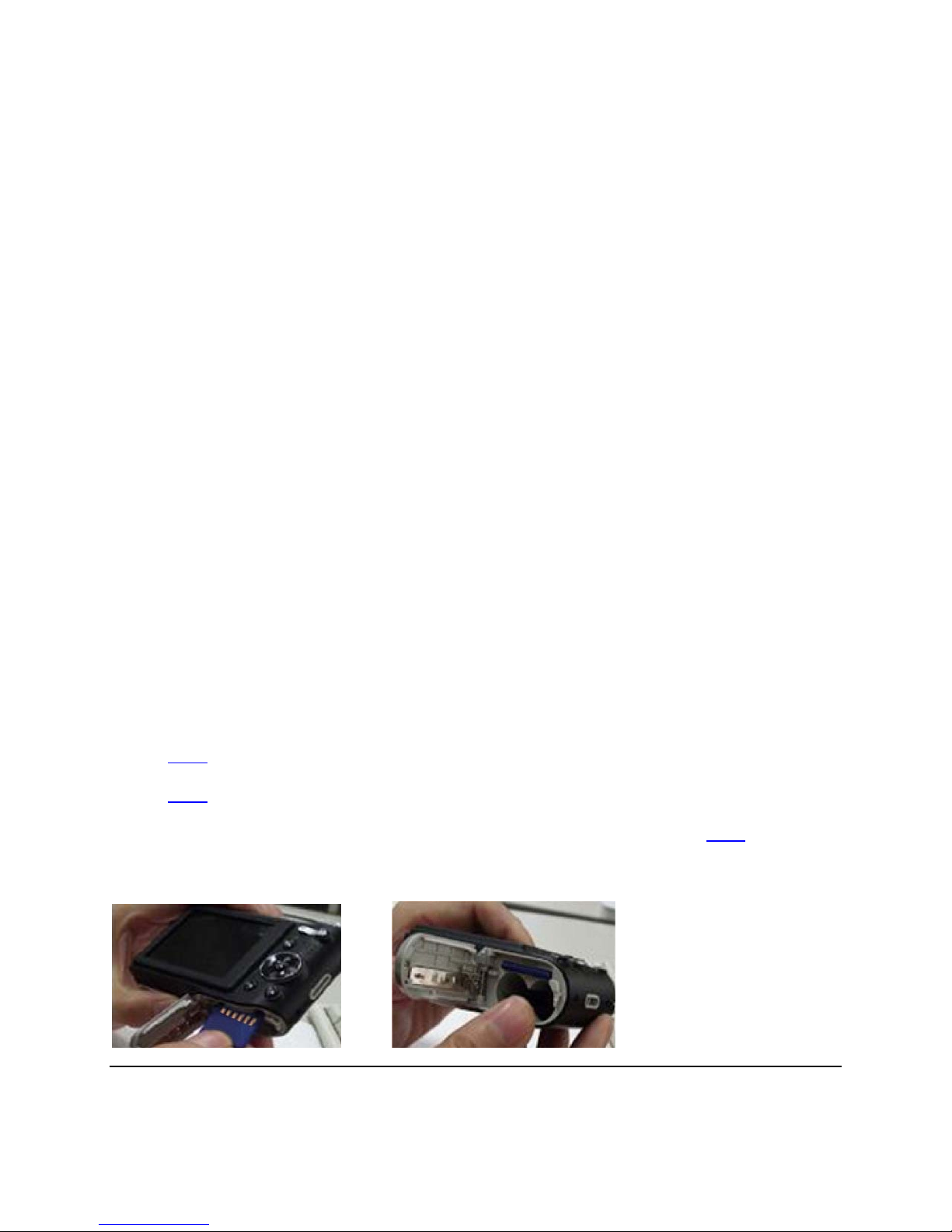
2. Open the battery cover and insert the SD card into the camera.
General Imaging Company
2158 West 190th Street, Torrance, CA 90504 USA
Phone: +1 (310) 328-7777 · Fax: +1 (310) 320-2978
www.ge.com/digitalcameras
Page 2
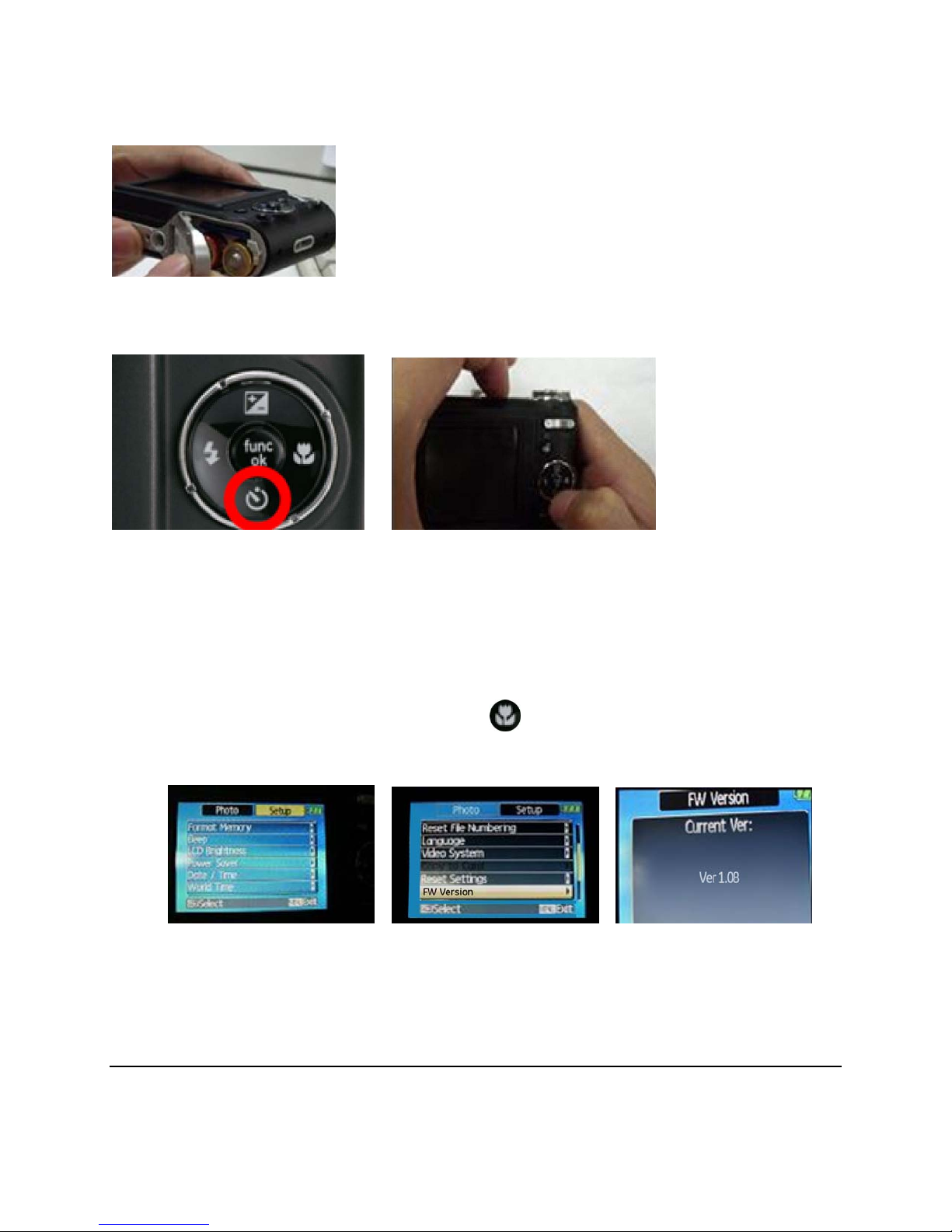
3. Insert (2) AA batteries into the camera and close the battery cover.
4. Press and release the “Down” button and the “Power” button simultaneously.
5. The camera is now being updated and the LED light on the front of the camera will flash
until the update is complete. The camera will then shut itself off and turn on automatically.
6. OPTIONAL - Follow the steps below to verify whether the camera was updated correctly:
Remove the SD card
Turn on the camera
Press the “Menu” button
Select “Setup” by pressing the right button
Scroll down and select “FW Version”
Current version should be “Ver 1.08”
General Imaging Company
2158 West 190th Street, Torrance, CA 90504 USA
Phone: +1 (310) 328-7777 · Fax: +1 (310) 320-2978
www.ge.com/digitalcameras
 Loading...