

Page 1

GPS 35 USB
installation
and
quick
start
guide
Page 2

© 2001 GARMIN Corporation
GARMIN International, Inc.
1200 E 151st Street, Olathe, Kansas 66062 U.S.A.
Tel. 913/397.8200 Fax. 913/397.8282
GARMIN (Europe) Ltd.
Unit 5, The Quadrangle, Abbey Park Industrial Estate, Romsey, SO51 9AQ U.K.
Tel. 44/1794.519944 Fax.44/1794.519222
GARMIN Corp.
No. 68, Jangshu 2nd Road, Shijr, Taipei County, Taiwan
Tel. 886/2.2642.9199 Fax. 886/2.2642.9099
All rights reserved. Except as expressly provided herein, no part of this manual may be reproduced, copied, transmitted, disseminated,
downloaded or stored in any storage medium, for any purpose without prior written consent of GARMIN Corporation. GARMIN
Corporation hereby grants permission to download a single copy of this manual onto a hard drive or other electronic storage medium to
be viewed for personal use, provided that such electronic or printed copy of this manual or revision must contain the complete text of this
copyright notice and provided further that any unauthorized commercial distribution of this manual is strictly prohibited.
Information in this manual is subject to change without notice. GARMIN Corporation reserves the right to change or improve
its products and to make changes in the content without obligation to notify any person or organization of such changes. Visit the
GARMIN website (www.garmin.com) for current updates and supplemental information concerning the use and operation of this and
other GARMIN products.
GARMIN
®
and AutoLocate® are registered trademarks of GARMIN Corporation and may not be used without the express permission
of GARMIN Corporation. Windows 95®, Windows NT®, Windows 98/ME®, and Windows 2000® are registered trademarks of Microsoft
Corporation.
April 2001 Part Number 190-00245-00 Rev. A Printed in Taiwan
Page 3

Thank you for choosing the GARMIN GPS 35 USB. The GPS 35
USB (Universal Serial Bus) is an intelligent GPS (Global Positioning
System) that connects to a PC USB port or USB hub via the USB port.
To get successful results from your GPS 35 USB, take time to read
through this quick start guide.
For more detailed technical specifi cations and operating information, the GPS 35-xVx Technical Specifi cations are available for free
download from the GARMIN web site at http://www.garmin.com/
manuals/spec35.pdf. You may also order a copy from GARMIN or
your GARMIN dealer.
This guide is organized into two sections:
The Introduction section provides package contents, system
requirements and a description of the GPS 35 USB.
The Installation section provides installation and driver setup
and initialization instructions for the GPS 35 USB.
Minimum System Requirements
• IBM-Compatible PC with Pentium-class processor
• CD-ROM drive
• Mouse or other pointing device
• Windows 98/ME or Windows 2000 operating system*
• Available Universal Serial Bus port (USB), Type A (downstream)
*The GPS 35 USB is not designed to operate with Windows 95 or Windows NT.
Standard Package Contents
GPS 35 USB
CD-ROM with USB Device Drivers for Windows
98/ME and 2000
Quick Start Guide for the GPS 35 USB
Optional Accessories
Flange Mount
Magnetic Mount
Suction Cup Mount
Trunk Lip Mount
Introduction
About This Manual,
System Requirements &
Standard Package Contents
If any items are missing, please contact
your GARMIN dealer immediately,
1
Page 4
Introduction
Features
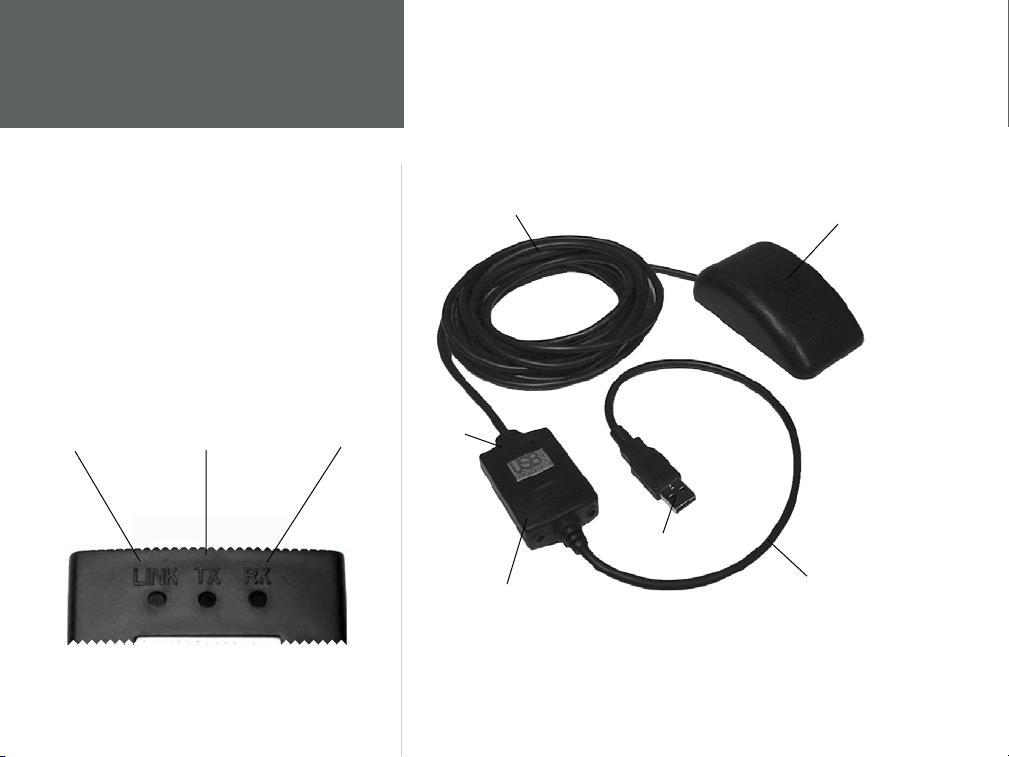
LINK- Shows a
green LED when
connection to the
PC is established.
2
STATUS LIGHTS
TX (Transmit)-
Red LED will
light when the
PC is transmitting data.
RX (Receive)-
Red LED will
light when the
PC is receiving
data.
12 ft. (3.65m) Cable
Status
Lights
USB to RS-232
Converter
GPS 35 USB
USB Connector
1 ft. (.3m)
Extension Cable
Page 5
Installation of the GPS 35 USB and Device Drivers
Since there are several accessory mounts available for the GPS 35 USB,
separate hardware mounting instructions are included with each of the
various antenna accessories. Please refer to the instructions included with
the accessory for mounting details of the GPS 35 USB. See page 1 for a
list of available accessories. Keep in mind that GPS signals do not travel
through buildings, metal, roofs, road signs, people or other signifi cant
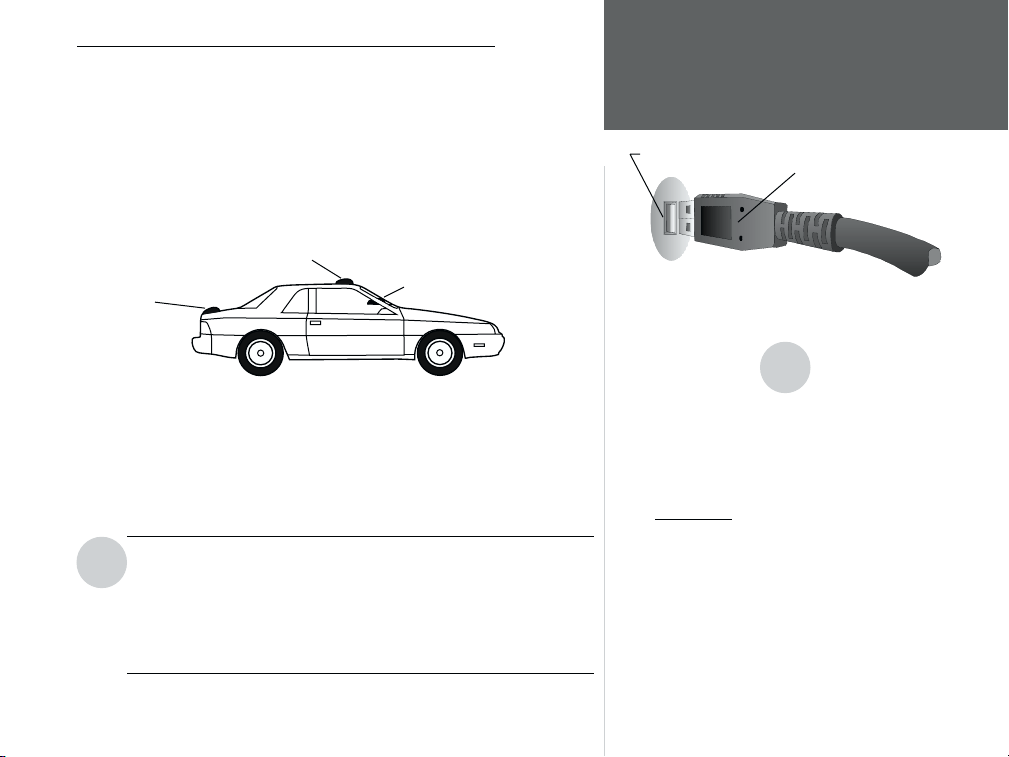
structures. Here are a few recommended vehicle mounting locations for the
GPS 35 USB:
BEST (Magnetic or Flange Mount)
USB Port
Driver Installation
USB Connector
BETTER
GOOD (Suction Cup Mount)
(Trunk Lip Mount)
To Install the Software Device Drivers
1. Connect the USB connector on the end of the GPS 35 USB to the USB port
on the computer (Fig. 1). Most computers have two USB Ports. Either port
will work. The computer does not need to be turned off when connecting
or disconnecting the GPS 35 USB. Since the GPS 35 USB is powered by
the USB port, no other power connections are needed.
Use care to insert the USB connector correctly. Do not force the
I
connection as this may damage the USB port on your computer
or the USB connector on the GPS 35 USB. If using a USB hub, you
may experience device detection or transfer problems. Using
a different brand/model hub or connecting the GPS 35 USB
directly to the PC may produce better results.
After connecting the GPS 35 USB to your computer you must install the
device drivers from the CD-ROM provided with the GPS 35 USB.
Fig. 1 USB (Universal Serial Bus) Port
and USB Connector
I
NOTES: If Windows does not recognize that the GPS
35 USB has been connected, the USB port on your
PC may not be properly confi gured. Contact your
computer supplier for assistance confi guring the USB
port.
Do Not Install the driver under “Add New Hardware” as this may cause a system crash. Follow the
supplied instructions.
In case the installation is incomplete or interrupted,
remove the GPS 35 USB and follow the uninstall
steps on page 6. When done, repeat the installation.
3
Page 6
Driver Installation
Figure 2
Figure 3
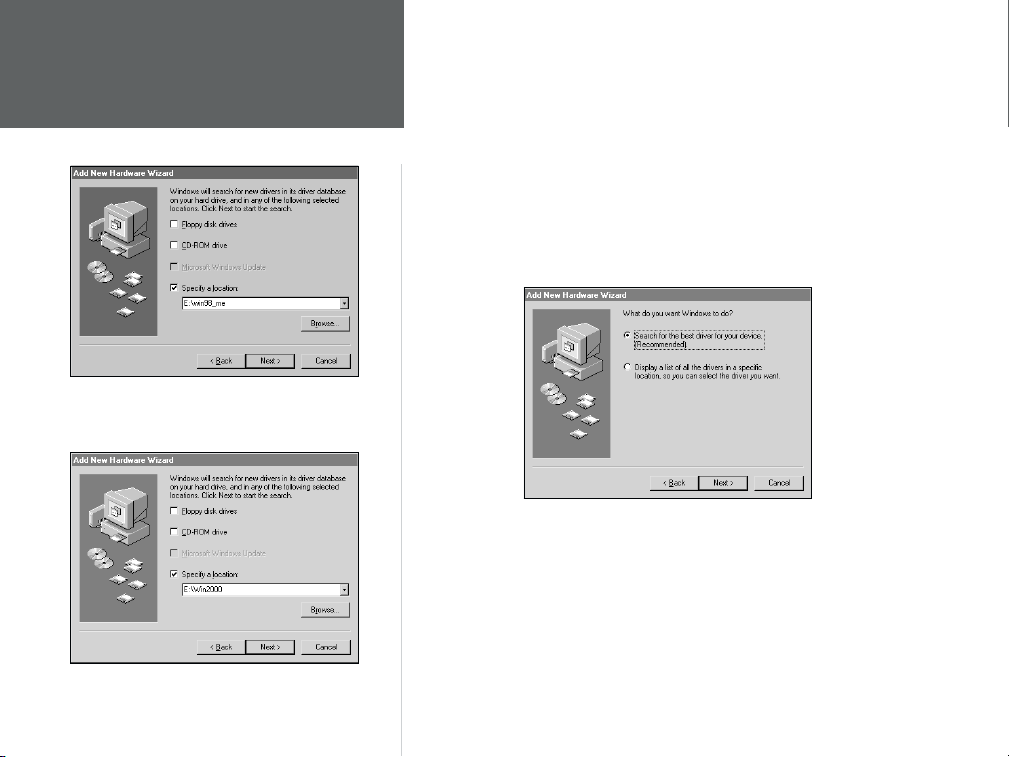
2. The computer will recognize the GPS 35 USB as a USB device, open
the Add New Hardware Wizard and search for the device drivers. Click
on “Next”.
3. Insert the GPS 35 USB Driver CD-ROM into your computer’s CD-ROM
drive. Note: The GPS 35 USB uses the same device driver CD-ROM as
the GARMIN USB to RS232 Converter Cable.
4. The next screen will ask you if you want it to search for the best
driver for your device or if you want to display a list to choose
from. Select “Search for the best driver for your device” and click
on “Next”.
5. The next screen will display a list of locations to search for the new
drivers. Select “Specify a location:” and type one of the following:
For Windows 98/ME, type <CD-ROM drive letter>:\win98_me (Fig. 2)
For Windows 2000, type <CD-ROM drive letter>:\win2000 (Fig. 3)
6. The Wizard will search for the driver and then display a window to
tell you it is ready to install. Click on “Next”.
4
Page 7
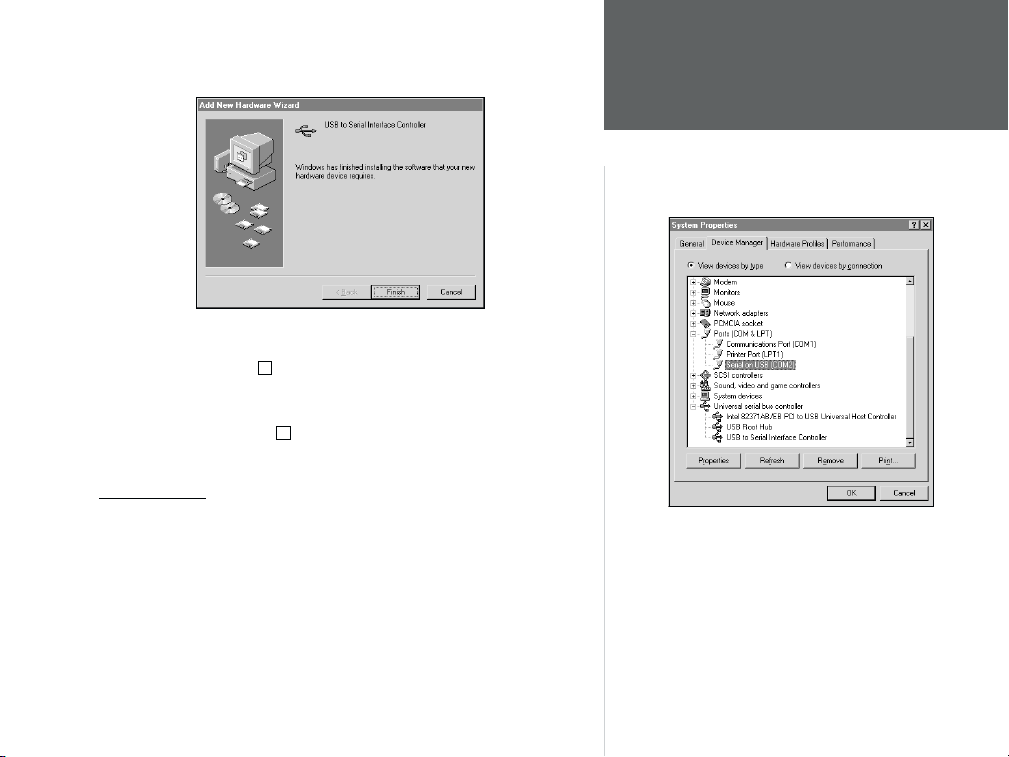
7. When installation is complete a window will display that shows
the device name (USB to Serial Interface Controller) and states the
driver installation is fi nished. Click on “Finish”.
8. To make sure the GPS 35 USB has been successfully installed: From
the Control Panel, click on “System”, then the “Device Manager”
tab, then click the + by “Ports”. Since the GPS 35 USB utilizes
components of GARMIN’s USB to RS232 Serial Converter, it will
show a new item called “Serial on USB (COMx)”. In the same
window, click on the + by “Universal serial bus controller”. It will
show a new item called “USB to Serial Interface Controller”. (Fig. 4)
Initialization
Once you have the GPS 35 USB installed, it will begin searching for
satellites in AutoLocate mode. This process will initialize the receiver,
and should compute your position in no more than 5 minutes. After
the GPS has been initialized, you will usually acquire a fi x within a
minute. If you have trouble acquiring a fi x or losing satellite signals,
double check the installation to verify that the antenna is correctly
installed with a clear view of the sky. If you move more than 500 miles
with the receiver off, the GPS will automatically re-initialize itself to
your new position (which may again take up to another 5 minutes).
Driver Installation/Initialization
Figure 4
5
Page 8
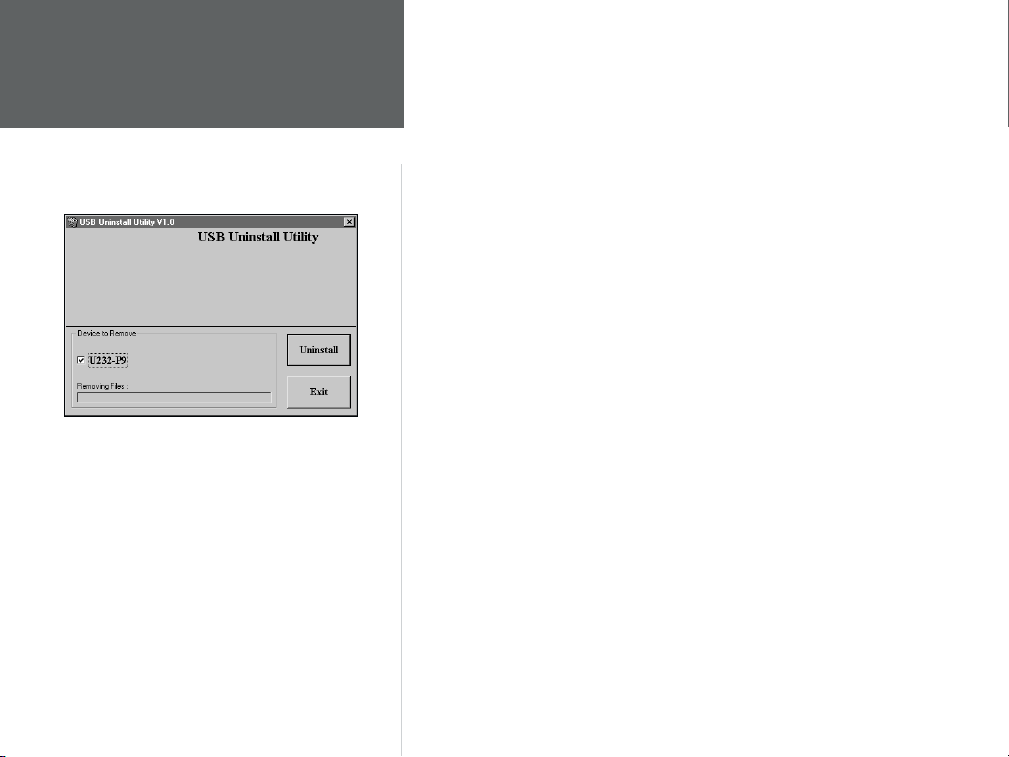
UnInstalling the Drivers
Figure 5
To remove the GPS 35 USB drivers from your computer
1. Insert the GPS 35 USB Driver CD-ROM into your computer’s
CD-ROM drive.
2. Unplug the USB connector from your computer.
3. From your Desktop, click “Start” then “Run”.
4. Type: <CD-ROM drive letter>:\USBUninstall.exe
(Example if your CD-ROM drive letter is ‘E’: E:\usbuninstall.exe)
5. Click and put a check in the “U232-P9” box. (Fig. 5)
6. Click “Uninstall”. Reboot your system when prompted. Remove the
GPS 35 USB driver CD when done.
Disconnecting the GPS 35 USB from Your Computer
After the GPS 35 USB has been successfully installed (hardware
and software), disconnecting and reconnecting the GPS 35 USB can
performed without additional installation steps.
1. Close any programs which are receiving input from the GPS 35.
2. Unplug the USB connector from your computer. You do not need
to turn the computer off before removing or inserting the USB
connector. The next time you need to use the GPS 35 USB, simply
plug it into your USB port and use as needed.
6
Page 9

LIMITED WARRANTY
GARMIN Corporation warrants this product to be free from defects in materials and workmanship for one year from the
date of purchase. GARMIN will, at its sole option, repair or replace any components that fail in normal use. Such repairs
or replacement will be made at no charge to the customer for parts or labor. The customer is, however, responsible for any
transportation costs. This warranty does not cover failures due to abuse, misuse, accident or unauthorized alteration or repairs.
THE WARRANTIES AND REMEDIES CONTAINED HEREIN ARE EXCLUSIVE AND IN LIEU OF ALL OTHER WARRANTIES EXPRESS OR IMPLIED OR STATUTORY, INCLUDING ANY LIABILITY ARISING UNDER ANY WARRANTY OF
MERCHANTABILITY OR FITNESS FOR A PARTICULAR PURPOSE, STATUTORY OR OTHERWISE. THIS WARRANTY GIVES
YOU SPECIFIC LEGAL RIGHTS, WHICH MAY VARY FROM STATE TO STATE.
IN NO EVENT SHALL GARMIN BE LIABLE FOR ANY INCIDENTAL, SPECIAL, INDIRECT OR CONSEQUENTIAL
DAMAGES, WHETHER RESULTING FROM THE USE, MISUSE, OR INABILITY TO USE THIS PRODUCT OR
FROM DEFECTS IN THE PRODUCT. SOME STATES DO NOT ALLOW THE EXCLUSION OF INCIDENTAL
OR CONSEQUENTIAL DAMAGES, SO THE ABOVE
LIMITATIONS MAY NOT APPLY TO YOU.
To obtain warranty service, call the GARMIN Customer Service department (913/397.8200) for a returned merchandise
tracking number. The unit should be securely packaged with the tracking number clearly marked on the outside of the package
and sent freight prepaid and insured to a GARMIN warranty service station. A copy of the original sales receipt is required as
the proof of purchase for warranty repairs. GARMIN retains the exclusive right to repair or replace the unit or software or offer
a full refund of the purchase price at its sole discretion. SUCH REMEDY SHALL BE YOUR SOLE AND EXCLUSIVE REMEDY
FOR ANY BREACH OF WARRANTY.
Page 10

©2001 GARMIN Corporation
GARMIN International
1200 East 151st Street, Olathe, Kansas 66062, U.S.A.
GARMIN (Europe) Ltd.
Unit 5, The Quadrangle, Abbey Park Industrial Estate, Romsey, SO51 9AQ, U.K.
GARMIN Corporation
No 68, Jangshu 2nd Road, Shijr, Taipei County, Taiwan
www.garmin.com
Part Number 190-00245-00 Rev. A
 Loading...